The most effective way to find the best daily planner apps is to roll your sleeves up and just test a bunch — but you might not have to because I already did it.
This listicle includes 18 planner tools that stand out for productivity and organization.
Whether you’re a busy professional, freelancer, team leader, or student, keep reading to find your match!
WHY TRUST US?
The apps we talk about are selected, tested, and written about by human reviewers who follow strict review and editorial guidelines. We pick solutions that are practical, purposeful, and can offer real value for the specific use case or business context we’re covering — while also being justified in their pricing. Our methodology is transparent, clear, and available to everyone:
Quick verdict: Top daily planner apps at a glance
A total of 18 planner apps made it onto my list. Here’s an overview of what you can expect in my detailed reviews later on!
| App | Best for | Free trial | Free plan | Lowest price |
|---|---|---|---|---|
| Plaky by CAKE.com | Productive daily planning | ✔ | ✔ | $3.99/user/month |
| Google Calendar | Task and event scheduling | N/A | ✔ | $7/user/month |
| Notion | Full planner customization | ✔ | ✔ | $10/user/month |
| Clockify by CAKE.com | Daily time tracking | ✔ | ✔ | $3.99/user/month |
| Todoist | Tracking productivity goals | ✔ | ✔ | $5/user/month |
| Trello | Kanban-style daily planning | ✔ | ✔ | $5/user/month |
| Apple Reminders | Everyday reminders | N/A | ✔ | N/A |
| Any.do | Android users | ✔ | ✔ | $4.99/user/month |
| ClickUp | Balancing tasks and notes | ✔ | ✔ | $7/user/month |
| Sunsama | Beginners | ✔ | ❌ | $17/user/month |
| TickTick | Habit tracking | ✔ | ✔ | $35.99/user/year |
| Evernote | DIY daily planners | ✔ | ✔ | $8.25/user/month |
| Actions | Minimalists | ✔ | ❌ | $2.99/user/month |
| Structured | Small tasks | ✔ | ✔ | $6.99/user/month |
| nTask | Task issue tracking | ✔ | ✔ | $3/user/month |
| Ellie Planner | Daily timeboxing | ✔ | ✔ | $9.99/user/month |
| Habitica | Game lovers | N/A | ✔ | $4.99/user/month |
| Routine | Personal productivity | ✔ | ✔ | $10/user/month |
#1 Plaky by CAKE.com — best for productive daily planning
Plaky is a versatile task management tool, suitable for both personal use and teams of all sizes that want to track daily activities and collaborate.
Why choose Plaky?
Plaky offers a balance of flexibility, affordability, and ease-of-use that’s rare to find in a single platform.
| Pros | Cons |
|---|---|
| – Highly customizable – Great free plan – Time-tracking integration- Functional mobile app | – Limited integrations |
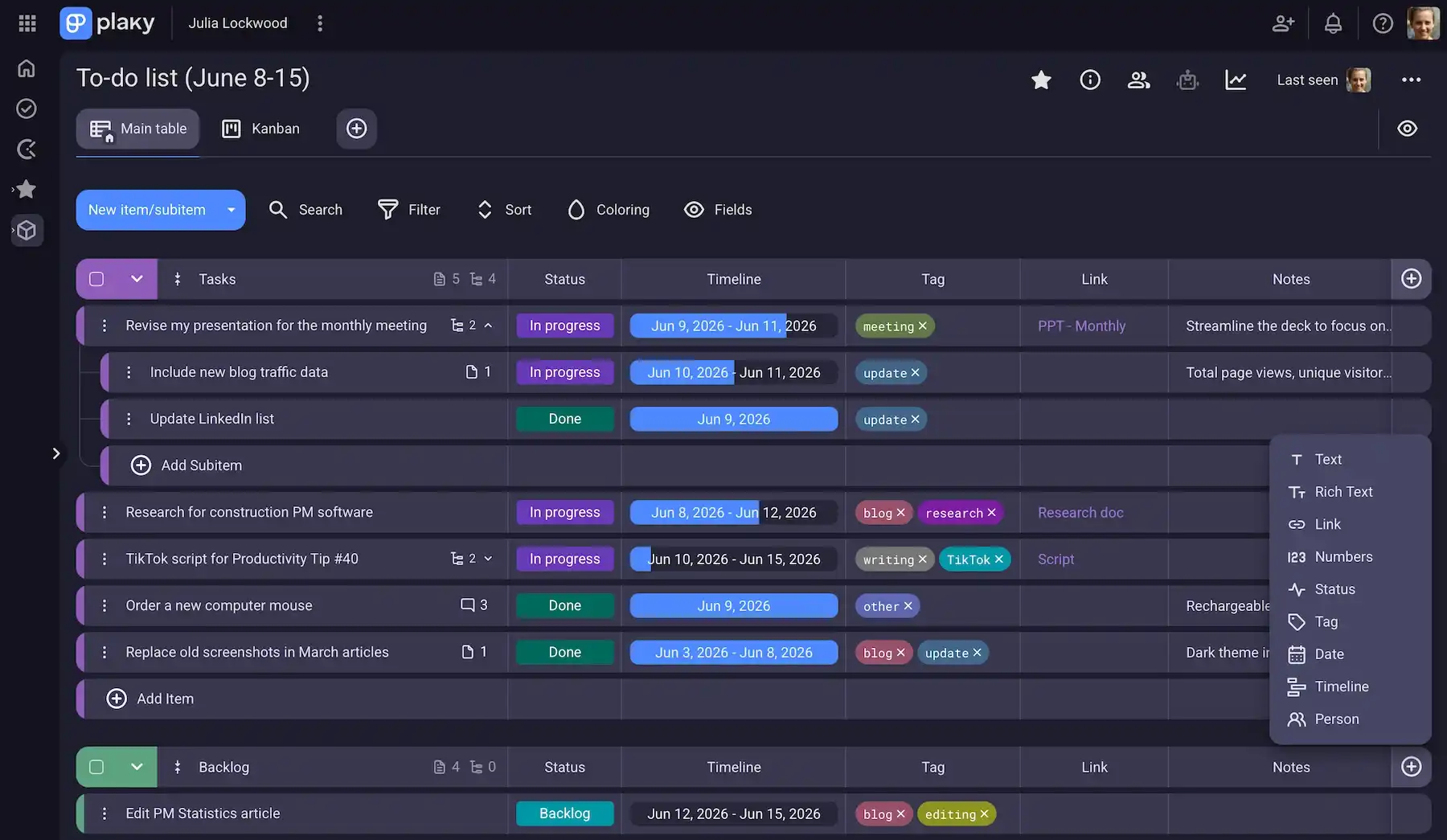
My team uses Plaky to manage our content — assign tasks, exchange feedback via comments, share links and files, etc.
That said, I also use Plaky separately as a daily task planner for better organization when writing articles.
Here are my favorite Plaky features:
- Fields — decide which unique information is tracked (tasks, priorities, budgets, and so on) in unlimited Boards and items (even on the free plan).
- Subitems — make daily goals feel more achievable by breaking larger tasks into actionable steps.
- Multiple views — switch between detailed table-style view, Gantt charts, pie/bar Chart view, and Kanban boards, depending on how you prefer to visualize your day.
- Templates — save your proven structures and reuse them in the future to ensure consistency.
- Automations — save time on routine planning by auto-updating task statuses, creating recurring tasks, sending reminders, and more.
Try Plaky to improve daily planning
In addition, I noticed that my productivity levels went up when I started using these Plaky features regularly:
- My tasks — the centralized view of all my tasks allows me to prioritize work without switching between projects.
- Plaky-Clockify integration — Plaky has a native integration with Clockify (also included in this listicle) to show how long each task actually takes and boost planning accuracy over time.
- Mobile access — sometimes I like to check my to-dos and notifications when away from the computer, so Plaky’s mobile app comes in really handy.
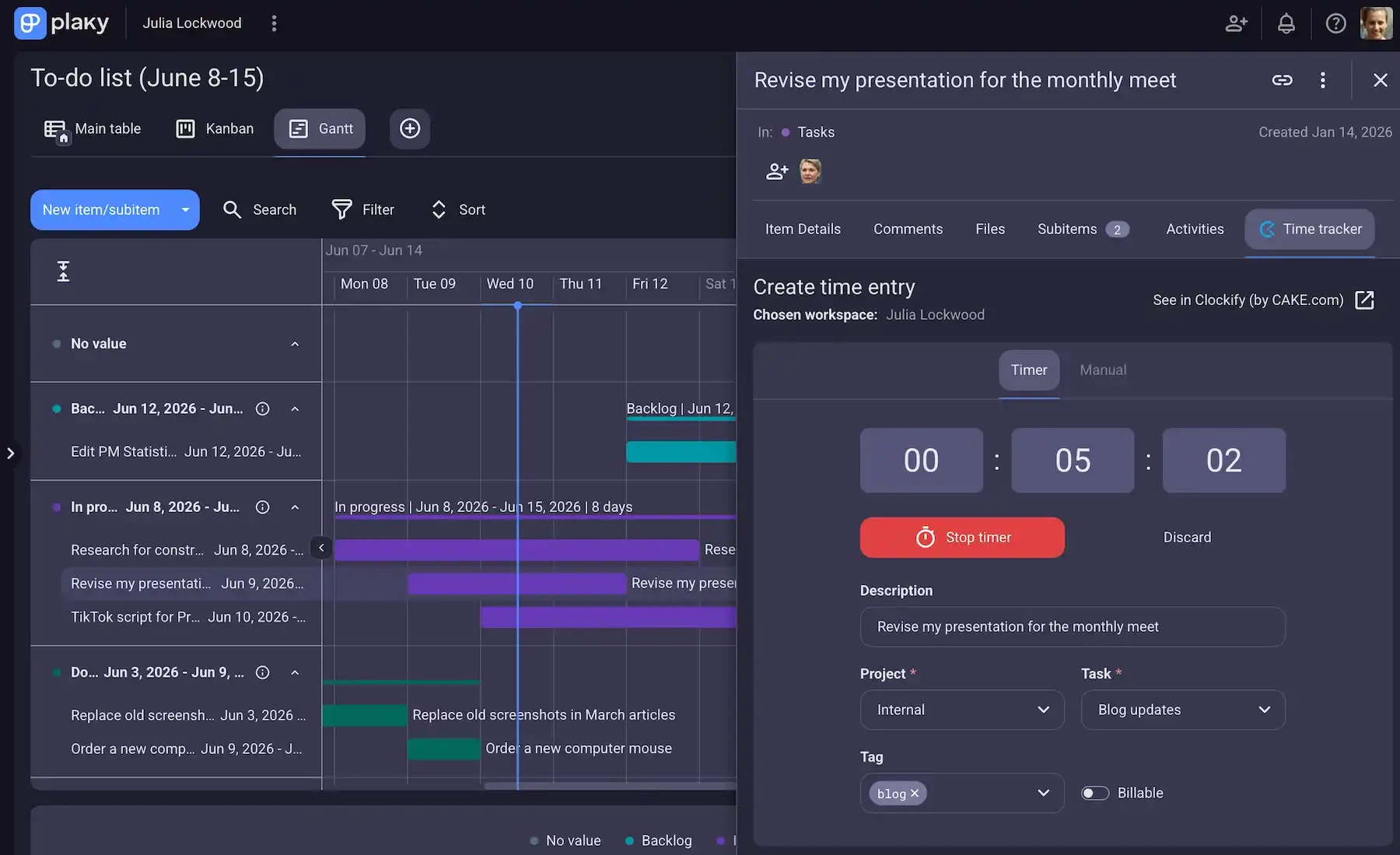
My only criticism is that Plaky lacks integrations with popular apps like Google Calendar. But, besides Clockify, there’s also the Plaky-Pumble integration, connecting task management with team communication.
And, if you want Plaky + Clockify + Pumble, the CAKE.com Bundle essentially offers all 3 for the price of 1 app.
Try 3 CAKE.com apps with 1 account
Finally, with Plaky’s API, you can connect the platform with other tools and automate task updates in your workflows.
What’s new in Plaky?
Plaky’s latest updates include automated reminders that notify you when due dates are approaching and Dashboards that bring data from multiple boards into one place for a consolidated view of key metrics.
Additionally, Gantt chart view has been updated to include Subitems for a clearer picture of task timelines.
For a more detailed look into Plaky’s latest updates, visit Plaky’s changelog.
Available for: web, iOS, Android
| Plan | Price |
|---|---|
| Free | $0 |
| Pro | $3.99/seat/month* |
| Enterprise | $8.99/seat/month* |
| CAKE.com Bundle | $12.99/seat/month* |
*billed annually

#2 Google Calendar — best for task and event scheduling
Google Calendar is a core app in the Google Workspace, good for organizing and scheduling events and appointments in a cloud-based system.
Why choose Google Calendar?
You should consider Google Calendar if you’re a Gmail user since it means immediate access — primarily for blocking time for events and tasks with details like time, location, and description.
| Pros | Cons |
|---|---|
| – Free for personal use – Easy to use – Intuitive color-coding | – Not very customizable – Limited task management |
Here’s what stood out to me during my testing of Google Calendar for daily planning:
- Email and push notifications — It’s easier to stay on track with reliable notifications. For example, I like to receive a reminder 10 minutes before a scheduled event (you can customize the time).
- Calendar sharing — It’s possible to share your calendar with others, which helps you coordinate schedules with colleagues or friends. Plus, for safety reasons, you can allow others to see all event details or just free/busy time.
- Color coding — I used different field colors to distinguish between various kinds of work activities. Also, I color coded different areas of life — work, education, birthdays, and so on.
That said, mixing all kinds of tasks and events in one calendar view can make it visually overwhelming. And even if you create multiple calendars under the same amount, it’s still one flat timeline with no workflow logic.
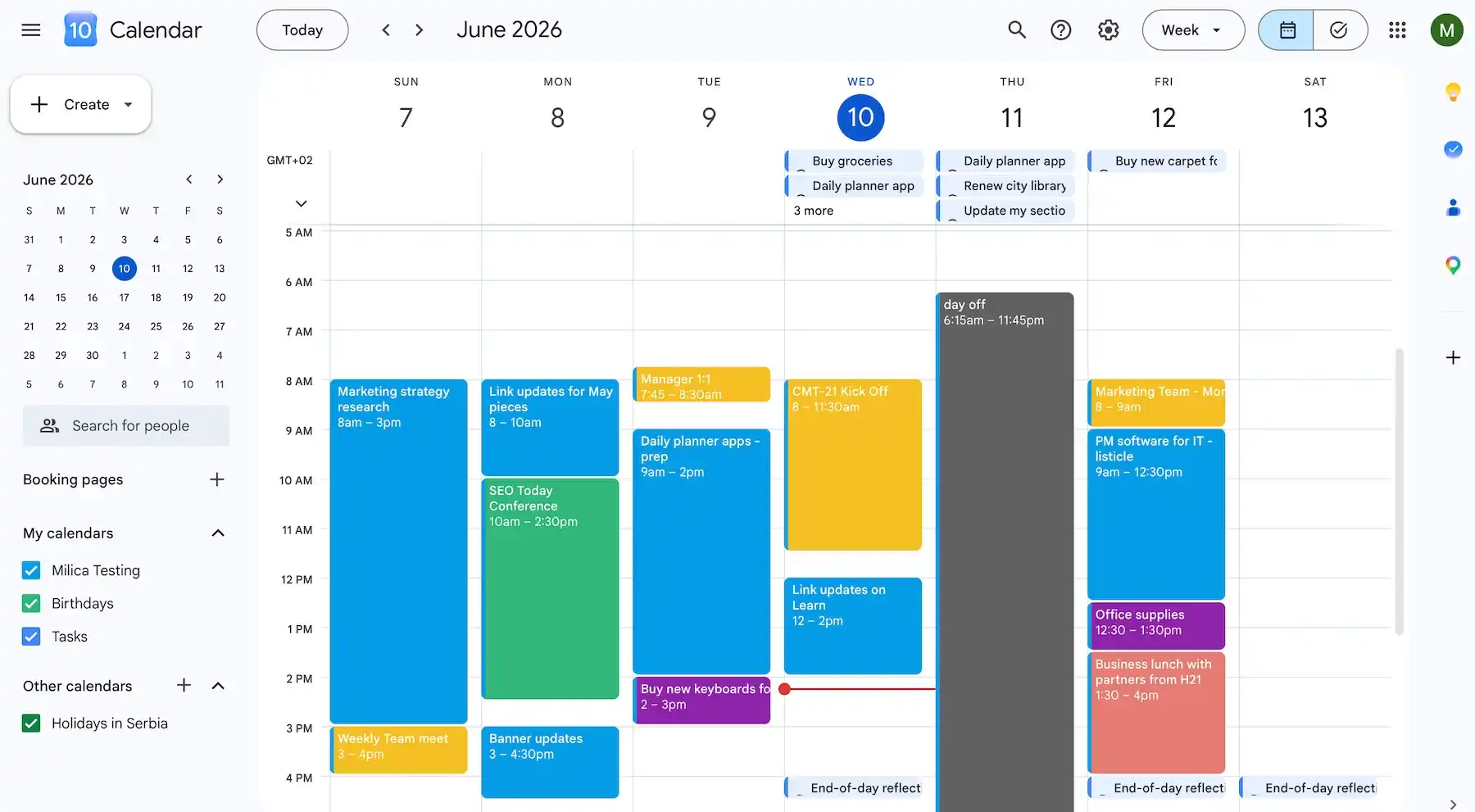
Moreover, Google Calendar has Tasks, a section for simple to-dos that appear in the calendar alongside events. With Google Tasks, you can specify the basic details:
- Due dates — specify task deadlines to place them on the calendar timeline.
- Subtasks — break big tasks into digestible steps (but only within the Tasks side panel).
- Recurring tasks/events — set repeating tasks or events for daily, weekly, or customs schedules to save time and build consistency.
- Task completion — mark tasks as done to remove them from your active lists and get a clear sense of progress.
As you can see, there’s no real project hierarchy or advanced organization.
Also, Google Tasks has no team features beyond simple task sharing.
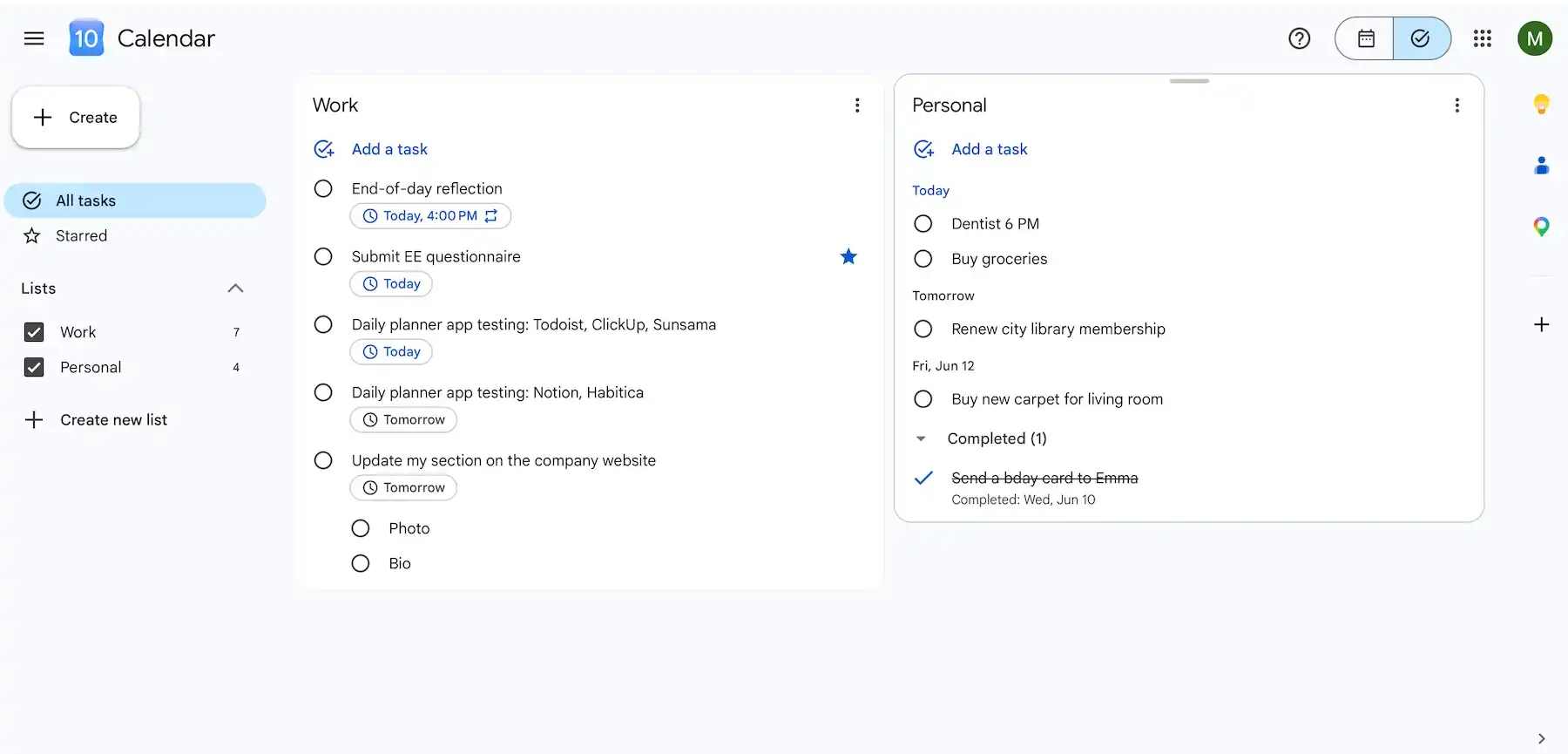
Overall, I like the fact that Google Calendar is free and intuitive, but it’s not built for complex daily planning systems.
What’s new in Google Calendar?
Google Calendar recently expanded its event colors from a small preset selection to up to 200 custom colors — for people who rely on color-coding their days, this is a surprisingly useful update.
Available for: web, iOS, Android, Wear OS
| Plan | Price |
|---|---|
| Free | $0 |
| Starter | $7/user/month* |
| Standard | $14/user/month* |
| Plus | $22/user/month* |
| Enterprise | POA |
*billed annually for the entire Google Workspace
#3 Notion — best for full planner customization
Notion is a productivity and note-taking app where you can use various content blocks to create and organize pages, documents, and databases.
Why choose Notion?
The key advantage of using Notion is its customizability, allowing you to build virtually any kind of page you want.
| Pros | Cons |
|---|---|
| – Versatile building blocks – Lots of board views – 30,000+ templates | – Learning curve – Limited free plan |
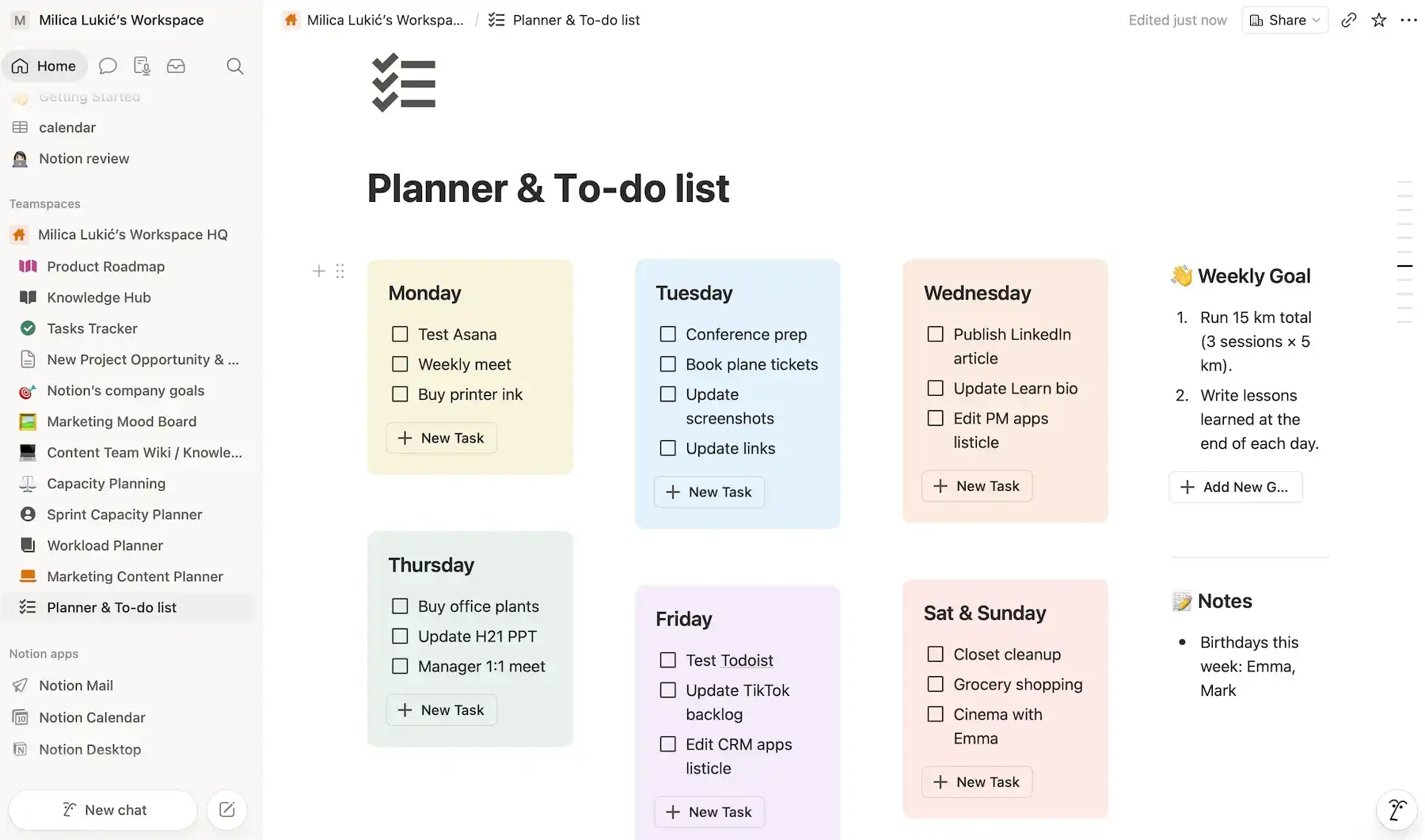
Notion ranks high on my best planner apps list because it lets users:
- Create rich text notes with formatting and images — keep tasks, meeting notes, and reference information in one place (no need to switch between apps).
- Embed content from other platforms — bring documents, videos, spreadsheets, and other resources (YouTube, Google Docs, Figma, etc.) directly into your workspace, keeping everything easily accessible.
- Choose from 30,000+ templates — instead of building from scratch, use ready-made setups for daily planners, habit trackers, PM systems, and more.
- Establish relational databases — connect tasks, goals, notes, and other pages to see how daily responsibilities fit into larger workflows.
Admittedly, Notion’s flexibility can feel intimidating at first, especially for beginners or non-technical users.
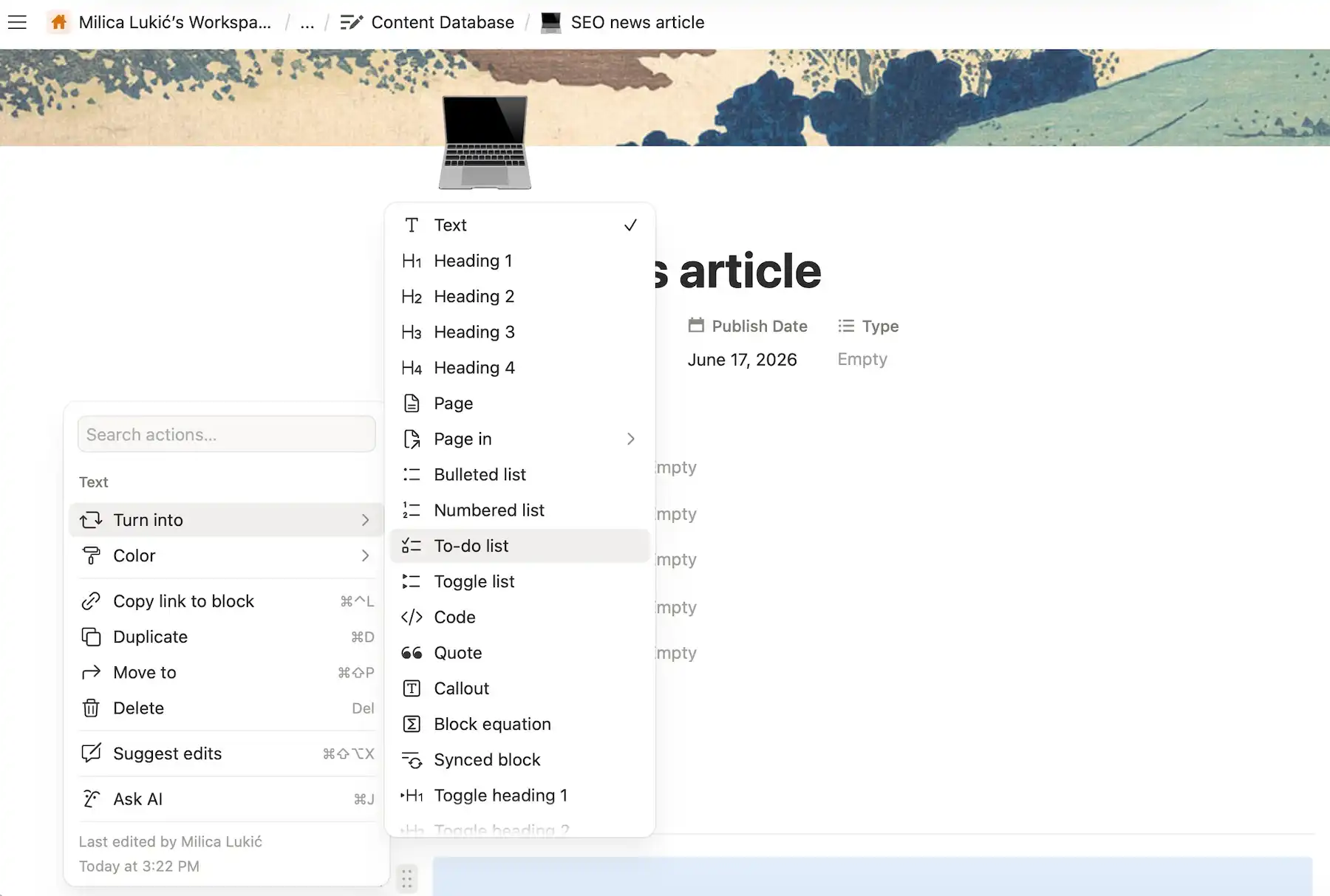
Some other handy Notion features include:
- Multiple views — with Timeline, Calendar, Gallery, List, and other views, you can look at your tasks in the way that makes the most sense.
- Collaboration features — thanks to real-time co-editing, comments, and mentions, you can work on your to-dos with colleagues when needed.
- Notion AI — if you’re willing to pay for the Business or Enterprise plan, Notion AI can speed up your planning, help you prioritize work, summarize information quickly, and much more.
Notion’s mobile app is functional, but it’s less convenient for editing and organizing databases. The highly flexible layouts simply don’t translate that well to mobile because of the limited screen space.
Compared to the two previously reviewed apps, Plaky and Google Calendar, I must point out Notion would strain your budget much more. Frankly speaking, Notion can get very expensive if you need its premium features, especially AI.
Plus, Notion’s free plan has many restrictions — like file uploads of up to 5 MB, fewer automation capabilities, and limited pages and blocks for 2+ users.
💡 Plaky Pro Tip:
We have several head-to-head comparison articles about Notion and its competitors — if you’re interested, read these:
What’s new in Notion?
In the recent months, Notion has improved navigation on mobile, expanded Notion Calendar with built-in scheduling, and introduced lots of different updates to Notion Agents (AI teammates).
Available for: web, macOS, Windows, iOS, Android
| Plan | Price |
|---|---|
| Free | $0 |
| Plus | $10/member/month* |
| Business | $20/member/month* |
| Enterprise | POA |
*billed annually
Try a free Notion alternative — Plaky
#4 Clockify by CAKE.com — best for daily time tracking
Clockify is a time tracker and timesheet app that you can use to schedule tasks, as well as to monitor productivity, attendance, and billable hours.
Why choose Clockify?
With Clockify, you can log time spent on different tasks, projects, and clients — suitable for various kinds of users, such as freelancers, employees, and businesses.
| Pros | Cons |
|---|---|
| – Precise time tracking – Dashboard and analytics – Robust yet intuitive | – Too detailed for simple planning – Much better suited for professional use |
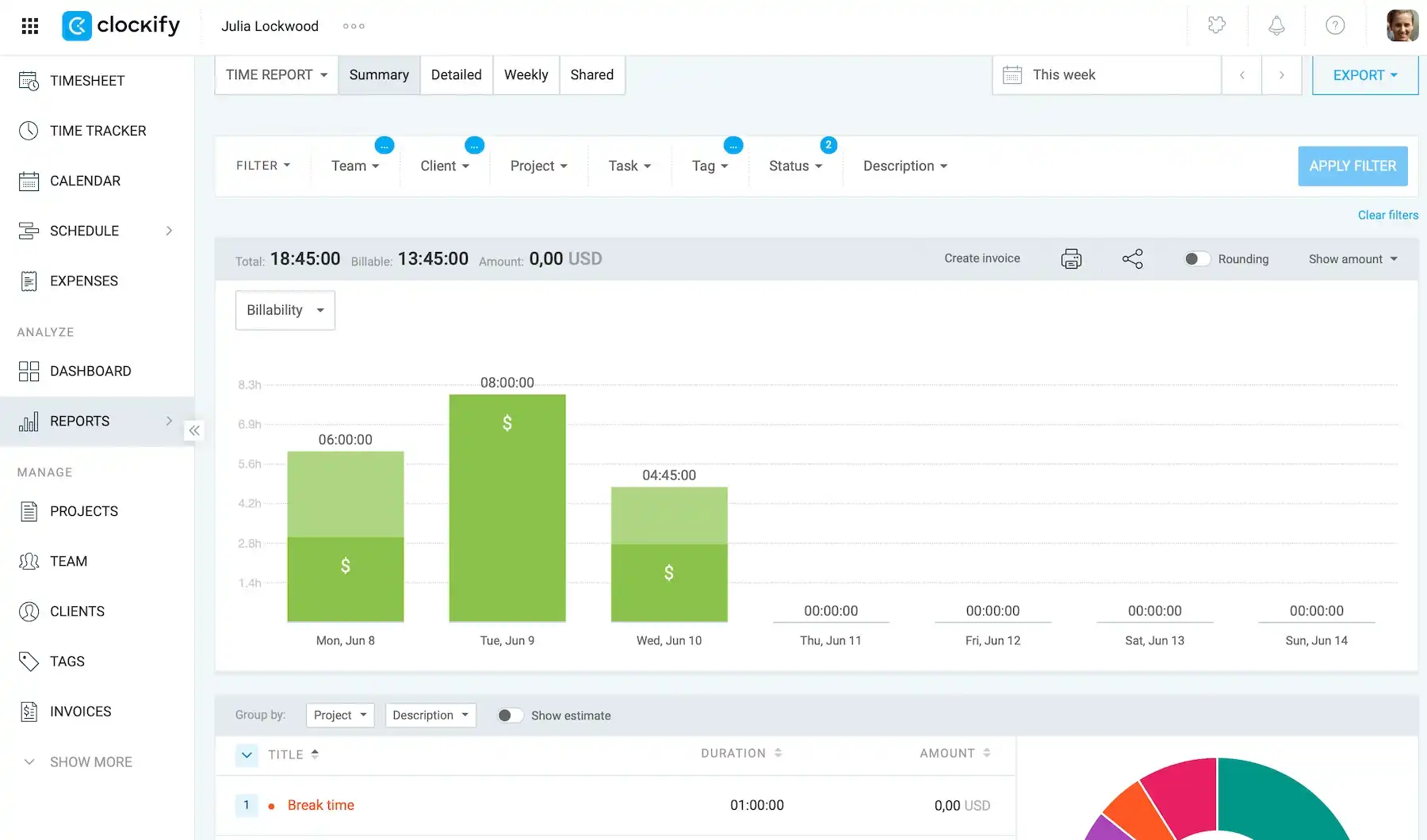
Clockify has become an integral part of my work routine. Instead of relying on estimates or guesswork, Clockify allows me to build a clearer, more realistic picture of my day thanks to features such as:
- Timer — tracking time while working on a task helps me stay focused and understand how long different kinds of assignments actually take.
- Manual time logs — it’s easy to correct missed tracking and keep my time records accurate by adding manual time entries.
- Calendar view — seeing all tracked time in a familiar daily/weekly layout helps me visually understand how my day is structured.
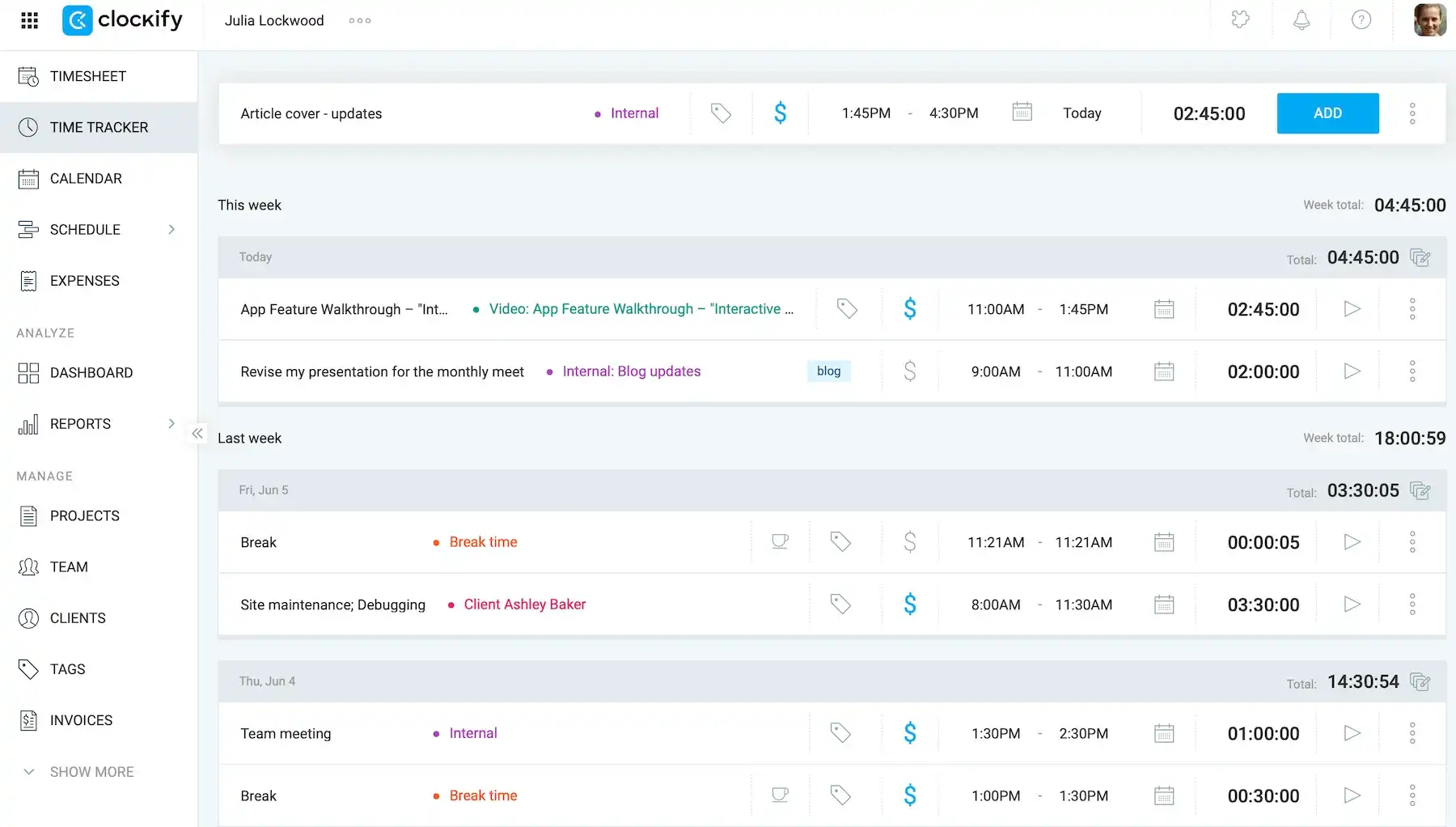
What makes Clockify extra useful is what you can do with its reports, e.g.:
- Analyze time — with a clear overview of how time is spent across tasks, it’s easier to plan more realistic timelines.
- Analyze expenses — by monitoring costs linked to work, you can understand effort better and keep daily work aligned with budgets.
- Share and export — exporting Clockify reports or sharing them via links simplifies project collaboration and client updates.
- Create invoices — when you turn tracked time directly into billable invoices, you reduce manual admin work and connect daily planning with actual revenue.
Despite supporting so many functionalities, Clockify manages to stay user-friendly and uncluttered, which is important for smooth team adoption.
That said, given how feature-rich Clockify is, I’d say it’s primarily suited for work environments rather than personač productivity.
Importantly, Clockify reaches its full potential for daily planning when connected to a task management app. Clockify integrates with several project and task management tools, but the integration with Plaky is the most seamless since both apps are built by CAKE.com.
💡 Plaky Pro Tip
Since Clockify is a good solution for businesses looking to manage their teams digitally, it also appears on our top team management tools list:
What’s new in Clockify?
Some of the latest additions to Clockify include user imports, SCIM provisioning, and new Policies and Holidays pages in the Time off feature, as well as minor fixes and stability updates.
Available for: web, macOS, Windows, Linux, iOS, Android
| Plan | Price |
|---|---|
| Free | $0 |
| Basic | $3.99/seat/month* |
| Standard | $5.49/seat/month* |
| Pro | $7.99/user/month* |
| Enterprise | $11.99/user/month* |
| CAKE.com Bundle (Clockify + Plaky + Pumble) | $12.99/user/month* |
*billed annually

#5 Todoist — best for tracking productivity goals
Todoist is a sleek app designed for both individuals and teams to help them track tasks, projects, and habits.
Why choose Todoist?
If you need extra motivation for reaching your productivity goals, Todoist has Karma — a gamified segment that rewards users with points for completing tasks.
| Pros | Cons |
|---|---|
| – Clean design – Gamified task management – Omnichannel availability | – Limited free plan – Task cards could be more detailed |
The first thing I noticed was Todoist’s unfussy design. The interface is appealing thanks to the gentle color palette with a white background, dark text, and pops of color for priority levels.
Here are Todoist’s main strengths for daily planning:
- Fast task capture — thanks to natural language input, you can type things like “Finish blog draft tomorrow at 3 PM” and automatically create the due date and time.
- Multiple views — Today view shows what needs attention now, while Upcoming view helps with weekly planning — both offering Table, Board, and Calendar format (but Calendar is reserved for paying users).
- Multi-platform support — Todoist has a native app for various operating systems and devices, ensuring continuous workflow sync.
While Todoist is among the more affordable apps on this list, let me add something for those of you who are looking for a free planner: the free plan imposes limits such as 5 personal projects, 5 MB for file uploads, and no custom reminders, to name a few.
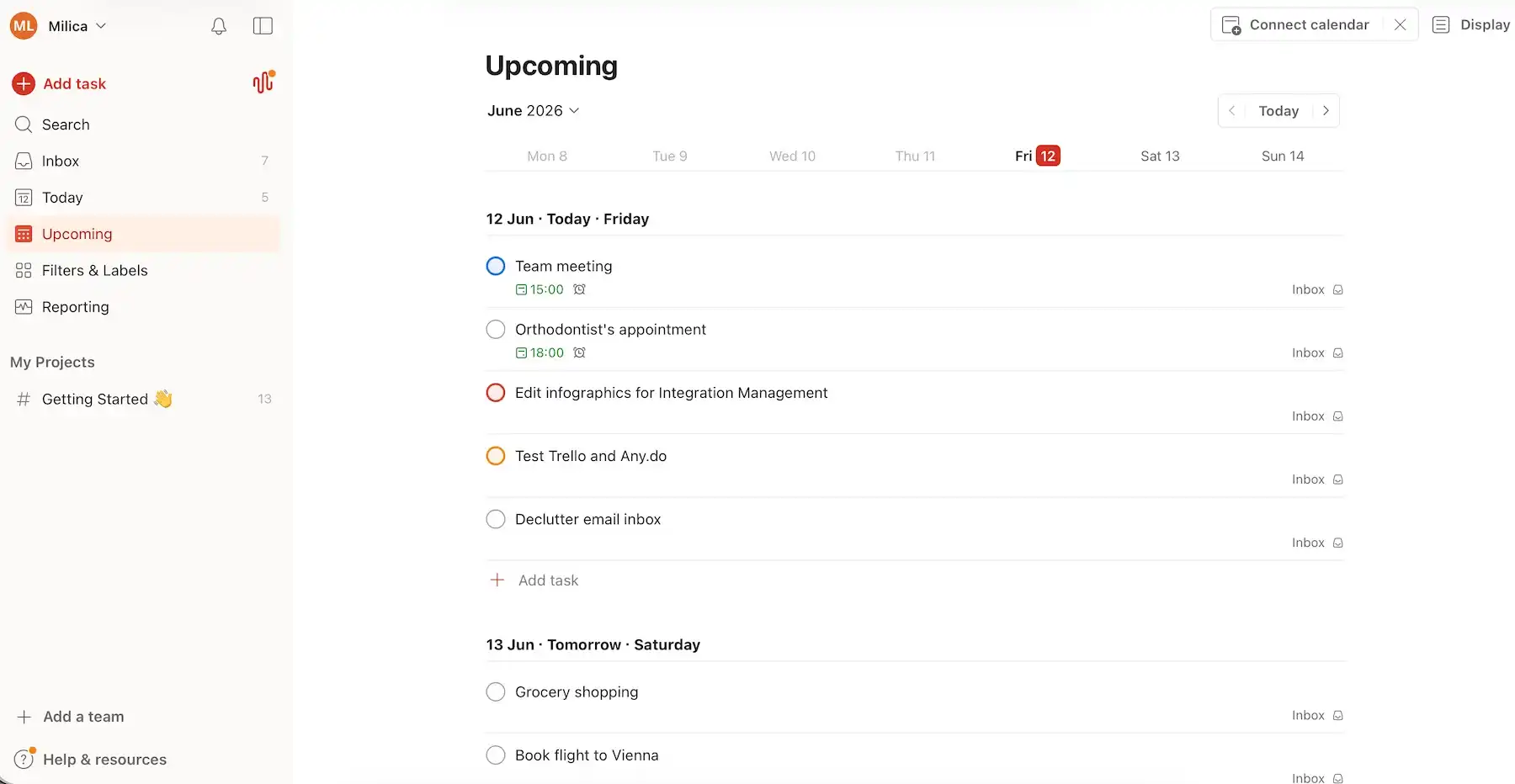
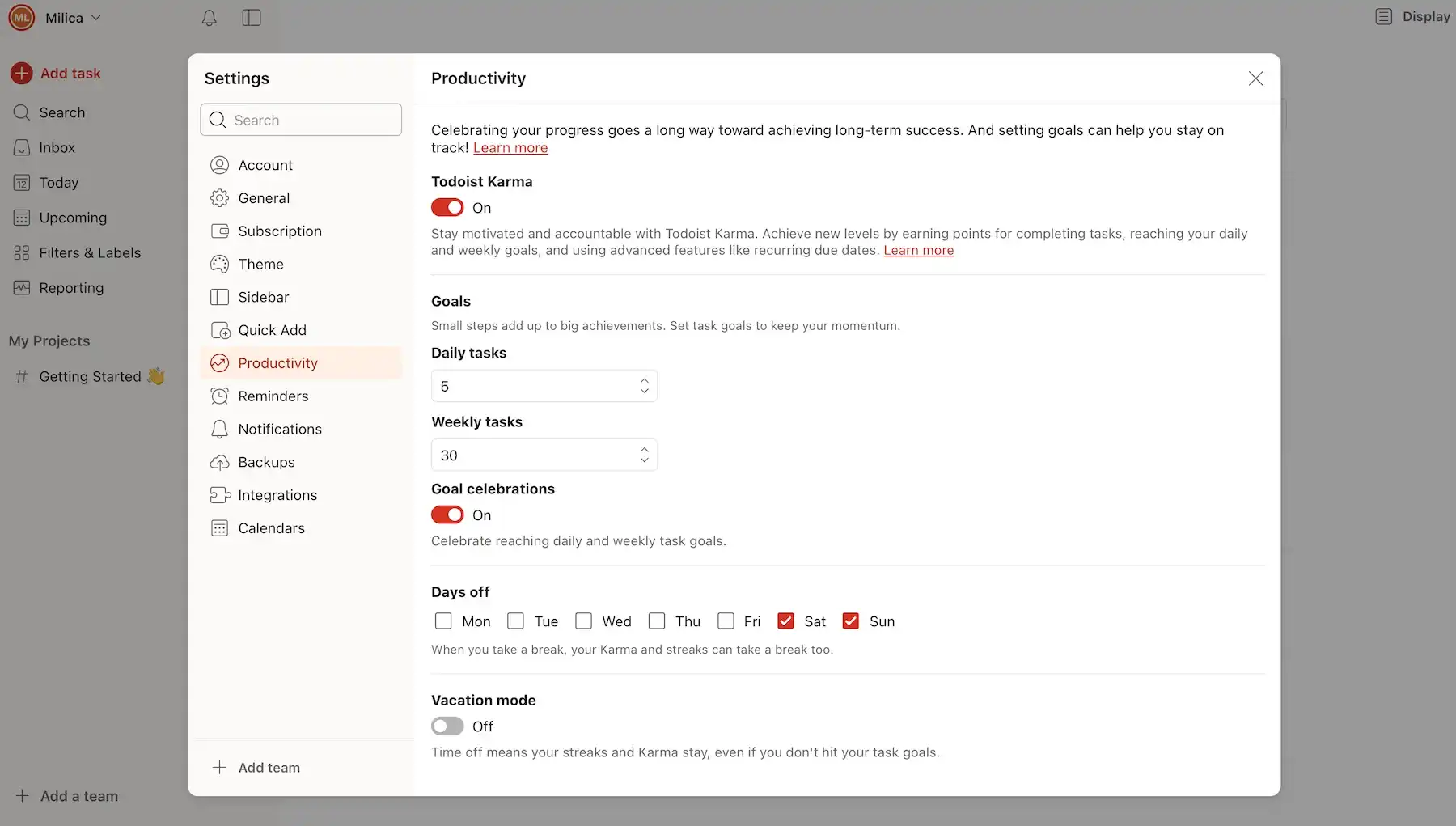
If you’re looking for a solution that turns goals into actionable tasks, Todoist has several noteworthy features:
- Karma — a built-in productivity feature that gamifies task management, giving you points for completing tasks, maintaining streaks, using reminders, etc.
- Daily and weekly goals — setting up how many goals you want to complete per day/week encourages steady progress.
- Goal celebrations — celebratory animations that appear when you achieve goals in Todoist are a small feature but can make work feel more engaging and fun.
Bonus: You can mark days off and turn Vacation mode on when you want to pause goal tracking.
For me, Todoist would be even better if the task cards were more detailed. Like many apps on this list, tasks in Todoist support deadlines, assignees, priorities, subitems, and comments, but I prefer it when there are customizable fields to choose from (like in Plaky or ClickUp, for example).
💡 Plaky Pro Tip
Already using Todoist and need a more robust alternative? We have a piece just for you:
What’s new in Todoist?
Some of the most useful updates in Todoist lately include better recurring task scheduling and filters, plus smaller but practical updates on mobile and desktop (like faster task entry and improved keyboard shortcuts).
Available for: web, macOS, Windows, Linux, iPadOS, iOS, Apple Watch, Android, Wear OS
| Plan | Price |
|---|---|
| Beginner | $0 |
| Pro | $5/user/month* |
| Business | $8/user/month* |
*billed annually
#6 Trello — best for Kanban-style daily planning
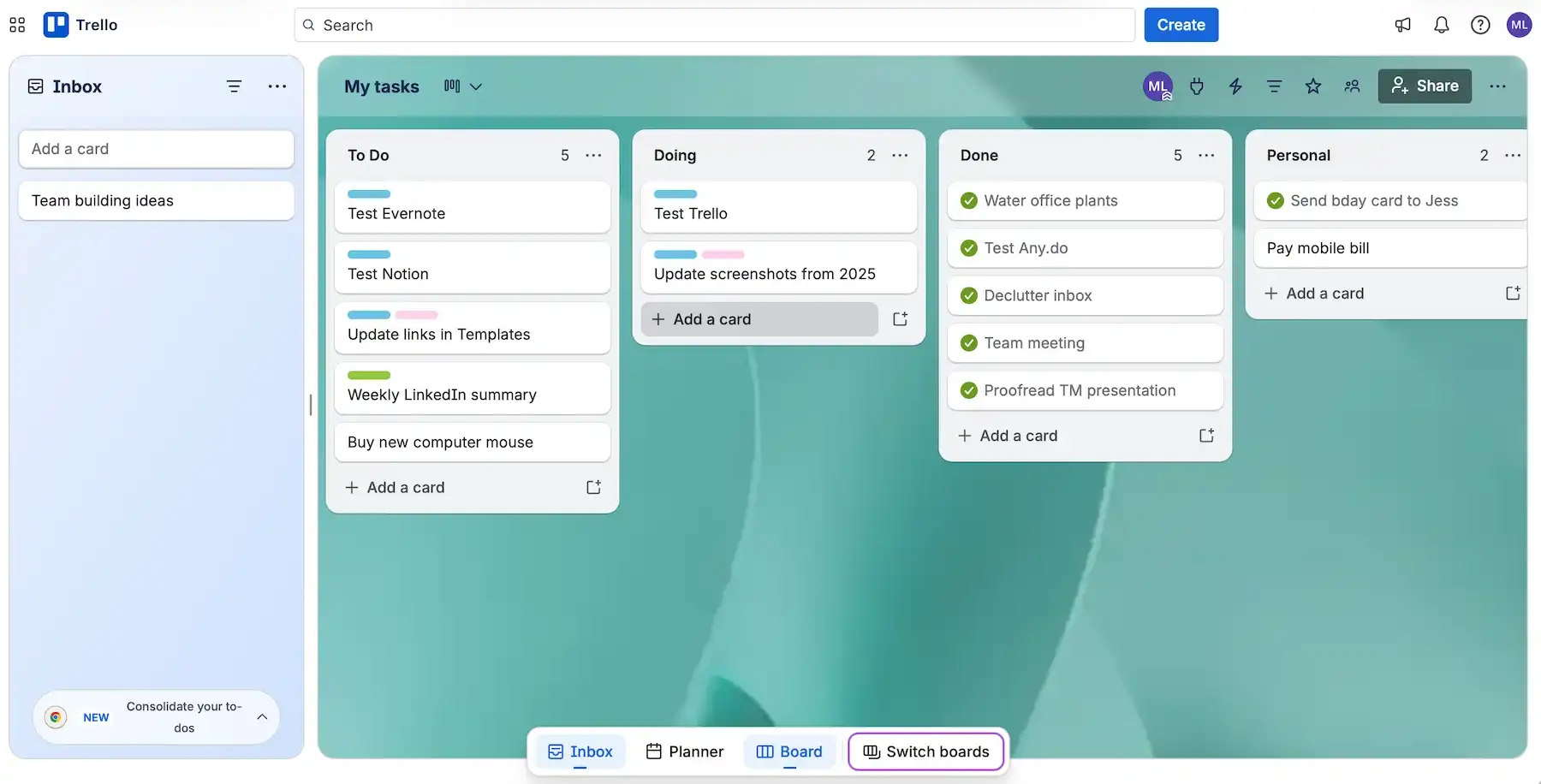
Trello is a work management and collaboration tool built around Kanban — essentially, a board-and-card system for visual progress tracking.
Why choose Trello?
You could go for Trello if you need a simple drag-and-drop board system that feels intuitive from the start.
| Pros | Cons |
|---|---|
| – Neat Kanban approach – Useful Power-ups – Customizable background | – Limited free plan – Can become cluttered fast |
Here’s what I liked the most in Trello:
- Visual planning — Trello is neat, primarily in Board view, but other views (Table, Calendar, Timeline, Dashboard, and Map) are also handy if you’re willing to pay for Premium and Enterprise.
- Drag and drop — being able to simply grab and move tasks makes it easier to update priorities and progress stages.
- Detailed task cards — task details include due date, members, labels, attachments, and more for full precision (but for custom fields like dates, numbers, text boxes, or dropdowns you need a paid plan).
- Customizable background — to make planning more personalized, you can choose the background of all Trello boards and the Inbox section (it can be photos or just colors).
Just be careful not to make your Trello boards messy — it can happen quickly if you don’t have a system, with outdated cards still visible or too many columns and colorful labels.
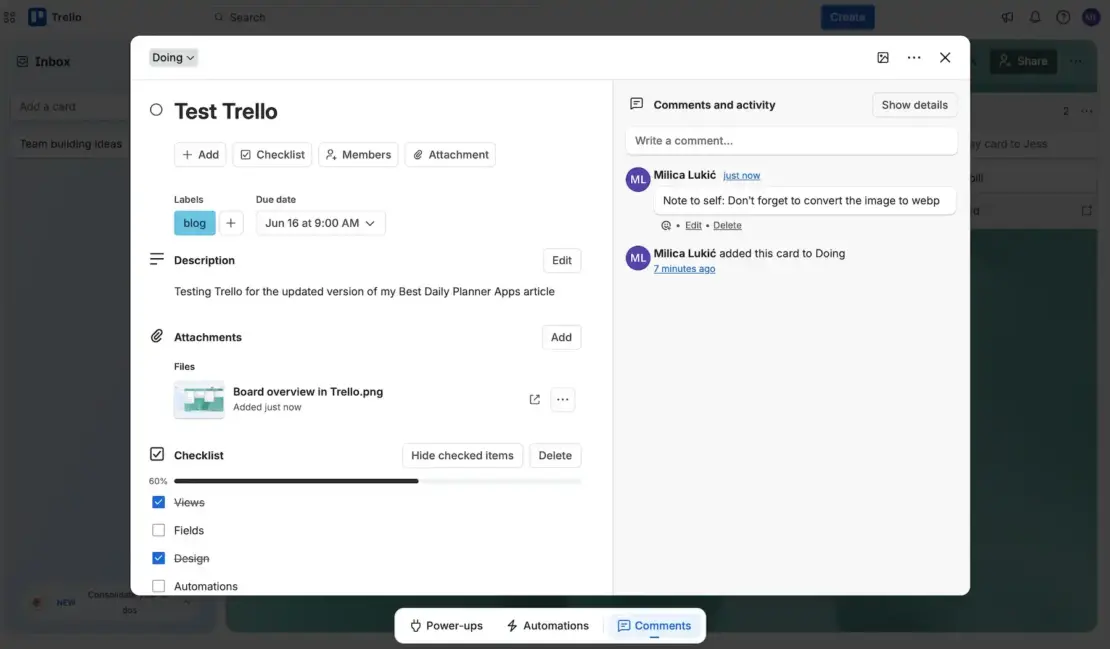
Trello’s Kanban functionality is its forte, offering:
- Highly adaptable boards — a Trello board can be used for anything from simple task planning to more complex work pipelines.
- Strong sense of momentum — moving cards across stages creates a satisfying, tangible sense of making progress.
- WIP limit via Power-ups — you can set a Work In Progress (WIP) limit to cap how many tasks can be in one stage by using Power-ups (add-ons and integrations that extend Trello’s features).
I like the fact that Trello offers unlimited Power-ups per board, but keep in mind that only those developed by Trello are free, while third-party Power-ups may set their own pricing.
Speaking of Trello’s pricing, the app is less expensive than some similar competitors, but there are equally useful yet cheaper apps like Plaky, Todoist, or Any.do.
You could see throughout this review that Trello’s free plan in particular is limiting, which means casual or cost-conscious users are likely to outgrow it quickly.
💡 Plaky Pro Tip
Want to weigh Trello against its biggest competitors? Read these:
What’s new in Trello?
Apart from small UI tweaks and performance fixes, I didn’t find much information about recent Trello updates.
Available for: web, macOS, Windows, iOS, Android
| Plan | Price |
|---|---|
| Free | $0 |
| Standard | $5/user/month* |
| Premium | $10/user/month* |
| Enterprise (est. for 50 users, i.e., the minimum) | $17.50/user/month* |
*billed annually

#7 Apple Reminders — best for everyday reminders
Apple Reminders is an app in Apple’s ecosystem that’s built for creating simple everyday to-do lists and reminders you can share with others.
Why choose Apple Reminders?
The most obvious reason for choosing Apple Reminders is that you are a macOS/iOS user, so you wouldn’t need to download anything — just enjoy simple daily planning for free.
| Pros | Cons |
|---|---|
| – Free – Simple and user-friendly – Works with Siri | – Unavailable to non-Apple users – Not suitable for complex tasks |
Using Apple Reminders is very straightforward thanks to:
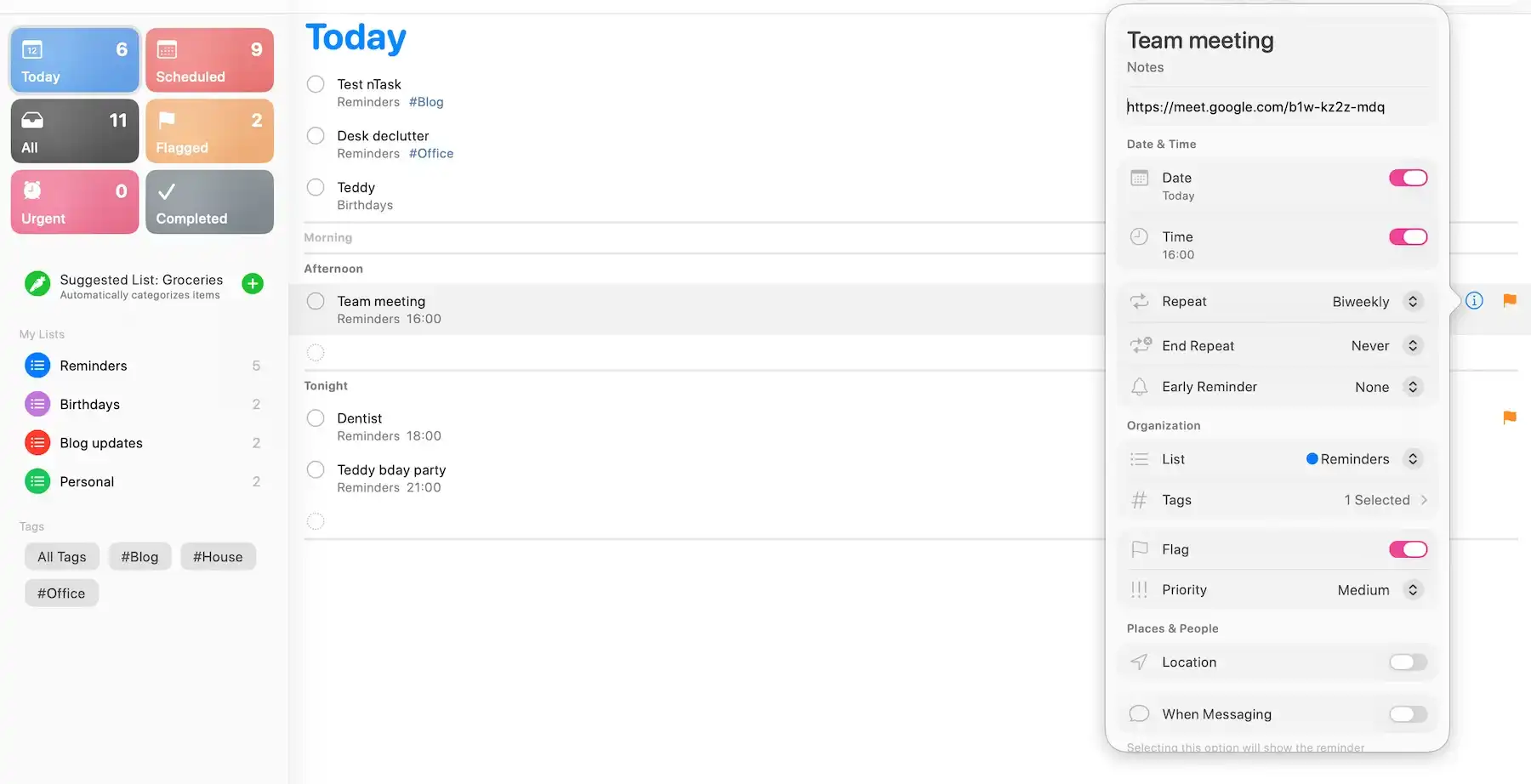
- Simple UI — the clean and minimal design reduces distractions, enabling users to quickly add and view tasks.
- Clear task categories — custom lists and smart groupings help you separate different areas of life (e.g., work, personal, errands), keeping everything organized and easy to scan at a glance.
- Useful task details — each task can include notes, date and time, priority, attachments, recurrence, and more, providing just enough context without making the system complicated.
Because of this simplicity, however, Apple Reminders isn’t suitable for managing complex tasks or long-term plans.
Also, without a strong personal system, lists can grow quickly and become dumps of tasks rather than an organized daily plan.
Now, beyond the fact that Reminders is already available to all Apple users, it’s a solid app for people in this ecosystem because of these functionalities:
- Siri connection — when you’re busy, it may be easier to add and manage tasks hands-free using Siri (Apple’s native, voice-activated virtual assistant).
- Auto-sync on all your Apple devices — your tasks will remain accessible across all Apple devices you use (e.g., Mac computer, iPhone, and Apple Watch) thanks to automatic syncing.
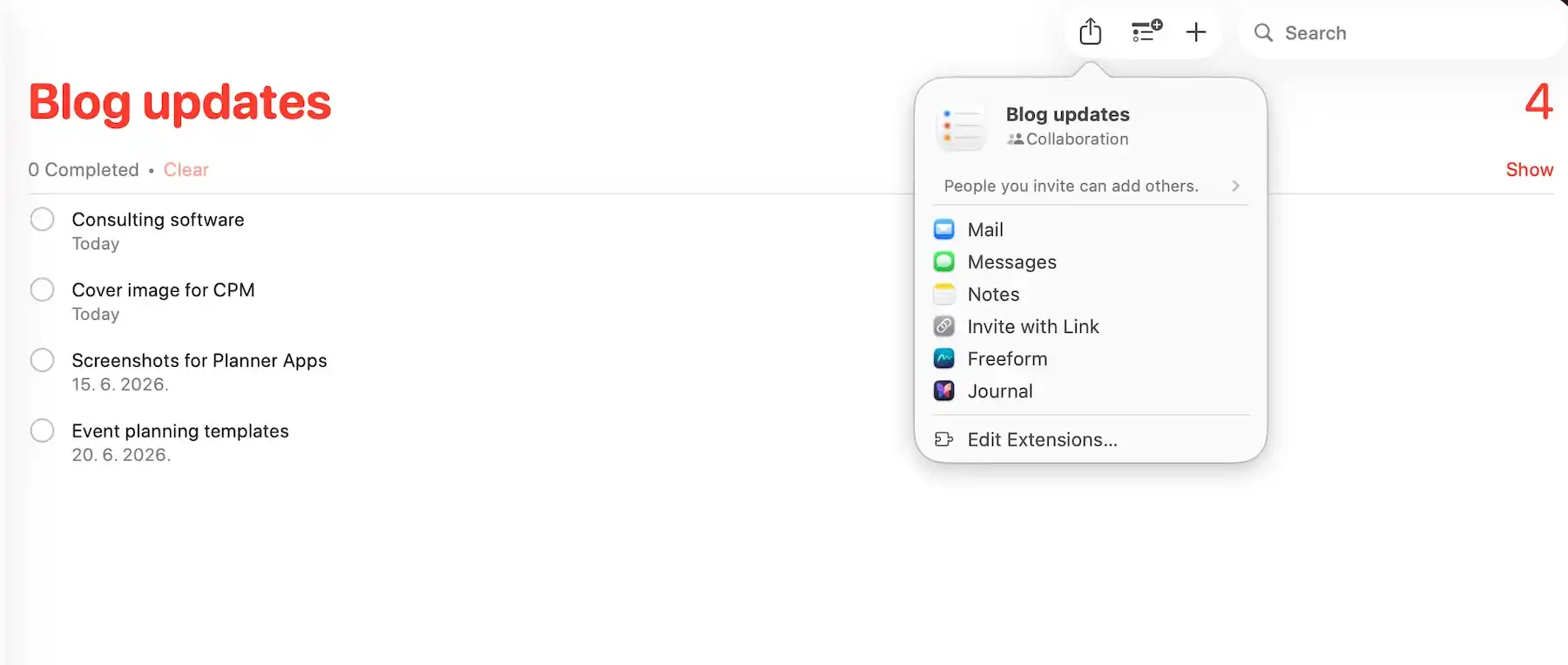
- Sharing lists with other Apple users — you can easily collaborate on shared lists (like work assignments or family tasks), making coordination simple and seamless.
Admittedly, the sharing feature is less convenient when collaborating with people outside Apple’s ecosystem or relying on cross-platform tools.
While Windows/Android users can use Apple Reminders as a web app on iCloud, it only works for basic tasks (no advanced features).
All in all, this is a solid choice for Mac/iPhone users who don’t want to spend money on a digital planner, but other apps on this list definitely have more robust planning features.
💡 Plaky Pro Tip
Apple Reminders also appears on our list of the best organization apps — check it out:
What’s new in Apple Reminders?
There have been no major Apple Reminders updates lately, only smarter “Urgent” reminders flow and more natural snooze options for reminders.
Available for: web, macOS, iOS, iPadOS, Apple Watch
Pricing: free
#8 Any.do — best for Android users
Any.do is an easy-to-use task manager with smart reminders and a clean interface, suitable for organizing both personal and work tasks.
Why choose Any.do?
Besides web use, Any.do is perfect for an Android device because the app combines a polished Android mobile experience with strong Google integrations and helpful widgets.
| Pros | Cons |
|---|---|
| – Customizable background – Smart reminders – Multi-platform availability | – Limited for power users – Free plan could be better |
Here’s what made Any.do stand out to me:
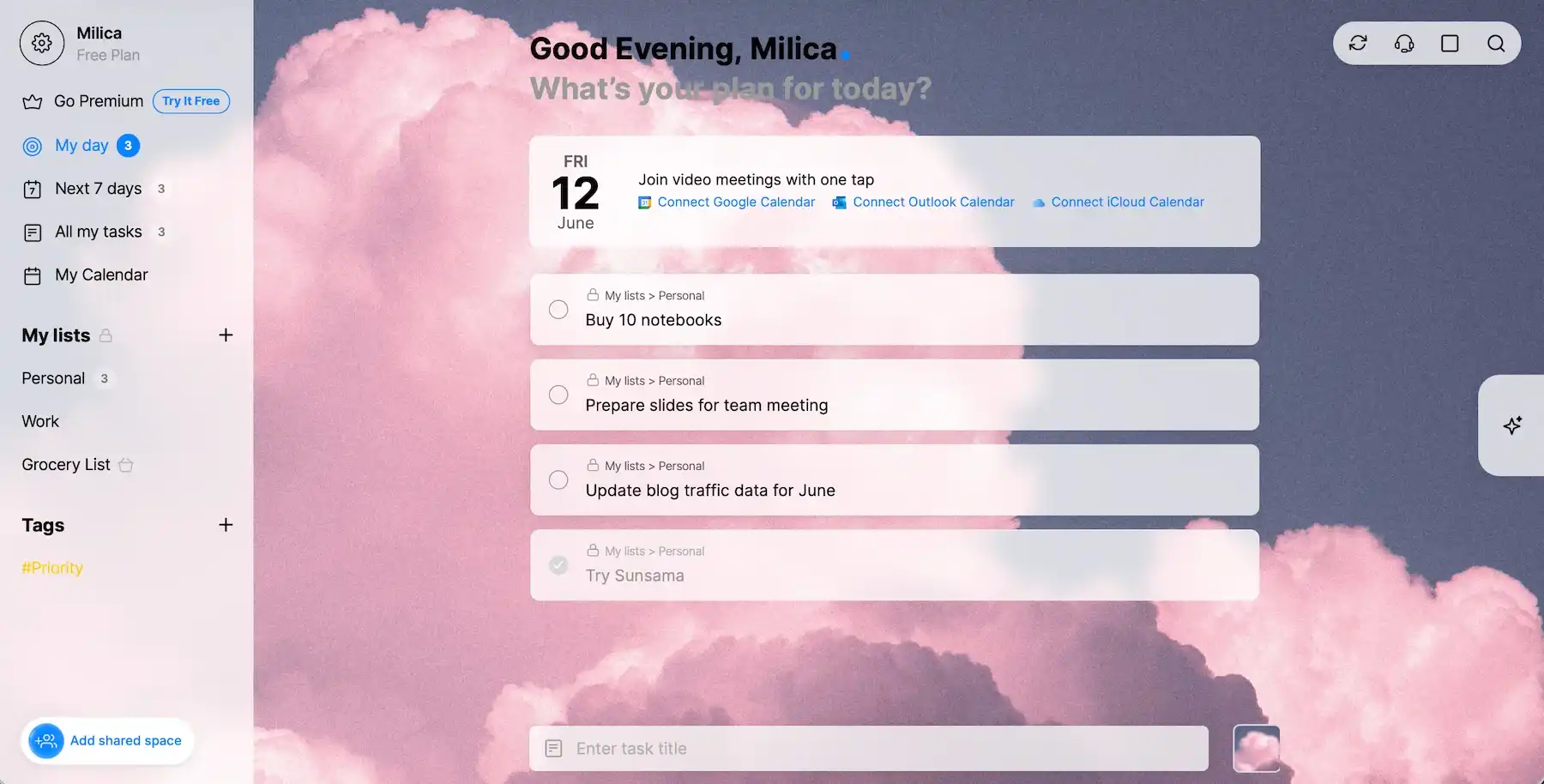
- Clean and intuitive UI — the menus, buttons, and tasks are simple and tidy, making it easy to plan and manage work.
- Customizable background — being able to personalize an app always makes it more enjoyable for me, so I consider Any.do’s customizable background a big plus.
- Balanced feature set — you get task management, reminders, and calendars, plus task chat and updates if you opt for the Family or Teams plan.
- Cross-platform support — Any.do has native apps for mobile, desktop, tablet, and smartwatches (plus web use), so you can stay organized at work or anywhere else.
That said, I must note that Any.do lacks the depth needed for more robust PM or productivity systems (e.g., no advanced project hierarchy, Gantt charts, or workflow automation).
When I used Any.do on my Android phone, I was impressed by:
- Useful home screen widgets — Android users can access tasks in Any.do instantly through widgets, checking and updating their day fast without opening the app.
- Strong Google ecosystem integration — Any.do connects easily with Google tools, aligning with the system I already use.
- Any.do Moment — Moment is a guided daily review feature available on mobile only, helping Any.do users quickly go through tasks and decide what to do, reschedule, or delete.
Unfortunately, the Moment feature is limited for free users (5 Moment sessions per month), much like most other key features (like location reminders or shared projects).
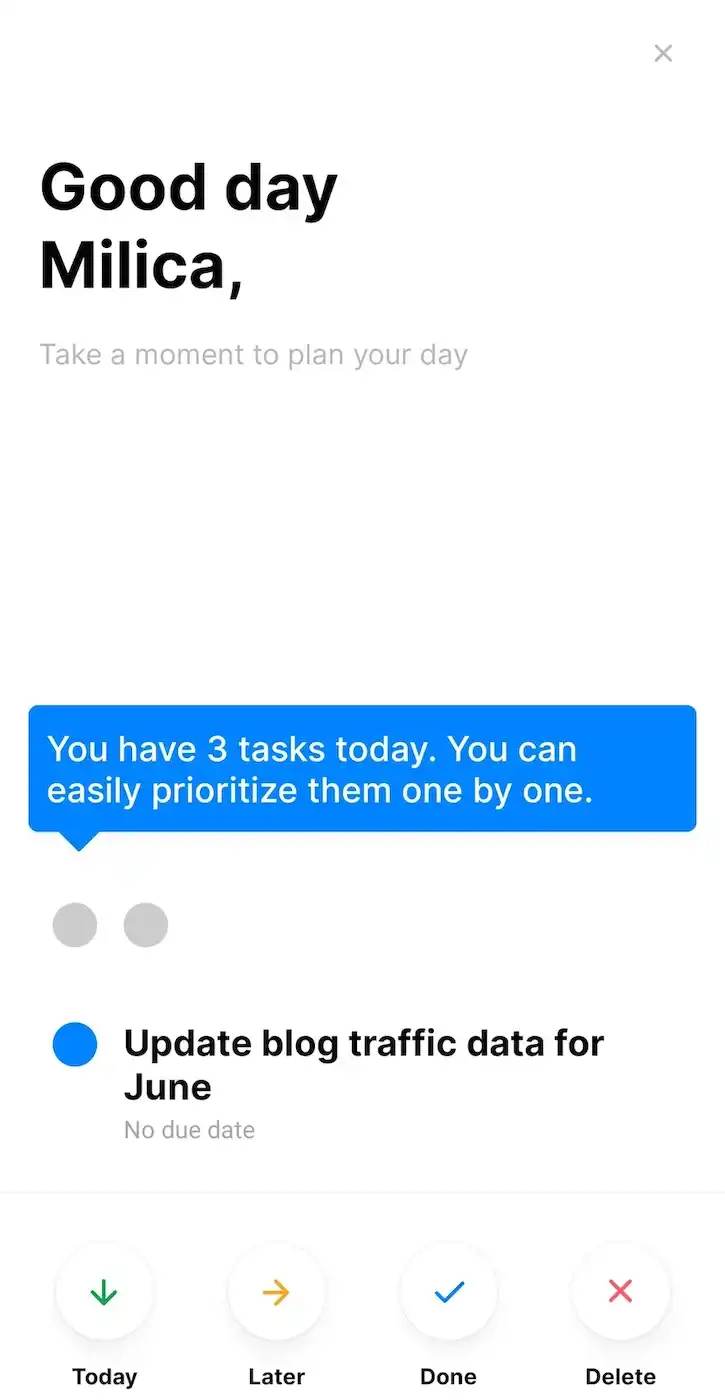
My other complaint — but not a deal-breaker: I wish the synchronization of tasks between the app and the widget was instant. Sometimes when I marked a task complete in the widget, it took a few moments for Any.do to catch up.
What’s new in Any.do?
Recent Any.do updates include enhanced board creation experience, custom field filters, and WhatsApp integration upgrades, plus dozens of bug fixes and UX improvements.
Available for: web, macOS, Windows, iPadOS, iOS, Apple Watch, Android, Huawei, WearOS
| Plan | Price |
|---|---|
| Personal | $0 |
| Premium | $4.99/month* |
| Family | $8.33/month/4 members* |
| Teams | $4.99/member/month* |
*billed annually
💡 Plaky Pro Tip
Looking for an Any.do alternative specifically? Check this out:
#9 ClickUp — best for balancing tasks and notes
ClickUp is a tool mostly designed for teams in need of robust features for project management, but it can also be used as a planner app for daily tasks.
Why choose ClickUp?
ClickUp is convenient if you tend to take a lot of notes — not just because of the rich text editing and formatting, but because you can link your action items to notes or even convert notes to tasks.
| Pros | Cons |
|---|---|
| – Detailed task management – Goal tracking – Note-taking segment | – Slight learning curve – Not the most cost-effective option |
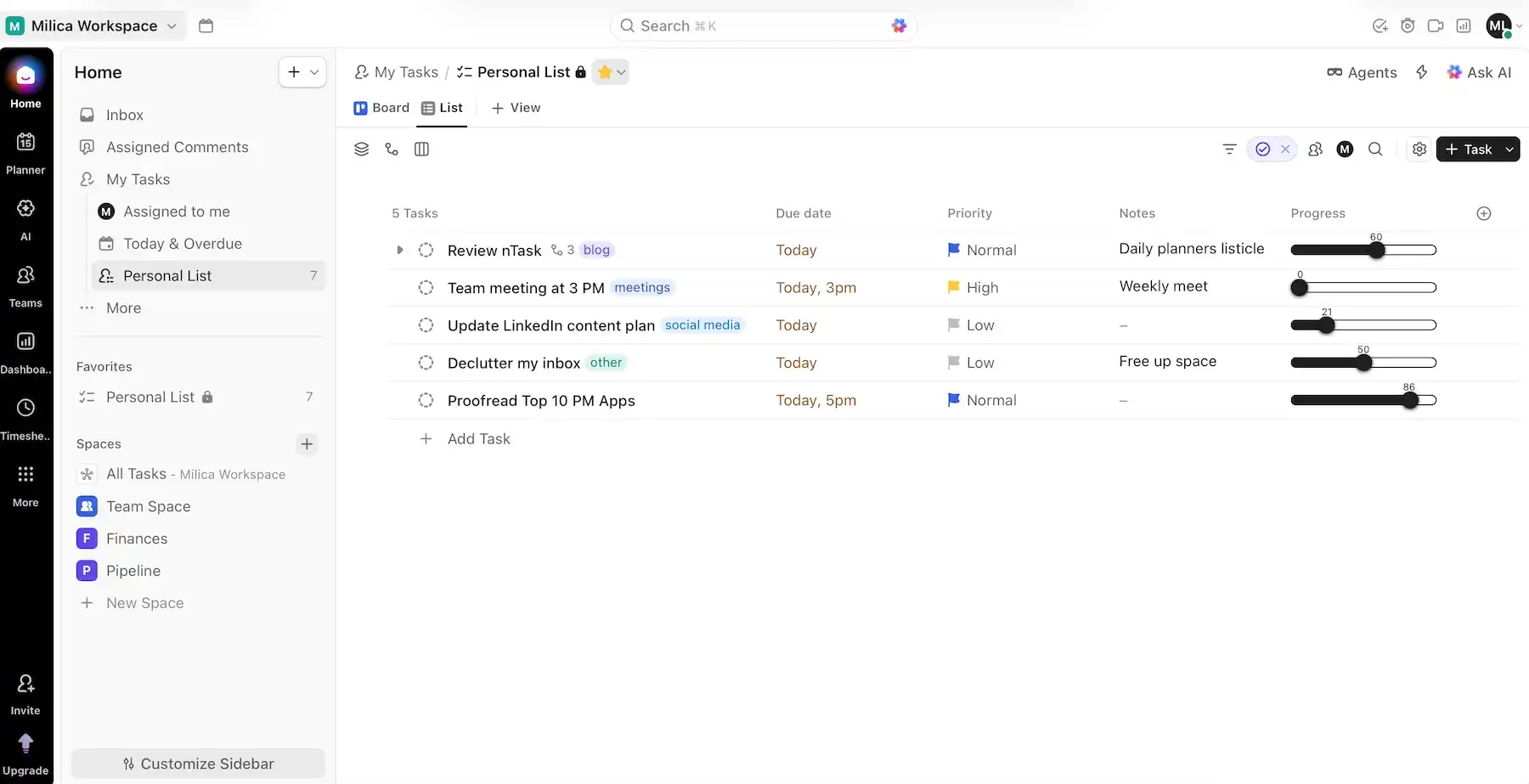
Like most similar platforms, ClickUp has customizable fields and various project views (List, Calendar, Kanban, Gantt, and more).
ClickUp’s main advantages include:
- Strong task management — subtasks, priorities, due dates, dependencies, etc. give you full control over your daily workload.
- Built-in time tracking — ClickUp’s paying users can track time in the app and generate reports with Timesheets and Dashboards to analyze productivity.
- Goal tracking — you can assign goals to projects/tasks to see how your daily work contributes to bigger objectives.
- Robust automation — automations can handle routine work, but you should know there are different limits for automations (native and integration-powered) depending on your tier.
As you can see, ClickUp is packed with features, so it can feel overwhelming for users who just want a simple daily planner.
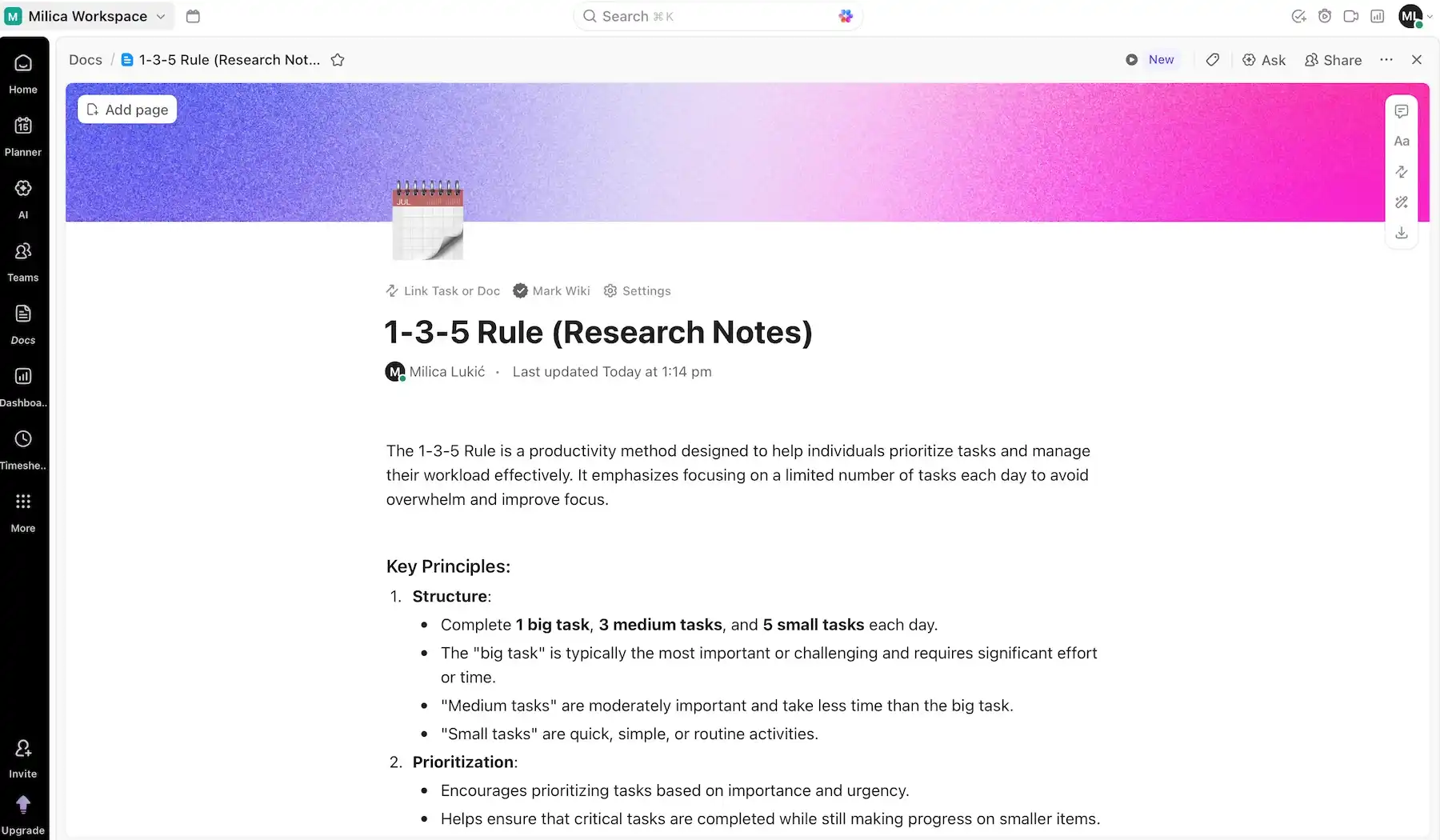
What I found extra handy in ClickUp was the Docs section — here’s why:
- Structured but flexible formatting — headings, checklists, different text colors, and more let you organize both simple notes and complex information.
- Real-time collaboration — multiple people can edit and comment simultaneously, making Docs useful for team notes or shared documentation.
- Easy linking to tasks — ClickUp allows you to link a document with tasks to keep context and work connected in one place.
- Doc-to-task conversion — you can turn highlighted text in Docs directly into tasks, so it’s easy to go from ideas to actionable work without copy-pasting or switching tools.
As for ClickUp’s pricing, it’s not the most expensive tool on this list, but costs can scale quickly for teams that need advanced features. The most useful AI features, in particular, require Brain AI or Everything AI, which cost an additional $9/user/month and $28/user/month, respectively.
💡 Plaky Pro Tip
Check out how ClickUp stacks up against similar PM tools in the comparisons below:
What’s new in ClickUp?
ClickUp now has Gantt chart baselines, new Google Drive automations, and various AI upgrades (handling reminders end-to-end, high-priority monitoring, sending AI Notetaker to meetings, and so on).
Available for: web, macOS, Windows, Linux, iOS, Android
| Plan | Price |
|---|---|
| Free | $0 |
| Unlimited | $7/user/month* |
| Business | $12/user/month* |
| Enterprise | POA |
*billed annually

#10 Sunsama — best for beginners
Sunsama is a mindful planning app that aims to help users plan activities better and stay focused.
Why choose Sunsama?
If you’re a beginner who needs a bit of guidance when planning everyday tasks, Sunsama could be a good choice for you.
| Pros | Cons |
|---|---|
| – Calm UI -Built-in timer – Mindful planning approach | – Might be too simple for some users – No free plan |
Sunsama is built around intentional, realistic daily planning, offering:
- Calendar-first planning approach — the calendar format helps you plan with real time constraints instead of making endless to-do lists.
- Weekly objectives — your daily planning is more precise with Sunsama’s Weekly objectives, especially the option to dedicate a certain amount of time to a goal every day.
- Workload awareness — by pushing you to limit what you can take on each day, Sunsama helps you achieve a balanced workload.
Sunsama is less equipped for heavy task management, though, so if you work with large, complex projects, you should look into apps like Plaky, Notion, or ClickUp instead.
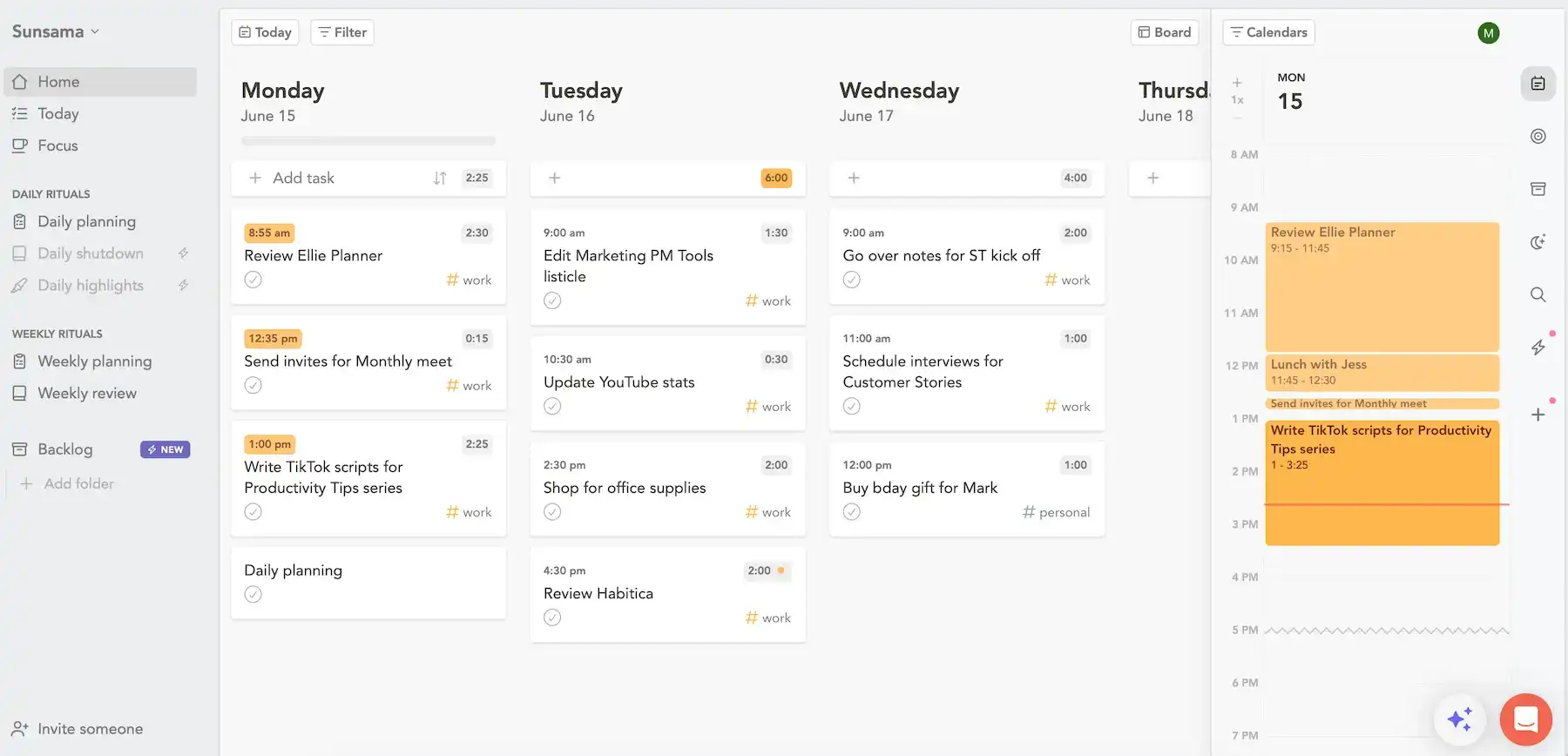
And here’s why I believe Sunsama is well-suited for total beginners:
- Distraction-free design — Sunsama’s interface is streamlined so that you can direct your attention toward planning rather than figuring out complex features.
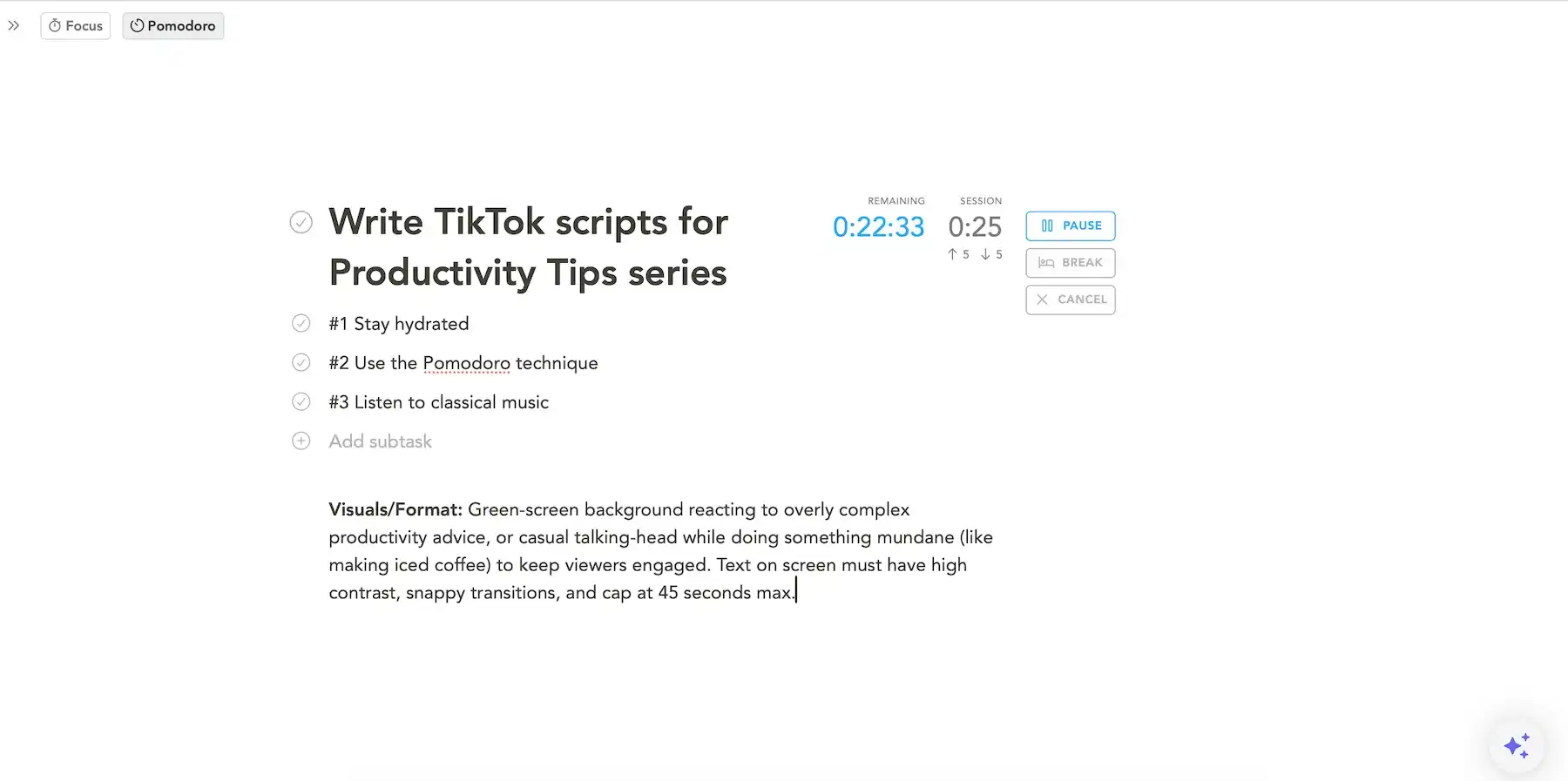
- Focus feature — with Focus or Pomodoro mode, you only see your current task and the built in timer (with planned vs. actual time for Focus and a 25-minute session for Pomodoro), reducing mental and visual overload.
- Accent on daily planning rituals — Sunsama guides you with questions such as “What do you want to get done today?” and “What can wait?” — ensuring your planning is mindful and realistic.
That said, since Sunsama is intentionally simple, there are fewer options for tailoring views and workflows compared to most other tools on this list.
Also, Sunsama’s structured planning ritual works well if you use it consistently, but it can feel restrictive if you prefer flexible, on-the-fly planning.
As for Sunsama’s pricing, there are 2 paid tiers. The Pro plan comes at $17/user/month, which isn’t all that affordable, whereas the Enterprise price requires contacting sales.
Importantly, there’s no free plan, only a 14-day free trial, making it harder to test the app long-term before committing financially.
💡 Plaky Pro Tip
Sunsama also appears on our list of the best productivity tools on the market today. Check out the full listicle below:
What’s new in Sunsama?
Recent Sunsama updates are mostly refinements rather than new features, especially in terms of smoother time blocking, weekly planning, and syncing tasks from other tools.
Available for: web, macOS, Windows, iOS, Android
| Plan | Price |
|---|---|
| Pro | $17/month (billed annually) |
| Enterprise | POA |
#11 TickTick — best for habit tracking
TickTick is a versatile productivity app that combines task management and focus tools into a single platform.
Why choose TickTick?
TickTick is one of the top options for those looking to not just boost their productivity but also build some good habits.
| Pros | Cons |
|---|---|
| – Multi-platform availability – Strong habit tracking – Built-in Pomodoro timer | – Best features locked behind the paywall – Mobile app lags sometimes |
You can strike a balance between simplicity and functionality in TickTick thanks to:
- Well-rounded feature set — with tasks, calendars, habits, and scheduling tools combined into a single app, you don’t need multiple productivity tools.
- Reminders — flexible reminders help ensure that important tasks never slip through the cracks.
- Inbox — the Inbox section is convenient as a place where you can brainstorm tasks and then schedule them later.
- Cross-platform availability — TickTick has native apps for several kinds of devices and operating systems, so it’s easy to plan and manage tasks wherever you work.
Unfortunately, some of the best features in TickTick require the Premium plan — e.g., Calendar view and advanced reminders.
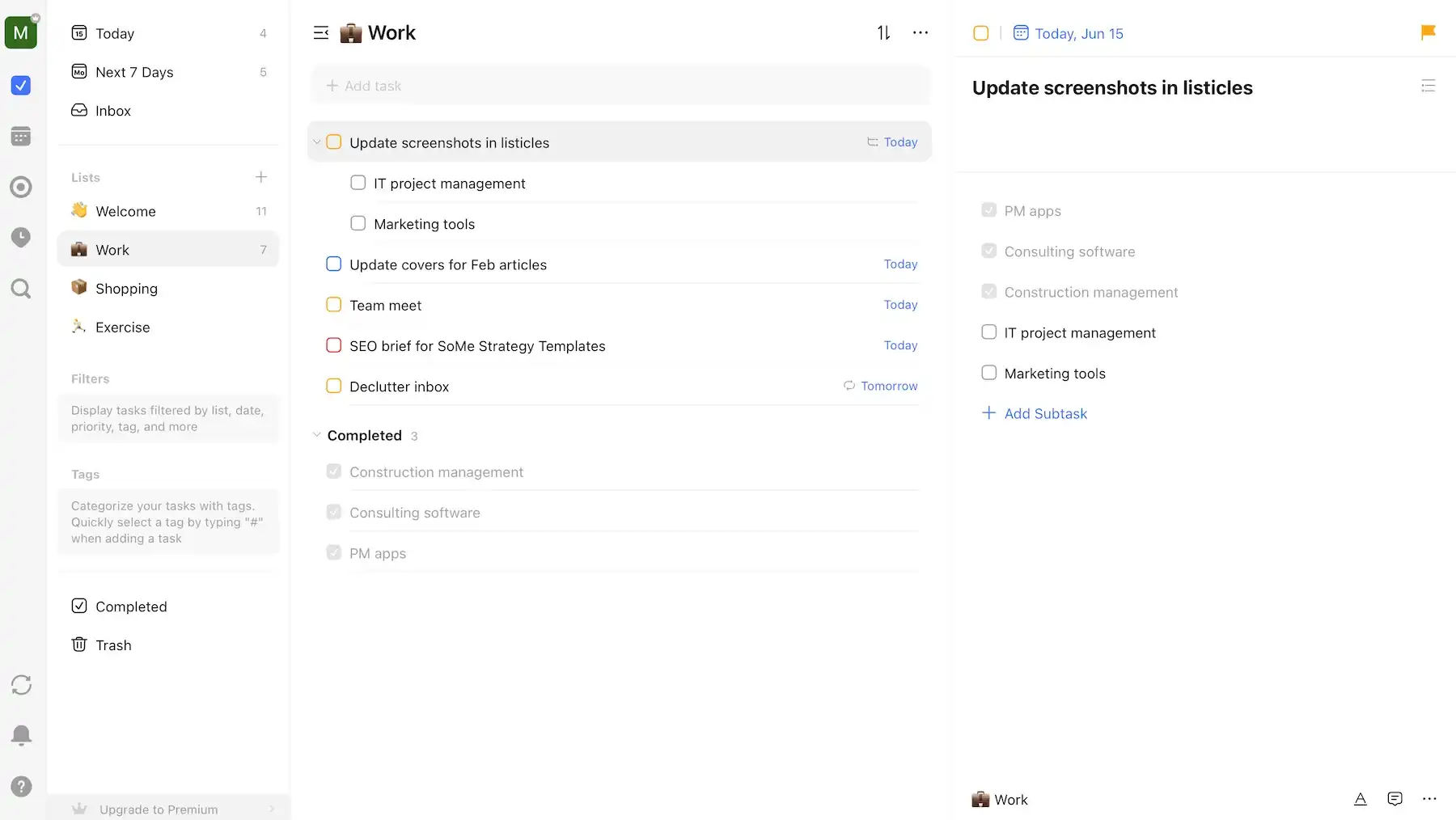
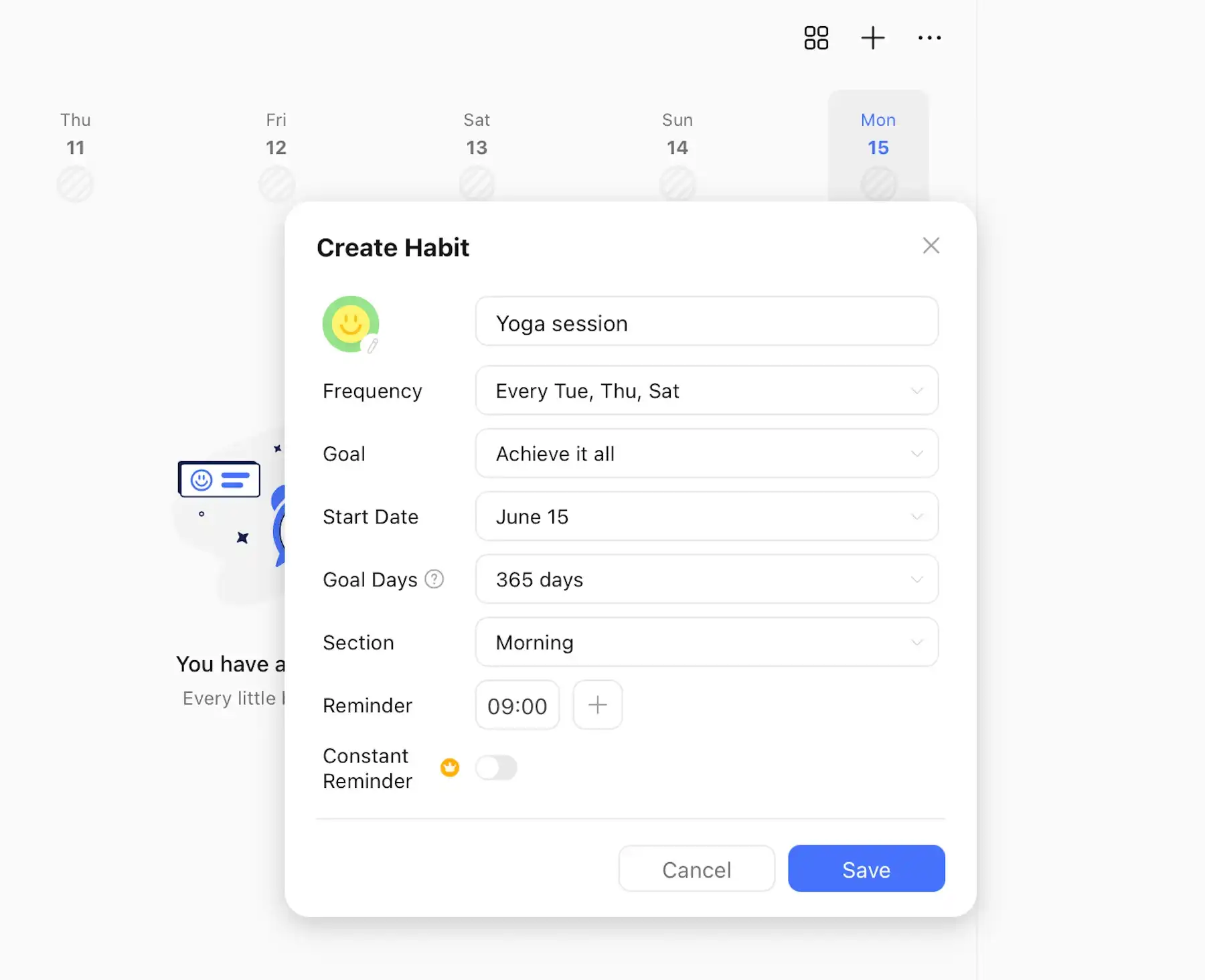
If I had to name TickTick’s forte, I’d say habit tracking, considering features such as:
- Dedicated habit tracker — unlike many apps that treat habits as recurring tasks, TickTick has a special habit-tracking system.
- Habit progress stats — visual progress tracking helps you monitor consistency and stay motivated over time.
- Daily habit reminders — with automated reminders, you’re less likely to abandon the habits you’re trying to build.
- Streak tracking — streaks boost accountability and motivation to maintain positive habits.
Another useful feature in TickTick is the built-in Pomodoro timer for focused work sessions. I tried it a few times, and I can say it helped me minimize distractions.
If, like me, you think TickTick’s default design is borderline dull, make sure to check out the additional themes. Unfortunately, the more elaborate themes (City, Season, and Photograph Series) are reserved for Premium users, but the Color Series offer nice options, too.
It’s also worth mentioning there are several user reports online about TickTick’s mobile app lagging sometimes, especially the iOS version when using filters — which isn’t a deal-breaker but can definitely interrupt your flow.
My conclusion is that, much like Sunsama or Apple Reminders, TickTick is way better suited for personal productivity rather than task delegation or advanced project management.
What’s new in TickTick?
Some novelties in TickTick include the Telegram integration, Constant Reminders (which continue until the task is completed, postponed, or otherwise handled), and expanded AI features (for example, AI Voice Add).
Available for: web, macOS, Windows, Linux, iOS, iPadOS, Android
| Plan | Price |
|---|---|
| Free | $0 |
| Premium | $35.99 (billed annually) |
#12 Evernote — best for DIY daily planners
Evernote is primarily a note-taking app for organizing your written content. Since it also has task management features, Evernote can be used as a day-to-day planner.
Why choose Evernote?
Evernote shines for users who prefer creating their own productivity system rather than following predefined planning frameworks.
| Pros | Cons |
|---|---|
| – Intuitive – Robust note-taking – Good for brainstorming and research | – Can get messy easily – Pricey |
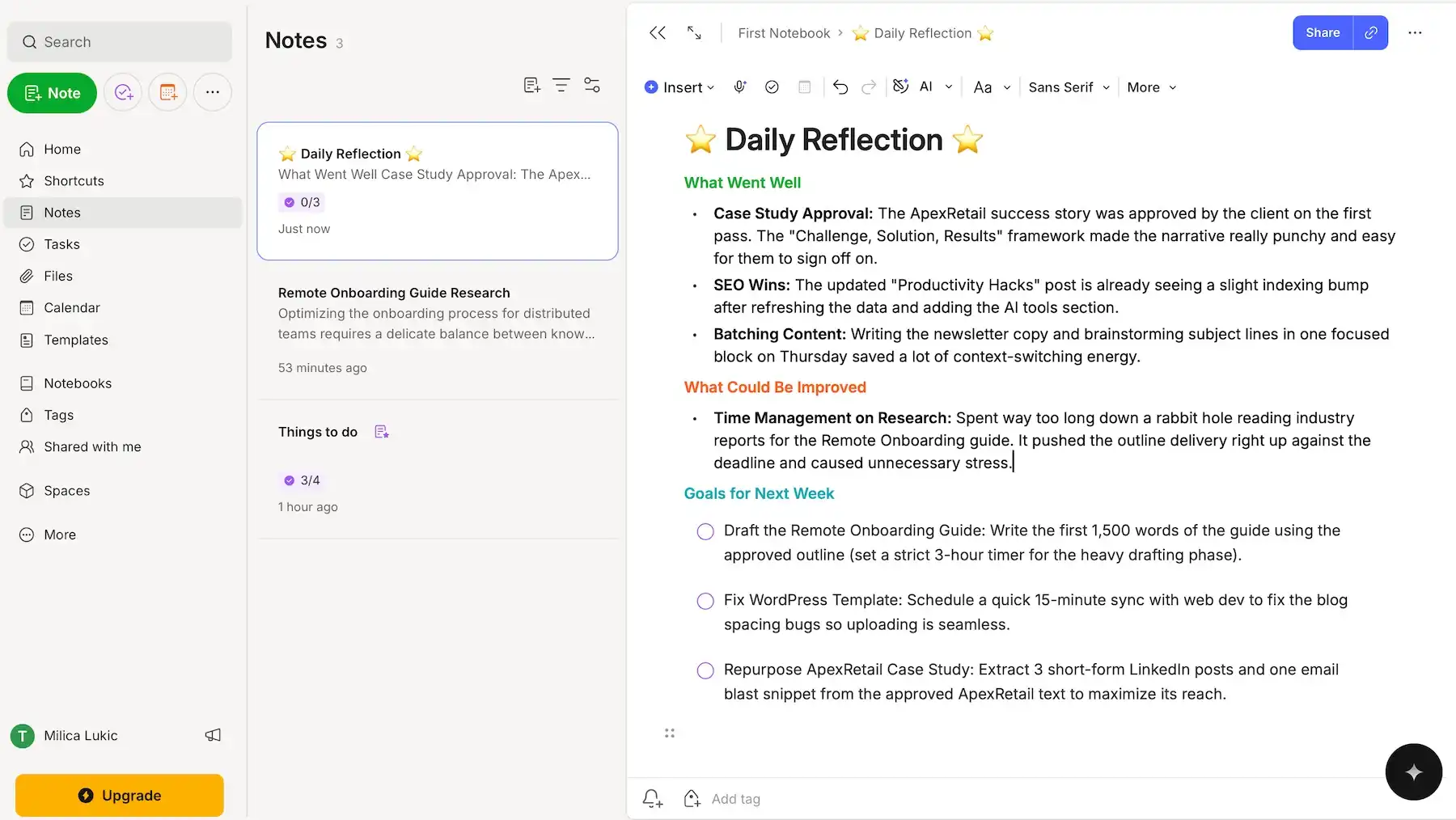
This is what I jotted as Evernote’s best features:
- Simple task management — task cards in Evernote aren’t overly detailed, but I could specify enough context (Description, Due date, Priority, Assigned to, and Reminder).
- Great information storage — capturing research, documents, and reference materials alongside daily plans is practical, and you can even share notes with others (whether they’re Evernote users or not).
- Template selection — Evernote offers both pre-made templates and the ability to create your own, so you can set up whatever you need without starting from scratch each time.
In addition, Evernote’s design is minimalistic — and almost too dull for my taste, but at least I’m sure even total beginners could quickly get the hang of it.
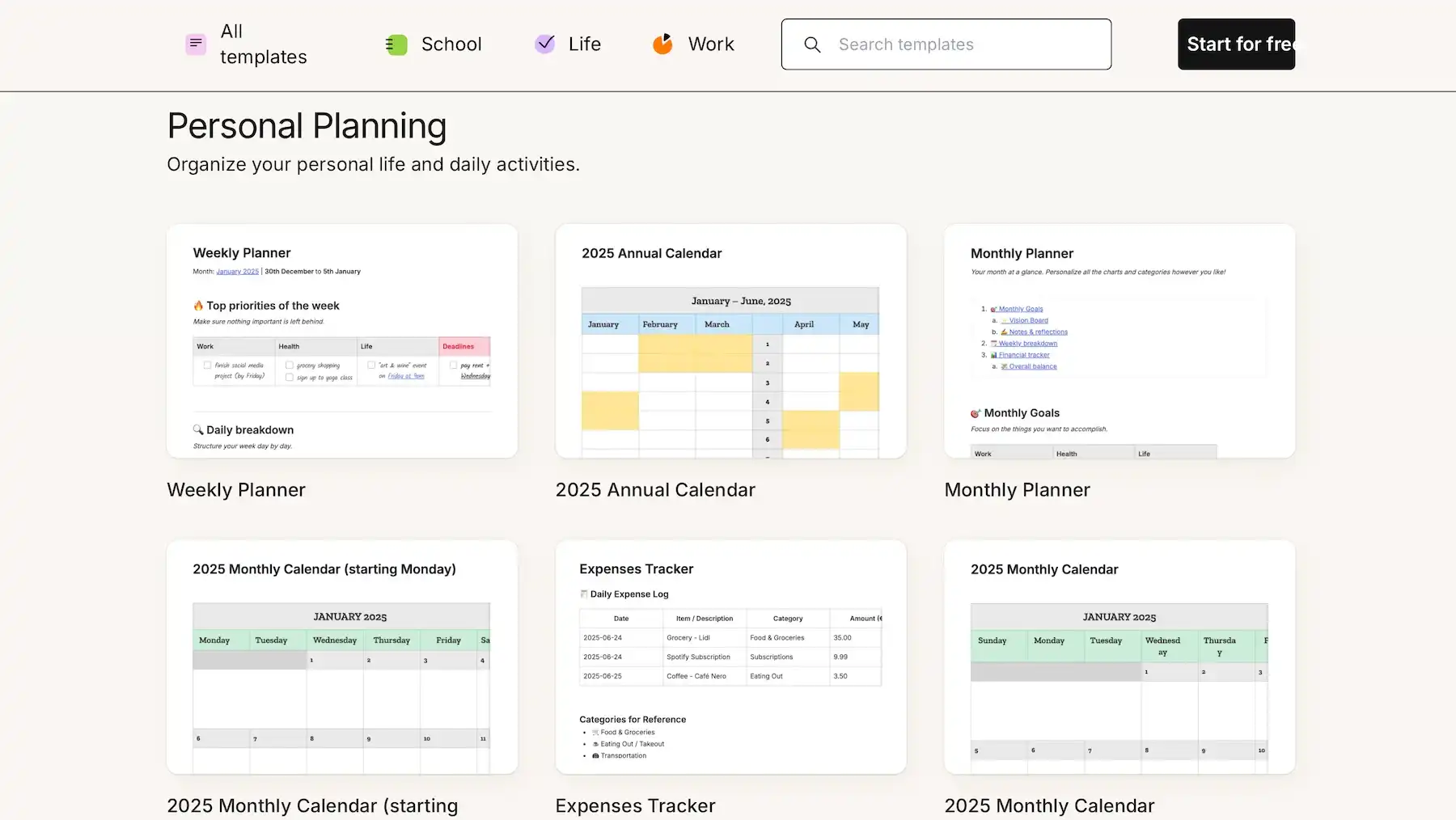
As you may infer from its name, Evernote shines the most in the Notes segment — and here’s how you can use that to create your own DIY planner:
- Rich text editor — choose between different text styles, fonts, colors, and alignment options, and add tables, dividers, quotes, media elements, and more.
- Tasks inside notes — insert to-dos directly into notes to combine them with personalized planning pages — and don’t worry about burying your tasks in notes because the Tasks tab will automatically pull them.
- Web Clipper — use Evernote’s free browser extension that lets you save webpages, articles, or selected content directly into your notes for later reference.
Given everything, I must remark that building an effective planning system in Evernote may take some time plus maintenance.
Let me also point out that Evernote is generally considered expensive. I’ve seen quite a few user comments online expressing frustration that the app’s pricing has increased a lot over time.
Evernote’s free plan may be fine if you’re a light user, but for unlimited storage, notes, spaces, and tags, you need at least the Advanced tier, i.e., a steep $20.83/month.
What’s new in Evernote?
Evernote’s latest updates include AI Prompts (creating custom prompts from an empty note, selected text, and more), smoother audio recording experience, and rich text editing for task descriptions.
Available for: web, macOS, Windows, iOS, Android
| Plan | Price |
|---|---|
| Free | $0 |
| Starter | $8.25/month* |
| Advanced | $20.83/month* |
| Enterprise | POA |
*billed annually
#13 Actions — best for minimalists
Actions by Bonobo Labs is a sleek, lightweight to-do list app that aims to make planning your daily life intuitive and effortless.
Why choose Actions?
By stripping productivity to the essentials, Actions offers a simple and distraction-free way to manage tasks.
| Pros | Cons |
|---|---|
| – Elegant design – Gesture-based interaction – Part of the Bonobo Bundle | – No free plan & no Android app – Strictly basic task management |
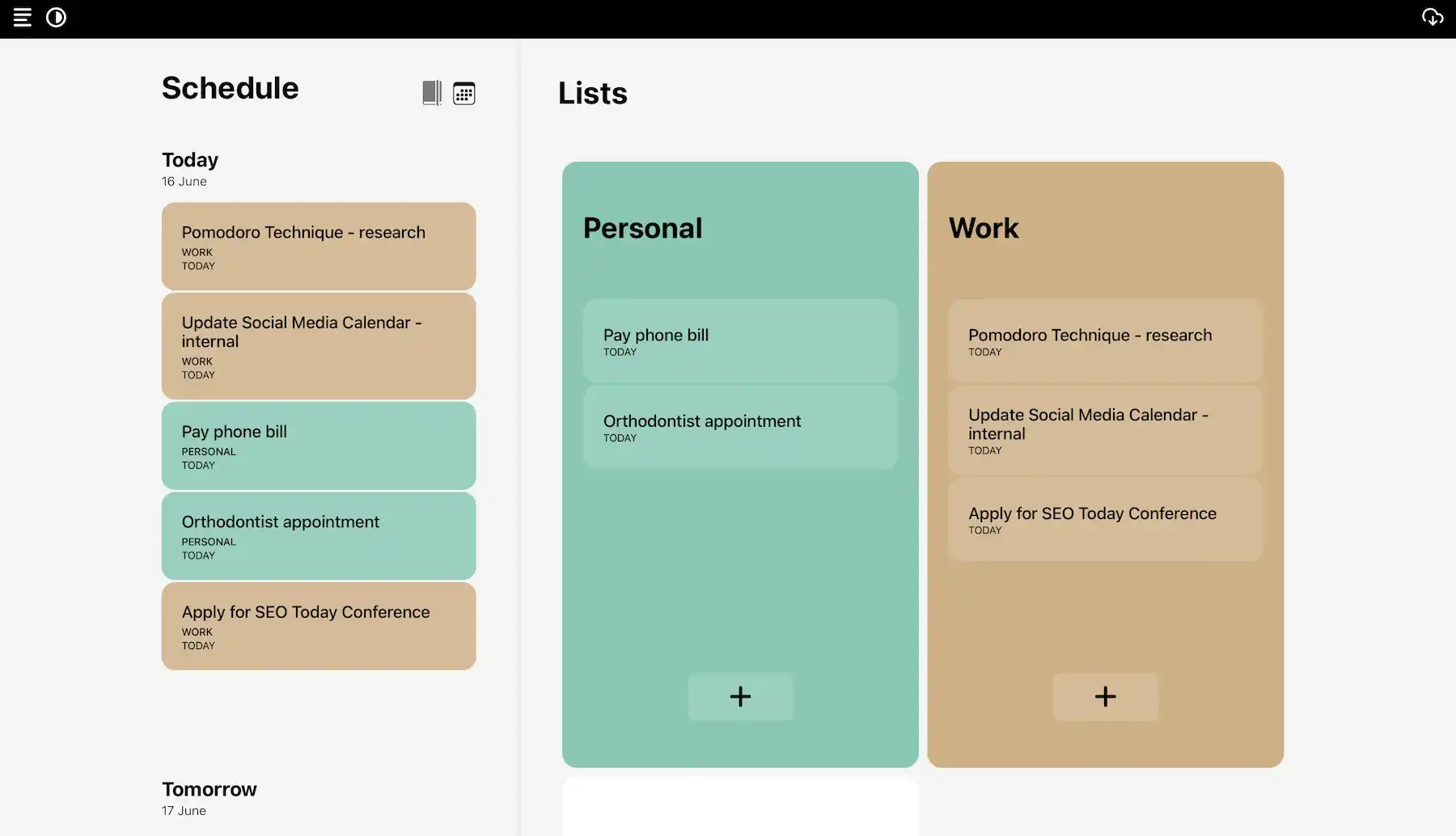
Actions is so straightforward that there are only several key terms to know:
- Action Card — an individual task you create and can move, schedule, or complete
- Schedule — a time-based view categorizing your tasks by date
- List — simple color-coded grouping used to organize tasks (e.g., by project, theme, area of life)
- Logbook — an archive that automatically stores all your past actions (great for reviewing your work or restoring tasks if needed)
Action Cards support only the most essential details — Title, Priority, Checklist, Notes, Schedule, Reminder, and Deadline. There are no customizable fields or goal tracking, so Actions definitely isn’t for long-term or strategic planning.
That said, if you’re a true minimalist, you’ll enjoy Actions and features such as:
- Polished UI — the interface avoids heavy menus and cluttered controls, keeping focus on tasks instead of endless settings.
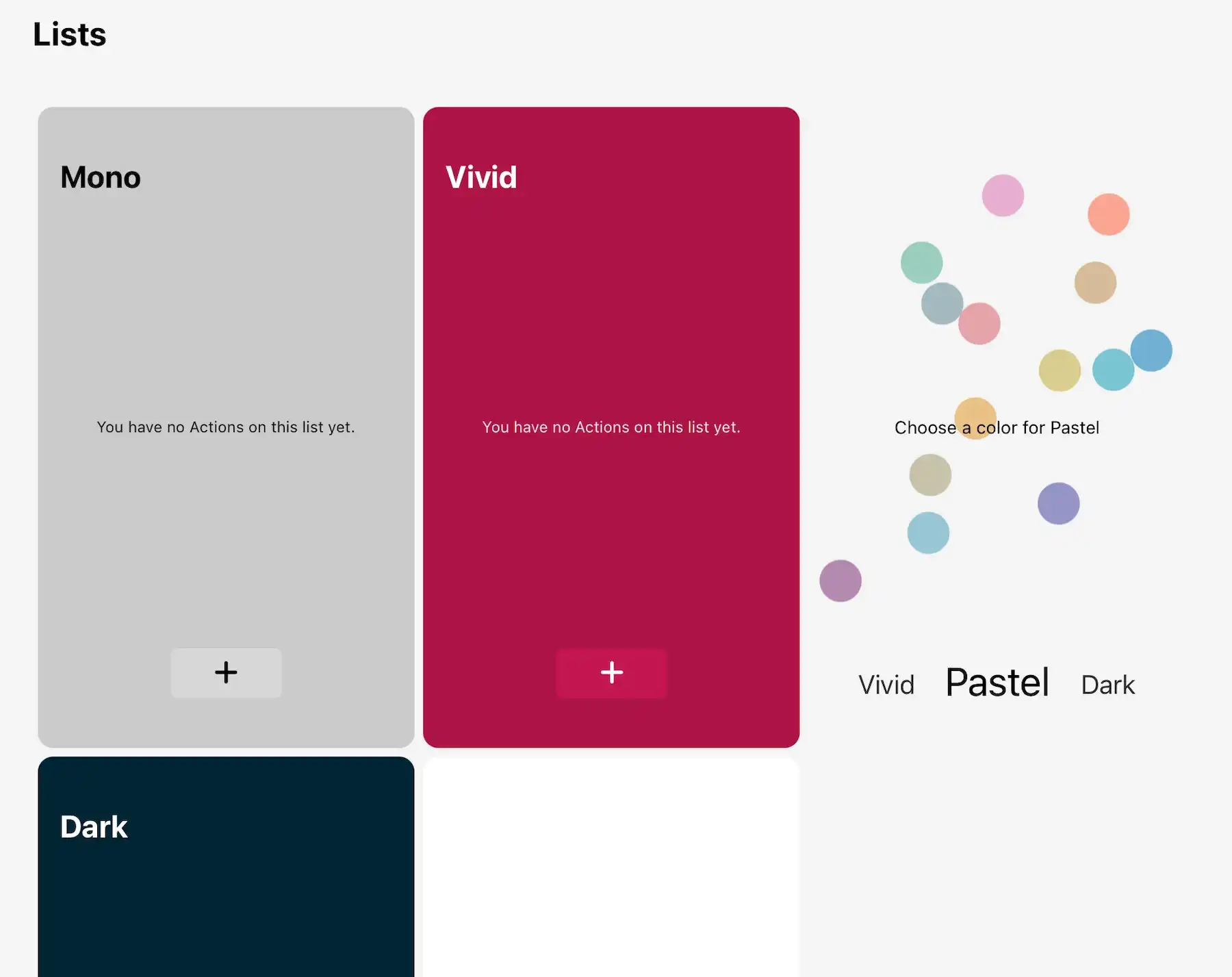
- List colors — simple yet elegant color options (Mono, Vivid, Pastel, and Dark) allow visual organization without overwhelming you.
- Natural language input — you can add tasks quickly by typing in plain language and letting Actions turn them into proper cards (e.g., you type “Send draft to editor tomorrow at 1 PM,” and this deadline is automatically set).
- Gesture-based experience on iOS — smooth swipe and tap gestures make task management extra fluid and effortless on your iPhone.
Unfortunately, Actions doesn’t have a free plan, but the paid plans aren’t that expensive.
If you’re willing to set aside a budget for a full productivity system, you could look into the Bonobo Bundle. Besides Actions, the Bonobo Bundle includes:
- Timepage — a calendar app that combines your schedule, weather, maps, and events
- Flow — a note-taking app for writing, journaling, and brainstorming
- Overlap — a smart world clock and time zone coordination app
One last remark: the company retired their Android app, so you can only use Bonobo apps on Apple devices and the web.
What’s new in Actions?
There have been no major updates in Actions recently — only minor fixes and refinements regarding the app’s design and usability.
Available for: web, macOS, iPadOS, iOS, Apple Watch
| Plan | Price |
|---|---|
| Monthly membership | $2.99 |
| Annual membership | $13.99 |
| Bonobo Bundle (Annual) | $24.99 |
| Bonobo Bundle (Annual Family) | $39.99 |
| Bonobo Bundle (Lifetime) | $149.99 |
#14 Structured — best for small tasks
Structured is an app that combines to-do lists, calendars, and color-coding to help you map out exactly what you want to do throughout the day.
Why choose Structured?
If your days are filled with various small responsibilities rather than large projects, Structured can keep them neat and actionable.
| Pros | Cons |
|---|---|
| – User-friendly – Task colors and icons – Affordable | – Repeat tasks are reserved for paid users – Structured Pro lacks some features on Android and web |
Structured makes it easier to plan realistically thanks to:
- Visual planning — assign time slots to tasks in daily, weekly, and monthly views.
- Approachable design — enjoy a clean and beginner-friendly UI, making daily planning feel less intimidating.
- Inbox — dump all to-dos without a due date in Inbox so that you can sort them out later instead of forgetting them.
- Energy monitor — assign an energy level to tasks (Pro feature) so that you can plan your day around how mentally or physically demanding different activities are.
The focus is on daily planning, so if you want your app to double as PM software with more layers and advanced features, Structured isn’t the right choice for you.
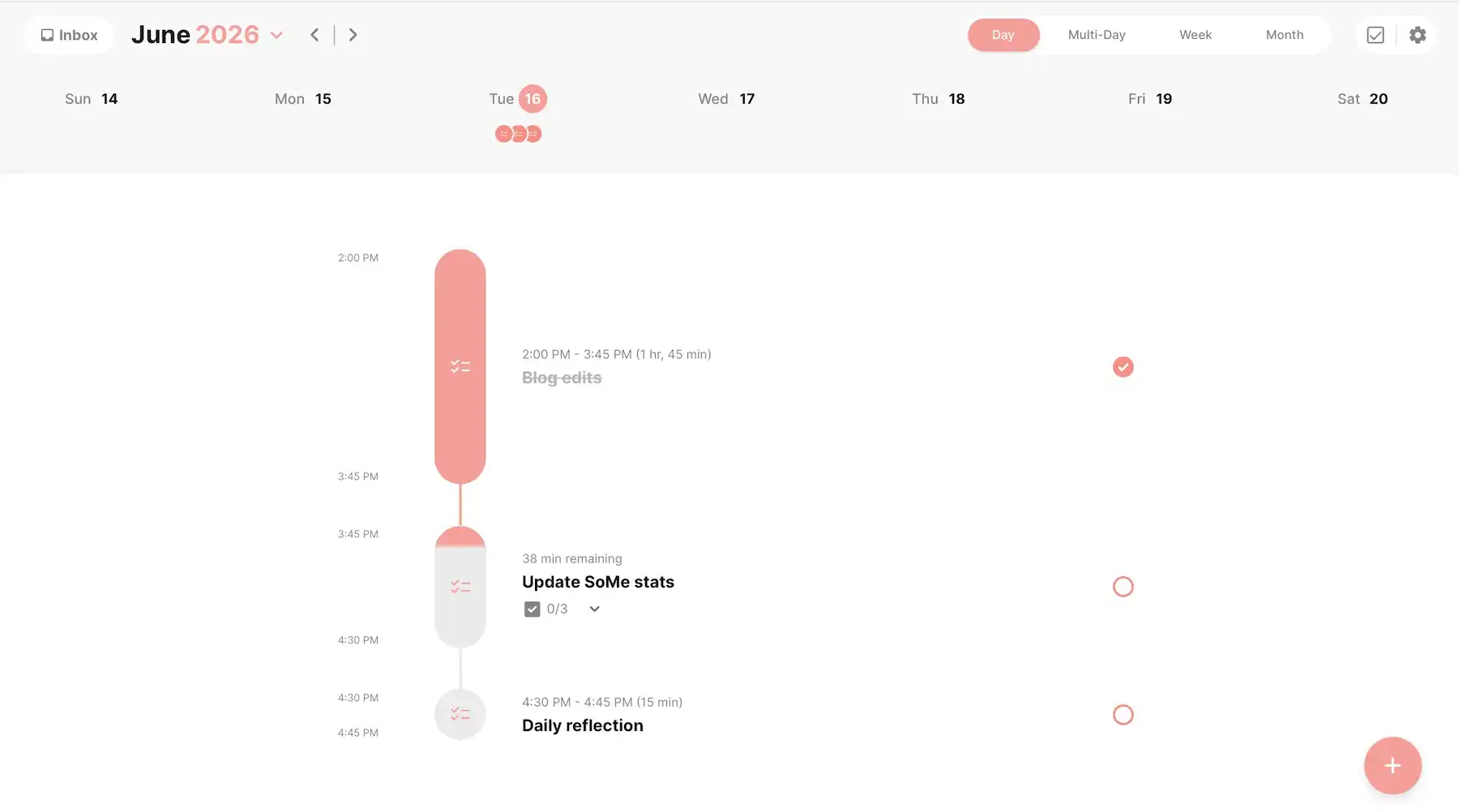
While exploring Structured, I felt it excelled at giving quick errands a clear space next to major tasks. Here are the most useful features:
- Color-coding — assign colors to different categories to easily spot work tasks, personal commitments, routines, etc.
- Task icons — choose from a large selection of icons (Animals, Food & Drinks, Activities, and more) to make entries even more recognizable at a glance.
- Subtasks — break bigger tasks into smaller action steps to make them feel more manageable.
- Task overlap alerts — get a warning when your tasks conflict with one another to avoid overbooking your day.
Just know that Structured isn’t the best schedule app for those who like to share their to-dos with others — there are no shared spaces, in-app comments, or task assignment.
Also, I wish that recurring tasks weren’t a Pro feature — because most other apps don’t treat them like one.
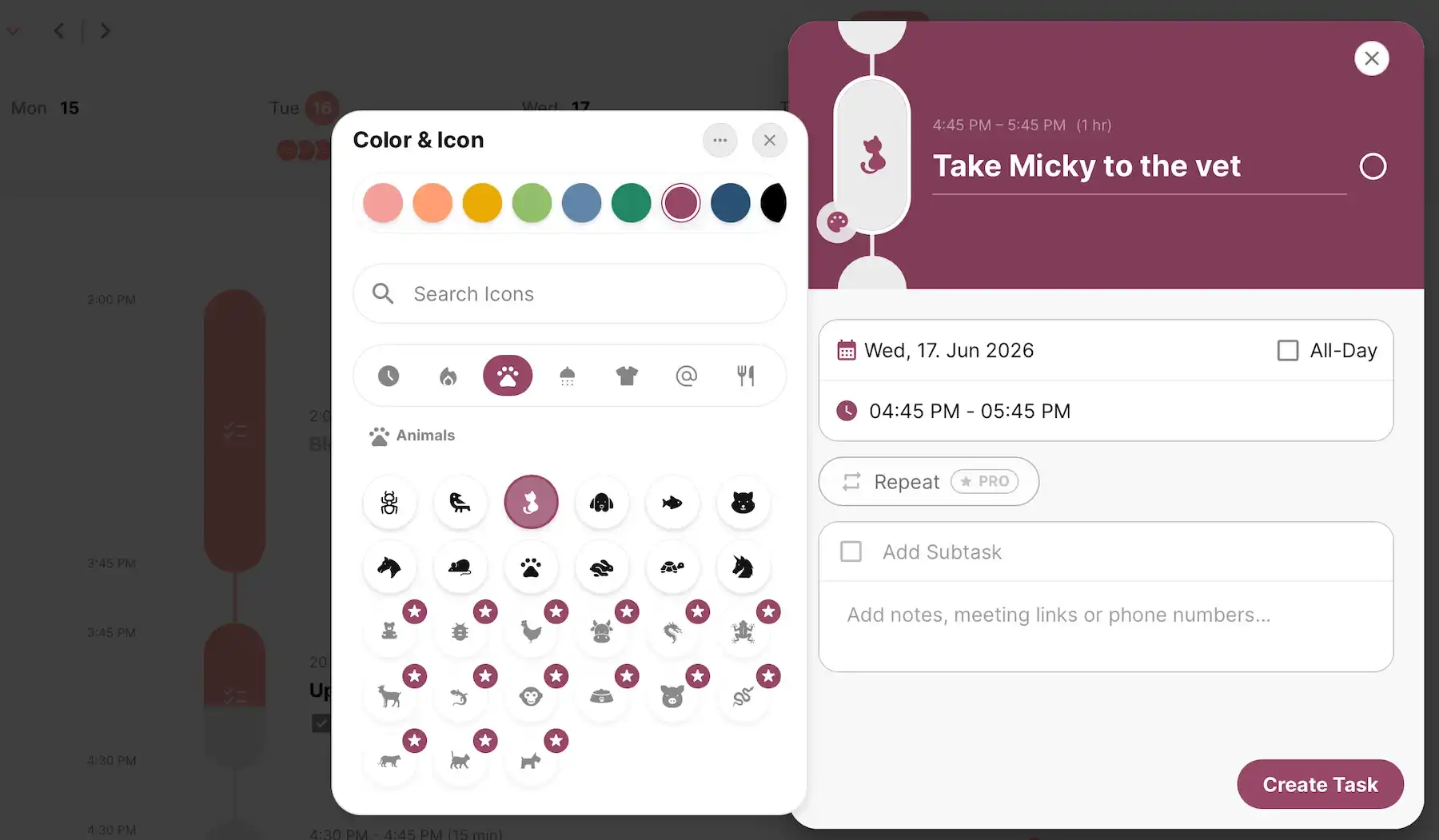
To end on a positive note, I can say that Structured is among the most affordable apps, especially its Lifetime subscription. However, I find it odd that some Structured Pro features are only available on iOS and not Android and/or Structured Web (e.g., custom notifications, duplicate days, Energy Monitor, and more).
What’s new in Structured?
Structured hasn’t had any major updates recently — only some tweaks focusing on smoother scheduling and better cross-device syncing.
Available for: web, macOS, iOS, Apple Watch, Android
| Plan | Price |
|---|---|
| Free | $0 |
| Structured Pro (Monthly) | $6.99 |
| Structured Pro (Annual) | $29.99 |
| Structured Pro (Lifetime) | $99.99 |
#15 nTask — best for task issue tracking
nTask is a tool for planning and managing tasks, collaborating on projects, and overseeing risks and issues.
Why choose nTask?
If identifying and resolving issues is a key part of your workflow, nTask offers useful features that many other planner apps simply don’t.
| Pros | Cons |
|---|---|
| – Solid collaboration features – Meeting management – Issue management | – Lots of restrictions in the free plan – Laggy web version |
nTask is a solid choice if you need:
- Comprehensive task management — tasks on the free plan include basic descriptors like due dates, priorities, assignees, and checklists, while those who need custom fields must get a paid plan.
- Multiple views — you can look at your to-dos in the way that suits you best — List, Grid, and Calendar views for free, plus Kanban and Gantt views on nTask’s paid tiers.
- Built-in meeting management — nTask lets you create and share team meetings, as well as add Agenda, Discussion Notes, Follow Up Actions, and Key Decisions — connecting meeting management with daily work organization.
- Basic reporting — the reporting feature isn’t advanced, but it can offer handy insights (productivity, tracked time, risks, etc.) on Premium and higher.
Besides the limitations mentioned above, nTask’s free plan also restricts the number of users (5 maximum). But, compared to some competitors, nTask’s paid tiers are actually quite affordable.
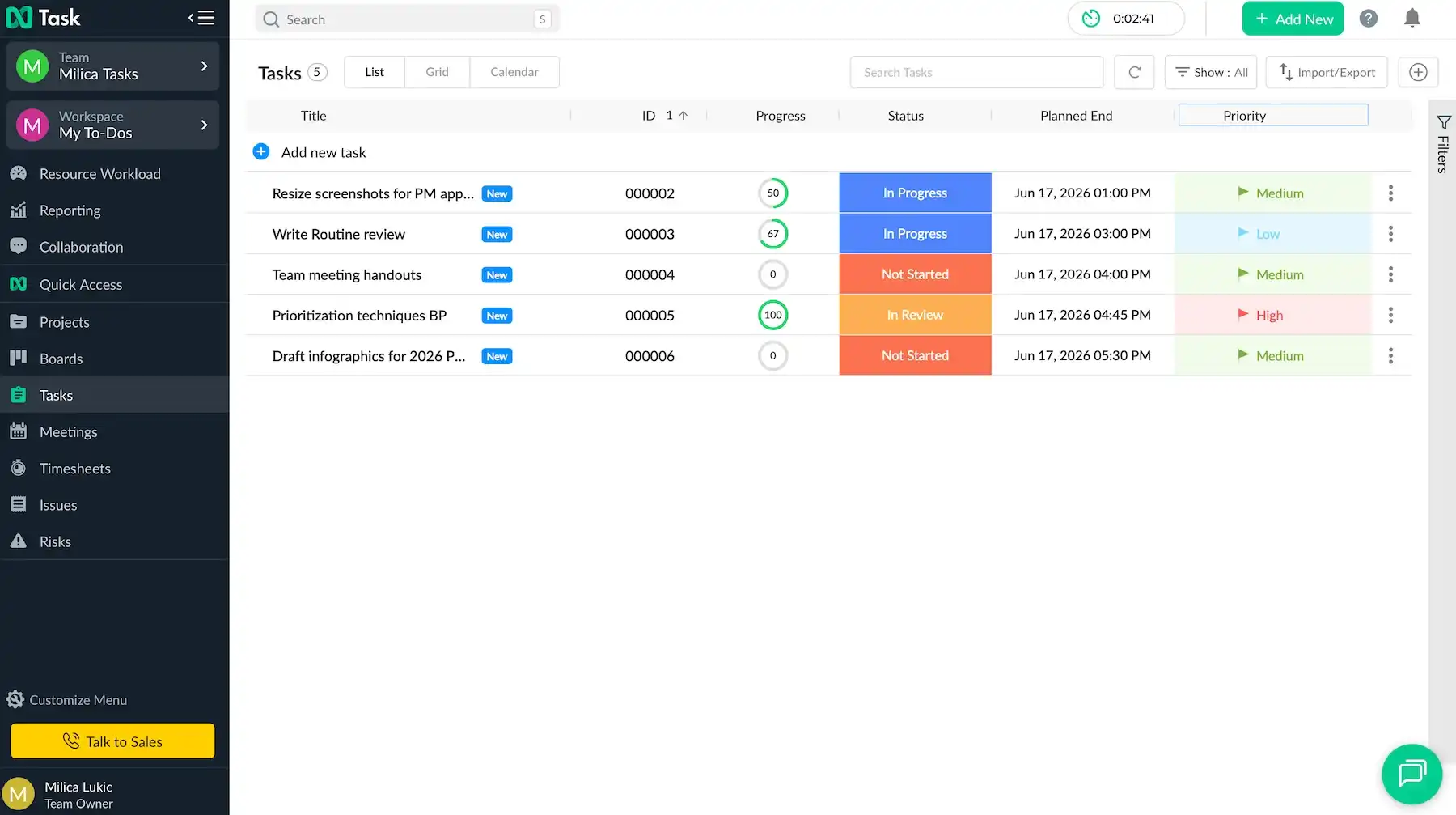
One area where nTask stands out is the ability to track issues alongside regular tasks. Here are the most helpful features:
- Dedicated issues tab — issues have their own dedicated space within the platform, staying close yet separate from regular tasks.
- Detailed issue cards — each issue can include the type (Improvement, Feature, or Bug), description, status, assignee, planned/actual start and end, and more.
- Issue import/export — you can easily move issue data into or out of nTask, which is useful for reporting, migrations, or collaboration with external stakeholders.
- Centralized communication — the Comments and Documents tabs keep all updates and files attached to the issue itself, reducing scattered conversations.
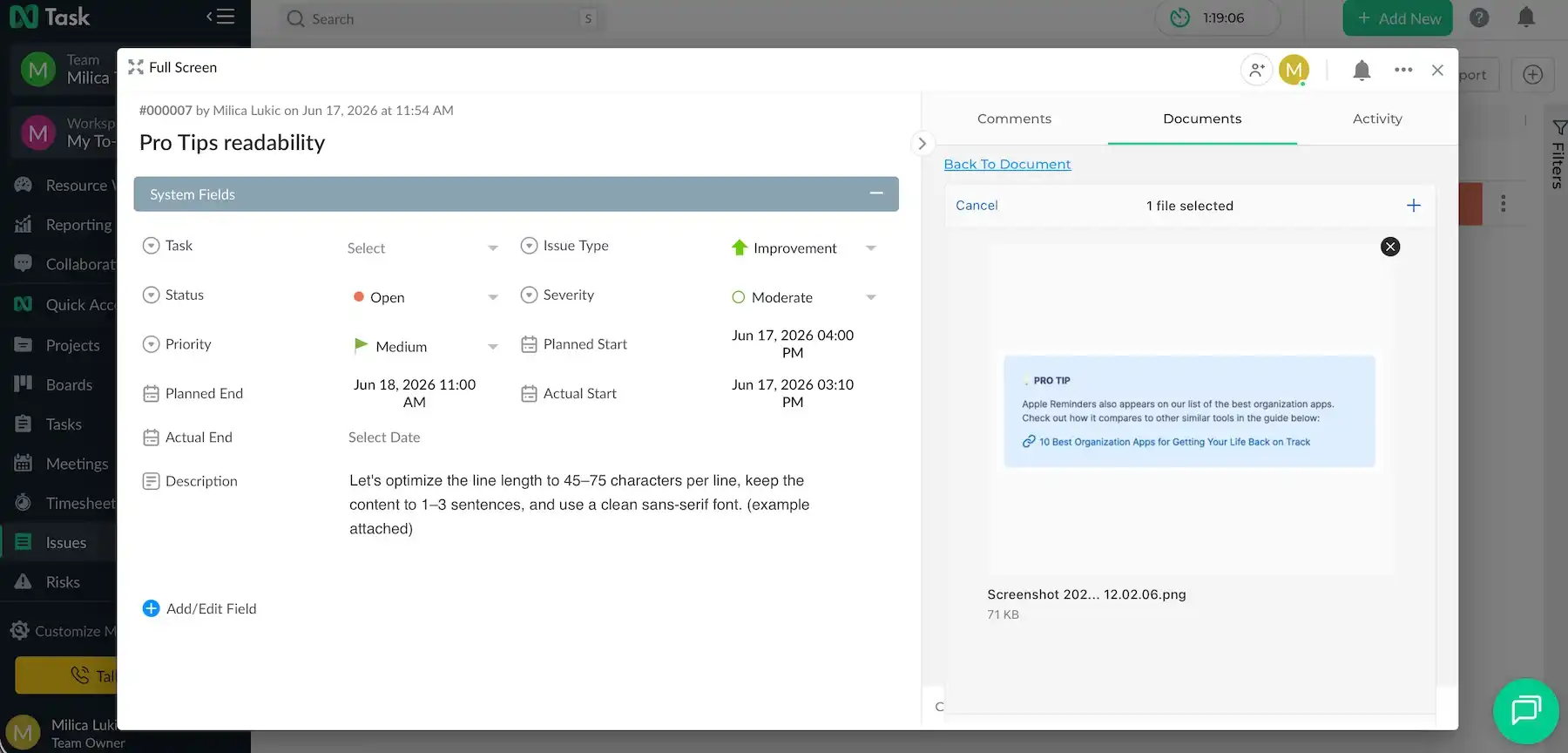
What I think could be improved is nTask’s responsiveness in the web version. For instance, when connecting an issue for a task, the card didn’t update until I refreshed the page, which was frustrating.
Overall, I find nTask geared more toward PM than personal daily planning.
What’s new in nTask?
I haven’t found information on recent updates in nTask, so it appears that the platform is focused on maintaining existing features rather than launching new ones.
Available for: web, macOS, iOS, Android
| Plan | Price |
|---|---|
| Basic Free | $0 |
| Premium | $3/month* |
| Business | $8/month* |
| Enterprise | POA |
*billed annually
#16 Ellie Planner — best for daily timeboxing
Ellie Planner is a digital planning tool offering a streamlined experience without too many complicated features.
Why choose Ellie Planner?
Timeboxing is at the heart of Ellie Planner’s design, ideal for users who want to actively plan their time instead of just tracking tasks.
| Pros | Cons |
|---|---|
| – Easy on the eyes – Brain Dump section – Effective timeboxing in the calendar view | – No native Android app – Basic features locked behind the paywall |
Ellie Planner is built around intentional daily planning, with features such as:
- Clean and focused UI — I enjoyed the neat, distraction-free design with a built-in timer, all of which motivated me to use the app.
- Basic task details — each task contains the fields Title, Task date, Estimated time, Actual time, Label, Repeats, Notes, and Subtasks — just enough context for most users.
- Brain Dump section — there’s a dedicated space to quickly capture ideas, reminders, and tasks before organizing them, which helps clear mental clutter.
- Simple analytics — Ellie provides simple insights into completed tasks and time management, but I almost missed this feature because it isn’t accessible from the main screen (it’s tucked away under the user icon in a dropdown menu).
I also like how once you mark something as done, it fades and goes to the bottom of the list, but it’s still visible — providing a sense of achievement.
As you can probably tell, Ellie Planner isn’t meant for complex projects or collaboration, just personal productivity.
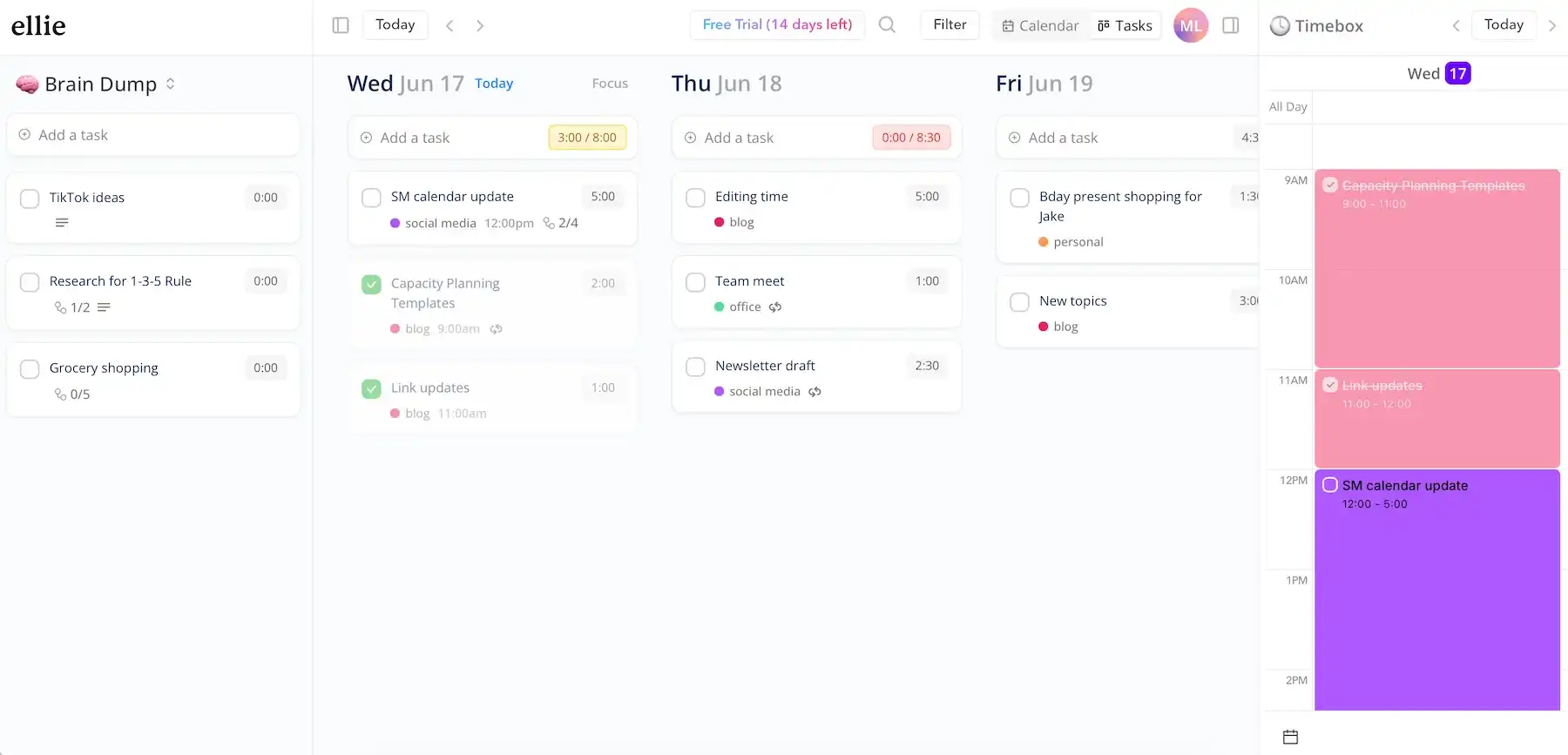
As for why Ellie Planner is great for daily timeboxing, I can highlight these benefits:
- Color-coded entries — use different colors to visually separate work, personal, and priority tasks (making time blocks easier to understand at a glance).
- Drag-and-drop timeboxing — quickly move tasks into time slots (daily, weekly, and monthly views) to easily build and adjust your daily plan in real time.
- Calendar integrations — if you use Google, Apple, and Outlook Calendars, sync it with Ellie to reduce double-booking or missed commitments.
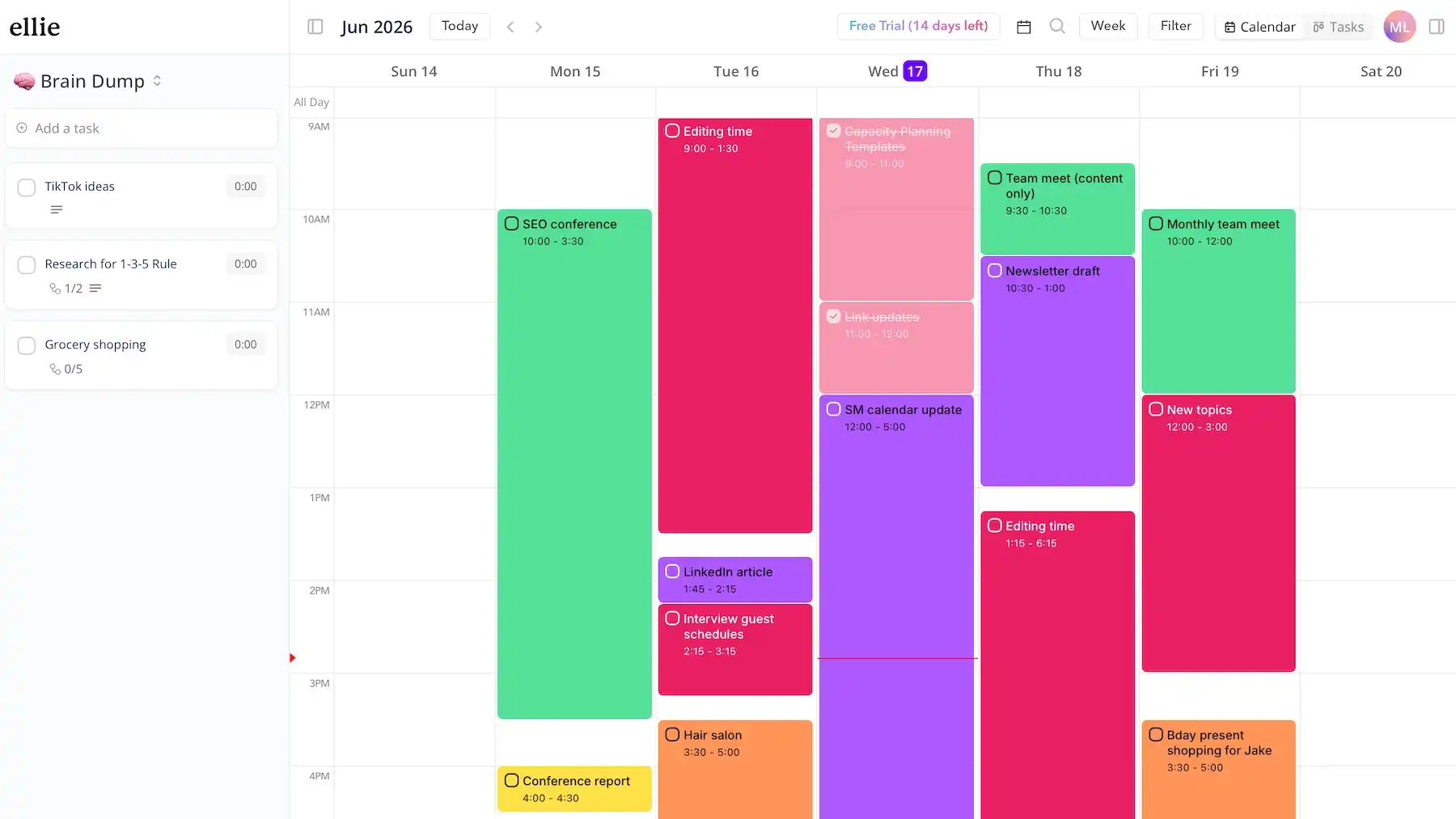
Ellie Planner would’ve probably ended up higher on my list if it weren’t for the extreme limitations of the free plan. While Ellie reserves Repeats and Subtasks for Pro users, many other planning apps offer this for free.
Another con is the lack of a native Android app, excluding a large portion of users from using the platform on their mobile devices.
What’s new in Ellie Planner?
Ellie Planner hasn’t introduced major new features recently. The only noteworthy piece of news is that Ellie Planner has improved its iPad layout and calendar experience.
Available for:
| Plan | Price |
|---|---|
| Free | $0 |
| Ellie Pro | $9.99/month or $299.99 one-time purchase |
#17 Habitica — best for game lovers
Habitica is a productivity app that turns your tasks, habits, and goals into a role-playing game (RPG).
Why choose Habitica?
Consider Habitica if you like turning your to-dos into a gamified experience — this pushes some people to be more efficient and motivated.
| Pros | Cons |
|---|---|
| – Makes planning more fun – Motivational rewards – Group quests | – RPG isn’t for everyone – Cluttered UI |
The more traditional task management features in Habitica include:
- Different task types — the app combines multiple productivity systems in one place — Habits (ongoing behaviors), Dailies (tasks to complete daily or on set days), and To Do’s (one-time tasks).
- Due dates — you can set due dates for To Do’s — and if you miss a deadline, the date turns red, signaling you should do something about it (e.g., reprioritize or reschedule).
- Checklists — Dailies and To Do’s can contain checklists so that you can make bigger tasks more manageable.
- Difficulty and repeats — Habitica lets you specify how difficult a task is and how often it repeats to reflect your real responsibilities, workload, and routines.
Personalization is also achieved through custom avatars — you can choose its hair color, accessories, background, and more.
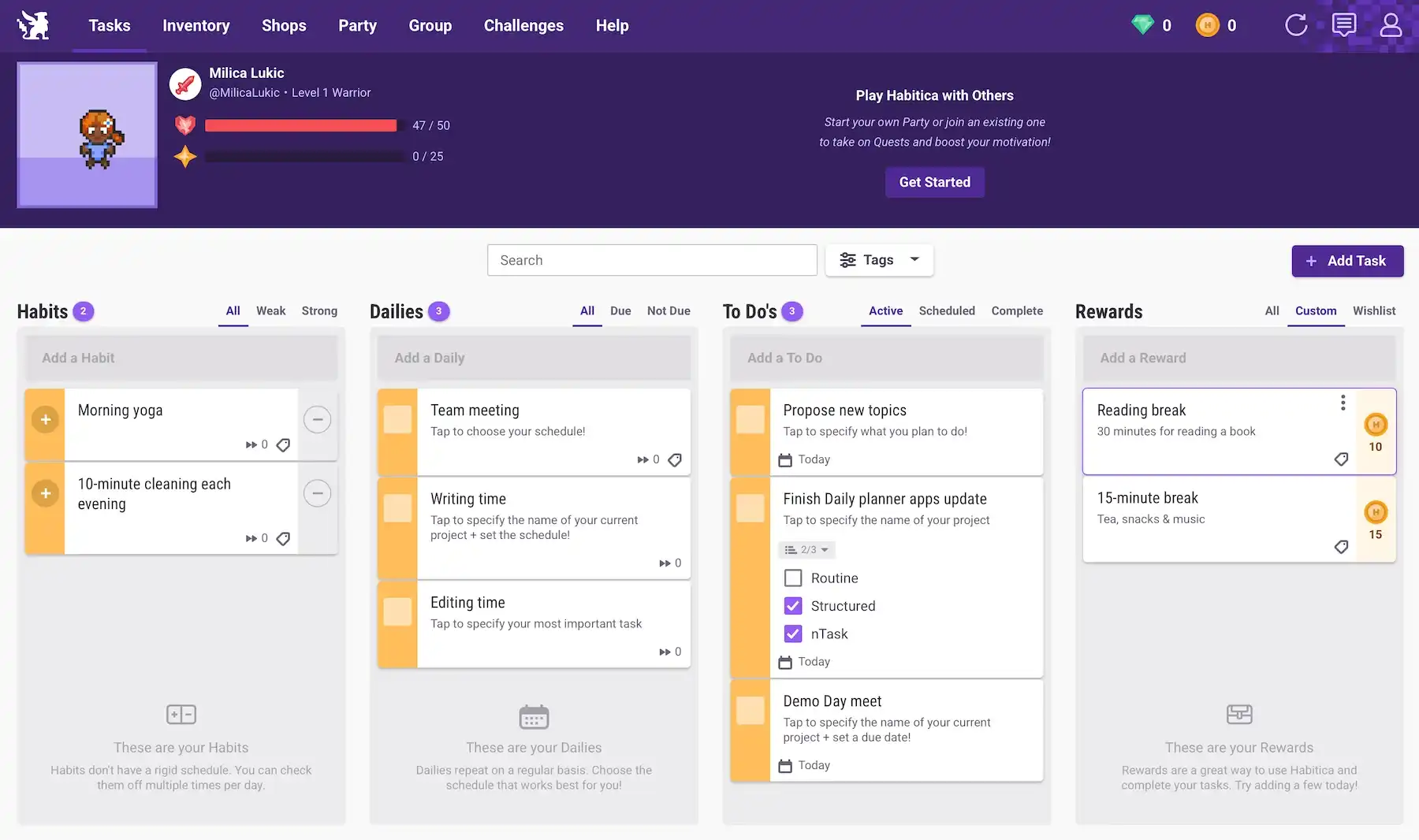
What sets Habitica apart from all the other apps on this list is the gamification aspect. Habitica is unique thanks to:
- In-game currencies — completing tasks earns currencies (like Gems and Gold) that can be used for customization, avatar equipment, and other in-app perks, creating a stronger sense of progression.
- Rewards system — Habitica turns task completion into a rewarding experience with in-game rewards (e.g., avatar equipment, bonus experience points) or custom real-life rewards (e.g., treats, self-care, leisure).
- Quests and challenges — you can participate in quests, boss battles, and community challenges, adding goals and milestones beyond your everyday to-do list.
- Party and social features — Habitica lets groups of friends form parties, complete quests together, and help keep each other accountable as a way to add a cooperative multiplayer element to productivity.
Importantly, missing tasks causes you to lose some progress and rewards.
The game elements can be fun, but those who prefer straightforward productivity tools would probably find Habitica’s approach distracting rather than motivating.
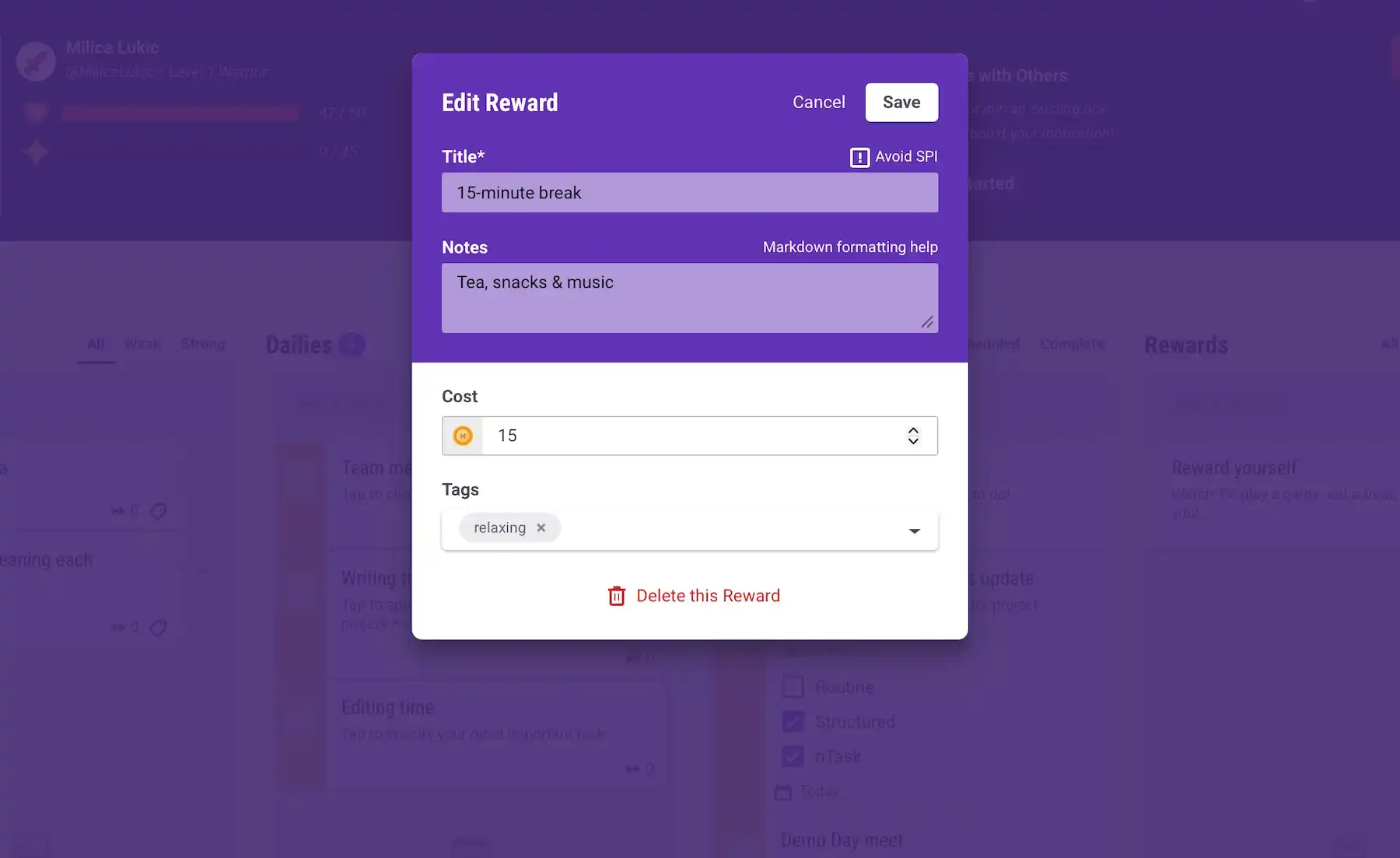
All in all, Habitica is an interesting app; it’s just that the variety of tasks, habits, and rewards makes the interface cluttered, which can lead to information overload.
What’s new in Habitica?
There have been no major feature expanses in Habitica lately — the app seems focused on small fixes and maintaining stability.
Available for: web, iOS, Android
| Plan | Price |
|---|---|
| Free | $0 |
| 1-month subscription | $4.99 |
| 3-month subscription | $14.99 |
| 6-month subscription | $29.99 |
| 12-month subscription | $47.99 |
*billed annually
#18 Routine — best for personal productivity
Routine is a productivity app that combines tasks, calendars, and notes into a single workspace.
Why choose Routine?
If you like building a focused daily plan without managing multiple tools, Routine could work well for you.
| Pros | Cons |
|---|---|
| – Minimalist design – Note-taking – Versatile task formatting | – Limited functionality with browser use – Overpriced |
Routine’s UI is very simple, with only a handful of tabs:
- Inbox — a quick capture space for unplanned tasks, untitled notes, and unanswered meeting invitations
- Agenda — a focused view of your upcoming day, showing what’s scheduled and what needs your attention right now
- Calendar — connection with Google/Apple/Outlook Calendar showing events, meetings, and time-blocked sections laid out visually
- Tasks — a structured list of all your tasks with 3 sections — Unplanned, Recurrencies, and Upcoming — for full precision
- Notes — a dedicated space for writing and storing information that may not be strictly task-related
- Labels — a tagging system for categorizing tasks and notes, ensuring smooth filtering and grouping
I just wish the Calendar tab worked as a standalone feature instead of requiring an external connection to be usable.
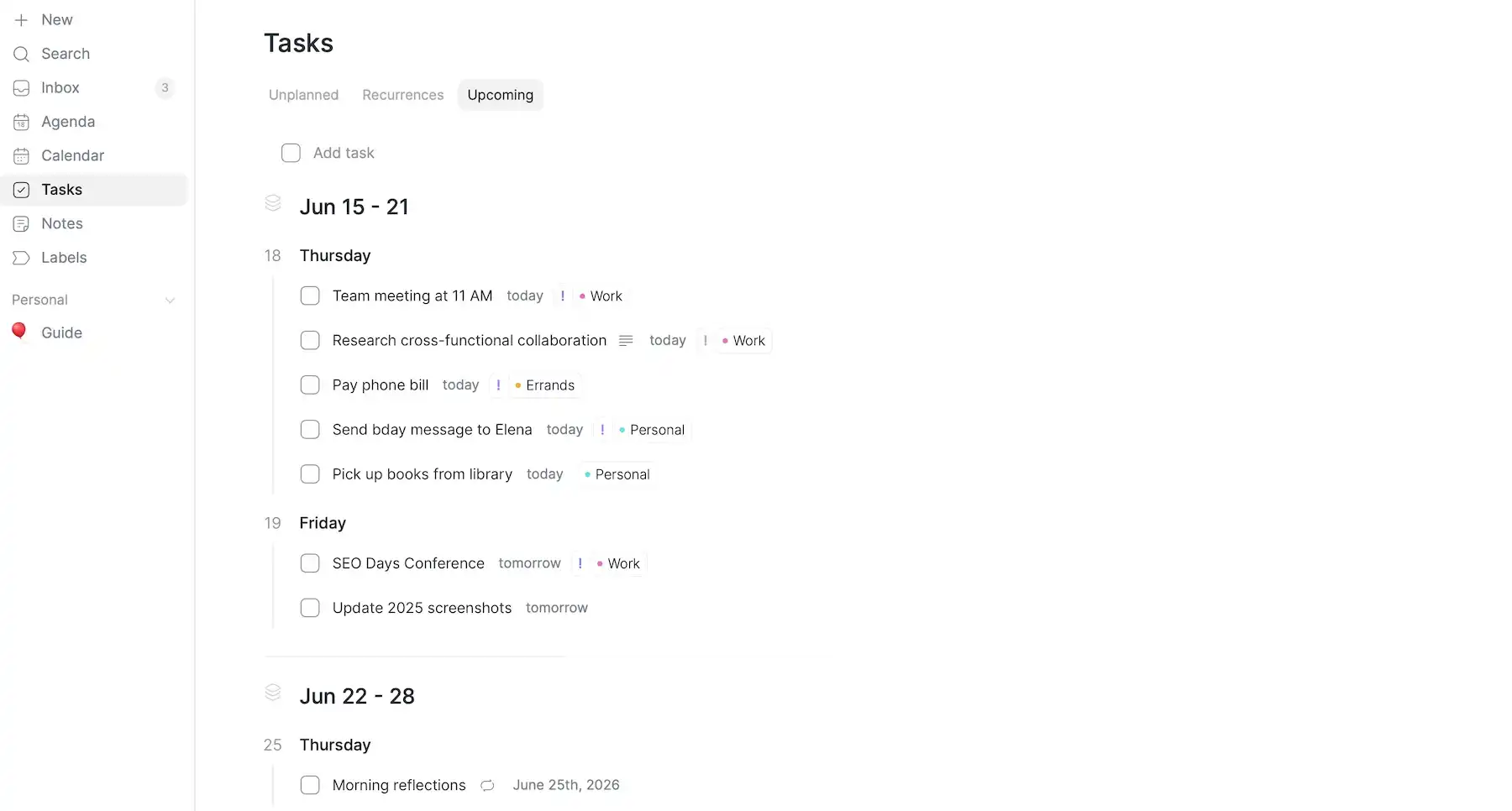
Routine felt most practical when I used it for personal productivity rather than work tasks, primarily due to the lack of PM-focused features like timelines or customizable task statuses.
Routine mostly helped me:
- Reduce mental clutter — the design is as minimalist as it gets with just enough structure for tasks to stop feeling random or easy to forget.
- Make task descriptions extra detailed — when you open an individual task or note, the editor feels more like a flexible workspace rather than a simple text field thanks to different building blocks (headings, quotes, media embeds, and more).
- Organize ideas without pressure — with Inbox + Notes, you can dump thoughts the moment they appear, then refine them later instead of trying to organize everything immediately.
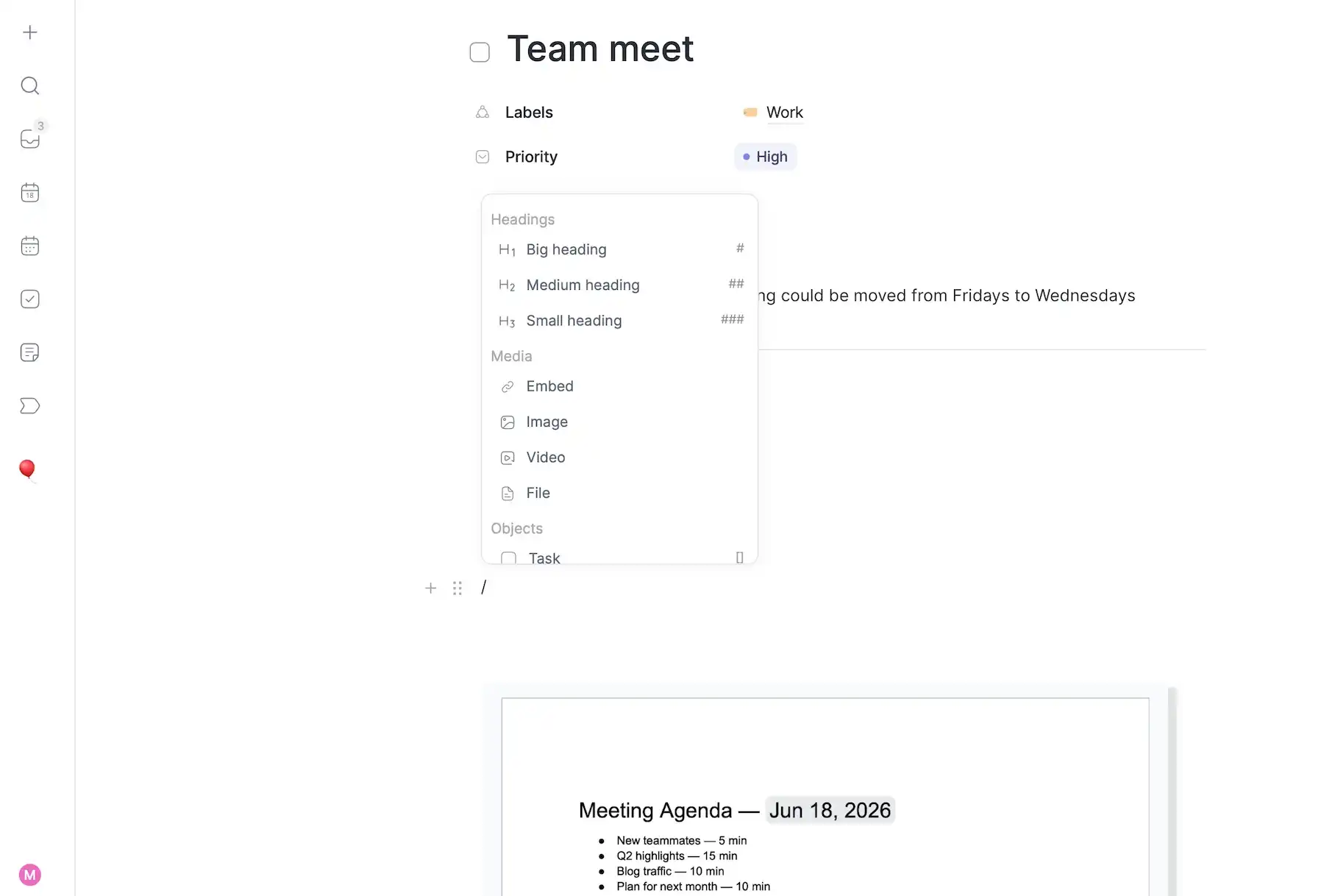
I was confused when I couldn’t find the Timers feature after clearly seeing it on Routine’s website. It appears that task-specific and Pomodoro timers aren’t available in the web version — which isn’t a deal-breaker, but I wish it was clearly stated somewhere.
And, Routine is definitely not in the cheap planner app territory — it’s just overpriced considering the extent of its features.
What’s new in Routine?
The latest updates in Routine include Google-agnostic sign-in (email-based login), new integration options, and recurring tasks redesign.
Available for: web, macOS, Windows, Linux, iOS, Android
| Plan | Price |
|---|---|
| Free | $0 |
| Professional | $10/month* |
| Business | $15/month* |
| Enterprise | POA |
*billed annually
Individual to-do lists vs. unified workspaces: Why visibility wins
To-dos rarely exist in isolation. Most people — whether it’s for professional purposes, personal use, or both — deal with tasks, notes, collaborative efforts, and more, all at the same time.
When information is fragmented, updates are likely to get lost or duplicated, especially when something changes and you have to manually reflect it in multiple places.
In contrast, a unified workspace keeps everything connected. When tasks, files, and schedules live together, the result is less guessing and fewer “Wait, what’s the latest decision/version?” moments.
💡 Plaky Pro Tip
Intimidated by full-on planner tools? Feel out your planning needs and preferences with our free to-do list templates (Google Docs/Sheets):
Bring your daily work into focus with Plaky by CAKE.com
Finding the best planner app depends on your needs and preferences. Some of the solutions in this listicle are primarily for making simple to-do lists, whereas others can also function as collaboration tools for work activities and projects.
Our platform, Plaky by CAKE.com, is more powerful than basic to-do software, but without the complexity and steep learning curve of enterprise tools.
Whether you’re organizing personal goals, planning projects, managing freelance work, or collaborating with a team, you’ll be glad to know Plaky offers:
- User-friendly design
- Unlimited tasks and users
- Enterprise-grade security
- 24/7 customer support
- Generous free plan and affordable paid tiers
Turn scattered plans into a clear, organized workflow — in Plaky by CAKE.com!