
There’s no shortage of “best project management apps” lists, but if you really want your choice to make an impact, you need to do more than look into features and tiers. The most essential part is considering what actually fits how your team works.
That’s why I tested dozens of PM tools and landed on 10 standouts, comparing usability, pricing, and real-world performance.
Keep reading to see all the pros and cons — and hopefully find the app that aligns with your needs.
WHY TRUST US
The apps we talk about are selected, tested, and written about by human reviewers who follow strict review and editorial guidelines. We pick solutions that are practical, purposeful, and can offer real value for the specific use case or business context we’re covering — while also being justified in their pricing. Our methodology is transparent, clear, and available to everyone:
10 best project management apps for teams — an overview
Before diving into the full reviews, here’s a quick overview of all the tools I tested.
| Tool | Best for | Free trial | Free plan | Lowest price |
|---|---|---|---|---|
| Plaky by CAKE.com | Small to mid-sized teams | ✔ | ✔ | $3.99/user/month |
| Wrike | Enterprise-grade reporting | ✔ | ✔ | $10/user/month |
| Asana | Cross-functional projects | ✔ | ✔ | $10.99/user/month |
| Airtable | Data-driven projects | ✔ | ✔ | $20/user/month |
| ClickUp | Elaborate projects | ✔ | ✔ | $7/user/month |
| Hive | AI-assisted PM | ✔ | ✔ | $3/user/month |
| monday.com | Versatile team setups | ✔ | ✔ | $9/user/month |
| Teamwork.com | Client-facing projects | ✔ | ✔ | $9.99/user/month |
| ProofHub | Feedback and approvals | ✔ | ❌ | $45/month |
| Trello | Kanban simplicity | ✔ | ✔ | $5/user/month |
#1 Plaky by CAKE.com — best for small to mid-sized teams
Plaky is a reliable work management platform that caters to different industries thanks to its high customization capabilities.
Why choose Plaky?
This solution works best as a PM tool for smaller businesses because it provides clarity and structure without bloated features.
| Pros | Cons |
|---|---|
| – User-friendly – Fully customizable – Affordable – Part of the wider productivity ecosystem | – Limited integrations |
Plaky is one of those apps that feel almost effortless. Here’s why I’ve been recommending it for years:
- Strong project organization and tracking — Organize work into boards, folders, and (sub)tasks. Having different field types to specify status, assignees, budgets, deadlines, etc. means full flexibility.
- Multiple useful views — Apply different project views. I typically use the Table view for quick data entry, Gantt for visualizing timelines, Kanban for seeing progress through stages, and pie/bar charts for comparisons.
- Handy automations — Use the “When this happens, do that” logic to automate status updates, handoffs, recurring tasks, etc. You’ll be surprised by how much saved time accumulates as you reduce repetitive steps.
And don’t worry about losing track of updates. Plaky’s trusty Activity log and real-time notifications ensure easy troubleshooting and staying informed without micromanaging.
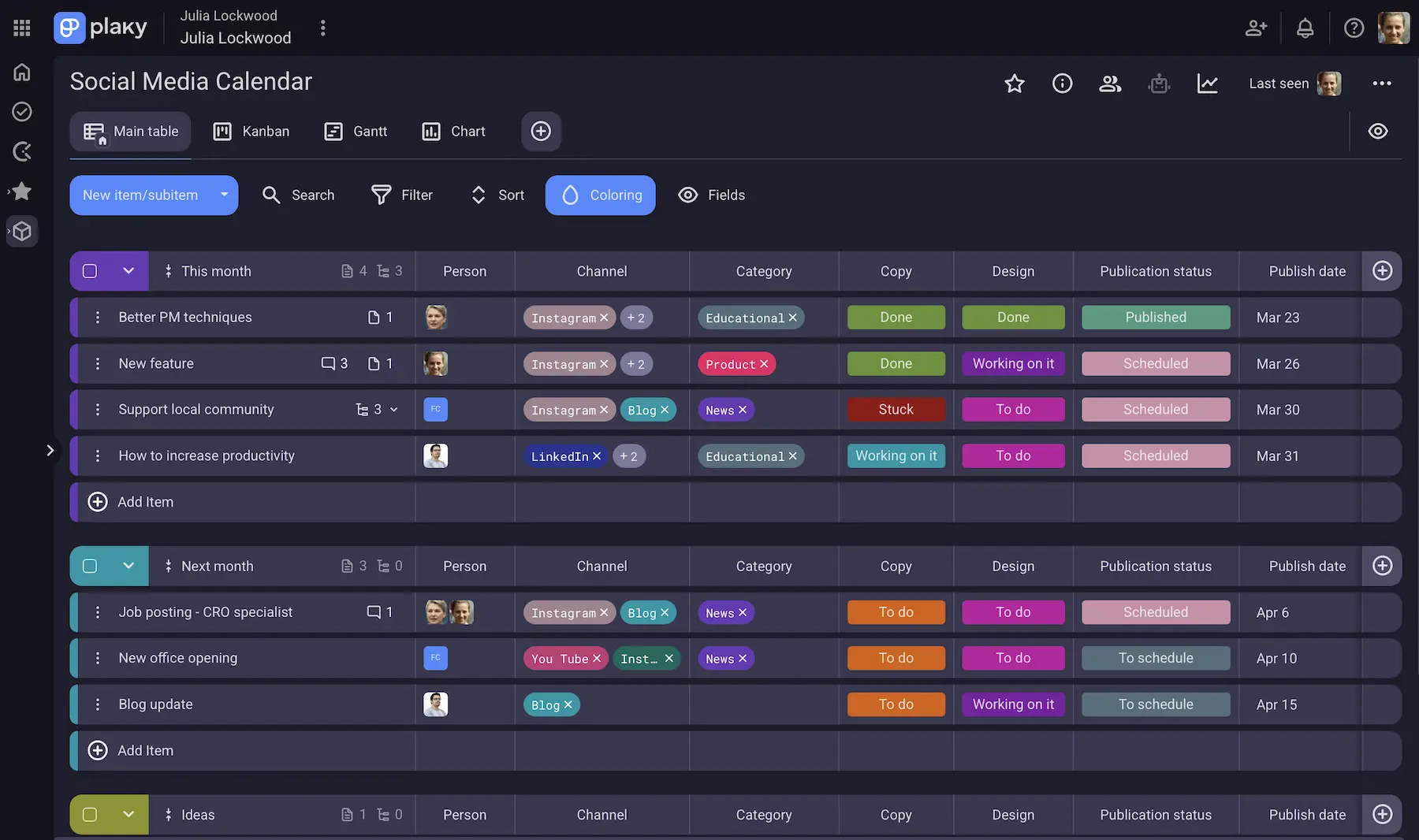
Moreover, Plaky feels like a natural fit for small to mid-sized teams who want:
- No learning curve — even complete beginners can create boards from scratch or use the ready-made templates — you don’t need a whole tech department setting everything up first.
- Budget-friendly tiers — Plaky is one of the best free project management apps, but you should definitely consider the popular Pro plan for more features and storage, as well as the comprehensive Enterprise plan for extra privacy and security.
- Easy collaboration in one place — in-task comments, @mentions, and file sharing keep communication simple and centralized.
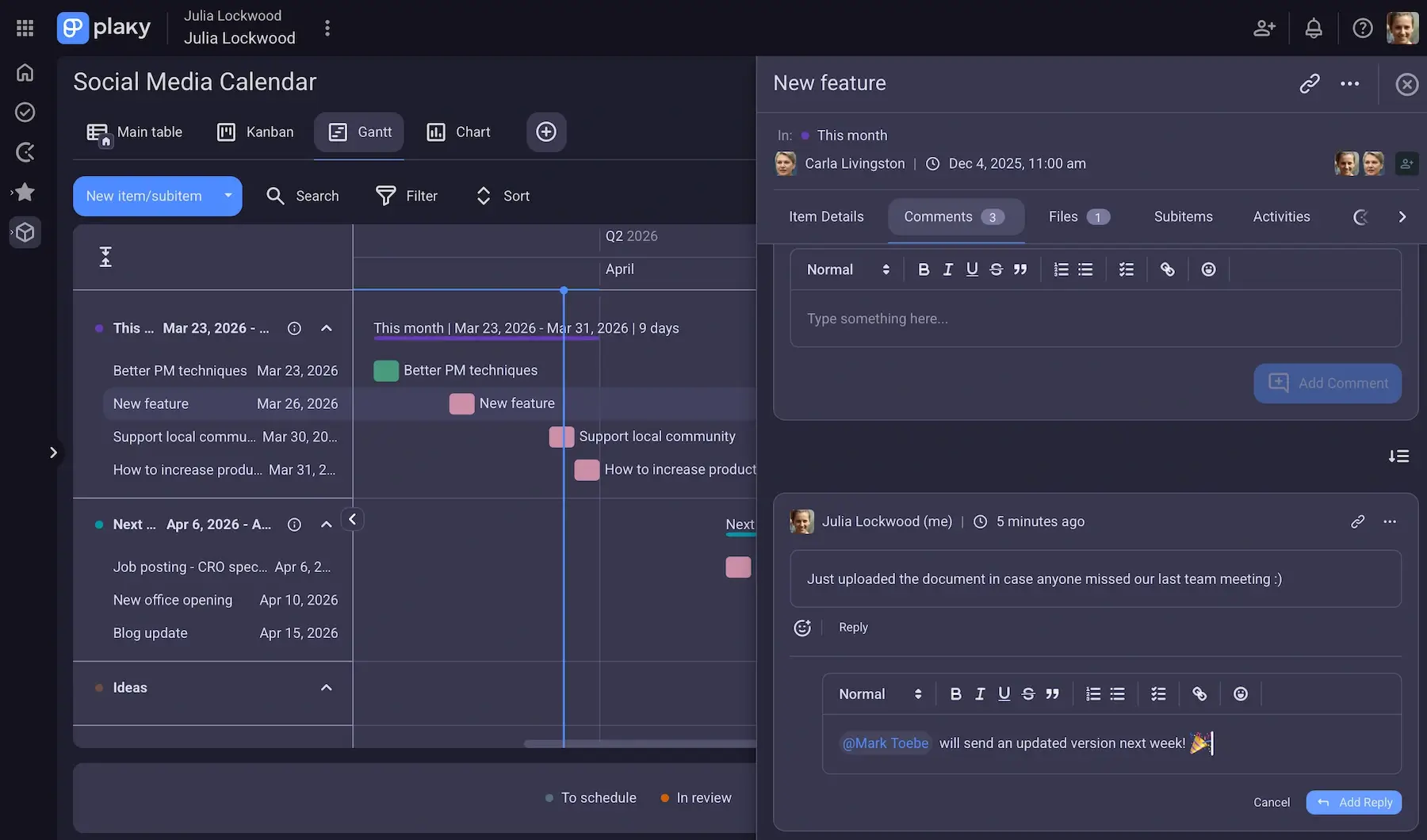
What could be improved is integrations, as the platform now only offers:
- Plaky + Clockify — for in-task time tracking, feeding time data into Clockify reports, and
- Plaky + Pumble — for customizable task updates in Pumble chats to ensure swift reactions.
This makes a powerful productivity suite — saving you 53% on the cost of separate subscriptions.
Finally, Plaky’s API lets you connect it with other tools if you have development resources.
What’s new in Plaky?
Plaky recently introduced several updates designed to make project management easier.
You can track key metrics with Dashboards.
You can now add files directly to the rich text editor and Item comments, while Subitems in Gantt charts help you get a more detailed view of project timelines.
Additionally, Plaky’s protected view feature now lets you limit access to a board view so only specific people can see and manage it.
For a more detailed look into Plaky’s latest updates, visit Plaky’s changelog.
Available for: web, iOS, Android
| Plan | Price |
|---|---|
| Free | $0 |
| Pro | $3.99/seat/month* |
| Enterprise | $8.99/seat/month* |
| CAKE.com Bundle (Plaky + Clockify + Pumble) | $12.99/seat/month* |
*billed annually

#2 Wrike — best for enterprise-grade reporting
Wrike is a robust PM app for teams that need structure, customization, and advanced control over their workflows.
Why choose Wrike?
Besides managing projects, Wrike can also help you analyze them. If reporting is a priority, this might be the tool for you.
| Pros | Cons |
|---|---|
| – 400+ integrations – Fairly flexible – Great reporting | – Complex for beginners – Impractical pricing |
As expected, Wrike offers:
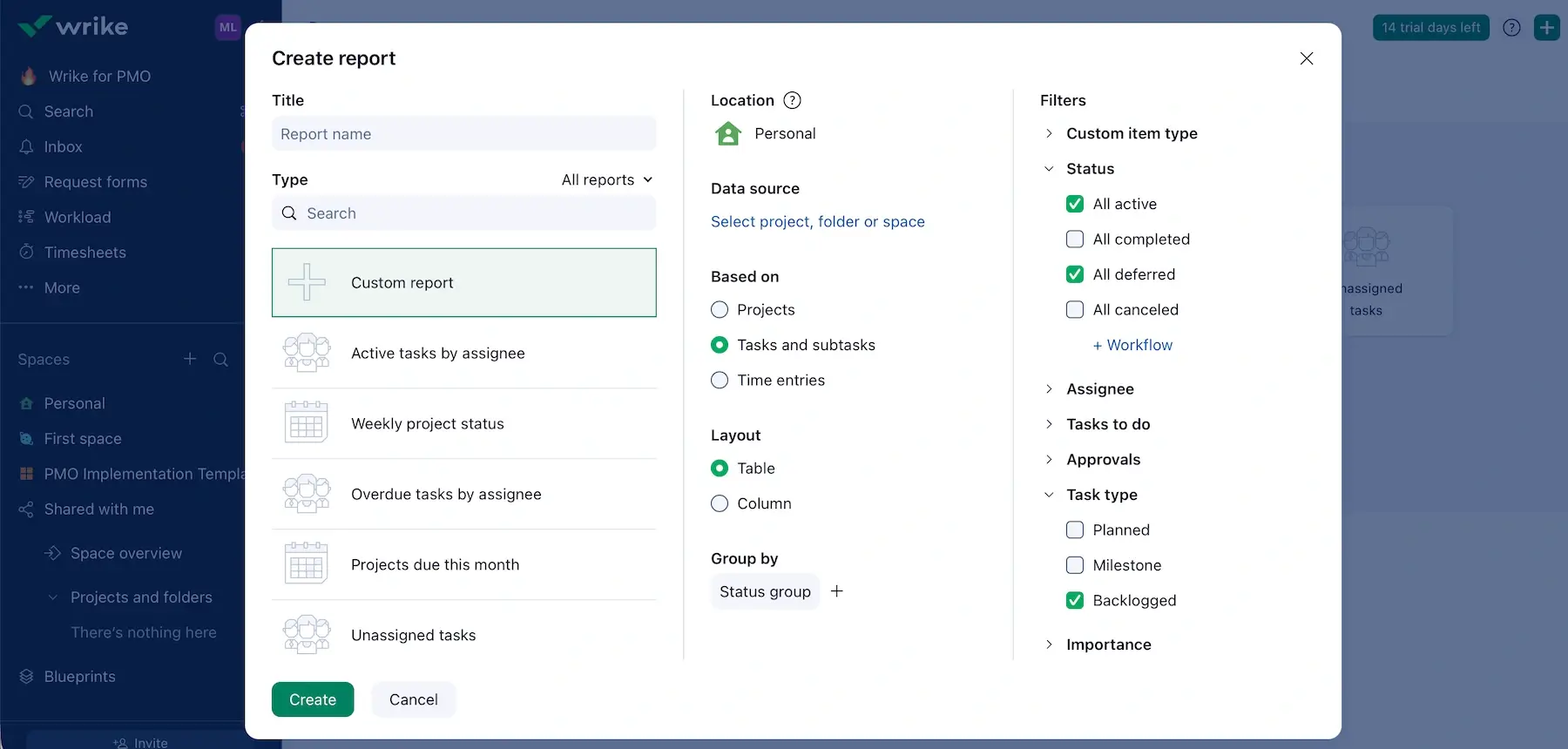
- Structured hierarchy — organize work into Folders, Projects, and Tasks, and use custom Fields (paid-plan feature) to design the workflow you need.
- Project views — switch perspectives (Table, Board, Chart, and more) depending on the project type or stage.
- Team collaboration — collaborate smoothly through comments, file sharing, and real-time updates.
- Automation — automate routine work by creating your rules or relying on Wrike’s pre-built automation templates.
- 400+ native integrations — connect Wrike to other tools you use for CRM, file storage, messaging, etc.
Obviously, this isn’t a lightweight tool, so it could feel overwhelming for beginners or somebody coming from a simpler platform. Also, the design can feel busy and cluttered when you juggle multiple projects.
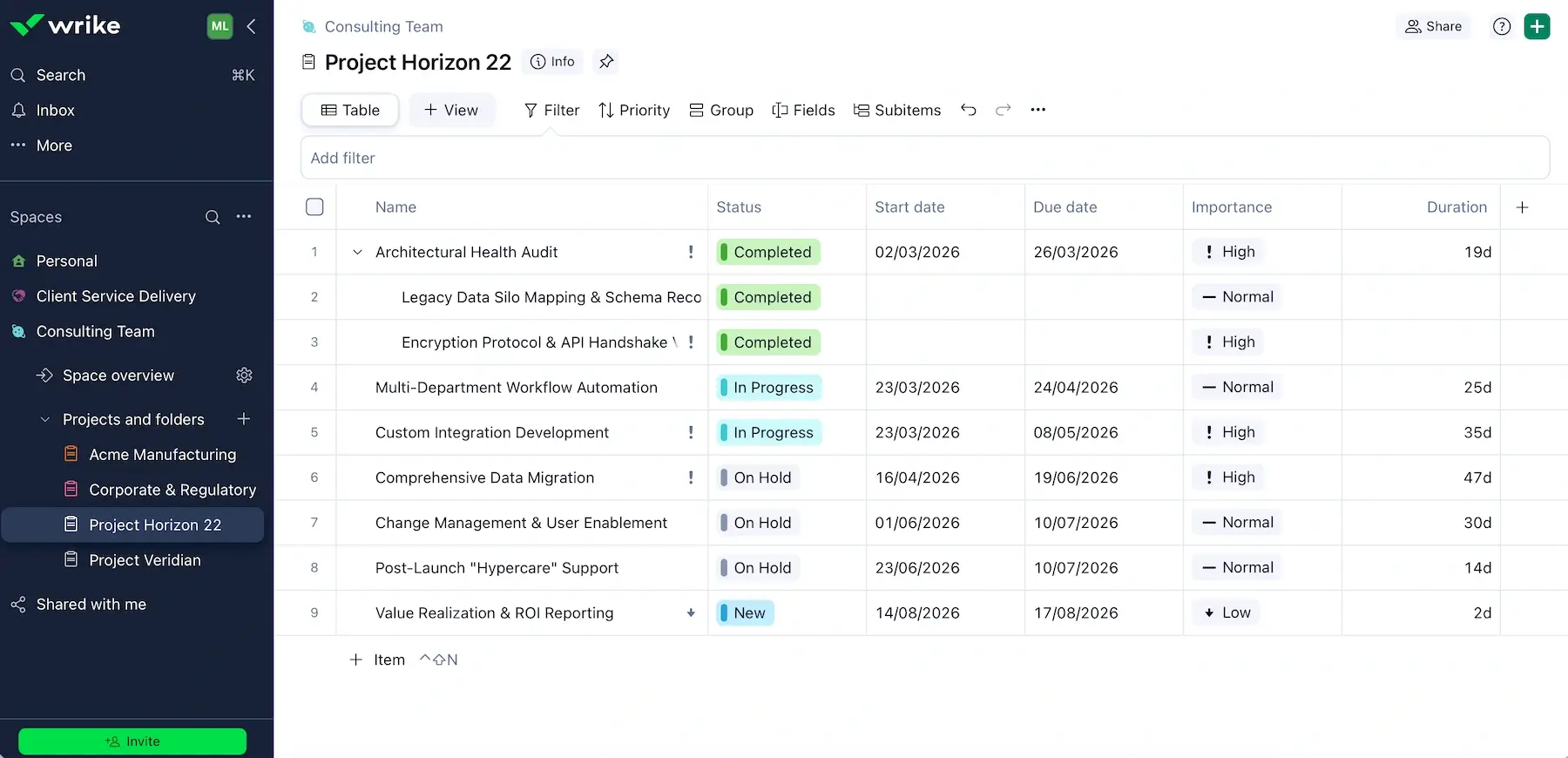
That said, Wrike’s forte is reporting and analytics — here’s why:
- Custom reports — build reports from scratch or customize templates to see project progress more clearly.
- Cross-project visibility — pull data from multiple projects into one place to see how everything connects at a higher level.
- Dashboards — choose analytical widgets for dynamic dashboards to support data-driven decision making.
Dashboards are only available on paid tier and real-time reports on the second paid plan and higher. That’s rather expected with tools like these, but I wanted to underline it for users on a tight budget (Wrike is definitely not the cheapest option on this list).
Speaking of paid plans, there’s a potentially huge downside — Wrike’s bundled seat model:
- Under 30 users — purchased in blocks of 5
- 30–100 users — purchased in blocks of 10
- 100+ users — purchased in blocks of 25
This is far from ideal, potentially losing hundreds or even thousands of dollars a year on seats literally nobody is using (e.g., with a team of 102 people, you’d be paying for 125).
Wrike’s not the only platform using this pricing structure (e.g., Asana and monday.com), but I wish this info was more prominent on the pricing page instead of buried in the FAQ section at the bottom.
What’s new in Wrike?
Wrike’s AI Agents can now perform multiple actions in one go and understand more context and triggers. Also, the Gantt view got upgrades like snapshots and improved visuals.
Available for: web, macOS, Windows, iOS, Android
| Plan | Price |
|---|---|
| Free | $0 |
| Team (2–15 users) | $10/user/month |
| Business (5–200 users) | $25/user/month |
| Pinnacle | POA |
| Apex | POA |
#3 Asana — best for cross-functional projects
Asana is a project management and coordination app that helps teams turn ideas into trackable work.
Why choose Asana?
This app is well suited for cross-functional work because it creates alignment without forcing different teams to change how they operate.
| Pros | Cons |
|---|---|
| – Solid dashboards – 200+ native integrations – Multi-home tasks | – Inflexible pricing – Limited customer support |
My overall impression is that Asana provides structure without rigidity. Here’s what I want to point out first:
- Neat hierarchy — Work is divided into Projects, Tasks, Goals, and Portfolios, making it more manageable. Just note that only 1 user can be the primary task assignee, which may force you to rely on subtasks.
- Automation and integrations — Asana lets you automate repetitive actions, even if they involve some other tools you use (200+ integrations). I like how you can build your own rules or get recommendations from the rules library.
- Solid reporting and tracking — Dashboards offer different charts to visualize and summarize projects. They can be private or shared with team members, which is convenient.
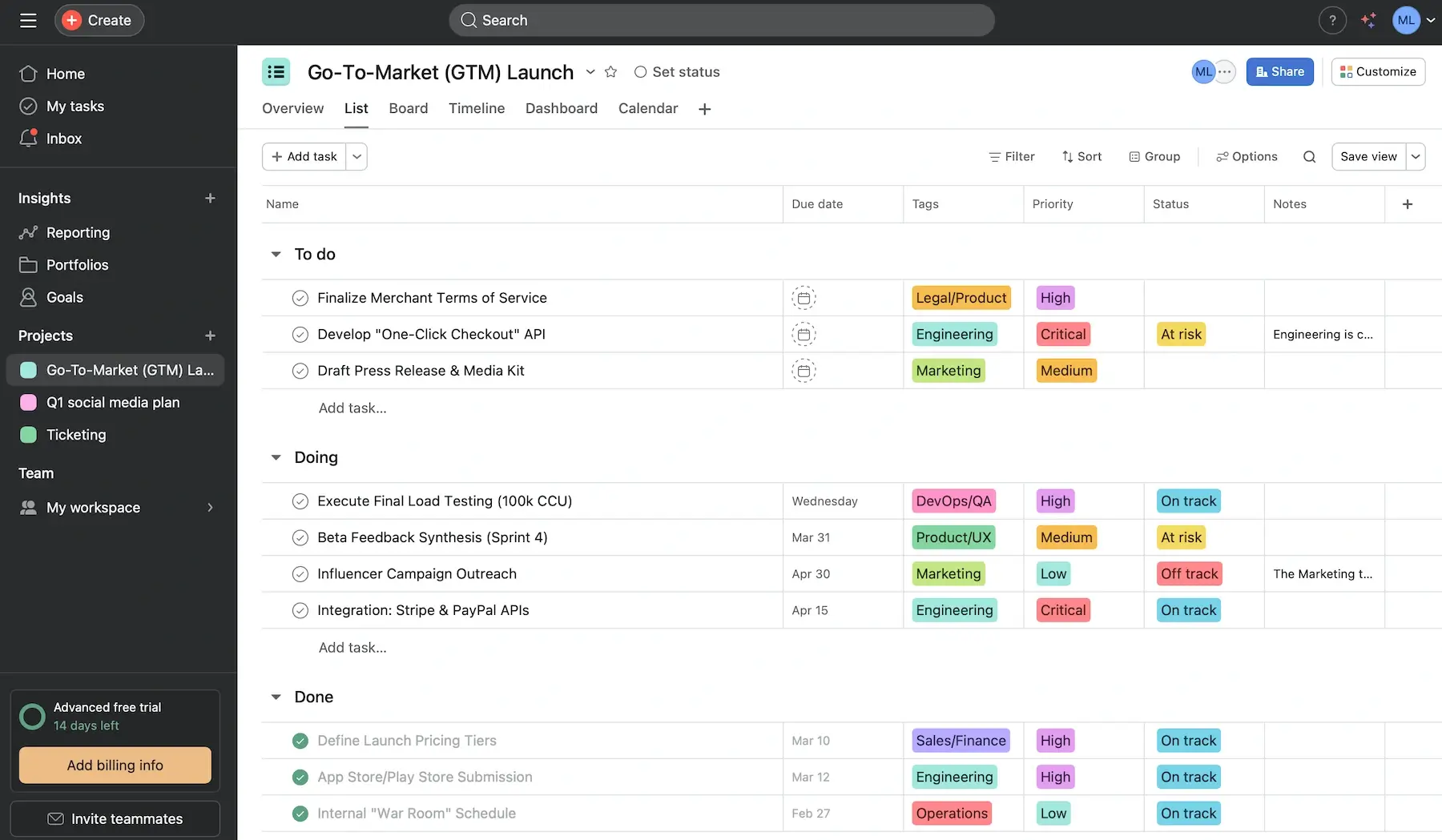
Moreover, most tools start to feel messy when multiple teams work together, but Asana handles cross-functional collaboration well — here’s how:
- Standardized processes — Pre-made templates ensure consistency. Bundles (any combo of rules, templates, and fields) are also handy, but they’re reserved for Enterprise(+) users.
- Centralized communication — Comments, updates, and files live inside tasks. There’s no need for scattered folders elsewhere.
- Multiple views — Kanban, List, Timeline, Calendar, and Gantt views support different user needs. That’s crucial when multiple departments are involved.
- Multi-home tasks and dependencies — A task can exist in several projects at once, with updates syncing automatically. You can also set task dependencies for more accurate scheduling.
As you can tell, Asana has lots of features, so there’s definitely a learning curve.
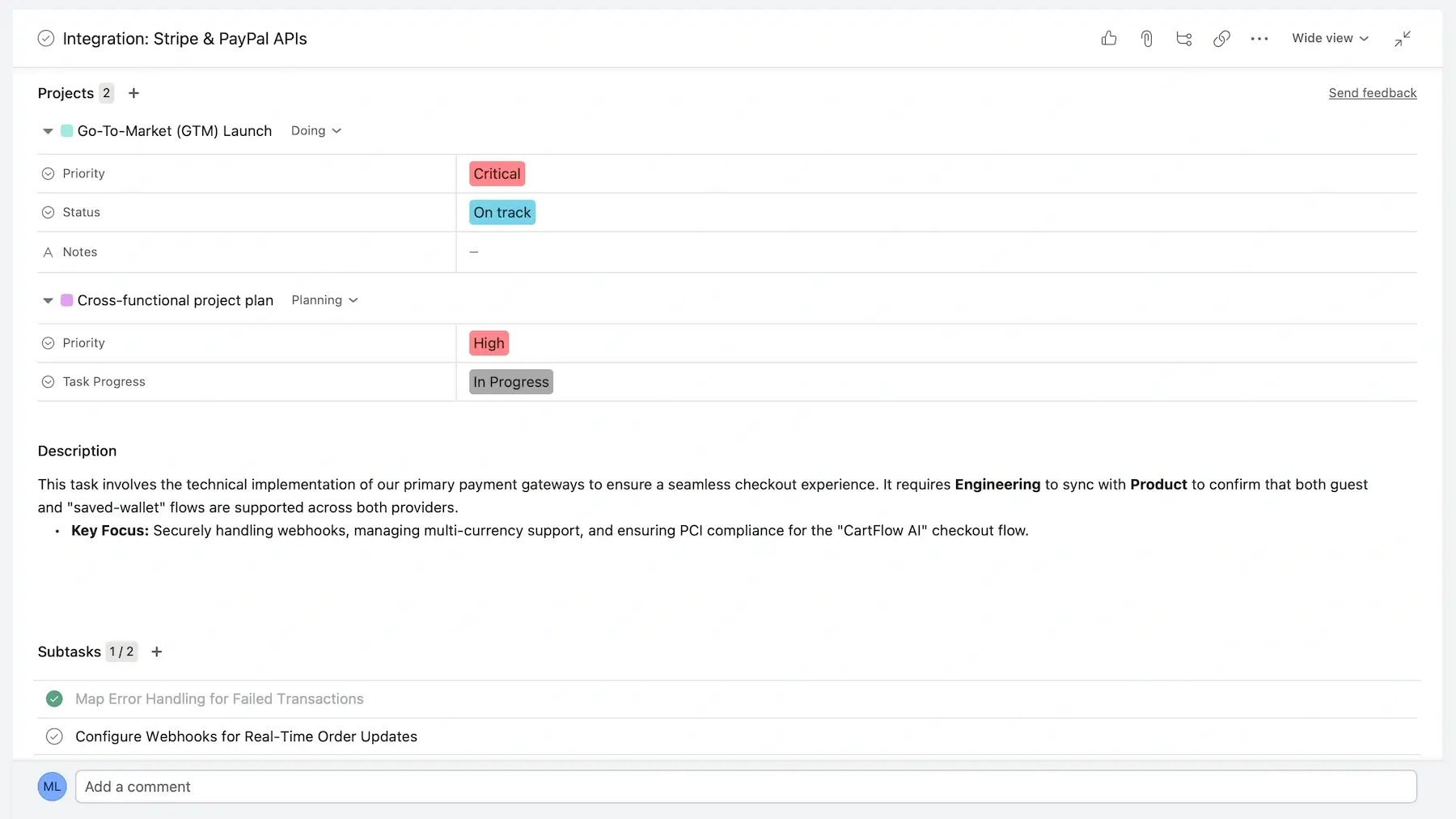
Now, a huge minus in my eyes: Asana’s pricing isn’t as flexible as it sounds. With 5+ people, you must add seats in fixed increments (5, 10, 25, or 50, depending on the team size). So, you may end up paying for more users than you actually need.
Finally, if we compare Asana to Plaky or ClickUp, customer support is very limited (e.g., 24/7 support exists only on the 2 most expensive plans).
💡 Plaky Pro Tip
Curious to learn how Asana compares to similar tools in more detail? Visit these pages:
What’s new in Asana?
Asana has a new add-on — AI Teammates. You can assign tasks to AI, just like you would a person (e.g., instruct it to write updates, summarize work, suggest next steps). Generally speaking, Asana has made its AI smarter across the whole app lately.
Available for: web, macOS, Windows, iOS, Android
| Plan | Price |
|---|---|
| Personal (free) (up to 2 users) | $0 |
| Starter | $10.99/user/month* |
| Advanced | $24.99/user/month* |
| Enterprise | POA |
| Enterprise+ | POA |
*billed annually

#4 Airtable — best for data-driven projects
Airtable is professional software that blends spreadsheets and databases, letting you organize and connect information in a highly customizable way.
Why choose Airtable?
This is less of a traditional project management tool and more of a lightweight database with a sleek design. Airtable can manage both tasks and information — essential for data-driven teams.
| Pros | Cons |
|---|---|
| – Very flexible – Relational databases – Easy on the eye | – Pricey – AI feature feels inconsistent |
The first thing I noticed about Airtable is its adaptability. Here’s how it lets you build a system that fits your workflow:
- Custom apps — combine different fields, views (List, Timeline, Calendar, etc.), and structures to make purpose-built solutions for your unique workflows.
- Smooth collaboration — use Comments, Activity feed, and Snapshots (automatic, point-in-time backups) for clarity and context.
- No-code/know-code automations — automate processes like status changes and approvals without coding, or extend the logic with Javascript if you need more.
While Airtable doesn’t have that many native integrations (less than 30), it can connect with thousands of other apps via Zapier for automations.
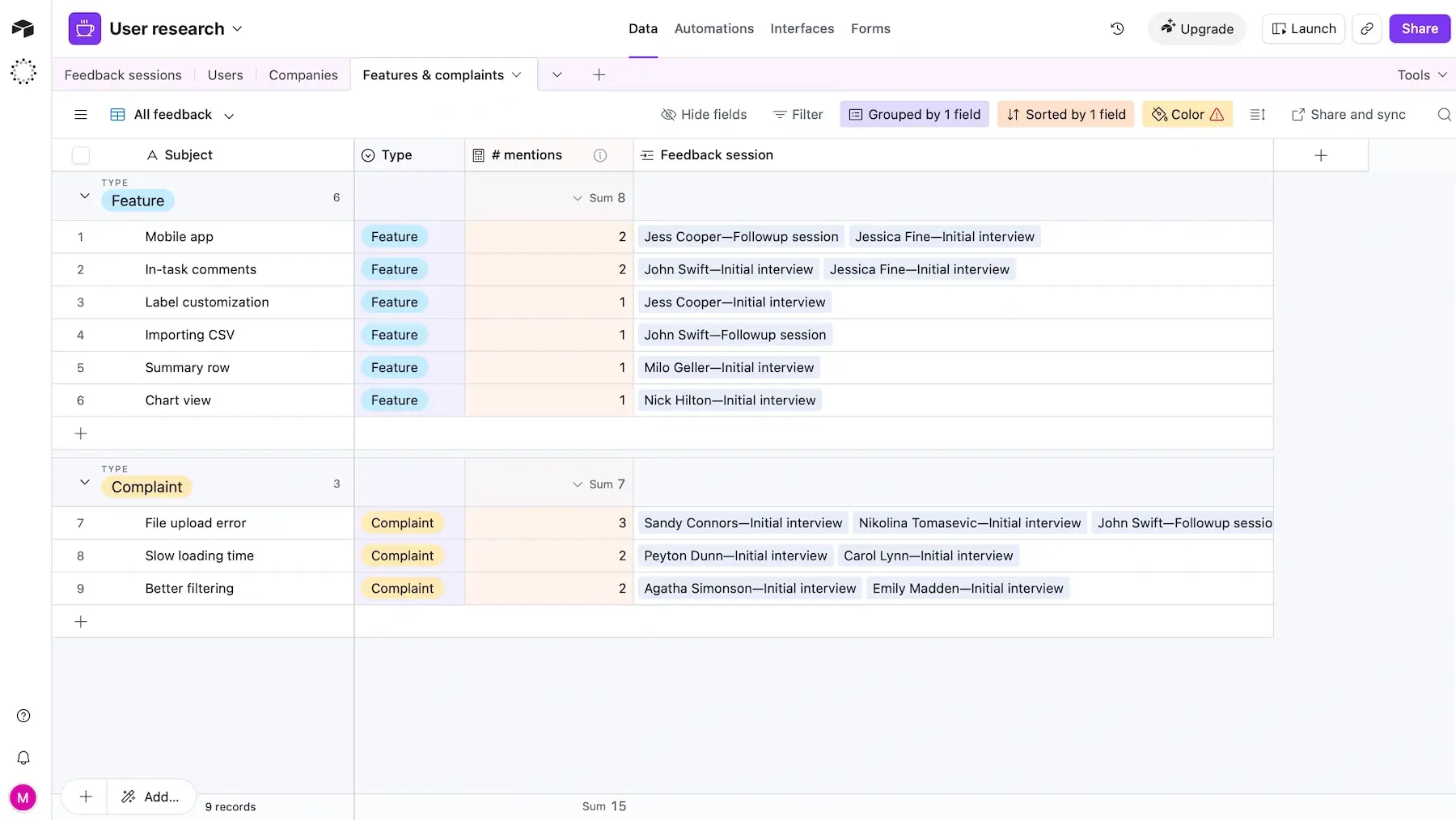
If you mostly have data-focused projects, Airtable could be a strong choice considering these features:
- Database-like structure — every project is essentially a database, so you can store and organize lots of structured data with ease.
- Relationships between datasets — you can link Bases together (e.g., campaigns ↔ assets ↔ deadlines), making data-heavy workflows more effective.
- Advanced filtering — Airtable’s filtering supports layered conditions and “and/or” logic for flexibility.
In addition, there are native dashboards and built-in extensions, but reporting in Airtable is definitely more modular and DIY compared to tools like Asana or Wrike.
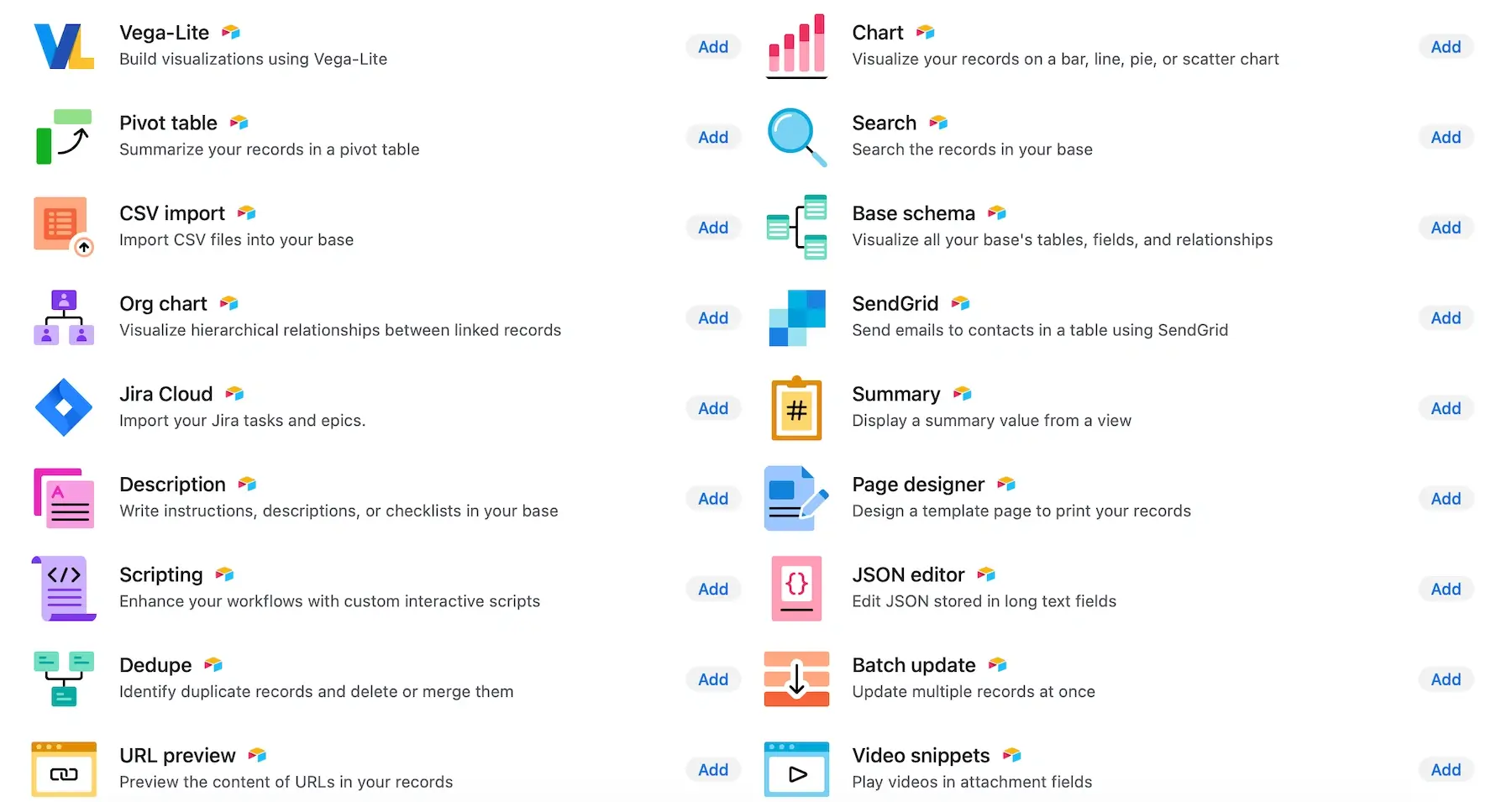
All in all, Airtable can be powerful, but it’s among the most expensive tools on this list, especially if you also need Portals — a paid add-on for sharing specific interfaces with external users (from $120/15 guests/month).
One final thing: Airtable has Omni, an integrated AI assistant and co-builder. While doing my research, I saw that users online are often critical of Omni. Some say it feels “unfinished” — struggling with formatting and producing inconsistent results — so that could be improved.
What’s new in Airtable?
Airtable enhanced team collaboration with 3 specific updates. First, the app introduced attaching files to comments. Second, comments can now be resolved if needed. Lastly, there’s a new search bar in Airtable’s notification panel.
Available for: web, macOS, Windows, iOS, Android
| Plan | Price |
|---|---|
| Free (up to 5 editors) | $0 |
| Team | $20/seat/month* |
| Business | $45/seat/month* |
| Enterprise Scale | POA |
*billed annually
#5 ClickUp — best for elaborate projects
ClickUp is a comprehensive platform that combines tasks, docs, goals, and communication in one place.
Why choose ClickUp?
This app is built to tackle intricate projects without losing sight of deadlines, overlaps, or priorities.
| Pros | Cons |
|---|---|
| – All-in-1 workspace – 1,000+ integrations – Lots of ready-to-use templates | – Steep learning curve – Low quality customer care |
As soon as I opened ClickUp, I could tell it’s feature-rich. Some of its core strengths include:
- All-in-1 workspace functionality — Tasks, Docs, Chat, Whiteboards, Goals, and Calendar view covering most professional needs,
- Multiple views — 15+ customizable views (List, Board, and Calendar on the free plan, plus more advanced ones like Gantt or Workload on paid plans), and
- Robust automation — rules for auto-assigning tasks, updating statuses, triggering reminders, and more.
An important note: ClickUp has custom fields, as expected, but there’s a limit of 60 total uses per workspace on the free plan. Once you reach that, you can’t create new fields or edit existing ones without upgrading, which is inconvenient for budget-conscious users.
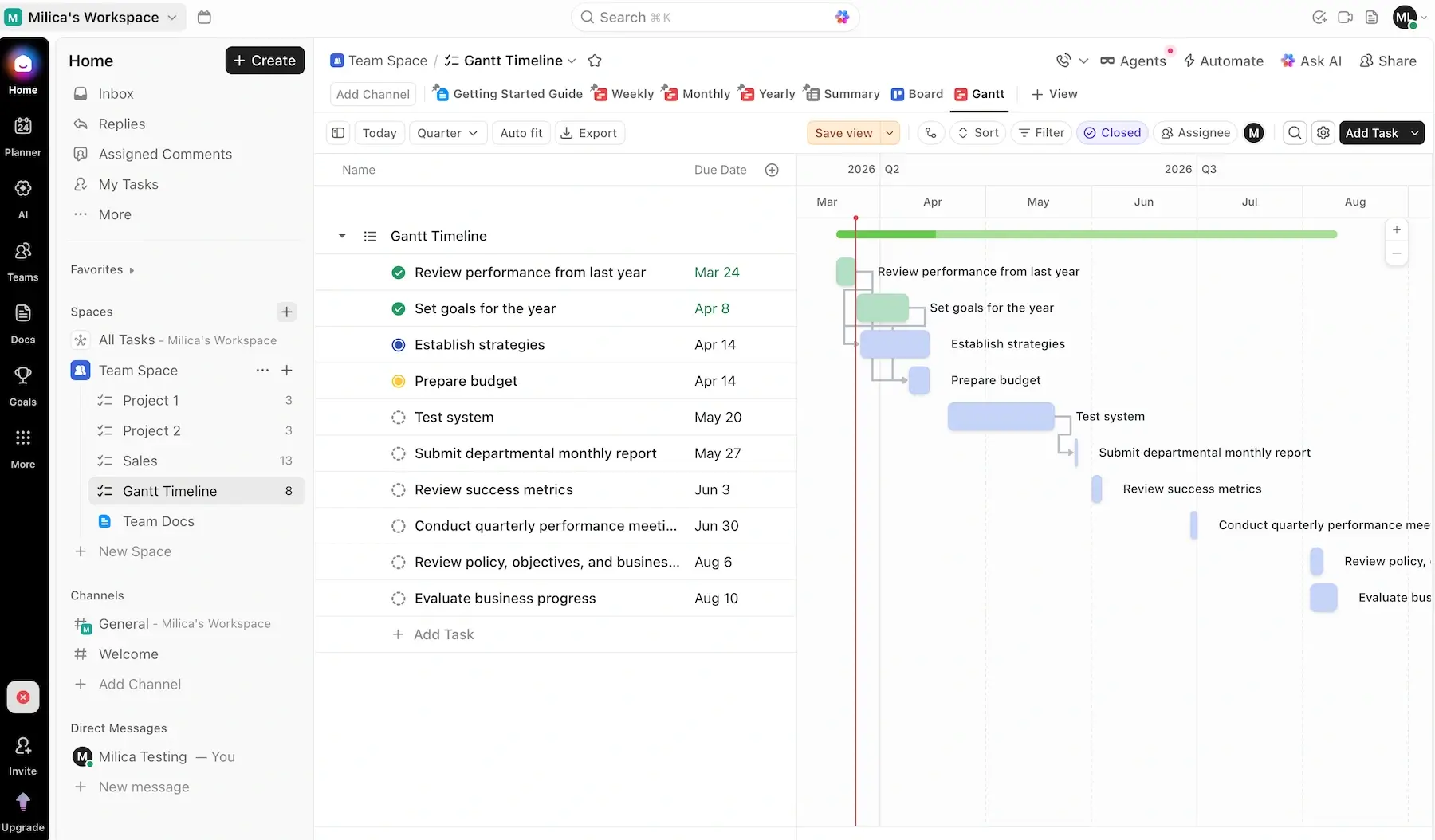
Now, here’s what I believe makes ClickUp shine with complex and multi-layered projects:
- Dependencies and relationships — link tasks and set dependencies to prevent bottlenecks in big workflows.
- Integrations and API flexibility — connect ClickUp with 1,000+ native and third-party integrations, and rely on custom API work.
- Robust reporting — generate custom reports to analyze and improve key metrics, productivity, workload management, and more.
- Extensive template library — standardize and speed up setup for recurring complex projects.
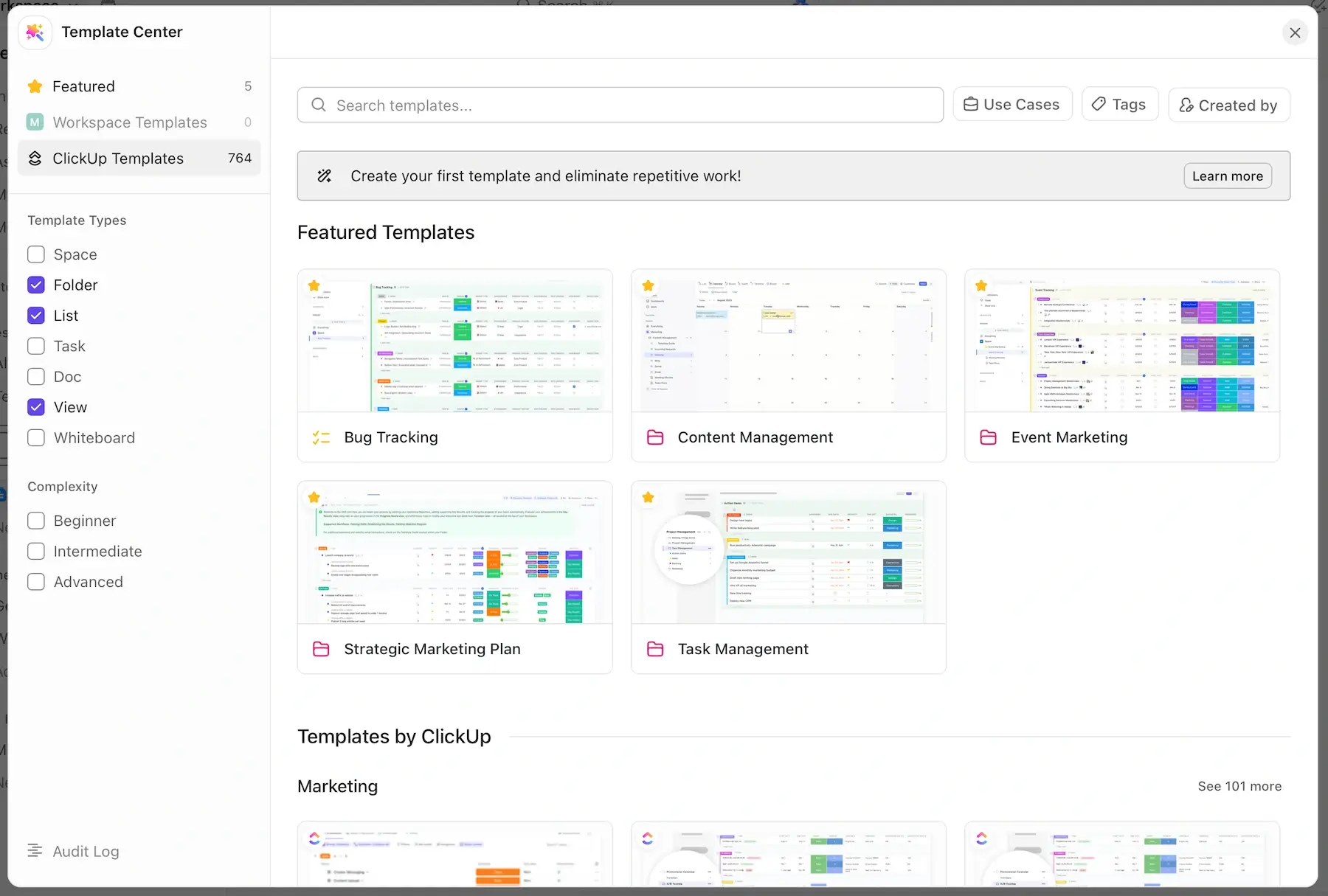
When a tool has as many features as ClickUp does, there’s usually a notable learning curve. If your team has non-technical users, definitely expect some resistance or slower adoption compared to Plaky or Trello, for example.
I must mention another potential downside — ClickUp’s customer support. While I, personally, didn’t experience issues that required reaching out, I’ve seen many complaints online about ClickUp’s support being slow and unreliable.
Finally, while ClickUp’s pricing isn’t as steep compared to some alternatives, the coolest features are locked behind the 2 highest tiers (e.g., custom branding, mind maps).
What’s new in ClickUp?
ClickUp introduced Super Agents, AI acting like real teammates inside your workspace. They can create tasks, update work, or send reports. In addition, the navigation system has been redesigned to make its sections (tasks, chat, docs, AI) feel more unified.
Available for: web, macOS, Windows, Linux, iOS, Android
| Plan | Price |
|---|---|
| Free | $0 |
| Unlimited | $7/user/month* |
| Business | $12/user/month* |
| Enterprise | POA |
*billed annually

#6 Hive — best for AI-assisted PM
Hive is a solution that combines traditional PM features with a strong focus on AI-powered productivity. It’s also one of the rare “democratically-built platforms” — actively incorporating user feedback into its roadmap.
Why choose Hive?
If you’re curious about AI in your workflow, Hive has one of the more practical implementations I’ve seen.
| Pros | Cons |
|---|---|
| – 1,000+ integrations – Good AI add-on – User-centric development | – Automations and AI only as paid add-ons on most tiers – Limited free plan |
This is a well-rounded platform covering all the PM essentials:
- Flexible views — switch between Kanban, Gantt, Calendar, and Table views to manage different project types.
- Collaboration features — reduce the need for external collaboration tools with Hive’s comments, file sharing, and built-in messaging.
- Automation — automate repetitive work, even if it includes third-party tools (1,000+ integrations).
- 100+ templates — use a rich template library to get started quickly even if you’re a beginner.
I was surprised to learn that automations (apart from recurring tasks) in Hive exist only as an add-on. It’s not available to Free and Starter users at all, while those on the Teams tier need to pay $5/user/month to get it. Only Enterprise users have automations by default.
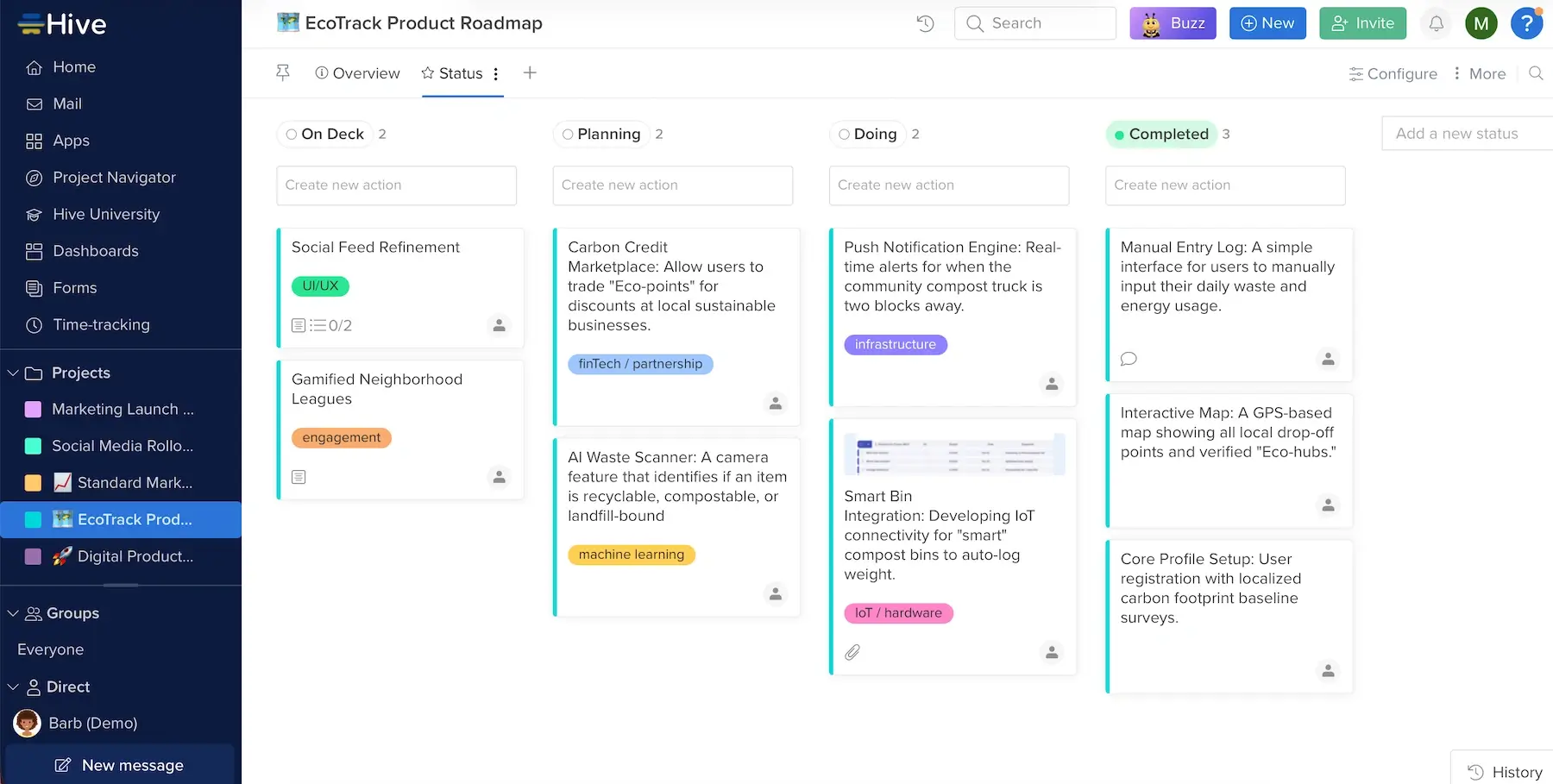
As for what makes this platform stand apart, I’d say it’s the AI features. For instance, Hive’s AI assistant Buzz can help you with:
- Content generation — generate task descriptions, images, newsletters, and more directly inside the platform.
- Automation and insights — get suggestions for next steps and warnings for potential delays to stay ahead of issues without constant monitoring.
- Communication and scheduling — let Buzz create and search events in integrated calendars, custom reminders, email replies, etc. to save time.
Just remember that Buzz, like all AI systems, can produce errors. So, treat it as an assistant rather than a 100% reliable source of ideas and information.
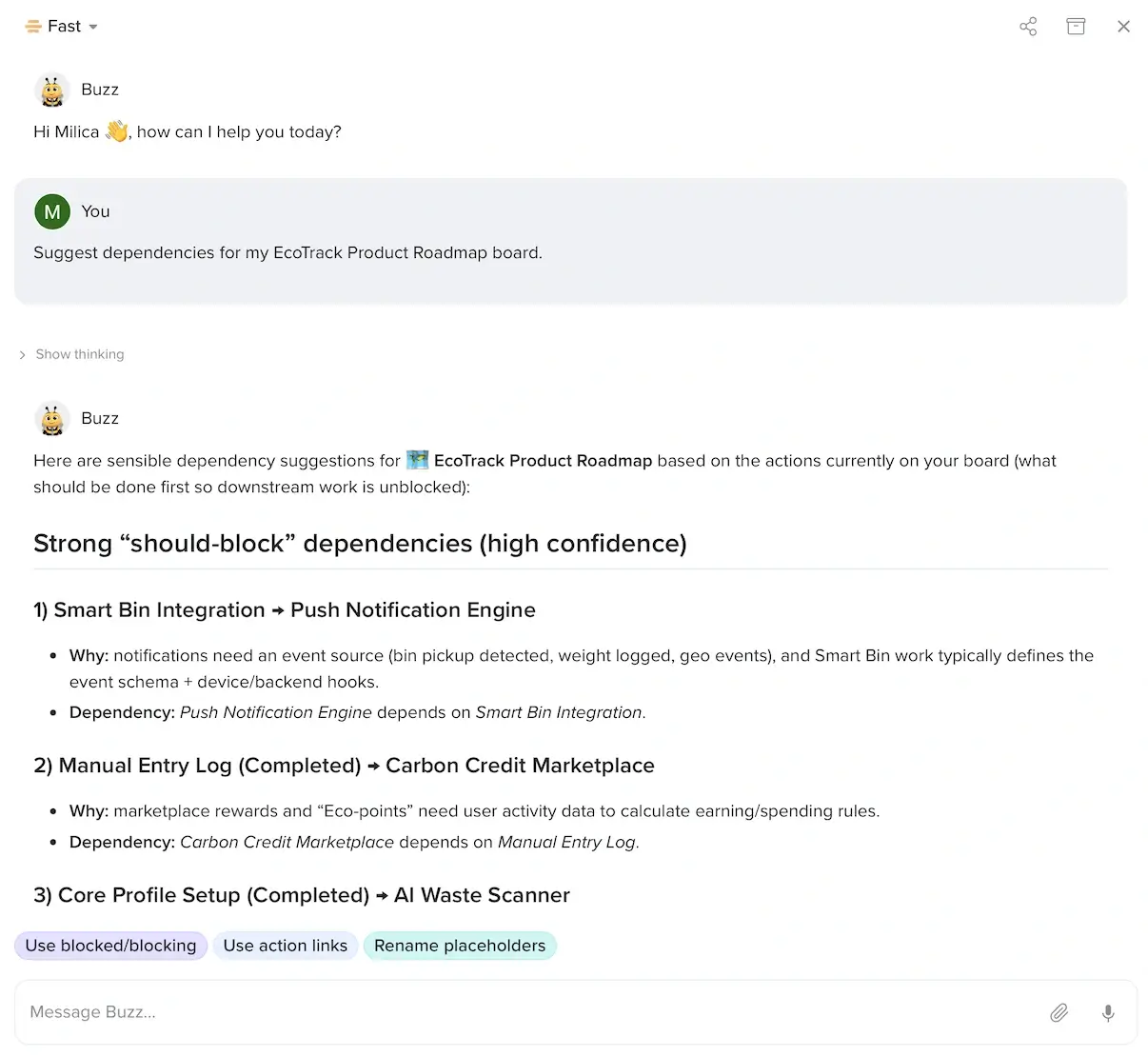
Important disclaimer: Buzz AI isn’t available on the Free and Starter plans. And, on the 2 highest plans, it comes as a paid-add on ($8/user/month). Since Hive itself is on the cheaper side, this addition may still be doable for many teams.
Free and Starter are also limited in the sense you get 10 users maximum, no custom dashboards, and no custom fields. The free version even restricts Gantt, Calendar, and Table views to 100 uses.
What’s new in Hive?
As of recently, Hive has multi-step workflows, i.e., you can include multiple steps in automations (each with its own conditions and actions). Additionally, Hive has improved its mobile app — both performance and UI (faster chat, task detail readability, goal tracking, etc.).
Available for: web, macOS, Windows, iOS, Android
| Plan | Price |
|---|---|
| Free (up to 10 workspace members) | $0 |
| Starter (up to 10 workspace members) | $3/user/month* |
| Teams | $6/user/month* |
| Enterprise | POA |
*billed annually
#7 monday.com — best for versatile team setups
Monday.com is a platform for project planning and managing work in a flexible way, from simple tasks to complex PM workflows.
Why choose monday.com?
If your work involves different teams, roles, and project types, monday.com can support all that without feeling forced.
| Pros | Cons |
|---|---|
| – Flexible – 200+ native integrations – 30+ dashboard widgets | – Limited free plan – Impractical pricing |
This app can be as simple or as advanced as you need it to be, primarily thanks to:
- Customizable workflows — design projects from scratch or choose from 200+ templates, and switch between different views (Timeline, Calendar, Kanban, etc.) to see data from different angles.
- Numerous integrations — connect monday.com to other apps you use via 200+ native integrations, plus thousands of others via tools like Zapier and Make.
- Collaboration features — add comments, upload files, or create real-time collaborative documents to discuss ideas with colleagues.
For those of you who are cost-conscious, I must say monday.com’s pricing isn’t the most affordable. And, in case you’re eyeing the free plan, it’s very limited: 2 users and 3 boards maximum, no custom fields, and no 24/7 customer support.
That said, if you opt for monday,com’s higher tiers, you’ll be able to support diverse teams setups and get the most out of:
- Automations — automate and connect workflows between teams and projects.
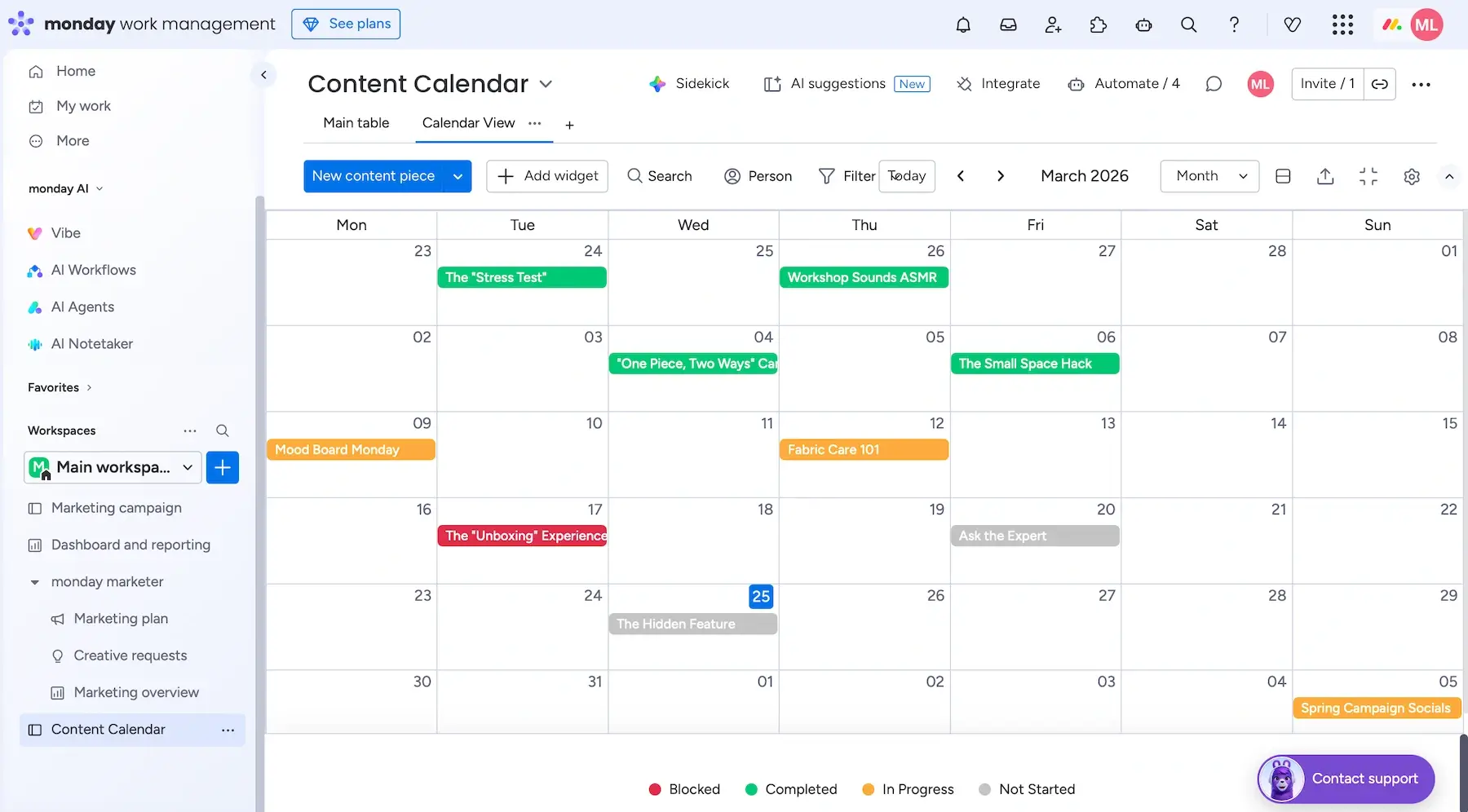
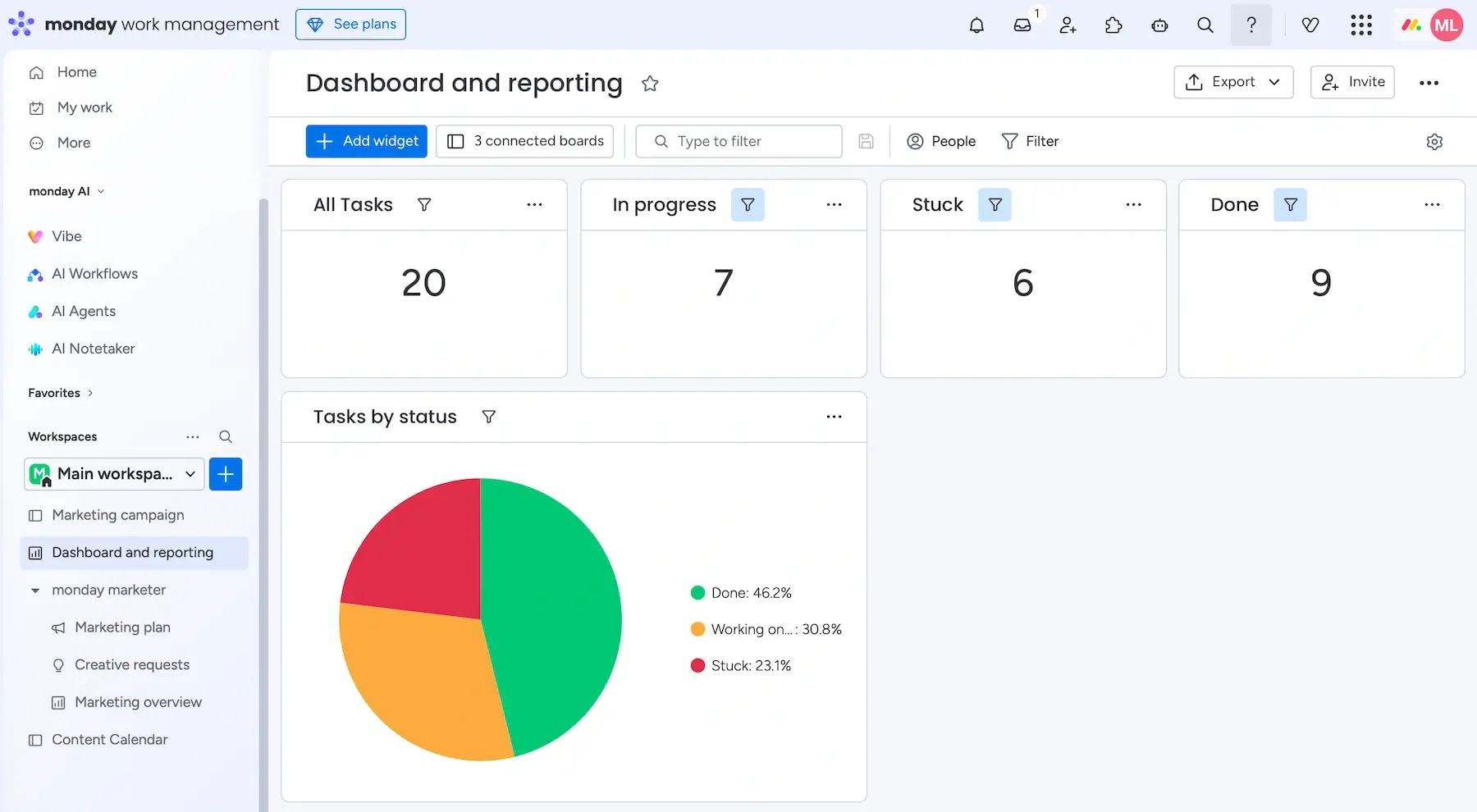
- Reporting and dashboards — pull data from multiple boards into one place to track projects with ease (30+ widget types).
- Workload management — get a clear view of who’s doing what and where things might be overloaded.
- Scalability — gradually build more complex systems as your team grows — monday.com won’t break under pressure.
What’s more, the UI is easy to grasp, but it borders on dull if you ask me. For instance, I’d appreciate a pop of color to make certain icons more prominent.
Similarly to Asana and Wrike, monday.com’s pricing model requires you to buy seats in specific bundles (3, 5, 10, 15, and so on). In practice, this means overpaying unless your team perfectly matches their tiers.
To illustrate, let’s say your team has 26 people. You’d have to pay for 30 seats instead of per exact user, leading to unnecessary cost.
💡 Plaky Pro Tip
Want to see direct comparisons between monday.com and its main competitors? Check these out:
What’s new in monday.com?
Some of the more recent updates in monday.com include the Autopilot Hub (a central place to see and manage all automations), batch dependencies (setting dependencies for many tasks at once), and scheduled cleaning (auto-archiving/deleting boards that haven’t been edited in a while).
Available for: web, macOS, Windows, iOS, Android
| Plan | Price |
|---|---|
| Free (up to 2 seats) | $0 |
| Basic | $9/seat/month + 1,000 AI credits/month ($10)* |
| Standard | $12/seat/month + 2,000 AI credits/month ($20)* |
| Pro | $19/seat/month + 3,000 AI credits/month ($30)* |
| Enterprise | POA |
*billed annually

#8 Teamwork.com — best for client-facing projects
Teamwork.com is a software solution that helps teams organize work, manage deliverables, and keep projects profitable.
Why choose Teamwork.com?
This tool is primarily built for agencies and service-based businesses because it has quite a few features that let you juggle multiple client projects at once.
| Pros | Cons |
|---|---|
| – 150+ integrations – Client access – Proofing and approvals | – Overkill for simple needs – Pricing can add up |
Exploring Teamwork.com, I got the impression it can support the entire lifecycle of a project. It has all the standard features you’d want in a PM tool:
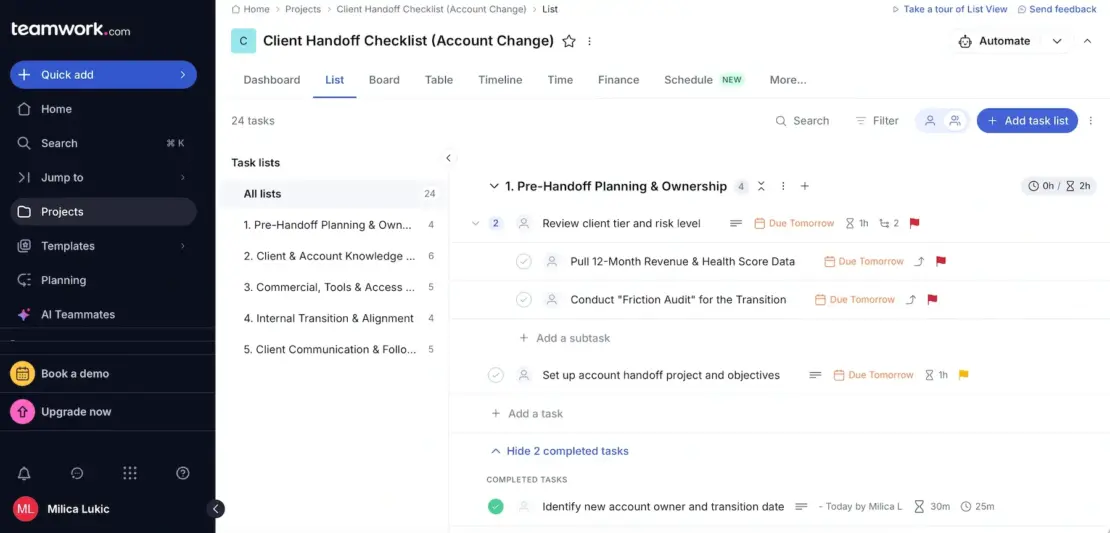
- Multiple project views — work with Gantt, Table, List, and Board views depending on your preference or project phase.
- Strong collaboration — use comments, in-app chat, and file sharing to easily share updates with teammates.
- Automations — reduce manual work by creating your own time- and event-based automations, or use the automation hub.
- Integrations — choose from 150+ integration options to link Teamwork.com with your favorite tools for CRM, accounting, reporting, and more.
Frankly speaking, Teamwork.com isn’t the simplest app out there, and it’s not trying to be. It’s designed for depth, not minimalism — which is great if you need it, but very overwhelming if you don’t.
As for why Teamwork.com is a popular choice for client-facing projects, consider these features:
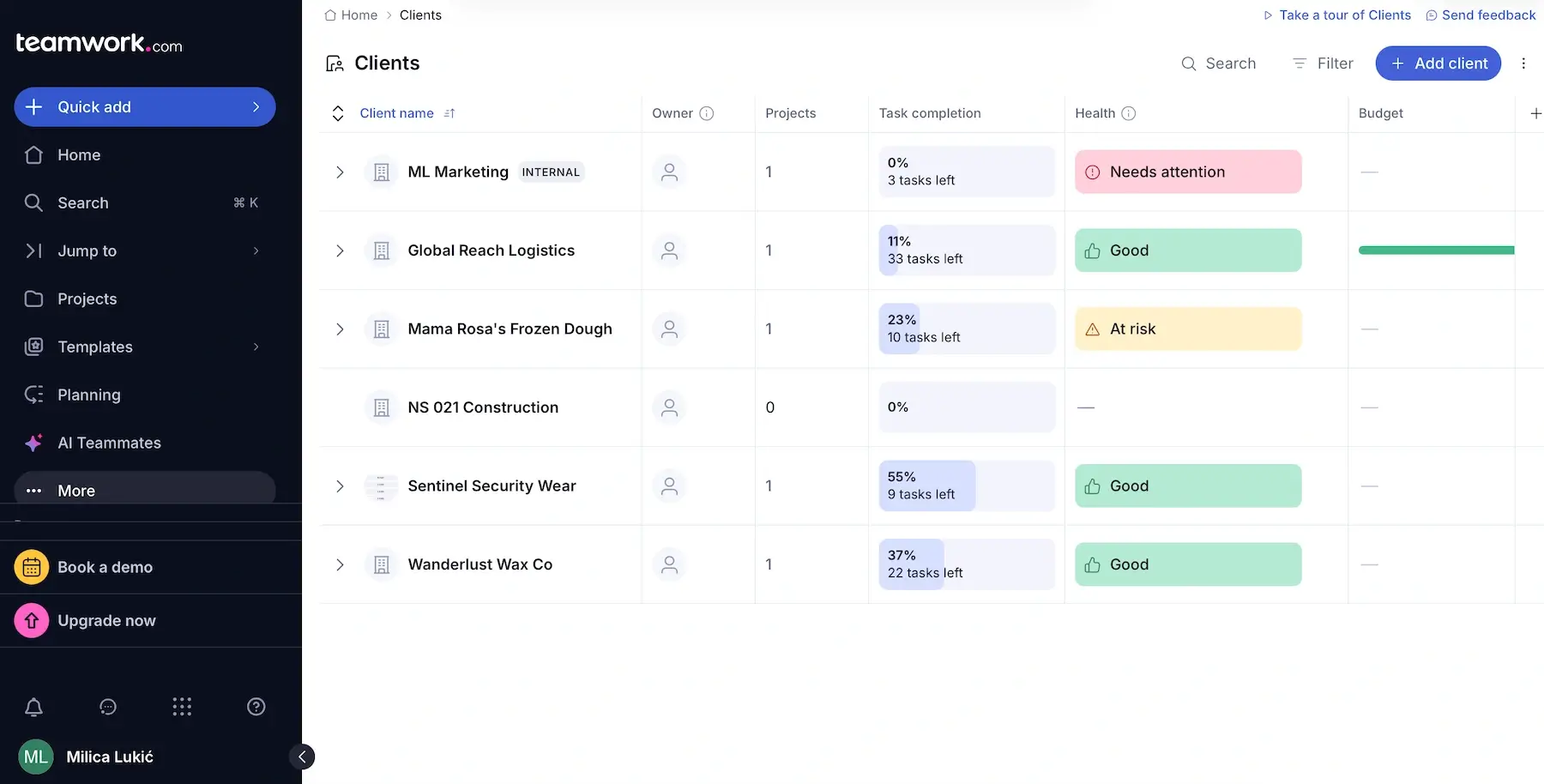
- Controlled client access — invite clients as collaborators with different permissions (e.g., only viewing projects vs letting them actively create tasks, upload files, and more).
- Forms — create forms for requests, briefs, or feedback from clients, and feed the info directly into Teamwork.com as tasks.
- Proofs — let clients review designs, leave comments directly on files, and approve deliverables in one place.
- Custom branding — customize parts of the client experience with your branding (logo, colors, and banners) if you opt for Accelerate or higher plans.
Overall, this is a handy app, but I’m not sure it’s cost-effective, especially for teams with simpler needs or tight budgets. For example, these features aren’t even available on the first paid plan:
- Unlimited projects
- Billable user rates
- Custom reports
So, if you’re a freelancer or just starting out, you might want to look into more affordable Teamwork.com alternatives.
What’s new in Teamwork.com?
This app now has so-called tentative projects — planning resources and timelines without committing yet. And, like several other project management applications on this list, Teamwork.com introduced AI Teammates, meant to boost efficiency and productivity.
Available for: web, macOS, Windows, iOS, Android
| Plan | Price |
|---|---|
| Free (up to 5 users) | $0 |
| Basics (3+ users) | $9.99/user/month* |
| Accelerate (5+ users) | $24.99/user/month* |
| Optimize | POA |
| Enterprise | POA |
*billed annually
#9 ProofHub — best for feedback and approvals
ProofHub is project management software that also supports note taking and online proofing.
Why choose ProofHub?
If your workflow involves a lot of reviews and revisions, ProofHub makes the process feel organized — especially for design, content, or any kind of visual assets.
| Pros | Cons |
|---|---|
| – Flat pricing – All-in-1 solution – Proofing and markup tools | – No free plan – UX has some friction points |
When I first started using ProofHub, what stood out right away was how contained everything felt. The core functionalities include:
- Project and task management — custom fields, multiple views (Table, Board, and Gantt), and automations ensure ProofHub can support different workflows.
- Built-in team communication — comments, discussions, announcements, and in-app chat eliminate the need for external communication apps.
- Notes — built-in note taking with solid formatting options allows you to quickly jot down ideas, meeting takeaways, or project briefs without leaving ProofHub.
- Centralized file management — all files, notes, and assets are kept on the platform — no more digging through emails or clouds.
I did notice that some simple actions feel unnecessarily long, though. For instance, creating a new label requires opening the item, and even when prompted, you have to retype it — small friction that adds up.
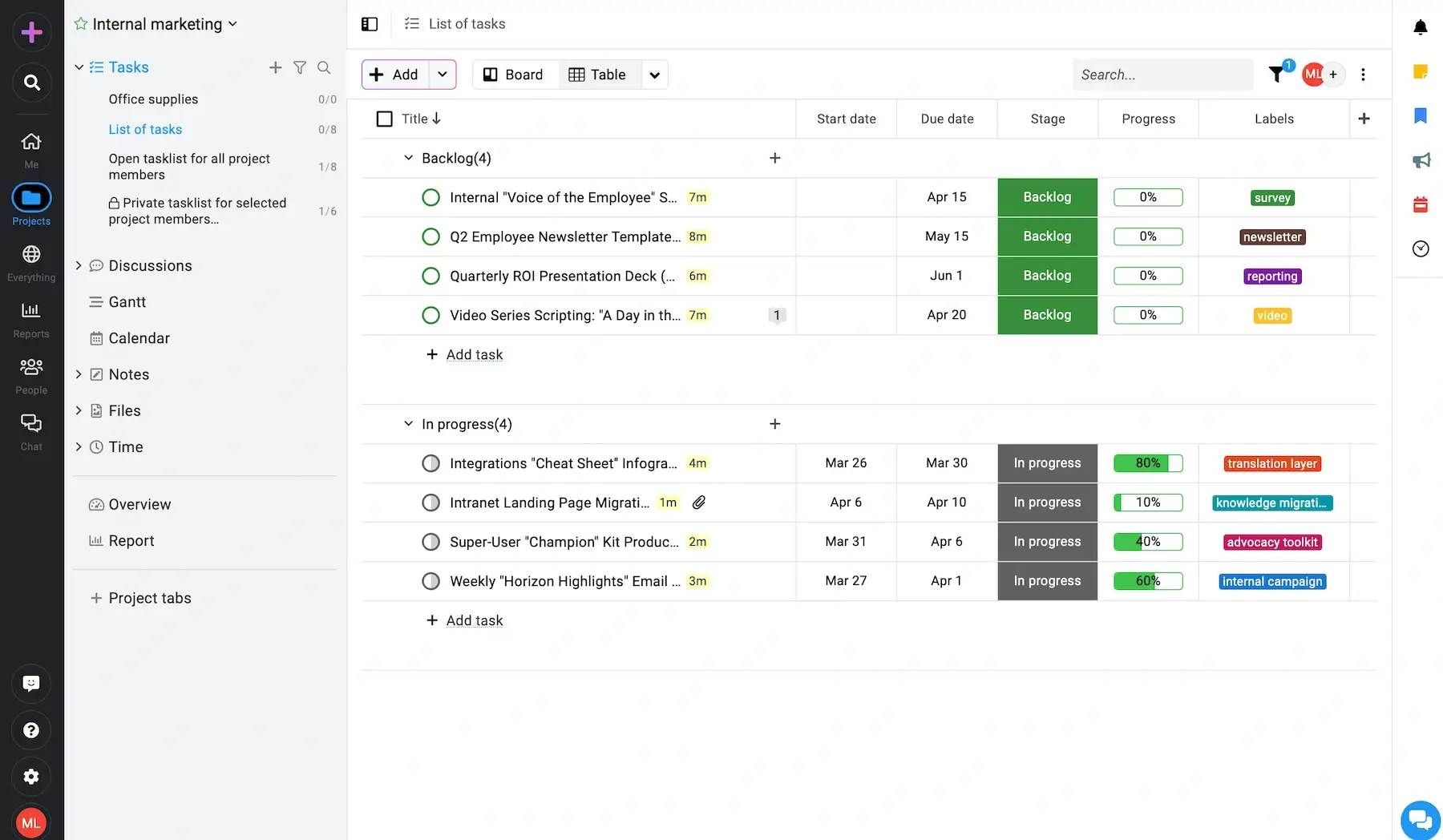
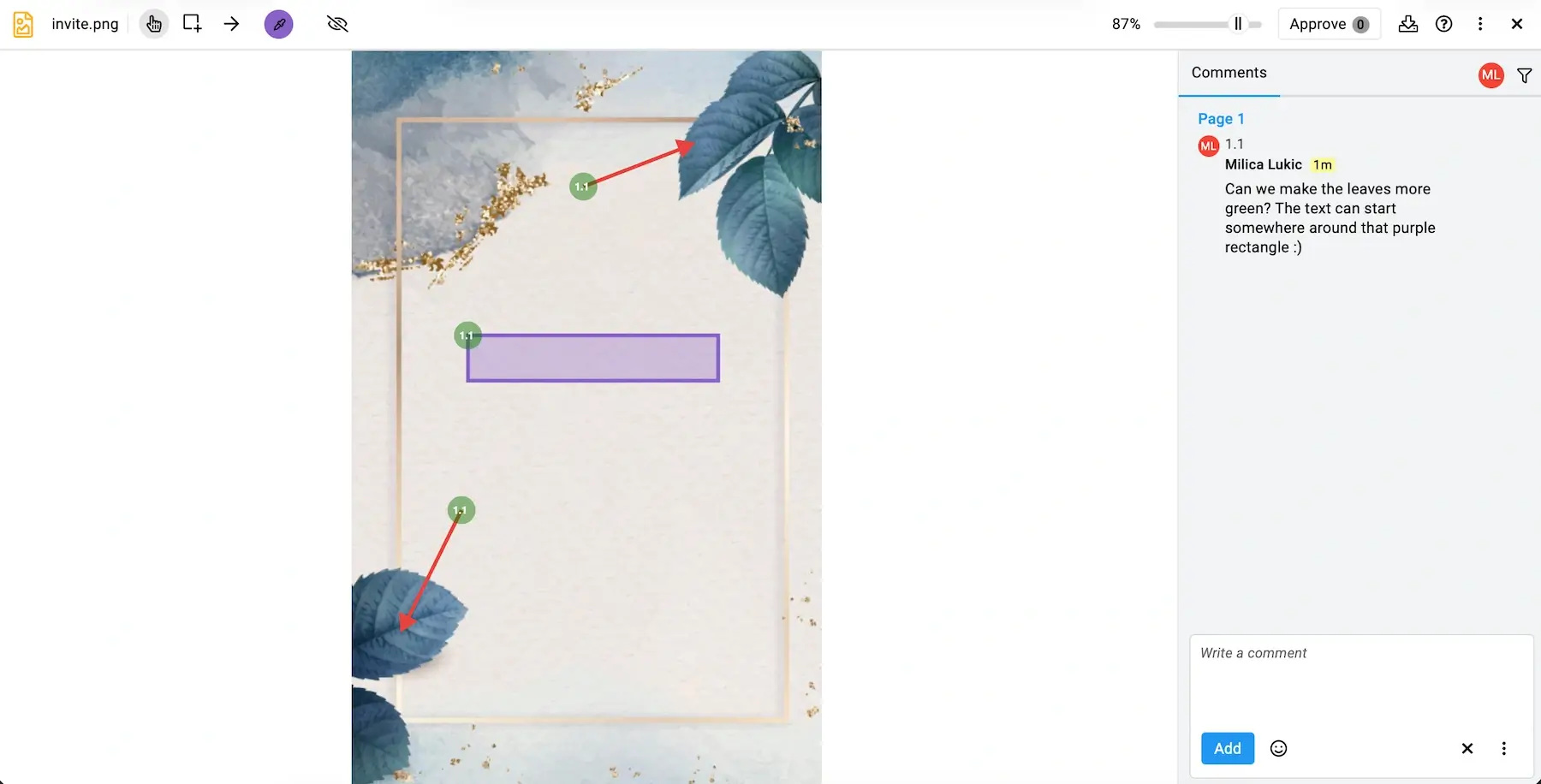
Back to the positives: ProofHub removes a lot of the messy back-and-forth that usually comes with feedback and approvals. The standout features include:
- Built-in proofing and markup tools — add comments, rectangular boxes, and arrows to offer direct feedback, and approve files when everything’s ready.
- File versioning — preserve old versions of a file in case you need to revert to a previous version.
- Controlled guest access — let clients or external stakeholders review your work even if they don’t have a ProofHub account.
If you’re wondering about integrations, ProofHub has way fewer native options compared to most apps on this list (under 10). However, you can connect it to tools like Zapier or Make for automation.
Let me also address the pricing model. It isn’t tied to the number of users, so if you’re managing a growing team, that can make a huge difference. But, I must also emphasize there’s no free plan. This can be a downside for smaller teams or solo users who want something lightweight without committing right away.
What’s new in ProofHub?
Other than bug fixes and performance-related enhancements, ProofHub hasn’t had any major updates recently. It did have a notable platform redesign in 2025, focusing on a cleaner UI and faster navigation.
Available for: web, iOS, Android
| Plan | Price |
|---|---|
| Essential | $45/month* |
| Ultimate Control | $89/month* |
*billed annually
#10 Trello — best for Kanban simplicity
Trello is a PM solution built around Kanban project management, with a simple, drag-and-drop interface mirroring how work moves through stages.
Why choose Trello?
This tool doesn’t try to reinvent the Kanban board — it just makes it easy to use, especially for smaller teams and individuals looking for a simple, visual way to manage work.
| Pros | Cons |
|---|---|
| – Pure Kanban structure by default – Great for visual thinkers – Easy onboarding | – Limited free plan – May be too simple for some teams |
Trello can help you go from messy ideas to organized workflows without much setup. The main advantages include:
- Clear task visibility — every task is a card, and you can instantly see which phase it’s in, keeping everything visually transparent.
- Lightweight collaboration — Comments and Activity feed ensure direct communication and accountability.
- Automation and Power-Ups — Trello becomes more robust through automation and Power-Ups (add-ons and integrations), adding features like calendars or reporting without cluttering the core experience.
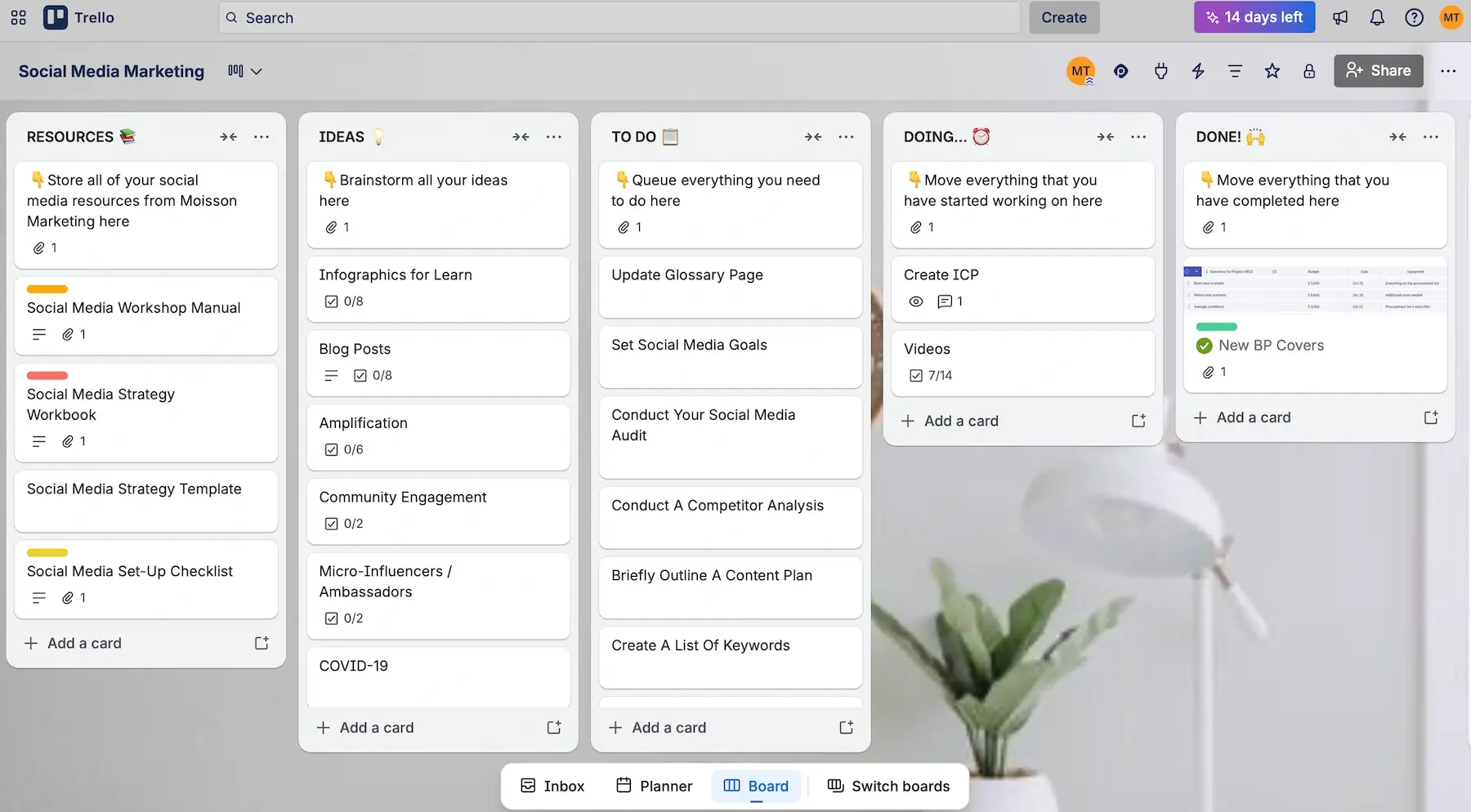
Unlike other tools on this list, Trello doesn’t have native Gantt charts — third-party Power-Ups can add them, but it’s definitely an extra step. Also, while the vast majority of PM tools out there have a spreadsheet-like view as the default layout, Trello offers it only on the Premium tier and higher.
That said, Trello was built with Kanban simplicity in mind, e.g.:
- Drag-and-drop functionality — moving tasks across stages feels intuitive and fast.
- Card-level details — tasks can have assignees, labels, due dates, checklists, and more for full precision.
- Card mirroring — on paid workspaces, you can have a single card in multiple boards.
- Work-in-progress (WIP) limit — certain Power-Ups (e.g., List Limits) enable setting a maximum number of cards per list — a method for improving focus and workload balance.
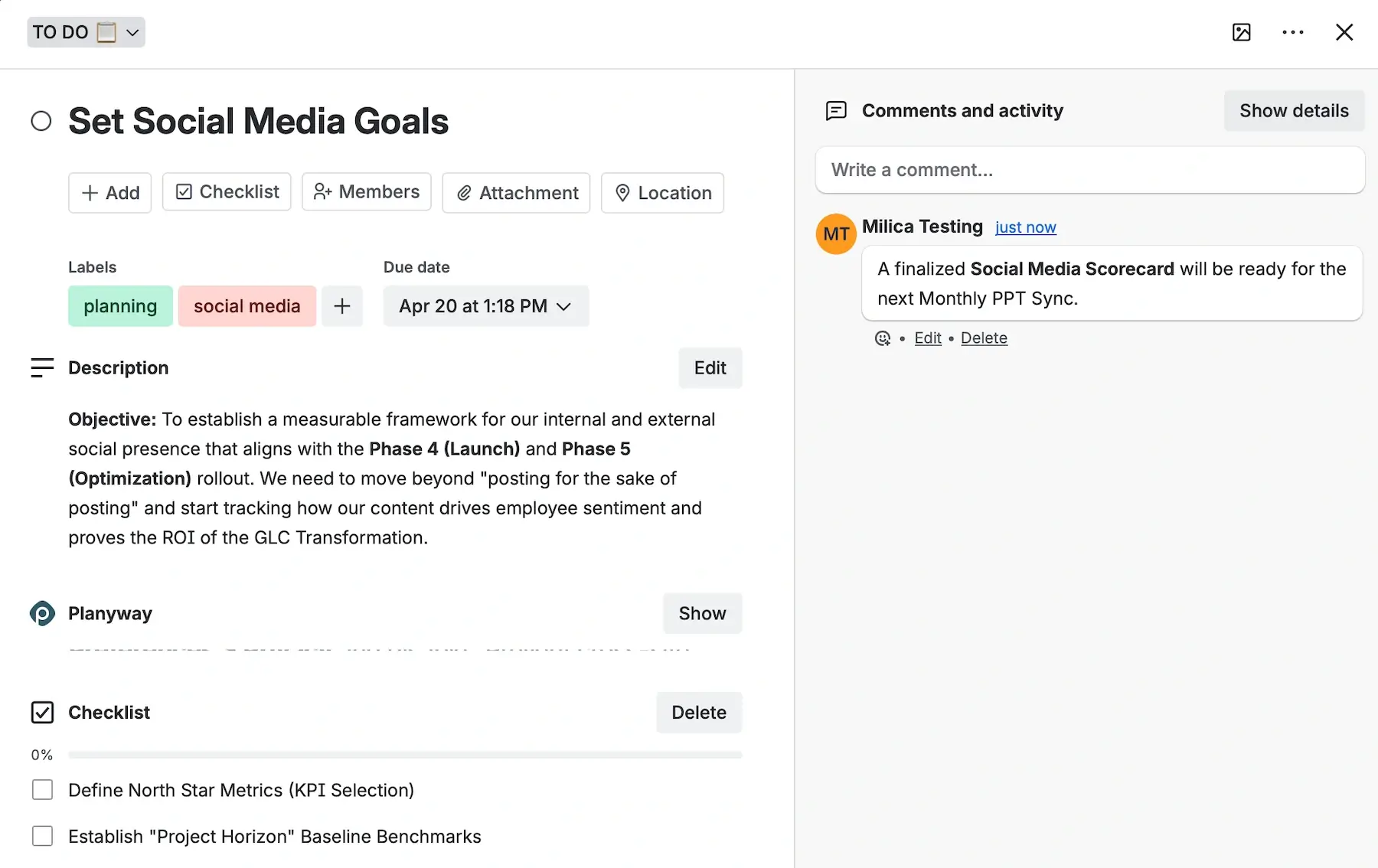
Considering everything, large teams with layered workflows might find Trello too simplistic for their needs.
And now, probably the biggest drawback for my taste — the (un)availability of customer support. Here’s how it works for the different tiers:
- Free — only community support
- Standard — local business hours
- Premium — 24/5 premium support
- Enterprise — 24/7 enterprise admin support
This seems really inconvenient knowing that some other tools like Plaky or Hive offer 24/7 on all plans, including free.
💡 Plaky Pro Tip
We’ve compared Trello with its main competitors head-to-head — read these if you want to learn more:
What’s new in Trello?
Trello’s changelog has mostly shown backend and security updates lately, as well as regular bug fixes and performance reviews in the mobile version.
Available for: web, macOS, Windows, iOS, Android
| Plan | Price |
|---|---|
| Free (up to 10 collaborators/workspace) | $0 |
| Standard | $5/user/month* |
| Premium | $10/user/month* |
| Enterprise (est. cost for 50 users, i.e., the minimum) | $17.50/user/month* |
*billed annually

Manage and deliver projects confidently — with Plaky by CAKE.com
There’s no universal best PM tool, but it’s undeniable that the right choice should strike a balance between cost-effectiveness, strong security, and ease of use.
And that’s exactly what Plaky offers. If you give it a go, soon you’ll notice benefits such as:
- Fewer team emails,
- No scattered spreadsheets,
- More balanced workloads, and
- Better scheduling and long-term planning.
And in case you ever need help with anything on our platform, Plaky’s support team is available 24/7 to all users.
Get a reliable PM solution that won’t break your budget — try Plaky now!