
No matter how capable your team members are individually, they’ll never shine if they can’t work together.
To harness the power of your team, you need the right tools — preferably free ones because money doesn’t grow on trees!
So, let’s dive into the world of team management software and find the one that suits your team!
WHY TRUST US?
The apps we talk about are selected, tested, and written about by human reviewers who follow strict review and editorial guidelines. We pick solutions that are practical, purposeful, and can offer real value for the specific use case or business context we’re covering — while also being justified in their pricing. Our methodology is transparent, clear, and available to everyone:
10 best free team management tools — overview
Here’s a quick overview of the team management apps I’ve selected.
| Software | Best for | Free plan | Free trial | Pricing (starting at) |
|---|---|---|---|---|
| Plaky by CAKE.com | Managing teams of all sizes | ✔️ | ✔️ | $3.99/user/month* |
| monday.com | Specialized teams | ✔️ | ✔️ | $9/user/month* |
| Asana | Tracking team goals | ✔️ | ✔️ | $10.99/user/month* |
| Clockify by CAKE.com | Time tracking | ✔️ | ✔️ | $3.99/user/month* |
| ClickUp | Complex projects | ✔️ | ✔️ | $7/user/month* |
| Notion | Collaboration on docs | ✔️ | ✔️ | $10/user/month* |
| Trello | Automated team management | ✔️ | ✔️ | $5/user/month* |
| Pumble by CAKE.com | Remote team communication | ✔️ | ✔️ | $2.49/user/month* |
| Basecamp | Simple team management | ✔️ | ✔️ | $15/user/month |
| KanbanFlow | Even workload distribution | ✔️ | ✔️ | $5/user/month* |
#1: Plaky by CAKE.com — best for managing teams of all sizes
Plaky is a powerful task management tool that helps you manage teams across various projects and track their progress.
Why choose Plaky?
Plaky is an excellent team collaboration platform for any team since it’s highly intuitive, while at the same time powerful enough to handle teams of all sizes and across all industries.
| Pros | Cons |
|---|---|
| – Clear layout – Rich free plan – Board automations – Well-designed comment section in task cards – Team-specific templates | – Lack of integrations |
I have been using Plaky for several years now and have to say I really enjoy it — the layout is clear and easy to navigate, and I can track both my and my team’s tasks and projects without a problem.
Plaky is organized around boards filled with Items — you can create a separate board for each of your projects or for each team. The boards can also be organized into folders for more structure, and you can even break down Items into Subitems as well.
If you’re new to Plaky, you can also start with one of the pre-made templates. Depending on what type of team you’re leading, you can find templates for:
- Marketing,
- Sales,
- CRM,
- Software development,
- Real estate, etc.
All templates are customizable, so you can fine-tune your workflows. Best of all, they’re all available on the free plan, along with an unlimited number of:
- Users,
- Spaces,
- Boards,
- Items, and
- Views.
This makes Plaky one of the best free team project management software currently on the market!
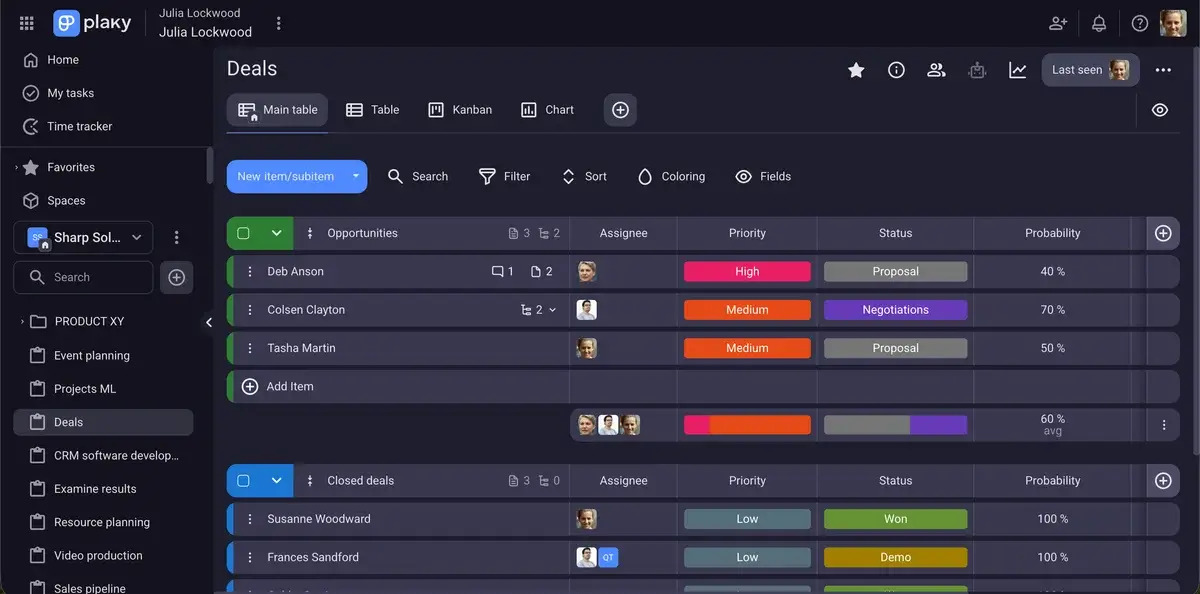
Now, when it comes to team management, Plaky comes in handy for tracking accountability. Each task can be assigned to one or more people, or even teams, so you’ll know at all times who in your team is in charge of which task. That way, you’ll know not only who’s responsible when there’s a delay or problem — but also who deserves praise for a job well done.
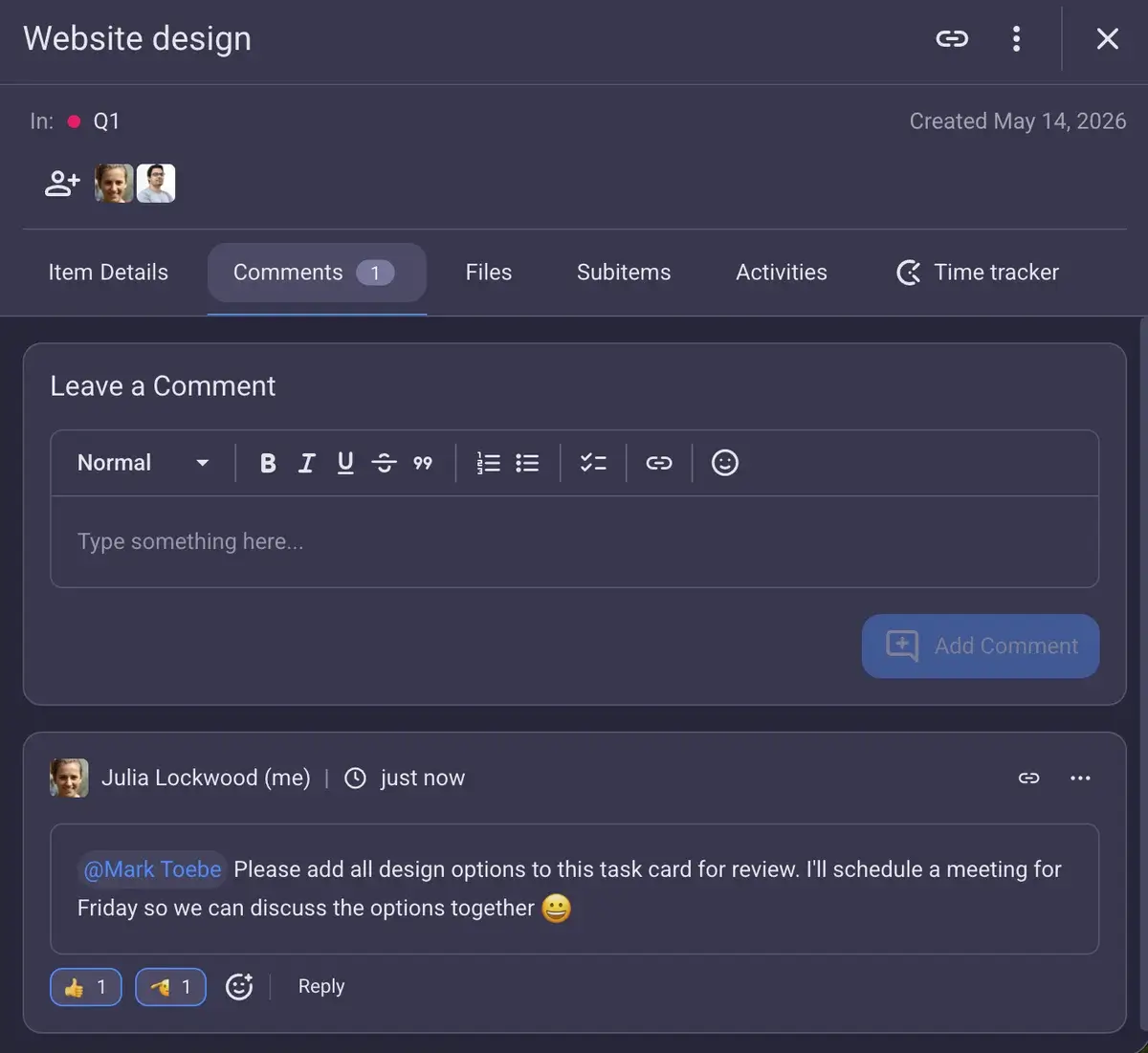
I especially like Plaky’s well-organized comment sections. You can communicate with your team members directly in task cards and:
- Leave feedback or ask questions about the task,
- @mention team members or entire teams to get their attention fast,
- Reply in threads to keep communication organized and allow for multiple conversations in the same card, and
- React to a comment with an emoji to give a quick response.
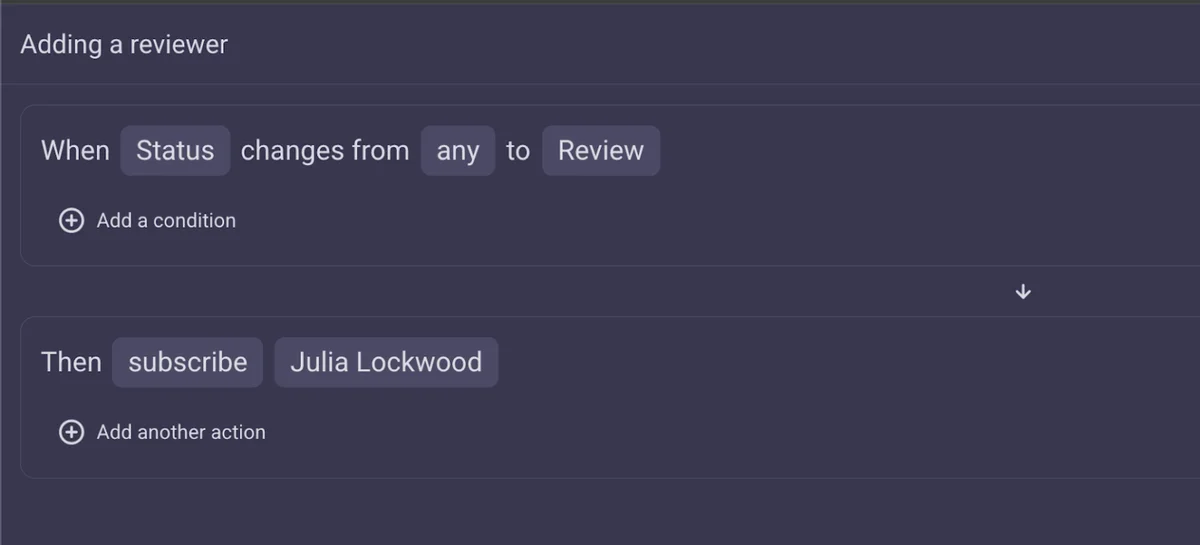
Another thing I find super-useful are Plaky’s board automations, which make my daily work so much easier. Instead of having to manually assign team members to tasks, I can, for example, arrange that when a task gets a due date, the right team member is assigned to it. Plus, I can get an instant notification when a particular task’s status changes if I’m subscribed to it.
The only downside is that for now Plaky integrates with Clockify and Pumble alone — 2 other tools developed by CAKE.com (reviews of these 2 apps are also on this list). However, these 3 tools provide you with an all-encompassing productivity suite (project management, time tracking, and communication), so you have all you need to successfully manage your team.

What’s new in Plaky?
Plaky has several notable updates, such as Dashboards (pulling data from multiple projects into widgets for comparison and analysis), Chart exports (PDF, PNG, ZIP), and improved Board automations (e.g., new dynamic value options for Date and Timeline).
For more information on previous and upcoming changes, check out Plaky’s Roadmap.
Available for: web, iOS, and Android
| Plan | Pricing |
|---|---|
| Free | $0 |
| Pro | $3.99/user/month* |
| Enterprise | $8.99/user/month* |
| CAKE.com Bundle | $12.99/user/month* |
*billed annually
#2: Monday.com — best for specialized teams
Monday.com is a robust team management system that focuses on managing tasks across projects and tracking progress.
Why choose monday.com?
If you need a platform with specialized tools for managing CRM, projects, and dev teams, monday.com is the one for you.
| Pros | Cons |
|---|---|
| – Separate apps for specialized teams – Advanced project tracking features – User-friendly | – Only 2 users available on the free plan – Expensive paid plans |
When I first started using monday.com, I found it very easy to manage. The task-based boards in List, Gantt, and Kanban view are something I was already familiar with, so I quickly felt at home.
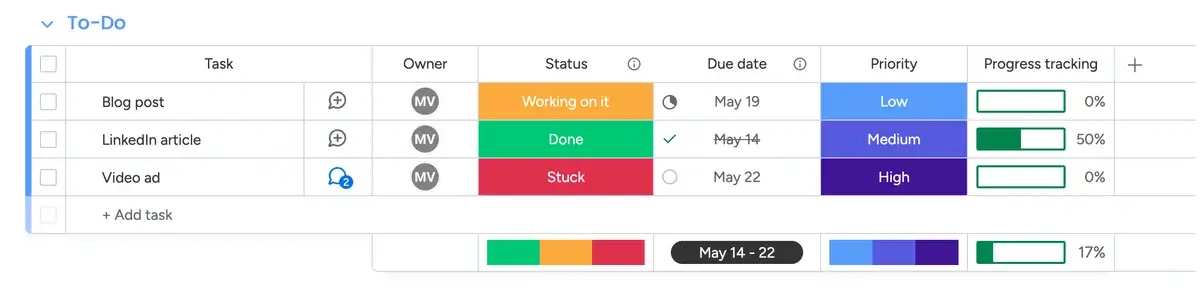
My favorite monday.com feature is the progress-tracking column, which calculates progress based on status columns in the task. That way, I can see at a glance how each task is advancing.
Subitems can have a progress-tracking column as well, allowing you to track progress on the small scale.
You can communicate with your team in 2 ways — on the task and board level. In both cases, you can send messages and attach files. Your team can also reply in threads and react to any updates with emojis.
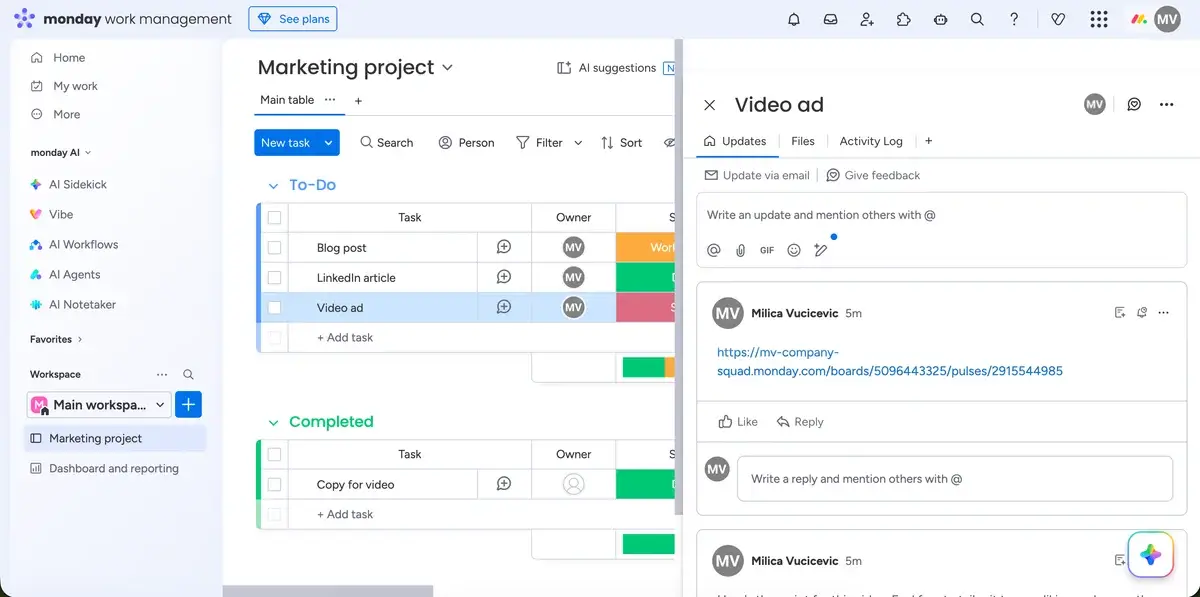
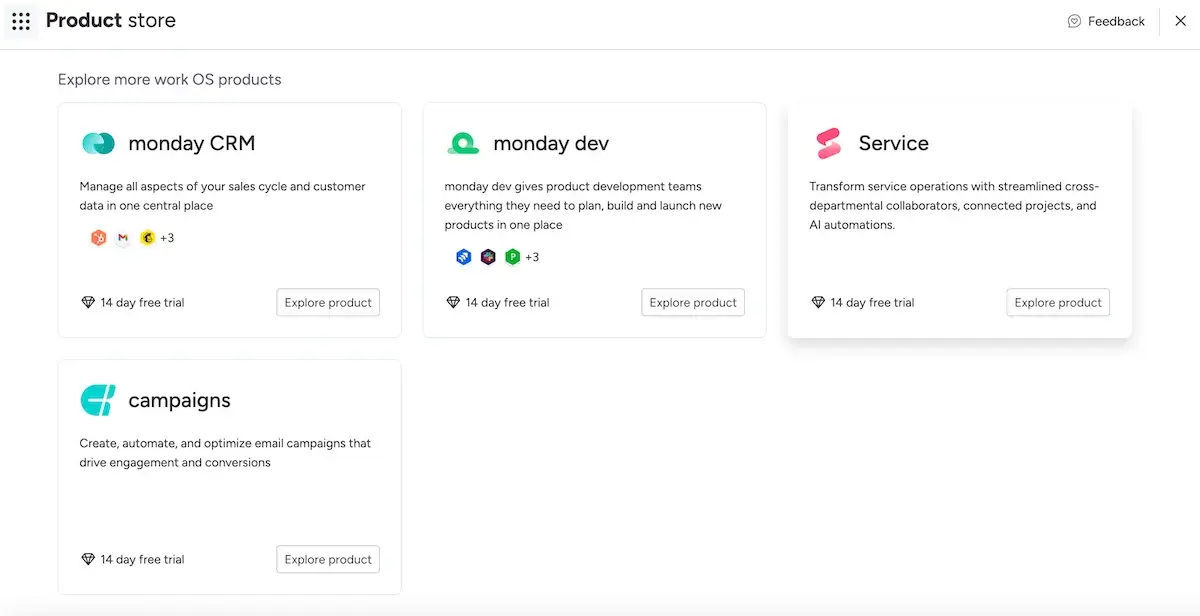
An advantage of monday.com, as far as team management goes, is that it offers different products for different needs:
- monday work management — for project management teams eager to organize projects, tasks, and resources, as well as connect them to their business goals.
- monday CRM — for customer-facing teams looking to organize customer data and manage sales pipelines.
- monday campaigns — for marketing and advertising teams that want to create professional emails and manage email campaigns.
- monday dev — for software dev teams that need a tool for developing products, planning Sprints, tracking bug reports, and much more.
- monday service — for service-oriented teams that need a reliable platform for managing tickets, tracking service metrics, and generating analytics reports of their service operations.
However, each of these apps has its own pricing, so keep that in mind when you’re subscribing to more than one service.
Monday.com’s free plan leaves a lot to be desired. It supports only 2 team members for free — any more and you’ll have no choice but to go for one of the paid plans. And when it comes to customer support, you must rely solely on help pages and tutorials. Only paid plans can contact support through the app and chat with monday.com’s agents 24/7.
And the prices of other plans are quite steep (Pro plan will set you back as much as $19 for each user per month). And, on top of that, you need to buy seats in increments of 5 (the lowest number you can buy is 3, but after that you can buy 5, 10, 15, 20, etc. seats). So if your team has 16 members, for example, you’ll have to pay for 20 seats.

What’s new in monday.com?
The most relevant updates in monday.com have to do with AI — human approval steps in AI workflows, the ability to manage automations through Sidekick AI and MCP, and connecting third-party apps to AI workflows in monday.com with MCP.
Available for: web, macOS, Windows, iOS, and Android
| Monday.com plan | Monthly price | Yearly price |
|---|---|---|
| Free (max. 2 seats) | $0 | $0 |
| Basic (min. 3 seats) | $12/seat/month ($36/month in total) + 1,000 AI credits/month ($12.5) | $9/seat/month ($324/year in total) + 1,000 AI credits/month ($10) |
| Standard (min. 3 seats) | $14/seat/month ($42/month in total) + 2,000 Al credits/month ($25) | $12/seat/month ($432/year in total) + 2,000 Al credits/month ($20) |
| Pro (min. 3 seats) | $24/seat/month ($72/month in total) + 3,000 Al credits/month ($37.5) | $19/seat/month ($684/year in total) + 3,000 Al credits/month ($30) |
| Enterprise (min. 3 seats) | POA | POA |
#3: Asana — best for tracking team goals
Asana has become a famous name in the world of project management thanks to its wide range of features that will help you manage your team with ease, even though some of them are locked behind a paywall.
Why choose Asana?
If you’re looking for a way to organize your team’s goals and connect them to your overall business mission — Asana could be a good option.
| Pros | Cons |
|---|---|
| – Various communication options – Goal-tracking features – Clear layout | – High prices – High-quality customer service only on Enterprise plans |
Asana has a clear layout that I easily got used to. Everything you may need is found in the left sidebar — your tasks, projects, teams, and an inbox with notifications, reports, home page, etc.
The home page is organized as a dashboard where you can add widgets such as my projects, frequent collaborators, forms, etc., to customize it as you wish. I also liked the search option in the upper part of the app — you can search through tasks, projects, messages, and people.
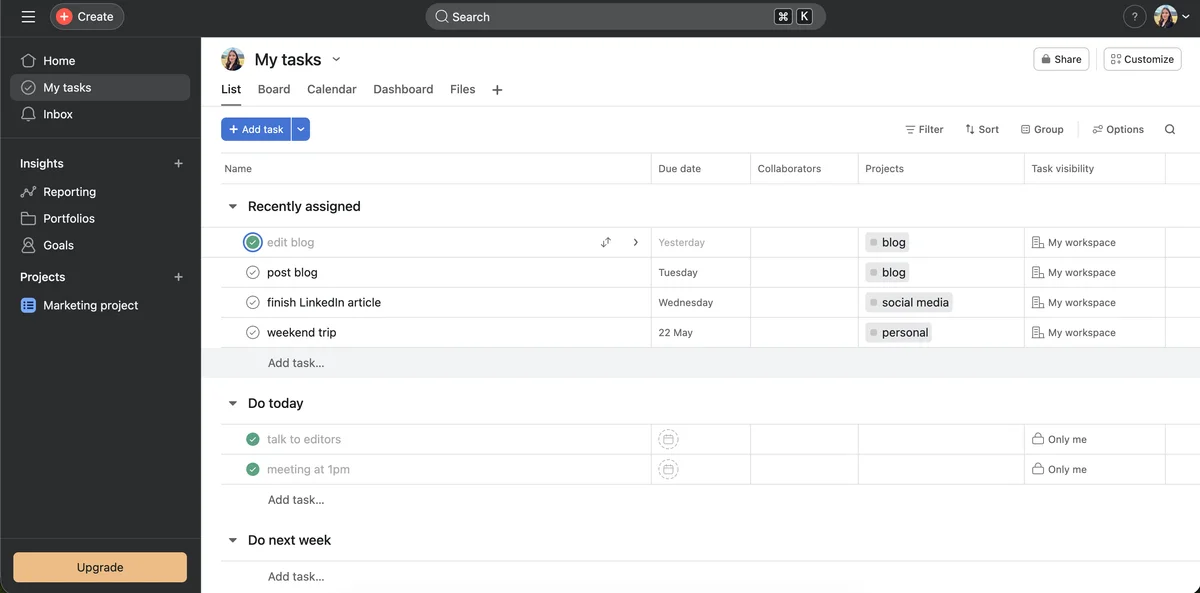
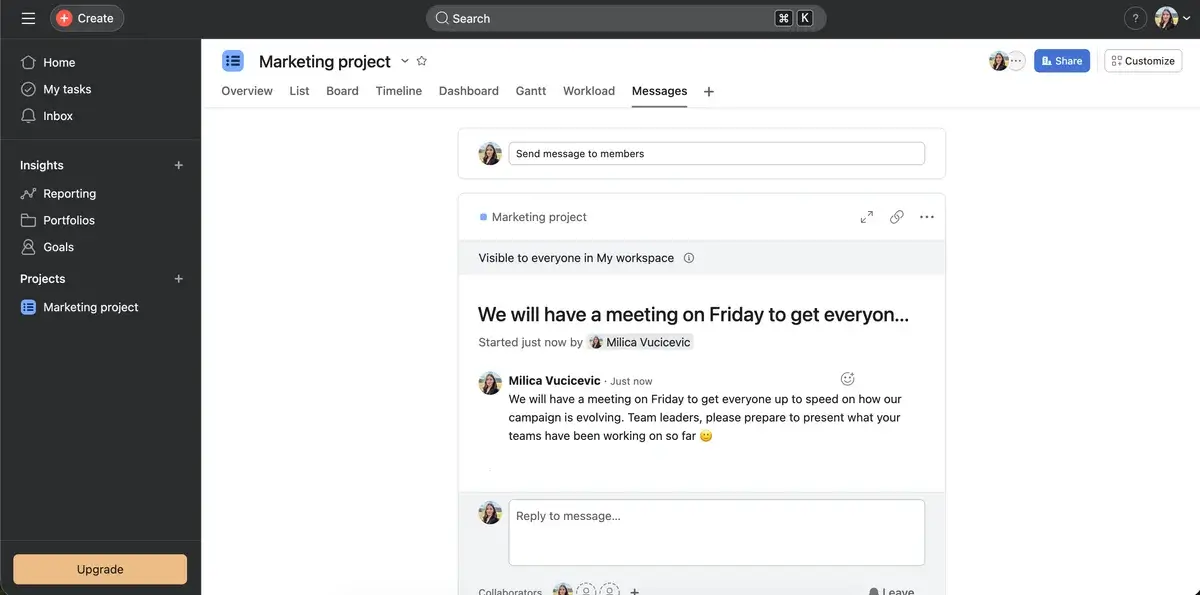
When it comes to team communication, you can send direct messages to other teammates, and also communicate on a project, team, and task level.
Another cool team management feature in Asana is goal tracking — you can track personal goals, team goals, and company goals.
This is a good way to connect team goals to the overall plans of the company. However, you’ll need to pay $24/user/month for the Advanced plan to get access to goals.
This brings me to my biggest issue with Asana — the high prices.
You need to pay $10.99/user/month to get access to features such as Gantt charts and dashboards, and a whopping $24.99/user/month to get goals and native time tracking.
The customer support was a bit of a letdown as well, especially considering the cost.
On the free plan, if you want help, you need to get through the chatbot on the help page to create a ticket for the support team and wait for them to answer you on your email. The paid plans offer customer success support, but 24/7 customer support is available on the Enterprise plan only.

What’s new in Asana?
The most noteworthy novelties are scheduled triggers on Asana’s paid plans (for recurring processes) and AI Teammates integrations for cross-tool collaboration (Gmail, Google Calendar, Slack, Outlook Mail, and Outlook Calendar).
Available for: web, macOS, Windows, iOS, and Android
| Plan | Price |
|---|---|
| Personal | $0 |
| Starter | $10.99/user/month* |
| Advanced | $24.99/user/month* |
| Enterprise | POA |
| Enterprise+ | POA |
*billed annually
#4: Clockify by CAKE.com — best for time tracking
Clockify by CAKE.com is one of the most popular tools for tracking time, creating invoices, and making schedules.
Why choose Clockify?
Clockify is a powerful tool that enables you to track both billable and non-billable work hours across tasks and projects and helps you manage your resources.
| Pros | Cons |
|---|---|
| – User-friendly interface – Different user levels – Elaborate dashboards – Kiosk seats | – Free trial lasts only 7 days |
Clockify is very user-friendly — I have been tracking my work hours in it for a while now, and have yet to discover something I don’t understand or know how to manage intuitively.
It gives you a comprehensive overview of how your team spends their time (on which projects, clients, billable and non-billable work, etc.). At the same time, you can see who on your team is on sick leave or vacation.
The great thing about Clockify is that even though it’s packed with features, it doesn’t feel cluttered at all because the layout is so clear. You can use it for simple time tracking if that’s all you want, but it can offer so much more.
The left sidebar helps you navigate the platform — everything is there, from time tracking and calendar to invoices, dashboards, teams, and clients.
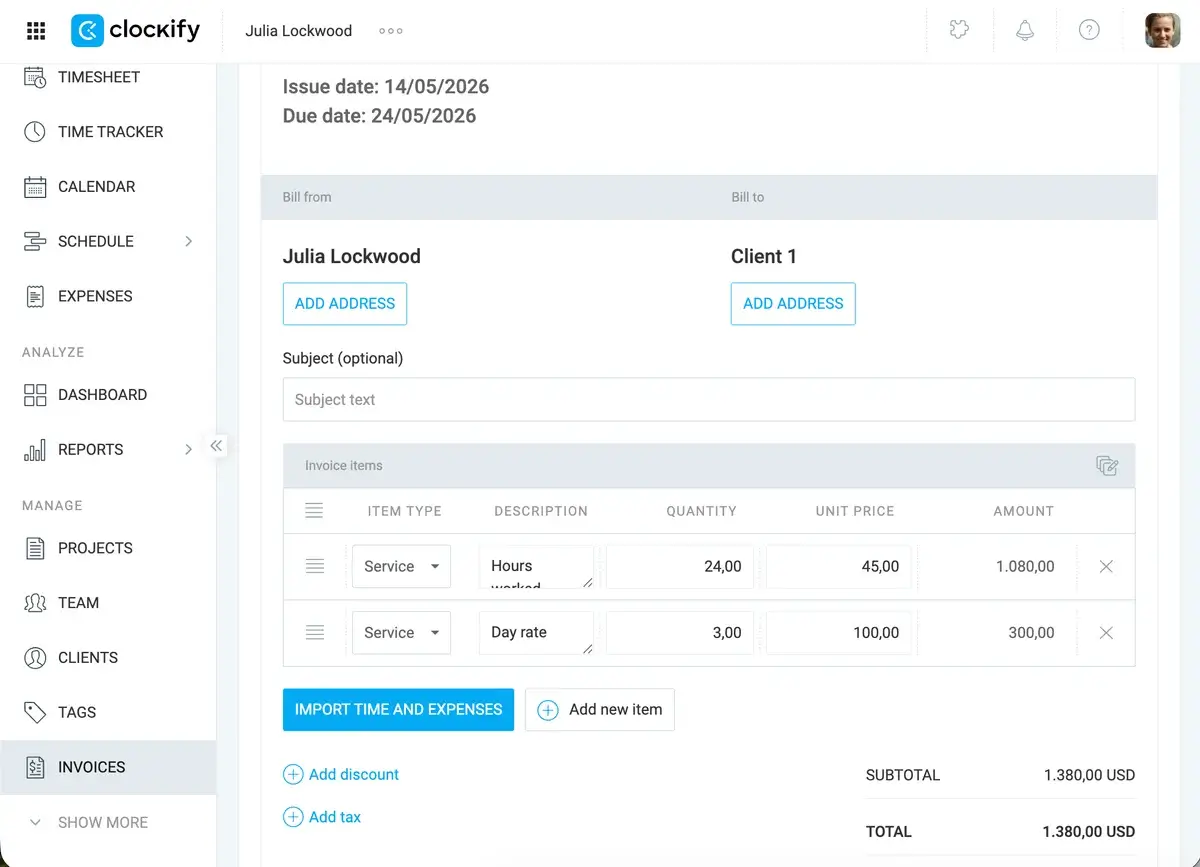
However, to keep everything above board (so there’s no tampering with tracked work hours) and keep all sensitive information on a need-to-know basis, Clockify has several access permissions:
- Regular user who can track time, view other team members’ time tracking, and request time off,
- Project managers who can view time tracked on their projects, manage project details, and approve submitted timesheets,
- Team managers who can view and edit time tracked by their team members and approve submitted timesheets,
- Admins who can manage workspace settings, user permissions, and overall workspace administration, and
- Owners who can do everything admins can but also set up Single Sign On (SSO) and delete the workspace.
Clockify also offers kiosk seats — seats for users who have limited access to Clockify, only via a kiosk. This is an excellent solution if you have team members who only need to clock in and out, but at the same time you need advanced features such as approvals, invoices, and scheduling.
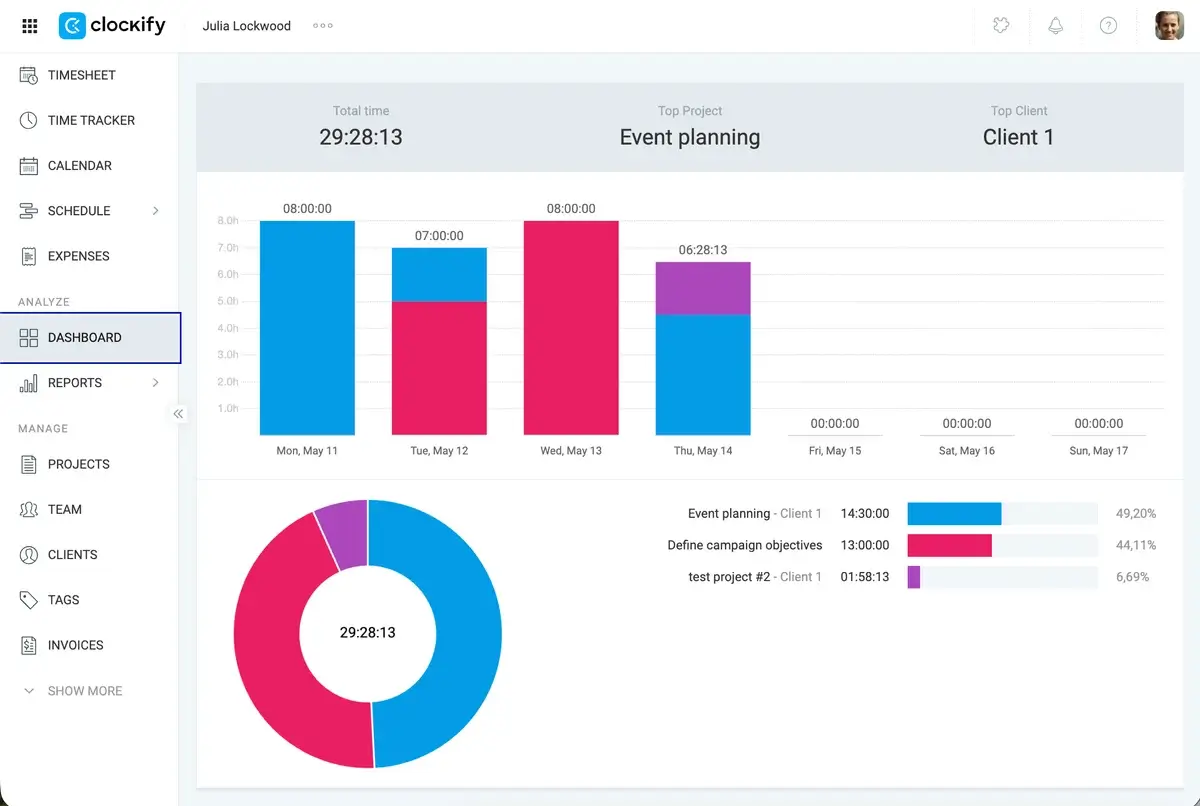
I was also impressed by Clockify’s Dashboards where you can see:
- The time your team spent on each project during a selected time period (today, last week, this month, etc.),
- The number of billable hours they clocked in and the amount billed, as well as
- How much time each team member spent working on each project.
This means no more manual time calculations and worrying about missing key details or forgetting to bill clients — it’s all black and white in Clockify.
In terms of customer support, Clockify, like all CAKE.com products, provides 100% human customer support available 24/7 by phone, chat, or email. And, best of all, this is available on all plans, including the free one.
My main complaint about Clockify is that its free trial lasts 7 days, which is too little time for a team to really understand all of its possibilities.

What’s new in Clockify?
The newest addition to Clockify is Activity monitoring. This feature gives managers insight into their team’s work habits, including active and idle time, which apps and websites they use, and how much of their time is spent on productive activities.
Available for: web, Windows, macOS, Linux, iOS, and Android.
| Plan | Price |
|---|---|
| Free | $0 |
| Basic | $3.99/user/month* |
| Standard | $5.49/user/month* |
| Pro | $7.99/user/month* |
| Enterprise | $11.99/user/month* |
| CAKE.com Bundle | $12.99/user/month* |
*billed annually
#5: ClickUp — best for teams working on complex projects
ClickUp is a cloud-based team management tool that calls itself “the everything app for work” due to the high number of features it offers.
Why choose ClickUp?
ClickUp is a feature-rich app that can be a strong ally to any manager leading a team that often works on complex projects, such as those requiring cross-department collaboration, various resources, and elaborate project planning.
| Pros | Cons |
|---|---|
| – Rich array of features – Free templates – User-friendly whiteboards | – Cluttered interface – Too complex |
ClickUp offers many features that will suit team managers looking for a tool powerful enough to handle elaborate projects. You’ll find:
- Different views (Doc, Board, Whiteboard, Forms, Timesheet, Calendar, Gantt, etc.)
- Automations (including 100+ automation templates)
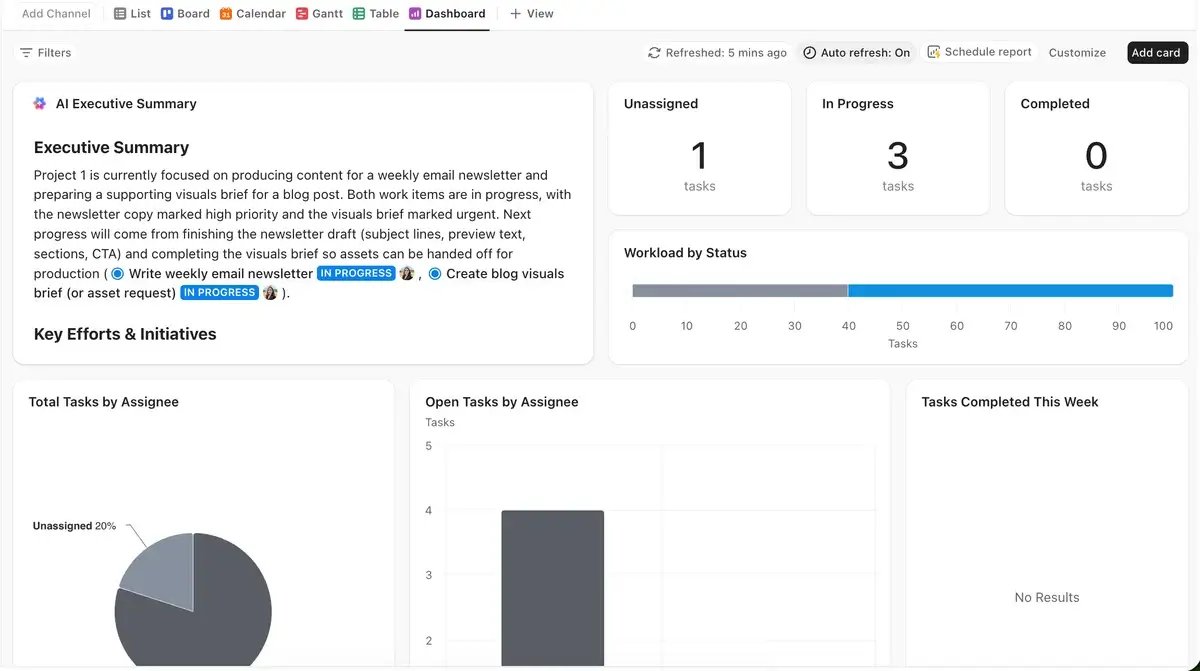
- Dashboards consisting of widgets for time tracking, sprints, task statuses, etc.
- Automated and manual time tracking
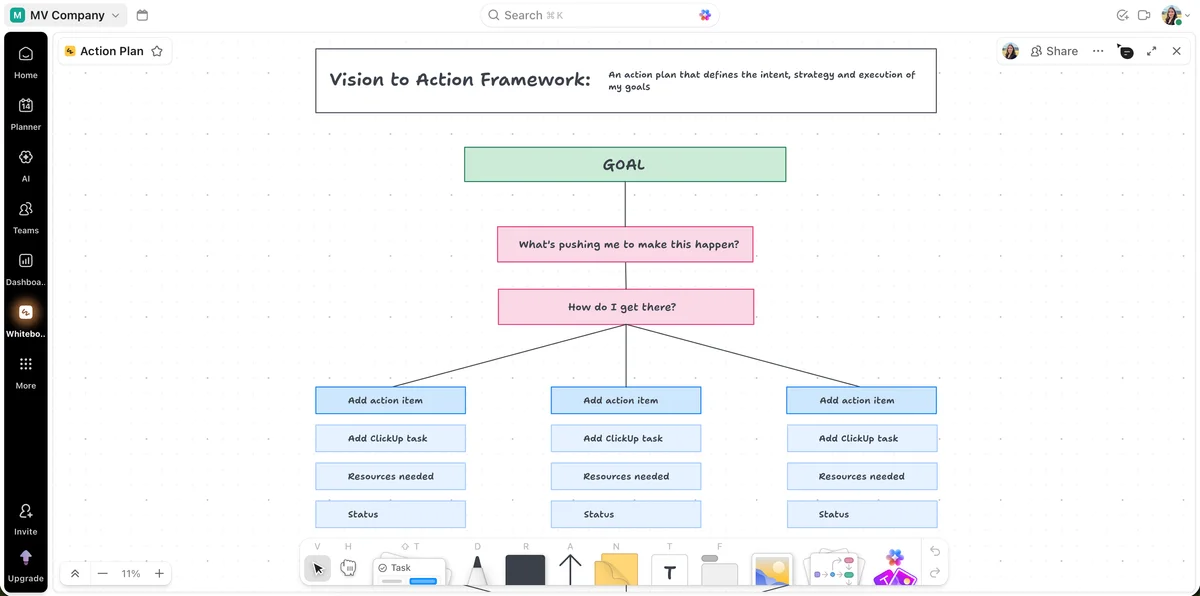
Personally, I liked whiteboards — they are a great way to create organizational charts for your company or build priority matrices and diagrams.
Most of all, I liked how whiteboards can be used for brainstorming with the team. When you’re in a meeting, you can open a ClickUp whiteboard and quickly make notes of everything that’s said using colorful text boxes, different fonts, and arrows.
Another useful feature ClickUp offers is Pulse. With the Pulse option, you can see which members of your team are online and what they’re working on. This way, you can track what tasks are being worked on, and also ensure that everyone is doing their part, without needing to micromanage them.
That said, while ClickUp justifies its “the everything app for work” nickname, I wonder if that’s really necessary.
It was all simply a lot — a lot of features, a lot of choices, and consequently, a lot of time spent setting everything up. It felt like whatever I was doing, no matter how small, there were several choices I needed to make, which made me feel exhausted.
If you have a multitude of complex projects and workflows, then ClickUp can certainly handle it and you should give it a go. But in my case, I think I’d go for something simpler.
Moreover, ClickUp’s customer support system is somewhat confusing. It offers 24/7 support on all plans, although it doesn’t include a live chat option in the free plan.
However, their response time leaves a lot to be desired — on the free plan, the response time is 48 hours, while on the Unlimited and Business plans, it’s 24. I’m not sure how much 24/7 support is worth if they take up to 2 days to answer.

What’s new in ClickUp?
The biggest update is Brain2, ClickUp’s rebuilt AI platform that uses context from features like tasks, Docs, and conversations, as well as connected tools. Brain2 can not only answer questions but also complete work (like create presentations or dashboards).
Available for: web, macOS, Windows, Linux, Android, iOS, and Apple Watch
| Plan | Price |
|---|---|
| Free | $0 |
| Unlimited | $7/user/month* |
| Business | $12/user/month* |
| Enterprise | POA |
*billed annually
#6: Notion — best for collaboration on docs
Notion is a project management tool that pays special attention to documentation and blends project management with knowledge sharing.
Why choose Notion?
If you need a tool that will allow your team to create rich documents and collaborate on them in real time, give Notion a chance.
| Pros | Cons |
|---|---|
| – Collaboration on Docs – AI integration – Publishing pages online | – No folders – Steep learning curve |
Notion is organized around pages filled with blocks. These blocks can be anything — text, picture, link, table, etc. — allowing you to create elaborate documents and add whatever information you want.
The best thing about Notion is that you can collaborate on documents with your team in real time. You and your teammates can:
- Edit docs together (you can always see who is currently editing what),
- Leave comments (on the entire document or specific blocks), and
- @mention a team member to direct a comment at them.
This can save you valuable time — instead of constantly sending a file back and forth between all team members that are working on it, you can just work together at the same time.
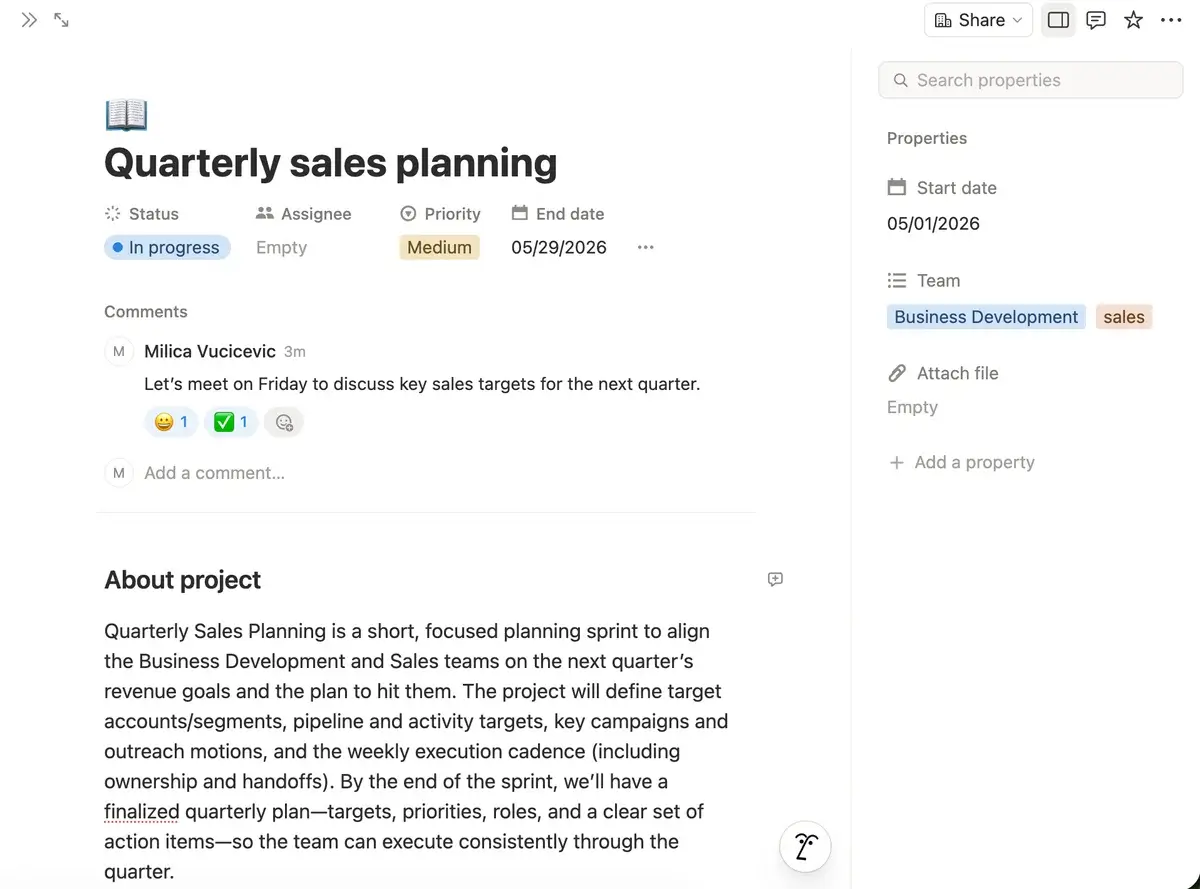
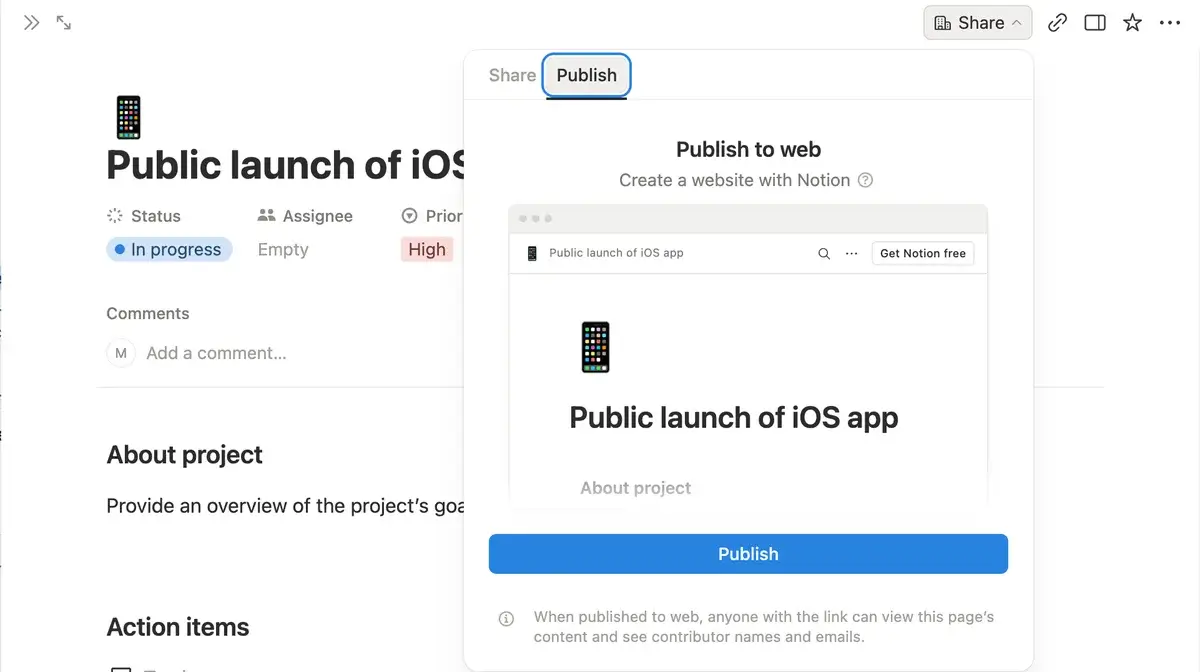
Notion also lets you publish pages online so that anyone can read them.
This option is available for free, so you can publish as many pages as you want within 1 subdomain. And if you opt for a paid plan you can have up to 5 subdomains — making Notion an excellent choice for marketing teams looking to publish their content online.
The main downside of Notion is that it’s not very intuitive. I have been using it on and off for a while and can say I’ve got the hang of it now, but in the beginning, I struggled. The organization of the documents is kind of sloppy in my opinion.
I (like many others) like to organize my documents into folders, so I can’t understand why a PM tool that puts an emphasis on documents doesn’t have that feature. I solved this problem by creating a blank page and organized connected documents as subpages. But this isn’t the same as having clearly organized folders.
That said, you can connect Notion pages using backlinks, as well as sort them according to the last edited documents in the left sidebar, which improves the organization a lot. However, I still miss the familiar top-down structure that’s present in most team and project management tools.
Finally, if you need the help of Notion’s customer support, you can chat with Notion’s AI chatbot in the app or send them an email. But premium support is only available to Enterprise plan users.

What’s new in Notion?
Notion’s AI Meeting Notes can now trigger Custom Agents to reduce the manual follow-up that often falls on team leads. Also, Notion Agents can read and write more file types, including Excel and PowerPoint, supporting better workflow automation across agents and shared work.
Available for: web, macOS, Windows, iOS, and Android
| Plan | Price |
|---|---|
| Free | $0 |
| Plus | $10/user/month* |
| Business | $20/user/month* |
| Enterprise | POA |
*billed annually
#7: Trello — best for automated team management
Trello is a team project management tool made by Atlassian (the company that also made Jira). It’s a beginner-friendly tool focused on Kanban project management.
Why choose Trello?
Trello’s great for automated project tracking, enabling you to efficiently manage your team’s tasks across projects and track their progress.
| Pros | Cons |
|---|---|
| – Automations on the free plan – Clear layout and easy navigation – Inbox section | – Only Kanban board view on the Free and Standard plans |
I could find my way around Trello without a problem from the start thanks to its navigation bar at the bottom of the page.
It enables you to see or hide Inbox, Planner, and Board with just one click. You can also switch between boards with the same ease.
Relying on the Inbox is a great way to transform chatting with the team into actionable tasks. You can connect Trello with your communication app such as Slack, then pin a message in it — and it will appear in Trello’s Inbox from where you just drag and drop it to whichever board you want. You can also redirect emails to your Inbox and turn them into tasks.
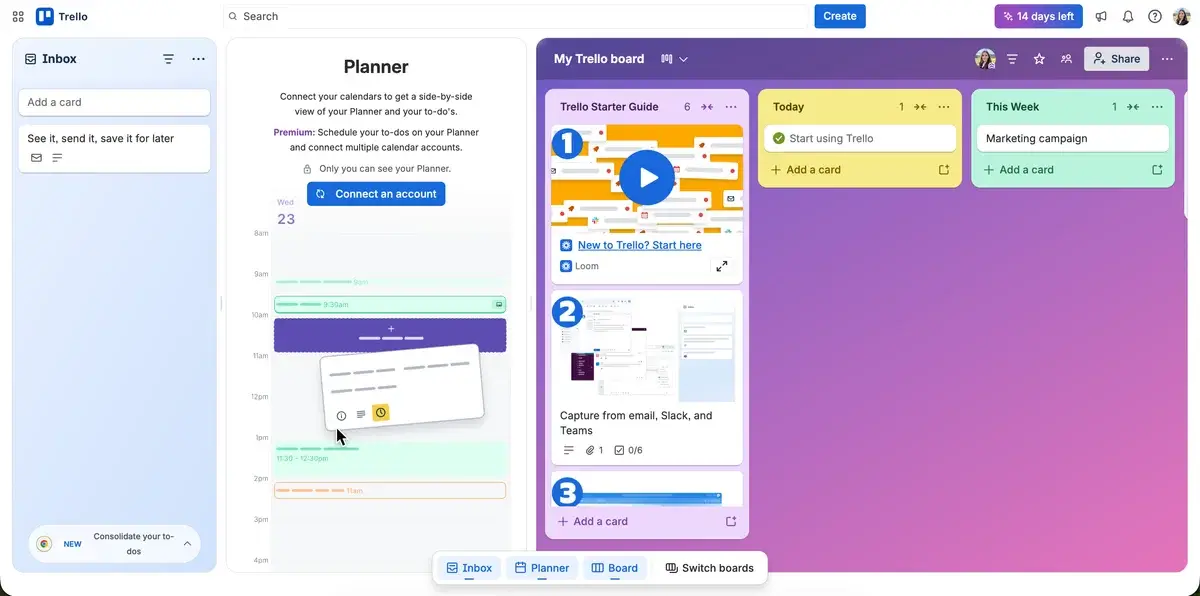
I could easily manage tasks in Trello as well — you can drag and drop them from one column to another, or drag tasks to rearrange their order within one column.
Trello offers automations on all plans, which I didn’t expect because most apps either don’t offer them at all for free or they permit just a limited amount of actions. Trello offers:
- Rules — automations that work on the principle of when THIS happens, do THAT (e.g., when a card is marked as done, transfer it to the ‘finished tasks’ column).
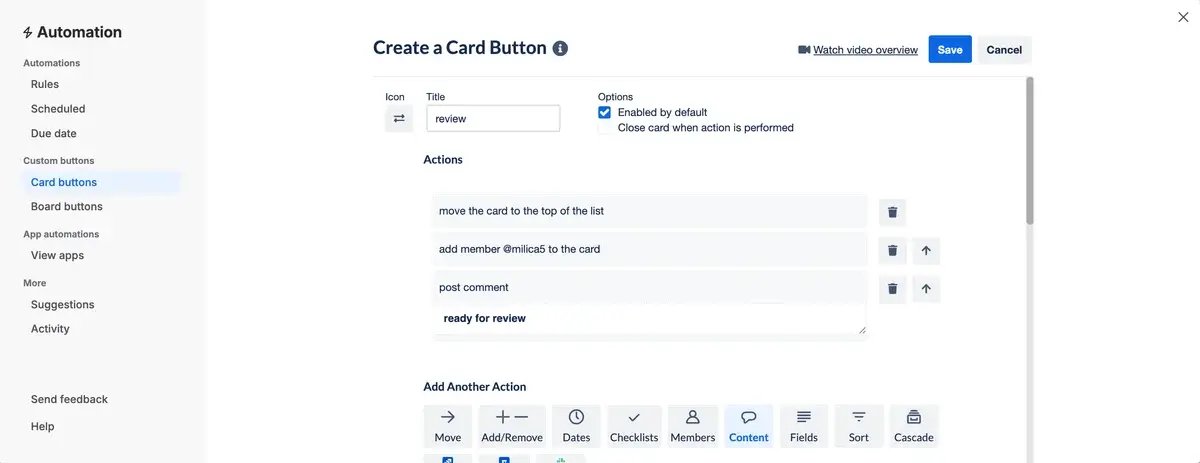
- Buttons — custom card buttons that perform multiple actions (for example, you can subscribe the team manager, move the list to the top, and add a due date with just one click).
- Email reports — automatic emails such as weekly summary report of all cards due that week.
In Trello, you can communicate with your team through task card comments and @mention a team member, all card members, or all board members. You can also leave reactions to messages, but there’s no reply-in-thread option, so the comment section can get cluttered after a while.
My main issue with Trello is that the Free and Standard plans include only the Kanban view. So if you want Timeline, Map, Dashboard, or Table view, you need to pay $10/user/month.
I was also disappointed with Trello’s customer support. On the free plan, you have to rely on Atlassian’s community support, which means going to forums where you can chat with other Trello users. I don’t even consider that proper customer support.
Worse, on the Standard plan, customer support is available only during the local work hours, and only Enterprise subscribers get 24/7 support.

What’s new in Trello?
Trello expanded its existing AI functionality for paid users (AI-generated boards, images, and widget cards, among others). And, as of recently, Trello MCP lets external AI assistants read and update work on the platform using natural-language commands.
Available for: web, macOS, Windows, iOS, and Android.
| Plan | Pricing |
|---|---|
| Free | $0 |
| Standard | $5/user/month* |
| Premium | $10/user/month* |
| Enterprise | $17.50/user/month (for 50 users)* |
*billed annually
#8: Pumble by CAKE.com — best for remote work communication
Pumble is a business communication app created by CAKE.com that helps teams collaborate through messages, calls, and video conferences.
Why choose Pumble?
Pumble lets you connect your team across the world and communicate seamlessly thanks to its powerful video and messaging options, scheduled messages, and unlimited message history.
| Pros | Cons |
|---|---|
| – Intuitive – Unlimited message history on all plans – Robust video call features – Scheduled messages | – Lack of read receipts for messages |
Pumble offers a sleek interface that doesn’t require long and painful onboarding. The moment I started using it, I could communicate quickly and efficiently.
There are 2 main levels of communication:
- Channels — private channels for confidential information (e.g., strategy, finance plans, etc.) and public channels for company-wide communication (e.g., general, lunch, etc.)
- Direct messages (DMs) — private conversations between you and your teammate or a group of teammates
You can communicate via messages, audio, and video calls in both channels and DMs. I especially like Pumble’s video calls — they are packed with features such as:
- Screen sharing
- In-call messages
- Blurred background
- Different background covers
- Noise cancelling
All this ensures meetings go smoothly no matter where you are. You don’t need to tidy up your room, or find a quiet corner in your open office — just choose a pretty background and reap the benefits of noise cancelling.
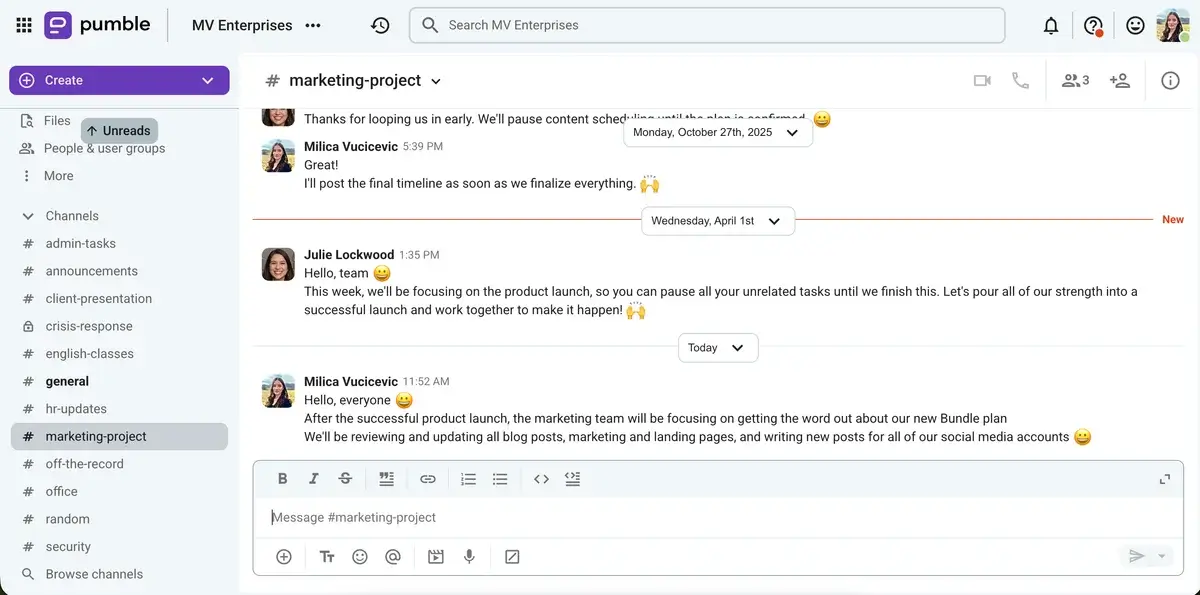
I have been using Pumble to centralize all my business communication for several years now and I love it. I can rely on Pumble for all my team communication needs. Pumble lets me share files in both channels and DMs, helping keep all information in one place. Plus, Pumble has an unlimited message history (available on the free plan!), which means that when I need to check something that happened a while ago, I can search through channels and DMs.
I also appreciate that I can schedule messages in both DMs and channels. That way, if I think of something in the evening or over the weekend, I can schedule it for an appropriate time. And if your team works across different time zones, scheduled messages are a godsend.
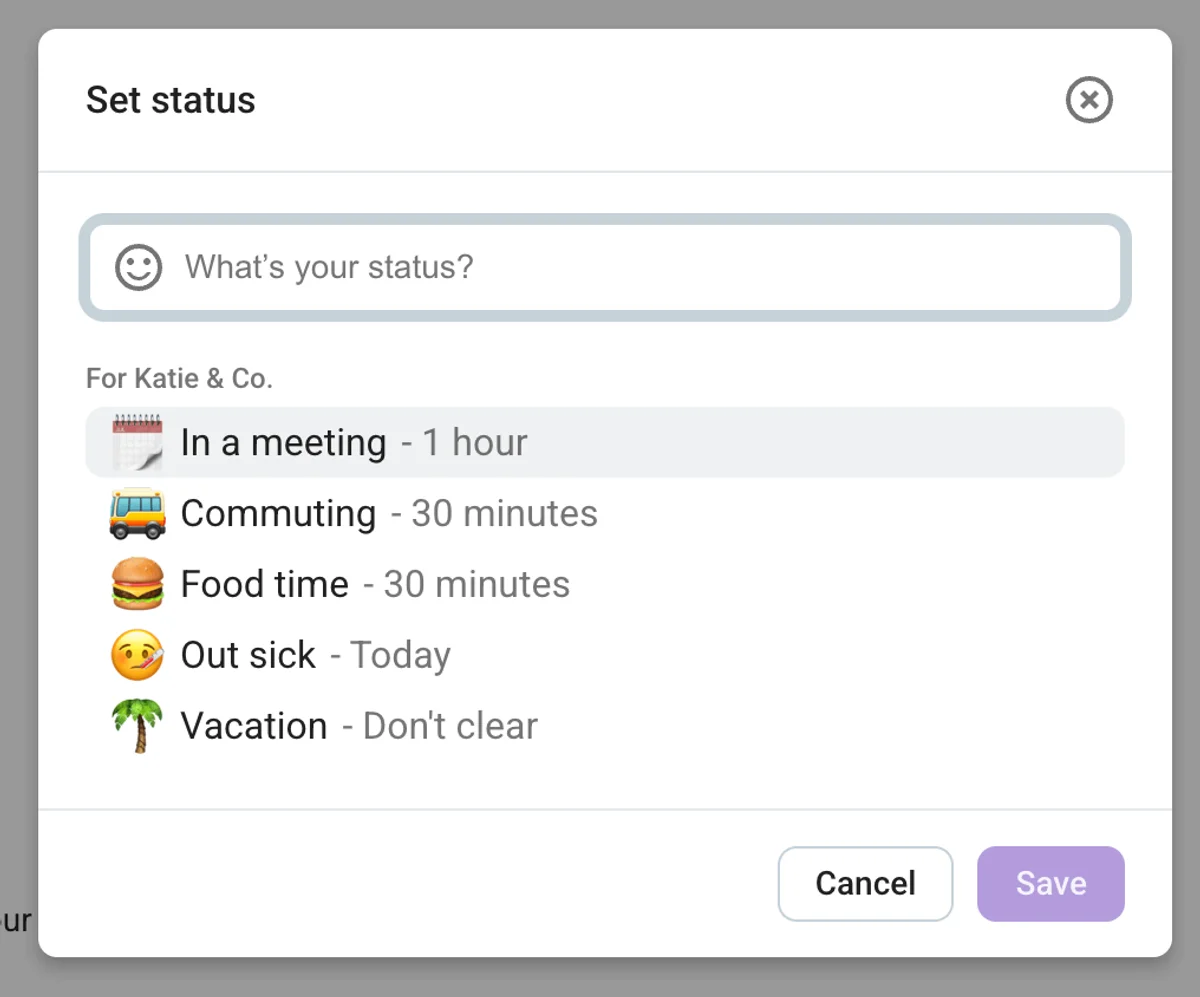
Another thing that’s right up my alley are customizable statuses. I need to focus when writing, so I like to set my Pumble status to “busy” or “do not disturb”. Also, I set my status to “on holiday” whenever I’m away, so I can relax 100% on my vacation instead of being bombarded by work messages.
The only issue with Pumble is that it doesn’t offer read receipts for messages, meaning you can’t know for sure whether someone is ghosting you or just taking a while to reply. However, with emoji reactions available, this isn’t a big stepping stone in my opinion.
Also, Pumble, like all CAKE.com products, offers 100% human customer support available 24/7 for all users, even those on the free plan.
What’s new in Pumble?
The newest addition to Pumble’s features is the Analytics dashboard. This dashboard gives you insight into how your team communicates, which channels they use the most, how active they are, and how many video calls were made along with how long they lasted.
Available for: web, Windows, macOS, Linux, iOS, and Android
| Plan | Price |
|---|---|
| Free | $0 |
| Pro | $2.49/user/month* |
| Business | $3.99/user/month* |
| Enterprise | $6.99/user/month* |
| CAKE.com Bundle | $12.99/user/month* |
*billed annually
#9: Basecamp — best for simple team management
Basecamp is a project management tool with an intuitive and simple interface designed for straightforward project and team management.
Why choose Basecamp?
Basecamp is a good choice for managers who want a simple tool to handle basic team management. With no bells and whistles, this app enables easy onboarding and straightforward team organization.
| Pros | Cons |
|---|---|
| – User-friendly and clear layout – Fixed monthly price for Pro Unlimited and long free trials – Clear message boards | – Only 1 project on the free plan – No automations |
When I first created my Basecamp account, the layout reminded me of a post-it memoboard — quite simple, but effective. Unlike ClickUp, in Basecamp, you only get what you need to organize your team across projects, without the clutter.
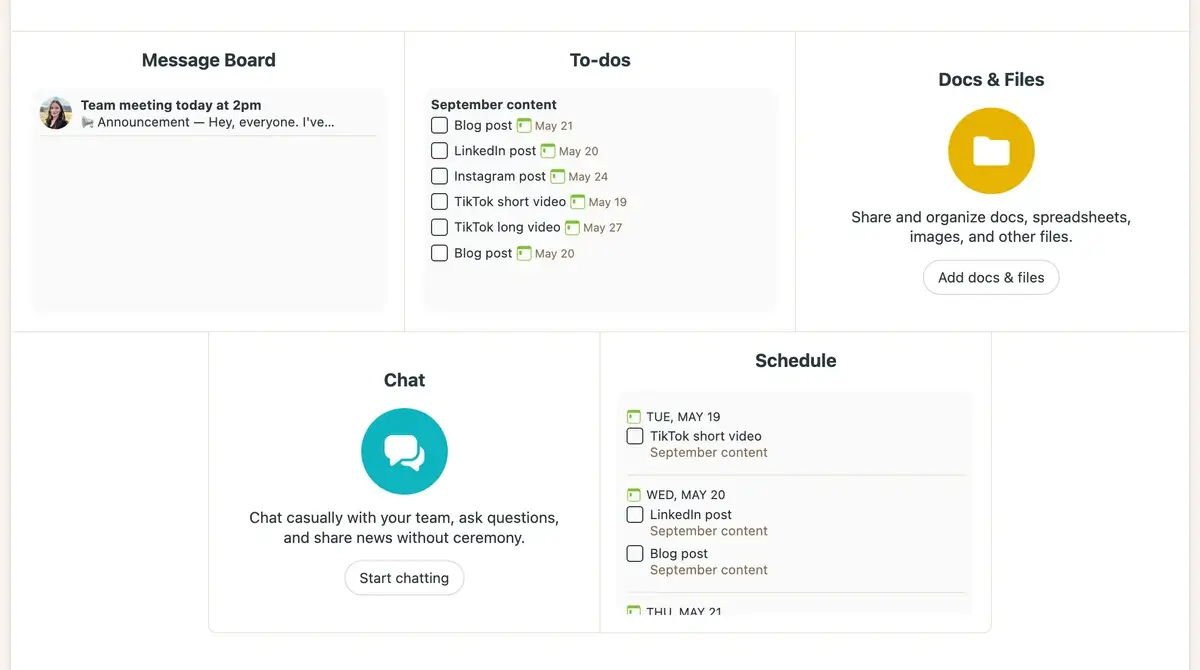
The home page shows you your projects, schedule, and assignments. And each project has its own page with a designated section for:
- Project progress — a visual representation of how your project is advancing right under the project name,
- To-dos — list of project tasks with their assignee, due date, notes, and comments,
- Message board — space for announcements and accompanying comments,
- Docs and files — place to share images, documents, spreadsheets, etc., neatly organized into folders,
- Schedule — tasks from the to-do list organized in a calendar, and
- Chat — a place for teammates to chat and share ideas.
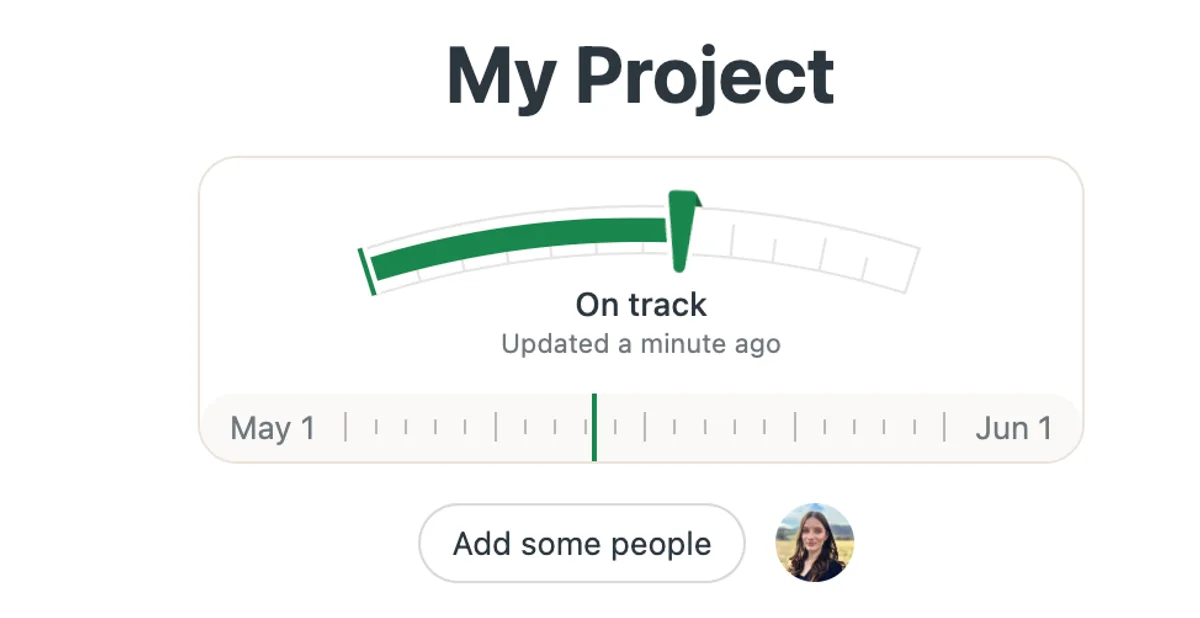
I liked the progress-tracking solution — a simple needle you can move as your project progresses to show how far you’ve gone. You can mark the project as “on track”, “some risk”, and “concerned”. Plus, whenever you move the needle, you can write a note to explain the update, giving your team a clear idea of how the project is getting along.
Basecamp also has Pings — private chats between team members for 1-on-1 discussions.
Unfortunately, Basecamp doesn’t offer some advanced features some other team management tools on this list have, such as automations and Gantt charts.
But, the biggest downside is that the free plan includes only 1 project, which makes it virtually unusable in the long run. You could delete the project and start a new one every time, but let’s be realistic — who is 100% done with a project before they start another one? Besides, you might need information about the project even after you’re done with it.
However, Basecamp somewhat compensates for this with generous free trials — you get 30 days for the Plus plan and 60 days for Pro Unlimited.
Also, Basecamp Pro Unlimited has a fixed price of $299/month when billed annually. All features are included in the price, and even if you have 1,000 team members, you will still pay $299.
As for customer support, Basecamp offers 24/7 support on both paid plans, with Pro Unlimited subscribers getting priority support.
What’s new in Basecamp?
The latest version is Basecamp 5, released in May 2026 — a new action-oriented home screen, better search + live filtering, subtasks, improved text editor with Markdown, tables, and voice notes, and more.
Available for: web, macOS, Windows, iOS, and Android
| Plan | Price |
|---|---|
| Free | $0 |
| Plus | $15/user/month |
| Pro Unlimited | $299/month* |
*billed annually
💡PLAKY PRO TIP
Need a Basecamp alternative? Check out our overview below:
#10: KanbanFlow — best for even work distribution
KanbanFlow is, as the name suggests, a Kanban-oriented app that helps you track progress of your team’s tasks on a colorful board.
Why choose KanbanFlow?
If you are a fan of Kanban project management, and you need help managing the amount of your team’s work in progress, KanbanFlow could be a good option for you.
| Pros | Cons |
|---|---|
| – Clear Kanban boards – Efficient time tracking – Work-in-progress limits | – No integrations on the free plan – Only Kanban view available |
When I started using KanbanFlow, the first thing I noticed was the simplicity — just you, your team, and your Kanban boards.
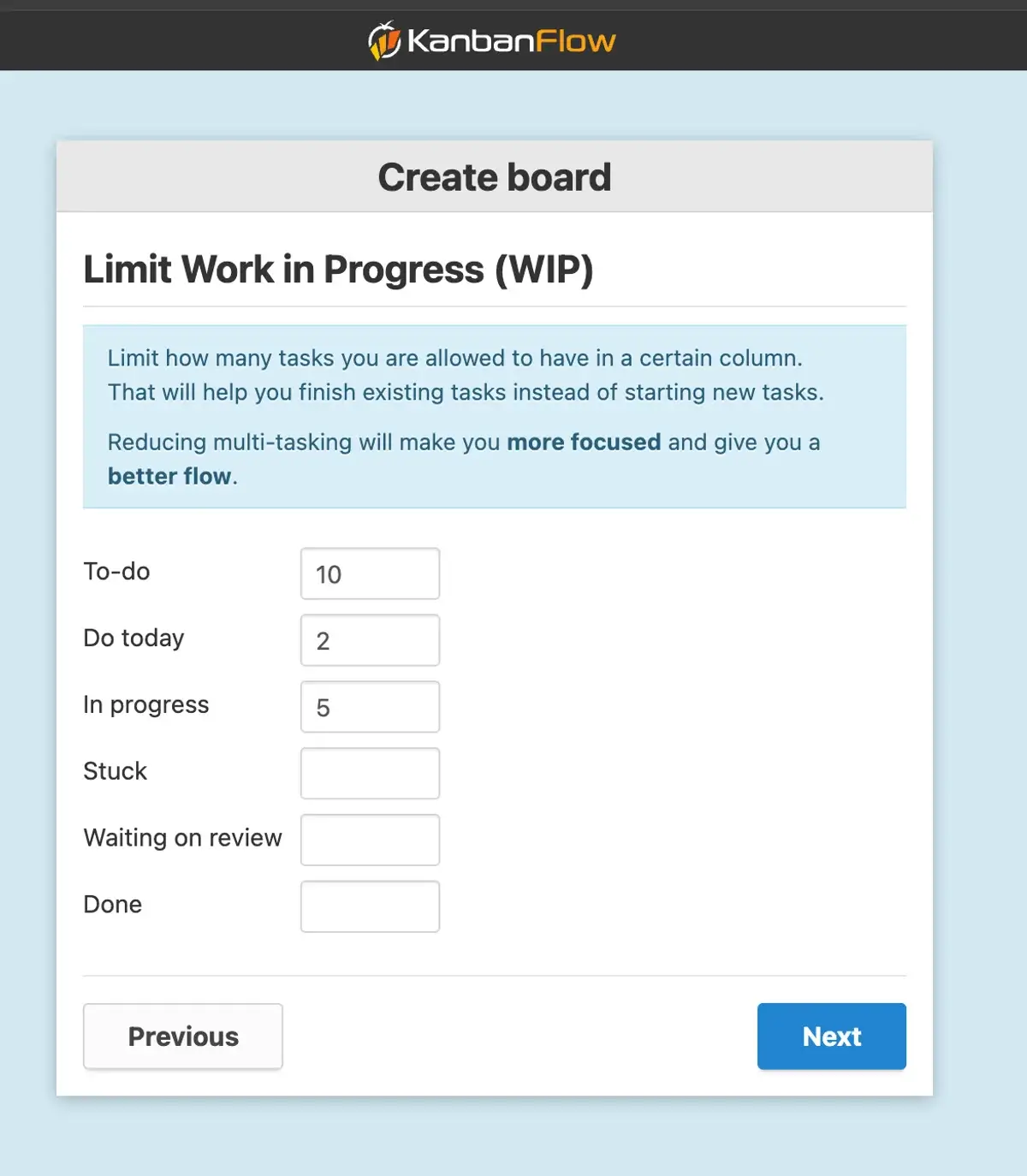
What I really like about KanbanFlow is the Work-in-progress (WIP) limit. I always think I can manage everything, so I have no problem saying yes to any assignment. But then I end up flooded with tasks that I need to juggle (not always successfully).
With the WIP limit in place, though, I can’t have more than a pre-decided number of tasks even if I want to. So, if your team struggles with eager overachievers too, I recommend trying KanbanFlow.
The combination of user-friendly Kanban boards and WIP limit gives you a clear overview of everyone’s workload, so you can prevent burnout of your team members.
Another thing KanbanFlow does well is time tracking. You can track time on tasks with a timer or manually. There’s also a Pomodoro timer if you need defined focus time and breaks. And, best of all, all time tracking options are available on the free plan.
You can filter the board according to user, date, color, and labels. So, for example, a team member can filter the board to see only their tasks, or only those due that week.
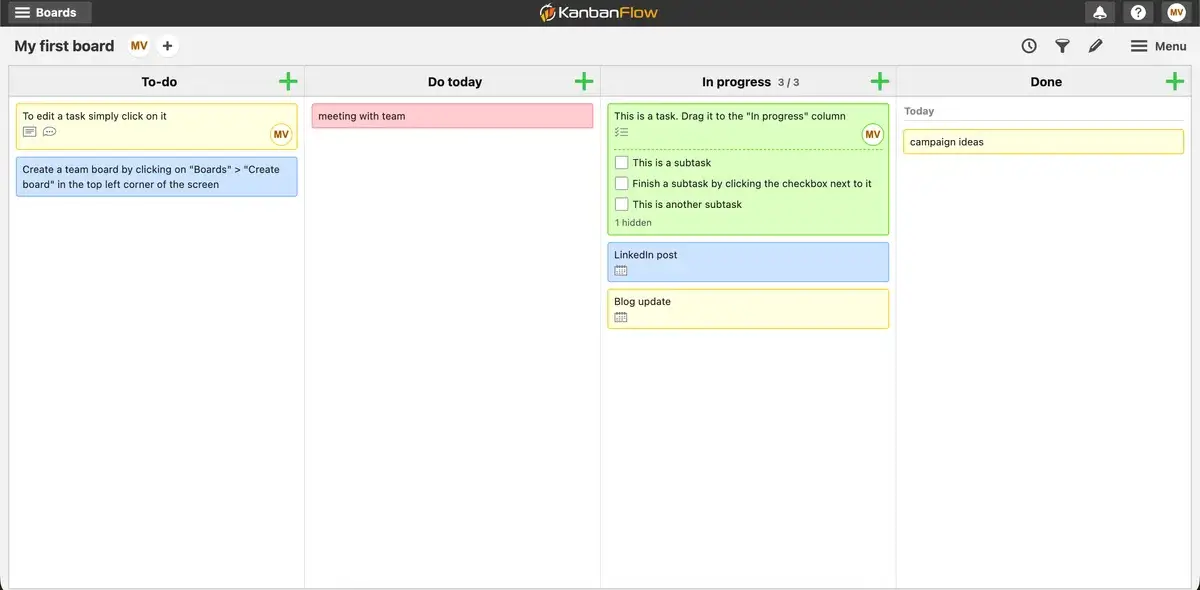
However, when it comes to board views, the story begins and ends with Kanban in this case. So if you need list views or timelines, this software is not for you.
Also, while this app offers basic integrations such as Google Drive, Dropbox, and Zapier, none of them are available in the free version.
The customer support options leave a lot to be desired as well. The only way to contact KanbanFlow’s support team that I found is to send them a question from the app, and they will respond to you by email. This is quite underwhelming, as I expect the customer support to have at least a chat option, if not phone support.
What’s new in KanbanFlow?
There have been no major changes in KanbanFlow that I could find.
Available for: web and mobile web app
| Plan | Price |
|---|---|
| Free | $0 |
| Premium | $5/user/month* |
*10% discount when billed annually
FAQ
Here are some of the most common questions people have while searching for the perfect team management solution for their business.
What is team management software?
Team management software are digital platforms designed to help organizations:
- Coordinate tasks,
- Track progress,
- Facilitate communication, and
- Optimize productivity in a centralized hub.
Team management tools help managers assign work, set deadlines, monitor team performance in real-time, and replace scattered emails and spreadsheets with a single, collaborative workspace.
What is the best team management software for me?
First, note down what you’re looking for in a team management tool. Then, as you go through this list, see how each software fits the bill.
Finally, select the top 3 and try their free plans to see if you like them and if they’re right for you.
How do I write a business case to get my boss to approve the cost for a team management platform?
To ensure your business case for a team management platform gets approved, you need to include a clear executive summary, financial assessment, business objectives, and project option analysis. Try our business case template to get an organized and clear document without investing too much time.
What are the benefits of team management software?
The main benefits of team management software are:
- Improved accountability — with everyone knowing who is responsible for which task, it’s easy to track accountability.
- Enhanced team communication — clear communication channels help keep communication between team members easy and straightforward.
- Clear work allocation — team managers can clearly see how much work each team member has and allocate work accordingly.
How can my team transition smoothly to team management software?
To ensure a smooth transition to new team management software, make sure the software you choose is intuitive and easy to use. Plus, organize onboarding for your team, so they don’t have to figure out things on their own.
Manage teams effortlessly with Plaky by CAKE.com
Managing a team seems effortless when you have the right software. Depending on your team’s specific needs, pick one tool (or several) from this list, and make your worklife easier.
Out of all the software on this list, Plaky by CAKE.com stands out as the comprehensive solution for any team. With Plaky, you can:
- Track accountability thanks to task assignees,
- Save time with board automations and bulk actions,
- Communicate effortlessly with your team through comments and @mentions, and
- Visualize your team’s progress with Gantt and Chart views, and much more.
Get the glimpse of what Plaky can do in the following video:
But if Plaky alone isn’t enough to cover your business needs, we recommend you take a look at the other 2 products by CAKE.com — Clockify for time tracking and invoicing, and Pumble for team communication. Together with Plaky, these tools comprise the CAKE.com Productivity Bundle.
By combining Plaky, Clockify, and Pumble, you get a comprehensive business app suite that’s part of the same app ecosystem, integrates natively, and allows you to consolidate your work and teams in one place.
And best of all, it saves you money. You can get all 3 Enterprise plans for just $12.99/seat as part of the Bundle deal!
Streamline your team management with CAKE.com! Sign up today!
How we reviewed this post: Our writers & editors monitor the posts and update them when new information becomes available, to keep them fresh and relevant.