
You’re using Obsidian for your note-taking, but are ready to move on?
Look no further! We’ve compiled a list of the best Obsidian alternatives currently available on the market.
We’ve singled out the most important details about their features, ease of use, pricing, etc. — all you need to know in one place.
So, dig in!
WHY TRUST US?
The apps we talk about are selected, tested, and written about by human reviewers who follow strict review and editorial guidelines. We pick solutions that are practical, purposeful, and can offer real value for the specific use case or business context we’re covering — while also being justified in their pricing. Our methodology is transparent, clear, and available to everyone:
Learn more about our review methodology here →
Do you need an Obsidian alternative?
Obsidian is a truly powerful note-taking tool, but it comes with some downsides, such as:
- Steep learning curve — Obsidian notes are based on Markdown language, which some users find challenging. While Markdown is powerful, it can feel less intuitive than “regular” note-taking.
- Lack of collaboration options — If you want to work together with someone on your notes, or simply share them with others, Obsidian can feel very limiting. You need to pay $8/site/month just to publish your notes, but even that gives you very basic collaboration possibilities.
- Pricey syncing option — Since Obsidian stores notes locally, you need to create an account to sync them across devices. This can set you back $4 or $8/month depending on how many vaults you want to sync.
So, if these or any other reasons prompted you to look for alternatives to Obsidian, check out our list below.
Top 7 Obsidian alternatives — overview
Before we go into details, here’s a quick overview of all free Obsidian alternatives covered in this article:
| Tool | Best for | Free trial | Free plan | Lowest pricing |
|---|---|---|---|---|
| Plaky by CAKE.com | Organizing your plans and to-dos | ✔️ | ✔️ | $3.99/user/month* |
| Standard Notes | Syncing notes | ❌ | ✔️ | $90/year* |
| Apple Notes | Mac and iPhone users | N/A | ✔️ | N/A |
| Notion | Publishing notes | ✔️ | ✔️ | $10/user/month* |
| JotterPad | Academic note-taking | ✔️ | ✔️ | $3.33/month* |
| Evernote | Taking notes on your phone | ✔️ | ✔️ | $8.25/month* |
| Joplin | Markdown enthusiasts | ✔️ | ✔️ | €2.40/month* |
*billed annually
Skip the reviews — Try Plaky now!
#1 Plaky by CAKE.com — best for organizing your plans and to-dos
Plaky by CAKE.com is primarily a task management tool that helps you organize your to-dos together with detailed notes.
Why choose Plaky?
If your notes mostly consist of plans and to-do lists, Plaky is a great Obsidian alternative for you.
| Pros | Cons |
|---|---|
| – User-friendly – Modern design – Rich text notes – Status tracking | – Only 2 integrations (Pumble and Clockify) |
Although not a typical note-taking tool, Plaky is an excellent choice if you want to bring more organization to your notes.
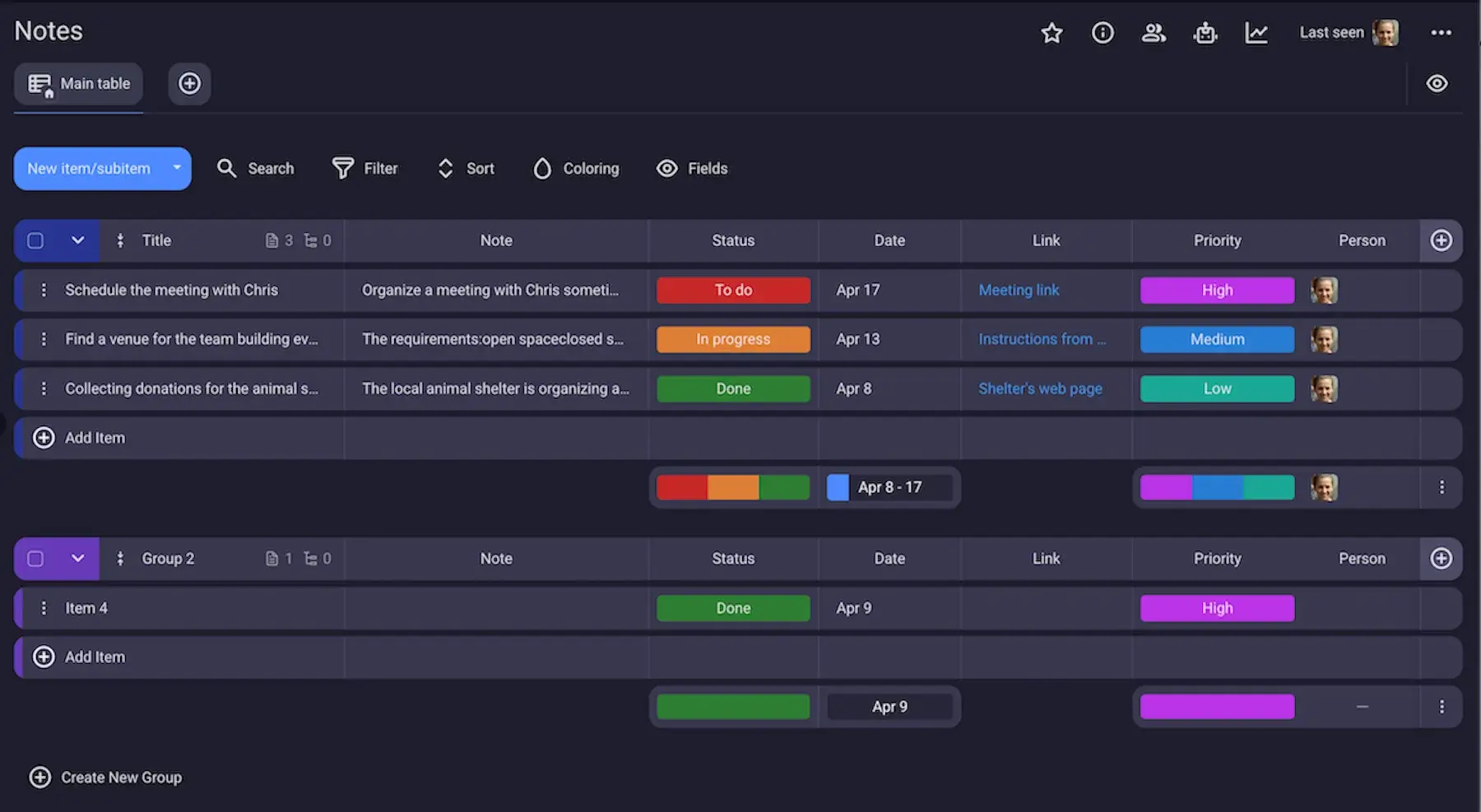
The basic units of Plaky are Items, which are organized into Boards. Each item consists of a name and custom Fields that serve as home for any type of information you want to record.
The most useful is the Rich text field. It allows you to write elaborate notes with headings, bullet lists, checklists, quotes, emojis, etc.
But, this is just the tip of the iceberg with Plaky. The items also include a wide array of features, such as:
- Files — Add files (documents, images, videos) to any item in Plaky. If, for example, you have a bunch of notes or reminders written in different docs, you can bring them to Plaky and organize them.
- Links — Include links to websites to easily access relevant online information.
- Due dates — Add a time for when your to-dos need to be done to keep yourself on schedule.
- Status field — Scan how to-dos are progressing (not started, in progress, done, stuck, etc.). This, next to due dates, lets you know what requires your immediate attention. You can even choose custom colors for each status for better visual effect.
- Comments — Collaborate with people on your notes, and leave questions and feedback in the comments section.
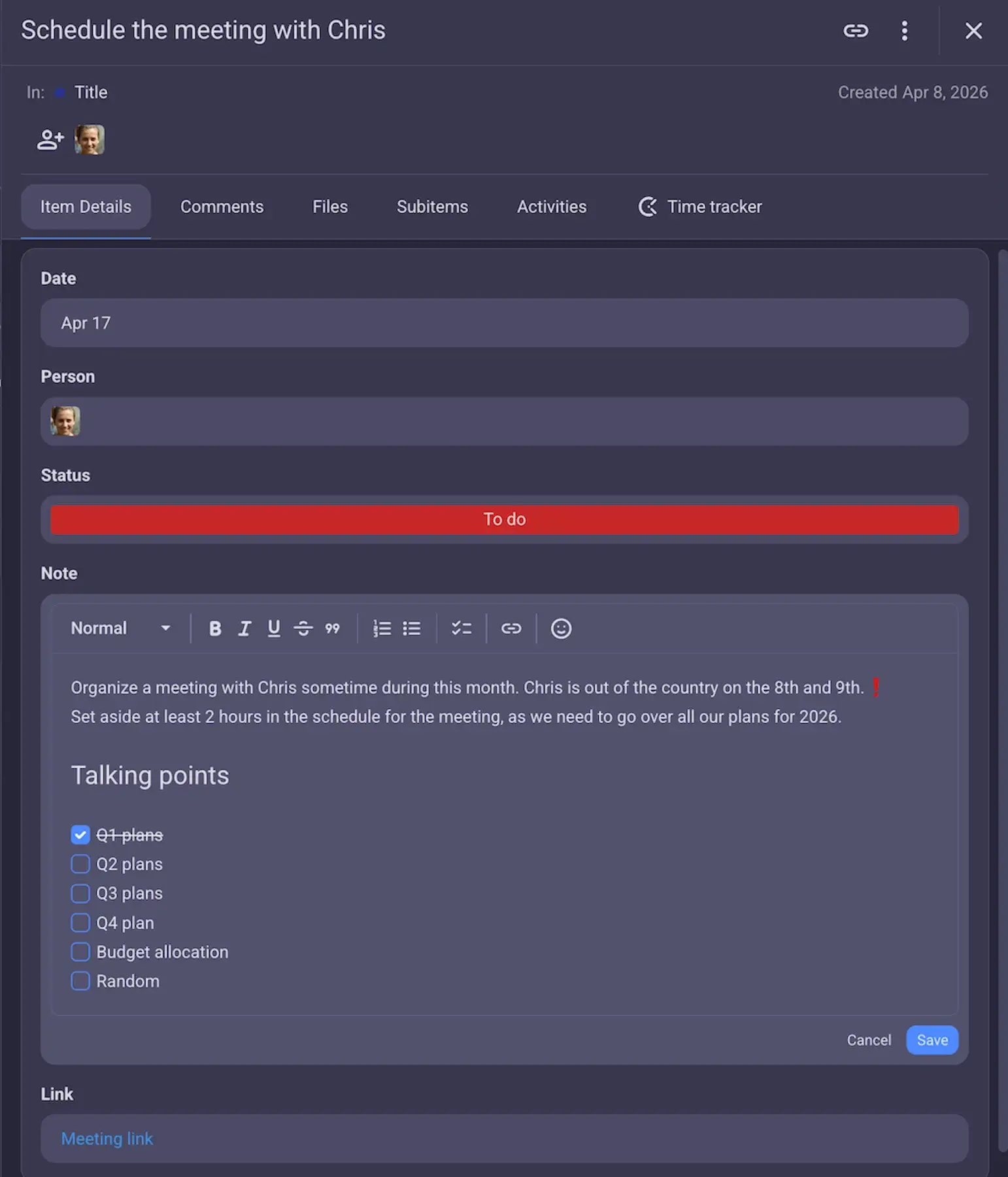
Moreover, if you need to share your notes with others, look no further than Plaky. Instead of paying extra for their publishing option, like in Obsidian, Plaky lets you seamlessly collaborate with others. You can add as many people as you want to your Plaky workspace, even on the free plan.
Plaky is much more than a tool for notes, though, as it offers:
- Vibrant visual design — Elegant boards with color-coded fields make it easy to skim for information, while being aesthetically pleasing at the same time.
- Easy prioritization — With the priority field, you can quickly classify your to-dos according to importance.
- Adjustable levels of privacy — In Plaky, level of privacy is your choice. You can keep your boards private so only you can see them. Or, you can make them public and customize the level of access others have by managing user roles and permissions.
- Visual data presentation — See how your to-dos are progressing in the form of a bar or pie chart using Plaky’s Chart view.
What makes Plaky stand out from all other alternatives to Obsidian is that it offers first-class customer support for free. Plaky’s expert support agents are available 24/7 via a call, chat, or email. And, most importantly, the support is 100% human — no irritating AI chat bots that don’t understand what you’re asking half the time.
What’s new in Plaky?
The biggest update in Plaky is Dashboards — aggregated multi-project overviews with custom widgets. This makes it easier to see connections, progress, and key data at a glance. Other notable updates are improvements to automation and integrations with Clockify and Pumble.
For more information about Plaky’s recent and upcoming features, take a look at Changelog and Roadmap.
Available for: web, iOS, Android
| Plan | Price |
|---|---|
| Free plan | $0 |
| Pro plan | $3.99/user/month* |
| Enterprise plan | $8.99/user/month* |
| CAKE.com Bundle (Plaky + Clockify + Pumble) | $12.99/user/month* |
*billed annually

#2 Standard Notes — best for syncing notes
Standard Notes is an end-to-end encryption note-taking app where you can write down detailed notes and create spreadsheets.
Why choose Standard Notes?
This app is the right choice for those who are looking for a tool that allows them to sync their notes across multiple devices for free.
| Pros | Cons |
|---|---|
| – Unlimited device sync for free – Password protected notes – Note version history | – No monthly plans and no free trial – No folders on the free plan |
Standard Notes is a user-friendly tool for note-taking. You can create notes in Markdown, but also rich text, plain text, to-dos, codes, etc. With such a variety to choose from, you’ll surely find the type that suits your needs and level of technical expertise.
And if you need a way to save content, rather than just create it, Standard Notes delivers. There’s a web clipper available on paid plans, so you can save web pages as notes. This way, you don’t have to keep gazillion bookmarks on the browser, since important information is safely stored in your notes.
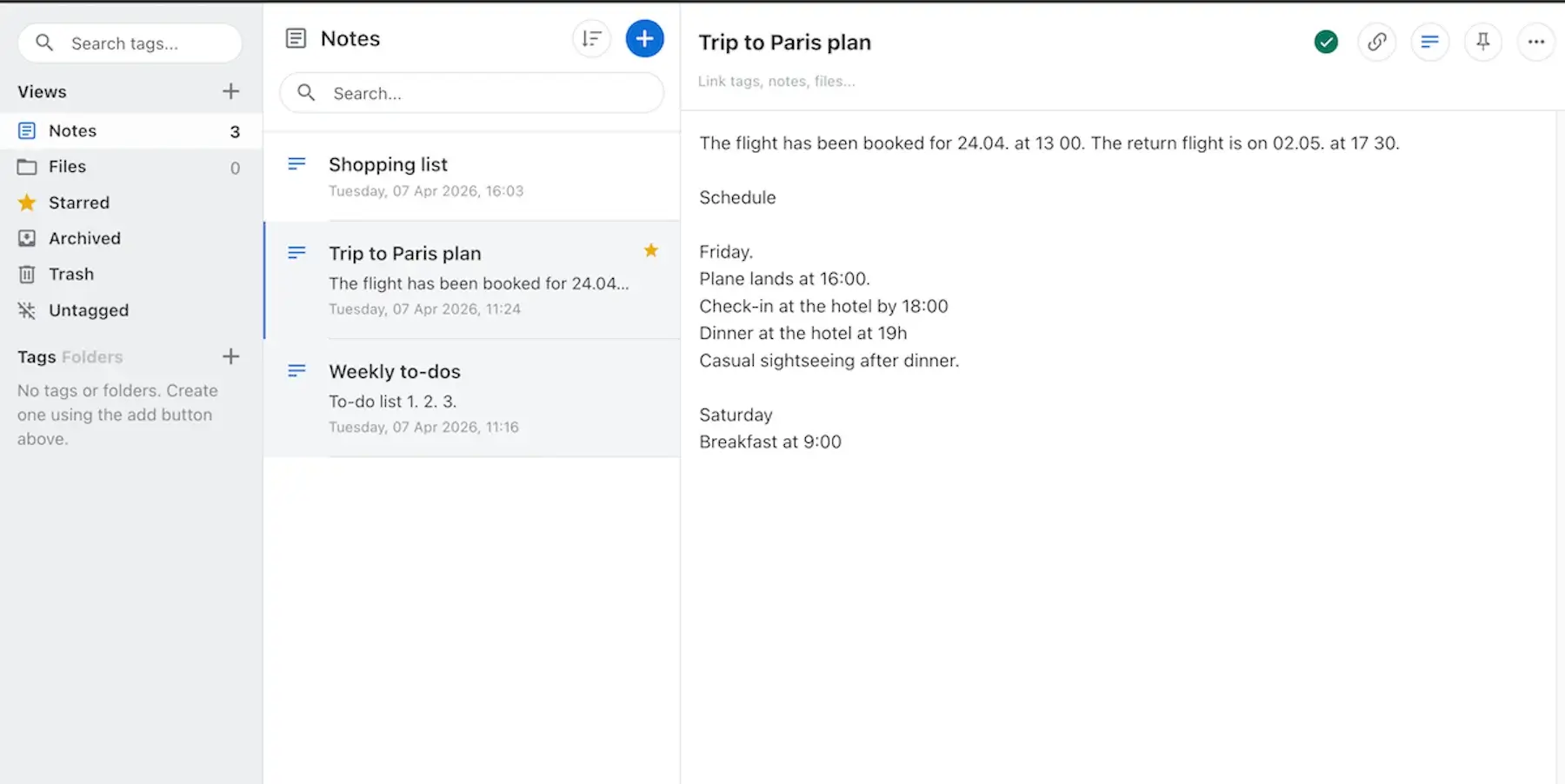
Here are some features I think make Standard Notes stand out:
- Authenticator — Standard Notes can serve as 2FA authenticator helping you keep your other accounts secure.
- Note history — Save as many versions of the same note as you want. You can save a new version each 5 minutes and restore them fully at any point (backups are available for a year on Pro plan, and forever on the Professional plan).
- Email backups — Standard Notes sends you your text-based data in encrypted form to your email, so you can store it and use it later without the app.
- Spreadsheets — This note format is designed for notes that require advanced formatting and formulas. It’s available on paid plans only.

Unfortunately, Standard Notes only offers folders on its paid plans, so you can’t organize your notes effectively on the free plan. There’s still an option to star notes, so you can single out the most important or most commonly used notes, but this is not enough. Without folders, it can become cramped really quickly.
When it comes to pricing, Standard Notes’ system differs slightly from others on this list — they don’t offer a monthly plan, so you’ll have to commit to an entire year if you want the advanced features. Luckily, they have a generous refund policy — 100% refund within 14 days for the Productivity plan and within 90 days for the Professional plan.
What’s new in Standard Notes?
The most notable updates in Standard Notes I could find include a redesigned search panel for a cleaner interface, tag filtering in search, and in-note search for Plain Notes.
Available for: web, macOS, Windows, Linux, iOS, Android
| Plan | Price |
|---|---|
| Standard | $0 |
| Productivity | $90/year |
| Professional | $120/year |
#3 Apple Notes — best for Mac and iPhone users
Apple Notes is a note-taking app built in macOS and iOS. You can use the on-site version or sync your devices using iCloud.
Why choose Apple Notes?
This note-taking tool lets Mac and iPhone users jot down important notes quickly without distractions.
| Pros | Cons |
|---|---|
| – Simple UI – Voice notes – Password protected notes | – Old-fashioned design – Not as powerful as Obsidian |
If you are a Mac user, Apple Notes are a good choice as an Obsidian alternative. Notes are not based on Markdown, which makes them more intuitive, if not as intricate.
What I like about Apple Notes is the simplicity — I could easily create a new note or a new folder, add a voice note, and move notes across folders. There’s also a sort option, and I could arrange notes according to the date they were created/edited or according to their title.
The overall look of the app didn’t impress me — it felt old fashioned and had very little customization options, so I couldn’t improve it at all. But, if you don’t care about colors and artistic appeal, you’ll appreciate the clear organization Apple Notes offers.
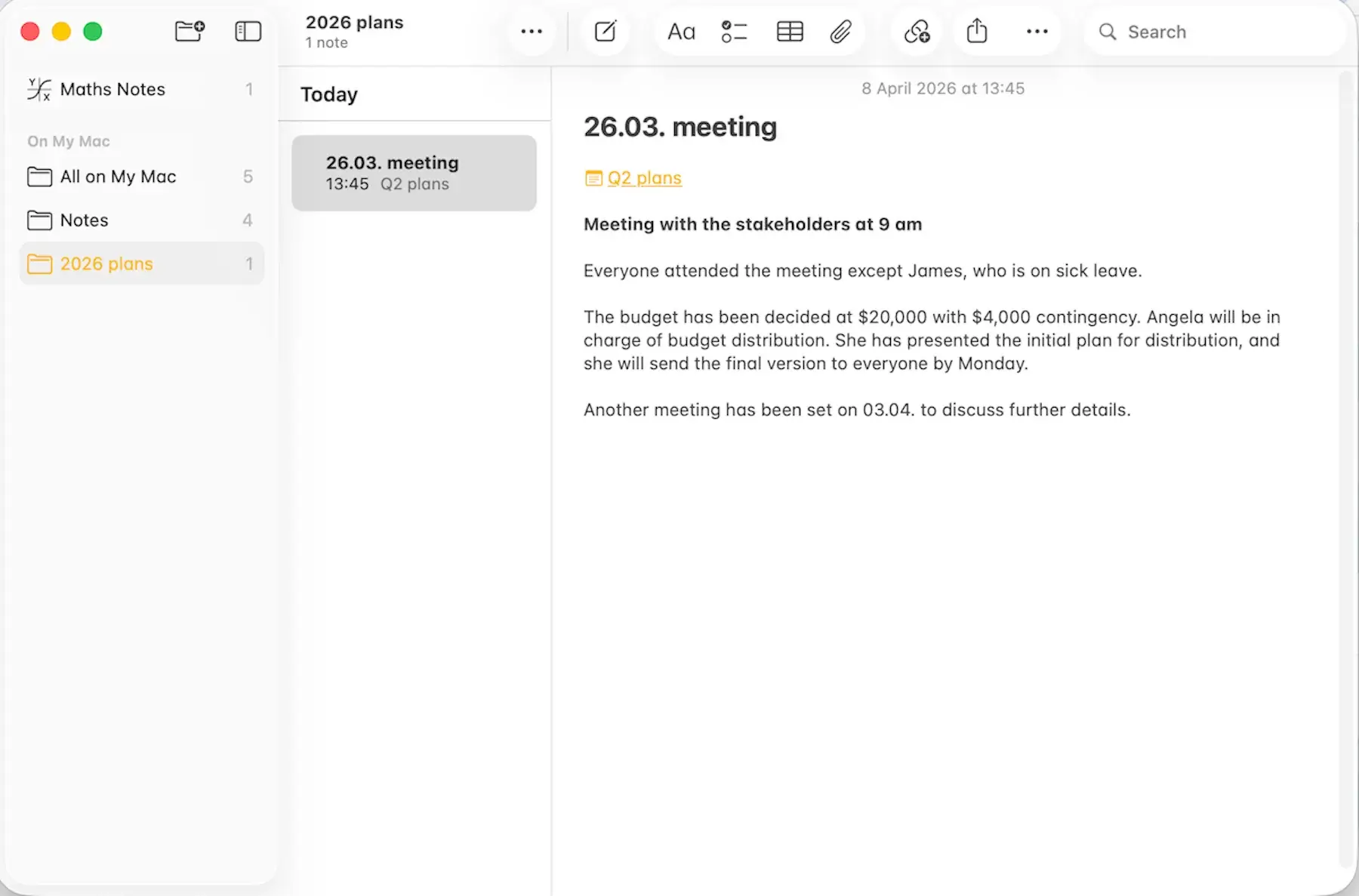
Some of the more noteworthy features:
- Audio notes — Record audio, and transcribe it to text for swift note-taking.
- Locked notes — Protect individual notes with a password. You can use your login password, or you can create a separate password for each note.
- Linked notes — Link to other notes simply by typing “>>” and choose the note from the dropdown menu.
- Math notes — Write mathematical equations and formulas, and watch as the solutions are suggested to you automatically.
It’s worth mentioning that Notes are completely free — you can use the app on your Mac or iPhone indefinitely. Moreover, even though this is an Apple product, you can use it on Windows as well, albeit through a browser by logging in to iCloud (there’s no native app).
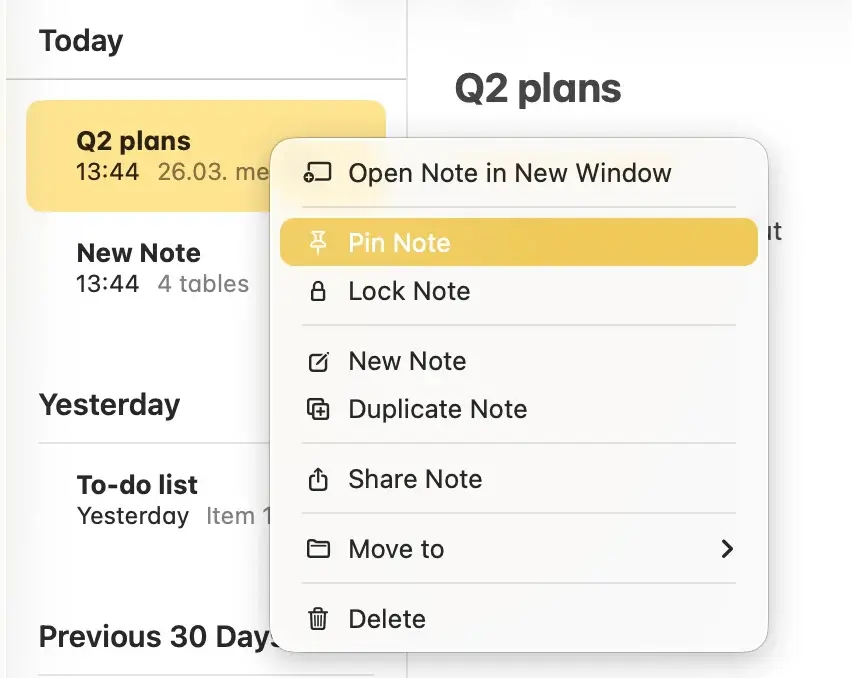
However, my overall impression is that Notes don’t feel as powerful as Obsidian. For instance, you can’t publish your notes directly. There’s a work-around — you can install some third-party tools, but that brings security and privacy in question and may even add unplanned cost.
Still, if you’re looking for straightforward note-taking and clear organization — Notes is the right choice for you.
What’s new in Notes?
The latest additions to Notes are section links, divider lines, improved Markdown support, expanded Siri integration, and UI refinements — for better navigation, flexibility, and convenience.
Available for: web, macOS, iOS, watchOS
| Plan | Price |
|---|---|
| Free plan | $0 |
#4 Notion — best for publishing notes
Notion is a PM solution that integrates note-taking with project management.
Why choose Notion?
Notion enables you to write elaborate notes, but also track projects and collaborate with your team.
| Pros | Cons |
|---|---|
| – Publish option – Collaboration on docs – AI assistant | – Steep learning curve – No folders |
The first thing I noticed when I started using Notion is its unique organization of docs into blocks of content you can add and reorganize however you want.
So, if your notes are rich with tables, bullet lists, images, etc., Notion might be the right tool for you. You can arrange information however you want in Notion, and if you change your mind, you can easily take a table, for example, and drag and drop it from the middle of the text to the top of your note.
Notion has a steeper learning curve than I expected — compared to all other tools on the list it took me the longest time to adapt to it. Still, it offers some powerful features if you persist.
For instance, the most important feature Notion offers that Obsidian lacks is real-time collaboration on docs. You can work together with others simultaneously on your notes to save time and improve collaboration.
This is ideal if you need a note-taking tool to write texts or reports that need to be reviewed or edited. A reviewer can jump right in and leave comments and suggestions directly in the doc, instead of emailing back and forth with you.
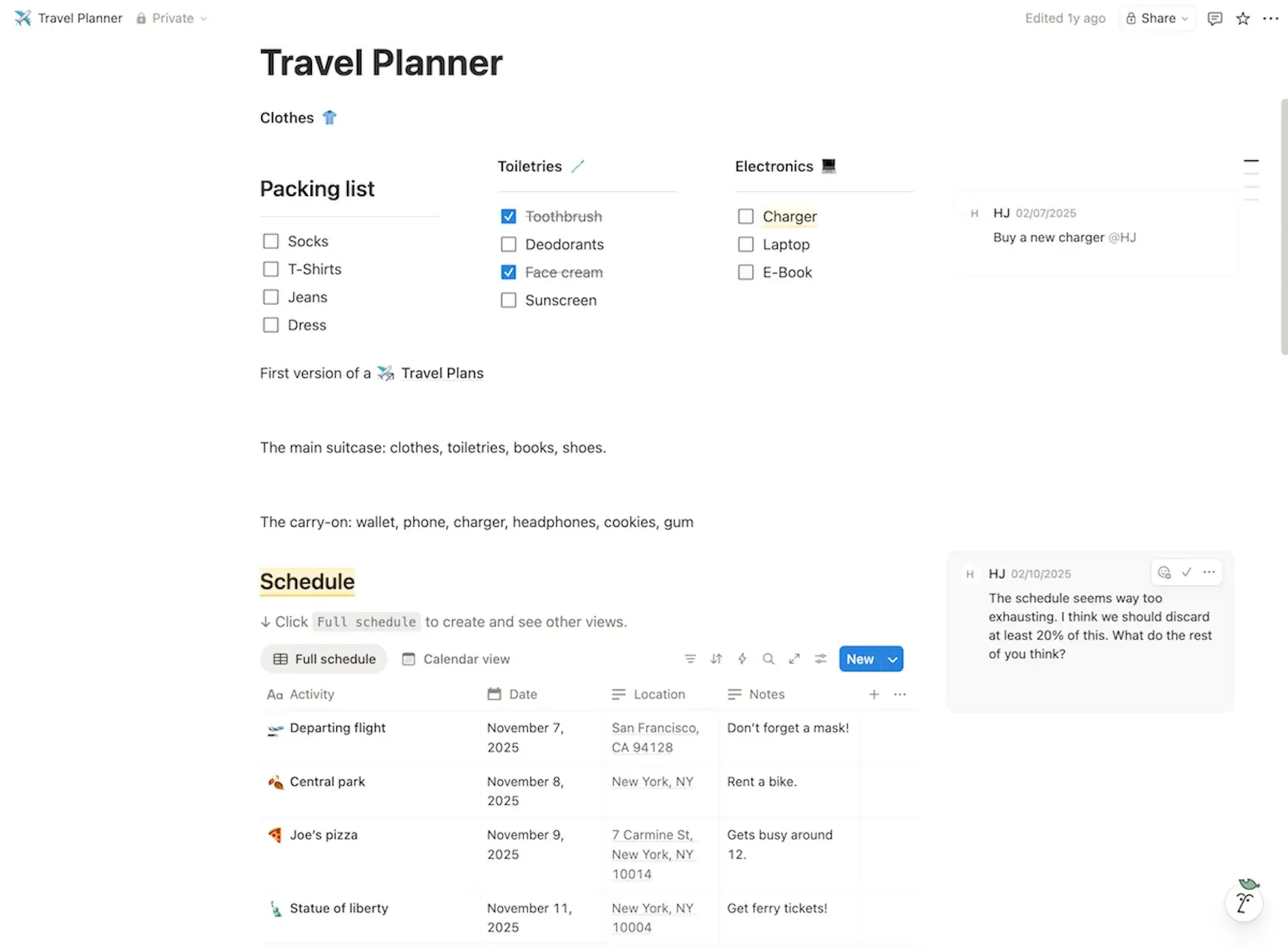
Other useful Notion features include:
- AI assistant — Write your notes quickly and painlessly with the help of Notion AI. It can generate tables, turn a block of text into a bullet list, and more.
- Notion Mail — Integrate your Notion inbox with Gmail, and handle mails as you would tasks — prioritize, label, and filter them to customize your email inbox to your needs.
- Search option — Search the entire Notion workspace for what you need — search according to title or part of text. So if you can’t remember where you wrote down something, Notion search will find it in seconds.
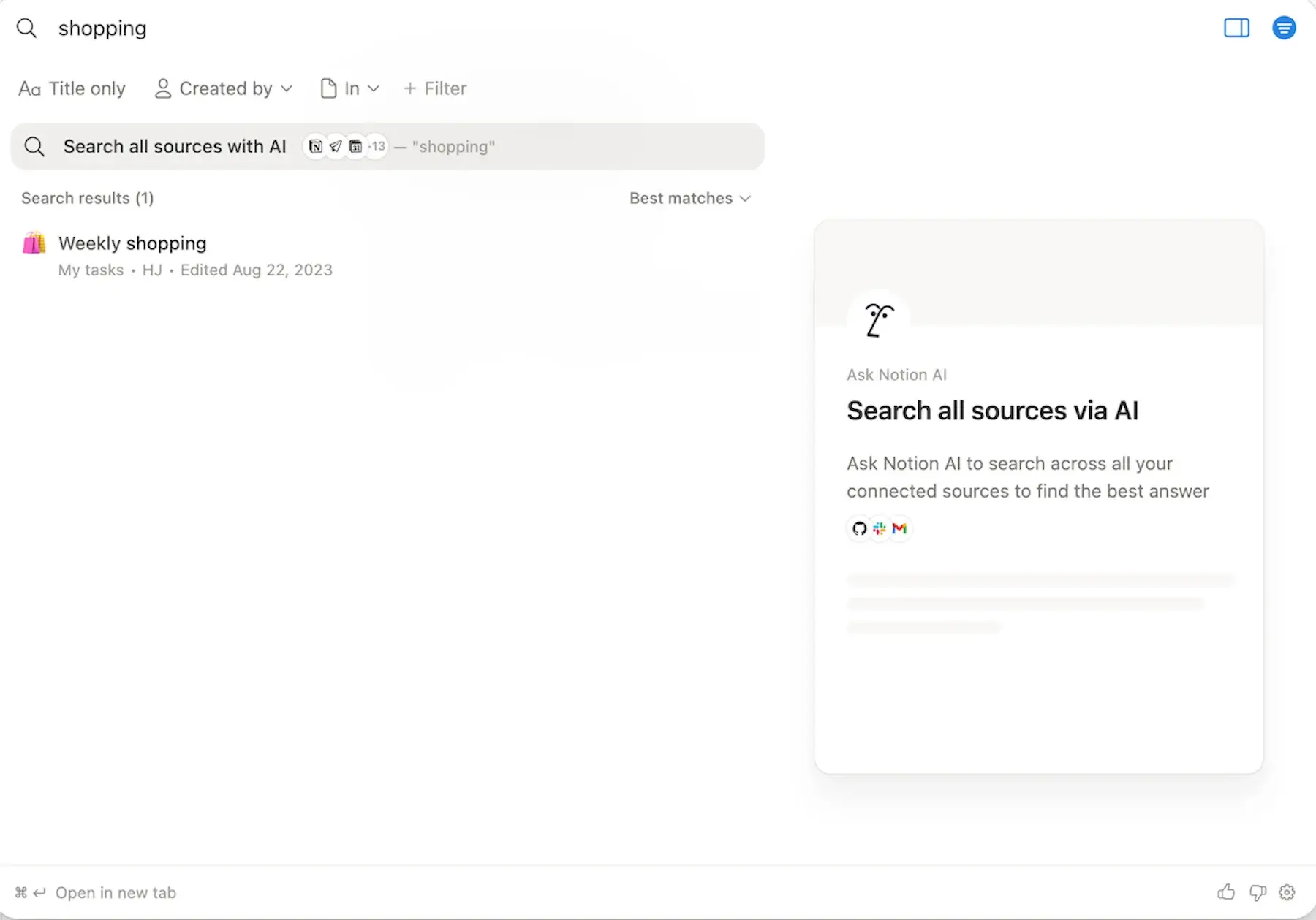
For those of you who liked publishing notes on Obsidian, but found it pricey, Notion might be a solution. You can publish an unlimited number of notes online within a single domain for free — a significant improvement from Obsidian, which charges $8/site/month.
The process is simple, just click on the share button in the top right corner of each note, choose the option to publish it, and that’s it — your page is online.
Finally, it’s important to mention that Notion doesn’t have folders. So, if you’re used to Obsidian’s multiple vaults and folders, you’ll find Notion as disorganized as I did, at least in the beginning. You can create pages and subpages, or create one page with a list of links to other pages, but this is a poor replacement for a simple and clear folder system.
What’s new in Notion?
Most Notion updates have to do with AI — e.g., AI Meeting Notes improvements (ability to trigger Custom Agents after a meeting), Agent-powered editing suggestions, and simplified AI model selection.
Available for: web, macOS, Windows, iOS, Android
| Plan | Price |
|---|---|
| Free | $0 |
| Plus | $10/user/month* |
| Business | $20/user/month* |
| Enterprise | POA |
*billed annually
#5 JotterPad — best for academic note-taking
JotterPad is a note-taking tool that lets you format your documents in Markdown and Fountain.
Why choose JotterPad?
This app is a great choice for users that are focused on creating creative and academic notes.
| Pros | Cons |
|---|---|
| – Rich library of templates – Word and character counter – Simple layout | – Poor customer support – No spelling and grammar checker |
Obsidian users will find JotterPad’s feature system familiar — basic functionality in the app itself and more complex solutions available through plugins. The layout is simple with notes grouped into folders — no more, no less.
You can create new notes or import documents in the form of Markdown file, plain text, or Fountain (used for screenplay writing), making it more flexible than Obsidian, which focuses on Markdown language only.
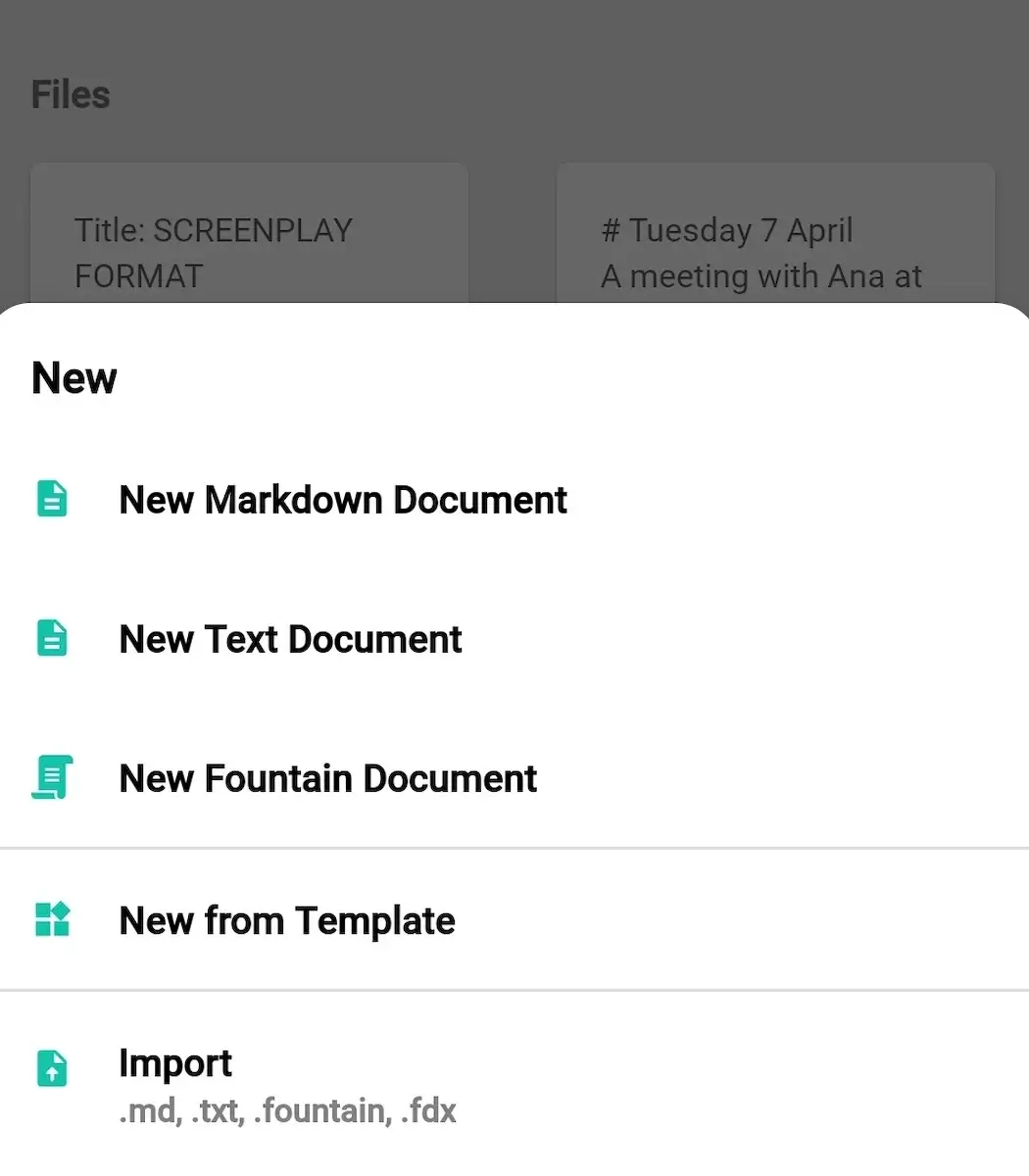
But, what makes JotterPad stand out in my opinion is the rich library of note-taking templates. If you want to write an academic paper or a report, you don’t need to worry about how to format it. Simply choose the template at the beginning, and write.
Templates are divided into 6 categories:
- Article (e.g., literature review, class schedule, mind map)
- Screenwriting (e.g., podcast interview script, screenplay, radio sitcom)
- Book (e.g., simple textbook, memoir book, autobiography)
- Report (e.g., project report, simple internship report, lab report)
- Presentation (e.g., pie chart infographics slide, one year Gantt chart slide, sample slides for math lessons)
- Letter (e.g., job application cover letter, condolence letter, letter to professor requesting recommendation)
Of course, you’re not limited to writing only these types of notes — you can still create elaborate notes (diary, plans, meetings notes, etc.) from scratch.
In JotterPad, you can see the number of words and characters in a note at all times while you’re writing, which makes it perfect for writing papers and reports. There’s also a statistics feature that goes deeper and also calculates reading time, level of readability, and sentence length.
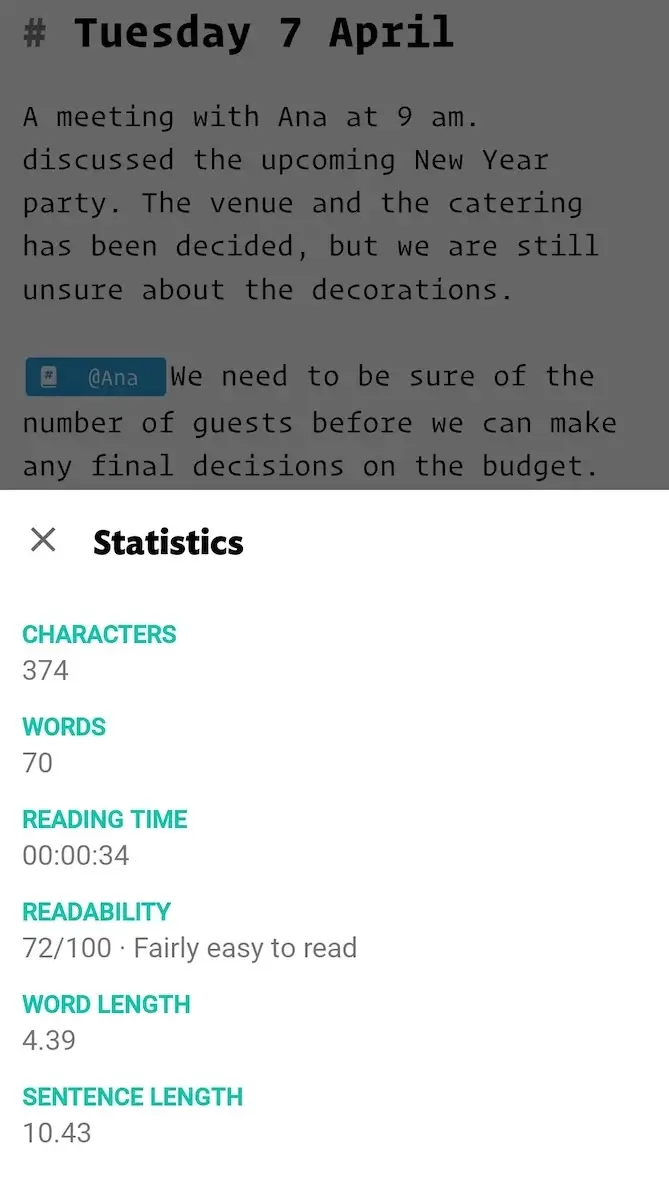
One thing I was missing in JotterPad is the built-in spelling and grammar checker. I’m not proud of it, but I grew accustomed to having it, not so much for grammar, but because it helps me type quicker since I know that any misspelled words will be caught by the checker. With JotterPad, I have to be very careful as I write, which I find really annoying.
While we’re talking about downsides, several users complained that when they needed assistance solving an issue, customer support was either completely unavailable or unhelpful.
Personally, I didn’t encounter any issues that required customer support. I was, however, looking for their community page as a source of information on what I can do with JotterPad. Although I found the link leading to the Forum discussions, it didn’t work for me, and I couldn’t access it no matter how many times I tried.
What’s new in JotterPad?
There are no new major updates in JotterPad.
Available for: macOS, iOS, Android, PWA (Progressive Web App) in Chrome
| Plan | Price |
|---|---|
| Free | $0 |
| Pro | $3.33/month* |
*billed annually
#6 Evernote — best for taking notes on your phone
Evernote is a popular note-taking app that includes more advanced features such as tasks, calendar, and audio notes.
Why choose Evernote?
Evernote offers a quick and easy way to write your notes on the go. It’s great for jotting down your daily thoughts and plans.
| Pros | Cons |
|---|---|
| – Functional app – Scanning feature – User-friendly | – Limited free plan – Expensive paid plans |
If you’re not a fan of Markdown in apps like Obsidian, and want to create simple notes, Evernote delivers.
I liked using Evernote because its mobile app allows for easy and functional note-taking on your phone.
The design is clean and user friendly, and notes are readily available to you with just 2 touches at the screen. The home page is well organized with shortcuts to creating a new note, task, event, or audio note, and a search bar where you can look for information across all your notes, tasks, and documents.
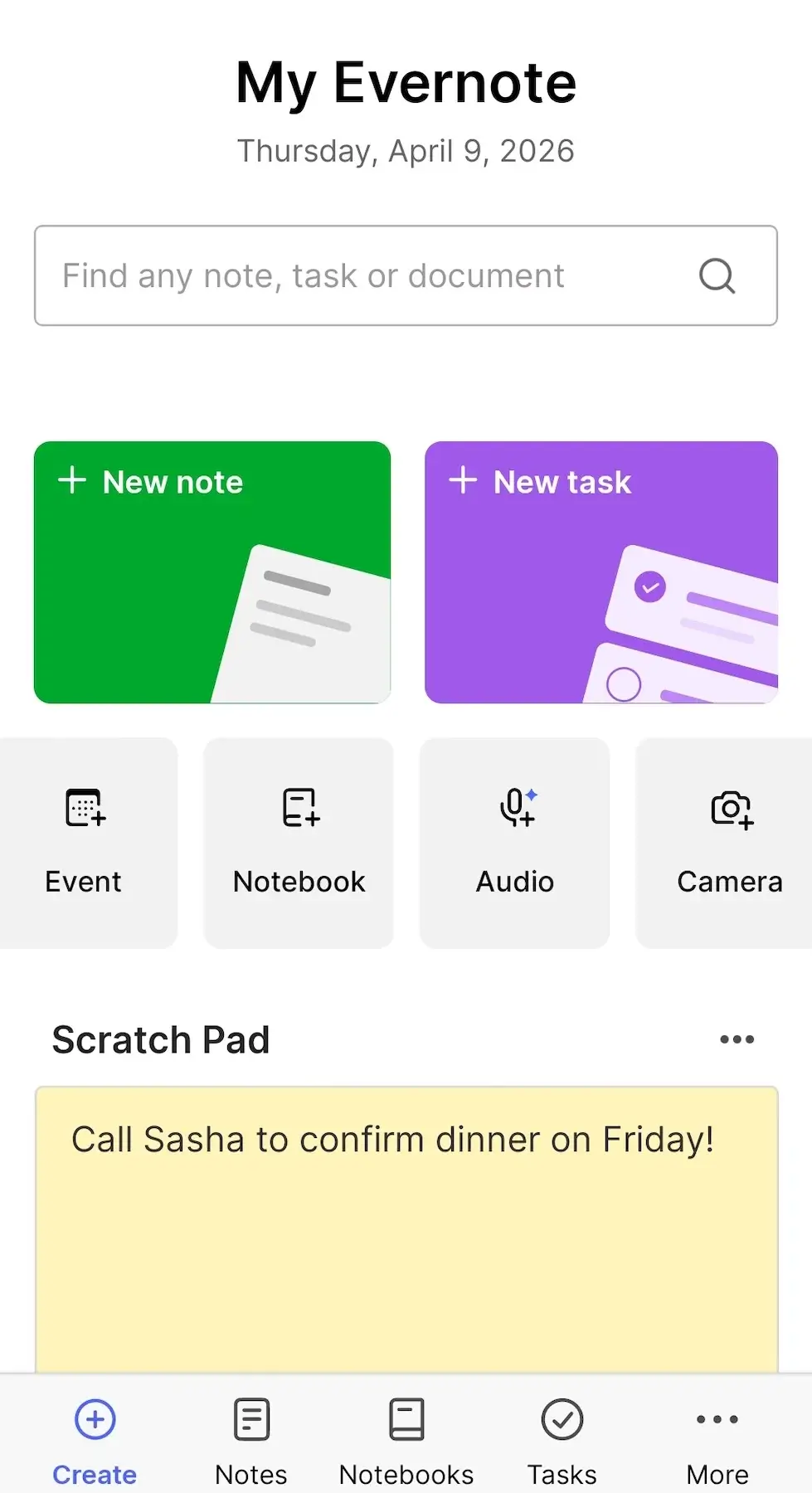
Some of the most interesting features Evernote offers are:
- Calendar — organize your events on a calendar for a clear personal schedule.
- Tasks — create tasks with due dates and specific times and get reminders for them.
- Offline mode — access your notes offline, and never worry about signal issues that result in unsaved notes.
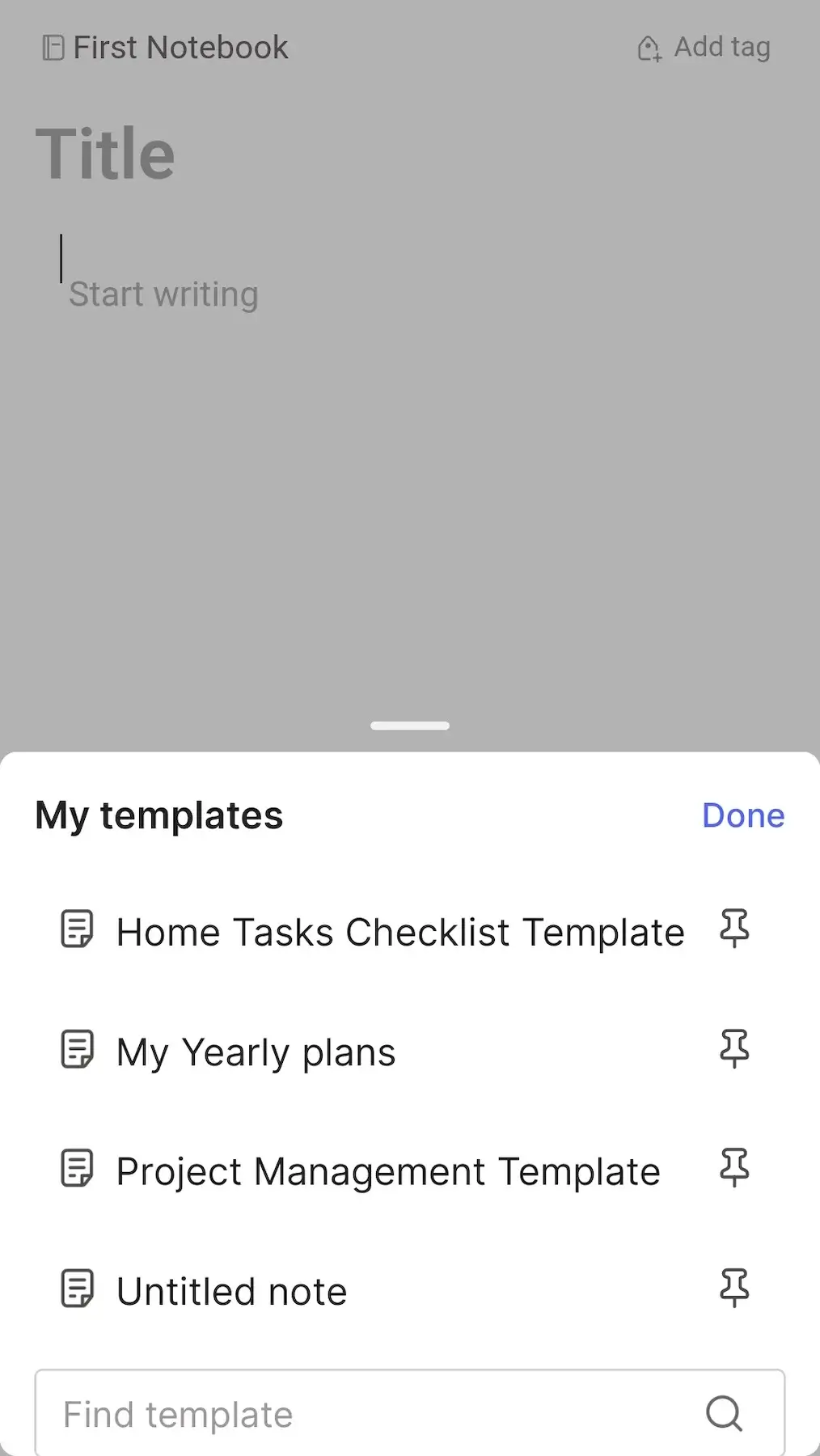
- Templates — use one of Evernote’s many templates (e.g., for expenses tracking, grocery shopping, project management), or save your own note as template to use later.
- Document scanning — quickly scan handwritten papers, ID cards, legal documents, receipts, etc. to keep them at your fingertips at all times.
What bothered me the most about Evernote is its very limited free plan — you only get 50 notes and 1 GB of storage, which is problematic enough, but on top of that you can only access your notes from one device.
So, if you have a mobile app, but you want to see some of your notes on a bigger screen, you’ll have to pay $8.25/month, which is a lot if you take into account that tools such as Standard Notes or Apple Notes offer it for free.
Moreover, many Evernote users complain that the ads on the free plan are too much, claiming they make it difficult to use it. Personally, although I used to find the app virtually impossible to bear due to constant ads, lately they didn’t pop up at all while I was writing in the app.
What’s new in Evernote?
With the latest version, Evernote improved the search feature (better highlight matches in images, PDFs, video, and audio). The app also introduced cross-tab audio recording and smarter tag suggestions.
Available for: web, macOS, Windows, iOS, Android
| Plan | Price |
|---|---|
| Free | $0 |
| Starter | $8.25/month* |
| Advanced | $20.83/month* |
| Enterprise | POA |
*billed annually
#7 Joplin — best for Markdown enthusiasts
Joplin is an open source alternative to Obsidian that combines simplicity with Markdown notes.
Why choose Joplin?
Joplin offers a clear structure for your note-taking and stores your notes locally, so you can access them without internet connection.
| Pros | Cons |
|---|---|
| – Notes in Markdown and Rich Text – Tags in notes – Carbon neutral | – Not visually appealing – Publishing option only on paid plans |
Joplin’s organizational structure is simple: you navigate it with the side bar that contains your notebooks, notes, tags, and the trash section.
If you liked using Markdown in Obsidian, you’ll be glad Joplin, too, offers notes in Markdown format. But, unlike Obsidian, Joplin also has notes in Rich Text. I tried both, and found them equally easy to use.
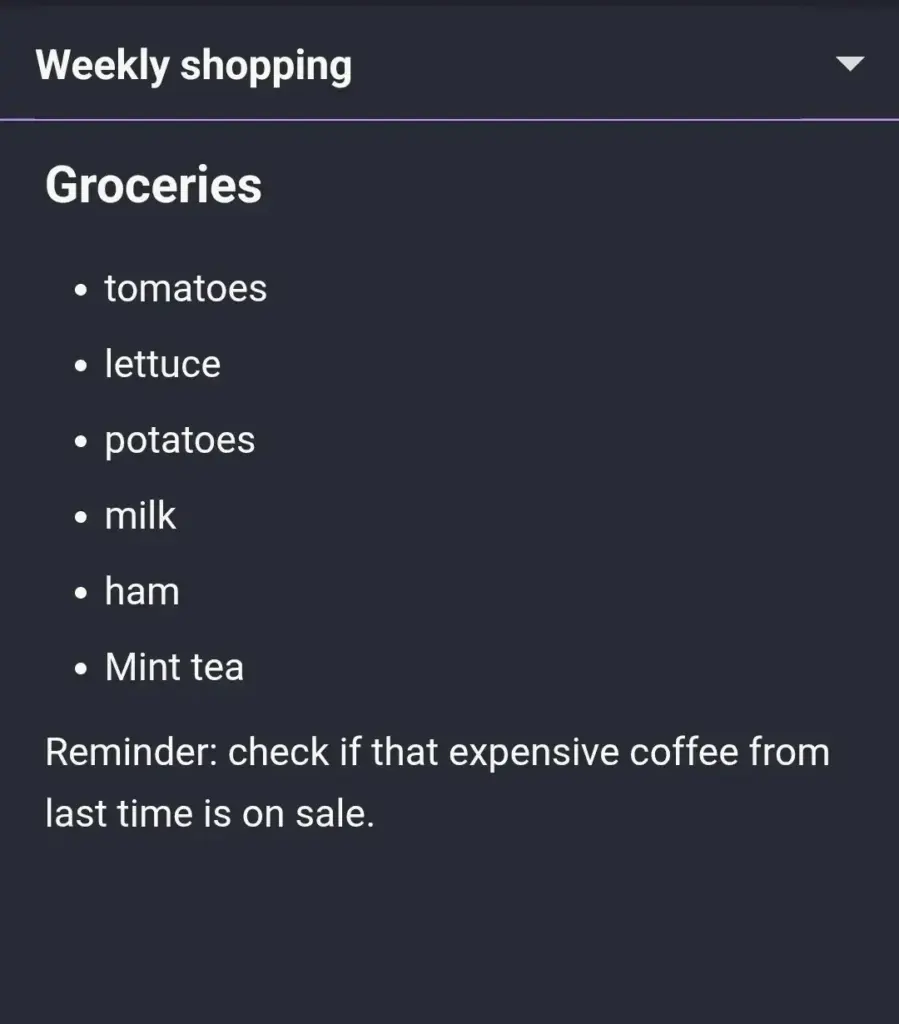
However, the overall design is, simply put, boring. It’s black and white without any drawings, emojis, pictures, or colors to make it more visually appealing. It also feels outdated — for example, the save button is a floppy disc, which I haven’t seen in a while.
Back to the positives, some of the interesting things Joplin offers are:
- Multimedia notes — Add PDFs, images, and videos to your notes and even take pictures in the app to save it as a note.
- Tags — Include tags in your notes to classify them according to topics of your choice (recipes, home decoration, chores, etc.). This way, you can easily find all notes connected to the topic by clicking on the tag (even if the notes are stored in different notebooks).
- Plugins — Just like Obsidian, Joplin relies on plugins to deliver more advanced features such as links to other notes, templates, and backups.
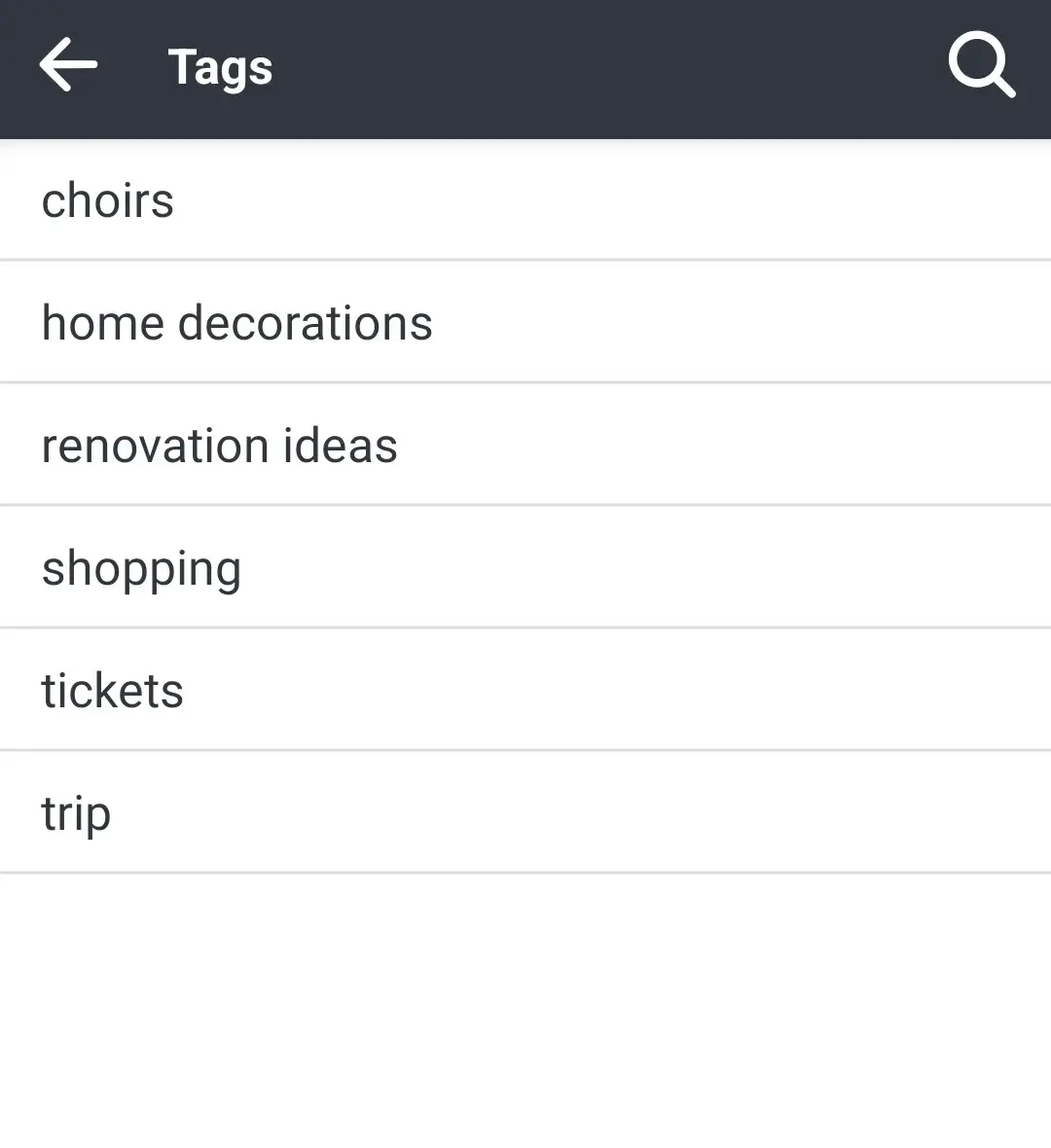
You can use Joplin for free on your local device as long as you want, but there are also 3 pricing plans that offer more advanced options such as:
- Syncing devices (Basic),
- Publishing notes online (Basic),
- Sharing a notebook with others (Pro), and
- Managing multiple users (Teams).
Finally, it’s worth mentioning that Joplin is carbon neutral, so if you’re trying to do better for the environment, this might be the right tool for you.
What’s new in Joplin?
Some of the recent updates in Joplin include external embeds (e.g., YouTube), an OCR text layer for PDFs, and improved PDF export for Fountain notes.
Available for: Windows, macOS, Linux, iOS, Android
| Plan | Price |
|---|---|
| Free | €0 |
| Basic | €2.40/month* |
| Pro | €4.79/month* |
| Teams | €6.69/user/month* |
*billed annually
Get a powerful tool for your note-taking — Plaky by CAKE.com
Each of the Obsidian alternatives on this list is a sound choice, but they all cater to a unique set of needs.
Still, there’s a reason why Plaky is at the top of our list!
Besides note-taking abilities, Plaky also offers:
- Affordable plans — a robust free forever plan, followed by the Pro plan (automations, bulk actions, private boards) for $3.99/user/month and the Enterprise plan (SSO, custom subdomain, unlimited activity log) for $8.99/user/month
- High-end security — end-to-end encryption with relevant certificates (ISO 27001, SOC2, GDPR)
- Intuitive UI — user-friendly layout that makes everyone from IT experts to tech-warry people comfortable and at ease.
Lift your collection of scattered notes, thoughts, and plans to the next level. Try Plaky!
How we reviewed this post: Our writers & editors monitor the posts and update them when new information becomes available, to keep them fresh and relevant.