
The goal of professional services automation software is to help agencies do more work in less time. This is possible by connecting organized project management, advanced automation, client management, accounting, and budget management in one place.
However, not all PSA tools are created equal, and you’ll get nowhere trying them all out yourself. But no worries — I tested a bunch of them so you don’t have to!
Check out the table below for a quick comparison, or read the more detailed reviews of my top 10 best PSA software choices below (in no particular order) to see my thoughts.
WHY TRUST US?
The apps we talk about are selected, tested, and written about by human reviewers who follow strict review and editorial guidelines. We pick solutions that are practical, purposeful, and can offer real value for the specific use case or business context we’re covering — while also being justified in their pricing. Our methodology is transparent, clear, and available to everyone:
What is professional services automation software?
Professional Services Automation (PSA) software is a digital tool that helps professional service providers maximize efficiency and billable hours by automating their work processes.
Professional service providers trade in knowledge and expertise (think accountants, financial advisors, consultants, lawyers, PR, HR, IT specialists, etc.). They rent their time and knowledge to customers who need their services.
But the trick with charging for time is that you eventually run out. So, the goal is to make sure that the time you or your employees spend working is optimized in a way that maximizes revenue — which is where PSA software comes in.
PSA software lets you:
- Gauge which of your employees is under or overutilized,
- See how much of their time is billable/non-billable and how you can improve it,
- Easily find the right person who fits the job requirements,
- Manage projects and tasks,
- Keep track of contacts and contracts,
- Track time,
- Invoice clients based on tracked time, and more.
Best professional service automation software — comparison
An enterprise-grade PSA with hundreds of advanced features will only hold back a small business because of its complexity and price; the same goes the other way around.
So, before you go for the most popular name, take a look at this PSA software comparison and reviews below.
| Tool | Best for | Free trial | Free plan | Lowest price |
|---|---|---|---|---|
| Plaky by CAKE.com | Small professional service firms | ✔️ | ✔️ | $3.99 seat/month |
| Scoro | Resource management | ✔️ | ❌ | $19.90 user/month |
| Productive | Ease of use | ✔️ | ❌ | $10 user/month (3 seats minimum) |
| Wrike | Complex workflow management | ✔️ | ✔️ | $10 user/month (2 users minimum, sold in groups of 5) |
| Atera | Small and mid-sized MSPs | ✔️ | ❌ | $129 technician/month |
| VOGSY | Google Workspace integration and international finance management | ✔️ | ❌ | $14 user/month (minimum 20 users with at least 1 Super user) + $5,000 onboarding fee |
| SuperOps | Easy and precise contract billing | ✔️ | ❌ | $149 technician/month (150 endpoints/technician) |
| ProjectManager | Workload management | ✔️ | ❌ | $15 user/month |
| Rocketlane | Customer engagement | ✔️ | ❌ | $19 team member/month |
| HaloPSA | Advanced automation and customization for power users | ✔️ | ❌ | $105–85 user/month + $4,000 minimum onboarding fee |
*all prices are for annual subscriptions
#1 Plaky by CAKE.com — best for small professional service firms
Plaky by CAKE.com is a budget-friendly tool where you can manage projects and resources, track time and billable hours, organize teams, and more.
Why choose Plaky?
Plaky works best for small, budget-conscious professional service firms who need a robust tool that’s easy for techies and non-techies alike.
| Pros | Cons |
|---|---|
| – Robust free plan – Simple to use – Budget-friendly higher tiers – Customizable – 24/7 human support for all customers – Part of CAKE.com’s Productivity Suite | – Limited integrations – Accounting and invoicing work through a native integration with Clockify by CAKE.com |
As someone who’s been using Plaky for work consistently ever since its launch, I have to give it a special spot on this list thanks to its customizability and ease of use.
While not a dedicated PSA platform, Plaky has a variety of features and Board views that can be modeled to fit any type of workflow. These are the ones I’d highlight when it comes to PSA:
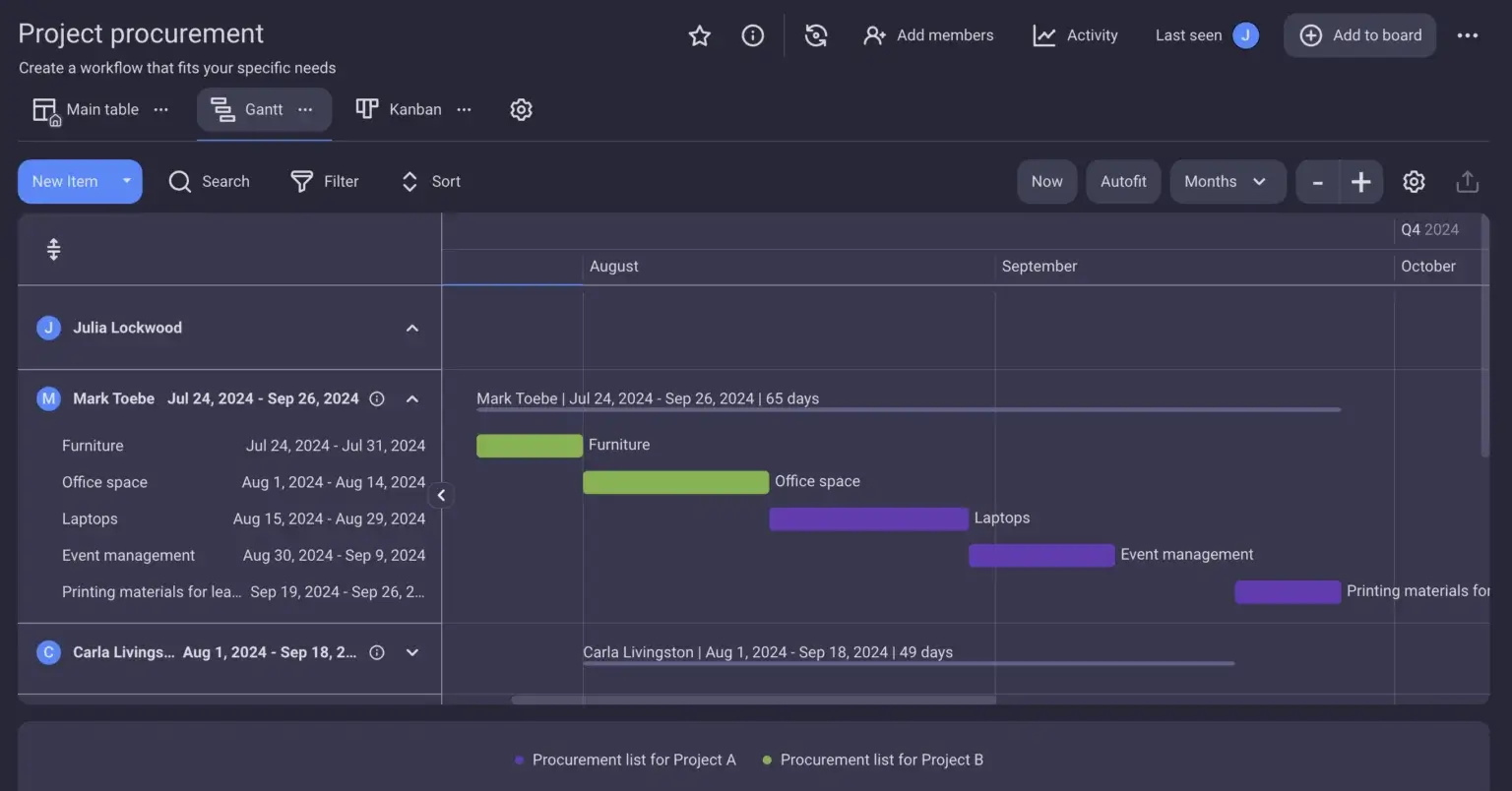
- Gantt view — if you need to see how well everyone’s time is being utilized, who is overbooked or who has space to take on more projects, the Gantt chart is your best friend.
- Intuitive task automation — use Plaky’s simple “when X happens then do Y” automation formula to get rid of repetitive manual work such as assigning people to tasks or notifying them when a status changes.
- View-only permissions — keep clients and executives in the loop without oversharing.
- Summary row — see the summary for each field column at the bottom of Item groups and customize it to see averages, total costs, task division by person, etc., for a quick data overview.
Plaky specializes in project management, but its native integration with Clockify by CAKE.com allows it to become much more than a simple project management tool.
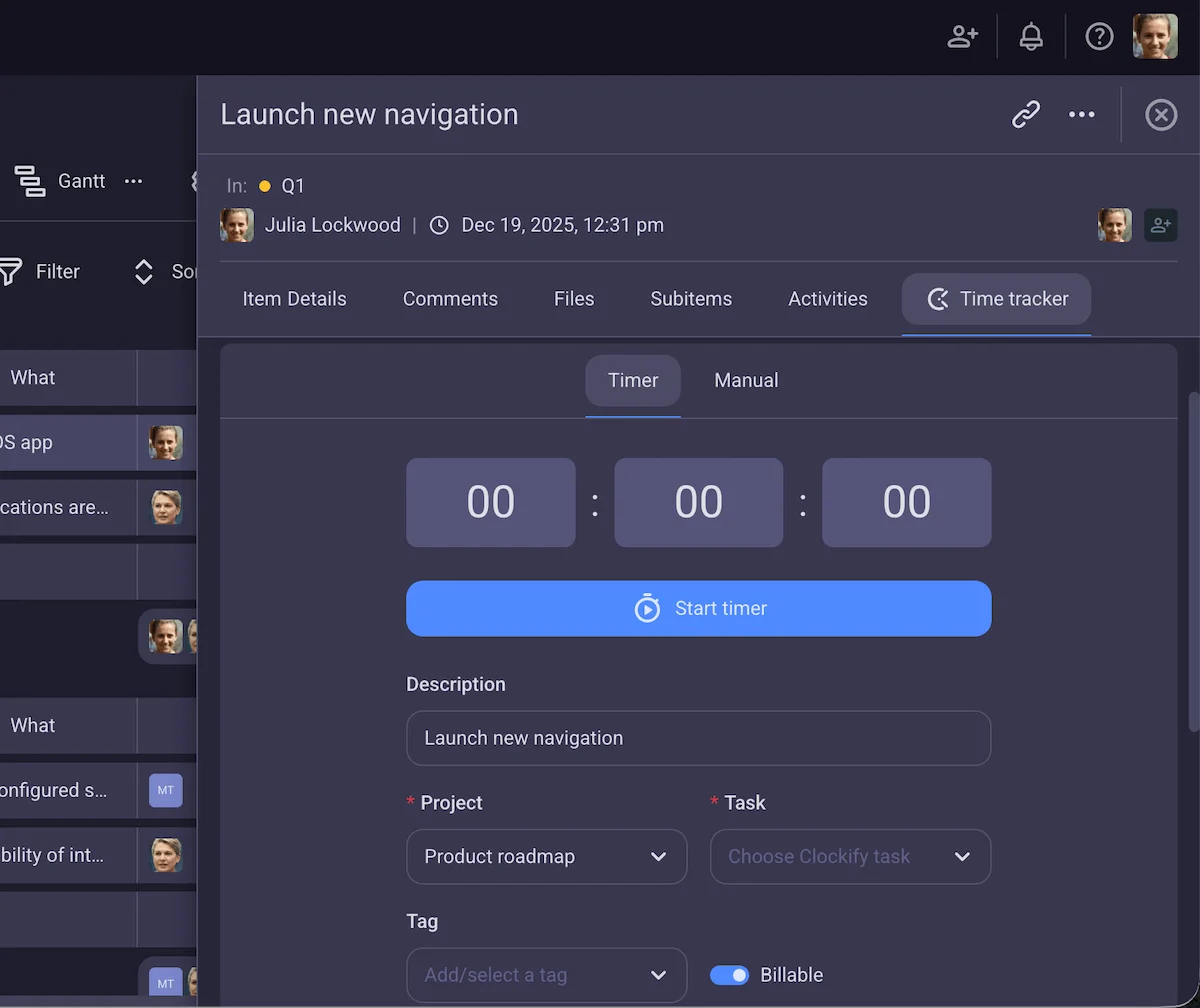
- Track time and billable hours — Use the integrated Clockify time tracker to log time directly on the task card. The logged time entry will appear in your matching project in Clockify where you can further manage your budget, contracts, reports, and invoices.
- Automate recurring invoices — Issuing monthly invoices to clients? No need to do it manually, just set up your rates and dates, and the system will do it for you.
- Adjust hourly rates per member — Understand exactly how much you’re earning. Track your actual profits and bill your clients fairly by setting up individual hourly rates.
Plaky’s main shortcoming is that it only integrates with 2 other apps — Clockify and Pumble, both of which belong to the CAKE.com app suite.
The good thing about this is that, as native integrations, these 3 apps work seamlessly together. However, additional integrations, including more API options would be a major boon.
Get 3 CAKE.com apps with 1 account
What’s new in Plaky?
Recently, Plaky launched Dashboards that let you visualize data and track progress across multiple boards.
Moreover, users can now see Subitems in Gantt view and add Files in Rich text editors and Item comments.
Stay informed about Plaky updates like these through the Plaky changelog or Plaky roadmap.
Available for: web, iOS, Android
| Plan | Price |
|---|---|
| Free | $0 |
| Pro | $3.99/seat/month* |
| Enterprise | $8.99/seat/month* |
| CAKE.com Bundle (Clockify + Plaky + Pumble) | $12.99/seat/month* |
*billed annually
#2 Scoro — best for resource management
Scoro is a PSA tool for mid-sized companies with robust project management capabilities where you can also keep track of your billing, purchases, contacts, and more.
Why choose Scoro?
Scoro is an all-in-one solution for project management, time keeping, and billing, best suited for medium-sized companies that need a tool for managing their business, not just projects.
| Pros | Cons |
|---|---|
| – Comprehensive overview of project details – Effective resource management features – Clear presentation of budget, billing, and purchases per project | – Can get pricey quickly, especially with the new Scoro apps add-ons – Overwhelming for smaller businesses – Users report slow customer support |
This was my first time testing Scoro, and I was really impressed with how granular the project management aspect of it is. Scoro lets you:
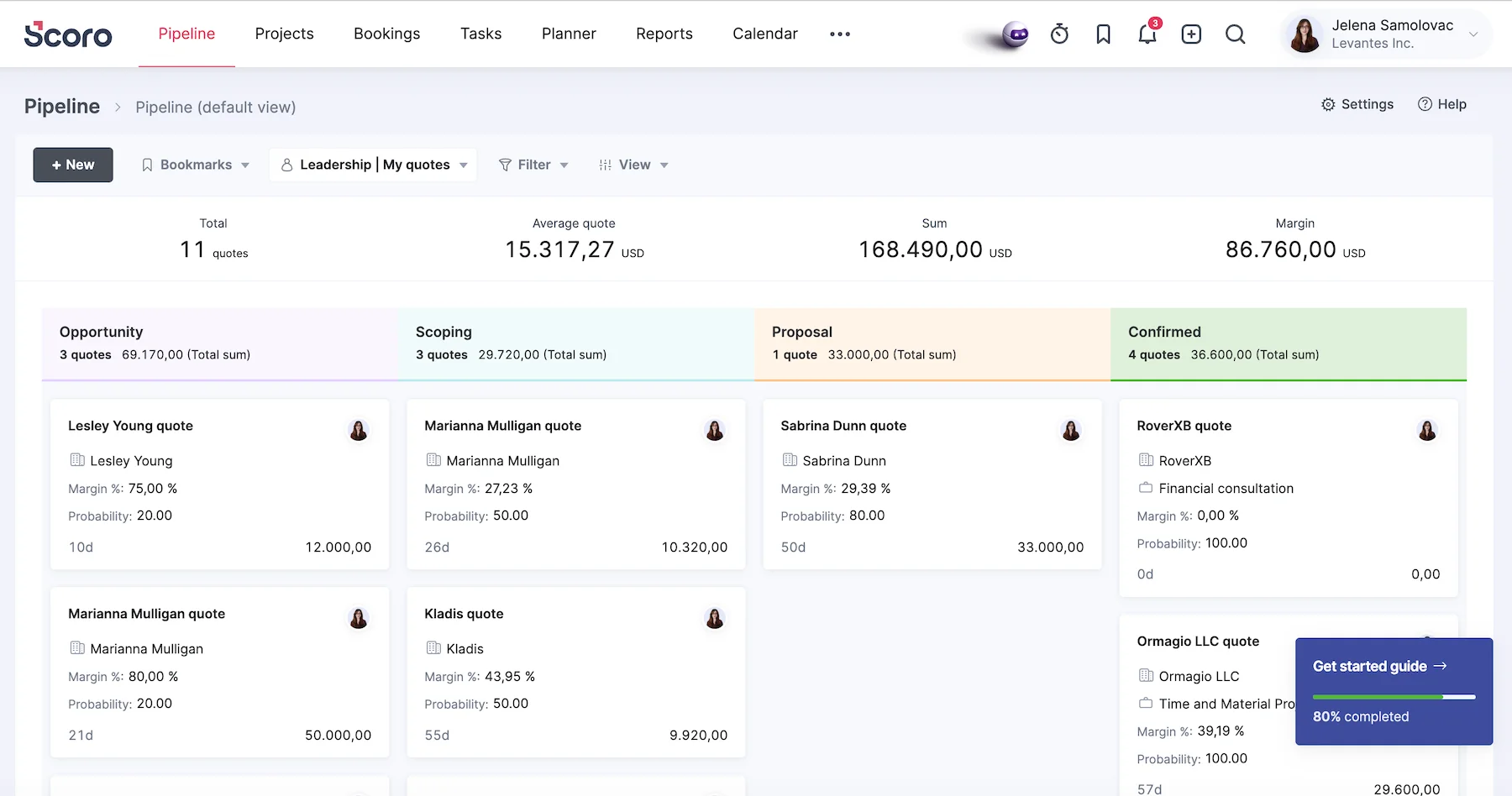
- Move quotes through a pipeline — Track a quote’s lifecycle from initial proposal until the closing stage. The pipeline also shows you a profit margin percentage and weighted probability score for closing the deal.
- Add contacts — Create a contact list for each lead, client, or company you work with. You can then connect those leads to quotes and projects to accurately keep track of the work.
- Create detailed project pages — Each project in Scoro contains its own page, complete with all project-related information like tasks, time logs, budget, finances, project details, comments, and a dedicated heatmap for accurate resource management.
If I had to pick one thing I liked best about this app, it would be Scoro’s Planner feature. It’s so easy to assign tasks while making sure you don’t overbook anyone that it made me wonder why I don’t see it around more often. You get to see unassigned tasks on the left and a calendar view on the right. From there, you just drag and drop an unassigned task to a free slot in the calendar.
Besides this, Scoro enables you to:
- Integrate with over 70 other tools — this includes Quickbooks, Xero, Envoice, Stripe, Expensify, and others, which let you sync bills and invoices across apps.
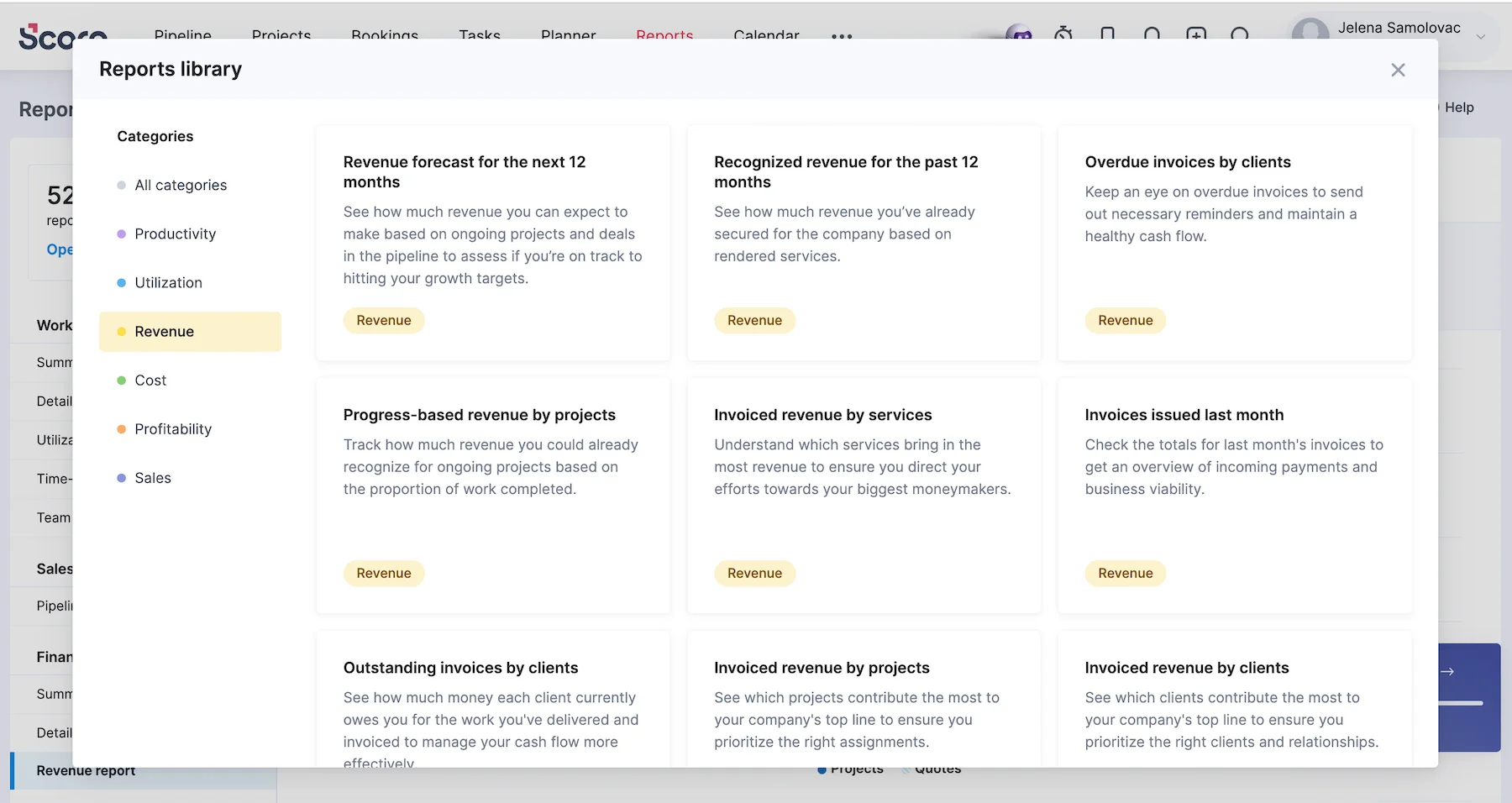
- Create 52 different types of reports — the reports are grouped by category and include budgeted vs. actual cost per project, revenue forecast for the next 12 months, billable vs. non-billable time by users, and many more.
Generally speaking, I found Scoro slightly overwhelming. Not because it’s particularly difficult to understand, but simply due to the sheer scope of options it has. It gives me the impression that it will be similarly overwhelming to smaller teams who don’t need such detailed project tracking.
Some other annoyances I came across were that the export button for reports was really difficult to find, and I generally found the reports feature to be a bit unintuitive.
What’s new in Scoro?
Scoro recently added 8 “Scoro apps” to boost its existing set of functionalities. The apps act like power-ups you can add to your subscription for a fee. You can choose to add a RAID Log function, a Change Request Log, License Register, and more.
Available for: web, iOS, Android
| Plan | Price |
|---|---|
| Core | $19.90 user/month |
| Growth | $32.90 user/month |
| Performance | $49.90 user/month |
| Enterprise | Contact sales |
*billed annually
#3 Productive — best for ease of use
Productive is another all-in-one PSA software that combines project and resource management, time tracking, and budgeting under one name.
Why choose Productive?
Productive is a PSA tool for small and medium-sized businesses looking for an all-in-one tool that’s not too overwhelming to learn.
| Pros | Cons |
|---|---|
| – Intuitive for a PSA software – Easy expense logging – Automatic time tracking feature | – Minimum user requirement – Templates could use some improvement |
Productive packs a lot of useful features, which is why I truly appreciated the detailed guide and explainer videos I was given right after signing up. It takes a while to complete, but it guides you through the entire process of using the app, and it’s set up in a very clear and logical way, making it fairly easy to understand.
Productive has some different takes on common PSA features that are worth mentioning:
- Time tracking — Besides the typical time tracking, Productive has a Calendar view that you can connect with Google or Outlook calendars. This logs the time for your meetings automatically in Productive and lets you track time around them. It also has an automatic time tracking feature that lets you turn bookings into logged time.
- AI expense logging — Expense logging is pretty straightforward, but Productive’s AI makes it even easier. You can simply upload a receipt and have the AI extract and fill in all the required information.
- Docs — You can create docs to take notes and share important information with your colleagues. With the option to create multiple subpage levels, you can make detailed documents and store them in a shared environment for easy access.
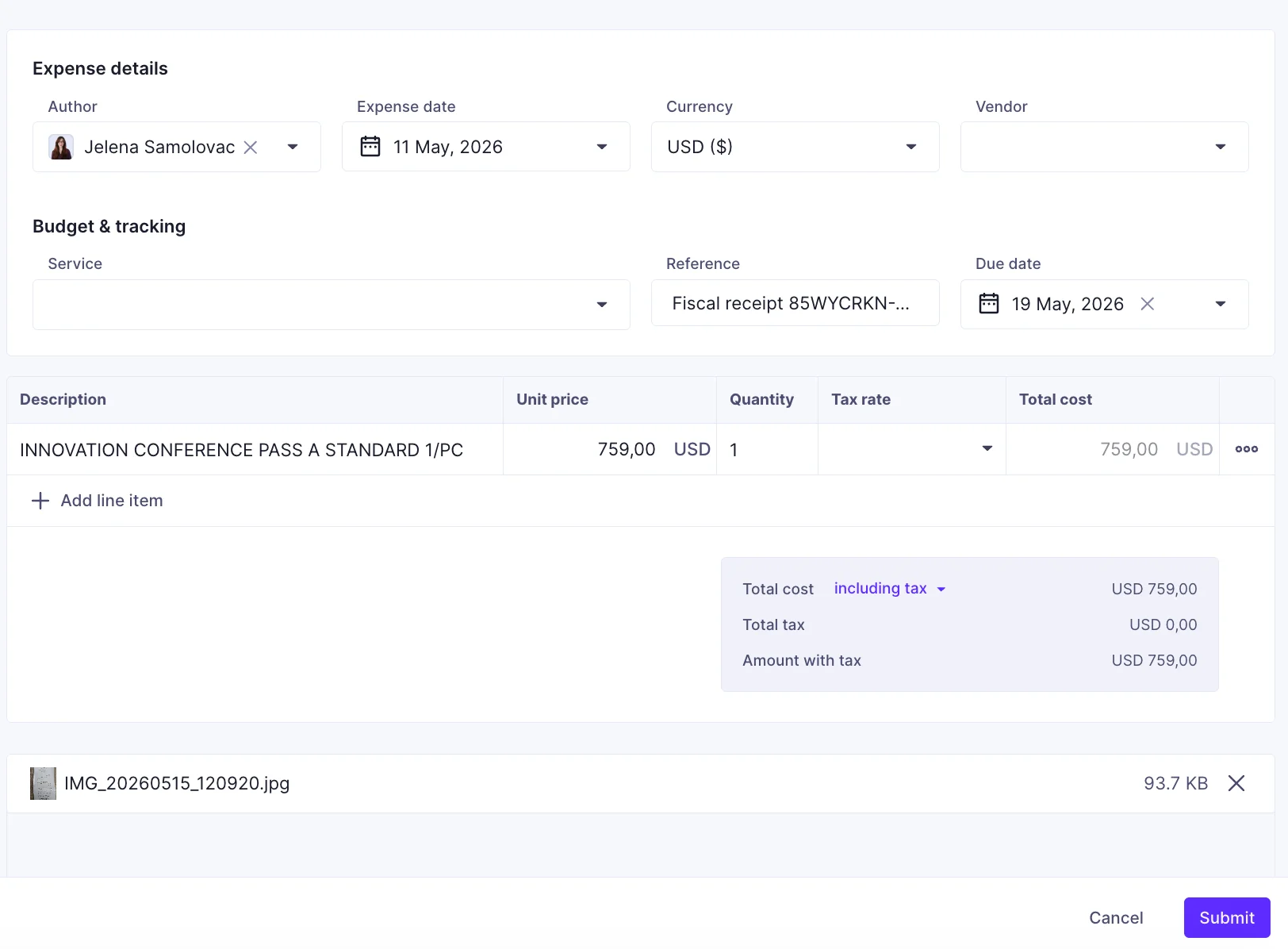
As most PSA tools, Productive has a CRM component which is pretty simple to use. It lets you email contacts directly from the app, provided that you connect your email provider to it first.
Other aspects of Productive I enjoyed seeing were:
- Finances organization — The budgets, expenses, invoices, and payments have separate pages each under the Financials tab, and you can filter them to show exactly what you want to see. If you’ve assigned all your financials correctly, this will give you a very clear and easy way to find what you’re looking for.
- Reminders — You can set reminders for invoices that are periodically sent to clients until they fulfil the payment. The reminders automatically stop when the payment goes through.
Overall, I thought Productive was among the simplest tools to use on this list. Small businesses and startups that are just dipping their toes into PSA will find it a good place to start.
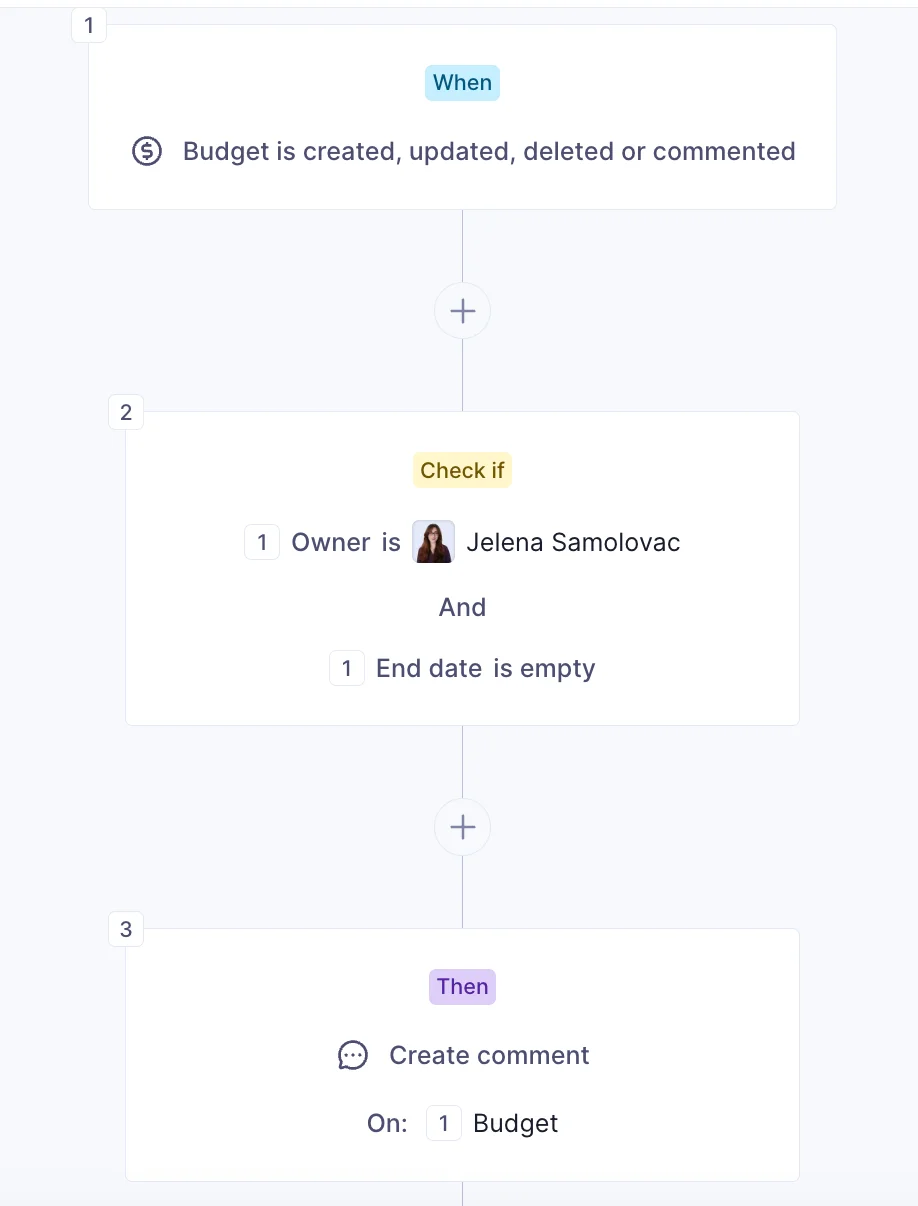
One issue I take with Productive is that it has a minimum user requirement — you have to buy a minimum of 3 seats. Truthfully, this is not a lot, but it does mean that the Essential plan actually costs a minimum of $30 and not $10 as the first impression suggests.
Additionally, while the app lets you make projects and budgets using existing templates, I couldn’t figure out how to use them. The dropdown for choosing templates was empty except for a search bar, and whatever I typed in the search bar gave me a “No results found” message, so I had to start from scratch anyway.
What’s new in Productive?
Among many recent updates, Productive added dashboard widgets, as well as AI Search, which allows users to search for anything they want in plain, conversational language.
Available for: web, iOS, Android, MacOS, Windows
| Plan | Price |
|---|---|
| Essential | $10 user/month (minimum 3 users) |
| Professional | $25 user/month (minimum 3 users) |
| Ultimate | Contact sales |
*billed annually

#4 Wrike — best for complex workflow management
Wrike is a versatile work management tool that has the ability to function as a PSA tool for small and medium businesses.
Why choose Wrike?
Wrike is best for businesses that juggle multiple larger teams and need robust project management tools with PSA functionalities.
| Pros | Cons |
|---|---|
| – Feature packed – Excellent workload management – Powerful project management features | – Steep learning curve – Doesn’t support native invoicing |
It’s been a minute since I’ve last used Wrike. The interface has gone through quite an overhaul, but it still remains one of the cleanest-looking work management tools out there in my opinion. Although I do find this new version less intuitive than the old one.
As for the features professional services would appreciate, here are some that stood out:
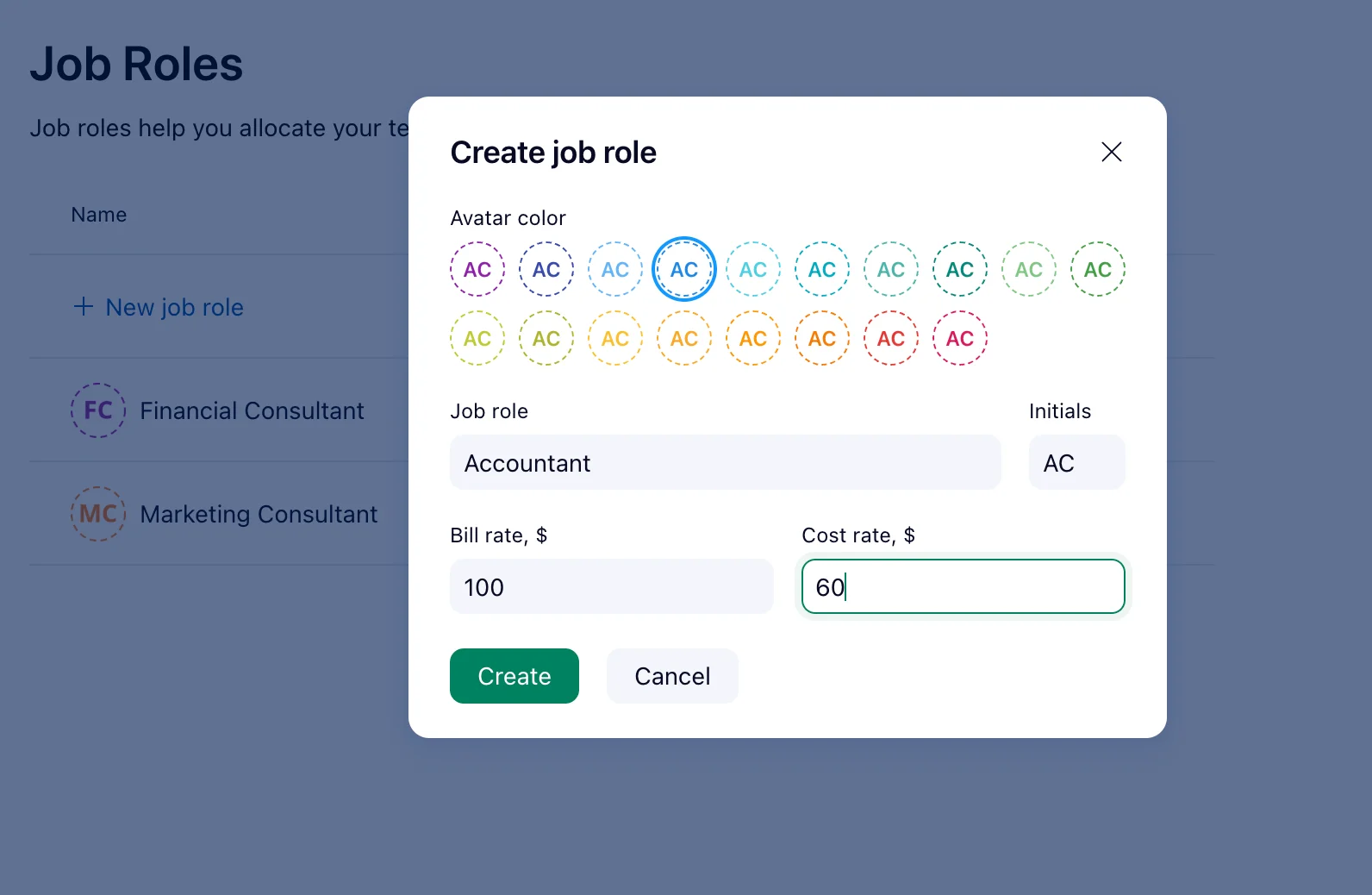
- Job roles — You can assign roles to people (e.g., designer) so that you can assign people to correct projects more easily. I wish there was a way to assign skills as well, but I couldn’t find it.
- Workload management — Instead of assigning people to tasks, workload management lets you assign tasks to people directly on the heatmap. This happens to be my favorite Wrike feature as it lets you see everything a Gantt chart does, plus workload distribution and effort needed to complete a task.
- AI risk prediction — Wrike’s AI analyzes your previous projects and predicts risks that can happen and their likelihood.
Wrike has a very interesting AI feature I have to mention. Namely, you can add or create multiple AI agents to help you handle routine tasks. There are 3 templates you can choose from, or you can create custom AI agents from scratch and assign each one a unique job. You can also test the agents before they go live so you can be sure they work as intended.
Now, in all honesty, I tried making one and failed. It had a lot of variables and was a bit more complex than it initially appeared. So if you’re curious, I suggest you start with one of the premade templates first.
When it comes to finances, some standout features include:
- Expenses — You can log how much you get from the client and how much you pay the employee. This helps calculate your profit margin.
- Profitability alerts — When calculating your profits, Wrike compares them to your budget and notifies you when a project stops being profitable.
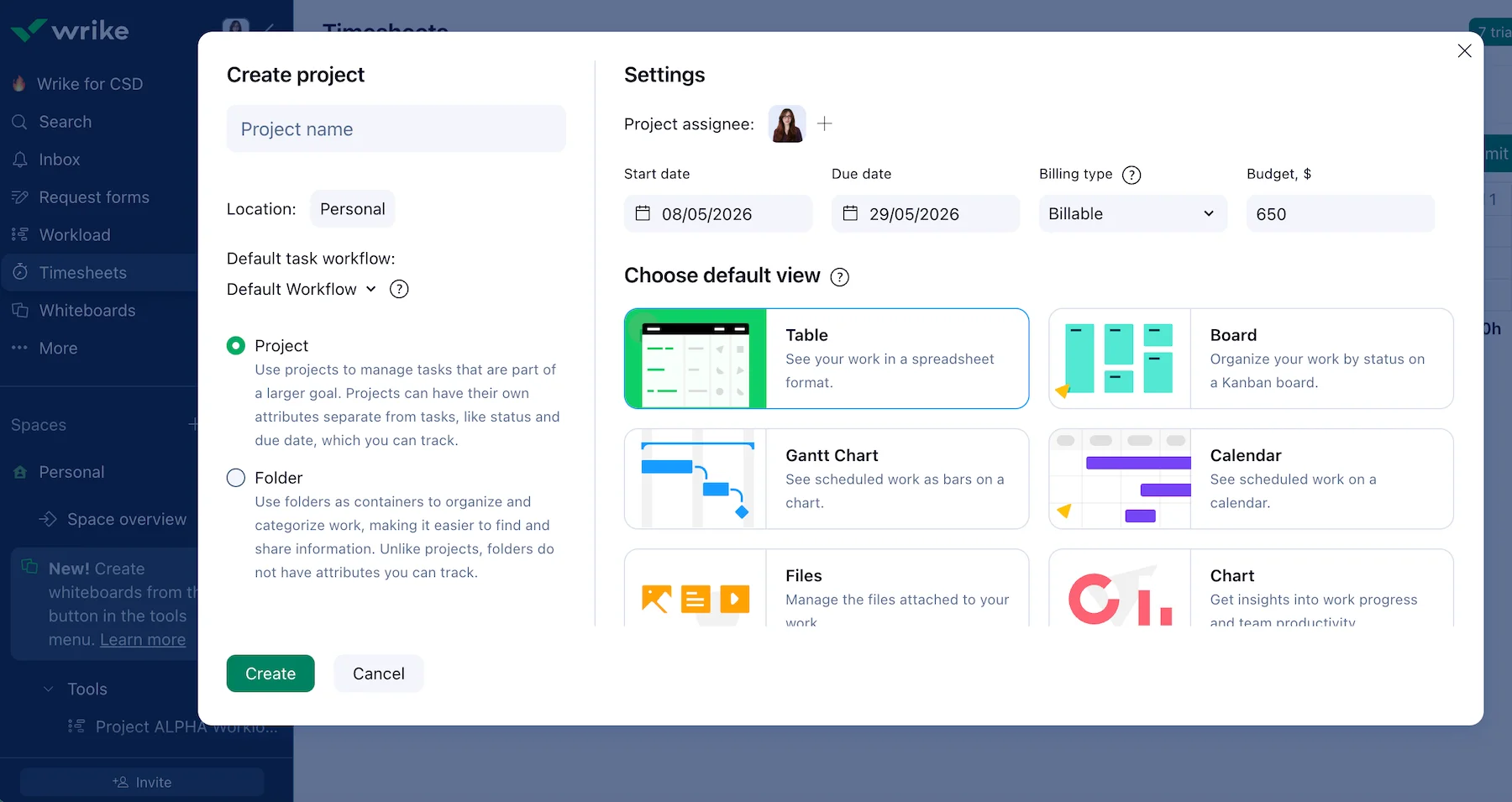
Wrike is packed with useful features, but they aren’t always intuitive (read budgeting and expense tracking). In my opinion, Wrike could learn a thing or two from Productive when it comes to introducing their platform to new users.
Additionally, Wrike doesn’t have any invoicing features, so you’ll have to rely on integrations for that part.
And finally, I have to mention Wrike’s pricing. While it appears simple enough, there are hidden “rules” to the system that aren’t immediately apparent on their pricing page. Namely, seats are sold in groups, so you’re most likely to pay way more than what you need:
- Up to 30 seats — sold in groups of 5
- 30–100 seats — sold in groups of 10
- 100+ seats — sold in groups of 25
What’s new in Wrike?
Wrike’s last update introduced more bulk API capabilities and new asynchronous Batch API, which lets you transfer large amounts of data simultaneously and faster than before.
Available for: web, iOS, Android, MacOS, Windows
| Plan | Price |
|---|---|
| Free | $0 |
| Team | $10 user/month (2–15 users) |
| Business | $25 user/month (5–200 users) |
| Pinnacle | Contact sales |
| Apex | Contact sales |
*billed annually

#5 Atera — best for small and mid-sized MSPs
Atera is an advanced Remote Monitoring and Management (RMM) and PSA software aimed at Managed Service Providers (MSPs) and IT teams.
Why choose Atera?
For small and mid-sized agencies that want the simplicity of a per-technician subscription model.
| Pros | Cons |
|---|---|
| – User-friendly – Advanced automation – Shared script library – RMM capabilities | – Sometimes slow to load – Users report occasional patching inconsistencies |
Compared to most other tools on this list, Atera was fairly easy to use, which surprised me considering it’s packed with both PSA and RMM features. Some notable ones include:
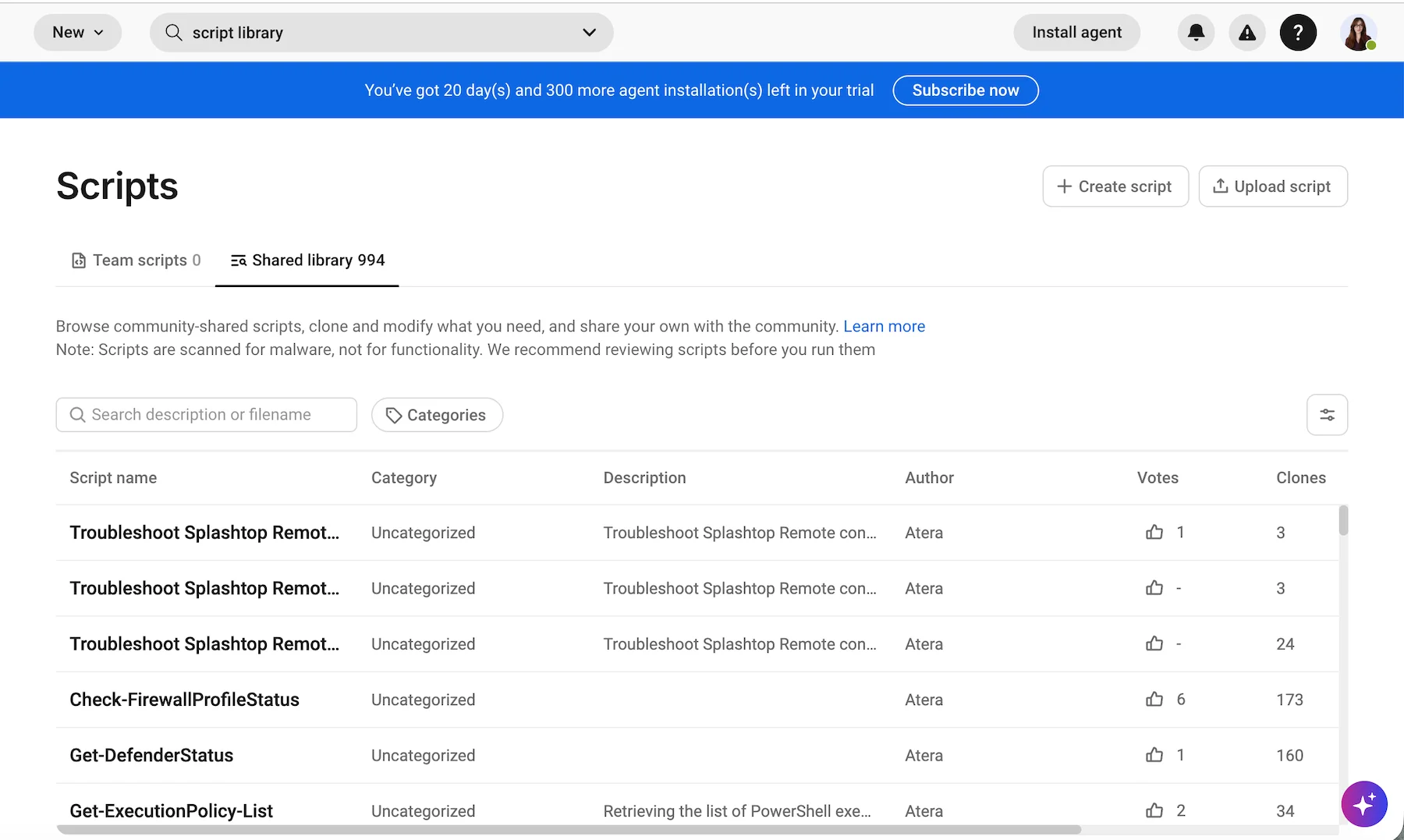
- Script library — Instead of writing your own code, you can go to Atera’s Shared Script Library and choose an existing code made by a community member that solves your problem. Simply click clone and you’re done! All scripts in the library have been checked for malicious code and approved by Atera’s moderator, so you can be sure they’re safe to use.
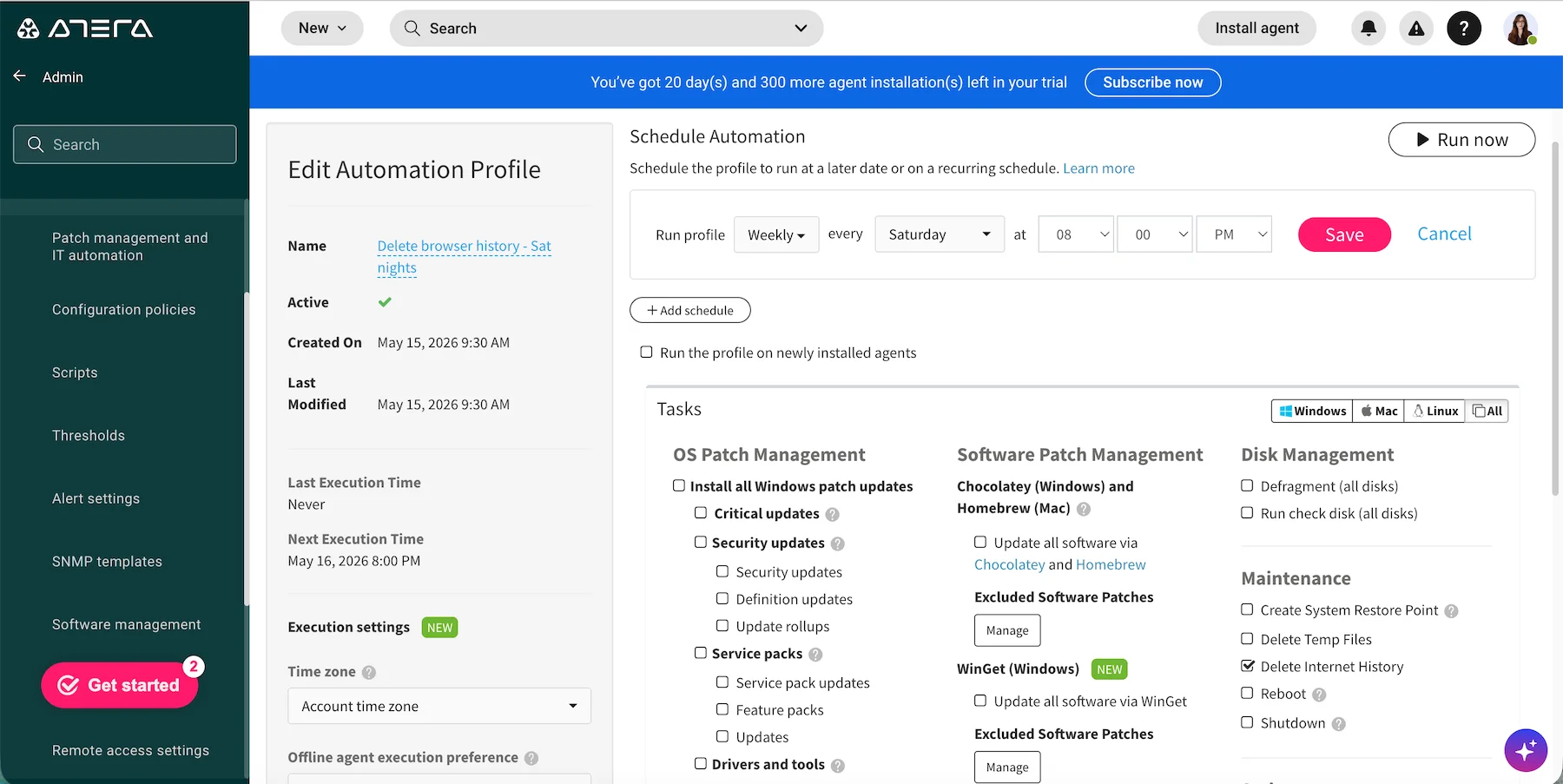
- Automation — You can put a lot of your repetitive daily tasks on autopilot by creating automations that, for example, update all Windows devices once a week, reboot devices after updates, delete browser history, etc. You can also create if/then rules that activate the automation when triggered.
- Alerts — The Atera agent tracks your managed devices and informs you about performance metrics, security, custom events, etc. All accounts come with a default set of alerts, but you can set custom alert threshold profiles for each user or customer, or choose from a variety of templates.
On a slightly unrelated note, I have to mention that Atera has beautiful, detailed documentation that makes it easy to figure out how the software works and what it can do.
In recent years, Atera has been working on improving their AI agent called Robin. Here are a few things it can do:
- Diagnose and resolve issues — it can reset passwords, install apps and updates, collect diagnostics, test DNS resolution and flush cache, and much more.
- Solves customer issues through chat — it takes over requests, diagnoses and fixes issues on its own, and logs the actions it took.
- Integrate with your tools — it shows up in your integrations and even custom APIs.
You can keep track of all Robin’s actions on a diagnostic chart and analyze when and how it acted.
Personally, I haven’t come across any issues in Atera, but users have commented that patching can be inconsistent and that the interface can be a bit slow when you have a larger number of devices to manage.
While I haven’t been able to confirm this with my test account, I did notice that some pages took a few seconds to load even without any data on them, so it’s plausible that packed pages could take even longer.
What’s new in Atera?
You can now view all assets belonging to a particular contact directly from their profile page. Atera also added Lenovo to their supported manufacturers, which means you can sync purchase and warranty information automatically, all you need is the serial number.
Available for: web, iOS, Android
| Plan | Price |
|---|---|
| Pro | $129 technician/month |
| Growth | $179 technician/month |
| Power | $209 technician/month |
| Superpower | Contact sales |
*billed annually
#6 VOGSY — best for Google Workspace integration and international finance management
VOGSY is an Enterprise Resource Management (ERP) software with advanced resource and accounting capabilities.
Why choose VOGSY?
VOGSY is great for international mid-sized agencies and enterprises that need to handle complex billing in multiple currencies and who want to keep most of their work and information in Google Workspace or Microsoft 365.
| Pros | Cons |
|---|---|
| – Native integration with Google Workspace and Microsoft 365 – Responsive support team – Intuitive interface | – Mandatory $5,000 onboarding fee – Could use more reporting options |
My first impression of VOGSY’s UI was positive, which was a pleasant surprise. I expected a tool directed toward enterprises to feel more complex. Although it is a bit more “old-fashioned” than most other apps on this list, I thought that everything was where you’d expect it to be, which made it easy to navigate.
Some of the features I liked include:
- Global currency financial reports — VOGSY internally handles exchange rates so you see reports in your local currency wherever you are, while headquarters see a consolidated overview in a currency of their choosing.
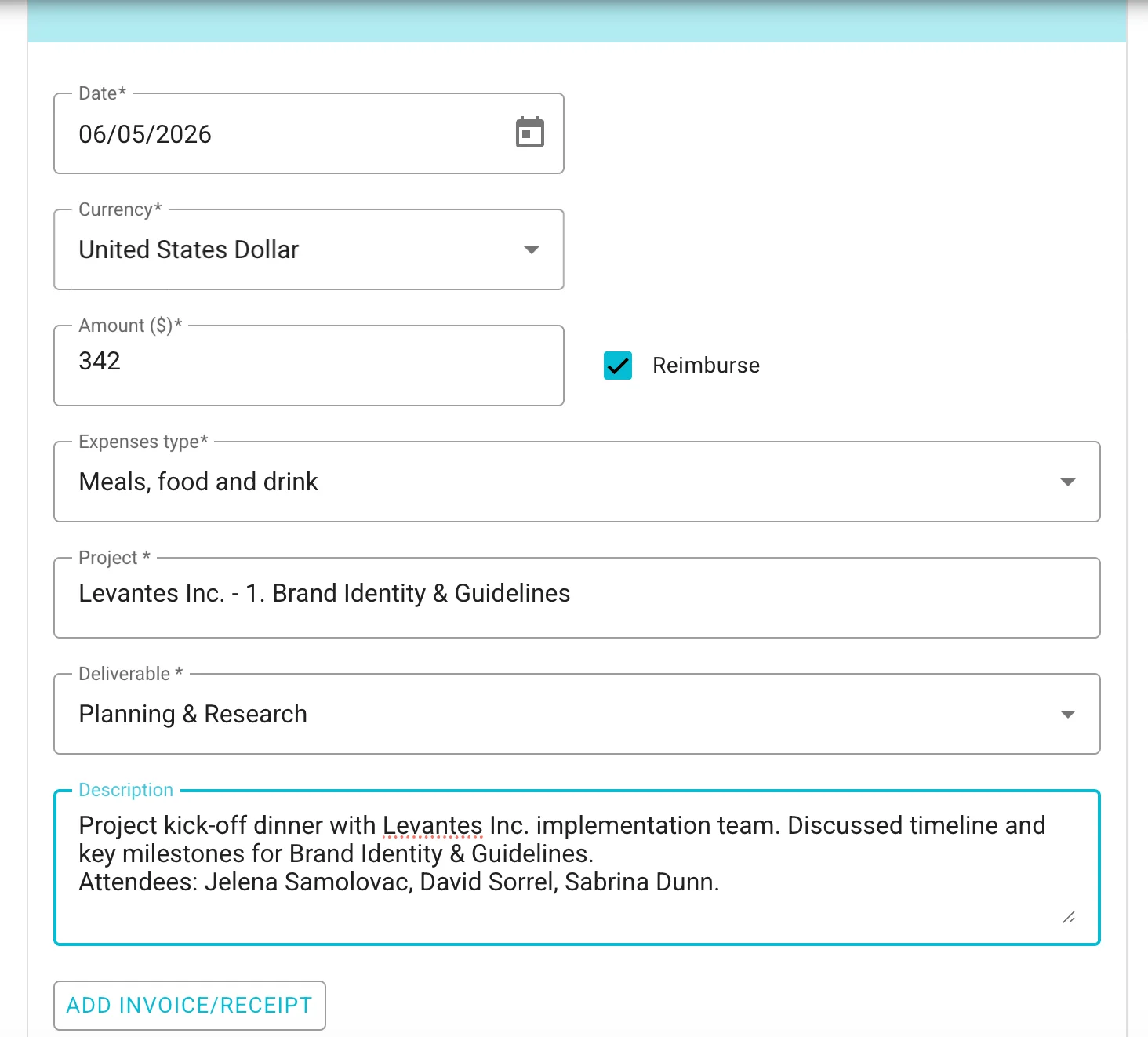
- Reimbursable expenses — you can add reimbursable expenses, so they don’t slip your thoughts when calculating your bottom line.
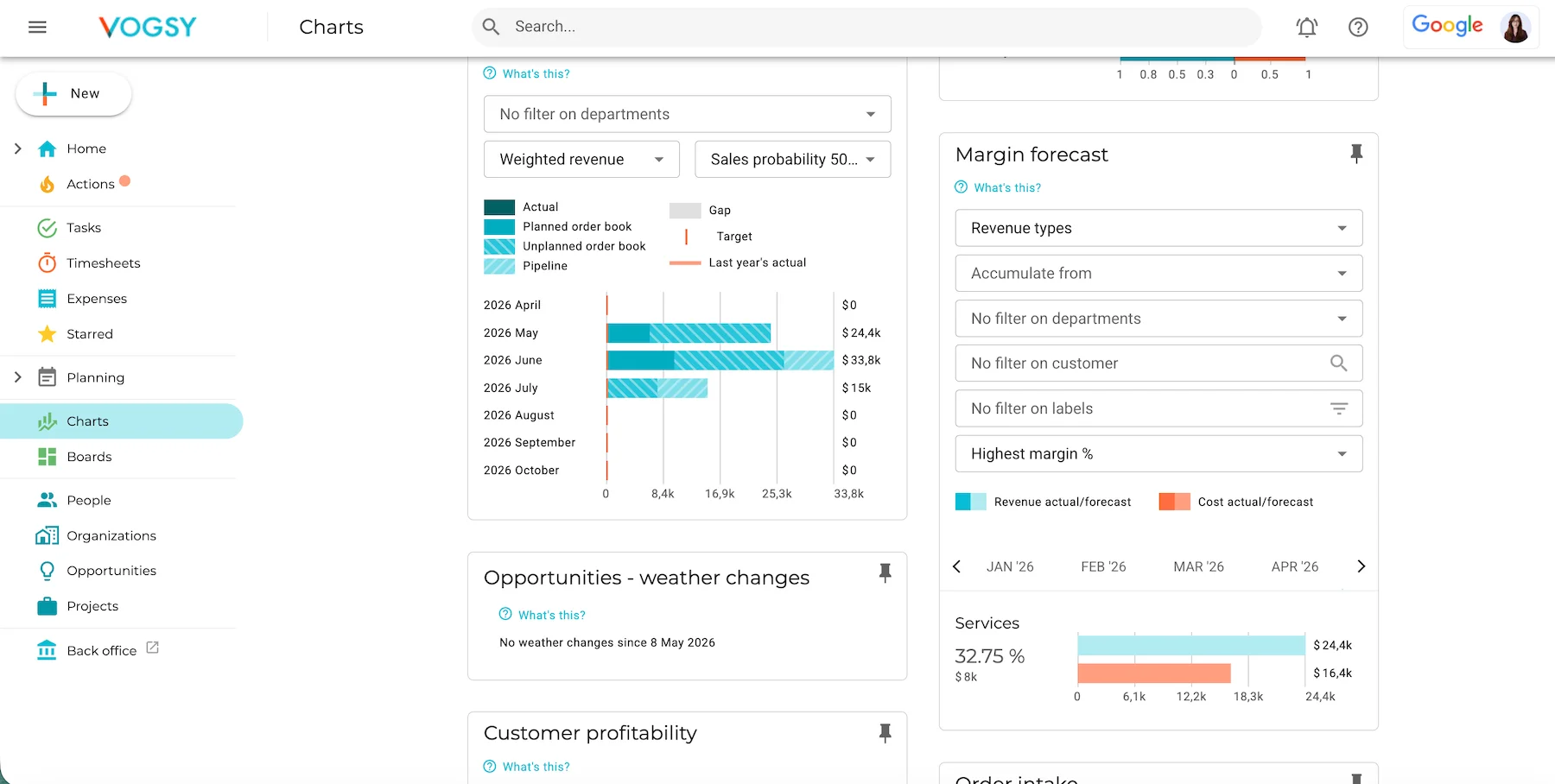
- Charts — VOGSY’s charts are among the most comprehensive and detailed I’ve seen and highly customizable too. However, I found it strange that I couldn’t rearrange the widgets in the chart view.
Additionally, users report good customer service response times (although I didn’t personally get the chance to test this).
You might have noticed I classified the native integration with Google Workspace and Microsoft 365 as a “pro” of VOGSY, even though some might see it as a downside. Personally, I think it’s a unique perk of this software that you can, but don’t have to use. The fact that you get to have this choice is what made me put it in the “pros” column.
As VOGSY was initially built to work with Google Workspace, though, opting for the integration unlocks some cool perks such as:
- Google SSO — log in securely with your existing Google account.
- Automatic Google Sheet updates — VOGSY uses a certified add-on for Google Sheets that pulls data from the VOGSY app and updates your Google Sheets information by simply clicking “refresh” in the add-on.
- Connect emails to projects in the app — a certified add-on that sits in your inbox lets you connect important emails, documents, and files you receive to the correct project in VOGSY.
When it comes to downsides, I have to mention that VOGSY charges a $5,000 mandatory onboarding fee. On the one hand, this ensures that all user data is accurately transferred to VOGSY and that the transition process is smooth and fast. But, on the other hand, the charge is pretty steep for a service you can’t opt out of.
What’s new in VOGSY?
Among many recent updates and bug fixes, VOGSY included the ability to create an invoice directly from the deliverable menu. Plus, they recently added an AI assistant.
Available for: web
| Plan | Price |
|---|---|
| Lite | $14 user/month (minimum 20 users with at least 1 Super user) + $5,000 onboarding fee |
| Full | $28 user/month (minimum 20 users with at least 1 Super user) + $5,000 onboarding fee |
| Super | $56 user/month (minimum 20 users with at least 1 Super user) + $5,000 onboarding fee |
*billed annually
#7 SuperOps — best easy and precise contract billing
SuperOps is an advanced PSA tool built for MSPs and IT teams. It contains both robust RMM features, and ticketing and invoicing features professional services need.
Why choose SuperOps?
SuperOps is best for mid-sized MSPs who need both RMM and PSA in one place. General professional service agencies that don’t need RMM will find this tool cluttered with features they don’t need.
| Pros | Cons |
|---|---|
| – Time-saving invoicing – Reliable customer support – Solid AIRMM capabilities | – No global search – Visually cluttered menu – Users report unresponsive customer service |
Full disclosure, SuperOps was the first MSP-first PSA tool I’d ever tested. This means that I found many things about it to be strange and different from what I was used to — both good and bad. Here’s what I really liked:
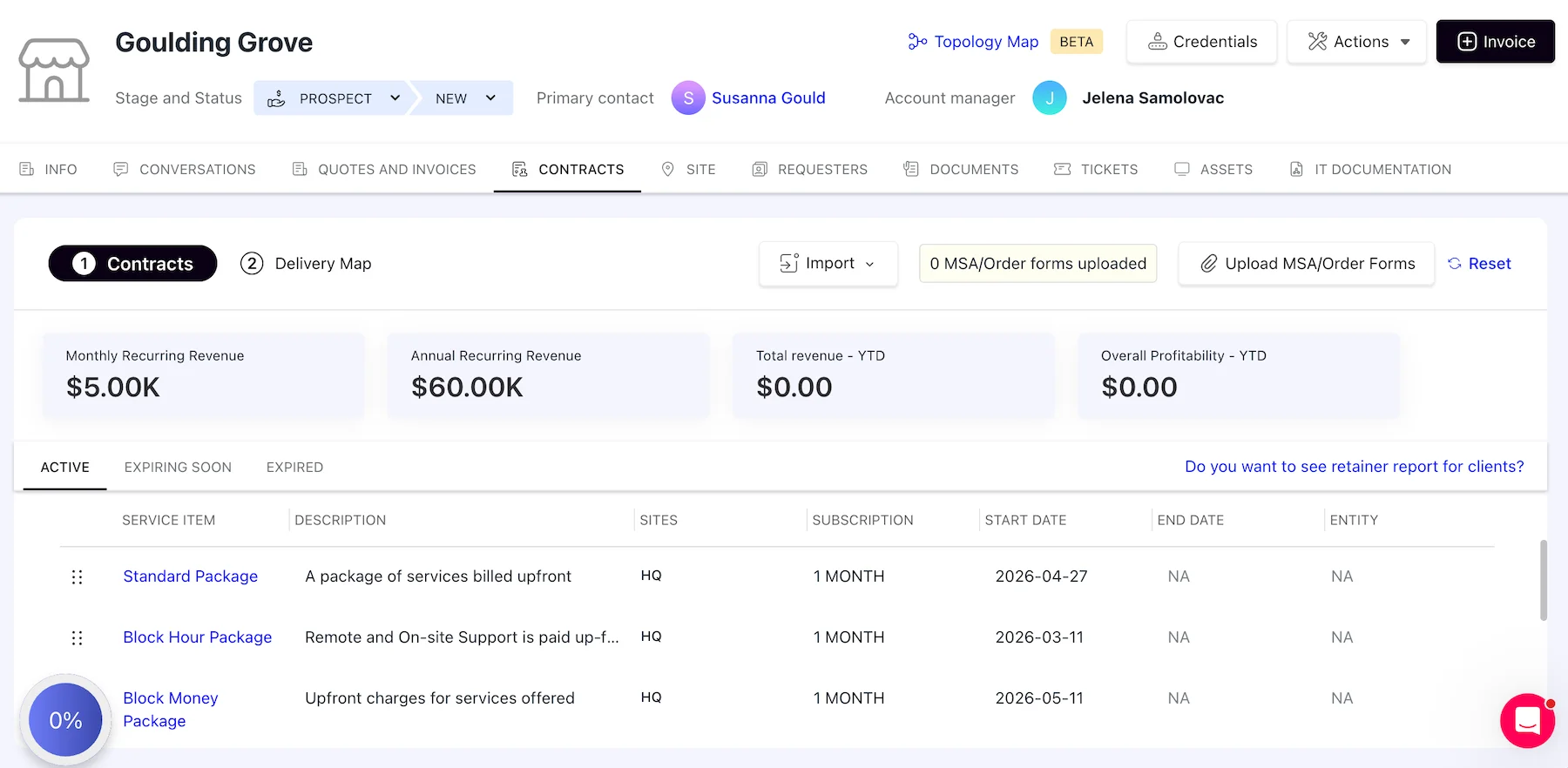
- Easy invoicing — when a quote is approved, the app can automatically create a sales order or invoice and send it to your integrated accounting software, saving tons of time and manual work.
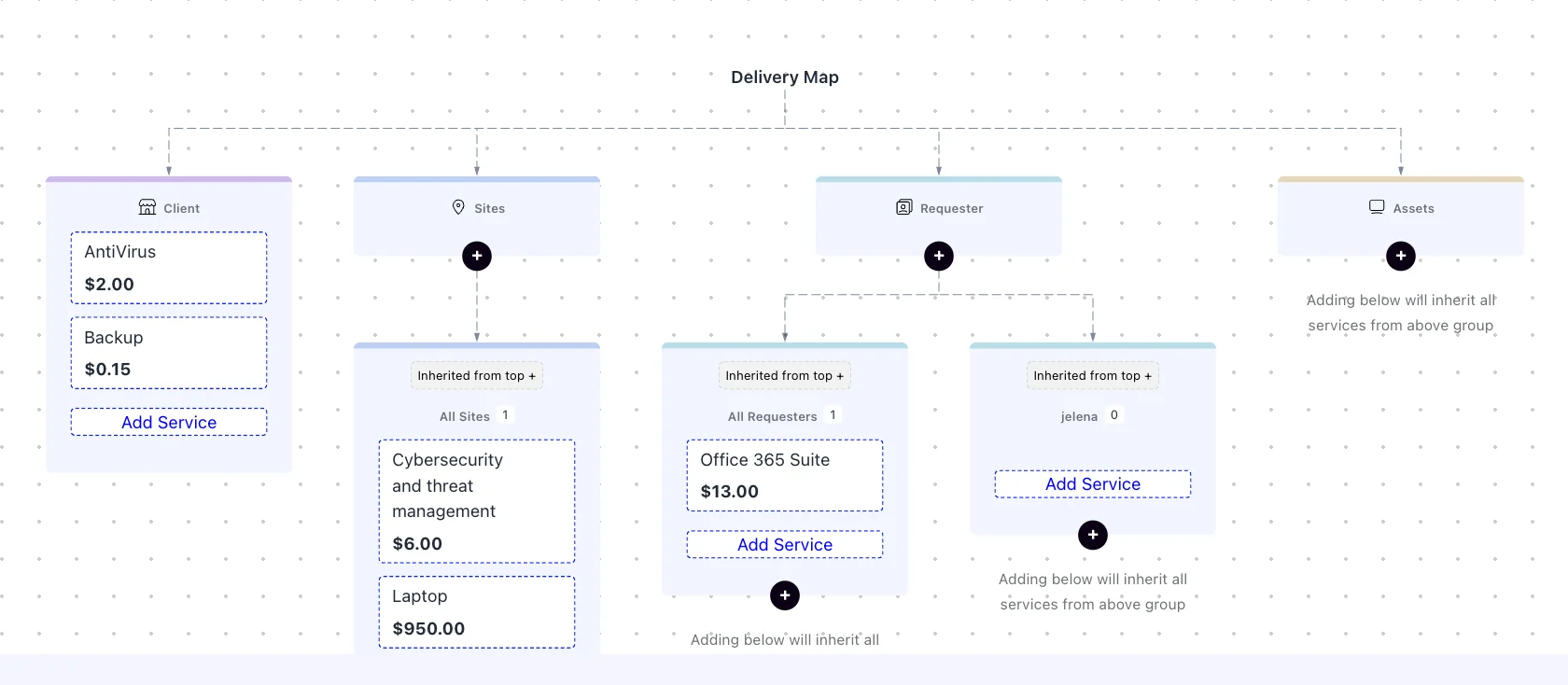
- Delivery maps — Create a list of services and assets you have for a specific client, along with their rates. Once SuperOps is installed on their computers, it will automatically recognize when one such service has been delivered and update the next invoice, so you don’t have to remember to do it manually yourself.
- Monica AI — Helps users summarize tickets, write scripts, recommend solutions, and much more.
When it comes to ease of use and design, I found SuperOps simple to navigate in some aspects and difficult in others. Some of the things I enjoyed include:
- Notification classification — notifications in SuperOps are neatly classified, which makes it super easy to see what’s new and find what you need without being overwhelmed.
- Tabs — every new page you open in SuperOps shows up in the form of a browser tab within the app until you close it, which I find really useful.
I suspect that the navigation difficulties I encountered had to do with my simply not being as familiar with dedicated MSP software as with some of the other tools on this list.
It might just be me, but I couldn’t find the global search in SuperOps. There is a search button and (like with notifications) you get to search the app by category, but there is no “all” or “global” option, which makes things difficult to find when you don’t know exactly where they are.
Moreover, while I found classification useful in some areas, in others, it added loads of needless visual clutter only to achieve the same result that could’ve been done using sorting and filtering.
What’s new in SuperOps?
SuperOps recently added Sales Orders. It’s a place your quotes go after they’re approved to wait for invoicing. It functions like a reminder of what you’ve promised the customer. You can create invoices directly from this page as you deliver the items.
Available for: web, iOS, Android
| Plan | Price |
|---|---|
| Pro | $149 technician/month (150 endpoints/technician) |
| Super | $179 technician/month (150 endpoints/technician) |
| Super Plus | $2.50 per endpoint for 150 endpoints (minimum) $2.30 per endpoint (151–500 endpoints) $2.10 per endpoint (501–1,000 endpoints) $2.00 per endpoint (1,000+ endpoints) |
*billed annually

#8 ProjectManager — best for workload management
ProjectManager is a project-management-first tool with several features like live cost tracking and budgeting and workload management aimed at PSAs.
Why choose ProjectManager?
ProjectManager is great for businesses that need robust project management features, but don’t need the full PSA suite of tools that Productive or VOGSY can offer.
| Pros | Cons |
|---|---|
| – Easy to navigate – Great dashboard overview – Enables skill tagging | – Unoptimized and underdeveloped mobile app compared to the desktop version – Not the most intuitive tool |
ProjectManger is a powerful tool that has had time to mature. It’s clean and simple to navigate for the most part. At the same time, it has advanced project and portfolio management features. Some that would be useful for PSA include:
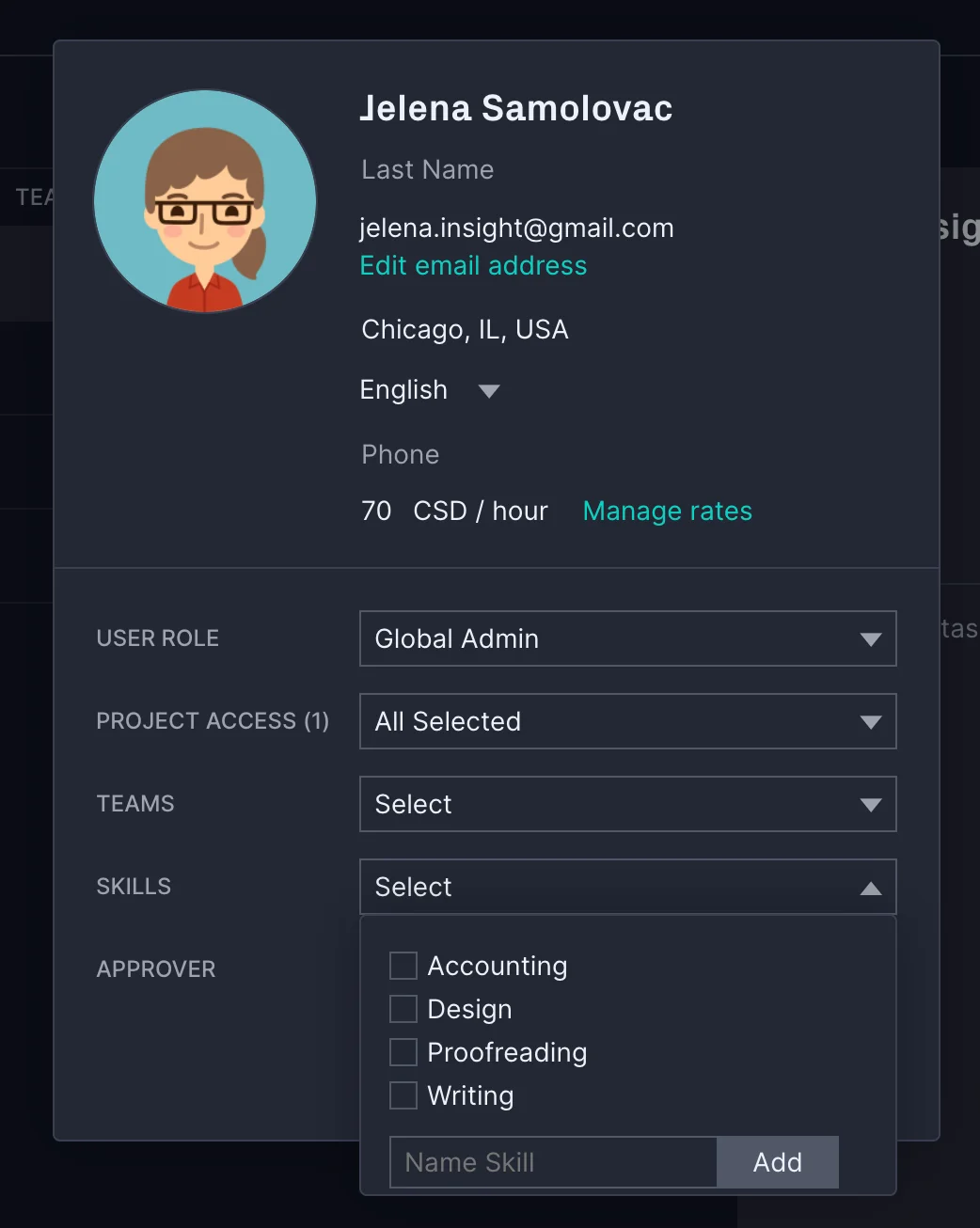
- Skill tagging — lets you add specific skills to your team member profiles so you’re able to match the right people with the right projects more easily.
- Global scheduling — lets you set default planned hours for users, as well as global working hours. You can also add country holidays, global holidays, and personal holidays to accurately allocate and schedule tasks.
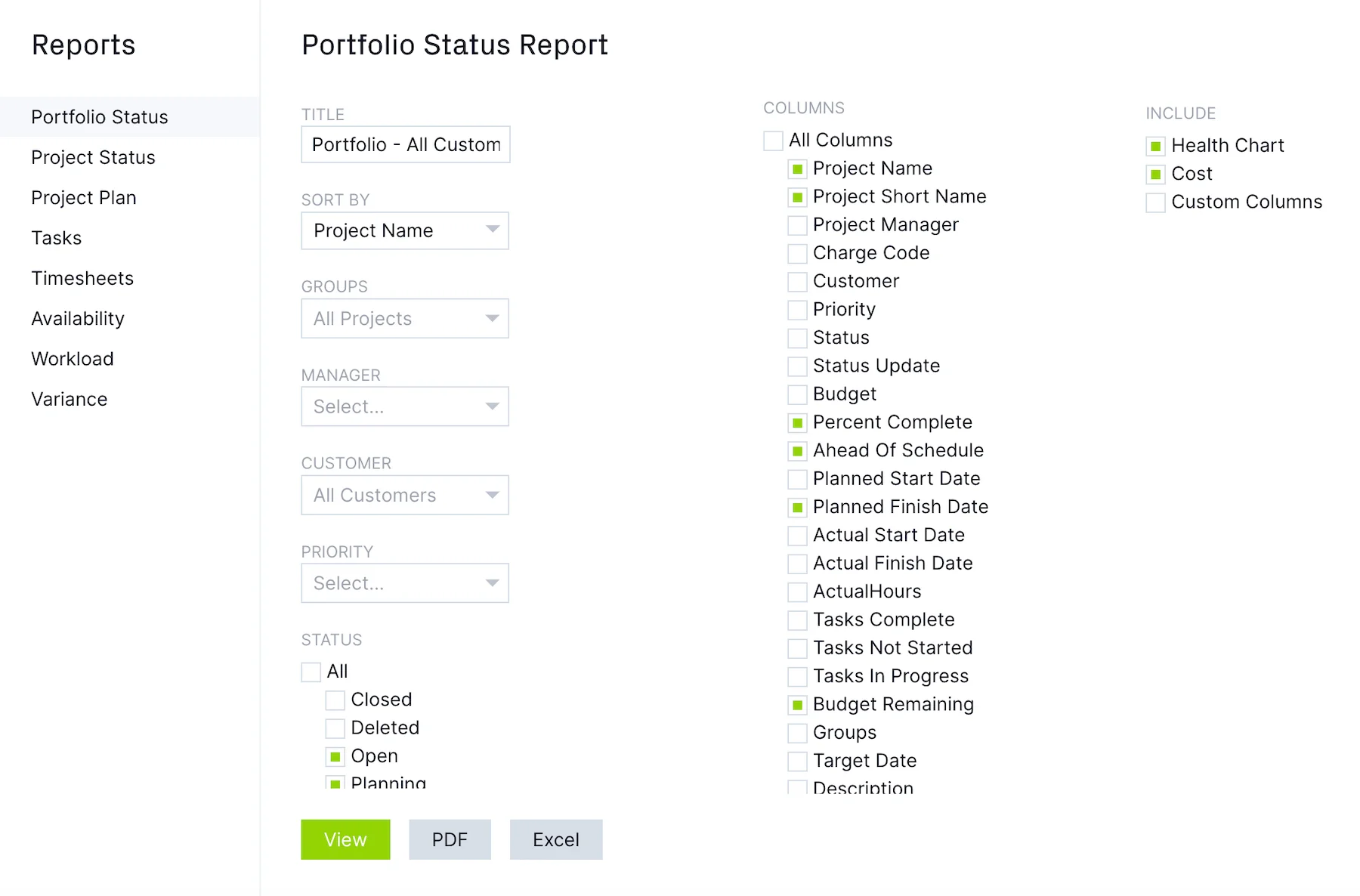
- Portfolio management — gives you a clear overview of the state of all of your projects at once.
Other features I don’t see often in similar software include:
- “None” role — lets you track subcontractors or non-human resources like equipment by creating a new team member and setting their role to “none” and adding their hourly rates.
- Auto-fill timesheets — if you’ve logged time regularly on tasks, you can click auto-fill to have the timesheet automatically populate with all the tasks you’ve worked on for the past week.
Unlike the web version, the mobile app felt restrictive with the Gantt chart being especially frustrating. I have seen others report similar issues, but I only tried it on Android and can’t comment on the iOS version.
Additionally, while I found the training walkthrough easy to understand and follow, not all videos worked. It wasn’t that big of a deal, and there are other tutorials to follow on YouTube, but I thought it was worth mentioning.
What’s new in ProjectManager?
ProjectManager recently updated their API with Project.ReopenProjectStatus and Tag.DeleteTag options.
Available for: web, iOS, Android
| Plan | Price |
|---|---|
| Team | $15 user/month |
| Business | $28 user/month |
| Enterprise | Contact sales |
*billed annually
#9 Rocketlane — best for customer engagement
Rocketlane is a modern PSA and business management platform with increased focus on AI and customer onboarding experience.
Why choose Rocketlane?
Rocketlane is great for businesses that want more flexibility and transparency with the ability to include clients in the project delivery process.
| Pros | Cons |
|---|---|
| – Comprehensive customer onboarding experience – Powerful AI agent | – Occasionally slow – Less intuitive than the competition |
Rocketlane has a slightly different approach than most other PSA platforms in that it focuses on improving the experience for customers, who get the chance to be included in the work. Some features that help improve customer satisfaction include:
- Branded customer portal — Lets you create a page (complete with your customer branding) that serves as a communication and project tracking hub between you and your customer. It lets your customers see your project plans and progress, share documents, and communicate in a secure place. You can even use it to track time and connect your Slack account with it.
- CSAT reports — Rocketlane gives you access to reports that analyze your customer reviews and give you a comprehensive analysis of their ratings.
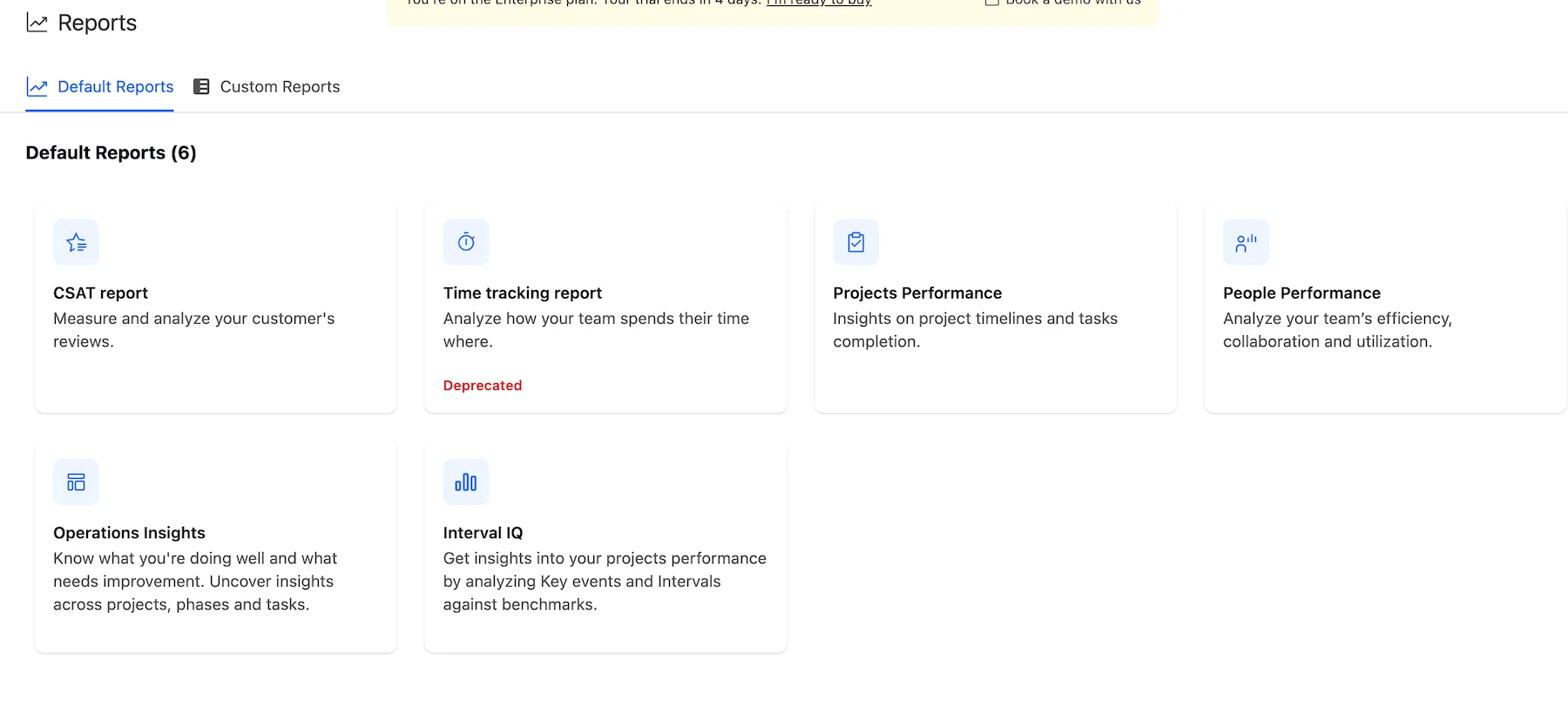
Rocketlane also emphasizes the use of AI in their platform. Some standout features include:
- Automatic project creation — Rocketlane AI can create an entire project with tasks based on a signed Statement of Work (SOW).
- Resource AI — suggests people and creates teams for projects based on skills and availability.
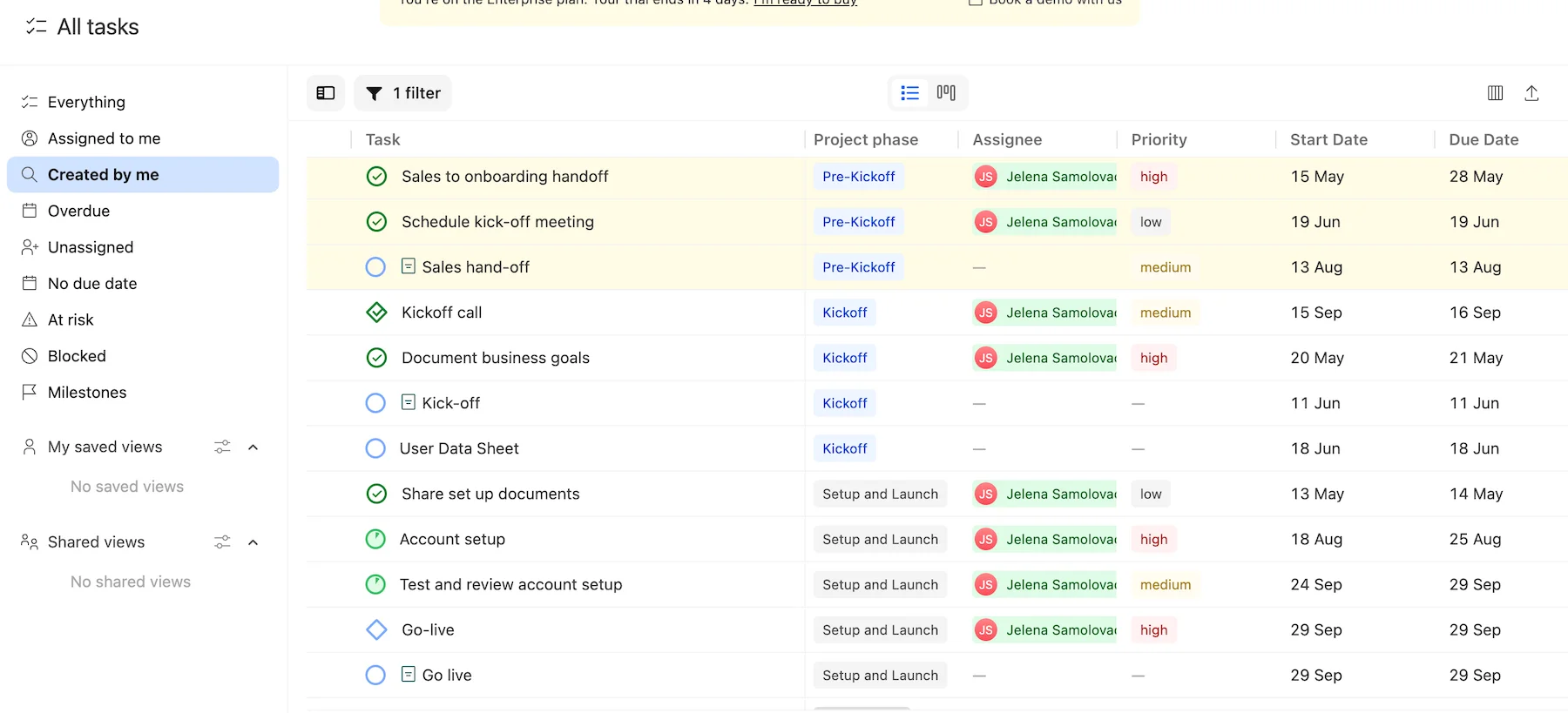
Rocketlane is quickly developing and offers unique and forward-looking features compared to many competitors. But it’s still relatively young and lacks the smooth and seamless look and feel of similar software. Namely, I’ve experienced longer loading times on random pages and I don’t find the interface as intuitive as some of the other apps on this list.
Additionally, there was no walkthrough when I opened the app, and I found their website and blog lacked critical information about the app’s features and use cases.
What’s new in Rocketlane?
Rocketlane’s most recent update introduced the beta version of Rocketlane MCP — an AI that can analyze data from your Google Calendar and make time entries for you based on that data, create templates from scratch, create new projects based on customer assets, and more.
Available for: web, iOS, Android
| Plan | Price |
|---|---|
| Essential | $19 team member/month |
| Standard | $49 team member/month |
| Premium | $69 team member/month |
| Enterprise | $99 team member/month |
*billed annually
#10 HaloPSA — best for advanced automation and customization for power users
HaloPSA is an all-in-one PSA platform that puts a lot of emphasis on ticketing and workflow flexibility.
Why choose HaloPSA?
HaloPSA is best for businesses that need a lot of customization options and like (or know how) to tinker with webhooks and UI configuration to create the most optimal workflow.
| Pros | Cons |
|---|---|
| – Simple pricing system – Extensive customization options – Good ticketing system | – Steep learning curve – Expensive |
HaloPSA’s most loved aspect is its customization and automation. Some notable features include:
- Custom buttons — create a personalized workflow with buttons that perform custom actions in 1 click.
- Custom tabs — besides the details, billing, and AI insights tabs you see by default, you can add your own tabs for quicker access to things or to create a ticket template unique to your workflow.
- Automation via webhook integration — while webhooks are a fairly common feature, HaloPSA takes it to the next level with integration runbooks that let you build action flowcharts, without the need for tools like Zapier or Make to make them work.
I have to mention that their official documentation and online resources are not helpful when it comes to figuring out how any of these work. But, there is a rich community of HaloPSA customization enthusiasts and power users on YouTube and Reddit where you can learn more about what you can do with this tool.
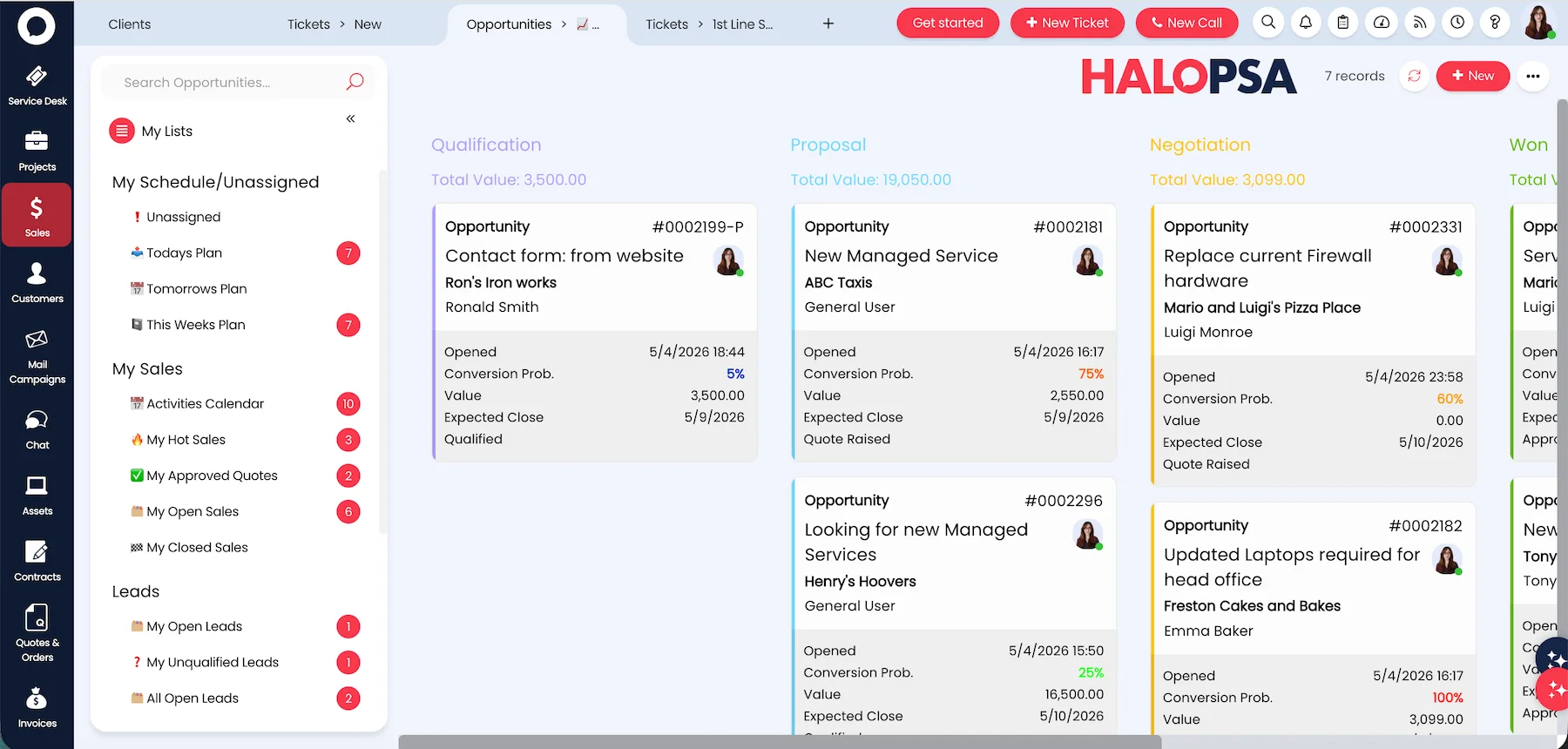
I have to mention that I’m a big fan of the page header where you have quick access to creating a new ticket, making a call, opening notifications, to-do list, timer, tickets you’re subscribed to, your activity log, and resources.
Besides this, I appreciated the simpler features:
- Chat — you can see a whole message history with other users, but also with the 2 HaloPSA’s AI agents, which I find really useful.
- Tabs — you can have multiple tabs open at the same time within the app, just like in your browser, so you can quickly jump between tabs when you need to compare or reference information without stopping what you’re doing.
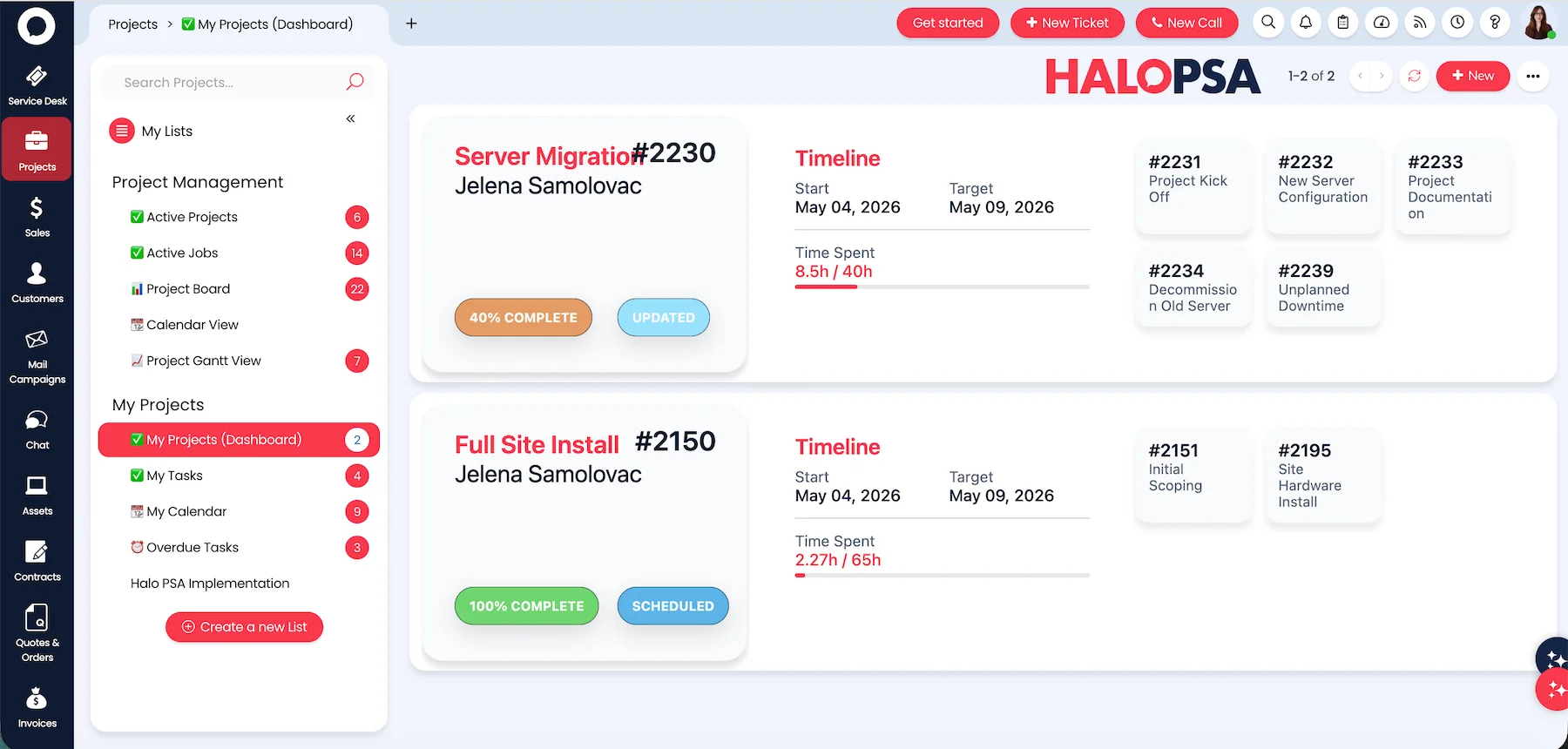
Despite all the good things HaloPSA has going for it, I found it difficult to figure out basic things such as how to change the name of a project, for example. At first glance it looked simple enough, but the more I clicked, the more things just didn’t function as expected. I also noticed some UI errors such as images and text overlapping.
Another issue is the mobile app. It exists, but it’s nowhere near the level of the web app. Those who tend to work outside the office will find it difficult to do so without a laptop.
While checking review platforms, I found others have experienced similar difficulties in navigating the platform, but also many others who found it very helpful and easy to use. So don’t let my experience discourage you from giving their 30-day free trial a go.
What’s new in HaloPSA?
The latest Halo PSA upgrades include dynamic filters on ticket lists and AI category suggestions. These now allow AI to read the tickets and categorize them according to a predefined category list, regardless of your previous categorization system, which standardizes ticket categorization.
Available for: web, iOS, Android
| Plan | Price |
|---|---|
| 0–5 users | Join a waiting list + $4,000 minimum onboarding fee |
| 5–1,000 | $105–85 user/month + $4,000 minimum onboarding fee |
*billed annually; resource cost decreases with volume
Manage your professional service agency with Plaky by CAKE.com
The best PSA software isn’t the one with the best features, it’s the one that fits your business scope, budget, and requirements.
Most PSA tools on the market try to pack all the features in one comprehensive package. Inevitably, this “jack of all trades, master of none” approach drives up the price and makes the software more complex than it needs to be.
CAKE.com takes a different approach — it seamlessly combines 3 tools that each excel in their own area:
- Plaky in project management and team collaboration,
- Clockify in time tracking, budgeting, accounting, and invoicing, and
- Pumble in team communication.
And it does it at a significantly lower cost than the competition too! So if you’re a small agency looking for a way to improve the efficiency of your operations and business processes, try Plaky by CAKE.com.
How we reviewed this post: Our writers & editors monitor the posts and update them when new information becomes available, to keep them fresh and relevant.