
The best Todoist alternatives include Plaky, Any.do, monday.com, Kanbanchi, TickTick, Things, and a few others.
After Todoist hiked their prices in December 2025, many users opted for one of these replacements.
Whether you need a Todoist free alternative, more advanced task management features, or better value for your money, these apps offer compelling options for different workflows and budgets.
Read on to find the one for you.
WHY TRUST US?
The apps we talk about are selected, tested, and written about by human reviewers who follow strict review and editorial guidelines. We pick solutions that are practical, purposeful, and can offer real value for the specific use case or business context we’re covering — while also being justified in their pricing. Our methodology is transparent, clear, and available to everyone:
Why look for a Todoist alternative in 2026?
Depending on your needs, it may be time to look for a Todoist replacement.
While Todoist remains one of the most popular time management apps, many users switch because of recurring bugs, sync issues, and the lack of features such as habit tracking, an advanced calendar view, or a built-in Pomodoro timer.
The December 2025 price increase also made many users reconsider the app, especially when several Todoist alternatives offer similar or more advanced features for less.
To help you find the best Todoist alternative, I tested some of their most popular Todoist competitors and compared their features, pricing, and overall value.
Top 10 Todoist alternatives — overview
There are plenty of tools to consider and information to take into account. To make the choice a bit easier, here’s a quick overview of all the tools I tried out:
| App | Best for | Free trial | Free plan | Lowest price |
|---|---|---|---|---|
| Plaky by CAKE.com | Customizable task management | ✔︎ | ✔︎ | $3.99/user/month |
| Any.do | Weekly planning | ✔︎ | ✔︎ | $4.99/user/month |
| monday.com | App integrations | ✔︎ | ✔︎ | $9/user/month |
| Kanbanchi | Google Workspace integration | ✔︎ | ✔︎ | $3.97/user/month |
| TickTick | Habit tracking | ❌ | ✔︎ | $3/user/month |
| Remember The Milk | To-do lists | ❌ | ✔︎ | $4.17/user/month |
| Things | Apple enthusiasts | ✔︎ | ❌ | $9.99 (one-time fee) |
| OmniFocus | Daily overviews | ✔︎ | ❌ | $8.33/user/month |
| Nirvana | Getting things done | ❌ | ✔︎ | $3/user/month |
| Sunsama | Time blocking | ✔︎ | ❌ | $17/user/month |
Are there any free Todoist alternatives?
Yes, there are plenty of free alternatives to Todoist that offer similar features.
Here are the apps from our list that have free plans:
- Plaky
- Any.do
- monday.com
- TickTick
- Remember The Milk
- Nirvana
💡 Plaky Pro Tip
Sometimes, all you need is a simple to-do checklist. Here are 20 to-do list templates to download or print out:
#1 Plaky by CAKE.com — best for customizable task management
Plaky is project and task management software that can easily adapt to your needs thanks to its customizable features. You can organize your to-dos in Plaky as a list, place them on a Kanban board, or view them in a Gantt chart.
Why choose Plaky?
Plaky’s customization options let you manage your projects seamlessly, no matter the industry you’re in. Plus, with the free plan, you can invite an unlimited number of users and create unlimited spaces, boards, and items, allowing you to collaborate with your entire team from the very start.
| Pros | Cons |
|---|---|
| – Easy to use – Feature-packed free plan – Affordable paid plans – 24/7 live support | – Limited integrations |
Having used another task management app before, I was already familiar with tools like Plaky and was able to jump right into my team’s workflow. But, Plaky’s intuitive interface made the transition even easier and quicker.
The task’s sections are easy to understand and set up in no time. Each piece of information has its set space within the task card, so everything I need for work is right there within reach.
Set up your workflow in Plaky for free
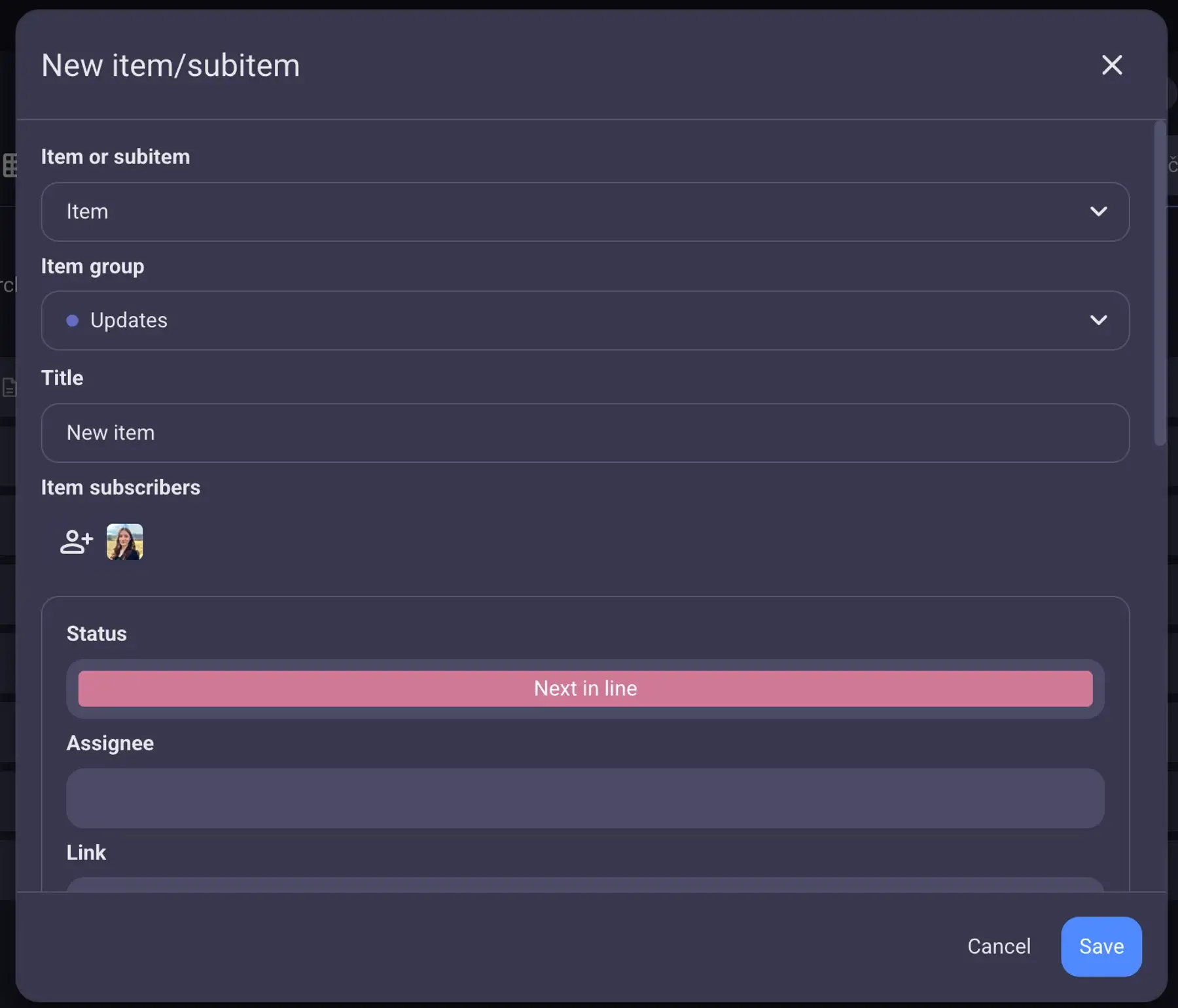
In my opinion, the best part about Plaky is that you can set up custom Fields that can differ from board to board. For example, you can add fields for:
- Due dates — to organize assignments according to deadlines
- Links — to have key links readily available at all times
- Status — to see where each task stands at a glance
- Priority — to know what needs your immediate attention
By adding various custom fields to my board, I can see my current workload, what’s coming up, and what’s urgent. To compare, Todoist does offer the option to set a priority for tasks, but you can’t get an overview of your tasks on a grid or create custom fields.
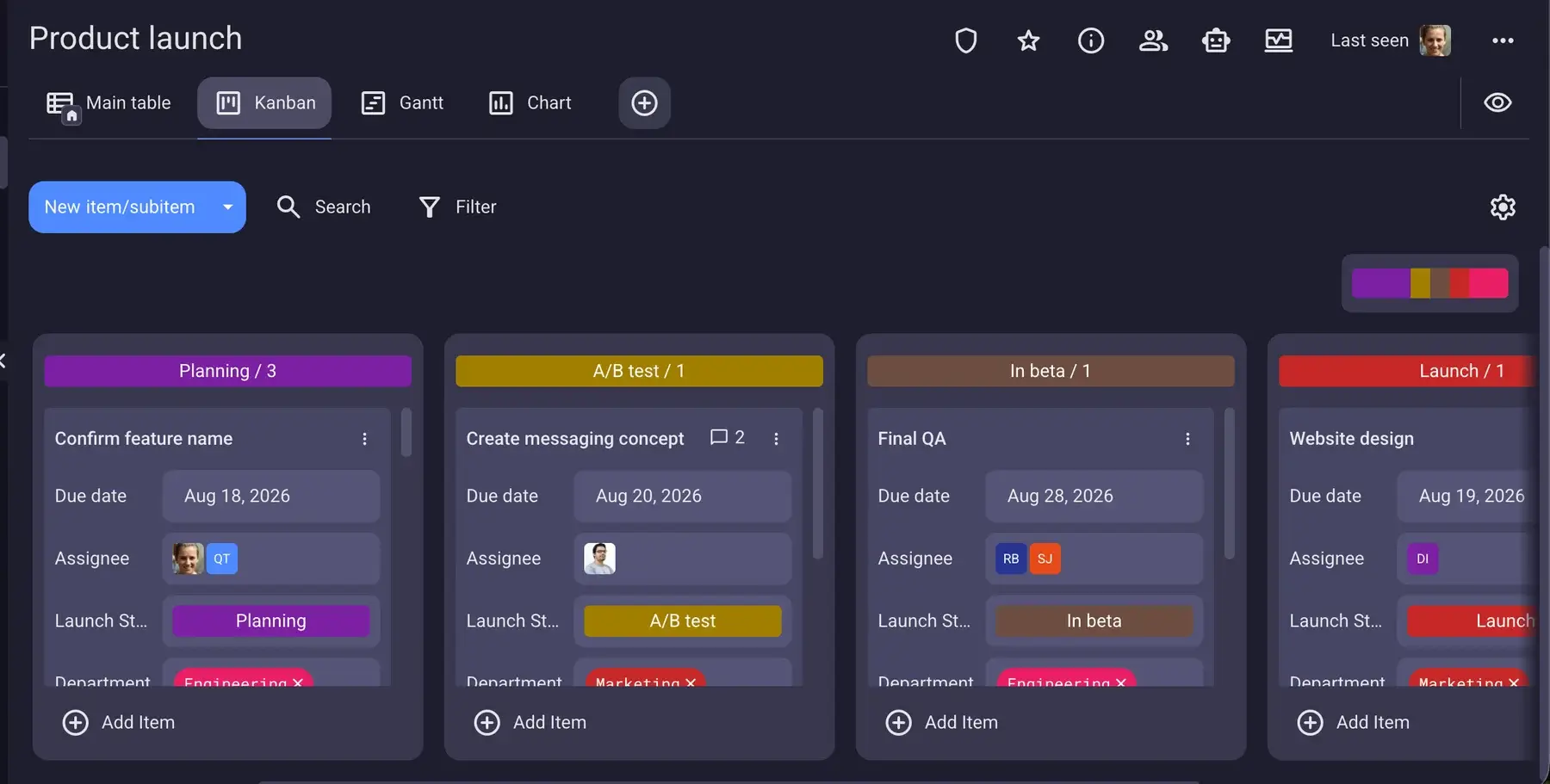
Now, as far as Todoist alternatives go, Plaky is a better fit for you if you’re looking for a team collaboration app or if you’d like to work with someone on a certain project. This is all thanks to its collaborative features, which Todoist doesn’t live up to.
For example, if I have to delay the delivery of any task I’m working on, I simply change the date in Plaky; at that point, all the item subscribers will get a notification about the changed deadline.
In comparison, Todoist won’t alert others when a due date is changed. You can only set up reminders or keep track of the task’s schedule, which simply isn’t enough for effective collaboration.
Plaky’s extensive free plan is also ideal for total beginners and teams with limited task management needs. The only real flaw I could find is a lack of integrations. Currently, Plaky integrates with Clockify, for your time tracking needs, and offers Pumble integration, for improved team communication.
That said, Plaky’s paid plans offer many additional features that make task management feel effortless, including:
- Private Boards and Spaces — manage tasks and lists privately to keep sensitive information protected.
- Board automations — save valuable time by instructing the app to perform repetitive actions automatically.
- Conditional coloring — highlight important information and know immediately what to do next.
- Bulk actions — make multiple changes at once and avoid tedious administrative work.
Best of all, Plaky offers 24/7 customer support to all its users — no matter which plan they go for. To compare, if you’re using Todoist and run into an issue, you’ll have to fill out a ticket and wait for them to get back to you.
Start organizing your tasks in Plaky
What’s new in Plaky?
Plaky introduced Dashboards, letting you pull data from multiple projects into a single view with widgets for a quick overview of key metrics. What’s more, the app improved automations — by adding new dynamic value options for the Date and Timeline fields.
For other recent updates and improvements, check out Plaky’s Changelog.
Available for: web, iOS, and Android
| Plan | Price |
|---|---|
| Free | $0 |
| Pro | $3.99/seat/month* |
| Enterprise | $8.99/seat/month* |
| CAKE.com Bundle | $12.99/seat/month* |
*billed annually

#2 Any.do — best for weekly planning
Any.do is a daily and weekly planning app used by many to manage their work tasks as well as their private life. The app’s free plan covers most user needs, like calendar view and reminders, but there’s also a paid plan for advanced users.
Why choose Any.do?
Any.do has an inviting interface that lets you drag and drop tasks on a calendar. You can create different lists for your business and personal assignments and then get a clear overview of them together in the calendar.
This feature is useful for daily and weekly planning, as it enables you to plan entire days and weeks ahead. You can also filter the lists in the calendar and manage them independently.
| Pros | Cons |
|---|---|
| – Easy task management – Calendar view – Affordable Family plan | – No time scheduling for tasks – Recurring tasks only available in the Premium plan |
Unlike Todoist, which favors to-do lists, Any.do is more focused on the calendar and gives a wider perspective on the week ahead.
Other useful features in Any.do for weekly planning are:
- Reminders — never miss an appointment or important deadline again
- Task prioritization — know exactly what to do next
- Google Calendar integration — view all your tasks directly in your personal calendar
I found Any.do’s interface, colors, and practicality pleasant to the eye and my thinking process, as I was able to set up my weekly schedule in mere minutes. Differentiating between personal and professional tasks simply by selecting one or the other list to view on the calendar is also a big plus.
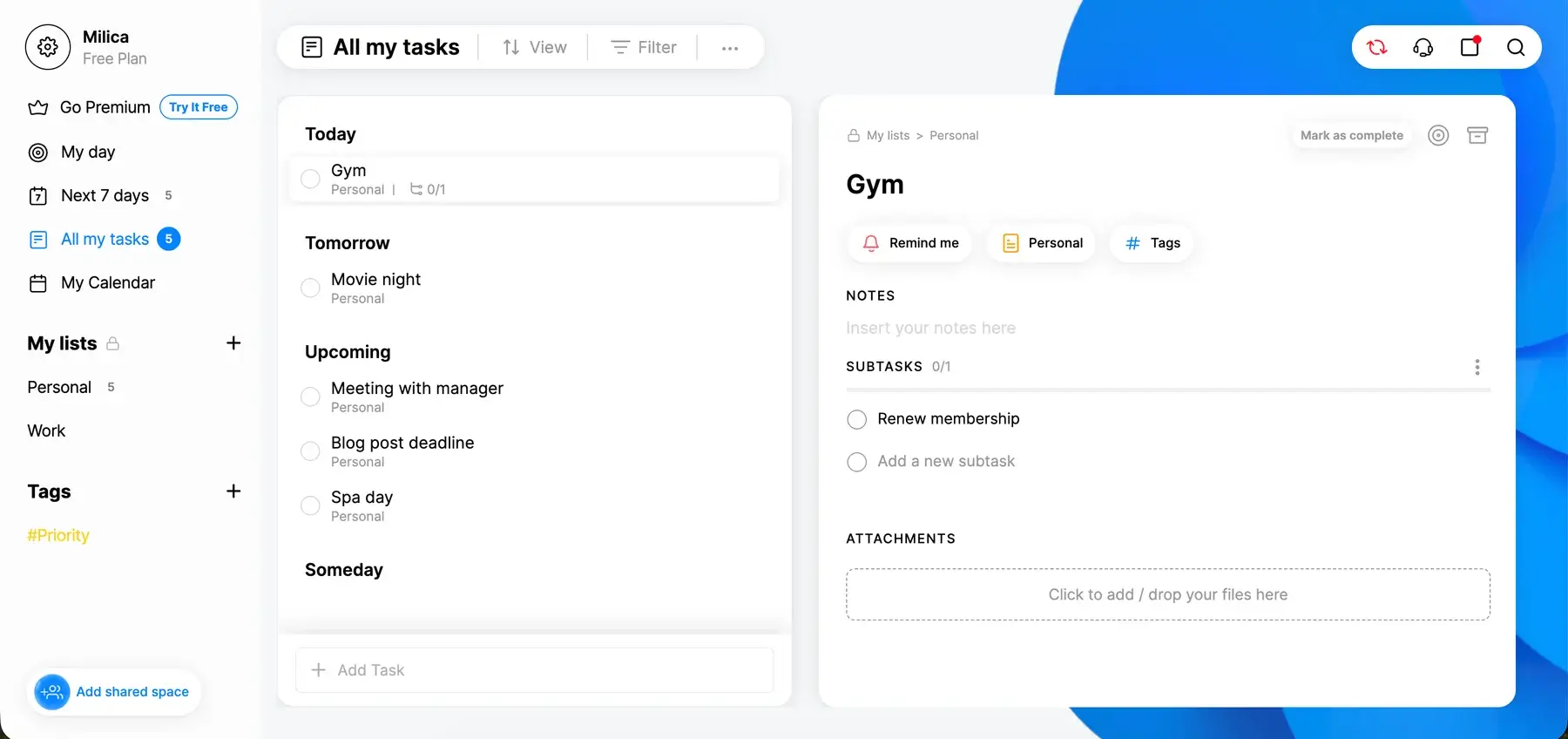
The native calendar is Any.do’s most prominent feature compared to Todoist. It provides a clearer overview of tasks and gives me a visual idea of the week ahead.
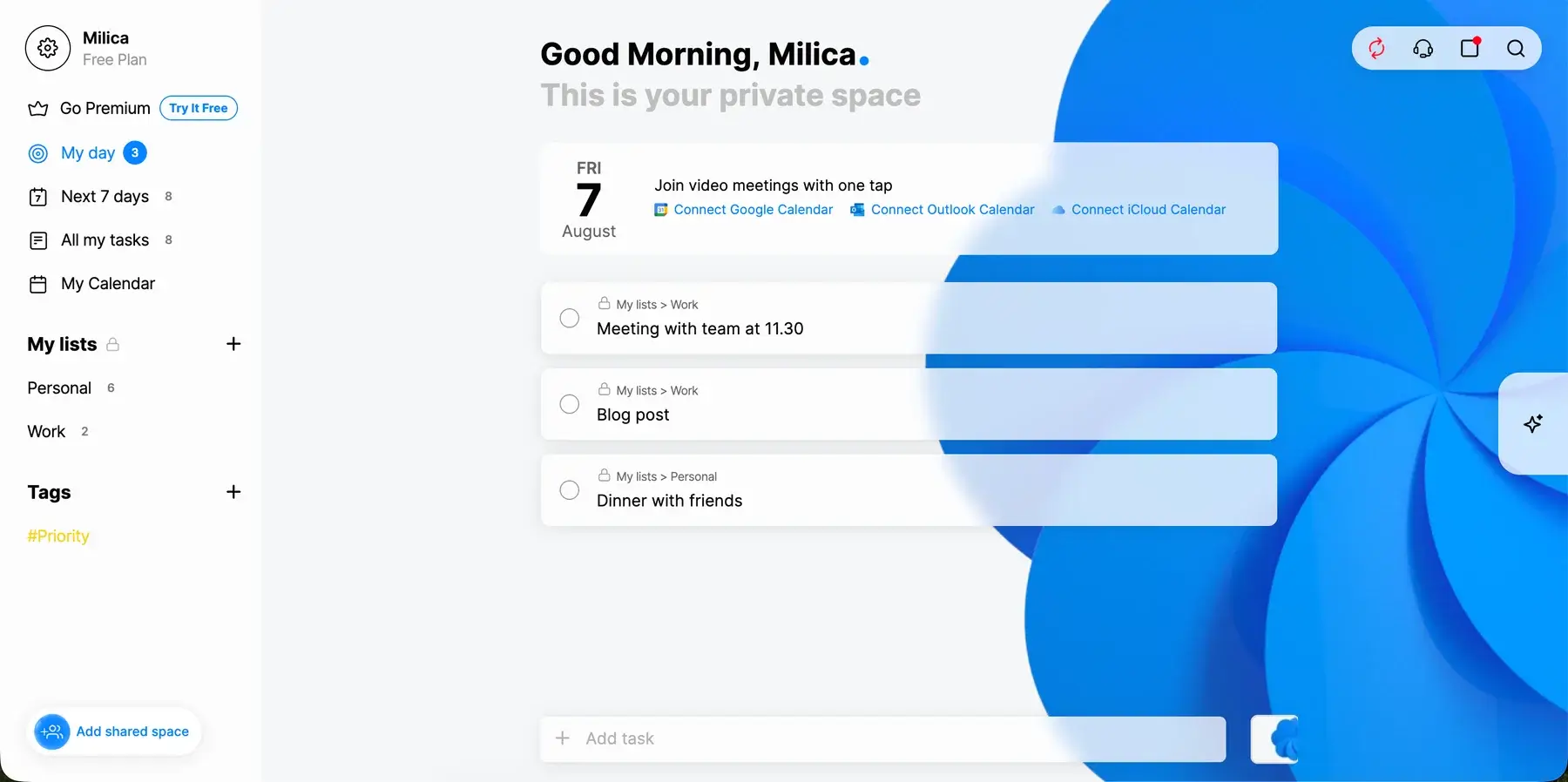
Another great Any.do feature that’s not available in Todoist is the “My day” section.
This section shows you what you need to focus on that given day. The sidebar suggests overdue and unscheduled tasks that you can schedule for today in just 1 click.
For me, this is super-useful for keeping track of all those tasks I keep forgetting about, as it allows me to add them to the list if I have time to complete them that day.
However, I couldn’t create a recurring task for regular weekly activities as they’re only available in the Premium plan. The same goes for tagging and coloring tasks in custom ways that would help me differentiate them at a glance.
Nevertheless, Any.do remains one of the go-to options for those looking for Todoist alternatives. Overall, it offers a great deal of useful features on its free plan, like the calendar view and unlimited projects, packed in an easy-to-use interface.
💡 Plaky Pro Tip
Need an Any.do alternative? Check out our overview below:
What’s new in Any.do?
Any.do recently introduced its MCP integration, which allows users to connect the app to AI assistants (like ChatGPT or Claude). There have also been improvements to Smart Type and Quick Add, making it easier to create tasks quickly by using natural-language dates and times.
Available for: web, macOS, Windows, Linux, iOS, Android, iPad, and Apple Watch
| Plan | Price |
|---|---|
| Personal | $0 |
| Premium | $4.99/user/month* |
| Family | $8.33/4 users/month* |
| Teams | $4.99/user/month* |
*billed annually
#3 monday.com — best for app integrations
Monday.com is a well-known project management app with plenty of integrations that help teams increase productivity and improve collaboration.
Why choose monday.com?
monday.com offers integrations with 200+ other apps, making it simple to connect all the apps you’re already using. You can integrate collaboration, CRM, and file management apps and connect your ecosystems to create a powerful work hub.
| Pros | Cons |
|---|---|
| – Automations for eliminating manual work – Easy to learnIntegrations with 200+ apps | – Expensive – No 24/7 support on the free plan |
From the beginning, I thought monday.com had a clean interface and that it would be pretty easy to use. I started creating tasks right away, adding notes, due dates, and their statuses.
Discovering that monday.com Marketplace offers so many integrations was a revelation. There are hundreds of options to choose from to expand and customize the boards.
One of them that is rarely available in other apps — including Todoist — is connecting boards. This integration makes it possible to add a column that mirrors data from other boards, allowing me to manage projects separately but view and edit data from one another.
Connecting monday.com to other apps is a step toward automations, which is another feature the platform offers.
For example, I can set up an automation that creates an action item as soon as certain emails reach my inbox. The sheer amount of possibilities that the Marketplace offers tells me I would be able to set up an incredibly intricate workflow.
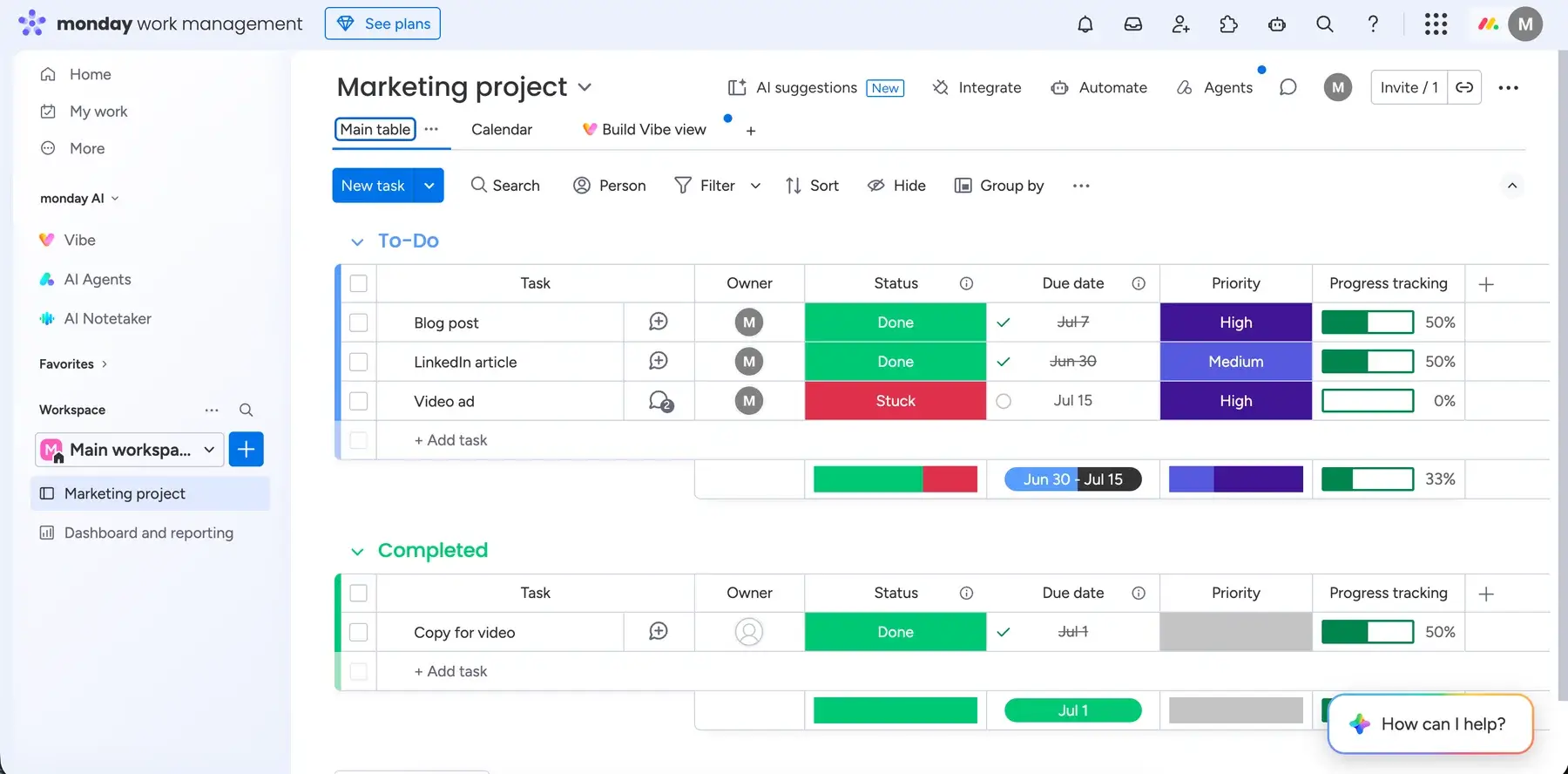
Compared to Todoist, monday.com offers a better task overview thanks to the grid view that lets me see and change properties like status, date, and budget. Customizing the boards by adding columns and arranging them as I like makes monday.com a better option for me personally because it fits the way I like to categorize my to-dos. In comparison, Todoist doesn’t offer the possibility to add custom fields or view tasks on a grid.
There’s also a calendar view that lets you add tasks directly to it and even define the time. This feature is especially useful for using monday.com as a daily task planner, scheduling different activities throughout the day, and having a neat overview of plans.
However, the calendar view is only available from the Standard plan and above, which costs a minimum of $36 per month. Another flaw? 24/7 customer support is only available to paid plan users.
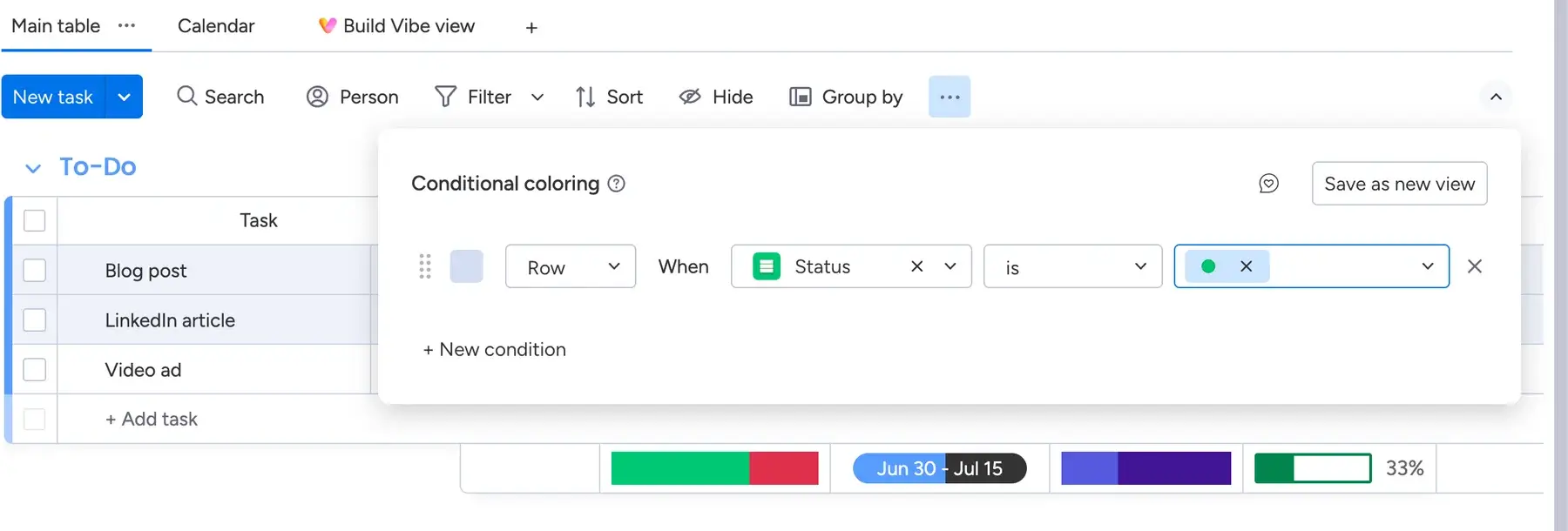
All in all, monday.com has a straightforward interface, and you’ll be able to set up your projects in no time. But, if you want to take advantage of all its features, you’ll have to dig deep into your pockets as it’s quite pricey.
What’s new in monday.com?
Most recent updates in monday.com have to do with AI. For instance, you can now add a human-in-the-loop step to an AI workflow. Also, the platform has added an MCP block that lets AI workflows interact with third-party apps, which makes it easier to connect work across different tools.
Available for: web, macOS, Windows, Linux, iOS, and Android
| Plan | Price |
|---|---|
| Free | $0 |
| Basic | $9/user/month + 1,000 AI credits/month ($10)* (3 seats minimum) |
| Standard | $12/user/month + 2,000 AI credits/month ($20)* (3 seats minimum) |
| Pro | $19/user/month + 3,000 AI credits/month ($30)* (3 seats minimum) |
| Enterprise | POA |
*billed annually

#4 Kanbanchi — best for Google Workspace integration
Kanbanchi is a task management platform that is focused on expanding the Google Workspace with Kanban-based task management.
Why choose Kanbanchi?
Kanbanchi neatly integrates with Google’s services, so you can connect your calendar and Google Drive to manage both your time and files in one place.
| Pros | Cons |
|---|---|
| – Google Workspace integration – Integrated time tracker – Custom card properties | – Limited number of cards on the free plan |
Kanbanchi’s interface is clean and intuitive, so I didn’t find it too difficult to start using the app and create my projects and tasks.
I could also seamlessly attach files to each task through the Google Drive integration. This feature gives Kanbanchi a huge advantage because a Google Drive+Todoist integration is only possible through third-party apps.
Thanks to this integration, you don’t have to worry about file upload limitations in Kanbanchi, as you can upload anything from your Google Drive, no matter the size. In contrast, Todoist imposes a 100 MB cap on file size on both of its paid plans.
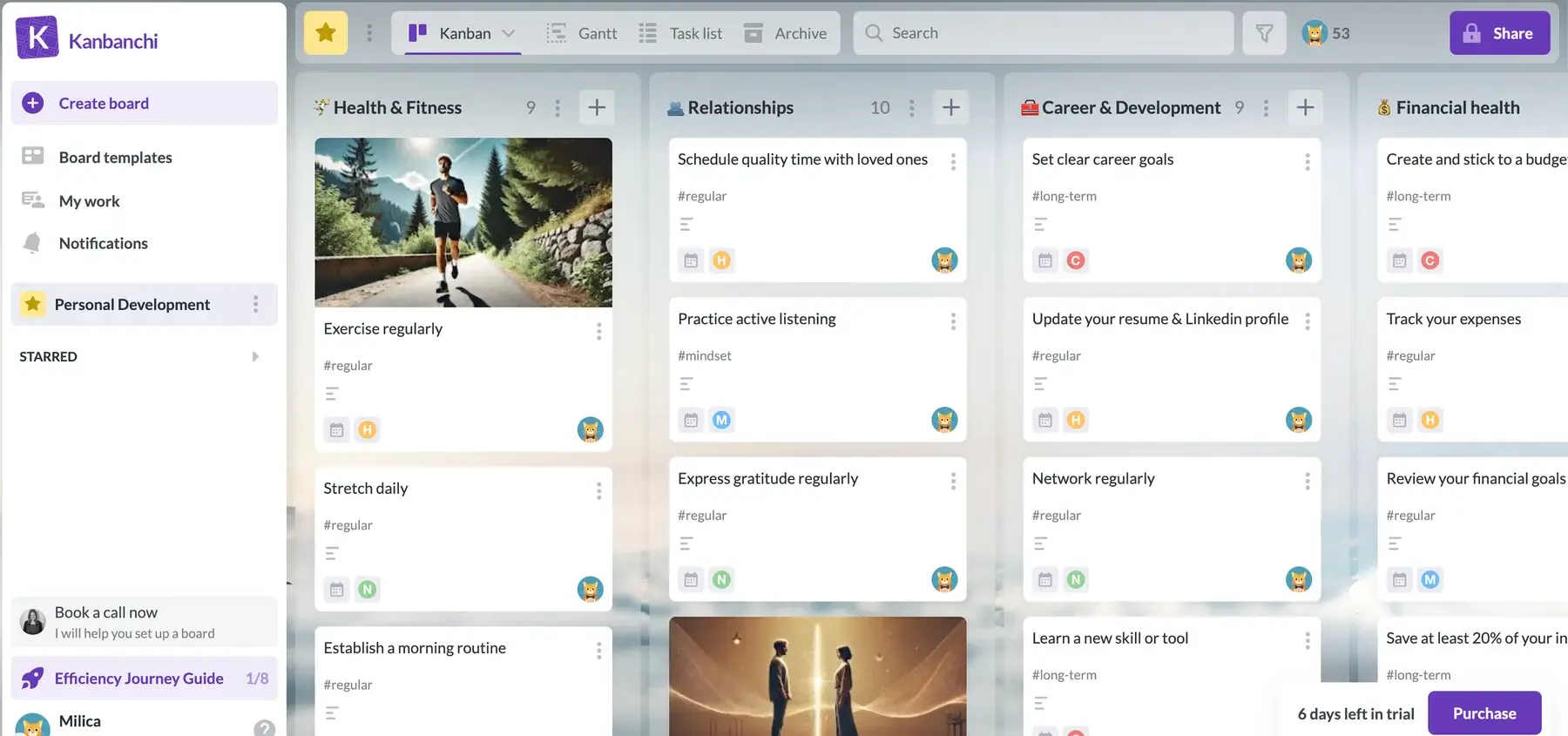
As the name itself suggests, Kanbanchi’s specialty are Kanban boards. So, it’s no surprise I was able to organize my tasks on a Kanban board with ease and have a clear overview of the entire workflow.
Each Kanbanchi task can be enriched with details like:
- Description
- Start and due date
- Assignees
- List
Tasks are easy to move around on the board between lists. I could also change their status within the card in the drop-down menu and update assignments without the hassle of opening each card.

A really interesting feature is a built-in stopwatch in each card. You can estimate the time you think you’ll spend working on a certain task, and then compare it to the actual tracked time. In Todoist, on the other hand, there’s no native time tracking solution, but you can integrate it with Clockify instead.
To sum up, Kanbanchi seems to be a good addition to Google Workspace for teams who need to view their projects in:
- Kanban columns
- Gantt charts
- Task lists
However, if you want to tackle personal tasks with Kanbanchi, know that the app might be too much, mainly because the sheer number of options and the colorful interface make it look super-cluttered.
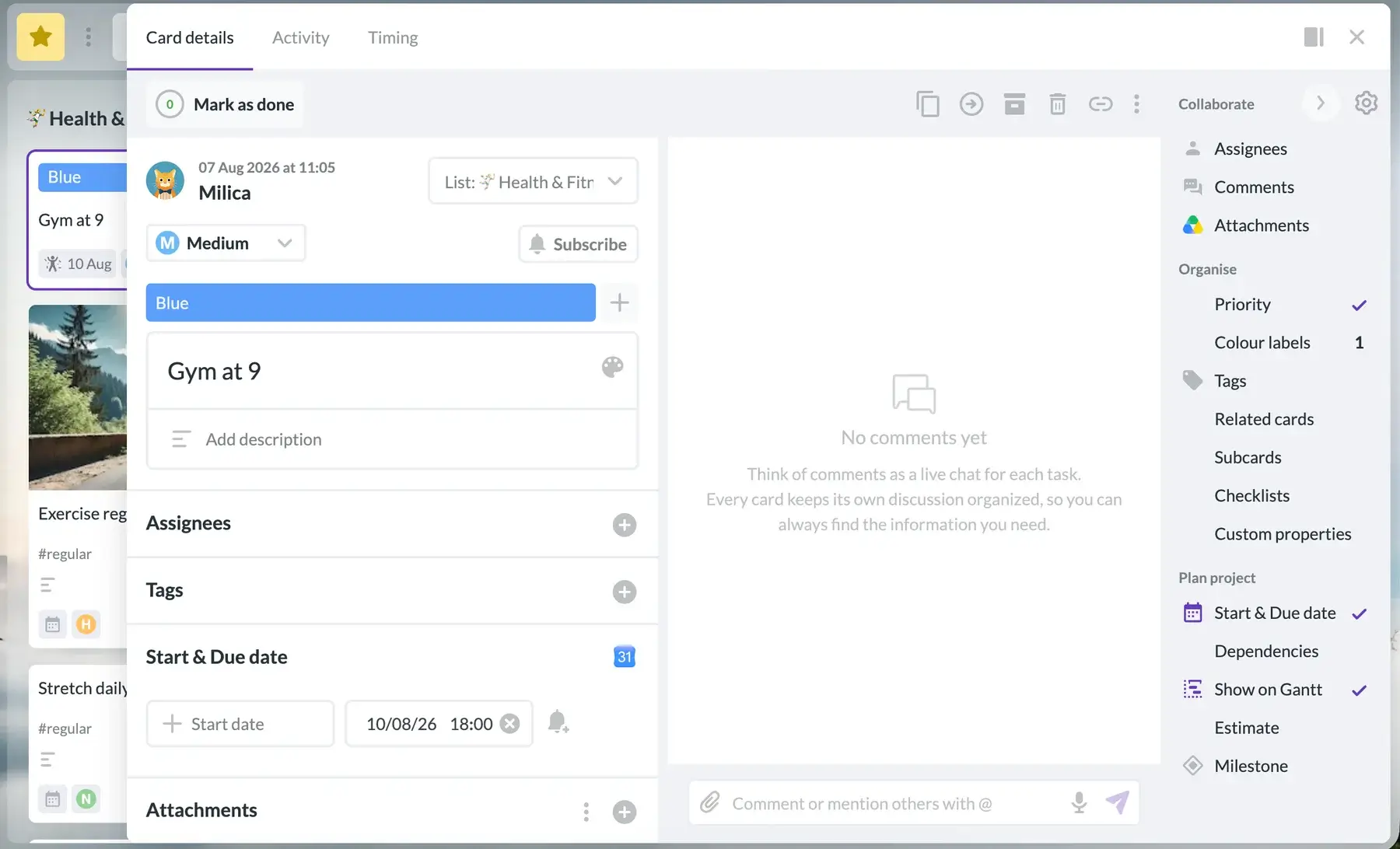
Additionally, the free trial lasts only 7 days. So, you’ll barely have the time to try out the app and connect it to your Google account before being forced to pay or adapt to the extremely limited free plan.
What’s new in Kanbanchi?
Kanbanchi hasn’t had major updates lately. The app has mainly focused on making boards easier to organize and navigate, enhancing search and filtering, and boosting security.
Available for: web, macOS, Windows, Linux, iOS, and Android
| Plan | Price |
|---|---|
| Essential | $3.97/user/month* |
| Premium | $13.97/user/month* (custom price from 2 seats) |
| Professional | $33.97/user/month* (custom price from 2 seats) |
| Enterprise | $99.95/user/month* (custom price from 100 seats) |
*billed annually
#5 TickTick — best for habit tracking
TickTick is a personal task management app that lets you schedule tasks, track habits, and customize your workspace.
Why choose TickTick?
TickTick could be a great Todoist alternative if you’re looking for a user-friendly app that lets you track both your daily tasks and your habits.
| Pros | Cons |
|---|---|
| – Easy to use – Habit tracker – Recurring tasks | – No calendar view and task durations in the free plan |
As soon as I opened TickTick, I liked its design and outline. Pretty soon I discovered that I could choose between free workspace backgrounds, so I chose my favorite color — pink.
One of TickTick’s outstanding features is the habit tracker, which is great for those who struggle with starting a new lifestyle. You can define how often you would like to achieve a certain goal, when you would like to check if you’re following through, and how often you need to be reminded of your new habits.
I tried to find the same feature in Todoist and discovered that it’s available in the form of an extension, which adds a few extra steps when I compare it to TickTick’s integrated options.
The difference is that Todoist doesn’t let you choose on which days you’d like to keep a certain habit — going to the gym every other day, for example. Instead, it assumes you want to keep a steady streak every day.
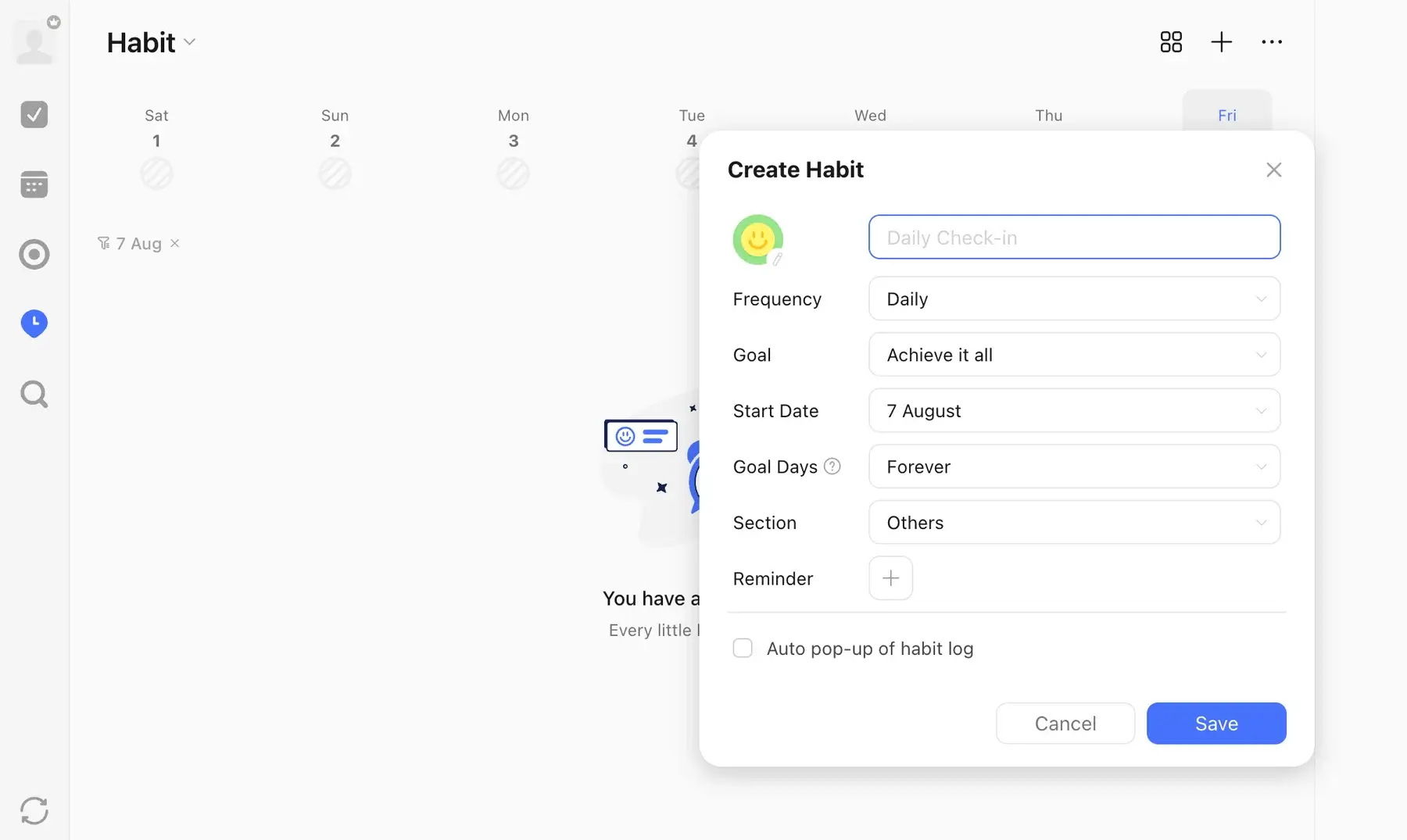
In TickTick, I was able to define the task’s date and time, as well as set recurring tasks. But, what really stands out is the Reminder option.
Unlike other apps, TickTick let me set up multiple reminders for a single event even on its free plan. For example, I could set a reminder on the same day, days ahead, or at custom times and days. To compare, Todoist lets you set up additional reminders only on its paid plans.
It’s also possible to add more details about each item in the description box or add a checklist, which was especially useful to me for groceries, for example. In Todoist, I can create a bullet list within a task, but it doesn’t offer the same checklist options with items I can tick off as TickTick does.
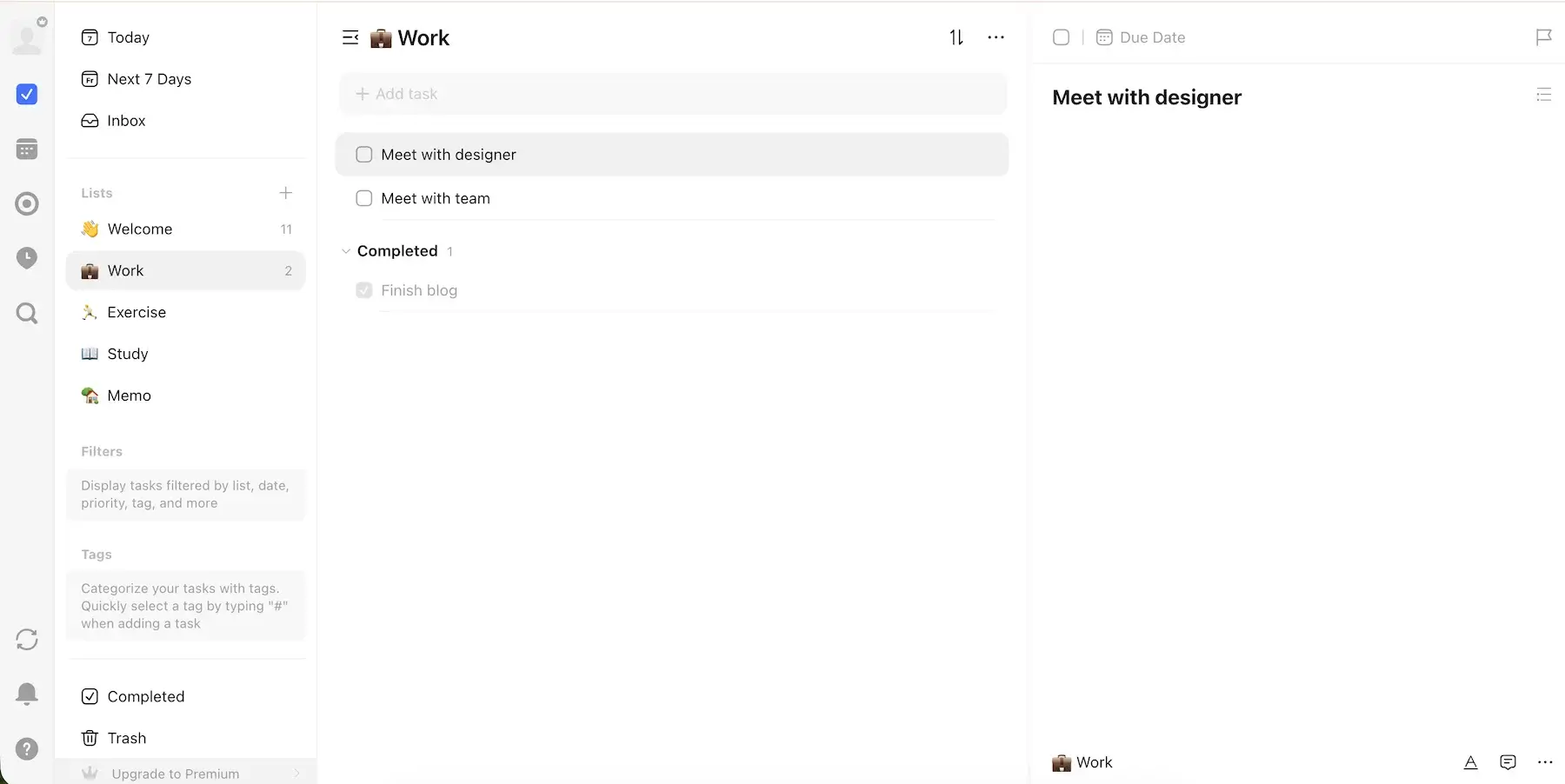
The calendar view and timeboxing feature are even more helpful as you can schedule activities, set up their duration, and view them in a weekly or monthly calendar. Unfortunately, though, these aren’t available in the free version.
Overall, both TickTick and Todoist have free versions, so you can try them and take your time in deciding which to use and whether you need paid features. TickTick is a slightly cheaper option, though, as its Premium plan costs $1 less than Todoist’s Pro plan per user per month.
What’s new in TickTick?
Some of the recent novelties in TickTick include a Telegram integration, as well as improved search, reminders, templates, and calendar views to make everyday task management a little more flexible.
Available for: web, macOS, Windows, Linux, iOS, and Android
| Plan | Price |
|---|---|
| Free | $0 |
| Premium | $3/user/month ($35.99) |
*billed annually
#6 Remember The Milk — best for to-do lists
Remember The Milk (RTM) is a task management app that focuses on to-do lists and scheduling tasks.
Why choose Remember The Milk?
The free version of Remember The Milk is excellent for keeping your personal tasks under control. Features like setting due dates and adding notes and tags are also super-useful for creating a personal schedule.
| Pros | Cons |
|---|---|
| – Recurring tasks – Time scheduling – Creating tasks through emails | – Outdated interface – Subtasks not available in the free plan |
When I accessed Remember the Milk, I was greeted with a quick pop-up tutorial that welcomes new users by pointing at the main features and how to use them. I liked this a lot because it made it easy to get the hang of the app from the beginning.
Another thing that’s pretty easy to do in this app is add fields to each task, such as URL, location, tags, and assignees. However, attaching files from Google Drive requires an upgrade of the RTM account to Pro.
Remember The Milk shows your tasks as lists and displays the number of tasks due today and overdue tasks in the sidebar. It’s possible to select multiple tasks and make bulk changes like completing, postponing, and prioritizing them.
To compare, Todoist doesn’t offer the option to postpone tasks, and you can only set a deadline and task duration on paid plans.
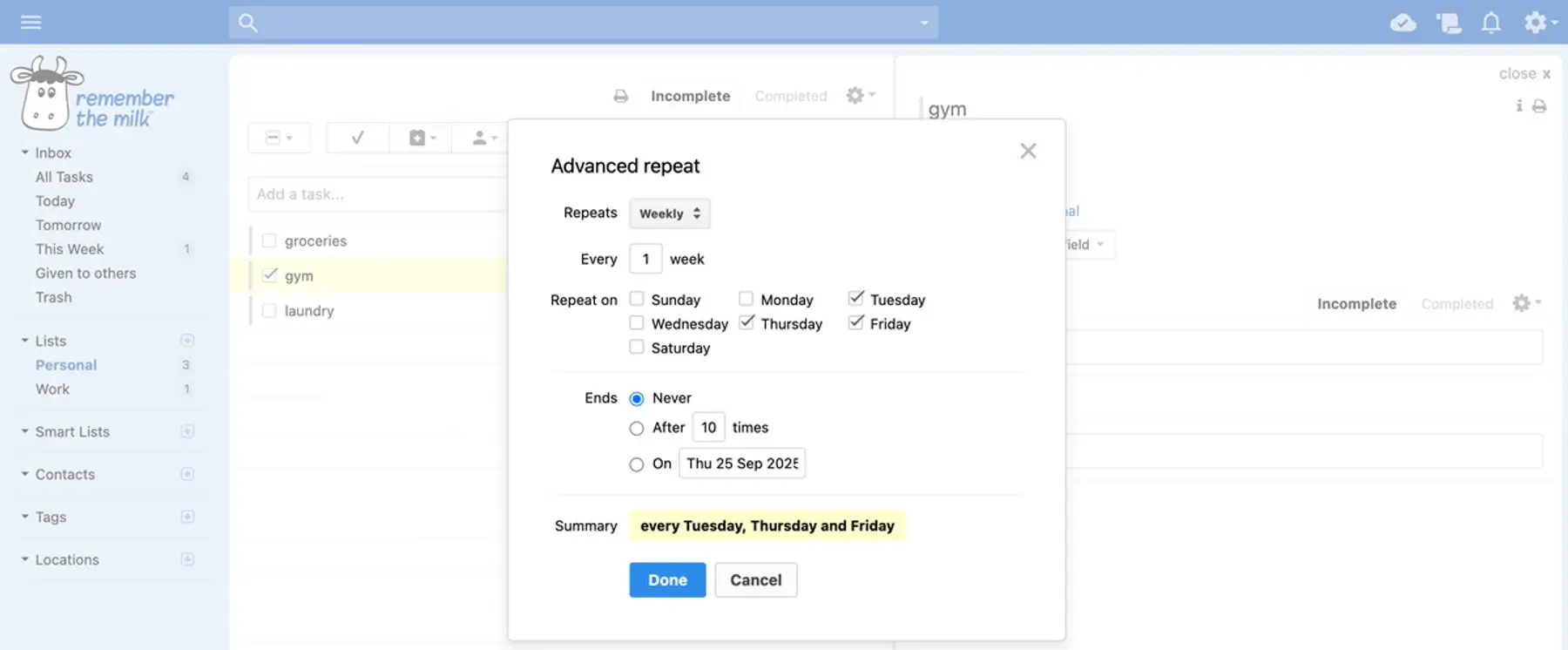
I like how simple it is to set up recurring tasks in RTM — you can create custom patterns with a scheduled time for them and make precise plans on a weekly, monthly, or yearly basis. This feature is crucial for personal planning, tracking habits, and event scheduling.
Another interesting feature is the ability to email a task. You get a personalized email address and can send a task to yourself where the subject line becomes the task name, and the body of the email goes into the task’s description box.
Todoist does have a similar feature, but it’s more complicated, as a new email address is generated for each project that you want to email tasks to.
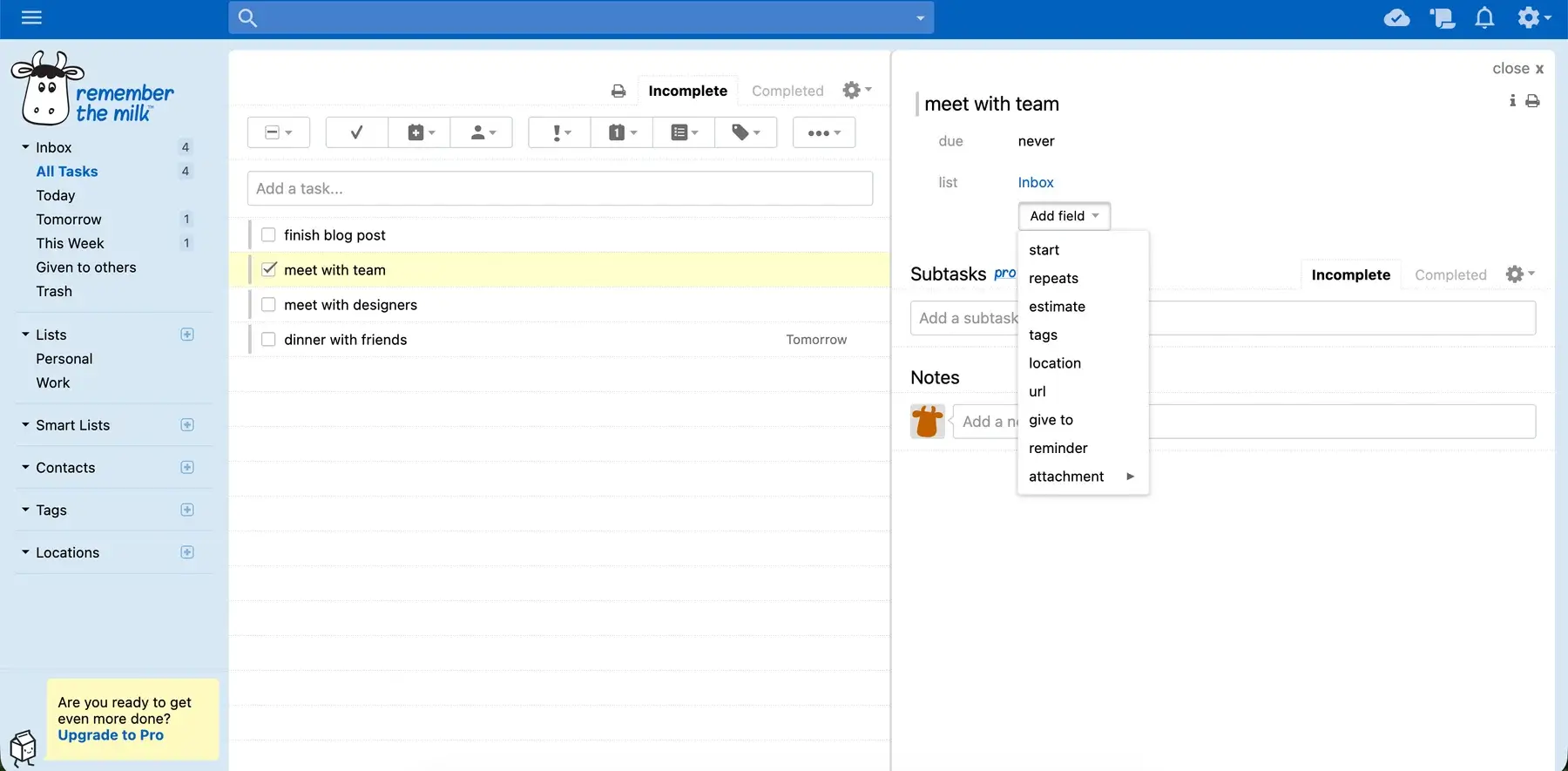
Many users also appreciate that they can set up start dates even on RTM’s free plan. In Todoist, you can only define a due date.
On the other hand, RTM lacks calendar and Kanban views even on its paid plans, which can be a setback for some people who need those views to organize their schedules.
Another difference between these 2 apps is the Google and Dropbox integration for attachments, something that is painfully absent from Todoist.
These integrations are only available in the RTM Pro plan, which costs $49.99 yearly. In comparison, Todoist costs only $2 less ($48 yearly for the Pro plan).

What’s new in Remember The Milk?
The only recent development I could find is Remember The Milk’s MCP integration. It lets AI assistants work with your RTM account to help you create and edit tasks.
Available for: web, macOS, Windows, Linux, iOS, Android, iPad, and Apple Watch
| Plan | Price |
|---|---|
| Free | $0 |
| Pro | $4.17/user/month ($49.99) |
*billed annually
💡 Plaky Pro Tip
Making to-do lists is just one of the ways to organize your workday. Read more tips in this article:
#7 Things — best for Apple enthusiasts
Things is a task management tool that is only available as a downloadable app for Apple users. Its simplicity and unique views make it the tool of choice for those who need an uncluttered space for their thoughts and to-dos.
Why choose Things?
Things is an appealing app to Apple users because it functions as a great addition to existing native apps like Reminders and Calendar. Plus, it only requires a one-time fee rather than a monthly or yearly subscription.
| Pros | Cons |
|---|---|
| – Familiar Apple design – One-time fee – “Someday” list for non-urgent tasks | – No free version – Free 15-day trial only for macOS |
Things’ interface is clean and simple, so I was able to create and schedule tasks quickly. The app connects to your Calendar and Reminders, meaning that everything I put into Things appeared there as well.
Things is built specifically for Apple, so there’s no lagging or cross-platform issues. The design is also completely adapted to the Apple esthetic, and the app has a native feel.
In fact, Things almost seems like the missing link between Apple apps and to-do list tools. To compare, Todoist has its own design, and Apple enthusiasts usually don’t appreciate how web-based it looks.
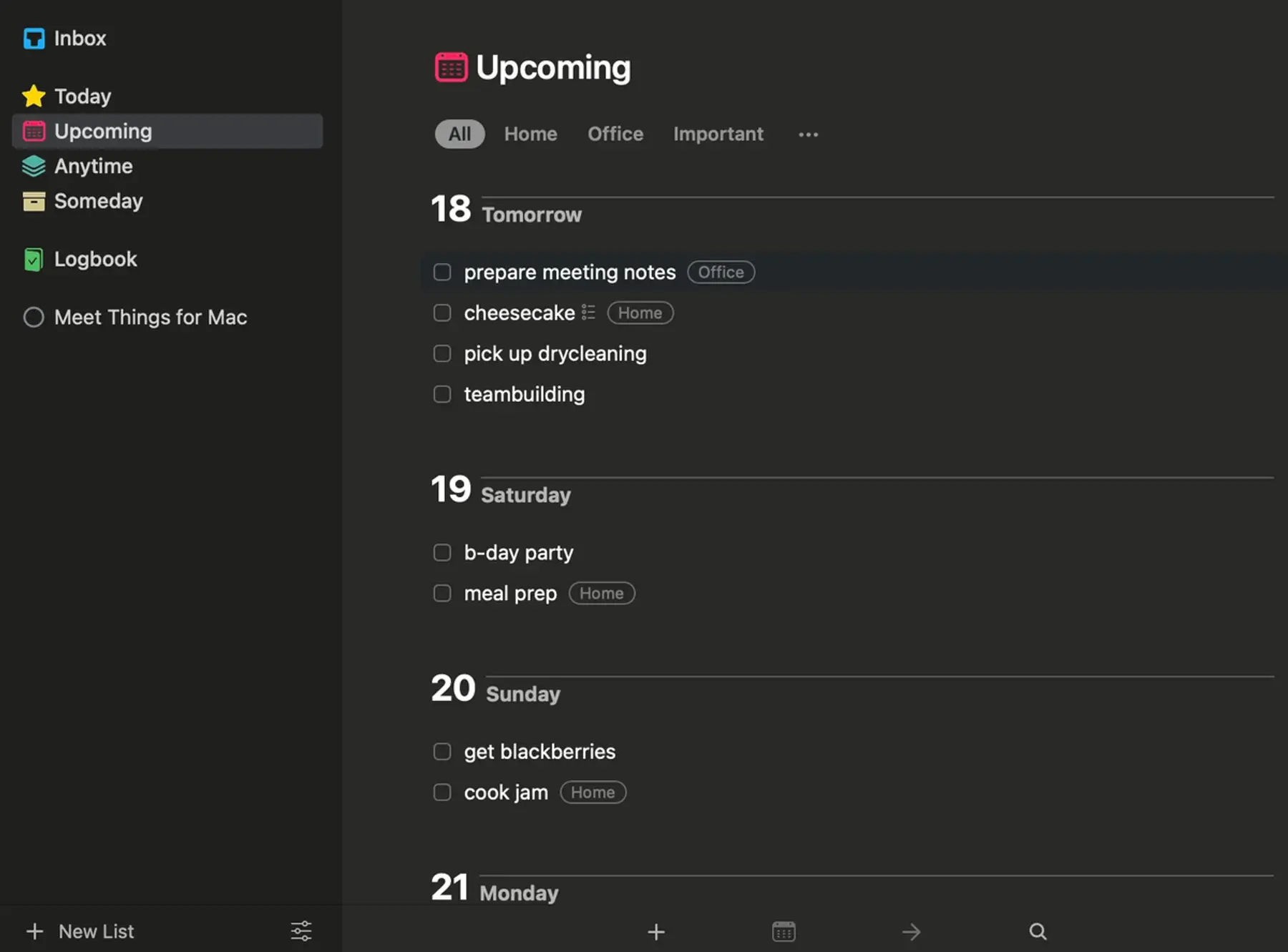
Unlike in Todoist, I was able to add a checklist to each task in Things, which is super useful for grocery shopping. However, there’s no option in Things to split a task into subtasks, and figuring out how to make tasks repeat is not intuitive.
A great feature, however, is the “Someday” list where you can store all the tasks that you’re not sure when you’ll find the time for, but don’t want them to clutter your to-do list.
In Todoist, there’s no such list. Instead, you can create an additional task section in your Inbox and put all the non-urgent tasks there. But once your lists become more cluttered, it can be difficult to find them.
The default Things philosophy is that the date you set for each activity is the start date, marking the time you can begin working on something. Todoist doesn’t have the start date feature, as I’ve already mentioned, and this is something that makes users look for alternatives.
In Things, I was also able to define a deadline, and the app automatically showed me how many days were left until that date. This option is great for tasks like paying the bills because it lets me know how urgent they are.
In comparison, Todoist does offer a deadline feature, but it’s only available if you upgrade your account.
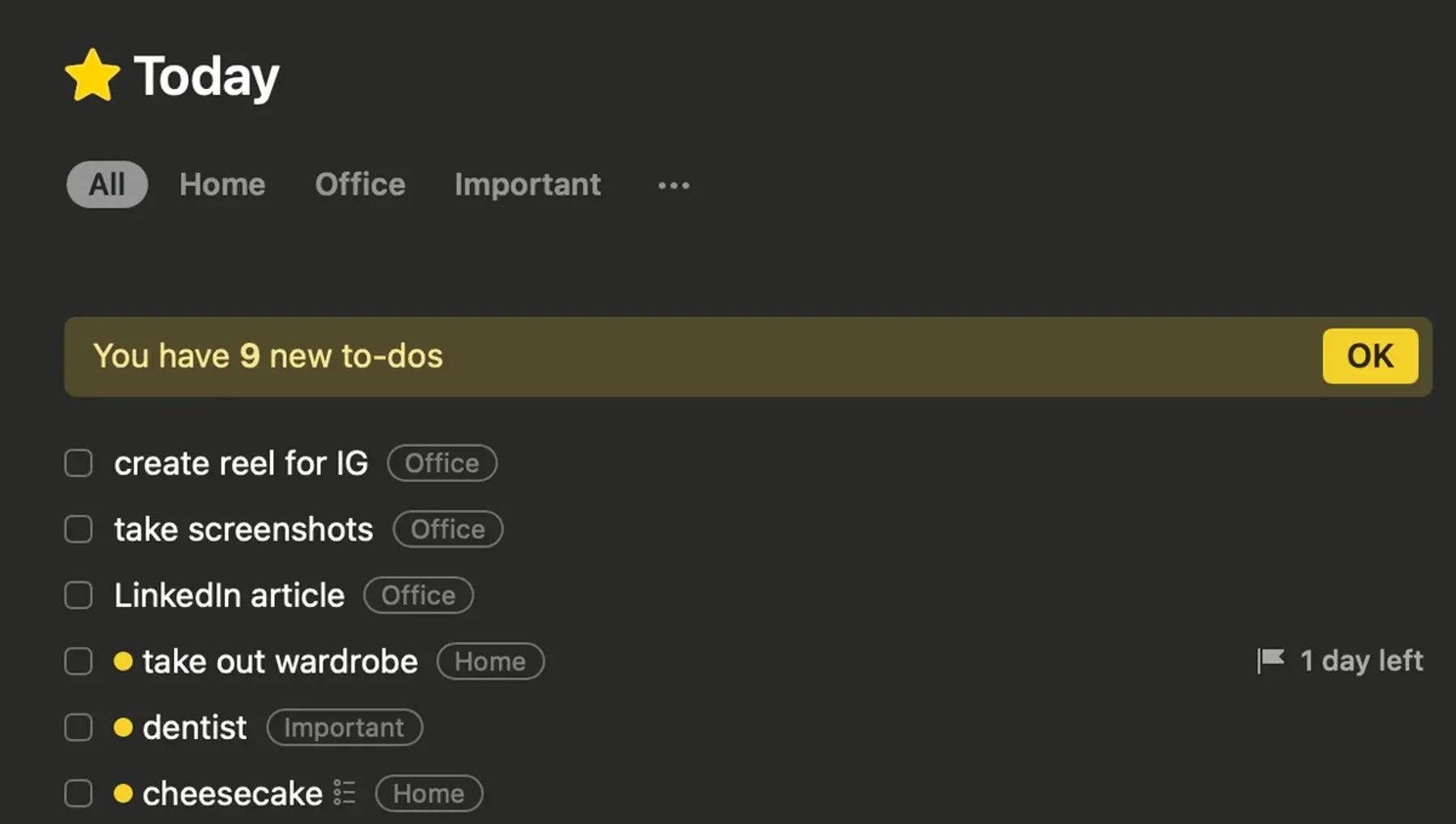
What I thought was missing in Things is a true calendar view. Admittedly, the app connects perfectly with your device’s calendar, but it would be nice to have it all in one app.
Another problem is that the 15-day free trial is available only to Mac users, which is of no use if you want to try out what it’s like to track tasks with Things on your iPhone.
What’s new in Things?
Things brought a useful overhaul to repeating tasks. Users can now complete recurring to-dos early, reschedule them more easily, and create the next occurrence ahead of time, all of which makes recurring routines more flexible.
Available for: macOS, iOS, iPad, Apple Watch
| Plan | Price |
|---|---|
| Mac | $49.99* |
| iPhone, iPod touch, Apple Watch | $9.99* |
| iPad | $19.99* |
| Apple Vision | $29.99* |
*One-time fee
#8 OmniFocus — best for daily overviews
OmniFocus is another productivity and task management app available only to Apple users. With a one-time fee, you can use the app to organize your time and assignments.
Why choose OmniFocus?
OmniFocus offers a unique solution that lets you see how many tasks you have scheduled for each day in a calendar.
| Pros | Cons |
|---|---|
| – Time scheduling – Calendar view – Seamless sync with Apple products | – No web version without existing Apple app – No true recurring actions |
OmniFocus’s interface looks simple enough, but I could see right away that every button contains many options, which seemed a bit discouraging. It was clear to me that the OmniFocus onboarding process will be longer than Todoist’s and that a lot of exploring was ahead of me.
While planning the week or day ahead, the calendar showed me how many events or things to do I’d have. For example, a day with 1 scheduled task seems like a breeze, while a number 9 on a calendar probably requires a more detailed plan. This feature can’t be found in Todoist or in any other app that I tried out.
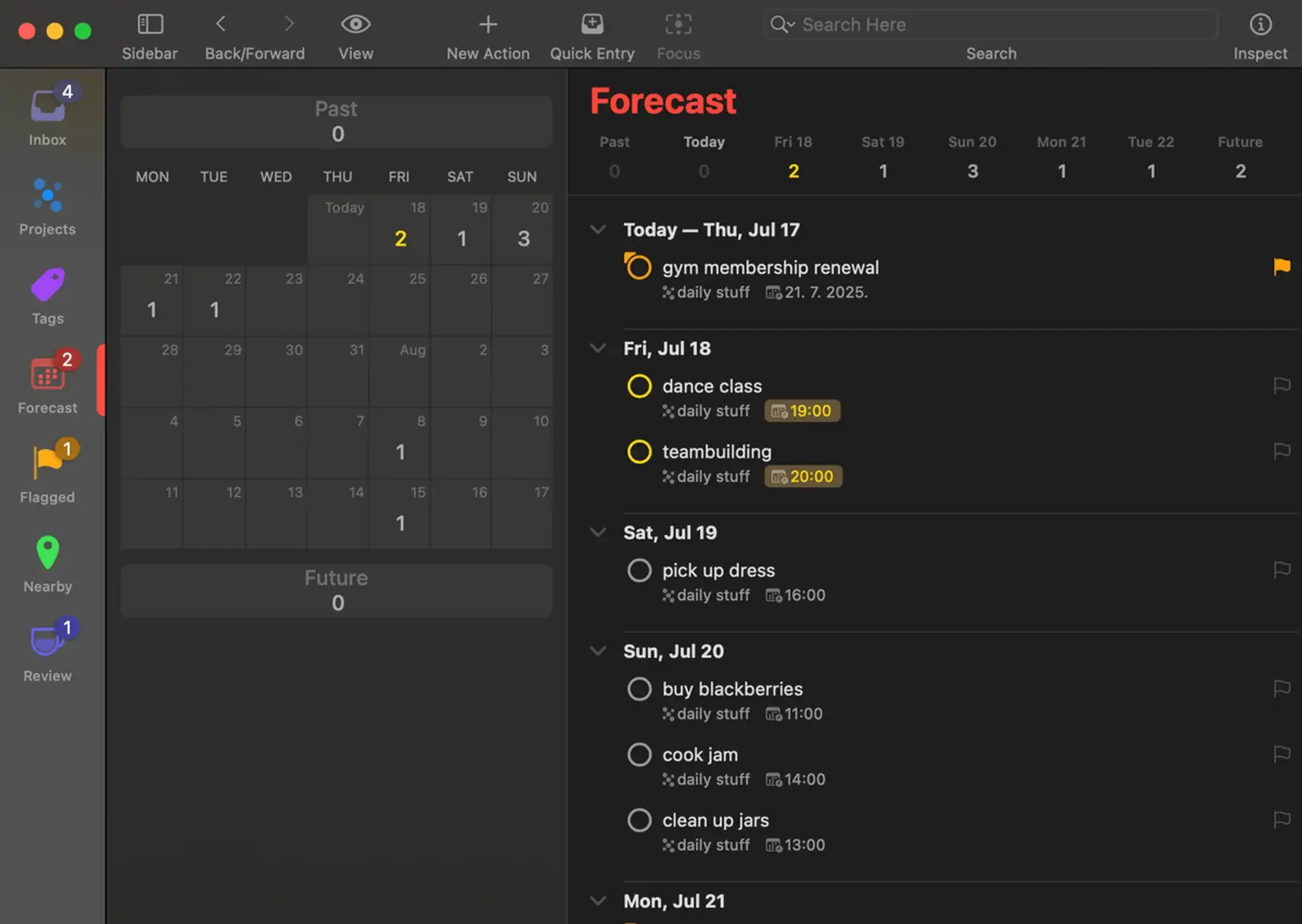
I could schedule to-dos on specific dates and times in OmniFocus, but there’s no real option to create recurring tasks. This could be really inconvenient for my repeating daily or weekly tasks, like going to the gym, since I’d have to waste a lot of time scheduling them again and again.
The app also lacks reminders, which forced me to check the app at least once a day to see what’s due. This was a real problem, since I sometimes simply forget to check my upcoming tasks, resulting in overdue tasks.
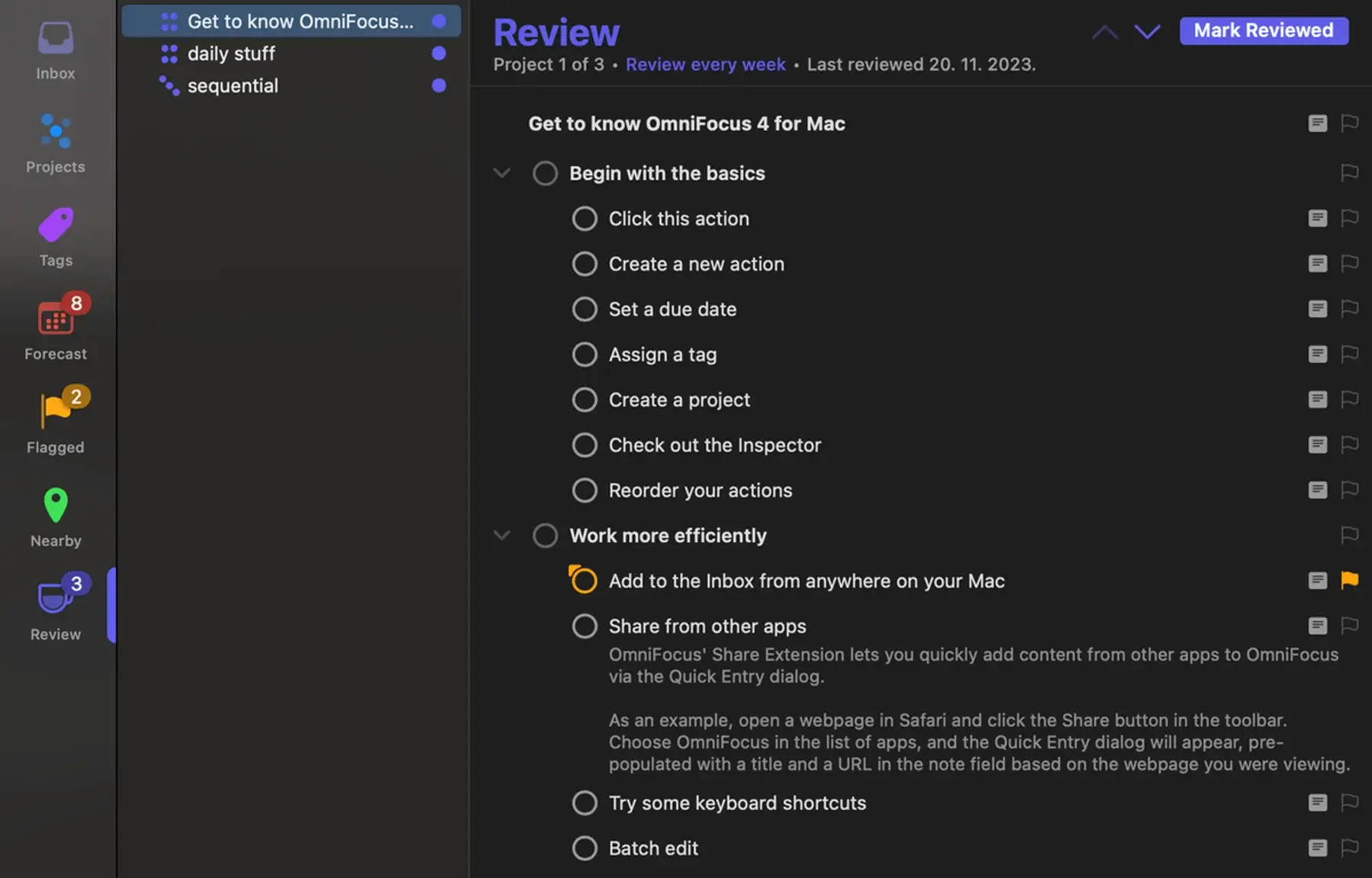
In OmniFocus, there are also a few cool features that other apps lack, like:
- Sequential projects — see only the task that you should be working on, as subsequent actions are not displayed until the current one is completed.
- Custom perspectives — select multiple criteria to create your own custom task viewpoint.
- Defer dates — hide activities until a set date.
Another difference in comparison to Todoist is that you can pay for OmniFocus only once and never think about it again, while Todoist only offers monthly and yearly subscriptions.
That said, it seems to me that OmniFocus offers many options that take much too long to be explored. I saw the long list of customization options and realized it would take a lot of effort to learn how to use it to its full potential.
Additionally, OmniFocus offers only a 14-day free trial. After that, you need to upgrade to a paid plan. Also, the sign up process was lengthy and confusing. You need to download the app for the 14-day free trial, and for the web version of the app, you need to have a paid license.
For an easy-to-use app, try Plaky
What’s new in OmniFocus?
Recent updates in OmniFocus include only bug fixes.
Available for: macOS, iPhone, iPad, Apple Watch, and Apple Vision Pro
| Plan | Price |
|---|---|
| Standard | $74.99* |
| Pro | $149.99* |
| Web | $4.99/user/month or $49.99/user/year |
| Annual subscription | $99.99/user/year |
*1-time fee
#9 Nirvana — best for getting things done
Nirvana is a productivity app used to implement the Getting Things Done (GTD) method — a personal time management and productivity method that encourages jotting down tasks and breaking them down into manageable pieces.
Why choose Nirvana?
Nirvana has a very simple interface and a menu that lets you create items, actions, and projects within seconds. Once you’re acquainted with the app, you’ll start using the keyboard shortcuts, become even faster — and actually get things done.
| Pros | Cons |
|---|---|
| – Timeboxing activities – Easy to use – Eye-friendly dark theme | – No time scheduling – No calendar view – Recurring tasks only in Pro |
Nirvana is praised for its simplicity and adaptability to the GTD method. I did a bit of research and saw that this method requires an inbox where you collect and process all your to-dos. Then, you organize these items by categories: someday, waiting, or scheduled.
One noticeable difference between Nirvana and Todoist is that Nirvana lacks a calendar view. Instead, tasks are organized across 5 tabs:
- Next — place where you can filter activities by tag, date, and duration
- Waiting — activities that are stuck because you’re waiting on someone or something
- Scheduled — tasks with a defined due date
- Someday — to-dos that don’t have a fixed due date
- Focus — starred activities that you marked as important
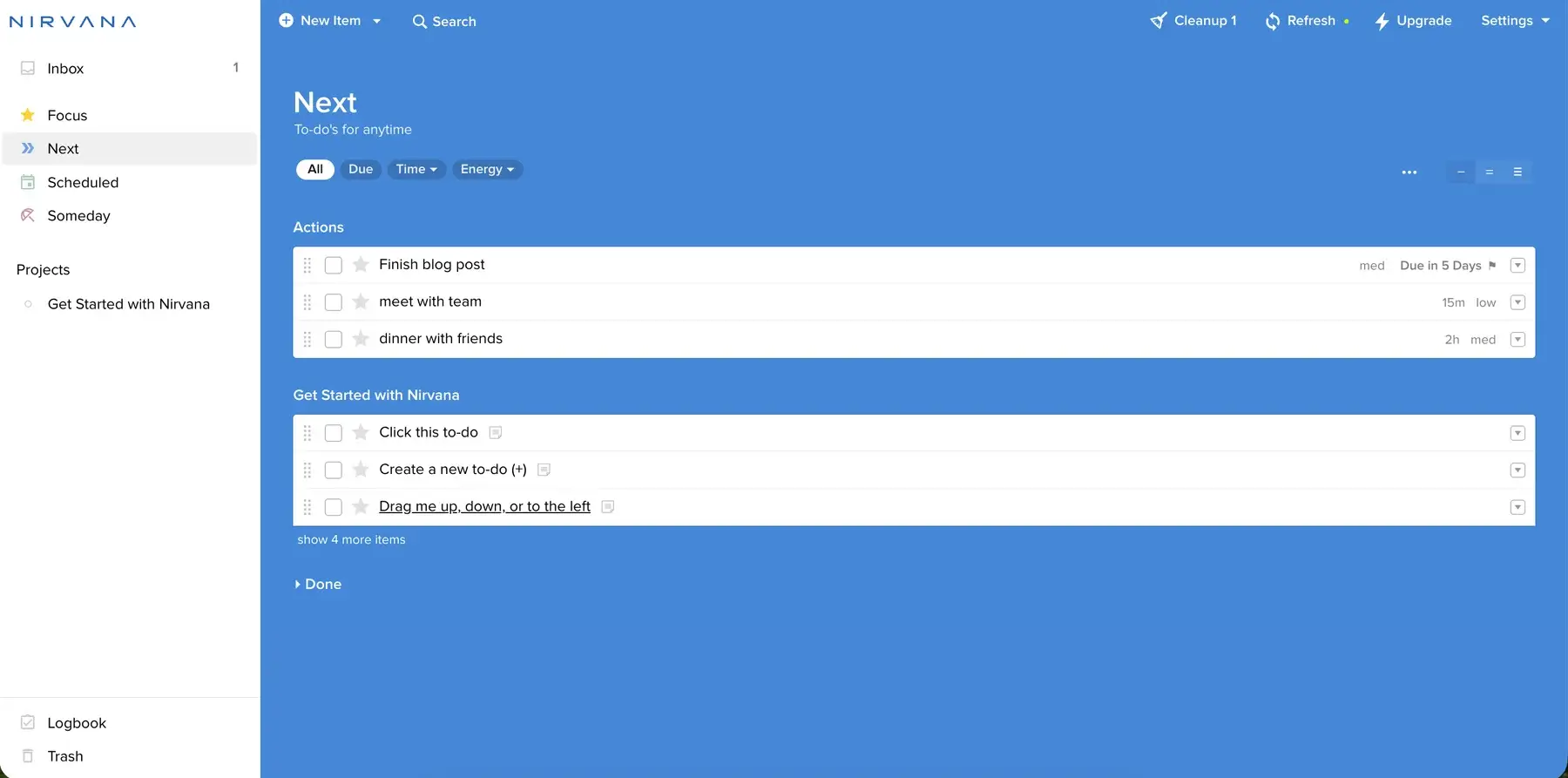
I tried to apply the GTD method and create all my tasks in the Nirvana Inbox section. I was then able to drag and drop activities into the appropriate categories.
When dropping a task in the scheduled section, a date picker pops up, requiring a start date. If you drop an activity in the waiting list, Nirvana will ask who you’re waiting for to start working on the task.
Todoist doesn’t offer this type of task organization, and you’d have to invest some time into creating a workaround. For example, you could create different projects named as these Nirvana sections, but you wouldn’t have the same pop-ups to condition task transfers.
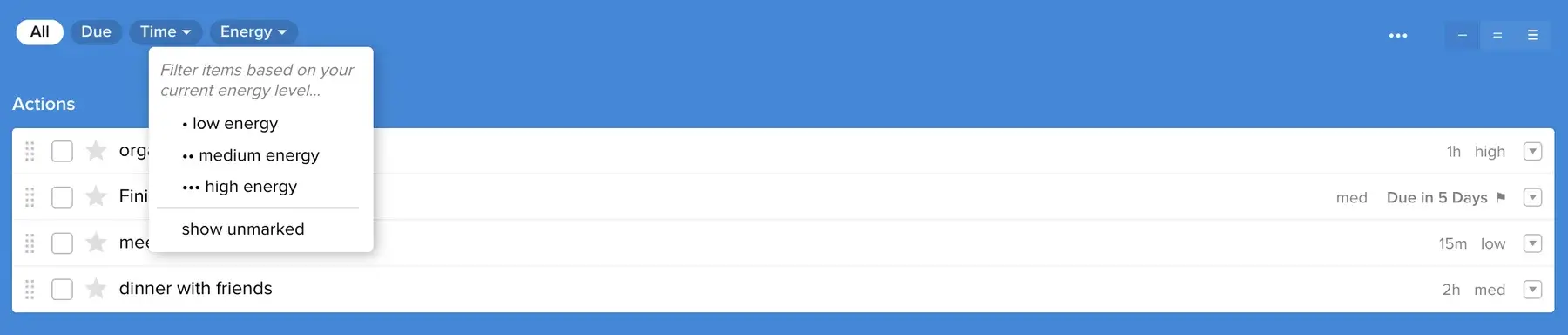
Personally, I found the option to timebox activities in Nirvana quite useful as it lets you see how much time you’ll spend on each activity. For example, a bank appointment will take 30 minutes and a training session will take 1 hour.
The only issue is, you can’t set the exact time for them. This means you can’t plan out your days and weeks ahead and see their schedule chronologically.
Both apps also offer free plans. But, if you’d like some additional features in Nirvana like recurring tasks, you’d have to upgrade to the Pro plan and pay $36 a year — which is $12 less than what you’d pay for Todoist’s Pro plan.
What’s new in Nirvana?
Nirvana has added support for MCP, allowing users to connect the app with AI assistants. There’s also a notable mobile usability update involving several practical improvements — bulk task selection, quick move, widgets, and more.
Available for: web, macOS, Windows, Linux, iOS, and Android
| Plan | Price |
|---|---|
| Free | $0 |
| Pro | $3/user/month |
*billed annually
#10 Sunsama — best for time blocking
Sunsama is a daily planning app with advanced features, like time blocking and scheduling, that let you plan out your schedule in great detail.
Why choose Sunsama?
Sunsama is unique in the time blocking approach, as it lets you visualize and calculate how you spend your time. Once you’ve added all your daily activities and defined their duration, Sunsama will add up all the time they take and let you see how much time you’ve got left in the day.
| Pros | Cons |
|---|---|
| – Time blocking – Visual daily planner – Integrated AI features – Recurring tasks | – Focused on individual use only – Expensive |
The Sunsama onboarding process seemed a bit confusing to me at first. However, by the last step, I had figured out how to use the app, define my tasks, and organize my week with ease.
Sunsama offers many useful features like:
- Integrated stopwatch — I could measure the actual time spent on activities, which gives me a perspective into how I really spend my time.
- Daily highlights — I could summarize my day as if I would in a journal, eliminating the need for keeping daily notes elsewhere.
- Kanban-like board — I could get a clear overview of all my tasks and drag and drop them around to adjust my workflow, which is great when my schedule changes unexpectedly.
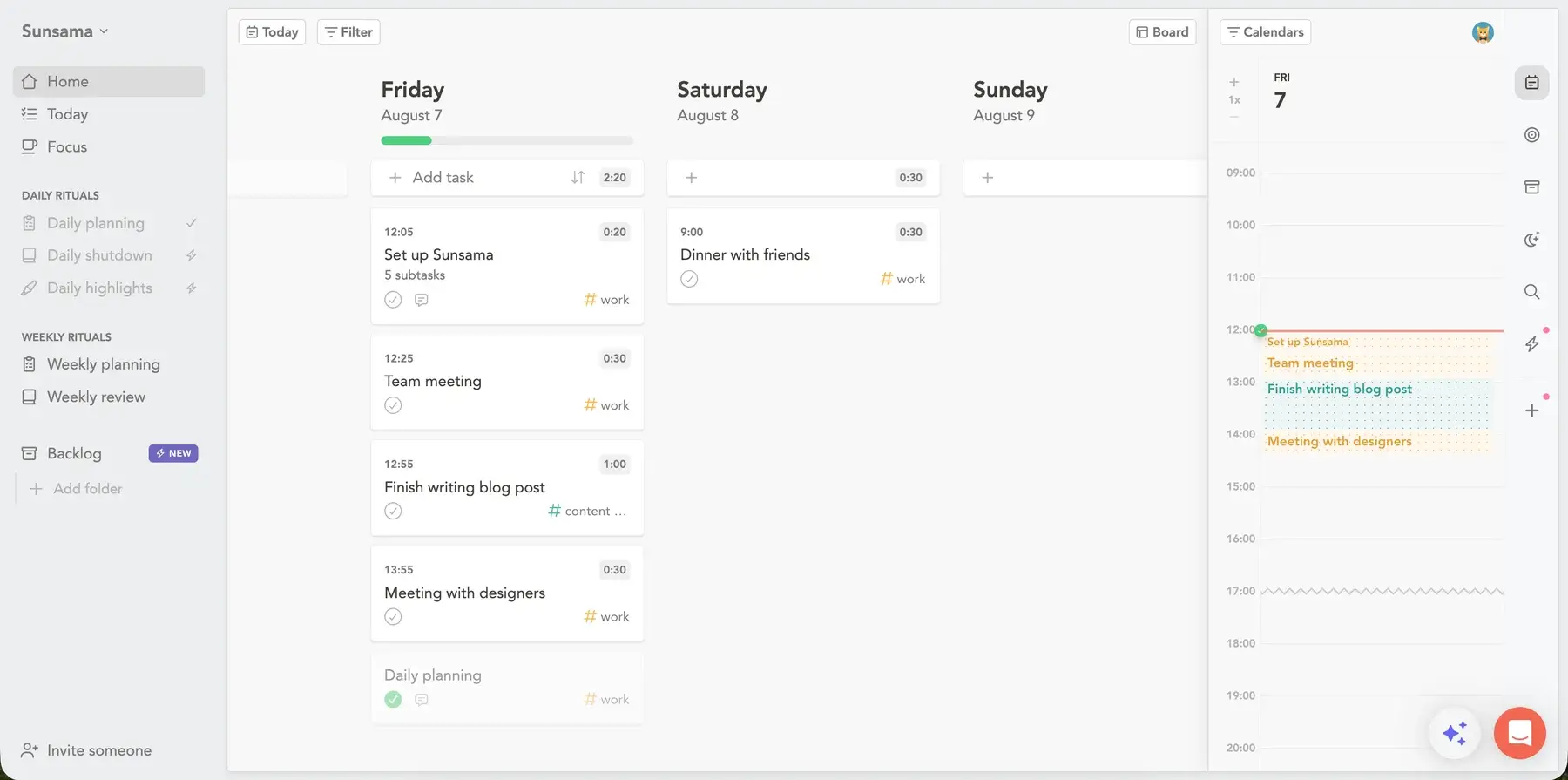
Sunsama’s main focus is to help you plan the day ahead. It encourages you to estimate all activities for the upcoming day and transfers automatically all the tasks you haven’t completed.
Todoist is more about creating lists of everything you have to take care of, but unlike Sunsama, it doesn’t push you to organize the day ahead. Also, you can connect your Google Calendar to your Todoist account, but its calendar view and setting task durations are only available on the paid plans.
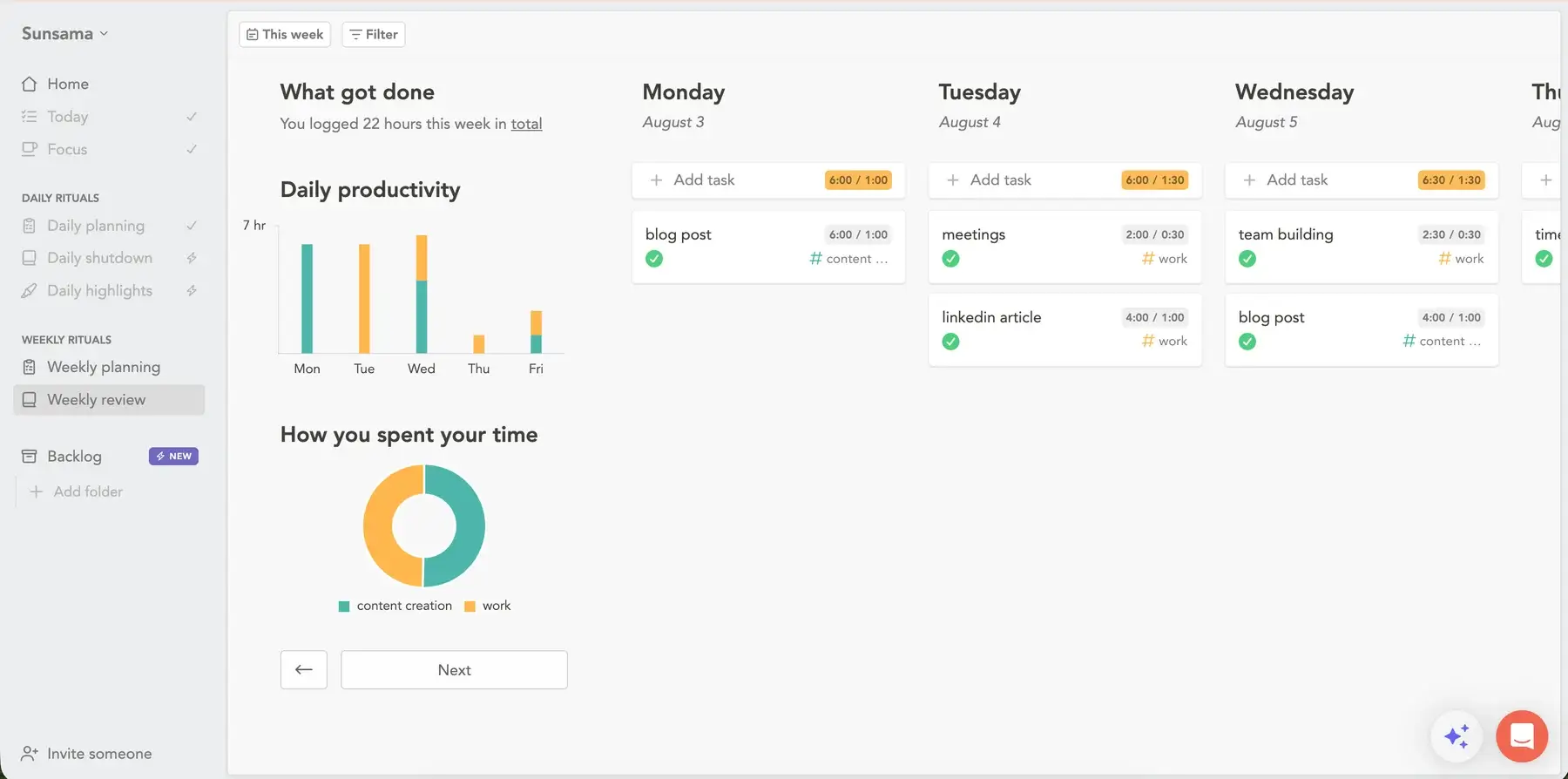
For those who often lose track of time and get lost in to-dos, Sunsama’s native daily ritual feature is great for making a habit of checking upcoming tasks and organizing daily schedules.
For me, it was eye-opening to see the number of hours on a daily basis that are simply occupied by work and errands. It really made me rethink my daily and weekly schedule.
The downside is that Sunsama doesn’t offer a free plan, and its price can be quite high for individual users and their personal needs. The yearly plan costs $192; compared to Todoist’s Pro plan, which costs $48/user/year, Sunsama is 4 times more expensive.
That said, users who benefit from the Sunsama philosophy of journaling, time blocking, and daily planning rituals are more than happy to pay for the app. Those who like this way of organizing their life can’t fully recreate it in Todoist as it doesn’t offer daily rituals or summaries.
What’s new in Sunsama?
The most noteworthy updates in Sunsama include notes and comments indicators, better AI/MCP support, improved search (case- and punctuation-sensitive), plus various bug fixes.
Available for: web, macOS, Windows, Linux, iOS, and Android
| Plan | Price |
|---|---|
| Yearly | $17/user/month |
| Monthly | $23/user/month |
💡 Plaky Pro Tip
For a comprehensive list of best daily planner apps, check out our review:
Frequently asked questions about Todoist alternatives
Now, let’s answer some frequently asked questions about Todoist alternatives.
Is there something better than Todoist?
Whether there’s something better than Todoist depends on your workflow. If you need features like time blocking, habit tracking, built-in Pomodoro timers, or better team collaboration, several Todoist alternatives outperform it. Plaky, TickTick, and Any.do, are among the best Todoist alternatives for different use cases.
Is Todoist still worth it?
Yes, Todoist is still a solid task management app thanks to its clean interface, natural language input, and recurring tasks. However, after the December 2025 price increase, many users started considering Todoist competitors that offer more features or better value, especially if they need collaboration tools or advanced planning features.
Is Todoist good for ADHD?
Todoist can work well for people with ADHD because it’s simple, supports natural language input, and makes capturing tasks quick. However, some alternatives to Todoist for executive dysfunction include TickTick, which includes a Pomodoro timer and habit tracking, or Sunsama, which focuses on daily planning and time blocking to reduce overwhelm.
Is Any.do better than Todoist?
Any.do is a good choice if you prefer an all-in-one productivity app with an integrated calendar, reminders, and a daily planner. However, Todoist offers more powerful task organization and automation. If you need stronger collaboration features, other apps like Todoist, such as Plaky or ClickUp, may be a better fit.
Are there any open source alternatives to Todoist?
If you’re looking for an open-source Todoist alternative, consider trying apps like Super Productivity, Vikunja, or Planify. These Todoist alternatives are less popular and aren’t included in our list, but you’re welcome to try them out and see if they work for you and your team.
What are some Todoist alternatives for teams?
If you need a task management app for teams, Plaky is one of the strongest Todoist alternatives thanks to unlimited free users, Kanban boards, custom fields, and workload tracking. Other popular Todoist competitors for team collaboration include ClickUp, Asana, Trello, and Monday.com, depending on your team’s size and workflow.
Choose the best Todoist alternative for daily task management
When deciding on which app to choose, you should:
- Define your needs.
- Determine your budget.
- Shortlist the best apps.
- Try out the apps.
- Decide which one ticks all the boxes.
But, if you want to skip testing all 10 apps from this list, I recommend giving Plaky a spin. It comes with various benefits, including:
- Foolproof interface — as soon as you open the app, you’ll know how to use it, so you’ll waste less time on onboarding than with most of the other apps.
- Affordability — if the free plan isn’t enough, paid plans are more than affordable, especially when you compare them to other apps.
- All-in-one workspace — you can integrate your Plaky account with Clockify and Pumble with the CAKE.com Bundle to track time in Plaky and get Plaky task updates directly in Pumble.
Words may not be enough, so I’ll let you see for yourself how easy it is to use Plaky:
Ready to tackle your daily and weekly schedule? Sign up for a free Plaky account today!
Get started with Plaky by CAKE.com
How we reviewed this post: Our writers & editors monitor the posts and update them when new information becomes available, to keep them fresh and relevant.