An average team — whatever the industry — constantly handles lots of tasks, messages, and files, all somehow connected but never quite aligned. So, managing work can easily turn into managing chaos.
That’s what inspired me to test a range of workflow management software solutions. I wasn’t after flashy features or endless dashboards, but tools that genuinely bring structure and make work easier.
Keep scrolling to see my reviews and assess which app might be a good fit for your team!
WHY TRUST US?
The apps we talk about are selected, tested, and written about by human reviewers who follow strict review and editorial guidelines. We pick solutions that are practical, purposeful, and can offer real value for the specific use case or business context we’re covering — while also being justified in their pricing. Our methodology is transparent, clear, and available to everyone:
What is workflow management software?
Workflow management software is a tool that helps teams organize, track, and automate the steps needed to complete their tasks. Think of it as a digital system defining how the work gets done — who does what, when, and in what order.
For example, if your marketing team publishes a new blog post every week, a workflow app can ensure that once the writer finishes their draft, it automatically moves to the editor, then to the graphic designer, and finally to the person who uploads it on the blog.
So, some core features typically found in a workflow management tool are:
- Task and process mapping,
- Role assignment,
- Notifications and reminders,
- Templates,
- Automation, and
- Progress tracking and reporting.

How I chose and tested the workflow management apps
I started by researching the market to identify which software to test, focusing on respectable platforms used across industries.
Then, I created test scenarios mirroring everyday workflows to evaluate how each app performs in practice. By doing so, I could experience how they handle task assignment, automation, collaboration, and so on.
This approach allowed me to see not only what each platform can do, but also where it shines and where it struggles.
And, since I want everyone to be able to test the solutions on their own like me before committing, I picked those that offer a free plan or a free trial.
If you want more insight into this whole process, check out our software review methodology.
Top 12 workflow management platforms — overview
Here’s a quick overview of all the tools I tested. Scroll down for my full reviews, including pros and cons!
| Tool | Best for | Free trial | Free plan | Lowest price |
|---|---|---|---|---|
| Plaky by CAKE.com | Small business workflows | ✔ | ✔ | $3.99/seat/month |
| Zapier | Cross-app automation | ✔ | ✔ | $19.99/month |
| Jira | IT workflows | ✔ | ✔ | $9.05/user/month |
| Manifestly | Process tracking | ✔ | ✔ | $6.67/user/month |
| monday.com | Enterprise workflow management | ✔ | ✔ | $9/user/month |
| Qntrl | Workflow orchestration | ✔ | ❌ | $15/user/month |
| Odoo | Manufacturing workflows | ✔ | ✔ | $24.90/user/month |
| Wrike | Legal workflows | ✔ | ✔ | $10/user/month |
| Airtable | Marketing workflows | ✔ | ✔ | $20/seat/month |
| Asana | Construction workflows | ✔ | ✔ | $10.99/user/month |
| Financial Cents | Accounting workflows | ✔ | ❌ | $19/user/month |
| Notion | Creative workflows | ✔ | ✔ | $10/member/month |
#1 Plaky by CAKE.com — best small business workflow management software
Plaky is a work management platform with a user-friendly interface and customizable features that offers unlimited boards and users across all its tiers.
Why choose Plaky?
As a lightweight, cost-effective workflow tool, Plaky is especially well suited for small teams that want to avoid bloated enterprise solutions.
| Pros | Cons |
|---|---|
| – Intuitive UI – Unlimited projects & users – Flexible workflows – Affordable | – Limited integrations |
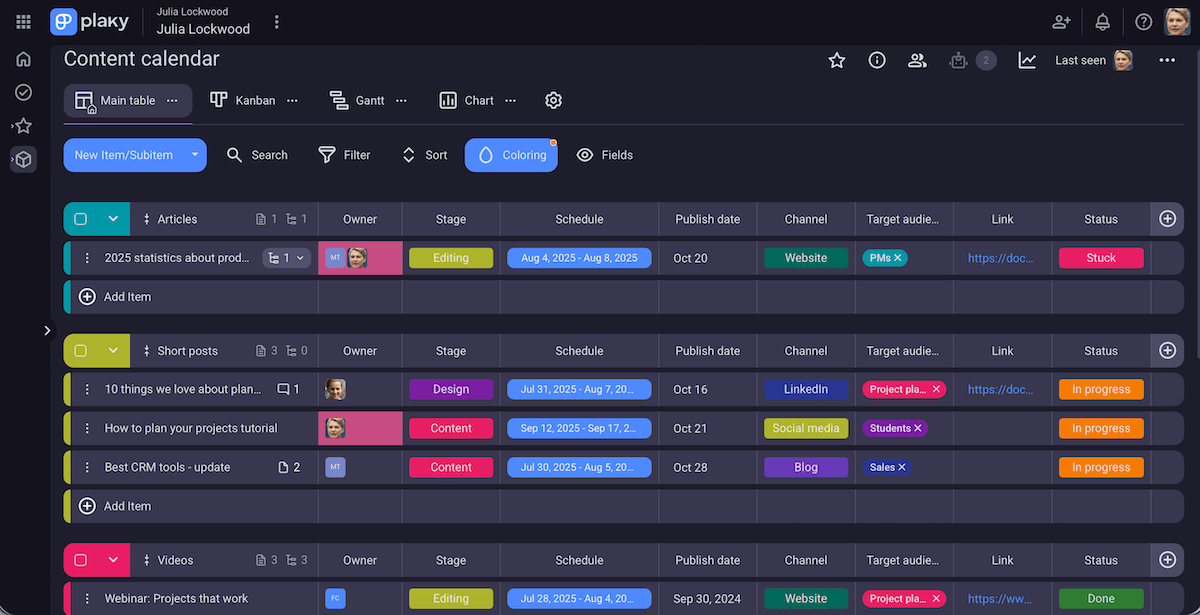
My team uses Plaky daily. When I first joined, what stood out immediately was how easy it is to keep processes organized thanks to:
- Custom fields — The app allows you to track whatever matters to your workflow — dates, clients, statuses, priorities, or any other custom info.
- Templates — Plaky’s template center has ready-made boards if you’re unsure where to start. Also, the Mark as Template option lets you save and reuse recurring workflows quickly.
- Automations — This is my favorite Plaky feature: setting precise triggers and conditions to have the app handle all the work I find repetitive, like subscribing certain teammates when a task moves stages.
- Multiple views — Different processes work best in different layouts, so I like being able to switch between Table, Gantt chart, Kanban, and Chart view in Plaky.
- Collaborative features — With comments, @mentions, file uploads, and notifications in Plaky, my team never has to rely on emails or scattered folders to stay aligned and share documents.
Build smart workflows with Plaky
Of course, Plaky can support teams of all sizes, but here’s why I see it as a perfect fit for small team workflows:
- Easy setup — Everyone can build flexible workflows, so you don’t need an IT department to help.
- Scalability — If your team grows, adding new users or projects won’t disrupt existing workflows.
- Affordability — You can use Plaky as free workflow management software, but its Pro Plan and Enterprise Plan provide so much more at a fraction of the cost of other similar apps.
The only area of improvement I can think of is limited integrations. But, the 2 available ones are great for workflow management:
- Plaky-Clockify integration — Automatically track time on tasks in Plaky, and get reports in Clockify to analyze productivity.
- Plaky-Pumble integration — Reduce missed notifications by receiving Plaky alerts in Pumble, a handy app for video calls and team messages.
What’s new in Plaky?
The latest new feature in Plaky is My tasks, a centralized view of all the items that involve you. Another novelty is the Remind me option for comments, which ensures you don’t forget to reply to colleagues in case you can’t do it right away.
For other recent updates, check out Plaky’s changelog. And, to see exciting upcoming features, visit Plaky’s roadmap.
Available for: web, iOS, Android
| Plan | Price |
|---|---|
| Free | $0 |
| Pro | $3.99/seat/month* |
| Enterprise | $8.99/seat/month* |
| The CAKE.com Bundle | $12.99/seat/month* |
*billed annually

#2 Zapier — best cross-app automation tool
Zapier is a web-based automation platform that connects different apps and allows them to work together without manual intervention or coding.
Why choose Zapier?
Thanks to integrations with thousands of apps and the webhook feature, Zapier is a versatile tool for automating workflows.
| Pros | Cons |
|---|---|
| – 8,000+ integrations – Custom forms & pages – Supports complex workflows | – Learning curve – Limited free plan |
Zapier offers multiple segments that enable teams to streamline operations:
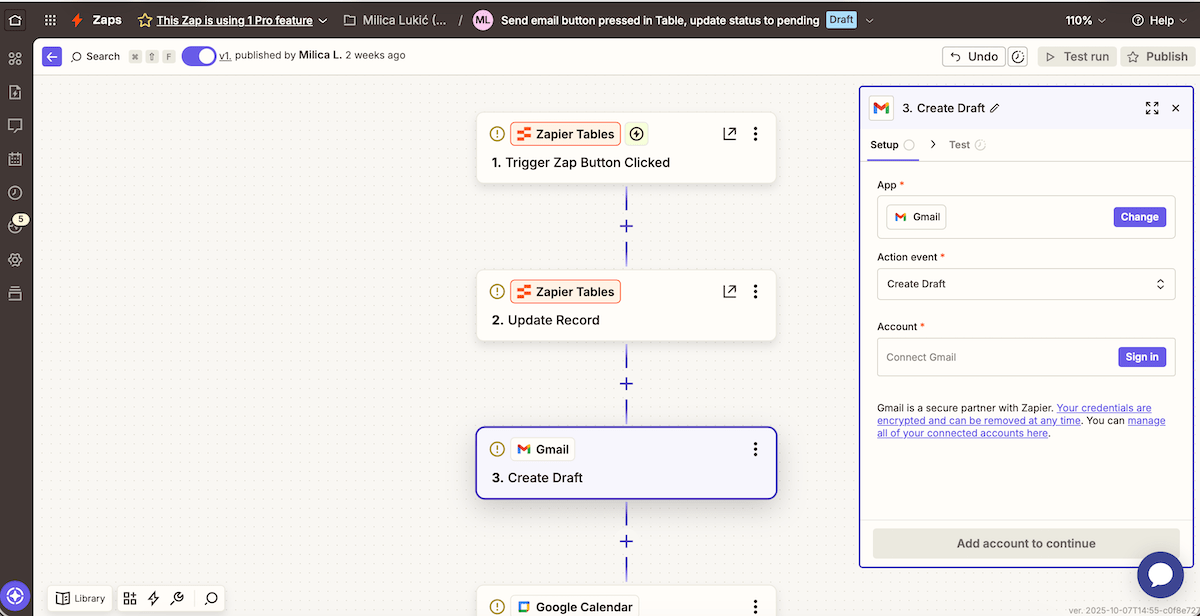
- Zaps — no-code automations with triggers (events in an app) and resulting actions (tasks performed in another app), mostly used to tackle repetitive work,
- Tables — a database with fields for storing and organizing information, letting Zaps pull data from it and write data back into it,
- Interfaces — custom forms and pages that allow users to interact with workflows without needing multiple apps,
- Chatbots (add-on, beta) — AI-powered chatbots that can interact with users in messaging apps and trigger workflows,
- Canvas — a visual workspace for designing, mapping, and managing workflows, and
- Agents (add-on, beta) — AI assistants that perform tasks or assist in workflow management by processing data, identifying bottlenecks, and suggesting actions.
For example, when a new lead fills out a form on your website, Zapier can add their details to your CRM table and send them a welcome email.
As you can see, all the segments are designed to work together, but there’s definitely a learning curve for more complex workflows and managing multiple Zaps across teams.
Considering everything, I’d say cross-app automation is Zapier’s forte, primarily thanks to:
- 8,000+ integrations — allowing data to move seamlessly between platforms that don’t naturally connect,
- Webhooks — creating custom connections for apps that aren’t officially supported, and
- Custom workflows — triggers, actions, and conditional logic for fitting your team’s exact processes.
Unfortunately, Zapier’s best features — like webhooks and multi-step Zaps — are locked behind a paywall. The same goes for email and chat support, which surprised me, as most platforms offer at least some kind of customer service to free users.
Worse, Zapier has no native mobile app. While it’s true that your Zaps might not need constant monitoring once set up, I imagine some teams like to manage workflows on the go.
Using Android or iOS? Get Plaky!
What’s new in Zapier?
Tables, Interfaces, and MCP (Multi-Call Platform) are now bundled into Zapier’s tiers, so users don’t need to buy them as separate add-ons anymore. Also, the platform has recently improved integrations with dozens of apps by introducing new triggers and actions, search options, and bug fixes.
Available for: web
| Plan | Price |
|---|---|
| Free | $0 (up to 100 tasks/month) |
| Professional | starting at $19.99/month* (at least 750 tasks/month) |
| Team | starting at $69/month* (at least 2,000 tasks/month) |
| Enterprise | POA |
| Add-ons (Agents and Chatbots): Free, Pro, and Advanced | from $0 to custom pricing, depending on the plan |
*billed annually
#3 Jira — best IT workflow software
Jira is a work management tool with customizable workflows, boards, and reports that’s suitable for a variety of industries in need of trackable workflows.
Why choose Jira?
This platform was originally created with software development and IT teams in mind, so if that applies to you, Jira will align naturally with your needs (e.g., Agile principles, issue tracking).
| Pros | Cons |
|---|---|
| – 3,000+ integrations – Dependency management – Detailed reporting | – Steep learning curve – Overkill for small teams |
Jira supports workflow structuring and visualization really well, making it easier for teams to plan and improve their processes. These are the features that caught my eye:
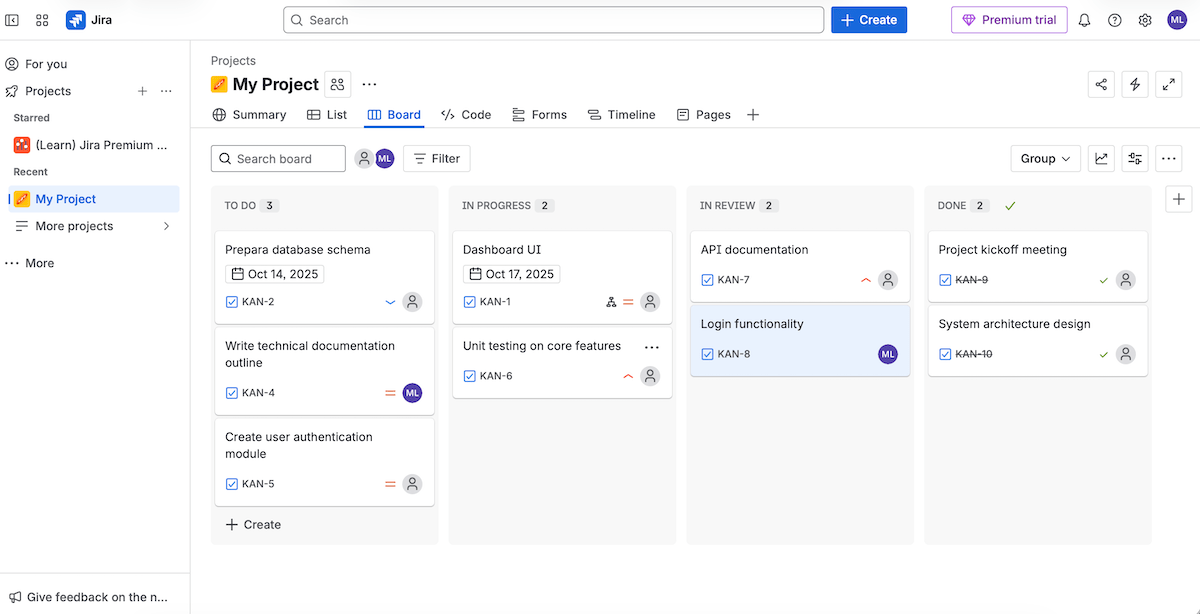
- Multiple views — 4 types of board layouts (list, matrix, board, and timeline) for meeting different user needs,
- Dependency management — clearly defining relationships between tasks to work more logically and avoid bottlenecks,
- Integrations — connecting with more than 3,000 tools for development, design, communication, etc. to create a cohesive system, and
- Automation capabilities — built-in automations for handling repetitive steps, like status updates and task assignment.
That said, I must underline that Jira can feel overwhelming to configure for beginners or non-technical users, so if that’s you, perhaps try with a template first.
Besides using integrations with dev tools, here’s how IT teams can manage their workflows in a structured and collaborative way in Jira:
- Agile approach — supporting Scrum and Kanban methods, both commonly used in IT,
- Issue and bug tracking — native structure for managing tickets, feature requests, and bug reports in one place,
- Smooth communication — in-app issue comments and real-time updates for keeping teams connected and informed, and
- Reporting and dashboards — standard or custom reporting for progress tracking, workload distribution, sharing insights with project stakeholders, and more.
As for Jira’s shortcomings, I’d say that without careful management, the interface can become cluttered, making it harder to navigate boards and issues.
It’s also worth noting that small teams with simple needs may find Jira too feature-heavy. And for larger organizations, Jira’s pricing can scale up quickly, especially with premium features, like customizable approval processes or unlimited storage.
What’s new in Jira?
As announced earlier in the year, Jira’s pricing went up on October 15, 2025: +5% for Standard, +7.5% for Premium, and +7.5 to 10% for Enterprise plan users.
Additionally, Jira recently overhauled the UI, administration, and program management functionalities in Advanced Roadmaps (premium feature) for a more intuitive experience.
Available for: web, iOS, Android
| Plan | Price |
|---|---|
| Free | $0 (up to 10 users) |
| Standard | $9.05/user/month (billed monthly) or $900/year for user tier 1–10 (billed annually) |
| Premium | $18.30/user/month (billed monthly) or $1,850/year for user tier 1–10 (billed annually) |
| Enterprise | POA, available for 801 or more users |

#4 Manifestly — best process-tracking software
Manifestly is a work organization app that helps you standardize, automate, and monitor operational workflows.
Why choose Manifestly?
Primarily thanks to its custom workflow builder, Manifestly is a strong option for teams that need to track processes built around structured workflows.
| Pros | Cons |
|---|---|
| – Reusable workflows – Workflow chains – Intuitive reporting | – Limited layouts – Dull design |
Manifestly empowers users to track and optimize workflows with features such as:
- Data collection — manual data entry, predefined lists, file uploads, and collecting signatures,
- In-app communication — comments and mentions keeping team communication contextual and transparent,
- Integrations — streamlining workflows by connecting with thousands of apps via Zapier connector, APIs, and webhooks, and
- Reporting and dashboards — real-time reports on task progress and customizable dashboards with widgets showing workflow performance.
Overall, Manifestly is clean and minimalistic, which can be considered a plus, but the app would be more visually appealing and intuitive to me if at least the icons had some color.
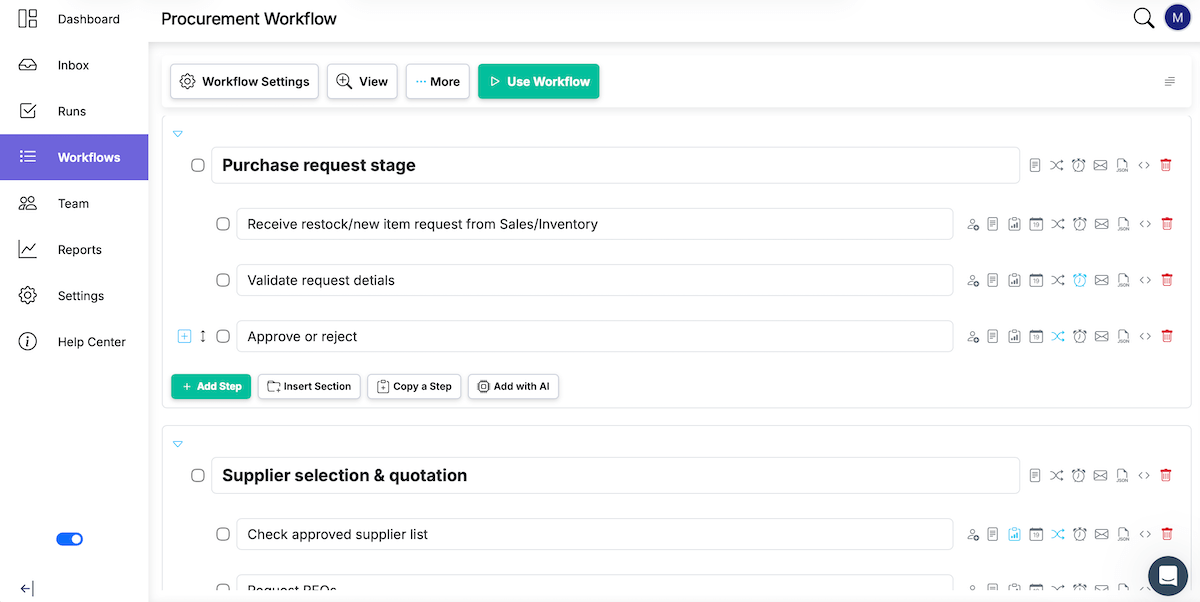
What this tool does particularly well is process organization and tracking using:
- Custom workflow builder — Design reusable workflows according to your team’s specific needs, manually or with templates, imports, and AI. Each step within a workflow allows for conditional logic, reminders, assignees, and more.
- Workflow automations — Save time by automating routine work. Manifestly can even chain your workflows together, i.e., finishing a step in one workflow can trigger actions in another one.
- Role-based assignments — Assign steps to roles (e.g., project manager, designer) instead of picking specific people each time you build a workflow. You can decide who exactly fills the role when launching a new instance of that workflow.
- Dynamic due dates — Auto-set deadlines based on a rule (e.g., 3 days after Step 1 is completed), keeping your workflows standardized and accurate.
- Recurring scheduled runs — Let Manifestly auto-launch workflows daily, weekly, monthly, or at any custom interval you define.
So, Manifestly is great for recurring processes, but it may not be the best fit for highly dynamic or creative workflows because of its structured format and predefined steps.
And, while the other apps I reviewed have various layouts, Manifestly only has single-column, double-column, and calendar displays. This may be a minus for visual thinkers who like dragging, grouping, and color-coding items.
Finally, Manifestly enables mobile accessibility through a Progressive Web App (PWA), which is useful but doesn’t fully replace the smooth experience of a native mobile app.
What’s new in Manifestly?
One of the latest new features in Manifestly is workflow versioning — editing workflows in draft mode without affecting the published version. In addition, there are now bulk workflow actions for archiving and tagging.
Available for: web, progressive web app (PWA)
| Plan | Price |
|---|---|
| Free | $0 |
| Business | $6.67/user/month* |
| Enterprise | $15/user/month* |
*billed annually
#5 monday.com — best enterprise workflow management software
Monday.com is a work operating system used for project and workflow management in various industries.
Why choose monday.com?
Customization and robust reporting make monday.com practical for organizations that need structured and scalable workflow management across multiple teams.
| Pros | Cons |
|---|---|
| – Versatile board views – 200+ integrations – Workload management feature | – Limited free plan – Impractical pricing structure |
Exploring monday.com, I found it flexible enough to set up different workflows, primarily thanks to:
- Multiple layout options — various board views (table, Kanban, calendar, and more) to see projects and tasks in different ways,
- Collaborative features — comments, file attachments, and notifications keeping teams aligned,
- Automations — setting up rules to automate repetitive tasks, like status changes or item creation, and
- Integrations — integrating with 200+ apps (Gmail, Zoom, Jira, to name a few) to centralize your workflows.
For budget-conscious users, I want to note that the free plan allows only 3 boards and 2 users. Plus, automations and integrations aren’t even available in the cheapest paid plan (Basic), only Standard and higher.
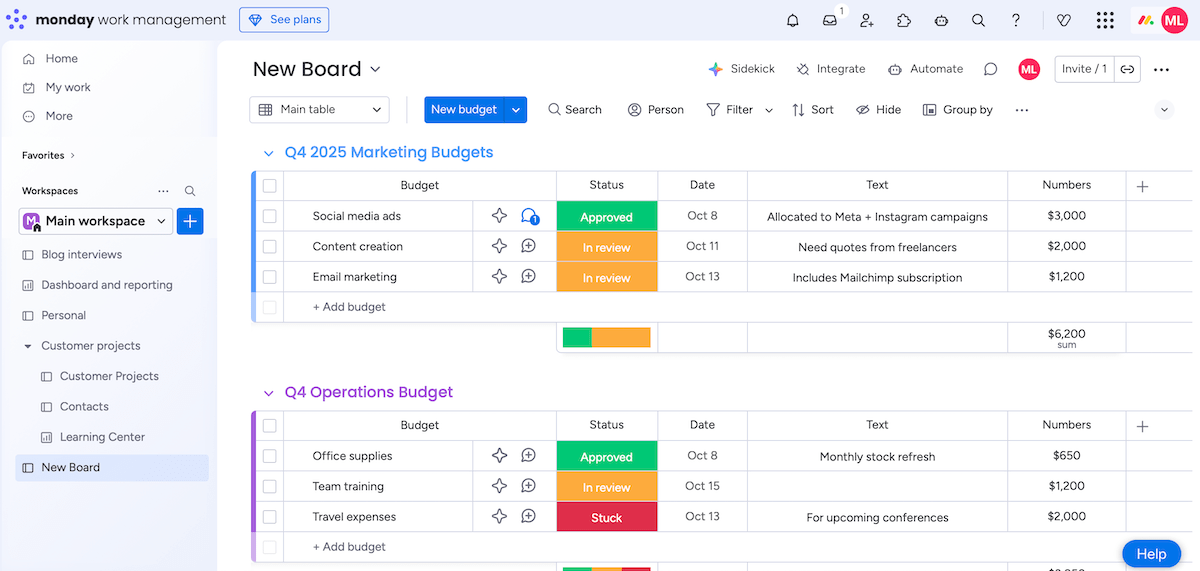
My verdict that monday.com is a decent choice for enterprise-scale workflows was mostly based on these elements:
- Scalability — the ability to handle thousands of tasks and multiple teams across different departments,
- Workload management — a workload widget for tracking everyone’s workload and preventing burnout,
- Security control — enterprise-grade security with numerous certifications and strict international standards, and
- Advanced reporting and dashboards — dashboards with 30 available widgets and apps for insights from multiple boards, which you can share with your internal team members or external partners.
Knowing all that, I’d say small teams with basic needs may find this platform more complex than necessary, so they’d benefit more from using apps like Plaky.
Regarding more significant downsides, the biggest one for me is monday.com’s pricing. Not only is it steeper compared to many competitors, but the pricing structure is highly impractical.
Here’s the deal: monday.com’s seats come in fixed increments (3, 5, 10, 15, etc.), so if your team falls anywhere in between (for example, 6 or 14 seats), you’re forced to pay for extra accounts you don’t actually use.
💡 Plaky Pro Tip
Check out these articles to see how monday.com compares to several other similar apps:
What’s new in monday.com?
There’s been a notable update to WorkCanvas (monday.com’s integrated whiteboard tool), letting users overlay board data to facilitate interactive planning. There’s also a relatively new AI feature, monday magic, which can help you generate specific work solutions.
Available for: web, macOS, Windows, iOS, Android
| Plan | Price |
|---|---|
| Free | $0 (up to 2 seats) |
| Basic | $9/user/month* |
| Standard | $12/user/month* |
| Pro | $19/user/month* |
| Enterprise | POA |
*billed annually

#6 Qntrl — best workflow orchestration software
Qntrl is a low-code workflow orchestration tool that helps teams visualize and automate complex business processes.
Why choose Qntrl?
This platform is designed to coordinate multiple systems, tasks, and people, which brings cohesion to complex, interconnected workflows.
| Pros | Cons |
|---|---|
| – Visual builder – Solid reporting – Integrations, APIs, & webhooks | – Learning curve – No free plan and pricey |
The first thing I noticed in this app was the sidebar menu with 3 icons, the core sections of Qntrl’s interface:
- Boards — These are visual spaces (list, Kanban, and dashboard view) for tracking ongoing workflows and tasks. Within a board, cards represent individual workflow items, with details such as assignee, due date, project priority, and so on.
- Circuits — This is where you design and automate workflows using a drag-and-drop builder. You can add conditions, approvals, assignments, and notifications triggered by user input or status changes.
- Reports — There are several kinds of reports (such as Blueprint Usage Report or Stage Duration Chart) that let you measure process metrics, monitor productivity, and improve performance over time.
Although Circuits don’t have to involve coding, there is a JSON-like configuration panel — this overwhelmed me a little as a non-technical user. Also, if you add many branches and conditional steps, the canvas ends up looking dense.
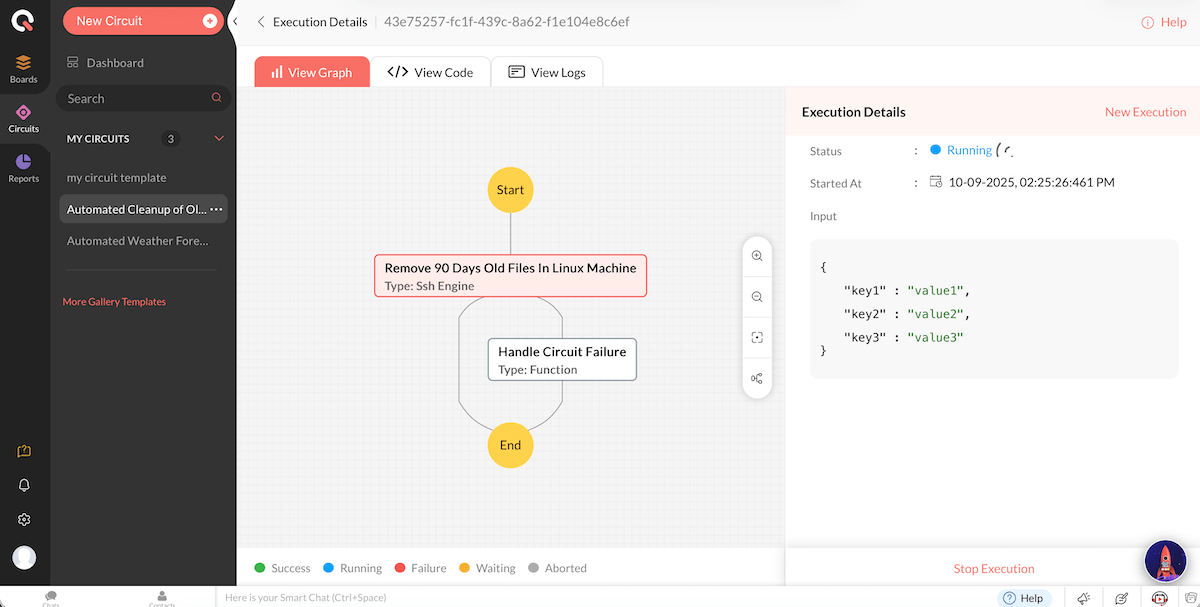
Qntrl’s main selling point is workflow orchestration — coordinating multiple workflows, people, and systems to make sure everything runs seamlessly. This is done with:
- Centralized process mapping — visualizing entire cross-department workflows on a single platform, never missing handoffs or project dependencies,
- Conditional logic — enabling workflows to branch automatically based on data or outcomes,
- Cross-app integration — dozens of third-party integrations, APIs, and webhooks for syncing data or triggers between departments, and
- Approval loops — simplifying multi-level approval hierarchies to minimize delays.
From what I saw testing it, Qntrl can bring order to what would otherwise be a messy, back-and-forth process. However, the initial setup and customization in this app can take time, especially for users who are new to structured workflow design.
And, my final remark — unlike most tools on this list, Qntrl has no free version, just a free trial, which could be a deal-breaker for cost-conscious teams since the tiers aren’t that affordable.
What’s new in Qntrl?
Qntrl recently launched Version 3.0, which came with an enhanced UI and navigation, new templates, simplified user permissions, a new dashboard view, and more.
Available for: web, iOS, Android
| Plan | Price |
|---|---|
| Standard | $15/user/month* |
| Enterprise | $30/user/month* |
| Custom | POA |
*billed annually
#7 Odoo — best manufacturing workflow management software
Odoo is a suite of 80+ apps that can work together to cover various company needs (HR, inventory, invoicing, etc.). It supports both cloud and on-premise deployment.
Why choose Odoo?
This platform provides many essential tools for a business in one place — especially for complex processes like inventory and manufacturing, involving many independent steps and resource coordination.
| Pros | Cons |
|---|---|
| – Modular and integrated – Custom app builder – Quality and cost control | – Only 1 app in the free plan – Customer support could be better |
Odoo is a modular tool, which means you can pick several modules, have them share data, and ensure a smooth workflow. The only exception is the free plan, which only allows 1 app.
There are also integrations with external tools, but the options aren’t as extensive as in some other apps in this article.
Testing Odoo, I marked these as standout features for workflow management:
- Multiple views — popular views like table, Kanban, timeline, etc., as well as reporting views (pivot and graph) for data visualization,
- Collaboration functionality — in-app direct messages and log notes for enhanced teamwork, and
- Odoo Studio — a no-code/low-code customization feature for making your own apps, adding automations, creating reports, etc., turning Odoo into a custom-fit workflow tool.
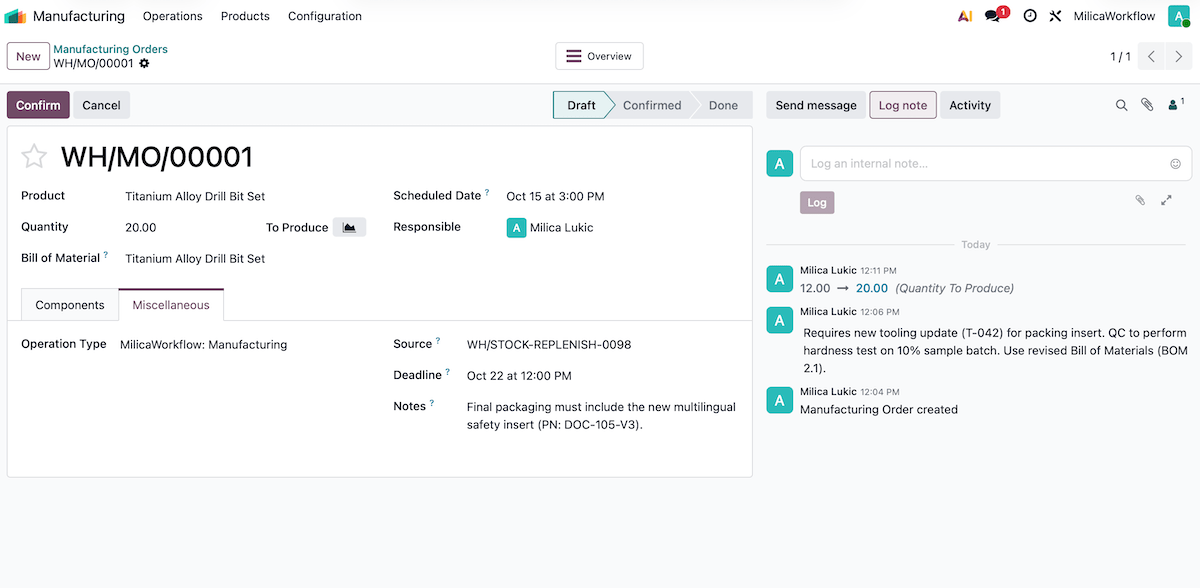
All Odoo apps feel well built, but when I thought about what distinguishes Odoo from all the other tools on this list, I picked managing manufacturing workflows — here’s why:
- Manufacturing and repair orders — Easily schedule, assign, and monitor what’s being made or fixed.
- Multi-level BOMs and custom routing — Define multi-level Bills of Materials (BOMs), and set routing rules for work centers to simplify assembly planning.
- Quality control — Set up quality control points to inspect materials or finished products at multiple stages and reduce waste.
- Cost tracking — Monitor costs across materials and labor for smarter pricing and production decisions.
Now, I didn’t encounter any issues in this app that would require customer support, but I did see a few user reports online about Odoo’s mediocre customer service.
Multiple users claim that they waited a long time for a response from Odoo agents or that their responses weren’t as helpful as expected. That’s a notable con, as it can lead to workflow inefficiencies, but luckily, such complaints aren’t super-common.
Want an app with great customer care? Get Plaky
What’s new in Odoo?
Odoo 19, the latest release, has many improvements and new features — AI-powered enhancements, a new report type (Follow-up), improved document management, etc.
There are also 2 new Odoo apps: Equity (for managing company ownership) and ESG (for managing Environmental, Social, and Governance footprint).
Available for: web, PWA, iOS, Android
| Plan | Price |
|---|---|
| Free | $0 (1 app) |
| Standard | $24.90/user/month* (12-month discount for initial users, otherwise $31.10/user/month*) |
| Custom | $37.40/user/month* (12-month discount for initial users, otherwise $46.70/user/month*) |
*billed annually
#8 Wrike — best legal workflow management software
Wrike is a work management platform that can handle everything from simple task tracking to complex processes with multiple stakeholders.
Why choose Wrike?
This platform provides clear process control and real-time oversight, which is essential for teams dealing with many reviews and approvals, versioned documents, and invoices.
| Pros | Cons |
|---|---|
| – 400+ integrations – Request forms – Secure external collaboration | – Impractical pricing structure – Limited free plan |
This is what I noted down as some general strong points for workflow management in Wrike:
- Customizable workflows — You can customize statuses, approval steps, layouts, label colors, etc. to match your needs and preferences.
- Automation — The app offers recommended rules or lets you design them from scratch to automate repetitive tasks.
- Integration — Integrations with 400+ other tools (email integration, file storage, CRM, etc.) help you move relevant data into Wrike.
- Reporting — Customizable reports let you measure performance across projects, detect bottlenecks, track workload, and more.
Most of these benefits are reserved for paid plan users, though, and in some cases (like real-time reports), it’s not even the Team tier, but higher.
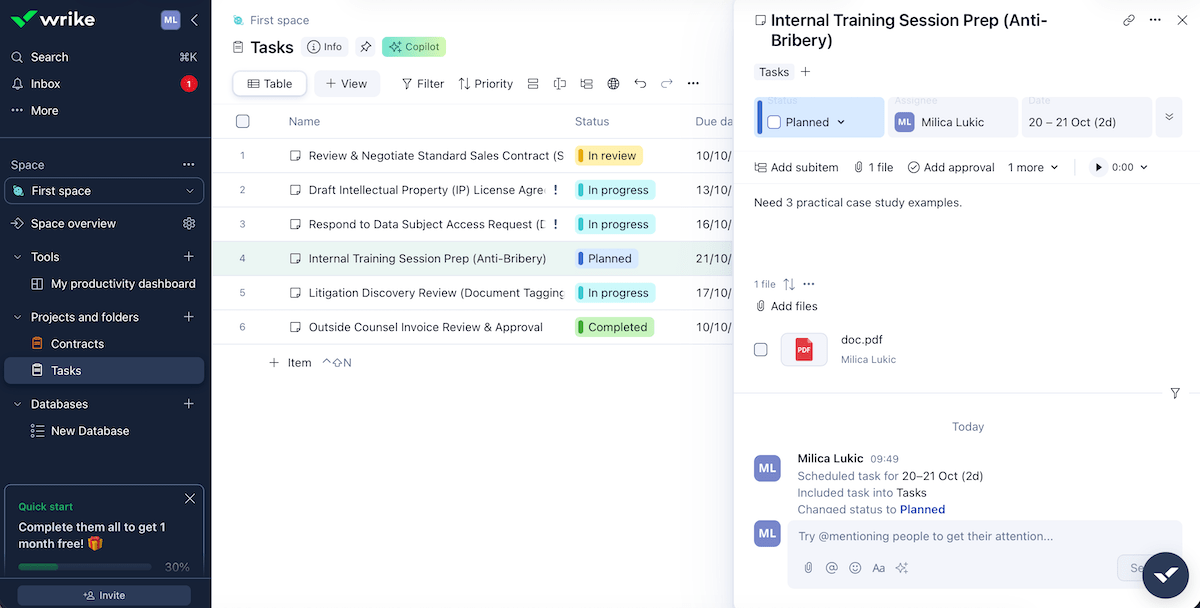
Given everything, I think that Wrike could be a reasonable choice for legal workflow management, especially since it also offers:
- Handy templates — Among Wrike’s 70+ templates, legal teams can find some useful ones (like contract management or client contact list) and save setup time.
- Request forms and intake — Wrike’s forms can standardize requests (contract reviews or legal consultation, for instance), collecting all required info when someone submits them.
- Document management — The app offers file storage, version control, and built-in proofing and comments, keeping every document traceable.
- External collaboration — Guest reviewers and audit-friendly transparency make having external collaborators (e.g., clients, vendors, partners) in Wrike smooth and safe.
What I didn’t appreciate — and I’ve also seen user criticism about this — is that Wrike’s pricing page shows per-user rates, but the FAQ section says this:
- Up to 30 Seats — Subscriptions are sold in groups of 5.
- 30–100 Seats — Subscriptions are sold in groups of 10.
- 100+ Seats — Subscriptions are sold in groups of 25.
So, depending on your team size, you could end up paying for unnecessary empty seats because Wrike requires you to buy in a block, much like monday.com.
What’s new in Wrike?
AI Agents, a smart automation tool, has recently been launched in Wrike Labs (a program giving early access to new Wrike features). Custom space templates are new as well, allowing you to save entire spaces as reusable templates.
Available for: web, macOS, Windows, iOS, Android
| Plan | Price |
|---|---|
| Free | $0 |
| Team | $10/user/month |
| Business | $25/user/month |
| Enterprise | POA |
| Pinnacle | POA |
💡PLAKY PRO TIP
Need a Wrike alternative? Check out our overview below:
#9 Airtable — best marketing workflow management software
Airtable is a platform for database management and no-code app building. It lets you organize information and projects in a flexible, visual way.
Why choose Airtable?
If you work in a dynamic field like marketing or content creation, Airtable can offer enough flexibility without limiting organization and creativity.
| Pros | Cons |
|---|---|
| – Advanced automations – Easy asset organization – Custom app building | – AI feature doesn’t always deliver – Expensive |
Let’s start with some general Airtable features (mostly found in other apps on this list too):
- Multiple views — Kanban, calendar, grid, gallery, and list layouts for viewing data in different ways,
- Collaboration — comments, attachments, and real-time updates for seamless teamwork,
- Automation — native automations or extending logic with Javascript to automate tasks and workflows,
- Integrations — 20+ native integrations, plus third-party integration platforms, like Zapier and Make, connecting Airtable with thousands of apps, and
- AI functionality — built-in AI assistant Omni, helping you create apps, edit and analyze data, research the web, etc.
The AI aspect was introduced in mid-2025 when Airtable relaunched as an AI-native platform. According to some user reports, Omni isn’t as useful as they expected it to be (for example, it causes occasional UI slowness).
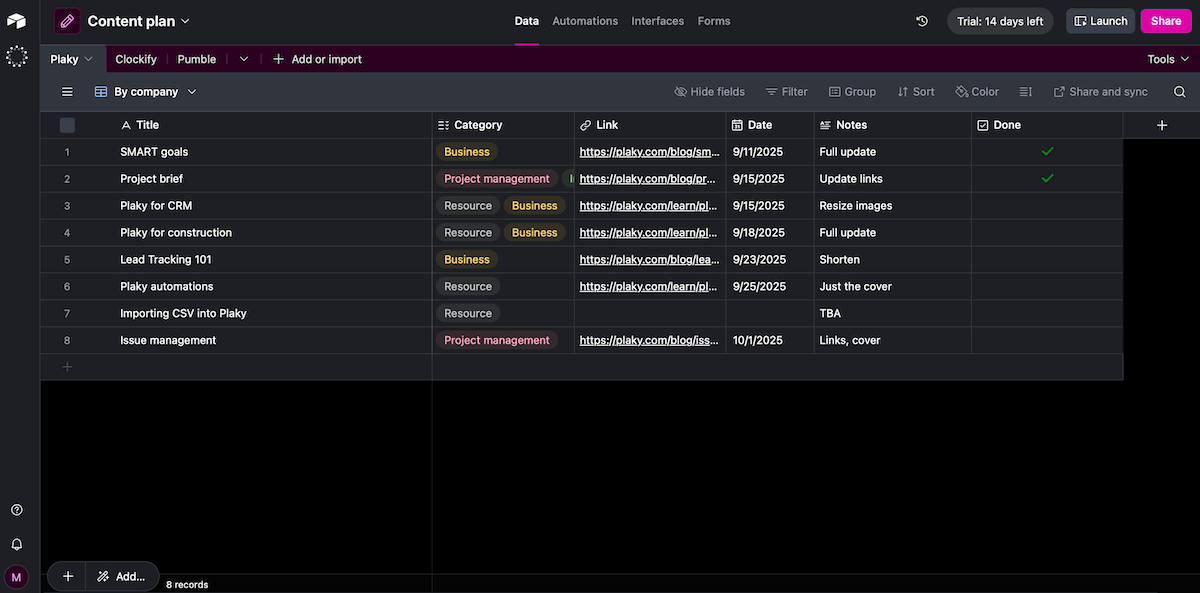
I think Airtable can be a practical tool for marketing workflow management because of:
- Content calendar management — Easily track blog posts, emails, social media, and more in a single place to keep everything on schedule and transparent.
- Marketing templates — Choose from a selection of ready-to-use marketing templates for recurring activities and marketing campaigns.
- Asset management — Store documents, images, videos, and even draft content directly in Airtable, reducing scattered emails or confusion over which version is final.
- Reporting — Create dashboards with different charts and graphs for metrics like engagement, conversions, or budget, ideal when juggling multiple campaigns.
That said, Airtable’s reports aren’t as robust compared to Jira or monday.com, but they are decent for lightweight marketing analytics necessary to keep everyone aligned.
A bigger drawback is that Airtable is quite pricey. Additionally, guest access requires a paid add-on feature (Portals). I’ve seen user complaints about not being able to give guests minimal access (e.g., view only) without paying extra, which is valid criticism.
What’s new in Airtable?
With its recent relaunch as an AI-native platform, Airtable introduced an AI assistant, AI-powered fields, App Sandbox (environment for testing changes), and several UI enhancements.
Available for: web, macOS, Windows, iOS, Android
| Plan | Price |
|---|---|
| Free | $0 (up to 5 editors) |
| Team | $20/seat/month* |
| Business | $45/seat/month* |
| Enterprise Scale | POA |
| Portals (add-on) | starting at $120/15 guests/month |
*billed annually
#10 Asana — best construction workflow management software
Asana is a cloud-based tool for managing tasks, building workflows, and collaborating in different industries.
Why choose Asana?
This platform can offer the balance of structure and flexibility necessary in fields with large, complex projects where visibility and precision matter — like construction.
| Pros | Cons |
|---|---|
| – Intuitive design – 270+ integrations – Dependencies and critical paths | – Assignee limitations – Pricey |
Here’s what I think Asana does well in terms of workflow management in general:
- Multiple views — Like other apps on this list, Asana has several view options (list, board, timeline, etc.) to meet different user needs.
- Workflow automation — You can set up triggers and rules (like auto-assigning tasks or setting up recurring ones) to standardize workflows.
- Intuitive collaboration — In-task comments and attachments make sure people on different teams can coordinate more directly.
- Integration with other tools — Asana has 270+ integrations (for design, marketing, IT, and more), which helps reduce double work if you’re already using those apps.
Since they’re similar tools, I couldn’t help but compare Plaky and Asana. What really inconvenienced me in Asana as a Plaky regular was the inability to assign a task to multiple users.
You can mention/add collaborators in Asana to ensure they get task-related notifications, but they don’t share responsibility. To work around this, you must create subtasks or duplicate the item for each person, which is a hassle.
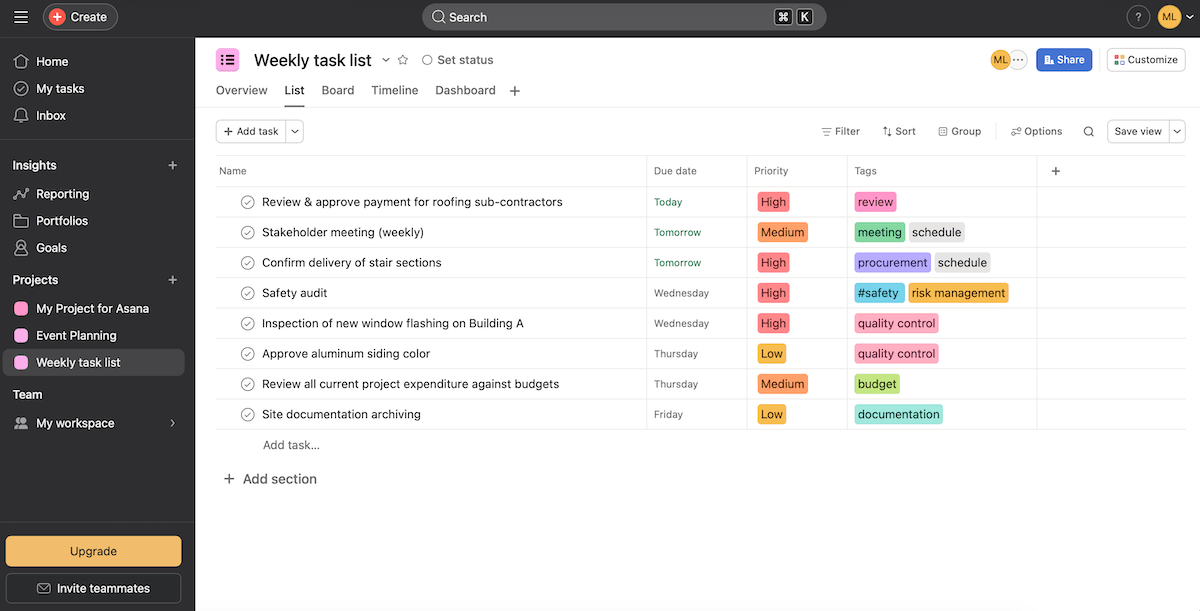
Back to the positives: Asana remains intuitive while handling multiple project phases, stakeholders, and schedules, which made me think it could be a solid choice for construction workflow management. Consider these:
- Construction templates — Some of Asana’s templates are practical for construction companies (e.g., the construction project plan, punch list), simplifying setup.
- Custom fields — Besides its built-in columns (e.g., due date, priority, assignee), Asana has custom fields for entering construction-specific details. Just note those are reserved for paid plan users, and Asana’s pricing is on the expensive side.
- Document management — You can upload images, drawings, PDFs, etc., keeping the latest version tied to the corresponding task/phase.
- Dependencies and critical paths — Construction projects rely on precise sequencing. Asana’s timeline view, dependencies, and critical paths help you spot and prevent delays.
💡 Plaky Pro Tip
Wanna see how Asana stacks up against several similar tools? Check these out:
What’s new in Asana?
Most recently, there have been quite a few updates regarding Asana AI (e.g., pre-built smart workflows and using natural language to create them), reporting (multi-metric charts, for example), integration improvements, and strengthening security.
Available for: web, macOS, Windows, iOS, Android
| Plan | Price |
|---|---|
| Personal (free) | $0 (up to 10 teammates) |
| Starter | $10.99/user/month* |
| Advanced | $24.99/user/month* |
| Enterprise | POA |
| Enterprise+ | POA |
*billed annually

#11 Financial Cents — best accounting workflow management software
As its name suggests, Financial Cents is a tool designed for finance professionals. It combines workflow organization, team collaboration, and client management.
Why choose Financial Cents?
This tool is ideal for accountants and bookkeepers because it supports the unique needs of firms handling recurring client work and transactions.
| Pros | Cons |
|---|---|
| – User-friendly – Team and client chat – Secure client portal | – No free plan and pricey – No mobile app |
Financial Cents felt intuitive from the start. I quickly saw this platform offers:
- Project and task management — monitoring tasks/projects with deadlines, assignees, and statuses to keep work organized,
- Built-in reporting — basic reports about team activity, capacity management, revenue, etc. to support informed decision making,
- Team communication — in-task comments and team chat for improved collaboration,
- Automations — automating recurring tasks, dependencies, deadline tracking, etc. to minimize manual work, and
- Integrations — keeping data synced across platforms by connecting Financial Cents with accounting tools, as well as thousands of other apps via Zapier.
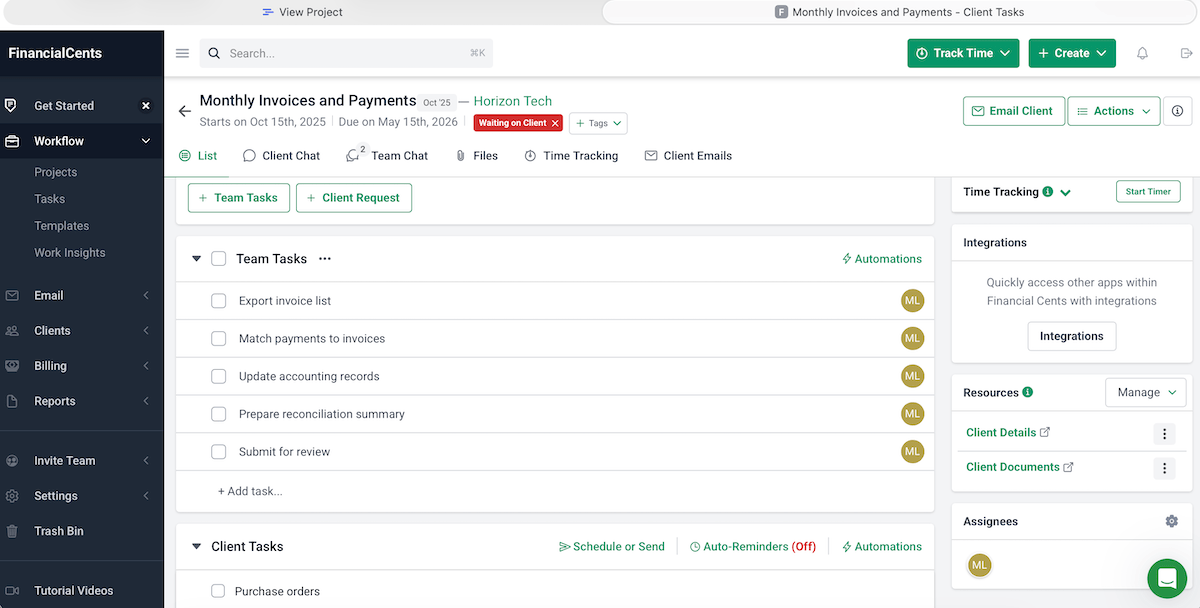
Since Financial Cents is built for accounting workflow management, I’d like to highlight all the client-facing features too:
- Centralized client info — Client data is stored and grouped in a single location, ensuring accuracy and consistency.
- Client portal — This is a secure, passwordless space where clients can easily provide information and documents when requested.
- Automated invoicing and payment collection — You can specify one-time or recurring billable services and payment methods to charge clients.
- Turning emails to tasks — Clients sometimes send ad-hoc requests via emails, and Finance Cents has a feature that adds those directly to projects, which saves time and prevents oversights.
- Client chat — There’s a built-in client chat letting accountants and clients exchange messages to improve responsiveness.
Given everything, Financial Cents is much less suitable for industries other than accounting, but I can’t consider this a con when that’s exactly how the platform advertises itself.
What is a potential downside is the steep pricing, ranging between $19 and $69/user/month. Most apps at least have a free plan that suffices solo users, but that’s not the case here, unfortunately.
Also, Financial Cents doesn’t offer a native mobile app, which limits flexibility.
Want a solution with a mobile app? Get Plaky
What’s new in Financial Cents?
The latest update to Financial Cents I could find dates back to August 2025, when the app introduced its integration with Ignition, a client engagement tool for service-based businesses.
Available for: web
| Plan | Price |
|---|---|
| Solo | $19/user/month* |
| Team | $49/user/month* |
| Scale | $69/user/month* |
| Enterprise | POA |
*billed annually
#12 Notion — best creative workflow management software
Notion is an all-in-1 workspace that blends project management, note-taking, databases, and collaboration.
Why choose Notion?
This app lets you brainstorm, execute, and track your tasks with a balance of organization and flexibility that benefits creative teams the most.
| Pros | Cons |
|---|---|
| – Highly flexible – Media embeds – Numerous templates and integrations | – Learning curve – Occasional sync delays |
Notion is one of the most versatile tools I tested. Here’s how it adapts to various professional needs and workflows:
- Building blocks — Arrange Notion’s building blocks (text, images, audio, databases, PDFs, and many more) however you like.
- 30,000+ templates — Choose from a huge range of pre-made templates to reduce setup time.
- Automations — Create rules to automatically assign task owners, set priorities, trigger notifications, etc. and reduce repetitive work.
- 170+ integrations — Integrate Notion with other apps (for sales, productivity, analytics, and more) to make it a true workflow management hub.
While Notion’s flexibility is a benefit, it could also overwhelm new users, especially if you’re unfamiliar with relational databases and formulas.
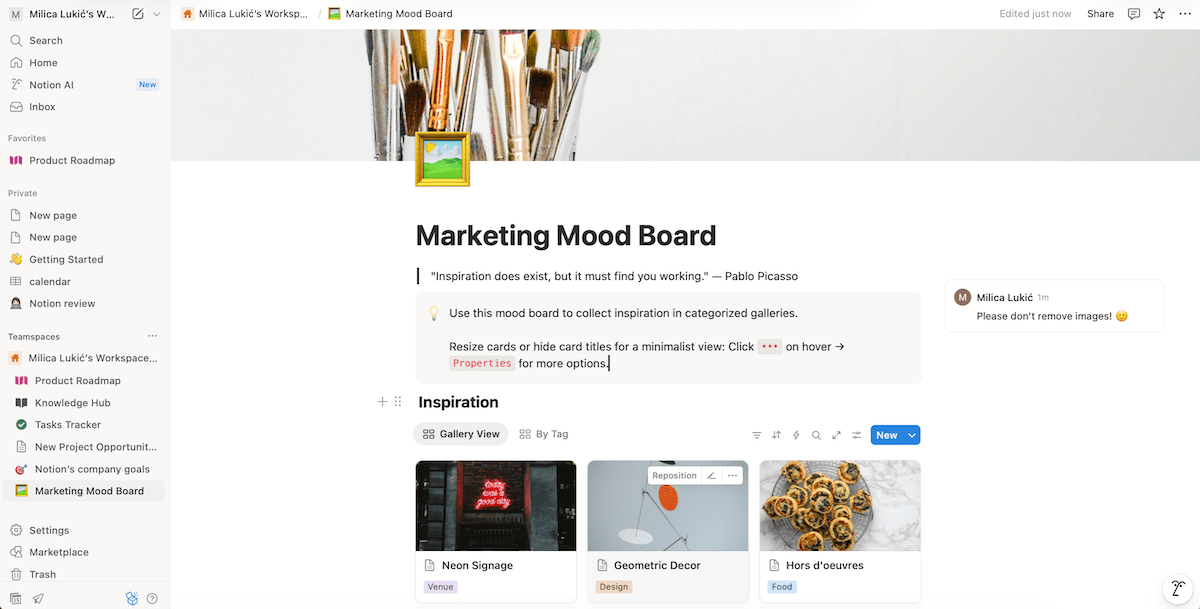
In addition to everything said, here’s why I believe Notion is a good choice for managing creative workflows:
- Media embeds — Creative projects thrive on visuals, and Notion lets you embed virtually any online content within its pages (e.g., forms, interactive maps, YouTube clips).
- Database views — Switch between different layouts depending on your tasks (for example, the gallery view works great for design mockups, the timeline view for content calendars, etc.)
- Collaborative features — Add comments, tag collaborators, and centralize discussions within a project page to streamline feedback loops.
- Dashboards — Combine multiple charts from anywhere in Notion to create a dashboard and monitor project timelines, team performance, and other data with ease.
Notion also has some drawbacks. For instance, I was surprised by some user complaints about subscription mix-ups with unexpected charges. I assume this is a temporary issue due to recent changes in Notion’s pricing.
The app can also sometimes become laggy with large databases. Plus, some changes I made in the Android version didn’t show up immediately in the desktop version, which could lead to disruptions in real-time collaboration.
💡 Plaky Pro Tip
Notion’s most notable competitors are Evernote and Obsidian, so we tested them thoroughly and presented our comparative results here:
What’s new in Notion?
With Notion 3.0, users can use AI Agents to perform multi-step tasks across pages and utilize a memory system to retain context and preferences.
Available for: web, macOS, Windows, PWA, iOS, Android
| Plan | Price |
|---|---|
| Free | $0 |
| Plus | $10/member/month* |
| Business | $20/member/month* |
| Enterprise | POA |
*billed annually

FAQ
What are the main benefits of using workflow software?
There are many benefits to using a workflow management platform, mainly:
- Improved efficiency — Instead of juggling endless emails and wondering who’s supposed to do what, you ensure each task moves smoothly through defined steps.
- Clear accountability — When every stage of the process has an assigned owner, making follow-ups is easier and performance becomes more transparent.
- Fewer manual tasks — With automations handling actions like updating statuses or passing tasks to the next person, you can focus on meaningful work.
- Consistency and quality — By standardizing workflows, you make sure each process follows the same logic every time, leading to fewer mistakes and more predictable results.
Can workflow software help with remote team collaboration?
Yes! Workflow management tools are a game-changer for remote teams. A centralized workspace with real-time updates and clear ownership and deadlines can help keep work organized no matter where your team is.
Get a robust remote work app — Plaky
What is the difference between project management and workflow management solutions?
Project management (PM) and workflow management apps both help you plan and monitor work, but they’re designed with slightly different goals in mind:
- PM tools are for managing projects, temporary endeavors with a clear start and finish, typically segmented into smaller tasks with deadlines and project resources.
- Workflow management tools focus on processes, the repeatable, ongoing steps your team performs regularly. The main goal is to make those steps consistent and more efficient.
The line between them has blurred a lot in modern tools, so most teams actually use the same app for both. You can simply use different boards, templates, and automations, depending on whether you’re managing an ongoing process or a temporary project.
Get the best workflow management software — Plaky by CAKE.com
After testing all the workflow management apps, I can conclude that finding the right one for you isn’t about chasing the most features, but choosing the one that fits how your team actually works.
That’s why Plaky remains my #1 choice.
Beyond streamlining workflows, our platform can adapt to your team’s needs and make work feel clearer, lighter, and more intentional.
On top of everything, you can rest assured that your data is safe at all times because all CAKE.com apps provide enterprise-grade security.
Plus, Plaky users feel extra confident knowing that our customer service is 100% human-based and available 24/7 to everyone.
Keep your team in sync, and simplify your workflow with Plaky by CAKE.com!