Features

#TASK MANAGEMENT

Save hours with Board automations

Streamline processes, reduce manual work, and keep your team in sync with Plaky’s powerful board automations.

Get Started
Board Automations

The ultimate tool for effortless project management

Smart task handling

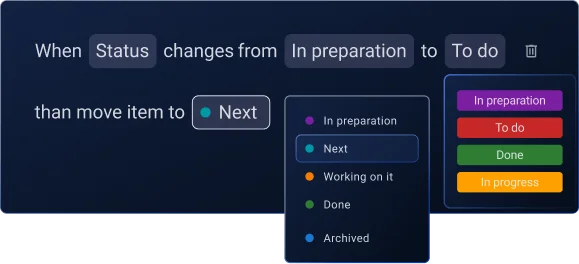
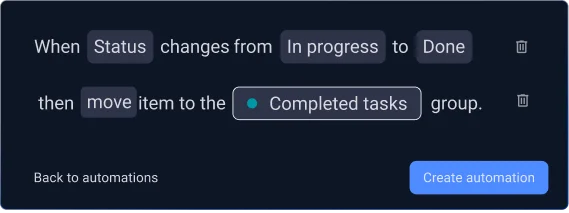
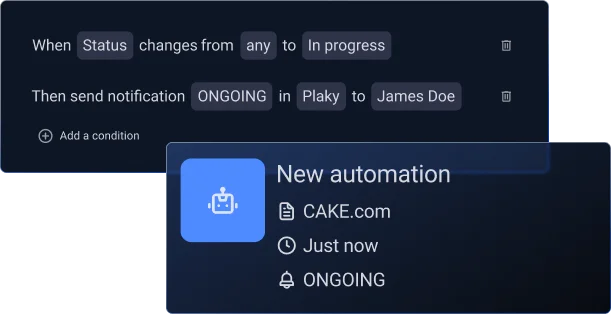
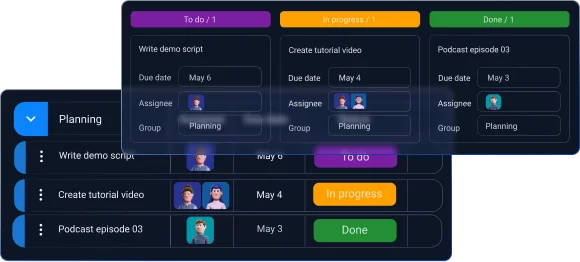
Say goodbye to repetitive updates and focus on what matters. The intuitive “When this happens, then do that” logic in Plaky lets you handle status changes, move items, update fields, and notify your team.

Automate tasks
Automate processes

No more mistakes

Automated rules maintain flawless processes that run exactly as set, every time. Now, you can reduce human error, ensure every workflow step is followed, and keep tasks moving without manual checks.

Fully customizable workflows

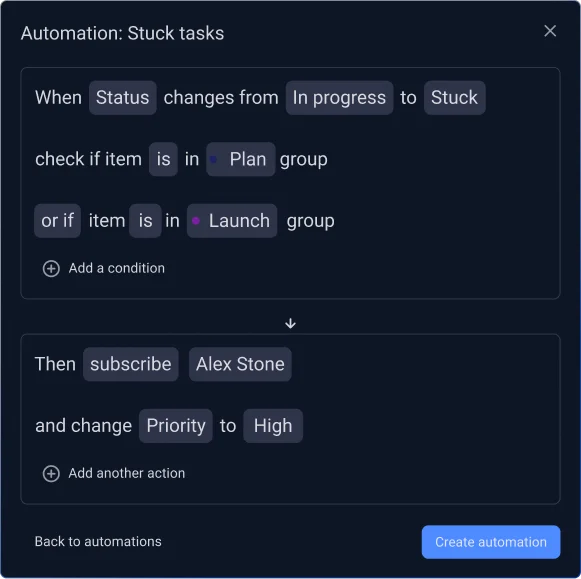
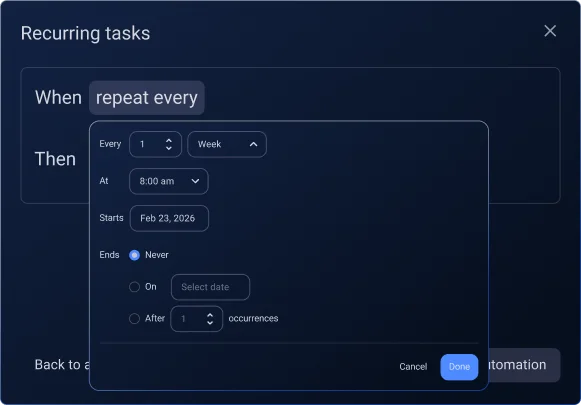
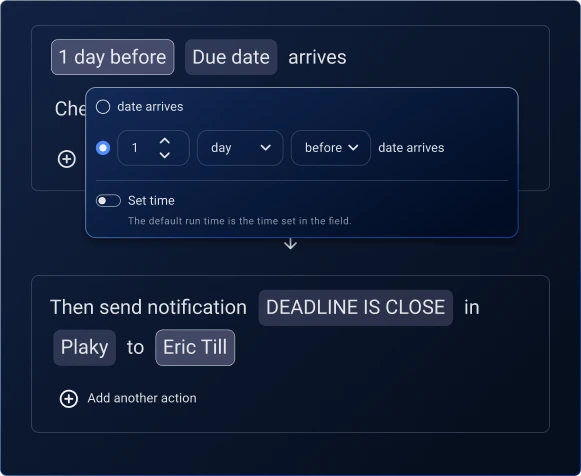
Customize automations to fit your workflow perfectly. All you have to do is set the triggers, add optional conditions, and define exact actions. Plaky will then automatically update fields, assign teammates, and handle other tedious tasks.

Automate workflows
More clarity with automations

Complete control and clarity

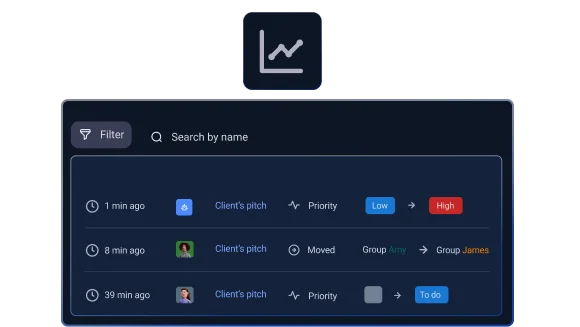
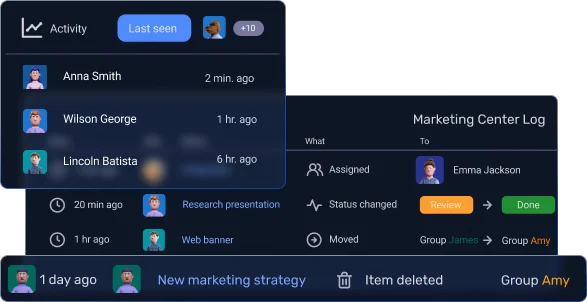
Have a clear oversight of your automations and their impact. Monitor usage, view automation histories in activity logs, and adjust rules anytime to keep your workflows optimized.

Setting up your Automations

Step 1 Access automations

Navigate to your Plaky board and click on the Automations button in the top right corner. You will be taken to the Automation Center, a hub for building and managing automations.

Step 2 Create a new automation

Click on New automation. Give your automation a clear name that reflects its purpose.

Step 3 Set your trigger: “When this happens”

Choose the event that starts your automation. Options include:

  • Item field changes, e.g., when a task’s status changes from “To Do” to “In Progress”.
  • Item moved, e.g., when it’s moved from “Backlog” to “This week”.
  • Item subscribers change, e.g., when a new team member is added to a task.

Step 4 Add optional conditions

Make your automation smarter by adding conditions, e.g., only running the automation if a task is in the “Urgent Issues” group. Mix multiple conditions to have more control over your automations.

Step 5 Define the action: “Then do this”

Decide what happens next, e.g.:

  • Move item to a different group.
  • Assign a team member.
  • Change a status field.

Example: “If Priority changes to High, move the item to Urgent Tasks.”

Step 6 Activate and monitor your automation

Click Create automation to activate it. Now, each time the trigger and other conditions are met, Plaky will automatically perform the action and notify relevant team members. You can also view your automation activity in your item and board logs.

Get the most out of Plaky’s board automations