All teams value straightforward communication and to-do lists, which is what Basecamp provides, but what to do when your workflows and client demands evolve?
That question inspired me to explore Basecamp alternatives — tools that offer the same clarity but with more ways to organize work and track progress.
Scroll on to read the full reviews and decide which platform aligns with your team’s style!
WHY TRUST US?
The apps we talk about are selected, tested, and written about by human reviewers who follow strict review and editorial guidelines. We pick solutions that are practical, purposeful, and can offer real value for the specific use case or business context we’re covering — while also being justified in their pricing. Our methodology is transparent, clear, and available to everyone:
Do you need a Basecamp alternative?
Basecamp is intentionally simple, supporting basic project management (PM) and collaboration. While some users like that, others find it restrictive, particularly when it comes to:
- Lack of advanced project views & features — Basecamp offers only the simplest forms of Kanban-like software (card tables) and timeline views. Also, there’s no automations or analytics, so some teams eventually outgrow this platform.
- No workflow flexibility — Basecamp’s structure (To-dos, Messages, Docs, Schedule, etc.) is very fixed. Most modern teams want to design their own workflows, use custom fields, and automate recurring work.
- Poor value for small teams — For a small team, costs quickly add up since Basecamp’s first paid plan ($15/user/month) is notably pricier than its competitors. The other pricing option ($299/month/unlimited users) can be a decent solution for larger teams, but it’s still on the steeper side compared to some competitors.
If you feel like you need more than what this platform offers, I’ve prepared a list of tools like Basecamp, but with richer PM capabilities. Check out my #1 choice now!
How I chose and tested the Basecamp alternatives
When picking software like Basecamp, one of the conditions was that it has a free plan or a free trial. This way, you can properly test the app before committing to it.
During my testing, I simulated typical team scenarios (e.g., setting up projects, assigning tasks, building automations). While no 2 tools share the exact same philosophy, my approach aims to reflect practical, everyday use rather than ideal conditions.
Also, I made sure that the apps I chose include the advanced PM features Basecamp lacks — specifically Gantt charts, reporting capabilities, and customization options.
And, of course, I opted for credible and secure tools to protect both your and your clients’ data.
Top 12 Basecamp alternatives — overview
Before diving into the detailed reviews, here’s a quick overview of all the tools I tested.
| Tool | Best for | Free trial | Free plan | Lowest price |
|---|---|---|---|---|
| Plaky | Small teams | ✔ | ✔ | $3.99/user/month |
| ClickUp | Complex workflows | ✔ | ✔ | $7/user/month |
| Wrike | Cross-functional collaboration | ✔ | ✔ | $10/user/month |
| Teamwork | Client management | ✔ | ✔ | $10.99/user/month |
| monday.com | Visual workflow management | ✔ | ✔ | $12/seat/month |
| Nifty | Goal management | ✔ | ✔ | $7/user/month |
| Asana | Enterprise project management | ✔ | ✔ | $10.99/user/month |
| Zoho Projects | Teams in the Zoho ecosystem | ✔ | ✔ | $4/user/month |
| Notion | Knowledge base management | ✔ | ✔ | $10/user/month |
| Airtable | Data-centric teams | ✔ | ✔ | $20/user/month |
| Trello | Kanban project management | ✔ | ✔ | $5/user/month |
| Podio | Custom app-style workflows | ✔ | ✔ | $11.20/user/month |
#1 Plaky — best for small teams
Plaky is a budget-friendly, fully customizable project management tool created by CAKE.com. It allows you to plan and track projects from start to finish.
Why choose Plaky?
Plaky is more affordable than Basecamp, with more advanced PM features. Thanks to its flexibility and an excellent free plan, small teams can easily scale up as they grow.
| Pros | Cons |
|---|---|
| – Neat UI/UX – Cost-effective – Smooth collaboration – Simple yet robust | – Limited integrations |
Let’s start with some of my favorite Plaky features:
- Clear hierarchy & organization — Arrange your work into spaces, boards, folders, and (sub)tasks. This means depth yet easy navigation even when juggling multiple projects.
- Custom fields — Choose what you want to track (status, assignees, deadlines, and much more) with versatile custom fields that Basecamp simply doesn’t offer.
- Multiple views — Use Plaky’s Table view for quick overviews and data entry, Kanban view for visualizing progress through stages, Gantt chart view for schedules and overlapping projects, or Chart view for summarized data that’s easy to share and use in reporting.
- Board automations — Set up no-code rules to automate routine work, and use the saved up time on more meaningful tasks.
A smarter alternative to Basecamp
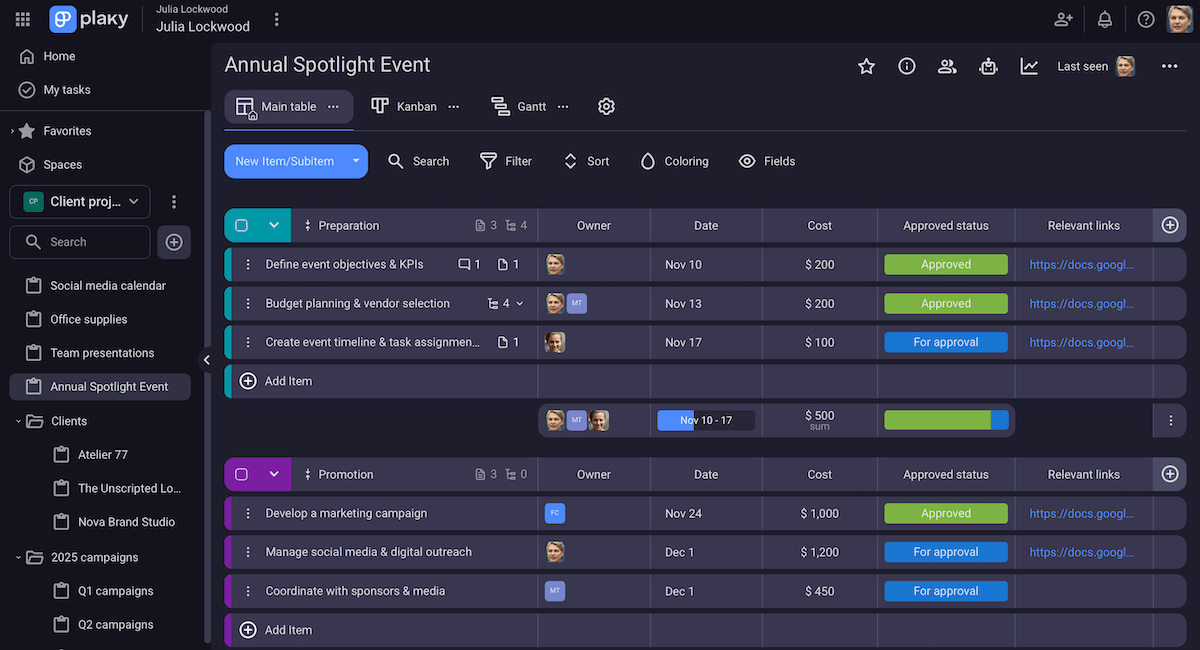
Of course, Plaky supports teams of all sizes, but I believe this app is perfect for small teams because it’s:
- Cost-effective — Plaky has a generous free plan with unlimited users and projects. And, if you need premium features (like a custom subdomain or unlimited automations), the 2 paid tiers are some of the most affordable ones on the market.
- User-friendly — All the menus and features are intuitive, so your teammates can start using Plaky right away, even without prior experience with PM tools.
- Built for real collaboration — Small teams benefit from straightforward communication, and Plaky supports in-task comments, @mentions, and file sharing.
- Lightweight but structured — Plaky’s much more organized than Basecamp while avoiding overly niche or overwhelming features.
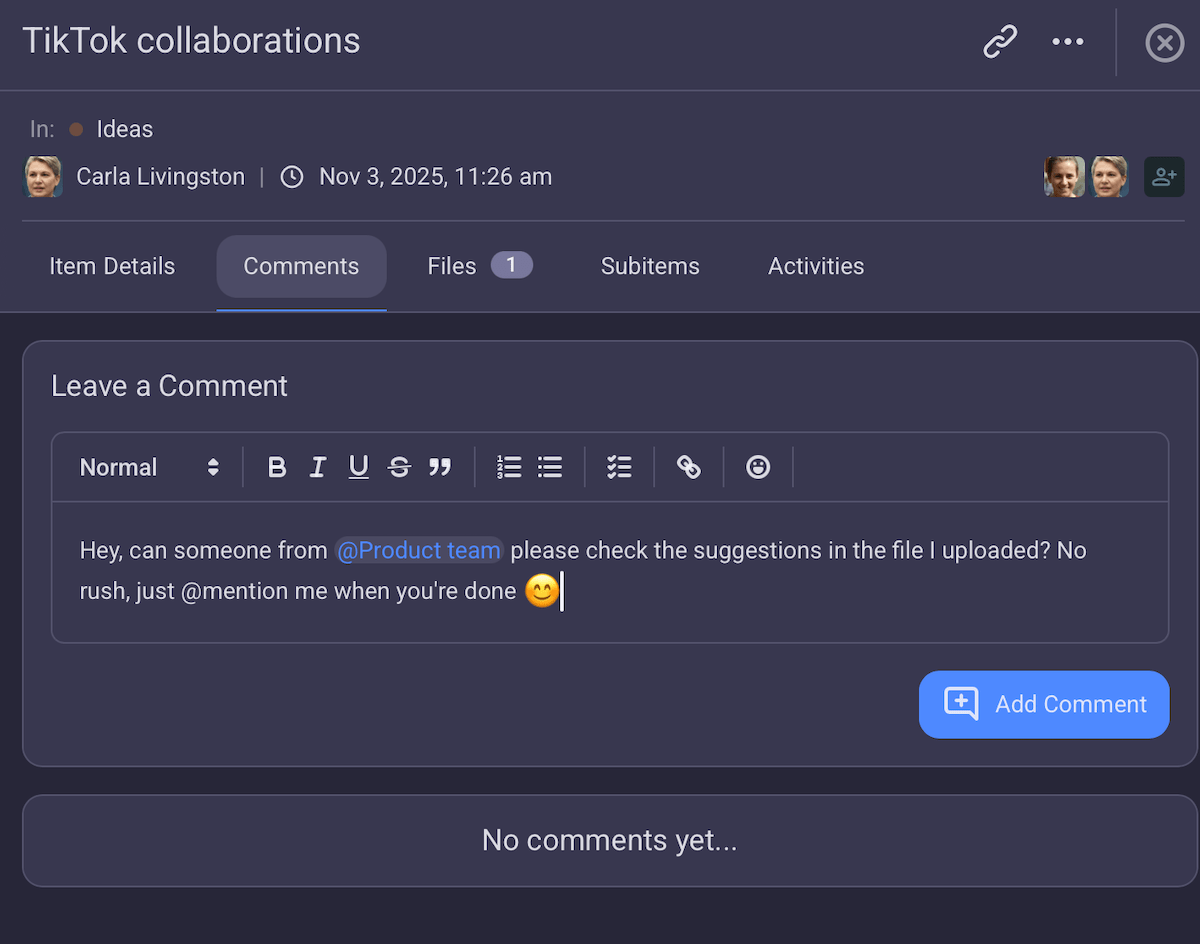
As for room for improvement, Plaky only integrates with the other 2 CAKE.com apps at the moment:
- Clockify — time tracking and productivity software, and
- Pumble — business messaging and video conferencing software.
On the other hand, this is a plus for teams that don’t want a tangled tool ecosystem and like keeping their work platform clean.
What’s new in Plaky?
Some of the recent updates in Plaky include My tasks, a section that conveniently displays all items assigned to you across the platform. Also, there’s now a Remind me feature that prevents you from forgetting to reply to comments in case you can’t do it right away. Get more details in Plaky’s changelog.
Available for: web, iOS, Android
| Plan | Price |
|---|---|
| Free | $0 |
| Pro | $3.99/seat/month* |
| Enterprise | $8.99/seat/month* |
| CAKE.com Bundle (Plaky + Clockify + Pumble) | $12.99/seat/month* |
*billed annually

#2 ClickUp — best for complex workflows
ClickUp is an all-in-1 solution combining project/task management, goal tracking, and document collaboration.
Why choose ClickUp?
For those who find Basecamp too flat, ClickUp provides a higher level of structure and visibility, especially for advanced team setups with lots of moving parts.
| Pros | Cons |
|---|---|
| – 1,000+ integrations – Built-in document editing – Custom reports | – Learning curve – Limited free plan |
As soon as I opened ClickUp, I felt I had more freedom to shape the workspace compared to Basecamp thanks to:
- Multiple views — There are 15+ project views (List, Board, Calendar, Gantt, etc.) to meet different data visualization needs.
- Advanced task management — Features like in-task comments, time tracking, and automation rules make ClickUp more dynamic for those who need more than just to-dos and messages.
- Built-in docs & whiteboards — You can create wikis, meeting notes, or brainstorms directly in the app and co-edit them with colleagues. The result is smoother collaboration and knowledge sharing.
Everything is quite logical, but if you’ve never used a similar tool, ClickUp might seem quite daunting in the beginning. Put simply, an app with so many features takes time to set up efficiently.
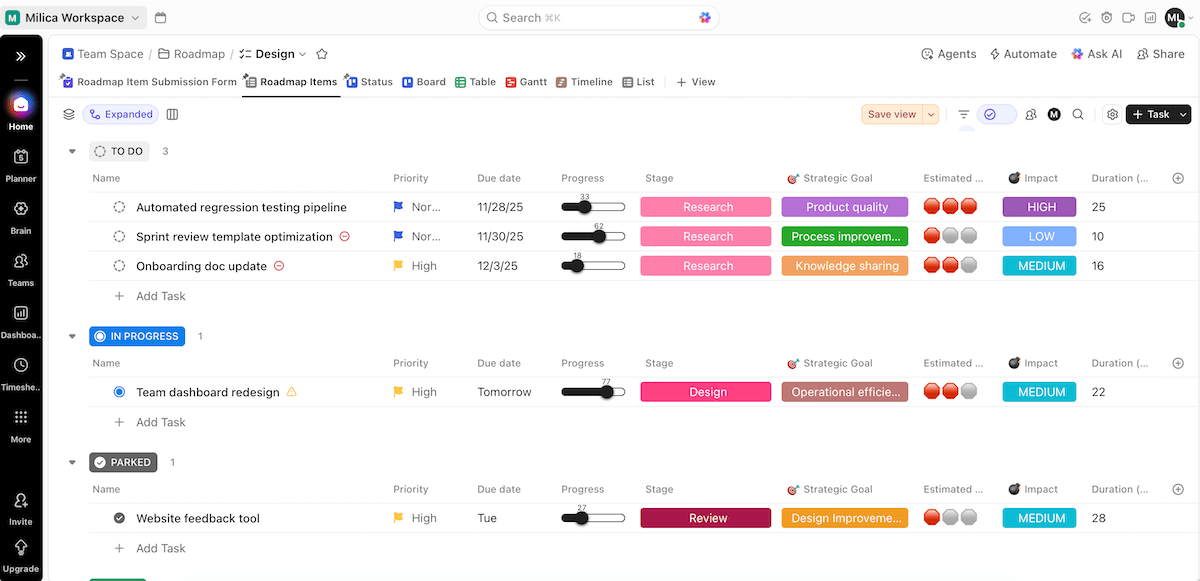
That said, ClickUp’s flexibility makes it suitable for teams with complex workflows — software dev, marketing campaigns, multi-department projects, etc. The main points are:
- Custom fields — You can create fields (like status, budget, story points), with every project reflecting the exact data you track.
- Integrations & API flexibility — ClickUp integrates with 1,000+ apps and has a RESTful API, great for elaborate workflows that depend on a wider toolset.
- Robust reporting — Custom reports help you analyze team productivity, workload, billable hours, and more.
- Comprehensive functionality — Goals, Docs, Whiteboards, and Dashboards all connect directly to your tasks, providing a trackable web of information.
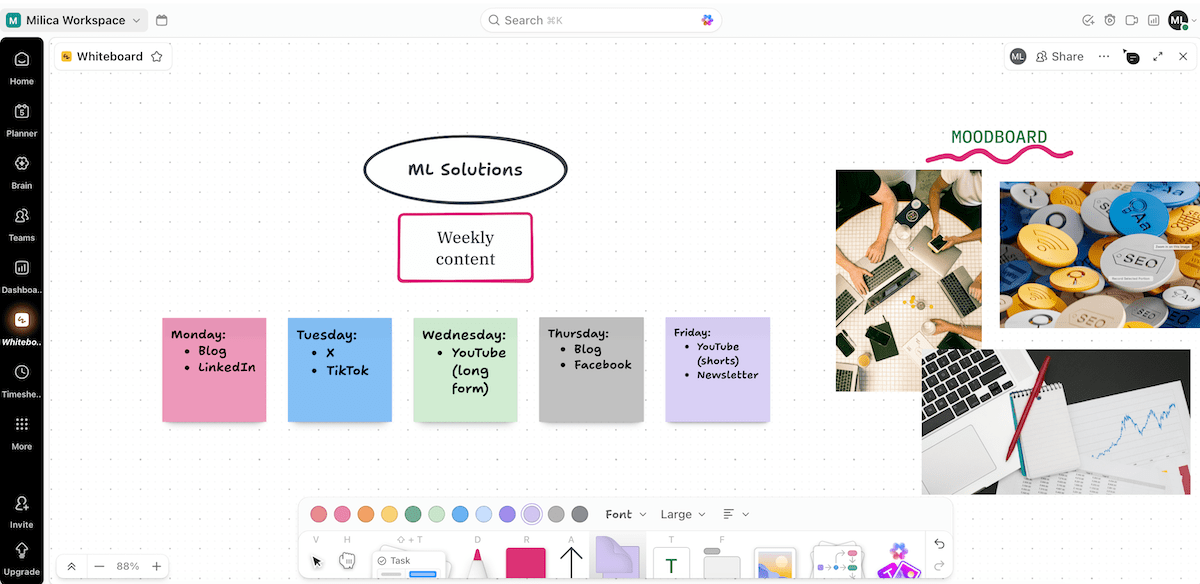
In case you’re eyeing ClickUp’s free plan, I must say it’s pretty limited. For instance, you only get 60 uses of custom fields (“use” is counted each time a value is updated) and 60 uses of the Gantt view across your entire workspace.
If you’re budget-conscious, I highly suggest you compare ClickUp and Plaky to see how much of ClickUp’s functionality you get in Plaky at a fraction of the cost.
What’s new in ClickUp?
ClickUp recently introduced new automation triggers and actions, along with several AI functions (creating subtasks from comments with AI, sending AI Notetaker to online meetings, AI templates for Dashboards, and more).
Available for: web, macOS, Windows, Linux, iOS, Android
| Plan | Price |
|---|---|
| Free | $0 |
| Unlimited | $7/user/month* |
| Business | $12/user/month* |
| Enterprise | POA |
*billed annually

#3 Wrike — best for cross-functional collaboration
Wrike is a work management platform designed for real-time collaboration, custom workflows, and reporting.
Why choose Wrike?
Unlike Basecamp, Wrike is built to scale complexity, which is crucial for juggling multiple projects and stakeholders across departments.
| Pros | Cons |
|---|---|
| – Strong reporting – 400+ integrations – Cross-tagging | – Limited free plan – Impractical pricing |
Quickly after launching Wrike, I knew it’s all about depth and structure. Here’s what caught my eye:
- Detailed task management — subtasks, priorities, dependencies, recurring schedules, and more for full visibility,
- Multiple views — 9 view types (Table, Gantt, Resources, Calendar, and others) to cover different project and user needs, and
- Rich reporting — custom reports showing team performance, active tasks, trends for future projects, etc. for quick insights.
Unfortunately, most of Wrike’s best features aren’t available in its free plan (like custom fields or automations) or even the first paid tier (e.g., workload charts, time tracking).
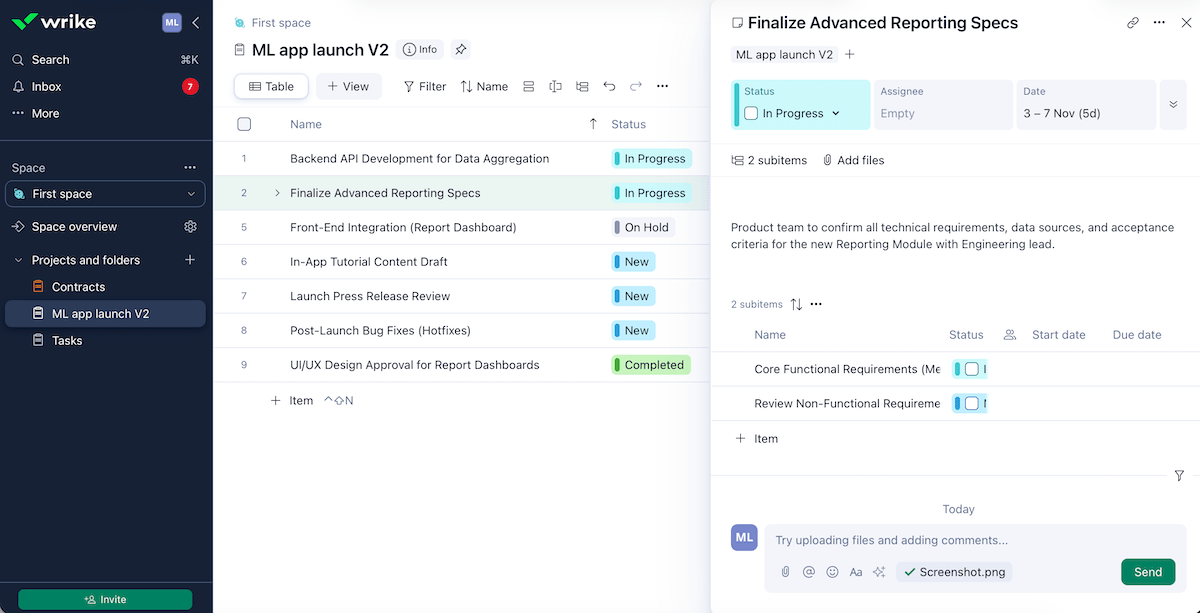
As for why I believe Wrike is suitable for cross-functional setups, here are some features that keep different teams connected while still focusing on their own priorities:
- Advanced permissions & sharing — With different access roles (full, editor, limited, or read-only) and guest approvals, Wrike makes everything clear and safe even when many people are working together.
- Cross-tagging — A single (sub)task or folder can live in multiple projects, so you don’t need to create duplicate entries.
- Live editing & proofing — Collaborative editing and proofing means simultaneously working on deliverables with colleagues — adding comments, consolidating feedback, and minimizing the need for calls and meetings.
- 400+ integrations — With hundreds of integrations, Wrike can connect with other departments’ tools and make cross-team collaboration seamless.
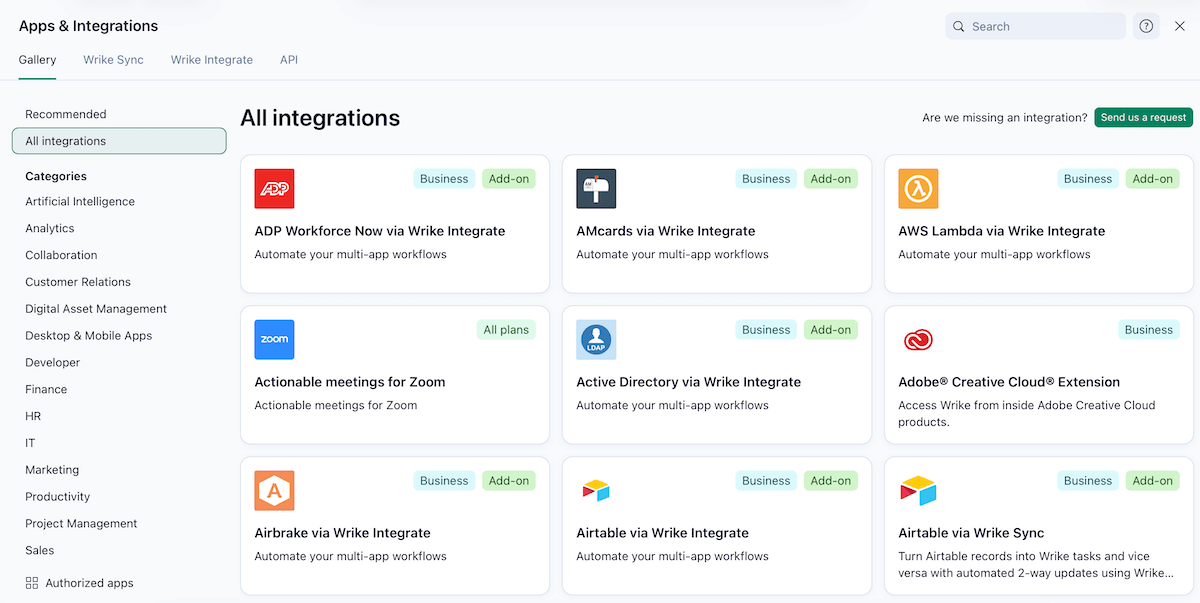
Overall, this is a handy app, but there’s a steep learning curve. With so many views and menus, it takes a while to feel “at home.”
An even bigger issue for me is Wrike’s pricing. The website states per-user rates, but the FAQ section reveals this:
- Up to 30 seats — sold in groups of 5,
- 30–100 seats — sold in groups of 10, and
- 100+ seats — sold in groups of 25.
So, if you have a team of 32 people, let’s say, you must pay for 40 seats, which means extra cost without real purpose.
What’s new in Wrike?
Wrike has new filters in Dashboards, and as of recently, Business and Enterprise users can create Dashboard widgets with AI using natural language. In addition, Enterprise and Pinnacle users can now reuse workflows across multiple spaces.
Available for: web, macOS, Windows, iOS, Android
| Plan | Price |
|---|---|
| Free | $0 |
| Team | $10/user/month (2-15 users) |
| Business | $25/user/month (5-200 users) |
| Enterprise | POA (5-unlimited users) |
| Pinnacle | POA (5-unlimited users) |
💡 Plaky Pro Tip:
Wanna see how Wrike stacks up against its popular competitors — Asana and monday.com? Read these:
#4 Teamwork — best for client management
Teamwork is a project and resource management platform for handling both internal and client-facing projects.
Why choose Teamwork?
This app is primarily designed for client-service teams. It’s more feature-rich than Basecamp but still intuitive enough that you’re not overwhelmed.
| Pros | Cons |
|---|---|
| – Strong automations – Custom branding – Client users | – Limited free plan – Occasional lag |
While testing Teamwork as a Basecamp alternative, I got the impression it strikes a better balance between simplicity and depth. Some standout features in Teamwork include:
- Detailed structure & views — The app’s flexibility comes from Gantt, Board, List, and Table views, combined with (sub)tasks, project milestones, dependencies, and tags.
- Integrations — Besides around 20 native integrations, Teamwork connects with thousands of third-party apps through services like Zapier and Make.
- Automations — Automations in this tool have event- and time-based triggers, and the monthly action limit grows as the pricing plans do.
While automations in Teamwork’s free version are a pleasant surprise, many other features are more limited or non-existent in that plan or even the first paid one (e.g., custom fields, reporting).
Another example is customer support — no live chat or email support for free users. For me, this always makes it difficult to decide whether the app is worth paying for.
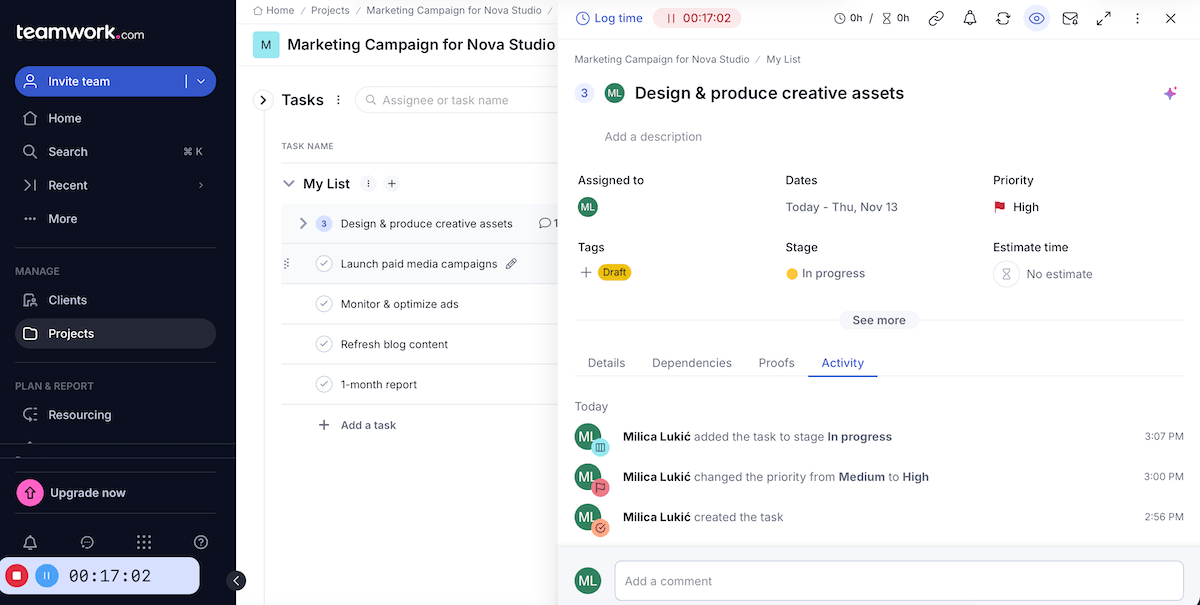
As mentioned previously, Teamwork’s built for client-facing setups. It also works for internal collaboration, but this platform is most known for:
- Client users & permissions — On paid plans, you can invite clients into your workspace and decide what they can see.
- Forms — This feature works for client feedback or internal requests, so you can turn form submissions into tasks without chasing down emails.
- Custom branding — Adding your logo, color scheme, and domain name will make your clients feel like they’re in your system, not some generic app.
- Billing & time tracking — You can track time spent on client work and link it to invoices, getting a clear overview of profitability per project.
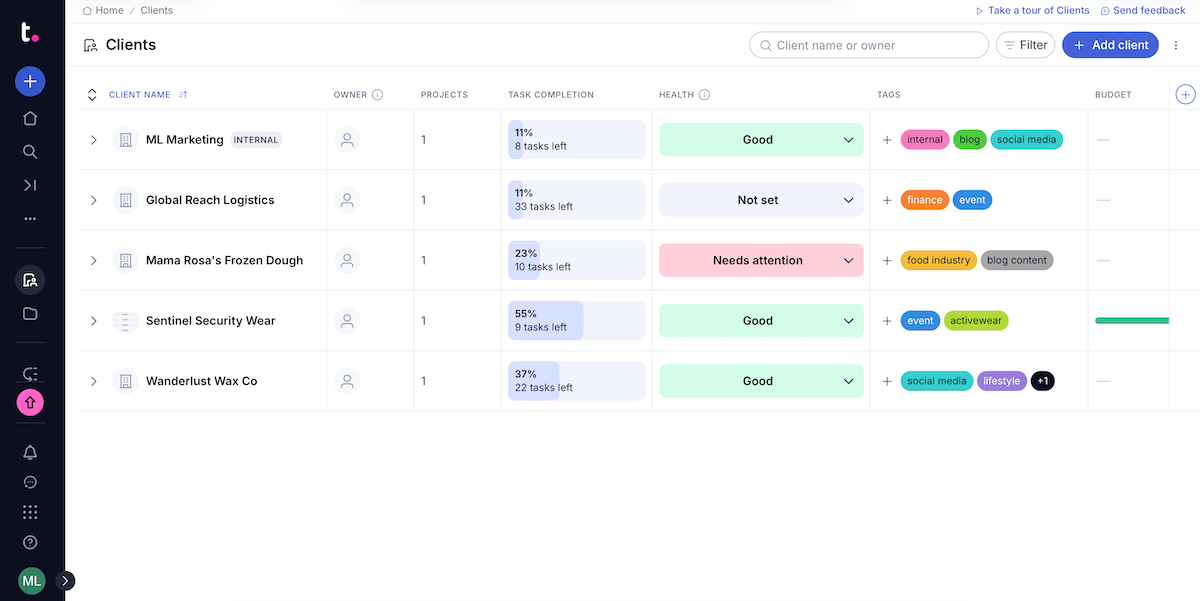
What concerned me a little was the platform lagging when I didn’t even have that much data. For example, I had to refresh the page for the task completion percentage to update in the client management view, which was frustrating.
Get a fast, reliable app — Plaky
What’s new in Teamwork?
One of the novelties is the Teamwork-ChatGPT Connector for Teamwork’s paid users. Moreover, the new multi-currency feature lets you manage different currencies across clients. Finally, Scale users can now add Google Calendar in Planning views.
Available for: web, macOS, Windows, Linux, iOS, Android
| Plan | Price |
|---|---|
| Free | $0 (up to 5 users) |
| Deliver | $10.99/user/month* (at least 3 users) |
| Grow | $19.99/user/month* (at least 5 users) |
| Scale | POA |
| Enterprise | POA |
*billed annually
#5 Monday.com — best for visual workflow management
Monday.com is a work management platform that helps teams organize and visualize their projects and workflows.
Why choose monday.com?
This tool is far more visual and versatile than Basecamp, adapting to almost any workflow — product sprints, client projects, content management, etc.
| Pros | Cons |
|---|---|
| – Robust workload management – 200+ integrations – Dashboard with widgets | – Limited free plan – Inefficient pricing structure |
Monday.com feels dynamic and modern from the start, primarily thanks to:
- Advanced project management — You can manage all project phases on this platform thanks to forms, dependencies, comments, automations, and more.
- Numerous integrations — With over 200 integrations, monday.com enables you to completely centralize information and simplify team collaboration.
- Resource management — The workload view can be customized based on the schedule for each team, letting you distribute work efficiently and transparently.
I must underline that most of these features aren’t available in the free or even Standard plan. For example, workload management and time tracking in monday.com require Pro or Enterprise access, which is far from cheap (especially for a bigger team).
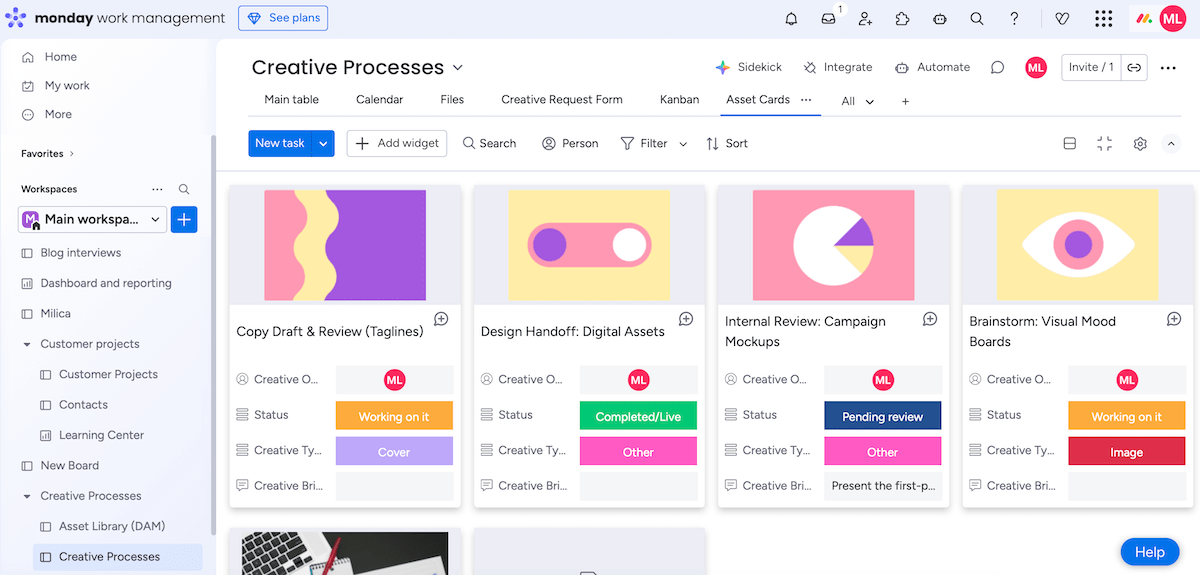
That said, if there’s an area where monday.com absolutely outshines Basecamp, it’s visual workflow management — thanks to its:
- Color-coded status tracking — Each task/project stage can have its representative color (e.g., green for Done, red for Stuck), offering instant clarity at a glance.
- Multiple project views — You can switch between various views (Table, Map, Timeline, etc.) to see projects in the way that’s convenient to you.
- Visual dashboards — Dashboards in monday.com support 30+ widgets and apps for visualizing progress, budget, or workload in real time, without exporting data to spreadsheets.
- Advanced reporting — With formulas, charts, pivot board view, etc. it’s easy to gain deep insights and share them when necessary.
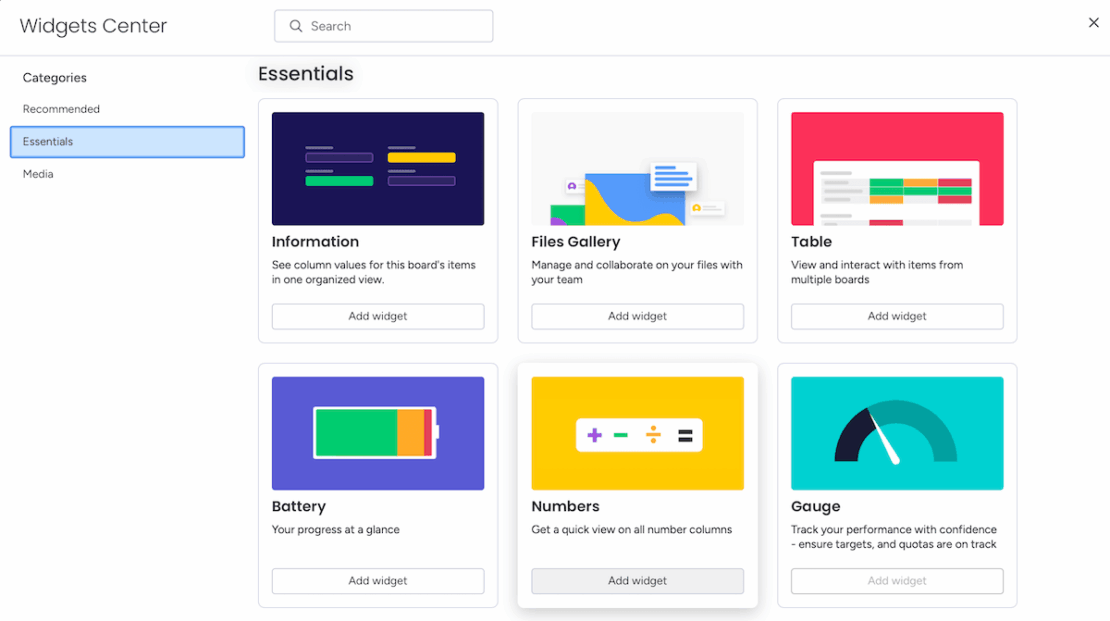
In terms of drawbacks, I’d say the app feels cluttered when you have many boards and columns, and some smaller buttons become hard to notice.
And, much like Wrike, monday.com’s pricing isn’t as flexible as the tool itself. The seats are sold in groups (3, 5, 10, 15, 20, and so on), making it inefficient for small or growing teams that don’t fit neatly into those bundles.
💡 Plaky Pro Tip:
We’ve compared monday.com to several alternative platforms from this very article, so if you want side-by-side reviews, check these out:
What’s new in monday.com?
Monday.com has introduced the Autopilot hub, a centralized section for managing all of your organization’s automations and integrations. Also, Enterprise users can now set up cross-project dependencies, highly helpful for complex workflows.
Available for: web, macOS, Windows, iOS, Android
| Plan | Price |
|---|---|
| Free | $0 (up to 2 seats) |
| Standard | $12/seat/month* (at least 3 seats) |
| Pro | $19/seat/month* (at least 3 seats) |
| Enterprise | POA |
*billed annually

#6 Nifty — best for goal management
Nifty is PM software that brings tasks, docs, discussions, and goals into one place, so teams that need all those elements don’t need to juggle multiple apps.
Why choose Nifty?
If your team thinks in terms of outcomes rather than just tasks, Nifty supports this with trackable goals in a way that Basecamp simply doesn’t offer.
| Pros | Cons |
|---|---|
| – Strong automations – Cross-project dependencies & goals – Master overview | – Best features locked behind higher plans – Limited mobile app |
After spending some time exploring Nifty, here’s what stood out to me:
- Structured workflows — The app packs in easy communication (comments and in-app chat), 5 project views, custom columns, and native time tracking, allowing for flexible yet structured organization.
- Automation and dependencies — You can choose from ready-made automation rules or build your own. Also, users can set up dependencies, even if connected tasks are part of different projects.
- Master overview & reporting — Nifty provides cross-project visibility with its master overview and reporting dashboard, letting you analyze progress in one place.
Compared to ClickUp or Wrike, Nifty has limited native integrations, but like several others on this list, it connects with thousands of apps through Zapier.
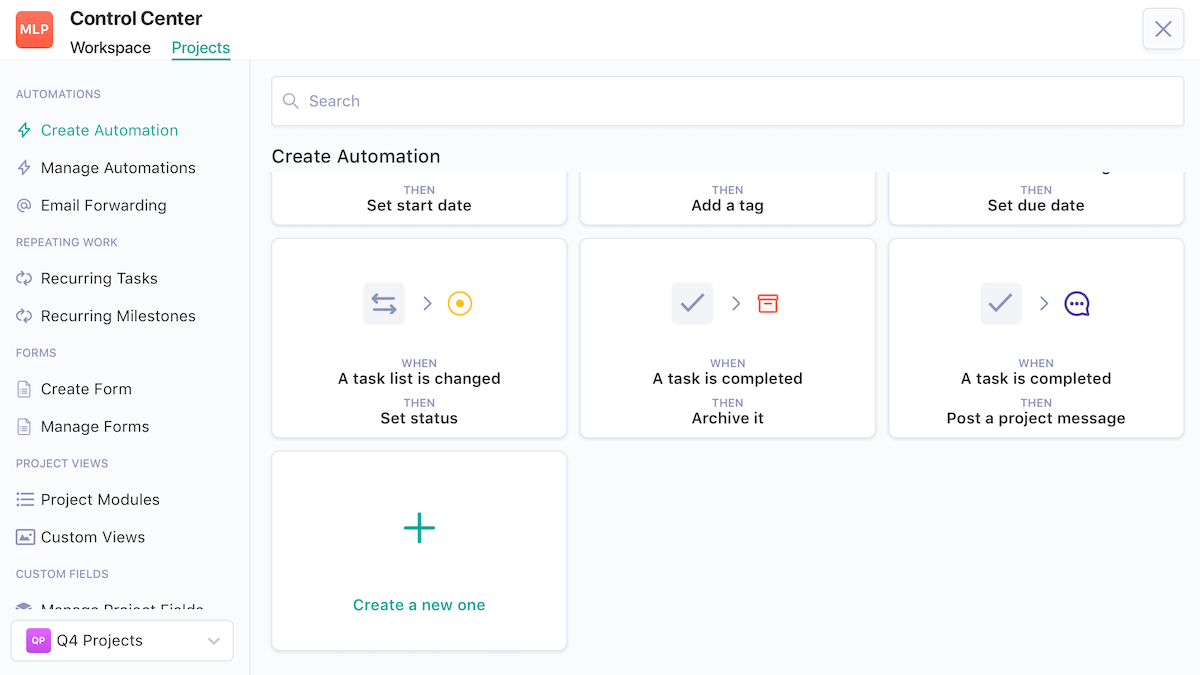
If I had to name Nifty’s forte, I’d say goal management. It’s surprisingly powerful without overwhelming you with features thanks to:
- Syncing goals with tasks & milestones — As tasks and milestones move forward, the connected goal updates itself.
- Cross-project goals — You can tie a goal to work happening in multiple projects, which is handy for cross-department collaboration.
- Goal grouping — To keep big-picture strategy organized, you can group related goals under a broader initiative.
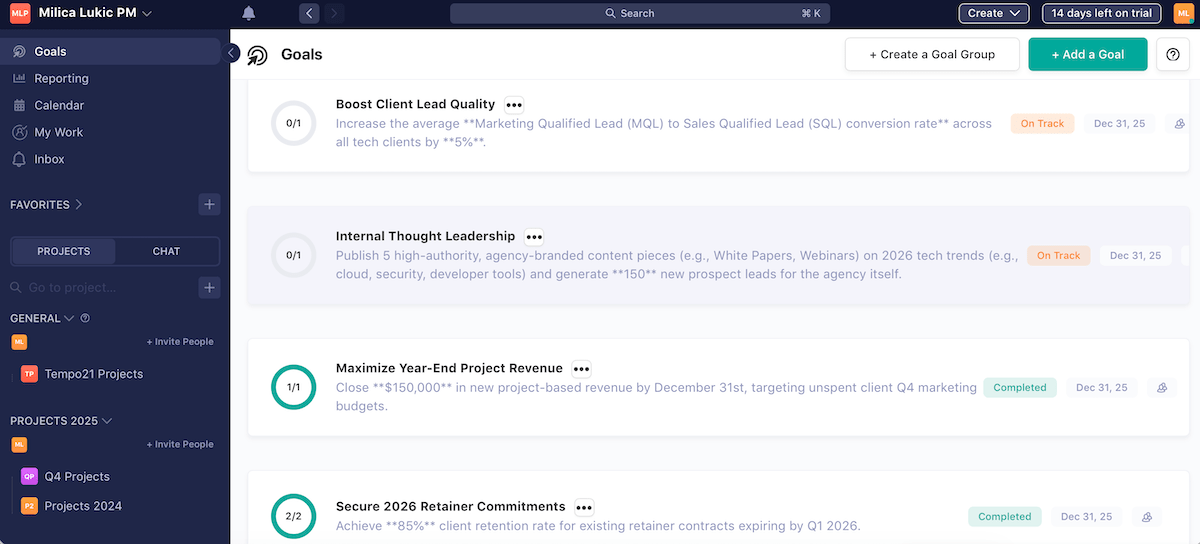
I noticed some of the platform’s weaknesses as well. For instance, since it’s more feature-dense than Basecamp, Nifty’s UI is more complex, but I got used to it.
Unfortunately, the best features are reserved for those on the second paid plan (e.g., automations, goal tracking, file proofing). And, forms and white labeling are available natively only on Enterprise. Otherwise, they’re paid add-ons ($20/month and $40/month, respectively).
Finally, Nifty’s mobile app works, but it’s less smooth compared to the web/desktop version (e.g., you can’t drag and drop Kanban cards).
💡 Plaky Pro Tip
Interested in learning more about goals in project management? Read this:
What’s new in Nifty?
As of recently, you can group related projects into folders and set subtask dependencies in Nifty. The white labeling add-on is also new, letting you apply your brand colors across the workspace and add your logo to invitation and notification emails, loading screens, and more.
Available for: web, Windows, macOS, Android, iOS
| Plan | Price |
|---|---|
| Free | $0 |
| Personal | $7/member/month* |
| Business | $16/member/month* |
| Enterprise | POA |
*billed annually
#7 Asana — best for enterprise project management
Asana is a PM tool that allows teams to organize and monitor projects, goals, files, and more in a single hub.
Why choose Asana?
This software can help you steer the organization and scale project management in a way that Basecamp might struggle since it doesn’t have many enterprise-ready features.
| Pros | Cons |
|---|---|
| – 300+ integrations – Multi-home tasks – Practical dashboards | – Assignee limitations – Ineffective pricing |
Here are the features I highlighted as noteworthy after exploring Asana:
- Flexible structure — Ensure clarity by organizing work into projects, tasks, and subtasks, with the option to automate repetitive work. Switch between different views (List, Board, Calendar, etc.) as needed.
- 300+ integrations — Connect Asana with other software you use for smoother workflows (e.g., apps for communication, sales, finance).
- Resource management — Make capacity plans, visualize workload, and calculate effort to keep your strategy on track.
However, I was surprised to learn that only 1 user can be the primary task assignee in Asana. While it’s true that you can @mention collaborators or create subtasks for each person, I simply find that restrictive.
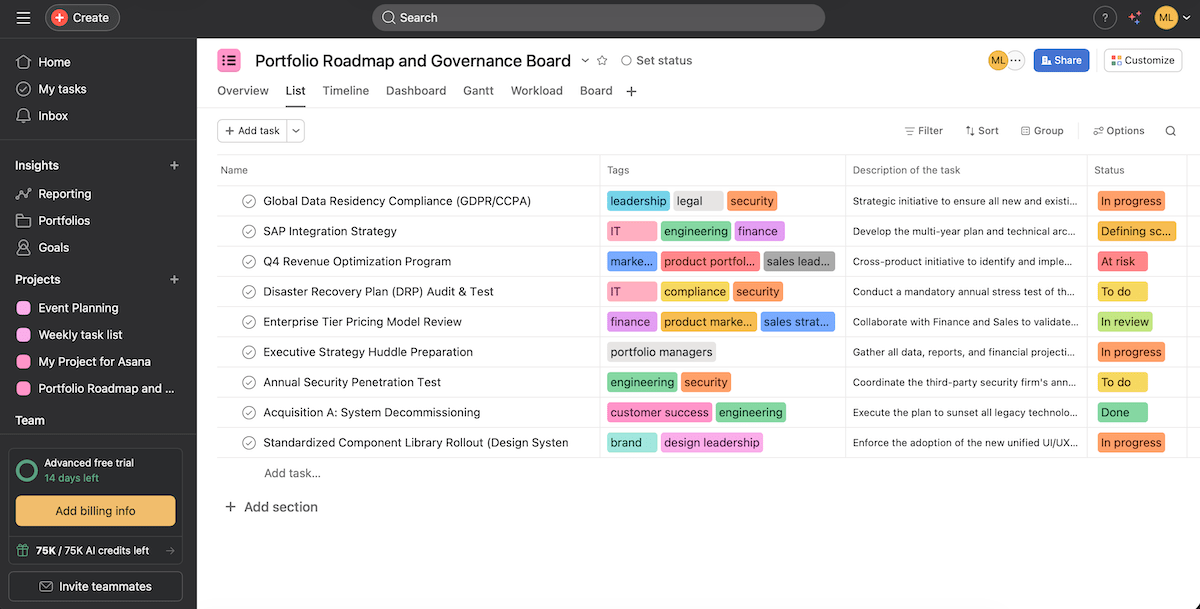
As for why I consider Asana a solid choice for enterprise project management, its key strengths are:
- Multi-home tasks — A task can live in multiple projects, so any updates are automatically synchronized across the platform. This minimizes the chances of working in silos.
- Goal & portfolio alignment — As projects scale, Asana lets you link tasks to broader company goals and arrange multiple projects into portfolios for better long-term planning.
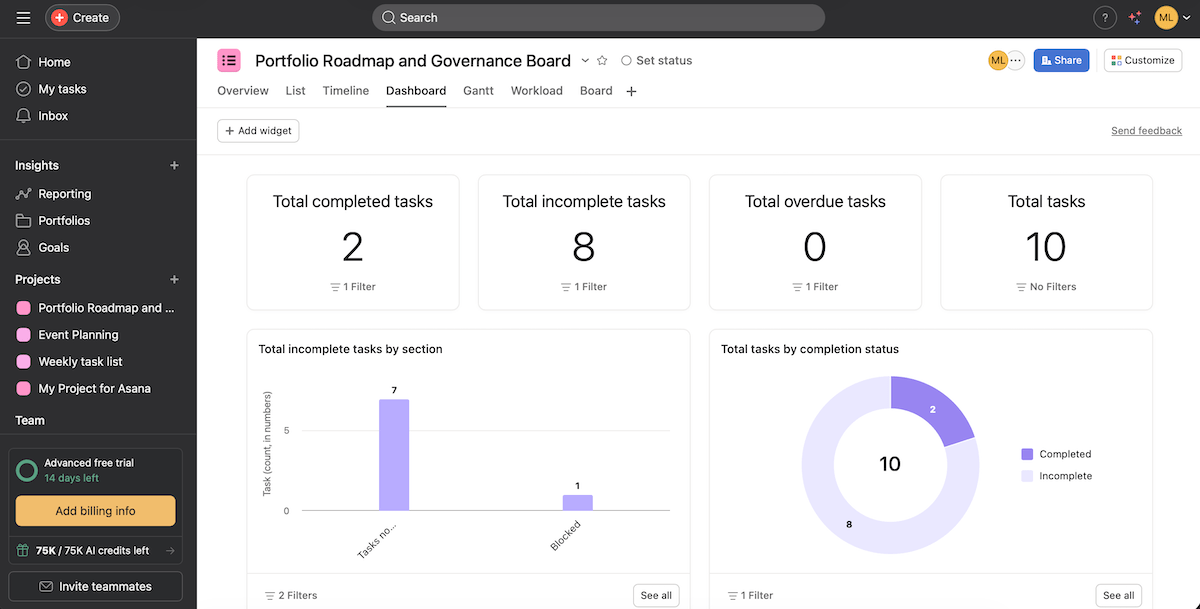
- Reporting dashboards — Asana’s dashboards show real-time data in custom charts, helping you track project KPIs and make data-driven decisions.
- External collaborators — Large companies often work with external partners/vendors, and on Asana’s paid plans, you can assign unlimited free guest access to such users.
You should also know that apart from the 2-, 3-, and 4-seat plans, Asana’s pricing doesn’t allow adding a single seat to a subscription. The subscription size works like this:
- ≤30 users — increments of 5,
- 31-100 users — increments of 10,
- 101-500 — increments of 25, and
- 500+ users — increments of 50.
Just like with Wrike and monday.com, it means you need to pay for unused seats in Asana if your team size isn’t a “neat” number.
💡 Plaky Pro Tip
Want more detailed comparisons of Asana and its main competitors? We have several!
What’s new in Asana?
Many updates in Asana have to do with AI, such as AI-powered automation rules and building smart workflows using natural language. Additionally, users on Starter and higher plans can now use reference fields (attach tasks, projects, portfolios, and goals as field values).
Available for: web, macOS, Windows, iOS, Android
| Plan | Price |
|---|---|
| Personal (free) | $0 (up to 10 users) |
| Starter | $10.99/user/month* (at least 2 users) |
| Advanced | $24.99/user/month* (at least 2 users) |
| Enterprise | POA |
*billed annually

#8 Zoho Projects — best for teams in the Zoho ecosystem
Zoho Projects is a comprehensive PM platform for planning, tracking, and collaborating efficiently.
Why choose Zoho Projects?
Projects is part of the Zoho Suite — 40+ tools for HR, finance, customer relationship management (CRM), and more. This makes it particularly useful for companies that use other Zoho apps or want an all-in-1 solution.
| Pros | Cons |
|---|---|
| – Smooth collaboration – Analytical reports – Seamless integration with other Zoho apps | – Slight learning curve – Design could be more polished |
If you like Basecamp’s discussion-driven workflow but need more control, you’ll love these Zoho Projects’ features:
- Intricate hierarchy — Plan visually and track progress with milestones, (sub)tasks, and dependencies in List, Kanban, Gantt, or Calendar views.
- Powerful automation — Use the Blueprint feature to automate repetitive actions like task assignment or status changes.
- Collaboration tools — Rely on Projects’ native chat, document sharing, and comments to keep collaboration organized. Teams can even co-edit documents by integrating with Zoho Writer, Sheet, or Show.
- Charts and reports — Analyze resource use and productivity with charts, custom reports, and timesheets.
These are just some of many Zoho Projects’ features, so I’d say onboarding might take time, especially for non-technical users.
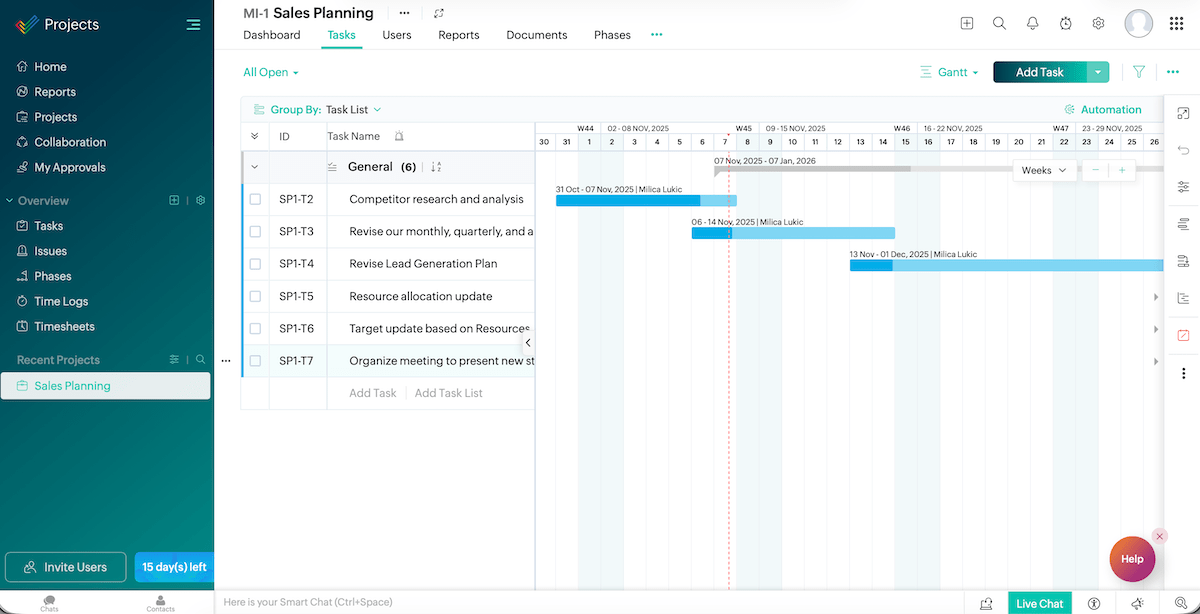
As mentioned, this is just 1 of Zoho’s apps. So, for teams already using other Zoho solutions, Projects will connect naturally. The main benefits are:
- Seamless integration — Tasks and updates move between Zoho apps automatically, reducing manual entry.
- Centralized data — You can view client info from CRM, project progress from Projects, invoices from Books, and so on, all in 1 ecosystem, avoiding disconnected platforms.
- Unified user experience — All Zoho tools share a consistent UI/UX, so teams don’t need to relearn different interfaces for different functions.
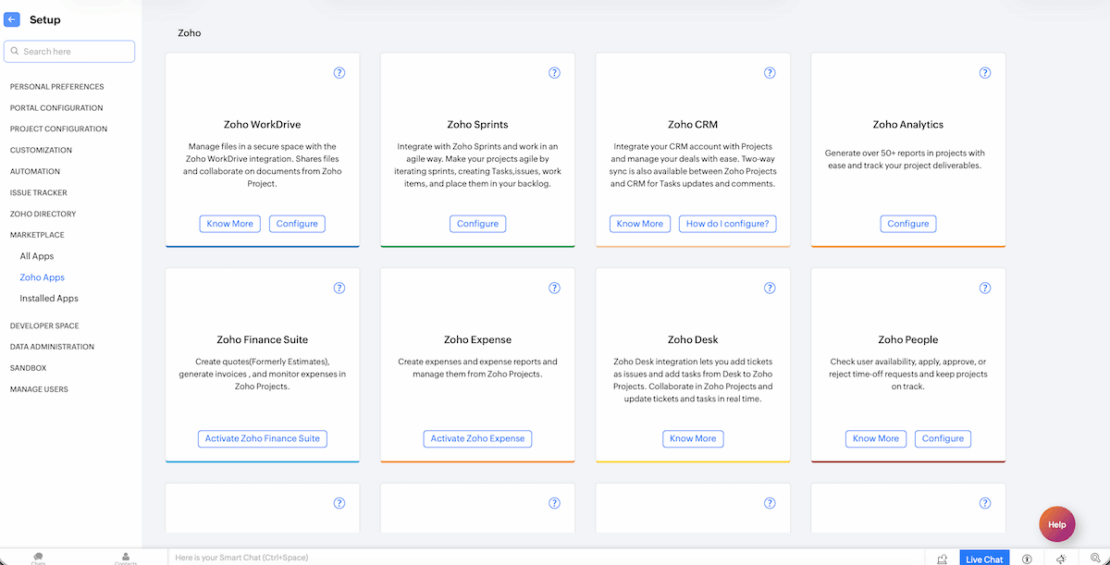
Overall, Zoho Projects is intuitive, but there are some UI/UX details I found inconvenient.
For instance, when adding a new column, you don’t get a dropdown menu within the task list. Instead, a side menu pops up, and the rest of the screen darkens, adding extra clicks to something that could be simple.
Also, when you click on the checkbox next to a task, it doesn’t mark it complete, as you’d probably expect — it only opens another set of options above the table.
What’s new in Zoho Projects?
The most significant new feature is the Zoho Flow integration, letting users integrate, automate, and connect their tasks/projects directly to third-party applications.
Available for: web, iOS, Android, iPadOS, Apple Vision
| Plan | Price |
|---|---|
| Free | $0 (up to 5 users) |
| Premium | $4/user/month* |
| Enterprise | $9/user/month* |
| Project Plus | POA |
*billed annually
#9 Notion — best for knowledge base management
Notion is a flexible workspace that blends task management, note-taking, and databases into a single platform.
Why choose Notion?
While Basecamp feels too rigid or minimal, Notion offers features for not just storing information but connecting it as well. This way, your team’s knowledge stays organized over time.
| Pros | Cons |
|---|---|
| – Highly customizable – Synced blocks – Database linking | – Learning curve – Laggy with big pages |
This platform provides control and flexibility. There are many kinds of building blocks (text, images, quotes, lists, to name a few) for organizing the workspace however you like. In addition, Notion shines thanks to:
- Visual organization — Order and color-code blocks in different views (List, Calendar, Gallery, etc.), according to your needs.
- Automations — Eliminate repetitive work and create smoother task flows, database management, and social media workflows.
- 120+ integrations — Check statuses, and get data from other apps without leaving Notion. This is reserved for paid plan users, though, and integration options grow with the pricing.
- All-in-1 philosophy — Keep notes, tasks, comments, roadmaps, and more in a single place to maintain focus.
Admittedly, Notion can feel overwhelming for newcomers, so I suggest starting with a template to explore the tool’s functionality before building your own pages from scratch.
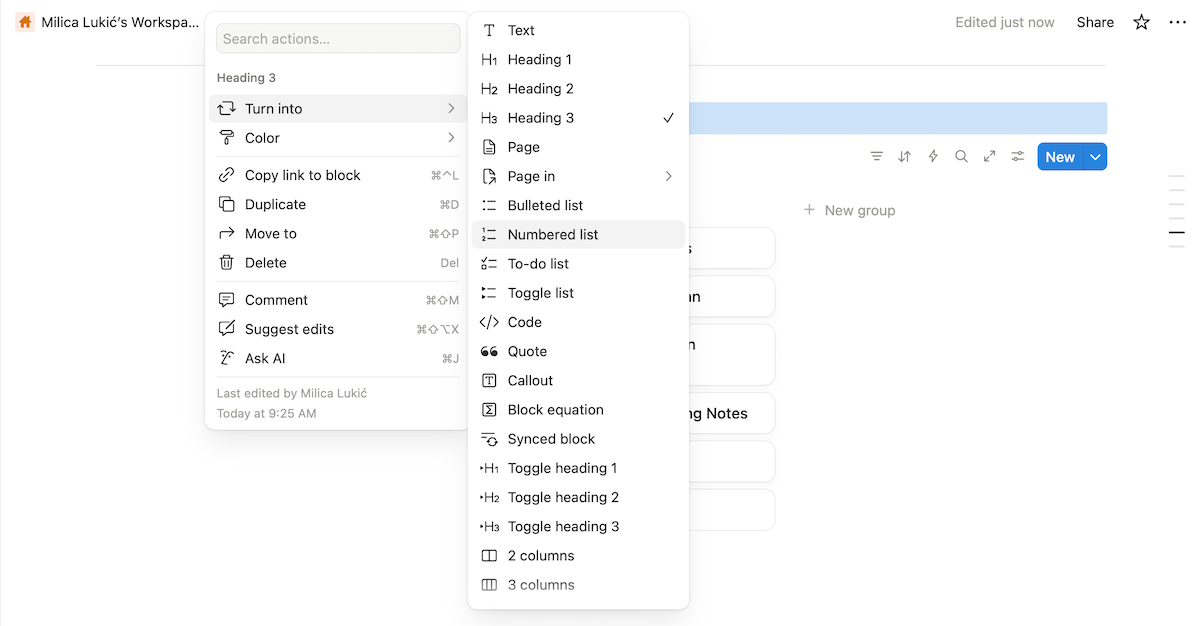
I think Notion really comes into its own when used as a knowledge base thanks to its:
- Synced blocks — Use the same block of content across multiple pages to eliminate duplication and outdated info.
- Database linking — Connect different databases to transform your workspace into a living system.
- Page mentions & backlinks — Easily trace where something is mentioned and navigate related content.
- Embeds & link previews — Keep external resources (Figma files, Loom videos, web articles, etc.) right where you need them with rich previews.
- Sharing options — You can create both internal and external databases (e.g., for internal team use and for clients) — you’d just need to adjust permissions and sharing options accordingly.
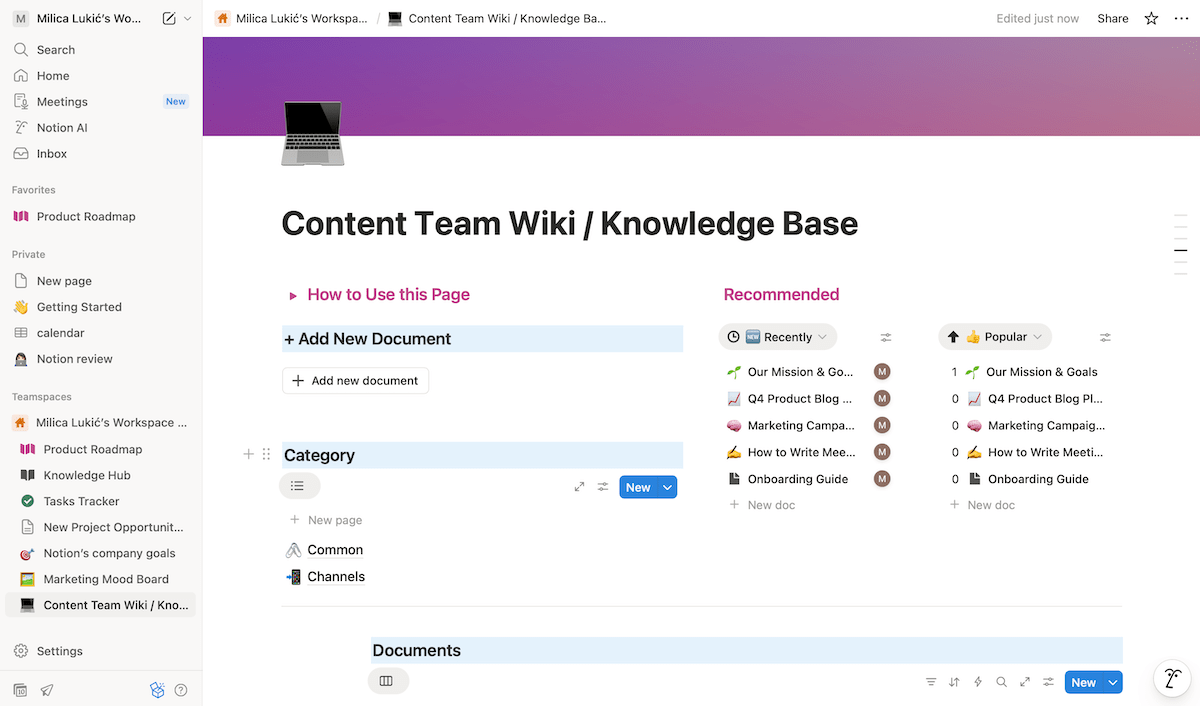
As for downsides, I noticed that Notion’s performance slows down with large databases. This can break your focus or cause frustration during collaboration.
Also, Notion’s pricing went up in the summer of 2025, so it’s not the most affordable option on this list.
💡 Plaky Pro Tip:
Notion’s main competitors are Obsidian and Evernote, so we’ve compared them in detail. Learn more here:
What’s new in Notion?
Notion has recently rebuilt Notion AI and turned it into Agents. Notion users can personalize their Agent’s instructions and memories, and it can even analyze page comments and calendars and take action on CSVs.
Available for: web, macOS, Windows, iOS, Android
| Plan | Price |
|---|---|
| Free | $0 (1 user + 10 guest seats) |
| Plus | $10/user/month* |
| Business | $20/user/month* |
| Enterprise | POA |
*billed annually
#10 Airtable — best for data-centric teams
Airtable is a spreadsheet-database hybrid for organizing and collaborating on large sets of information.
Why choose Airtable?
As a platform for creating custom tables, apps, and dashboards, Airtable is suitable for teams that depend on structured, interconnected data.
| Pros | Cons |
|---|---|
| – Database linking – Interface designer – Embeddable views | – Some coding knowledge needed for full functionality – Pricey |
Compared to Basecamp, Airtable offers a much more data-driven approach to project management. Here’s what caught my attention the most:
- Powerful databases — A “base” can hold text, attachments, links, formulas, and more, essential for managing complex projects.
- Automations — You can automate creating/updating records, sending emails, creating events in Google Calendar, etc. Know-code users can elevate this feature through scripting, Software Development Kit (SDK) extensions, or APIs.
- Customizable views — Airtable lets you switch between several views (Grid, Timeline, Gallery, and others) to visualize data in different ways.
- Integrations — While Airtable’s native integrations aren’t that rich (20+ options), integrating it with Zapier enables connections with thousands of apps.
I used all these in Airtable’s web version, and I must say the platform was somewhat slow to respond on several occasions. So, I’m concerned it would become laggy with heavy automations covering multiple records.
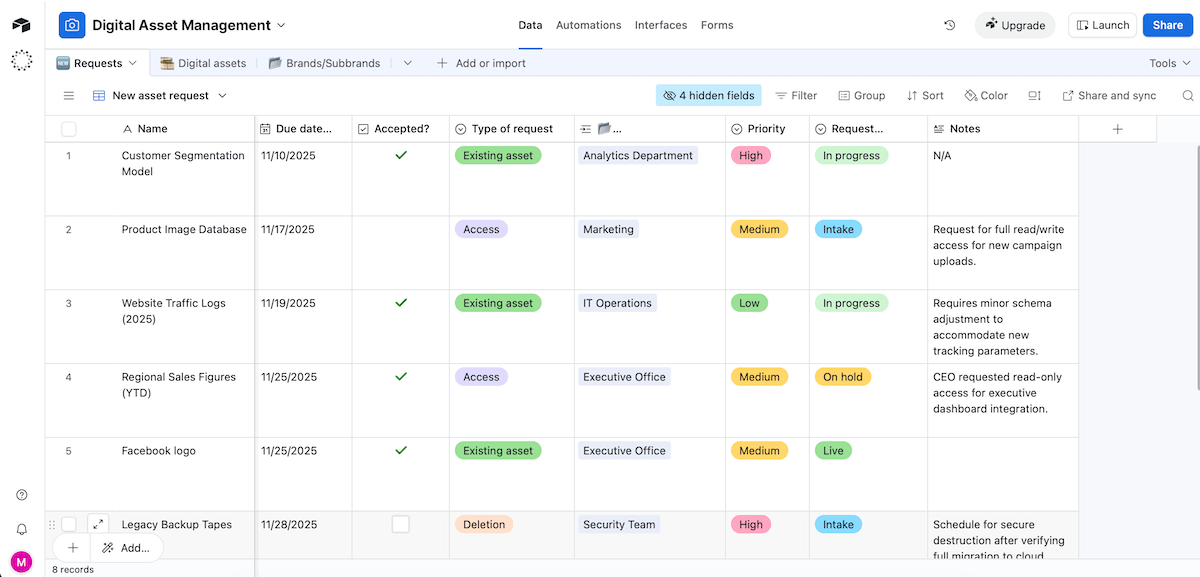
Back to the positives: Airtable works well for data-focused teams, e.g., operations, marketing, or analytics teams that need features such as:
- Relational databases — Link records across different tables (e.g., connect Clients to Campaigns) to avoid duplicates and messy spreadsheets.
- Interfaces & dashboards — Turn raw data into sleek dashboards with visual widgets, which are great for presenting information to teammates or project stakeholders.
- Embeddable, real-time views — Display live Airtable data on websites or client portals. It’s perfect for sharing up-to-date dashboards and progress trackers without exposing your full base.
- Real-time collaboration — Work on the same datasets with multiple colleagues simultaneously. This is crucial for teams managing shared data sets.
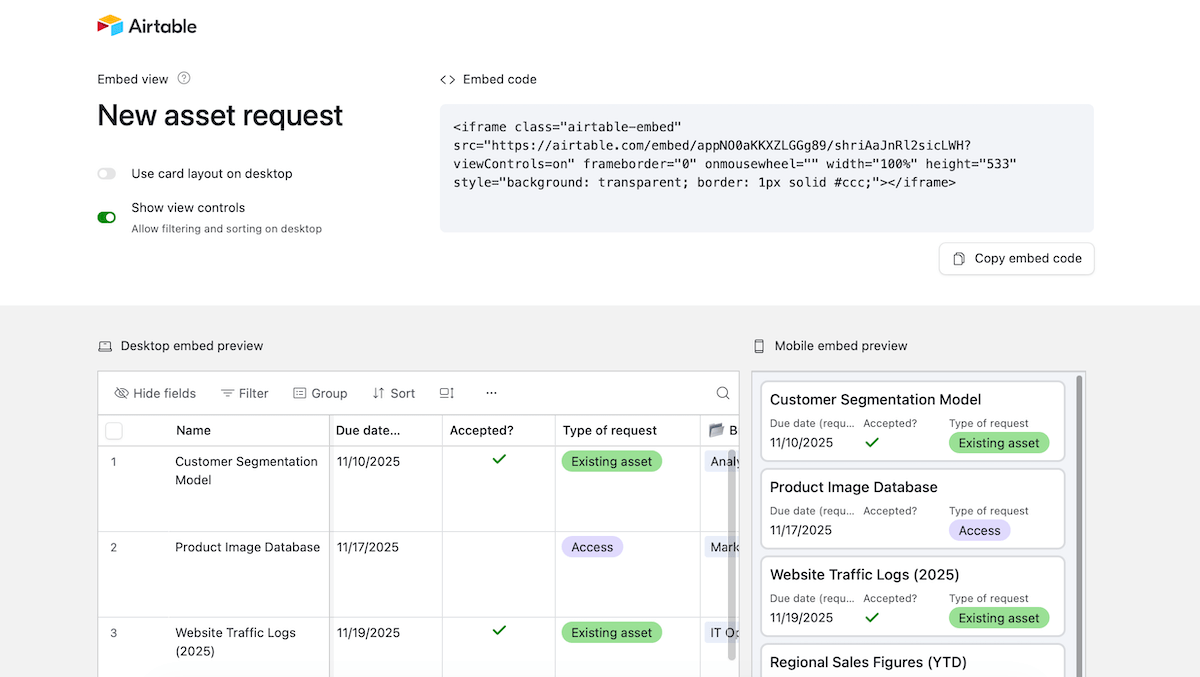
Unfortunately, most sync options/integrations are reserved for those on Airtable’s Business tier, which requires a steep $45/seat/month.
Another cost-related remark: Portals, a feature for sharing your Airtable interfaces with external collaborators, is a paid add-on, starting from $120/15 guests/month. This is quite pricey, considering many other apps support guest access as part of their packages, requiring no extra charge.
What’s new in Airtable?
It’s now possible to link Airtable records to your published data sets, making it easier to create apps referencing trusted data sources. Also, custom domains are in public beta on Enterprise Scale plans.
Available for: web, macOS, Windows, iOS, Android
| Plan | Price |
|---|---|
| Free | $0 (up to 5 editors) |
| Team | $20/seat/month* |
| Business | $45/seat/month* |
| Enterprise Scale | POA |
*billed annually
#11 Trello — best for Kanban project management
Trello is a PM tool built around the Kanban approach, a simple yet powerful system organizing work into cards moving through stages (columns) on a board.
Why choose Trello?
This app might be the sweet spot for those who enjoy Basecamp’s simplicity but wish it offered Kanban-based clarity and visual structure.
| Pros | Cons |
|---|---|
| – Smooth Kanban workflows – 200+ integrations – Card mirroring | – Limited hierarchy – Basic reporting |
Trello keeps things clear without overcomplicating the workflow thanks to:
- Flexible organization — You can use boards for projects, departments, or clients and customize categories. If you opt for a paid Trello plan, you also get other view types besides Kanban (Table, Map, Timeline, and more).
- Automation & Power-Ups — With automations, you minimize time spent on repetitive processes like setting deadline reminders. Also, you can use so-called Power-Ups — integrations and add-ons that boost Trello’s functionality and connect it to 200+ other apps.
- Inbox — Trello’s Inbox is a place for capturing notes and to-dos from anywhere (your email, for example) before you move them into specific boards.
- Planner — The Planner section is for scheduling tasks/events directly from tools like Google Calendar. Much like with items from Inbox, you simply drag and drop tasks from Planner into the suitable board.
I’ll just point out that Trello has limited hierarchy — no native support for subtasks beyond checklists or nesting via folders or portfolios.
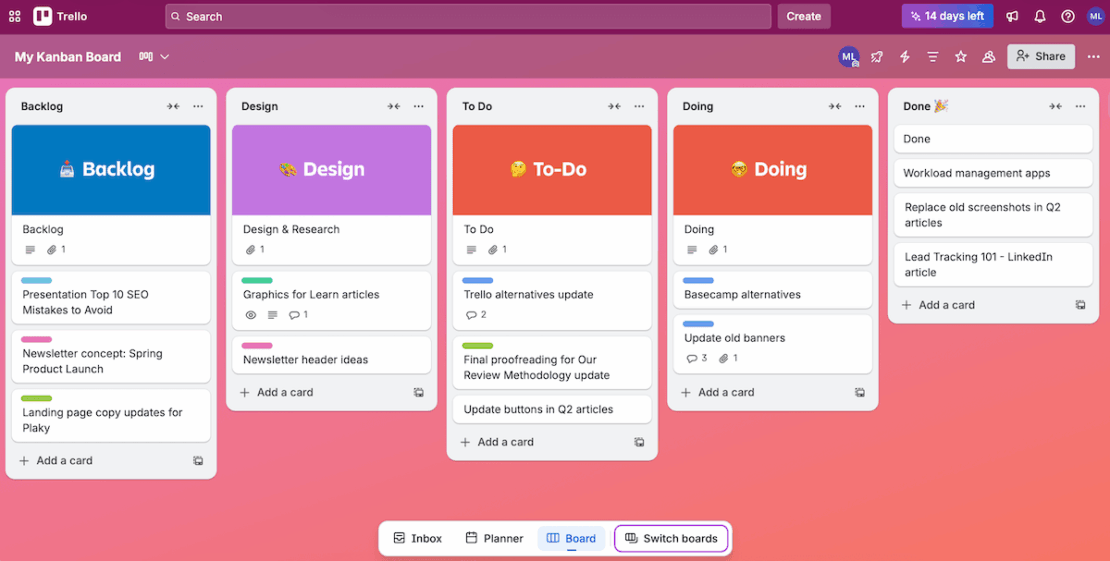
That said, here’s why I believe Kanban-focused teams like Trello:
- Drag-and-drop workflow — Moving cards across columns in Trello is intuitive and satisfying. You can quickly see what’s in motion, ready to deliver, or blocked (especially if you add a work-in-progress limit with Power-Ups).
- Card-level details — Each card holds everything about a task: description, assignee, due date, checklist, comments, and attachments, which means you never lose context.
- Card mirroring — If you sync 2 or more cards across different boards, changes in one card automatically update in the mirrored one(s) as well without manually duplicating or updating it.
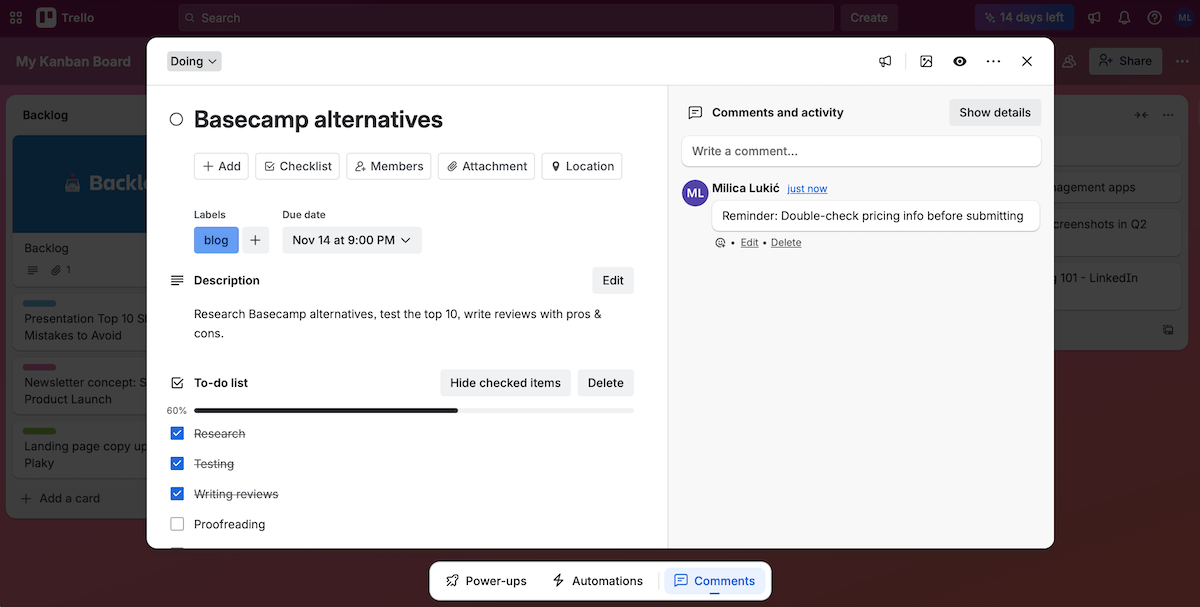
All in all, Trello’s good for lightweight project tracking. However, it does strain under heavier workflows or more complex reporting needs. Power-Ups provide basic charts and summaries, but detailed analytics and time tracking require third-party integrations.
What’s new in Trello?
Trello has improved the card detail viewing and editing experience with new navigation components that minimize screen clutter.
Available for: web, macOS, Windows, iOS, Android
| Plan | Price |
|---|---|
| Free | $0 (up to 10 collaborators per workspace) |
| Standard | $5/user/month* |
| Premium | $10/user/month* |
| Enterprise | $17.50/user/month* (est. cost for 50 users, i.e., the minimum) |
*billed annually

#12 Podio — best for custom app-style workflows
Podio is a PM solution that lets you build your own workspaces and track essentially anything — tasks, leads, bugs, clients, or entirely unique workflows.
Why choose Podio?
If Basecamp feels too “one size fits all,” Podio will be an upgrade, letting you create mini-apps tailored to your exact processes.
| Pros | Cons |
|---|---|
| – Smooth collaboration – Versatile, no-code apps – Interconnected workflows | – Gantt view only with third-party integrations – Best features require the Premium tier |
I’ll start with what I liked in Podio:
- Collaboration features — Comments, status announcements, and in-app chat enable smooth teamwork.
- Automations — With time- and event-based triggers, you can automate task creation and assignment, document creation, sending emails/texts, and more.
- Integrations — Although Podio’s native integrations are limited, you can still connect it with thousands of apps through Zapier and Zoho Flow. This expands Podio’s automation possibilities as well.
- Reports — The native reporting capabilities are fairly basic but still useful for seeing progress across projects. For better data aggregation, I recommend using third-party extensions.
As for Podio’s UI, I appreciate the simplicity and pastel highlights, but compared to tools like Plaky or ClickUp, it definitely feels less modern and fast. In fact, I had to refresh the page each time after updating my cards to see the changes.
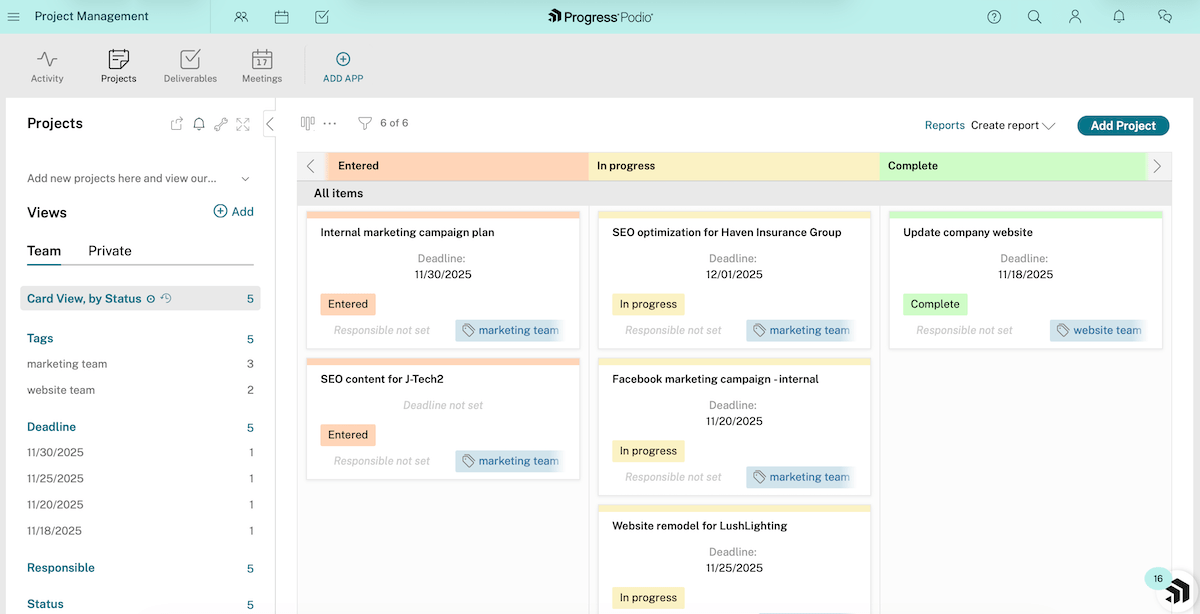
That said, Podio’s app-building system is where it shines. This feature means:
- Total customization without coding — You can create custom apps with the drag-and-drop builder or choose from Podio’s rich App Market options.
- Interconnected workflows — Apps can reference each other, e.g., a CRM app connecting to projects, deliverables, and invoices.
- Different roles — Besides employee roles, you can assign external client and guest roles. This keeps collaboration flexible without compromising security.
- Limitless use cases — With Podio, you can essentially build whatever you need: content calendars, product roadmaps, recruitment pipelines, etc. — you name it.
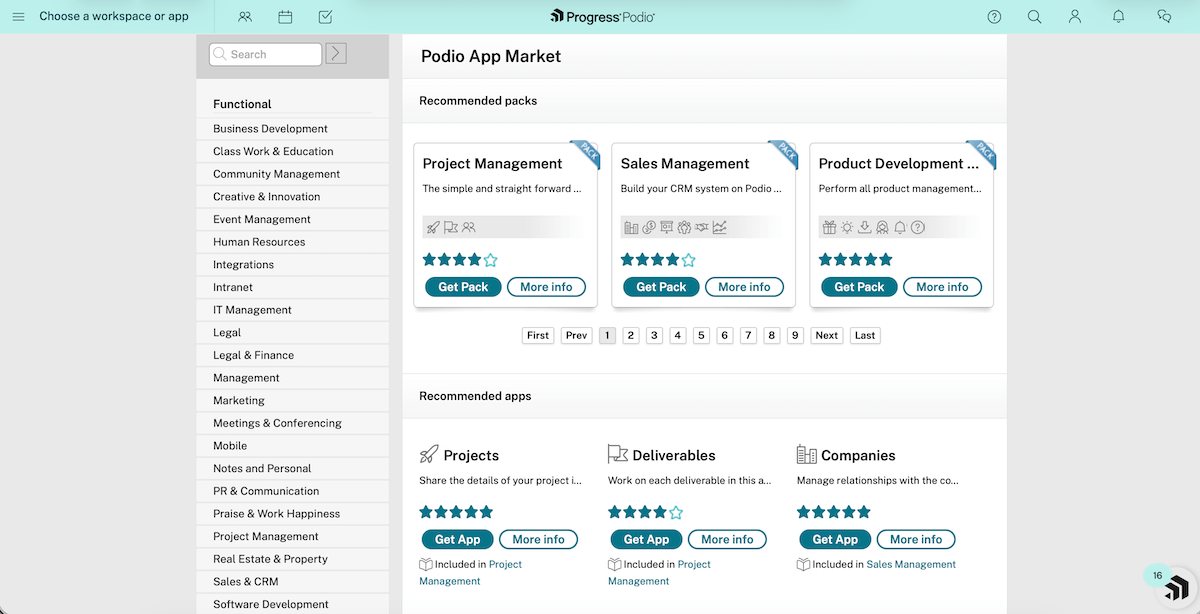
Now, the main reasons why I didn’t rank Podio higher. First, it has fewer project views compared to most other apps — just Table, Calendar, and Kanban. You can make Gantt charts through third-party extensions, but only if you’re a Premium user.
Other important features are also reserved for those on Podio’s highest plan (e.g., automation, webforms), which means costs can add up quickly for teams with premium needs.
What’s new in Podio?
Podio’s design changed recently to reflect the acquisition by Progress, showcasing a refined color palette. There’s also a new resource center within the app, offering centralized access to how-to guides, product news, and more.
Available for: web, iOS, Android
| Plan | Price |
|---|---|
| Free | $0 (up to 5 users) |
| Plus | $11.20/user/month* |
| Premium | $19.20/user/month* |
*billed annually
Step up to a smarter Basecamp alternative — Plaky
As you can tell from this article, I tried my best to present you with apps that can work as free Basecamp alternatives or replacements that are worth getting a paid subscription.
To choose the best tool for your team, you must consider your main priorities and budget. I imagine the ideal solution for any user would blend Basecamp’s simplicity with better customization without breaking the bank — just like Plaky.
Teams across industries use our reliable project management software because of all the good features mentioned in Plaky’s review, but I can also add bonus benefits such as:
- Enterprise-grade security — Your and your clients’ information is protected through secure data storage, strong encryption, and compliance standards.
- 24/7 customer support — In case you have questions, round-the-clock-support is available via live chat, email, and phone.
- Mobile access — Plaky has native mobile apps for iOS and Android, so you can manage work without being tied to your desk.
Ready to upgrade from Basecamp’s basics? Start managing projects without losing clarity — try Plaky today!