

Starting off with a new app can be refreshing for many as you get a blank canvas to fill with your plans. It can also be paralyzing if you’re not familiar with the features and you want to get things going quickly.
Even though Plaky is quite intuitive, you’ll still need to learn how to use it, whether it’s by spending time poking around or by reading and watching videos. Save yourself some time and find all the information you need about Plaky on this page.
How to use Plaky: quick tutorials
Plaky’s interface can’t get any friendlier, but when you’re new to an app, you can’t be sure of what the features are called. Luckily, you can find all the terms and their explanations in the Plaky glossary.
And here’s how you can get started in less than 15 minutes with Plaky:
- Create a space — Build a home base for a team or group of projects.
- Create a project board — Manage a specific project.
- Invite team members — Include the right people in different projects.
- Add item groups — Divide a project into phases or group tasks by type.
- Add items — Define actionable items and their details.
- Customize fields — Add different fields to different projects.
Explore in detail the hierarchy and organization of the Plaky workspace.
Once you know the basics, you can dive deeper into Plaky’s features and discover what you can achieve with them, such as:
- Create project boards from templates,
- View your projects in 4 different ways,
- Make the boards public or private, and
- Automate actions.

If you have any additional questions or want to find out more about certain features, you can talk to the living and breathing Plaky Support Team that is at your disposal 24/7.
Plaky pro tip
These features are only the beginning. We’re continuously improving Plaky and adding new options — check out what was changed up until now and what the team is working on currently:
Plaky integrations
You can integrate your Plaky account with Pumble and receive notifications right where you communicate daily with your team:
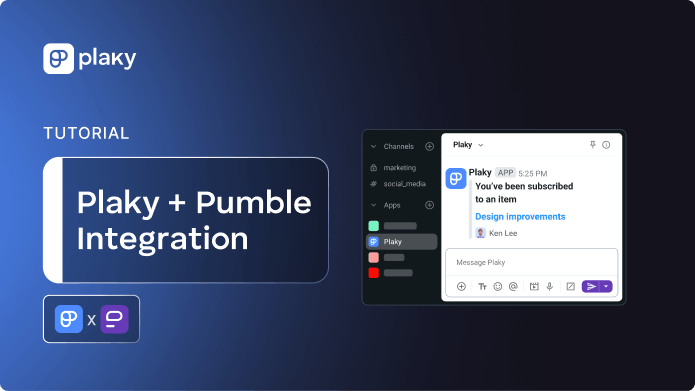
 Watch video (1:54)
And if you need an accurate account of your working hours, you can integrate Plaky with Clockify and track time on your tasks:
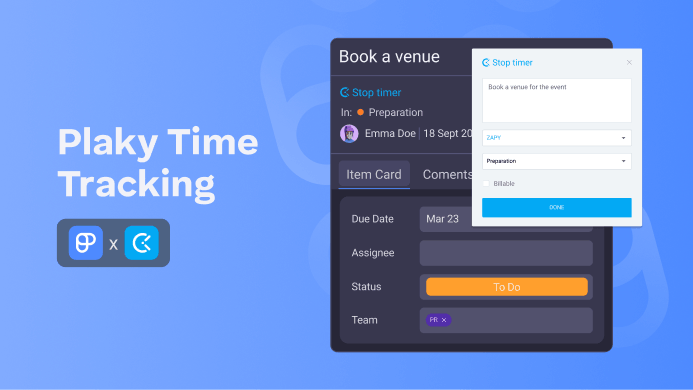 Watch video (6:31)
Make the most of your workspace by trying the CAKE.com Bundle — it includes Plaky, Clockify, and Pumble at a special price.
FAQs about Plaky
How much does Plaky cost?
Plaky offers a free plan and 2 paid plans: Pro and Enterprise. You can use the free plan forever and create an unlimited number of projects boards with it. The free trial lets you give all the features a spin for 7 days.
Can I track time in Plaky?
Yes, you can track time in Plaky with a Clockify integration. You’ll need a Clockify account or the CAKE.com account to connect Plaky with Clockify. You can activate this integration with the free version of either or all apps.
Can I customize fields in Plaky?
Yes, it’s possible to create custom fields that differ from one project to another. For example, you can set up a field to show the status of the task, its assignee, or a numerical value which is useful for tracking costs. You can create up to 6 custom fields per board on the free plan.
Can I control who has certain permissions in Plaky?
Yes, there are 3 roles in Plaky you can choose from: admin, member, and viewer (only available on paid plans). Viewers can see the content of a Space they’re invited to, but they can’t edit items. On the other hand, Admins have all permissions in Plaky and can manage users, spaces, and boards.
Is there a Kanban view in Plaky?
Yes, Kanban is one of the views available in Plaky even on the free plan. There’s also a Table view, Gantt chart view, and Chart view.
Can I automate actions in Plaky?
Yes, you can set up automations in Plaky by defining which event triggers certain actions. For example, when you change the status of an item to a specific value, that item will be assigned to a person.
How different teams use Plaky
You don’t have to be a construction company owner or a sales representative to have the exclusive right to use Plaky as this is an app that adapts easily to the needs of any industry.
To help you get started and see how you can manage your projects in Plaky, we created templates for every team. Here’s how to kick start a project board with a template:
 Watch video (1:26)
Discover how to organize marketing campaigns, sort HR files, keep track of sprints, and much more with Plaky and its templates.
Plaky’s affordable pricing plans make it an ideal choice for growing teams who are still finding their feet. In time, small teams can scale their business with Plaky and avoid the nuisance of switching tools.

Companies that are based on remote work can become more efficient with Plaky as it helps team members cooperate better. How? Once you start organizing your tasks and communicating via item-related comments, you’ll realize that there’s no need to have so many meetings. Emails also become redundant when all the necessary information is centralized.
According to the latest statistics, project performance rates are nearly identical for fully remote, hybrid, and in-person project teams.
Plaky vs other PM tools
If you’ve been managing projects for some time, you’ve probably already tried out some PM tools. It’s also likely that you’ve grown tired of at least 1 of them and their limitations.
But, have you tried Plaky? The clean interface, ease of use, and the generous free plan are bound to impress you.

Check out the overview of the features offered in the free plans of 5 popular PM apps:
| Free plan features | Plaky | Trello | ClickUp | monday.com | Asana |
|---|---|---|---|---|---|
| User limit | Unlimited | 10 | Unlimited | 2 | 2 |
| Boards | Unlimited | 10 | 5 | 3 | Unlimited |
| 24/7 live support |  |
 |
|
|
|
| Paid plans start at | $3.99* | $5* | $7* | $9* | $10.99* |
*billed annually
Plaky pro tip
Want to switch tools but don’t know how? We prepared detailed instructions for transferring your data to Plaky:
Plaky vs spreadsheets
When businesses are just kicking off, their teams usually rely on spreadsheets and calendars to organize their workflow. This happens for 2 reasons — it's cheap and it seems simple.
However, after some time and especially when taking on complex projects, companies realize that relying on spreadsheets isn’t a good idea:
 Watch video (5:16)
Using a tool like Plaky gives teams the structure they need and the space to collaborate without losing any information in the process. Managing project phases, task timelines, and exchanging files is effortless with Plaky. Trying to do the same with spreadsheets, calendars, and emails is a certified road to chaos.

Plaky library: all the information you need
If you prefer to get a visual demo of Plaky and all its features, we put together a playlist with all the vital tutorials to help you get a gist of how Plaky works:
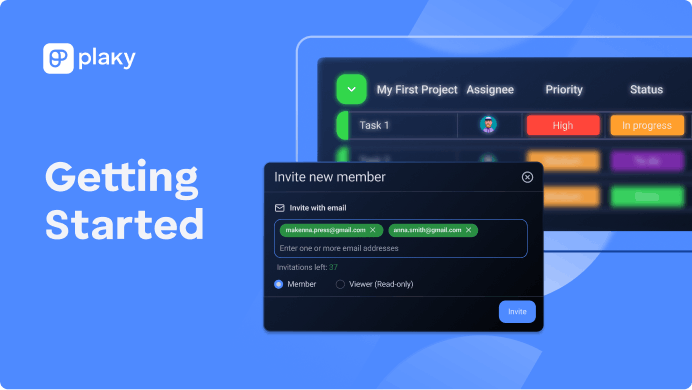 Watch video (15:00)
We also have the Help Center — an entire knowledge base that you can search to get answers to specific technical questions.
Trying to expand your expertise in project management? The Plaky blog is filled with in-depth articles about common practices, crucial documents, and general PM topics. You’ll be able to find everything you always wanted to know and information on terms you never even heard of.
Finally, you can read all the reasons why our customers love Plaky.