#PROGRESS TRACKING
Focus on only the essential information and organize it in the order that's most logical for you.
Get Started
It's easy to get overwhelmed by a screen full of numbers and names.
With filtering you can hide all the information you don't need right now, so you can focus on the specific data that matters most. This makes your work feel less messy and it helps you think more clearly and make better decisions.
Using sorting and filtering is like having a superpower. You can use filtering to quickly view only the tasks assigned to a specific team member.
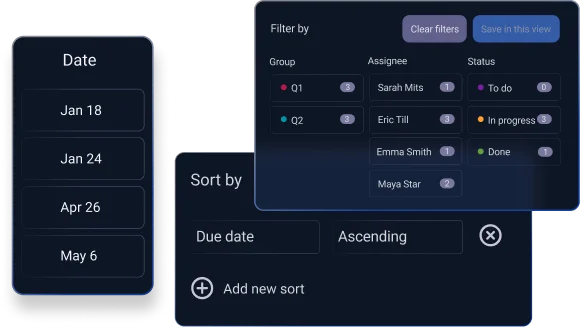
Similarly, you can sort by due date to instantly see which tasks need to be completed first.
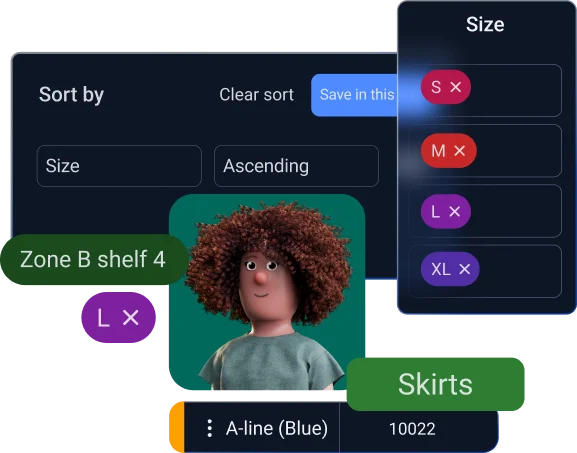
Sorting your data from high to low can show you for example, which of your products are selling the best or which employees are meeting their goals.
When you filter, you can narrow your view to see things like "this month’s sales" to find out if business is improving or slowing down. This way you understand what's really happening.
Open the filter menu: Click the "Filter" button at the top of your board.
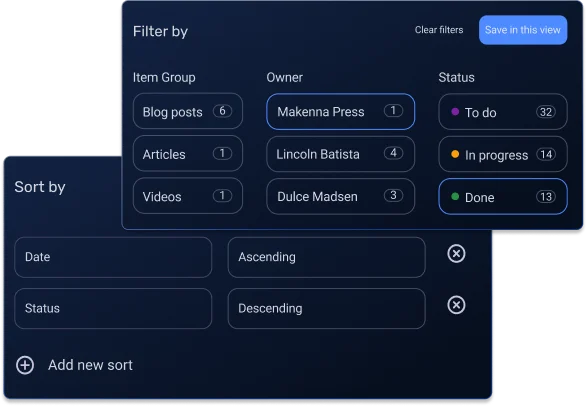
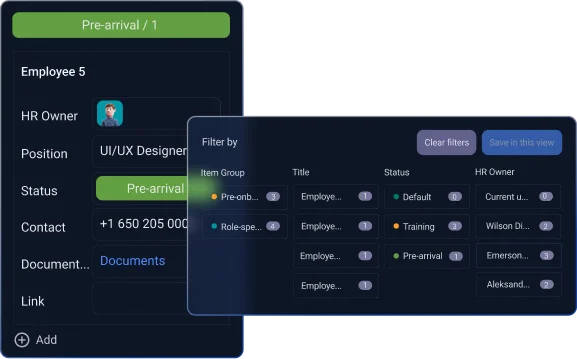
Click the tile for your chosen filter and select the specific options you need. You can choose more than one parameter at a time, such as: Creation Date, Created by, Item subscribers, Item Group, Title or other field types.
To include subitems in your filter, simply turn on the toggle switch.
Instead of scrolling through a long list of options, use the Search function within the filter menu to quickly find specific tags, people, or other items. Simply open the filter, type your query in the search bar, and press Enter.
To save your current filter, click "Save in this view." To undo the filter, click "Clear filters" at any time.
Click the "Sort" button at the top of your board.
Click "+ Add new sort" and select a field from the dropdown menu, such as Date or Status.
Choose whether you want the information to be in ascending (A-Z, 1-10) or descending (Z-A, 10-1) order.
Click "Save in this view" to apply the new sorting to your board.