Features

#TASK MANAGEMENT

Simplify your administration in Plaky

Use Field permissions to control who can access and modify your fields — and keep sensitive information safe.

7-day trial ● no credit card ● cancel anytime

Get started
Field permissions in Plaky

Why use field permissions?

Optimize administration processes

Lower the administrative burden of managing sensitive information separately.

Edit everything
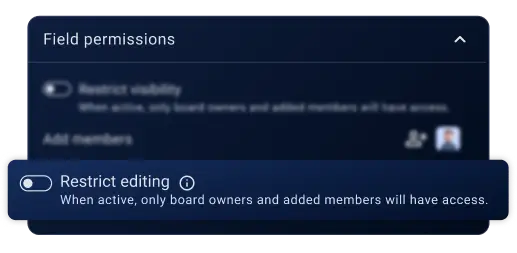
Restrict editing

Increase accountability

Foster accountability and delegate field updates only to whitelisted members.

Boost collaboration

Improve external and cross-team collaboration without compromising your financial, legal, or any other data.

Centralize communication
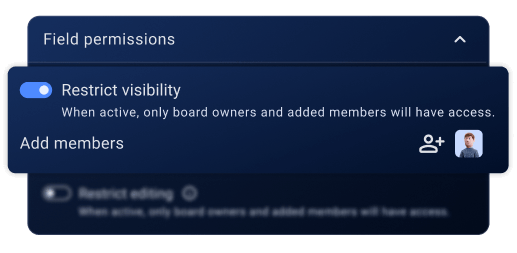
Restrict visibility

Control the information flow

Clients and team members can see and manage only the information relevant to them.

Pair your items with these features

Sort & filter

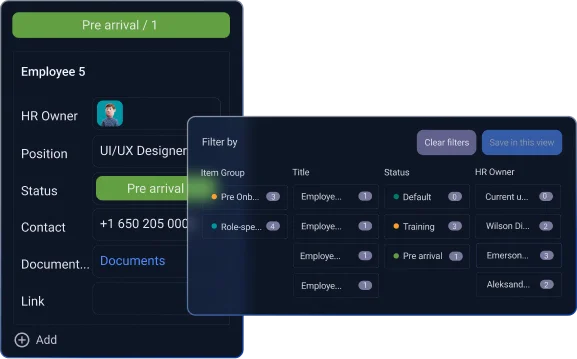
Navigate your board with ease by using sorting and filtering options to pinpoint the exact Items you’re looking for.

Sorting and filtering in Plaky

Activity log

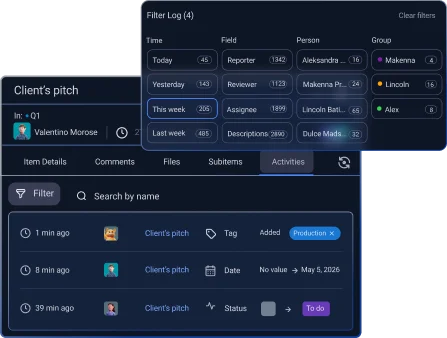
Keep track of all the changes made to your Items and use filters to track down key updates.

Activity log in Plaky

Board views

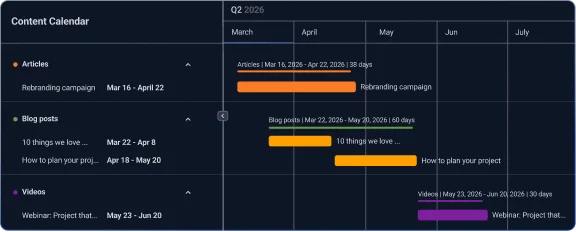
See your project data from different perspectives and gain new insights at a glance.

Gantt view in Plaky

Custom fields

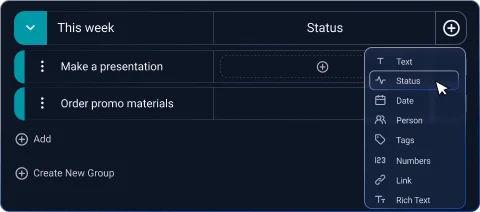
Tailor your boards to your liking and organize project information with a range of custom fields.

Board fields in Plaky

Summary row

Get quick insights into key project information and progress via summarized data from specific Fields.

Summary row in Plaky

Decide who can view and edit fields

Step 1 Create all the fields you need

Enter information for every field, whether it’s sensitive or not. Include budget, strategy, or even personal data.

Step 2 Whitelist the members who can view/edit the fields

Choose which fields need to be locked from editing (e.g., deadline), and which ones need to be hidden (e.g., cost). Then, decide which members will have the viewing/editing permissions.

Step 3 Continue with your daily activities

Focus on your other tasks without worrying whether team members will stumble upon or edit sensitive information. For instance, you can include external clients in your board but allow them to see only the fields that you’re ready to share with them.

Frequently asked questions

What are field permissions?

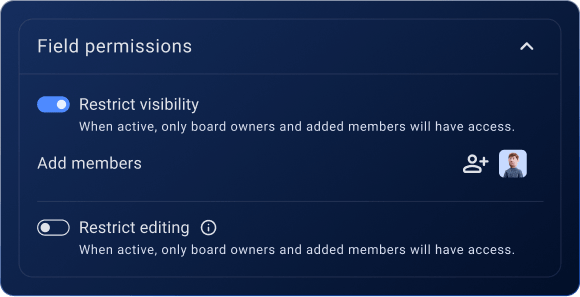
Field permissions are privacy and editing controls. They allow Board owners to hide sensitive fields and/or disable editing options for them.

Can I hide a field from certain users?

Yes, you can. Enable Restrict visibility on a field, and the field will be hidden from non-whitelisted users.

Can I lock a field so only certain people can edit it?

Yes, you can. Enable the Restrict editing setting, and only the members you whitelist will be able to edit the field.

How do I set up field permissions?

  • Open the board and click the dropdown menu on any field header.
  • Select Field permissions.
  • Toggle on Restrict visibility, Restrict editing, or both.
  • Click Add member to whitelist chosen users from the list.
  • Click Save to apply the changes.

Who can set field permissions?

Board owners are the only ones who can set field permissions.

Who can I give access to?

As a Board owner, you can give viewing access to members, viewers, and teams. For editing, you can add members and teams, since viewers can’t have editing permissions in Plaky.

Is a hidden field really hidden everywhere?

Yes, for unauthorized users, the field is hidden everywhere. This includes board views (Kanban, Gantt, and Chart view), as well as searches, filters, sorts, logs, exports, and dashboards.

Which plan includes field permissions?

Field permissions are available from the Business plan onward.

What happens if we downgrade?

If you downgrade from Business to a lower plan, the existing field restrictions will be automatically removed. If you upgrade again, all the previous field restrictions and whitelists will be restored.

Manage your items & subitems with ease