Features

#TASK MANAGEMENT

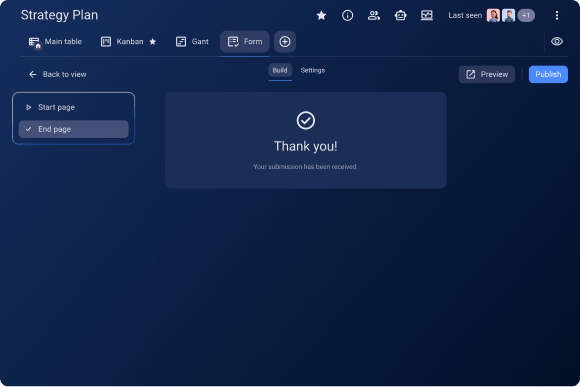
Get work requests through Forms

Tired of throwing requests into a void? With Forms, Plaky automatically creates tasks from work requests, with zero back-and-forth.

Unlimited users ● Free forever ● No credit card

Sign up for free
Get work requests with Forms in Plaky

Why use Forms?

Prevent information ping-pong

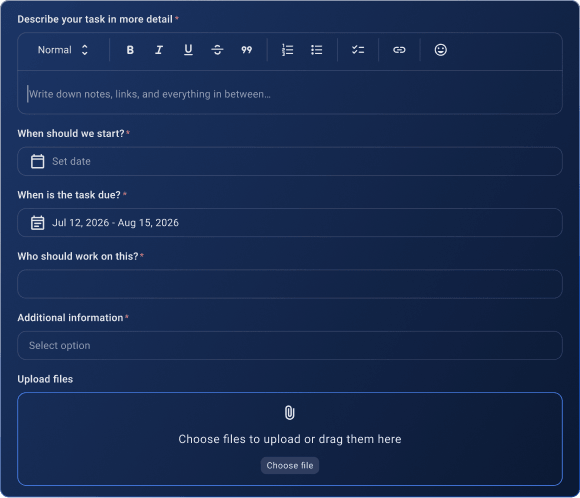
Get straightforward information that’s automatically translated into item fields. No need to figure out what your stakeholder is trying to say.

Prevent information ping-pong
Centralize request intake

Centralize request intake

Create all external tasks from one place. Reduce the need to manually input client tasks and search through a dozen messaging apps.

Save on seats

Set up tasks without needing seats for external partners. Save time for your team by taking away the burden of creating every task.

Save on seats
Improve client relationships

Improve client relationships

Make your clients feel heard and reduce their workload. Give them a simple form they can fill out instead of chasing your team through DMs.

Pair your forms with these features

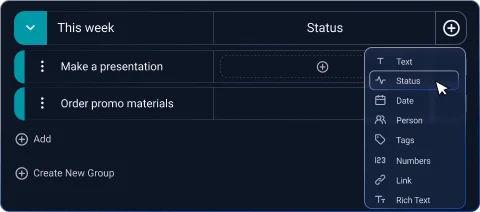
Custom fields

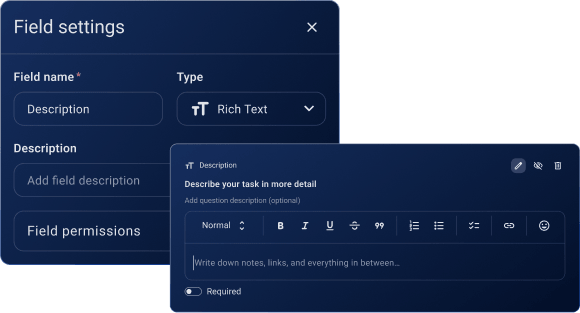
Create fields to organize task data and link them to form questions to get total clarity from your stakeholders.

Custom fields in Plaky

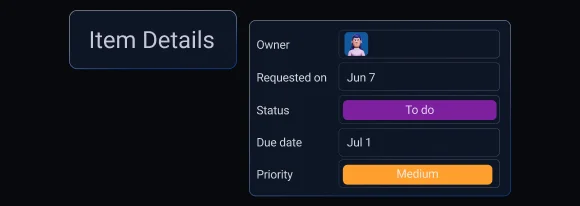
Items

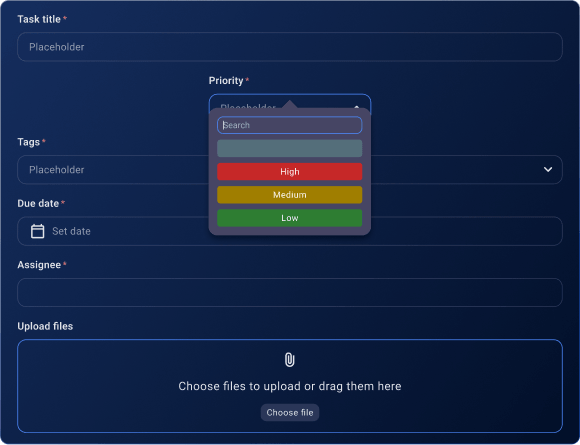
Create items straight from form submissions, and store all task-related info in them.

Items in Plaky

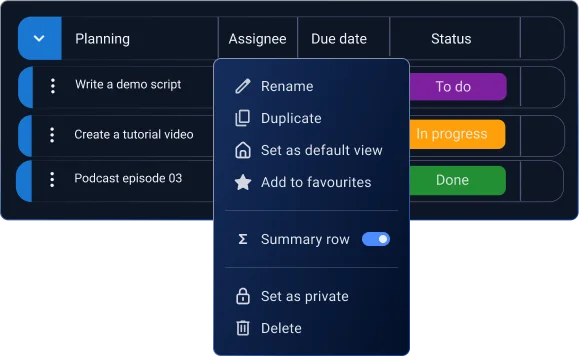
Private view

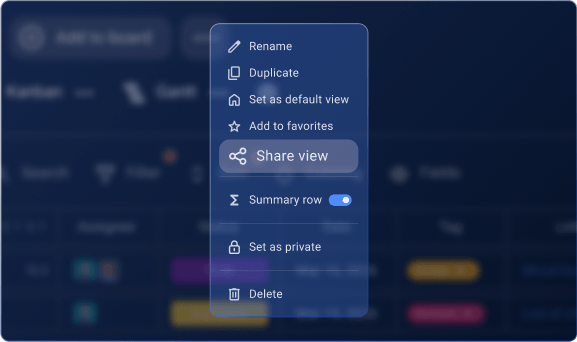
Easily determine who can see your views, including your forms, to keep all data safe.

Private view in Plaky

Public board link

Share your boards with external stakeholders so they can easily track their tasks’ progress.

Public board link in Plaky

Chart view

Track your board data with ease and make sure your backlog never gets overcluttered.

Visual overview with charts

Set up Forms with ease

Step 1 Create a Form view

Go to the board where you’ll create request items, and create a new Form view.

Step 2 Edit form layout

Go to the Build tab to set up your Form’s outline and connect questions to specific fields.

Step 3 Set up questions

Customize your questions, their descriptions, and placeholder text to get the most accurate responses.

Step 4 Personalize your Form

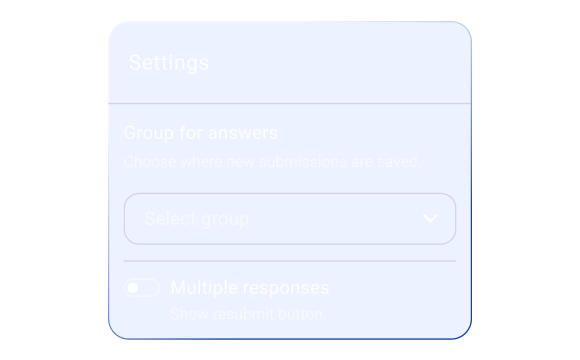
Use the Settings tab to personalize your Form, redirect URL, select where items are saved, and more.

Step 5 Publish form

Once you publish your form, you can get its link and share it with stakeholders.