Features

#TASK MANAGEMENT

See your data pop up with conditional coloring

Plaky helps you to effortlessly highlight crucial information and differentiate tasks on your board with custom color-coding.

Get Started
Highlight crucial information with conditional coloring

Your friendly tool for data clarity

Better visual analysis

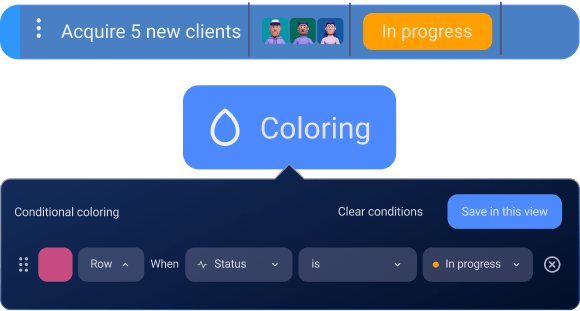
With Plaky’s Conditional coloring feature, you’ll find it easy to apply coloring to rows and cells in Table view, that meet your defined criteria and visually differentiate among the data on your board.

Apply coloring to rows and cells in Table view
Quickly spot trends with conditional coloring

Increased efficiency

Color coding makes prioritizing tasks easy, visually highlighting items that need immediate attention and helping you quickly spot trends.

Faster, smarter decisions

When important data stands out, you can quickly focus on what truly matters, leading to faster, more confident reactions and choices.

Focus on what truly matters with conditional coloring

Setting up your conditional coloring is simple

Step 1 Access coloring options

Click on the Coloring icon at the top of your Plaky Board, right next to the Sort option.

Step 2 Add a new condition

Click on +Add condition to begin defining your rules.

Step 3 Choose coloring scope

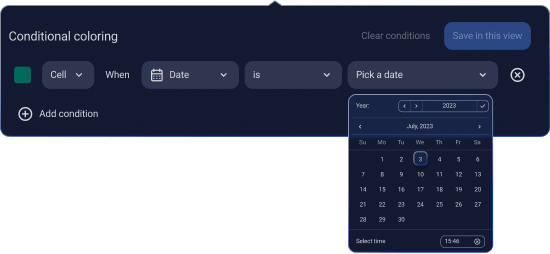
Select whether you want to color the entire Item (Row) or a specific section (Cell).

Step 4 Define field and condition

Select a Field from the list, then choose the Condition for that given Field.

Step 5 Set the value

Click on Value to fulfill the specific condition for the selected Field.

Step 6 Save and apply

Click Save in this view to complete the action. Once saved, the selected cell or Item will be automatically colored based on the defined conditions, providing a visually intuitive representation of your data.

Explore how to get the most out of Conditional coloring