If you’ve been using Any.do for work, you must have noticed its many limitations, which stop you from properly managing a growing and complex project.
And if you’re facing these challenges, you likely want a change — a switch from Any.do to an app that can handle your current requirements.
So, I tested some of the best apps you could switch to — from ones that look like to-do apps, but with more work management options, to tools that offer a total focus on project organization. Keep reading to see how they compare!

WHY TRUST US?
The apps we talk about are selected, tested, and written about by human reviewers who follow strict review and editorial guidelines. We pick solutions that are practical, purposeful, and can offer real value for the specific use case or business context we’re covering — while also being justified in their pricing. Our methodology is transparent, clear, and available to everyone:
Why switch from Any.do?
While Any.do is pretty useful for both personal notes and project management, it isn’t without fault. You should think about switching if you’re bothered by its:
- Limited and unclear free plan — Any.do’s free plan is designed for individuals, which simply means you can’t invite any collaborators. The pricing page and “Pricing and plans explained” page also don’t offer a thorough explanation of the features you get access to in the free plan. I didn’t even know I was on an automatic free trial until it simply expired, so I just lost all of my board data (and was forced to pay for a subscription to get it back).
- Poor reporting options — Any.do’s reports are severely lacking. The only insight you can get is a list of all completed tasks, with no option to group completed tasks by any field. Plus, it’d be even more useful to get insight on current tasks, not completed ones.
- Sparse collaboration options — The free plan only offers 1 collaborator, but it doesn’t really get better if you upgrade. The Premium plan (next in line) still only offers 1 collaborator, the Family plan gives you 4, and only in the Teams plan do you get unlimited users. So, collaboration in Any.do is virtually non-existent until you fully upgrade.
- Inability to support complex projects — Any.do’s limitations, especially on lower-tier plans, can’t sustain more complex projects due to its lack of reports, customization options for views, or interchangeable views on my tasks. These limits are frustrating when running multiple projects (or even just a single complex project), as you don’t get any customizability in the way you approach work management.
So, if any of these limitations annoyed you as much as they annoyed me, it might be time for a change. But, which tool is the best one to switch to from Any.do?
One that has a better free plan, collaboration, reporting, and is better-suited for complex projects.
I picked out and tested the 8 best tools that fit most, if not all, of these criteria. See my detailed review of the #1 pick now!

8 best Any.do alternatives — an overview
There are many tools that serve as a great alternative to Any.do. For easy reference, here’s an overview of all the tools I reviewed for this list:
| App | Best for | Free trial | Free plan | Lowest price |
|---|---|---|---|---|
| Plaky by CAKE.com | Growing teams | ✔️ | ✔️ | $3.99/user/month |
| TickTick | Project planning | ❌ | ✔️ | $3/user/month |
| Todoist | Work communication | ✔️ | ✔️ | $5/user/month |
| Trello | Simple Kanban workflows | ✔️ | ✔️ | $5/user/month |
| ClickUp | Project reporting | ✔️ | ✔️ | $7/user/month |
| Notion | Total customization | ✔️ | ✔️ | $10/user/month |
| Quire | Collaborative documentation | ✔️ | ✔️ | $7.65/user/month |
| Superlist | Working on the go | ✔️ | ✔️ | $5/user/month |
#1 Plaky by CAKE.com — best for growing teams
Plaky is a tool that’s solely focused on improving your project management, and offers clear and refined features across all subscription plans.
Why choose Plaky?
Plaky is a fantastic choice for managers who need to handle all kinds of teams — especially when they’re expecting the team to grow over time.
| Pros | Cons |
|---|---|
| – Amazing subscription plans – Great reporting options – Time tracking integration – Useful collaboration features | – Limited integrations |
The main issue I had with Any.do was its terrible free plan, and the lack of transparency with the plans overall.
But, with Plaky, this is not an issue — each of the plans on Plaky’s pricing page is clearly described, feature by feature, so you know exactly what you’re getting for the price.
And what you get is plenty of benefits for very little budgeting. For example, with the free plan, you get:
- Unlimited users, items, and views — for easy scaling,
- Table, Kanban, and Chart view — for flexible workflow management,
- The summary row — for quick project insight, and
- A 7-day activity log — for project health and avoiding scope creep.
Then, with the Pro plan, for just $3.99, you get:
- The Gantt view — to organize the project timeline,
- Automations — to remove manual repetitive work, and
- Viewer role — to collaborate with clients and keep them updated.
And, with the Enterprise plan at just $8.99, you can get:
- Board permissions — to keep your board secure,
- SSO — to keep every log in secure,
- Unlimited activity log, automations, and custom fields — since you can never have too much of a good thing.
With transparent plans and affordable pricing, you can choose when you want to upgrade as your team size and project complexity grow, instead of simply having to upgrade as soon as you pass an arbitrary user limit.
💡Plaky pro tip
If you want to know more about how growing teams can fully utilize Plaky, check out this useful guide:
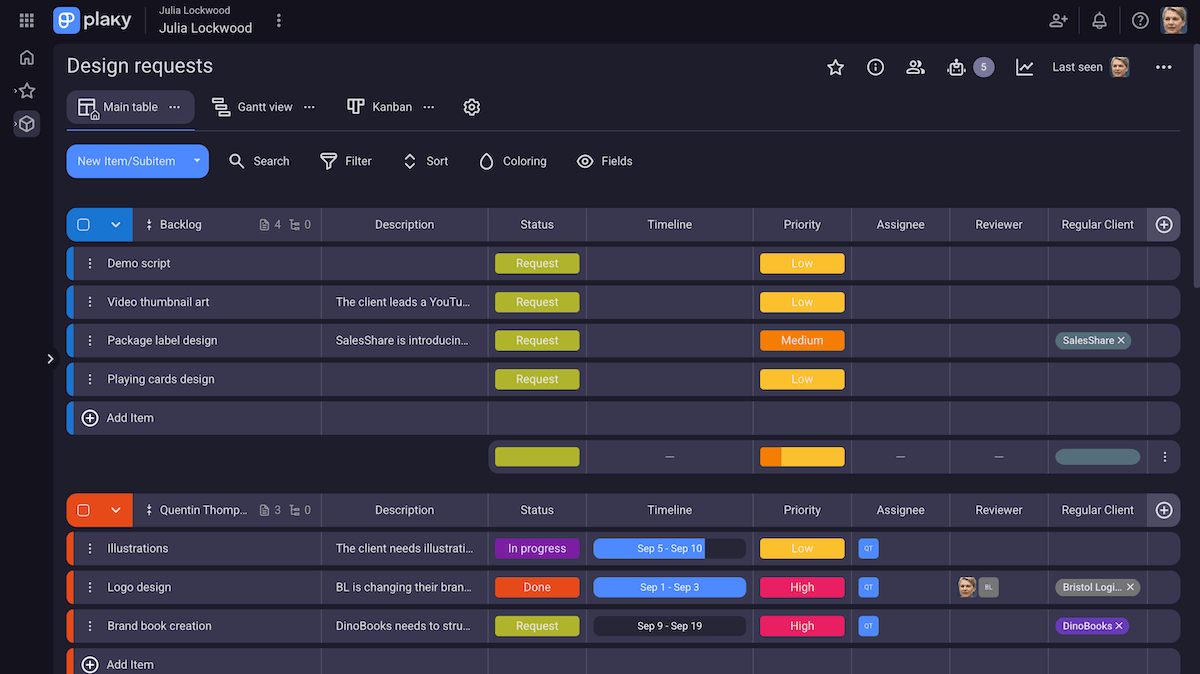
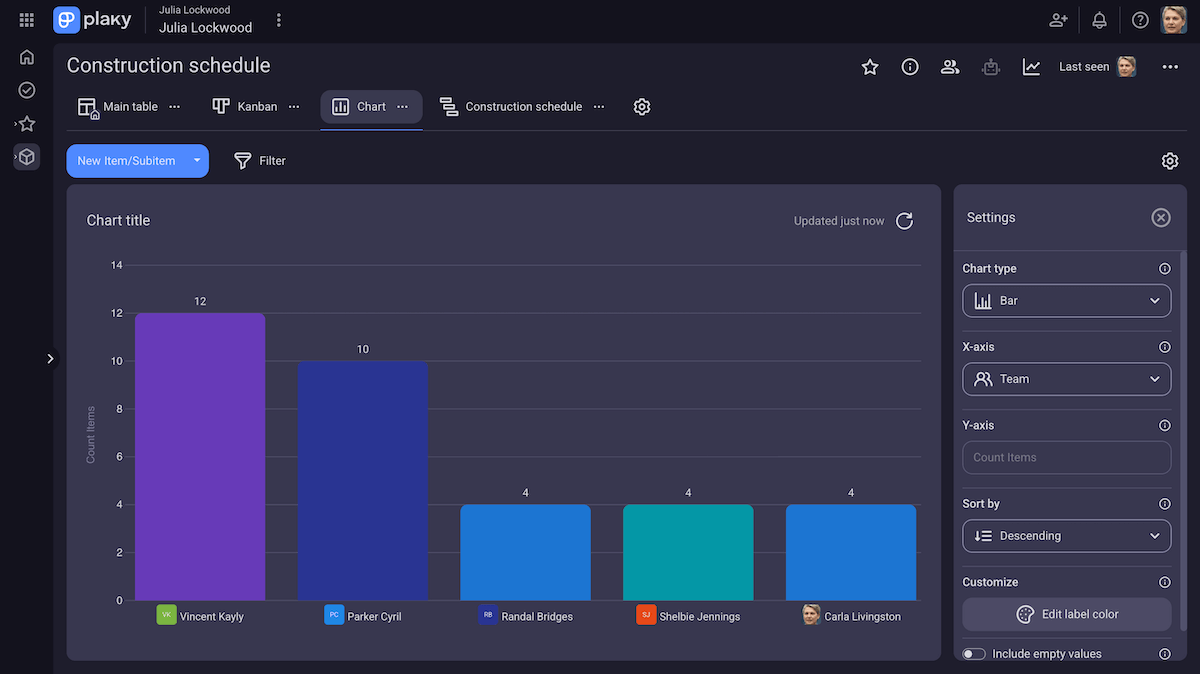
But, Plaky’s pricing isn’t its only selling point (pun intended). Plaky solves every issue that I had with Any.do, with useful features like:
- Charts — In Plaky, you can get quick and easy progress and result reports with the Chart view. With a pie or bar chart, and plenty of settings to customize them, you can get clear insight into your project. This lets you make better decisions and track project KPIs.
- Gantt view — Get an efficient visual insight into your project timeline with Plaky’s Gantt chart. It helps you spot bottlenecks or gaps and overlaps in the schedule. I love how intuitive and simple it is to use, because it helps you easily shift project deadlines when changes happen (especially unexpected ones).
- Collaboration — Collaboration in Plaky flows naturally. You can leave comments on each item to keep task info organized and centralized, and @mention team members to notify them in real time. There’s also a separate file sharing tab on each item, to keep them sorted by the tasks they refer to, and make sure you never lose track of important files again.
Plaky’s integrations, though, are a bit lacking. For now, it only integrates with Clockify for time tracking and Pumble for team communication.
With the Clockify time tracking integration, you can keep an eye on the exact time your team takes to complete specific tasks. This makes productivity tracking and scheduling accurately in the future a whole lot easier.
With the Pumble integration, you can connect Plaky to a powerful team communication app. With it, each team member gets a message in Pumble whenever there’s a change to an item they’re subscribed to — so there are no delays due to missed updates.
What’s new in Plaky?
The most recent change Plaky made is the addition of My tasks — a separate page on your sidebar that lists out all tasks you’re assigned to. This feature helps you determine what to prioritize in your day-to-day work and focus more clearly on your tasks.
The My tasks page can be customized for even more clarity — so you can select which boards to focus on, how to sort these tasks, and how they’re grouped. This is fantastic for managers who are working on multiple projects, or team members who need to sort out an influx of work.
Available for: Web, iOS, Android
| Plan | Pricing |
|---|---|
| Free | $0, for up to 10 users |
| Pro | $3.99/user/month* |
| Enterprise | $8.99/user/month* |
| The CAKE.com Bundle | $12.99/user/month* |
*billed annually

#2 TickTick — best for project planning
TickTick is a unique to-do list app that offers a surprising amount of project management capabilities, so it can help users organize both personal and work responsibilities.
Why choose TickTick?
With some uniquely innovative features, TickTick lets you plan projects easily while keeping actual work management simple.
| Pros | Cons |
|---|---|
| – Eisenhower matrix – Calendar view – Inbox feature | – Restrictive subscription plans – Limited collaboration |
I like how TickTick is designed — it’s your usual to-do list and notes app, but with more project management capabilities.
Each view is by default in a list of tasks, but there’s an option to change it to a Kanban or Timeline layout. This way, the app feels like a nice blend of work management and notes or to-do lists.
But, the feature I liked most is the addition of the Eisenhower matrix. This matrix is pretty simple, but key for project prioritization — it’s a great tool to analyze each of your tasks and divide them based on importance and urgency. Then, based on where you place a task in this TickTick view, you know what to do with it. You should:
- Do urgent and important tasks immediately,
- Delegate urgent and not important tasks,
- Do not urgent and important tasks later, and
- Eliminate not urgent and not important tasks.
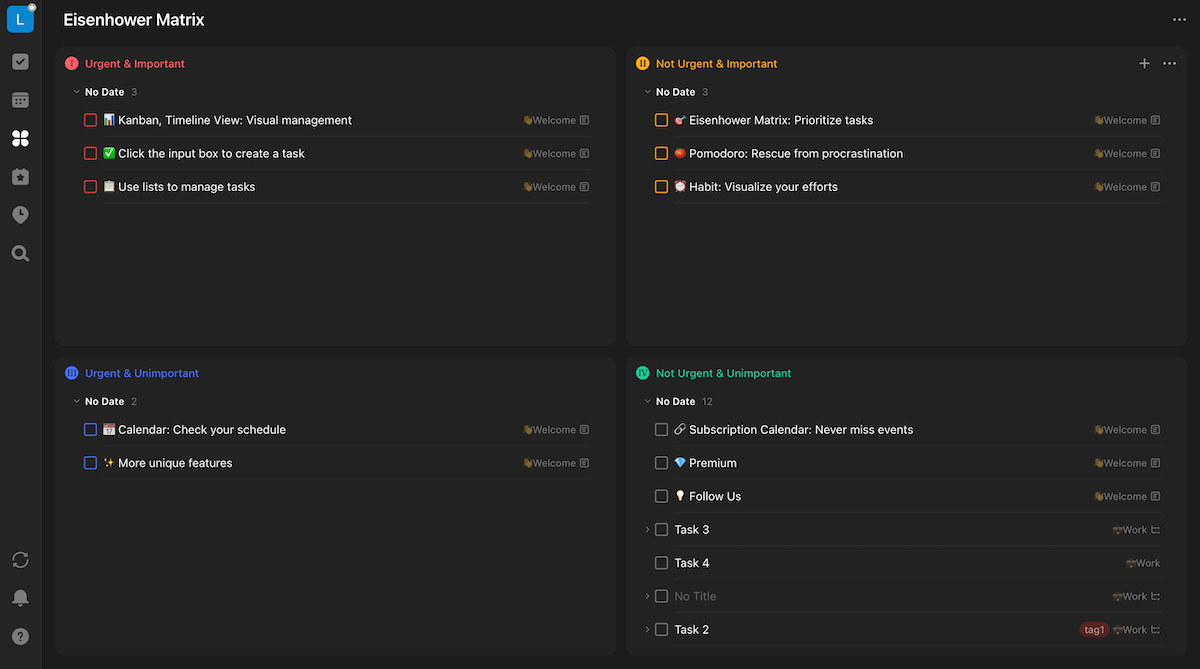
Apart from the Eisenhower matrix, TickTick has more features for advanced task management, like:
- Inbox — The inbox feature fits well for TickTick, as it’s all about running projects as if you’re in a notes app. With the inbox, you can create tasks on the go, right as they come to mind, and then later put them in the right list or group.
- Calendar — TickTick’s calendar tab actually gives you 6 views (month, week, day, agenda, multi-day, and multi-week). This variety helps you plan your time with more flexibility and lets you easily coordinate schedules with your team.
- Countdown — Countdown is a good tool for project planning because it allows you to strategize around important dates for your project. You can add custom dates that you want to keep track of, so you get a nice view of holidays, the end of project date, deadlines for deliverables, etc.
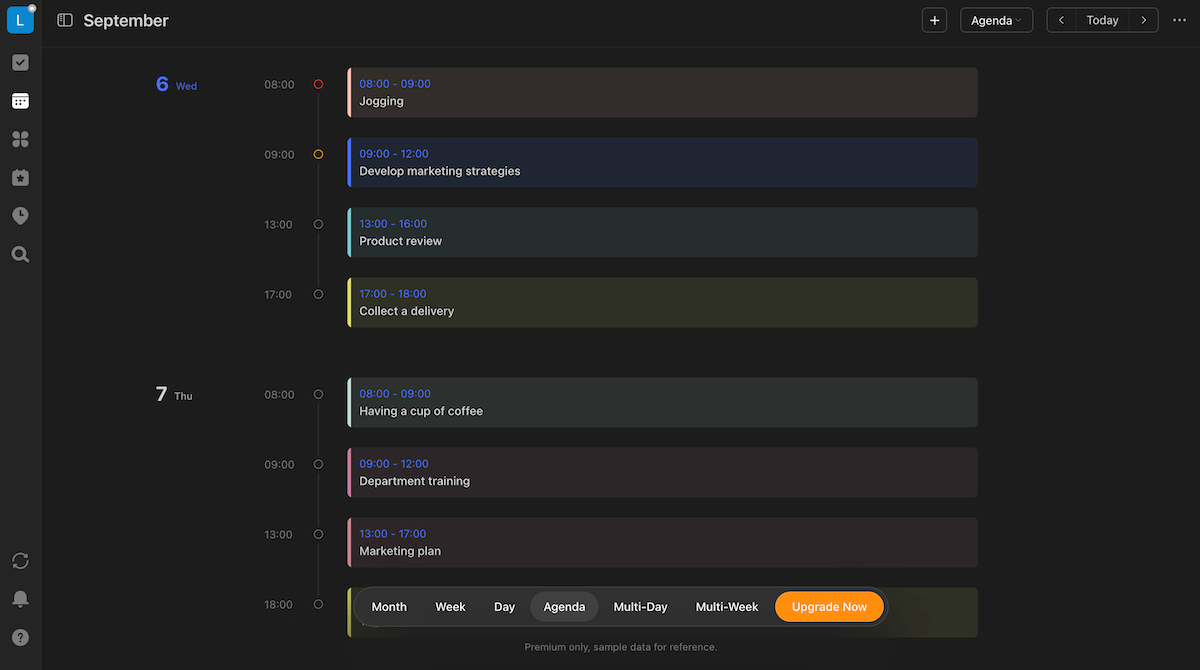
But, TickTick runs into one issue that Any.do also has — a limited and unclear free plan. It only allows 2 collaborators (including you), and doesn’t include the Calendar view, timeline field, or even board filters. Worst of all, there’s no pricing table — so I can’t easily compare the features I get in each plan, and have to dig around the website to get any clarity.
Even in the premium plan, you only get 30 collaborators. This is alright for project planning, but it’s not as useful for actual work management with large teams. This means you’ll probably end up planning in TickTick and using a different PM tool later on.
What’s new in TickTick?
TickTick recently improved their Pomodoro tracker feature, letting you manually add more focus time to your Pomodoro tracker, or stop it early, for more accurate results.
The Countdown also received more customization options. You can now change how the countdown is displayed by years, months, weeks, days, as “XX days until XX”, and more. This lets you convert hard to calculate countdowns like “in 70 days” to “in 3 months and 9 days”.
Available for: Web, iOS, Android, Windows, macOS, Linux, PadOS
| Plan | Pricing |
|---|---|
| Free | $0, for 2 users |
| Premium | $3/user/month* |
*billed annually
#3 Todoist — best for work communication
Todoist offers a blend of note taking and work management that lets you easily organize your team’s tasks along with your own.
Why choose Todoist?
Todoist is a solid option for project managers that need multiple options to collaborate with their team while taking notes (even when on the go).
| Pros | Cons |
|---|---|
| – Multiple collaboration options – Search board feature – 100+ integrations in the free plan | – Limited free plan – No dedicated space for file sharing |
Todoist is another app whose UI reminds me more of a classic to-do list app. This makes it easy to navigate and relatively intuitive to use.
Compared to Any.do, however, Todoist offers much better collaboration options.
Each task has a comment thread where you can keep communication with your team organized. You can add attachments, @mentions, and emojis to comments — or simply record them as a voice memo. Or add them through integrations, like sharing your schedule through Google Calendar.
There’s also a board-wide comment thread, so instead of just commenting on specific tasks, you can share and discuss information about the whole project.
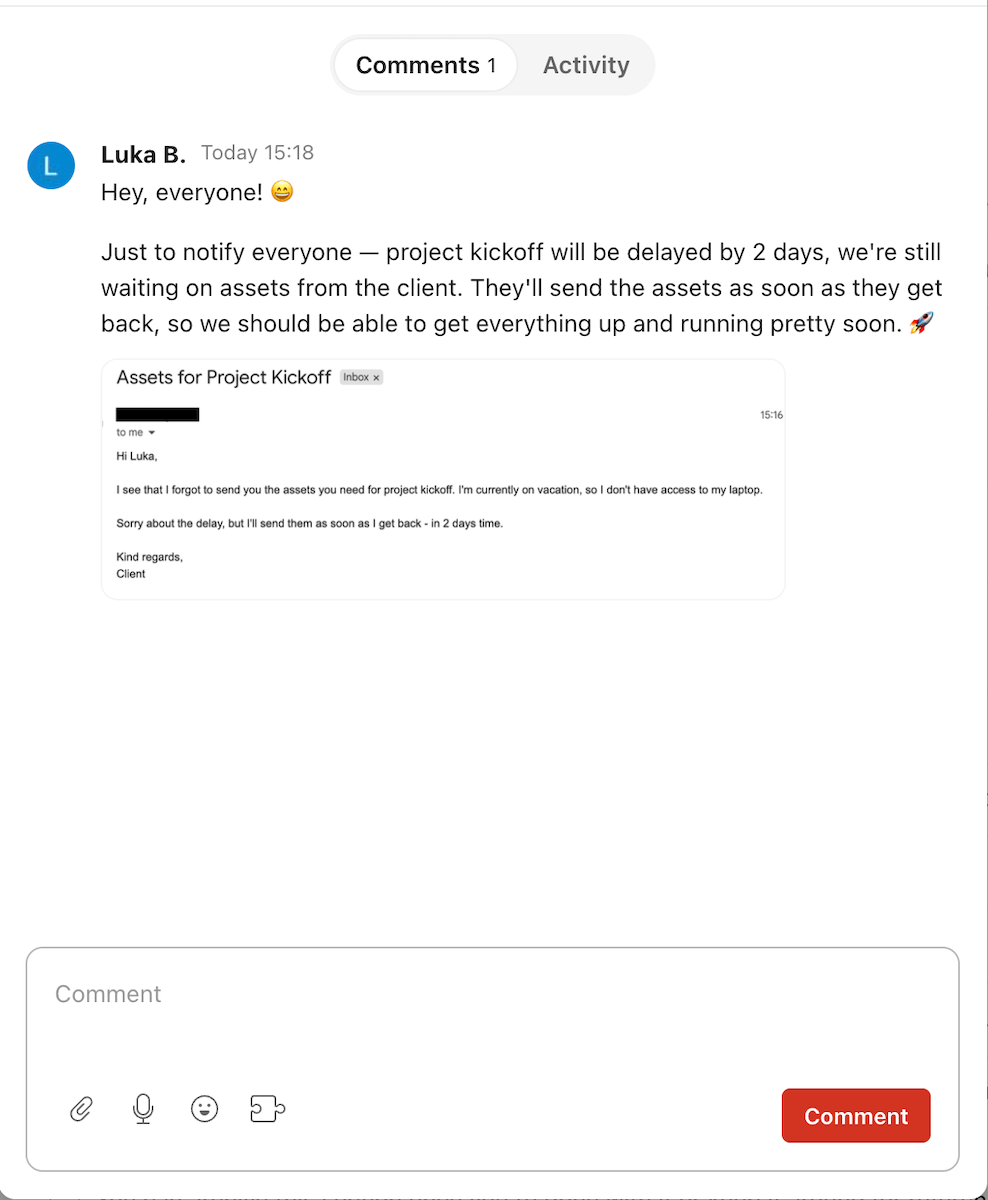
But, what I like most about Todoist’s comments is that you can add them over email. Enabling this option gives you an email address for that specific comment thread, and any email you send to it gets added as a new comment on that thread. This is great for users who need to manage projects on the go or use email frequently (talking with clients, stakeholders, etc.).
Todoist’s advantages over Any.do go even further, with features like:
- The upcoming tab — This view functions as a Kanban board, but tasks are grouped by deadlines. This way, you can shift deadlines easily by just shifting task cards around, which is great when you’re in a rush.
- Search option — The search feature is a window that pops up and lets you search the whole board. It takes into account not only the names, but also descriptions of tasks. So, you avoid wasting time trying to find a task or even trying to remember its name.
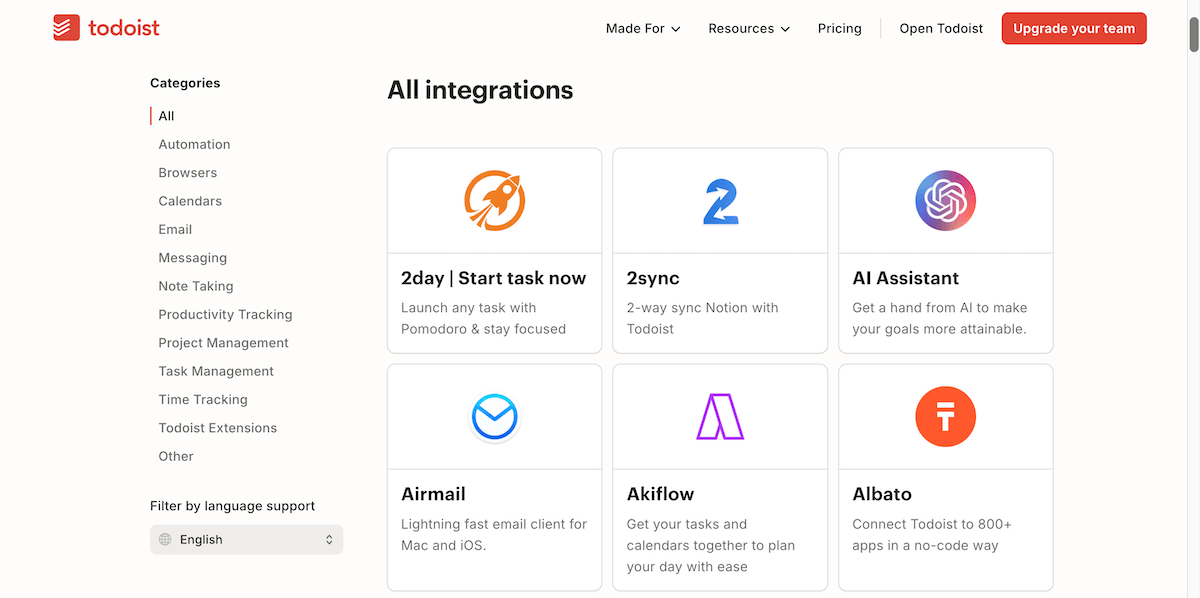
- 100+ integrations — Todoist offers 100+ integrations right in the free plan. These include calendar apps like Google Calendar, messaging apps like Teams and Slack, productivity tracking like Beeminder, etc. If your team has a tool they use frequently, they’ll probably find it in this list.
Like most other tools, the biggest issue I had with Todoist was its free plan. For starters, it only allows 5 collaborators, but it also limits the deadline field, calendar view, and shared team workspaces. Like with TickTick, you only get more collaborators on the highest-tier paid plan — but Todoist still limits this number to 500.
But I was more bothered by the missing features — like the lack of a dedicated file sharing tab. The only way to share files is by sending them through comments, so this is a big dent in Todoist’s otherwise good collaboration capabilities. This way, the more comments you send, the harder it is to find past files.
💡Plaky pro tip
If Todoist also isn’t your cup of tea, and these limitations bothered you as well, check out some great Todoist alternatives here:
What’s new in Todoist?
Todoist most recently published a new feature in beta — Ramble, which lets you add tasks by simply speaking, or more accurately, rambling. This handy AI-powered feature promises to understand slang and natural retraction of speech. Then, you say “that’s all” and the tasks will be created for you.
Available for: Web, iOS, Android, Windows, macOS, Linux
| Plan | Pricing |
|---|---|
| Beginner | $0, for up to 5 users |
| Pro | $5/user/month* |
| Business | $8/user/month* |
*billed annually
#4 Trello — best for simple Kanban workflows
Trello is a popular project management tool that gives users great options for keeping organization simple and straightforward.
Why choose Trello?
Trello’s focus on simple, intuitive design and the Kanban view is good for managers who are comfortable with this workflow, as they’ll find Trello easy to get the hang of.
| Pros | Cons |
|---|---|
| – Refined Kanban view – Power-Ups in the free plan – Automations | – Lacking board views – Limited reporting |
The first thing that I noticed in Trello is how easy it is to use. The drag-and-drop movability of the cards makes it easy to quickly arrange and update tasks.
The Kanban view is the key here — it’s easy to understand, and it makes tracking tasks by status (or any other metric you determine for card groups) easy. Compared to Any.do, Trello’s Kanban keeps it simple and refined with a full focus on project management.
I like this for simple projects and small teams — it’s no hassle to set up, and it won’t bog you down with a million options to do on the board.
Trello’s task management is also improved with fields and custom fields. You can add:
- Dates,
- Labels,
- Assignees,
- Attachments,
- Description,
- Checklist, and
- Custom checkbox, date, dropdown, number, and text fields.
However, custom fields are not available in the free plan — which limits your approach to task management. But, I do like how you can toggle these fields from appearing on the card cover (I just wish I could do this for all fields).

Even with its simplicity, Trello has plenty of options that overshadow Any.do, like:
- Collaboration — Just like the rest of the app, Trello’s collaboration is simple, but effective. You can comment with various options (images, @mentions, code, quotes) and have a separate files field. I especially like that added files can become a card cover, so you can let someone know files are on the card, as soon as they load the board.
- Planner and inbox — These features add a small “note-taking” feel to Trello, which Any.do users will find welcome. With the inbox, you can add tasks on the go, as you think of them, by simply sending an email and then sorting them into your board of choice later. Planner lets you connect a calendar app, so you can organize your schedule easily.
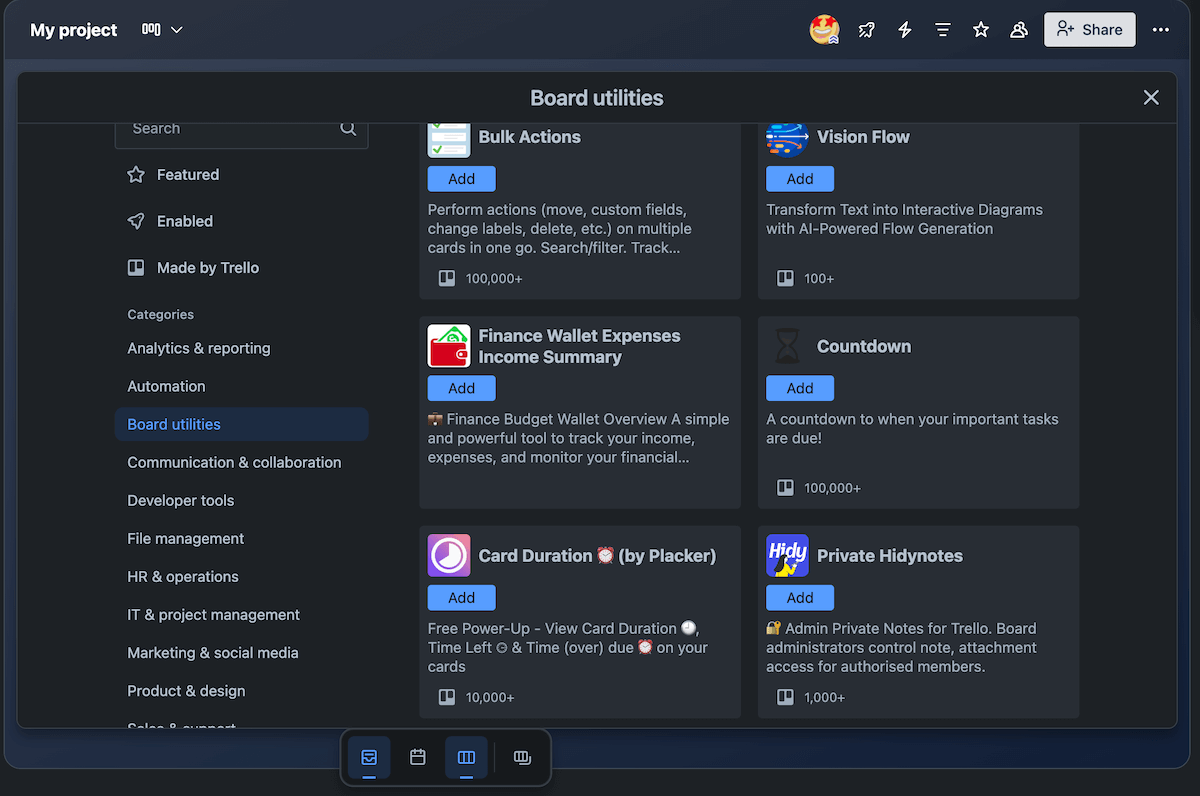
- Power-Ups — Since Trello’s functionality is simple, it allows users to add more complex features as they need them through Power-Ups. If you need time tracking, for example, you can add the Clockify integration, and avoid looking for a tool that has built-in time tracking, along with a bunch of other overbearing features you don’t need.
However, I’ve found that Trello’s focus on Kanban view results in one key fault — all other views in the app are rudimentary, and honestly, poorly developed. The timeline and calendar view have no settings and can’t be customized, which is especially disappointing considering the Kanban view’s visual personalization is very detailed. I’d say it’s a shame the timeline and calendar are not available in the free plan, but I probably wouldn’t use them anyway.
Another feature I dislike is Trello’s reports — yes, they’re better than Any.do’s reports, but that’s not a high bar to cross. You can only get task counts based on members, dates, lists, and labels. Other than this, charts can’t be customized or re-colored. And, you don’t even get access to them in the free plan.
What’s new in Trello?
Trello’s last update I could find was earlier this year, and it includes the inbox and planner features we talked about earlier. With them, Trello brought a new layer of organization in its app.
They also added an AI feature in Trello, which can perform various actions, like:
- Help you write comments,
- Parse through forwarded messages from Slack, Teams, email, etc., or
- Generate descriptions and brainstorm tasks.
Available for: Web, iOS, Android, Windows, macOS
| Plan | Pricing |
|---|---|
| Free | $0, for up to 10 users |
| Standard | $5/user/month* |
| Premium | $10/user/month* |
| Enterprise | $17.5/user/month* (however, this price varies by user count) |
*billed annually

#5 ClickUp — best for project reporting
ClickUp is a highly customizable project management tool that’s a viable option for complex projects or managers who need to run multiple projects.
Why choose ClickUp?
ClickUp’s reports are a good improvement over Any.do’s reports — with detailed customization options and plenty of different reports.
| Pros | Cons |
|---|---|
| – Detailed reporting – Various views – Comprehensive customization | – Difficult to use – Limited free plan |
As soon as you log into ClickUp, you notice how detailed and comprehensive the app is.
With its extensive set of features, you can easily run large or multiple projects. But if you’re in that position, you’ll need detailed insight into the projects.
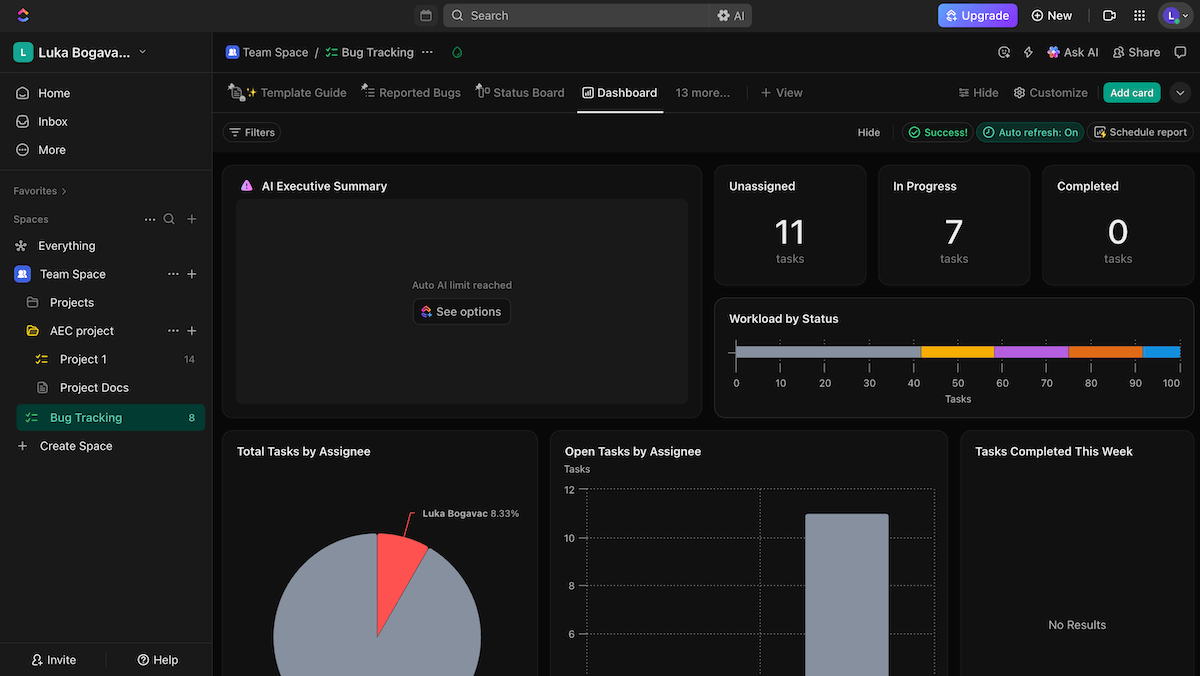
That’s when ClickUp’s various reporting options come in handy. You can access them in the Dashboard view, where you get various reporting cards, like:
- Charts,
- Calculations,
- Docs,
- Portfolios,
- Notes, etc.
Then, you can resize and rearrange each of these cards until you get an overview you like. You can also change the type of chart you add in ClickUp, which includes:
- Pie,
- Bar,
- Line,
- Battery, and more.
Then, you can customize each chart by measures, groups, and coloring — plus, you can filter data sources, to make sure your charts don’t pick up unnecessary or irrelevant data.
However, ClickUp’s large number of options doesn’t end with reports — you can also get:
- Custom fields — Choose from a wide array of custom fields to add to your ClickUp board. There are many useful ones (like dropdown, button, or voting), but there are some that just feel like they’re there to “pad the numbers” (rating or certain AI fields).
- Board views — ClickUp offers a whopping 16 board views, so you can pick and choose how you want to approach task management. Like with the fields, some of the views I find useful (workload and Gantt views), but some just feel incomplete or underdeveloped (e.g., team or mind map view).
- Subtasks — Subtasks in ClickUp are a good way to divide your tasks into more manageable chunks, while keeping everything organized. I like that the subtasks aren’t a simple checklist, but instead have their own fields and field values.
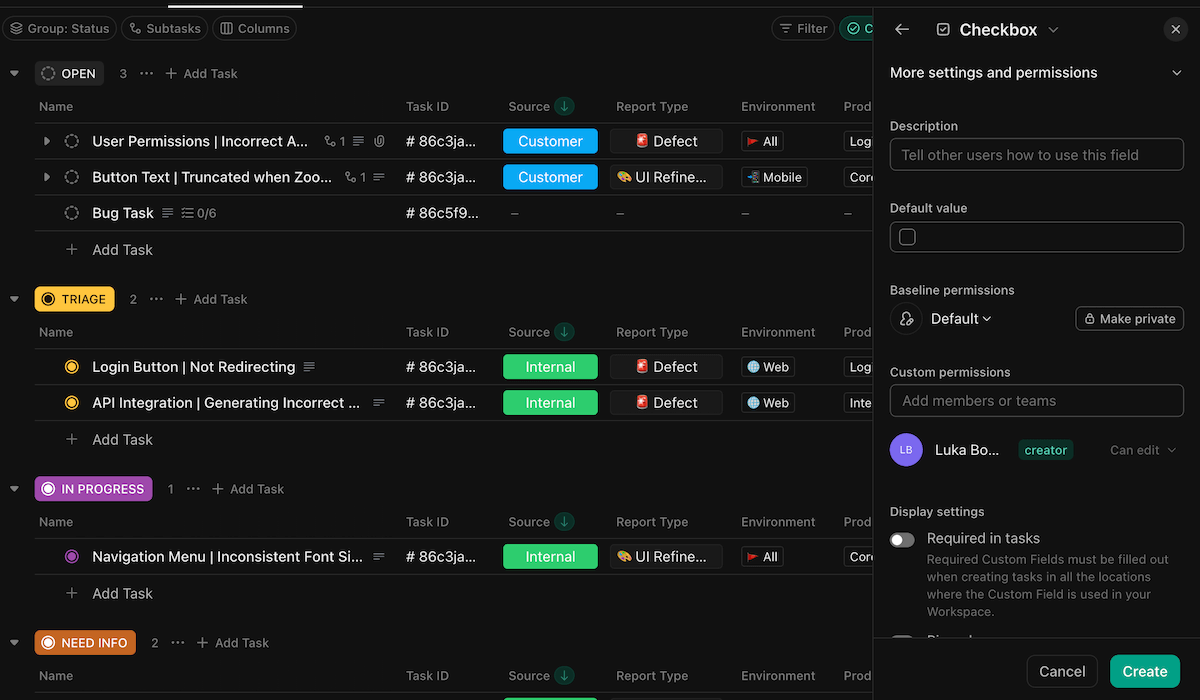
With this many customization options, however, you’ll quickly realize how much time it takes to create and personalize a ClickUp board. The sheer amount of options puts you in an indecision loop — when you have the ability to create a “perfect” option, it’s hard to figure out which option is actually perfect.
I had a tough time even creating a test board for an imaginary project — I can’t imagine how much time an actual, fleshed out project board would take. Plus, with so many options, it’s easy for your boards and dashboards to become cluttered, which will just harm your day-to-day work.
And, even though ClickUp’s free plan is better than most due to unlimited users, it still limits the amount of spaces and lists you can make. Plus, there’s a limit on custom fields that locks you from creating items once you reach it — however, the pricing page doesn’t state what that limit is.
What’s new in ClickUp?
ClickUp has very frequent updates — and often adds small tidbits and new options that broaden the capabilities of the app (or just clutter it more).
One addition I like is customizable icons for board views. This removes at least a bit of the mess that’s created by adding too many views.
Another addition to the feature list is automation triggers and actions integrated with Slack, so you can improve team collaboration without wasting much time.
Available for: Web, iOS, Android, Windows, macOS, Linux
| Plan | Pricing |
|---|---|
| Free | $0, for unlimited users |
| Unlimited | $7/user/month* |
| Business | $12/user/month* |
| Enterprise | POA |
*billed annually

#6 Notion — best for total customization
Notion is a versatile note-taking tool that is good for personal notes, project management, and team collaboration.
Why choose Notion?
Notion is a fully customizable tool that lets project managers of any industry create a fully personalized board for their workflows.
| Pros | Cons |
|---|---|
| – Various customization options – Board views – Templates for task cards | – Difficult to set up – Unreliable AI tools |
Logging onto Notion, I was met with a blank page. While scary, this showcased the sheer amount of customization options Notion offers.
In Notion, everything is a page. Based on how you customize it, you can turn this page into almost anything you need — task cards, boards, notes, etc.
The elements you can add to a page include:
- Basic blocks — headings, bullet and numbered lists, to-dos, quotes, dividers, etc.,
- AI blocks — make a text shorter, ask a question, ask about the page, etc.,
- Media blocks — images, videos, audio, code, etc.,
- Databases — views (gallery, board, list, timeline, etc.), charts (bar, donut, pie, line, etc.), and forms,
- Advanced blocks — table of contents, button, code diagrams, etc.,
- Inlines & embeds — mentions, emojis, embedded web pages, embedded integrations, etc.
And, there are even more options — converting elements, importing from integrated apps, etc. This level of customization lets you create the ideal workflow, given that you learn how to use the tool properly.
Truth be told, I was intimidated by Notion’s capabilities. But, if you have (plenty of) time to dedicate to building a board, completing that process is honestly satisfying.
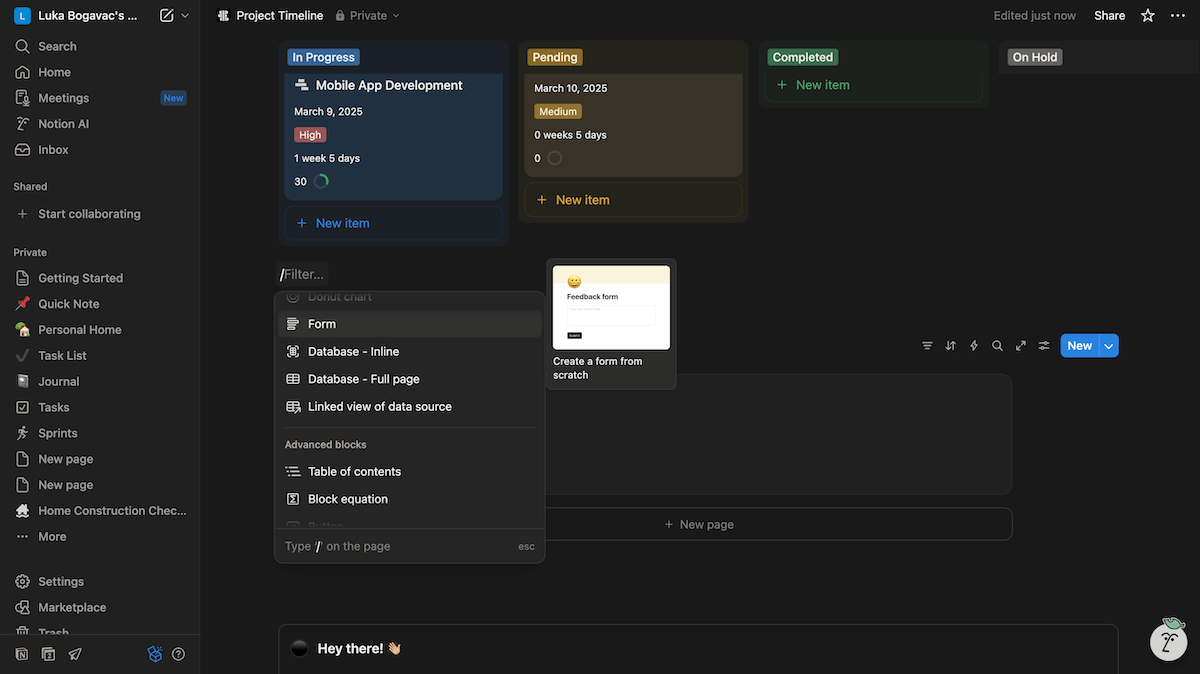
Just having more customization than Any.do isn’t enough, though — so Notion has even more improvements, like:
- Board views — Boards in Notion are called databases, and they work as a collection of pages. Notion then lets you customize this overview with view types we mentioned above, settings, and filters, so this personalization is even more comprehensive.
- Board templates — To mitigate how hard it is to set up, Notion offers a wide selection of templates. However, similar to block options, there’s a large number (over 30,000 community-made) of templates to scroll through before you get the perfect one.
- Task card templates — Since tasks in Notion need to be made from scratch, you can set a task you created as a template. This way, any time you need to create a new task, even on a different board, you can use this template to set it up quickly.
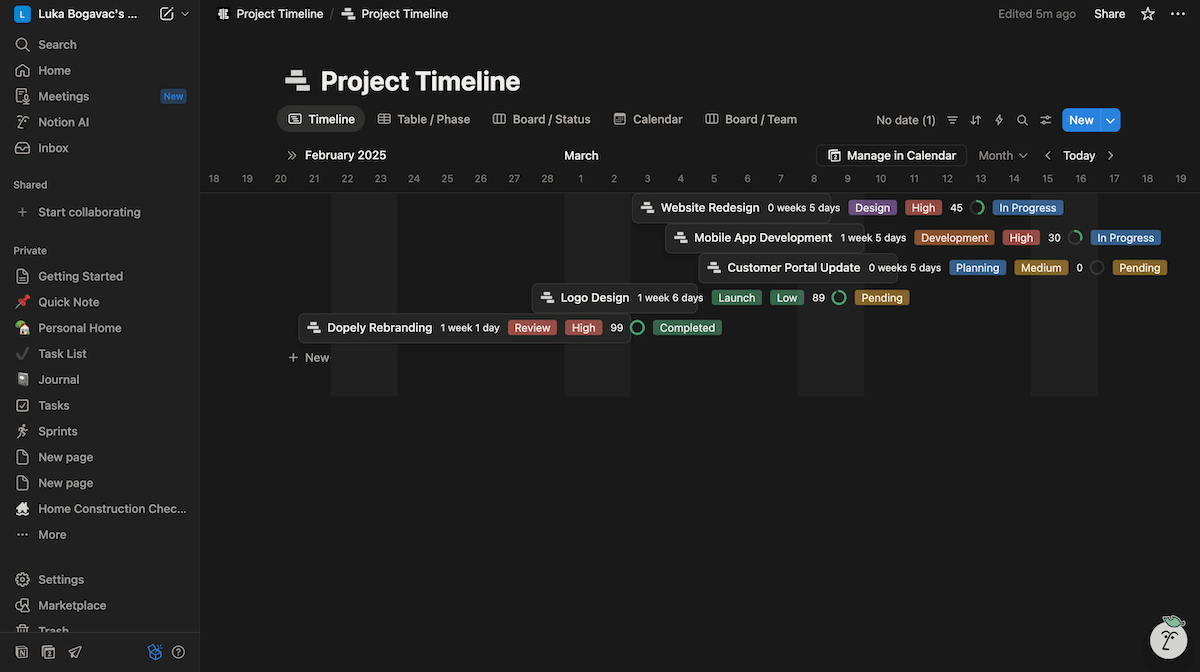
There’s an obvious downside to this amount of customization options, though — the time it takes to set up a Notion board. With so much to personalize, you’ll be scrolling through these lists of options endlessly before your board is fully prepared, which’ll severely delay your project kickoff.
Another issue I personally had with Notion is its AI assistant. I found it too unreliable for any question or task I had for it. For example, I tried to ask for help on finding a way to comment on tasks — and it kept giving me options that don’t exist in Notion.
What’s new in Notion?
In its most recent update, Notion improved the capabilities of its AI agent — it can now take meeting notes and parse through comments or Slack messages, while understanding context. Now, I didn’t get to test this agent on the free plan — but given my experience with Notion’s AI, I’m staying reserved.
There’s also the addition of a new Meetings tab in your sidebar, which organizes all of your meetings in one place. This way, you should have an easier time remembering or finding meetings when they’re needed.
Available for: Web, iOS, Android, Windows, macOS
| Plan | Pricing |
|---|---|
| Free | $0, for up to 10 users |
| Plus | $10/user/month* |
| Business | $20/user/month* |
| Enterprise | POA |
*billed annually
💡 Plaky Pro Tip
Interested to see how Notion compares to other popular project management tools out there? Check out this comparison:

#7 Quire — best for collaborative documentation
Quire is a classic project management tool that offers various board views, reports, and custom fields to keep your work organized.
Why choose Quire?
Quire is a project management tool that’s a fine choice for managers who need to create, edit, and manage project documentation with their team.
| Pros | Cons |
|---|---|
| – Collaborative Docs – Reporting options – Custom fields in the free plan | – Unintuitive navigation – Limited board views |
Quire sports a familiar UI — it’s pretty basic PM tool navigation that you’re likely already used to. I am, so there wasn’t much difficulty figuring out how to use this tool.
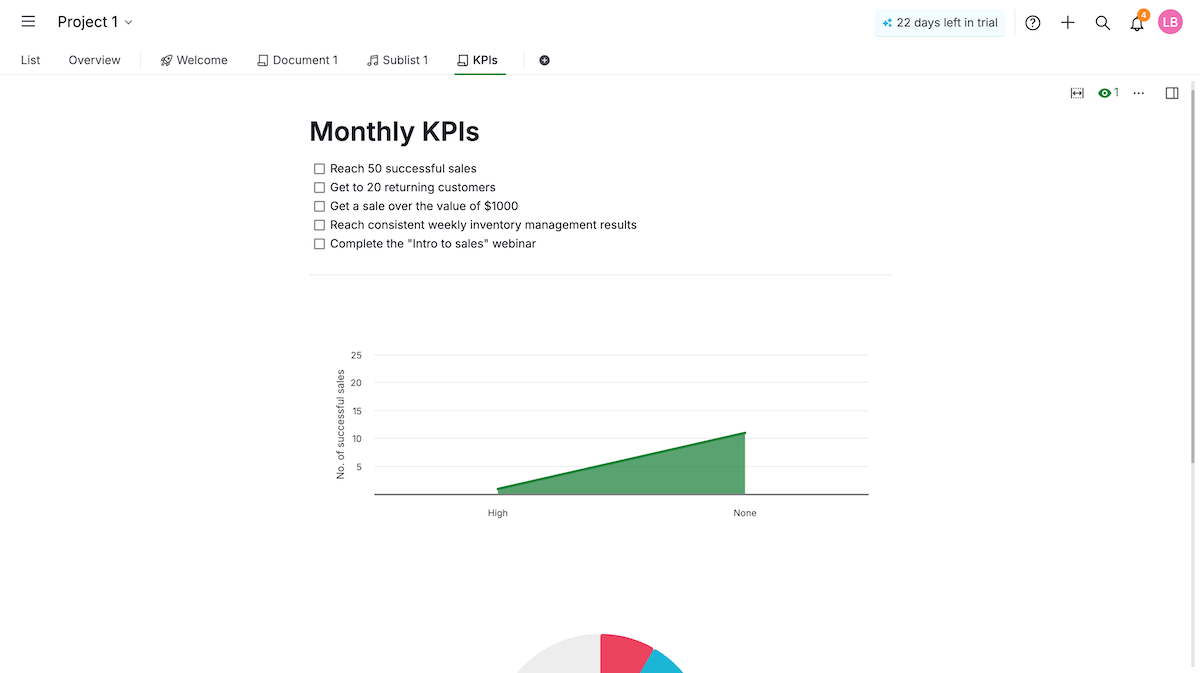
However, Quire has a rare feature — collaborative docs. This is a special view that lets you create a document you and your team can edit together.
These documents give you plenty of options to add to them, like:
- Text and headings,
- Formatting options,
- Code and code blocks,
- Bulleted, numbered, and dash lists,
- Images,
- Formulas,
- Charts, etc.
In my opinion, there’s just the right amount of options in Quire’s Docs. Any more would risk cluttering your screen and making it difficult to set up — this way, you get exactly what you need and nothing more (though I can see this being a downside for users who have more time to set up the perfect project doc).
I also like that it’s built on real-time collaboration, so working on these Docs with your team lets you plan work or brainstorm together and draft documents like strategies or project briefs.
Even as basic as Quire can be, it has more significant advantages over Any.do, including:
- Custom fields in the free plan — Quire has a good selection of fields, but you can also create custom ones from general types like selection, checkbox, formula, etc. I was also pleasantly surprised that custom fields are available in the free plan, unlike with Any.do.
- Reports and charts — In Docs, you can add various reports and charts, like line, area, pie, bar, nested donut, and more. All of these have plenty of settings to customize with, like data sources and values, which you can use to get detailed and specific insight on project progress and results.
- Time tracking — Quire has integrated time trackers on every task card, so your team can easily add time they spent on that task. I also like that you can use this field to estimate task times, so you can compare these values later and calculate schedule variance easily.
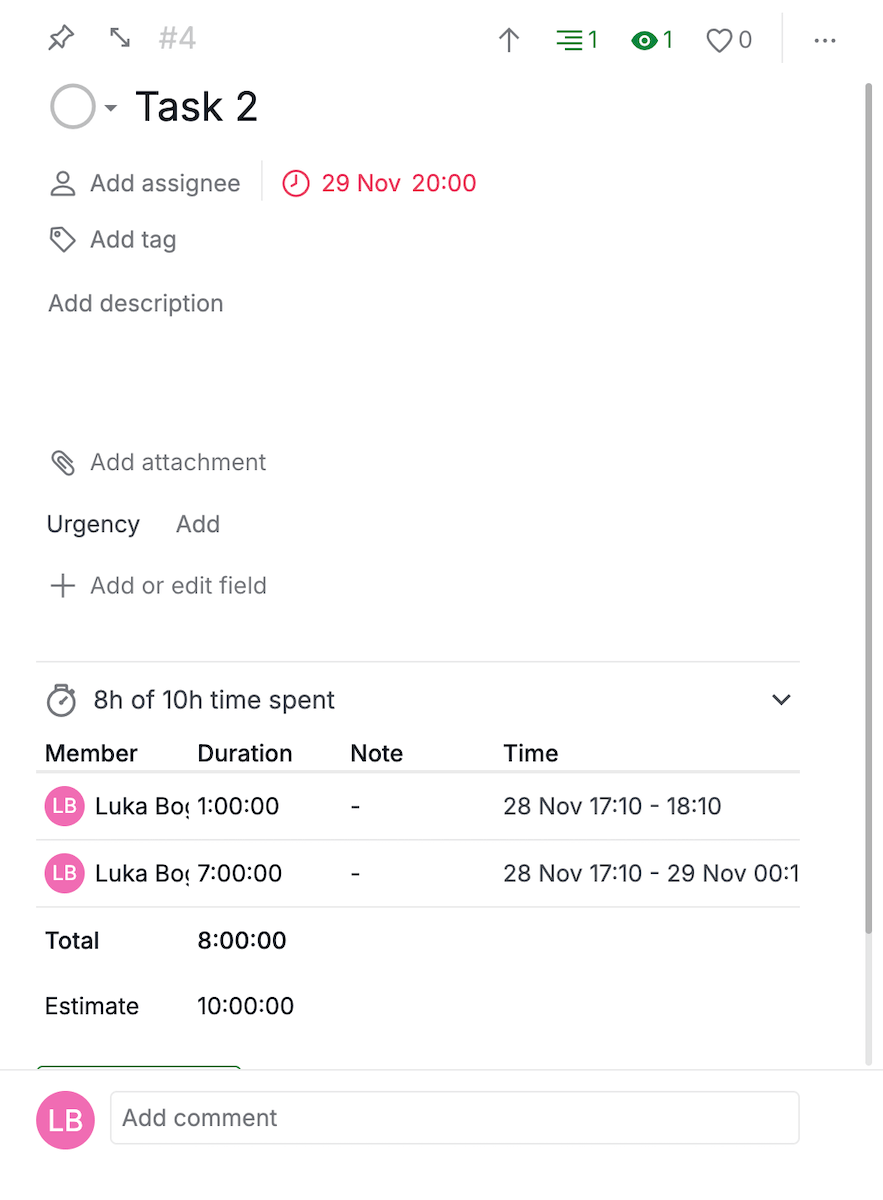
Even though Quire’s free plan is better than Any.do’s, it’s still not without fault and limits. The free plan only allows for 10 collaborators and 4 projects. You also don’t get access to most views or time tracking without subscribing first. This way, if you have a small team and can’t afford a paid plan, your management is quite limited.
Quire’s handling of views especially bothers me — in the free plan, you only get the List and Kanban views. Plus, there’s no dashboard or chart view to get clear access to reports. Instead, if you want to check on project health, you need to add charts to a Doc, which just risks unnecessary clutter.
What’s new in Quire?
Quire’s recent updates include the addition of task times in the calendar view, so aside from the date, you can also see the exact time of your deadline. This helps improve task scheduling, and makes your team avoid missed deadlines.
They also improved the comment notification panel, so there’s less of a chance that your team will miss important updates.
Available for: Web, iOS, Android
| Plan | Pricing |
|---|---|
| Free | $0, for up to 10 users |
| Professional | $7.65/user/month* |
| Premium | $13.95/user/month* |
| Enterprise | $19.95/user/month*, or POA for a more customized plan |
*billed annually
Keep management flexible with Plaky’s views
#8 Superlist — best for working on the go
Superlist is an AI-powered note-taking app that lets users manage personal and business tasks in the same place.
Why choose Superlist?
Thanks to its mobile app and some useful features, Superlist is a fine pick for managers who need to stay mobile, and can’t be tied down to a computer.
| Pros | Cons |
|---|---|
| – Good mobile app – Subtasks with infinite nesting – Team spaces for sharing lists | – Limited task management – Limited free plan |
In my opinion, the best use of Superlist is with the mobile app. It’s just as easy to use as the web app — but it’s a bit smoother, and it reminds me of classic note apps.
It’s easy to create task lists, update tasks, and customize your workspace with emojis and list covers (which, while not particularly useful, is fun and adds a bit more visual clarity). So, if you need to work on the go and save time, the mobile app lets you quickly manage your project, wherever you are.
I especially like the voice notes feature — it lets you talk about the tasks you want to create, and then makes them for you.
For example — on your way back to the office from a client meeting? Create tasks based on it with voice notes while the memory’s still fresh.
However, this feature isn’t available on the free plan.
The mobile app also comes with mobile widgets, so you can quickly create and add tasks to your lists. One widget lets you manually create a task or list, or do the same through a voice note. The other widget just lets you create a task — so it’s not surprising that I ignored that one.
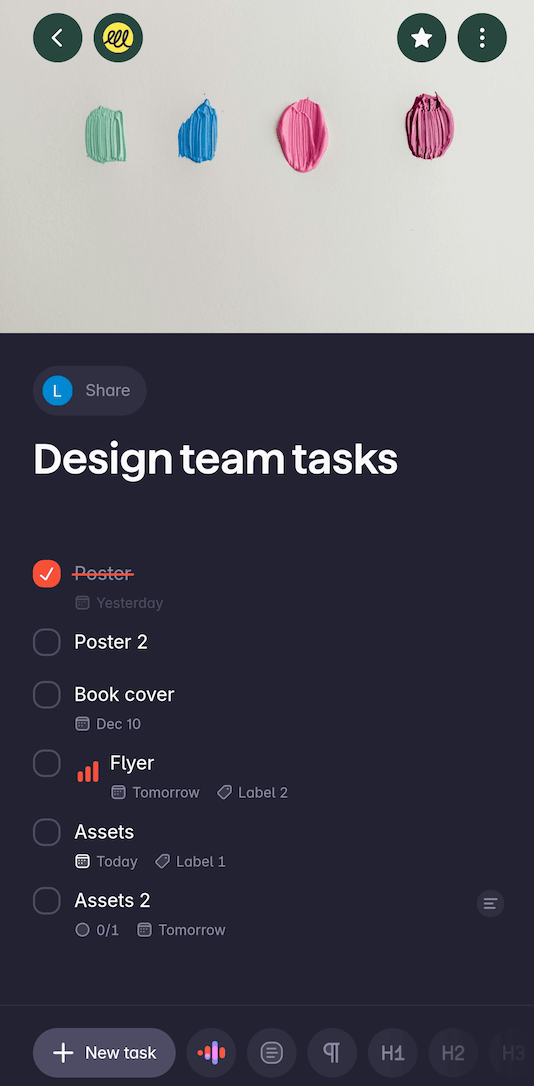
Superlist’s mobile app isn’t its only upside, though. There are more features in Superlist I like, including:
- Subtasks — You can create infinitely nesting subtasks in Superlist. This means each subtask can become a list of subtasks, so you can divide work and deconstruct tasks to make management easier. However, having too many nested subtasks becomes difficult to manage, because you need to search through a maze of tasks to get to the subtask you need.
- Teams — In Superlists, Teams function like a shared workspace. You can add team members to them, and create separate lists in that Team. However, not all of these lists need to be shared with the team. You can create a private list in a Team, so your personal tasks at work can be organized, or you can wait until you set up a list before you share it with the team.
- Email integration — Superlist’s email integration can be connected so every time you get an email, it’s turned into a task. Plus, it can go through the email and create subtasks based on its content. This process saves you from wasting time going through tons and tons of emails.
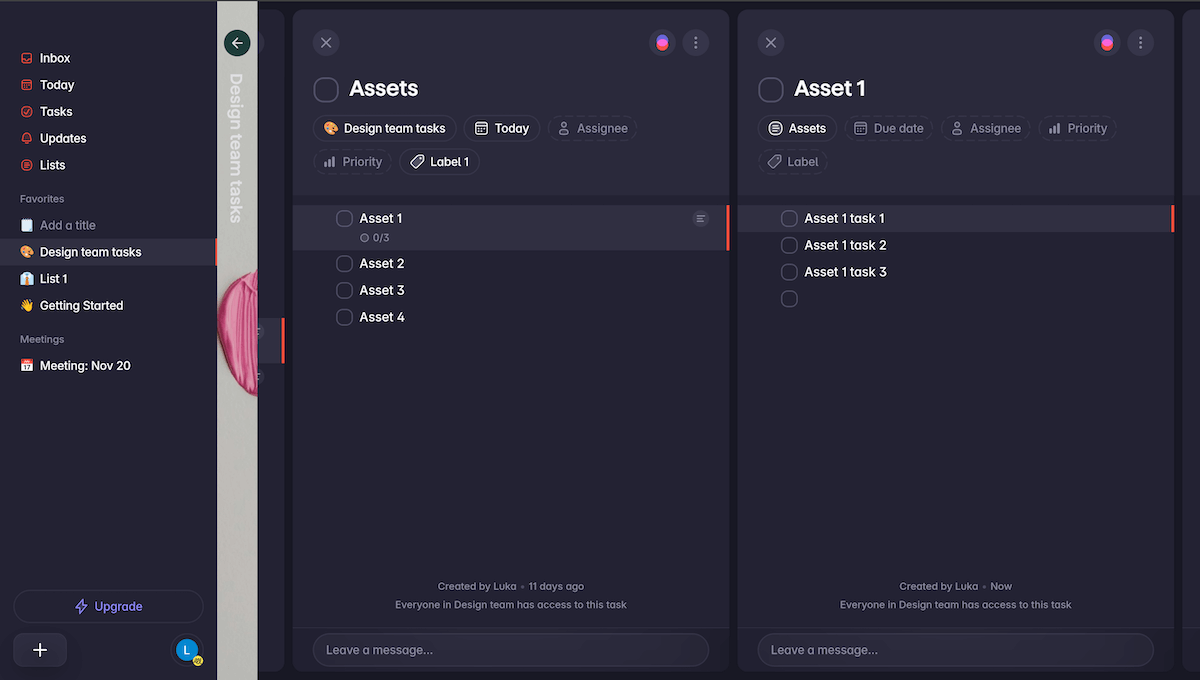
While Superlists lets you create tasks easily, managing them is a different story. You can only add date, assignee, priority, and label fields to a task. And while this label can be customized, it’s as close as you’ll get to a custom field in Superlist. This limitation especially bothered me — I need to save detailed and organized task information to properly manage them. Basically, I’m probably better off with a dedicated task management tool.
Another limit I didn’t like is the free plan. It only allows for 5 users and 5 lists, and while you can have unlimited tasks, the list limit means it still quickly becomes cluttered. The AI capabilities also aren’t available in the free plan, like voice commands, meeting summaries, or chatting with Superlist’s AI.
What’s new in Superlist?
Most recently, Superlist fixed a crucial flaw with the app — lists you’re invited to now automatically show up on your sidebar. Before, you needed to manually find them and pin them there. So, working with shared lists is a bit less frustrating.
They also recently added the priority field to tasks, which makes deciding which tasks to focus on easier and visually clearer. Let’s just hope this change brings in even more fields in the future — because that’s where Superlist is severely lacking.
Available for: Web, iOS, Android, macOS
| Plan | Pricing |
|---|---|
| Free | $0, for up to 5 users |
| Basic | $5/user/month* |
| Super | $21/user/month* |
*billed annually
Manage projects in any industry with Plaky’s custom fields
Manage teams of any size with Plaky by CAKE.com
At this point, if you’re still unsure about which tool is actually best for you, we get it — the search for the best Any.do alternative can be exhausting.
So why not just go for the best overall pick — Plaky!
Besides being suited for teams of any size with some fantastic features, Plaky also offers:
- Neat UI — Plaky’s UI is clear and visually appealing, and it makes the app easy to learn and easier to navigate. Every feature, no matter how complex, is built to be intuitive, so you and your team don’t have to waste hours figuring it out.
- 24/7 support — Plaky offers 24/7 fully human support (no AI chatbots) for any burning questions you have, which you can contact through phone, live chat, or email. Best of all, Plaky’s support doesn’t hinge on your wallet, so you get the same access even in the free plan.
- Security — Plaky complies with the latest security standards like ISO 27001 and SOC 2, ensuring all of your data is protected while using the app. The Enterprise plan also includes SSO, enabling your entire team to log in securely and reducing the chance of a breach.
And, if you’re a fan of Plaky’s capabilities, but want to boost your productivity even more, you can always go for the CAKE.com Bundle — where you get Plaky, Clockify, and Pumble, all at full power and at a 53% discount.
With this suite, you can switch from Any.do and make sure you never have to switch tools again.
Make the right choice — go for Plaky as the best Any.do alternative.