As you probably know, Scrum is an Agile project management framework. In fact, a great number of industries apply Scrum, though software development is the champion.
However, finding the right Scrum tool isn’t as easy as ABC.
With a heap of different tools on the market, it takes time and effort to make the right choice.
But, no worries — I’ve got you covered!
I’ve researched and tested numerous apps, breaking down their features to highlight their pros and cons so that you know what you can count on from the start.
Keep reading to see all the details!

WHY TRUST US?
The apps we talk about are selected, tested, and written about by human reviewers who follow strict review and editorial guidelines. We pick solutions that are practical, purposeful, and can offer real value for the specific use case or business context we’re covering — while also being justified in their pricing. Our methodology is transparent, clear, and available to everyone:
Why use Scrum tools?
To put Scrum into play, we usually use Scrum tools — dedicated software solutions that help Scrum teams to:
- Streamline Agile workflows easily — Scrum tools enable you to make Scrum processes simpler by breaking down complex tasks into smaller steps, automating repetitive tasks, and identifying roadblocks on time.
- Increase transparency and visibility — Scrum tools help you visualize your project data, see who is working on what, and keep stakeholders and team members informed of the progress.
- Enhance task management — Scrum tools allow you to organize and prioritize tasks, set realistic deadlines, and assign tasks to the right people.
- Facilitate progress tracking — Scrum tools provide different boards and charts that can give you a real time task status information you can use to make informed decisions.
- Boost team efficiency — Scrum tools help you plan Sprints, track bugs, and keep your backlog clear. This way everyone stays on the same page and knows what to do and how much time they have.
- Improve team collaboration and communication — Scrum tools offer features like video meetings, chats, or comments, which enable real time collaboration. And, with Kanaban or Scrum boards, everyone gets the latest insight into task status.
How I chose and tested the Scrum tools
Many of the tools you’ll find on my list are well-known and robust platforms that cover various use cases, including software development.
Still, I’ve made sure to include a few dedicated Agile tools for Scrum that are not feature-packed — as you would expect — but can help you easily handle Scrum ceremonies.
Every tool I tried and tested offers either a solid free plan or at least a free trial. That way, you can try out the tools before committing to a subscription straightaway.
Finally, I approached this research with Scrum functionalities in mind and gave each tool a fair shot to see how it handles Sprints, backlogs, and team collaboration.
Top 12 tools for Scrum
These are the 12 Scrum tools that made it onto my list. You’ll find detailed reviews, including pros and cons, in the following sections.
| Tool | Best for | Free trial | Free plan | Lowest price |
|---|---|---|---|---|
| Plaky by CAKE.com | Effective task management | ✔️ | ✔️ | $3.99/user/month |
| Scrumwise | Essential Scrum | ✔️ | ❌ | $7.5/user/month |
| Jira | Backlog management | ✔️ | ✔️ | $8.60 user/month (billed monthly) or $875/year for user tier 1-10 (billed annually) |
| Miro | Visual collaboration | ✔️ | ✔️ | $8/user/month |
| Wrike | Project reporting | ✔️ | ✔️ | $10/user/month |
| Teamwork | Client projects | ✔️ | ✔️ | $10.99/user/month |
| Trello | Beginners | ✔️ | ✔️ | $5/user/month |
| Monday | Progress tracking | ✔️ | ✔️ | $9/user/month |
| VivifyScrum | Small Scrum teams | ✔️ | ❌ | $96/year for an entire team of up to 10 people |
| Asana | Goal setting and reporting | ✔️ | ✔️ | $10.99/user/month |
| ZohoSprints | Release management | ✔️ | ✔️ | €1/user/month for min. 12 users |
| ClickUp | Sprint automation | ✔️ | ✔️ | $7/user/month |
#1 Plaky by CAKE.com — best for effective task management
Plaky is simple, user-friendly Agile project management software (PM software) that helps teams create custom workflows, map out processes, and track each step — from Sprint planning to launch dates.
Why choose Plaky?
Plaky is ideal for Scrum teams that want a free/affordable solution equipped with all the essential features for focused yet flexible task management.
| Pros | Cons |
|---|---|
| – User-friendly – Free templates, including Scrum board and bug tracking templates – Highly customizable – Board automations | – Lack of integrations |
My team and I use Plaky on a daily basis to manage our content projects i.e., keep track of new content, changes, updates, due dates, etc. Plaky’s intuitive interface gives me a clear picture of the status of my tasks, making my job much easier.
However, to be honest, before I started writing this review, I had little knowledge of all the things Plaky can do for Scrum teams and how it helps them manage their tasks. After thorough research, here’s what Scrum teams can count on with Plaky:
- Scrum board template — Plan your Sprints with a ready-made template that includes all relevant Sprint information. You can also customize it to match the needs of your Scrum team by adding new custom fields.
- Bug tracking template — Manage bugs and track the entire process with Plaky’s pre-made template. You can make a list of all the bugs, save relevant information, and assign the right soldier to resolve each bug.
- Customizable fields — Create boards in Plaky and easily organize and track your Sprints by adding custom fields like Text, Number, Status, Person, Date, etc. These fields help you add specific information relevant to your projects and workflows.
- Board automations — Reduce the number of repetitive tasks and move tasks further by setting up triggers and desired actions. For example, Plaky can automatically notify the Scrum Master once the task’s Status field changes from To Do to In Progress.
Try Plaky by CAKE.com for free
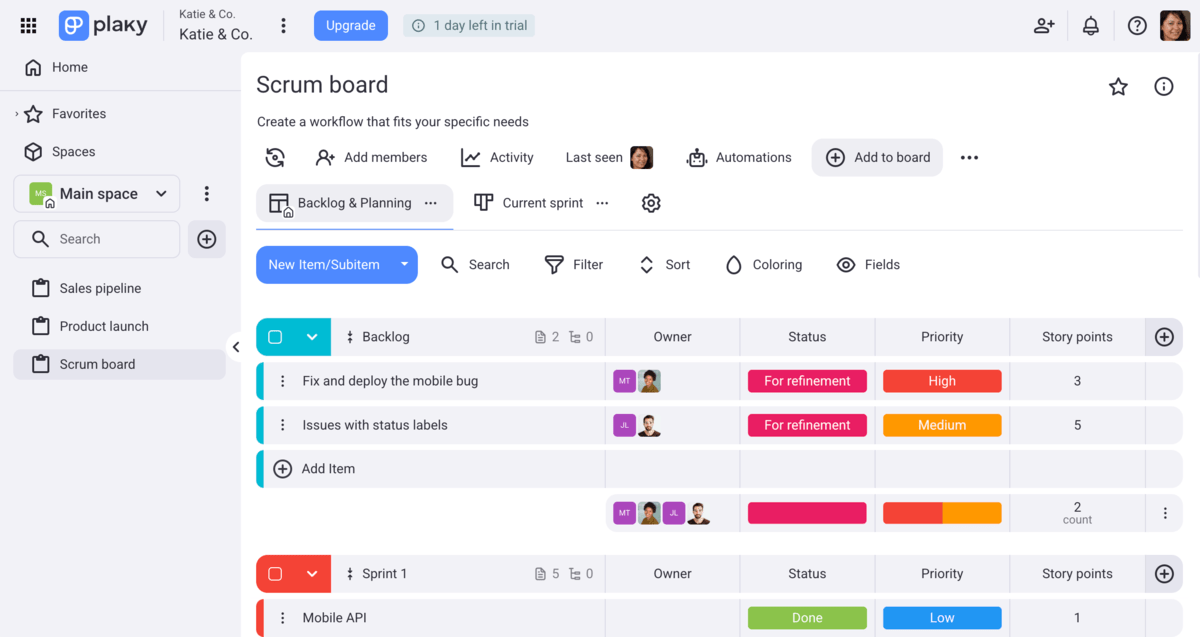
As we all know that transparency is key in Scrum, I’d say that Plaky adds to it in many ways. Plaky’s clean layout provides high visibility and ensures seamless project and task tracking thanks to:
- Multiple board views — In Plaky, you can manage your tasks and track their progress in 4 different views (Table, Kanban, Gantt chart, or Chart view) depending on your needs and preferences.
- Centralized workspace — With Plaky, you have all product-related information such as tasks, files, links, etc., in one location. This way, everyone is on the same page about task owners, due dates, budget, and more.
- Open and direct team communication — Plaky’s real-time notifications allow you to track all the updates made to tasks, whereas comments and @mentions ease communication within tasks.
- Activity log — Plaky leaves no place for confusion over what has been done and when, as it provides a chronological record of all the activities and changes made on tasks.
- Summary row — You can use Plaky’s summary row to get a real-time overview of your projects or tasks’ results and key project metrics. This feature helps you aggregate data from multiple fields so you have important info at hand in case you need to write reports.
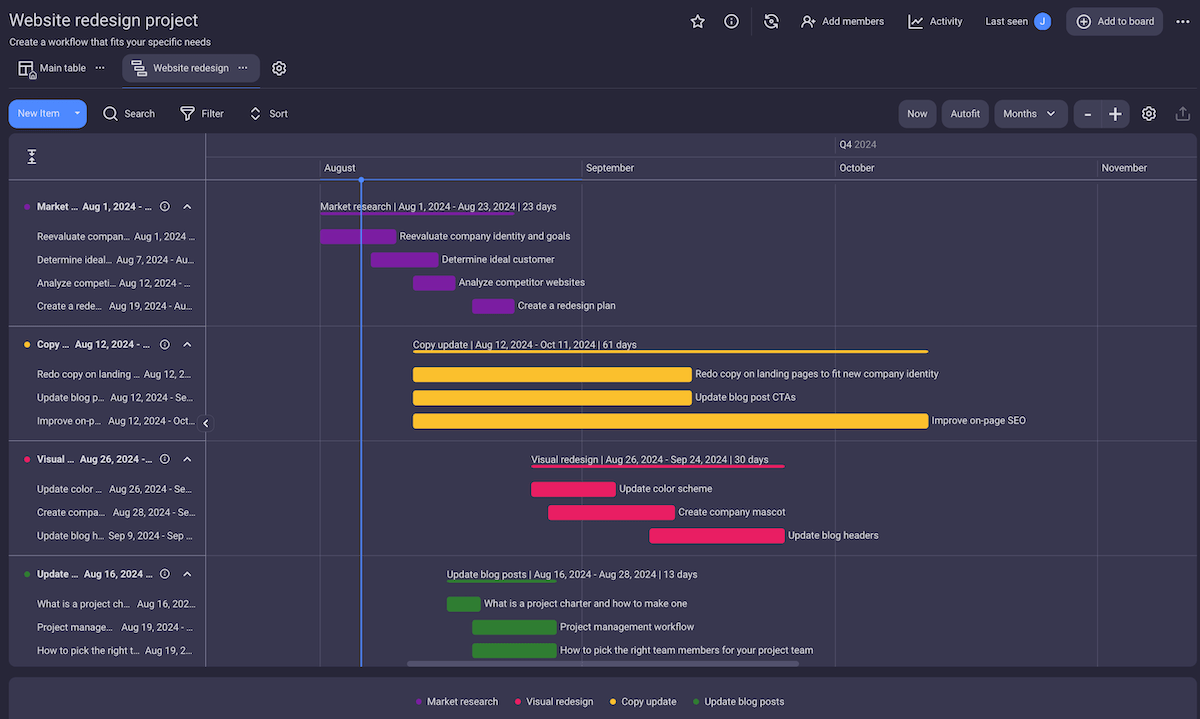
As for the drawbacks, Plaky really misses more integrations. At the moment, there are native integrations with the time-tracking app Clockify and with communication app Pumble.
What’s new in Plaky?
Apart from some regular bug fixes and improvements (find more details in Plaky’s changelog), Plaky’s latest major updates include the addition of Chart view and the Plaky + Pumble integration.
Available for: web, Mac, Windows, Android, and iOS
| Plan | Price |
|---|---|
| Free | $0 (unlimited number of users) |
| Pro | $3.99/seat/month* |
| Enterprise | $8.99/seat/month* |
| CAKE.com Bundle (Plaky, Clockify, Pumble) | $12.99/seat/month* |
*billed annually

#2 Scrumwise — best for essential Scrum
Scrumwise is a tool that offers basic Scrum functionalities used for backlog management, Sprint management, and time tracking.
Why choose Scrumwise?
Scrumwise includes the key functionalities you need to implement Scrum without the complexity of versatile platforms.
| Pros | Cons |
|---|---|
| – Simplistic interface – Essential Scrum functionalities – Burndown chart | – No free plan – Limited integrations |
I was pleasantly surprised when I opened my account on Scrumwise — and not just because I like the color blue. There are no excessive features, and the coolest thing is — you can drag and drop almost everything, which makes task organization a breeze.
Some of the features that I’m really fond of in Scrumwise include:
- Auto saving — No need to keep clicking the Save button, as Scrumwise automatically saves every change you make.
- Chat and messages — These pages help you align your team around the project and share ideas and to-do lists, or just discuss task-related issues.
- Right-click menu — This menu allows you to select additional options, such as marking a task as done, setting a task priority status, or splitting a task into subtasks — just like you would do on your computer.
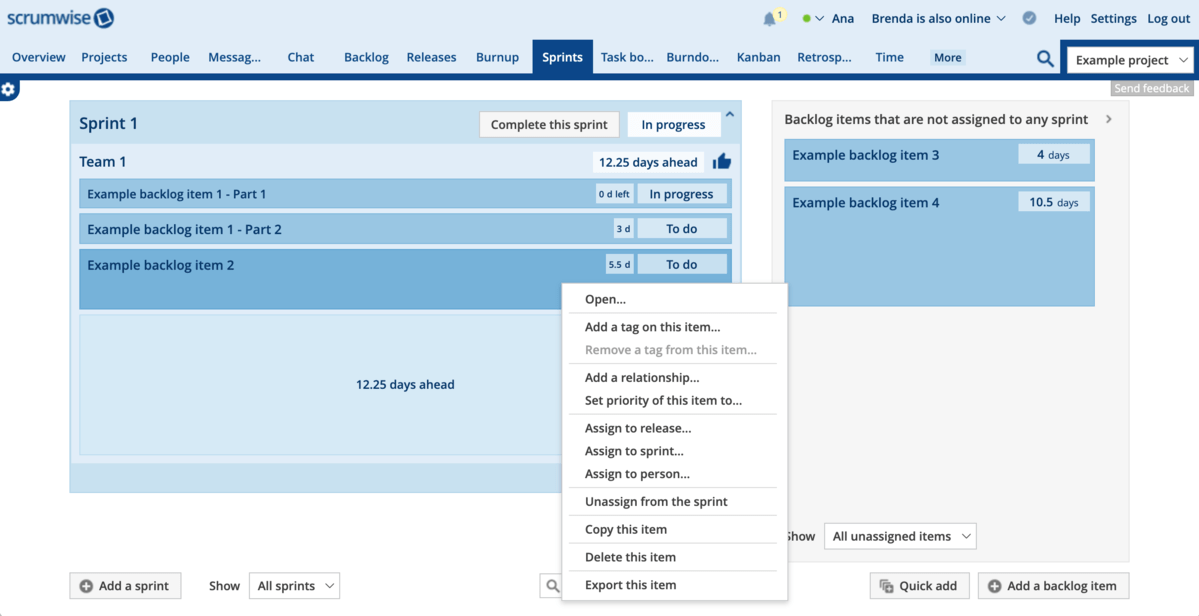
Now, here are some of the reasons why I think Scrumwise is best for essential Scrum:
- Overview page — It shows you the most important info such as your tasks, remaining work days, and the latest updates, keeping you fully informed at all times.
- Activity history — It provides a list of all updates within a project. This is especially useful if you have a dispersed team, as everyone gets to see the real-time project status.
- Kanban and Table boards — They give you a real-time insight into task and project progress. The best part? Both have backlog item columns that can help you with task organization.
- Sprints page — It shows you all ongoing Sprints and how many days you have left to complete them. From here, if you like, you can add backlog items to your Sprints.
- Backlog page — This page lists all the backlog items you have, shows you the percentage of the work done, and gives you an option to add more items to your backlog.
- Release page — It shows you the status of your releases as well as backlog items that are not yet assigned to any release.
- Time tracking — This allows you to track time spent on tasks and get time logs you can later export or copy and use for Retrospectives.
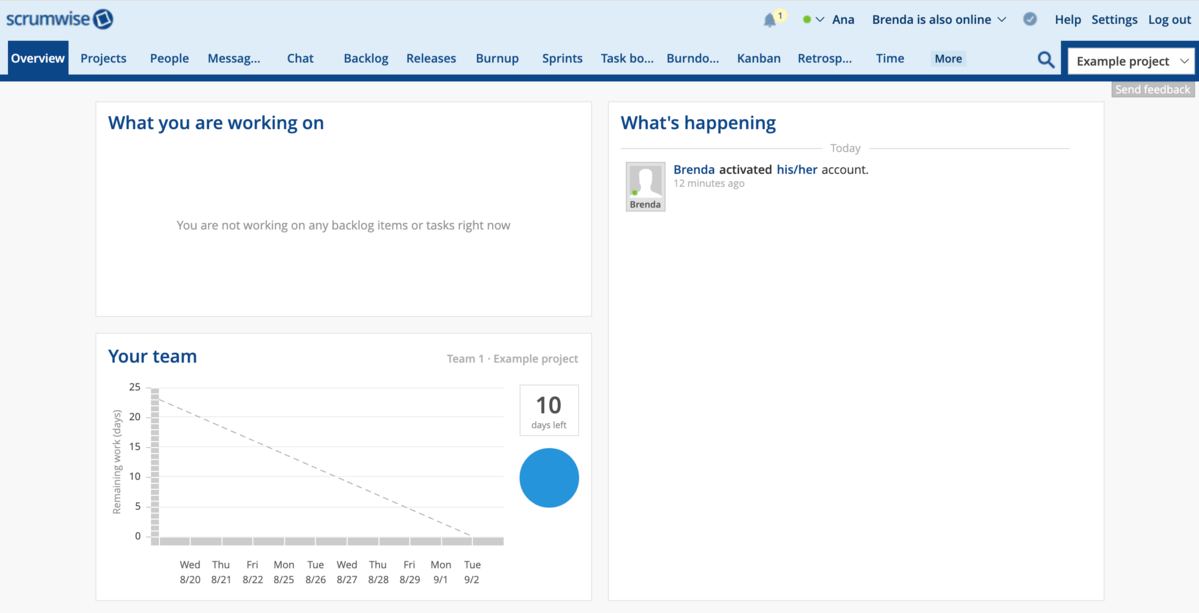
And, once you start your Sprints in Scrumwise, the burndown chart this tool offers helps you visualize your progress throughout each Sprint. By enabling the chart, you can better understand your Sprint progress and make future estimations more precisely.
One thing I don’t like about Scrumwise is that it’s quite limited with integrations — GitHub is the only one for now. However, the platform has an API you can use to integrate it with other tools.
Worse, Scrumwise doesn’t have a free plan. So, if you prefer having a stronger app with more functionalities, without having to pay for it, look for some alternatives in my list.
What’s new in Scrumwise?
As far as I could find out, there haven’t been any recent updates to Scrumwise.
Available for: web, Windows, MacOS, iOS, and Android
| Plan | Price |
|---|---|
| Monthly | $9/user/month |
| Yearly | $7.5/user/month |
#3 Jira — best for backlog management
Jira is a robust Agile project management platform specialized in issue tracking and managing complex projects.
Why choose Jira?
Jira is backlog software for Agile project management you can use to easily create and prioritize backlog items making iteration much easier.
| Pros | Cons |
|---|---|
| – Advanced reporting – Extensive integrations – Pre-configured Agile templates | – Complex initial setup – Not for smaller organizations |
Jira ranks high among Agile teams thanks to its various notable features, like:
- Reports and dashboards — Jira offers 4 kinds of reports (Agile, DevOps, Issue analysis, and Forecast and management) you can use to better understand projects’ progress and make changes if necessary. You can also create your own dashboards or take a look at the default one that shows you your ongoing tasks and projects.
- Templates — Jira offers you different templates, such as Scrum, Kanban, bug tracking, etc. You can customize them to suit your Scrum Team needs and visualize relevant data better.
- Integrations — Jira integrates with more than 3,000 add-ons enabling you to manage data without switching between tools.
- Insights — Jira can also pull data from your boards and backlog to show you the current project status and provide you with valuable data that you can later use to make the right decisions and adjustments.
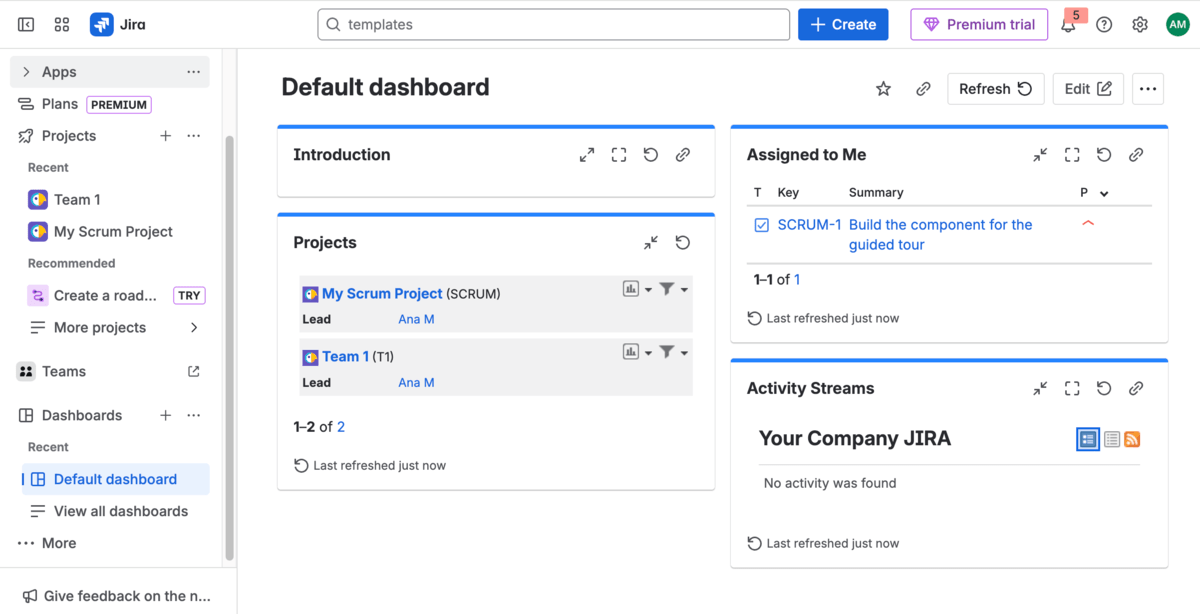
My choice of Jira as the best Scrum tool for backlog management is not accidental, but truly based on the following functionalities:
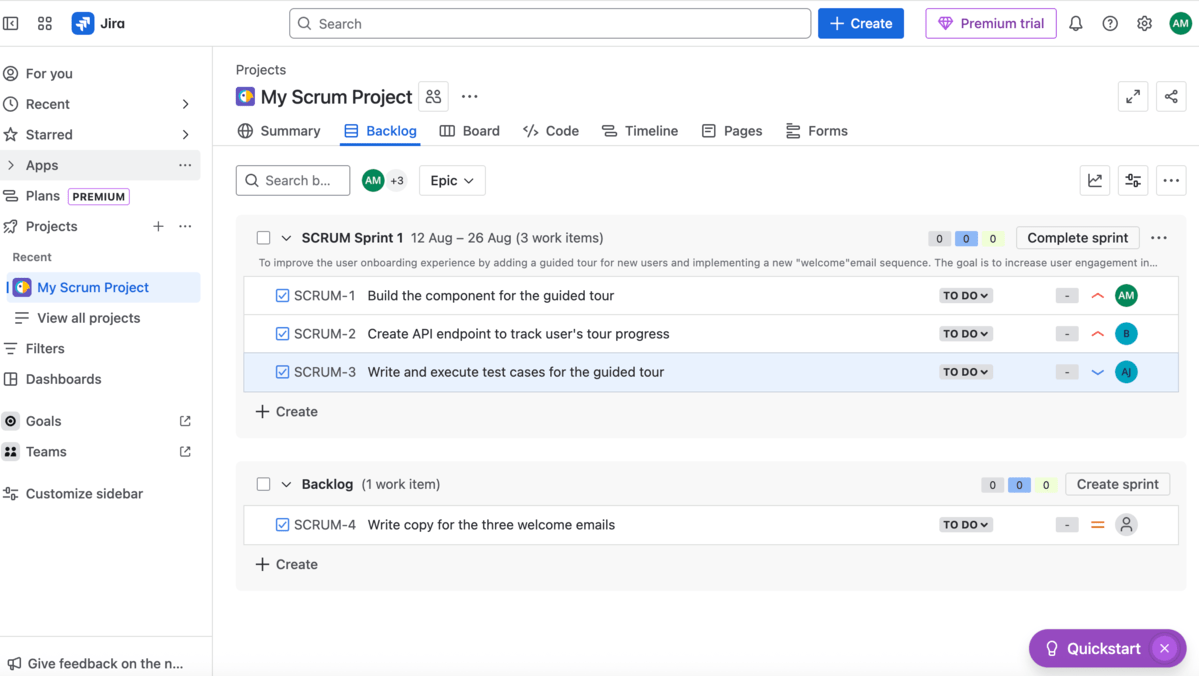
- Backlog categorization — In Jira, you can categorize backlog items depending on their work type — Epics, Stories, Bugs, and Tasks — and add necessary details like labels or dates for better backlog organization.
- Backlog prioritization — You can drag and drop items on the board to reorder them per priority and make use of priority or rank fields to highlight item importance.
- Burndown, burnup, and velocity charts — You can use these charts to track progress and visualize the amount of work completed or the time left within a Sprint.
Jira’s backlog is easy to customize and adapt. Agile teams can choose between Kanban or Scrum board and add custom fields to add specific information. Plus, there’s a wide choice of filters that can help you track status, assignees, metrics, and more.
However, the abundance of features Jira offers is exactly what may put off smaller teams as they’re usually looking for something simpler.
Also, Jira’s focus on software development can be problematic for non-technical users. It took me some time to figure out what labels and parent fields are or how to determine linked work items when I tried to create a project from scratch.
What’s new in Jira?
As of recently, Jira groups issue updates, comments, and edits into one email and sends them to you with a time delay you can set up. Also, you can now archive unnecessary projects as Jira wants you to improve your performance and focus on what really matters.
Available for: web, Windows, MacOS, iOS, and Android
| Plan | Price |
|---|---|
| Free | $0 (for 10 users) |
| Standard* | $8.60/user/month (billed monthly) or $875/year for user tier 1-10 (billed annually) |
| Premium* | $17/user/month (billed monthly) or $1,700/year for user tier 1-10 (billed annually) |
| Enterprise | POA, available once you reach 801 users or more |
*Monthly subscriptions are based on the exact number of users whereas annual subscriptions depend on the user tier. The higher the number of users, the lower the price. Please refer to the price calculator on Jira’s website to check the price based on the number of users you have.

#4 Miro — best for visual collaboration
Miro is a flexible platform that blends extensive brainstorming, planning, and team collaboration.
Why choose Miro?
Miro is praised for its limitless digital whiteboard you can use to organize your ideas, plan Sprints, and interact with team members throughout different Scrum ceremonies.
| Pros | Cons |
|---|---|
| – Extensive template collection – Real-time collaboration features – AI-powered | – Relies heavily on integrations – Can get chaotic quickly |
Although the platform is not specialized for Scrum, Miro does offer some great features that can make life easier for Scrum teams:
- Intelligent templates — Use Miro’s template collection with over 300 tailor-made templates to plan Sprints, roadmaps, daily stand-up meetings, Retrospectives, and much more. Templates save your time and enhance productivity as there’s no need to start from scratch.
- Scrum board — Track your Sprints from start to finish and have all details, including deadlines, dependencies, tasks, and more in one place. Plus, you can use the board to collaborate in real time during Daily Standups, leave feedback, estimate story points, etc.
- Roadmap creator — Join all your ideas easily, outline dependencies, and organize processes by adding cards, tags, assignees, or dates. Miro’s roadmap provides up-to-date information, keeping both stakeholders and the Sprint team in sync, even if they work across time zones.
- Integrations — You can choose from 160+ integrations providing you with a variety of tools — from project management and software development apps to various communication and task tracking tools — that can help you manage workflows smoothly.
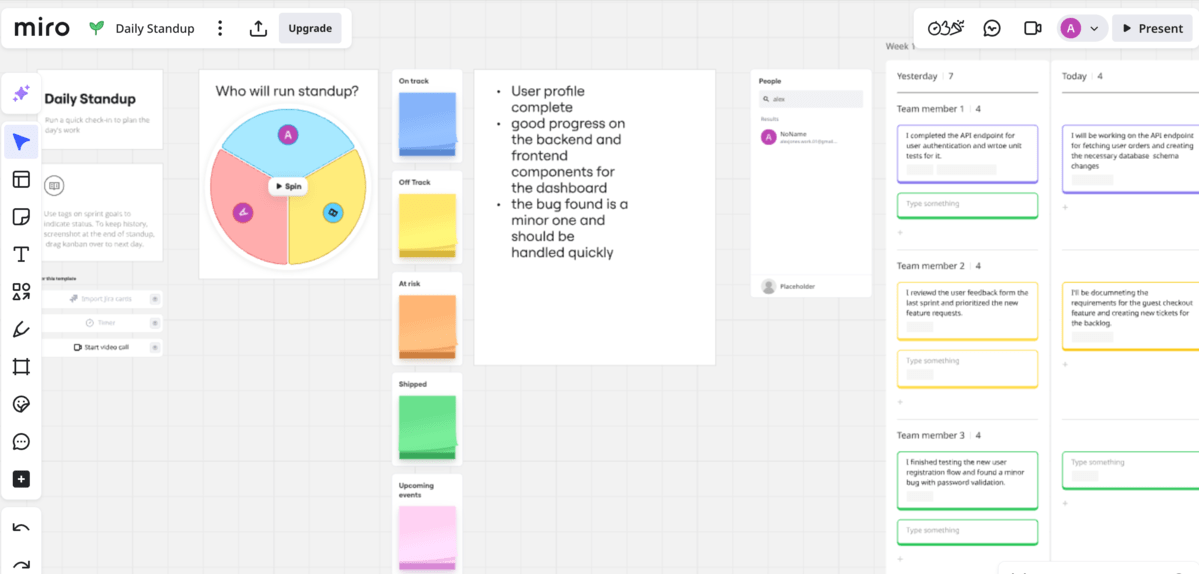
Just note that Miro relies heavily on integrations. For example, there’s a two-way integration with Jira. This means that you need to pull data from Jira onto Miro’s board for activities such as Sprint planning, Backlog refinement, or user story mapping. While you don’t need to update information in both platforms manually, it’s still a bit bothersome to rely on another tool for some important Scrum processes.
As for why I think Miro is great for visual collaboration, these are the perks that stand out:
- The Intelligent Canvas — This is an AI-powered canvas that helps you create briefs and summaries based on your ideas and brainstorms. Plus, it enables real-time co-editing, which contributes to better and more efficient team collaboration.
- The Intelligent widgets — Miro provides interesting additions in the form of dot voting, polls, or sliders that you can use in many ways to boost collaborative spirit and make your work more engaging.
- Diagram shapes — Miro offers more than 3,000 diagram shapes you can generate with AI (such as flowcharts, BPMN, UML, etc.) and include on your board to illustrate complex issues and make things clear.
- Miro Talktrack — With Miro, you can record video and audio walkthroughs and tie them right on the board. Your team can then leave comments, add stickies, or edit the content and cooperate efficiently in real time or asynchronously.
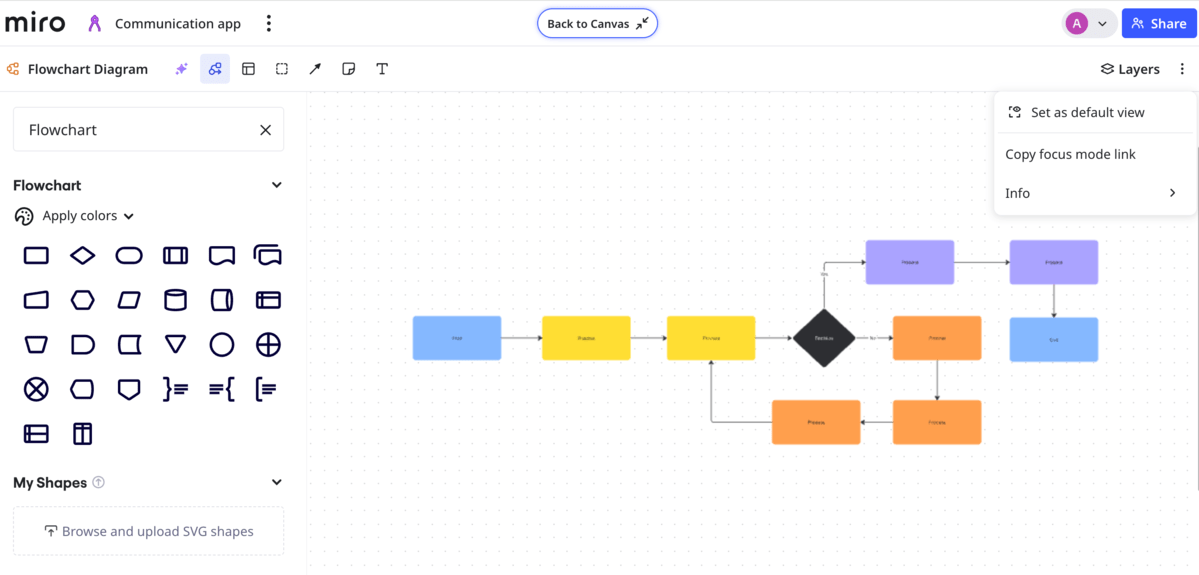
As you can see, Miro has some great features to ease visual collaboration and engage teams, but I’m not sure if things are that interesting with large teams given the infinite canvas. It can get chaotic if you don’t keep it organized.
Plus, zoom levels tend to vary as you add new elements to the board, which is something you need time to get used to.
What’s new in Miro?
Miro has just introduced Blocking and Blocked by fields in Tables that help you create and visualize directional dependencies. Also, you can now start your video calls from Focus Mode views like Docs, Kanban, Timelines, etc.
Available for: Windows, Mac, iOS, and Android
| Plan | Price |
|---|---|
| Free | $0 |
| Starter | $8/member/month* |
| Business | $16/member/month* |
| Enterprise | POA (30 members minimum) |
*billed annually
#5 Wrike — best for project reporting
Wrike is a well-known project management software tailored to support various teams and industries and used for planning and tracking projects with different workflows, including Agile project management.
Why choose Wrike?
Wrike offers a dynamic approach to projects with its robust features for Agile teams, making collaboration and Sprint planning easier and faster.
| Pros | Cons |
|---|---|
| – Live editing and proofing – Integrations – Excellent help center and thriving community | – Pricey for smaller teams – Complex for new users |
Testing Wrike was not easy for me as I got lost in all the functionalities it provides. Still, I’ve found several points where Wrikes really excels in managing Agile projects:
- Multiple project views — In Wrike, you can choose from a wide range of views such as Gantt charts, Workload charts, Calendar view, Board view, etc. Different views let you see your projects from various angles so you can easily address different aspects of a project.
- Live editing and proofing — I believe these are the 2 star features in Wrike. Live editing lets you make changes right in the project/task in real time, whereas proofing allows you to give feedback on various file formats, such as PDF, videos, or images. You can really speed things up with these 2!
- Integrations — Choose from over 400 integrations with tools and optimize your Scrum Team’s productivity and improve collaboration.
- Cross-tagging — By cross-tagging spaces, folders, or tasks, you link them to locations managed by other teams, allowing everyone to stay on the same page and have easy access to tagged items.
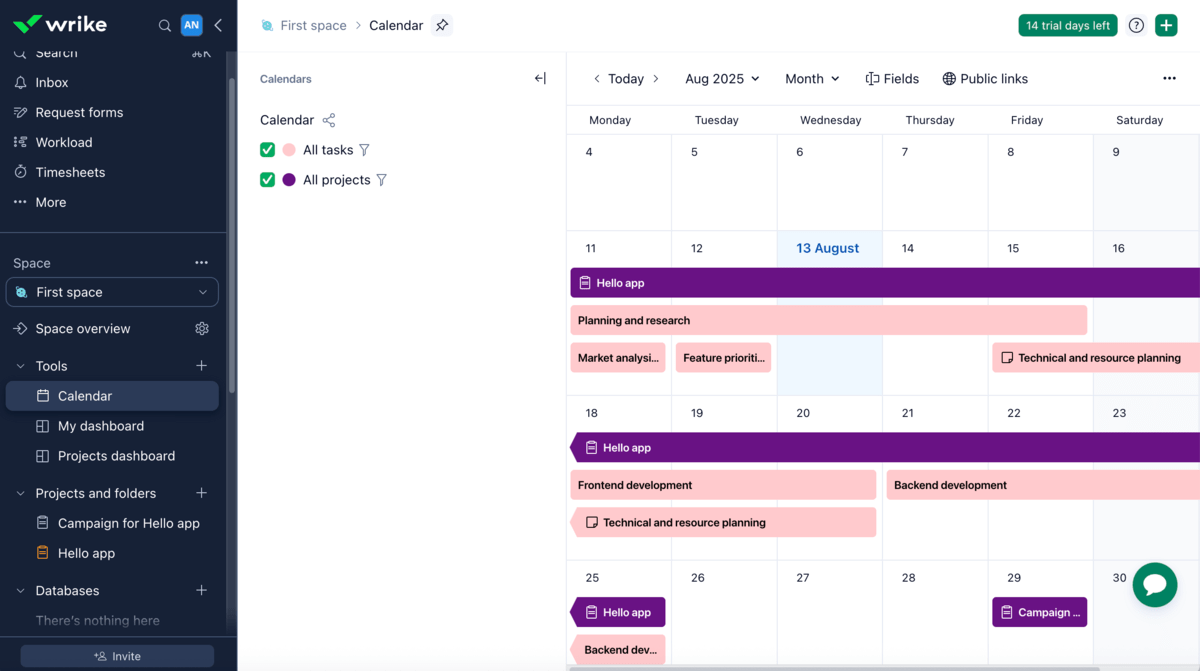
Moreover, Wrike saves time and keeps things simple for us users by offering a great choice of templates, such as Agile Teamwork template, Sprint planning template, or Sprint Retrospective template.
Wrike also takes project reporting to a higher level by helping you build reports with data that you actually need. These reports are always up-to-date as they can update automatically each time you open them. Apart from that, Wrike offers:
- Reports built from templates — With Wrike, you can use available reporting templates to create reports for projects or tasks. Just make sure you tie the report to the right data source.
- Interactive dashboards and widgets — You can opt for a predefined dashboard or create your own from scratch and add different customizable widgets that show the information you need. Dashboards will help you track progress, spot blockers, and stay up-to-date.
- Integrated filters — In Wrike, you can filter boards, projects, and tasks to quickly find the information you need and prepare reports.
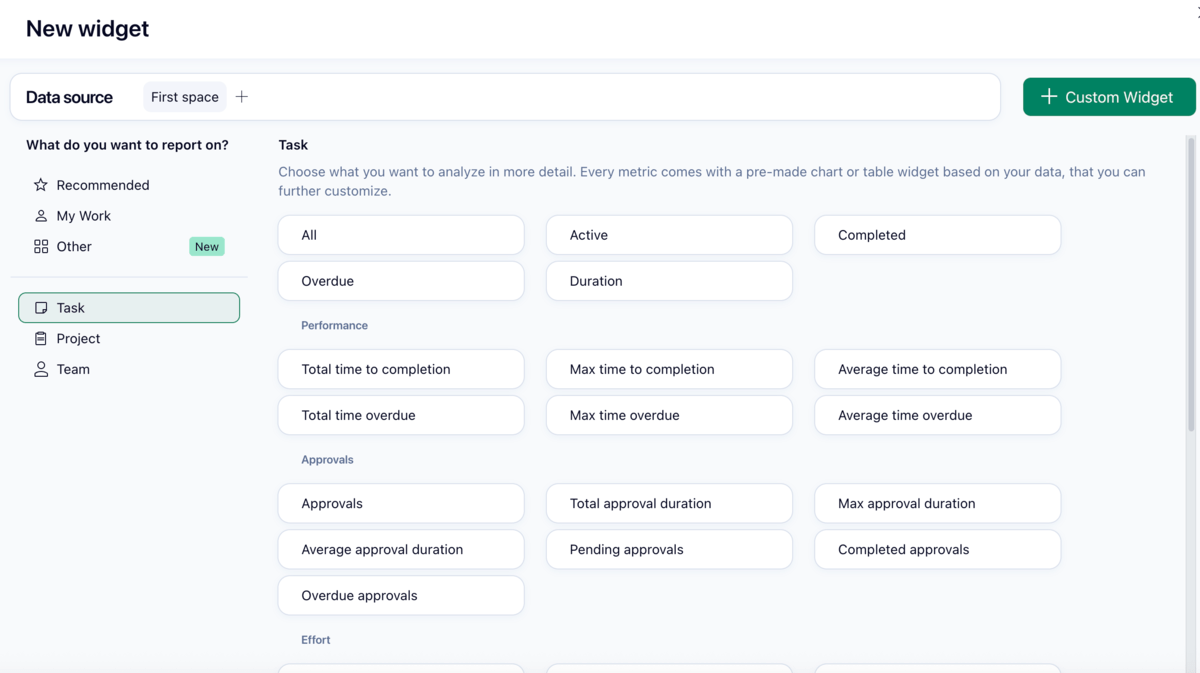
Still, as someone who prefers user-friendly tools, I have to admit — Wrike is not that intuitive. Every now and then I had to consult Wrike’s help center and community (which is super helpful, by the way) to find how to apply certain features. Therefore, make sure you arrange some onboarding on how to use Wrike for the newbies in your company.
And, if you’re managing a small team that needs basic project management, I recommend considering other more affordable tools. In my opinion, Wrike is worth the investment only for large organizations needing more sophisticated platforms.
What’s new in Wrike?
Wrike has recently introduced a Wrike Copilot, an AI project assistant that can help you manage work more efficiently. Plus, Wrike has made custom field descriptions available to all users meaning everyone can just hover over a custom field to find detailed info.
Available for: web, MacOS, Windows, iOS, and Android
| Plan | Price |
|---|---|
| Free | $0 |
| Team | $10/user/month* |
| Business | $25/user/month* |
| Enterprise | POA |
| Pinnacle | POA |
*billed annually
💡 PLAKY PRO TIP
We’ve compared Wrike to monday.com. If you’re interested in finding out which one is better, check out the article below:
#6 Teamwork — best for client projects
Teamwork is a project management tool focused on operational efficiency, client-company collaboration, and task automation.
Why choose Teamwork?
Teamwork is a flexible platform mostly used by marketing, development, or product Agile teams looking to deliver high-quality work to their clients.
| Pros | Cons |
|---|---|
| – Multiple views – Native time-tracking – Clients view and client users | – Complex for basic project management – Custom fields limit |
Although Teamwork is not a dedicated Scrum management tool, it earned its place on my list because many teams that rely on Agile management also work with and for clients.
Here’s what makes Teamwork a good solution for managing client projects:
- Clients view — Available on all plans, it gives you a complete overview of all clients and the projects you are managing for them.
- Client users — With Teamwork, you can bring clients into the projects you collaborate on. This way, clients get visibility into all the work and can provide their feedback.
- Proofs — You can use proofs to streamline the client feedback process, manage reviews, and speed up the approval process.
- Forms — By creating forms and sending them to clients, you can collect data and quickly turn them into new tasks.
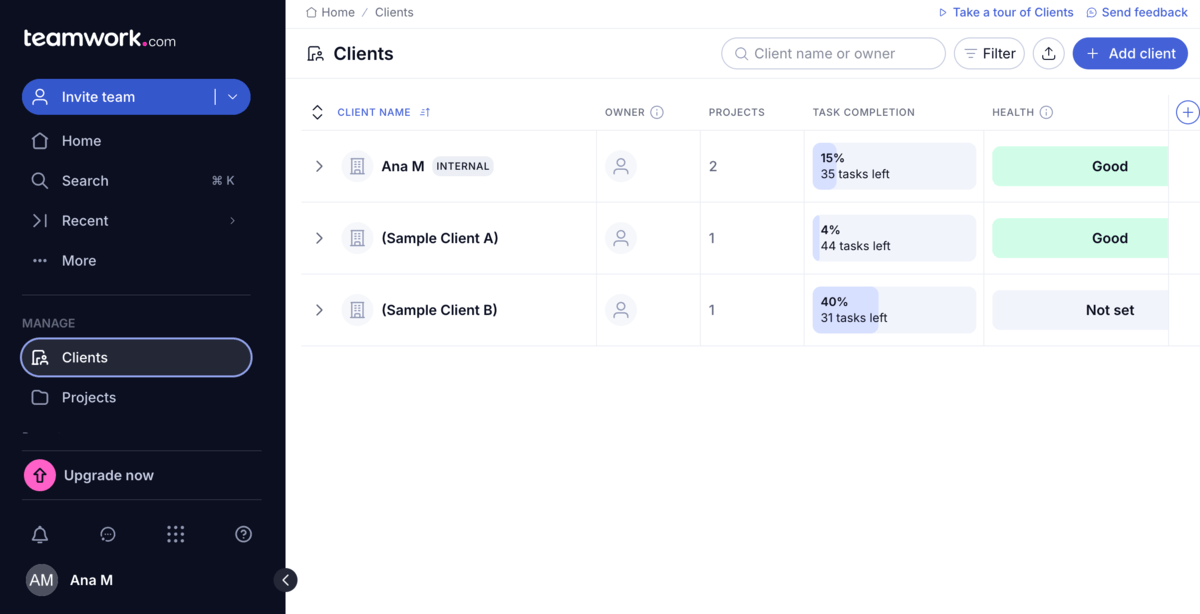
While trying to figure out what I should highlight for Scrum teams, I noticed that Teamwork provides AI and automations available on all plans — which is great, no doubt. With AI and automations you can start projects faster, manage resources better, and get summaries of updates and comments.
Other Teamwork features Scrum teams may find useful include:
- Multiple views — In Teamwork, you get List, Table, Gantt, and Board view on all plans. Plus, the Board view has a default backlog lane, making it easy to move tasks to the To Do list.
- Native time tracking — Time tracking is built-in on every plan automatically and helps you understand how much time your team members spend on tasks.
- Milestones and dependencies — These features are available in all plans and help you set checkpoints, see potential roadblocks, and make adjustments on time.
- Dashboards — These are available on all plans, except they cannot be shared on the free plan. Dashboards provide a summary of all your activities, budget history, milestones, and project trends. You can also create your own dashboard and adapt it to your needs.
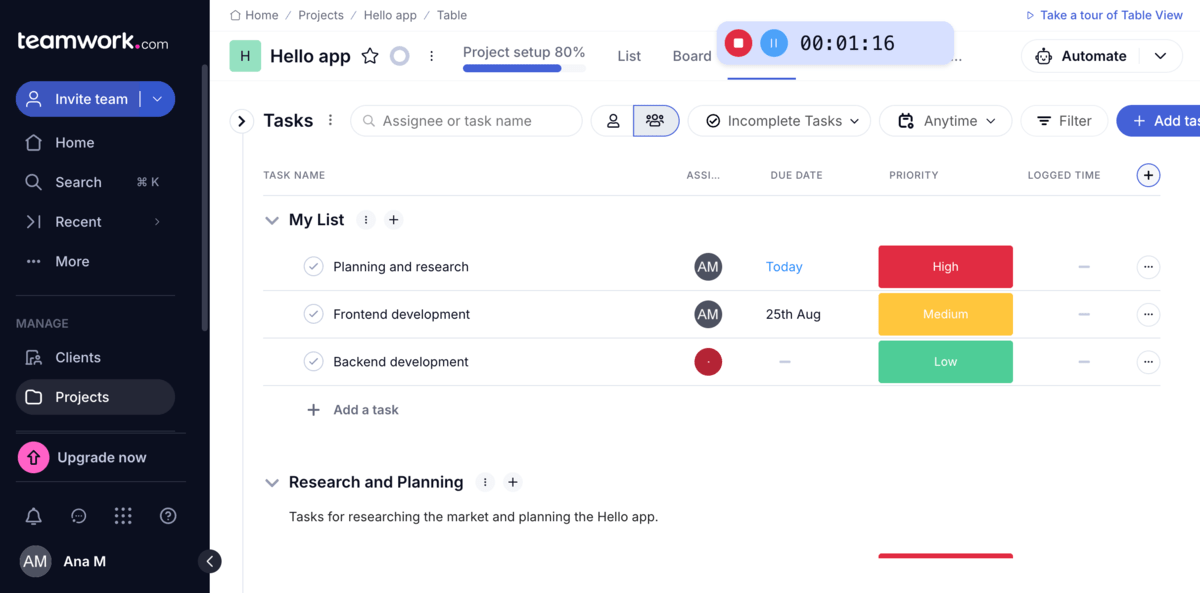
When it comes to cons, I think that all the extra features Teamwork offers (tracking help tickets, placeholders, custom report charts, etc.) can be overly complex for teams that need a general-purpose project management tool.
And, it’s a shame that such a robust tool has limits on custom fields — only 2 custom fields are available on the Free and Deliver plans making it difficult to track and filter key project data.
What’s new in Teamwork?
Teamwork recently introduced 2 new AI features — AI Filter Assistant (for finding the exact task information) and AI Utilization Summary (provides the real-time status of your team’s capacity). In addition, users can now sync their Outlook Calendar with Teamwork.
Available for: web, MacOS, Windows, Linux, iOS, and Android
| Plan | Price |
|---|---|
| Free | $0 |
| Deliver | $10.99/user/month* |
| Grow | $19.99/user/month* |
| Scale | POA |
| Enterprise | POA |
*billed annually
#7 Trello — best for beginners
Trello is a task management tool that uses Kanban-style boards, lists, and cards for planning and managing workflows.
Why choose Trello?
Trello’s simplicity makes it a reasonable choice for teams new to Agile because it offers basic PM features that you can later upgrade with integrations.
| Pros | Cons |
|---|---|
| – Simple interface – Butler automation available on all plans – Unlimited integrations on all plans – No learning curve | – Custom fields are not available on the free plan – Additional views are available on Premium and Enterprise plans |
Its simple and intuitive interface is definitely what makes Trello popular among beginners. There’s no learning curve, so I had no problems setting up the board.
The platform gives you a decent scope for creativity as well, as you can choose different board backgrounds and apply vivid colors to lists and cards. This is a lovely touch; in practice, I used colors to highlight priority levels and organize tasks into groups.
With Trello, you can create an unlimited number of boards (on paid plans), lists, and cards, i.e.,tasks. I really liked the Kanban layout as you can move lists and cards around the board thanks to a simple drag and drop interface.
Within each card/task, you can add:
- Labels,
- Members,
- Checklists,
- Attachments, and
- Task description.
This way, Trello lets you keep all task-related information within the card. Plus, you can add comments and see all task activities in the card as well, which should make project collaboration easier.
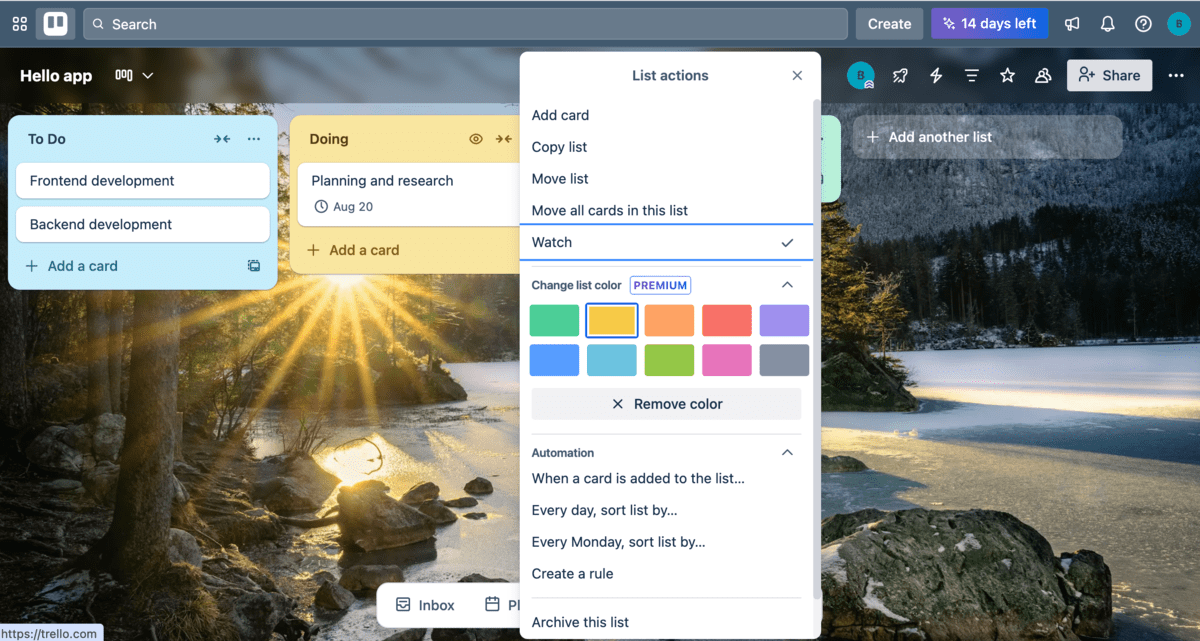
Even though Trello is not a dedicated Scrum tool, it packs power with:
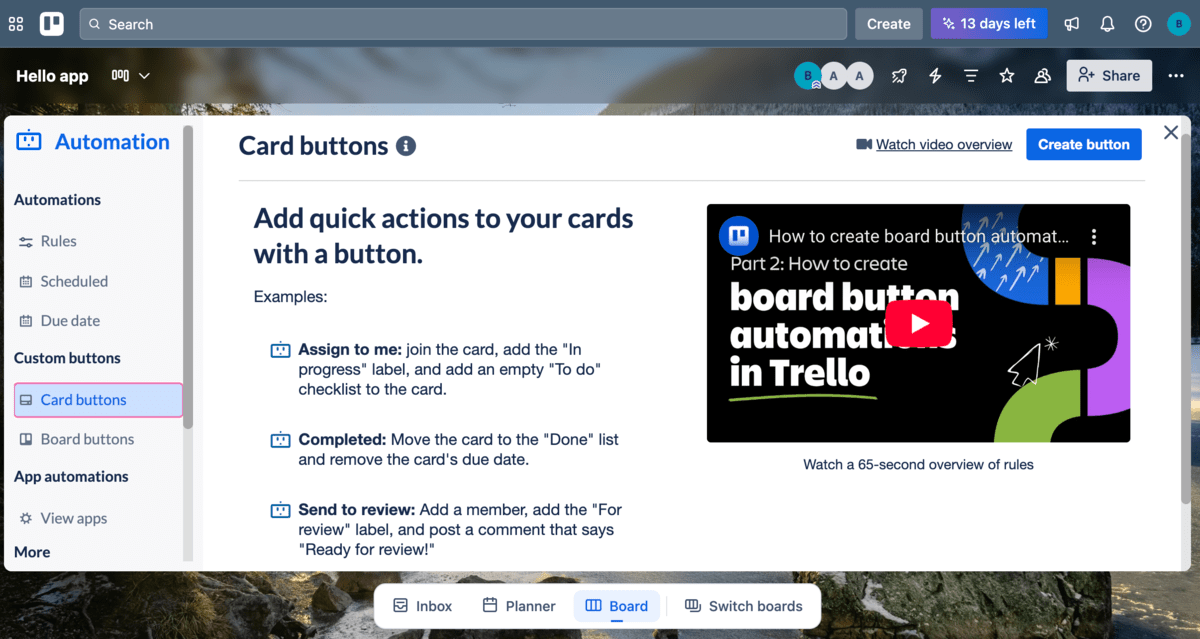
- Butler automations — You can find no-code automations in each board and easily handle repetitive tasks. Also, you can set a trigger to create rules, buttons, or commands that will automate project processes and actions.
- Integrations (Power-Ups) — By adding Power-Ups such as GitHub, Advanced Search, or Scrum Poker, you can really tailor the app to fit your needs. With Power-Ups, you can streamline your workflow better, improve collaboration, and more. Just note that some Power-Ups require an additional subscription fee.
Automate your workflow with Plaky
I was just disappointed to learn that custom fields are locked behind a paywall, which makes it difficult to structure important project information if you opt for a free plan.
What’s more, additional views, like Board, Dashboard, Timeline, and others, are only available on the Premium and Enterprise plans. So, the only thing you can actually work with on Trello’s free plan are Kanban boards.
What’s new in Trello?
Recently, Trello introduced an integration with Microsoft Outlook Calendar. Users can now also sync Trello’s Planner and Outlook and get a unified view of their tasks, reminders, and deadlines.
Available for: web, MacOS, Windows, iOS, and Android
| Plan | Price |
|---|---|
| Free | $0 (up to 10 collaborators per workspace) |
| Standard | $5/user/month* |
| Premium | $10/user/month* |
| Enterprise | $17.5/user/month* (est.cost for 50 users) |
*billed annually
💡 PLAKY PRO TIP
You like Trello, but aren’t sure if it’s really the best fit for managing your projects? Check out our comparison articles to see what sets Trello apart from other apps:

#8 monday.com — best for progress tracking
monday.com is a highly customizable app that offers flexible task management supported by a big collection of automations and integrations.
Why choose monday.com?
monday.com is a robust tool that offers several ways to visually track project progress and stay updated in real time.
| Pros | Cons |
|---|---|
| – Neat design – Kanban view available on all plans – Highly customizable dashboards | – Integrations and automations are not available on the free and Basic plans – Impractical pricing structure |
The first thing I noticed about monday.com is its clean look and eye-catching color scheme.
monday.com really shines in board design as well — you have quick access to everything you need without feeling overwhelmed by the number of available options.
Kanban view is available on all plans, so every Scrum team can visualize tasks as cards and move them through different project stages using the drag-and-drop functionality.
There are several interesting elements Scrum teams will find useful on monday.com’s board:
- Board filters — You can use search, person, or filter features to easily find the exact information you need.
- Story points — By assigning story points to each task, you can estimate the amount of effort required to complete the task.
- Discussions — In monday.com, you can open Board or Task discussions and use them to see updates, give feedback, add files, and more.
- Agile insights — This is one of the board views that shows you velocity, burndown, and planned and unplanned charts, helping you track your team and project performance.
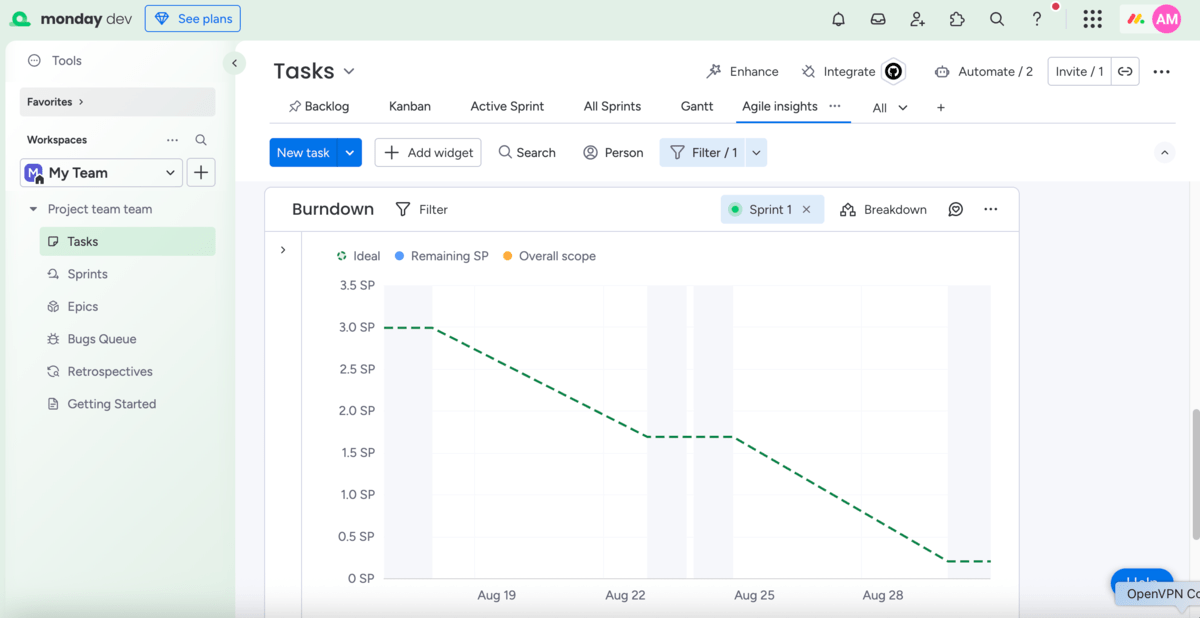
What’s more, while tracking your Sprints progress with monday.com, you can rely on:
- Dashboards — With dashboards, you can easily track project progress by adding different widgets, such as Numbers, Charts, Battery, Gantt chart, etc. monday.com has an arsenal of 50+ widgets and apps you can use to get a real-time overview of relevant project and task data and prioritize accordingly.
- Integrations — monday.com offers 200+ code-free integrations you can make use of to enhance your team productivity and communication.
- Automations — You can also create code-free automations from scratch or ready-made templates and set up automations that will save your time and keep you up-to-date.
- Progress tracking column — Once you add a status column to your tasks, you can also add a progress tracking column. This column will show your task progress in percentages in a battery-like view.
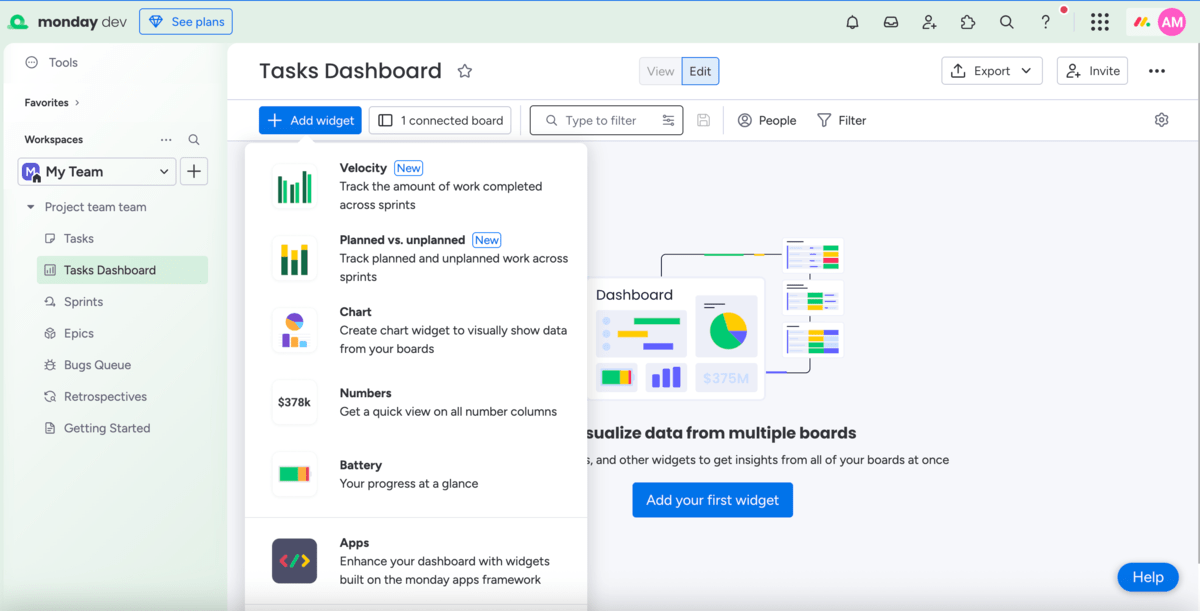
As for the downsides, there are no integrations and automations available on the free or the Basic plan. Even though this might be understandable for the free plan, I think that the Basic plan deserves to have some portion of such functionalities.
Also, bear in mind that monday.com’s pricing is based on fixed increments (e.g.,3, 5, 10, 15, etc.). So, if your team has, for example, 9 or 17 users, you’ll be forced to pay for the extra seats you don’t really need.
What’s new in monday.com?
Some of the recent changes include improvements of monday.com’s AI features. Now, you can stay in the loop with an AI-powered board preview and also use monday magic to create work solutions with the help of AI.
Available for: web, MacOS, Windows, iOS, and Android
| Plan | Price |
|---|---|
| Free | $0 (up to 2 seats) |
| Basic | $9/user/month* |
| Standard | $12/user/month* |
| Pro | $19/user/month* |
| Enterprise | POA |
*billed annually, prices are valid for up to 50 seats

#9 VivifyScrum — best for small Scrum teams
As they say on their website, VivifyScrum is “Built by Scrummers for Scrummers”. It is a dedicated Scrum tool that offers features Scrum teams need for their everyday work.
Why choose VivifyScrum?
VivifyScrum is an Agile project management tool with flexible boards, time tracking, and invoicing features. This software is best for small teams who don’t run complex projects but prefer having a solid and affordable tool for work.
| Pros | Cons |
|---|---|
| – Scrum and Kanban boards – Time-tracking – Shortcuts – Integrations and API | – No free plan – 2 options for priority status |
My first impression of VivifyScrum is that it’s different from all the other apps mentioned above. It’s simple, straightforward, and has no excessive features.
There are 2 types of boards available:
- Scrum board — Contains a default Product backlog, Sprints, and Burndown charts. If you prefer organizing your work in periods/Sprints, this is the option for you.
- Kanban board — By choosing the Kanban board, by default, you get 3 lists for your items: To Do, In Progress, and Done. Choose this board if you like to have an overview of all your items on a single page.
Moreover, you can see both board types in a Table or Cards view and drag-and-drop items on each — simple, right?
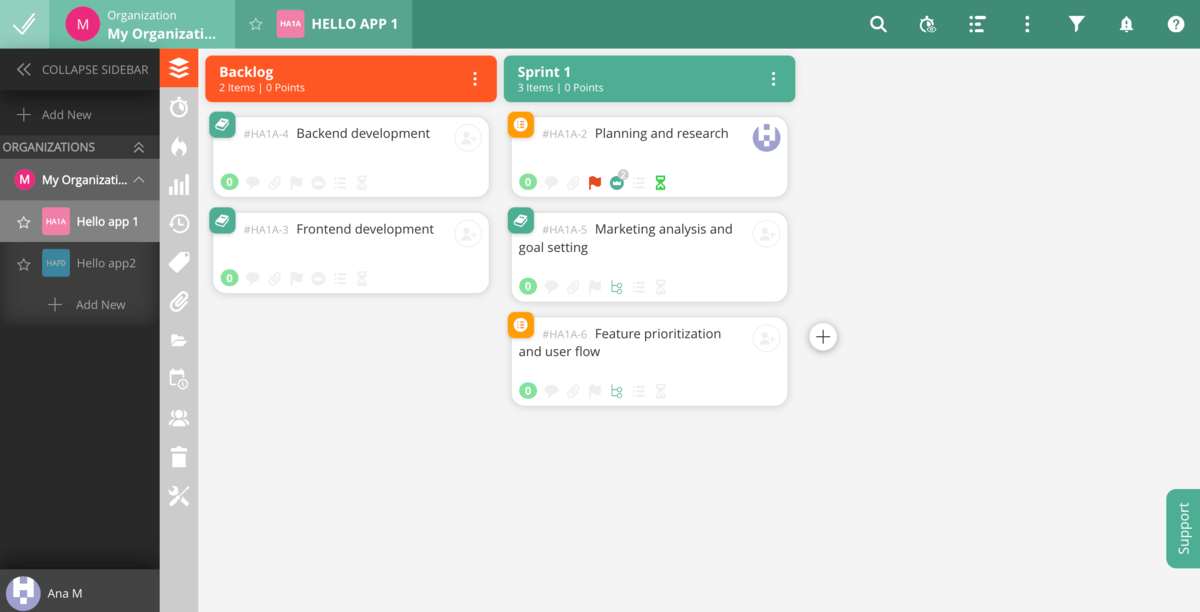
In VivifyScrum, you can download a time tracker as an extension right from your worklog in the app. This way, you get an overview of the time spent on Sprints, and it helps you with creating invoices and reports.
I also like that VivifyScrum offers a list of shortcuts you can easily get by typing “?” on the keyboard. These shortcuts facilitate task management and let you focus on what’s important.
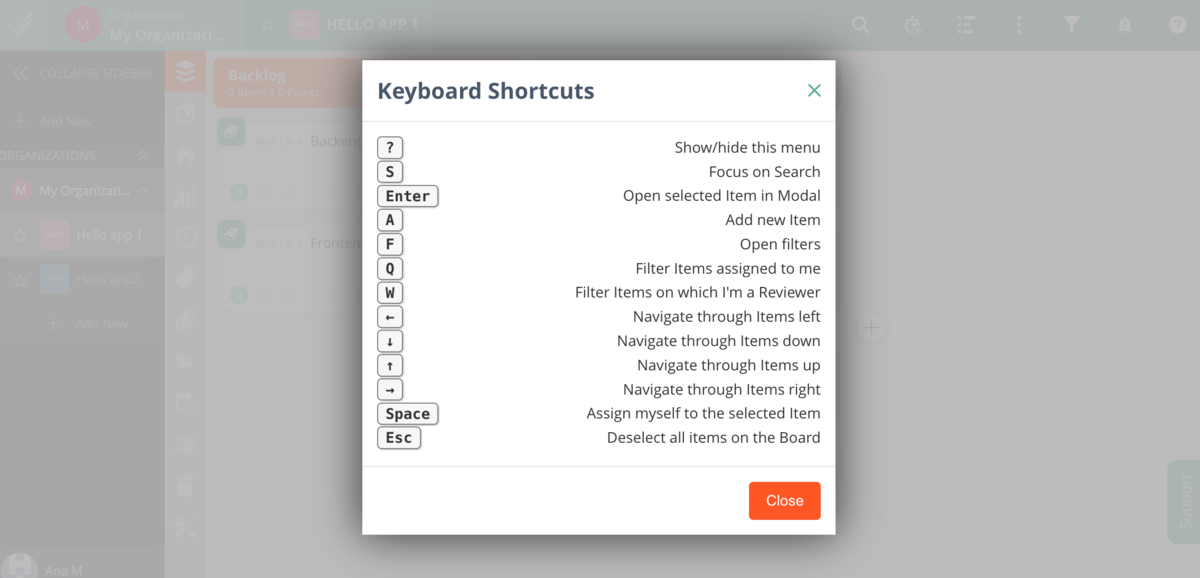
While simple, VivifyScrum provides a nice range of integrations and offers an API that you can use to leverage your items, Sprints, and boards by using third-party applications.
All in all, I truly believe VivifyScrum is a solid solution for smaller teams that usually don’t run multiple and complex projects but want to stay focused while using the basic features for Scrum implementation. VivifyScrum lacks some advanced features such as story mapping and advanced reporting that are usually necessary in large teams. Plus, in this tool, parent tasks can only have one child task, which is not practical for larger teams with more people involved within a task.
Still, there are 2 disadvantages I’d like to point out.
This is one of the rare Scrum management tools that has no free plan. I assume it’s because all plans have the same features included. Once you finish your 7-day trial, you can opt for a plan based on your team size.
The other disadvantage is that there are only 2 priority levels — high and normal. I would suggest adding medium and low to categorize tasks better and enhance prioritization and resource management.
Prioritize like a pro with Plaky
What’s new in VivifyScrum?
VivifyScrum hasn’t released any new updates recently.
Available for: web, Windows, MacOS, iOS, and Android
| Plan | Price |
|---|---|
| Starter | $96/year for the entire team of up to 10 people |
| Standard | $4.80/user/month, for teams between 11 and 50 people* |
| Growth | $4/user/month, for teams between 51 and 100 people* |
| Enterprise | POA, for teams with 100+ members |
*billed annually
#10 Asana — best for goal setting
Asana is a comprehensive project management tool that works well for both simple and complex projects and supports a variety of different workflows.
Why choose Asana?
Asana is a flexible software solution that helps you bring projects to success by enabling you to set smart goals and simplify team collaboration.
| Pros | Cons |
|---|---|
| – Multiple task views – Excellent goal setting and reporting functionalities – AI-powered features for managing goals | – No multiple task owners – Expensive for smaller teams |
Whatever plan you opt for, with Asana, you have several table views available, such as List, Boards, My Tasks, and Calendar so you can see project details in different ways and from different angles. This is pretty cool as not many apps covered in this review include all these views even on the free plan.
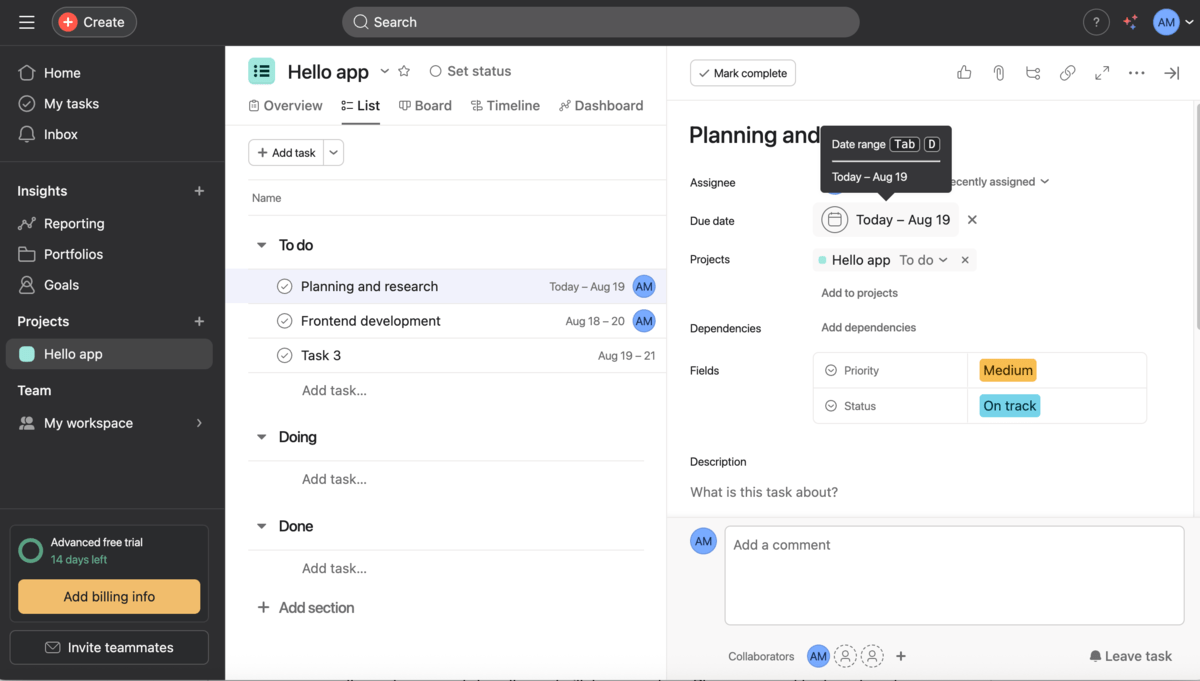
As Scrum teams rely on clearly defined goals, I must say Asana stands out as a tool with excellent goal-setting and reporting functionalities. Here are some of them:
- Goal customization — You can name your goal, categorize it as public or private, add the goal owner, and share the goal with team members. Plus, you can add sub-goals to break the main goal into smaller chunks.
- Goal linking — You can link your goal to the team or company objectives and tie it to parent goals connected to specific projects and portfolios.
- Goal progress monitoring — You can choose the automatic update method for your goal and get notified when things change. Asana allows you to set a time period for reaching the goal so that you always know how much time you have left.
- Goal status reporting dashboard — You can create a dashboard to track your goals’s progress and compare goals by status.
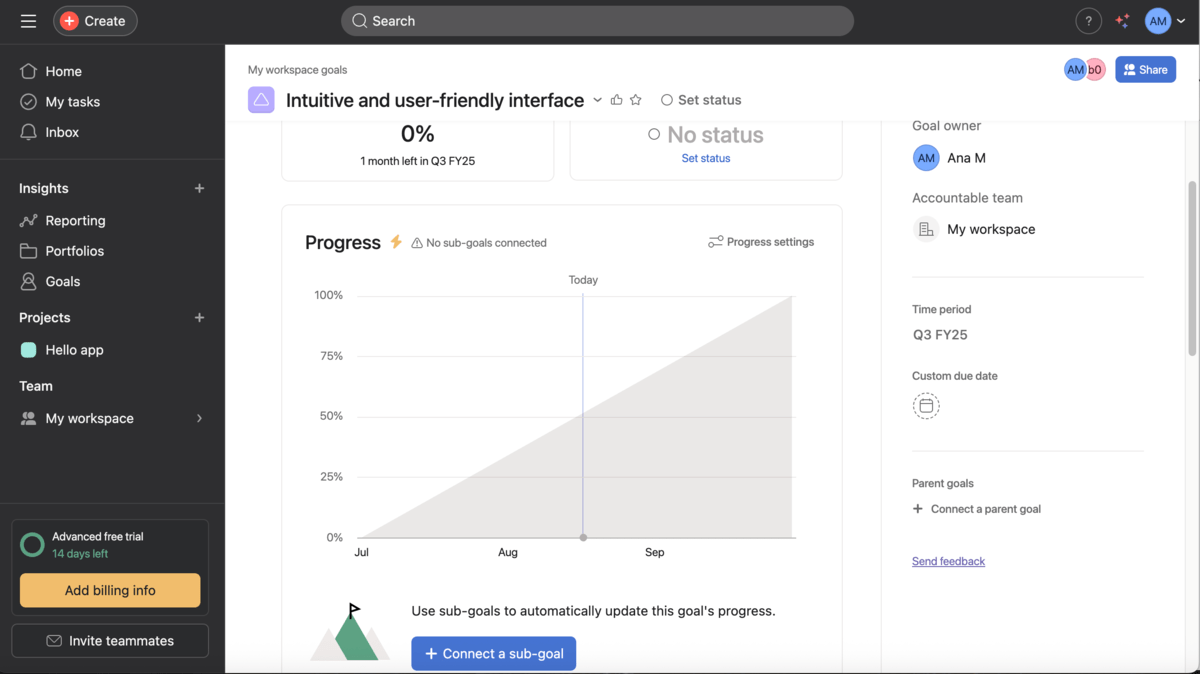
Moreover, with Asana AI, you can streamline goal setting and standardize goals across teams and departments. By using Asana’s AI, you’ll save time on:
- Drafting goals,
- Tracking goals’ progress,
- Identifying risks and blockers, and
- Writing progress summaries to report on the updates.
In terms of drawbacks, it’s unusual to see there can only be one task owner in Asana. Although you can invite other team members as editors, viewers, or commenters, this can be a limiting factor for larger teams.
And, I can’t help but notice that Asana’s prices are higher when compared to those of its competitors. So, carefully consider if Asana’s features really match your preferences as you don’t want to cough up more money than needed — especially when there’s a free Asana alternative.
What’s new in Asana?
According to the release from July this year, there are novelties on each tier, such as personalized mobile onboarding, team access to custom fields, multiple filters in Timeline view, and much more.
Available for: web, MacOS, Windows, iOS, and Android
| Plan | Price |
|---|---|
| Personal | $0 |
| Starter | $10.99/user/month* |
| Advanced | $24.99/user/month* |
| Enterprise | POA |
| Enterprise + | POA |
*billed annually
💡 PLAKY PRO TIP
Asana is one of the best Scrum tools with numerous features. Check how we’ve compared it with other similar tools:
#11 Zoho Sprints — best for release management
Zoho Sprints is a part of the renowned Zoho ecosystem. It’s an agile project management platform offering a range of smart and attractive features to support Scrum-oriented teams.
Why choose Zoho Sprints?
The platform is highly customizable and supports every stage of the release process — from planning to deployment.
| Pros | Cons |
|---|---|
| – WIP limit – Excellent reporting features – Integrations – Release management | – Steep learning curve |
Zoho Sprint’s trial provides a sample Scrum project (Scrum or Kanban board) with all the necessary details, making testing so much easier. Here’s what stood out for me:
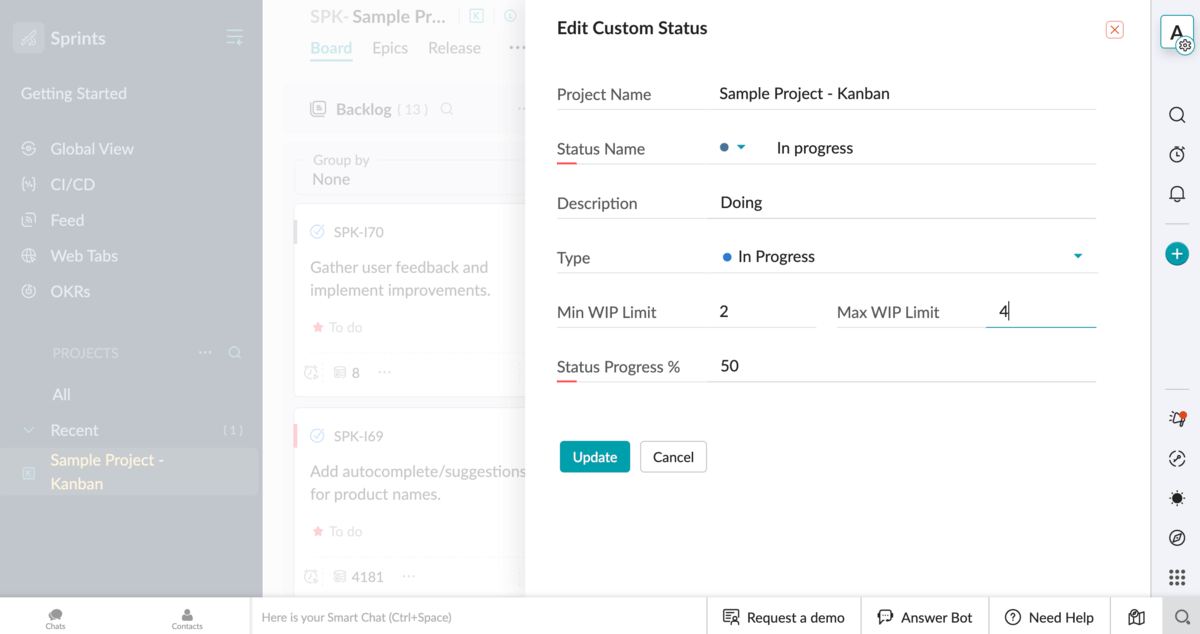
- Work-in-progress (WIP) limit — By setting minimum and maximum values for a status, you can help your team stay focused and efficient and prevent yourself from taking on more work than your team can handle.
- Reporting charts and dashboards — Zoho Sprints really shines when it comes to the number of charts and dashboards available for getting insights into a task’s progress. You can make use of velocity charts, burnup and burndown charts, Sprint cumulative charts, as well as Sprint and Kanban dashboards and keep track of every detail.
- Chats — By integrating Zoho Sprints with Zoho Cliq, you can use the Chat bar to discuss task-related issues and get a virtual Scrum assistant.
- Time tracking — Zoho Sprints includes timesheets you can use to measure the amount of time spent on tasks and a Global timer that allows you to record time spent on each task and automatically log that time in your timesheet.
As for integrations, you can empower your Zoho Sprints app with a great number of in-house and third-party apps. Whether you want to manage hybrid projects, build automated workflows, or facilitate bug tracking, Zoho has its own apps to offer. Plus, it integrates with some of the most notable collaboration and developer tools on the market.
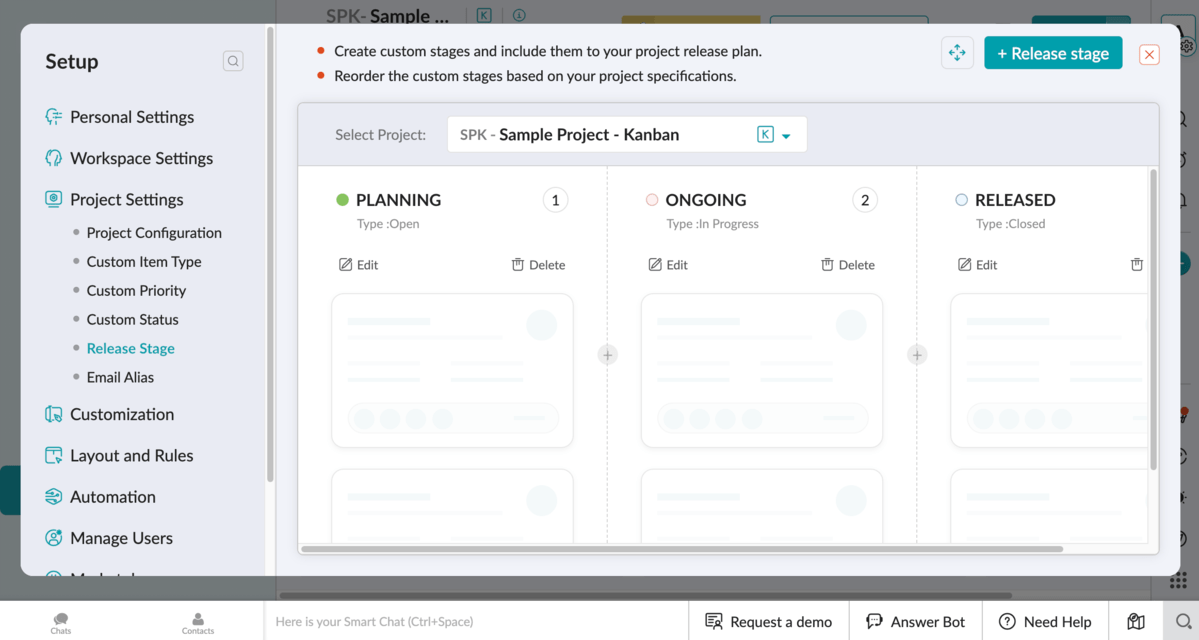
My final pro for Zoho Sprints is its effective release management. Zoho Sprints allows you to visualize and organize release stages. By using the release planning module, you can:
- Group work items (tasks) planned for a particular release,
- Assign release owners, and
- Manage multiple releases.
Zoho’s release planning module helps you gather your team around common goals, speeds up the delivery, and ensures customer satisfaction with detailed release reports.
In addition, you can always monitor release progress through release dashboards. Bonus: Zoho Sprints has a dedicated CI/CD module you can use to easily integrate with your preferable CI/CD tools.
My only complaint about ZohoSprints is its learning curve. I didn’t find the app as intuitive as some other apps on the list that also offer a bunch of features. So, anyone interested in choosing Zoho, make sure you don’t skip the popups offering a product tour before you start adding and planning your projects.
Scrum made simple with Plaky by CAKE.com
What’s new in Zoho Sprints?
As of August 2025, Zoho Sprints allows you to set a budget for your project(s) and monitor expenses with the help of the budget dashboard.
Available for: web, Windows, MacOS, iOS, and Android
| Plan | Price |
|---|---|
| Free | €0, for 3 users and 3 projects |
| Starter | €1/user/month, for min. 12 users and up to 100 users* |
| Elite | €2.5/user/month* |
| Premier | €5/user/month* |
*billed annually
#12 ClickUp — best for Sprint automation
ClickUp is a software solution advertised as an all-in-1 workspace that can support all your projects from start to finish.
Why choose ClickUp?
ClickUp is a great choice for teams that favor having a highly customizable tool with AI-powered features and automations that can refine their project workflows.
| Pros | Cons |
|---|---|
| – Sprint management on the free plan – Time tracking on all paid plans – Virtual whiteboard | – Sprint reporting only on Business and Enterprise plans – Steep learning curve |
ClickUp is one of the most flexible tools out there — almost everything in it can be personalized. With a wide variety of custom fields, 15+ views, interactive dashboards and attractive colors, this platform sparks a user’s interest from the start.
Here’s what stood out to me as being super handy for Scrum teams:
- Real-time dashboards — Use configurable dashboards to track progress and see how your team is performing. You can monitor releases, bugs, velocity, and much more using ClickUp’s dashboards.
- Chats — Facilitate team communication by using voice and video calls, direct messages, push notifications, threads, and more.
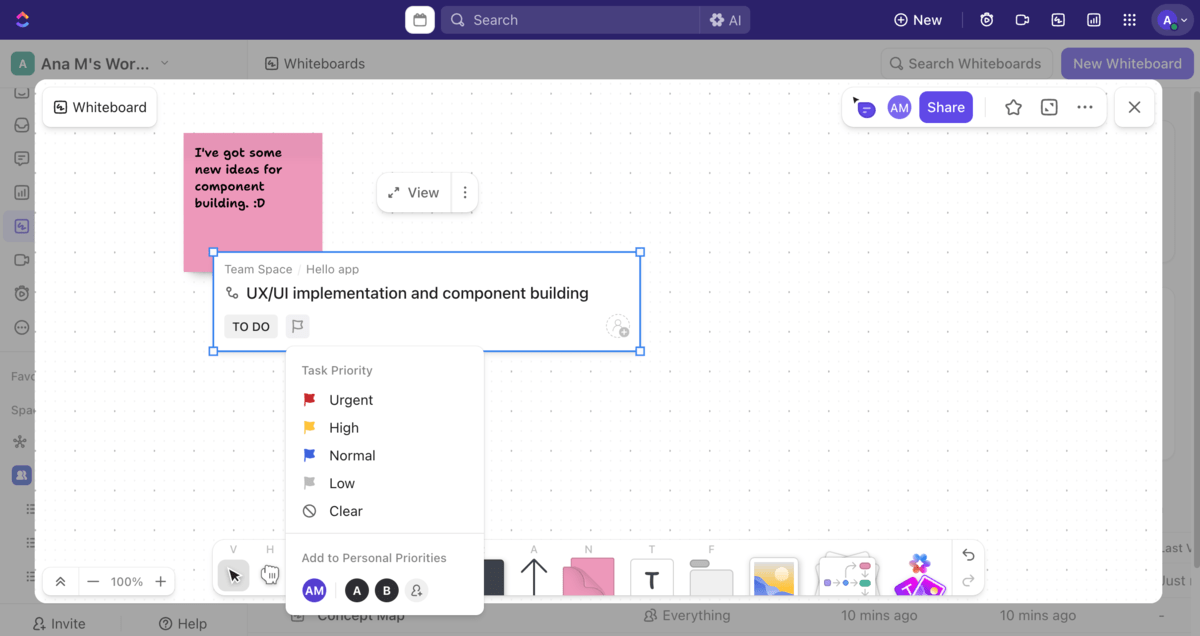
- Virtual whiteboard — Use it for brainstorming, discussions, and planning, and connect it with your tasks, Docs, and Chats.
ClickUp has made Sprint management available on all its plans, which is another pro in my book. I think that Sprint automation is definitely a forte for the following reasons:
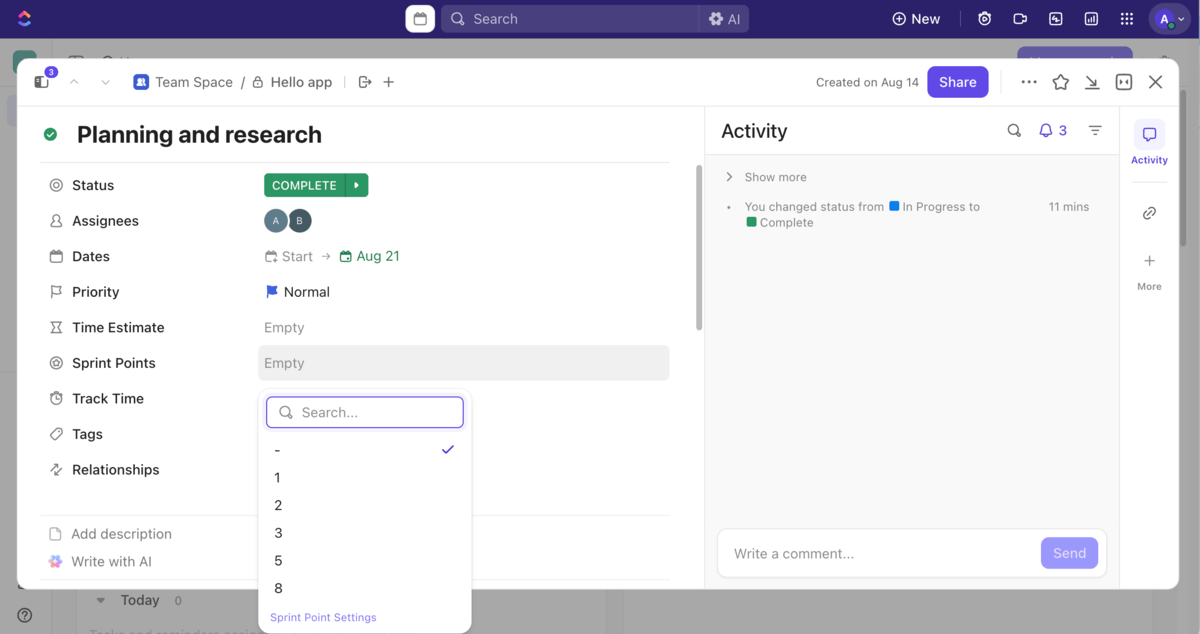
- Sprint points — ClickUp offers a point system you can use to estimate the amount of effort it will take to finish tasks within a sprint.
- Backlog automation — You can use automation to assign tickets, update sprints, manage handoffs, and more.
- Copy views — You can save your Sprint views and duplicate them to avoid starting all over from scratch.
- Spillover tasks — In case you have unfinished tasks in your completed Sprint, they are automatically attached to your next one.
- Sprint reporting — ClickUp enables visual reporting through dashboards or charts such as burndown and burnup, cumulative flow, and velocity.
Bear in mind that Sprint reporting is only available in higher-tier plans (Business & Executive), which may be a dealbreaker to those of you who need such a feature but are also budget-conscious.
And, as is the case with feature-rich platforms, you can expect a learning curve with ClickUp as well. First-time users can feel overwhelmed by the number of tabs and options that ClickUp offers. However, I found it to be more intuitive than Jira or Wrike.
What’s new in ClickUp?
Apart from bug fixes and adding various AI-powered functionalities, ClickUp has recently enabled Outlook Calendar integration, so you can manage your Outlook tasks, events, and schedules right in your ClickUp platform. You can now also activate Autopilot List Agents to handle recurring tasks for you.
Available for: web, MacOS, Windows, Linux, iOS, and Android
| Plan | Price |
|---|---|
| Free | $0 |
| Unlimited | $7/user/month* |
| Business | $12/user/month* |
| Enterprise | POA |
*billed annually

Empower your Scrum team with an effective Scrum tool
You may read through as many reviews and user comments as you like — but the fact is that we all have different needs and preferences. What’s good for someone isn’t necessarily good for you.
If you want to skip the trial-and-error, my go-to choice is definitely Plaky by CAKE.com as it strikes the balance between simplicity, cost, and security. Our platform, Plaky, is all-around best Scrum tool as it is:
- Easy to adopt — Plaky is straightforward to use, so even non-technical users can onboard quickly, which means less resistance to change and more motivating force to organize work.
- Secure — With Plaky, you get first-rate security, as it keeps your project data safe so that it never falls prey to outside attackers. Plus, with user roles and permissions, you can control who has access to what information.
- Affordable — The free plan might be the right fit, offering unlimited users, projects, tasks, and files. Premium features, such as automations, bulk actions, or conditional coloring, are available in Plaky’s affordable paid plans.
Give your Scrum team the right tool to manage their workloads — get Plaky for free right now!
Get started with Plaky by CAKE.com