If you’re looking for a project management tool, you’ve probably heard 2 names thrown around quite a bit — Trello and ClickUp.
They both offer extensive project management features, but which one is right for you?
That’s the question I aim to answer, so I signed up for both, and I’m ready to share my experience with you.

WHY TRUST US?
Human reviewers try out each app and follow strict guidelines while writing about the comparisons. We follow a transparent, clear, and systematic methodology, so that every review is objective and accurate.
What are the main differences between Trello and ClickUp?
The main difference between Trello and ClickUp is that Trello is simple, Kanban-focused, and good for small teams, while ClickUp is complex, customizable, and best for large projects.
Before we go into their differences in-depth, check out this quick overview.
| Feature | Trello | ClickUp |
|---|---|---|
| Pricing | Free plan Paid plans start at $5/user/month | Free plan Paid plans start at $7/user/month |
| User interface | Simple and intuitive | Cluttered |
| Task management | Advanced | Advanced |
| Board views | Well-developed Kanban + 5 other views | 16+ detailed views |
| Customization | Basic and visual | Detailed and functional |
| Collaboration | Comments + file sharing | Comments + file sharing Discussion board view |
| Automation | Complex and unintuitive | Complex and intuitive |
| Reporting | Basic | Advanced |
| Integrations | 300+ integrations with Power-Ups | 50+ native integrations |
| Support | Community forum Resources Billing and licensing Trello status | ClickUp University ClickUp webinars Communities |
| Security | ISO 27001 GDPR SOC 2 | ISO 27001, ISO 42001 GDPR HIPAA SOC 2 |
What’s new in Trello?
In late spring of 2025, Trello got a few brand-new features — like the Inbox, which lets you connect across devices for when you get task ideas on the go. Then, those tasks are saved in your Inbox, and you can add them to any board.
The platform has also added the Trello planner, which allows you to connect your Google or Microsoft calendar to your board and plan your time more accurately.
What’s new in ClickUp?
Notorious for its frequent updates, ClickUp most recently came out with:
- Timesheet approvals, which let you approve time tracked in your team,
- AI insights, which let you paste links into ClickUp’s AI from connected apps and get activity summaries, and
- More calculus options, which you can use to calculate summaries for any type of field, instead of just number fields.
Trello vs ClickUp: Main features comparison
Let’s dive into a detailed review of Trello and ClickUp’s UI, customization options, and more!
Both offer limited free plans, but Trello’s paid plans are cheaper
Both ClickUp and Trello offer 4 plans of similar pricing — so it’s up to you to decide which one works best.
Trello offers 4 plans:
| Trello plan | Monthly subscription | Yearly subscription |
|---|---|---|
| Free | $0 | $0 |
| Standard | $6/user/month | $5/user/month |
| Premium | $12.50/user/month | $10/user/month |
| Enterprise | n/a | Est $17.50/user/month |
Trello’s free plan includes:
- Unlimited cards, storage (10 MB file limit), and activity log,
- Inbox,
- Kanban view,
- 10 users and boards,
- 250 command runs per month, and
- Unlimited Power-Ups per board.
Truth be told, Trello’s free plan would be a great option if it didn’t include the user limit. Still, 10 users might be enough if you’re running a small team — and that’s exactly where Trello shines, as we’ll see in the rest of this comparison.
But here’s the real kicker: you only get the Kanban view in the free plan. Sure, Trello is a Kanban-focused app, but even when you’re in charge of a small team, it’s nice to have some flexibility when it comes to project management.
It’s also important to note that Trello’s Enterprise plan gets cheaper the more users you add — so it can even get cheaper than its Premium plan (if you pass 2,248 users).
💡 Plaky Pro Tip
If you want to dive deeper into Trello’s pricing and what each plan offers, check out this article:
ClickUp also offers 4 plans, but at a slightly higher price:
| ClickUp’s plan | Monthly subscription | Yearly subscription |
|---|---|---|
| Free Forever | $0 | $0 |
| Unlimited | $10/user/month | $7/user/month |
| Business | $19/user/month | $12/user/month |
| Enterprise | POA | POA |
ClickUp’s free plan includes:
- Unlimited members and tasks,
- Up to 5 spaces and 40 lists per space,
- List, Board, Calendar, and Table view,
- Limited uses of most of its other views,
- 1,000 messages, and
- Task dependencies.
At a glance, ClickUp’s free plan seems generous since you can have as many users as you want and you even get 24/7 support.
However, any limits — 1,000 messages, 60 timelines, 2 teams, etc. — will hurt anyone who wants to use the free plan in the long term. Eventually, you’ll share 1,000 messages in ClickUp, and then you’ll be forced to either upgrade or stop using an integral part of your workflow.
So, unless you have a larger team who has the budget to pay for a premium plan that lifts these barriers, ClickUp might not be for you.
In my opinion, Trello’s limits are more forgivable than ClickUp’s, and its paid plans are cheaper. So, as pricing goes, Trello’s my winner.

Both are easy to set up, but Trello’s UI is much less complex
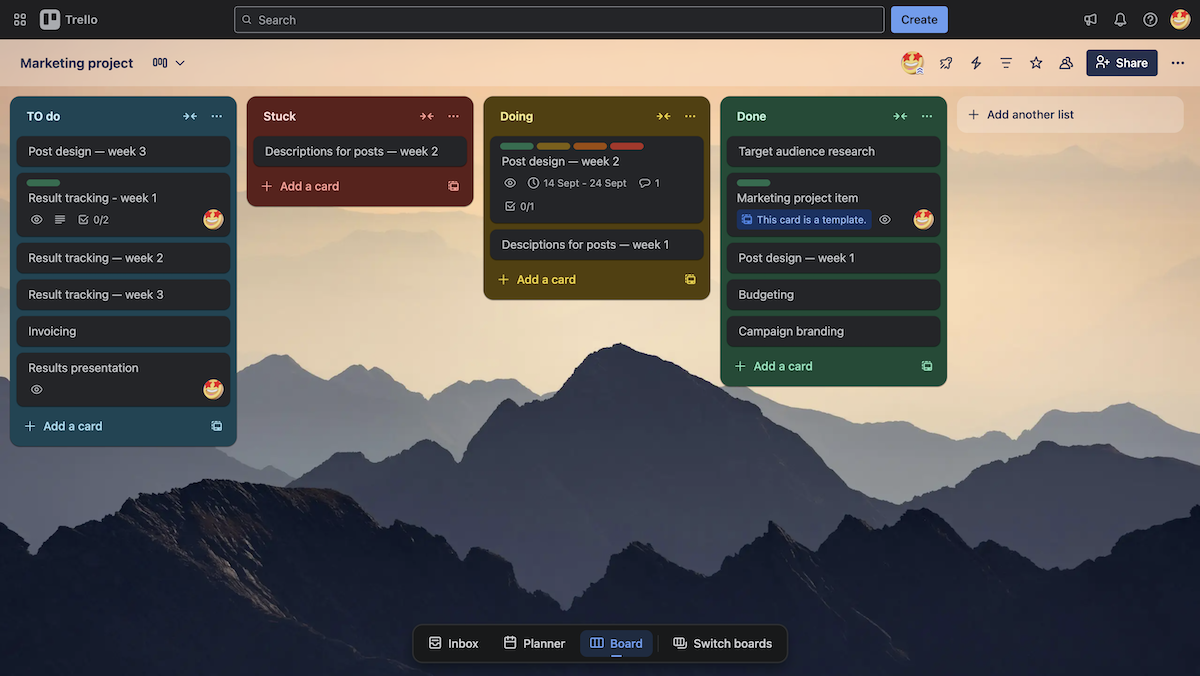
Trello is simple and intuitive — it also lets you get started easily with a bunch of templates. I like that other users are able to share the templates they made, so you get a wide variety of choices.
Once you make a board in Trello, you’re met with a pleasant and customizable Kanban view. Navigation is mostly clear and intuitive. There are just a couple of buttons — like the Create card from template button — that have unclear icons, so I just kept forgetting what they were for.
The planner and inbox features are nicely done and can easily be toggled on and off. This way, you can choose what you need to focus on.
Toggling between views, however, frustrated me — you need to go through a dropdown menu and then select another view. I know that “I don’t want to click twice instead of once” seems like a moot point, but those extra seconds just kept adding up.
ClickUp’s interface, on the other hand, is a lot more complicated.
At first glance, it’s the basic layout of a project management tool. But, 3 clicks in, and I was already dizzy. It’s just that — ClickUp has so much to wrap your head around.
When you click on anything in ClickUp, there are 15 more options to choose from, plus overviews at every corner. This really doesn’t make for an unintuitive interface, just an overcrowded one.
Finding options I’ve already found before takes just as much time. Safe to say, setting up a board in ClickUp took quite a bit of effort. It’s a good thing, then, that it offers 1,500+ ready-made templates — for folders, lists, whiteboards, docs, etc.
That said, once you do set up your board, navigating through the list of options is actually intuitive. But again, you’re hit with a million options wherever you accidentally glance.
And lastly, I have to say that the UI is just monotone to me. Without a clear visual distinction between different elements, I found it even harder to get my bearings.
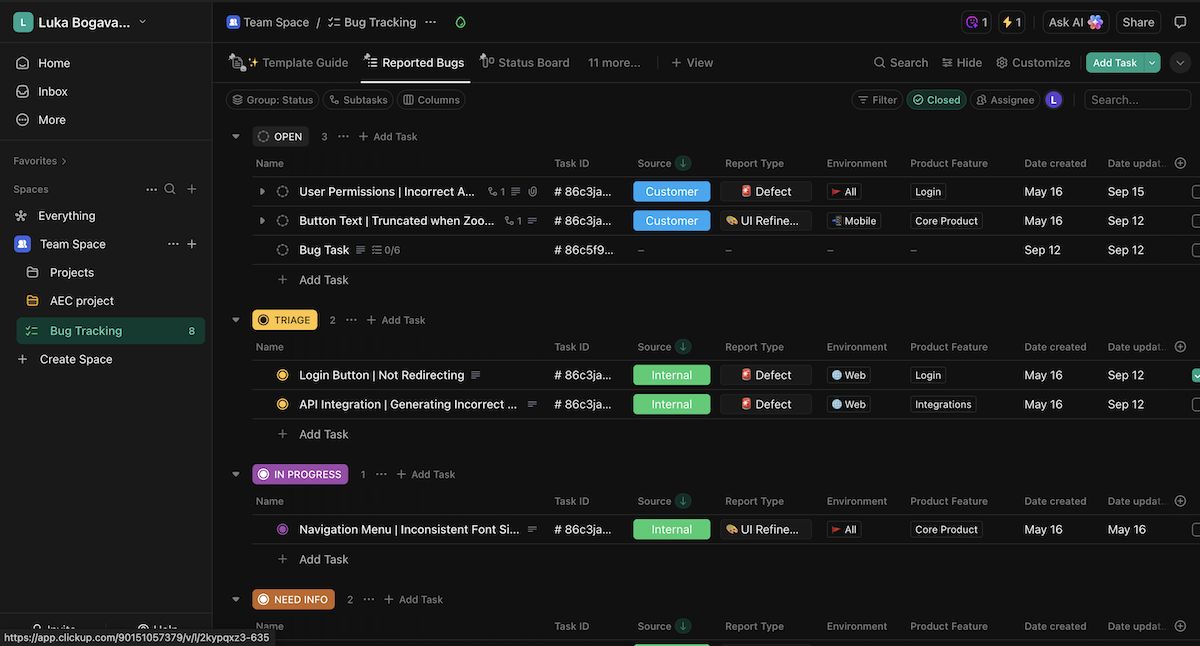
Even though they both offer a great number of templates to help you get started, I’d go with Trello in this category as well. ClickUp simply tries to do too many things at once — while Trello gives you a simple, easy-to-navigate interface.

ClickUp offers more task management options than Trello
Setting up tasks in Trello is limited, but not complicated. The platform gives you a set of fields to add to cards, such as:
- Members,
- Labels,
- Dates,
- Description,
- Attachment,
- Location,
- Checklist, and
- Custom fields.
I like that you can toggle custom fields to appear on the front of a card in the Kanban view, but I’m annoyed that you can’t do that with any other field type.
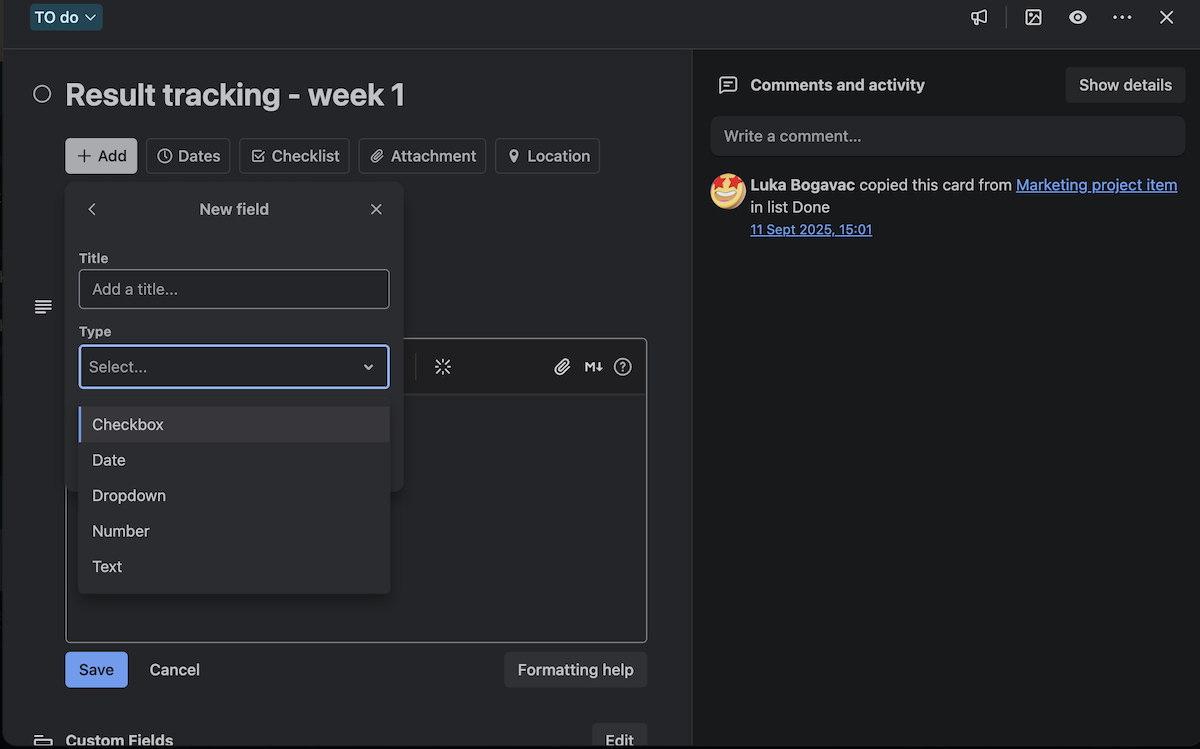
Custom fields didn’t really impress me either. You only have 5 options to customize:
- Checkbox — add a responsibility (just its title) your team can check off as complete,
- Date — add a date to your card,
- Number — add a number (but you can’t have currency marks next to it),
- Dropdown — add a selectable dropdown list, and
- Text — add a text field.
The most useful field here is a dropdown field, which you can use to set status, priority, risk, etc. Sadly, there’s no custom tag field — you can only rely on the singular label field.
Another gripe I had with Trello is the Checklist field, which is where you create subtasks. Any subtask you create can only have an assignee and a due date, so their clarity is fairly limited.
ClickUp, on the other hand, has many field types — almost too many.
You can add pre-set or custom fields of any type. There are over 30 types of custom fields; some of the ones I thought were most useful include:
- Label — add tags to your tasks,
- Formula — add a simple formula to calculate data across multiple fields,
- Relationship — add connections between tasks, even across multiple boards,
- Progress (Auto) — add automatic progress calculation through subtasks, assigned comments, and checklists, and
- Voting — add a poll so that your team can provide input on a subject.
However, there are some redundant fields. The relationship and tasks fields, for example, work similarly, and would be more useful if they were combined into one.
The AI-suggested fields also clutter the field type list — for some reason, in my Bug Tracking test board, it kept suggesting a T-shirt size field.
Subtasks, on the other hand, are easy to create, collapse, and have the same functionalities as normal tasks. Unlike Trello, subtasks in ClickUp can have the same fields as any other task on the board.
There are also so many options to manage your tasks. You can:
- Convert them to lists or subtasks,
- Change task types,
- Add dependencies,
- Add relationships, and
- Even merge tasks.
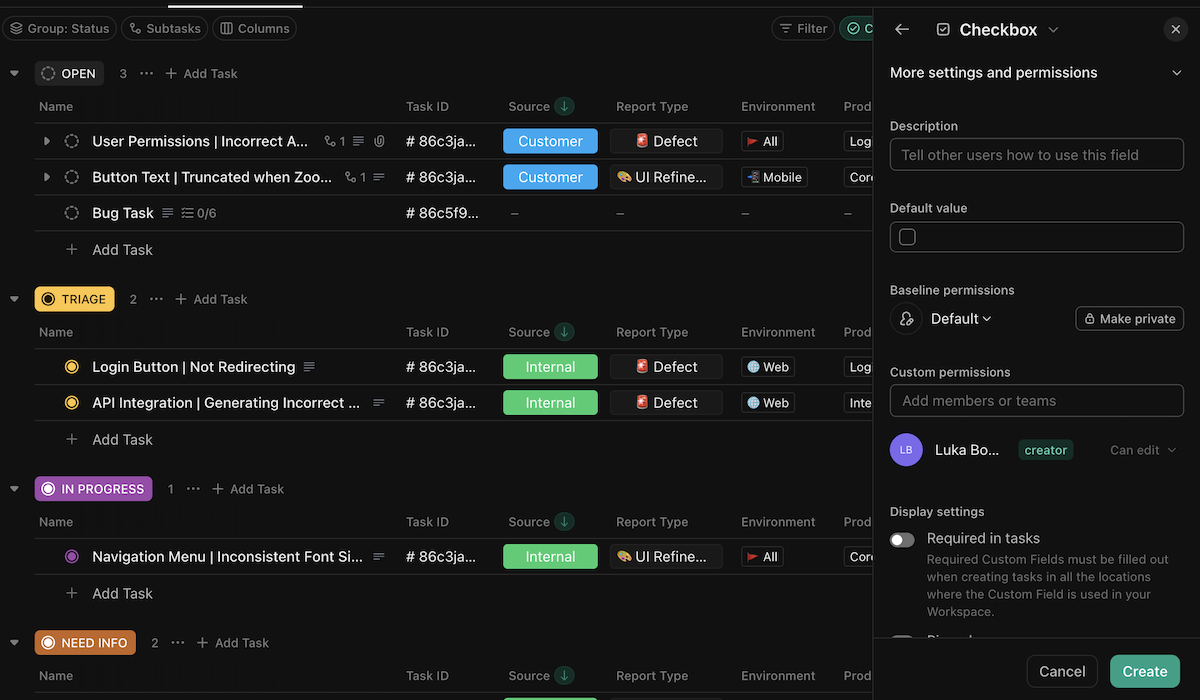
Having too many options is a common downside in ClickUp. However, with so many more options to handle tasks than Trello, ClickUp is a better option for task management.
Manage custom fields easily with Plaky
Trello offers a better Kanban view, but ClickUp has more views overall
Trello is known for its Kanban view — so it’s no surprise that this is its best feature.
Trello’s Kanban is clear, organized, and intuitive. Drag-and-drop mechanics make task management simple. I like how it gives you all the options you need without cluttering the screen too much.
However, the free plan offers only the Kanban view, which is fine since it’s basically the only useful one in Trello.
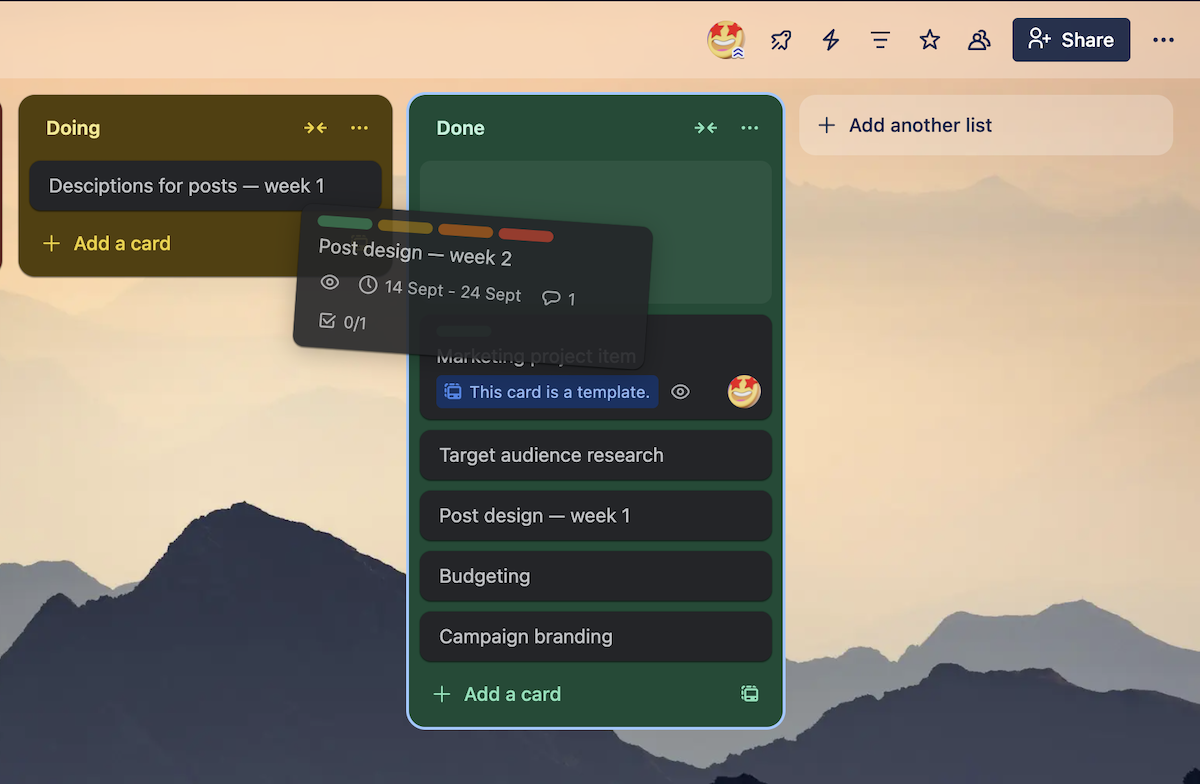
Trello offers 5 more views, all of which, to me, feel like they’re underdeveloped in varying degrees:
- The Calendar view is just fine. I like that you can connect it to your personal calendar and organize your schedule more accurately.
- The Table view is disappointing. There’s no clear visual distinction between tasks — it’s all just one big monotone list.
- The Dashboard view is functional and has a nice visual overview. However, it’s pretty limited (more on this in the reporting section).
- The Timeline view gave me the worst UX of all. I expected more options for task handling, e.g., color-coding. But, you have to guess where your task is going to end up when hovering over the weekend since their colors are the same (as seen in the photo below).
- The Map view is a fun addition I rarely see in PM tools that lets you add a Location field to your tasks and organize them by their map placement. It seems like an ideal option for projects that span multiple locations.
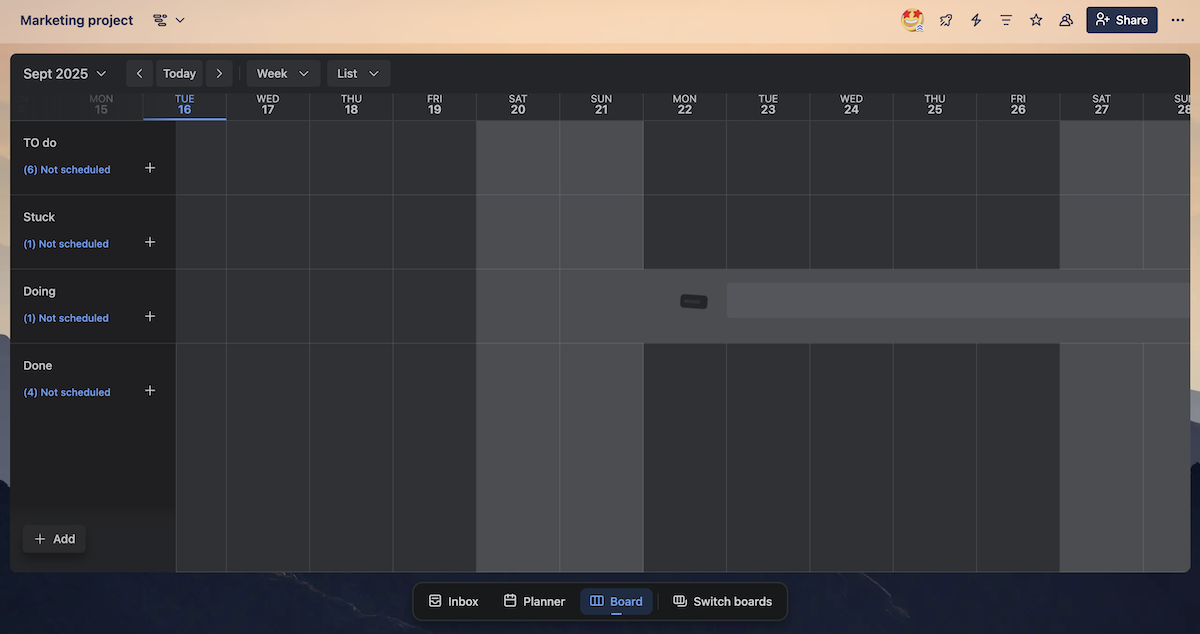
Unsurprisingly, ClickUp gives you a lot more views to choose from — 16, to be exact.
It also offers an embed view, where you can link a web page and turn it into a separate view. The idea is to simply switch views instead of switching tabs. I still can’t decide whether this is neat or redundant.
I especially like ClickUp’s Gantt view. It has plenty of options to manage how you navigate the timeline, as well as change how tasks are colored for better overviews.
I also like the addition of:
- Whiteboard view — It’s a neat place where teams can collaborate and brainstorm together without having to rely on a third-party app.
- Forms view — It’s a view where you can create forms and send them out to stakeholders. Later, their answers can be turned into tasks, which could be pretty neat for things like creating bug report templates.
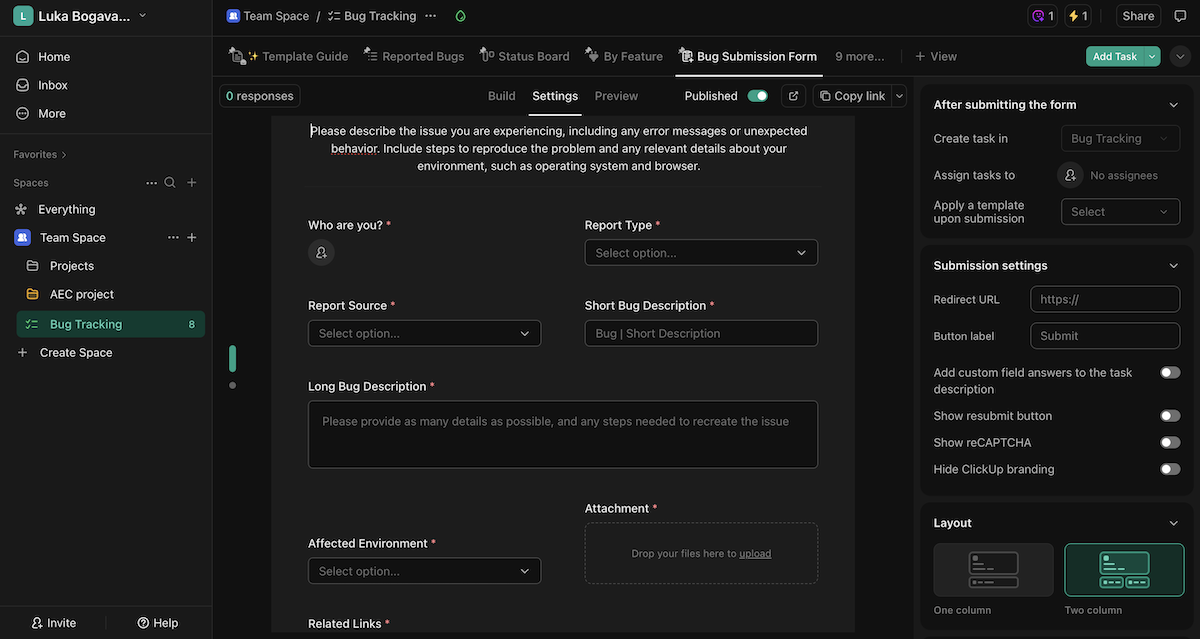
However, I feel like some of ClickUp’s views are redundant and mostly exist to pump up the view count.
The mind map, for example, feels like a strange version of the whiteboard.
In the mind map, I can manage and connect task cards, but I can’t move them around for a better overview. In the whiteboard, I can move task cards around as I create a flowchart, but none of the changes I make affect the actual tasks.
I can’t help but see these as 2 halves of a much better view.
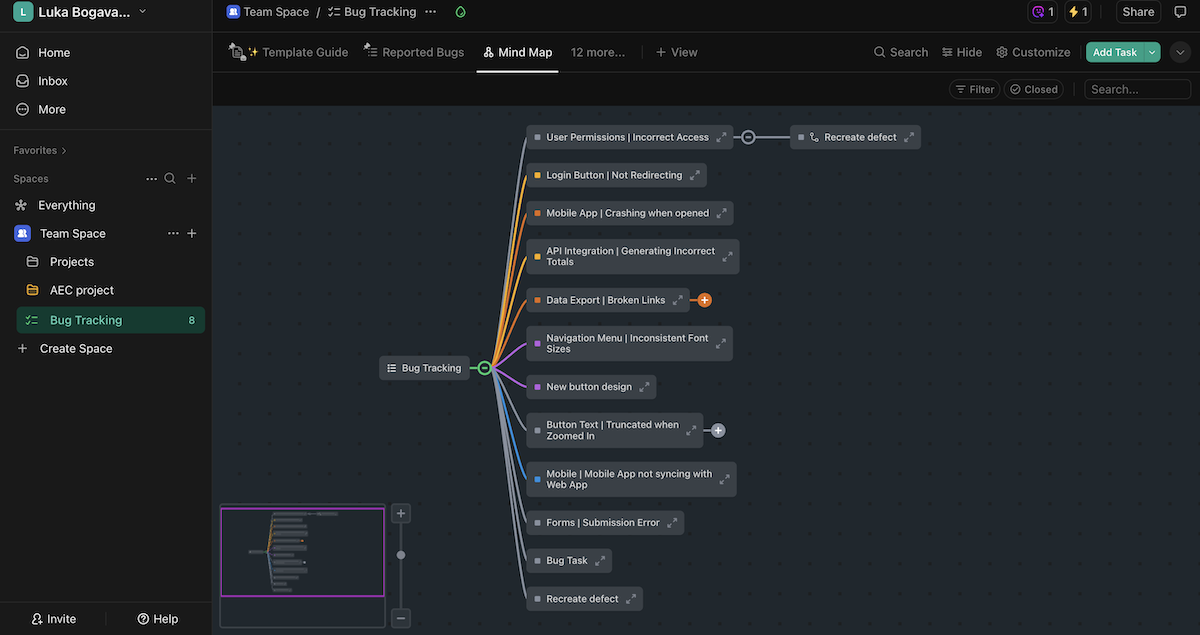
All in all, if you’re looking for a simple, straightforward Kanban view — Trello’s the one to go for. However, if you want any variety in how you approach your projects, ClickUp’s flexibility takes the cake.

Trello is better for visual, while ClickUp is better for functional customization
When it comes to customization options, Trello has some fun visual additions.
I love how you can color or personalize the background to nearly anything — the board, card lists, and the cards themselves. This is not only fun and hilarious, but also helps me figure out what I’m looking at with a simple glance at the board.
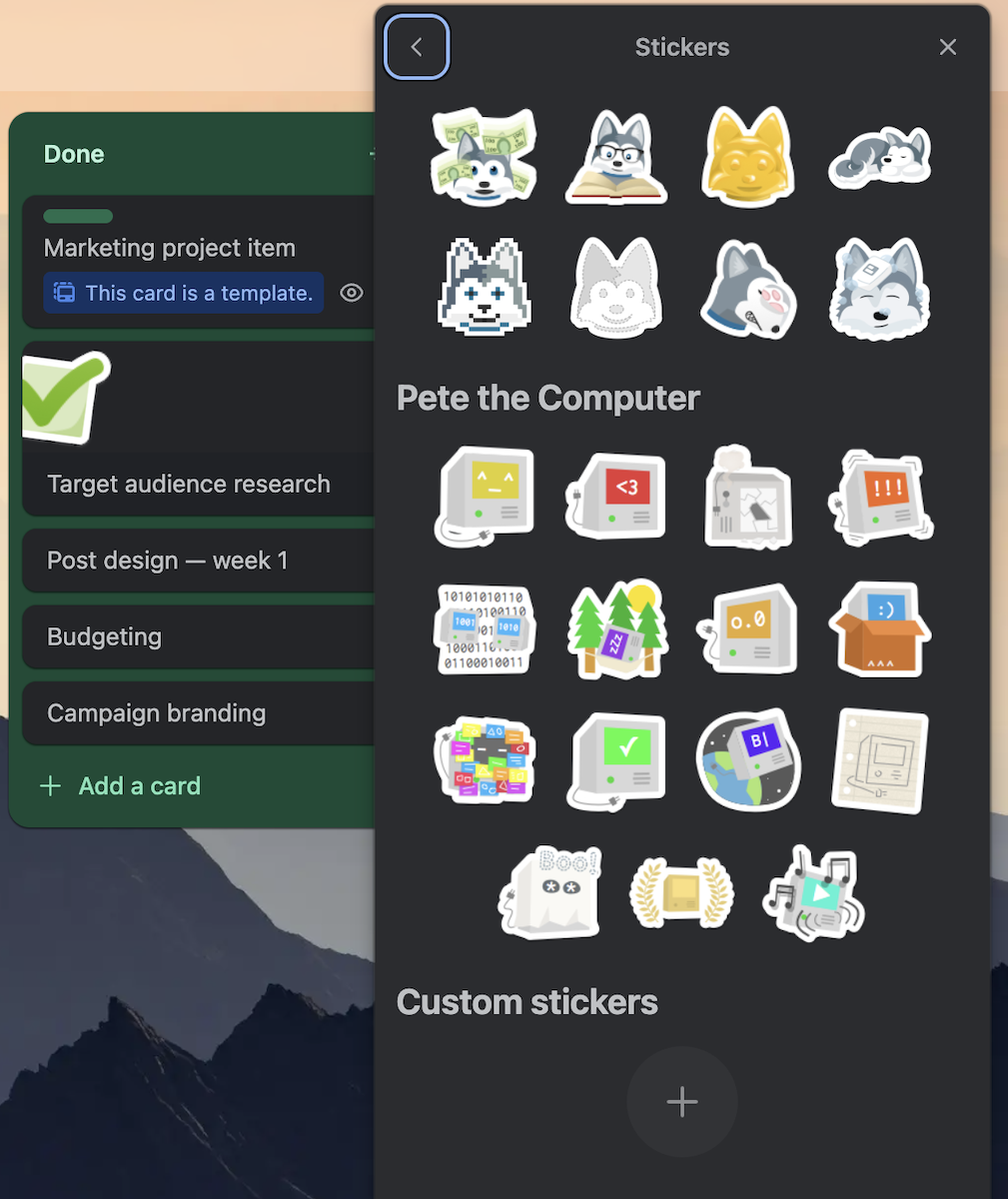
I like the addition of stickers for the same reason. You can also create your own stickers, which I’m sure will bring the team together with great inside jokes.
However, other than these, the customization options in Trello are pretty scarce.
Like I mentioned, custom field options are limited. I could barely customize any view other than Kanban — even the simplest coloring options would be welcome.
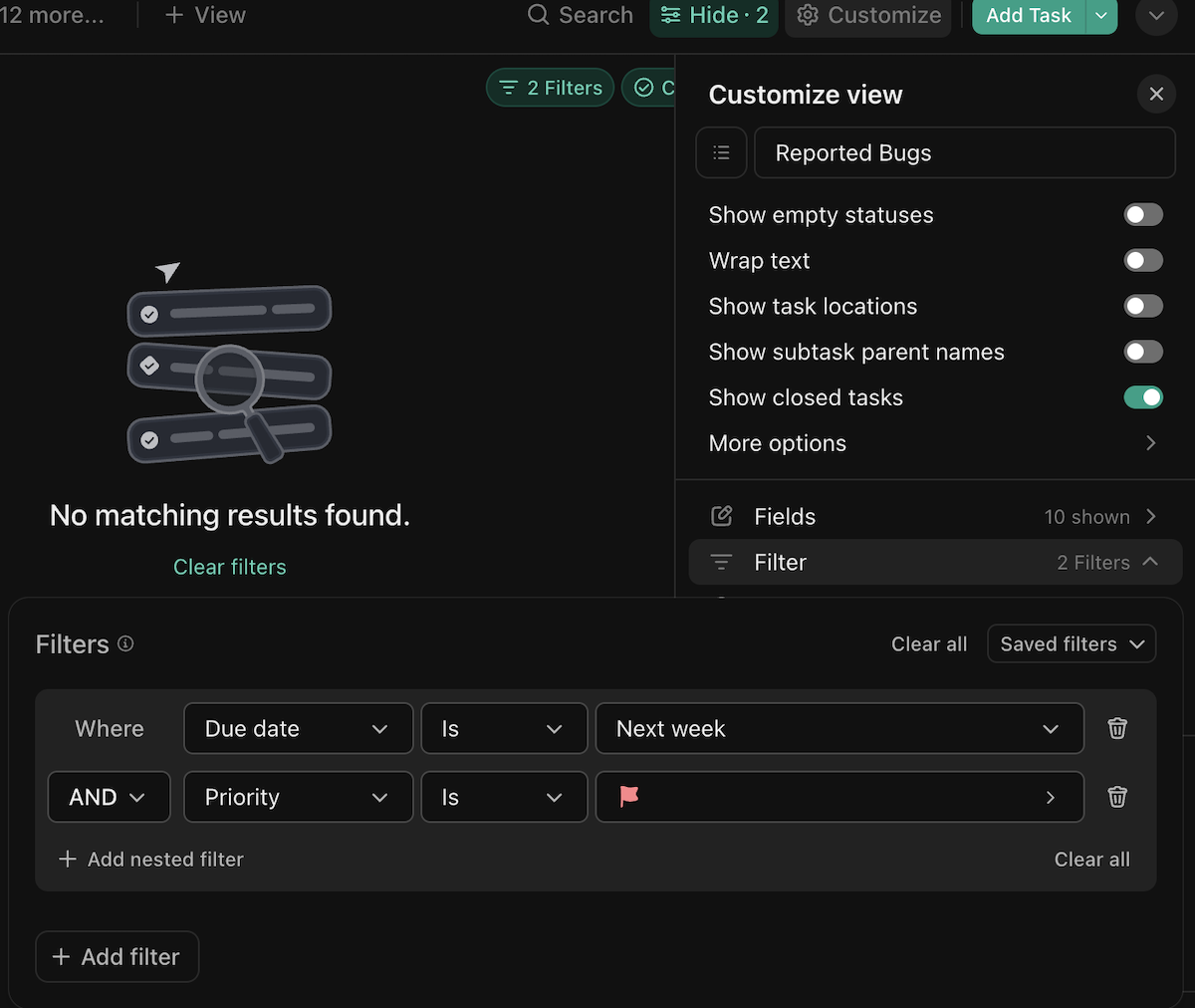
The filtering isn’t impressive, either. For example, you can’t filter by custom fields. So, even when I added the priority field, I still didn’t have a good way to focus on only the most important cards.
On the other hand, ClickUp’s customization options are extensive and exhausting.
I already mentioned the sheer number of custom fields you can add — scrolling through the list, you’ll eventually come across whatever you need.
Then, every view can be fully customized to your project needs. You can:
- Change and adjust which fields or tasks are visible,
- Change the page and card layouts, and
- Group tasks however you like.
You can also filter views based on any task field and combine these filters to get the exact results you need.
Truth be told, the amount of customization options ClickUp gives you seems impressive.
But, the list of customization options was simply that — a long list. Customizing my own board quickly got tedious, and eventually, I just wanted to get it over with.
So, unless you’re ready (or have time) to scroll through a seemingly endless list of options, you won’t have a personalized board in ClickUp.
Overall, Trello is best if you’re looking for visual customization. Meanwhile, ClickUp is a good choice if you have plenty of time to set up a board that doesn’t only look but also functions exactly how you want it to.
Get detailed customization with no effort in Plaky
ClickUp offers more collaboration options than Trello
In Trello, you can communicate in task cards with comments and @mentions.
Commenting is pretty standard, with some added functionalities, like adding files (drag-and-drop functionality included, quotes, or even lines of code.
However, comments are the only way to communicate with the team — no discussion board or chat options.
Trello’s file organization is also pretty clear, as every file, link, or link to another card is saved on the task it’s relevant to.
One neat addition I found useful is that you can add files as card covers. This way, team members don’t need to open a card in order to check if you’ve added a file — they can spot it right away.
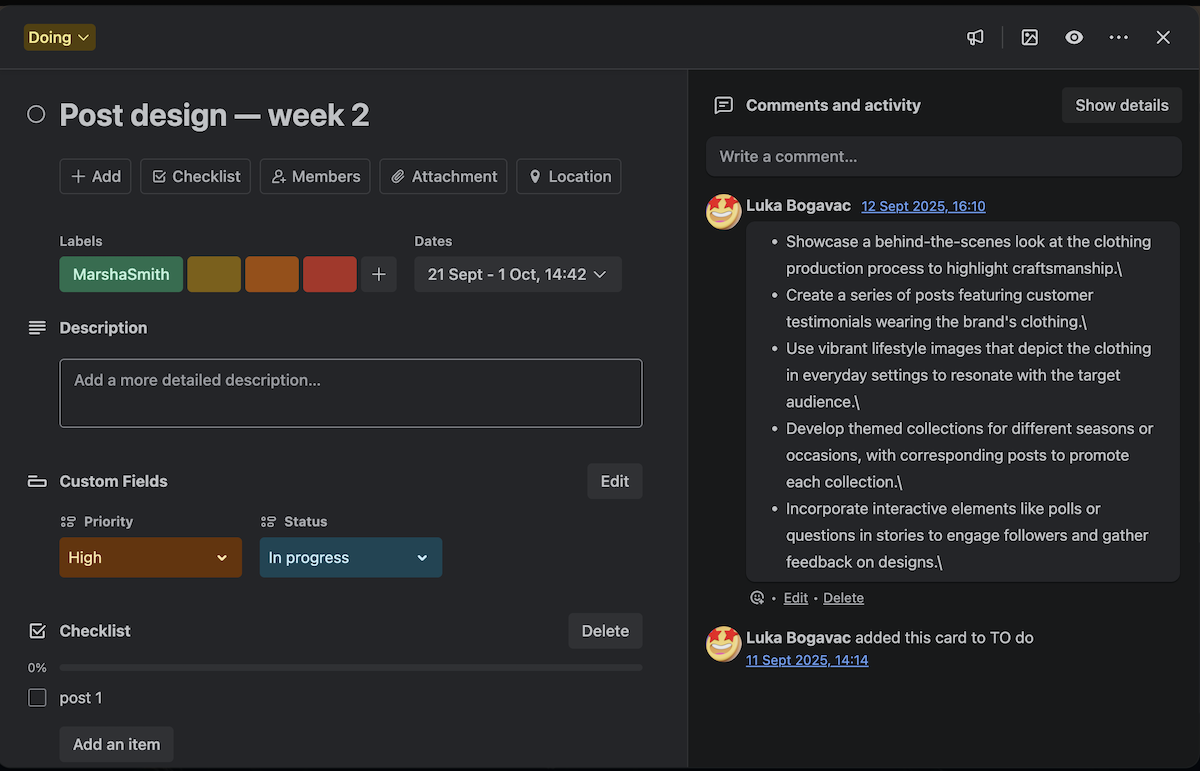
ClickUp gives you plenty of options as far as task comments go. You can:
- Add files,
- Add code,
- Quote other comments,
- Add voice or video memos,
- Assign the comment as an action item, and more.
These comprehensive options lead to clearer communication in ClickUp’s comments.
The weird thing is, comments are mixed in with the activity log. This makes going through either feature twice as difficult — I couldn’t get a good overview of one without the other getting in the way.
There’s also a separate discussion board view, where you can have general, project-focused (instead of task-focused) conversations with your team.
The chat options here are also extensive. For better or worse, I wouldn’t be surprised if some PMs use them to write a project brief right in the chat.

All in all, ClickUp has a much better collaboration system than Trello, with more flexible and extensive communication options.
Both offer detailed automation, but ClickUp’s is easier to use
Automation in Trello is based on 2 features — rules and buttons.
Rules are set in the standard “IF-THEN” format. The Trigger and Action options are fairly extensive — for a moment, I thought they might rival ClickUp’s.
The triggers even include comment triggers, e.g., if someone comments a specific word or phrase, something happens. So, for example, you can set a rule where if someone comments “I need a consultation“, you’re automatically added to the card and tagged.
Trello’s AI also has a clever trick — it analyzes your board as you work and later creates automation suggestions based on your board activity.
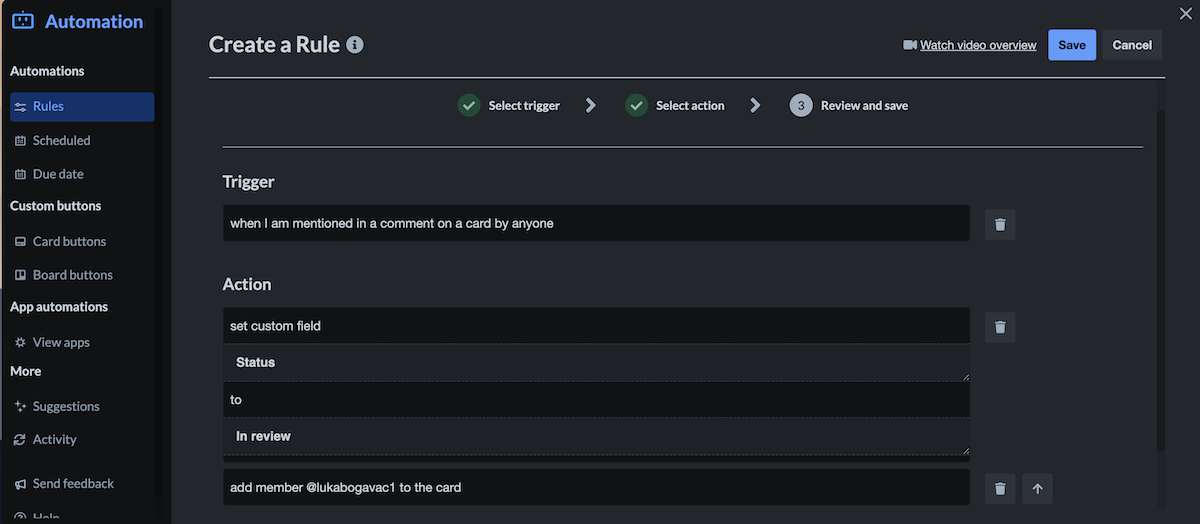
However, there are a few gripes I had with Trello’s automations:
- The UI is unclear — For example, I couldn’t figure out what many of the button symbols meant.
- You can only have one trigger — Ultimately, this makes the automation quality a bit limited.
- Editing is limited — Once you create a trigger or action, you can’t edit them. You can only delete and re-make them, so be careful of misclicks.
On the other hand, buttons are a nice addition. They’re automations whose trigger is simply you clicking the button on the board.
However, buttons are hidden in the automations tab of a task card — this is unintuitive (and a recent change), so it took me some digging through Trello forums to find out where my buttons were.
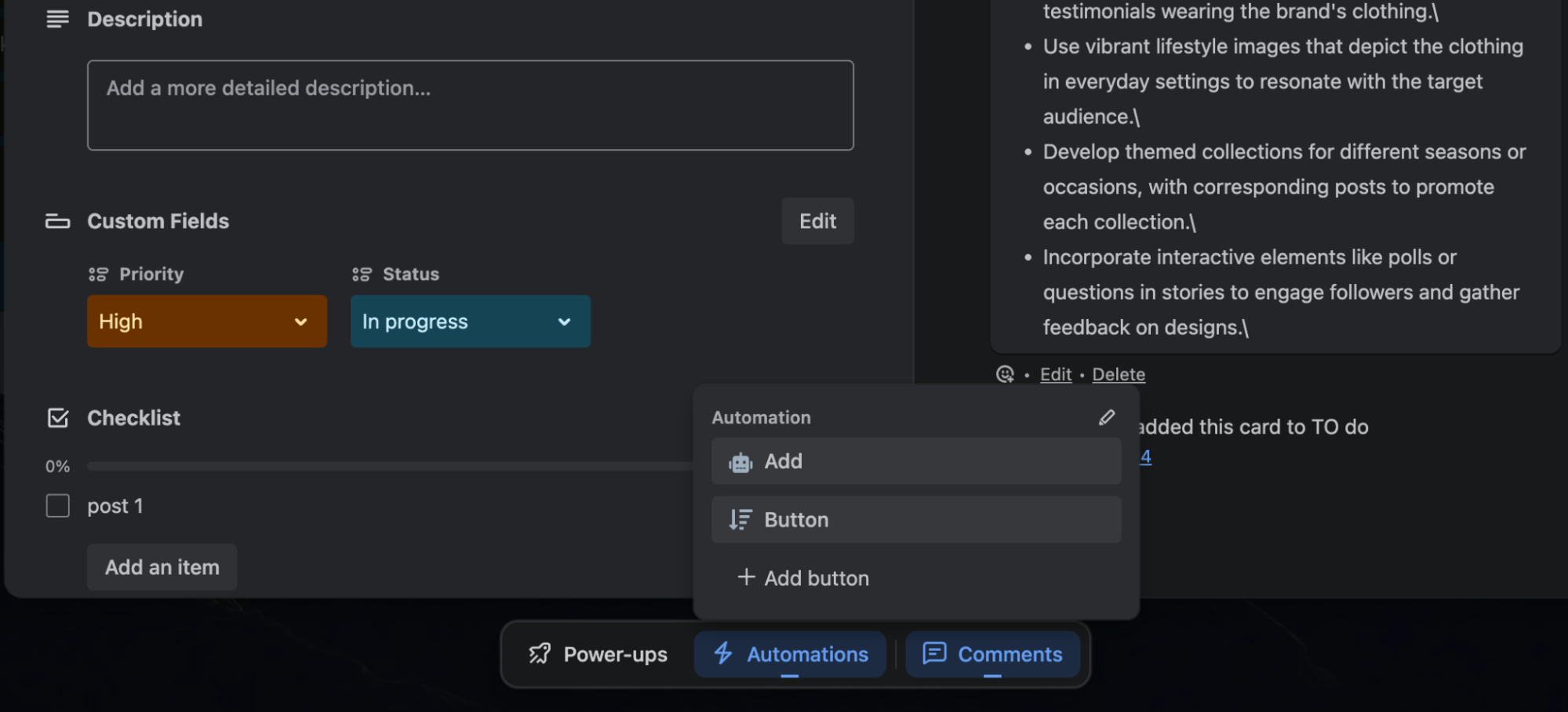
ClickUp’s automations are the first feature whose UI I prefer to Trello’s.
Adding and editing triggers and actions is simple and intuitive in ClickUp. There are many more trigger options than in Trello, but honestly, that’s to be expected.
I like how clear and easy-to-navigate the option lists are, even though they’re pretty long. You can also add multiple triggers, even from integrated apps like Google Calendar.
In ClickUp, you don’t have as many comment triggers as in Trello — you can’t create standard automations based on comment content.
But ClickUp makes up for this with AI agent triggers and actions, which give you even more options, e.g., “only trigger if the comment is an HR question”. This feature is still in beta, though.
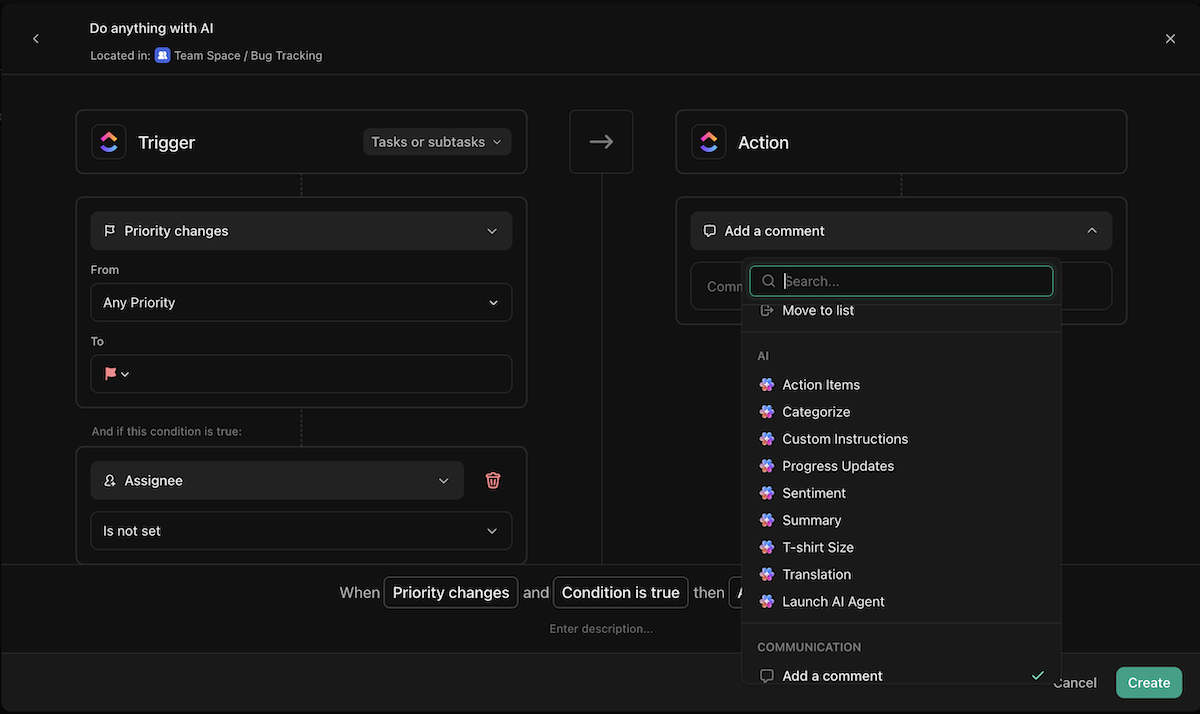
ClickUp also has buttons you can add to the board, and these buttons come in the form of a new custom field. The buttons can perform the same actions as an automation, but without an automatic trigger. However, I’m disappointed that you can’t add additional triggers to buttons to protect yourself from accidental clicks.
There’s also the addition of AI agents, which are still in beta. They can perform all kinds of actions, like review activity logs and give you a daily brief regarding any board changes.
I only found it a bit difficult to find the reports — with so much screen clutter, I didn’t notice the new view ClickUp AI created for me.
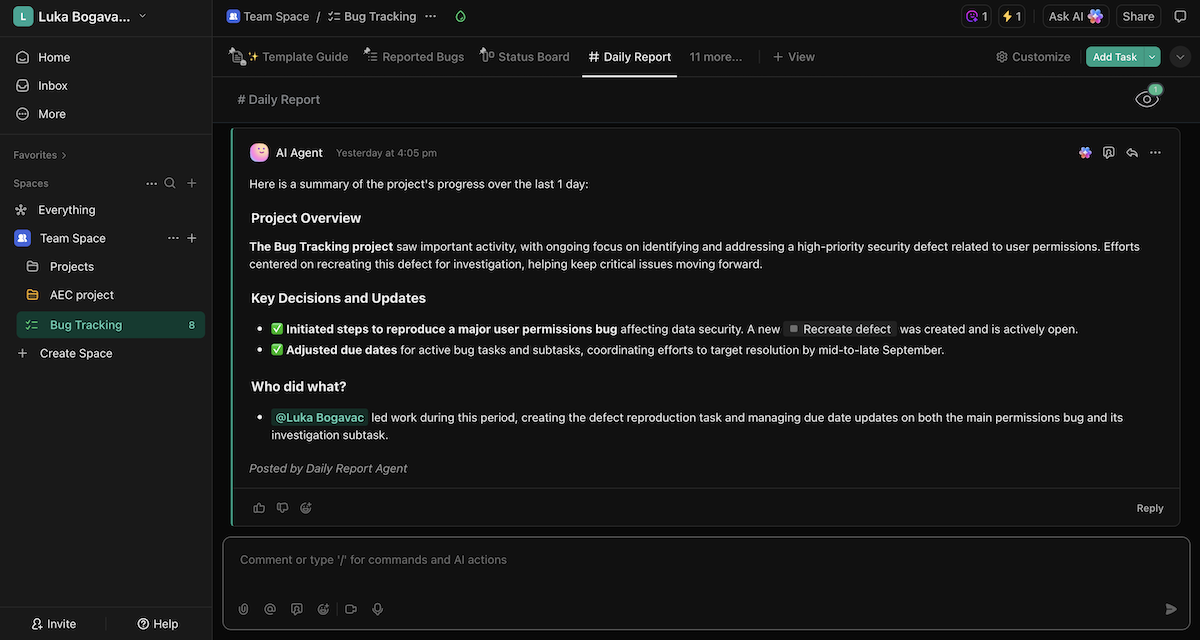
All in all, ClickUp offers more extensive and more intuitive automation options than Trello, so it takes this category too.
💡 Plaky Pro Tip
Want to see how ClickUp fares against another project management tool? Check out this comparison:
ClickUp offers much better reporting than Trello
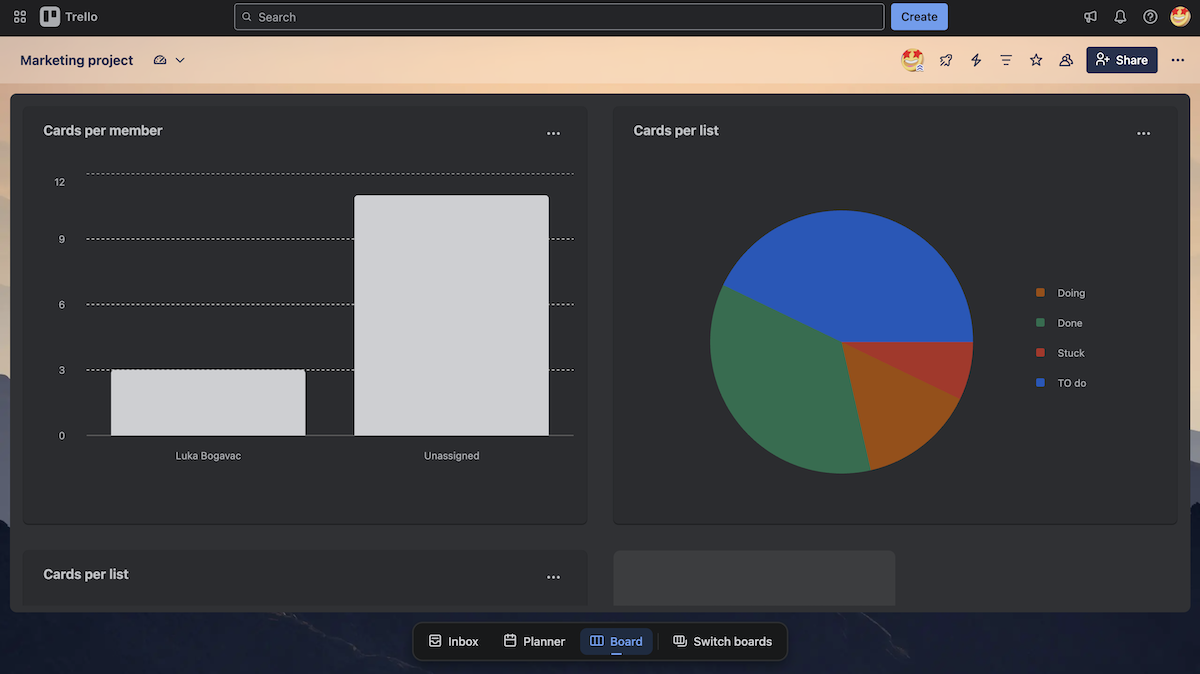
Trello gives you an insight into your project health with the Dashboard view.
It’s a simple view filled with different charts, which you can use to track tasks by:
- List,
- Member,
- Label, and
- Due date.
If you use the line chart, you can also track these conditions over the past week, 2 weeks, or the past month.
As far as reporting goes, this feature in Trello is pretty limited. For starters, I wish I could track tasks by their custom fields (e.g., priority). There’s also no option to change the graph colors, so clear visual distinction is lacking.
There’s no time tracking either in Trello, which means you can’t get reports on your team’s productivity or improve forward planning.
It seems to me like Trello relies a lot on its integrations for actual reporting — there are some pretty nifty ones in there, like Screenful. If that’s the case, I’m just disappointed that the Dashboard is not available on the free plan.
ClickUp also gives you a dashboard — but in classic ClickUp fashion, it’s hard to find something you can’t do with it.
Like Trello’s, ClickUp’s dashboard is made up of cards you can add to personalize your reporting. Then, you can simply adjust your dashboard by resizing or moving the cards around.
I like that there’s an option to add an AI executive summary as a card — if there’s one thing AI is good at, it’s TLDRs.
There are many different card options, from overdue tasks to notes and portfolios. Honestly, there are a touch too many. I’m not sure why I would need another discussion board in my dashboard.
ClickUp also offers a built-in time tracker, with the option to later create timesheets, billable reports, and estimated task times.
There’s also the workload view — a neat, although unintuitive, view that lets you keep an eye on how work is distributed across your team.
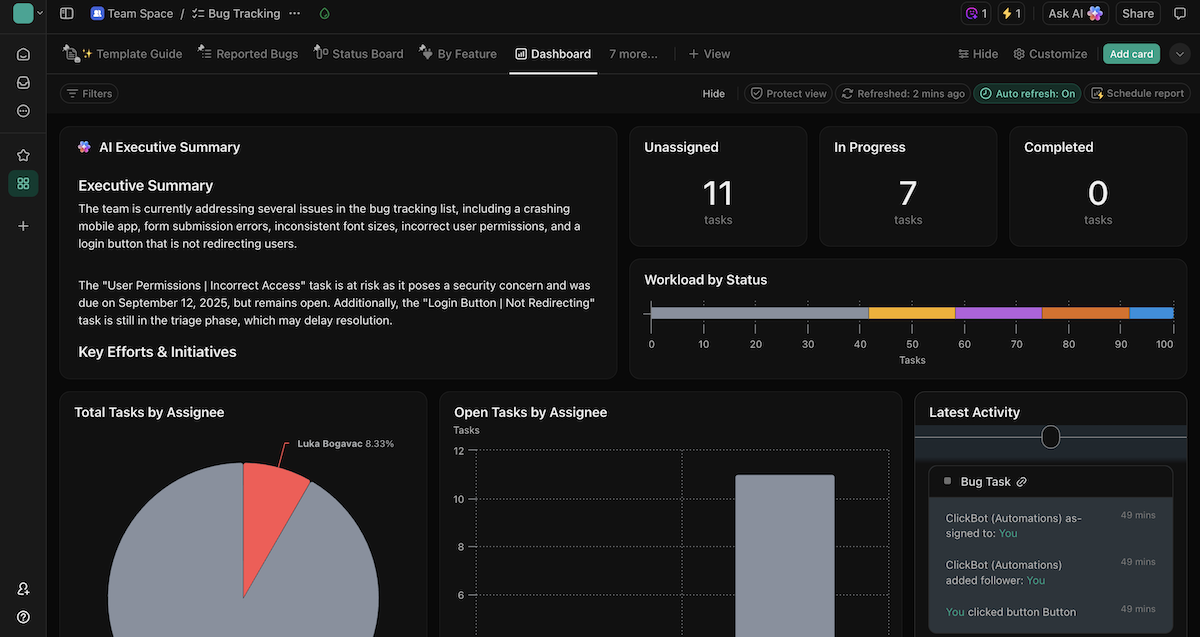
So, with plenty more reporting options and no need for additional integrations, ClickUp is the clear winner here.
Trello offers better and more useful integrations than ClickUp
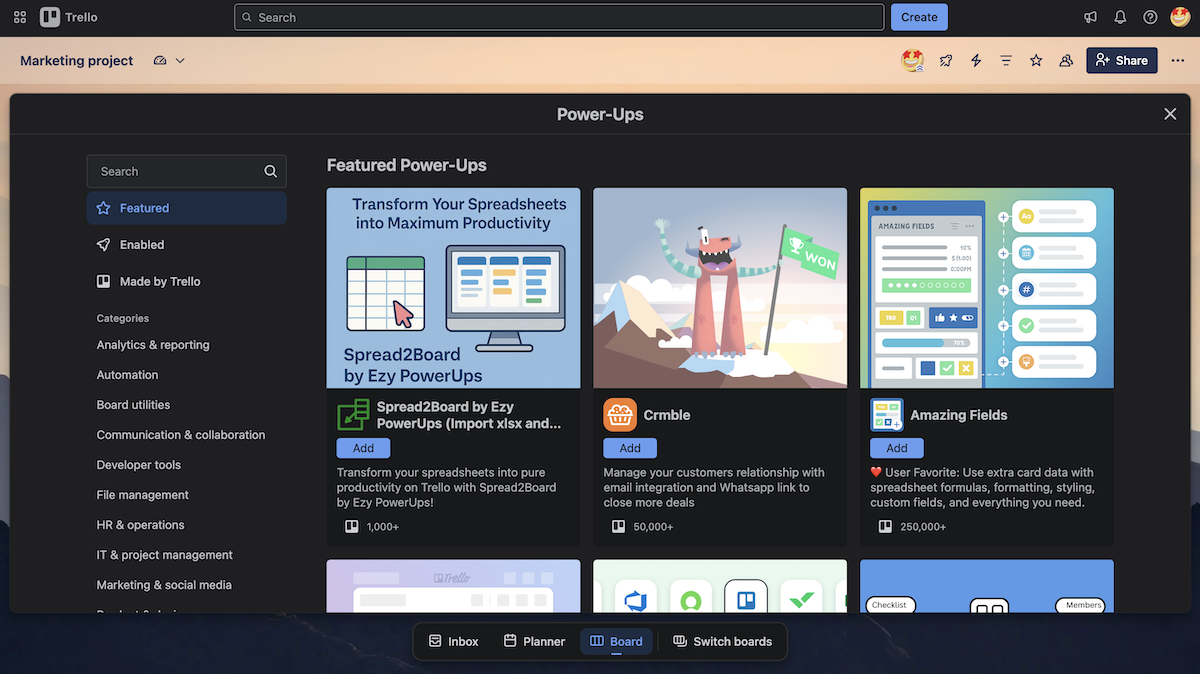
Trello’s integrations function in the form of Power-Ups.
Power-Ups are additions to your board that you can use to get integrations and custom made add-ons. There are over 300 Power-Ups you can add, separated into categories like:
- Analytics,
- Marketing,
- Developer tools,
- Product and design, and many more.
You can find many useful Power-Ups here that let you do additional stuff while using ClickUp, like staying connected on the go with WhatsApp or syncing with your Salesforce account.
Trello’s community is fairly engaged too and many users create custom Power-Ups themselves.
The thing is, though, that many of the community-made Power-Ups just make up for the features that Trello lacks, e.g., the option to rearrange labels without deleting and remaking them from scratch.
Of course, no PM tool can have all features — but Trello’s lack of more basic functions (like the one mentioned above) is even more apparent with these Power-Ups.
ClickUp, the self-titled “one app to replace them all”, doesn’t even want users to need integrations.
That’s why it tries to offer everything that any other app you’d normally integrate with offers — from automation and reports to time tracking.
However, this comes off as half-baked and just clutters the workspace with too many options.
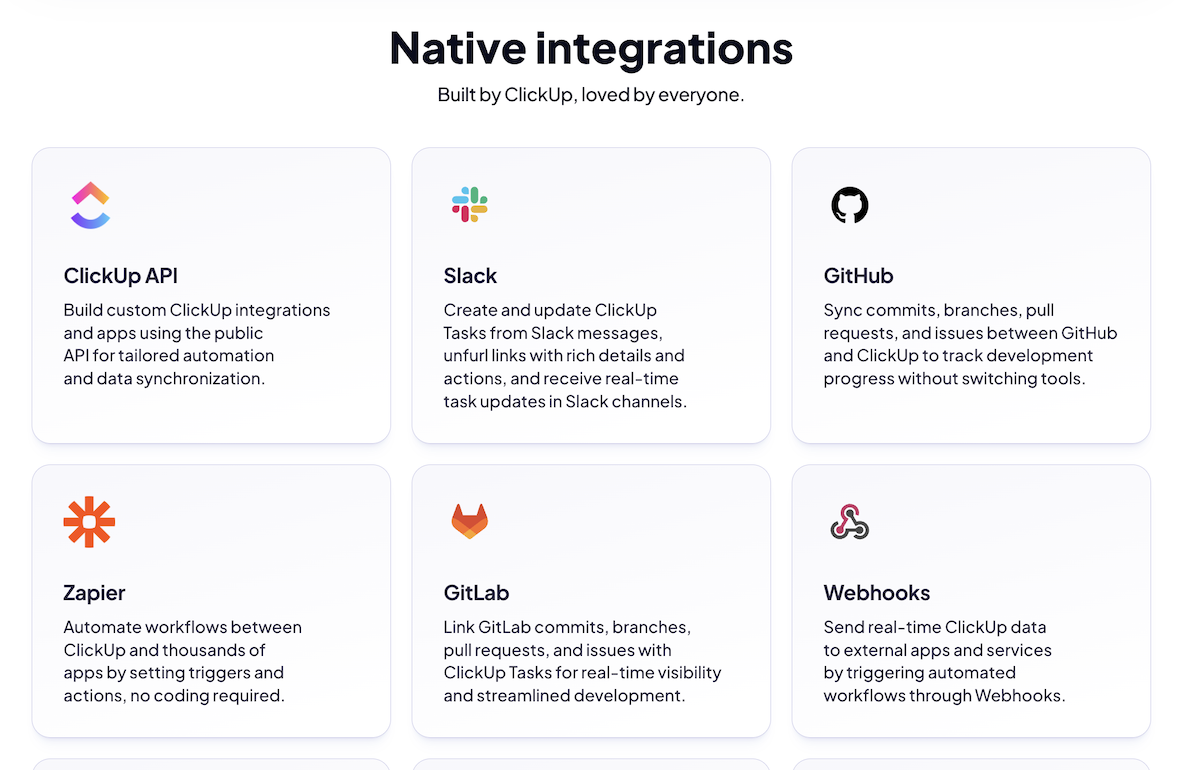
As far as actual integrations go, ClickUp has over 50 native integrations. But, you can get over 1,000 using Zapier.
Still, with the effort to have all features you’d integrate for anyway — you’ll just end up with ClickUp’s half-functional and the integrated fully functional option. This can lead to confusion in your team over which one they should use.
Trello lets you keep your board clean and decluttered, so you can add more functionalities as you need them. This makes it a far better choice than ClickUp’s crowded mess.
💡 Plaky Pro Tip
If you want to check out how Trello holds up against other project management tools, read these comparisons:
ClickUp’s support is slightly better than Trello’s
Trello users can get help in a few different ways, including:
- Community forum, where you can get advice and help from other Trello users,
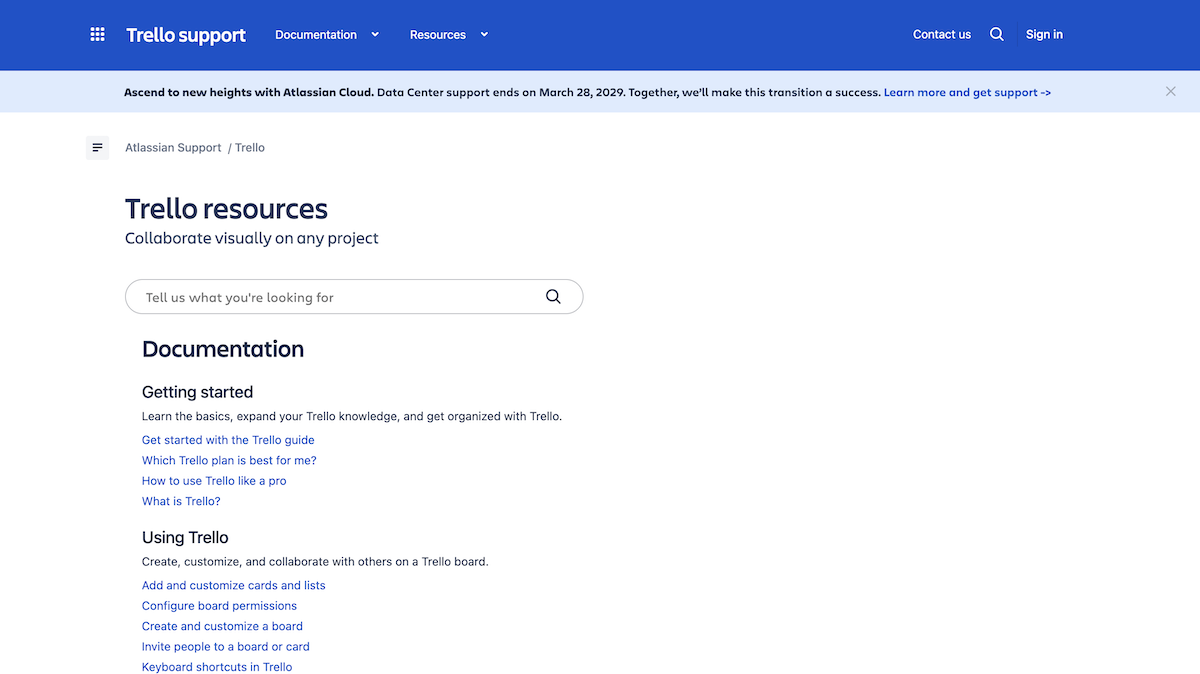
- Trello resources, where you can scroll through documentation that helps you learn how to use Trello,
- Billing and licensing, where you can check out FAQs about how payment and scaling works, and
- Trello status, where you can see the current status of the app.
The one disappointing thing is that there’s no customer support on the free plan. You get different support based on your plan:
- 9/5 for Standard plans,
- 24/7 for high impact issues and faster response times for general issues with the Premium plan, and
- 24/7 for all issues, as well as a dedicated senior support team for Enterprise plan users.
Personally, I dislike how Trello changes its approach to support based on your budget — this just leaves small teams (who usually aren’t even used to PM tools) to fend for themselves while trying to figure out how to use Trello.
Similarly, ClickUp offers plenty of ways for new users to get help while using the app:
- ClickUp University, where you can complete courses to learn how to use the app,
- ClickUp Webinars, where you can complete featured or community-made webinars to improve your expertise of the app, and
- ClickUp communities, where you can get help on app issues from other users.
You can even request a feature over ClickUp’s website — however, there are currently 13,000+ feature requests on there, so I’m doubtful they’ll get to mine (it’s stickers).
ClickUp also varies its support based on the plan you’re on:
- 24/7 support with 48hr response windows support for Free plan users,
- 24/7 support with 24hr response windows + live chat support for Unlimited and Business users, and
- All of the above with 8hr response windows + priority support for Enterprise users.

All in all, I prefer ClickUp’s approach to support — it doesn’t hold too much back from lower-tier plans. It also has more resources than Trello (and knows that it definitely needs them).

Both have great security measures, but ClickUp seems a bit safer
As far as security goes, both apps have received extensive certifications, like:
- GDPR,
- ISO 27001, and
- SOC 2.
They also both offer SAML 2.0 SSO and OAuth for secure authentication and sign-on for users.
Both are also hosted on the Amazon Web Services platform, which complies with ISO 27001, 27017, and 27018. This platform also undergoes SOC 1, SOC 2, and SOC 3 audits with semi-annual reports.
However, ClickUp has just a bit more security to brag about — it complies with HIPAA, as well as the new ISO 42001 certification, focused on ethical AI practices.
Due to these 2 certifications, ClickUp offers slightly better security and wins this category.
Which one’s better — Trello or ClickUp?
So which app is ultimately better? Although it seems like ClickUp is a clear winner, that’s just because it has more functionalities. Ultimately, this doesn’t necessarily make an app better.
All in all, I think ClickUp is a solid option if you:
- Are experienced with using PM tools,
- Have a large team or a company with multiple teams, or
- Are in charge of a stable project that has the timeline leeway for you to set up the perfect board.
On the other hand, Trello is the right choice if you:
- Have a small team,
- Lead a team that’s used to visual overviews, e.g., creatives, or
- Are not experienced with PM tools, or haven’t used them before.
Want a more affordable Trello or ClickUp alternative? Try Plaky!
So, if Trello’s good for small teams, and ClickUp for large ones — you’re going to end up switching as you scale, which can be a real nuisance.
So, why not look for an alternative to these 2? One that lets you scale with ease without the need to switch tools — like Plaky!
Plaky’s free plan is ideal for small teams since it offers:
- Unlimited users, boards, items, and views,
- 6 custom fields per board — which let you create a fully customized board fit to your project needs,
- Table view — which enables you to group items in item groups and use detailed filtering and sorting to get an ideal overview of your tasks,
- Kanban view — where you can customize how tasks are grouped and get a visual overview to, e.g., spot bottlenecks,
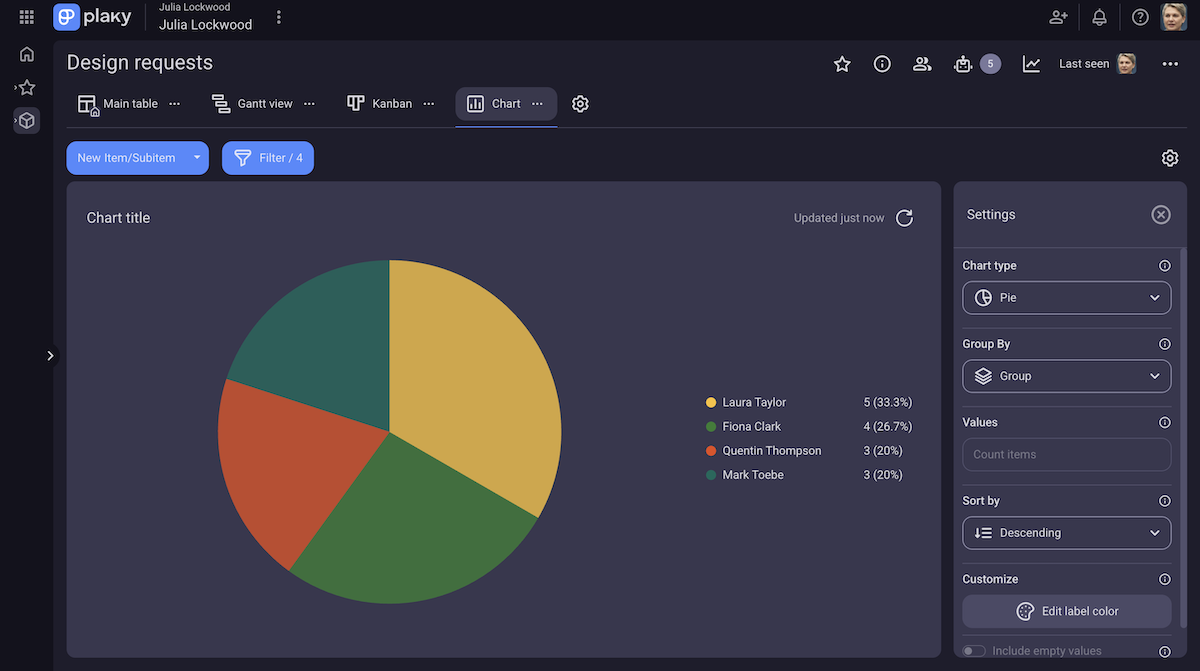
- Chart view — which gives you a detailed, customizable pie or bar chart based on any project field,
- Summary row — which provides you with a quick visual overview of field data, and
- Comments and file sharing — where you can centralize item-related communication.
Plus, every plan in Plaky gives you access to 24/7 support, so there’s no favoritism based on your budget.
On the other hand, scaling in Plaky as your team grows is just as easy.
Its paid plans are more affordable than both Trello’s and ClickUp’s. Plus, you don’t need to upgrade as soon as you reach an arbitrary limit — instead, you can upgrade when you need one of Plaky’s useful paid plan features, like:
- Gantt view — a timeline overview of your project items, which can be fully customized to give you the optimal analysis of task info,
- Automations — a simple and comprehensive tool to create rules and automate manual processes,
- Conditional coloring — automations that change your board’s visuals as triggers are met (for example, an item lighting up red on the day of its deadline),
- Unlimited activity log — a list of all project changes, which lets you spot progress updates and notice scope creep early, and
- User roles and permissions — which let you increase security by managing who has access to your board and what type of access they get.

On top of this, Plaky’s UI is visually appealing, detailed, and customizable. You can also always refer to Plaky’s help page or video tutorials to speed up the setup and jumpstart your projects with ease!
Make scaling a breeze. Manage your growing teams with Plaky!