Looking for a customizable, powerful PM tool for your project?
If so, you might’ve narrowed the choice down to 2 options — Plaky by CAKE.com and Notion. One is an intuitive, reliable PM tool, while the other offers total customization.
But, which tool is the better choice?
I’ve tested both apps to get to the bottom of this issue. Check out this detailed comparison, and see which of these 2 apps is best for your project.

WHY TRUST US?
Human reviewers try out each app and follow strict guidelines while writing about the comparisons. We follow a transparent, clear, and systematic methodology, so that every review is objective and accurate.
What are the main differences between Plaky and Notion?
The main differences between these 2 tools are their ease of use and level of customizability.
Notion offers some of the most comprehensive customization options of any PM tool — but that makes the app difficult to onboard to and set up.
Plaky’s customizability, on the other hand, doesn’t get in the way of creating effective, reliable workflows with ease. On top of this, every feature in Plaky is built to be intuitive, so onboarding and board setup take no time at all.
While we’ll get into more detail later, for now, here’s a side-by-side of all categories in this comparison:
| Feature | Plaky by CAKE.com | Notion |
|---|---|---|
| Pricing | – Free plan- Pro plan $3.99/user/month* – Enterprise plan $8.99/user/month* – CAKE.com bundle $12.99/user/month**billed annually | – Free plan – Plus plan $10/user/month* – Business plan $20/user/month* – Enterprise plan POA*billed annually |
| Free plan | – Unlimited users, items, views, and boards – Table, Kanban, and Chart views – Summary row | – 1 user – Page blocks – Basic forms – One graph |
| UI | – Simple and intuitive UI – Transparent hierarchy and navigation | – Customizable and complex UI – Confusing hierarchy and navigation |
| Task management | – 4 board views – Clear subitems with inherited fields | – 10 database views – Unclear nested subitems |
| Customization options | – Custom fields – Sort and filter board views | – Custom page blocks – Custom fields – Database view settings |
| Collaboration | – Comments and @mentions – Dedicated file sharing space – Real-time notifications | – Cumbersome discussion block – Real-time notifications |
| Reporting | – Chart view – Customizable charts – Summary row | – Chart view – Chart blocks – Customizable charts |
| Automation | – Simple to set up automations – Multiple actions and triggers – Conditional coloring | – Automations with multiple actions and triggers – Notion AI – AI agents |
| Integrations | – Clockify and Pumble integrations | – 100+ integrations |
| Support | – Help page – Video tutorials – Knowledge hub – 24/7 support for all plans | – Help page – Notion Academy – Community forum – Priority support for paid users – Premium support for Enterprise users |
| Security | – ISO compliances – SOC 2 – GDPR – Secure development process | – ISO compliances – SOC 2 – GDPR – HIPAA – Secure development process |
What’s new in Plaky?
Most recently, Plaky released its integration with Clockify, which lets you track time directly from the app. It helps you make sure your estimates are correct — which also improves your planning in the future.
With this direct integration, you can:
- Access a time tracking tab on every item and input time from there,
- Choose whether you want to start a timer or input time manually,
- Change information easily with a 2-way sync (the info you change in one app is automatically changed in the other), and much more.
💡Plaky pro tip
Want to keep up to date with the newest and upcoming Plaky features? Check out this page:
What’s new in Notion?
Notion, recently, has been on a roll with improving its AI capabilities. These include:
- Forms built by agents — Agents can create forms based on your instructions.
- Gemini 3 pro — You can choose your preferred model as Google’s latest AI, alongside Anthropic’s and OpenAI’s models.
- New agent capabilities — Agents can now analyze comment threads, calendars, and private Slack messages.
All of these help Notion’s AI optimize your project workflows and analyze your work in more detail, for more accurate answers.

Plaky vs Notion: main features overview
Let’s take a closer look at how these 2 apps compare in specific categories like UI, customization, reporting, and more.
Plaky’s subscription plans are more affordable than Notion’s
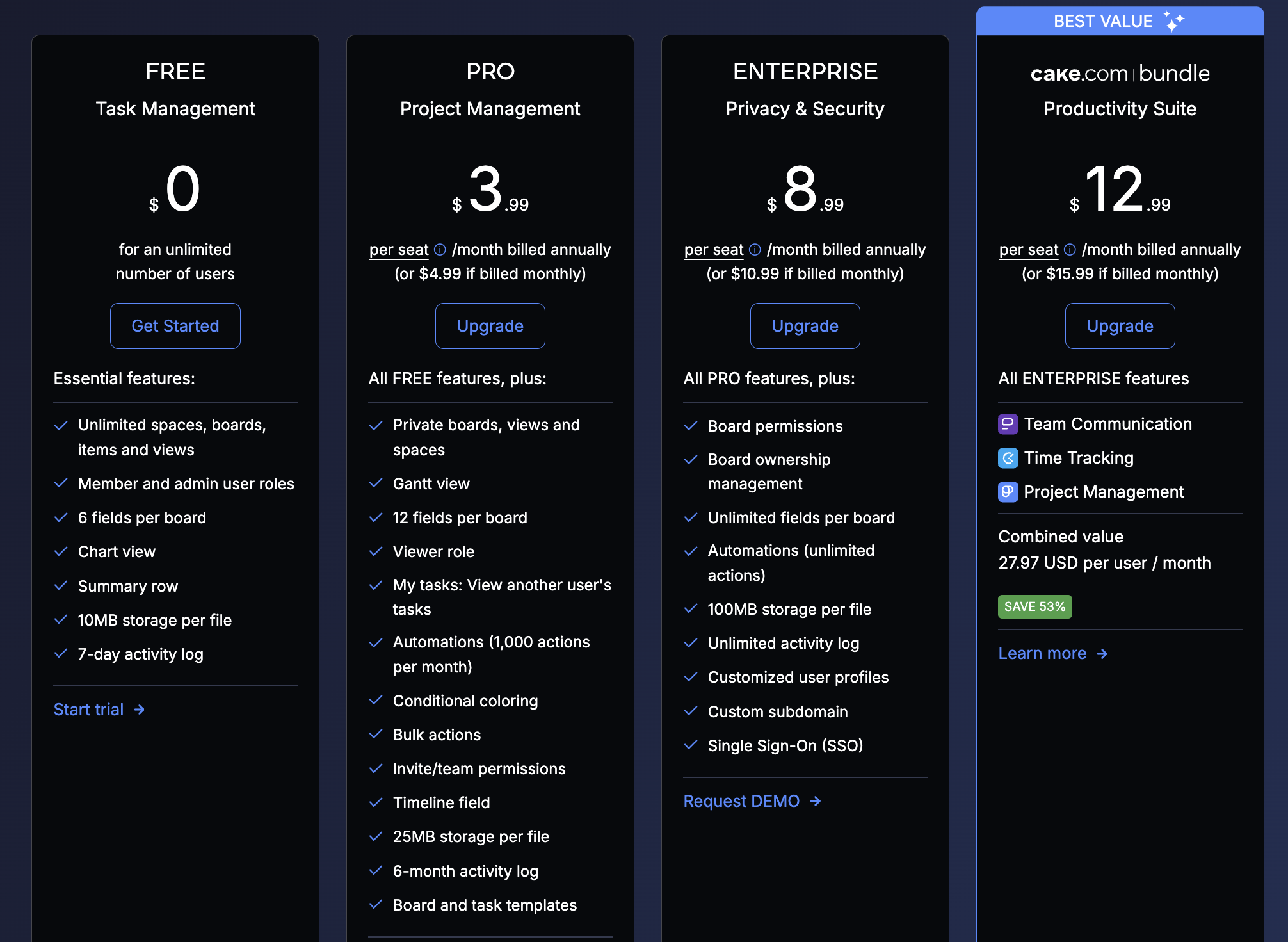
Plaky’s pricing plans are geared around easy scaling and feature accessibility.
For starters, Plaky is among the most affordable PM tools available for your team.
| Plaky plan | Monthly price | Yearly price |
|---|---|---|
| Free | $0 | $0 |
| Pro | $4.99/user/month | $3.99/user/month |
| Enterprise | $10.99/user/month | $8.99/user/month |
| CAKE.com Bundle | $15.99/user/month | $12.99/user/month |
Among other features, Plaky’s paid plans give you access to:
- Automations — Get rid of manual tasks, remove the burden of menial board responsibilities from your team, and eliminate mistakes in board inputs.
- User roles — Make sure your board is secure, easily keep clients up to date, and control the access your team members have on the board.
- Bulk actions — Control multiple tasks at the same time, save time by giving simultaneous updates, and mass delete without issue.
On top of that, if you get the CAKE.com Bundle, you get every feature in Plaky, as well as the full power of Clockify and Pumble. This guarantees your productivity is up to par with time tracking and your team collaboration is improved thanks to flawless team communication.
And best of all, these apps are fully integrated, so using all 3 boosts your productivity significantly.
Save your budget with Plaky by CAKE.com
Notion, on the other hand, offers a more expensive subscription set.
In an extensive (and sometimes complex) kit, Notion’s pricing lets you choose the right plan based on team and project size.
| Notion plan | Monthly price | Yearly price |
|---|---|---|
| Free | $0 | $0 |
| Plus | $12/user/month | $10/user/month |
| Business | $24/user/month | $20/user/month |
| Enterprise | POA | POA |
Notion’s paid subscription plans give you access to some useful features, like:
- Notion AI agents — Notion offers AI agents to help you manage your board more easily by creating new tasks, giving briefs, etc.
- Custom forms — With customizable forms, you can get personalized feedback or requests from clients.
- Unlimited charts — Notion’s charts allow you to track project progress and results with a variety of customizable charts.
However, I got the impression that the only plan worth considering is the Enterprise plan — and even that depends on the offer you get when you contact sales (although, considering the Business plan is a whopping $20, I’m not optimistic).
In the end, Plaky’s plans give you a better offer for a better cost, compared to Notion.
Unlike Plaky, Notion’s free plan is unfit for project management
Plaky’s free plan is made for small and growing teams of any industry, and offers plenty of features essential for project management.
For starters, in the free plan, you get:
- Unlimited users, items, spaces, and project boards,
- A variety of project views with Table, Kanban, and Chart view,
- Summary row,
- 7-day activity log,
- Unlimited file sharing (with a 10 MB per-file limit), and
- 24/7 customer support.
This plan makes sure you can scale easily — while most other tools force you to upgrade whenever you pass an arbitrary limit (e.g., a second user in Notion), Plaky places no such limit on you. Instead, you can decide to upgrade whenever you need one of its fantastic paid plan features, like the ones we mentioned above.
Notion’s free plan is made for personal use, opting to give you maximum customizability at the cost of no extra users.
Let’s not beat around the bush — the fact that there’s no collaborators in Notion’s free plan makes it simply unfit for managing projects.
However, that doesn’t mean Notion’s free plan is useless. You can still take advantage of its customizability to create project briefs, brainstorm, or simply take the time to set up your project before you upgrade, so you don’t waste funds in the meantime.
You also get:
- Basic forms,
- Calendar and Gmail sync,
- Databases with subtasks and task dependencies, and
- Custom properties.
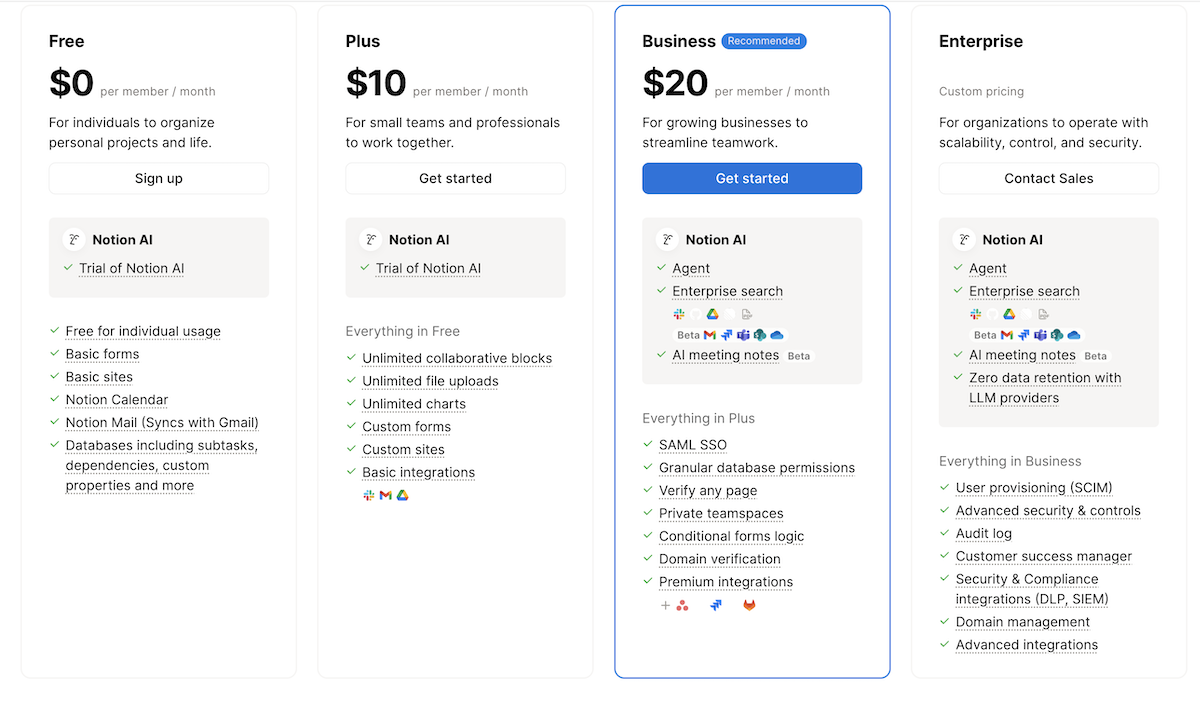
Notion’s free plan simply makes it impossible to work with teams of any size. By contrast, Plaky’s free plan is reliable, and doesn’t force you to upgrade just so you can manage a team.

Plaky’s UI is much more clear and intuitive than Notion’s
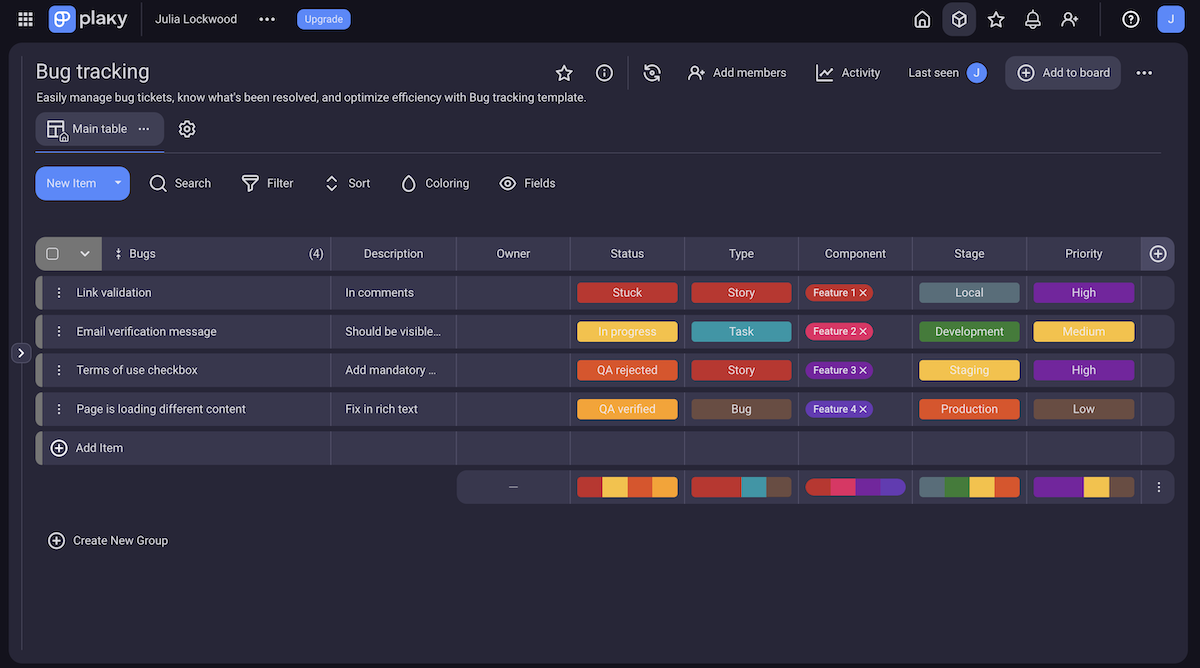
Plaky’s UI is built with ease of use in mind, making every feature intuitive so you don’t need to waste time onboarding.
Navigating your workspace in Plaky is clear and easy — going from board to board and project to project takes no time, and I never had a point where I got “lost” in my workspace. This makes it easy to manage multiple projects without getting disoriented by a cluttered tool.
What makes this possible is Plaky’s simple hierarchy — you start off with a Space, where you can organize departments, teams, or large projects. Then, every Space is divided into:
- Folders, which are optional and can be used to group together similar boards,
- Boards, where you keep and organize your workflows and manage your day-to-day work,
- Groups, where you can organize items for a clearer overview,
- Items, which represent tasks in your project, keep all of their info, and let you discuss them,
- Subitems, which help you divide tasks into more manageable chunks, and
- Fields, which store specific attributes of your tasks, like their deadline, assignee, or description.
💡Plaky pro tip
Plaky’s hierarchy is clear and simple — check out how to best utilize this in this helpful article:
Notion’s UI is complex, but fit for thorough customization.
To understand Notion’s structure, we need to understand its core component — pages. In Notion, a page can be anything you need, from a project board to a project status report. The page’s function depends on the blocks you choose.
And that’s about it — you have pages, and then pages in pages, and you can nest these pages in as many layers as you need. Which is great for creating a hyper-structured, personalized board, but for me, it just became a maze of pages really quickly.
One of the blocks you can add to a page is the database. This database is basically like a board in Plaky, but because it’s a block, your page can have more than just one board.
Then, if you add a page to a database, it becomes a task page. Well, that’s not the official name (it doesn’t have one), but it’s the only page type that can have properties — the equivalent of task fields. Yes, it did take me a while to figure that one out.
The lack of hierarchy and easy cluttering caused so much minor frustration that it made me dislike Notion’s UI more and more as I used it.
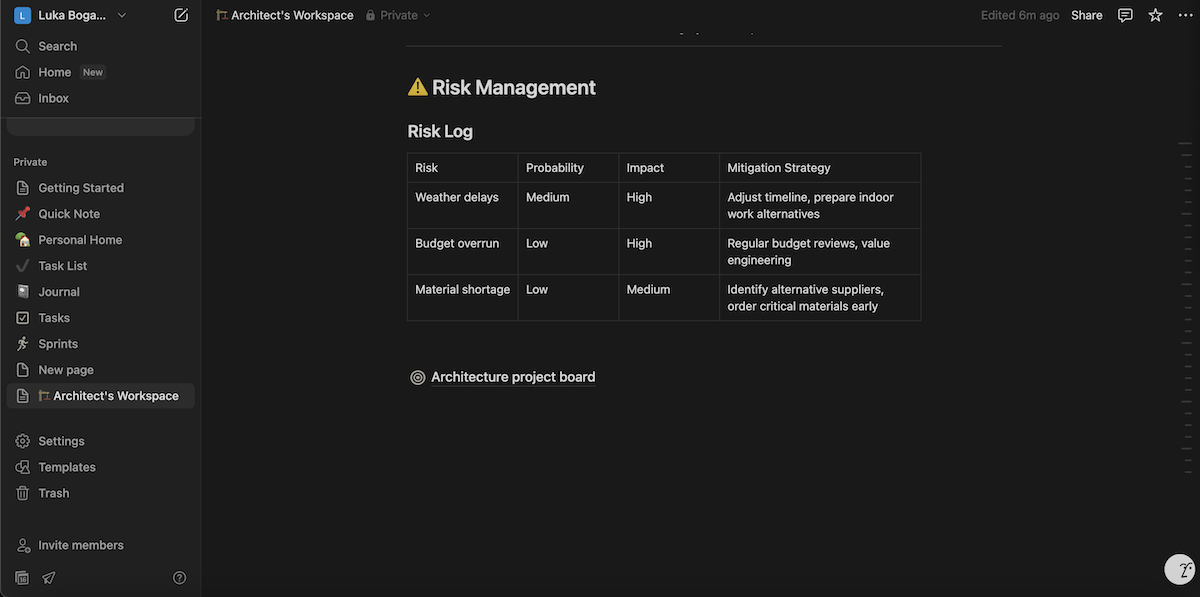
While Notion’s UI can become anything you want, it often just becomes annoying. Plaky, on the other hand, offers a clear and intuitive UI that’s frustration-free.
Onboard easily with Plaky’s UI
Plaky’s task management is more transparent
Plaky’s task management is great from the get-go, with clear items and customizable views to get all task info and share it with your team easily.
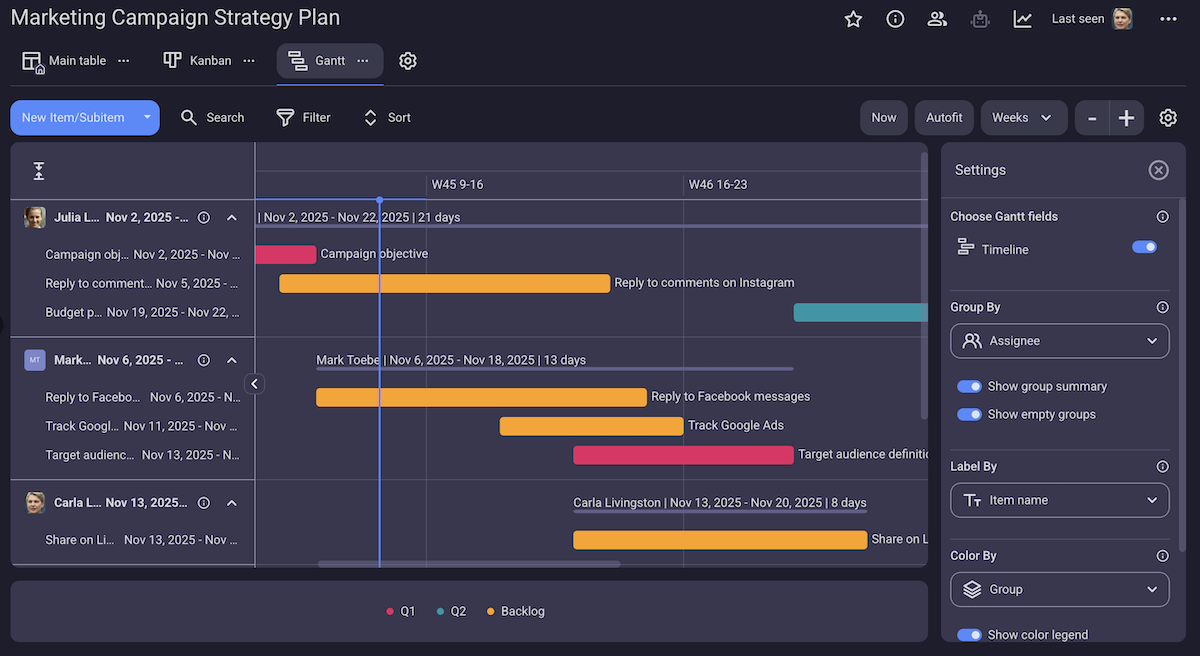
But, how do you get a neat overview of all tasks? Plaky offers 4 board views to improve flexibility in how you approach your task management:
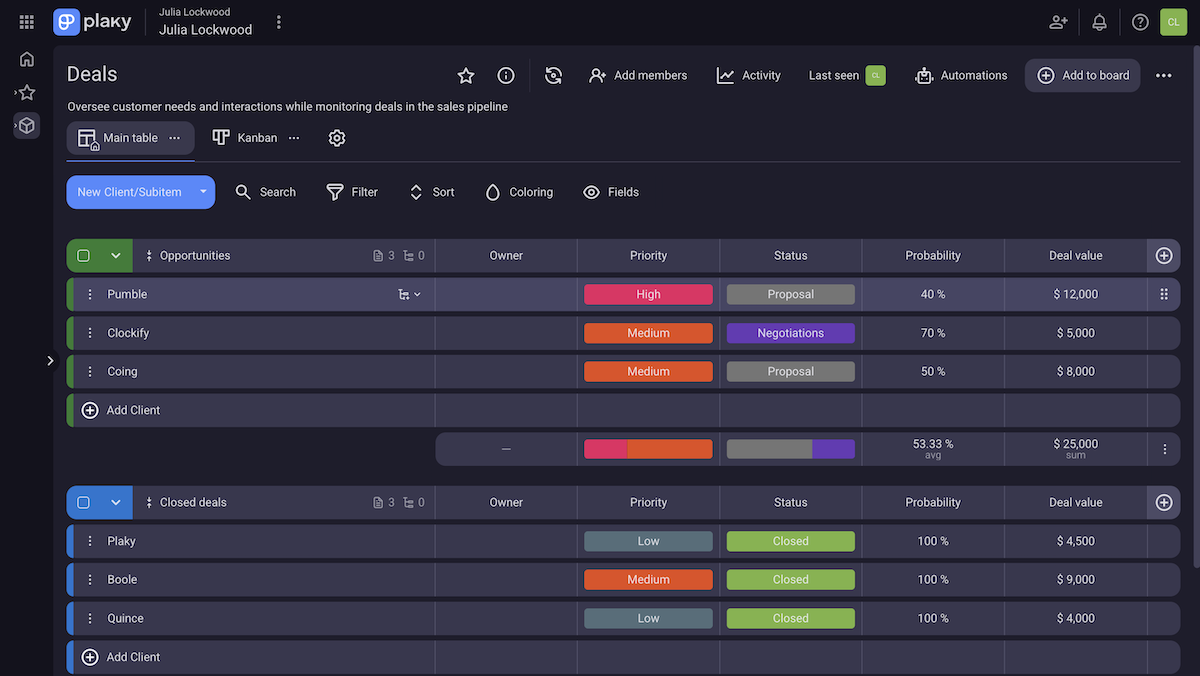
- Table view — The Table reminds me most of a spreadsheet, so I think it’s a perfect overview of all tasks and their fields in custom groups.
- Kanban view — This view lets you manage tasks by their status (or any other grouping you choose) with a drag-and-drop action to shift them around the Kanban board.
- Gantt view — The Gantt chart is an intuitive, comprehensive overview of the project timeline that lets you adjust schedules in a blink of an eye.
- Chart view — This view lets you create a pie or bar chart, which can be customized to give you the perfect insight into your project’s progress or results.
That’s the macro — but what about the micro?
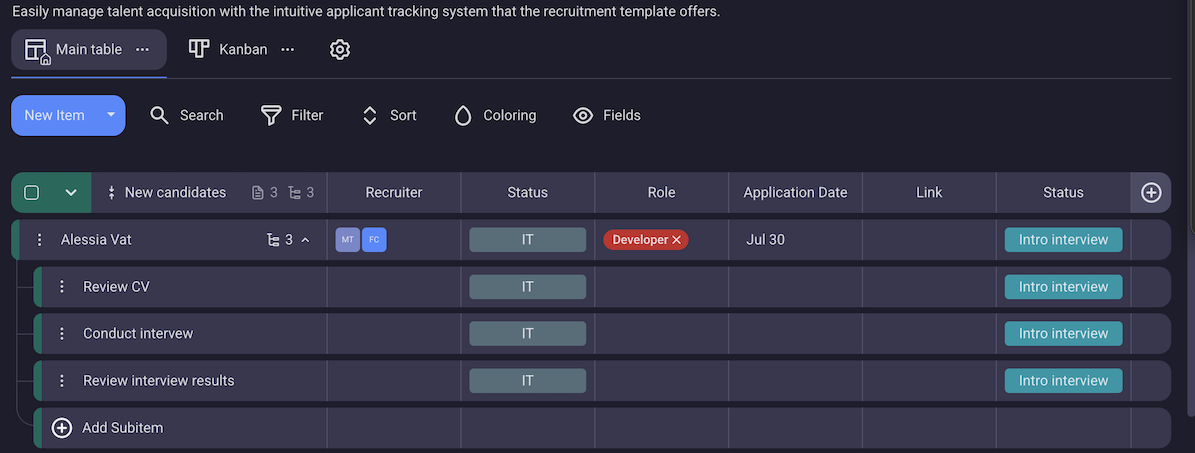
To easily manage each responsibility that a task requires, Plaky offers subitems — a way to break down each item into manageable chunks.
I like how detailed subitems are — they’re not a simple check list, but instead inherit all fields that their parent tasks have. This removes plenty of limitations subtasks usually face, like unclear subtask division, inefficient assignments on subtasks, etc.
Notion’s task management capabilities are thorough with a nice amount of project views, but limited by the lack of hierarchy.
Like we mentioned, Notion’s boards take the form of a database block. This block can be set to different views, so you get:
- Table — for a spreadsheet-like overview,
- Board — for a simple Kanban view,
- Gallery — to view task pages by a snippet of their content,
- List — for a simple list of all your tasks,
- Chart — to create pie, bar, and line charts to track project progress,
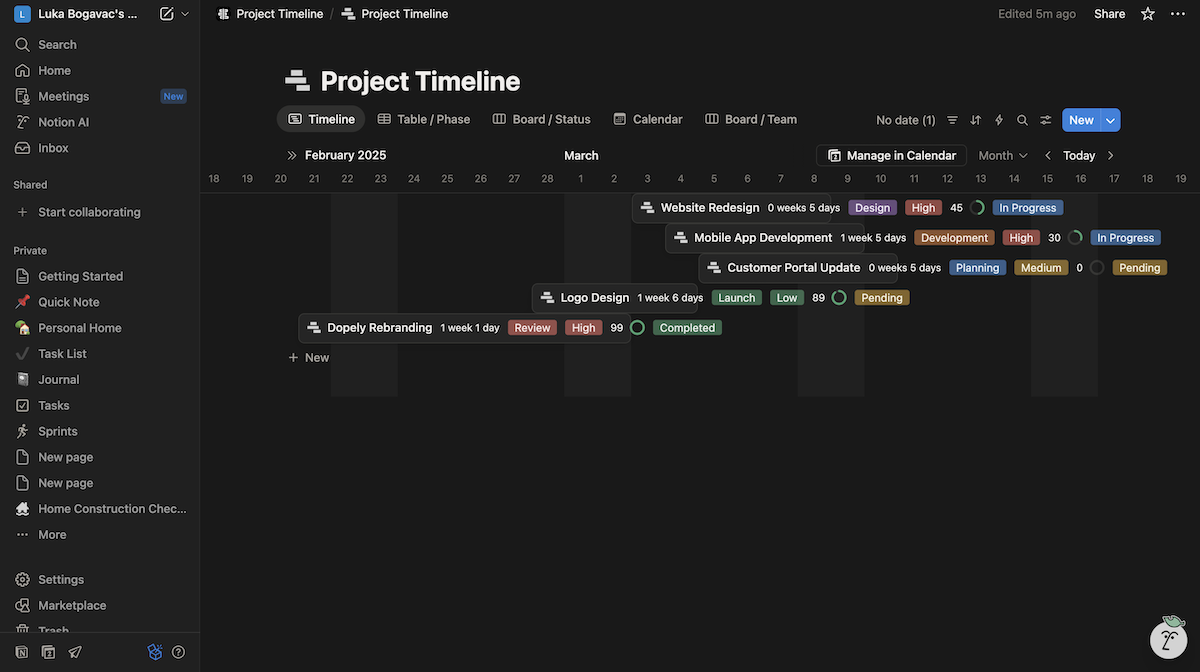
- Timeline — to get an overview of task schedules and dependencies,
- Feed — for a list of all changes made on the database,
- Map — to see your task’s distribution on a map,
- Calendar — to track deadlines on a classic calendar, and
- Form — to create a custom form you can send out to clients or project stakeholders.
Notion’s sheer number of views is impressive. Granted, I didn’t find all of them that useful — most of all, the Gallery view (which just feels like a bloated list) and List view (which just feels like a Table with less information) felt like they were just there to stack more features.
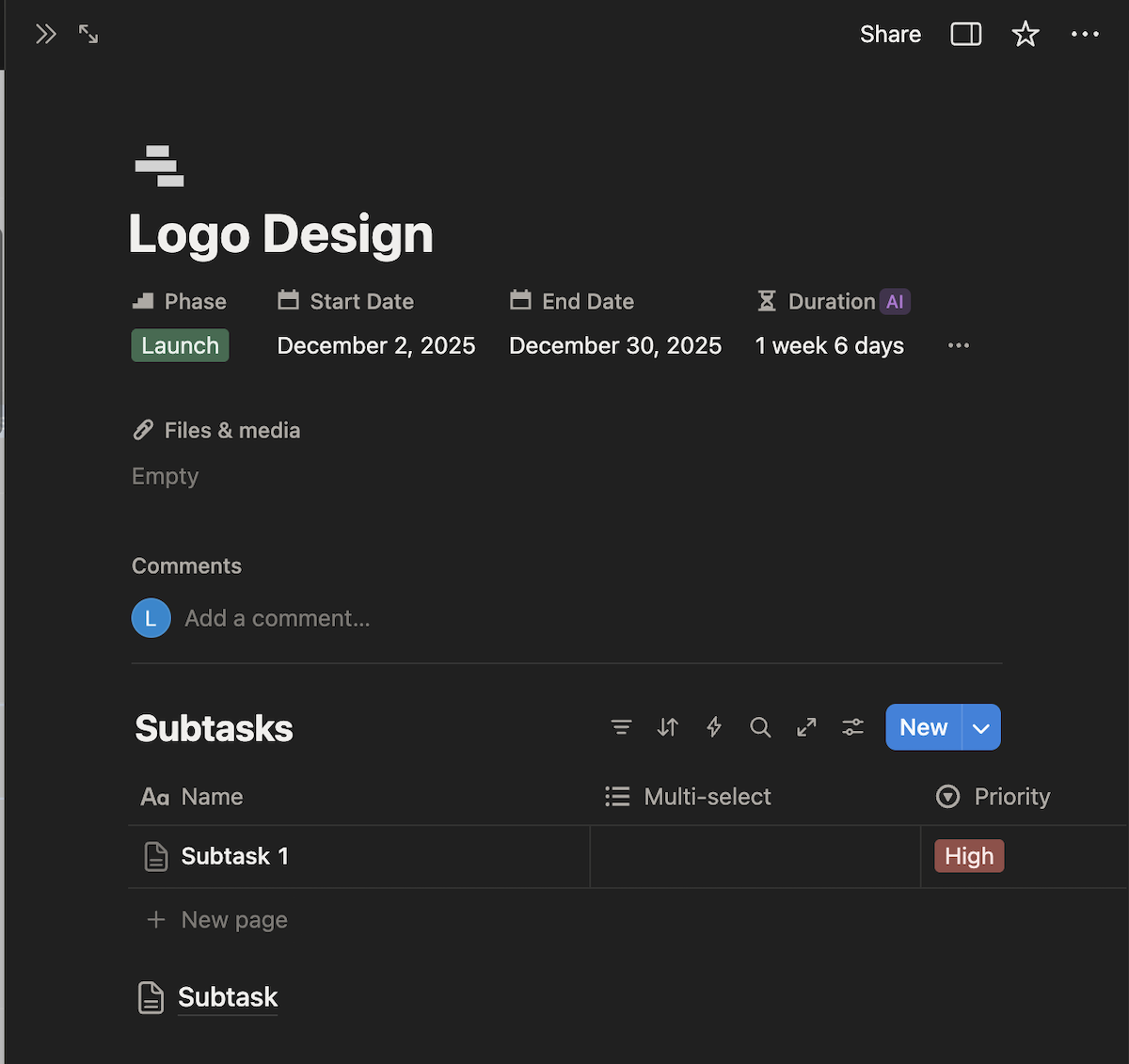
On top of that, Notion also offers subtasks — in a sense.
Since every page can be a task or a board — it’s easy to go from one to the other. Basically, in order to add subtasks to a task page, you first need to add a database to it, and then create tasks inside of that nested database.
It took a while to figure that one out, too — and it gets just as messy as it sounds. Especially later, when you’re looking for database sources in your charts.
The upside? Subtasks are also fully customizable, so they can have different properties than the parent tasks.
All in all, Notion offers more variety in how you approach your project thanks to more views, but comes with plenty of frustrations. Plaky, on the other hand, is straightforward and robust, with every feature serving its purpose without making things confusing.

Notion has more customization options than Plaky
Plaky offers thorough customization options across the entire app to make sure it supports managing projects in any industry.
In my opinion, the most useful option in Plaky are custom fields. Since your task management hinges on the information you can store in these fields, being able to adjust them allows you to create the exact workflow you need.
You can add:
- Assignee,
- Status,
- Number,
- Rich text,
- Tag, and many more field types.
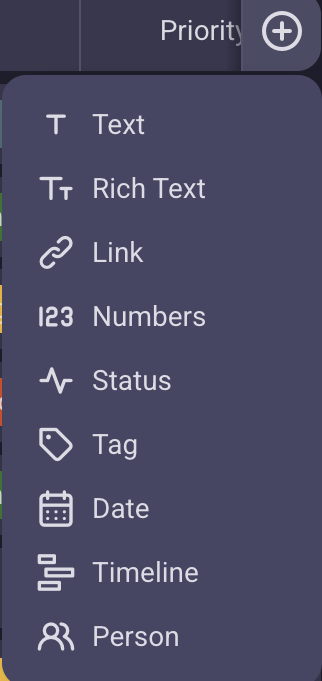
Customizing status and tag fields is especially handy. The first is fantastic for details like status, priority, or client (most useful if you have a few regular clients), while the other is great for saving multiple tags on a single task (such as labels, task types, or departments involved).
But, the fields aren’t the only customizable feature in Plaky — every view we spoke about is fully customizable, too, with robust sorting and filtering options. You can adjust your view until you get only the information that’s most relevant to your project, so you don’t waste time sifting through your board each time you want to check up on, for example, current tasks.
Notion’s customization is all-encompassing, with page blocks that let you create any type of workflow you need — given that you have the time to make it.
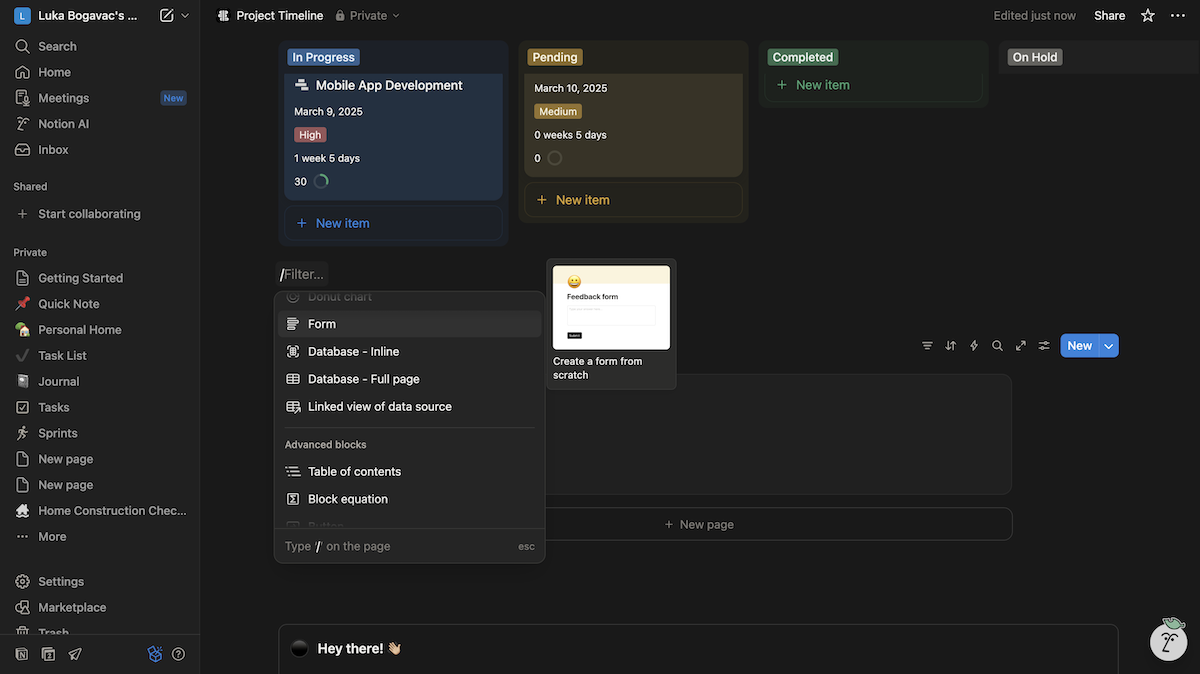
Notion’s customization is best seen through the sheer amount of blocks it offers, like:
- Basic blocks — text, headings, dividers, lists, etc.
- AI blocks — translate, continue writing, turn into tables, etc.
- Media — images, files, links, etc.
- Databases — board, table, list views, charts, etc.
- Advanced blocks — table of contents, equations, buttons, etc.
- Inlines — mentions, dates, emojis, etc.
You can also embed pages, import from connected apps, adjust coloring, and more.
Now, this sheer amount of options is impressive, and it’s no wonder customizability is Notion’s biggest selling point.
However, this amount of options also carries a large risk of cluttering your board. Especially since every block takes up the entire width of the page. Normally, I don’t fault tools for not having unnecessary features, but Notion could really use a resize option for its cards — this way, you’re doomed to always create a long list of blocks.
It also makes Notion extremely hard to set up, especially without external help. Simply setting up a functioning board feels like a mini project, so be prepared to set aside a decent amount of time if you want to use this tool.
When it comes to customization, Notion offers way more options than Plaky. But, Plaky offers all of the ones that matter while still keeping the app easy to use and intuitive.
Plaky offers more refined collaboration options
In Plaky, collaboration flows naturally with a variety of intuitive options.
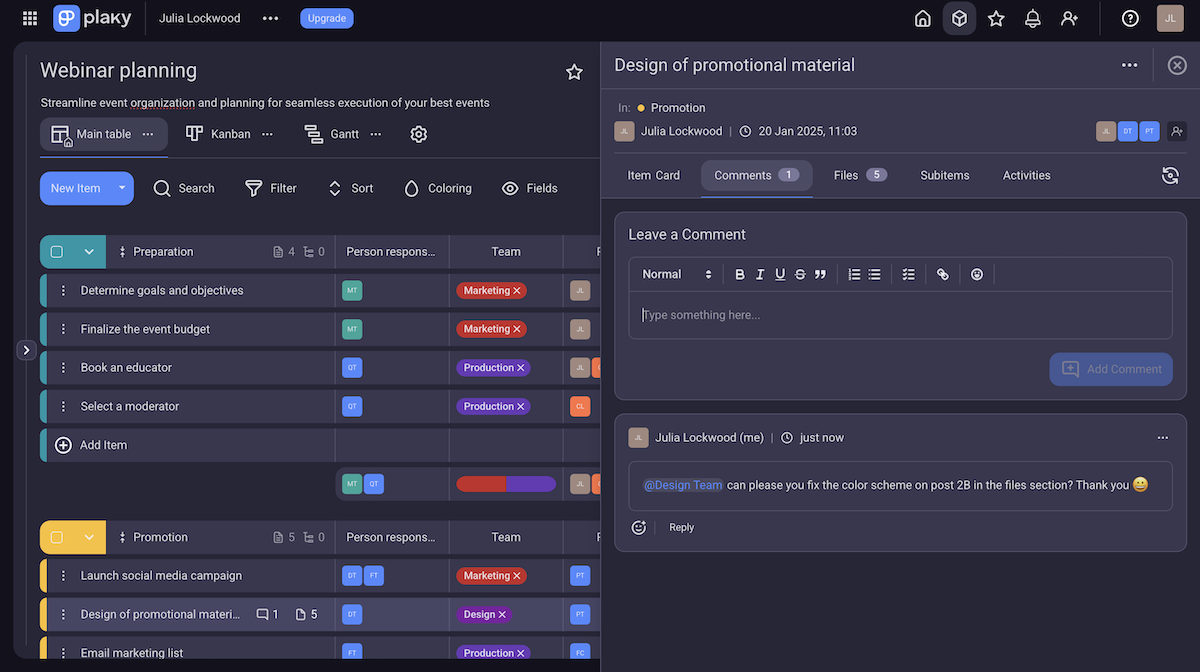
First and foremost, your teams need a place to communicate and discuss important project topics. That’s exactly what the comment section of each task card is for — an organized spot to share ideas, questions, or updates on the task at hand.
Whenever you leave a comment, Plaky’s notifications make sure all who are subscribed to that task get a notification. Plus, if you want to notify someone who isn’t subscribed, you can always simply @mention them. So, you make sure there’s no downtime waiting for someone to notice an update.
To keep communication even more organized, Plaky’s comments include threads and replies. This way, team members don’t need to scroll through one endless list of comments, but can see the specific topics, and then hop in the replies to find a solution.
Another perk of Plaky’s collaboration options is file sharing. You can upload or download all kinds of files — JPG, PNG, MP4, PDF, etc. And I love that this option is on a tab of its own, in every task. It means you can organize and sort files by the tasks they refer to, without cluttering the inside of the task card itself.
💡 Plaky pro tip
Collaboration is a key aspect of your project — learn why it’s so important in the following article:
Notion offers a similar amount of collaboration options as Plaky, but they’re not as intuitive.
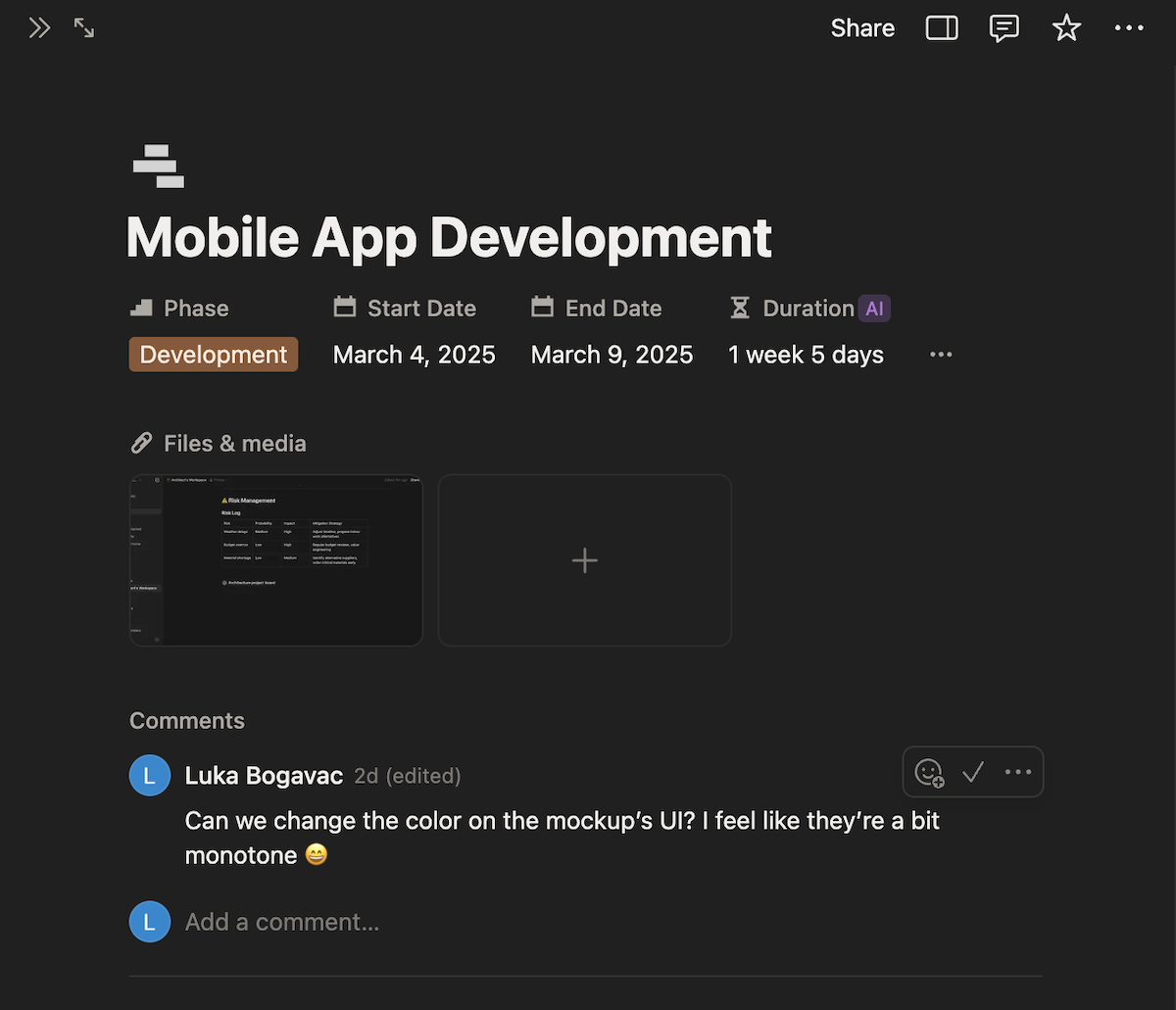
In Notion, you can leave comments in 2 ways — the first is to highlight any text on a page, and leave a comment on it. This also highlights the section that you commented on, which I find pretty convenient.
The other is a discussions block where you can make general comments about the page. However, you can’t find this block where you’d normally add one. Instead, it’s located under the “customize page” or “page layout” settings (which label you get depends, I assume, on whether the page is part of a database or not).
These comments also allow for sharing files or @mentioning team members, paired with notifications that make sure your team is up to date with communication.
But, if Notion offers practically the same options, why did I find it so much more frustrating?
First of all, the discussions block is always located at the top of a page. So, if there’s more than 3 comments, I always have to scroll down to get to my actual board view, chart, or any other relevant document. This doesn’t just waste time — it’s plain annoying.
On top of that, comments don’t have replies or threads. This’d be a problem on its own, but with the previous issue, that just means you’ll have an even longer discussion thread to scroll through.
My second issue is with file sharing — specifically, there’s no dedicated “file sharing” tab or folder. Which means, you either leave files as a comment, or just slap them on your page somewhere. Either way, you both clutter that page, and make the files harder to find in the future.
While both apps’ collaboration options are similar, their execution isn’t — Plaky’s feels smooth and encourages communication, while Notion’s feels intrusive and encourages using a third party app.

Plaky has fewer, but less complex charts
In Plaky, tracking progress and results is easy — either with a dedicated Chart view, or a nifty addition to the Table view.
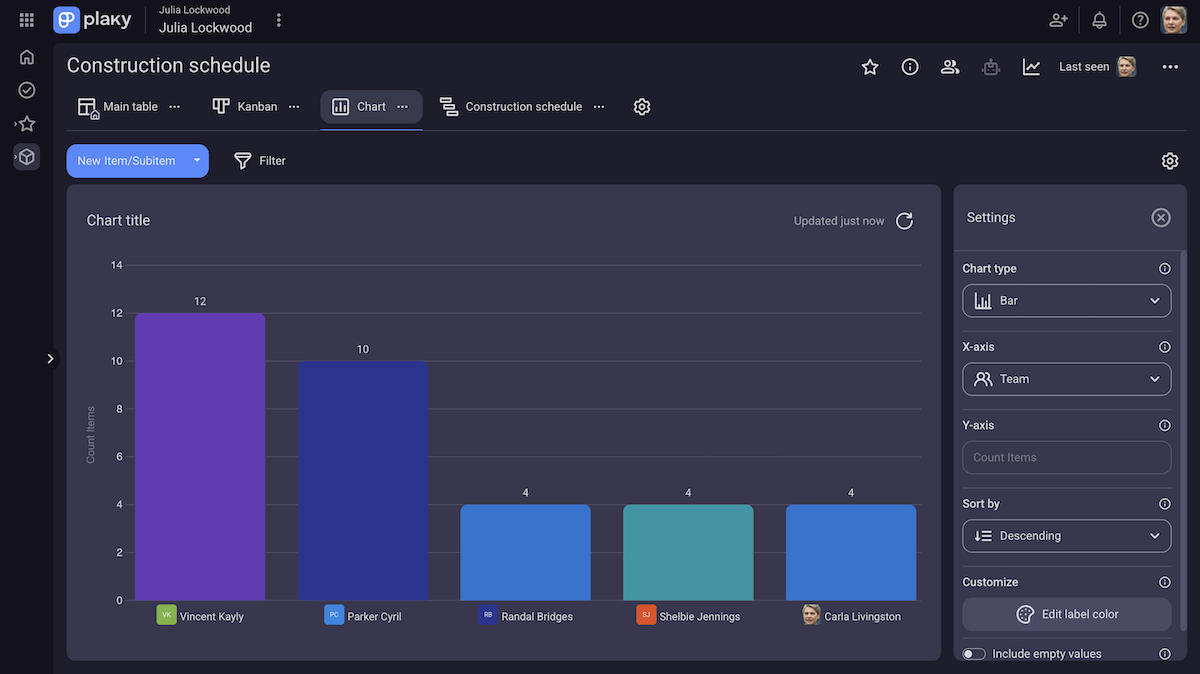
The Chart view is Plaky’s simple but effective solution to getting reports on the state of your project.
In it, you can:
- Choose whether you prefer a pie or bar chart,
- Decide how tasks are grouped in the chart to customize the information you review,
- Change how groups are colored for a clearer overview,
- Enable or disable empty values and subtasks for a more detailed insight.
You can also use the various filters and sorting that Plaky offers to ensure you only pick up info from the right sources.
For example, you can set up a chart that lets you track how many tasks each team member is currently working on, so you avoid work overload. Or, track the frequency of different reasons for a failed sales call with a custom “reason for decline” tag field on your sales team’s board.
Another useful option I love in Plaky is the summary row — a nifty gadget that sits at the bottom of each field on the Table view and gives you a quick insight into that field’s overall data. This is also segmented into task groups, so you can compare results and make more informed decisions easily.
Notion’s reporting, as expected, gives you flexibility in creating charts — whether as a block or in a separate view.
Notion offers 4 types of charts:
- Horizontal bar,
- Vertical bar,
- Pie, and
- Line.
You can customize both the X and Y axis — so, like in Plaky, you can group tasks by a custom field in order to get different overviews and the right data.
Plus, I like that you can change the Y axis info — instead of just counting the number of items with, let’s say, a specific client field, you can count the number of individual clients in a group — e.g., seeing how many different clients have urgent tasks.
This is especially important for project accounting. If you have a number field for calculating costs, you can:
- Figure out the total costs of different project phases,
- See the average costs of certain tasks,
- Track how project costs change over time and avoid cost overrun, etc.
However, like usual, I didn’t find this customization intuitive — the UI in Notion’s settings is cumbersome. With the large amount of options you get (most of which are rarely useful, like line smoothness or gradient), I found myself fixing settings more frequently than checking out my graphs.
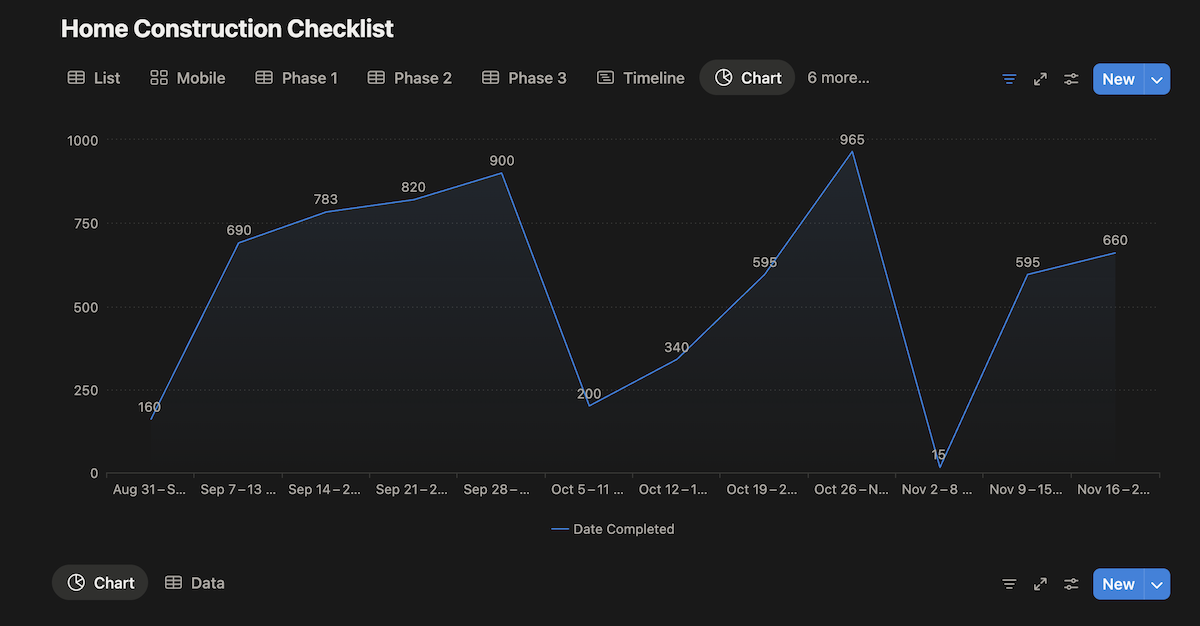
Notion’s charts are more flexible and offer more options to influence data than Plaky does. However, Plaky’s charts take little to no time to set up with settings that you won’t struggle to learn.
Get project results easily in Plaky
Both apps have similar automation options, but Notion also offers AI tools
Plaky’s automations offer simple ways to get rid of manual tasks on your project board and optimize your workflow.
The automation tab in Plaky is one of the most intuitive automation tools I’ve come across. Before you click on any option, it’s immediately clear what that change will achieve. After all, automations should save time — so it makes sense that setting up one shouldn’t waste time either.
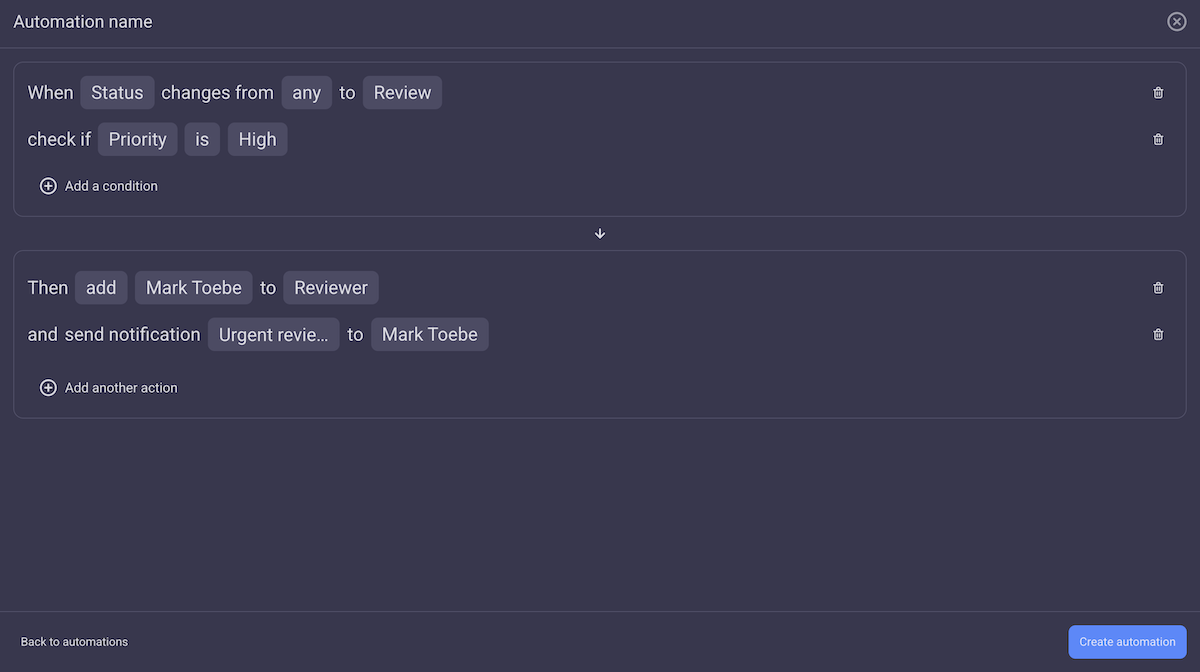
These automations work as an “IF-THEN” function. In essence, this means “IF a trigger happens, THEN do this action”, e.g., “IF status is set to review, THEN add QA team to the reviewer field”.
I especially like that you can add multiple triggers and actions to 1 automation.
For example, say you want high priority tasks to be reviewed by a more experienced QA team member. In that case, the example we gave earlier doesn’t fit — you’d just add them to all tasks set to review. So instead, you can set the following automation: “IF status is set to review AND priority is high, THEN add [Senior QA engineer] to the reviewer field”.
Plus, if you also want to make sure the team member is notified — you can add another action that does exactly that. So no time wasted leaving comments just to @mention someone.
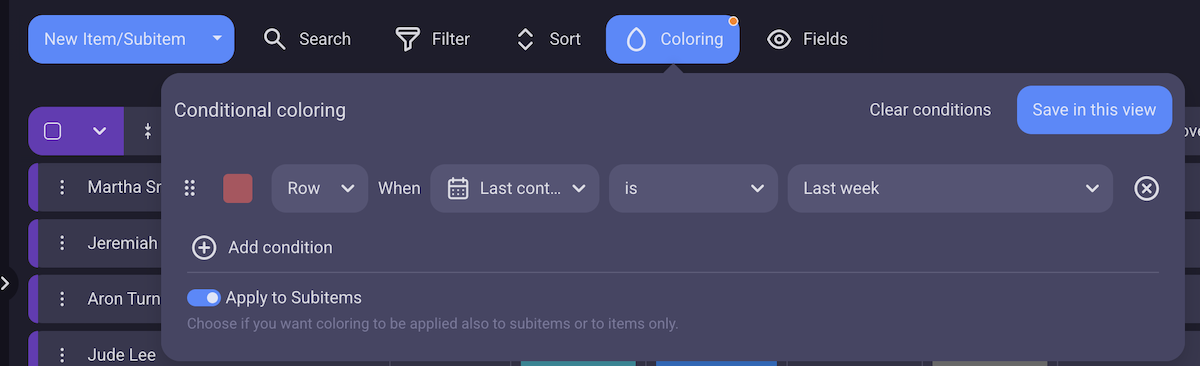
Another automation option Plaky offers is conditional coloring.
This nifty option lets you color an item based on specific conditions. These can be:
- Custom field updates,
- A specific deadline or its proximity,
- When the item was created, and much more.
For example, you can color a task red as its deadline approaches, to let your team members know exactly what to focus on.
It helps greatly with project prioritization, letting you and your team know exactly which data needs to stand out.
Notion’s automations also include classic “IF-THEN” automations, along with AI capabilities and AI agents.
Automation in Notion functions pretty much the same as with Plaky — including multiple triggers and actions.
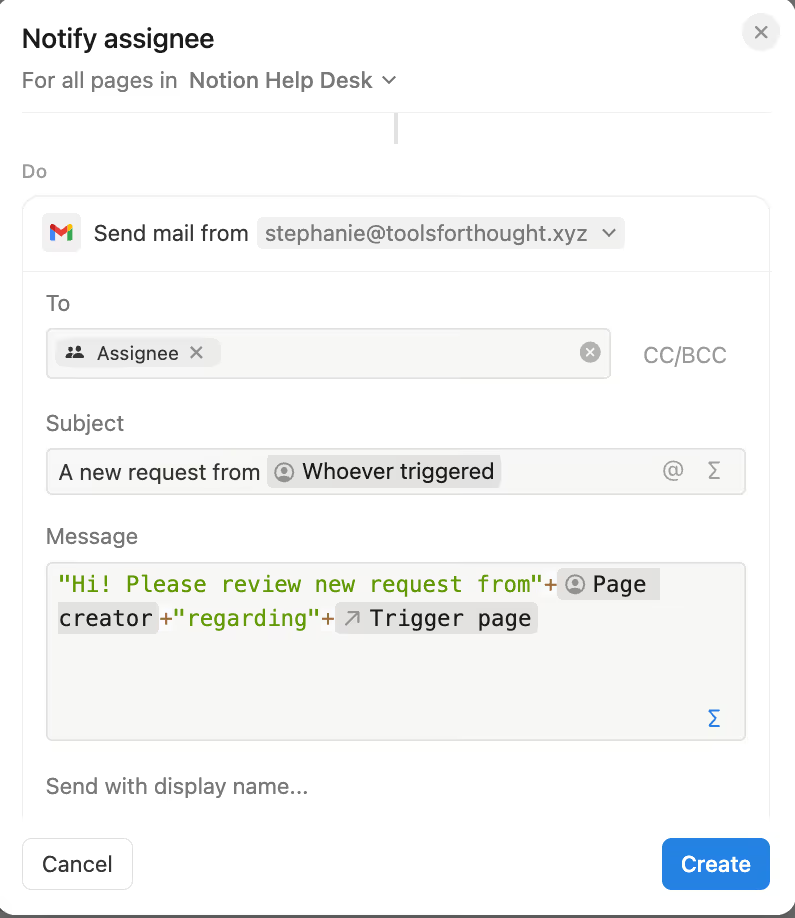
Another perk of Notion’s automation is that it can be integrated with email. For example, you can set an automation that sends an email to your client updating them when a task is set to complete.
Notion also includes buttons, which are a special type of automation that’s set up as one of your page blocks — and their trigger is always just clicking the button.
I find this particularly useful for actions that don’t have specific triggers, but they’re still a pain to do. For example, sending the email to your client requesting further information.
This way, you can get things done without setting up a trigger that could perform the action at an undesirable time.
The other feature built to increase efficiency and make your work easier is Notion AI and AI agents.
And yes, there’s a difference between the 2 — Notion AI is meant to work on a single page, and is made for simple questions or straightforward tasks. It’s the version that you add as a block to your page and the bubble that sits at the bottom-right corner, so you could ask general questions instead of sifting through the page yourself.
A limited version of this AI is available in the free plan — though my experiences with it are 50-50. The quality of answer you get really depends on your prompt, and the AI has surprisingly little understanding of the app’s functionality. It took me a dozen tries to get it to properly explain how to add a comment to a page.
The AI agent, on the other hand, promises full, in-depth understanding of all of your pages, your workflow, and every element in your workspace. This allows it to perform more complex actions, like create pages and update their content, analyze all of your pages, inspect PDFs, etc.
I didn’t get to test Notion Agents, since they’re not available on the free plan — but I’ve seen good reviews from other users.
In essence, Plaky and Notion offer the same automation options, but Notion also offers AI and Agents to assist your workflows.
Notion has more integrations than Plaky
Plaky offers 2 powerful integrations, starting with the free plan — with Clockify for time tracking and Pumble for team collaboration.
Even though Plaky offers just 2 integrations, all 3 apps are part of the same suite, which means these integrations are tightly connected, similarly developed, and most of all, powerful.
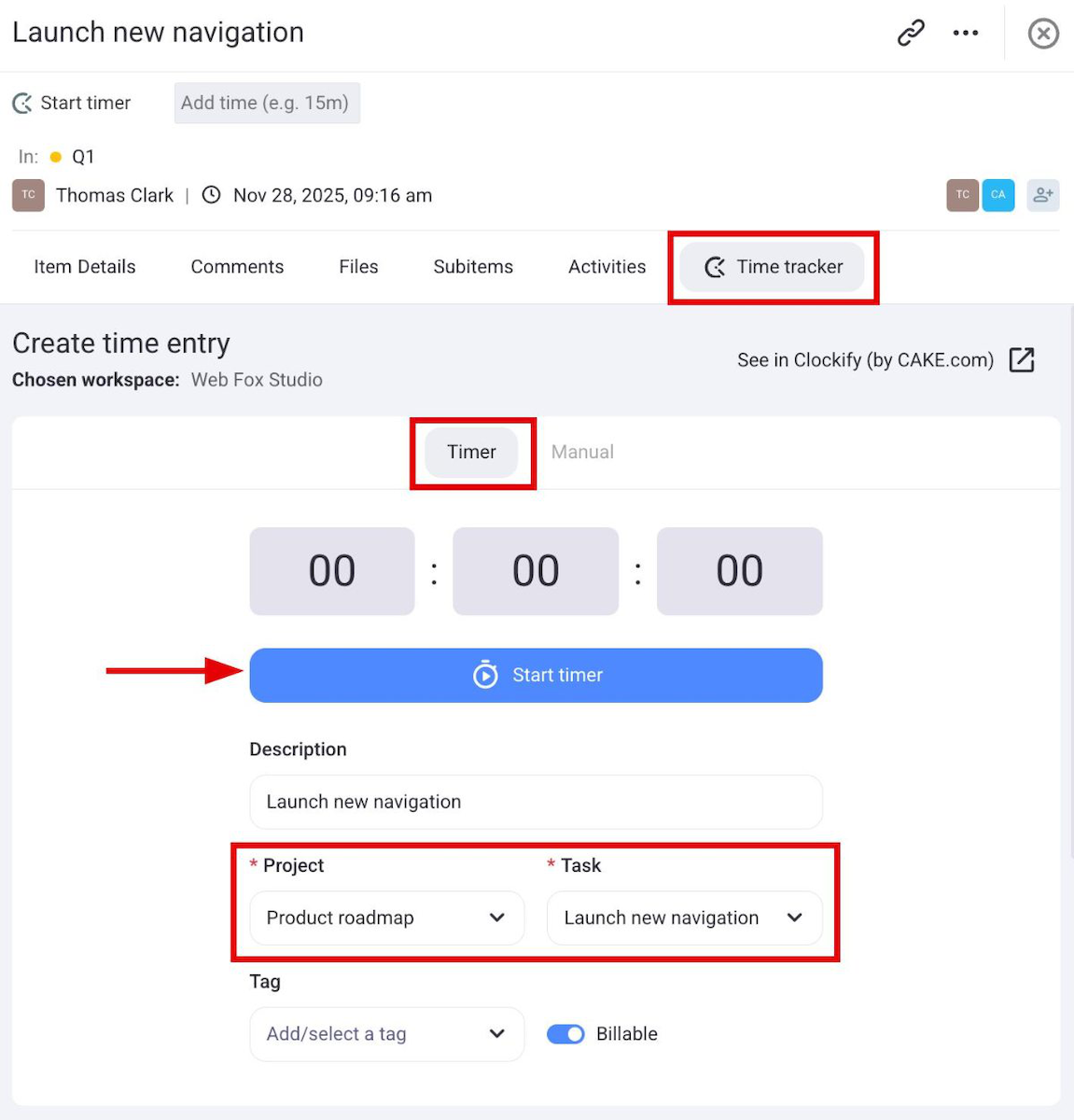
The integration with Clockify gives you a separate time tracking tab on every item. Each team member, including you, can use this option to start a timer or manually input time spent working on that specific task.
All of this info is synced to your Clockify account, where you can use this info to generate timesheets to keep an eye on productivity, review time tracked to plan future tasks more accurately, and create invoices to manage client payments easily.
The Pumble integration makes sure your team is notified of all Plaky board updates. Every time a user gets a Plaky notification, this integration sends them a message in Pumble, letting the user know there’s an update, and what the update is. Best of all, this integration works in real time, so you won’t have to wait for a team member to simply notice Plaky notifications.

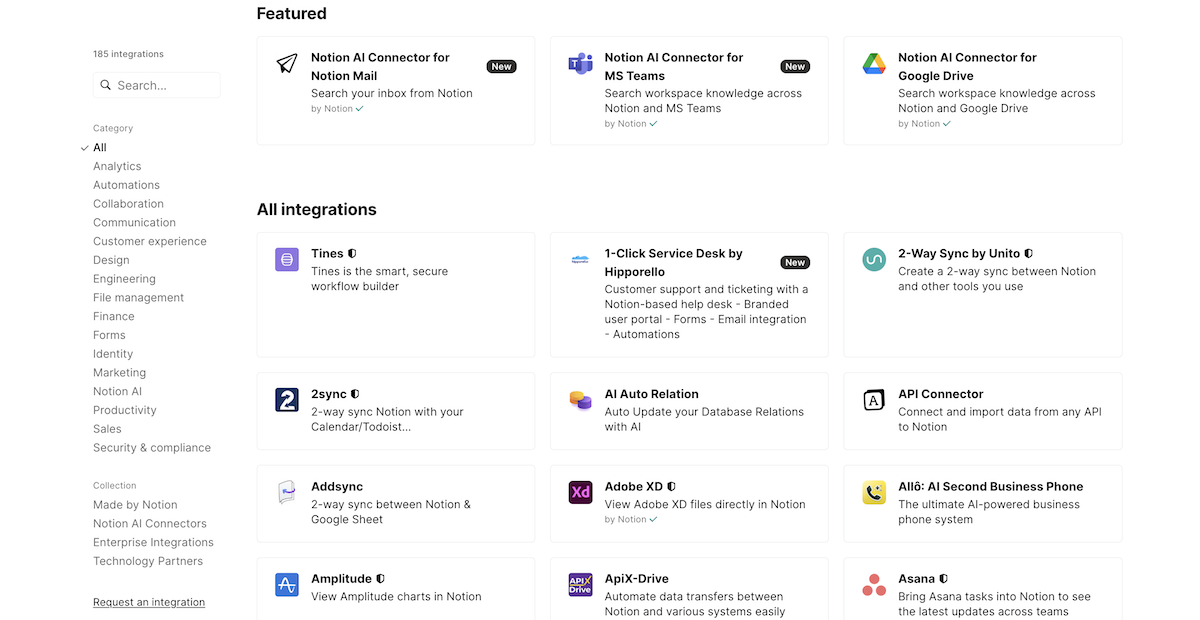
Notion offers 100+ integrations overall, sorted into basic and premium integrations based on the plan you’re subscribed to.
Notion’s integrations gallery is divided into categories for easy browsing, like:
- Collaboration — Slack, Zoom, Trello, etc.
- Finance — Finicom, Qonto, Pop Invoice, etc.
- Design — Figma, Canva, MoreDraw, etc.
- File management — Dropbox, One Drive, Unthread, etc.
And, all of these are available in the free plan.
But, there are some integration capabilities that you only get in the (most expensive) Enterprise plan. These are called AI Connectors — and they give Notion AI agents access to your integrated apps.
This means that your AI assistant can perform even more actions, based on the integrated apps. For example, it can parse through Slack messages and find important information for project planning, or go through your calendar and find an available slot for that client meeting schedule.
Notion offers way more integrations than Plaky. But, with a powerful, interconnected suite, Plaky makes sure the integrations it does offer are more valuable for your productivity.
Plaky’s support is much better than Notion’s
With such an intuitive tool, you likely won’t even need Plaky’s support. But even so, Plaky is always ready to help.
Like many other tools, Plaky offers different support pages:
- Plaky help — for in-depth guides on Plaky’s features and how to best utilize them,
- Video tutorials — to help users visualize how features work, and
- Knowledge hub — to help users learn not just about Plaky, but about general project management topics, too.
Besides this, Plaky offers 24/7 fully human support — which I highly prefer over Notion’s AI oversaturation. You can contact support over the phone, real-time chat, or email. Plus, this isn’t limited or prioritized by the plan you’re on, so there’s no favoritism based on your subscription tier.
Lastly, you can also get a personalized success agent in Plaky for concierge services, personalized onboarding, and consultations. To qualify for this service, you need at least 120 seats registered for the Pro plan, 50 for Enterprise, or 30 for Bundle.
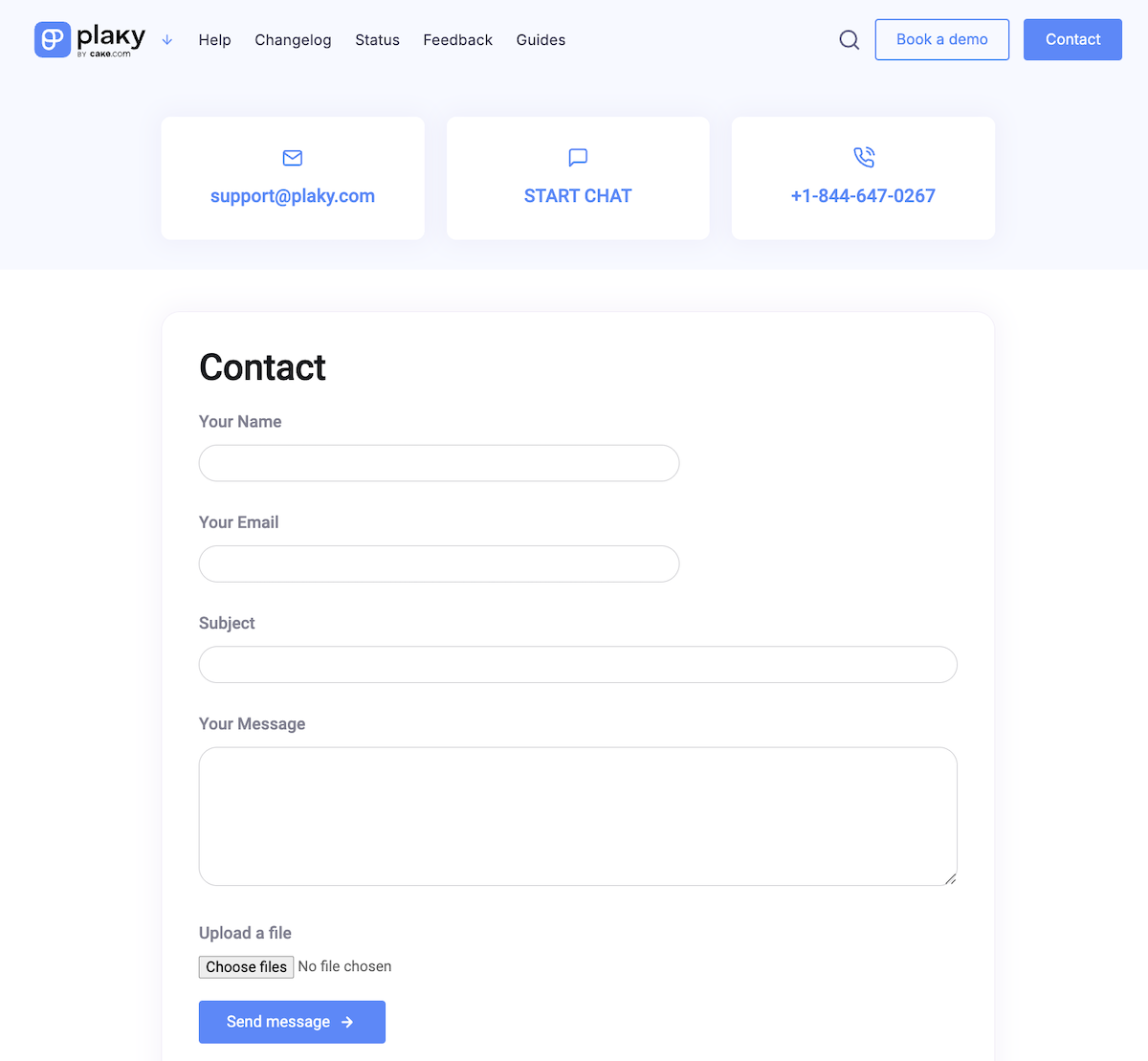
Notion’s support is highly needed, considering the tool’s complexity. Even so, I found the support it offers lacking.
Similar to Plaky, Notion also offers several support pages, like:
- Notion help — to help you learn how to use the app’s features,
- Academy — for in-depth courses on creating effective workflows in Notion,
- Community forum — to discuss issues and questions about the app with other Notion users.
Notion’s customer support, however, is a bit unclear to me.
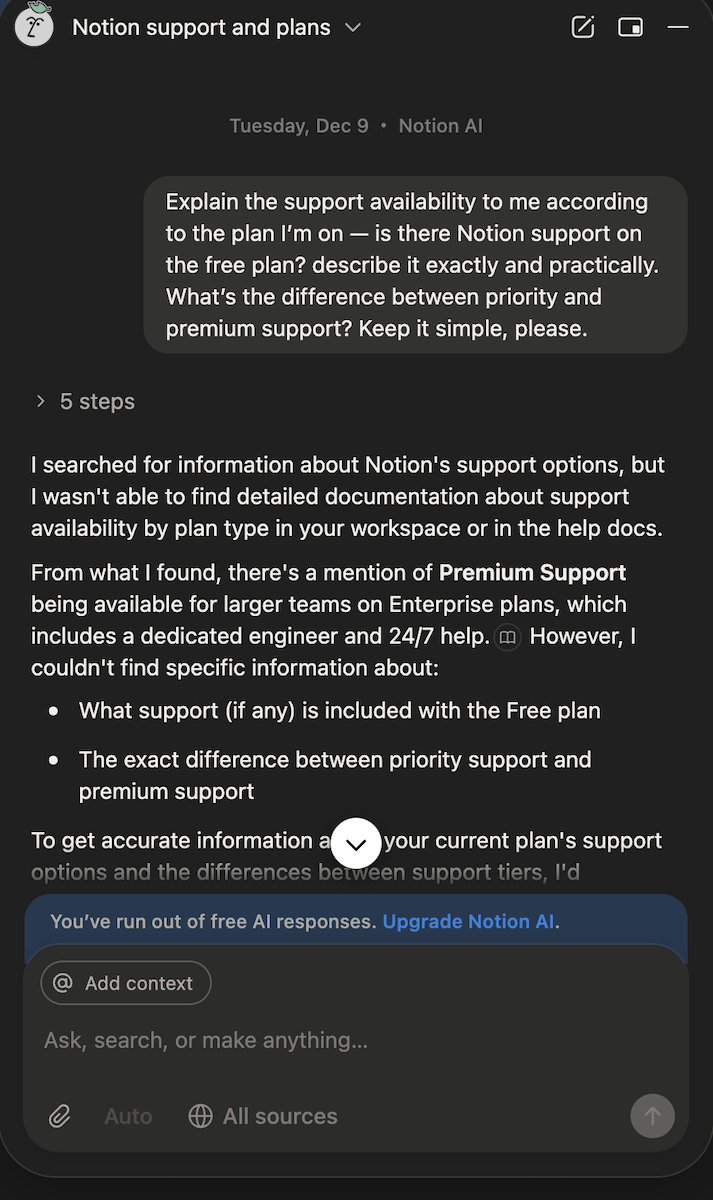
The pricing page only lists priority and premium support — the first is available for Plus plan users and above, and Notion’s explanation here just reads like normal customer support, so I’m not sure where “priority” comes in.
Then, there’s premium support — which Notion explains as tailored and proactive. However, I can’t figure out what this means in practice, and I couldn’t find any Notion article that explains support in-depth.
I tried to ask Notion AI, which is trained on their pages, and even that couldn’t help me.
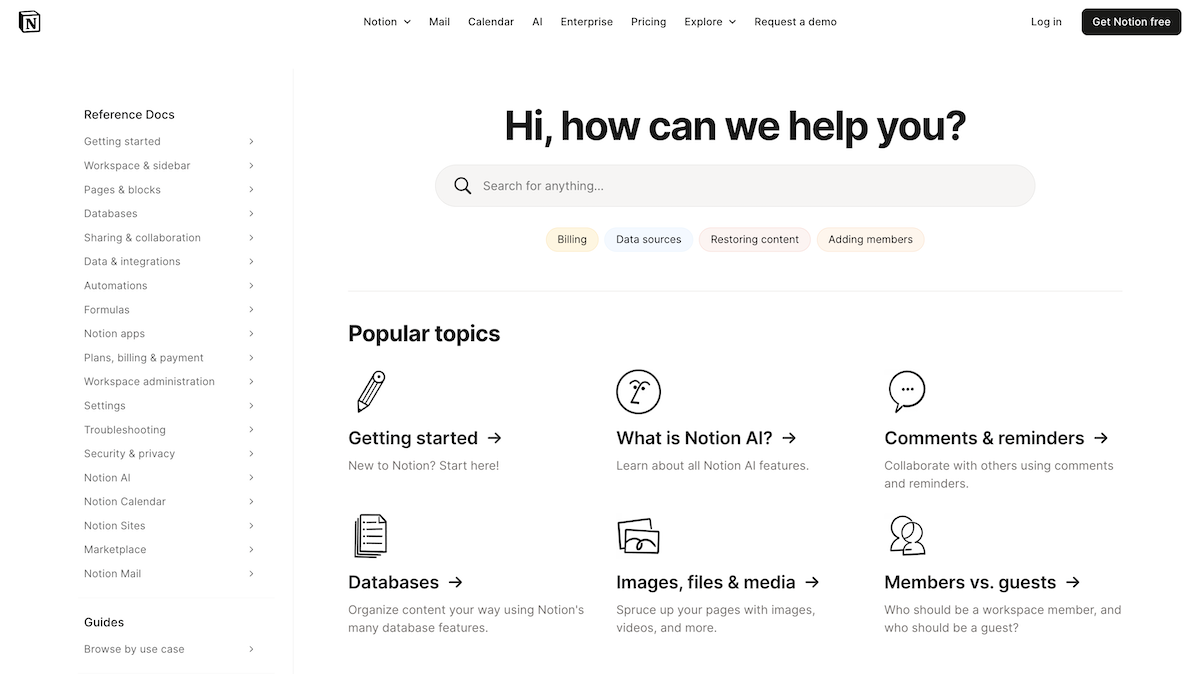
Notion’s support is frustrating to figure out, and its AI didn’t prove helpful either. Plaky’s support, on the other hand, is dedicated, human, and available 24/7, so I prefer it by a large margin.
Contact Plaky’s human support, 24/7
Both tools are dedicated to keeping your data secure
Plaky takes security seriously, making sure the development cycle of its tools is safe and in line with the latest security compliances.
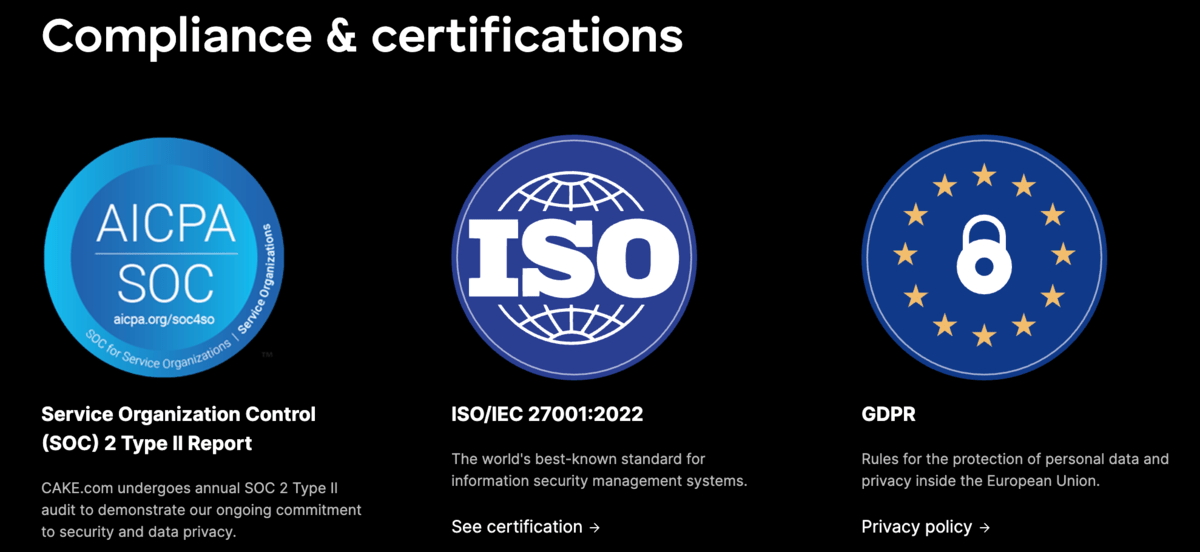
Plaky has several security audits under its belt, like:
- ISO 27001,
- SOC 2, and
- GDPR.
Additionally, Plaky ensures security with its:
- Staff,
- Development,
- Testing, and
- Cloud storage.
This way, Plaky puts security first, from the start of development to finish — which makes your data on the app safe, too.
Plaky also employs a bug bounty program, where users can find and report security vulnerabilities for a reward.
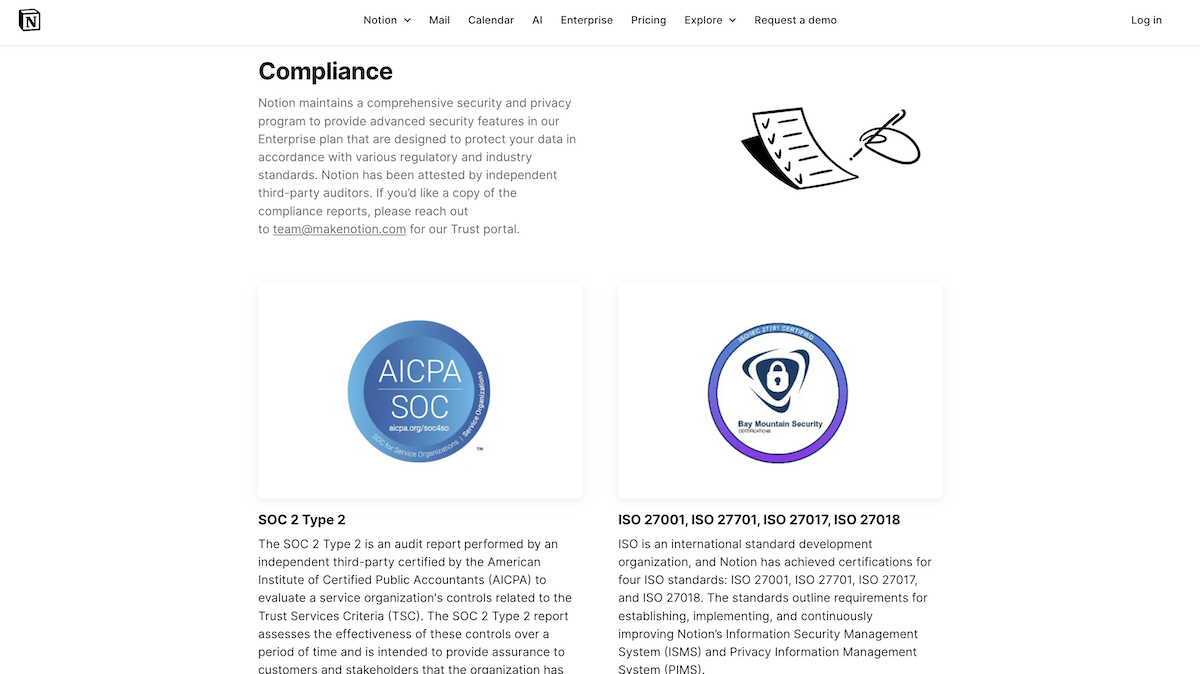
Notion is also a secure tool — with plenty of security compliances and a safe development cycle.
The security compliances Notion collected include:
- ISO 27001, 27701, 27017, and 27018,
- SOC 2,
- GDPR,
- HIPAA, and
- BSI C5.
Besides this, Notion also makes sure all aspects of its development are secure and leads to a product that keeps your data safe.
Its architecture is also made by partnering with Cloudflare, and it’s hosted on Amazon Web Services. There’s even a status page — so you can see if Notion is up and running, and if an issue you’re experiencing is actually a downtime issue.
And just like Plaky, Notion hosts a bug bounty program, though they host it through a separate service — HackerOne.
All in all, I believe both of these tools take security very seriously, and your data is safe no matter which you choose.
FAQ
Let’s take a look at some common questions that come up after reviewing these 2 apps.
Which app is best for non tech-savvy users?
The best PM tool for non-tech people is Plaky, since it offers:
- Intuitive UI,
- Easy to learn features,
- Good customer support, and
- Industry-related templates.
Its features put ease of use first, and you can get started with minimal setup using Plaky’s template center. So, even users who’ve never used PM tools before won’t have to waste time with excessive onboarding and a difficult setup process.

Notion’s pages can be tasks and docs. If I switch to Plaky for task management, how do I manage documents?
Switching to Plaky doesn’t just benefit your task management. Plaky makes it easier to save your documents, too.
With a clear structure, you won’t get lost figuring out whether something is a task or a doc, like you do in Notion. Instead, docs have their own clear place, nested in the tasks they’re relevant to.
Is it difficult to migrate data from Notion into Plaky?
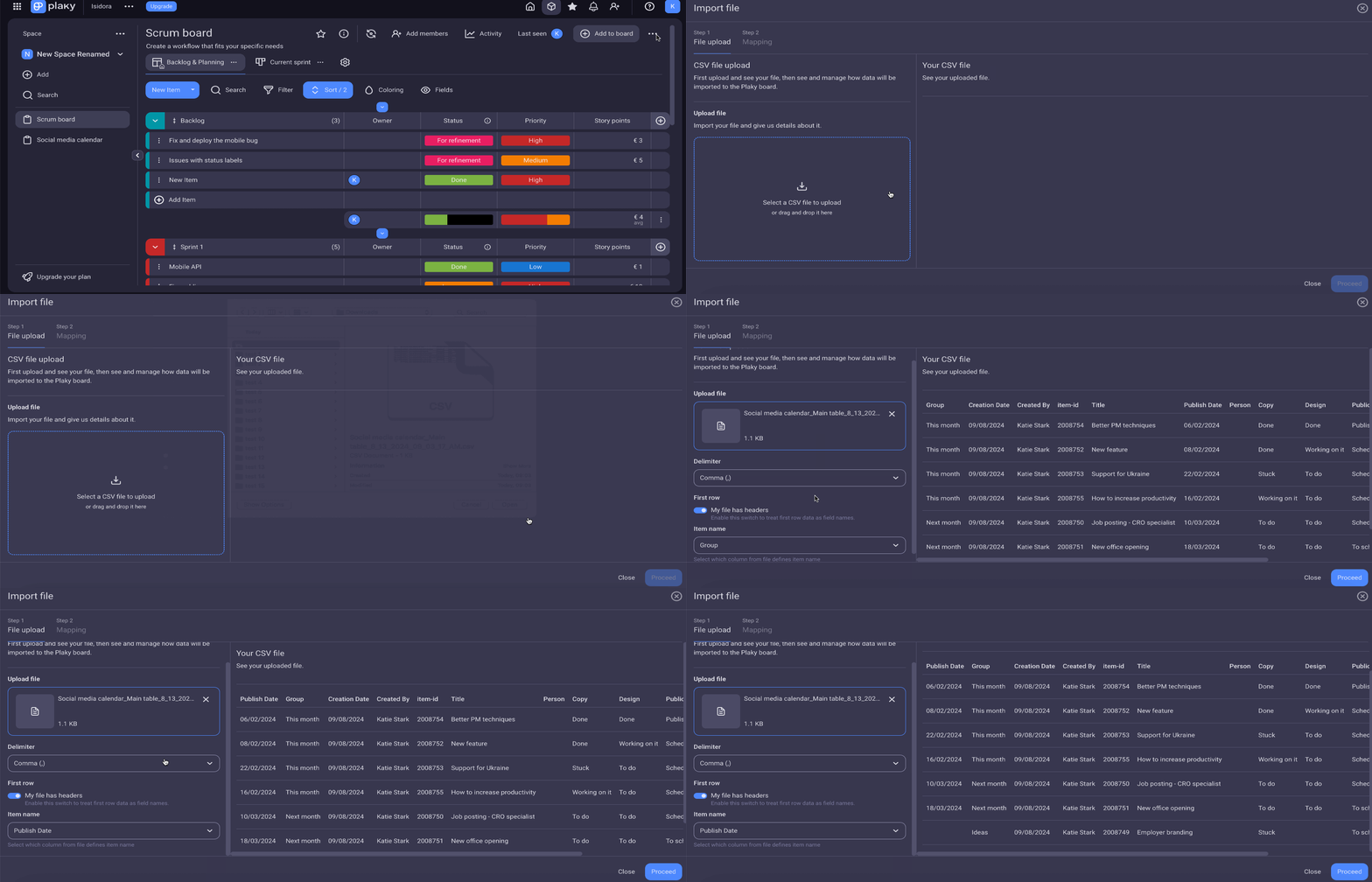
Not at all! You can migrate data from Notion to Plaky with just a few easy steps:
- Go to a Notion database you want to migrate data from.
- Click on the 3 dots in the top right corner.
- Select “Export” then “Markup & CSV”.
- Log into Plaky.
- Create a new board.
- Click on the 3 dots in the top right corner.
- Select “Import from CSV”.
- Fill in delimiters, headers, and select the column that defines item names.
- Select the item group where this info will import.
- Select which columns will correspond to which field.
💡 Plaky pro tip
Want more detail about importing CSV files to your Plaky boards? Check out this useful guide:
Save time and boost clarity with Plaky by CAKE.com
Your PM tool of choice should save you time, not waste it — so go with the one that’s intuitive and doesn’t take long to set up.
And this is exactly what you get with Plaky.
It’ll help your team thrive and save time, no matter its size or industry:
- Small teams (especially if they haven’t used PM tools before) will find Plaky’s navigation easy to figure out, with a bunch of customizable templates that help them avoid setup with unfamiliar options.
- Mid-sized teams (who’ve probably used PM tools before) will see Plaky as familiar, but more streamlined and easier to work in, with simple options to transfer their project data from other apps to Plaky.
- Large teams will figure out how to use even the most comprehensive features in Plaky with little to no effort (e.g., the Gantt chart or automations), and enjoy the clear overviews they can get with even the most complex projects.
Make the right choice — go for Plaky by CAKE.com and lead projects to success with ease!