A simple yet robust PM tool Plaky by CAKE.com stands up to the feature-packed ClickUp that promises to be “the everything app for work”. Both pack a powerful punch, each in line with their core philosophy, but who will win?
Scroll down for a Plaky vs ClickUp showdown, where I compare their features and help you decide which one fits your needs!

WHY TRUST US?
Human reviewers try out each app and follow strict guidelines while writing about the comparisons. We follow a transparent, clear, and systematic methodology, so that every review is objective and accurate.
What are the main differences between Plaky and ClickUp?
The main difference between Plaky and ClickUp is in their ease of use, which is a direct consequence of their core philosophies.
ClickUp aims to be the one tool you’ll need for your work, or “the everything app for work”. As such, it is a feature-rich platform; it wants you to do everything in it — from task management to internal chatting.
On the other hand, Plaky is focused on being a more straightforward PM platform. It’s built with simplicity and reliability in mind, and it operates on a strong belief that you should use the right tool for the job, not one tool for everything.
In line with that, Plaky is a part of the CAKE.com ecosystem, together with team communication tool Pumble and time tracker Clockify.
Regardless of these fundamental differences, both Plaky and ClickUp offer great features, which I’ll go over in detail.
But first, here’s side-by-side overview of how they compare:
| Feature | Plaky by CAKE.com | ClickUp |
|---|---|---|
| Pricing | – Free plan – Pro $3.99 – Enterprise $8.99 – CAKE.com Bundle $12.99 | – Free plan – Unlimited $7 – Business $12 – Enterprise POA |
| User experience (UX) and user interface (UI) | – Intuitive and responsive – Clean and simple | – More complex – Cluttered |
| Task management | Advanced | Advanced |
| Progress tracking | Advanced | Advanced |
| Team collaboration | – Comments – @mentions – File sharing – Transparent activity log | – Docs – Chat – Inbox – Whiteboards |
| Integrations | 2 | 50 |
| Support | – 24/7 email, chat, and phone customer support – Help page – Knowledge hub – Plaky guides – Tutorials | – 24/7 support – ClickUp University – ClickUp webinars – live training |
| Security | – SOC 2 – ISO 27001 – GDPR | – ISO 27001, ISO 42001 – GDPR – HIPAA – SOC 2 |
What’s new in Plaky?
Plaky recently introduced:
- Chart view — for smoother progress tracking,
- Integration with Pumble — for easier activity tracking,
- “Remind Me” option — for setting comment and reply reminders, and
- My Tasks — all your tasks in one place.
What’s new in ClickUp?
As of recently, ClickUp enabled its users to:
- Create custom emojis for their team — for personalizing reactions in the Workspace,
- Connect search for Gmail — for tracking down emails without switching apps, and
- Schedule Dashboard reports — for emailing Dashboards to anyone whenever necessary.

Plaky vs ClickUp: Main features overview
It’s time we tackle both apps’ main features and see how they measure up against each other.
Plaky’s paid tiers are more affordable than ClickUp’s
Both Plaky and ClickUp offer 3 paid plans, so you can choose whichever suits your needs best.
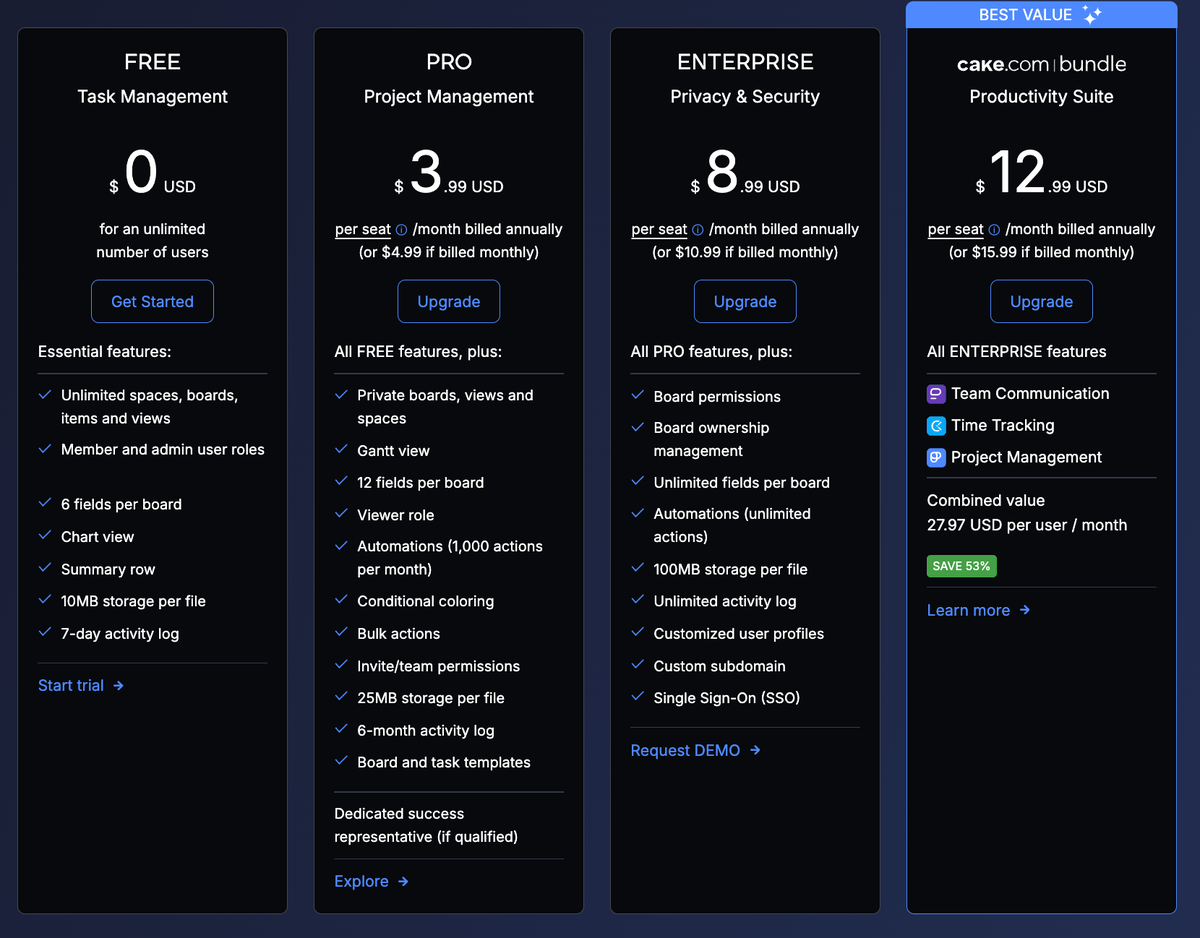
Plaky’s paid plans are among the most affordable on the market. They start at $3.99, which is great news for cost-conscious teams.
Here’s an overview of Plaky plans:
| Plaky plans | Yearly subscription | Monthly subscription |
|---|---|---|
| Free | $0 | $0 |
| Pro | $3.99 | $4.99 |
| Enterprise | $8.99 | $10.99 |
| CAKE.com Bundle | $12.99 | $15.99 |
Some of the more advanced features — like private boards, Gantt view, and conditional coloring — are available in both Pro and Enterprise plans. The Enterprise plan’s extra perks include unlimited automations, board permissions, and Single Sign-On (SSO).
A great option is the CAKE.com Bundle, which gives you 3 fully upgraded apps for the price of 1:
- Plaky — for task and project management,
- Pumble — for business communication, and
- Clockify — for time tracking.

ClickUp, on the other hand, is considerably pricier than Plaky. Its lowest paid plan starts at $7.
Let’s look at ClickUp’s paid plans in more detail:
| ClickUp plans | Yearly subscription | Monthly subscription |
|---|---|---|
| Free Forever | $0 | $0 |
| Unlimited | $7 | $10 |
| Business | $12 | $19 |
| Enterprise | POA | POA |
ClickUp’s Unlimited plan really does offer a lot of unlimited features (storage, folders, spaces, etc.). The Business plan adds Google SSO, private whiteboards, workload management, and more to all that. Handy, right? So, the only thing that might be a dealbreaker is the price, which is not to be sneezed at.
So, we’ll play a little game of pretend. Here’s how much a team of 10 and 30 members would have to pay for each of these app’s paid plans (excluding the CAKE.com Bundle and ClickUp’s Enterprise plan).
| Team size | Plaky Pro | Plaky Enterprise | ClickUp Unlimited | ClickUp Business |
|---|---|---|---|---|
| 10 | $478.8 | $1,078.8 | $840 | $1,440 |
| 30 | $1,436.40 | $3,236.40 | $2,520 | $4,320 |
The difference is striking. In either case — whether you choose the cheapest or the more expensive tier — you’ll save money with Plaky.
Don’t overpay for your PM tool — try Plaky
Plaky has a better free plan than ClickUp
If you’re considering free plans because you’re not ready to commit yet, I have some good news for you. Both Plaky and ClickUp have decent free plans.
Plaky’s generous free plan offers:
- Unlimited users, spaces, boards, items, and views,
- Member and admin user roles,
- 6 fields per board,
- Chart view,
- Summary row,
- Unlimited storage (10 MB per file), and
- 7-day activity log.
This is a great option for startups and growing teams (or anyone who’d like to test the waters first). Thanks to unlimited users, you won’t have to upgrade to a paid plan until you want to try some premium features, like automations or conditional coloring.
Meanwhile, ClickUp’s free plan offers:
- Unlimited tasks, custom views, and users,
- Collaborative docs,
- 5 spaces and 40 lists and 100 folders per space,
- 60 MB of storage space,
- 60 uses of Gantt, Timeline, and Workload views,
- 1-day activity log, and
- 24/7 support.
Although it may seem like ClickUp’s free plan is just as generous as Plaky’s, the limitations in spaces, the number of uses of certain views, and activity log will quickly force you to upgrade. So, you won’t be able to use it in the long run.
To illustrate, in Plaky, you can onboard your whole organization, share as many files as you want, and create an unlimited number of projects without ever having to upgrade to a paid plan.
Meanwhile, in ClickUp, your team will be constrained by a 60 MB storage limit and 5 spaces — so you’ll have no choice but to move to a higher tier at some point.
💡 Plaky Pro Tip
See how Plaky compares to other popular project and task management tools:
Plaky’s UI is much more intuitive than ClickUp’s
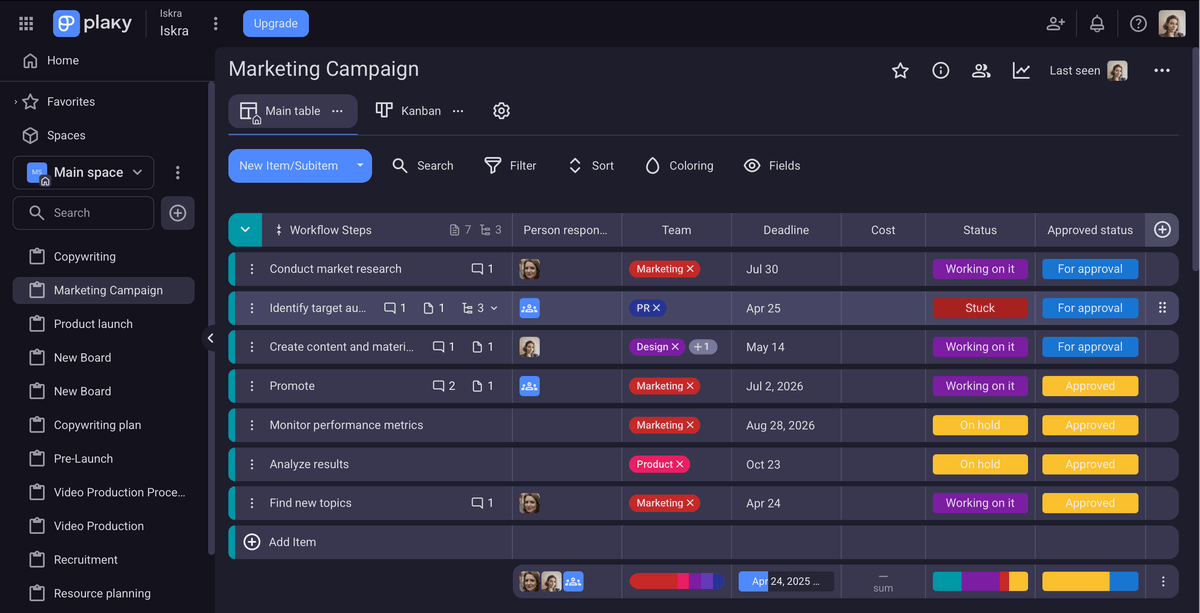
Plaky’s interface is clean and user-friendly.
There is a light and a dark theme — both really pleasant for the eyes. I personally prefer the dark one, simply because it makes the colors of certain fields (like Status or Timeline) more striking to me.
As for navigation, it’s rather intuitive. The menus and buttons are where you’d expect them to be, which makes the onboarding process a breeze. It takes a new user 15 minutes tops to get the idea of how Plaky works.
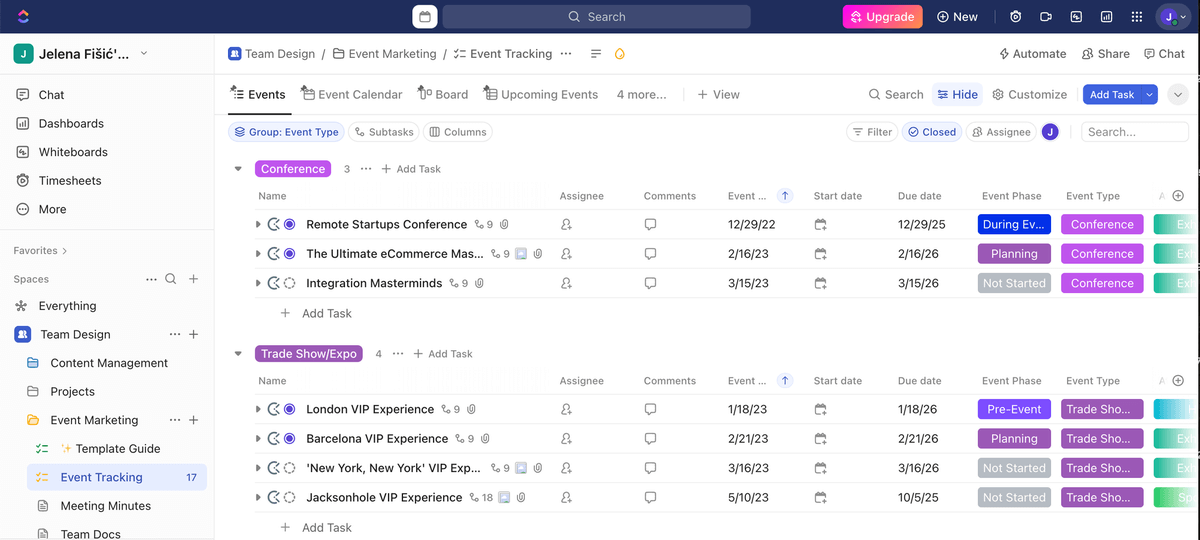
On the other hand, unlike Plaky’s, ClickUp’s UI is rather cluttered.
ClickUp also offers a light, dark, and auto appearance, but lets you choose from 10 colors for your theme. That can be a plus, but for me, it just made setting up my board more difficult. There are just too many options, and you can quickly get lost in them.
And as if that weren’t enough, anywhere you click on the board, a whole new world of options appear, which feels really overpowering. Plus, it makes navigating the app a bit of a nuisance.
Perhaps because of all these customization options, users often complain about performance issues. Some ClickUp users on Reddit are even reporting task load times exceeding 10 seconds.
In search of a polished UI? Try Plaky
ClickUp has more advanced task management, but Plaky’s is more user friendly
Organizing and managing your tasks in Plaky is straightforward and easy.
You have items (tasks, clients, locations, whatever building block of a project you need to keep your workflow organized) and subitems (smaller tasks within an item, which help you never forget any part of a task, no matter how small).
You can structure relevant information about items the way it makes sense to you thanks to various custom fields, such as:
- Deadlines — when the task is due,
- Assignee(s) — who’s responsible for the (sub)item,
- Status — the task’s progress status (To Do, Doing, On Hold, Done), and
- Priority — how important the task is (High, Medium, Low).
As far as task management features are concerned, Plaky stays consistent with its no fuss philosophy — they are simple but pack a powerful punch. The app allows you to:
- Create boards for each project — to stay organized and see the big picture at a glance,
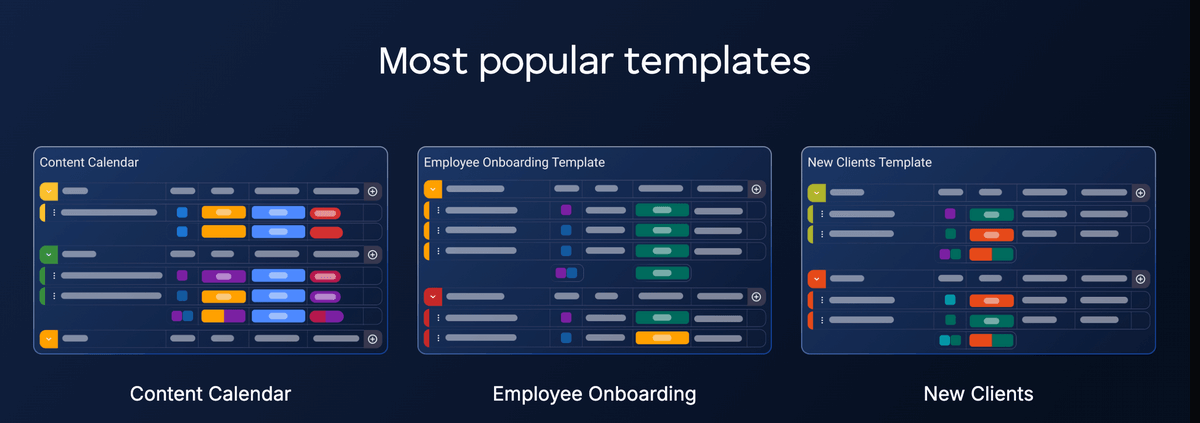
- Use templates — to speed up setup and avoid making boards from scratch,
- Take advantage of bulk actions — to save time by eliminating repetitive work, e.g., bulk move, duplicate, or delete items, and
- Set up board automations — to minimize human error and streamline your workflow.
In ClickUp, task management is basically organized in the same way as in Plaky. There are tasks and subtasks, organized into lists. Similarly, every task/subtask has standard features, including:
- Assignees,
- Priority (with color-coded levels),
- Due Dates, and
- Description.
ClickUp also lets you add custom fields for the relevant data you need for a specific task or project.
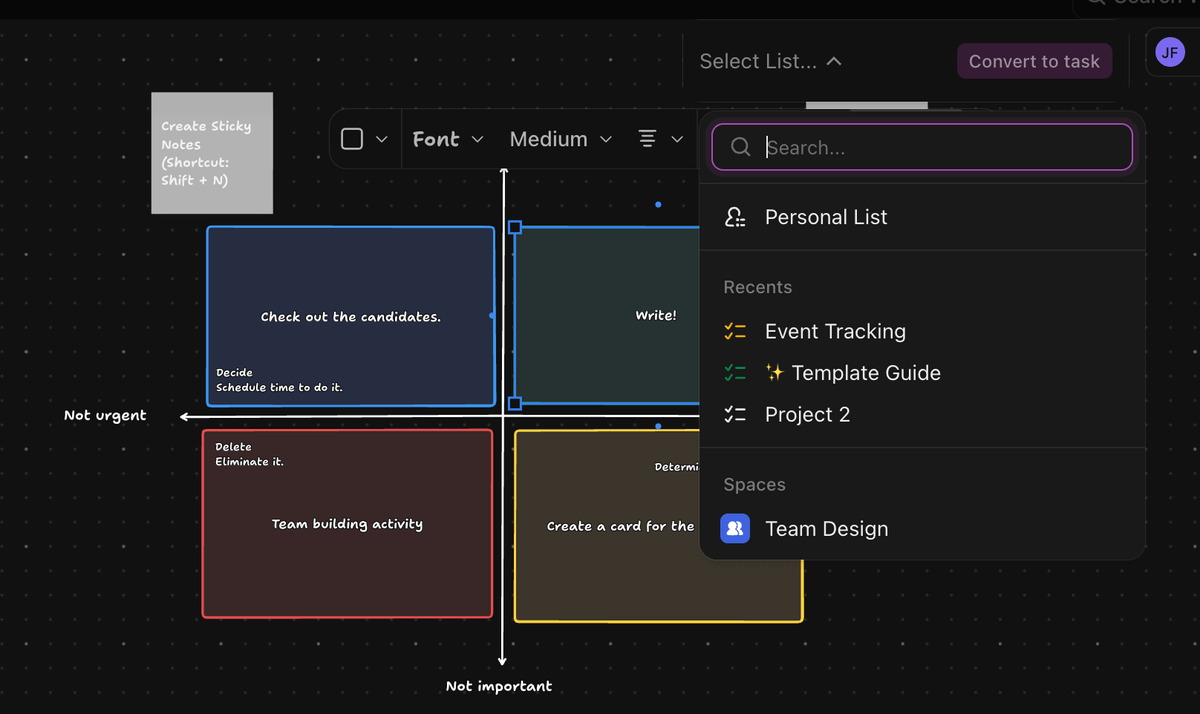
Furthermore, you can take a whole bunch of actions with tasks (e.g., merge them, add dependencies, or change task types). Also, ClickUp allows you to convert docs, notes, and subtasks into tasks. You can even turn items from the Eisenhower matrix into tasks (if they’re urgent and important) or into sticky notes (if they’re not urgent but are important).
That said, although these features are convenient and may come in handy, they come with a steep learning curve. You have to be tech-savvy and patient to harness the true potential of ClickUp. So, if you already have a lot on your plate, these features will not be of much use to you.
Tired of complex PM tools? Try Plaky
Both Plaky and ClickUp offer neat progress-tracking features
For a project to be successful, you need to monitor its progress and detect any issues before it’s too late. Luckily, both Plaky and ClickUp are equipped with fine progress-tracking features.
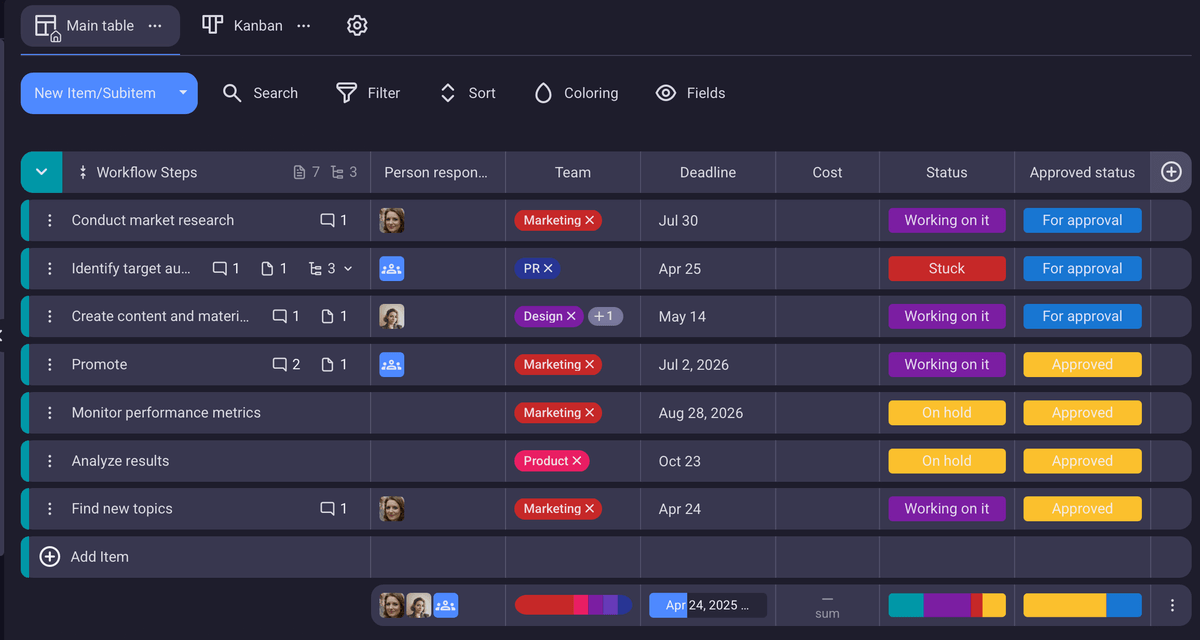
The following Plaky features can help you track your projects’ progress:
- 4 different board views — Depending on your preferences and needs, you can choose Table, Kanban, Gantt, or Chart view.
- Sort and filter options — If your Plaky board has become too much for you to handle, there’s an easy way out — just filter the data you need and sort it the way you want.
- Summary row — It’s like the SUM formula in Excel, but better, as it has live updates, so you don’t have to worry about missing something and making a mistake.
- Conditional coloring — Define criteria, prioritize your data, and color-code them to make them stand out. This way, you can focus on the tasks that are really your #1 priority.
Conditional coloring, in particular, helps me stay efficient at work. For example, on the date my blog post is due, the task turns red, so as soon as I open my Plaky board, I know what the most important task on that day is.
Moving on to ClickUp, you’ll find that, aside from multiple board views, it lets you track progress in a number of other ways:
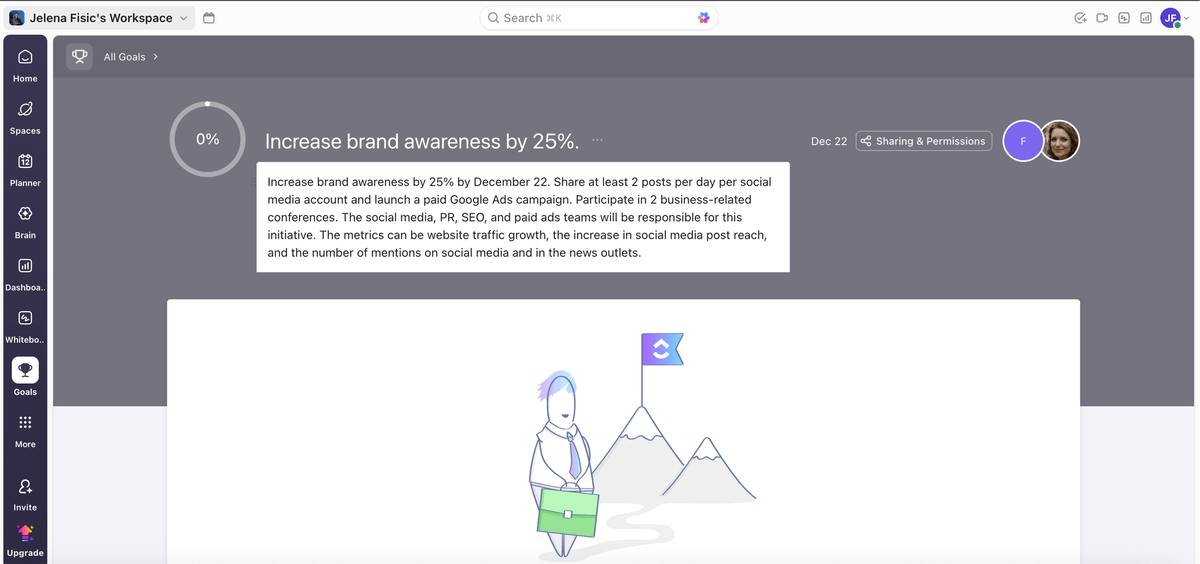
- Goals — You can divide goals into targets, which are easier to measure. Then, after linking your targets to your tasks, you track how close to achieving them you are.
- Milestones — You can convert important tasks into milestones, celebrate key achievements with your team, and align with your key stakeholders in a clearer and more focused fashion.
- Dashboards — Easily track performance metrics by turning them into simple visuals. You can even get an AI executive summary if you want a super-fast insight into your project’s health without having to analyze a thing by yourself.
Overall, I’d say both apps offer decent progress-tracking options.
For minimalists, Plaky’s a better choice, as it gives you insights you need without any complications.
That said, ClickUp might be a solid option for those who feel adventurous enough to try out more ways of tracking their tasks and projects.
ClickUp has more sophisticated team collaboration features than Plaky
Clearly, both Plaky’s and ClickUp’s teams knew how important collaboration is when they were developing these apps, as they both shine in this department.
True to its DNA, Plaky’s collaboration features are powerful, simple, and centered on the task itself, the most important being:
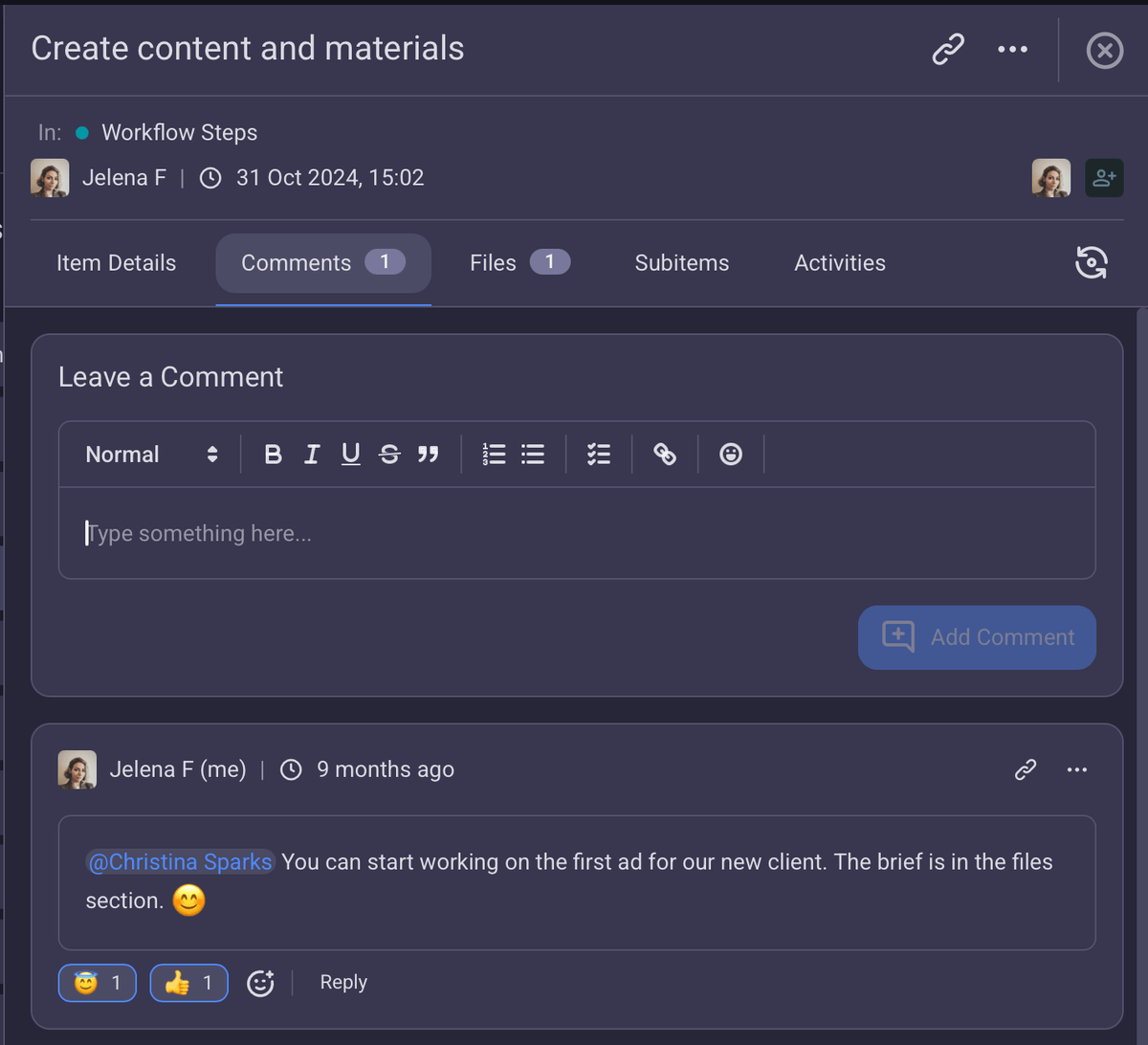
- Comments and @mentions — You can mention your team member or the whole team and add any item-related info directly in its comments section. This way, you don’t have to waste time switching apps.
- File sharing — The Files section on the card allows you to upload, download, open, search, and delete files. No more searching for documents through various drives and folders. Everything is neatly organized in one place — just where you need it.
- Transparent activity log — Everyone can check for recent updates or if there were any mistakes made in the board/item card. So, there’s no need for constant back-and-forth with your teammates.
- Notifications — Whenever a change occurs in a board/item/team, members get notified. This helps everyone stay updated about everything that’s going on in the team or project.
An extra touch that I really like and find useful are reactions to comments. This may seem like a small thing, but it helps cut back on unnecessary messages. Approvals have never been easier (and less wordy)!
In line with its “everything for work app” philosophy, ClickUp has gone a few steps further (and above the regular comments and @mentions) and allowed its users to collaborate in:
- Chat — Communicate and turn messages into tasks.
- Inbox — Get your emails directly in the app, without switching to other email account providers.
- Whiteboards — Echange ideas with your team members no matter where you work from and connect them to tasks, chats, and docs.
- Docs — Create docs within the app itself, edit them in real time with your teammates, and even connect them to your workflows.
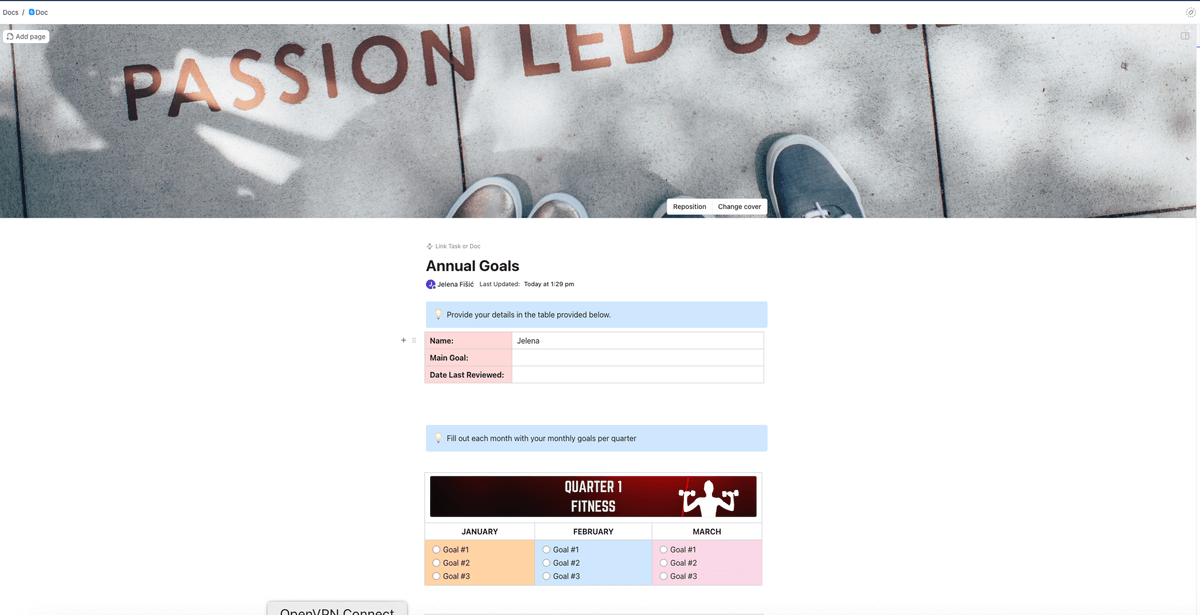
In theory, ClickUp covers all your collaboration needs — you won’t ever need to switch to another app. However, like in the instances before, so many features and options can clutter the interface and lead to information overload.
So, for those who like cleaner and more basic collaboration features, Plaky is the better choice.
ClickUp offers more integrations than Plaky
This one’s easy — ClickUp integrates with more apps than Plaky.
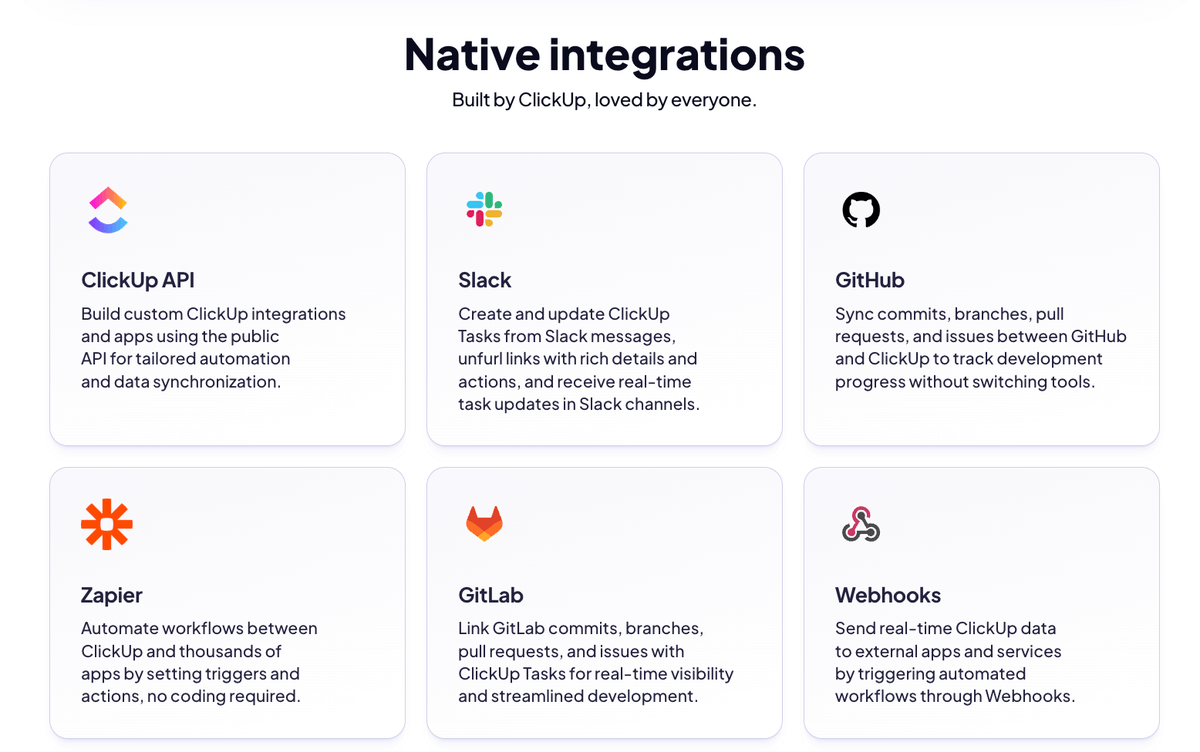
Currently, Plaky integrates with the world-renowned time tracker Clockify and the business messaging app Pumble, meaning its integrations are limited only to the other 2 CAKE.com products.
On the other hand, perhaps unexpectedly, as it boasts itself as “the everything app for work”, ClickUp offers around 50 native and many more third-party integrations.
However, integrations are available only on paid plans.
Both Plaky and ClickUp provide 24/7 support even on free plans
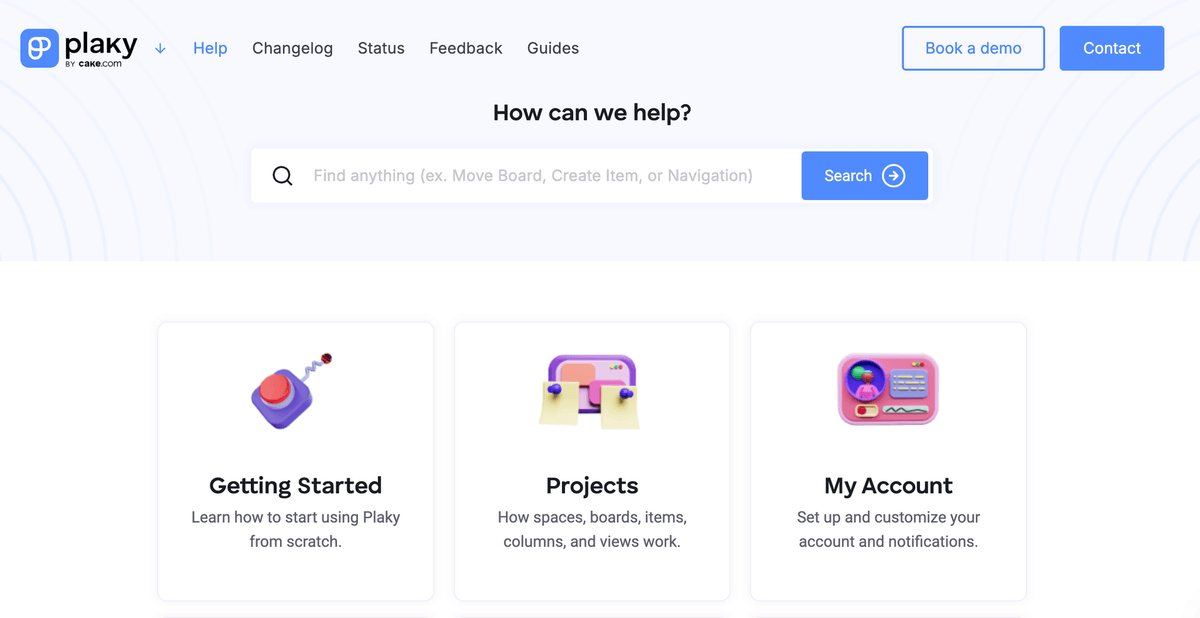
If you want 100% human support on all tiers (yes, that goes for the free plan as well), look no further than Plaky. You choose the way you want to contact support — by phone, email, chat, or even by filling out a contact form on Plaky’s support page.
Paid plan users can also get a dedicated success agent. This service is available for the following qualified users:
- Pro plan users with 120+ seats,
- Enterprise users with 50+ seats, and
- Bundle users with 30+ seats.
Aside from that, you can always check the knowledge base — Plaky Learn and Help Center — or watch the video tutorials.
ClickUp also offers an extensive support system — 24/7 support on all plans — but with certain differences based on the plan you’re on:
- Free plan users get their answers within 48 hours.
- Unlimited and Business users can expect to be helped within 24 hours + they have the option of live chat support.
- Enterprise users get priority support.
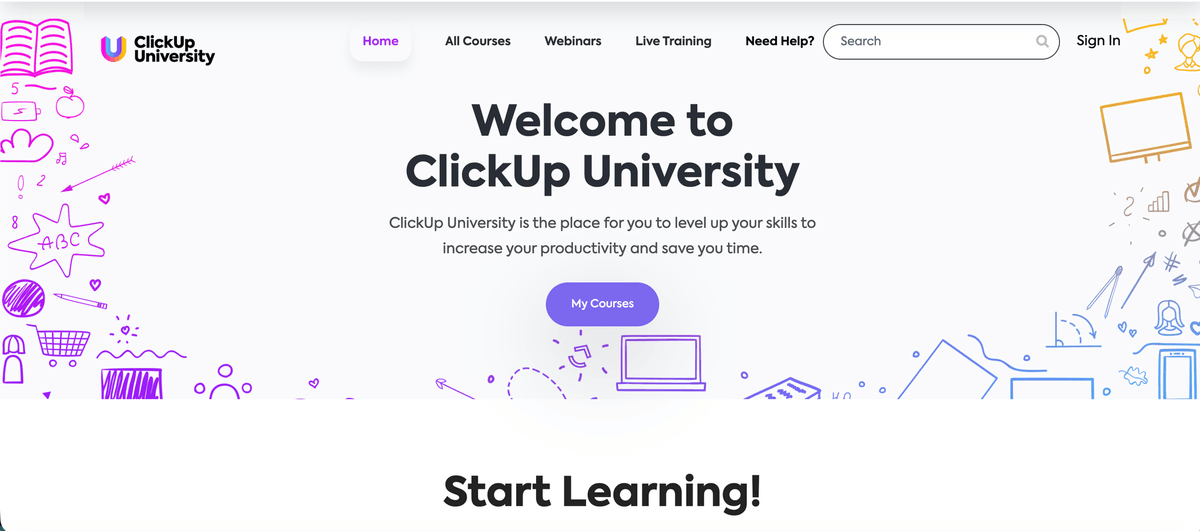
Additionally, there are other ways to learn how to use ClickUp — the so-called ClickUp University, which offers courses, on-demand webinars, and live training for improving your ClickUp expertise.
The main difference? Unlike with ClickUp, Plaky offers 24/7 phone support — so you can talk with real people and explain your issue.

Both Plaky and ClickUp value security and it shows
Both Plaky and ClickUp have made security one of their top priorities, so each has a lot to offer in this department.
Like all CAKE.com products, Plaky guarantees secure:
- Personnel — All employees sign NDAs that guarantee protection of sensitive data.
- Development — Developers follow strict OWASP Top 10 recommendations for web application security.
- Testing — Both internal and external security engineers perform penetration testing on new systems and products as well as on major changes to existing systems, services, and products.
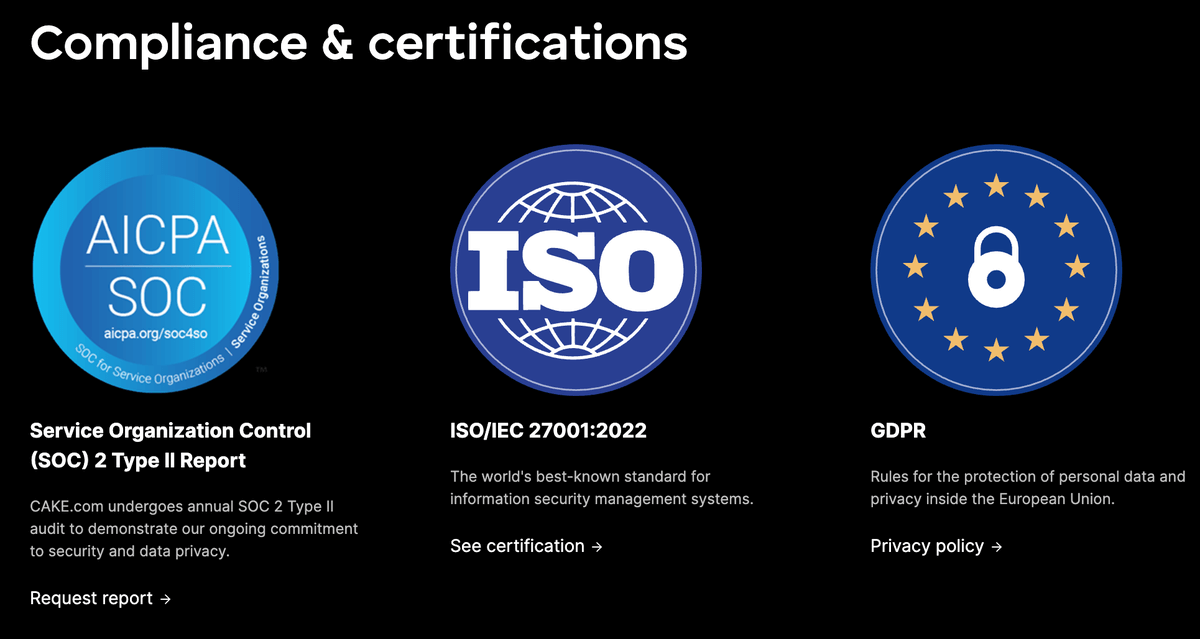
Moreover, Plaky ensures the highest security standards by being compliant with:
- Service Organization Control (SOC) 2 Type II Report,
- ISO/IEC 27001:2022, and
- GDPR.
If that’s not secure enough for you, there’s even a bug bounty program — find and report any vulnerabilities and get a reward!
ClickUp also takes the matters of security seriously. Hosted on Amazon Web Services (AWS), ClickUp offers end-to-end security.
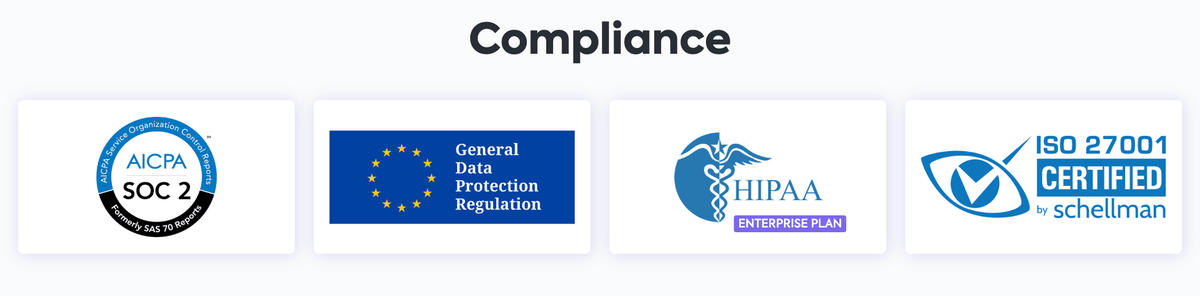
Aside from that, it adheres to:
- SOC 2,
- GDPR,
- HIPAA, and
- ISO 27001 & ISO 42001 (the new global standard for AI management systems).
Additionally, the Enterprise Plan users can choose (free of charge) where their Workspace data is stored — in the US (Oregon & Ohio), the EU (Dublin), Singapore, or Australia (Sydney).
All things considered, it’s safe to say that your data will be protected whichever of these 2 apps you choose.
FAQ
Is Plaky’s free plan generous enough to run a business with?
Yes, it’s possible to run a business with Plaky’s free plan.
Plaky’s free plan offers unlimited spaces, boards, items, and views, which is an excellent foundation for scaling your business without added costs.
Thanks to member and admin user roles, you can control who can view and change any data, which is essential for security.
For reporting, you can use Chart view and visualize progress. The summary row is also useful for tracking key metrics.
The only potential limitation might be 6 fields per board in case your business needs more data points than that.
Which one is easier to set up and get my team started on?
Plaky is definitely easier to set up than ClickUp, as it doesn’t overwhelm you with a gazillion customization options.
This has to do with the differences in their philosophies. Plaky is designed with simplicity in mind, and it focuses on essential, intuitive task management features, with a simple hierarchy — Spaces, Boards, Folders, Items (and Subitems).
On the other hand, ClickUp is designed with universality in mind — “the everything app for work”, so naturally, it is loaded with features. That’s why you can expect a steeper learning curve. Also, there are too many choices — even creating a task comes with a dozen options, so if you’re a beginner, you won’t know which features you can ignore.
How difficult is it to migrate my existing projects from ClickUp to Plaky?
Migrating your projects from ClickUp to Plaky is pretty straightforward.
There are 2 ways you can do this:
- If you’re a Free Forever plan user, you can only export your entire workspace data.
- If you’re a Business or an Enterprise plan user, you can migrate List and Table view boards in addition to the entire workspace data.
Either way, the export itself is pretty straightforward. You need to export your CSV file and import it into Plaky. After that, all you need to do is generate the table and map your board.
If you need more help, we’ve dedicated an entire article to importing data from ClickUp, so read on.
What does the future roadmap for Plaky look like? Will it get the advanced features I might need later?
Plaky’s developers are already working on some advanced features you might find useful, like the Dashboard view and recurring tasks.
Other cool features, like milestones, dependencies, and Calendar view, are in the planning phase.
For more information, check out Plaky’s roadmap.
Optimize your projects with Plaky by CAKE.com
If you’re sick of steep learning curves, opt for Plaky. It won’t suffocate you with too many customization options or various functionalities you may never need. Plus, your team will adopt it without a second thought.
The best part? Plaky is built to help you scale your business, as it offers unlimited users and projects even on the free plan. So, you upgrade because you want to, not because you need to.
No feature overload — just good old project management. Sign up for Plaky now!