Spreadsheets have long been the backbone of business. Their grid-like structure helps teams organize data and stay consistent, but that same rigidity can also feel daunting — which I can personally confirm.
Put simply, traditional spreadsheets can be too restrictive for collaboration and too manual for repetitive tasks.
It’s no wonder that many teams are exploring Excel alternatives — apps that combine Excel-like organization with modern flexibility and task automations.
Keep reading to discover such handy apps and what they can do!

WHY TRUST US?
The apps we talk about are selected, tested, and written about by human reviewers who follow strict review and editorial guidelines. We pick solutions that are practical, purposeful, and can offer real value for the specific use case or business context we’re covering — while also being justified in their pricing. Our methodology is transparent, clear, and available to everyone:
Do you need an Excel alternative?
While Excel can be powerful, many people want to avoid:
- Collaboration limitations — Excel’s standard version isn’t designed for co-editing. You can collaborate in Excel Online, but it still feels clunky compared to apps built for teamwork.
- Complexity — Advanced Excel features can be overwhelming. Some alternatives are simpler and more user-friendly, especially for those who just need basic tables and project tracking.
- Lack of automation and integrations — Unlike Excel, its modern alternatives often let you automate workflows and connect with other apps to boost efficiency.
If you feel like your spreadsheets are slowing you down, an Excel replacement might save you some time and headaches. Check out my #1 choice now!
How I tested the Excel alternatives
I personally tested each tool in this article, simulating real-world scenarios such as budgeting or project tracking. My key evaluation criteria were:
- Ease of use — intuitive interfaces that ensure quick onboarding,
- Automation and integrations — automating routine work and integrating with useful apps to improve productivity,
- Solid collaboration features — real-time collaboration for seamless multi-user editing, and
- Cost-effectiveness — how much each tool costs and whether it’s worth it.
Finally, to make sure you can try the apps yourself before committing, I chose either free Excel alternatives or those that offer a free trial.
💡Plaky Pro Tip
Wondering whether to use a dedicated PM tool or Excel? Read our article on this topic:
Top 14 Excel alternatives — overview
Here’s a quick overview of all the apps I tested. Full reviews, including pros and cons, are available in the following sections.
| Tool | Best for | Free trial | Free plan | Lowest price |
|---|---|---|---|---|
| Plaky by CAKE.com | Reliable project management | ✔ | ✔ | $3.99/seat/month |
| Google Sheets | Real-time collaboration | ✔ | ✔ | $6.30/user/month (Google Workspace) |
| Airtable | Database syncing | ✔ | ✔ | $20/seat/month |
| Zoho Sheet | Teams in the Zoho ecosystem | ✔ | ✔ | $3/user/month (Zoho Workplace) |
| Smartsheet | Flexible work management | ✔ | ❌ | $9/member/month |
| Rows | Connecting data from APIs | ✔ | ✔ | $6/user/month |
| ONLYOFFICE Spreadsheet Editor | Preserving Excel features in the cloud | ✔ | ✔ | $20/admin/month |
| SeaTable | Turning spreadsheets into apps | ✔ | ✔ | €7/user/month |
| Stackby | Extensive template options | ✔ | ✔ | $4.2/user/month (est. 3 users) |
| Zapier Tables | Advanced automations | ✔ | ✔ | $19.99/month |
| Baserow | Developers and technical teams | ✔ | ✔ | $10/user/month |
| Numbers | Apple users | N/A | ✔ | $0 |
| Tadabase | Data reporting | ✔ | ❌ | $42/month |
| EtherCalc | Ad-hoc usage | N/A | ✔ | $0 |
#1 Plaky by CAKE.com — best for reliable project management
Plaky is a web-based project management tool tailored to replace manual spreadsheets with structured, visual boards.
Why choose Plaky?
Unlike Excel, which demands constant setup and a bunch of formulas to stay organized, Plaky is an intuitive, ready-to-use platform designed for ensuring project reliability and collaboration.
| Pros | Cons |
|---|---|
| – Highly flexible – Multiple board views – Top-notch team collaboration features – Built-in automations | – Limited integrations |
Here’s how Plaky offers essential spreadsheet-like features without complex setup:
- CSV import — Migrate your projects seamlessly to Plaky in the form of CSV files. Alternatively, build boards from scratch or use Plaky’s templates.
- Table and Chart view — View your data in a familiar table layout and switch to chart overviews for insights at a glance.
- Conditional coloring — Highlight tasks automatically based on custom conditions to spot patterns and deadlines with ease.
- Summary row — Instantly view totals, counts, averages, and more across your columns (ideal for tracking workload or project metrics).
Build smart boards in Plaky by CAKE.com
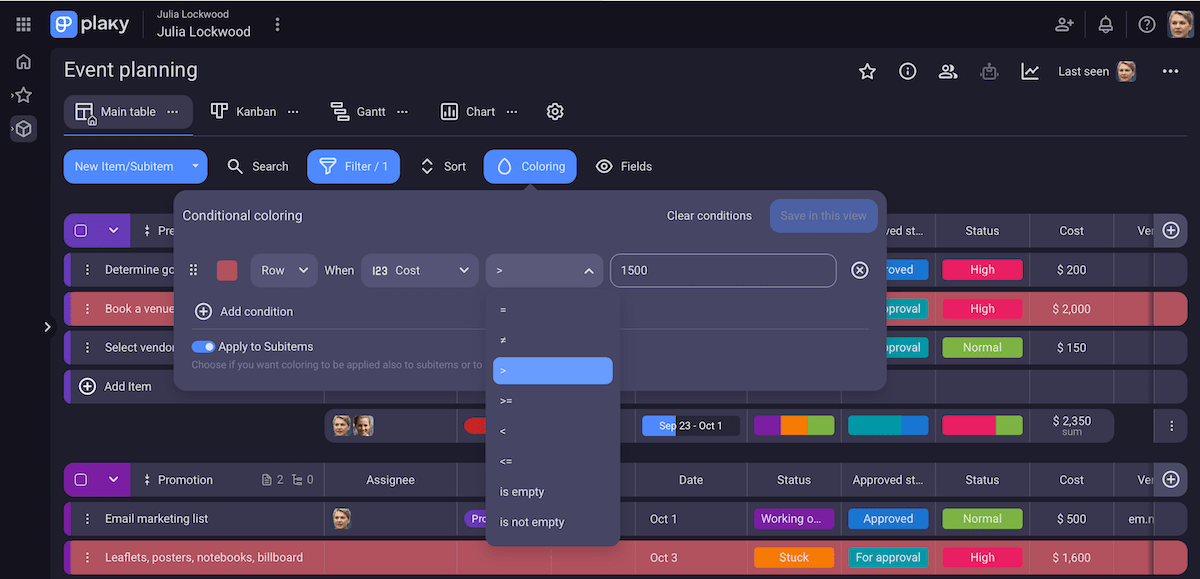
Moreover, Plaky’s known for reliable project management. As someone whose team uses this platform every day, I’d emphasize these features:
- Custom fields — Add columns for assignees, deadlines, budgets, etc. to match your workflow. This consistency makes it easier to sort and filter Plaky items.
- Kanban view — Visualize tasks as cards moving through stages (e.g., To Do, In Progress, Done) for smooth progress tracking — something Excel can’t replicate without heavy setup.
- Gantt chart view — See your tasks along a timeline to envision project schedules and potential overlaps.
- Board automations — Use built-in automations (e.g., When the priority label changes to Critical, notify the manager) to keep projects organized without constant supervision.
- Collaboration features — Add comments and @mentions to exchange ideas with your team. Also, share files directly in tasks, eliminating the need for scattered folders and emails.
To never lose track of updates while using these rich features, Plaky’s activity log records all changes on the platform.
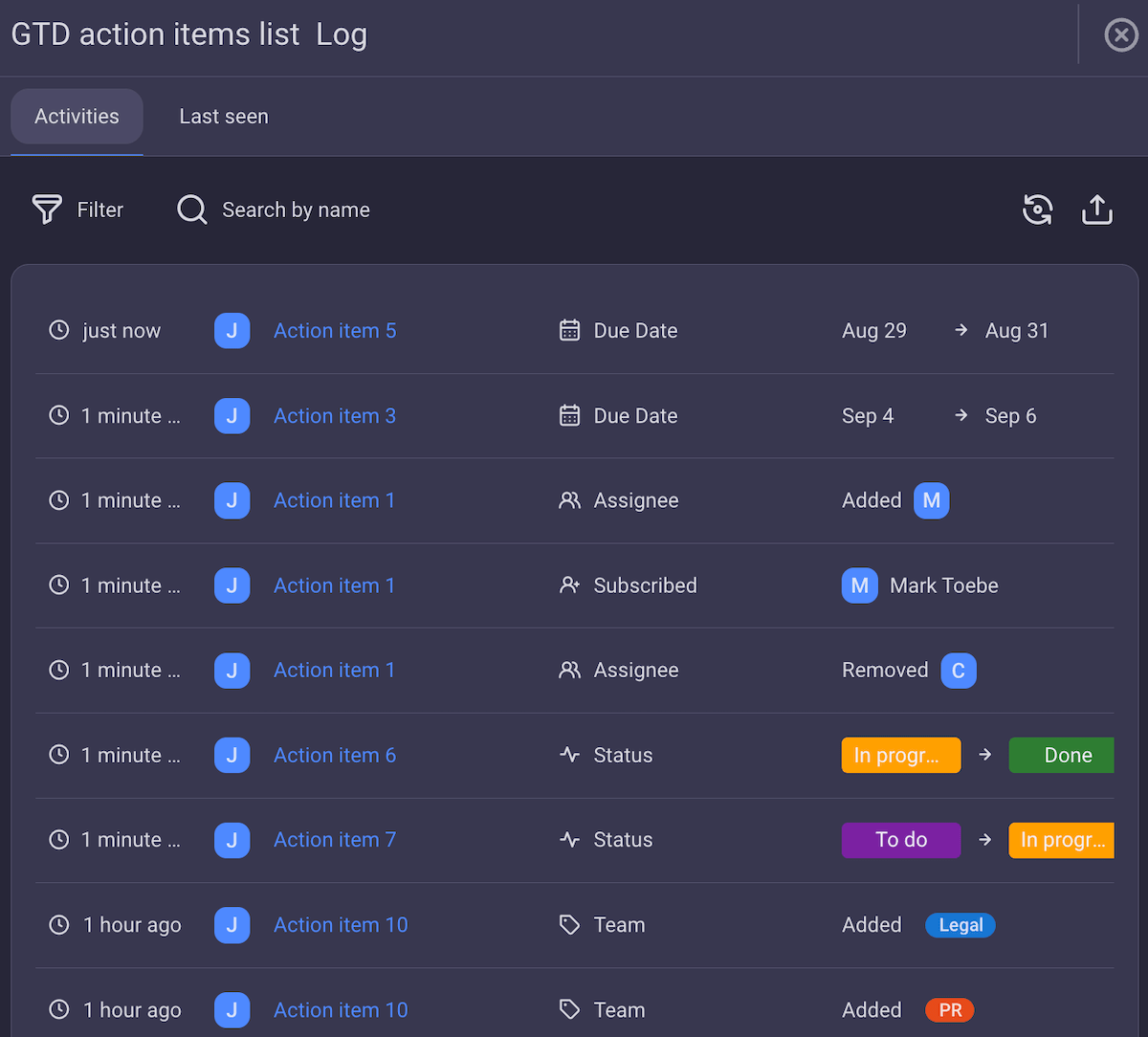
The only thing that would make Plaky better for me would be more integrations. There are 2 options, though, and I use them both:
- Plaky-Clockify integration — Let Clockify, a time tracking app, record time spent on tasks in Plaky and generate reports to help you understand your productivity levels better.
- Plaky-Pumble integration — Receive Plaky notifications in Pumble, a free business messaging app, to make sure you never miss an update.
What’s new in Plaky?
Plaky has recently added a Remind Me option for comments and replies — it’s like setting a personal nudge inside the app so that you don’t forget to revisit a comment later. Another cool new feature is My Tasks, a separate tasks view for all your work.
To check out other recent changes, visit Plaky’s changelog. And, if you want to see upcoming features, take a look at Plaky’s roadmap.
Available for: web, iOS, Android
| Plan | Price |
|---|---|
| Free | $0 |
| Pro | $3.99/seat/month* |
| Enterprise | $8.99/seat/month* |
| CAKE.com Bundle | $12.99/seat/month* |
*billed annually

#2 Google Sheets — best for real-time collaboration
Google Sheets is a cloud-based spreadsheet tool — very similar to Excel, but fully online. As expected, it lets you organize data in rows, columns, and multiple sheets.
Why choose Google Sheets?
Collaboration is this tool’s forte, as multiple users can edit sheets simultaneously, with auto-save and version control.
| Pros | Cons |
|---|---|
| – Variety of formulas – Timeline view and charts – Smooth real-time editing | – Laggy with large sheets – Impractical automations |
Google Sheets offers standard features for everyday spreadsheet work:
- Formulas and functions — Use formulas (text, database, statistical, and many more) to calculate and analyze data. You may also pick a template to save some time.
- Charts and graphs — Choose from a diverse range of chart and graph types. This digestible format is best for presenting data to teammates and project stakeholders.
- Conditional coloring — Make cells, rows, or columns automatically change color when they meet certain conditions, quickly spotting patterns.
- Timeline view — Use this view (a simplified Gantt chart) to track progress with ease.
- Add-ons — Connect Sheets with other Google Workspace tools and various third-party systems to centralize your processes.
I must note, though, that Google Sheets struggles with really large spreadsheets and multiple complex formulas, so you can expect it to slow down in those cases.
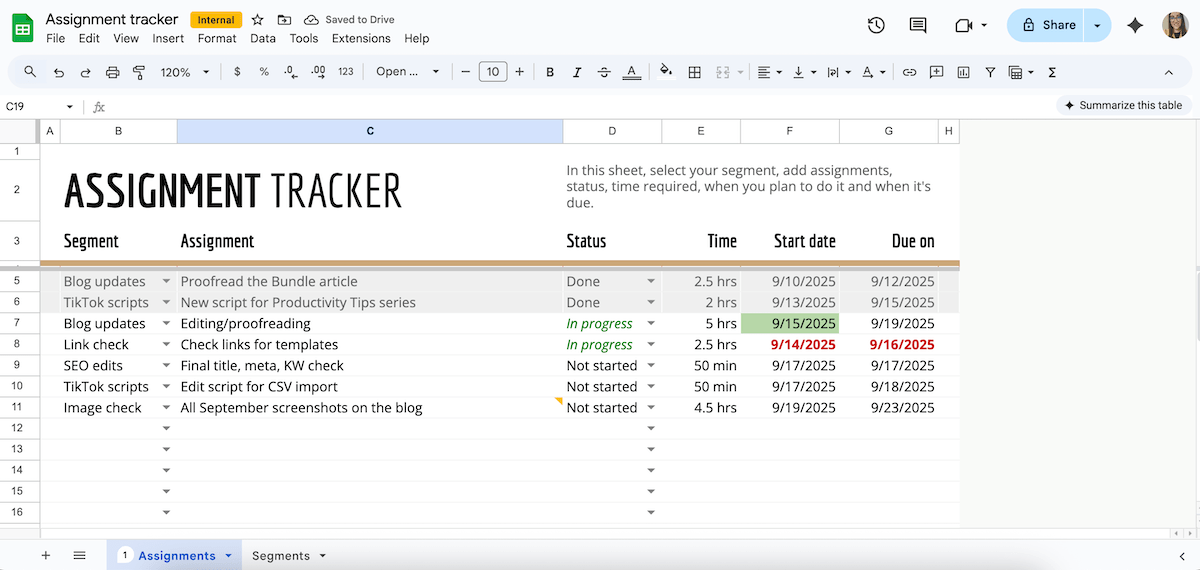
Now, here’s why I think Google Sheets is well suited for real-time collaboration in the cloud:
- Co-editing — Multiple users can edit the same sheet at the same time, with live updates visible instantly.
- Communication features — Built-in comments, chat, task assignment, and emoji reactions make teamwork smoother and boost accountability.
- Version control — Version history enables you to track edits or roll back changes easily. E.g., when I changed my mind about a few deleted columns, recovering them felt seamless and stress-free.
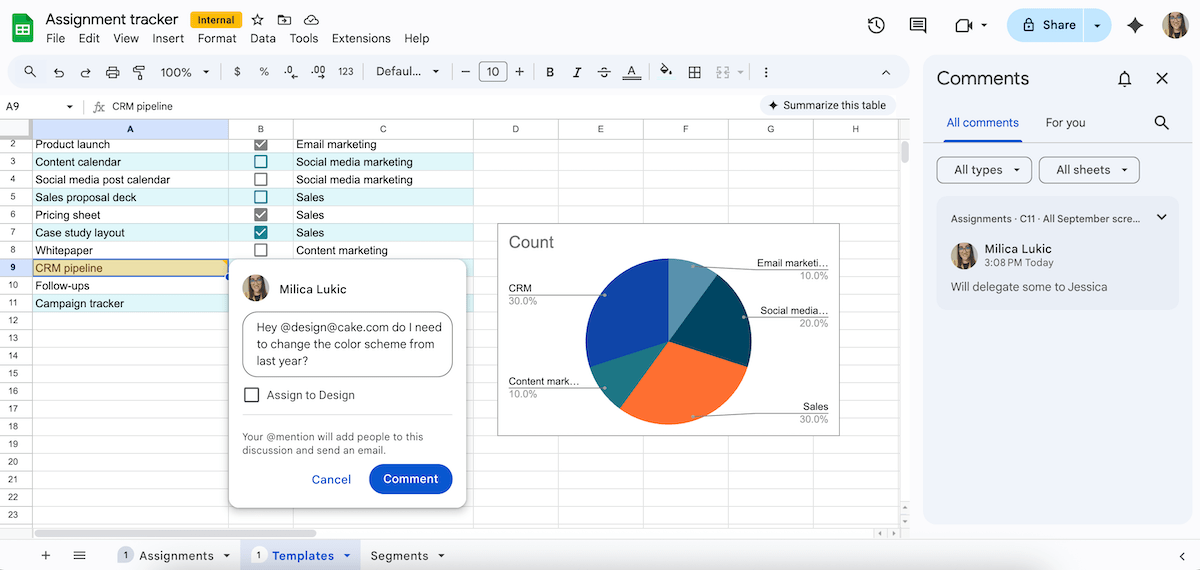
I just wish automating tasks in Google Sheets was simpler. You need to use the so-called macros feature, record the exact steps, and let the app repeat them automatically whenever you want. So, you must understand the logic behind what you want to automate.
This can be practical for routine work (e.g., formatting), but not so much for workflow automations.
In contrast, automations in Plaky and similar software are built-in and easy to use. You just pick triggers and resulting actions — no technical knowledge needed!
What’s new in Google Sheets?
Google Sheets has notably expanded its integration with Gemini AI. For instance, it can explain formula errors in natural language and suggest corrections. Additionally, the AI function now supports generating text, summarizing information, categorizing data, and more.
Available for: web, iOS, Android
| Plan | Price |
|---|---|
| Free | $0 |
| Google Workspace Starter | $6.30/user/month* |
| Google Workspace Standard | $12.60/user/month* |
| Google Workspace Plus | $22/user/month* |
| Google Workspace Enterprise Plus | POA |
*billed annually
💡 Plaky Pro Tip
Want an even more detailed comparison of Excel and Google Sheets? Read this article:
#3 Airtable — best for database syncing
Airtable is a platform that blends spreadsheets with the functionality of a database. It helps users organize basically any kind of structured information.
Why choose Airtable?
This tool allows you to connect multiple tables or external sources like CSV files, making it easier to manage complex projects.
| Pros | Cons |
|---|---|
| – Modern UI – Easy database sync – Lots of handy templates | – Limited free plan – AI feels half-baked and forced |
These features make Airtable modern and more visually versatile than Excel:
- Sleek interface — The interface feels familiar but richer than standard spreadsheets thanks to different field types besides formulas (email, attachment, creator, and more).
- Views and layouts — Apart from the grid, you can also use calendar, Gantt, Kanban, and other views to visualize data according to your needs.
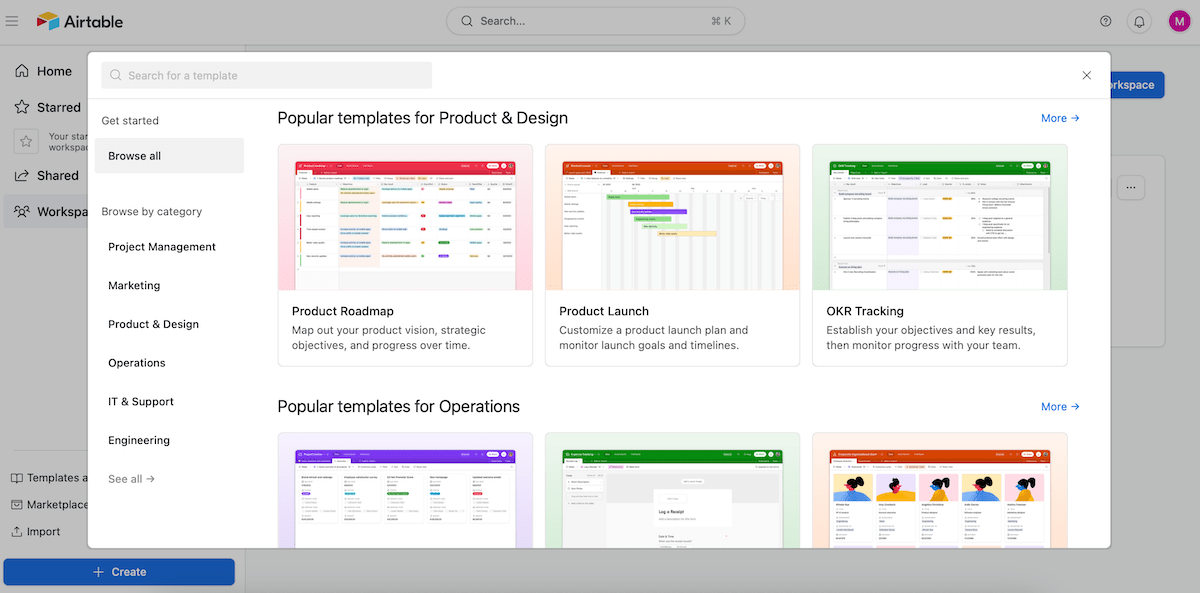
- Templates — Airtable provides lots of pre-made templates for project management, sales, finance, etc., which saves setup time.
- Collaboration — Multiple users can work on the same base in real time, with comments and revision history supporting communication.
There’s also a built-in AI assistant (Omni) that lets you describe your needs using natural language, and then it builds/modifies parts of your Airtable app to save you some time.
This was introduced as part of Airtable’s relaunch as an AI-native tool in July 2025, leaving some users displeased, judging from their remarks on Reddit. They claim that Airtable is slower now and that AI sometimes feels less useful than promised.
Back to the positives: I consider Airtable’s relational databases its strongest feature. You can use:
- Linked tables — It’s easy to connect one table to another (e.g., clients to their projects) without complex formulas.
- Integrations — There are 20+ integrations linking Airtable with tools for social networking, payments, analytics, etc., ensuring data flows across apps seamlessly.
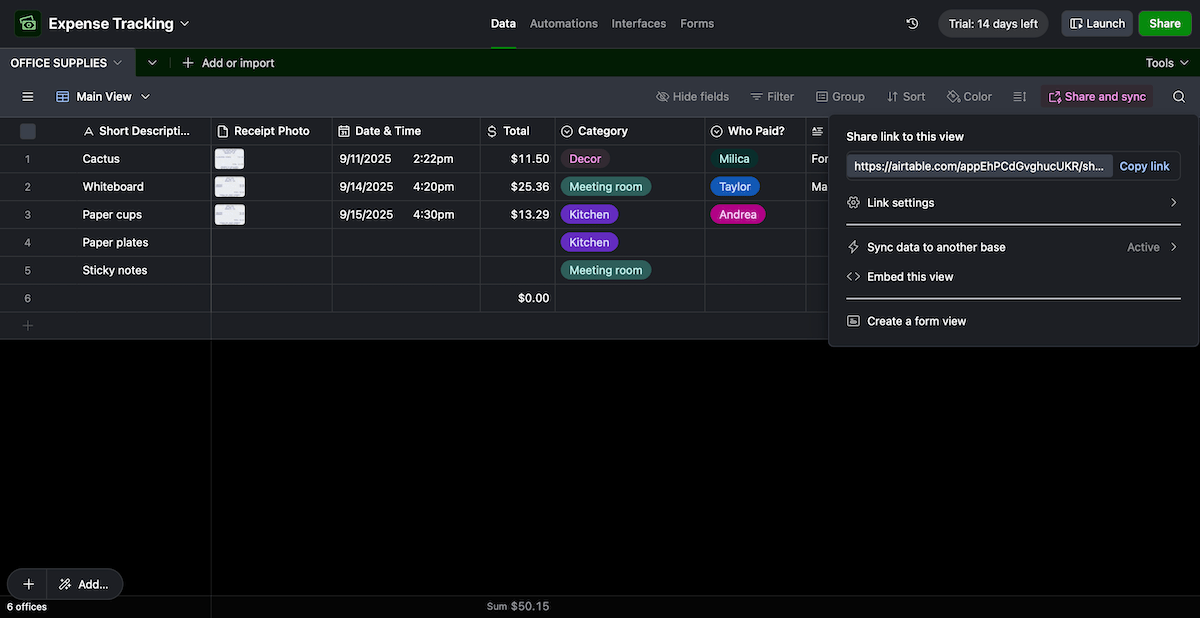
- APIs and sync — Developers can connect Airtable to other apps using an API, and it’s possible to pull data from outside sources like CSVs or Google Calendar. All of this makes Airtable feel almost like a living database.
Unfortunately, Airtable is far from cheap. The free plan may be enough for small teams with simple needs, but if you want advanced features, be ready to set aside at least $20/seat/month!
What’s new in Airtable?
Airtable recently relaunched as an AI-native app, so now there are advanced AI features to manage complex workflows without traditional coding. Critical path highlighting, App Sandbox (environment for testing changes), and several UI improvements are also new.
Available for: web, macOS, Windows, iOS, Android
| Plan | Price |
|---|---|
| Free | $0 (up to 5 editors) |
| Team | $20/seat/month* |
| Business | $45/seat/month* |
| Enterprise Scale | POA |
*billed annually
#4 Zoho Sheet — best for teams in the Zoho ecosystem
Zoho Sheet is a cloud-based spreadsheet platform (part of the broader Zoho Suite) where you can enter data, use formulas, build charts, and collaborate online.
Why choose Zoho Sheet?
This app is ideal for those already using other Zoho apps, such as Zoho CRM (for customer relationship management), Zoho Books (accounting), Zoho Desk (customer support ticketing), and many more.
| Pros | Cons |
|---|---|
| – Data cleaning tools – Zoho Suite integration – Native group chat | – Impractical automation system – Limited template library |
As I started exploring Zoho Sheet, I quickly noticed several helpful features:
- Real-time collaboration — Multiple users can edit data, leave comments, and use an in-app group chat for smooth collaboration.
- Data cleaning — This feature helps you find duplicates, fix data inconsistencies, and fill missing values.
- Charts — Much like in Excel, there are multiple chart options to help you visualize different data.
- Automations — Conditional formatting ensures easier data reading. Additionally, macros let you record a set of steps and then run them anytime — which isn’t as convenient as built-in automations, but it’s better than nothing.
- AI assistant — Zia helps you analyze data, create pivot tables, apply macros, and more to speed up your processes.
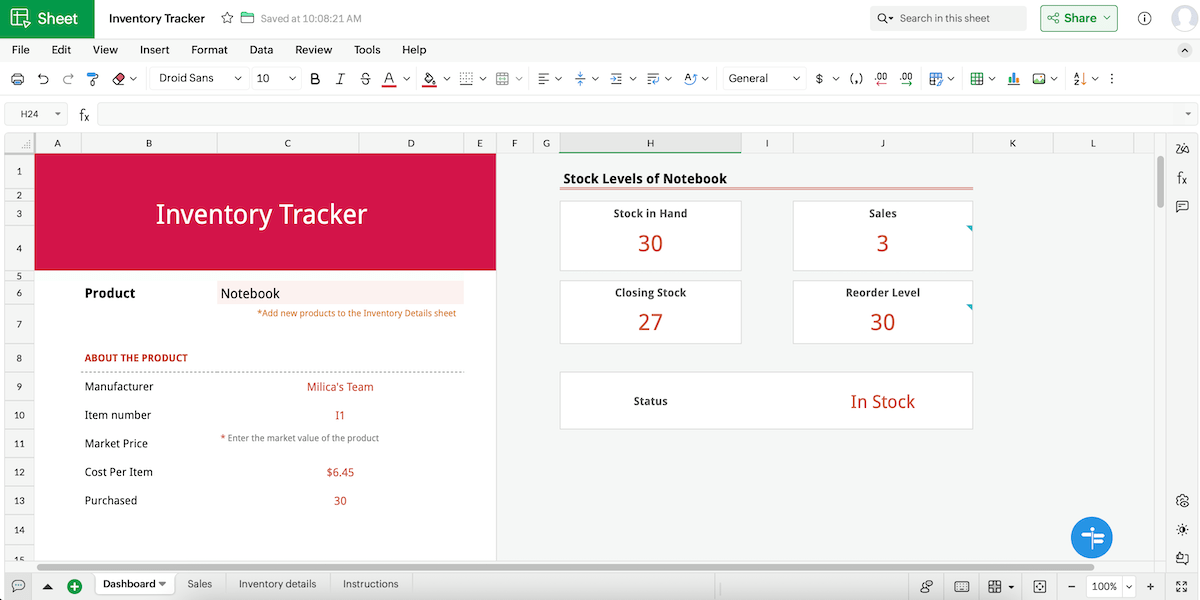
Another thing I noticed: the selection of templates is very limited, so that’s an area of improvement.
Unsurprisingly, Zoho Sheet is a reasonable choice for teams already in the Zoho environment thanks to:
- Direct integration — Use the Data Connection feature to integrate the Sheet app with Zoho CRM, Sprints, Books, and more, pulling data in or out without much effort.
- Shared user management — Save setup time with permissions and roles syncing across apps, as they are under the same Zoho account.
- Unified experience — Avoid juggling multiple platforms and subscriptions since everything (spreadsheets, invoices, emails, etc.) lives inside the Zoho ecosystem.
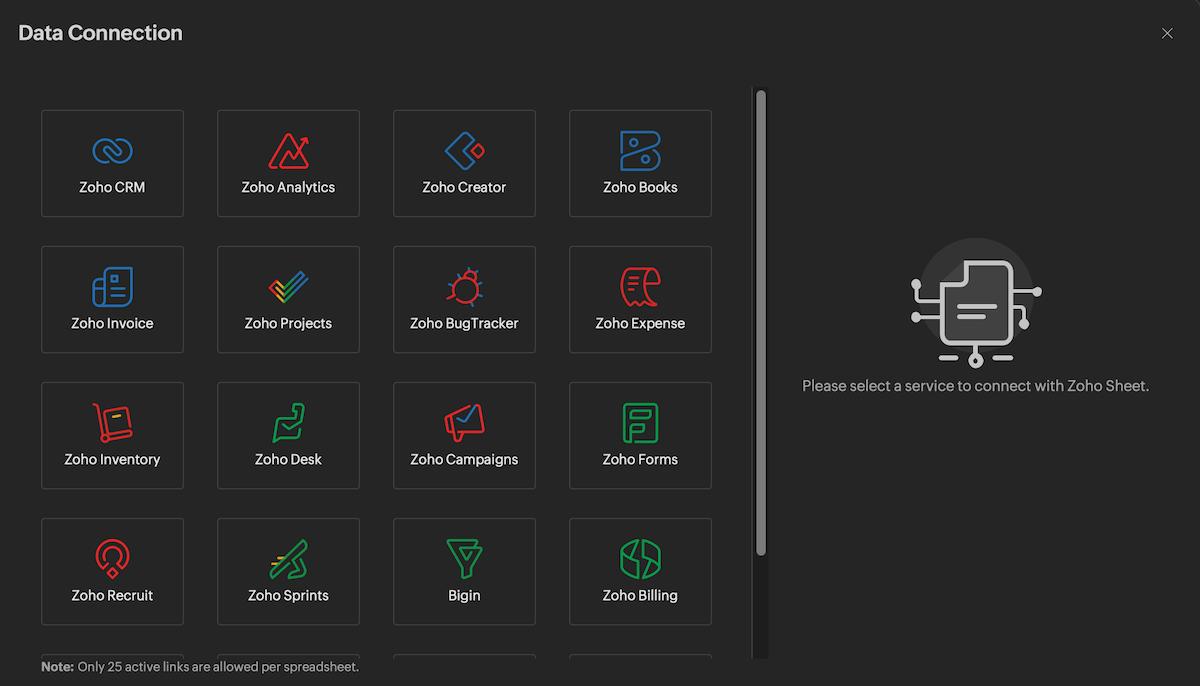
Overall, the app is functional, there’s just a small learning curve. But what’s a bigger issue for me is the outdated feel — Zoho Sheet’s dull colors and sharp-edged buttons make the design seem almost archaic in my eyes.
What’s new in Zoho Sheet?
Zoho Sheet has the new Pattern Fill feature — it leverages AI to detect and replicate data patterns across cells, streamlining data entry. Additionally, this platform now lets you convert data from an image into a spreadsheet.
Available for: web, macOS, Windows (Beta), iOS, Android
| Plan | Price |
|---|---|
| Free | $0 |
| Workplace Standard | $3/user/month* (with other Zoho apps) |
| Workplace Professional | $6/user/month* (with other Zoho apps) |
| Workplace Enterprise | POA (with other Zoho apps) |
*billed annually
#5 Smartsheet — best for flexible work management
Smartsheet is a cloud-based platform that combines spreadsheets with project management features (e.g., Kanban boards and task assignments).
Why choose Smartsheet?
This app is for those who want the familiarity of Excel combined with adaptability to different project styles — Smartsheet isn’t tied to one way of working.
| Pros | Cons |
|---|---|
| – Dynamic project tracking – Built-in automation – 170+ integrations | – Overkill for basics – No free plan |
If you’re used to Excel, the transition to Smartsheet should feel easy to you. Here’s what makes this tool suitable for collaborative project planning and tracking:
- Conditional formatting — Set rules to get quick visual cues and spot missed deadlines, urgent issues, bottlenecks, etc.
- Rich template library — Speed up the setup with templates; Smartsheet has a wide selection for many industries (IT, marketing, HR, and so on).
- Conversations — Add comments and tag teammates to exchange ideas and updates without leaving the app.
- AI tools — Use the AI functionality to generate formulas and analyze data. This can help you work faster and manage tasks more efficiently.
There are also powerful add-ons for resource management, portfolio management, intelligent workflows, and more, but those are locked behind Smartsheet’s highest tier.
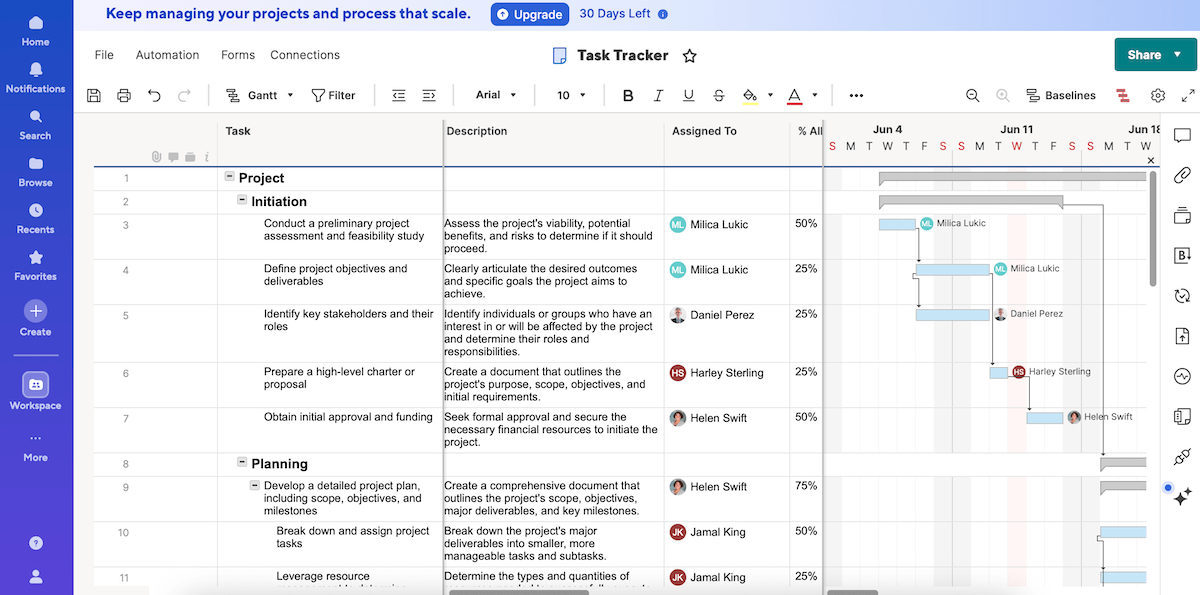
To me, Smartsheet stands out for its flexible work management abilities. It’s designed to turn datasets into a connected, automated, and adaptable project management system thanks to:
- Task-level intelligence — Rows aren’t just numbers; you can add owners, deadlines, task dependencies, and more, turning a sheet into a real work management tool.
- Multiple views — With different views (grid, card, calendar, and more), managers, analysts, and team members can look at projects in the way that suits them best.
- Built-in automation — You can set triggers, conditions, and actions to actively help the team move work forward while reducing repetitive tasks.
- Strong integrations — Smartsheet connects with 170+ tools for communication, enterprise systems, security and governance, etc. to help you centralize work.

That said, I must point out that with all the menus, integrations, and automations, Smartsheet’s interface can get cluttered and overwhelm users, especially beginners.
And let’s not forget there’s no free plan — a notable issue for budget-conscious teams!
What’s new in Smartsheet?
Like many apps on this list, Smartsheet has introduced AI tools, so you can now use AI to generate charts and metrics. Also, Smartsheet has improved its seat management system, providing admins with greater control and clarity.
Available for: web, macOS, Windows, iOS, Android
| Plan | Price |
|---|---|
| Pro | $9/member/month* (1-10 members, unlimited viewers) |
| Business | $19/member/month* (3+ members, unlimited guests and viewers) |
| Enterprise | POA (10+ members) |
| Advanced Work Management | POA |
*billed annually
#6 Rows — best for connecting data from APIs
Rows is a cloud-based spreadsheet app that helps you analyze data, create forms, and collaborate with your team in real time.
Why choose Rows?
Rows has built-in API connectors, so it’s easy to centralize and refresh data without relying on additional tools.
| Pros | Cons |
|---|---|
| – Native API integrations – Versatile templates – Forms for easy data collection | – Basic automations – Limited UI and formatting |
Beyond the expected Excel-like features (e.g., functions, charts, conditional formatting), Rows offers:
- Collaboration features — Comments and version history ensure the entire team can share ideas and keep track of changes.
- Rich templates — There’s a library of detailed, editable templates, so you’re not just getting a skeleton but something close to a working solution right away.
- Forms — Rows lets you build forms, share their links, and have responses flow into your sheet (great for surveys, lead capture, or internal requests).
- AI functionality — You can use built-in AI tools to generate, summarize, and translate content with ease.
Just note that Rows isn’t built like Plaky or Smartsheet — you can’t assign tasks or set deadlines, so naturally, the automation feature doesn’t include such things either. Automations in Rows are more data-focused, allowing only for repeating formulas, data refresh, and similar actions.
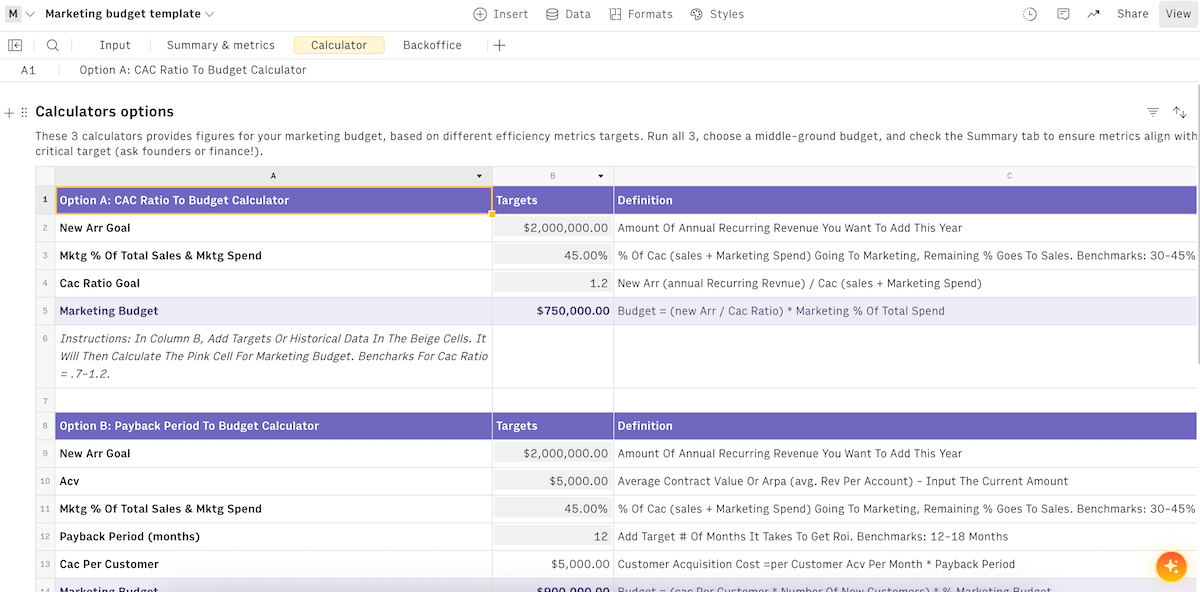
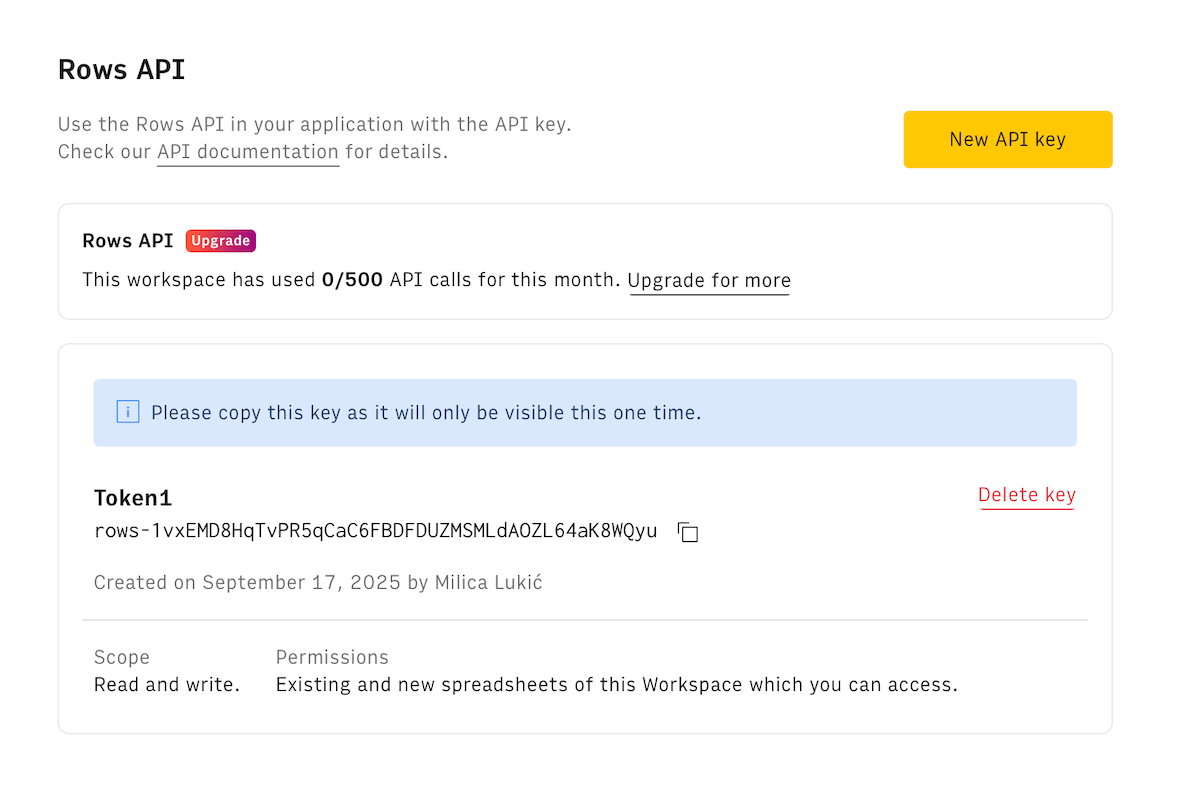
What makes Rows practical for many teams is connecting data from APIs — useful for those that monitor metrics from multiple SaaS tools. This includes:
- Native API integrations — Rows comes with built-in connections to popular tools (Google Ads, HubSpot, Stripe, to name a few), so you can add data to your spreadsheets without exporting files or writing code.
- Custom API support — If the app you use doesn’t have a pre-built connector, Rows lets you connect to almost any REST API by entering the endpoint and credentials.
- All-in-1 setup — You don’t need extra tools like Zapier to move data between apps. Rows handles both fetching and sending data inside your spreadsheet.
Overall, Rows is good for live data and collaboration, but there are some small Excel conveniences that are either missing or limited. For instance, there’s no built-in zoom slider — you can rely on your browser to zoom instead, but it adds friction.
What’s new in Rows?
Rows has expanded its AI Analyst capabilities, letting users add interactive elements like dropdowns and checkboxes. Plus, the AI analyst now supports Python and lets you save and reuse Python scripts. There are also AI Replays to automate repetitive AI Analyst actions (data cleaning, for example).
Available for: web, PWA (Progressive Web App)
| Plan | Price |
|---|---|
| Free | $0 |
| Plus | $6/user/month* |
| Pro | $59/month + $6/user/month* |
| Enterprise | POA |
*billed annually

#7 ONLYOFFICE Spreadsheet Editor — best for preserving Excel features in the cloud
ONLYOFFICE Spreadsheet Editor (part of the ONLYOFFICE Docs suite) is a cloud-based and desktop spreadsheet tool that allows you to create and edit spreadsheets both online and offline.
Why choose ONLYOFFICE Spreadsheet Editor?
While tools like Airtable and Smartsheet might not always preserve advanced Excel features when moving files from Excel, ONLYOFFICE Spreadsheet Editor maintains them and guarantees a trouble-free transition.
| Pros | Cons |
|---|---|
| – Cross-platform availability – Seamless transition from Excel – Solid integrations | – Automations require coding – No templates in the web version |
Here’s what I highlighted as this tool’s main advantages:
- Advanced spreadsheet features — an array of advanced functionalities, such as pivot tables, conditional formatting, and 400+ functions for robust data analysis,
- Real-time collaboration — co-editing, comments, and chat for enhancing collaborative efforts,
- Cross-platform availability — desktop apps (Windows, macOS, Linux), mobile apps (iOS, Android), and browser access, and
- Integrations and plug-ins — connecting with numerous popular apps for CRM, productivity, content management, etc. to support smooth workflows.
Similarly to some other tools on this list, ONLYOFFICE uses macros for automating repetitive steps, but there’s an additional catch here. They’re written in JavaScript, so you need at least a basic understanding of coding concepts to create automations.
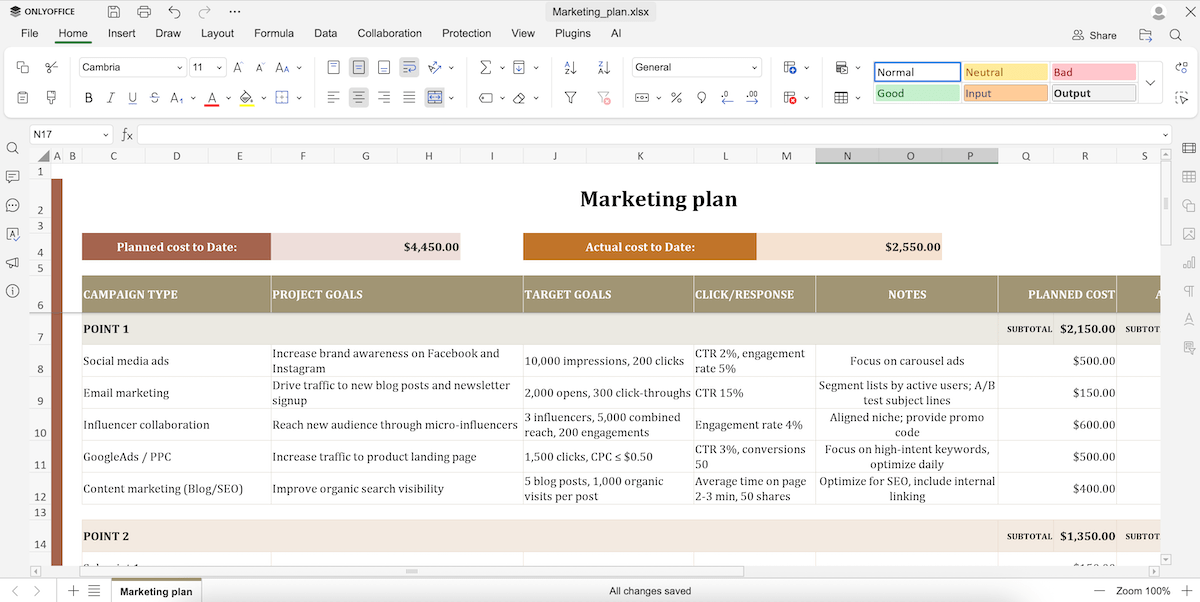
Now, although lots of teams use its alternatives, many still rely heavily on Excel too. What I’m trying to say is — even with a new app, you still want to be sure it can handle Excel files seamlessly if your clients or external collaborators send them to you.
This is what makes ONLYOFFICE particularly good at preserving advanced Excel features in the cloud:
- High compatibility with Excel formats — ONFLYOFFICE allows XLSX, XLS, ODS, and CSV formats, so you won’t experience compatibility issues.
- Maintaining complex formulas — The app supports Excel formulas almost identically, so your calculations work the same online as they do in Excel.
- Preserving formatting and styles — Conditional formatting, cell styles, and number formats stay intact when moving files between desktop and cloud.
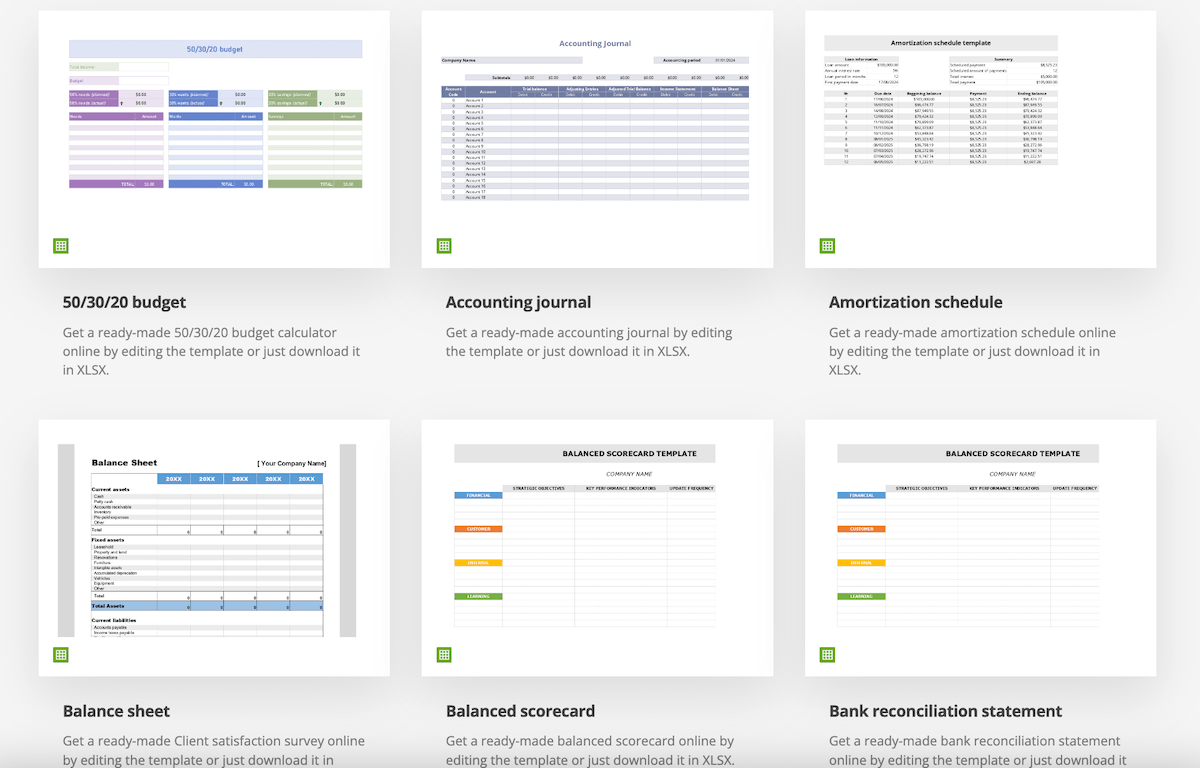
As for downsides, a big one for me is the lack of built-in templates in the web version. I managed to download one from the ONLYOFFICE website and import it into the Spreadsheet Editor, but it took more time than I wanted for a template.
What’s new in ONLYOFFICE Spreadsheet Editor?
The integration of AI-powered tools is a standout feature in ONLYOFFICE’s latest version of the spreadsheet editor. This helps users apply smart formulas and carry out complex data analysis.
Available for: web, macOS, Windows, Linux, iOS, Android
| Plan | Price |
|---|---|
| ONLYOFFICE DocSpace STARTUP (cloud) | $0 |
| ONLYOFFICE DocSpace BUSINESS (cloud) | $20/admin/month |
| ONLYOFFICE DocSpace ENTERPRISE (on-premises) | from $6,550/server |
#8 SeaTable — best for turning spreadsheets into apps
SeaTable is a tool that combines spreadsheets with database features and process automation. It supports both cloud usage and on-premises deployment.
Why choose SeaTable?
This platform offers no-code/low-code app building, letting anyone create apps and custom data frontends — great for taking raw data and making it interactive and user-friendly.
| Pros | Cons |
|---|---|
| – Flexible data management – App-building features – Self-hosting and data control | – API limitations – Automation locked behind the Enterprise tier |
The first thing I noticed about SeaTable was the clean, minimalistic feel. However, its features are far from basic, offering:
- Versatile columns and relational links — There are 20+ column types for full flexibility. Plus, you can link data across tables for reliable data management.
- Collaboration and versioning — Multiple users can modify spreadsheets simultaneously, ensuring smooth teamwork. SeaTable’s base log (the history of who changed what) achieves the same.
- Templates — There are around 100 templates for various industries, helping you save time and standardize processes.
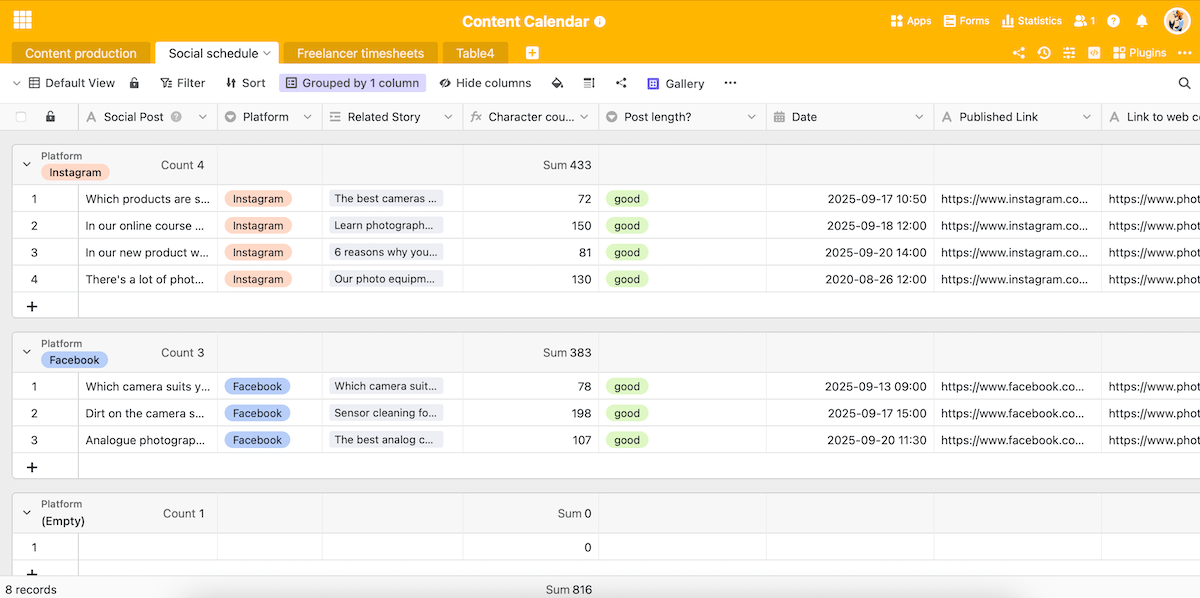
Moreover, SeaTable advertises its no-code app building a lot, so I looked into it. Basically, if you want to turn structured data into interactive, workflow-driven tools, you can rely on:
- Forms as input interfaces — Use the web form functionality to let internal users or external collaborators submit data without touching the raw table (e.g., when a client submits a support ticket, it’s automatically added to your Tickets table).
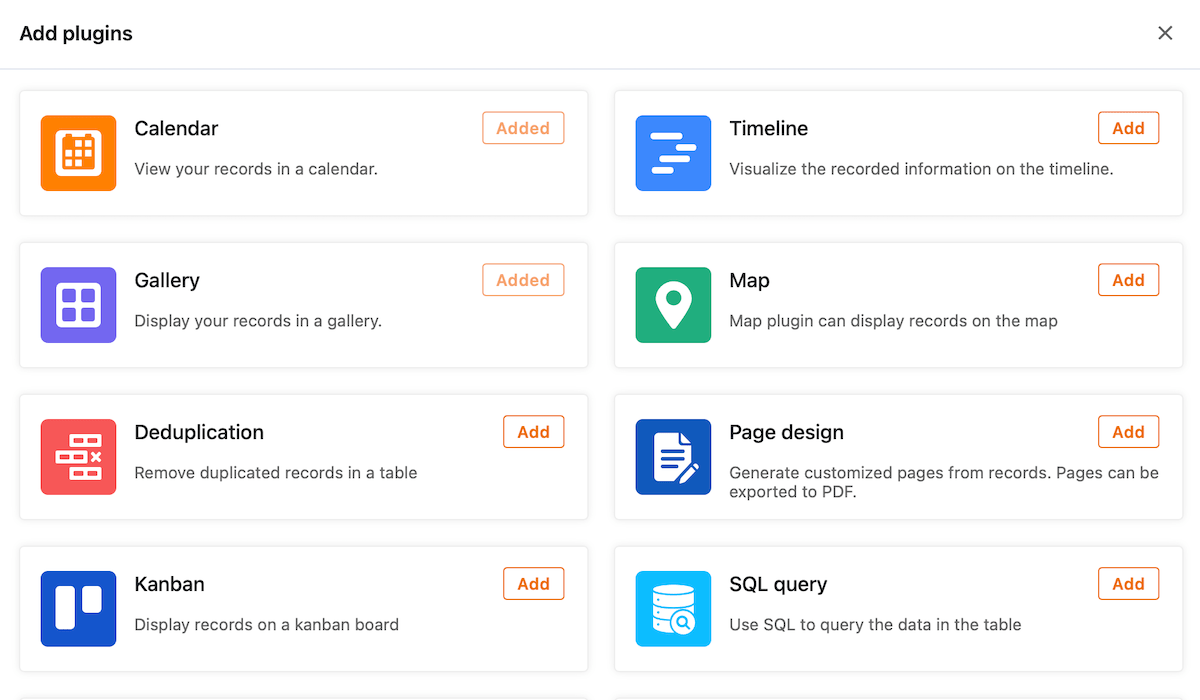
- Custom views as app screens — Look at data in formats other than grids (timeline, calendar, gallery, and more). Each view acts as a different screen in an app, meeting different user needs.
- Automations — Set up triggers and resulting actions to reduce manual work (for instance, add/lock entries or execute a Python script for more advanced logic). This is reserved for Enterprise plan users.
- API and webhooks — Use APIs to let other apps automatically read and update SeaTable data and webhooks to instantly notify other apps when something changes.
- Self-hosting — To turn SeaTable into a private, fully controllable platform, install it on your own server.
Just note that SeaTable’s API has some gaps. For instance, certain filtering settings can’t be fully managed via API, and large datasets slow everything down. And, I’d say using APIs in SeaTable definitely requires technical knowledge.
What’s new in SeaTable?
SeaTable hasn’t had new releases since June 2025, when it introduced variable row heights for table pages and passwords for protecting public apps. More notable new features are expected in Version 6.0 in the summer of 2026.
Available for: web, Android
| Plan | Price |
|---|---|
| Free | €0 (up to 25 users for cloud and 3 users for on-premises) |
| Plus (cloud) | €7/user/month* |
| Enterprise (cloud) | €14/user/month* |
| Dedicated Cloud | POA (minimum 100 users) |
| On-Premises 10 user | €500 1-year licence€950 2-year licence€1,350 3-year licence |
| On-Premises 25 user | €1,250 1-year licence€2,375 2-year licence€3,375 3-year licence |
| On-Premises 50+ user | €90/user 1-year licence€171/user 2-year licence€243/user 3-year licence |
*billed annually
#9 Stackby — best for extensive template options
Stackby is a cloud-based work management tool whose 3 main pillars are spreadsheets, databases, and APIs.
Why choose Stackby?
This platform enables you to build customizable workflows without writing code. It also provides ready-made solutions for numerous use cases thanks to the rich template collection.
| Pros | Cons |
|---|---|
| – Solid integrations – 500+ templates – Cross-platform accessibility | – Occasional loading delays – Limited mobile experience |
Stackby offers a flexible environment for organizing and automating data. Truth be told, its design isn’t my favorite (it seems a bit utilitarian and uninspired), but the platform is generally neat and easy to use.
Here are some of Stackby’s standout features:
- Relational databases — Stackby offers relational links, making it easier to manage complex data structures compared to flat spreadsheets.
- Column types and views — With 30 column types, you can easily have a flexible but structured workspace. Plus, the different columns allow Stackby to render data appropriately in views like Kanban, calendar, and others.
- Collaboration — Checklists, reminders, and comments reduce confusion and miscommunication.
- Native integrations and APIs — Stackby has 40+ native integrations, API columns, and a REST API, all of which is a plus for teams that want live, auto-updated information in their spreadsheets.
You should also know there might be some loading delays with particularly large datasets.
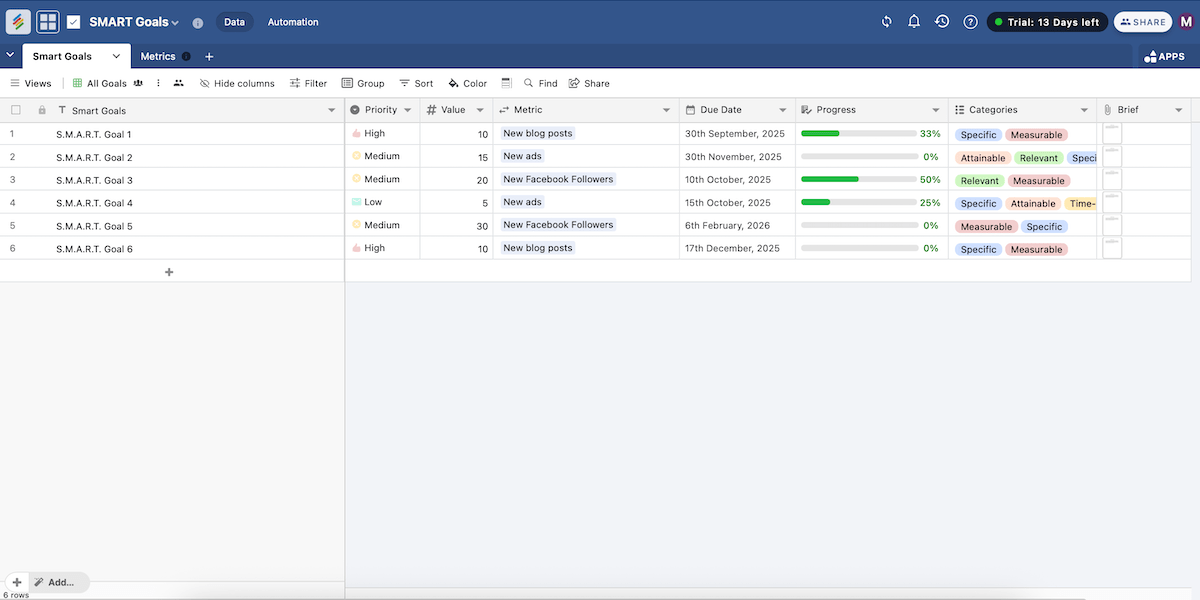
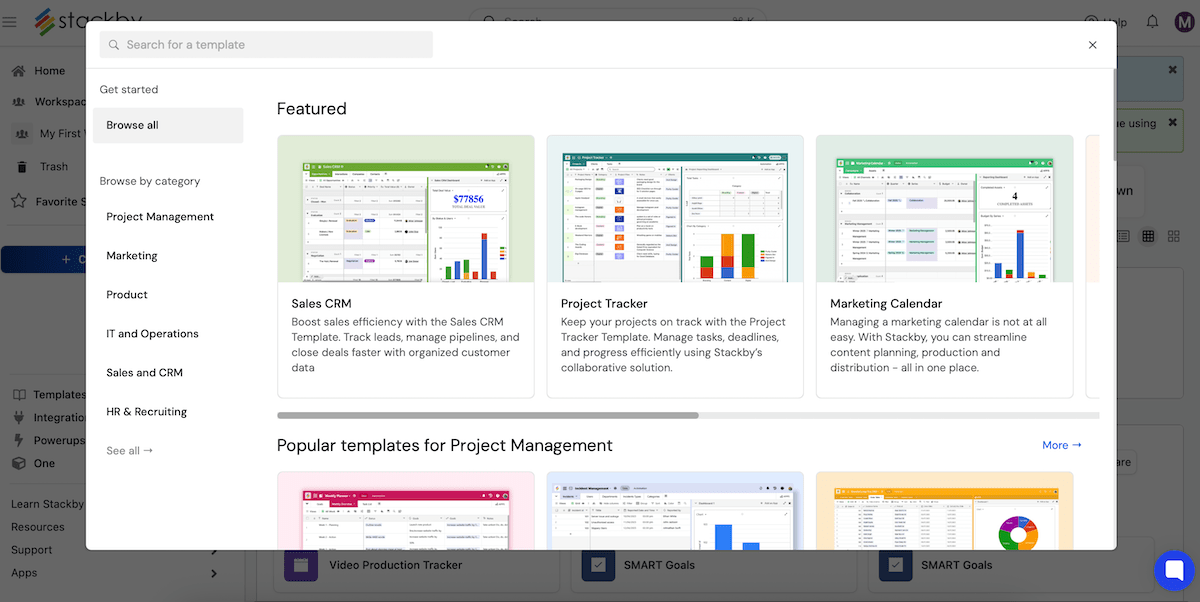
If you ask me, the template library is Stackby’s main advantage because the choices are:
- Numerous and versatile — There are over 500 ready-made templates for a wide range of use cases (design, SEO, inventory, and many more).
- Quick to implement — Applying a template takes just a few clicks, so both pros and complete beginners can have one ready in seconds.
- Easy to adjust — All templates can be customized and extended, giving you a strong starting point rather than a lock-in system.
The biggest benefit here is that Stackby’s templates can save you lots of time and make complex tasks accessible even for users with limited spreadsheet experience.
As for what could be better, I’ll say Stackby’s mobile functionality. Compared to the browser use, most features are view-only or non-existent in the mobile version (like formula columns and automations).
If you’re like me and sometimes like to work on the go, you should opt for a more functional mobile app than Stackby.
What’s new in Stackby?
Stackby has mostly focused on bug fixes lately, after introducing list and timeline views and improving the form functionality in the first half of 2025.
Available for: web, macOS, Windows, iOS, Android
| Plan | Price |
|---|---|
| Free | $0 (up to 5 users) |
| Economy | $4.2/user/month* (est. 3 users) |
| Business | $8.3/user/month* (est. 3 users) |
| Pro | $12.5/user/month* (est. 3 users) |
| Enterprise | POA |
*billed annually
#10 Zapier Tables — best for advanced automations
Zapier Tables is a spreadsheet-database hybrid tool for storing and editing data with robust automation — all within Zapier’s ecosystem.
Why choose Zapier Tables?
Tables are built around workflows, so changes in a Zapier table can immediately trigger automations without exports/imports or manually moving data.
| Pros | Cons |
|---|---|
| – 8,000+ integrations – Building web pages with Interfaces – Automating with Zaps | – Limited free plan – No mobile app |
Here are some general advantages of Zapier Tables that make it versatile and dynamic:
- Numerous integrations — Zapier connects with 8,000+ apps (for CRM, communication, productivity, etc.), so you can easily push/pull data to/from many places.
- 10+ field types — Structured fields ensure consistency and cleaner data entry, a strong foundation for reducing errors when using automations.
- Formulas and functions — You can use formulas to create calculations and multiple functions. However, there are fewer functions compared to Excel, as Zapier focuses more on workflow automation.
What irks me a little about Zapier Tables is being unable to create a new row by pressing Enter at the end of the previous one. Instead, you have to explicitly click the Add record button, which feels clunky.
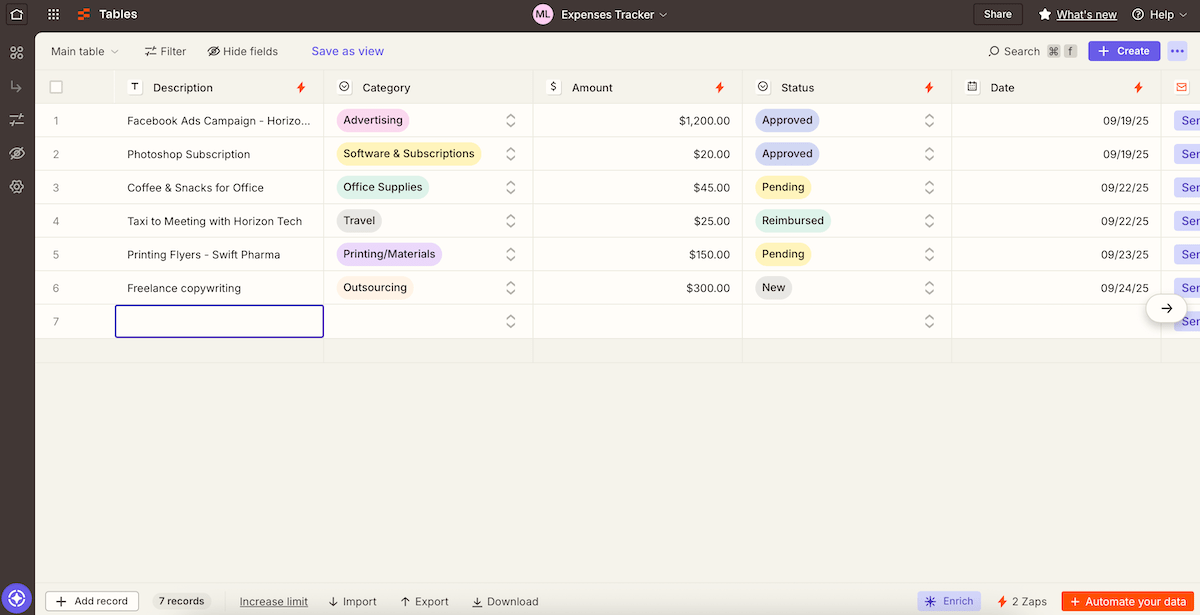
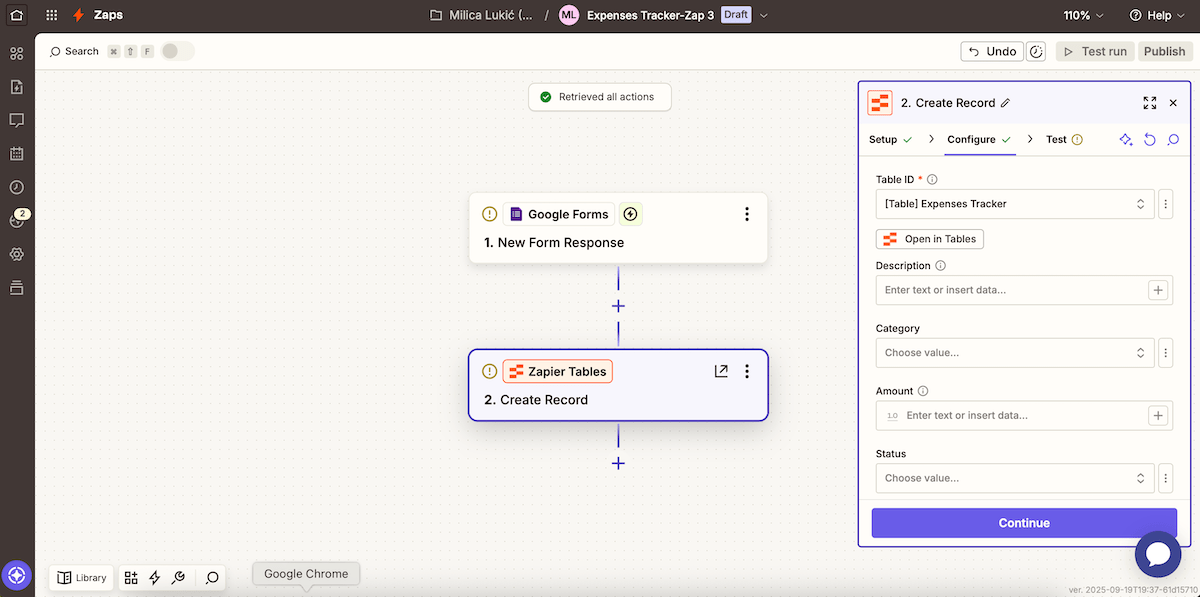
Still, I believe this tool can come in handy when you need advanced automations, with 2 other segments within the Zapier app:
- Interfaces — custom forms and web pages that let people interact with your table data without seeing the full backend, and
- Zaps — When this happens, do that rules (e.g., when a customer fills out a form, the sales team gets notified).
This means you can focus on meaningful work while Zaps handle routine tasks like updating fields or sending alerts.
Bonus: The button field gives you more control as human-in-the-loop automation, letting you fire off a rule when you decide instead of a predetermined trigger.
Mastering more advanced workflows can be tricky, though, especially if you’re new to logic-driven tools.
I must also point out the limited free plan. For example, it only allows 2-step automations. And my biggest shock — no customer support for free users at all, so cost-conscious teams might feel less valued as Zapier users.
Finally, there’s no native mobile app, which is a minus for those who like working on the go.
Want web and mobile access? Use Plaky
What’s new in Zapier Tables?
Tables, Interfaces, and MCP (Multi-Call Platform) are now bundled into Free, Pro, and Team tiers, so you don’t need to pay for these as separate add-ons anymore.
Available for: web
| Plan | Price |
|---|---|
| Free | $0 |
| Professional | $19.99/month* |
| Team | $69/month* |
| Enterprise | POA |
*billed annually
#11 Baserow — best for developers and technical teams
Baserow is an open-source platform that combines the simplicity of spreadsheets with the power of relational databases. It’s browser-based with optional self-hosting.
Why choose Baserow?
Thanks to developer-friendly features, Baserow offers a bridge between a no-code tool and a developer-oriented database, with flexibility and control that Excel alone can’t match.
| Pros | Cons |
|---|---|
| – API-first design – Open source and self-hosting – Intuitive UI | – Less powerful for complex calculations – No mobile app |
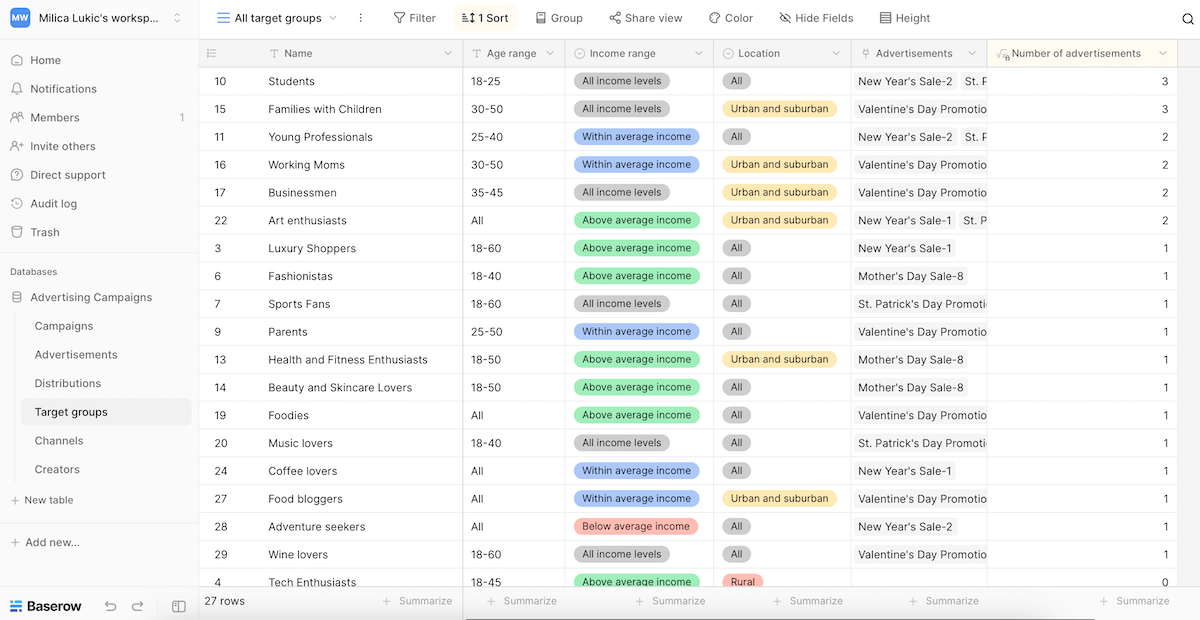
Baserow offers several advantages for collaborative and structured data projects, namely:
- Intuitive, no-code interface — drag-and-drop design, filters, multiple views, and easy sorting,
- Automation and integration — a built-in REST API that makes automations easier to create and scale, enabling seamless updates and integrations with tools like Zapier or Make, and
- Real-time collaboration — in-row comments and trail audits to support collaborative efforts and transparency.
Let me just underline that the REST API has some limitations in cloud tiers, unlike in self-hosted installations. In addition, row comments and coloring are reserved for paid plan users.
As for what makes Baserow suitable for developers and technical teams, this is what I would highlight:
- API-first architecture — Developers don’t need to build a custom API, as it’s available as soon as you create your table. This way, Baserow becomes a lightweight backend for apps or internal tools.
- Self-hosting and customization — Being open source, Baserow can be self-hosted, which gives developers control over performance and security. Plus, they can extend it by modifying the source code or building custom plugins.
- Collaboration with non-technical teams — With Baserow, non-technical staff can still work in a spreadsheet-style interface, while developers can hook into the API and keep data in sync across systems.
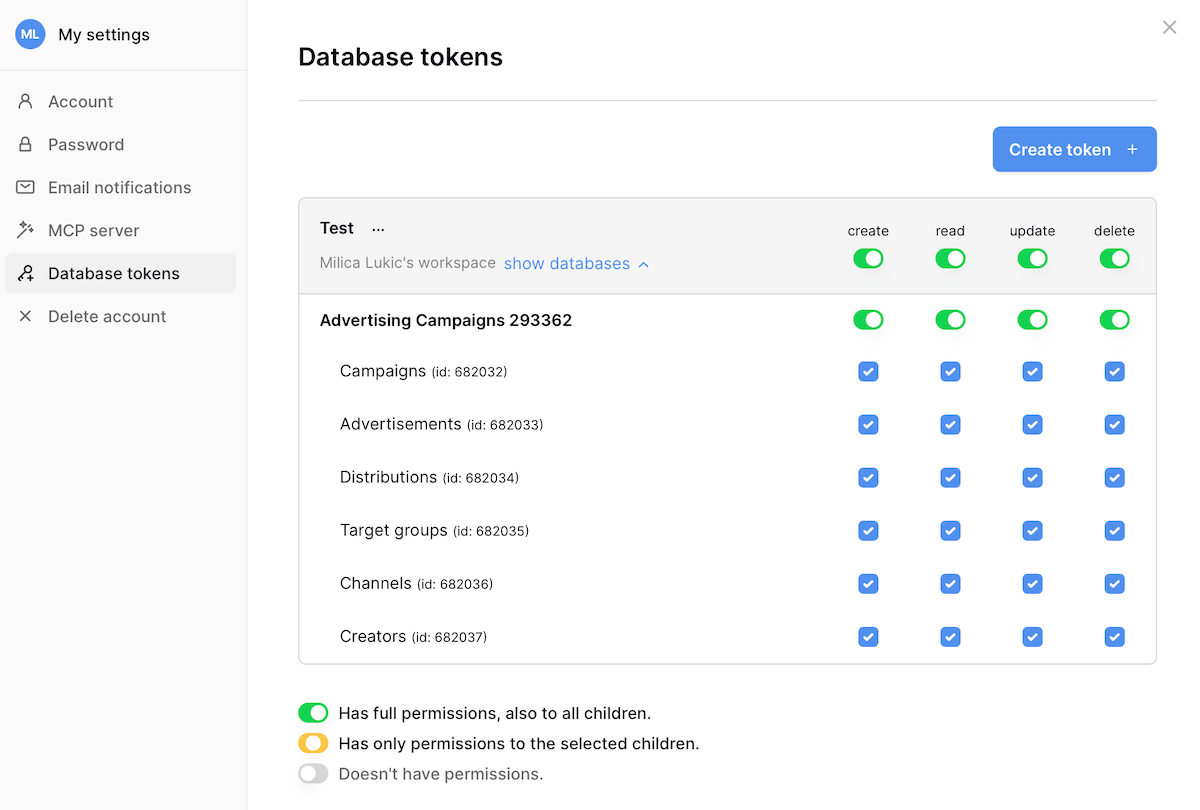
That said, Baserow also has some downsides. Compared to Excel, it’s less powerful for complex calculations, and it doesn’t natively support pivot tables. So, teams that want advanced calculations would need to integrate Baserow with a dedicated analytics tool.
And, much like a couple of other tools on this list, Baserow doesn’t have a native mobile app. Relying on the browser version on your phone usually feels less smooth and harder to manage.
What’s new in Baserow?
Baserow has several new features — pie and donut charts, two-way data sync with PostgreSQL, and a new Send Email action in the app builder, along with formula system improvements and bug fixes.
Available for: web
| Plan | Price |
|---|---|
| Free | $0 |
| Premium (cloud or self-host) | $10/user/month* |
| Advanced (cloud or self-host) | $18/user/month* |
| Enterprise (self-host) | POA |
*billed annually

#12 Numbers — best for Apple users
Numbers is Apple’s free spreadsheet app that offers some of Excel’s functionality with better layout flexibility and a cleaner UI.
Why choose Numbers?
If you and your team are part of Apple’s ecosystem, this app guarantees smooth syncing, native features, and Apple Pencil support.
| Pros | Cons |
|---|---|
| – Sleek and flexible – Ideal for Apple enthusiasts – Drawing and writing with Apple Pencil | – Limited functions compared to Excel – Automations possible but niche |
Instead of an Excel-like endless grid, Numbers gives you a blank canvas where you can add:
- Tables,
- Charts,
- Images,
- Audio files,
- Comments, and more.
The freedom to position those elements anywhere in your page makes them look more like polished documents — great for pitch decks and visually driven reports.
Here are some other features in Apple Numbers that caught my eye:
- Design-ready templates — There are dozens of customizable templates for creating sleek spreadsheets with minimal effort.
- Functions and pivot tables — Numbers supports hundreds of functions and offers Smart Categories, which is similar to Excel’s pivot tables. These enable easy data calculation and organization.
- Collaborative spreadsheets — You and your teammates can see each other’s edits as you make them and receive notifications, improving teamwork.
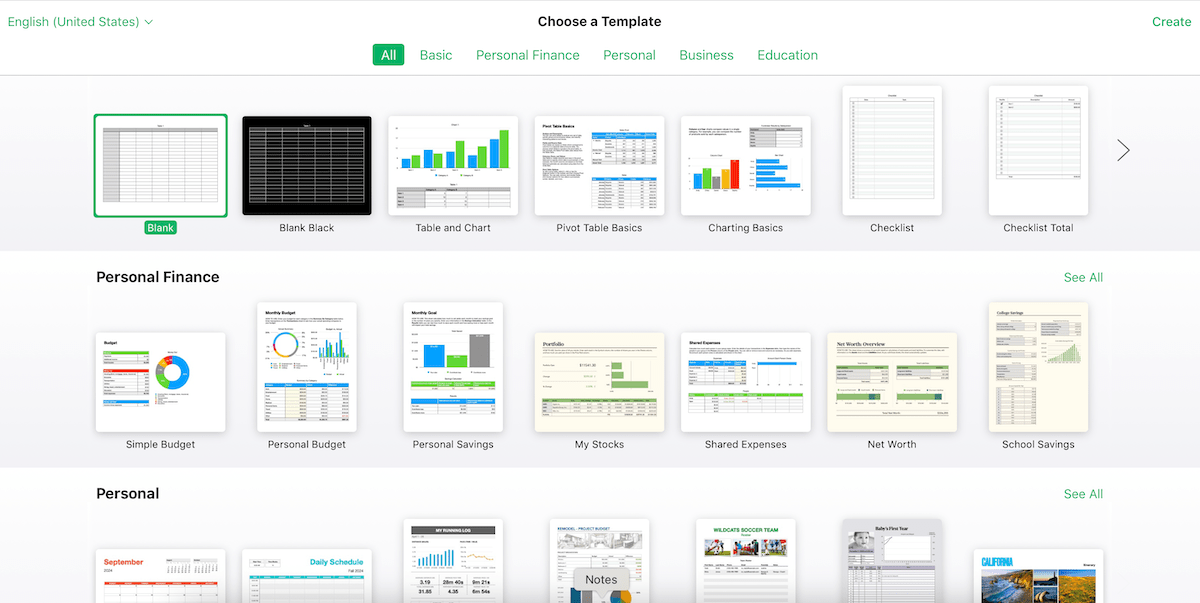
Of course, as an Apple product, Numbers is optimized for all Apple hardware and services. So, if you’re in this ecosystem, you’ll benefit from:
- Deep device integration — Your spreadsheets look the same on Mac, iPhone, iPad, and iCloud, which means minimal friction if you start working on one device and continue on another.
- Pencil and iPad workflows — You can use Apple Pencil to sketch diagrams and annotate data in Numbers on an iPad, boosting creativity and clarity.
- Native security and convenience — Quick unlocking via Face ID/Touch ID and integration with Apple account security make access even more secure and simple.
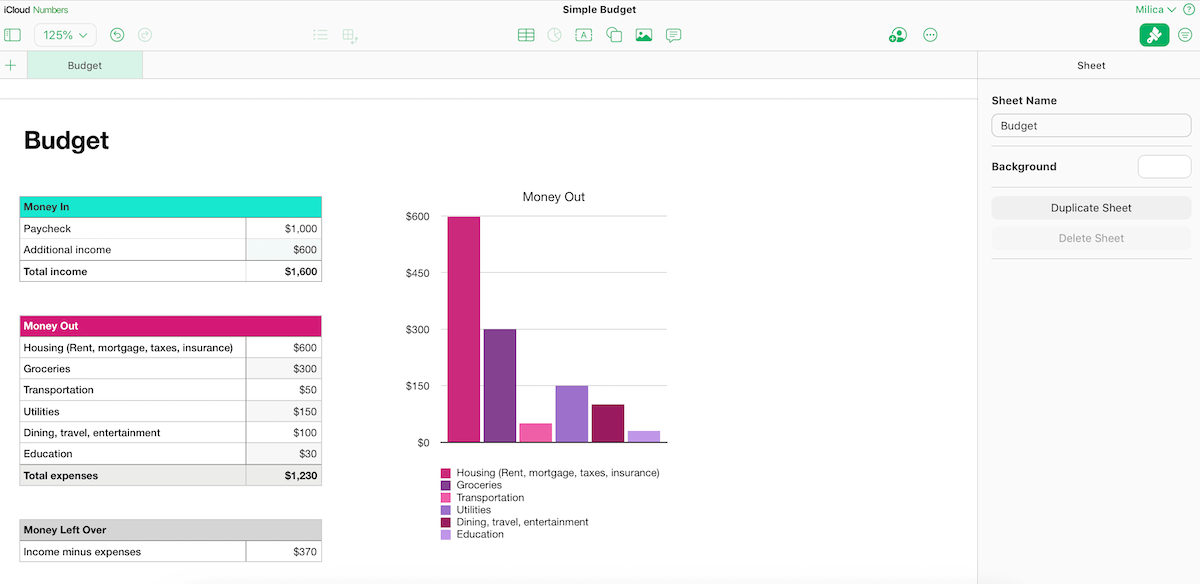
In terms of downsides, I’ll mention that Numbers has fewer advanced functions than Excel, but that isn’t a major issue for lightweight use.
What inconvenienced me more was the complicated workflow automation, requiring:
- Shortcuts app on macOS, iOS, and iPadOS — for automating actions such as spreadsheet duplication or adding new rows with current dates and times, or
- AppleScript and JavaScript on macOS — for more complicated automations in Numbers if you’re comfortable with scripting.
And, unfortunately, there’s no automation feature in the iCloud version.
What’s new in Numbers?
Numbers recently added over 30 new advanced functions. Plus, the app now supports so-called spilling formulas, meaning a single formula can populate multiple cells automatically.
Also, you can now use Writing Tools (proofread, rewrite, compose) directly inside spreadsheets (but this requires Apple Intelligence).
Available for: web (iCloud), macOS, iOS, iPadOS
Pricing: free
#13 Tadabase — best for data reporting
Tadabase is a no-code platform for managing data and building custom applications. It’s designed for users looking to replace static spreadsheets with a robust solution.
Why choose Tadabase?
This platform offers solid reporting and analytics, surpassing the capabilities of traditional spreadsheet tools like Excel.
| Pros | Cons |
|---|---|
| – No-code custom apps – Built-in automations – Custom reporting | – Learning curve – No free plan and no mobile app |
I’ll start with some general advantages that Tadabase has over flat-structure spreadsheet apps:
- Relational data management — creating relational databases to reflect more complex data connections and integrity,
- Customizable apps — designing both internal and customer-facing apps without much effort, using a drag-and-drop interface, and
- Automations — built-in automations to streamline business processes.
One remark, though: while Tadabase allows real-time collaboration and has page versioning, there are no inline comments or a fully transparent, automatic version history like in Plaky or Google Sheets.
Without those more traditional collaboration features, Tadabase is less convenient for teams that need to discuss or review data directly inside the app.
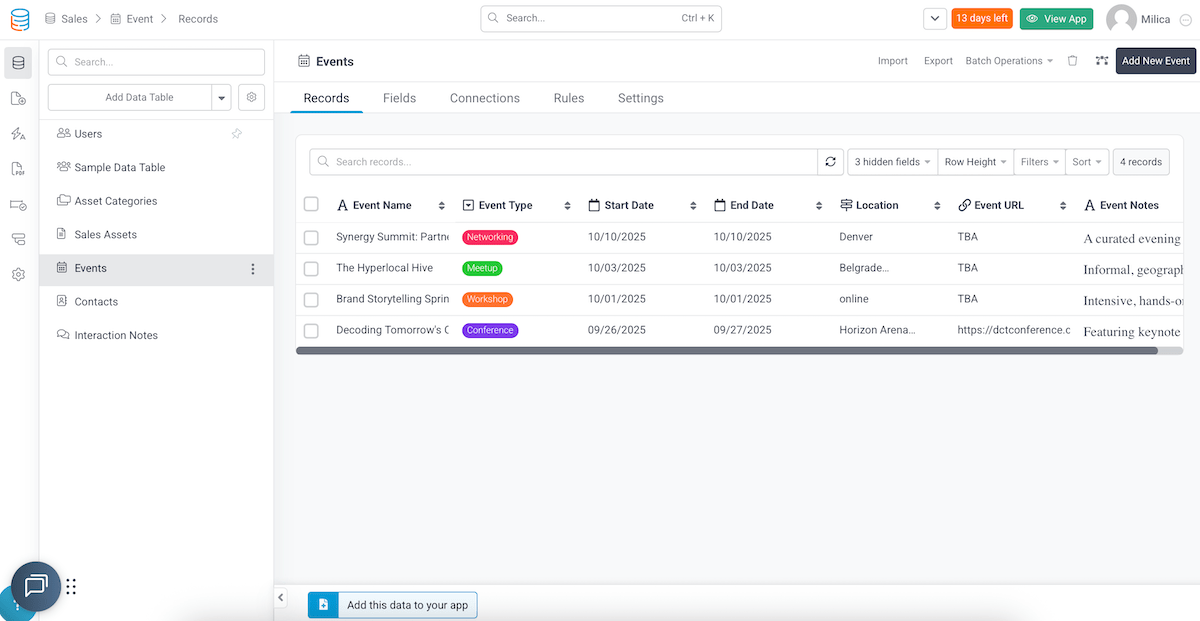
And now, here’s why I consider Tadabase a solid tool for reporting and analytics:
- Dynamic reports — Use a drag-and-drop report builder to create one from scratch or rely on a pre-built template to track goals and performance.
- Interactive charts and graphs — Visualize and understand data more easily with charts and graphs in reports (e.g., customer engagement, tracking deliverables, financial reporting).
- Export options — Export your reports as PDF, Excel, and CSV files when you need to present them to your team or stakeholders.
- Real-time updates — Reports are connected to your tables, reflecting changes immediately.
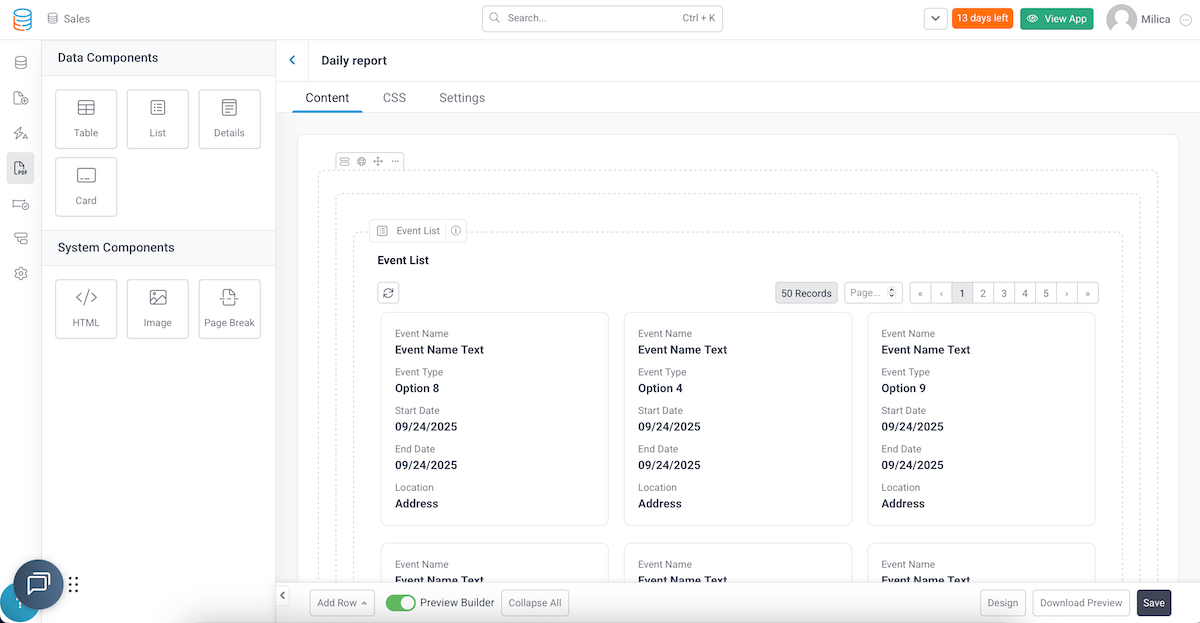
All things considered, Tadabase is a robust platform, but it was probably the most unintuitive one for me compared to all the other apps on this list.
For example, formulas aren’t cell-based Excel formulas — you need the equation field for more complex logic. Additionally, charts exist only as report components, not inside the table grid.
I was also overwhelmed by Tadabase’s terminology. Terms like records, pipes (outward integrations), and DataBridge (bulk sync tool) are intimidating when you’re used to Excel’s familiar rows/columns model.
And, one final remark: there’s no native mobile app, which means limited on-the-go access.
Want an easy-to-use app? Try Plaky
What’s new in Tadabase?
Tadabase has recently made its PDF workflows more powerful, allowing you to duplicate PDF forms, auto-detect embedded form fields, protect PDFs with passwords, and add watermarks.
Available for: web
| Plan | Price |
|---|---|
| Starter (teams and individuals) | $42/month (3 apps)* |
| Growth (teams and individuals) | $105/month (5 apps)* |
| Professional (teams and individuals) | $210/month (10 apps)* |
| Elite (teams and individuals) | $375/month (15 apps)* |
| HIPAA Edition Add-On | $450/month |
*billed annually
#14 EtherCalc — best for ad-hoc usage
EtherCalc is an open-source, web-based spreadsheet tool, available to everyone for free. Unlike Excel, it doesn’t require accounts or licenses.
Why choose EtherCalc?
Since there’s no signup or installation, EtherCalc is ideal for one-off projects, temporary data collection, and similar cases.
| Pros | Cons |
|---|---|
| – Zero setup & free – Easy collaboration – Ephemeral by design | – Limited advanced features – Security risks |
Let me point out right away that EtherCalc prioritizes accessibility over advanced functionality. In other words, it lacks many of Excel’s advanced features, like pivot tables, advanced charting, and macros.
Still, EtherCalc can handle many spreadsheet-standard formulas, reference ranges, and link cells. What makes it particularly useful is the following:
- Real-time collaboration — You can co-edit the same sheet with other people, with instant updates for everyone. There’s no permission management, you just send the URL (each sheet gets a unique one) to your collaborator.
- Control — This open-source, self-hostable tool is appealing to teams that don’t want to depend on Microsoft or Google infrastructure.
- Cross-platform simplicity — EtherCalc works on any device with a browser, requiring no special apps or accounts.
- Lightweight use — Thanks to its simplicity, EtherCalc runs faster than bloated spreadsheet programs, especially with simpler datasets.
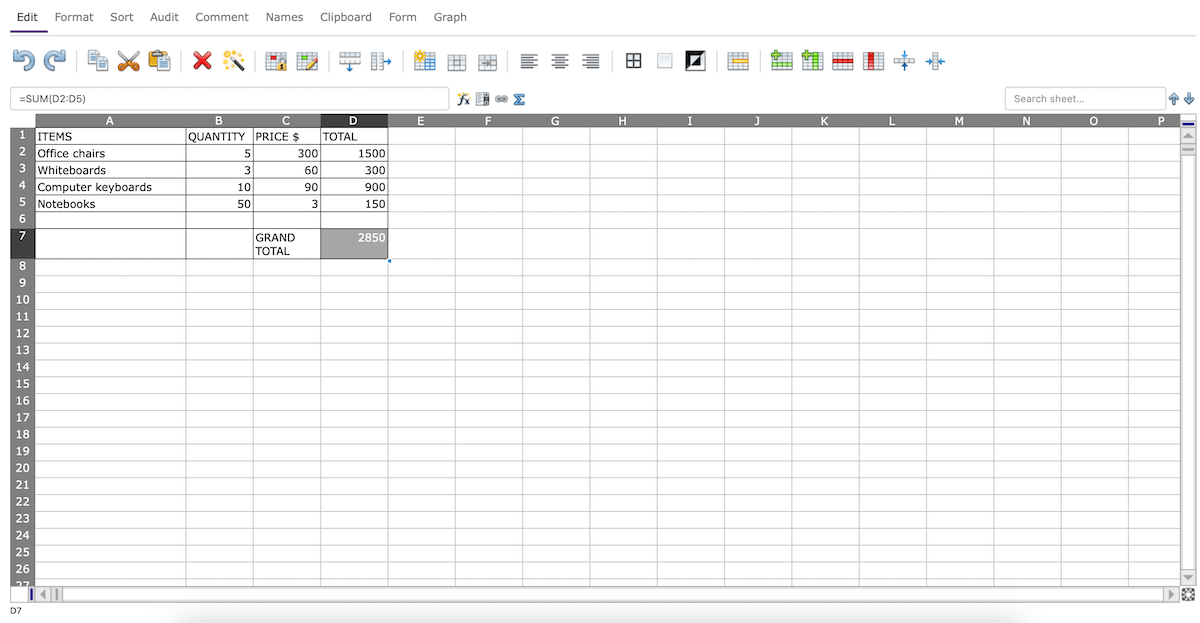
Considering everything, I’d say EtherCalc is excellent for ad-hoc usage — anyone with the link can jump in instantly, which means:
- Low-commitment setup — perfect when you need temporary data collection that doesn’t need to live forever (like meeting notes or sign-up lists),
- No IT bottlenecks — no need to request software access or admin approval, speeding up spontaneous collaboration, and
- Flexibility for mixed groups — great when collaborators are outside your organization and may not share the same tools.
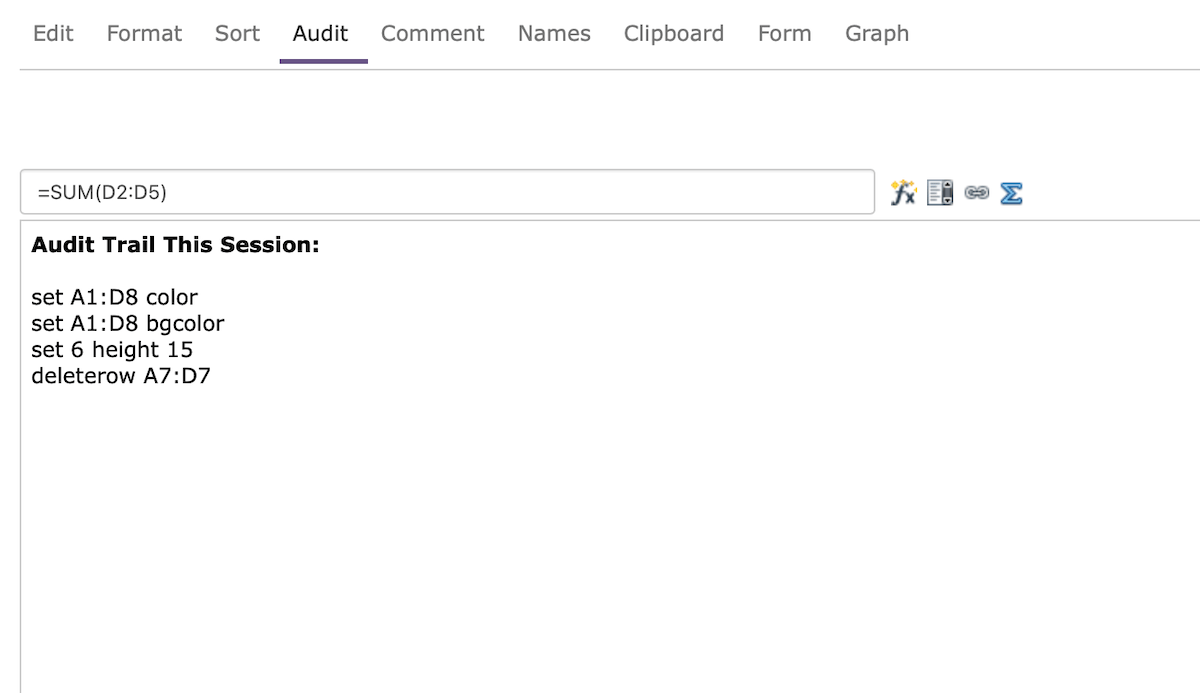
All that said, EtherCalc’s simplicity obviously comes at a cost. The interface is very basic, so it feels outdated compared to mainstream spreadsheet software. Plus, there’s no robust version history, making it harder to track and reverse changes.
And — perhaps the biggest concern of all — since everyone with the link can edit, I wouldn’t recommend EtherCalc for sensitive projects.
To sum up, this is a decent choice for quick collaboration, but not for professional, large-scale, or data-heavy work.
What’s new in EtherCalc?
I found no information about any major updates in EtherCalc recently. The latest official releases seem to date back a bit, focusing mostly on bug fixes and maintenance rather than large additions, which makes sense considering the app’s ephemeral nature.
Available for: web
Pricing: free
Go for Plaky — the smarter, more flexible alternative to Excel
Choosing the best Excel alternative depends on your needs and priorities, but when it comes to managing projects and team collaboration, you’ll hardly find a more well-rounded solution than Plaky by CAKE.com.
Our platform strikes the right balance between user-friendliness, affordability, and security thanks to:
- Neat UI — Intuitive boards and custom fields make work management simple, both in the browser and Plaky for iOS/Plaky for Android.
- Pricing for various budgets — Plaky’s pricing ranges from the generous free plan to the comprehensive Enterprise tier with useful premium features.
- User roles and permissions — Admins can choose who can see/edit what in Plaky to ensure top-notch security and prevent unauthorized changes.
Here’s a quick demo video to help you grasp everything Plaky has to offer:
Say goodbye to messy spreadsheets — it’s time to take control of your projects and your time. Get Plaky today!