If you’re actively seeking project management software that will unite your team, you’re in the right place.
Today, I’m going to compare Plaky and Asana.
While Asana is an established player, Plaky is relatively new to the market. They both promise smooth project management, but once you dig a little deeper, the differences in pricing and user experience come into view.
So, how do they compare, and which one is the better fit for you and why? Let’s find out!

WHY TRUST US?
Human reviewers try out each app and follow strict guidelines while writing about the comparisons. We follow a transparent, clear, and systematic methodology, so that every review is objective and accurate.
Plaky vs Asana — a brief rundown
The main difference between the 2 platforms lies in their pricing models and the way each app caters to growing and cost-conscious teams.
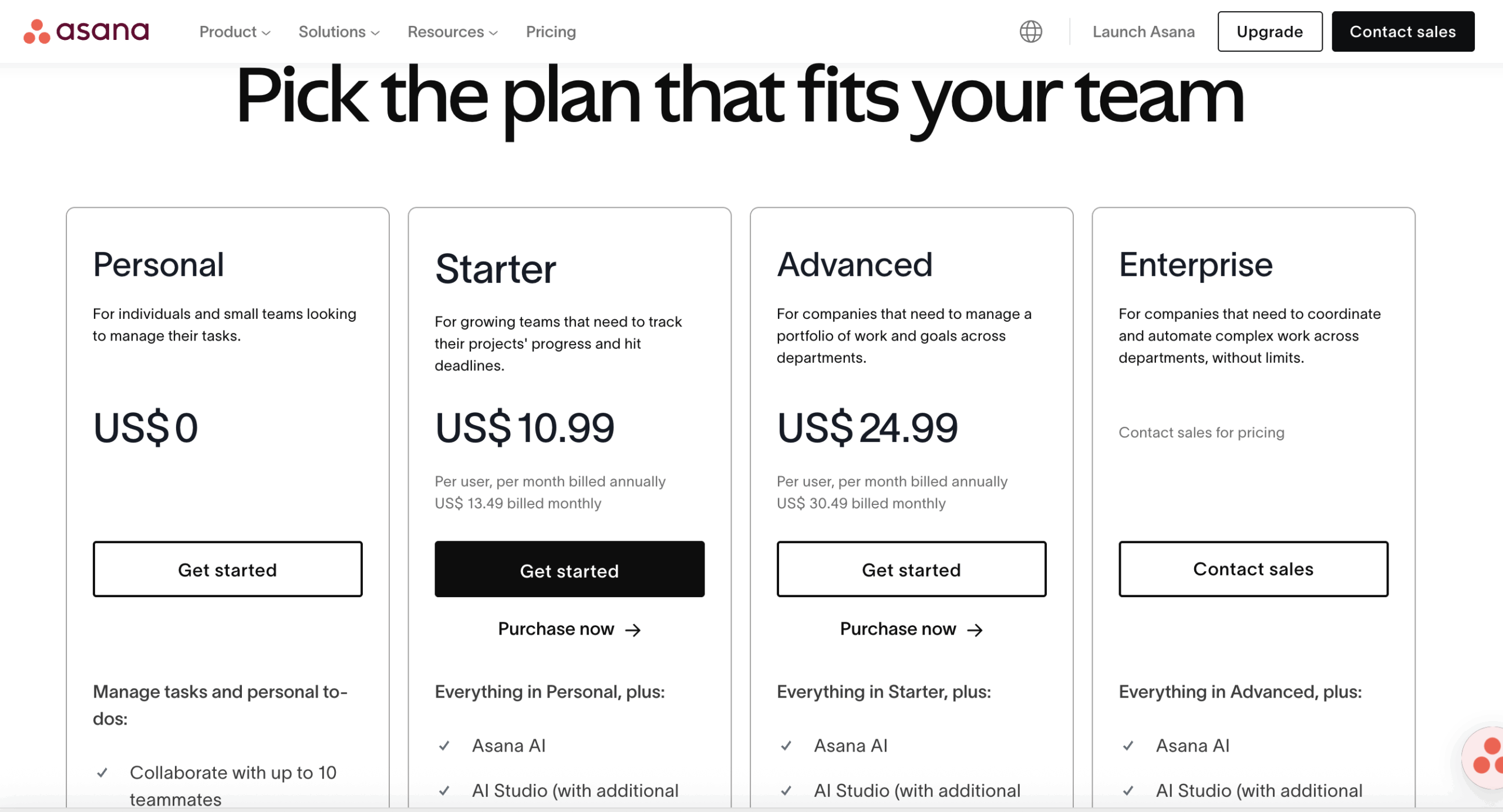
While Plaky offers unlimited users on the free plan, Asana’s free plan (Personal) is limited to 10 people.
In other words, you can’t use Asana for free once your team adds its 11th member, whereas with Plaky, your team can scale to an unlimited number of users cost-free.
Admittedly, both apps offer advanced task management and first-rate security, so I’m going to point out some nuances that might be a deciding factor for you.
Here’s a side-by-side comparison of these 2 tools:
| Feature | Plaky | Asana |
|---|---|---|
| Pricing | – Free plan – Paid plans start at $3.99/seat/month (billed annually) | – Free plan – Paid plans start at $10.99/user/month (billed annually) |
| User interface | – User-friendly – Light/dark theme – Intuitive and responsive | – Clean design – Light/dark theme – More complex |
| Task management | Advanced | Advanced |
| Team collaboration | – Comments & reactions – @mentions – Replies – File sharing – Notifications | – Comments & @mentions – Private, team, and project messages – File sharing – Inbox notifications |
| Progress tracking | Advanced | Advanced |
| Administration | – Different user roles and permissions – Admin settings | – Admin console – Permissions – Guest access |
| Integrations | – Clockify, Pumble | – 200+ |
| Support | – 24/7 email, chat, and phone customer support – Help page – Knowledge hub – Plaky guides – Tutorials | – 24/7 support for Enterprise plan users – Help Center – Asana guides – Asana forum – Asana Academy – Chatbot |
| Security | Advanced | Advanced |
What’s new in Plaky?
The most notable features added recently to Plaky are:
- Board automations — Reduce manual work and automate repetitive tasks to save time.
- Plaky + Pumble integration — Get notifications about any Plaky task updates directly in Pumble.
- Comment & replies reminder — Set a reminder for any comment or reply and get notified about them at a later time.
To see other fixes and improvements, visit Plaky’s changelog. And, for a full list of upcoming features, check out Plaky’s roadmap.
What’s new in Asana?
Asana has recently added a bunch of improvements on all plans, like:
- Swimlanes in board view — You can organize tasks into horizontal rows by sections, assignees, or eligible custom fields.
- Task conversion to milestones with automation — Create rules to automatically convert a task into a milestone.
- Multiple dashboard tabs — Add multiple dashboard tabs to your projects and My Tasks in order to set up different reporting views.

Plaky vs Asana: Main features comparison
Let’s compare the 2 apps and see how Plaky fares against Asana in terms of pricing, UX, progress tracking, and more.
Plaky has a better free plan than Asana
Asana’s free plan (Personal) is quite generous as you get:
- Unlimited tasks, projects, and messages,
- Activity logs,
- Multiple views,
- Status updates, and more.
However, for such a robust platform like Asana, this plan has got some significant flaws, like the:
- 10-user cap — The free plan is practically useless for large teams because once you have 10+ people on your team, you are immediately pushed into a paid plan.
- Lack of custom fields — No custom fields means you can’t organize project information around your needs.
- Lack of 24/7 support — This kind of support is reserved for Enterprise users only (as if they’re the only ones who can experience issues with the platform).
Overall, these points can be a real deal-breaker for potential users.
On the other hand, Plaky’s free plan users can count on:
- Unlimited spaces, boards, and items,
- Multiple views,
- A 7-day activity log, etc.
At the same time, Plaky’s free plan doesn’t impose limitations on the number of users like Asana does. Even with the free version, you get:
- Unlimited users — The free plan is scalable, meaning Plaky doesn’t penalize growth in any way. You can have an unlimited number of users for free and sign up for a paid plan only when you need advanced functionalities.
- Custom fields — Plaky supports flexibility and allows you to create your unique workflow. You can add, remove, or modify fields to easily track what’s important, like budgets, task statuses, deadlines, etc.
- 24/7 support — It feels good to know that live human support is available around the clock even if you’re not spending a dime on Plaky.
Explore how growing teams use Plaky
💡 PLAKY PRO TIP
Want to switch from Asana to Plaky with ease? Here’s how to transfer all your data without a hitch:
Plaky’s paid plans are more affordable than Asana’s
Both Asana and Plaky offer paid plans, so you can choose the one that suits you best. However, the differences in pricing are striking.
Asana has 4 paid plans that mostly differ in features such as goals, capacity planning, security level, and advanced permissions. Unlike its free plan, Asana’s paid tiers offer unlimited users, so you can really do a detailed comparison, check the features your team will actually use, and see how the price fits into your team budget.
Here’s an overview of Asana’s pricing plans.
| Asana’s plans | Yearly subscription | Monthly subscription |
|---|---|---|
| Personal (up to 10 teammates) | $0 | $0 |
| Starter | $10.99/user/month | $13.49/user/month |
| Advanced | $24.99/user/month | $30.49/user/month |
| Enterprise | POA | POA |
| Enterprise + | POA | POA |
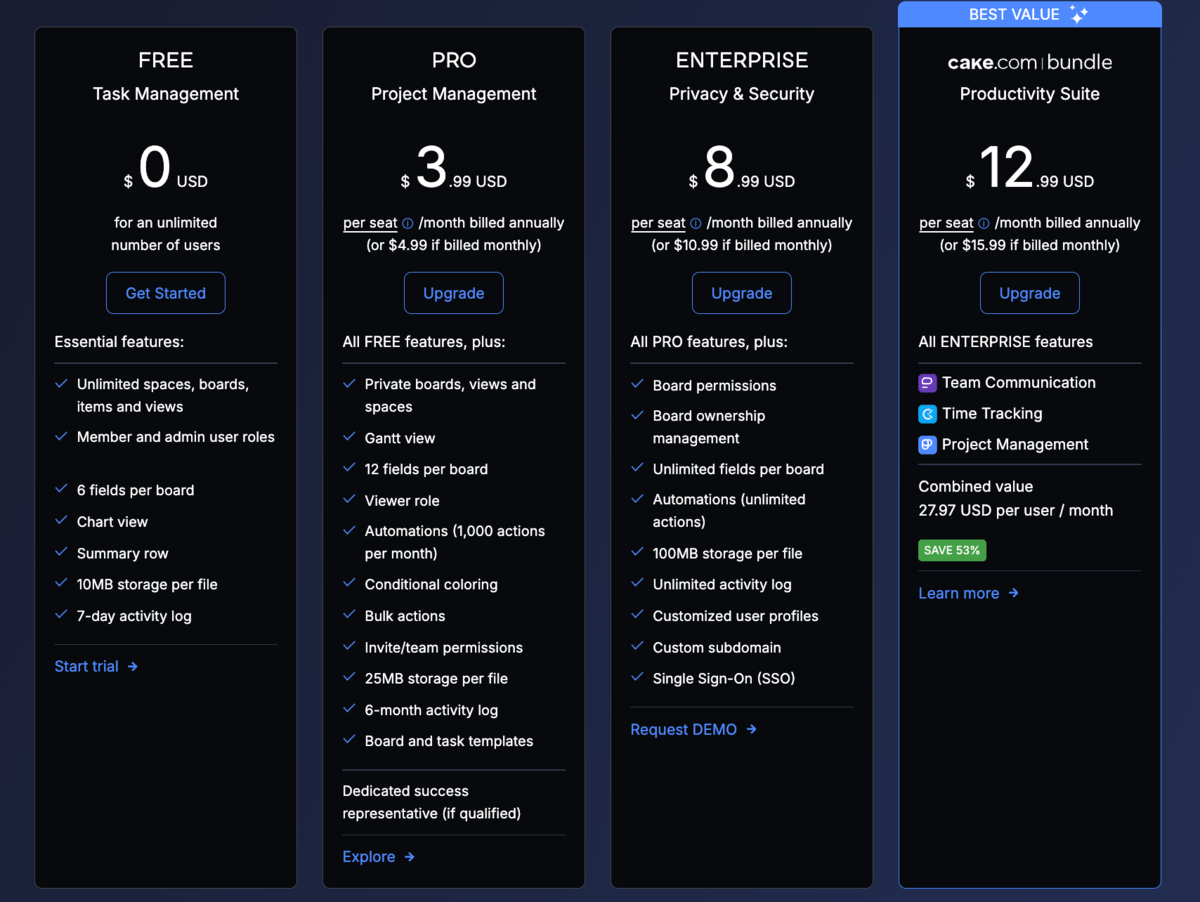
In contrast, Plaky is much more affordable.
| Plaky’s plans | Yearly subscription | Monthly subscription |
|---|---|---|
| Free | $0 | $0 |
| Pro | $3.99/seat/month | $4.99/seat/month |
| Enterprise | $8.99/seat/month | $10.99/seat/month |
| The CAKE.com Bundle | $12.99/seat/month | $15.99/seat/month |
Both Plaky’s Pro and Enterprise plans offer almost the same features, like private and Gantt views, bulk actions, etc. The main difference is that the Enterprise plan imposes no limits on automations, the activity log, and custom fields — and it comes with advanced security perks.
With Plaky, you can also expect some decent savings. Let’s say that you have a team of 25 people. Asana’s Starter plan for that number of people would cost you $3,297 annually, whereas Plaky’s Pro plan would set you back $1,197 per year.
What’s more, Plaky’s most expensive tier is more affordable than Asana’s cheapest plan, making Plaky a better alternative for cost-conscious teams.
That said, both Asana and Plaky offer a 2-week free trial, so you can explore each app thoroughly.

Both apps have neat UIs, but Plaky’s more user-friendly
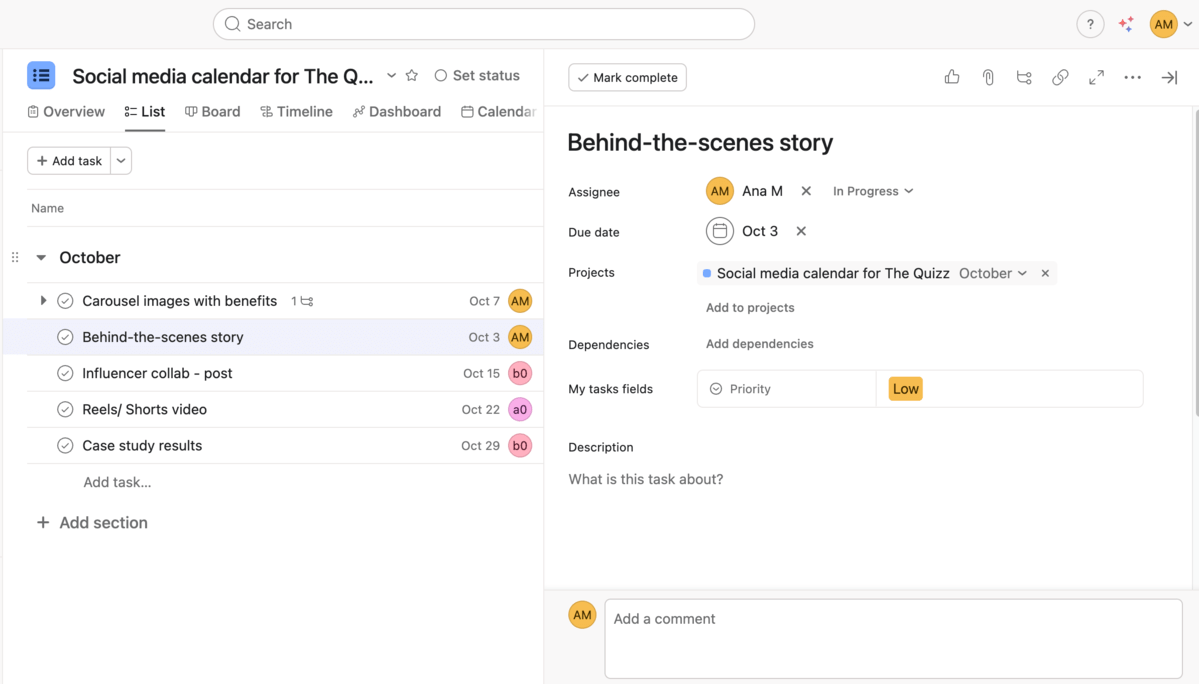
Asana’s interface has a nice, clean design, offering you a choice between a dark and a light theme. I personally prefer the light one as it makes the warm colors of project icons or status fields easier on the eyes.
Once you create a new project in Asana, you are immediately taken to a template list of Asana’s workflows — so you don’t have to start your projects from scratch.
However, if you want to create your own project, like I did, you should know that you can only create subtasks in a task details pane — an unnecessary complication for such a simple step, if you ask me.
Also, Asana keeps task status and priority information within a task pane (task card), which I don’t find really practical. I prefer having such data right in front of me, i.e., on the board. Still, you can add these fields by creating them on your own or by choosing them from your organization’s library.
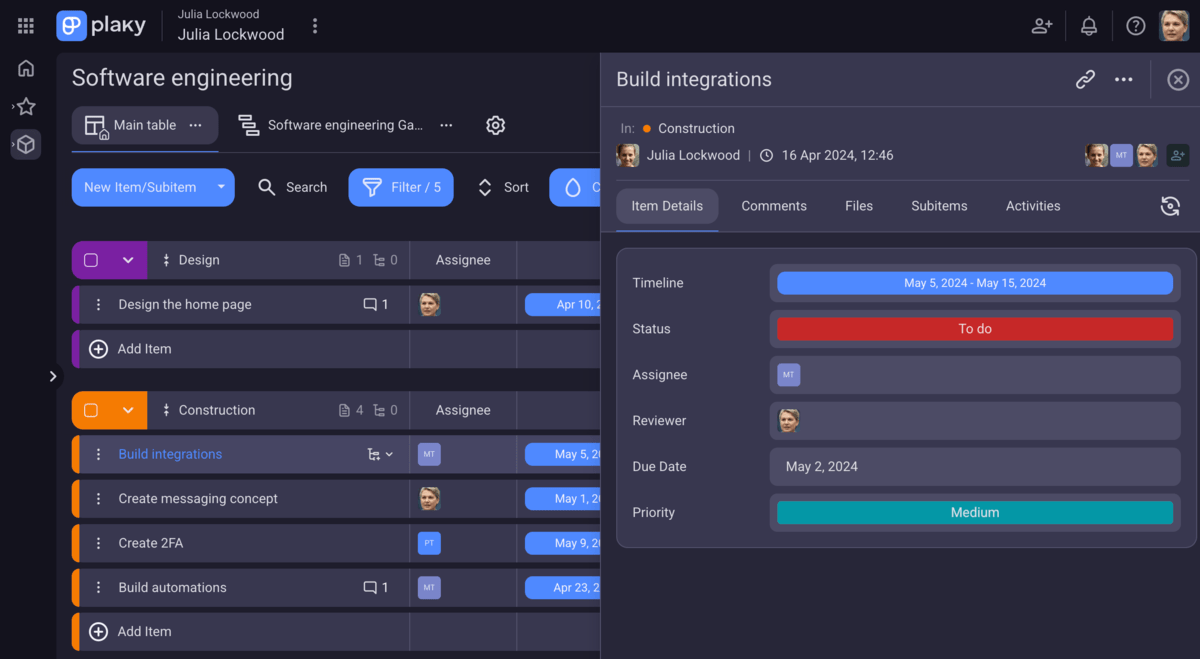
Moving on to Plaky, this tool also has a clean and vibrant design, and you can choose between a light and dark theme, just like you do with Asana. Although Plaky’s colors are vivid, they only add to better visibility of important project details.
I must say I enjoy Plaky’s intuitive, easy navigation, and the accessibility of key features. Plaky’s buttons and icons, situated around the board, clearly show what they’re for, making the user experience much better.
More importantly, in Plaky, you can easily choose a custom field from a dropdown menu that pops up once you click on the + button on the board. In addition, you can create subtasks right on the board, without opening the task card (though there’s a tab for those in the card itself too).
💡 PLAKY PRO TIP
How does Plaky compare to other task and project management tools? Find out now:
Asana has more task management features, but Plaky makes customization easier from the start
Both Asana and Plaky offer advanced and highly customizable task management features.
Here’s what you can expect in Asana:
- Project views — You can see your work in different views, such as List, Board, Calendar, etc.
- Custom fields — Available on paid plans, custom fields like person, priority, or date, allow you to add details to tasks and organize them better.
- Rules system — This robust system helps you create rules to automate task actions, such as moving a task to another group once it’s completed, assigning tasks, asking for approvals, etc.
- Subtasks — In Asana, you can create subtasks and even break down subtasks into even tinier subtasks (up to max 5 levels).
- Templates — Asana enables you to standardize your work by using its ready-made templates for your common workflows.
The thing that I really like is Asana’s “multi-homing”. I could simply add one task to multiple projects from the task pane.
Just to make it clear, in this case, one task becomes a part of multiple projects that are connected in some way, which makes detecting task dependencies quite easy.
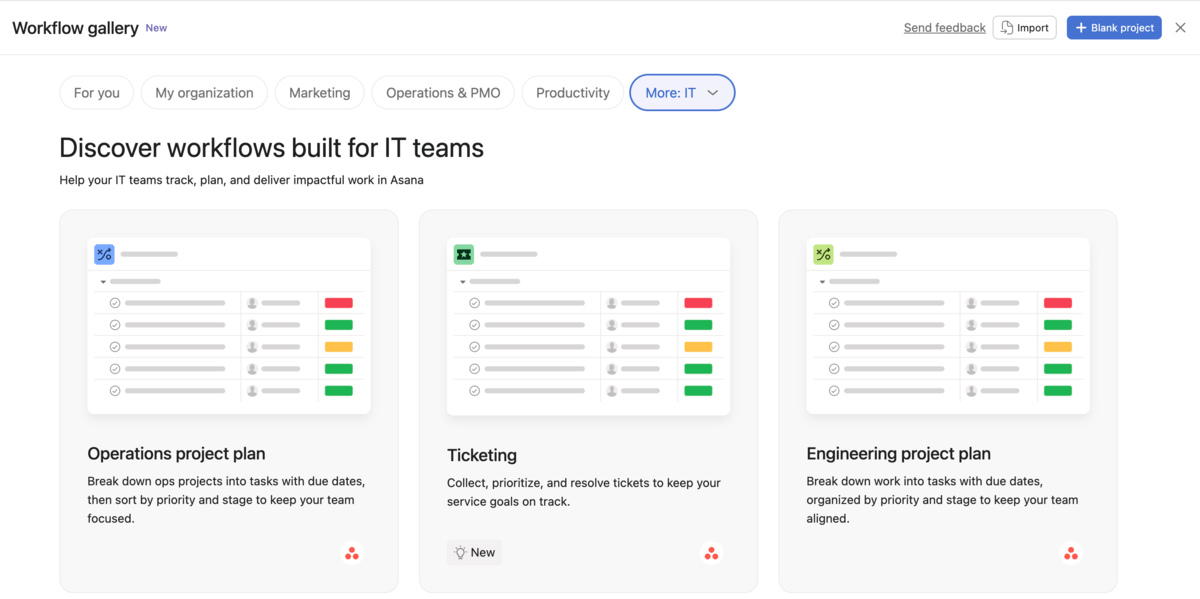
On the other hand, Plaky helps improve your task management through features like:
- Project boards — Each board can serve as a place where you organize your tasks, workflows, and processes for different projects.
- Custom fields — Each custom field shows a particular task detail, like task assignees, priority, status, due date, etc.
- Folders and item groups — You can use folders to group related boards so that you always know where to find them. Item groups, on the other hand, let you group items/tasks based on a specific criteria, e.g., status or phase, making progress tracking easier.
- Customizable templates — Make use of Plaky’s template center when you don’t feel like creating a board from scratch. You’ll find a variety of pre-built templates for a great number of industries.
- Board automations — No-code automations help you streamline processes, reduce manual work, and repetitive tasks. The intuitive WHEN-THEN trigger allows you to change task status, move items, update fields, notify team members and managers, etc. automatically, thus reducing errors.
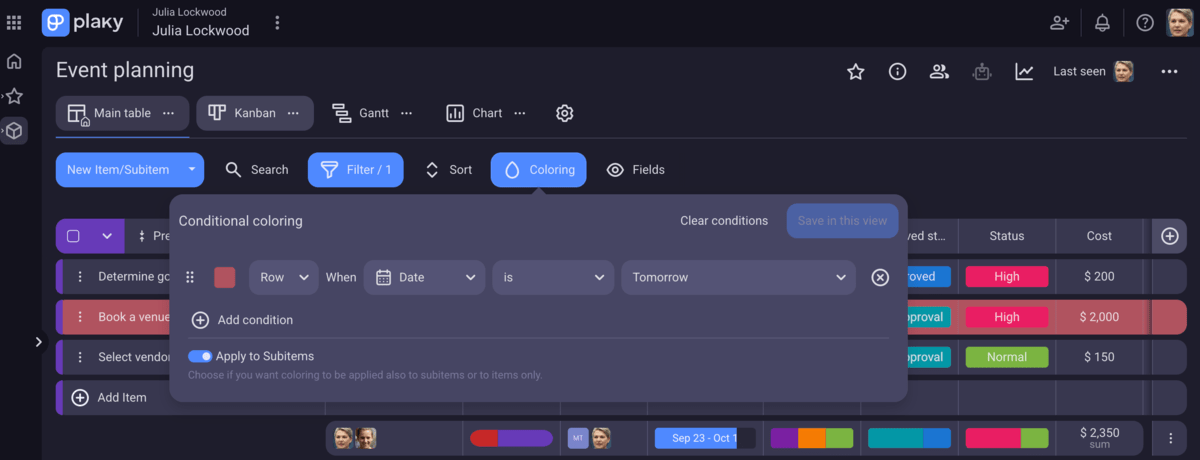
- Conditional coloring — Color-code rows and cells to visually highlight important task information based on different criteria (e.g., approaching deadlines, exceeded budgets).
As far as I can tell, both apps have advanced task management features. But, although Asana offers more project views and some attractive elements, the lack of custom fields on the free plan makes smooth task management unnecessarily problematic for small teams.
💡 PLAKY PRO TIP
Wanna see how Asana fares against other popular PM tools? Check out these articles:
Both Asana and Plaky support seamless team collaboration
Both apps connect teams thanks to shared workspaces where team members can collaborate on mutual projects and tasks.
While testing Plaky and Asana, I noticed they both enable:
- In-task comments — Use comments to ask questions and share task updates and resources, keeping everyone in the loop. You can even pin critical comments to the top to make sure they aren’t missed.
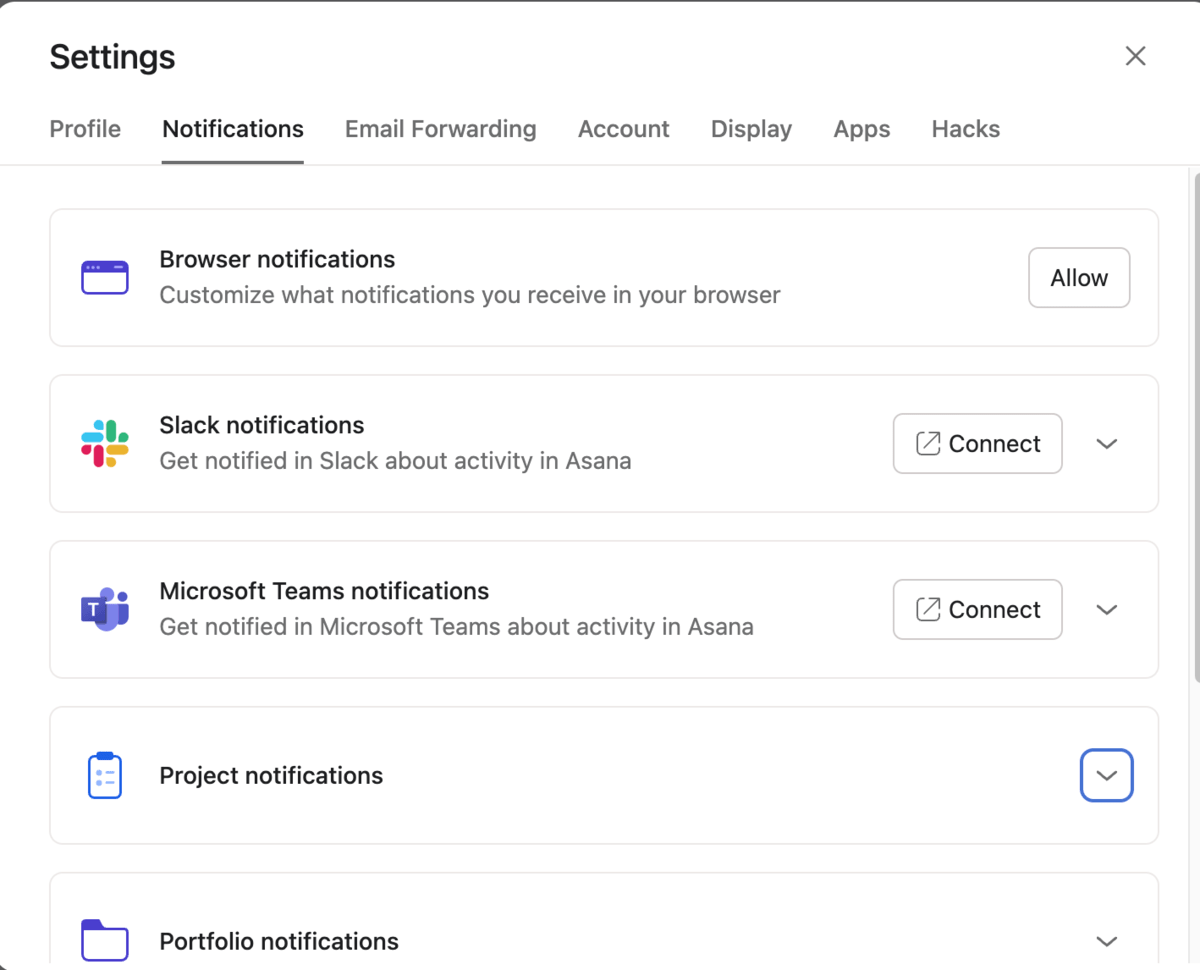
- Real-time notifications — Get notified whenever there’s a change on a task and never miss an update again. And yes, you can even customize what you want to be notified about.
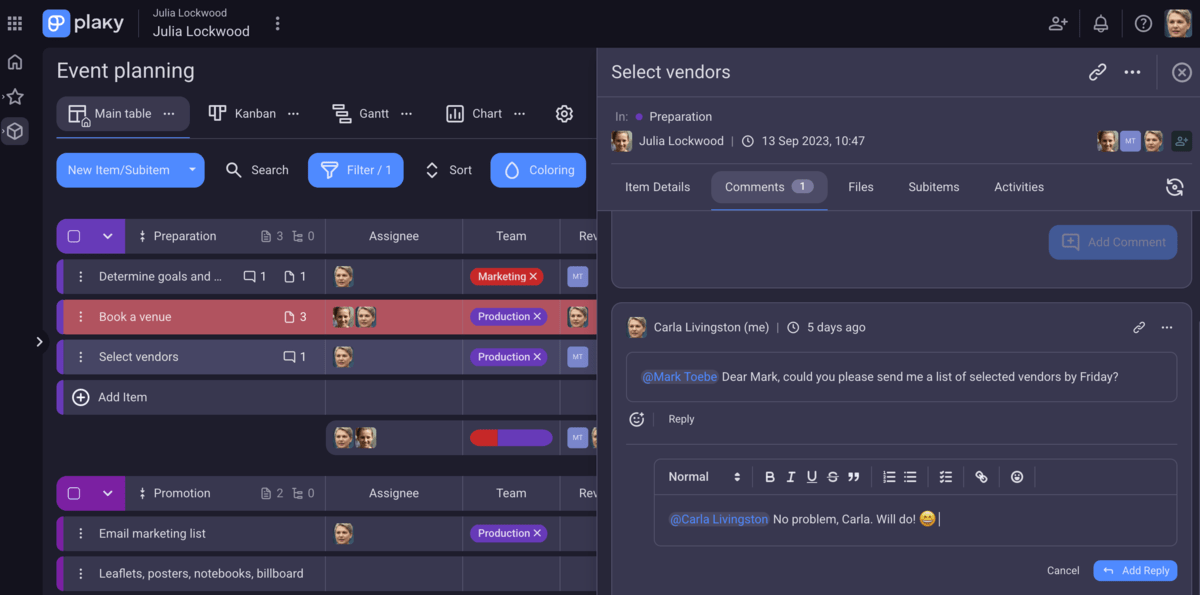
- @mentions — Tag specific team members by @mentioning them to attract their attention, ensuring they respond quickly.
- Emojis — React to comments with emojis to keep communication fast and organized, but still easy to understand.
- File sharing — Forget about digging through tons of folders to find what you need. Instead, upload and share files in different formats to have them stored within the task they belong to.
Mind you, don’t get confused with the Files paperclip icon on Asana’s topbar and the one you have in a task pane. The first is actually the Files view that displays all files attached to a project. I’m not sure how this gallery-like view helps as I’d always go to a task pane first to find the files I need.
At the same time, I really like Asana’s built-in messages that allow you to send private, team, and project messages. The idea of sharing messages right in your PM tool is great for project announcements, welcoming new team members, or strategy changes.
That said, I would like for Asana to add a reply option in its task comments sections. I’m not quite sure how large teams manage to follow and understand comments without proper comments threads.
To compare, Plaky has comment replies available, making it much easier to grasp all task updates and changes. What’s more, Plaky lets each team member customize notifications and choose what they want to receive. For example, you can get notified only for items assigned to you, or for those that you’re following. Plus, you can receive notifications right in the app, via email, or in Pumble!

Both Plaky and Asana enable easy progress tracking — but Asana offers more options on paid plans
Progress tracking is an essential part of project management that helps you keep your team on track, meet deadlines, and deliver successful projects.
To track project progress in Asana on a basic level (read: for free), you can use:
- Multiple board views — Use List, Boards, or Calendar view to see your projects from different angles.
- All activities log — Find the all activities section within each task pane to get an overview of all task changes and updates.
- Sort option — Sort tasks by assignee, due date, or priority to see who is doing what, when tasks should be completed, and what you should prioritize.
- Filter option — Filter tasks by assignee, due date, priority, or progress, and get quick information on all the work assigned to a single person or tasks that have the same priority.
Not surprisingly, Asana offers various more advanced progress-tracking features on its paid plans. So, if you are ready to cough up more money, you can count on features such as:
- Goals — Track personal, team, or company goals, and see how your own work contributes to your team and the entire organization.
- Milestones — Use milestones to identify critical points in your projects.
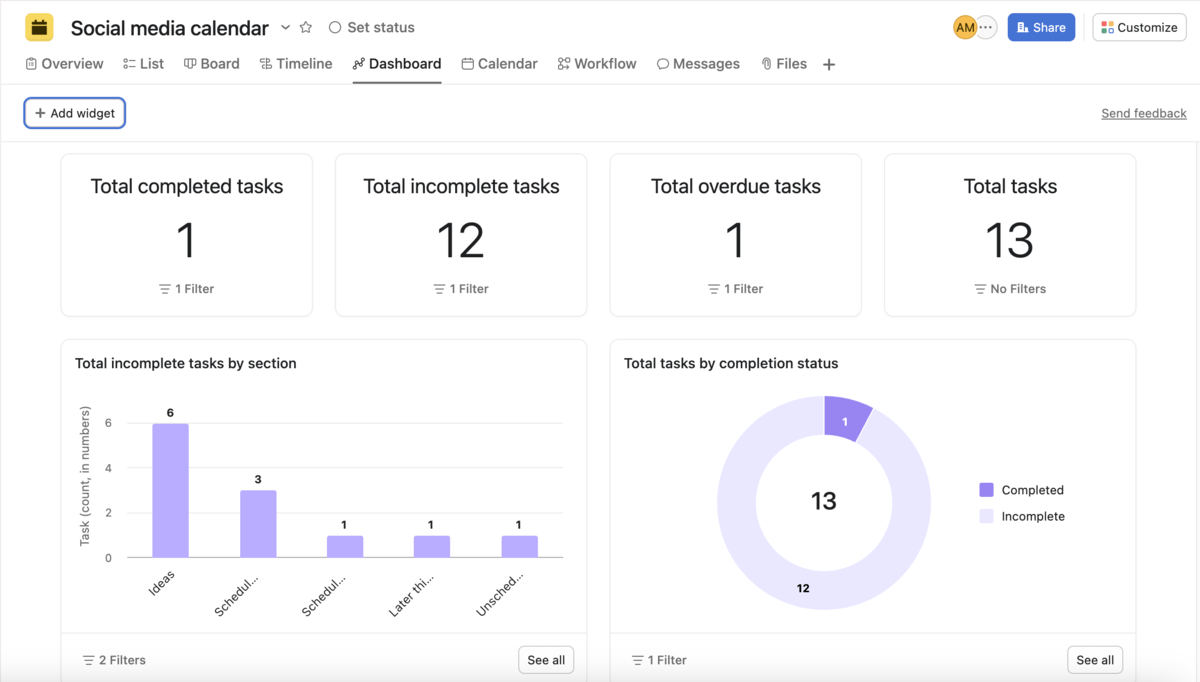
- Reporting dashboards — Visualize your project data in real time with charts and graphs, and add widgets to display specific information.
- Time tracking — Monitor how much time your team members spend on their tasks and improve your budget planning.
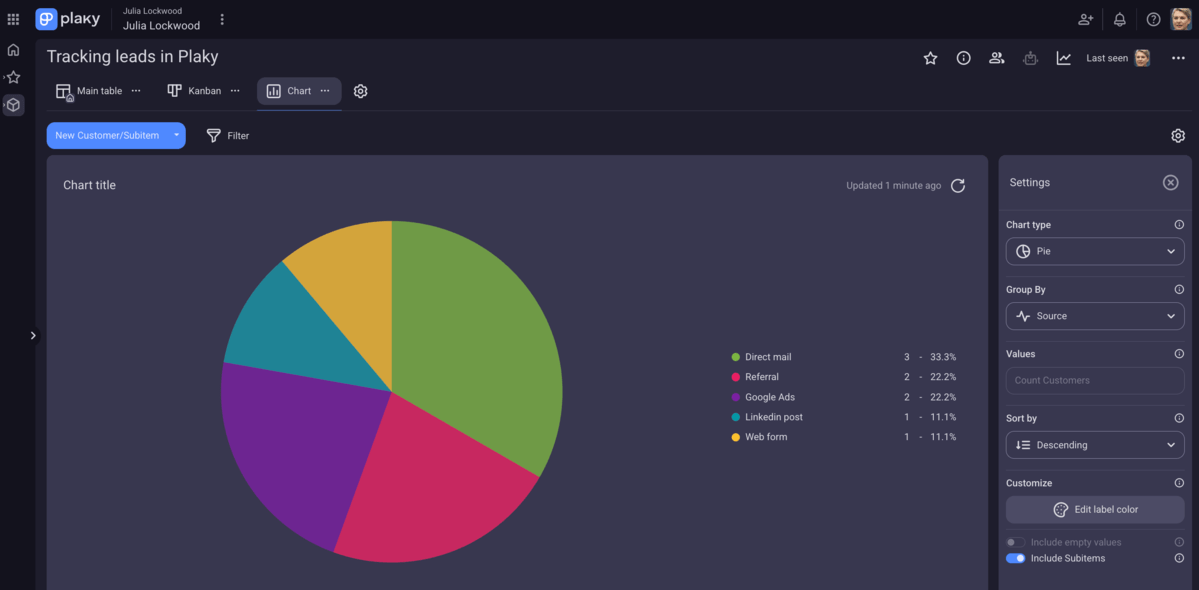
But Plaky is also well equipped with various progress-tracking features, including:
- Multiple board views — Apply different board views (Table, Kanban, or Chart on the free plan, and Gantt chart view on the paid plans) to display the information you need in a way that suits you best.
- Sort and filter — Save time navigating your boards and narrow your focus down to the specifics. For example, you can sort tasks by due date to see which should be completed first. Also, you can use Plaky’s filters to quickly find specific tags, people, or tasks assigned to one of your team members.
- Activity log — Get a real-time record of all project activities for full transparency.
- Summary row — Aggregate data from multiple fields and get an overview of the number of tasks, total costs, or other key project details. The summary row is available in the Table and Kanban board view.
- Time tracking — Track time right in Plaky with its free Clockify integration and later analyze time, review timesheets, and export reports in Clockify.
Overall, both apps have great progress-tracking features, but Asana offers some more advanced options for project monitoring. Still, those come at a hefty price.
Both Plaky and Asana offer great administration options
Asana solves administration matters via its admin console — a central interface you can use to manage:
- All users and teams,
- Permissions,
- Authentication settings,
- Sharing rules, and much more.
You can easily access the admin console via your profile menu in the top-right corner of Asana’s workspace.
With Asana, you can also set up permissions and control who has access to what information. The permissions can be customized for different user roles, including:
- Super Admin (top-level role with full control),
- Admin (has access to the admin console and can manage teams and members),
- Member (default role for users with internal email addresses), and
- Guest (a user with an external email address).
In addition, Asana has different object access levels:
- Access levels for goals (editor and viewer) and
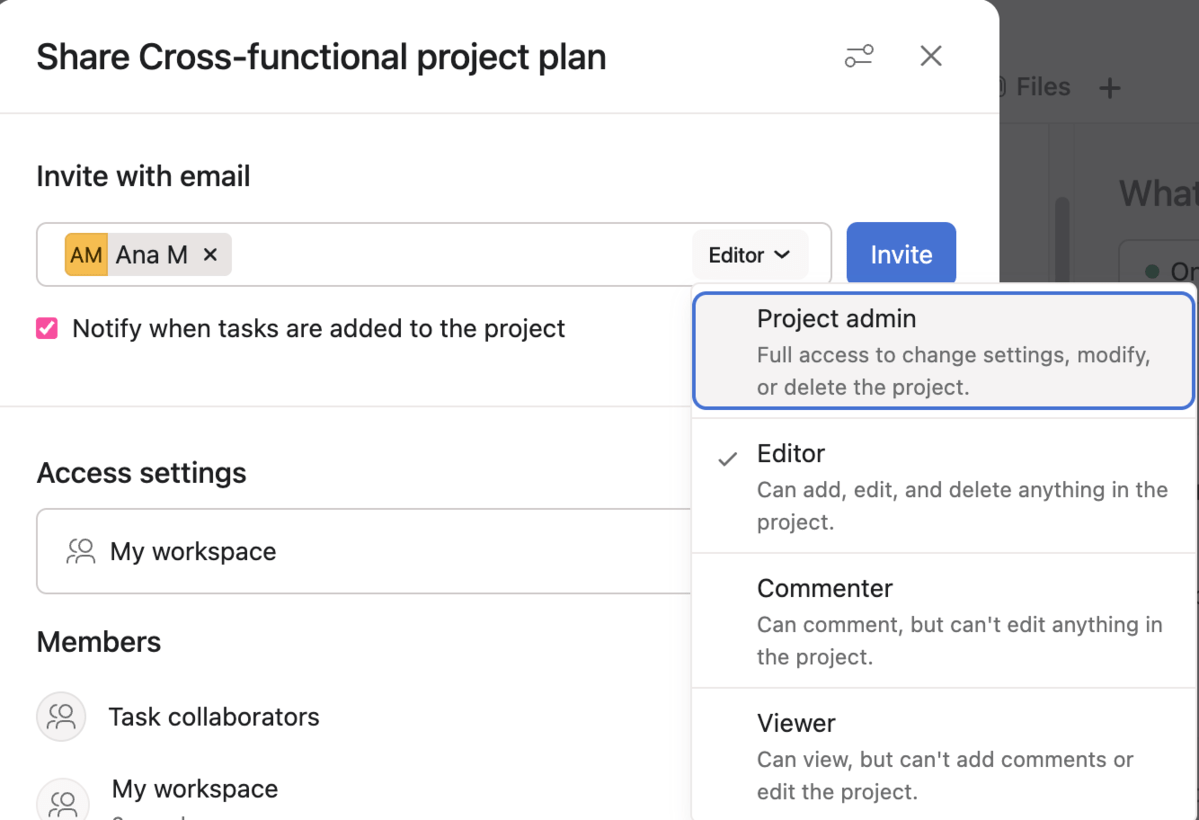
- Project access levels (admin, editor, commenter, and viewer).
I guess all these levels and layers come in handy for Asana’s users. However, it takes time to understand who can do what and how to set it all up.
In comparison, Plaky’s admin organization seems a lot more straightforward.
To protect unauthorized data changes, Plaky enables different user roles:
- Admins (create the organization and control the workspace, boards, tasks, access permissions, and ownership transfers),
- Members (create and edit boards, items, and folders, invite new members, edit their own accounts, and add comments and files), and
- Viewers (can read all the content in the workspace they are invited to, but have no editing permissions).
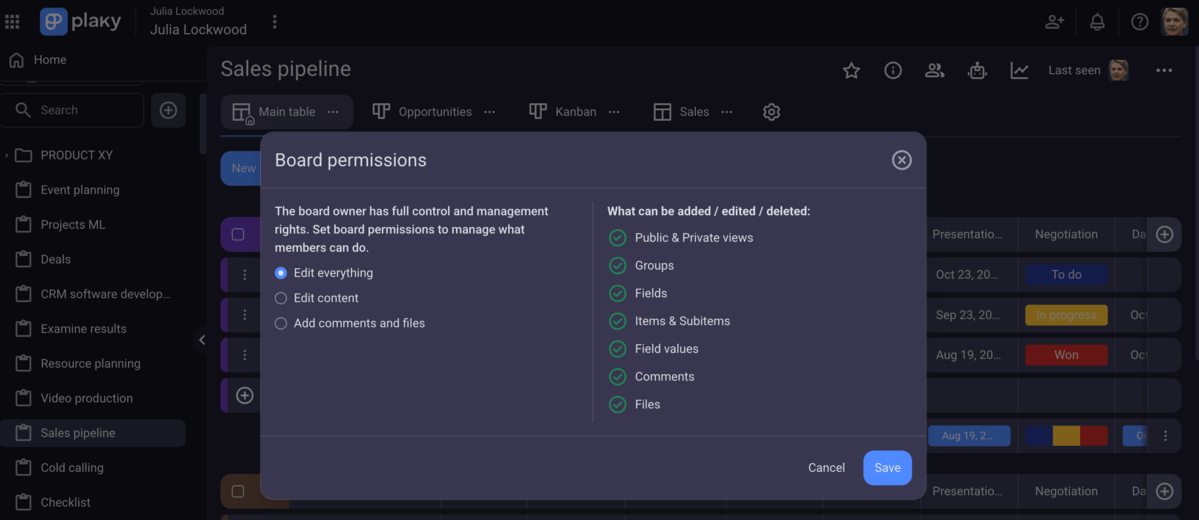
When it comes to board permissions in Plaky, you can decide if you want your board to be public or private. Also, there are 3 board editing types:
- Edit content — Team members can’t make changes to the board structure, but can add, edit, or delete items, update field values, attach files, and leave comments.
- Edit everything — Team members can edit all aspects of the board, including the board structure.
- Write updates only — Users can only view the board and write, edit, or delete their updates. This is a great way to include customers, clients, or collaborators so that they can stay informed at all times.
Asana has more integrations than Plaky
Asana has over 200 integrations, including some superstars like Microsoft 365, Slack, Canva, and GitHub. They are all neatly divided into categories on Asana’s website, making it easier to find what you need much faster.
Also, I’d say this is a rare category where Asana’s free plan excels at, as it offers 100+ integrations your team can use every day.
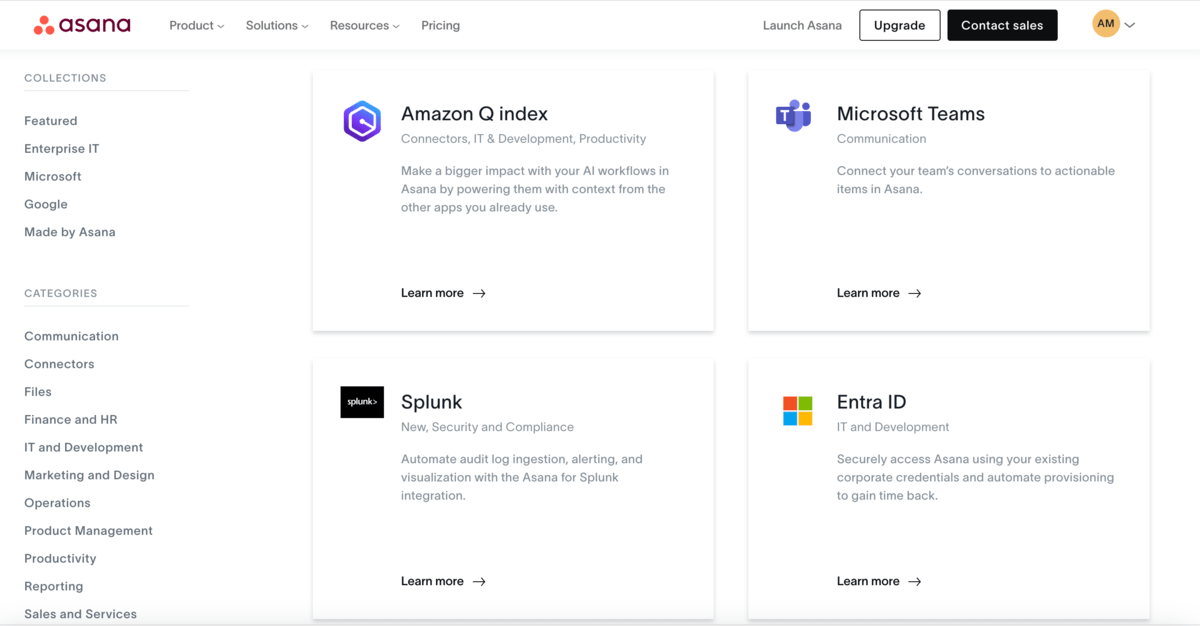
As for Plaky, it currently offers integrations with other CAKE.com products: Clockify for effective time tracking and invoicing (available as an extension, native integration is in the works), and Pumble for seamless team communication.
Additionally, Plaky is a part of the CAKE.com’s productivity suite, which allows you to:
- Use all features available on the Enterprise plan,
- Track the time spent on tasks,
- Communicate with team members,
- Monitor task progress,
- Plan resources, and
- Organize work across departments and time zones.
Get 3 products for the price of 1
Unlike Asana, Plaky offers 24/7 support on all plans
Asana cares about its users using the platform’s full potential, so it offers them a few different ways to learn more about it, including:
- Asana guides,
- Tutorials,
- Asana forum,
- Asana Academy, etc.
With Asana’s free plan, you get access to all of these. However, paid plans include an AI chatbot that can answer your questions and customer success options (tailored training, consultation, deployment support, etc.)
As for real-time help and customer support, 24/7 support is reserved only for Enterprise and Enterprise+ users.
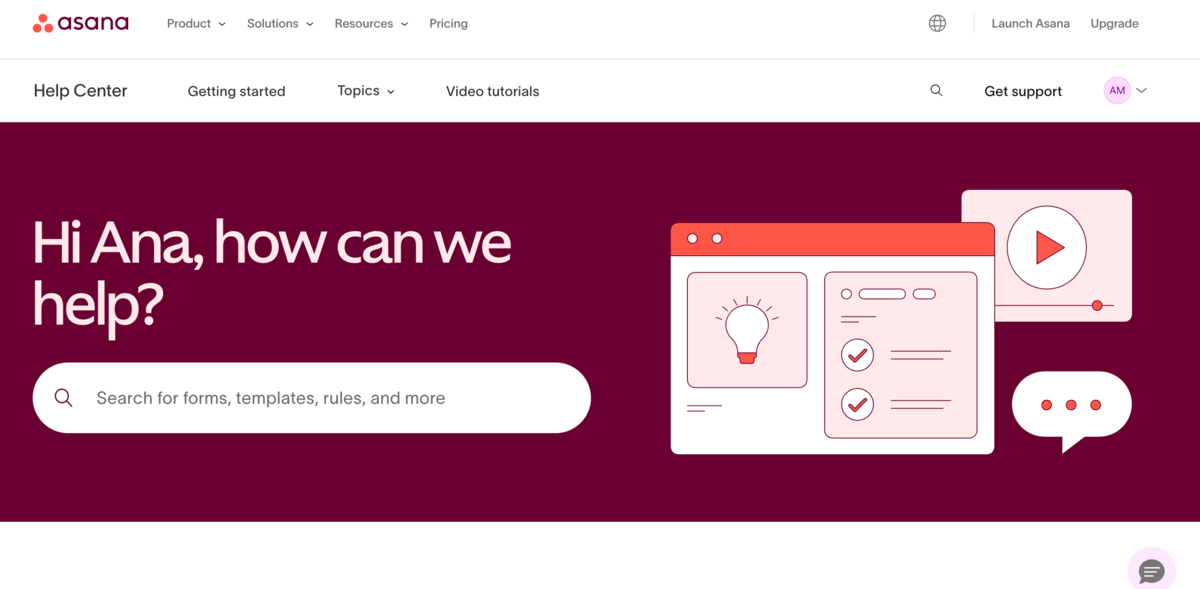
Plaky, on the other hand, provides 24/7 customer support across all its tiers. What’s more, both free and paid plan users can contact support agents via:
- Contact form on Plaky’s support page,
- Email,
- Phone, or
- Chat.
A dedicated success agent is also available for personalized consultations and proactive guidance for qualified users (Pro plan users with 120+ seats, Enterprise users with 50+ seats, and Bundle users with 30+ seats).
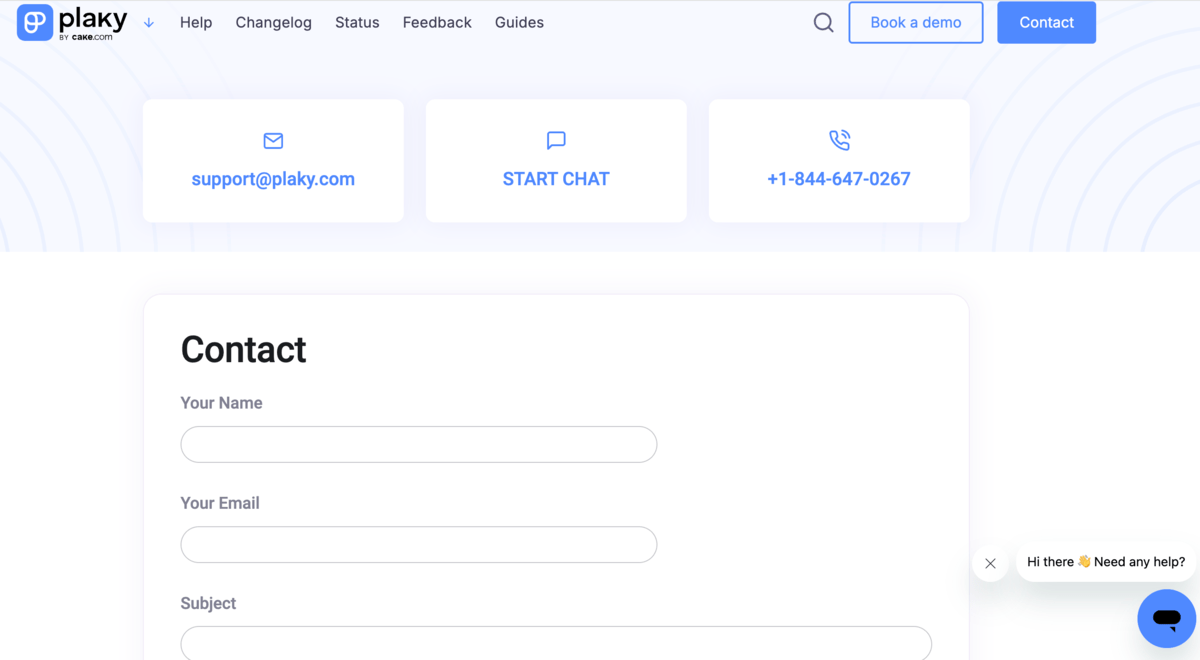
In addition, you can always turn to Plaky Learn and Help Center for free guides and tutorials that’ll help you become a real Plaky pro.

Both Plaky and Asana offer great data security
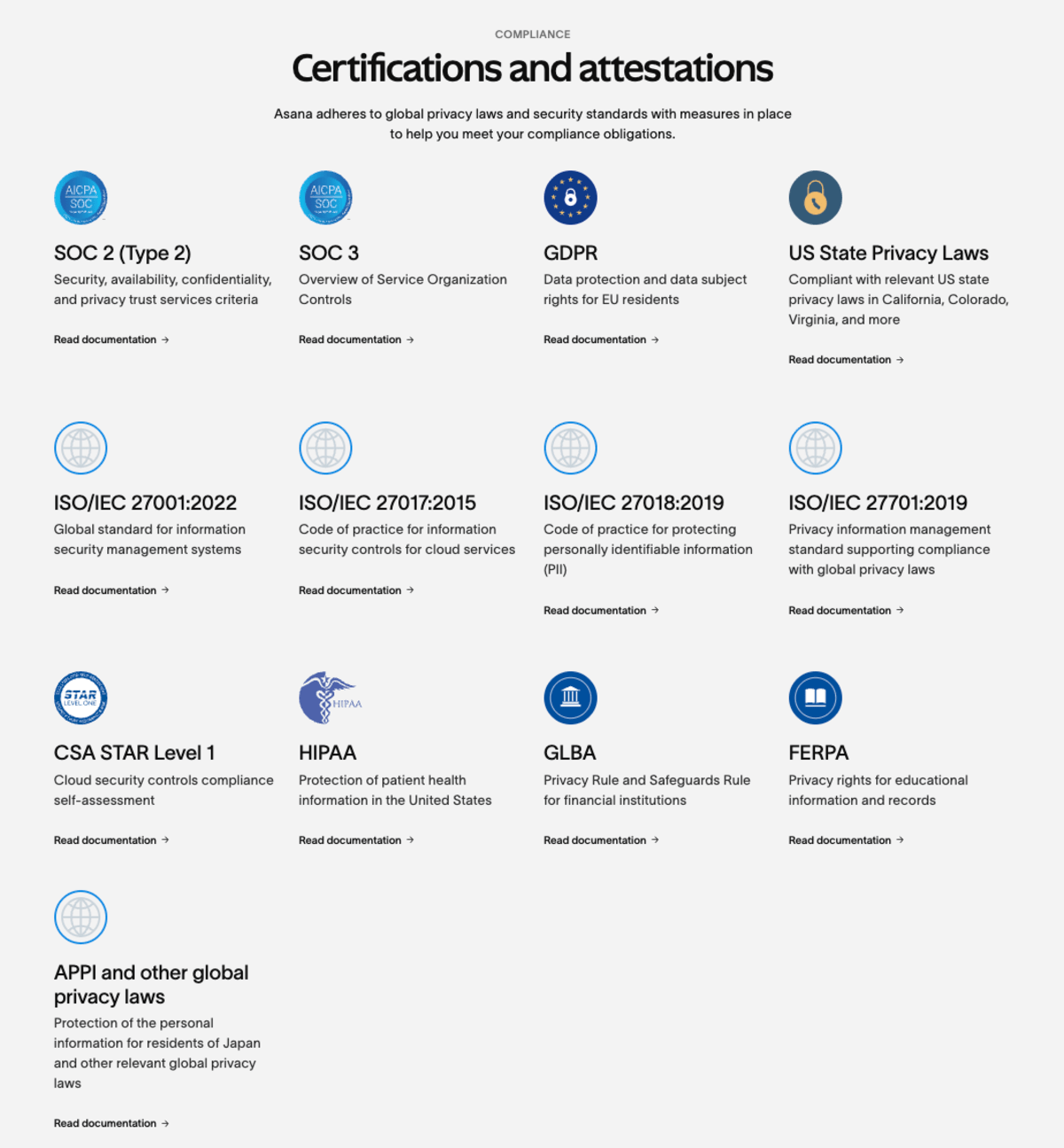
When it comes to data security, Asana has acquired more than 10 security certifications, including:
- GDPR,
- ISO/IEC certifications,
- HIPAA,
- SOC 2 (Type 2), and
- FERPA.
Asana also secures your data through encryption, least privilege access, secure software development, and a public bounty program. What’s more, Enterprise plan admins can use 2-factor authentication, SSO, SAML 2.0, and data controls for the mobile app.
Asana provides daily backups, regional backups, and recovery procedures in case of failures as well.
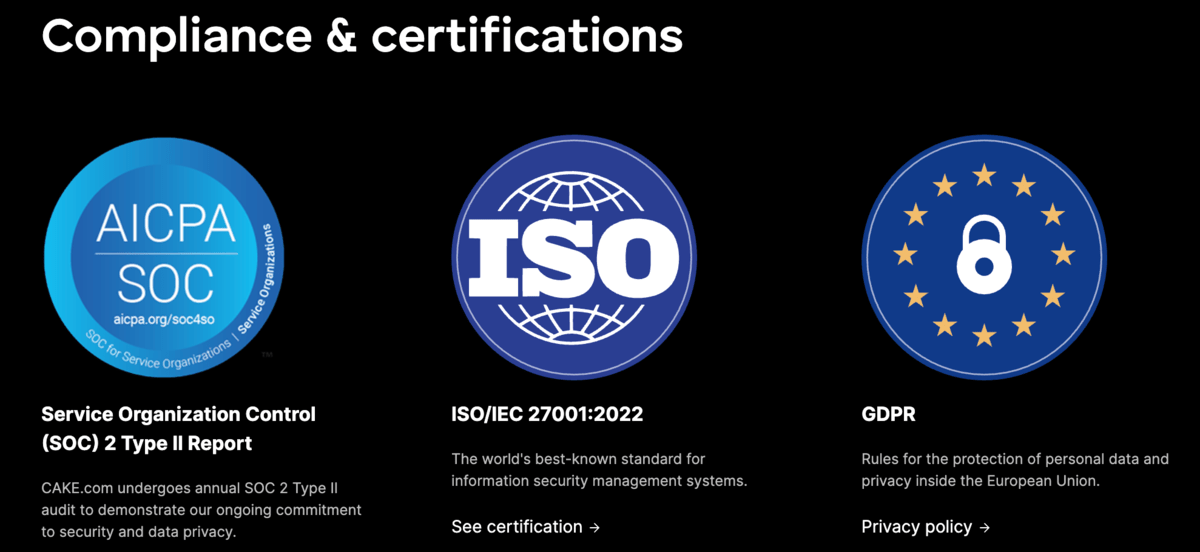
Plaky also recognizes the need for industry-standard compliance and certifications, which is why it adheres to:
- GDPR,
- SOC 2 (Type 2), and
- ISO/IEC 27001:2022.
As is it the case with other 2 CAKE.com’s products, Plaky guarantees:
- Secure personnel,
- Secure development,
- Secure testing, and
- Cloud security.
Like Asana, Plaky offers a public bug bounty program, so make sure you report any vulnerability you find.
On the whole, I believe your project data is equally safe with both apps.
Plaky easily adapts to all teams, no matter their size or budget
The right PM tool can make all the difference when it comes to leading successful projects. But, finding the one that ticks all the boxes is kinda hard.
If your ideal PM tool is intuitive, feature-rich, and affordable, then look no further than Plaky and enjoy:
- Easy scaling, no matter how fast your team grows,
- Smooth project management and user-friendly UI,
- Top-notch data security, and
- 24/7 customer support — anytime and anywhere.
Enjoy smooth project management at a reasonable price! Try Plaky today!