Nonprofits make the world a better place.
Still, whether they heal, feed, educate, or shelter people, nonprofits need a reliable project management tool to serve as a centralized space where they can:
- Manage projects and initiatives,
- Track budgets, grants, and donors,
- Connect dispersed teams and volunteers,
- Assign clear responsibilities, and
- Provide reports that show impact to stakeholders.
However, the tricky part is to find a tool that can handle all (or some) of these functionalities at a discounted price or completely cost-free.
Luckily, I did the job for you and tested numerous apps, their features, and prices to offer you a list of 10 best project management software for nonprofits.
Read on to find your ideal match!

WHY TRUST US
The apps we talk about are selected, tested, and written about by human reviewers who follow strict review and editorial guidelines. We pick solutions that are practical, purposeful, and can offer real value for the specific use case or business context we’re covering — while also being justified in their pricing. Our methodology is transparent, clear, and available to everyone:
10 best project management tools for nonprofits — overview
Here’s a brief overview of all the tools I tested with their regular prices. Scroll down to find out more details on each of the apps and whether they give discounts for your nonprofit!
| Tool | Best for | Free trial | Free plan | Lowest price |
|---|---|---|---|---|
| Plaky by CAKE.com | Simple task management | ✔️ | ✔️ | $3.99/seat/month |
| Hive | Budget tracking and reporting | ✔️ | ✔️ | $3/user/month |
| Asana | Cross-functional teamwork | ✔️ | ✔️ | $10.99/user/month |
| Freedcamp | Schedule management | ✔️ | ✔️ | $1.49/user/month |
| Trello | Volunteer management | ✔️ | ✔️ | $5/user/month |
| Monday.com | Donor management | ✔️ | ✔️ | $0/seat/year (for up to 10 seats); for 13 seats and up, the price is $68.4/seat/year |
| ClickUp | Tracking funding goals | ✔️ | ✔️ | $7/user/month |
| Basecamp | Centralized work organization | ✔️ | ✔️ | $15/user/month |
| Smartsheet | Event management | ✔️ | ❌ | $9/member/month (1–10 members) |
| Notion | Campaign management | ✔️ | ✔️ | $10/member/month |
#1 Plaky by CAKE.com — best for simple task management
Plaky by CAKE.com is an affordable and user-friendly tool that helps teams and small businesses organize work, manage processes, and collaborate in one place.
Why choose Plaky?
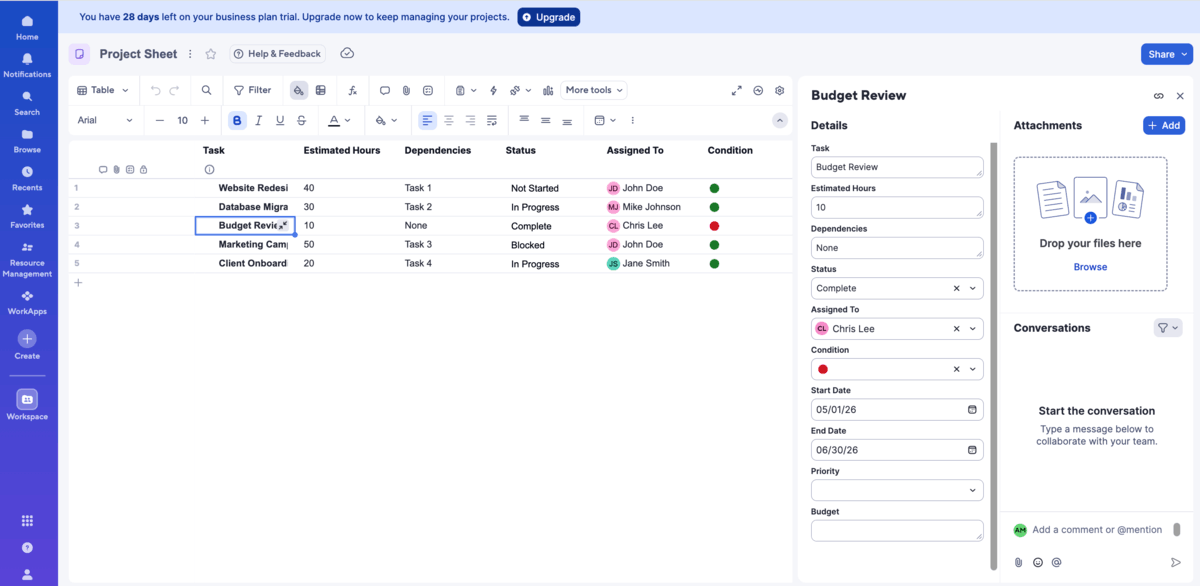
As project management software for nonprofits, Plaky allows you to centralize all operations in one platform — from assigning tasks and prioritizing to keeping track of fundraising activities and donation pipelines.
| Pros | Cons |
|---|---|
| – User-friendly – Cost-effective – Unlimited users and tasks – Templates | – Limited integrations |
My team uses Plaky on a daily basis to streamline all our processes. When I joined the team, it took me less than no time to figure out how it works — simplicity is definitely Plaky’s second name.
Here’s why Plaky stands out for me:
- Fast onboarding and ease of use — Plaky’s interface is user-friendly, so you won’t need hours of training to onboard your staff and stakeholders (with a viewer role).
- Multiple views — It’s great that you can easily switch between available views (Table, Kanban, Gantt chart, and Chart) to manage different processes like tracking progress in Gantt view, or visually organizing tasks for volunteers in Kanban.
- Affordability — Plaky is a free forever app allowing you to include an unlimited number of users, tasks, boards, and spaces. If you need features like automations, bulk actions, or Gantt view, you can opt for Plaky’s Pro Plan or Enterprise Plan to get these and much more at a fraction of the cost of other similar apps.
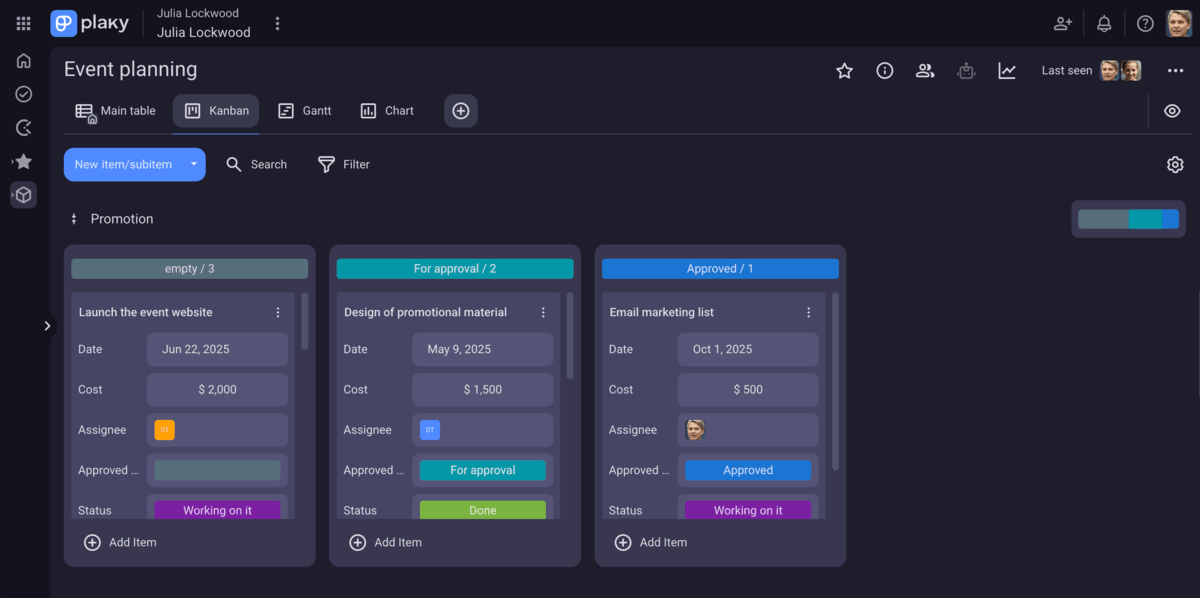
Efficient task management is key to secure mission alignment, but if you don’t want to complicate things and look for a simple tool to organize tasks, I believe the following Plaky features will do the trick:
- Custom fields — Add details to each task, and create a unique project structure. Plaky offers 9 different fields including Date (start dates, deadlines, etc.), Status (prioritization, progress tracking, etc.), Person (task assignees, reviewers, etc.), Numbers (cost, budget, donation, etc.), and others.
- Communication and file sharing — Upload relevant files to a dedicated task card so everyone has access to important material. Easily communicate with team members and volunteers through in-task comments, @mentions, replies, and emojis.
- Automations — Handle routine and manual work by setting simple automation triggers. For example, you can subscribe certain teammates when a task moves stages or notify staff to send follow ups to donors. Plus, Plaky lets you automate recurring work like, for instance, notifying volunteers about food distribution dates every 3rd in a month.
- Templates — Don’t start every project from scratch, as Plaky offers 2 dedicated templates for nonprofits. Use a nonprofit campaigns template to break your campaign strategy into manageable steps and donors list template to structure your donors list and meet fundraising goals faster.
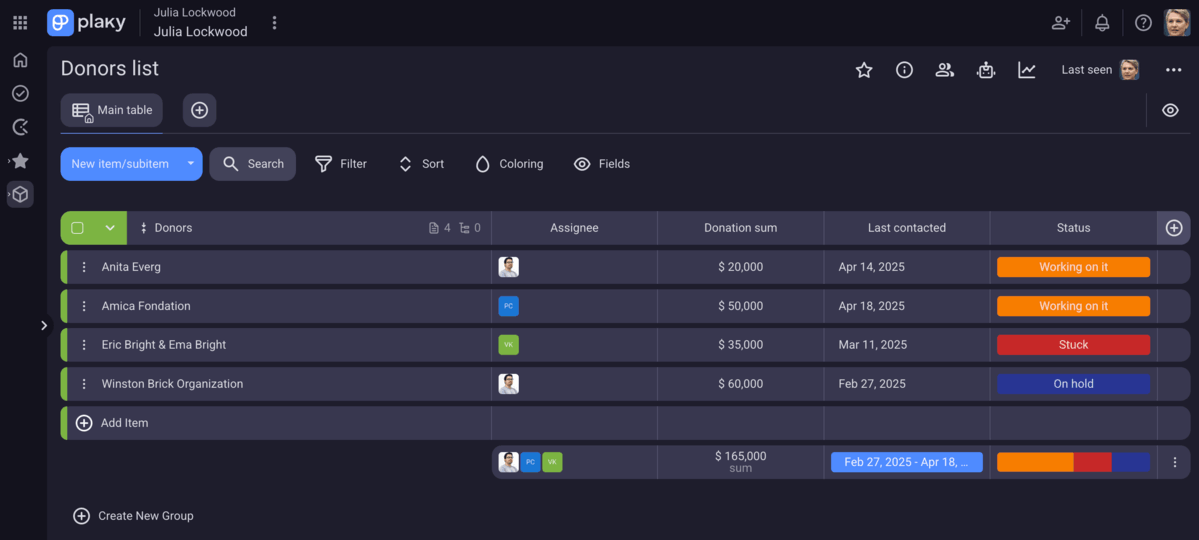
As far as I can tell, the only potential downside of using Plaky for your nonprofit organization is limited integrations. Currently, Plaky offers 2 native integrations with:
- Clockify — The Plaky + Clockify integration lets you track time on Plaky tasks. Choose any of the 2 simple ways to link Plaky to Clockify and you’ll get reports with information on the exact time employees spent on tasks, their cost rates, or project expenses.
- Pumble — The Plaky + Pumble integration is perfect for nonprofits, as Pumble (a messaging and video conferencing app) helps you communicate with your staff, volunteers, or stakeholders.
Now, if you ever have any issues while using Plaky, don’t stress out, as our customer service works around the clock (24/7/365) and is 100% human-based. You can always contact them for help and advice, no matter the plan you’ve subscribed for. Plus, Plaky’s paid plans include a dedicated success representative, but it requires 120+ seats on the Pro and 50+ seats on the Enterprise plan.
💡 PLAKY PRO TIP
Have no idea how to plan a nonprofit event? No worries! Check out the article below to find the exact steps and a checklist so you don’t miss a thing:
What’s new in Plaky?
Plaky’s latest additions include:
- Setting recurring tasks using board automations,
- Time tracking using Plaky + Clockify integration, and
- Viewing other users’ tasks from the My tasks page.
Check out Plaky’s Changelog to see all recent updates, and see Plaky’s Roadmap to get an insight into upcoming updates.
Available for: web, MacOS, Windows, iOS, Android
| Plan | Price |
|---|---|
| Free | $0 (unlimited number of users) |
| Pro | $3.99/seat/month* |
| Enterprise | $8.99/seat/month* |
| CAKE.com Bundle (Plaky + Clockify + Pumble) | $12.99/seat/month* |
*billed annually
Note: Being one of the most affordable tools on the market with a generous free plan, Plaky applies the same pricing to all kinds of organizations.

#2 Hive — best for budget tracking and reporting
Hive is a “democratically-built” project management platform designed through direct collaboration with users.
Why choose Hive?
Hive is highly customizable, offering flexible workflows, native email and chat, and a great number of features to support budget management.
| Pros | Cons |
|---|---|
| – Built-in chat – Multiple project views – Project navigator – Budget overview widget and reporting templates | – No custom fields and labels on the free plan – Free and Starter plan allow up to 10 users |
This is the first time I’ve tested Hive, and I have to say I really like its bright color scheme. While creating my account, I chose the option to use Hive messaging for team communication, but you can choose to connect Hive to your existing chat app as well.
When it comes to project management, there are some cool features such as:
- Project navigator — This feature allows easy access to all the projects you’re working on. Also, from here, you can create different summary views that help you compare projects.
- Multiple project views — Hive offers several different views such as List, Calendar, Gantt, Table, and more.
- Direct and group messaging — A built-in chat feature improves communication without context switching.
- Hive Mind (Buzz) — Hive’s AI assistant helps you plan projects, reply to emails, book meetings, and much more.
- Client mode — You can enable client mode from any project board to share it with external stakeholders.
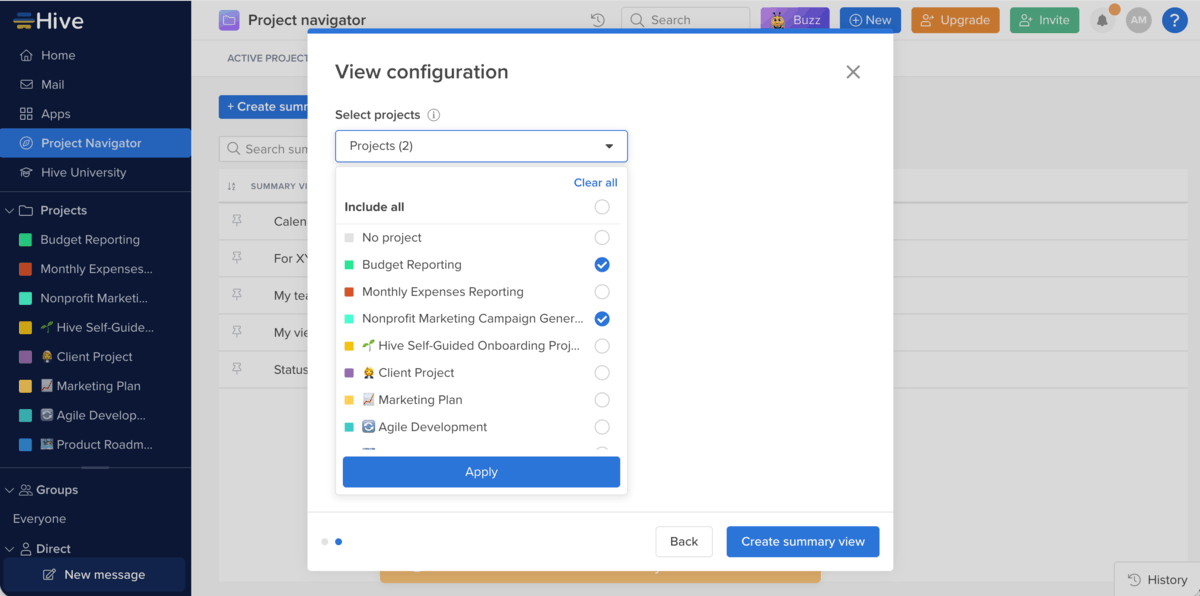
As for the budget tracking and reporting, Hive offers several options:
- Budget overview widget — Lets you keep an eye on your spending by project directly from the home page.
- Dashboards — Create custom or template dashboards for tracking project budgets, resourcing or time tracking financial summaries, etc.
- Templates — Hive has 5 finance templates including budget reporting, monthly expenses reporting, and annual expenses reporting.
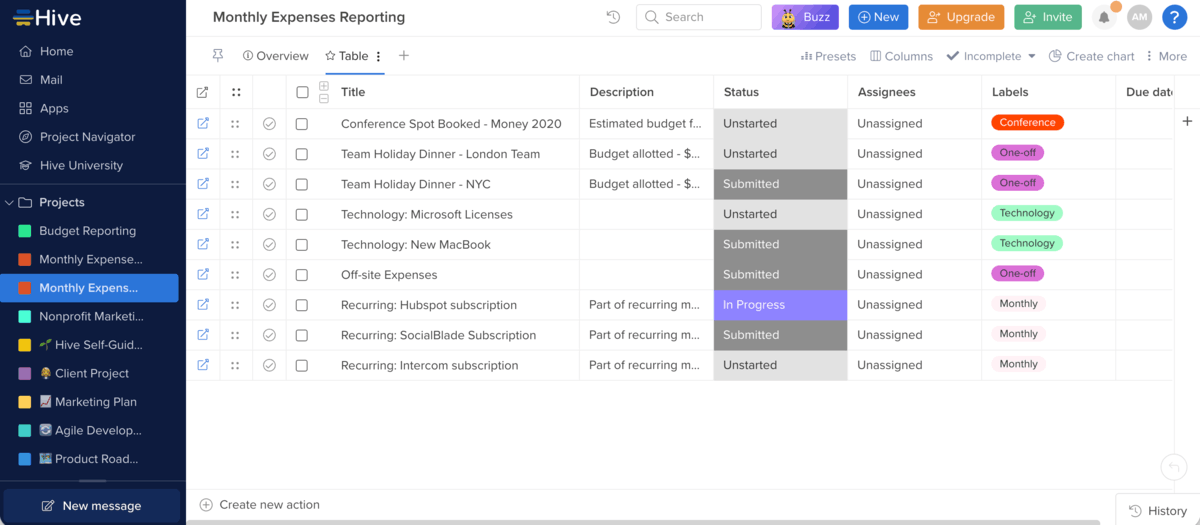
I have to admit I was disappointed to find there are no custom fields and labels on the free plan, as this can impact your task management in the long run.
Also, if your nonprofit has more than 10 people, you’ll have no choice but to choose between Teams or Enterprise plans, as both Free and Starter plans allow up to 10 users.
In terms of support, Hive has a self-serve knowledge base and provides 24/7 in-app support via chatbot in all plans. The enterprise plan includes ongoing coaching and admin training.
Enjoy 24/7 support on all plans with Plaky
What’s new in Hive?
Hive added some new functionalities such as:
- Filter by approver — This feature allows approvers to quickly find the tasks waiting for their approval.
- Search within a project view — Hive added a search option in individual project views allowing you to quickly find what you need by title or description.
Available for: web, MacOS, Windows, iOS, and Android
| Plan | Price |
|---|---|
| Free | $0 (up to 10 teammates) |
| Starter | $3/user/month* |
| Teams | $6/user/month* |
| Enterprise | POA |
*billed annually
Note: Hive offers discounts for nonprofits on its Teams plan. To learn more, contact their sales team through the online form found on Hive website.
#3 Asana — best for cross-functional teamwork
Asana is a robust tool mostly used by large organizations thanks to its ability to organize a variety of workflows.
Why choose Asana?
Asana is packed with features for team collaboration allowing you to streamline communication with stakeholders and affiliates.
| Pros | Cons |
|---|---|
| – Various communication options – Multi-homing- Goal setting – Nonprofit learning center and trainings | – Limited free plan – No multiple task owners |
Although Asana has a clean and minimalistic interface, I’d say its simple look is the total opposite of what this app can do. But, let’s focus on what Asana offers for project management. Here’s what I would highlight:
- Home page — The home page is organized like a dashboard allowing you to get an overview of your work.
- Real-time notifications — Asana will notify you of any updates on the tasks you’re involved in. You can manage notifications to prevent notification fatigue and protect focus.
- Highly customizable project views — In Asana, you can easily switch between views like Gantt, Board, Timeline, and Calendar to see projects your way.
- Rules — This is an AI-powered system you can use to automate actions across Asana. For example, you can streamline requests, ask for approvals, send reminders to team members, and so much more.
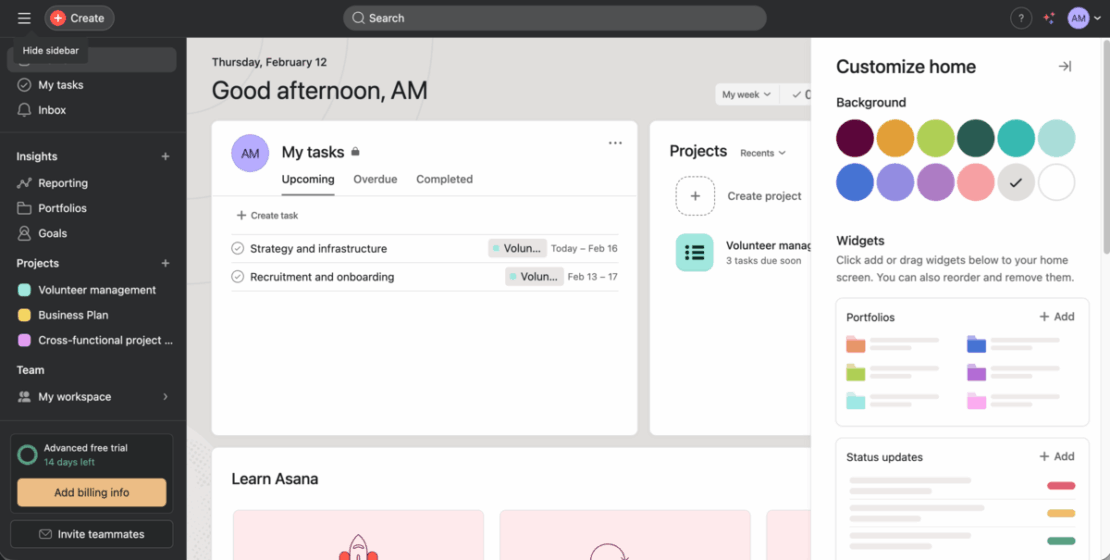
There are many ways Asana keeps your nonprofit staff, volunteers, and stakeholders aligned and productive. What I liked most are:
- Built-in messaging — You can send private, team, and project messages and keep everyone in the loop without the need to switch between apps.
- Multi-homing — A single task can be added to multiple projects from a task card.
- Team sharing — Asana helps you keep everyone on the same page by allowing you to share projects, portfolios, and custom fields with different teams, individuals, and guests. You can also give different permissions (editor, viewer, comenteer) to all invitees to prevent unwanted changes.
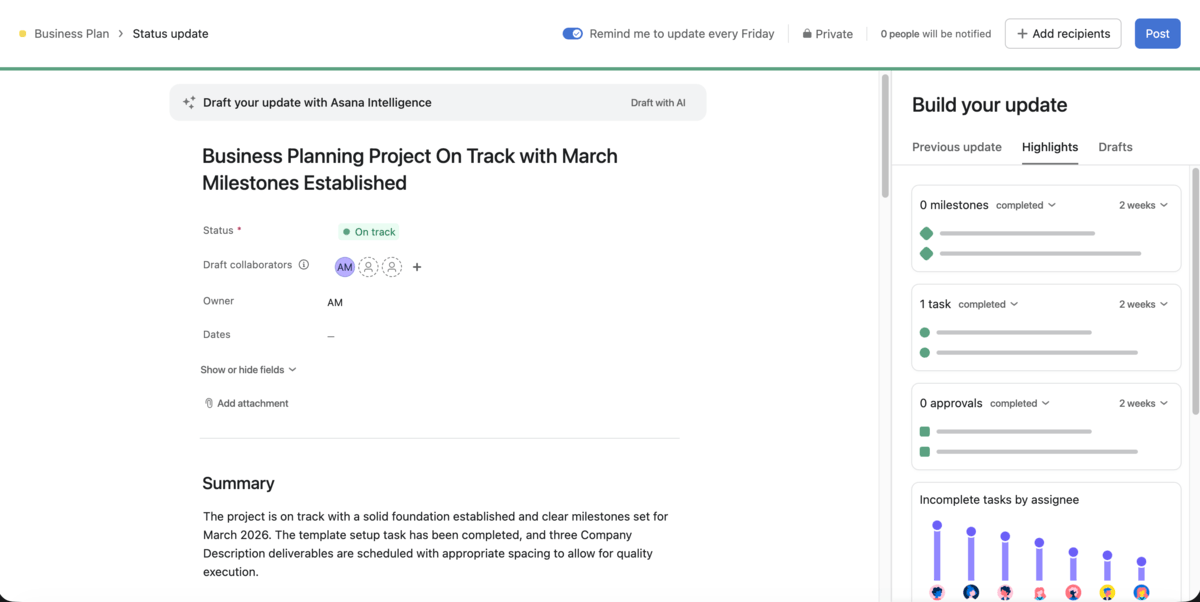
As feature-packed as it is, Asana can cater any workflow. However, Asana has a 10-user cap on its free plan, making it useless for larger nonprofits.
And, another thing I find problematic for nonprofits is that there’s only one task owner in Asana. Nonprofit initiatives are often volunteer-heavy and cross multiple teams, so having one task owner can easily lead to diluted ownership and missed handoffs.
If you need support from Asana, you should know that all paid plans include an AI chatbot, but real-time help and 24/7 support is reserved for Enterprise and Enterprise+ users.
Get unlimited users on all Plaky plans
💡 PLAKY PRO TIP
Wanna find out how Asana stacks up against other tools on this list? Check these articles below:
What’s new in Asana?
Asana introduced improvements on all its plans, including:
- Asana Gemini Workspace connector — Allows you to search for Asana tasks and project information in Gemini.
- Log time into the future — Lets you fill in timesheets with time references that apply to future dates such as holidays or PTO.
Available for: web, MacOs, Windows, iOS, and Android
| Plan | Price |
|---|---|
| Personal | $0 (2 users) |
| Starter | $10.99/user/month* |
| Advanced | $24.99/user/month* |
| Enterprise | POA |
| Enterprise + | POA |
*billed annually
Note: Asana offers a 50% discount for your nonprofit on its Starter and Advanced plans.

#4 Freedcamp — best for schedule management
Freedcamp is a platform that combines project and task management, time tracking, and in-app conversations under the same roof.
Why choose Freedcamp?
This tool has a multifunctional calendar that gives a complete overview of your projects thanks to direct integration with your tasks and milestones.
| Pros | Cons |
|---|---|
| – Unlimited users, projects, tasks, and storage on the free plan – Instant updates – In-built calendar | – Learning curve – Dashboards available on Enterprise plan only |
Although Freedcamp offers a short and sweet intro into the main elements of its interface through popups, I didn’t find it as intuitive as Plaky. For example, there are buttons everywhere on the screen, which can be puzzling.
Also, unlike some other apps on this list with clear project boards and fields, Freedcamp has a task list with minimum info displayed.
I personally prefer having task info right in front of me, but here, the organization is a bit different. In Freedcamp, you must first create a custom field template with one or more fields and later add the template to your task card. Too knotty for my taste.
Still, after a while, I managed to get to grips with Freedcamp, and here are some perks I found interesting:
- Quick add — Located at the bottom of the sidebar, this button allows you to quickly add tasks, milestones, discussions, etc., and manage work faster.
- Shift dates — From the settings menu on your project board, you can shift project dates and easily adjust schedules.
- Instant updates — You get a real-time notification about updates made on tasks so that you can always stay in the loop.
- Project template — You can turn any project you’re working on into a template, which is great for nonprofits that repeat the same initiatives on a regular basis.
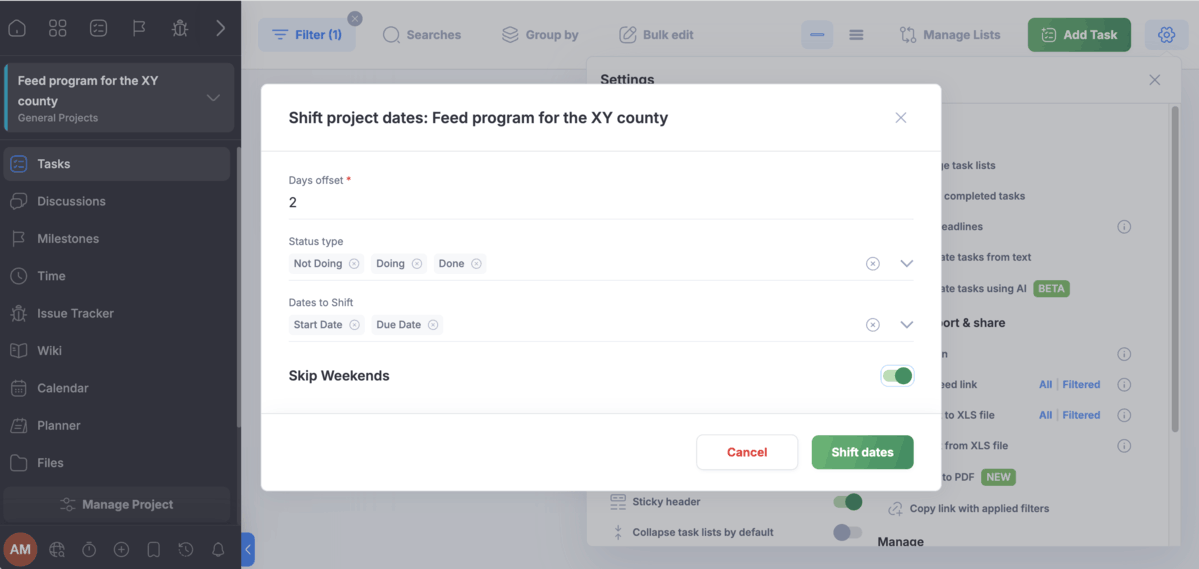
Moving on to why I think Freedcamp is best for schedule management. Apart from the option to shift dates quickly, the platform offers:
- Calendar (paid plans) — This add-on gives you a complete overview of tasks, milestones, and issues in daily, weekly, monthly, or agenda views. The best thing is you can share it with your team and export it when needed.
- Planner (Business & Enterprise plans) — This add-on is a great addition to the Calendar. The planner looks like a Gantt chart, allowing you to track project progress and make schedule adjustments by dragging task bars across the timeline.
- Task recurrence (paid plans) — In Freedcamp, you get the option to set tasks as recurring. This way, you automate repetitive work, which is quite useful when you need to organize work for volunteers or send reports.
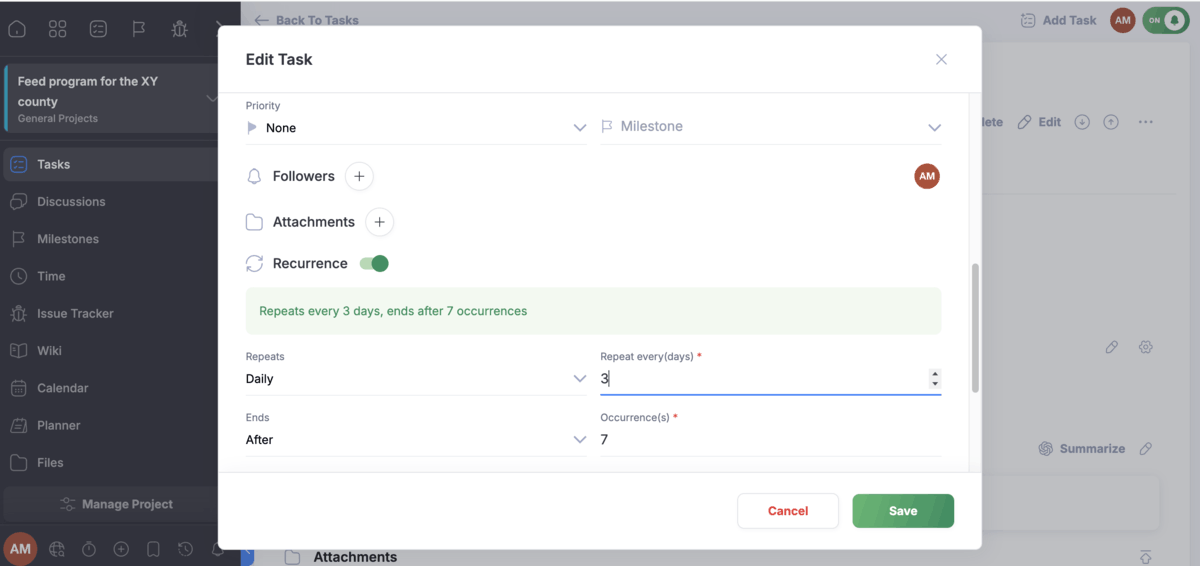
Freedcamp enables the use of dashboards only on its Enterprise plan, which may be a dealbreaker for nonprofits that use them to track and share project progress.
Additionally, Freedcamps’s pricing list promises support on different levels depending on your chosen plan. However, I couldn’t find what each support level includes. Apart from the tutorials, I could use their AI chatbot within the app to ask questions.
Make workflows simple with Plaky
What’s new in Freedcamp?
Freedcamp has made massive improvements to its entire platform in terms of new interface, iconography, sidebar, dashboards, and more.
Available for: web, MacOS, Windows, iOS, and Android
| Plan (Sponsored)* | Price |
|---|---|
| Pro Sponsored | < 30 active users/month — free > 30 active users/month:Paid monthly — NA Paid yearly — $0.49/active user/month |
| Business Sponsored | Paid monthly — $4.99/user Paid yearly — $3.49/active user/month |
| Enterprise Sponsored | 10+ users Paid monthly — NA Paid yearly — $7.49/active user/month |
*Sponsored plans are valid for nonprofits only.
Note: Freedcamp offers its paid plans to nonprofits with a discount as shown in the table above.
#5 Trello — best for volunteer management
Trello is a project management platform that belongs to the Atlassian ecosystem. It’s a user-friendly tool with a strong focus on Kanban project management.
Why choose Trello?
The platform has a clear layout, and it’s easy to navigate even for an average Joe. Thanks to its card system, templates, and views, you can use Trello to easily organize volunteers and their activities.
| Pros | Cons |
|---|---|
| – Simple interface – Templates – Planner – Multiple views | – Custom fields aren’t available on the free plan – Free plan includes only the Board view |
As a creative, I love that Trello offers different board backgrounds and a bunch of vivid colors for lists and cards. It really made my planning more structured and enjoyable.
Trello provides unlimited cards on all plans allowing you to plan projects in as many steps as you need. Also, the following features will make project management easier:
- Inbox — Your personal space where you’ll get messages from your coworkers and turn them into tasks. You can write your to-dos here and drag them to your cards when needed. Trello Inbox also lets you capture tasks from emails.
- Custom fields (paid plans) — These fields allow you to add important details to your tasks, such as project priority, sector you’re helping (education, health, etc.), or status (on hold, in progress, stuck, etc.).
- Automation — In Trello, you can use no-code automations to handle repetitive tasks. You can also set a trigger to create rules and buttons that will automate project processes.
- Power-ups (integrations) — Power-ups allow you to tailor the app to fit your needs and streamline work much better. For example, you can add the Employee handbook and create a guide for volunteers, or Member Roles to assign descriptive roles and responsibilities to card assignees.
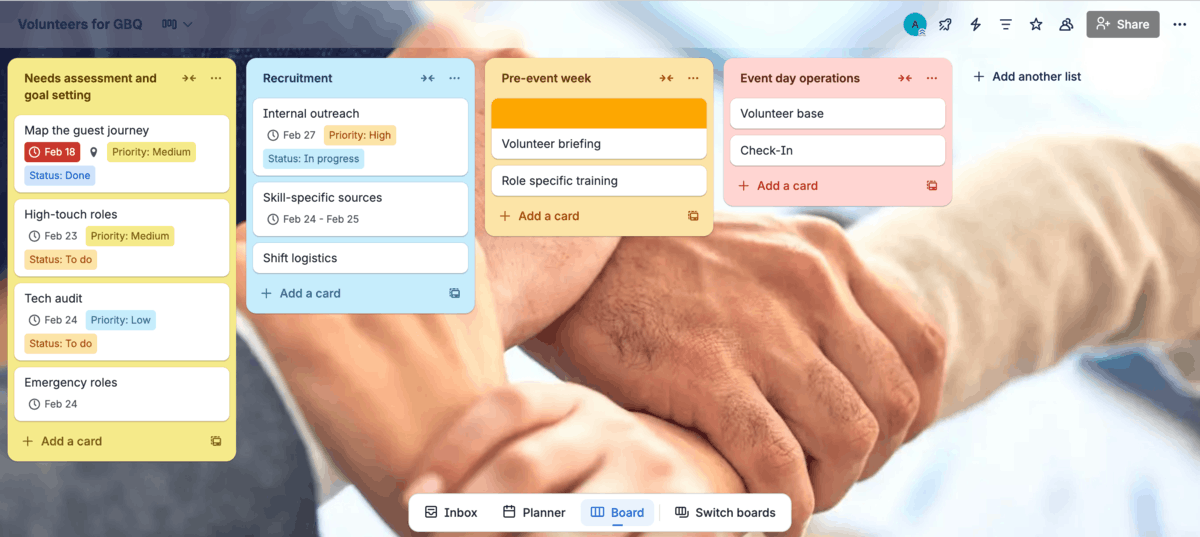
In addition, I’d like to highlight some other Trello features that will elevate volunteer management such as:
- Checklists (paid plans) — Each task card allows you to add subtasks in the form of a checklist. You can assign volunteers and due dates to each subtask. Once you mark a subtask as done, Trello shows the percentage of the completed work.
- Multiple views (Premium & Enterprise plans) — Trello offers views like Dashboard, Table, Calendar, Timeline, and Map. I find the last one especially practical, as it allows you to connect tasks to specific locations. Plus, the calendar view is great to keep volunteers up-to-date with their assignments.
- Templates — In Trello, you get 2 dedicated templates that will give you the basic structure you can use to build projects and initiatives: nonprofit project management and nonprofit volunteer onboarding.
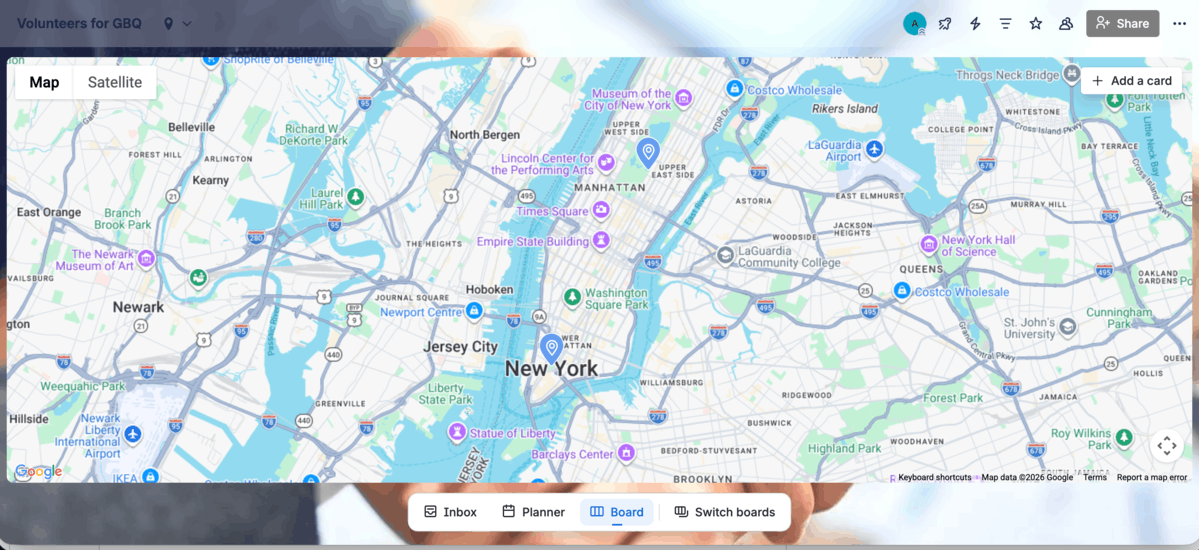
Even though I really like Trello and its ease of use, I wouldn’t recommend any nonprofit to go for a free plan — no custom fields and no other views but the Board view. This makes it difficult to add important details to your tasks and track them. Also, seeing your projects from different angles is essential for successful project management.
With Trello’s free plan, you can count on community support only, whereas Standard plan users can get support during local business hours. Premium plan includes support on working days, and Enterprise plan users get 24/7 admin support.
What’s new in Trello?
In January 2026, Trello allowed its users to:
- Test a limited-time feature known as the New Year’s Resolution Board Builder. This is an AI-powered tool that Trello introduced as a way to motivate its users to work towards their goals.
- Select action items from Loom and add them to Trello in just one click.
Available for: web, MacOS, Windows, iOS, and Android
| Plan | Price |
|---|---|
| Free | $0 (up to 10 collaborators per workspace) |
| Standard | $5/user/month* ($6 billed monthly) |
| Premium | $10/user/month* ($12.5 billed monthly) |
| Enterprise | $17.50/user/month* |
*billed annually
Note: Atlassian provides a 75% discount on Trello’s Standard, Premium, and Enterprise plans.

#6 Monday.com — best for donors management
Monday.com is a robust work management platform with a strong focus on project management and collaboration supported by AI.
Why choose monday.com?
If you’re looking for a way to manage the entire donation process, monday.com is your go-to tool.
| Pros | Cons |
|---|---|
| – User-friendly – Automations – Customizable forms – All-inclusive templates | – Odd pricing structure |
I’ve already tested monday.com for different use cases, and I can confirm one thing — it’s still easy to manage regardless of the numerous new AI features.
So, let’s start with some of the features that make project management easier in monday.com:
- Multiple column types — Columns are the building blocks of any project board in the app, and there are more than 40 types. My favorite column is the one for progress tracking. You can add this battery-like column to see the percentage of your task progress at a glance.
- Monday workdocs — This feature is great for team cooperation, as you can plan initiatives in real-time, tag your team members, and receive live updates.
- Update feed — Here you can get all updates from boards and tasks you’re a member of and always stay on track with what’s going on.
- Automations — No-code automations in monday.com allow you to set up rules to automate repetitive tasks, like status changes or task creation.
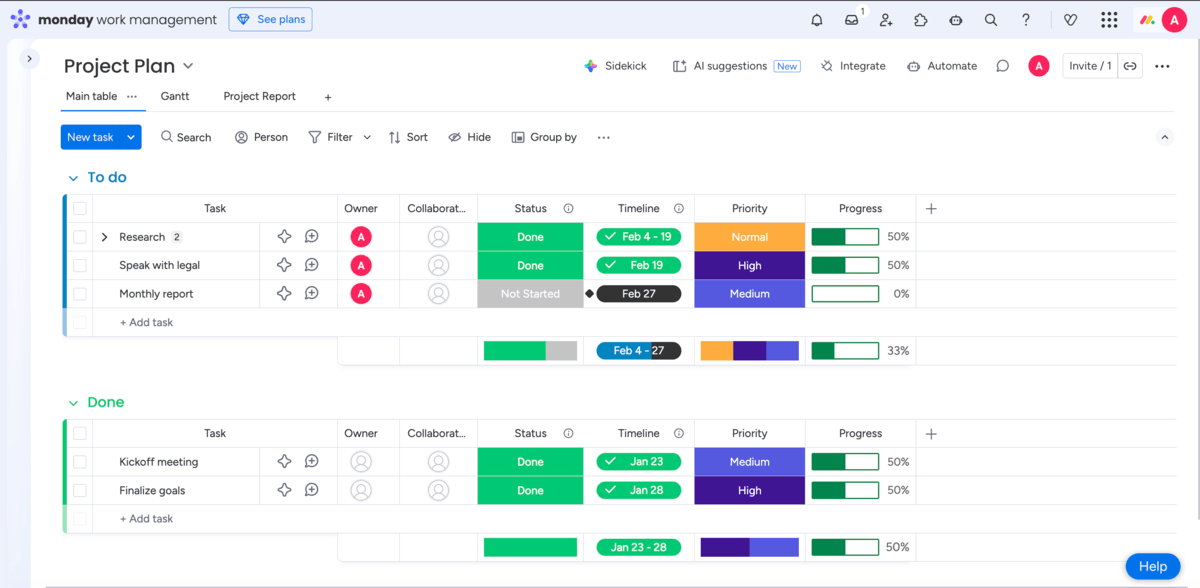
I chose monday.com as best for donors management mainly because I could use a single template and have everything included in 4 different boards:
- Donors — This board is used to list all your potential, active, and even former donors. You can include their email addresses, phone numbers, donations, etc.
- Donations — In this board, you make a list of all donations and donors. Also, there are columns for donation dates, types, and a program the donation is given for. Neat, right?
- Donors’ activities — As you keep in touch with your donors in different ways, this board helps you list how you keep in touch with donors (meeting, call, email, etc).
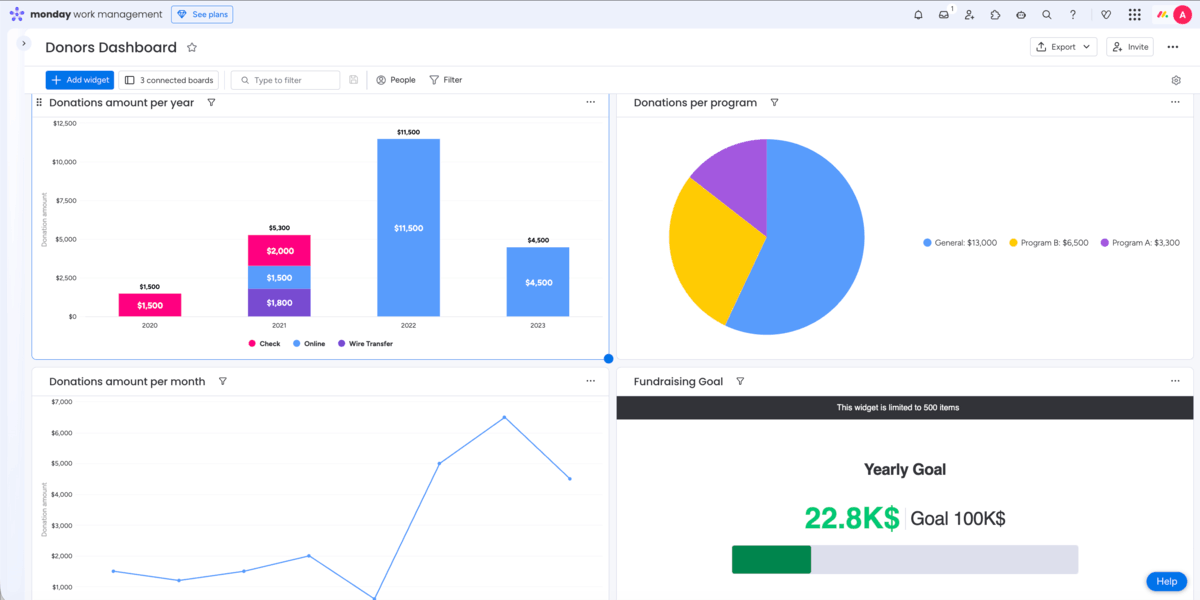
- Donor dashboard — This dashboard connects all the 3 previous boards to give you all-encompassing information on donations, e.g., you can track donations amount per year and month, per program, and average donation amounts. Another useful widget you’ll find here is the one for tracking your fundraising yearly goal.
As a nonprofit, you get a somewhat different pricing arrangement with monday.com. This platform allows up to 10 users on their Pro tier for free. But, if you have more than 10 staff members, you can count on a 70% discount.
But, here’s the main drawback — the app charges seats in fixed increments (the lowest number of seats you can buy is 3, but after that you can buy 5, 10, 15, etc. seats). So, if, let’s say, you have 16 team members, you’ll have to pay for 20 seats even though you don’t actually need them.
Let me add that monday.com has an integrated live chatbot, but it limits it to paid plans only. Free plan users have to rely on the knowledge base whereas Enterprise plan users get the best support, as it’s the case with all other apps.
Pay only for the seats you use with Plaky
What’s new in monday.com?
Monday.com recently introduced:
- Autopilot hub — a centralized command center where users get full visibility into each individual’s board automations.
- Batch dependencies option — allows faster project setup by allowing users to batch dependencies.
Available for: web, MacOS, Windows, iOS, and Android
| Plan (Work management) | Price |
|---|---|
| Nonprofit | $0/seat/year (up to 10 seats); 70% discount included for 13 seats and more — the price is $68.4/seat/year* |
| Enterprise (upgrade) | POA (33% discount) |
*billed annually
Note: Monday.com has a special nonprofit program with a discount applied to its regular Pro tier.
💡 PLAKY PRO TIP
Want to find out how monday.com measures against some other tools on the list? Check out the articles below:
#7 ClickUp — best for tracking funding goals
ClickUp is a highly customizable platform that offers solutions for basically any type of project and team. It’s one of the platforms with the most developed AI functionalities applied to a range of workflows — from project execution to client services delivery.
Why choose ClickUp?
ClickUp has a dedicated feature for goal tracking along with a heap of dashboard widgets and column types to track success.
| Pros | Cons |
|---|---|
| – Multiple board views – Templates – Goal tracking – ClickUp Goals | – Custom fields only on paid plans – Steep learning curve |
If you like apps that offer cutting-edge features and tons of icons and buttons all around the place, ClickUp is for you. Although it took me some time to get to grips with the app, I really appreciated that each button offered the info on what it’s used for once I hovered over it.
This platform is highly flexible and offers many useful features for project management such as:
- 15+ board views — You can use the Calendar view (available on all plans) to keep volunteers up-to-date with their schedules. With the Map view, you can visualize tasks by address and share locations for events and support programs, etc.
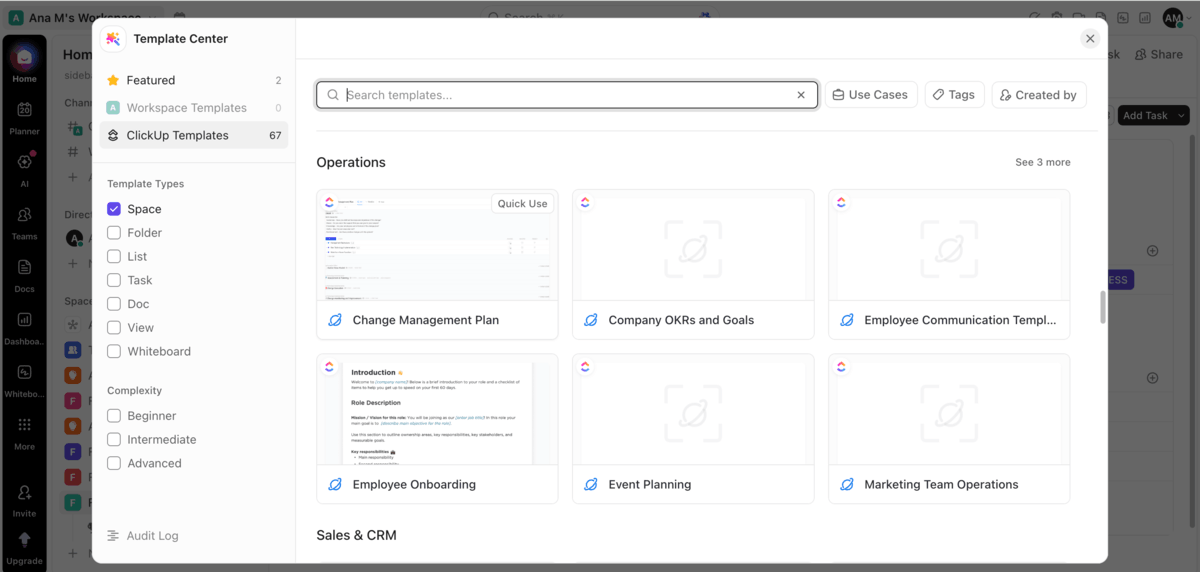
- Templates — There’s a range of templates and template types (space, folder, task, etc.) available, making it easy to kick off projects quickly.
- ClickUp Docs — Docs are collaborative documents you can connect to your tasks and projects. I used it to create a wiki page, but you can also use it to capture meeting notes, create SOPs, write project overviews, and more. ClickUp has templates for these as well, leaving you more time for focused work.
- Whiteboard — This feature allows you to brainstorm, discuss, and plan initiatives with your team members in one place.
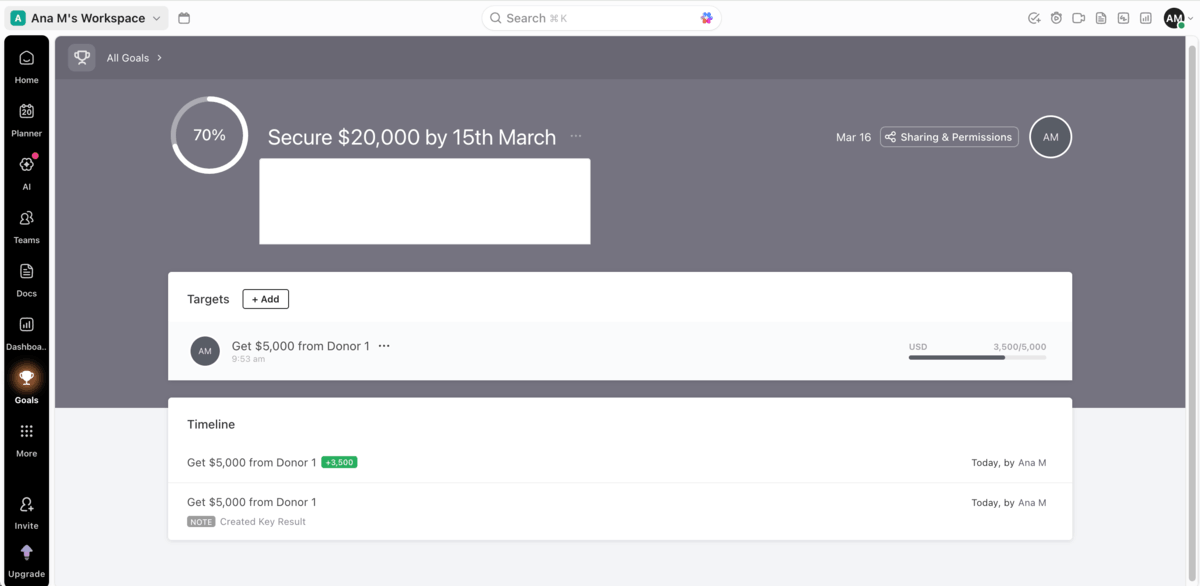
As nonprofits and their activities depend on available funding, ClickUp has some great features to help you track your funding goals such as:
- ClickUp Goals (paid plans) — This is a dedicated feature for goal tracking. You can use it to create funding goals and break them into specific targets like “Get $5,000 from Donor X” or “Receive a $8,000 donation from Company X”. As you update your tasks, progress gets automatically updated.
- Dashboard — ClickUp provides customizable space dashboards you can use to track the progress of your funding pipeline and goals. You can add widgets like Bar charts, Calculation, Pie charts, etc., but the most important one for tracking funding goals is the Goal card widget. This card lets you know how close you’re to your goal completion. Unfortunately, I couldn’t add the Goal card to my space dashboard, as these are only available on general workspace dashboards, which is a huge pity.
- Custom fields — In ClickUp, you can add certain custom fields to your project board and track your funding goals. Change your task type to ”goals” and add fields like due date, priority, money, dropdown (for funding stage or type), etc.
ClickUp also has a dedicated template for company OKRs and goals you can use for free.
What might be problematic for ClickUp’s free plan users is that they can’t add all project details to dedicated boards as custom fields are available for trial only. This means you have to opt for a paid plan if you need more flexibility and customization options.
Also, if you think that ClickUp is your match, be prepared for a lot of training. Even though this wasn’t my first time testing ClickUp, I often had to consult help pages and chat with the AI-powered ClickUp Brain to find out how to use some of the features.
When you need support, you can turn to ClickUp’s help center (on the free plan) or talk to a chatbot for simple questions or real people (paid plans).
What’s new in ClickUp?
ClickUp launched Super Agents you can collaborate with as if they were your real teammates. Namely, you can @mention them, assign tasks, give them schedules, and let them run entire workflows instead of you.
Available for: web, MacOS, Windows, iOS, and Android
| Plan | Price |
|---|---|
| Free | $0 |
| Unlimited | $7/user/month* |
| Business | $12/user/month* |
| Enterprise | POA |
*billed annually
Note: ClickUp offers exclusive discounts for nonprofit organizations, but to get the info on what your organization can count on, you’ll have to claim your discount by filling out the form on their website.

#8 Basecamp — best for central work organization
Basecamp is a project management tool with a simple and intuitive interface designed for straightforward project and team organization.
Why choose Basecamp?
Basecamp helps managers organize work and collaborate with their team in one structured place. It enables easy onboarding and helps team members focus on what’s important thanks to a clear one-page dashboard.
| Pros | Cons |
|---|---|
| – Simple and straightforward interface – Home page – Templates – Doors | – Only 1 project on the free plan – No automations |
Basecamp has the shortest sign up process ever! I only had to type in my name, email, and my organization’s name and voilà, I got in. In addition, this platform offers a 60-day trial for its highest plan, which is a huge plus.
The layout reminds me of a notice board with stickies. I was pleasantly surprised to see a different solution for project management — worlds apart from the typical project boards with custom fields.
Some of the features I found interesting for your nonprofit projects are:
- Card table — This feature represents Basecamp’s version of Kanban boards. You can add assignees, dates, and file attachments and move cards across columns depending on the project phase they are in.
- Doors — Basecamp allows you to connect your projects to many other tools you use for work by clicking on the Open a Door button. For example, you can link your project to a donors list made in Google Sheets.
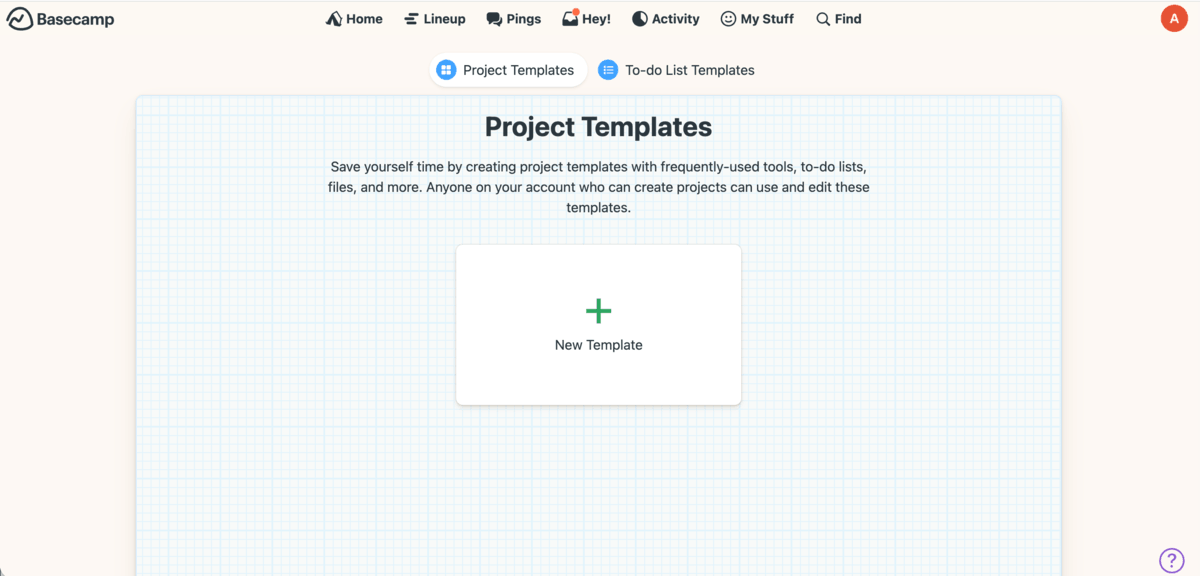
- Templates — In Basecamp, you can create projects or to-do templates for all the work you often have on your plate such as repetitive monthly initiatives or to-dos for event planning.
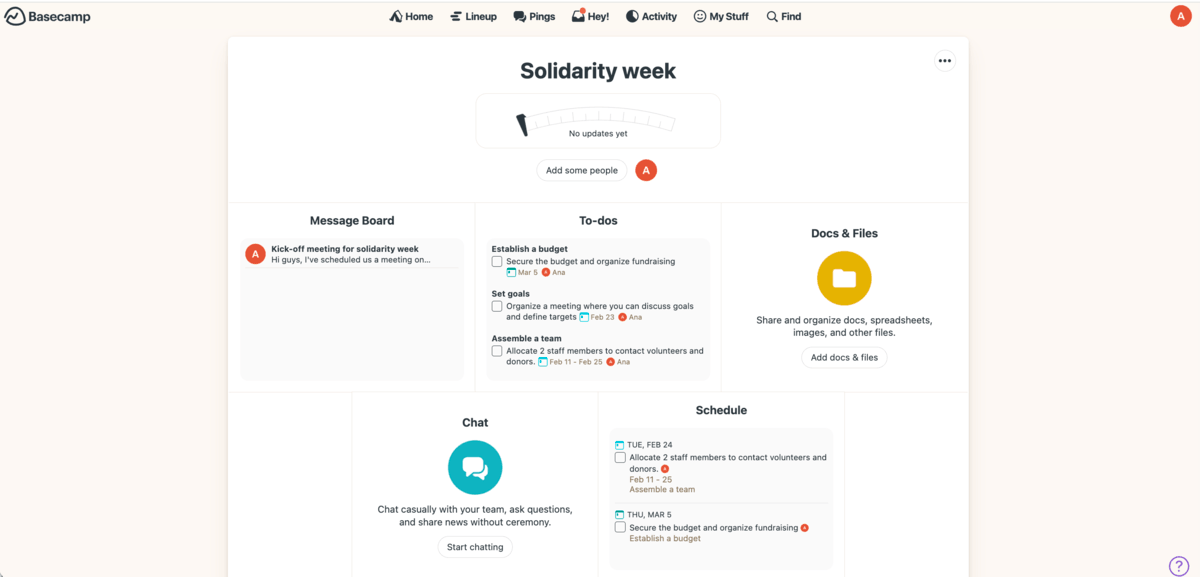
Still, the great thing about Basecamp is its home page — a one-page dashboard with all relevant information in one place, including your active projects, schedule, and assignments. In addition, each project has its own home page with sections for:
- Project progress — I really like this practical solution. Namely, progress is shown in the form of a speedometer allowing you to move the needle as your project progresses. You can mark your project as “on track”, “some risk”, and “concerned” and write updates about the status.
- To-dos — This is a section where you can see a list of project tasks along with assignees, due dates, notes, etc.
- Message board — Here, you can see announcements and comments related to the project.
- Docs and files — This box is a place where you can add and organize images, files, spreadsheets, and more into dedicated folders and even keep tabs on versions.
- Schedule — Your schedule shows your own to-dos in a calendar.
- Chat — A place where you can chat with your team, ask questions, and share ideas.
Yet, if you expect to find some advanced and fancy features like the ones in ClickUp or monday.com, you’ll be disappointed. Basecamp has no automation, AI, or multiple views.
Also, this tool’s free plan includes only 1 project, which makes it unusable for any nonprofit organization (even though you can include up to 20 users). To use a free plan, you’d have to delete that one project each time you want to start a new one — totally unpractical.
On the bright side, Basecamp’s Pro Unlimited plan has a fixed price of $299/month when billed annually. The price won’t change no matter the number of team members you include.
Additionally, Basecamp’s paid plans offer 24/7 customer support with Pro Unlimited subscribers getting priority status.
Build unlimited projects with Plaky
What’s new in Basecamp?
Basecamp’s latest addition was the Hilltop view. This is a report view you can use to see your to-do lists’ progress in the form of hillcharts.
Available for: web, MacOS, Windows, iOS, and Android
| Plan | Price |
|---|---|
| Free | $0 (up to 20 users) |
| Plus | $15/user/month |
| Pro Unlimited | $299/month* |
*billed annually
Note: The app gives 10% off any paid plan to registered nonprofits.
💡 PLAKY PRO TIP
Not sure if Basecamp is for you? Check out the best alternatives in the article below:
#9 Smartsheet — best for event management
Smartsheet is a work management platform based on spreadsheets but enhanced with features that allow managing complex project workflows.
Why choose Smartsheet?
Smartsheet is a feature-powered version of Google Sheets or Excel — perfect for managers who love working with spreadsheets. It offers a range of templates and dashboards for smooth event management.
| Pros | Cons |
|---|---|
| – Spreadsheet-like interface – Templates – Dashboards – Automation | – No free plan – Support available only as an add-on |
Smartsheet is a tool you can quickly get used to if you’ve worked with spreadsheets before, no doubt about it. But, you need to be careful when starting your free trial — once I signed up for it, I was prompted to choose a plan and a payment method. This was weird, as I was sure I signed up for a free trial. So, make sure you don’t fall for such tricks and share your card details before you decide to commit. Simply exit that window and proceed with your free trial.
Try Plaky for free, no card needed
Even though I’m not a big fan of spreadsheets, Smartsheet didn’t disappoint me. The platform offers some great features that can help you with projects such as:
- Unlimited sheets, forms, and reports — These are available in all plans allowing you to manage projects at scale.
- Multiple views — There are 7 different customizable views to choose from (Table, Grid, Card, Calendar, etc.), which you can use to visualize different aspects of your projects.
- Automation — In Smartsheet, you can automatically send alerts, notifications, and reminders to your staff as well as assign them to tasks when needed. It’s also possible to create an automation workflow from a template.
- Viewers and guests — Smartsheet allows you to invite viewers (internal and external) to your organization’s projects. Guests with editing permissions are allowed on Business plan and above. This eases cooperation with volunteers, donors, and partners.
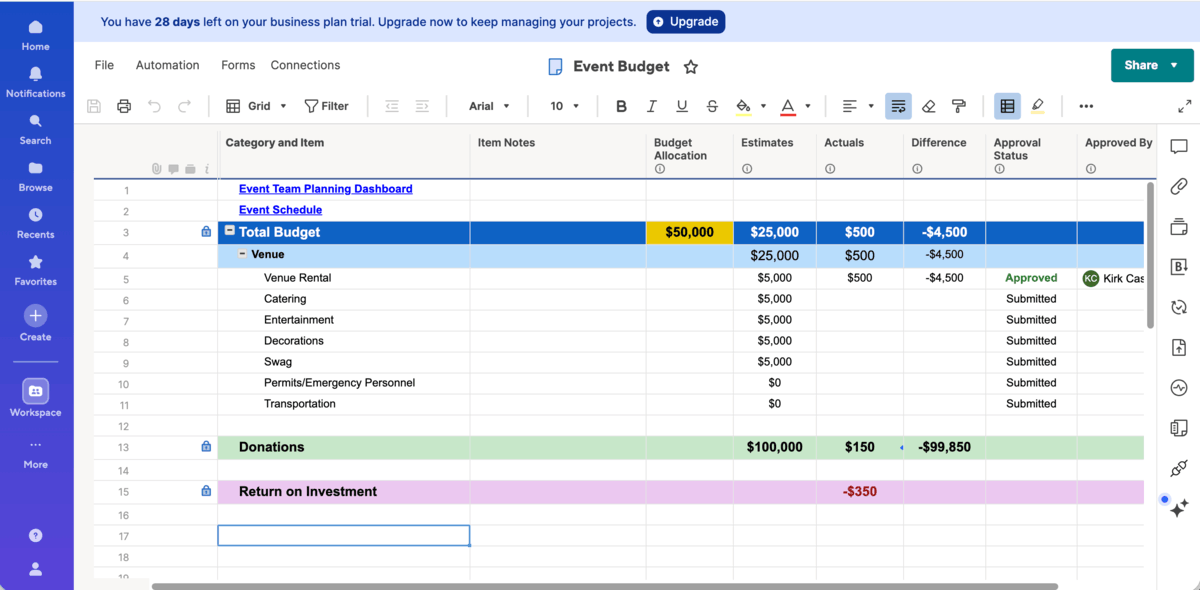
When it comes to event management, I was quite impressed with Smartsheet’s nonprofit event management template. Just as you solve donor management with monday.com’s dedicated template, you do exactly the same for events in Smartsheet. Here’s what you get:
- Reports — The template includes 4 different types of reports to keep every detail in order and up-to-date: donation report, event budget report, task roll-up, and upcoming tasks.
- Sheets — There are several sheets in this template that cover everything you need to keep close tabs on: donation tracker and form, event budget, event plan, event registration and summary with form, and volunteer tracker and application form.
- Event dashboard — A dashboard you can fill in with important event data and use for marketing purposes.
- Event team planning dashboard — This dashboard is for internal use and includes information on additional resources, event goals, volunteers by role, event status and budget, and much more.
All these template elements are highly customizable and help you address a range of project and reporting needs. The best thing is that you can share, print, and even publish all of them. What’s more, you can even use some of them in presentation mode, which is particularly useful in meetings with staff and donors.
Finally, you can address Smartsheet’s Help center right from the app and join the Smartsheet’s community to discuss issues and ask for help. Unlike some other apps on this list that include at least some type of support in their plans, Smartsheet has different support packages and services only as add-ons.
Get human support 24/7 on all plans
What’s new in Smartsheet?
Smartsheet introduced the in-app Help Center and enabled users to add attachments to their comments. In addition, this platform added more Document Builder tools that help users create repeatable solutions and not manually rebuild documents.
Available for: web, MacOS, Windows, iOS, and Android
| Plan | Price |
|---|---|
| Pro | $9/member/month* |
| Business | $19/member/month* |
| Enterprise | POA |
| Advanced Work Management | POA |
*billed annually
Note: Based on the info I found on Smartsheet’s community pages, this platform offers discounts on paid plans for approved nonprofits. Make sure you check with them what you can expect.
#10 Notion — best for nonprofit campaign management
Notion is a flexible project management tool that supports tailored workflows and enhances collaboration thanks to multiple databases and integrated documentation.
Why choose Notion?
Notion is great for nonprofit campaign management, as it allows you to centralize tasks, documents, and campaign briefs in one unified workspace. Teams can add suggestions and updates in real-time keeping collaboration smooth.
| Pros | Cons |
|---|---|
| – Various customization options – Databases – Templates | – Learning curve – Free plan for max. 2 members |
Notion workspace is organized in building blocks allowing you to create projects the way you need. This building block can be anything, from text and image to board and donut chart. It reminds me of a play area you can equip with your favorite gadgets and equipment.
Notion has many features you’ll often use in project management like:
- Databases — In Notion, you can organize more pages into a database where every item functions as a separate page. You can add different views to your database to visualize your work in formats of your choice (e.g. table, board, gallery, chart, map, etc.).
- Custom properties — These are custom fields you can add to your database items to provide more context (e.g. priority, due dates, number, status, person, etc.).
- Automations — If you have any repetitive tasks in your everyday work, you can use automation to create action buttons on your project pages and in databases. By clicking buttons, you can trigger actions like sending notifications and emails, inserting new blocks, assigning new tasks, and so much more.
- Sharing options — With Notion, you can create both internal and external databases and easily share them with relevant people and campaign participants.
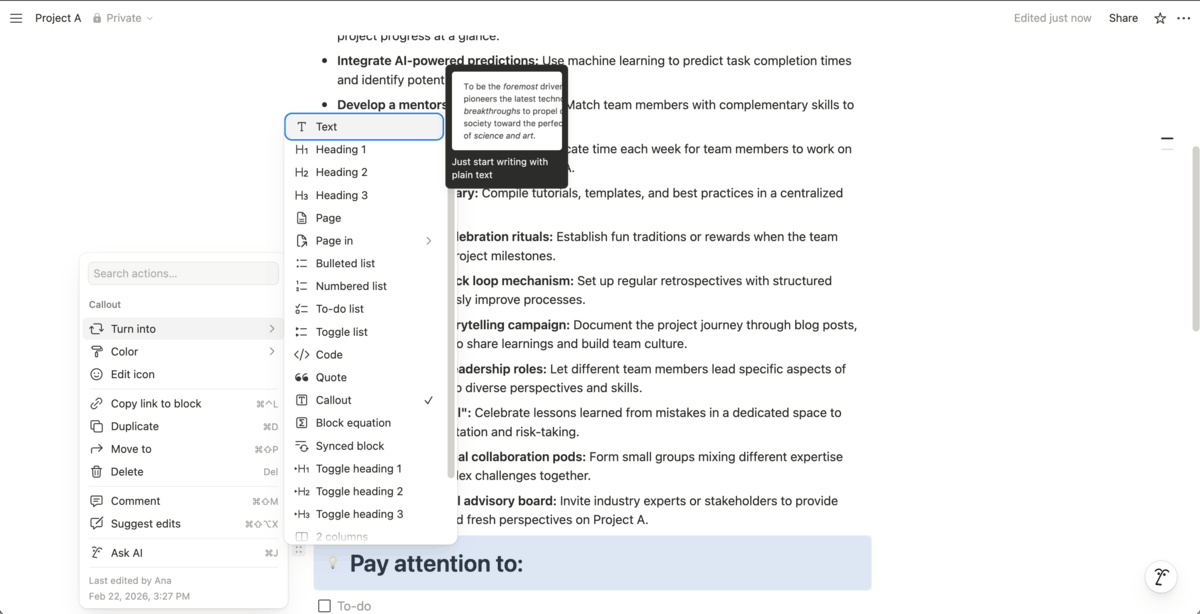
With Notion, nonprofits can manage different types of campaigns with social impact such as behavior change campaigns, advocacy campaigns, giving days, or social media campaigns for local initiatives. The following features make Notion a go-to tool for your campaigns:
- Templates — With templates like campaign calendar, campaign brief, campaign tasks, campaign tracker, you’ll kick off your campaigns quickly and efficiently.
- Media uploads — Notion supports different file types you can add to your pages such as video, audio, images, GIFs, PDFs, etc.
- Integrated documentation — Campaign pages in Notion can include your briefs, meeting notes, tasks, list of volunteers, drafts, posts for social media, and more.
- Real-time collaboration — With Notion, your team can leave comments, tag team members, add links, and make edits in real-time, which helps create smooth campaign workflows.
Level up collaboration with Plaky
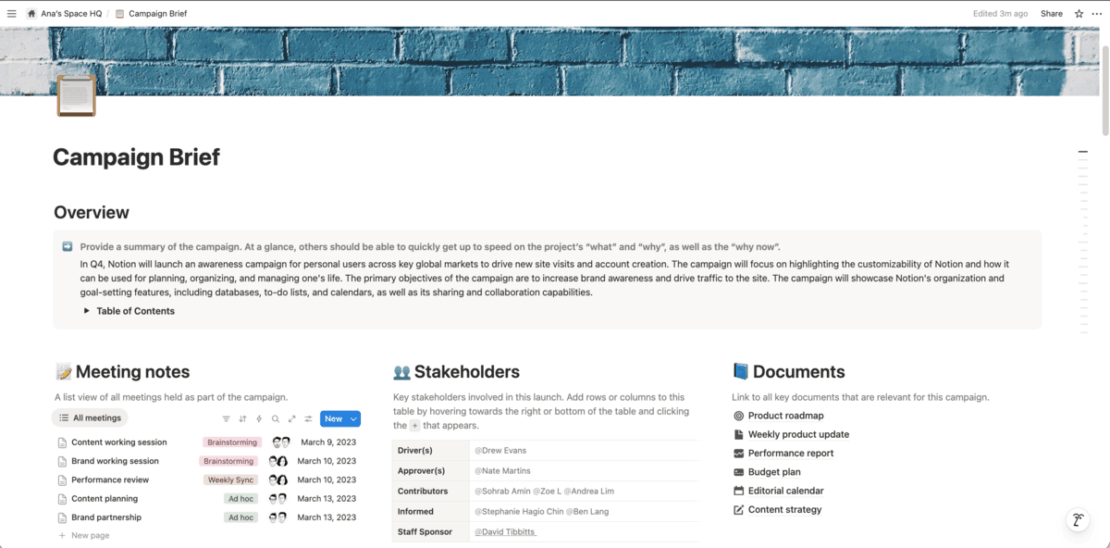
Admittedly, Notion was a bit overwhelming for me, and I really struggled at the beginning. I’ve been testing it for a couple of days and caught myself opening help pages trying to find out how to apply certain features. However, templates made my life easier and helped me figure out how things work.
I’m afraid you won’t be able to use Notion’s free plan for your nonprofit, as it’s intended for individual use. As for the support, all paid plans get priority support and can chat with AI-powered chatbot, while Enterprise users also get tailored agent support and a customer success manager.
What’s new in Notion?
As of recently, Notion users can rely on Notion Agent to find Asana tasks and projects, check their status, and see what needs to be addressed. Also, Notion made AI Notes available on mobile.
Available for: web, MacOS, Windows, iOS, and Android
| Plan | Price |
|---|---|
| Free | $0/member/month (for individuals) |
| Plus | $10/member/month* |
| Business | $20/member/month* |
| Enterprise | POA |
*billed annually
Note: Notion gives 50% off its Plus plan to nonprofits.
What is project management software for nonprofits?
Project management software for nonprofits is a tool designed to help charitable organizations in planning, managing, and tracking their mission-driven projects and initiatives.
Such tools offer a complete overview of projects, tasks, and deadlines helping nonprofits keep track of all the work.
Nonprofits rely on nonprofit project management software to manage fundraising campaigns, social events, grants, and donations. Also, this type of software allows nonprofit staff to coordinate their network of volunteers, control costs, and handle reports.
What’s more, such tools facilitate communication among team members and play a crucial role in stakeholder engagement by ensuring transparency and accountability.
Choosing the best project management tool for each of 1.9 million registered charities and nonprofits in the US should be on top of the agenda, considering the impact these organizations have.
Secure smooth project management for your nonprofit with Plaky
My nonprofit software testing journey is done, and now the ball is in your court.
I think it’s important to mention that all the apps I tried out have (more or less) the same project management features like tasks, tracking, assignees, file sharing, etc. But, I really wanted to highlight the features I found to be most useful and valuable for each of the apps.
Once you make a shortlist of potential apps, make sure you get them on free trial before you commit. Don’t risk choosing the wrong app just because it has some fantabulous features, and make sure it works for your organization in price and quality.
Still, if you want to handle your projects and initiatives without unnecessary complexity, I strongly encourage you to try Plaky by CAKE.com. Apart from being budget-friendly, our platform is:
- Easy to set up and use — Plaky is straightforward and beginner-friendly, so your nonprofit will be in working mode in no time.
- Armed with PM essentials — With Plaky, you can keep work transparent, track accountability, and monitor the progress of your projects in one centralized hub.
- Secure — Our tool provides first-rate security and keeps your data safe. Plus, with user roles and permissions, you can easily control who has access to what.
Check out this demo to discover what Plaky can do:
Increase your social impact by managing projects effectively with Plaky! Sign up for free today!