As someone who has spent way too much time creating project management templates for Excel without any kind of techy background, I can confidently claim 4 things:
- Excel is not easy.
- Excel is not a project management tool.
- Excel can function as a project management tool, but you will need an “Excel person” to make sure everything works right. (What happens when they get sick or — god forbid — leave the company?)
- It takes a stupid amount of time and effort to make Excel do what project management software can do from the get-go in a more intuitive, collaborative, and secure way.
So in my mind, deciding between project management software vs Excel primarily comes down to whether your job is to manage people and tasks, or analytics.
Allow me to explain.

WHY TRUST US?
Human reviewers try out each app and follow strict guidelines while writing the reviews. We follow a transparent, clear, and systematic methodology, so that every review is objective and accurate.
Key differences between PM software and Excel
Excel is an analytics tool meant for gathering, manipulating, visualizing, and analyzing raw data. It’s essential for data analysts, financial analysts, supply chain analysts, etc.
Project management software is a tool meant for coordinating people, tasks, and resources. It allows teams to organize work and collaborate in one secure place. This makes PM software invaluable for project managers and team leaders who manage people and tasks instead of numbers.
Although you can technically use both to manage projects, PM software and Excel serve fundamentally different purposes.
Here are some of the biggest differences between using PM software like Plaky by CAKE.com and Excel for project management:
| Features | Plaky by CAKE.com | Microsoft Excel |
|---|---|---|
| Collaboration | – Built for collaboration – Clear visibility across teams and departments – Comments, threads, and @mentions directly on tasks – Notification system – Viewer permissions for collaborations with external stakeholders | – Has the option for co-authoring, but it only works in conjunction with a cloud storage partner |
| Security | – GDPR – ISO/IEC 27001:2022 – SOC 2 Type II – Public bug bounty program – Advanced user roles and permissions – OAuth 2.0 SSO | – Password protected files – Read-only permissions – Restricted access for organizations that have permissions set up using Information Rights Management (IRM) – Digital signatures |
| Automation | – Lets you automate repetitive tasks using a simple, no-code “when X happens, then do Y” formula – Lets you automate recurring tasks – Enables visual reminders with the Conditional coloring feature | – Has limited automations that you have to program yourself |
| Ease of use | – Intuitive – Can be used by anyone, regardless of experience or professional background | – Steep learning curve for anyone without a background in programming |
| Price | – Free with the option for paid upgrades | – Free with the option for paid upgrades |
4 reasons you shouldn’t use Excel for project management
Excel’s flexibility does allow it to function as a project management tool, but in a very limited capacity. As soon as your business grows into a group of teams rather than individuals, its downsides become glaringly apparent:
- Excel is not ready-to-use for project management.
- Excel is not built for collaboration.
- Excel has limited security.
- Excel is cumbersome and you will need help with maintenance.
#1 Excel is not a ready-to-use tool for project management
Excel is a blank slate. To use it for managing projects, you must first build the workflows you want to use.
Need a Gantt chart? No problem. You will need about 6 hours and a lot of confidence that you won’t make a mistake in any of the gajillion formulas you’ll need to use (I exaggerate, but not too much). Using Excel can be effective, but it’s just not very efficient.
You can use a pre-made template, of course, but if you ever need to customize it, or if you accidentally delete a formula and you’re not proficient in Excel, good luck. With PM software, everything is right at your fingertips.
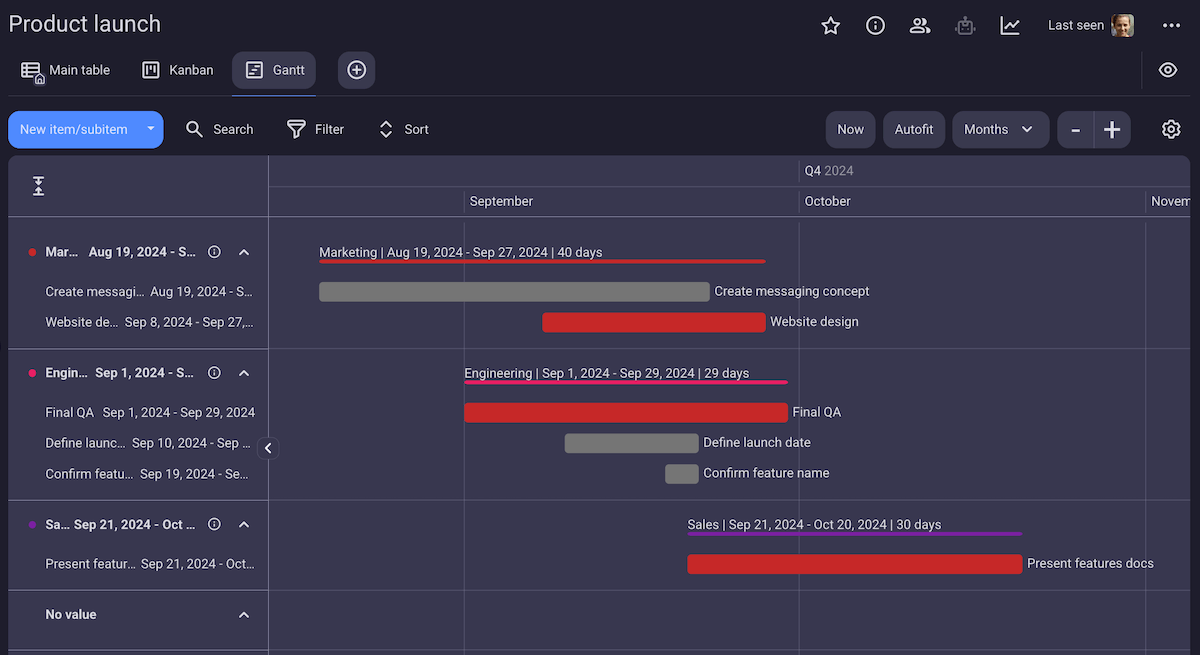
Essentially, when you use PM software like Plaky, you are a manager adapting its features to your workflow. But when you try to use Excel for project management, you become a programmer building a project management tool within Excel, and that is simply a waste of time.
Microsoft has recently attempted to make Excel more approachable and easier to use with Copilot AI. On paper, this sounds amazing — you can ask it to automatically generate charts, create conditional formatting, formulae, etc. All this is really great, especially for people who aren’t Excel wizards, except for 3 small facts:
- There is a disclaimer in Copilot that says “AI-generated content may be incorrect”, so trust it at your own discretion.
- AI is notoriously bad at math, and Copilot is no exception.
- Copilot is not available on the free plan.
💡 PLAKY PRO TIP
You don’t really need 6 hours to build a Gantt chart in Excel. If you can settle for a simple Gantt chart, you can use our guide to help you build it much quicker:
#2 Excel is not built for collaboration
Excel is mainly an offline tool. When you want someone else to make changes to the document, you first have to send them your version of the sheet to edit, then they send the new version back to you. There are multiple issues with this method:
- You end up with several versions that can easily get mixed up the more times you do this.
- Someone can accidentally change or delete important information, and you’ll be none the wiser until it creates a problem.
- The manager has to manually inform every person related to a task when something changes, which is (again) not very efficient.
While Excel has become more collaborative in recent years, the real-time collaboration feature raises security concerns and may be cumbersome for desktop users.

#3 Excel has limited security
Contrary to popular belief, Excel has several ways to protect worksheets and formulas, such as:
- Passwords that prevent people from opening or editing a workbook or
- Locking certain formulas to prevent accidental deletion.
However, Microsoft also has a prominent warning on their support page saying that just because these features exist, you should not assume that your files are secure.
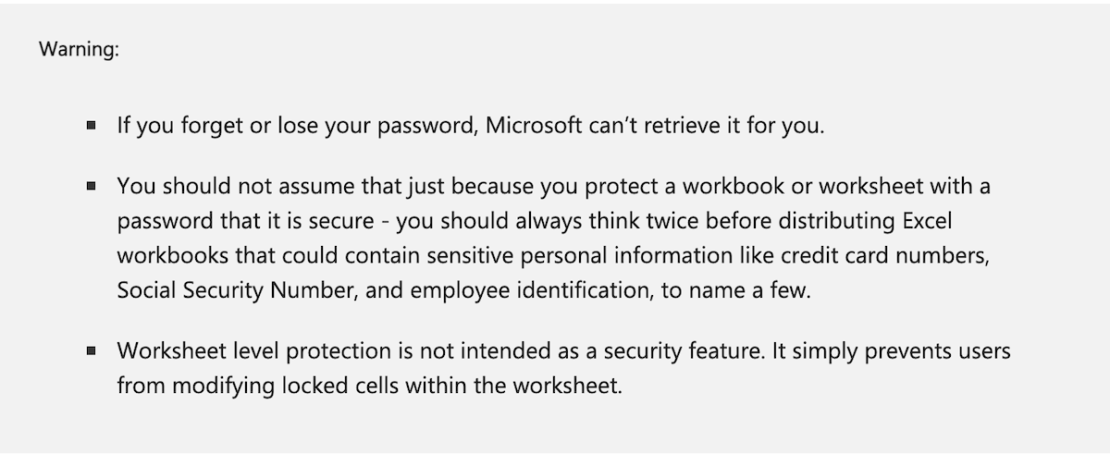
This alone should make any business that values the security and privacy of their own and their clients’ data look into spreadsheet alternatives for managing projects.
#4 Excel is cumbersome and you will need help with maintenance
Most people without a background in programming will find Excel difficult to navigate, especially when the spreadsheets grow in size and complexity along with the business.
This is why most companies that use it tend to have an “Excel person” who maintains the formulas and makes sure everything works right. The issue is that this one employee becomes the duct tape keeping the business from collapsing into chaos.
Manage projects with ease — try Plaky
Why PM software is better than Excel
The modern workplace with its many hybrid or remote teams and an increasing need for agility, speed, and compliance has made PM software the only logical option for managing teams and projects.
Like one of Plaky’s long-time users, Nikola Glintic, owner of Fincon accounting, says:

“Early on, we used Excel tables, but I constantly felt that this ‘wasn’t it’ and that I’d prefer a different way to keep track of our work.”
This remains the general sentiment for most businesses looking to make their workflow more efficient, which is why small businesses inevitably search for Excel alternatives once their numbers start growing.
So here are some of the main reasons why PM software wins over Excel when it comes to managing work.
PM software is easy to use and customize
Unlike Excel, where you need to make your project management work because it wasn’t meant for it in the first place, PM software just works. As one of our users, Matevz Lovko, production manager at Lepton-Quark, aptly put it:
“You could be a cook in a restaurant or a production manager, and you could create a task management board that suits your needs. The most important thing is that you can always change or add another fixture to it if you need it, it takes just a minute of your time.“
You can still customize workflows with Table views, Kanban boards, Gantt charts, custom Fields, etc., or use some of Plaky’s editable templates to get started. But neither you nor any of your employees will need any kind of prior knowledge or tech experience to understand how to use it.
All you need to do is create an account, and you’re good to go.
Try Plaky by CAKE.com for free
PM software is useful for both leadership and teams
PM software gives managers a clear overview of who is doing what, how the tasks are divided and how they are progressing. This allows them to effectively distribute workloads, resources, and spot project risks before they escalate.
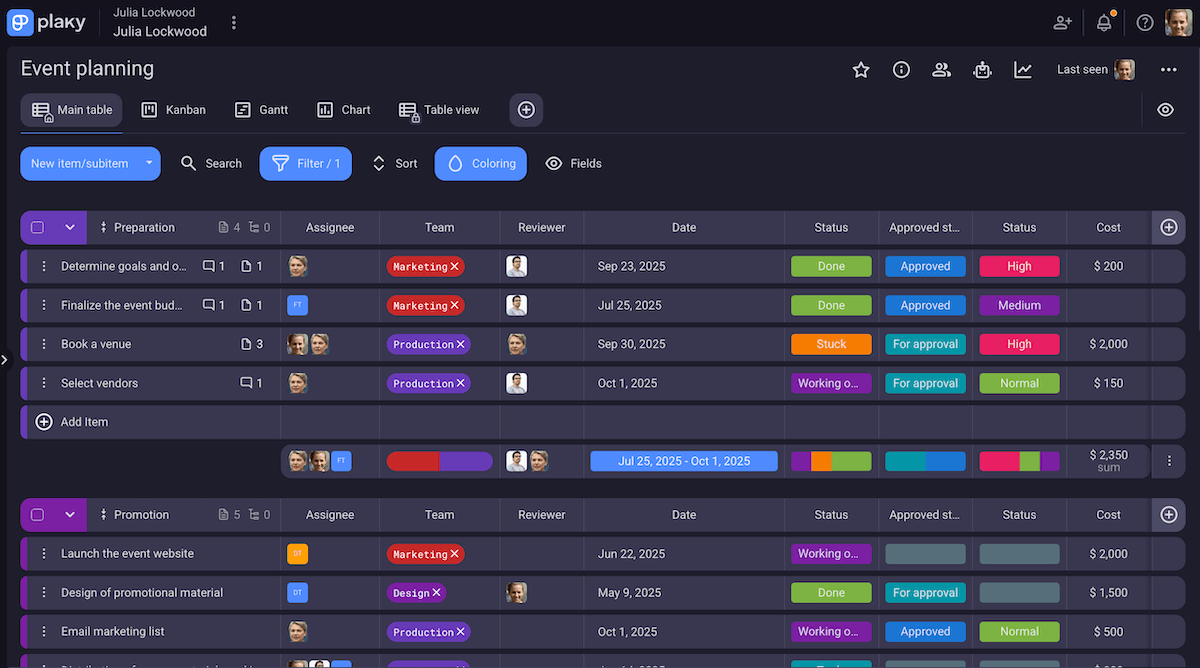
Unlike spreadsheets that are mostly ever available to managers, project management platforms connect your entire workforce in one place. This supports independent work and frees up the manager’s time for more important tasks, just like it did for 1st Platinum Freight, as Milos Stanic shares:

“There’s no need to ask redundant questions when you have the answer right in front of you in Plaky. Even our company owner jumps in from time to time to see what’s going on in Plaky.”
PM software keeps your information safe
PM software generally has robust security features that guarantee the safety of your data. For example, Plaky by CAKE.com protects your data with:
- OAuth 2.0 SSO,
- Data encryption,
- GDPR and ISO/IEC 27001:2022 compliance,
- SOC 2 Type II certificate, and a
- Public bug bounty program.
In addition to this, Plaky lets you manage access to boards and spaces to safeguard sensitive data. If you want to get more granular, you can specify user roles and edit role permissions to make sure only the right people access the right information.
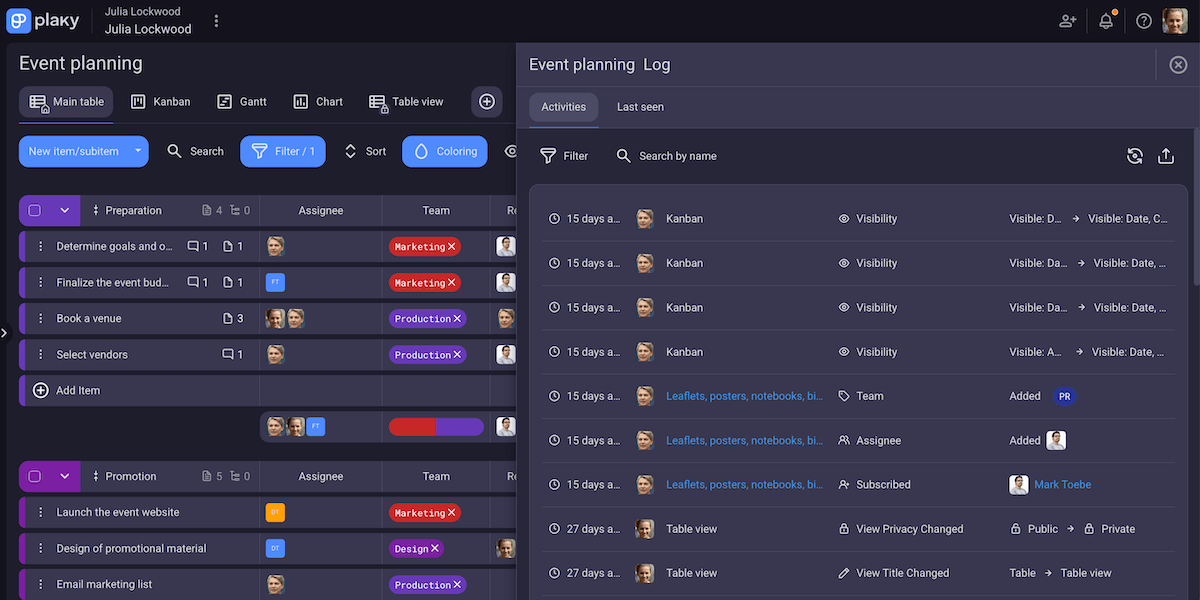
And even if a blunder does occur, all you need to do is check Plaky’s Activity log to find out what was changed and who did it.
PM software improves cross-team collaboration
Teams rarely work in isolation. So knowing how tasks are progressing and who to contact when your output depends on the work of another team is crucial to keep the ball rolling.
With Excel, the manager is the only one who has access to this information and has to mediate communication, let people know when things progress, when assignees change, etc. But with PM software, the information is right there for anyone who needs it. You can even tag colleagues or leave comments and they’ll receive a notification immediately — no need for follow-ups.
This is exactly what helped Vladimir Milic and VM Digital increase the efficiency of their business:

“I try to reach that point where I don’t have to say anything and instead have employees find solutions on their own.
What we would otherwise have to discuss on a 30-minute call, in this case, I can open Plaky, tag the person I need, ping them, Plaky notifies them, and that’s it. Basically, it made us more efficient and saved our time.”
Plaky also supports collaboration with stakeholders outside of the organization with viewer access. This enables clients to see relevant boards, without the fear of accidentally changing something.
PM software supports business growth
While Excel sheets become more complicated and difficult to navigate as your staff and workload increases, PM software keeps things organized at all times.
For example, Plaky offers unlimited users, spaces, boards, items, and views, all on the free plan!
Use Plaky’s organizational hierarchy to divide Workspaces into Spaces and spaces into Boards that you can then group together or further divide into Items, Subitems and Item groups. Keep everything neatly organized and at your fingertips regardless of the size of your company or the complexity of the work.
Jesse Tutt, founder of Guru SEO Services, explains how Plaky has helped ground his growing business:

“As our organization grew, keeping up with constant changes and plans became too time-consuming and impractical. Plaky has helped keep all of our projects, tasks, and projections in one place.”
PM software makes automating repetitive tasks easy
PM software typically lets you create a variety of board automations to streamline repetitive tasks such as:
- Automatically adding, removing, or changing assignees when task status changes,
- Moving tasks to a different group,
- Creating new items or subitems,
- Sending custom notifications, etc.
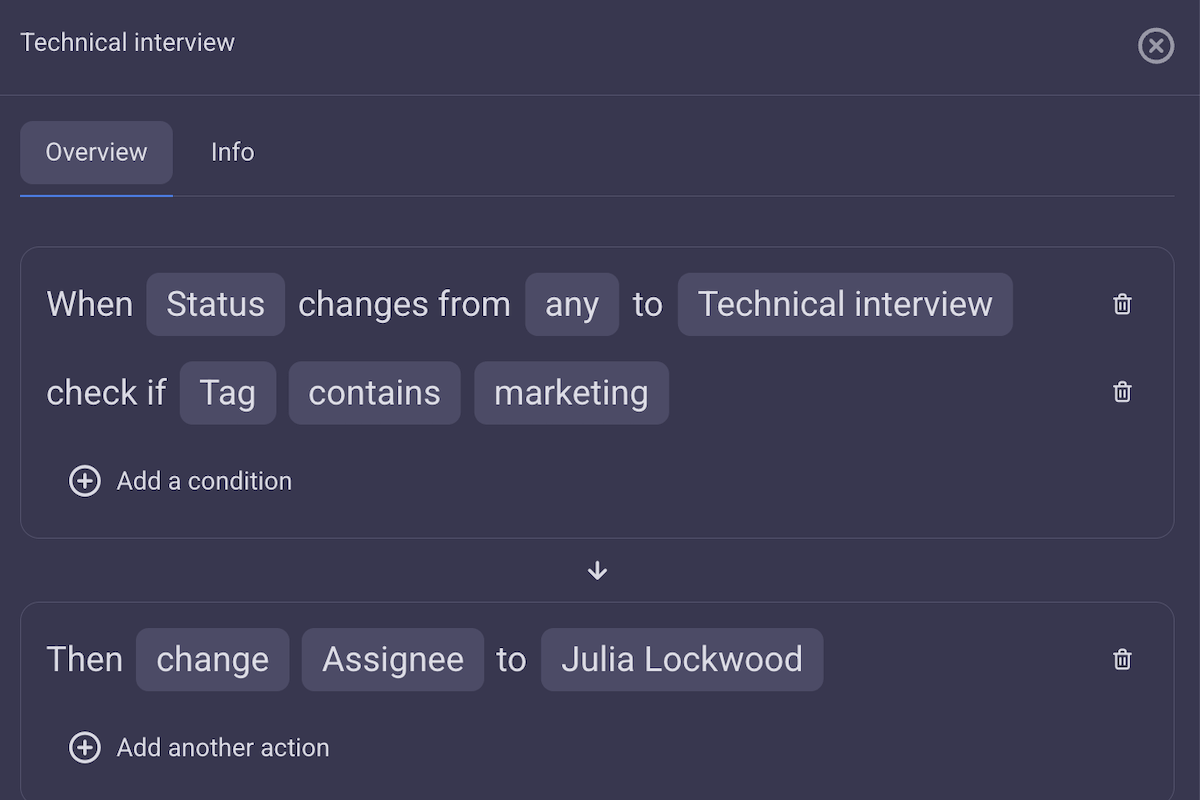
Plaky makes it very easy to automate repetitive and recurring tasks by only using a simple formula:
“When X happens, then do Y”
All you need to do is specify the variables and your automation is ready.
Excel, on the other hand, requires you to write much more complicated formulas to execute even the most basic of automations.
When to use Excel vs project management software
If you’re still wondering whether you should use PM software or Excel to manage work, the conclusion is simple:
- Use project management software like Plaky for task management, collaboration, coordination, and security.
- Use Excel for data manipulation and analysis.
PM tools and spreadsheets have fundamentally different purposes. Most likely, you will need to use both in some capacity for optimal results. But depending on the nature of your work, one will be dominant and the other supplementary.
For example, if you’re a project manager, you can use Plaky for task and resource management and Excel for budgeting.
How to transfer Excel files into PM software
Despite its many disadvantages, many project managers still use Excel to manage tasks. If you’re one of these people, but you’re ready to move on to something simpler, you’ll be happy to know that you can easily transfer your data from Excel spreadsheets into PM software.
For example, you can import your Excel data into Plaky in just 4 simple steps:
- Convert your Excel file into a CSV file. (You can easily do this with the save as function.)
- Go to your Plaky board and choose Import from CSV from the dropdown in the top right corner (three dots).
- Select your CSV file and make sure everything looks good.
- Map the data (decide how your columns will connect to the fields in Plaky) and click Finish import.
If you’re importing Excel data into a completely new Plaky board, all you need to do is to choose Create from file when creating a new board and then choose your desired CSV file.
Make project management easier with Plaky by CAKE.com
At its core, project management is about relationship management and coordination. So there are no real advantages to using Excel instead of PM software in this case.
Asking if you should use Excel to manage your projects is like asking if you should use a frying pan to cook soup — you definitely could, but why make your life difficult when pots exist?
In other words, don’t use a frying pan to cook soup, and don’t use a data analytics program to manage projects if you want to make your life a little easier.
If you’re ready to move on from Excel to something more intuitive, try Plaky by CAKE.com.