Looking for an affordable project management tool, and you’ve narrowed down your search to Plaky by CAKE.com and Trello? Only, now you’re not sure which to choose?
Or maybe you’ve tried Trello and found it limiting, so you want to see if Plaky has what you need?
Well, no need to wonder anymore — we have all the answers! Read on to find out what you can get from both Trello and Plaky and which one is a better fit for you.
WHY TRUST US?
Human reviewers try out each app and follow strict guidelines while writing about the comparisons. We follow a transparent, clear, and systematic methodology, so that every review is objective and accurate.
What are the main differences between Plaky and Trello?
The main difference between Plaky and Trello is that Trello is Kanban-focused, while Plaky offers a variety of useful views on all its plans.
Trello, developed by Atlassian, is designed to help you manage your to-dos on a Kanban-style board. Although it offers other board views on higher tiers, a Kanban board is what most people think of when it comes to Trello.
On the other hand, Plaky, developed by CAKE.com, is created to serve as a powerful, yet user-friendly tool for tracking complex workflows.
Besides the Kanban view that allows for easy status tracking, its free plan offers Table view for clear task and project overview, and Chart view for data visualization.
Here’s an overview of their similarities and differences, which I’ll explain in detail later on:
| Feature | Plaky | Trello |
|---|---|---|
| Pricing | – Free plan – Pro $3.99* – Enterprise $8.99* | – Free plan – Standard $5* – Premium $10* – Enterprise 17.50* (for 50 users) |
| Free plan | – Unlimited users – Unlimited spaces, boards, and tasks – Table view – Kanban view – Chart view | – 10 users – Unlimited cards – Unlimited Power-Ups – Board view – Limited automation |
| User interface (UI) | User-friendly and intuitive | User-friendly and intuitive |
| Task management | – 9 custom field types – 4 board views – Board automations | – 5 custom field types – 5 board views – Board automations |
| Progress tracking | Advanced | Basic |
| Team collaboration | – Comments and @mentions – Reply in thread – File sharing – Notifications | – Comments and @mentions – Attachments – Notifications |
| Integration | Clockify and Pumble | 226 integrations |
| Support | – 24/7 support via phone/chat/mail on all plans – 100% human support | – Only community support on the free plan – 24/7 support available on the Enterprise plan |
| Security | – ISO/IEC 27001 – GDPR – SOC 2 Type II | – ISO/IEC 27001 – GDPR – SOC 2 Type II – Atlassian Guard |
*per user per month, if billed annually
What’s new in Plaky by CAKE.com?
Plaky recently introduced:
- My tasks — Track your tasks from different boards in one place.
- Comments and replies reminder — Set reminders so you can answer comments at a later time.
- Plaky + Pumble integration — Receive Plaky notifications as messages in Pumble so you never miss an important update.
- Plaky + Clockify integration — Track time spent on tasks directly in Plaky for better time management.
For more information about Plaky’s new features, visit Plaky’s roadmap and changelog.
What’s new in Trello?
The latest big update in Trello introduced the “new Trello”, which includes:
- Inbox for better organization of your emails, messages, and notes,
- Planner for managing your busy schedule, and
- AI-powered productivity to help you extract important information (e.g., due dates or action items) from your messages and emails.
Plaky vs Trello: Main features overview
Let’s see what these 2 tools have to offer and how they compare to each other.
Plaky’s paid plans are more affordable
Plaky offers a lot of functionality at very affordable prices. It has 3 pricing plans, as well as a bundle deal that includes 2 other CAKE.com products:
| Plan | Yearly subscription | Monthly subscription |
|---|---|---|
| Free forever plan | $0 | $0 |
| Pro plan | $3.99/user/month | $4.99/user/month |
| Enterprise plan | $8.99/user/month | $10.99/user/month |
| CAKE.com Bundle | $12.99/user/month | $15.99/user/month |
Plaky’s paid plans build on an already robust free plan. If you opt for the Pro plan, you can get more advanced features such as board automations, private boards, Gantt charts, and viewer roles. The Enterprise plan offers all that combined with advanced board permissions, custom subdomain, Google SSO, and more.
To compare, Trello’s pricing looks like this:
| Plan | Yearly subscription | Monthly subscription |
|---|---|---|
| Free plan | $0 | $0 |
| Standard plan | $5/user/month | $6/user/month |
| Premium plan | $10/user/month | $12.5/user/month |
| Enterprise plan | $17.50/user/month (estimated for 50 users) | POA |
With Trello’s Standard plan, you’ll get unlimited boards, Planner, and custom fields. With the Premium plan, you’ll get access to Calendar, Timeline, Dashboard, and Map views, AI functionality, and admin and security features. Finally, the Enterprise plan offers advanced security, unlimited Workspaces, multi-board guests, and more.
Looking over these 2 pricing structures, what’s most interesting is that you can get Plaky’s Enterprise plan for less than Trello’s Premium plan. To put it simply, Plaky is more affordable, yet just as powerful as Trello.
Plaky has a better free plan
If you’re looking for a tool with a strong free plan, Plaky is definitely the right one for you.
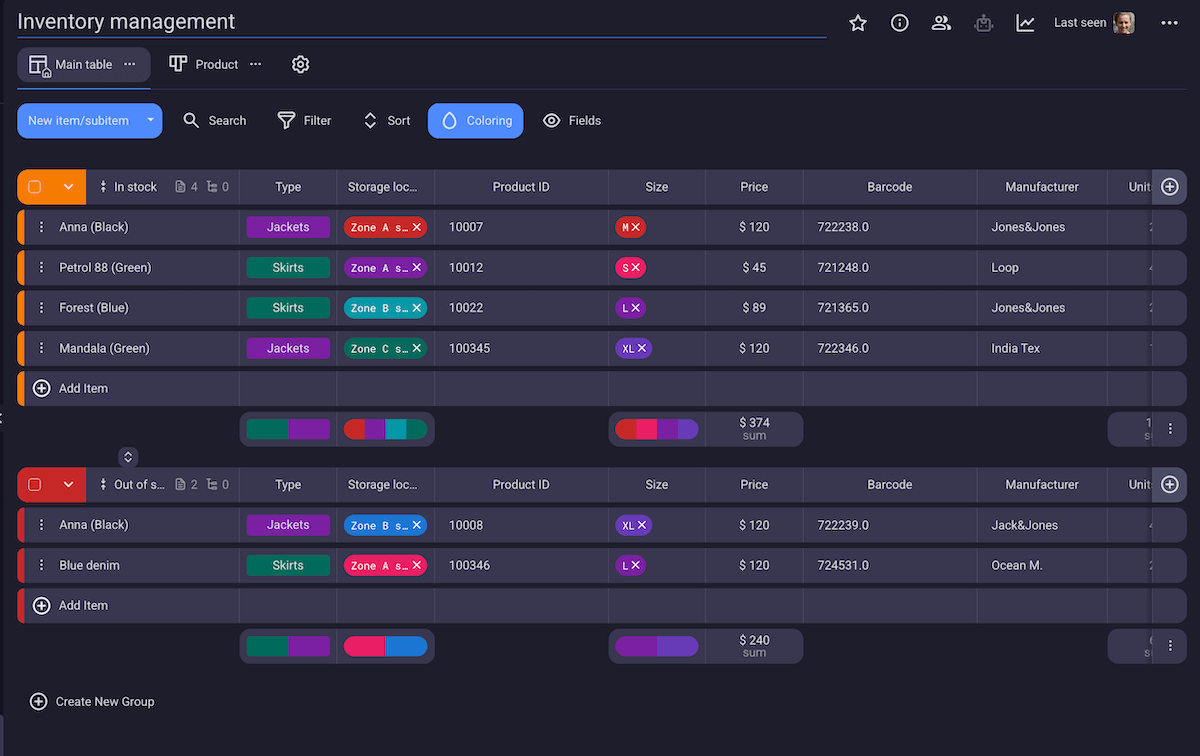
The best thing about Plaky’s free plan is that it offers unlimited users, spaces, boards, and items. This means that you can scale your business while on a free plan, which is rarely the case with project management software. So, you won’t fall into the trap of finding an affordable tool only to discover you need to upgrade once your company starts to grow.
Try Plaky by CAKE.com for free
Plus, Plaky offers 6 custom fields on the free plan, which enable you to customize your board and track information relevant to your projects (more about custom fields in the task management section).
It also offers different board views (Table, Kanban, and Chart), as well as unlimited board templates so you can start tracking your projects in mere minutes.
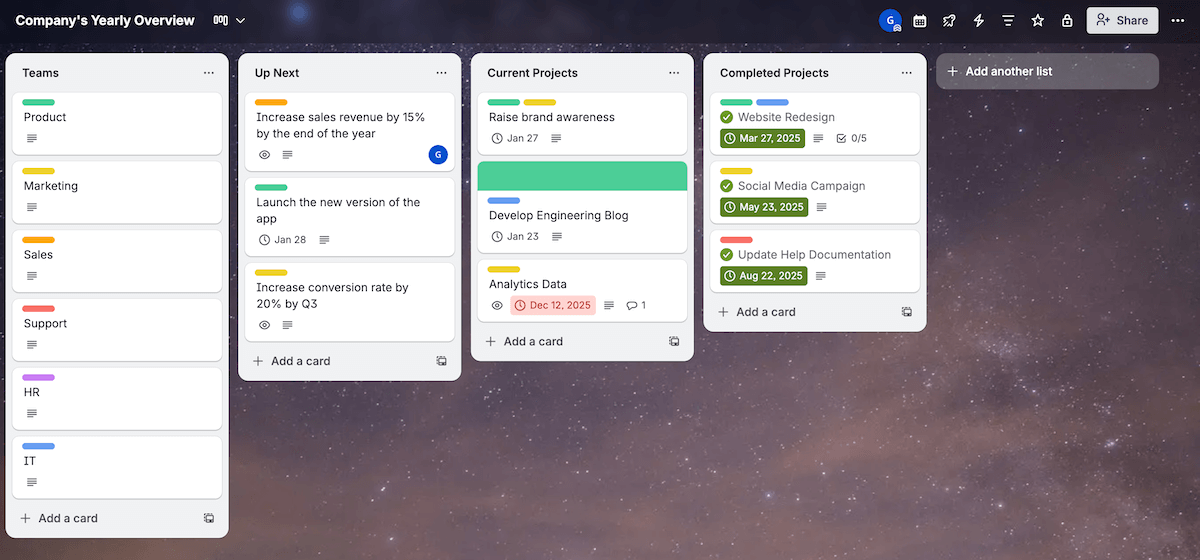
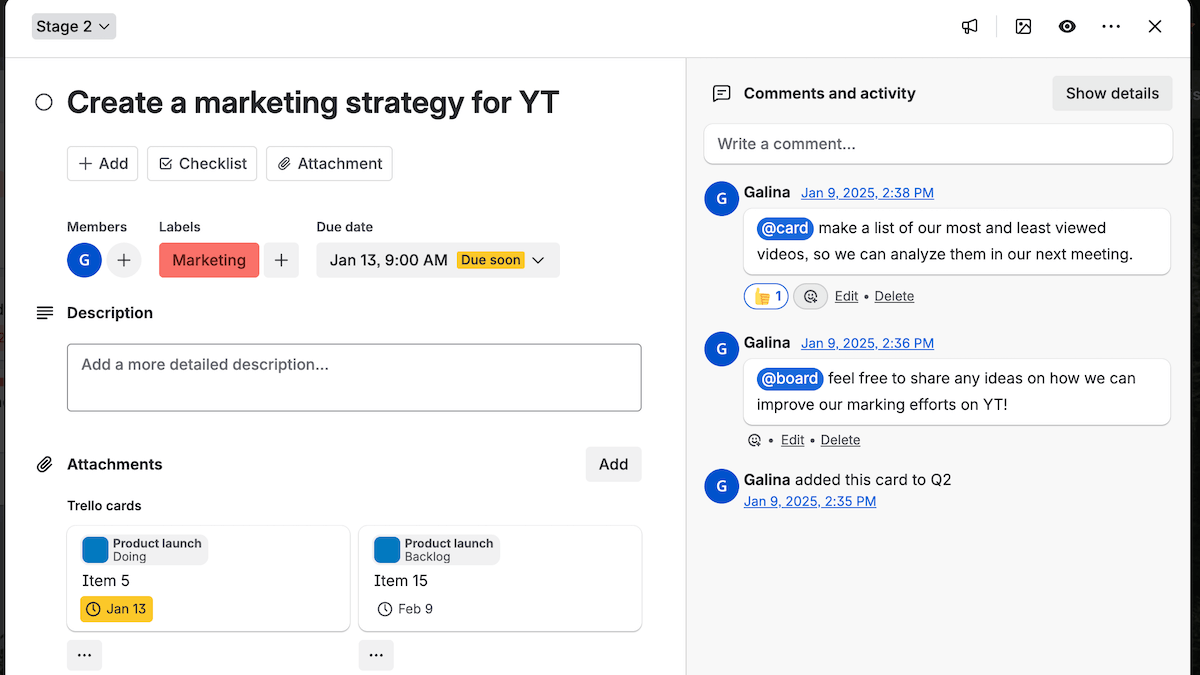
On the other hand, what makes Trello free plan stand out are the unlimited Power-Ups, which are very similar to integrations — they can bring and send information between Trello and other tools or simply add additional functionality to Trello.
Trello also offers limited access to board automations, which can be quite useful, but does little to compensate for user and board limitations.
Trello allows only 10 collaborators and 10 boards per Workspace on the free plan. This essentially means that it can’t be used long term — no team (no matter how small) can function for an extended period of time with so few boards.
Another problem is that Trello doesn’t offer any custom fields on its free plan, which means that you can’t tailor your boards to fit your workflow.
Moreover, Trello’s free plan includes only the Board (Kanban) view, which can be very limiting. I, for example, find that the Kanban view doesn’t provide me with a clear overview of all task information. I always turn to Table view for that.
Here’s how Plaky’s and Trello’s free plans look side-to-side:
| Feature | Free Plaky | Free Trello |
|---|---|---|
| Users | Unlimited | 10 |
| Boards per workspace | Unlimited | 10 |
| Custom fields | 6 | ❌ |
| Table view | ✅ | ❌ |
| Chart view | ✅ | ❌ |
| Automations | ❌ | Limited usage |

Both have a simple and user-friendly interface
When it comes to ease of use, both tools have hit the nail on the head — they are intuitive and simple to learn. So, whichever you choose, your team won’t have to waste time on extended onboarding and adjustments.
Plaky’s left sidebar enables you to navigate your workspace easily. You can travel through spaces and boards, have your favorite boards at your fingertips, and quickly access My tasks — a view where tasks from all your projects and boards are collected.
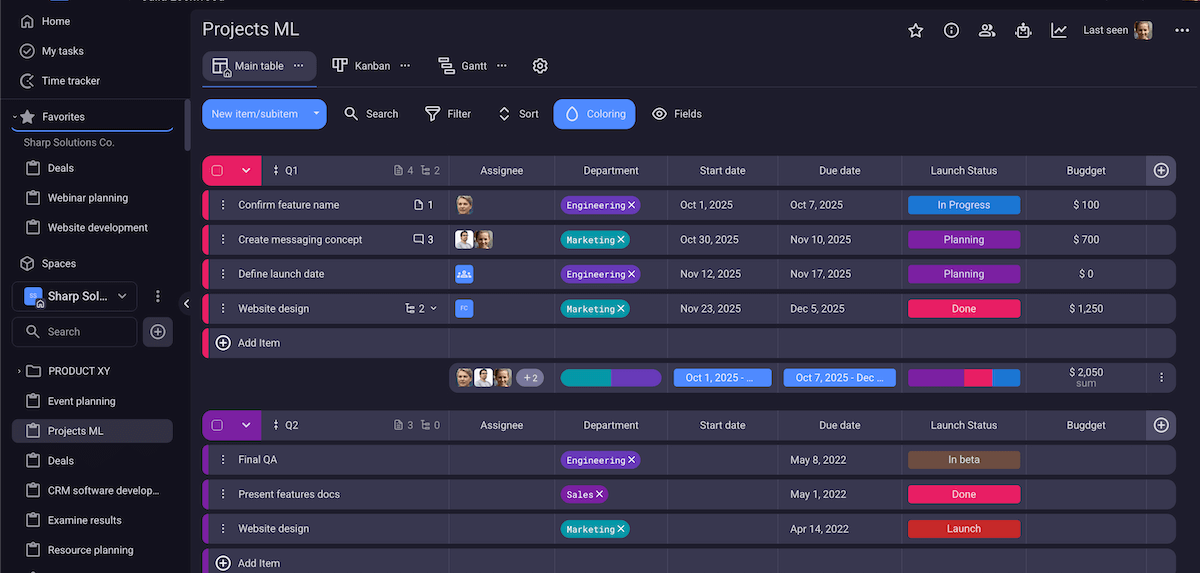
Trello and Plaky both have a way to mark the most important boards as favorites to access them easily. But, Plaky does it better — it offers a separate section on the left sidebar just for your favorite boards. Trello separates the starred boards by showing them above the others, when you go to switch boards, but I would have preferred it if I had a completely separate space for them, like I do in Plaky.
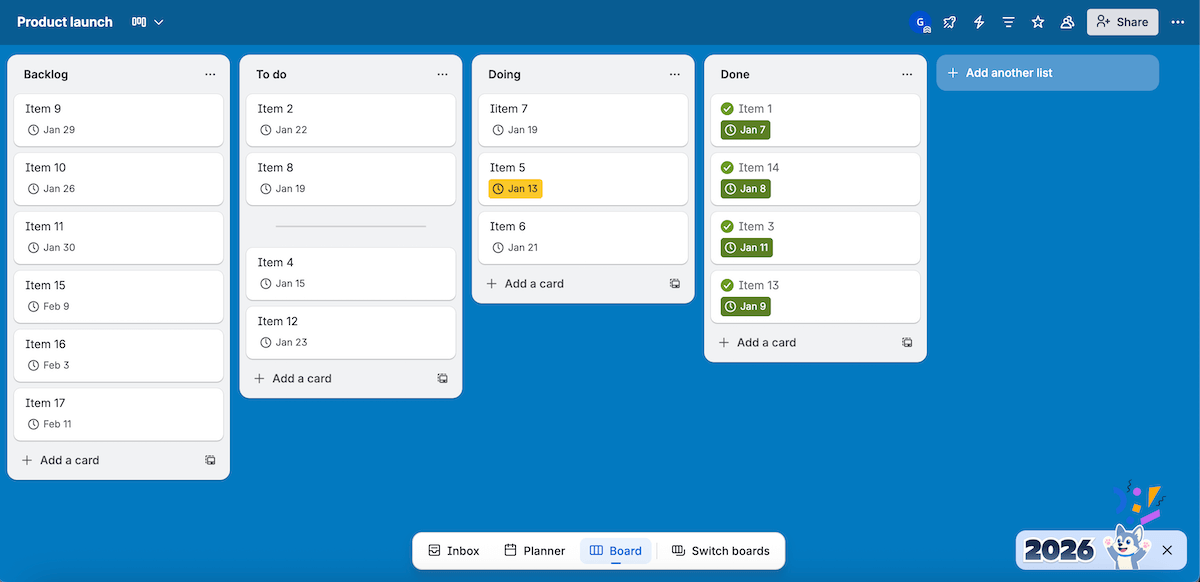
Trello’s UI is somewhat different from other PM tools — it has a floating bar at the bottom of the page that helps you navigate through it. You can access your Inbox, Planner, and Boards on the navigation bar, and choose to see 1, 2, or all 3 of them. The ability to divide the screen in 3 parts is quite handy, especially when you want to drag the items from your inbox directly to the board. I just wish I could see 2 boards simultaneously — I expected this to be possible since I can split the screen in multiple parts.
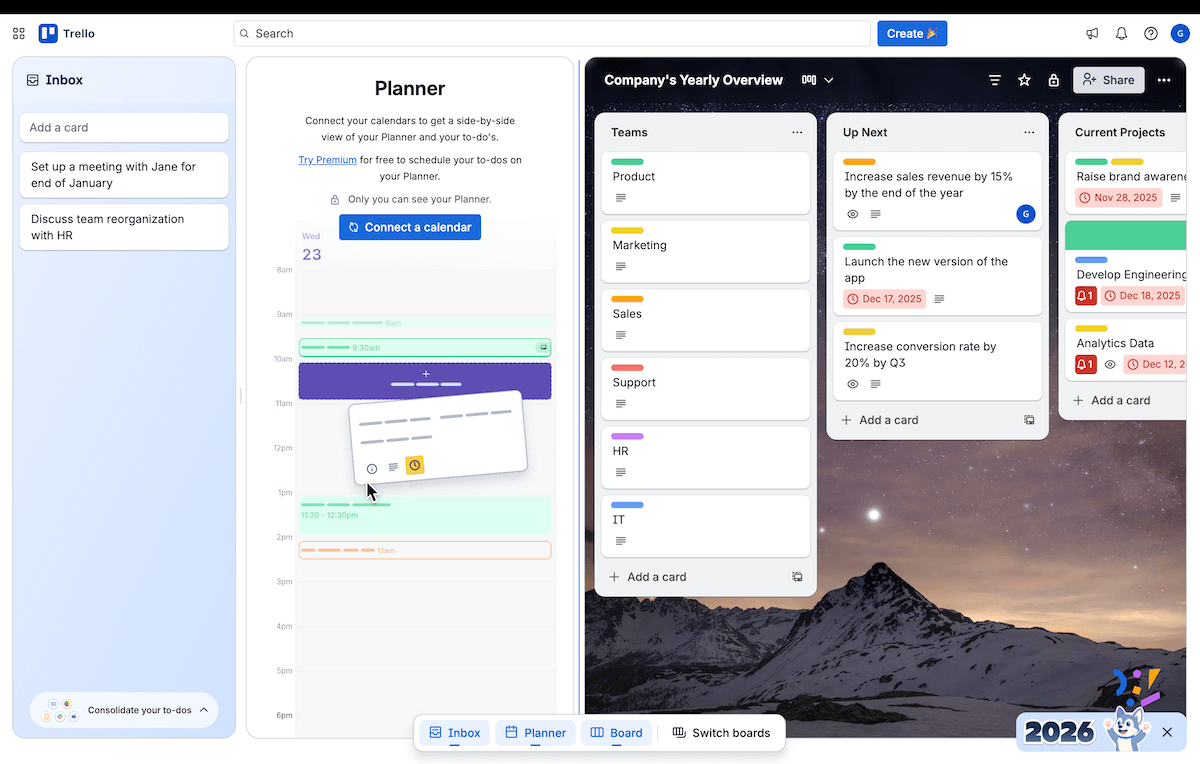
All in all, both are intuitive and will serve even the non-technical teams very well. In the end, it comes to personal preference. For me, Plaky’s navigation through the left sidebar, which enables quick access to everything I need, slightly outshines the floating navigation bar from Trello.
Plaky offers better task management options
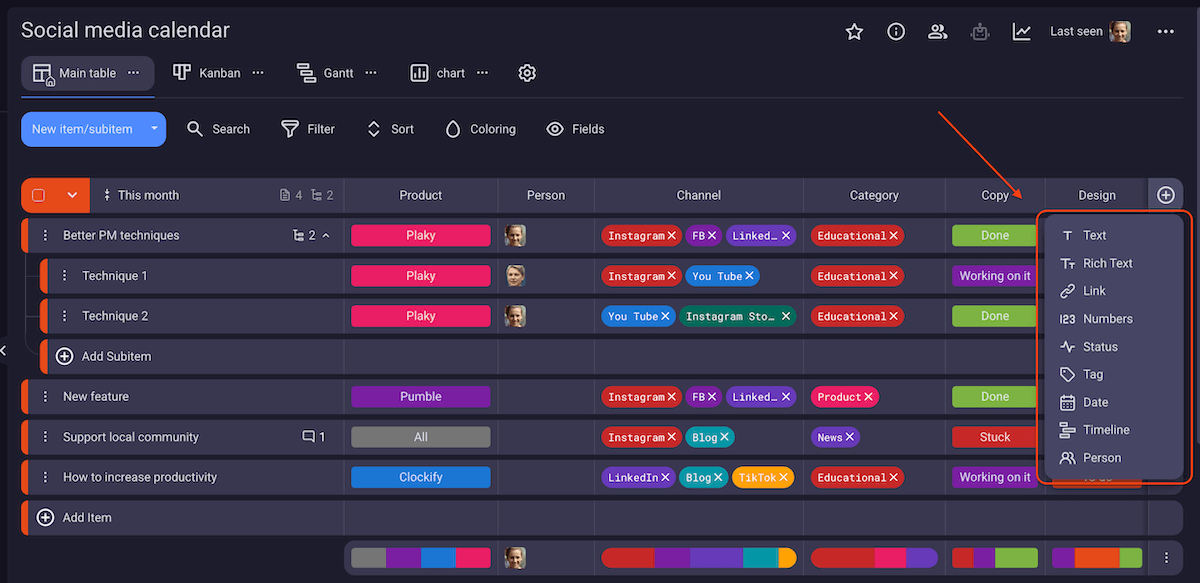
Plaky has neat and highly functional task management options. The basic unit in Plaky’s organizational structure is an Item Card. It’s a rich and colorful bank of information thanks to its custom fields:
- (Rich) text (e.g., instructions, descriptions, checklists),
- Person (e.g., assignee, reviewer, manager),
- Date (e.g., start date, deadline),
- Status (e.g., To do, In progress, Done),
- Number (e.g., items in stock, budget, prices),
- Link (e.g., URLs leading to additional resources or client requests),
- Tag (e.g., departments, storage locations), and
- Timeline (visual representation of task timeline).
But, what makes Plaky really powerful are Subitems. They inherit all properties from items (status, assignee, priority, etc.), making them just as robust. This is super useful if you want to divide tasks into smaller, more manageable chunks, without compromising on functionality.
Breakdown complex tasks in Plaky
These Items and Subitems are organized into boards that can be viewed in 4 different ways (Table, Kanban, Gantt, and Chart). You can create them from scratch or utilize some of Plaky’s premade free templates to save precious time. On paid plans, you can even create your own board templates. If you’ve designed an intricate project board that you want to use for your future projects, go to 3 dots in the upper right corner and click on Mark as Template, and this board will be waiting for you in the template center whenever you need it.
Another great way to save time is to use board automations — the IF this THAN that automations help you eliminate the dull and repetitive work such as moving tasks to the Done column, adding your manager as reviewer when you finish your task, etc.
Trello’s task management is intuitive and easy to manage — you can quickly create new tasks and drag and drop them across columns. Editing task cards is also simple and quick — you just click on the little pencil in the upper corner of each card, and you get a dropdown menu where you can edit labels, dates, and covers, copy the link to the card, archive the card, etc.
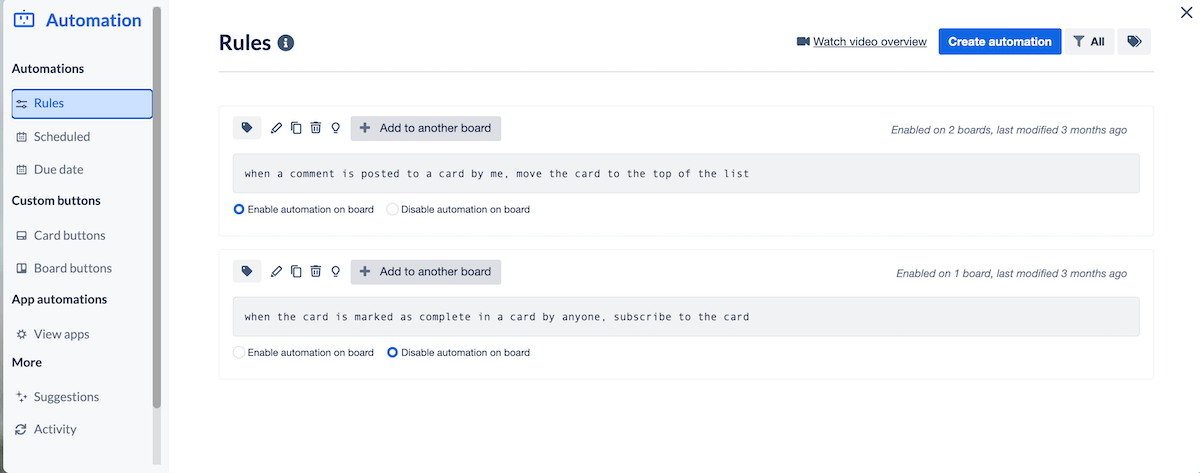
The biggest asset Trello offers when it comes to managing tasks are different automation options. What’s more, Trello offers automations on all plans — you get 250 command runs per month on the free plan, 1,000 on Standard, and unlimited automation commands on Premium and Enterprise plans.
Trello’s automations options are divided into:
- Rules — automations based on WHEN this happens, DO this triggers, e.g., when a card is marked as Done, archive it,
- Scheduled automations — automated actions based on your schedule, e.g. every Monday at 10 a.m., create a card “Weekly plans”.
- Due date automations — automations based on card’s due date, e.g., when card is due today, move it to the top of the list, and
- Buttons — one-click buttons added to your card or board to quicken common tasks, e.g. set due date to today.
Unfortunately, task cards are not so well-designed as they are in Plaky. Trello offers only 5 custom fields (Checkbox, Date, Dropdown, Number, and Text), and they aren’t available on the free plan. Speaking of limitations, if you want to manage your tasks on any other board than Kanban (e.g. Timeline, Table, Calendar, etc.), you’ll have to opt for the Premium plan. And, $10/user/month seems too high a price to pay just so you can organize tasks in a Table.
Another problem is that Trello didn’t put as much effort into developing subtasks as Plaky did. The only way to create subtasks in Trello is in the form of a checklist. On paid plans, each item on the checklist can have a due date and an assignee, but that’s all. If you want to track elaborate tasks and subtasks simultaneously, Trello is not the app for you.
Progress tracking is much easier in Plaky
In Plaky, tracking progress is simple, yet faultless — you always know how all your tasks and projects are advancing. To help you keep an eye on both overall project progress and task developments, Plaky introduced:
- Gantt chart — Track how your tasks are moving across a timeline, and spot potential bottlenecks that could stop your project from progressing as you planned.
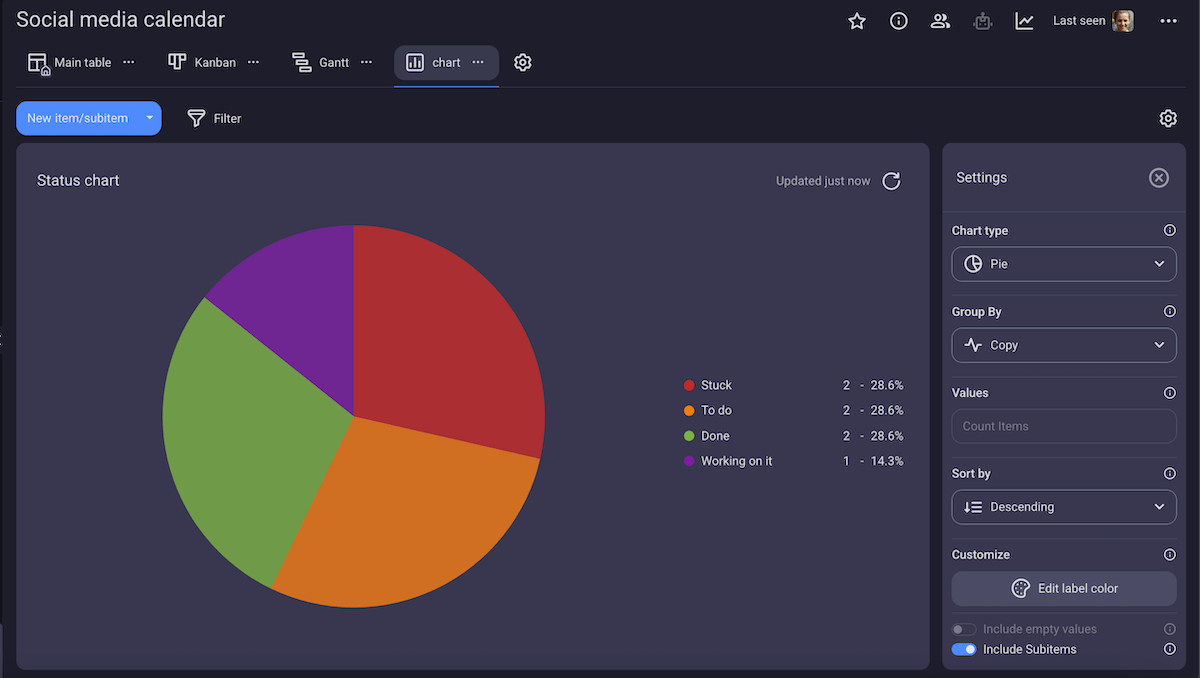
- Chart view — Have a visual overview of your progress on a colorful pie or bar chart. As everything in Plaky, you can customize charts by grouping data, sorting values, and applying filters.
- Status field — Track task statuses with customizable and color-coded fields that allow you to classify your status as you wish. For example, a software development team might need statuses such as Backlog, In testing, On stage, etc., while a retail company could use labels like In stock, To order, etc.
- Summary row — View status of all tasks at the bottom of a group for an aggregate view of their status.
The best way to track progress in Trello is to use a Kanban board. Being a staple of Trello, Kanban board is well organized and easy to use. You can create a separate column for each status, and just drag-and-drop item cards as they progress through the stages.
However, if you prefer to organize your columns according to different criteria, and track status with a status field, you’ll be disappointed. There’s no status field as such in Trello — you can only check the box to mark the task done. On paid plans, you could use the dropdown custom field to create status values similar to a status field. The best you can do on the free plan is add labels with task statuses, but that’s just clumsy. You might need labels for different information, and besides, you can have more than one label per task (unlike statuses), so you’ll have to manually remove each status label before adding another.
Plaky’s collaboration options are more advanced
With Plaky, team collaboration is a breeze — from communicating to staying up to date with changes, it’s all simple and easy.
Plaky supports collaboration in various ways:
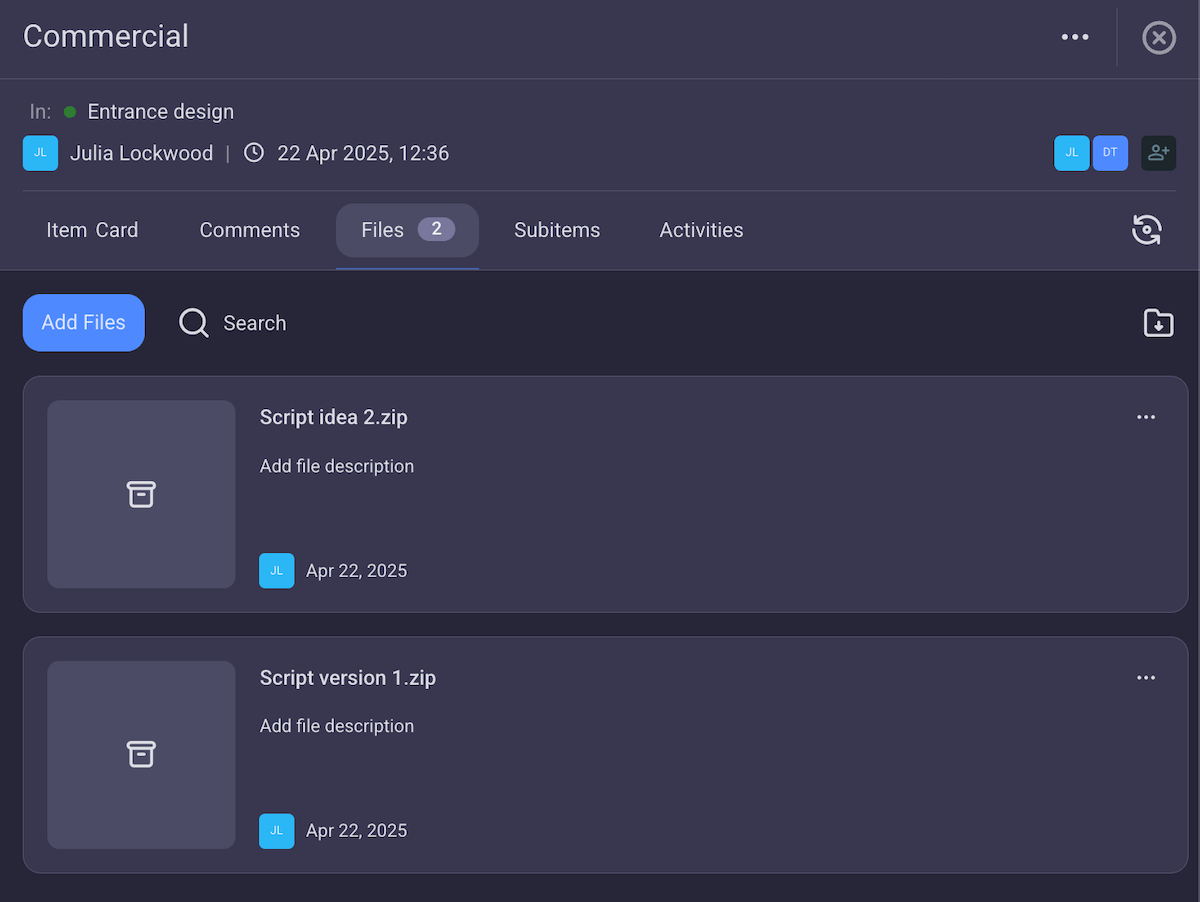
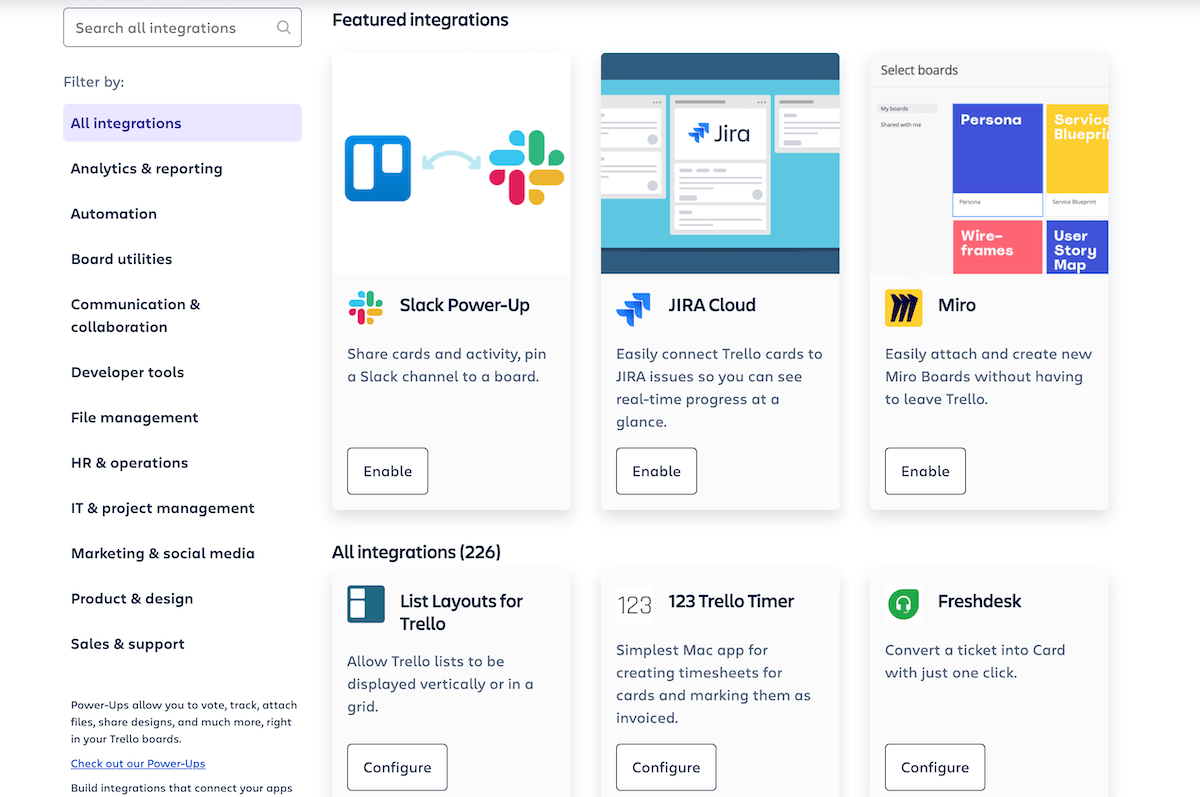
- Comments — Communicate with your team members directly in tasks. You can @mention your teammates to get their attention and clearly state who the comment is for, while at the same time having the comment available for everyone to read. You can also reply in thread to keep multiple conversations going without clutter, and leave reactions in the form of emojis for a quick response.
- Notifications — Stay informed of all changes on the tasks you’re subscribed to. Plaky lets you choose which notifications you want to receive (all changes on an item you’re subscribed to, replies to your comment, comments which @mention you, etc.). You can also filter notifications in the notification window (all, unread, mentions, assigned to me) for easier navigation.
- File sharing — Share documents directly in item cards for easier collaboration and quick review process. There’s a search feature integrated into the files sections, so you can always find what you need, no matter how many docs you and your colleagues added.
Collaborate with your team in Plaky
Same as Plaky, Trello’s cards have a comment section where you can @mention your teammates. However, you cannot reply in a thread, which is a big downside. If there are several people working on the same task, and they all need to share updates and ask questions, the comment section can quickly become cluttered.
You can also attach items in cards. These can be files (same as in Plaky), but also other Trello cards and links to boards from your Trello workspace. However, there’s no search options, which brings us the same issue as with comments — potential clutter in case of more elaborate tasks.
Unlike Plaky, Trello has a rudimentary notification system. You can choose whether you want to see all notifications or only the unread ones, but that’s it — there’s no way to filter the notifications. This can be quite problematic if you collaborate with various teams on many projects at the same time — there’s just too many changes in a day, and you might find your Trello overflowing with notifications you can’t filter out.
Trello has way more integrations than Plaky
This category has a clear winner — Trello. After all, it offers 200+ integrations, while Plaky offers only 2.
Plaky integrates with 2 other CAKE.com tools — Pumble and Clockify. Since all 3 are developed by the same company, the integration is seamless and doesn’t require any adjustments or technical knowledge.
Pumble is a business communication app that lets you chat, call, or hold a video conference with your team through private or public channels and DMs. Plaky’s integration with Pumble enables you to receive notifications from Plaky directly in Pumble, which means you can stay up to date with all projects while chatting with your team.
Clockify is a time tracking tool that enables you to track billable and nonbillable hours, generate invoices, create reports, and much more. By integrating Clockify and Plaky, you can track time (with a timer or manually) on each task, and it will be automatically logged in Clockify, where you can use it to create invoices for your clients.

Trello, on the other hand, integrates with various tools for software development, analytics, file management, etc. It offers over 200 integrations including:
- Jira Cloud (also developed by Atlassian),
- GitHub,
- Hubstaff,
- Dropbox,
- Google Drive, etc.
Plaky’s customer support leaves Trello’s in the dust
These 2 tools could not have more different approaches to customer support.
Plaky offers the same support to all of its customers — everyone, including those on the free plan gets Enterprise-level support.
You can contact Plaky’s support team by phone, mail, or chat 24/7, and they will respond to you within an hour.
Most importantly, you can communicate with a real person and don’t have to struggle to explain your issues or questions to a machine that never quite understands what you need.
Trello’s customer support, on the other hand, differs significantly across plans:
- Free plan — no real support, you have to rely only on community support,
- Standard plan — support available only during local business hours,
- Premium plan — premium support available 24/5, and
- Enterprise plan — 24/7 enterprise admin support.
This essentially means that you need to pay approximately $17.50 just to get the 24/7 support you would have gotten for free in Plaky. So, if customer support is important to you, this is a no-brainer — Plaky offers excellent support no matter which plan you’re on.

Both apps offer high-level security
Both Trello and Plaky offer industry-standard security certifications, such as ISO/IEC 27001, SOC 2 Type II, and GDPR, as well as end-to-end encryption.
Plaky provides a safe environment for all its users by offering secure:
- Personnel — All personnel working on Plaky undergo background checks and sign confidentiality or other types of Non-Disclosure Agreements (NDAs).
- Development — All products are developed in accordance with OWASP Top 10 recommendations for web application security.
- Testing — CAKE.com performs penetration testing both by internal security engineers and external penetration testing companies.
- Cloud — All data is encrypted at rest and in transmission. Plus, each customer’s data is separated, utilizing unique encryption keys to ensure your data is protected and isolated.
Trello, on the other hand, offers standard security to all its users. But, if you want more advanced security measures, you can buy Atlassian Guard — a cloud security add-on. It’s included in the Enterprise plan, otherwise this will set you back an additional $4.20/user/month, but you’ll get:
- Enforced SSO,
- API token controls,
- Organization audit log, and more.
You can go even further and get the Premium Atlassian Guard for $8.18/user/month to get access to features such as anomalous activity detection and alert investigations.
However, this is a significant addition to the price you’re already paying. So, if you want extra, extra security, you can go for Trello + Atlassian Guard. Just be prepared to pay a hefty price for it.
FAQ
Here are some of the most common questions people have when they are deciding between Plaky and Trello.
Which is more affordable — Plaky or Trello?
Plaky is much more affordable than Trello. Plaky’s Pro and Enterprise plans will cost you just $3.99 and $8.99 per user per month respectively. On the other hand, Plaky’s Premium plan costs $10, and the Enterprise plan will set you back as much as $17.50 per user per month.
Is Plaky actually free or are there hidden costs?
Yes, you can use Plaky for free forever. There are no hidden costs — you really get an unlimited number of users, spaces, boards, items, and teams for free for as long as you want.
Will I lose my Trello data if I transfer to Plaky?
Absolutely not! You can safely transfer your Trello data to Plaky. Simply follow our guide on how to import data from Trello, and you’re guaranteed to succeed.
Does Plaky have a steep learning curve?
No. Plaky is user-friendly and highly intuitive. There’s basically no learning curve to Plaky, so your team will be able to master it in no time at all.
Skyrocket your productivity with Plaky by CAKE.com
If you need a powerful assistant to help you get projects to the finish line, but don’t want to spend a fortune on a PM tool — go for Plaky.
With Plaky you get all you can ask from a project management app:
- Ease of use — The software is easy to adopt for everyone, no matter their technical knowledge, age, or expertise.
- Functionality — You can manage projects, track progress, automate your workflows, and collaborate seamlessly with your team, all in 1 tool.
- Affordability — With plans starting at $3.99/user/month, Plaky won’t hurt your budget, no matter how big your team is.
- Customizability — You can tailor Plaky to fit your workflows so your PM tool works with you, instead of causing additional headaches.
Manage even the most complex projects effortlessly — try Plaky today!