If you’re in charge of planning project resources, you can save time and effort by using templates — ready-made structures helping you figure out who’s available, what’s already booked, and where you have gaps.
We offer you 8 free resource planning templates for different needs, including general planning, budgeting, skills, inventory, and more.
Plus, we’ll cover what to do when simple spreadsheets stop being enough.
Let’s dig in!
#1 Plaky’s resource planning template
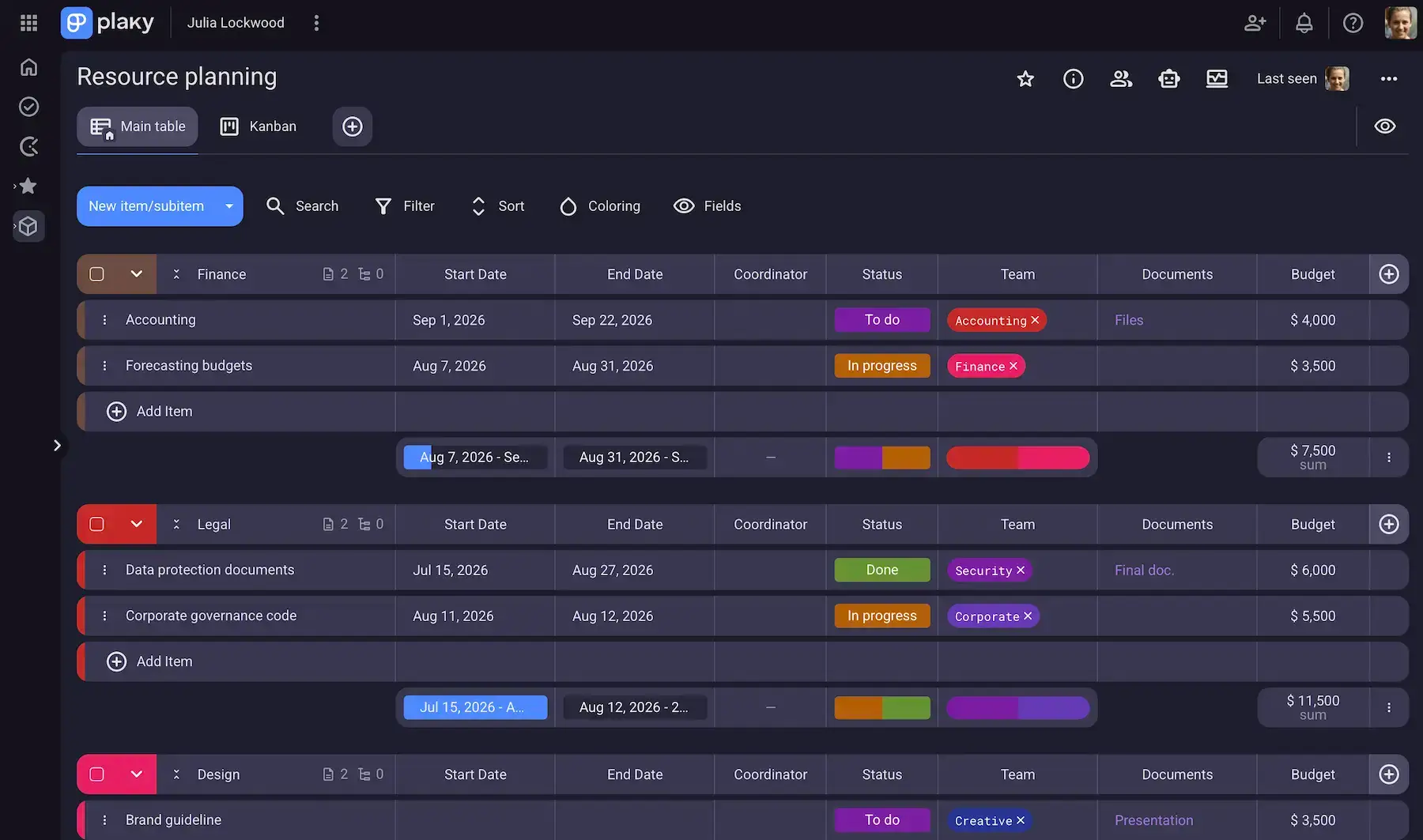
Try Plaky’s free resource planning template
Plaky offers you a centralized place to plan, assign, and monitor project resources.
For clarity and accountability, each item in Plaky’s resource planning template is described through these Fields:
- Start date — enter the date when the resource allocation or activity begins.
- End date — add the date when the allocation ends.
- Coordinator — assign the person responsible for organizing and overseeing the resource.
- Status — track resource usage at a glance with customizable status options.
- Team — add a tag to specify the team responsible for or using the resource.
- Documents — link relevant files and reference materials (e.g., project briefs, contracts); alternatively, you can upload them as Files directly into Plaky.
- Budget — enter the amount allocated to the resource or activity.
Bonus: The optional Summary row, as its name suggests, shows a handy summary of field values at a glance (averages, percentages, summation, and more).
For full customization, you can rename, reorder, and delete the fields, plus use the custom color picker for colored elements.
And, besides the default table-like format, Plaky has 3 other view options (Kanban and Chart view on the free plan, plus Gantt view on the paid tiers) to accommodate different users’ needs and preferences.
Thanks to its flexibility, Plaky’s resource planning template works for teams of all sizes across industries.
Get Plaky by CAKE.com for free
#2 Team resource planning template
Download: Google Sheets | Excel
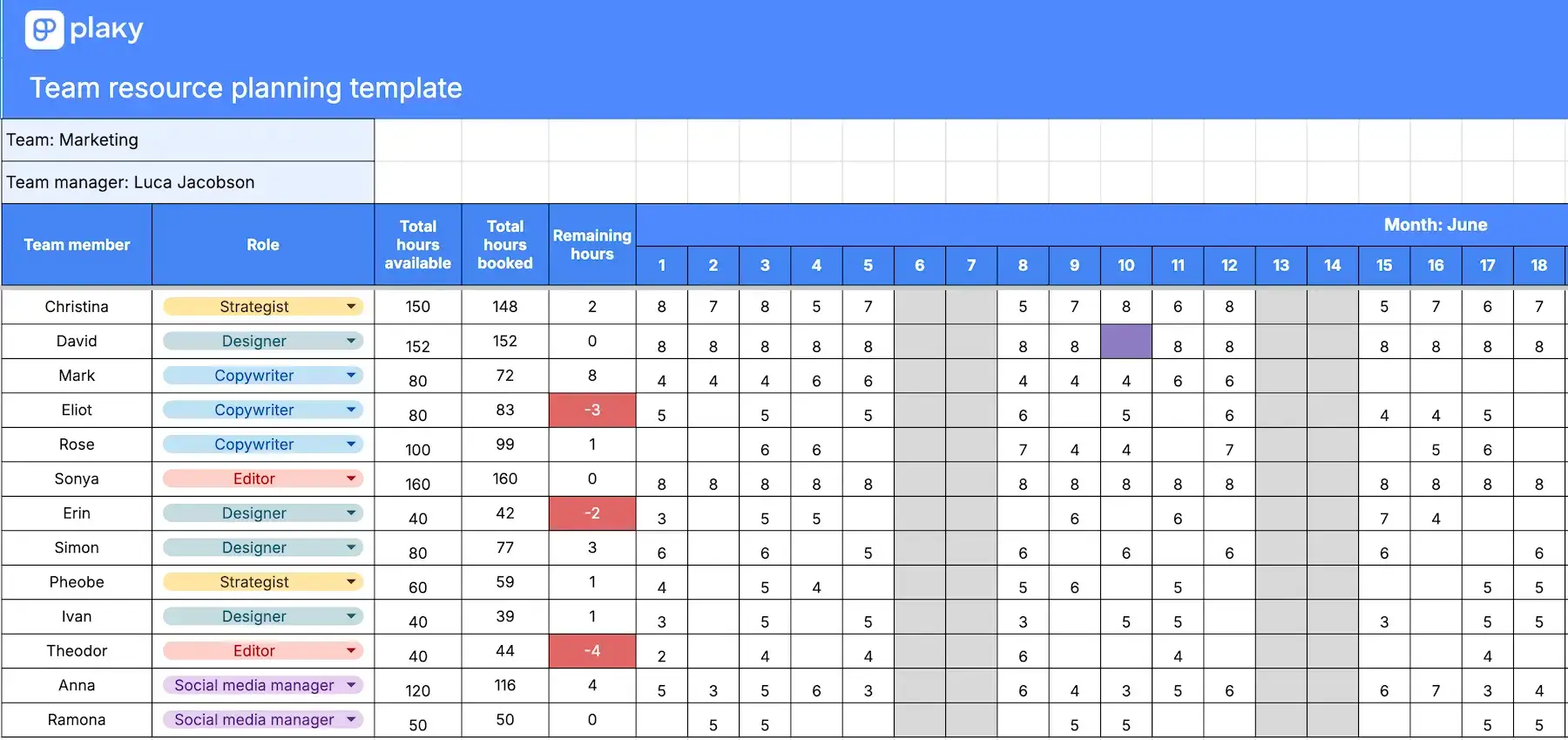
The team resource planning template is a simple monthly overview of everyone’s availability, booked hours, and remaining capacity.
The template has the following columns:
- Team member — enter the name of each person whose workload you’re planning.
- Role — select each person’s role from the customizable dropdown menu to keep roles consistent and the sheet easier to filter.
- Daily hours — enter the number of hours planned for each member across the 31 days of the month (feel free to delete some columns for shorter months).
- Total hours available — write the total number of hours each person has available for the given month.
- Total hours booked — let the built-in formula automatically add up the daily hours.
- Remaining hours — track the remaining capacity thanks to the formula subtracting booked hours from total available hours.
What’s also important is that fields in the Remaining hours column will turn red if the value is less than 0, signaling overbooking.
#3 Resource vs. capacity planning template
Download: Google Sheets | Excel
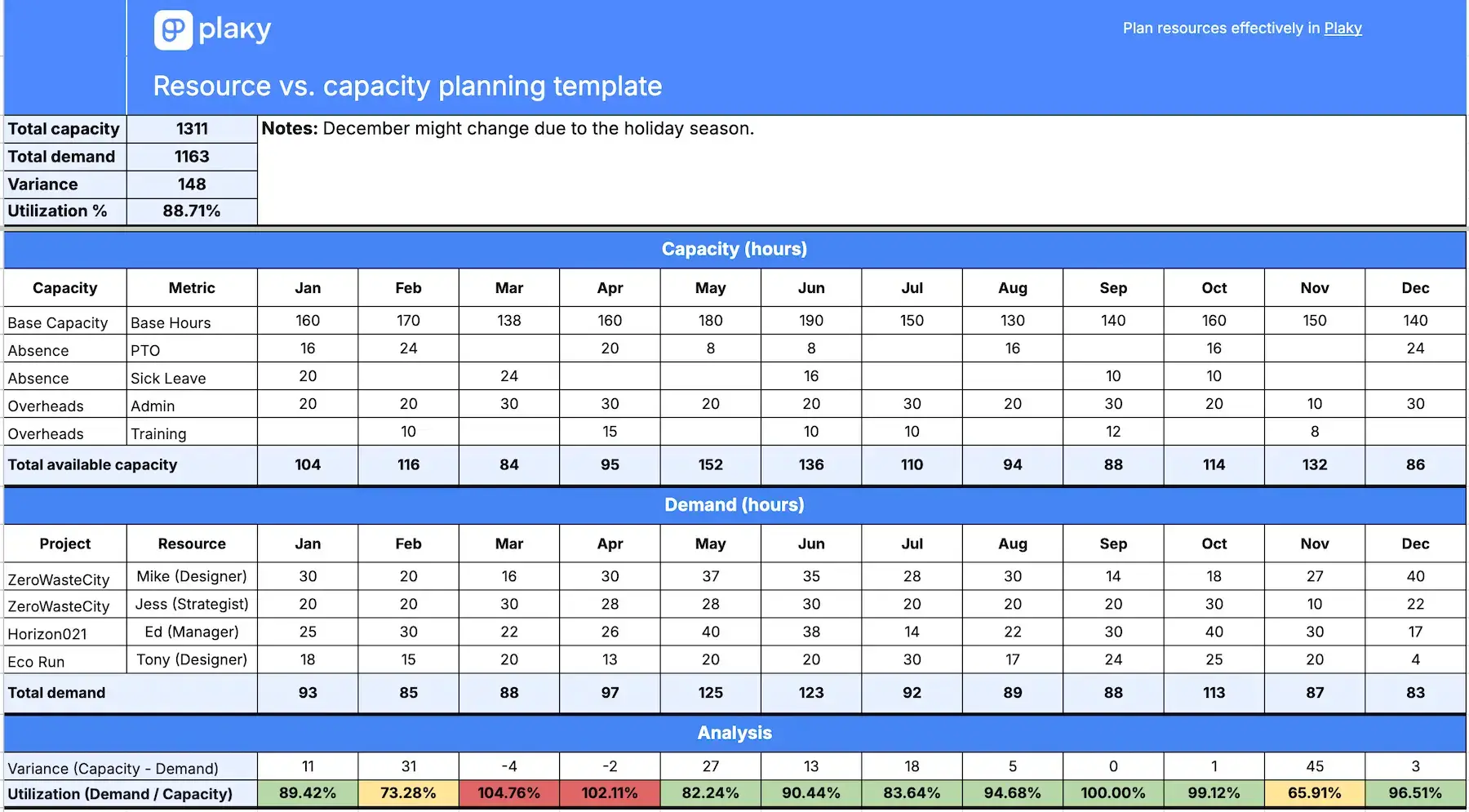
This template gives you a high-level monthly overview of resource planning against the overall capacity, plus an annual summary.
There are separate tabs for people and equipment, as they involve different availability constraints and planning needs.
Moreover, the People tab can be used at either the individual or team level — but for team-level data, you’ll need to calculate the total base capacity and absence separately before typing it into this document.
In any case, the template includes 3 segments:
- Capacity — base hours minus PTO, sick leave, admin, and training for human resources, or base hours minus scheduled maintenance, unplanned repairs, calibration, and setup for equipment.
- Demand — the planned resource allocation for each month, specifying which project and resource the hours refer to — with a formula calculating the total.
- Analysis — auto-calculated monthly variance (capacity minus demand) and utilization rate percentage (demand divided by capacity) to identify potential capacity gaps.
At the top of the sheet, there’s an automatic annual overview (yearly capacity, demand, variance, and utilization rate), offering quick visibility for decision-making.
💡 Dica profissional do Plaky
Resource and capacity planning are closely connected but not the same. Here’s a useful guide and additional templates for capacity planning:
#4 Resource allocation template
Download: Google Sheets | Excel
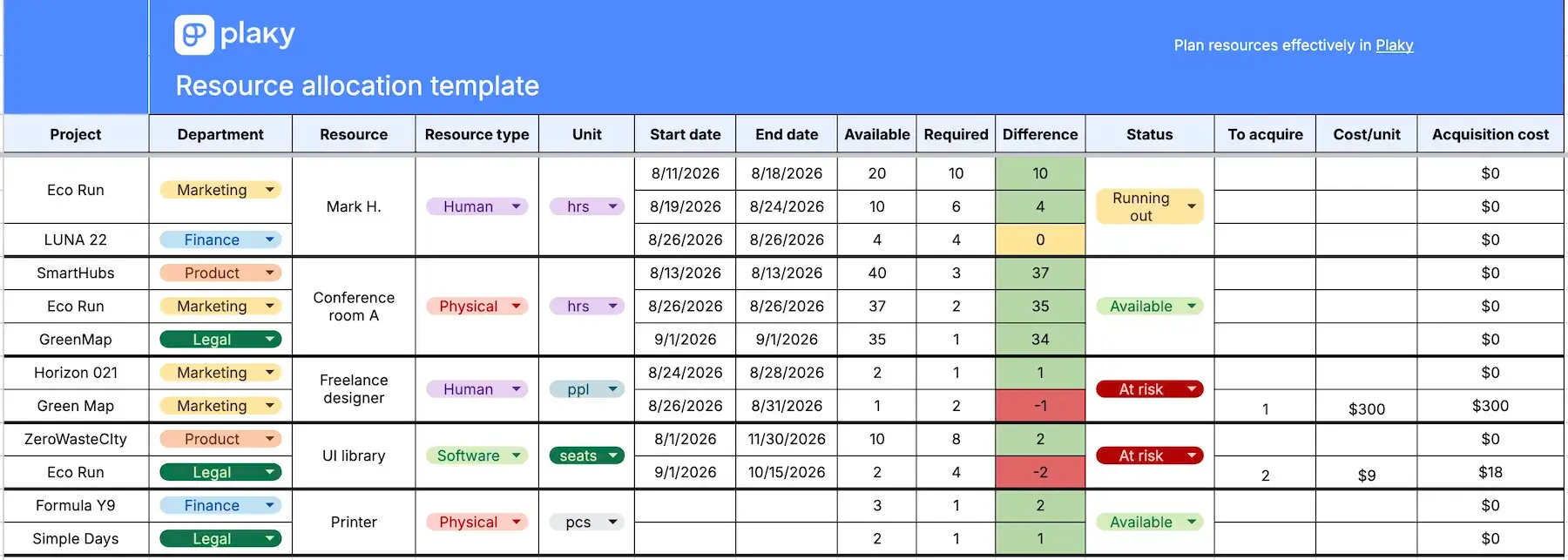
The resource allocation template shows both material and non-material resources while keeping potential acquisition costs visible.
Here’s how to use it:
- Define which project and department are using the resource.
- Enter the resource name, type, and unit (kilograms, pieces, hours, etc.).
- Add the start and end date, i.e., the period when the resource will be needed.
- Note down how much of the resource you currently have available.
- Specify how much of the resource is required.
- Let the formula calculate the difference between available and required resources to highlight any surplus or shortage.
- Based on the difference, use the suggested Available, Running out, At risk dropdown options, or create a custom status dropdown.
- If there’s a shortage, specify the additional quantity you need to acquire.
- Enter the cost per unit (the financial expense of acquiring 1 unit).
- See the total acquisition cost thanks to the ready-made formula.
Since a resource is often used in multiple projects (e.g., an agency allocating a designer across 2 client projects), this template has multiple rows per resource. You can unmerge the fields, though, and add/remove rows as needed.
#5 Resource planning and budgeting template
Download: Google Sheets | Excel
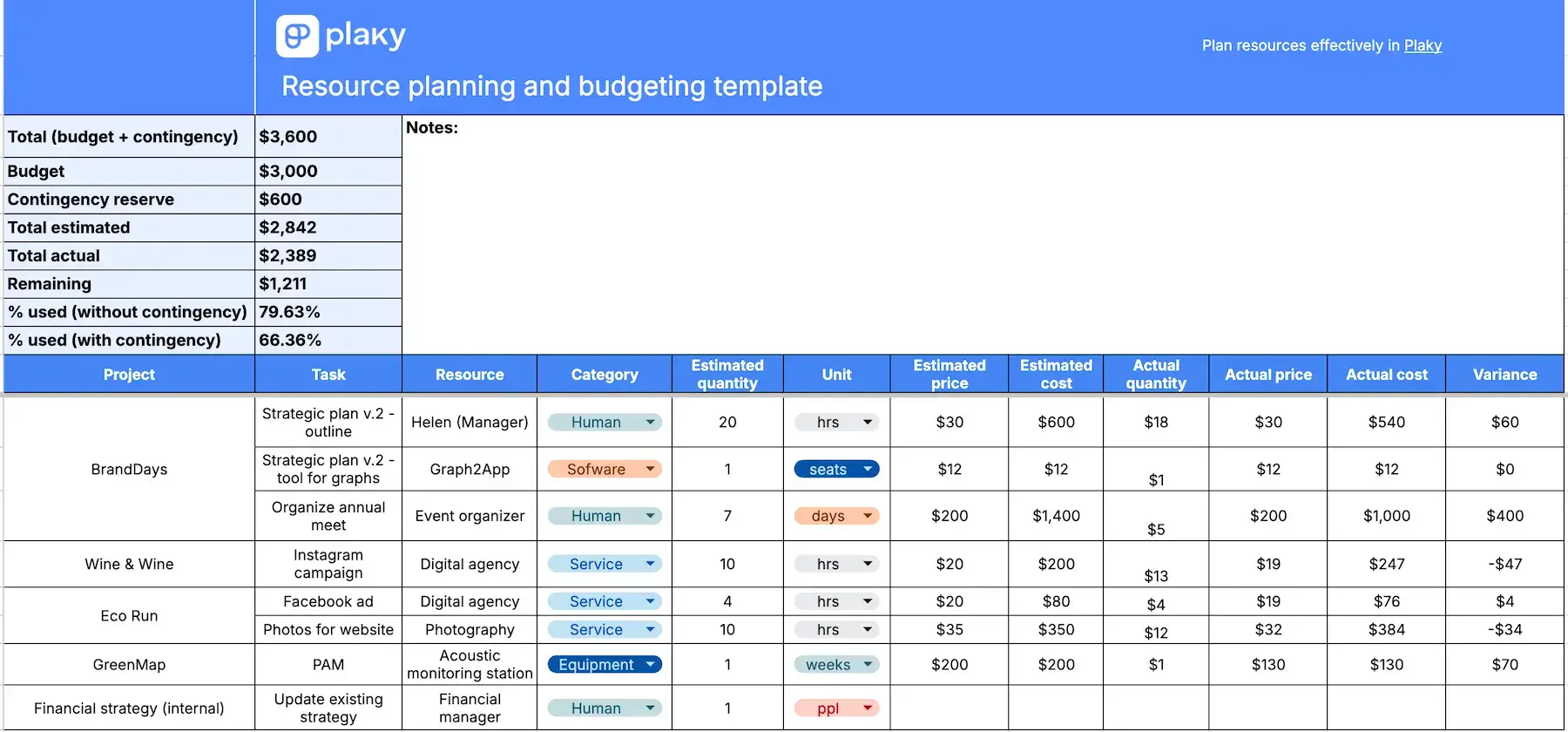
The resource planning and budgeting template helps you plan the resources and costs associated with each project while comparing your estimates with actual spending.
The template covers the following:
- Projects and tasks — enter the project name and the exact task requiring the resource.
- Resource name and category – define precisely what you need, and choose a category from the custom dropdown menu.
- Estimated quantity, price, and cost — enter how much you expect to need and the expected price per unit to get an auto-calculated total estimated cost.
- Actual quantity, price, and cost — record how much you actually used and the actual price to get an auto-calculated total actual cost.
- Variance — compare estimated vs. actual costs to see where your spending is higher or lower than planned.
In addition, there’s a summary at the top of the sheet showing the total budget, contingency reserve, remaining budget, and percentage used. So, you can spot potential overspending and improve budgeting without digging through every row.
#6 Gantt chart for resource management template
Download: Google Sheets | Excel
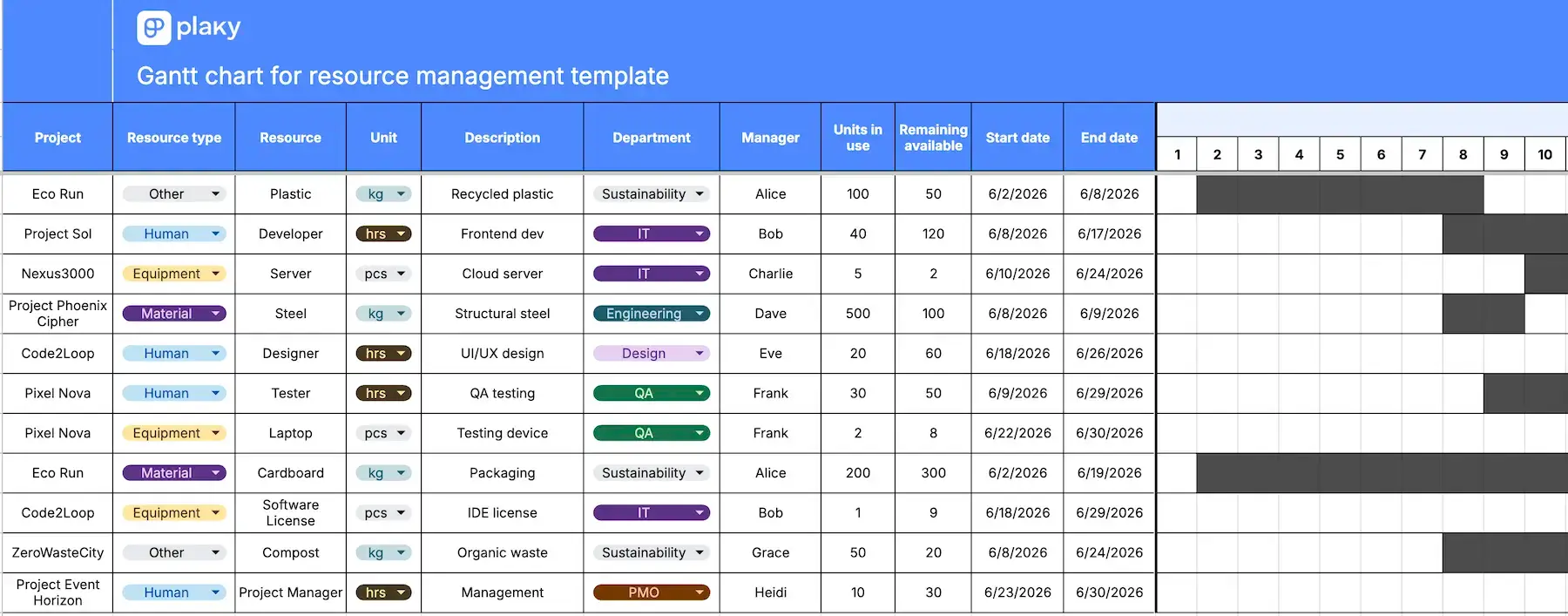
Using a Gantt chart for resource management gives you a visual way to track when resources are being used and how long they’re allocated.
To use this template, enter the following:
- The resource name, type, and unit for clear categorization
- The project that requires the resource
- The resource description for more useful details
- The department responsible for or using the resource
- The manager overseeing the resource allocation
- How many units are in use and how many remain available
- Start and end date, i.e., the period when the resource will be in use
The practical part is that when you enter the dates, the corresponding days in the 1–31 monthly timeline are automatically colored, creating a Gantt-style visual bar.
What’s tricky is that this isn’t a true Gantt chart with drag-and-drop bars, progress indicators, or any other core features found in actual Gantt software. So, this template isn’t ideal for complex projects or schedules that shift often.
#7 Resource skills matrix template
Download: Google Sheets | Excel
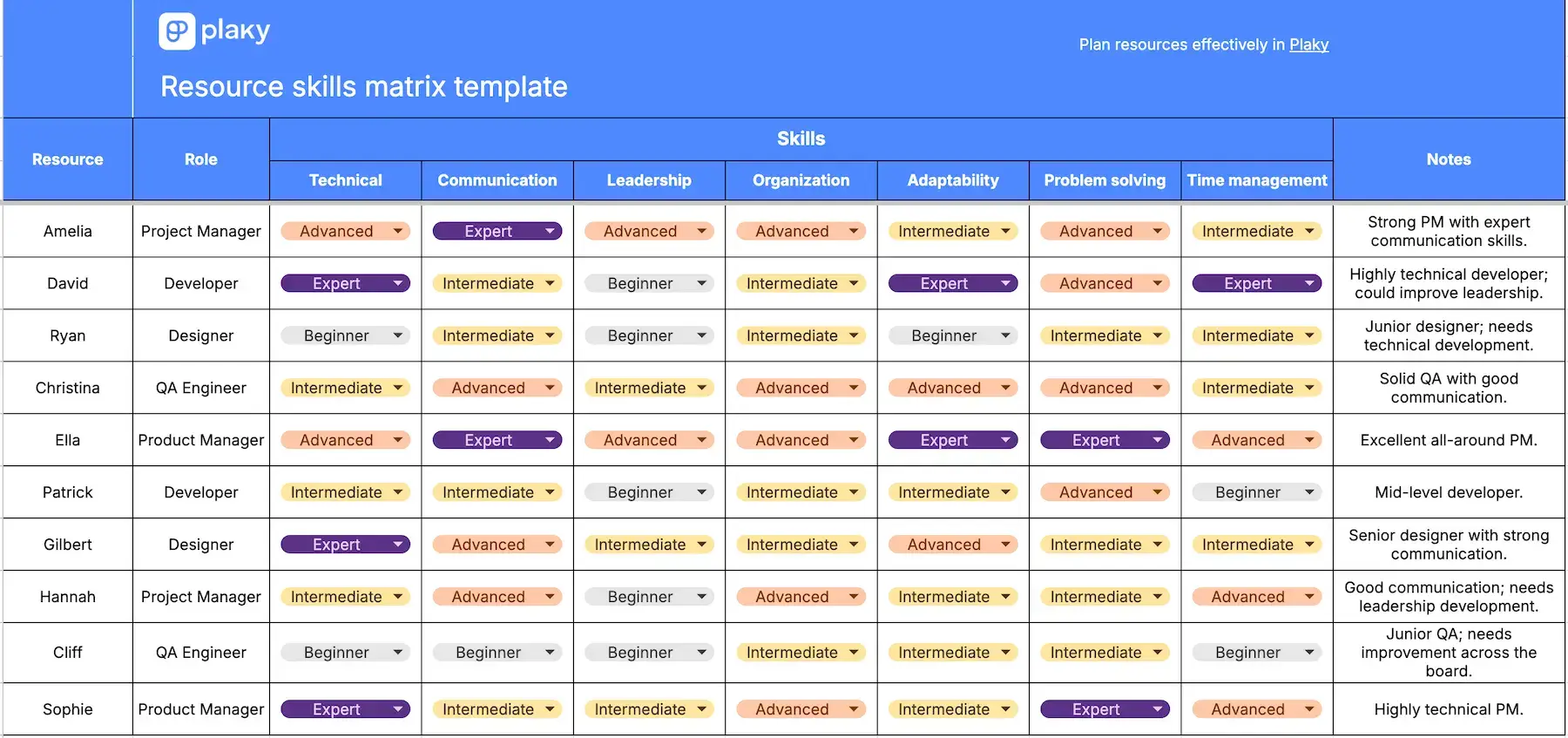
The resource skills matrix template helps you assess the skills you want to assess across your team.
You can specify:
- Resource and role — enter each team member and their role.
- Skills — use the dropdown menu for each skill type column (technical, communication, leadership, and others) to rate them (e.g., Beginner, Intermediate, Advanced, Expert).
- Notes — provide context by adding notes or links regarding certification, development needs, or other relevant information.
Feel free to input whatever project management skills and other types of expertise you want to analyze, and customize the skill levels by editing the dropdown menu.
The goal is to identify strengths and spot skill gaps, then assign people to projects that match their capabilities or help them improve in certain areas.
For instance, a person can be rated Advanced in problem solving and Intermediate in leadership — so, you see they’re well-equipped to handle complex challenges but may benefit from more experience leading others.
#8 Resource inventory template
Download: Google Sheets | Excel
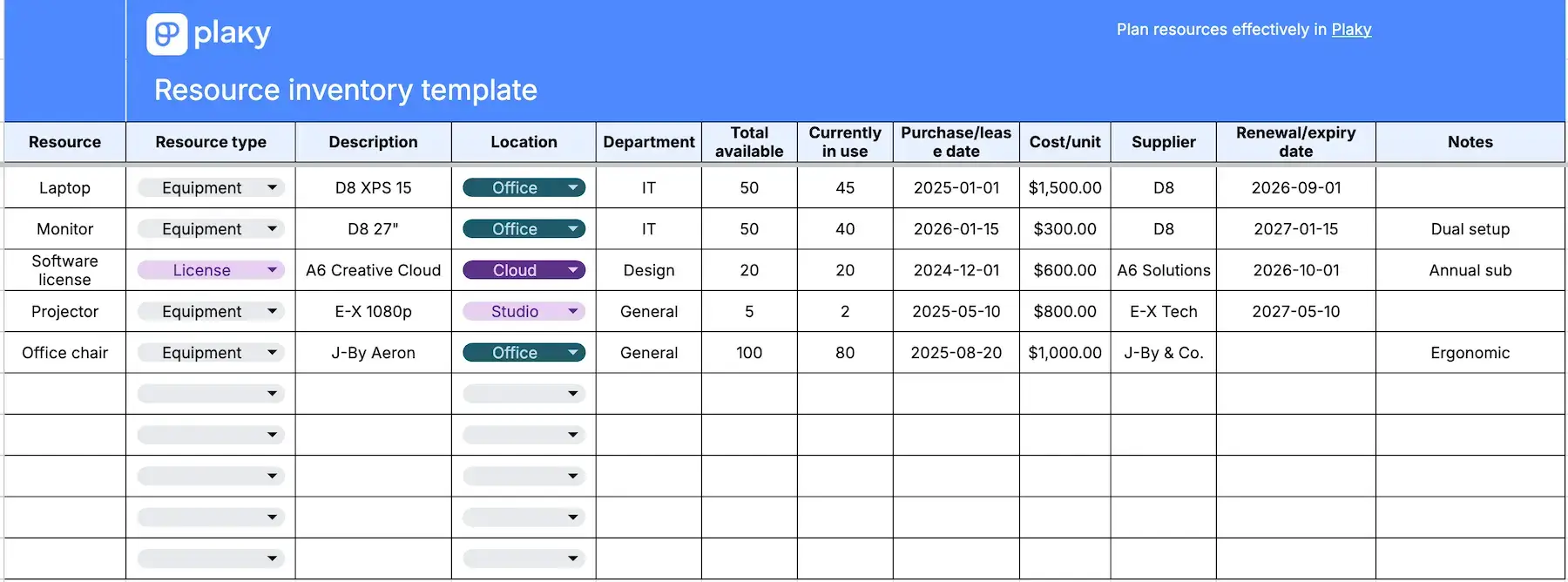
The resource inventory template helps you keep track of the physical and digital resources your company owns, leases, or uses.
Here’s how to use this template:
- Enter the resource, with its type, description, and location.
- Specify the department responsible for the resource.
- Add the purchase or lease date and cost per unit to monitor spending.
- Record the total available quantity and how many units are currently in use.
- Enter the supplier for easier purchasing and renewal management.
- Add renewal or expiry dates so that you can plan ahead of contracts, lease, or subscriptions.
- Use the Notes column for maintenance details, special conditions, or other remarks.
With a centralized inventory like this, you can avoid shortages and reduce unnecessary purchases.
Don’t forget to keep the list updated to maintain a clear picture and make better allocation decisions.
💡 Plaky Pro Tip:
Learn more about effective inventory management, and get more inventory templates for various purposes:
Resource planning 101
Resource planning is the process of determining the amount of money, time, equipment, and people needed to complete a project, then distributing them and scheduling work accordingly.
The key elements of a resource plan include:
- Resource availability — what people, tools, budget, etc. you have
- Demand and capacity — how much work needs to be done compared with available resources
- Resource allocation — assigning resources to the right projects and tasks
- Scheduling — determining when each resource is needed
- Budgeting — estimating and tracking resource-related costs
However, it’s not enough to simply organize your resources at the beginning of a project. You must also monitor resources throughout your projects and adjust them according to shifting demands.
💡 Dica profissional do Plaky
Sometimes you need to obtain resources from an external source — which is known as procurement. Read more about it below:
How to choose the right resource planning template
The main benefits of using templates are ensuring consistency and structure without starting from scratch each time.
Here’s how to know which template from this article is for you depending on its main purpose, complexity, and suitability for different team sizes.
| Use case | Format | Team size | Complexity |
|---|---|---|---|
| General resource planning | Plaky built-in template | Any size | Simple-moderate |
| Team resource planning | Google Sheets, Excel | Small-medium | Simple |
| Advanced resource vs. capacity planning | Google Sheets, Excel | Any size | Moderate |
| Alocação de recursos | Google Sheets, Excel | Small-medium | Simple |
| Resource planning and budgeting | Google Sheets, Excel | Small-medium | Moderate |
| Gantt chart for resource planning | Google Sheets, Excel | Small | Moderate |
| Resource skills matrix | Google Sheets, Excel | Any size | Simple |
| Resource inventory | Google Sheets, Excel | Small-medium | Simple |
💡 Dica profissional do Plaky
Want more handy free templates? We’ve got you covered:
When spreadsheets stop working for resource planning
Spreadsheets can be a useful starting point for resource planning. However, they become difficult to manage as your team and project portfolio grow. Version control turns messy, and getting a clear cross-project view of resource availability often means manually combining information from multiple sheets.
As a rule of thumb, spreadsheets and Excel templates may start to fall short at around 10 people or 3+ concurrent projects. This isn’t a hard limit, but it’s often where overlapping assignments and frequent updates fall through the cracks.
That’s where project management software can make a difference — like Plaky by CAKE.com does. It centralizes resource and project information, lets you easily adjust assignments as priorities change, and keeps updates visible.
FAQ
Want to know more about resource planning? Let’s answer some common questions.
What is the first step in resource planning?
The first step in resource planning is defining the project’s requirements. You need to outline the project scope, key tasks, deliverables, and deadlines. This gives you a clear picture of what needs to be done and which resources you’ll need to complete the work successfully.
What are the techniques of resource planning?
Here are some popular resource planning techniques:
- Resource leveling — adjusting schedules to avoid overloading resources
- Resource smoothing — shifting resources within available time buffers to balance workloads
- Scenario planning — building multiple resource plan options to prepare for changes in scope, demand, or availability
- Workload forecasting — estimating future resource requirements based on upcoming projects and expected workloads
Techniques like these often work best when combined, as they tackle different parts of the planning process.
What is an example of resource planning?
Here’s an example of resource planning: a marketing agency preparing for a 6-week product launch campaign.
The team first identifies the tasks involved (e.g., strategy, copywriting, design, social media, reporting). Then, they determine which resources are needed for each task and estimate the required hours, e.g.:
- Project manager — 20 hours
- Copywriter — 30 hours
- Designer — 40 hours
The agency checks their availability and discovers that the designer only has 25 hours available. The solution is to reassign some work, hire a freelancer, or adjust the schedule to avoid overallocation while keeping the project on track.
What metrics are used in resource planning?
Common resource planning metrics include:
- Resource utilization — how much of a resource’s available capacity is being used
- Capacity utilization — actual resource usage compared with total available capacity
- Demand-to-capacity ratio — resource demand compared with available capacity
- Cost variance — the difference between planned and actual resource costs
- Billable utilization — the percentage of working time spent on billable project work (where applicable)
These are just the most essential metrics — you can track additional ones depending on your planning needs and goals.
Streamline your resource planning with Plaky by CAKE.com
Ready to move on beyond spreadsheets without a complicated resource planning system? Plaky is worth considering — here’s why:
- Scalability — thanks to unlimited users, projects, and tasks, you can keep using our platform as your team and workload grow.
- Smooth collaboration — Comments (with threads and mentions), Notifications, and the Activity log eliminate confusion and back-and-forth emails.
- Easy sorting and filtering — you can sort and filter your projects to find the resources and tasks you need without tedious digging.
Bonus: the native Plaky-Clockify integration makes it easy to track time spent on tasks and connect resource planning with actual work hours. Since both are built by CAKE.com, you get automatic access to both as soon as you sign up for either.
And if you need more than the basics, Plaky’s paid plans are still affordable — adding more advanced features like Board automations or Bulk actions to reduce repetitive work, Dashboards for insights and analytics, and more.
Bring your team, projects, and workloads into one place — get Plaky by CAKE.com today!