Published: August 5, 2025
Do you use Google Sheets in your daily project management, but have to spend a good portion of your day setting up tables to adapt them to your projects?
All that time that you could’ve spent working on your tasks (or having a cup of coffee) going to waste.
Luckily, we created free Google Sheets templates to help you dive into your project straight away. There are 15 different templates in this article adapted to various aspects of project management, from prioritization and planning to tracking resources.
So, scroll down and find the ones that’ll suit you best!
Why should you use Google Sheets?
Using Google Sheets for project management has many perks, including:
- Clarity — All the information can be neatly organized in one or several tables, giving you a clean overview of everything.
- Real-time collaboration — You can share your files with your team members, so they can view them, edit content, and leave comments. And, most importantly, you can see all the changes in real time.
- Integration with Google tools — You can keep all Sheets files in your Google Drive together with other business documents, presentations, calendars, etc. for better organization.
- Affordability — Google Sheets is free for individual users, while businesses can get it along with other Google tools at the starting price of $6.30/user/month if paid annually.
And, if you’re deciding whether to use Excel or Google Sheets for project management, the answer is simple — use Google Sheets.
While they are similar, Google Sheets is better for real-time collaboration on projects than Excel since you can easily grant access to your colleagues and invite them to leave comments and suggestions, edit in real time, etc.
Plus, Google Sheets can be accessed on any device with just your email, while you need to have Excel installed to open Excel documents.
What should a fab PM template include?
To be a top-tier asset, a killer project management template needs to have:
- A clear title informing you of the template’s purpose,
- General information about the project, e.g. project owner, due date, etc.,
- A comprehensive list of tasks together with assignees, priority, and status, and
- Additional information such as resources, budget, client list, goals, depending on the project type and the industry.
#1 Simple Google Sheets project management template
Get our simple Google Sheets PM template
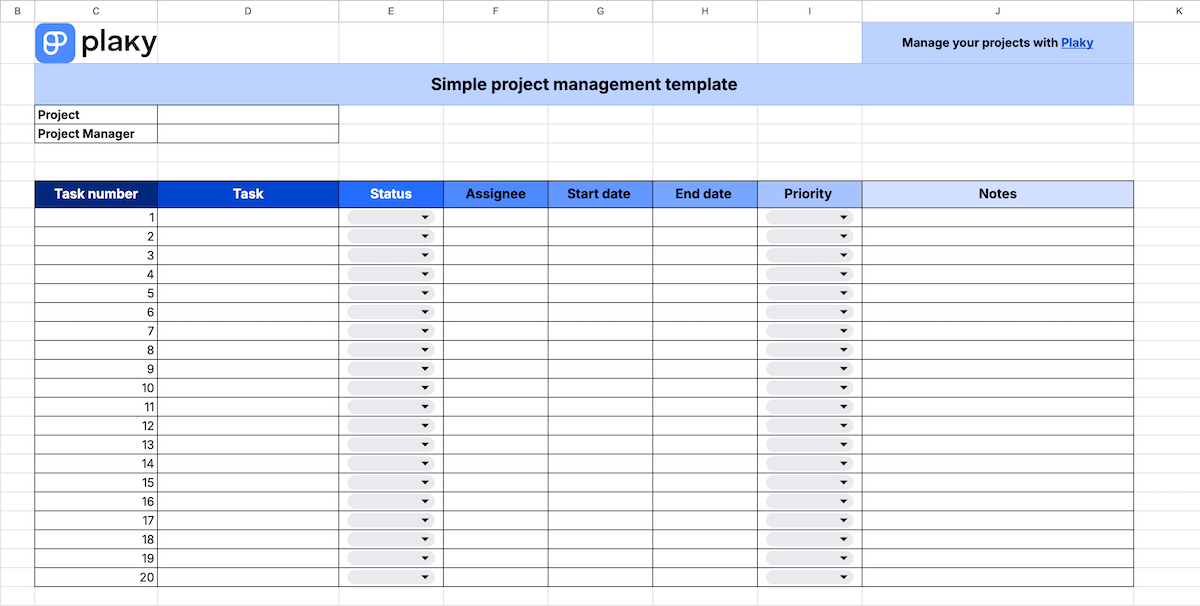
This simple Google Sheets template enables you to track the most important information about your tasks, like:
- Status,
- Assignee,
- Start and end dates, and
- Priority.
There’s also space for your notes, so you can add any additional information necessary and leave instructions to people assigned to tasks.
In general, it’s best for project managers who are looking for basic project tracking and don’t need any visual tools, like Gantt charts or dashboards.
#2 Google Sheets project plan template
Get our Google Sheets project plan template
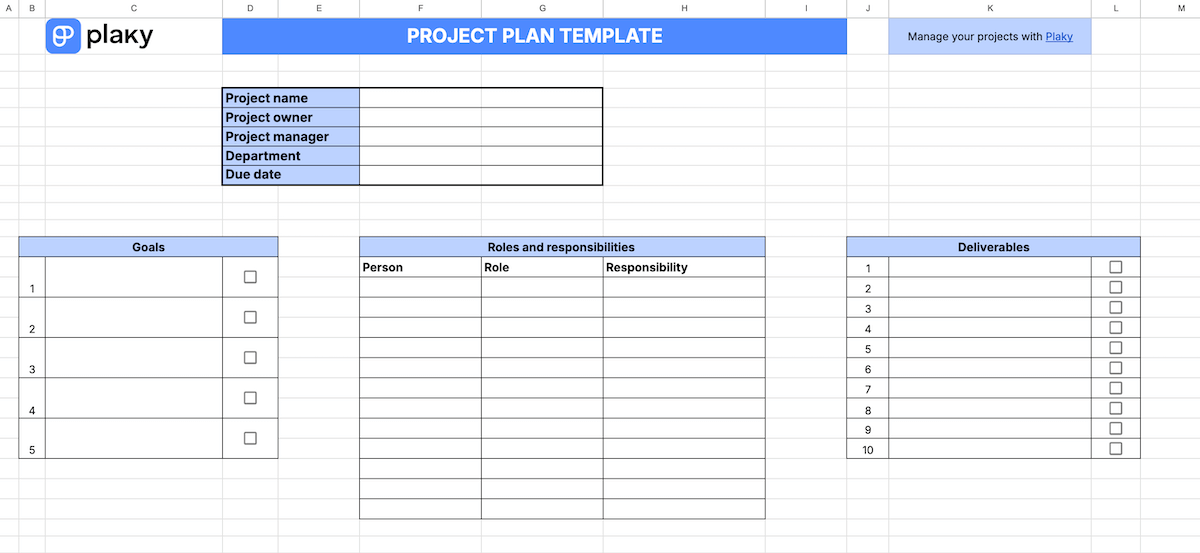
This template helps you plan all the most important aspects of your project before you actually start working on it. It serves as a visual representation of your project management plan and consists of 4 tables:
- General information (project name, owner, manager, etc.),
- List of project goals with a checklist,
- Record of everyone working on the project and their assigned roles and responsibilities, and
- List of deliverables with a checklist.
This project plan template is best for creating plans for large projects that need to be meticulously organized and tracked.
#3 Google Sheets RACI template
Get our Google Sheets RACI template
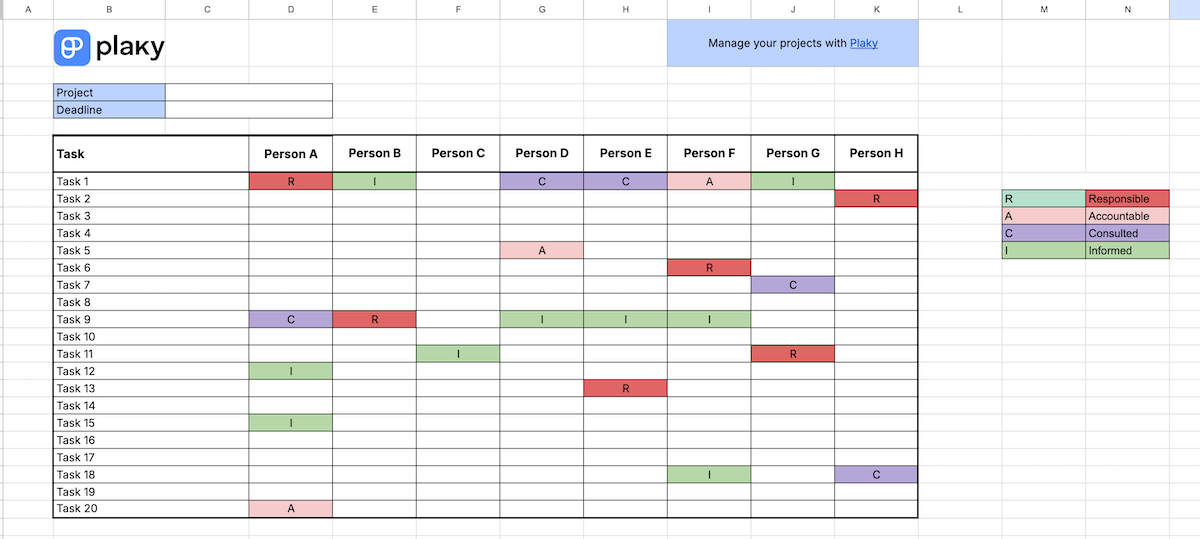
This Google Sheets template is based on the RACI matrix, which is used to determine everyone’s responsibility in the project. The template is in the form of a table, in which rows represent project tasks, while columns mark all employees involved in that project.
Since one person can work on multiple tasks, but in different capacities, the RACI system provides a clean and color-coded overview of all team members and stakeholders’ involvement in specific tasks. It recognizes 4 levels of obligation:
- R — Responsible,
- A — Accountable,
- C — Consulted, and
- I — Informed.
Our RACI template is best for tracking everyone’s role in a project. It enables you to track who is responsible and accountable for tasks, who needs to be available for consultations if necessary, and who should be informed of task progress.
#4 Google Sheets resource management template
Get our Google Sheets resource management template
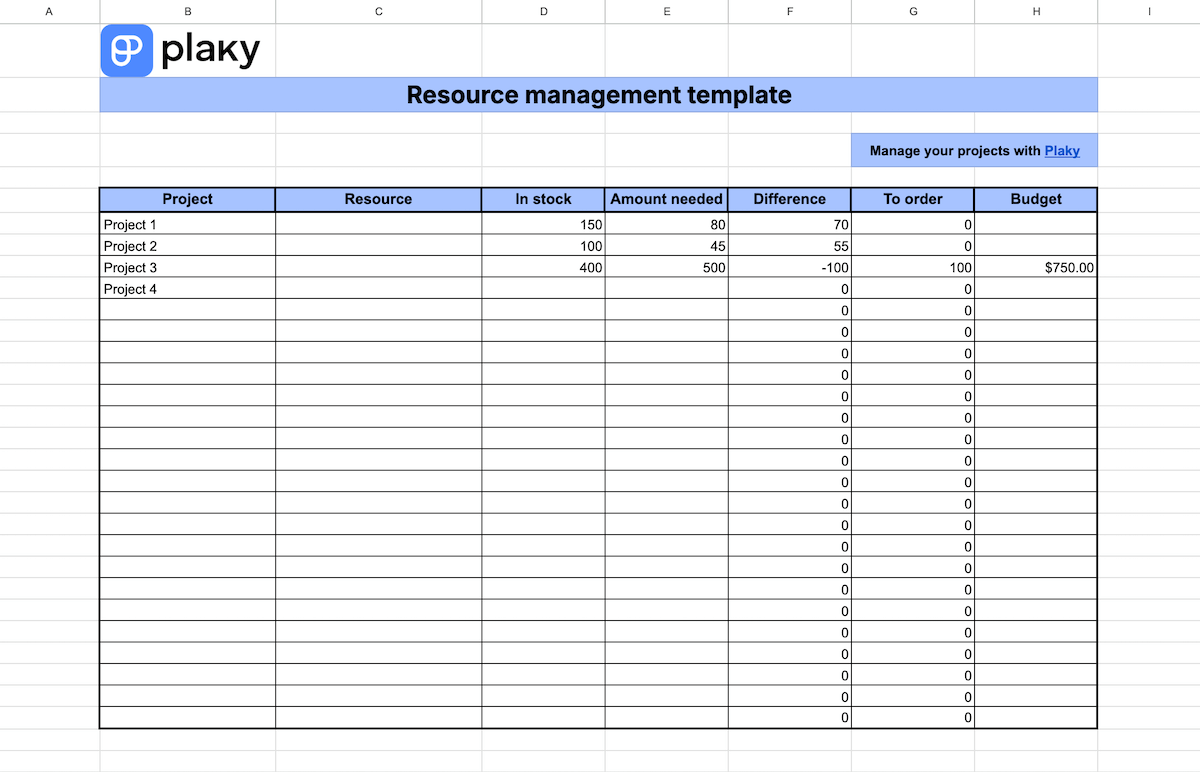
This template is intended for managing your resources across different projects. Here, you can track the most important information concerning your resources, such as:
- The amount/quantity you have in stock,
- How much of each resource you actually need, and
- The amount you have to order.
You can also track how much money you have to set aside for each resource, which lets you keep an eye on your spending. Ultimately, this helps you stay within your designated budget and avoid cost overruns.
Resource management templates are best for projects in the construction and manufacturing industry since those involve a large number of different resources. But they can be useful to anyone who needs to meticulously plan out their project assets.
Plan your resources with Plaky by CAKE.com
#5 Google Sheets action plan template
Get our Google Sheets action plan template
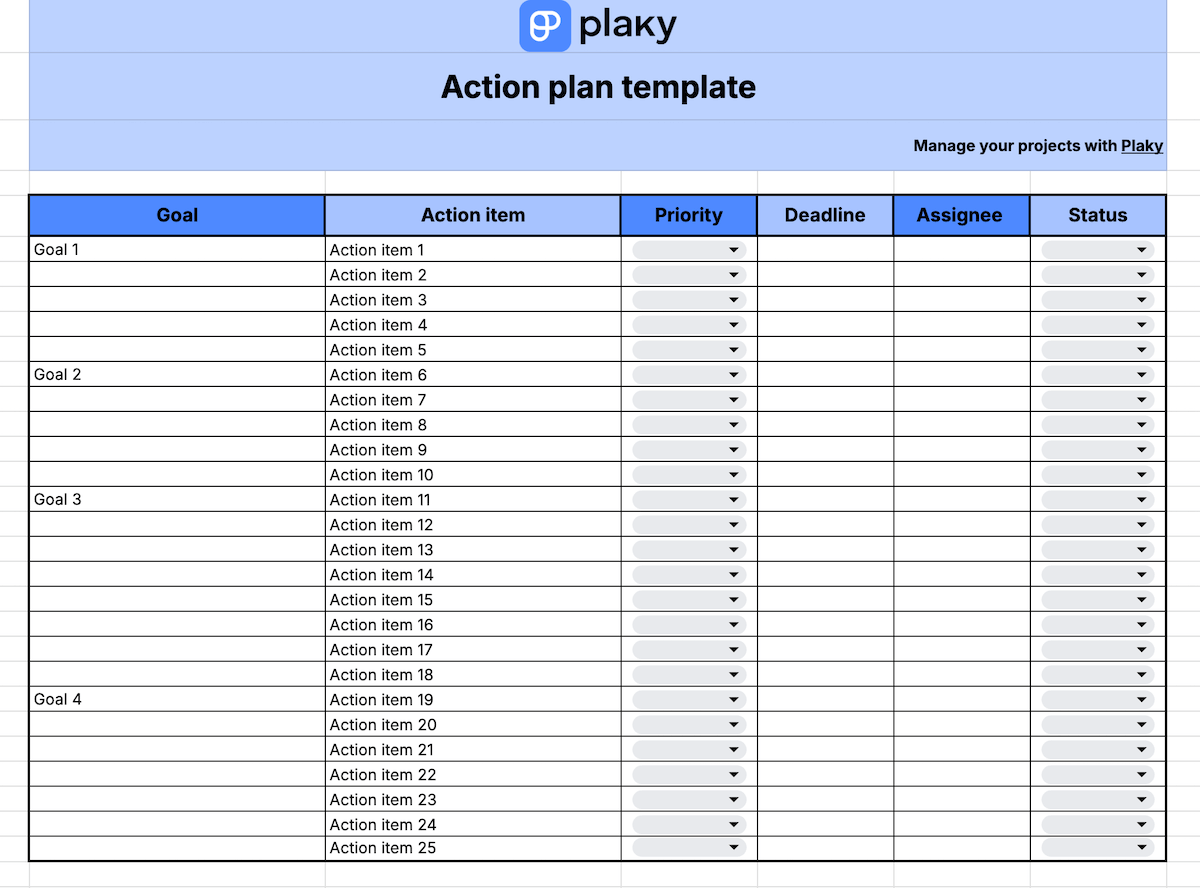
This template is designed to help you align your action items (tasks) with your project goals. This way, you can make sure that each action you take is going to contribute to achieving your goals, and you’re not wasting time on meaningless quests.
Besides connecting tasks to goals, this template also helps you track the priority and status of your tasks and keep an eye on the deadlines.
Our Google Sheets action plan template is best suited for project managers who struggle with visualizing what they need to do to accomplish their goals.
💡 Plaky Pro Tip
If you want more detailed action plan templates, you’ll find 7 neatly designed options here:
#6 Google Sheets work breakdown structure (WBS) template
Get our Google Sheets WBS template
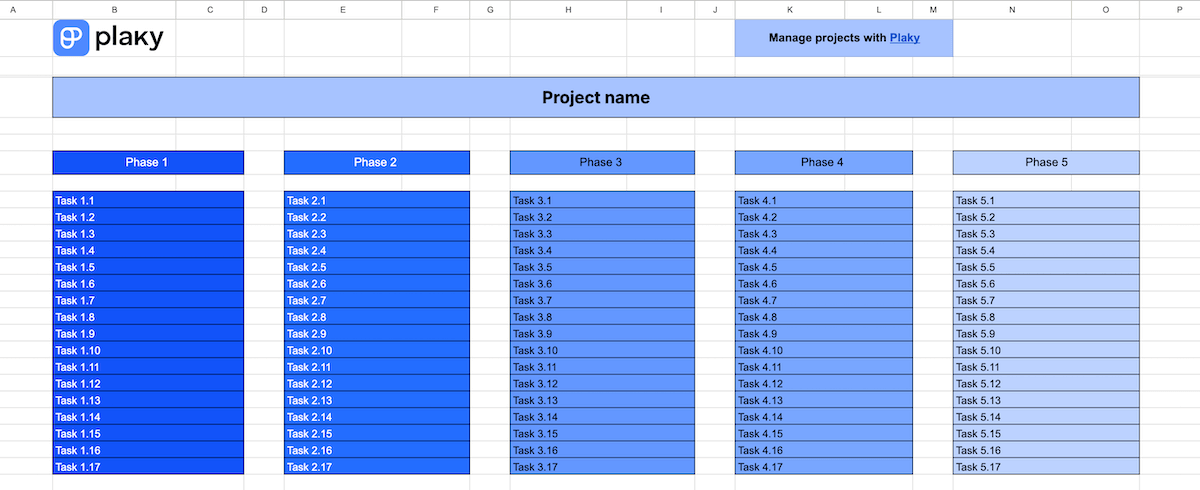
Our work breakdown structure (WBS) template is used to deconstruct the entire project during the planning stage. This, in turn, helps you create project schedules and identify potential risks and dependencies.
This template consists of 2 diagrams, based on 2 types of work breakdown structures in project management — phase-oriented and deliverable-oriented.
In the first, the project is divided into project phases, and then each phase is divided into tasks. In the second, it’s broken down into deliverables, followed by tasks and subtasks.
The WBS template is best suited for project managers who need to structure and plan out complex projects. Essentially, it helps simplify huge projects, enabling managers to create more precise project schedules.
#7 Google Sheets Gantt chart template
Get our Google Sheets Gantt chart template
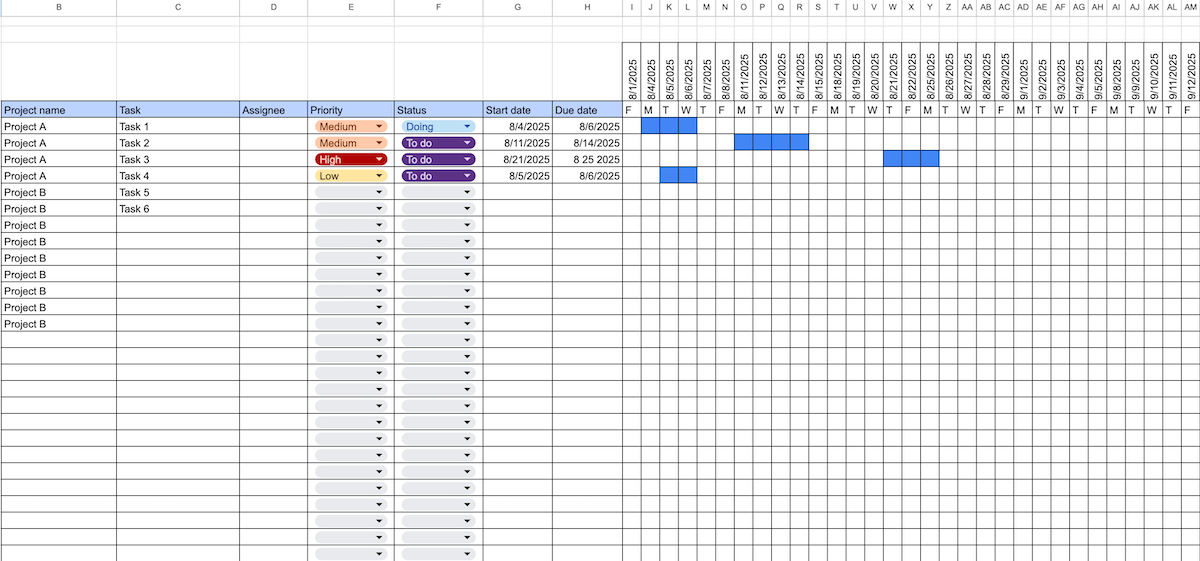
If you need to create Gantt charts in Google Sheets, but are struggling with all the formulas, this template can help you — everything is already set up, so all you have to do is enter information about your project.
In the left part of the template is a table with relevant data, like:
- Project name,
- Tasks,
- Assignees,
- Priority level,
- Status, and
- Start and due dates.
And on the right side is a generated Gantt chart that shows all your tasks on a timeline. Once you enter the start and due dates, the task will automatically appear in the chart.
This Google Sheets Gantt chart template is best for visualizing task timelines and ensuring there are no overlaps or potential bottlenecks.
Create detailed Gantt charts in Plaky
#8 Google Sheets risk management template
Get our Google Sheets risk management template
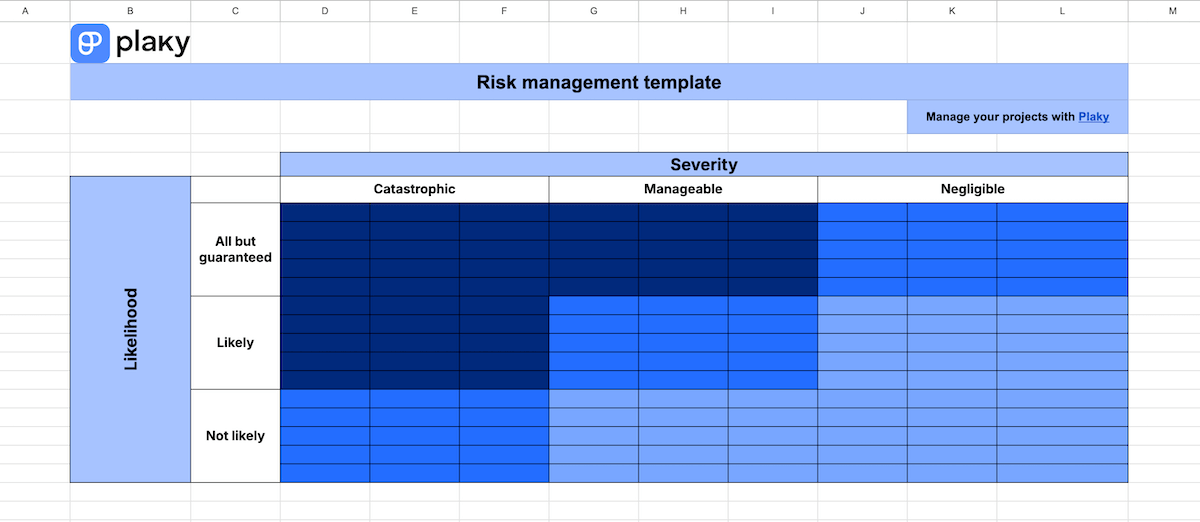
This template is based on the risk-priority matrix — a popular project prioritization framework that evaluates projects risks according to 2 criteria:
- Severity (catastrophic, manageable, and negligible), and
- Likelihood (all but guaranteed, likely, and not likely).
Depending on where the project risk ranks in both these criteria, you can calculate the level of risk priority — high, medium, or low.
This risk management template is best for identifying and classifying potential risks across the entire company. If used properly, it could help you make strategic decisions and prioritize work accordingly.
#9 Google Sheets dashboard template
Get our Google Sheets dashboard template
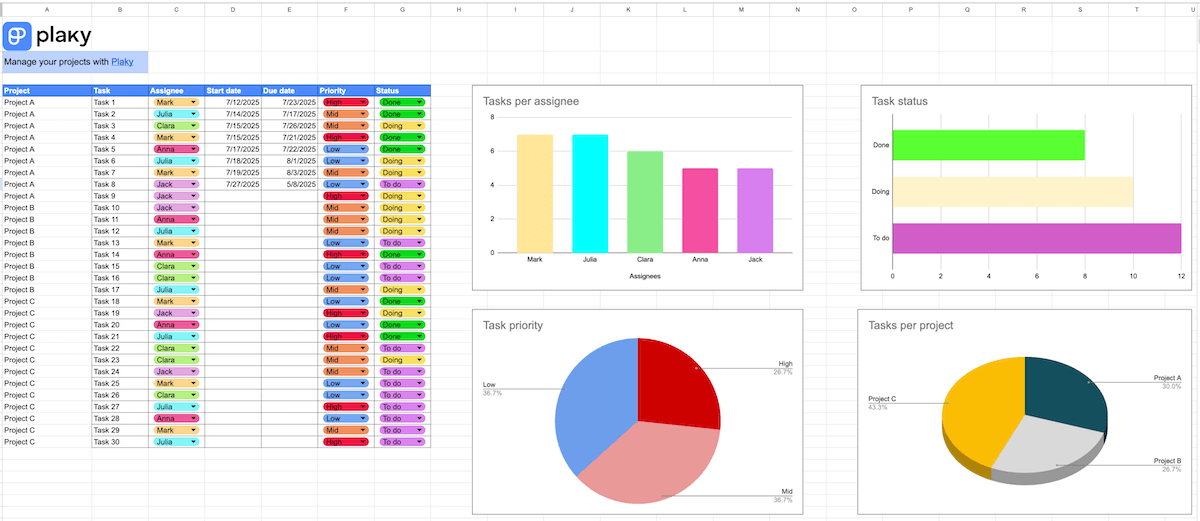
Setting up a dashboard in Google Sheets can be complicated and tiresome. But, this template enables you to skip that challenge — just enter information into a table and watch as that data gets neatly organized into charts.
This Google Sheets dashboard template consists of:
- A table with all the relevant information,
- A bar chart showing how busy each employee is,
- A pie chart visualizing task priority percentages,
- A bar chart presenting task status overview, and
- A pie chart showing how tasks are divided among projects.
Overall, this template is best for having a visual representation of project information, such as status, priority, and workload distribution.
Create customizable charts in Plaky
#10 Google Sheets project timeline template
Get our Google Sheets project timeline template
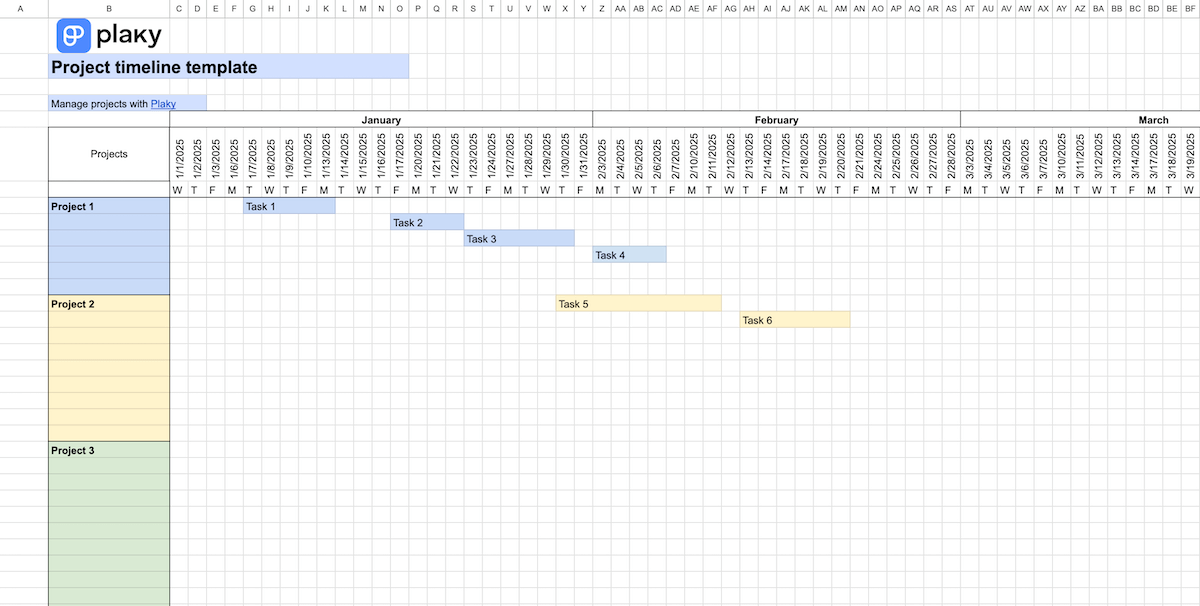
Our project timeline template lets you organize your projects across the span of an entire year. All you need to do is mark the section on the timeline for each project task and color it. Every project is labeled with different colors to help you differentiate tasks across the timeline.
This Google Sheets project timeline template is best for making annual plans for your business. Once you see all your projects on the same timeline, you can check if there are overlaps and shuffle your projects and tasks around.
#11 Google Sheets objectives and key results template
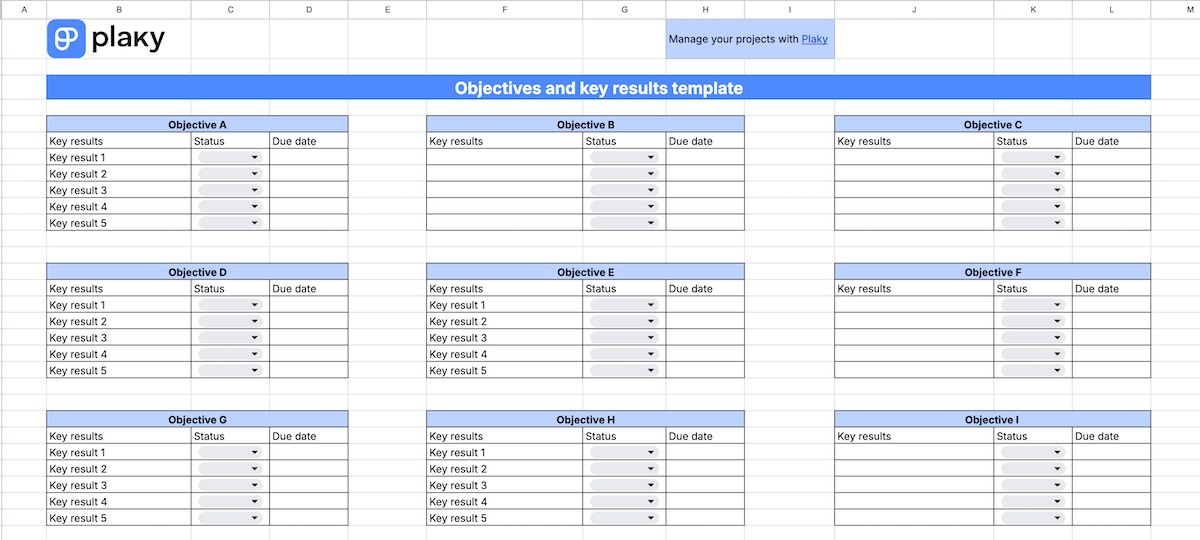
Get our Google Sheets OKR template
This Google Sheets template enables you to track all your project objectives and the key results necessary to achieve them. Each objective has a separate table where you can monitor the status and due dates for its key results.
Just pay attention that objectives are qualitative goals you want to achieve, while key results are measurable indicators of whether you’re on the way to achieving your objectives or not.
For example, an objective can be “We want to raise brand awareness among Gen Z”. Key results for this could be: “Reach 150,000 followers on TikTok and Instagram, respectively” and “Get 100,000 product ad views on YouTube”.
This OKR template is best for those who want to improve their strategic planning and ensure they have clear indicators of success for everything they want to accomplish.
💡 Plaky Pro Tip
If you need more variations of OKR templates or you’d like to track your OKRs in other template formats, check out our article:
#12 Google Sheets content calendar template
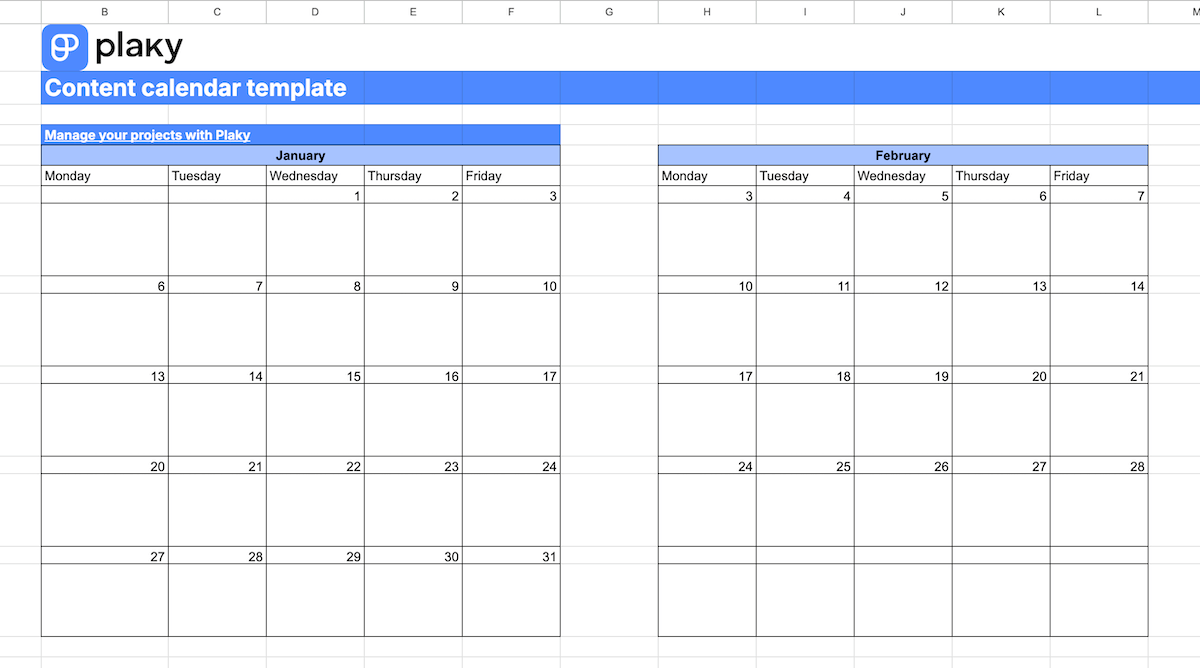
Get our Google Sheets content calendar template
This content calendar template lets you organize your content plans across the entire year. Each month has its own table, so you can write all your content-related tasks under the appropriate date.
This way, you can precisely track when you need to finish each piece of content and when it needs to be published.
Our Google Sheets content calendar template is best for creating a schedule for sharing your content on social media and other channels.

#13 Google Sheets event planning template
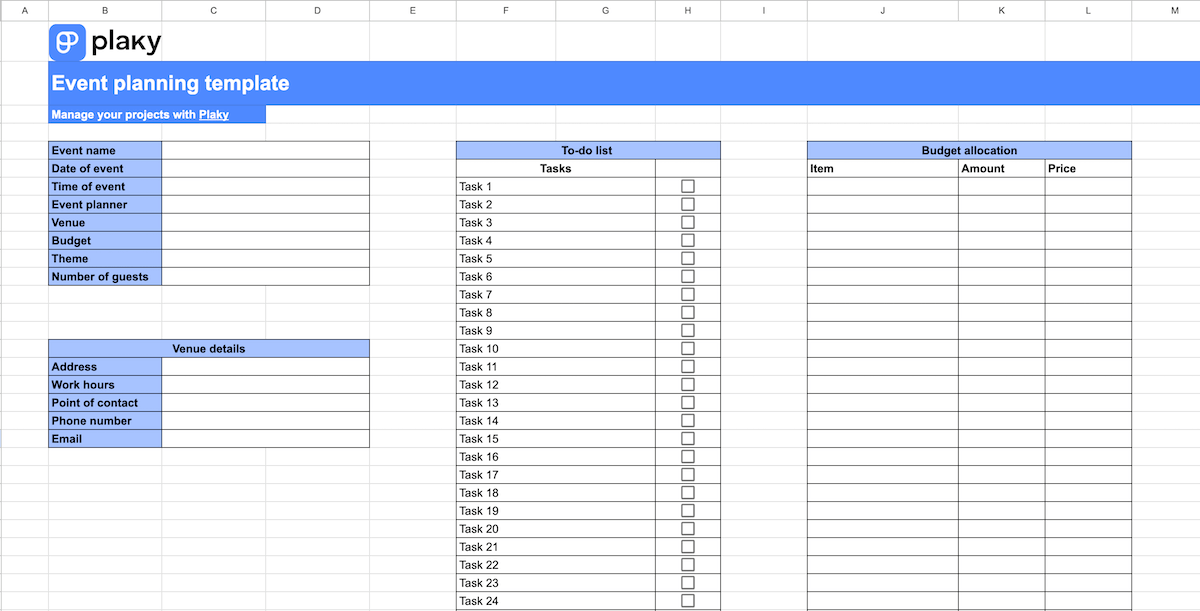
Get our Google Sheets event planning template
This event planning template is designed to help keep all information about upcoming events in one place, neatly organized into tables.
In this template you’ll find:
- General information about the event (time, place, organizer, etc.),
- Venue details (address, contact information, and work hours),
- To-do checklist,
- Budget allocation, and
- Guest list with contact information.
Our event planning template is best suited for teams in charge of organizing company events. But it can be used for personal events as well, such as birthday parties, weddings, etc.
Since organizing events, especially on a large scale, can easily become chaotic, this template ensures you won’t lose track of what needs to be done or misplace important information, like the phone number for your contact at the venue.
Simplify event planning with Plaky
#14 Google Sheets task management template
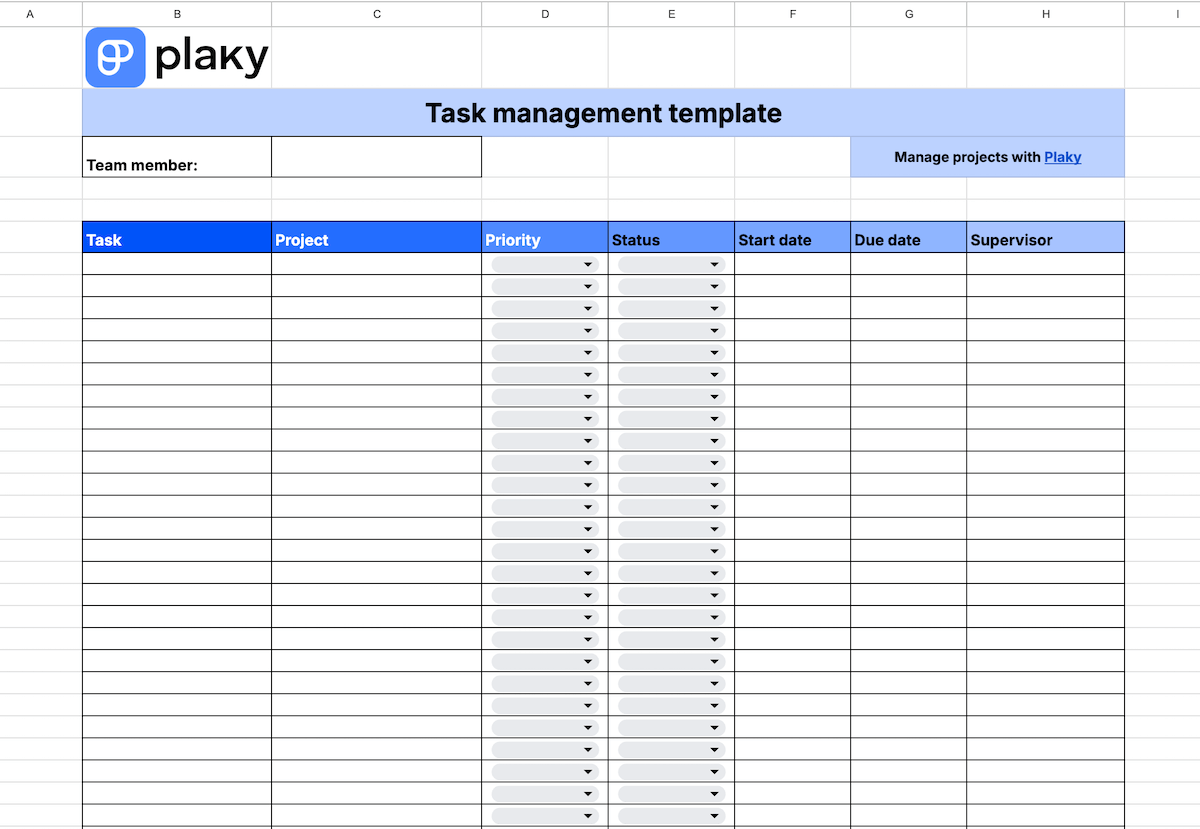
Get our Google Sheets task management template
This task management template is designed for team members who want to track all their tasks across any number of projects. It functions as a database for all your work, without other teammates’ tasks there to distract you.
Our Google Sheets task management template is best for people working on several projects at the same time or collaborating with different departments daily.
You’ll get to create a comprehensive list of your tasks, which should help you spot if some timelines are overlapping and adjust them. Plus, you’ll be able to prioritize tasks across different projects.
#15 Google Sheets project schedule template
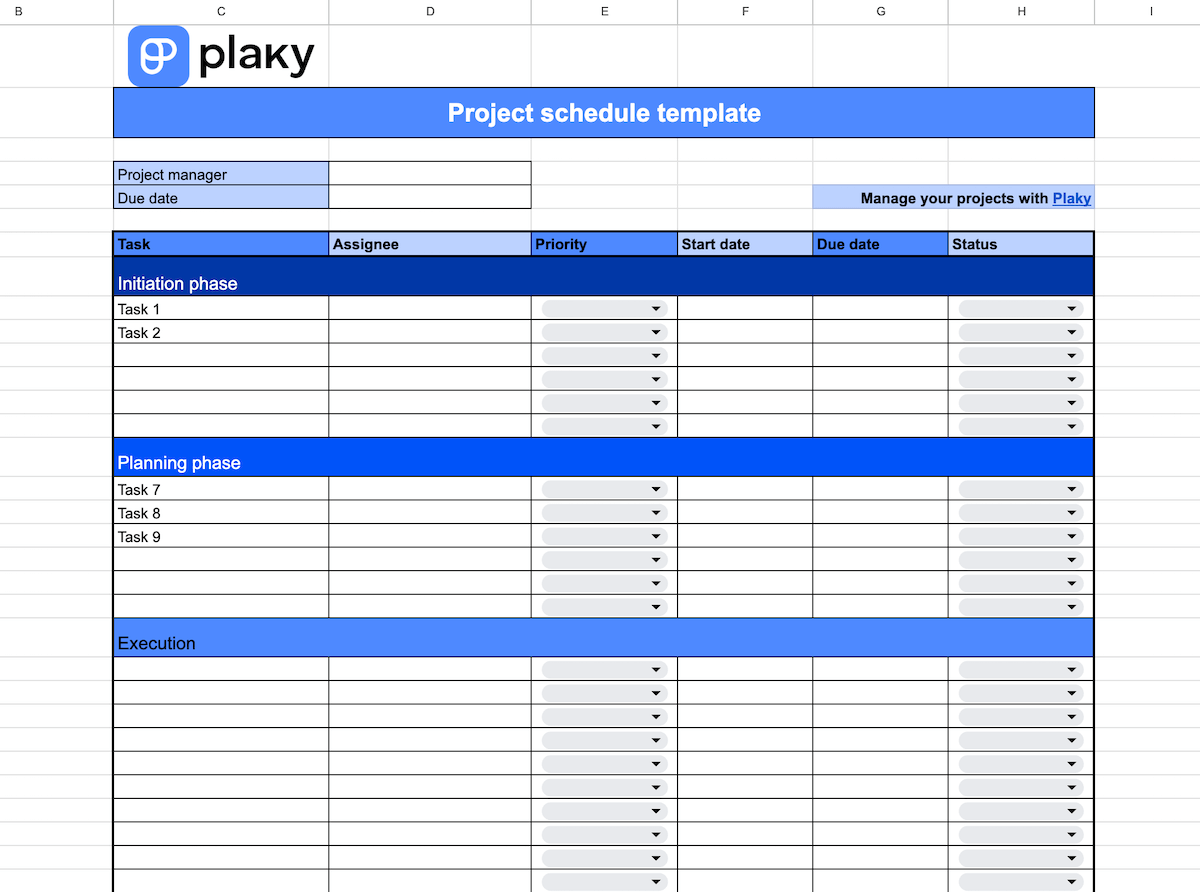
Get our Google Sheets project schedule template
This project schedule template classifies all your project tasks into 5 phases of project management:
- Initiation,
- Planning,
- Execution,
- Monitoring and control, and
- Closure.
This helps you know exactly what needs to be done, by whom, and when, for the project to move on to the next phase.
Our Google Sheets project schedule template is best for planning all steps of the project in detail from start to finish. This minimizes the chances of unexpected problems arising later.
Google Sheets are functional but outdated — try Plaky by CAKE.com instead
Google Sheets are good for basic project management, but they can quickly become frustrating. If you want to automatize your workflow, there are so many formulas to get through that it’s sometimes easier to just enter information manually.
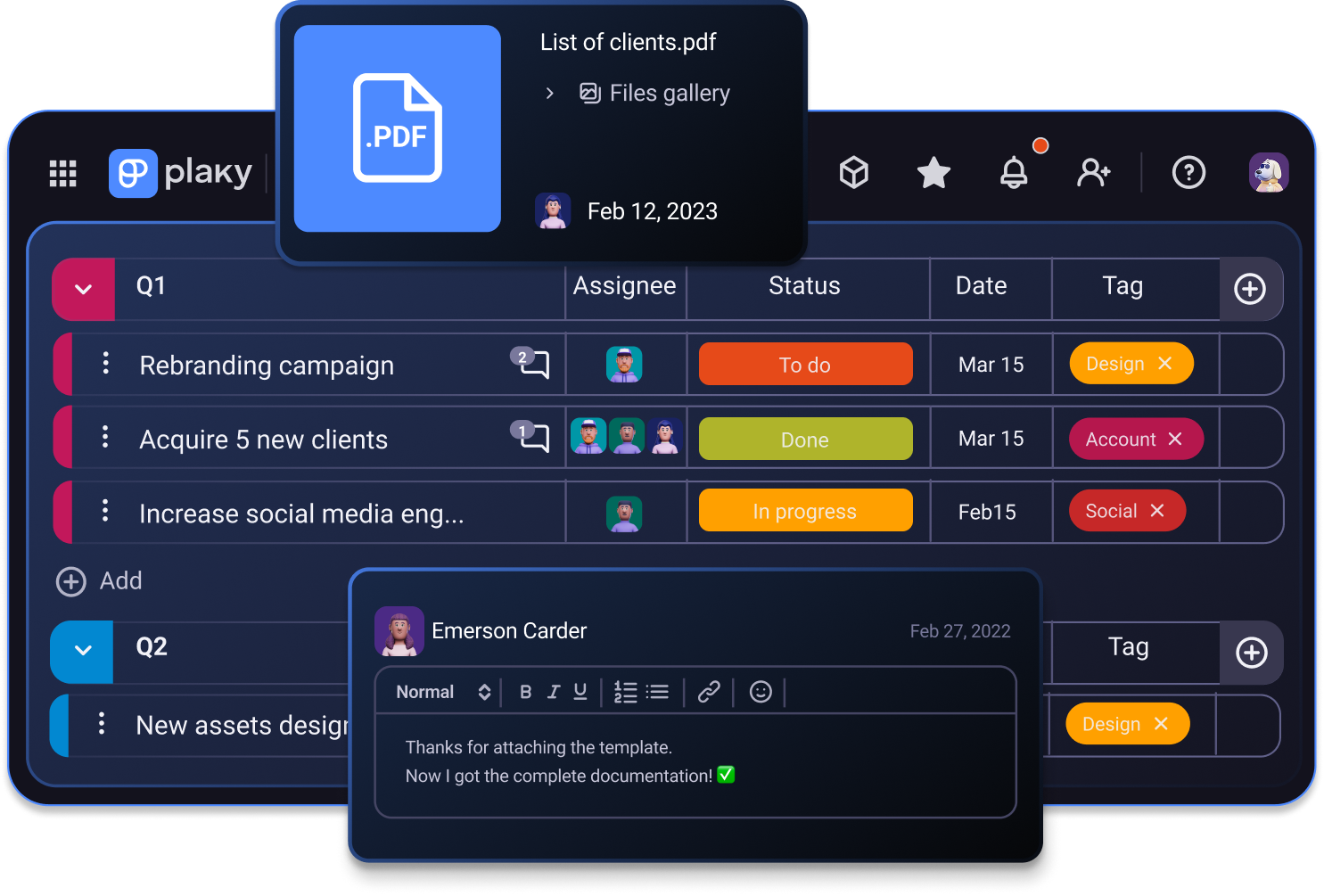
Luckily, there’s Plaky by CAKE.com — a powerful project management tool with an intuitive and user-friendly interface.
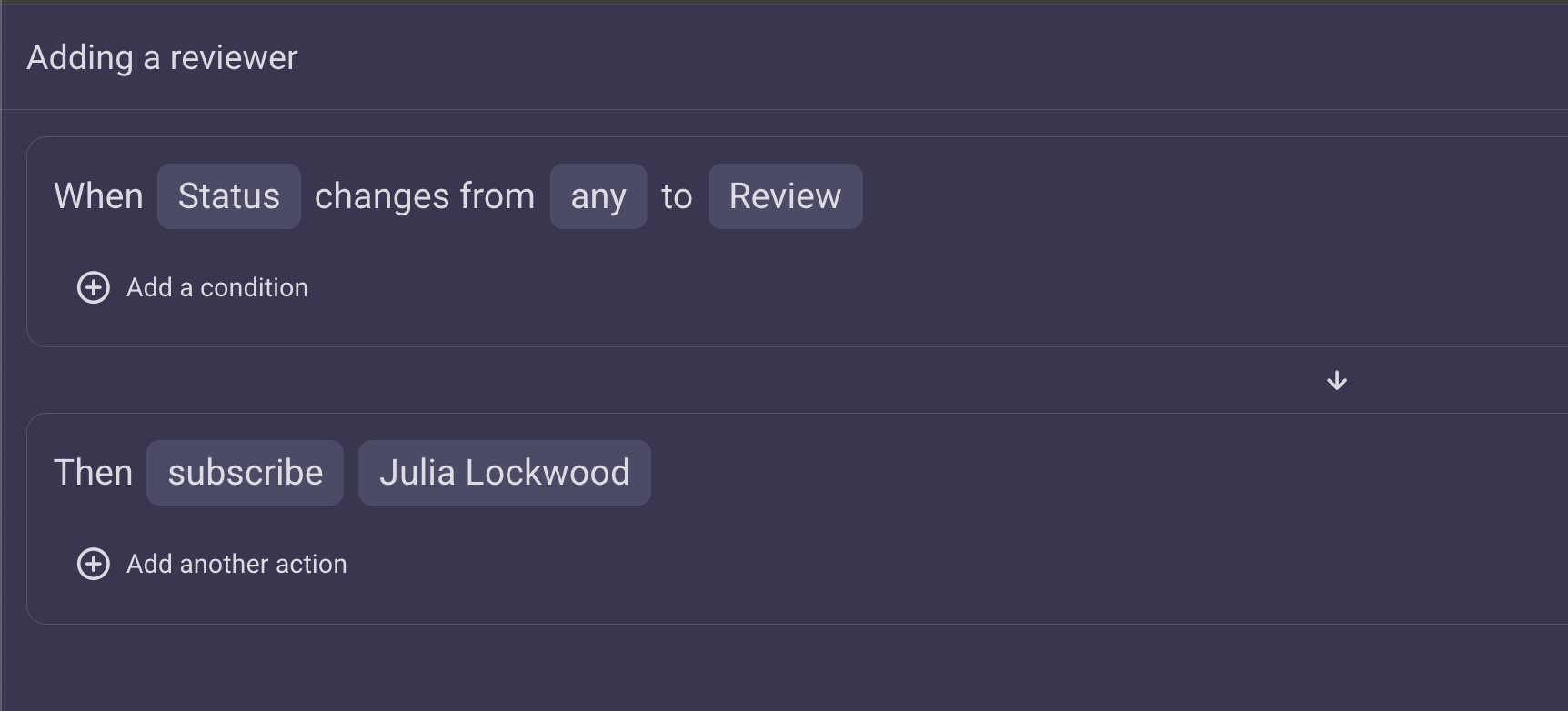
In Plaky, you can automate all those boring and repetitive tasks and focus on actual valuable work. For example, you can set up your board automations so that:
- When a task status is changed to ‘Review’, a reviewer is subscribed to the task.
- When a task status is changed to Stuck’ and the priority is ‘High’, the project manager is subscribed.
- When a deadline is added to an item, the status changes from ‘On hold’ to ‘To do’.
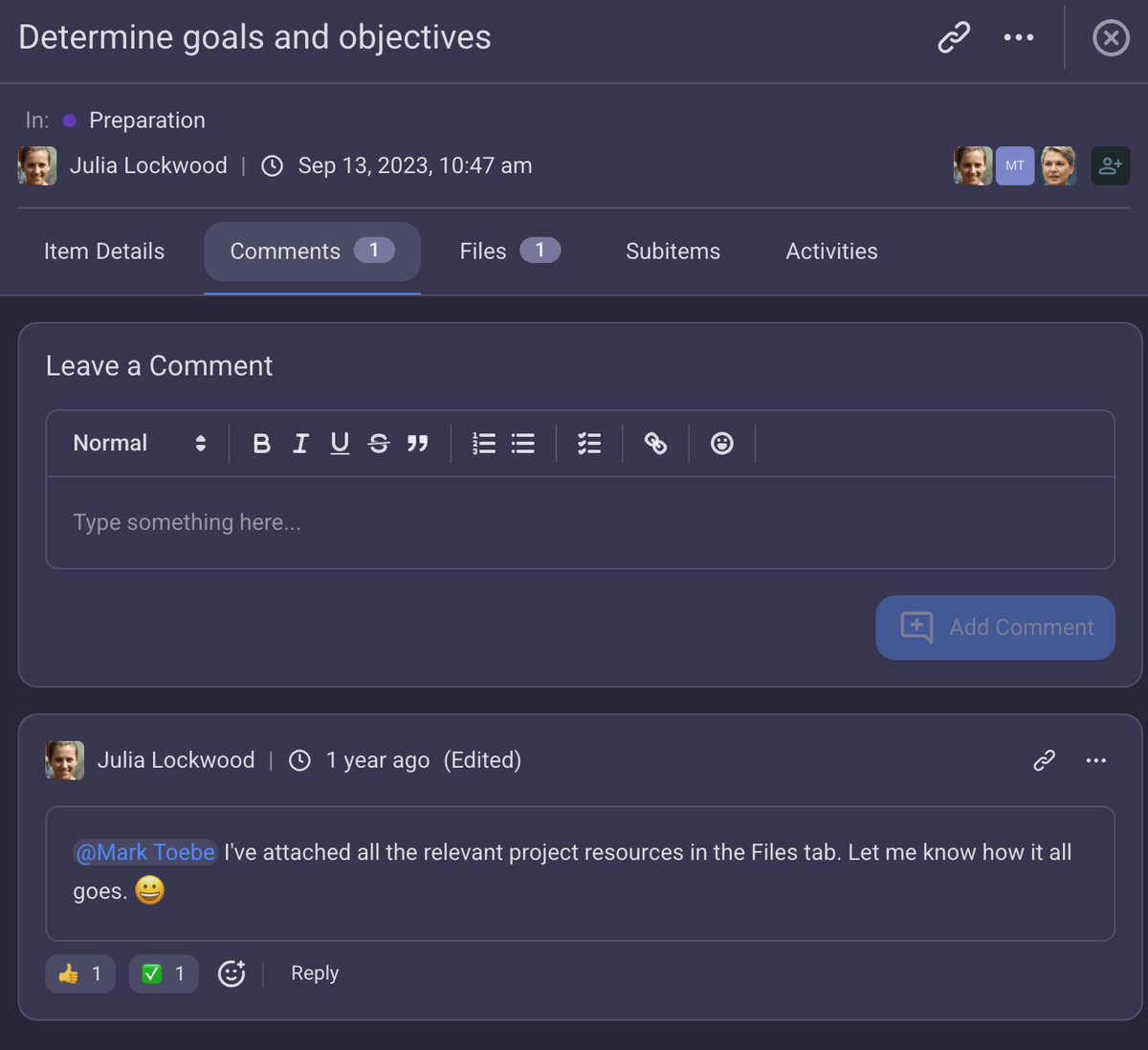
Plus, you can communicate smoothly with your team members through task comments.
Although Google Sheets has comments in files, they are still quite rudimentary. In Plaky, on the other hand, you have a designated space for communication in each task, where you can leave feedback or ask questions and:
- Lead several lines of conversation thanks to the thread option,
- Assign your question to a specific team member by @mentioning them to avoid any confusion, and
- Quickly react to comments with colorful and fun emojis to let people know you’ve read their comment.
Plaky by CAKE.com also offers a rich library of colorful and easy-to-use templates that you can adapt to your projects instead of relying on Google Sheets. All templates are completely customizable, so you can tailor them seamlessly to your workflows.
Plus, each project board in Plaky can be viewed as a:
- Table — for a comprehensive look at all task details represented by various Plaky custom fields,
- Kanban board — for effortless progress tracking as you drag and drop tasks from the ‘to do’ to the ‘done’ column,
- Gantt chart — for keeping an eye on the project timeline and spotting bottlenecks, and
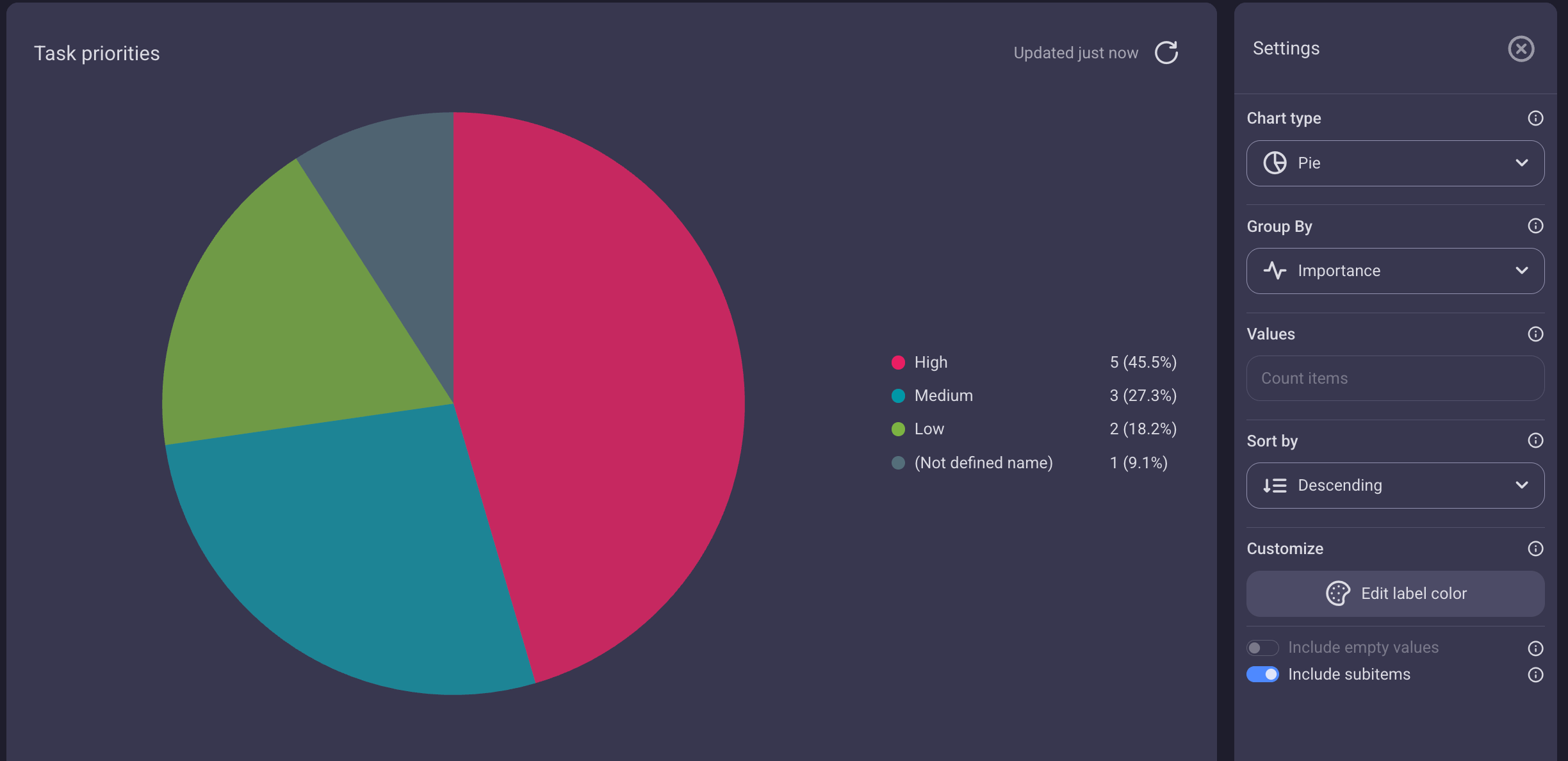
- Pie or bar chart — for visual representation of the most important information, such as task status or priority, and easy data analysis.
And, if you have a specific board you need, you can create it from scratch and just save it as a template for future projects!
Create detailed and automated templates for your projects. Sign up for a free Plaky account today!
Get started with Plaky by CAKE.com
How we reviewed this post: Our writers & editors monitor the posts and update them when new information becomes available, to keep them fresh and relevant.