


When people think about project management (PM) software like Plaky, they tend to focus on major features like task management, automations, and dashboards. However, some of the biggest productivity gains come from more subtle features that save time and reduce complexity.
In this article, we’ll explore the top 10 underrated features in Plaky by CAKE.com that can help your team work faster and get even more value from the platform.
- Seemingly small Plaky features can have a major impact on productivity.
- Features like Subitems, Sort, Filter, and Summary row make it easier to manage complex projects.
- Customization features such as color settings and custom terminology help you adapt Plaky to your unique preferences.
- Features like Favorite boards, Copy item URL, and Board duplication improve navigation and usability.
Top 10 commonly overlooked features in Plaky by CAKE.com
Here are some smaller Plaky features and how to use them to improve your PM workflows.
Most of these underrated Plaky features are available for free. Only Bulk actions, Conditional coloring, and Board duplication are paid features, but non-paying users can test those when they activate Plaky’s 7-day free trial.
#1 Subitems
Plaky’s Subitems are a way for our users (even on the free plan) to divide large work units into digestible chunks.
Put simply, some tasks involve multiple steps and contributors, which can be difficult to monitor unless you break the complex work into smaller pieces.
For example, redesigning a website could include subtasks such as:
- Create wireframes.
- Design page layouts.
- Write copy.
- Collect stakeholder feedback.
- Conduct final testing.
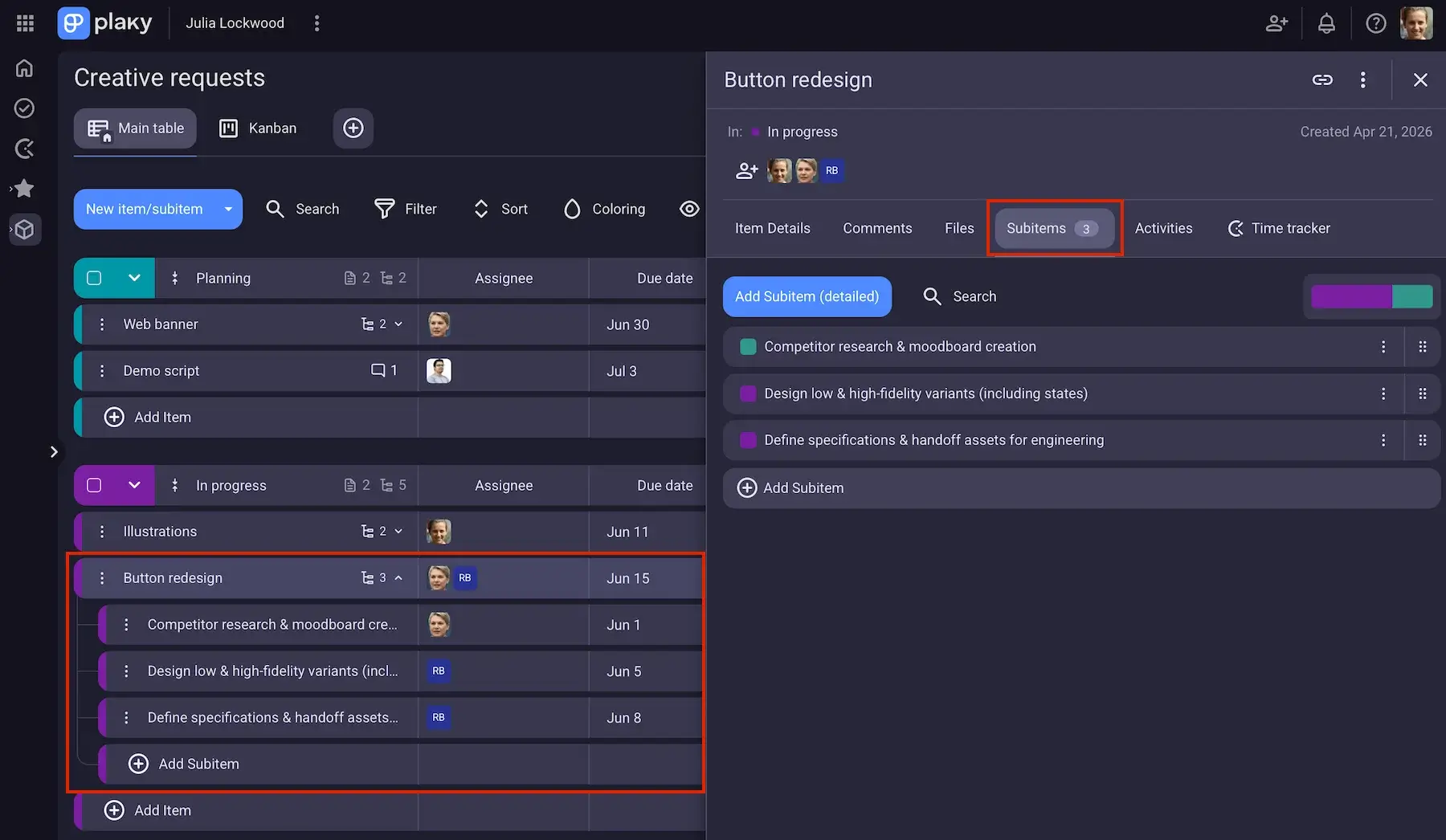
Essentially, subitems work just like regular items, inheriting the same field types from the parent tasks — which leads to several benefits:
- Consistent tracking across all levels of work — track both high-level goals and detailed execution steps in the same structured way.
- Easier progress oversight — instead of marking the entire assignment as In progress for weeks, see which parts are completed, underway, or yet to start.
- Greater accountability — assign ownership at a granular level so that everyone knows exactly what they’re responsible for.
Here’s what’s extra handy: Plaky lets you move subitems to different parent items or convert them into regular items once they become bigger tasks (making it easier to adapt to changes throughout the project life cycle).
#2 Bulk actions [Pro]
Updating tasks one by one might not seem like a major inconvenience, but if you’re dealing with dozens of them, Plaky’s Bulk actions can notably speed everything up.
Plaky allows you to select up to 500 entities at once and perform these commands:
- Bulk edit Fields
- Bulk move Items to another Group or Board
- Bulk duplicate (Sub)Items
- Bulk delete (Sub)Items
- Bulk convert Items into Subitems and vice-versa
So, Bulk actions save you lots of time when you’re moving an entire Sprint to a new phase or assigning several tasks to a certain team member, for example.
In addition, by applying large-scale updates uniformly across the project, you minimize the risk of making errors or skipping an important action.
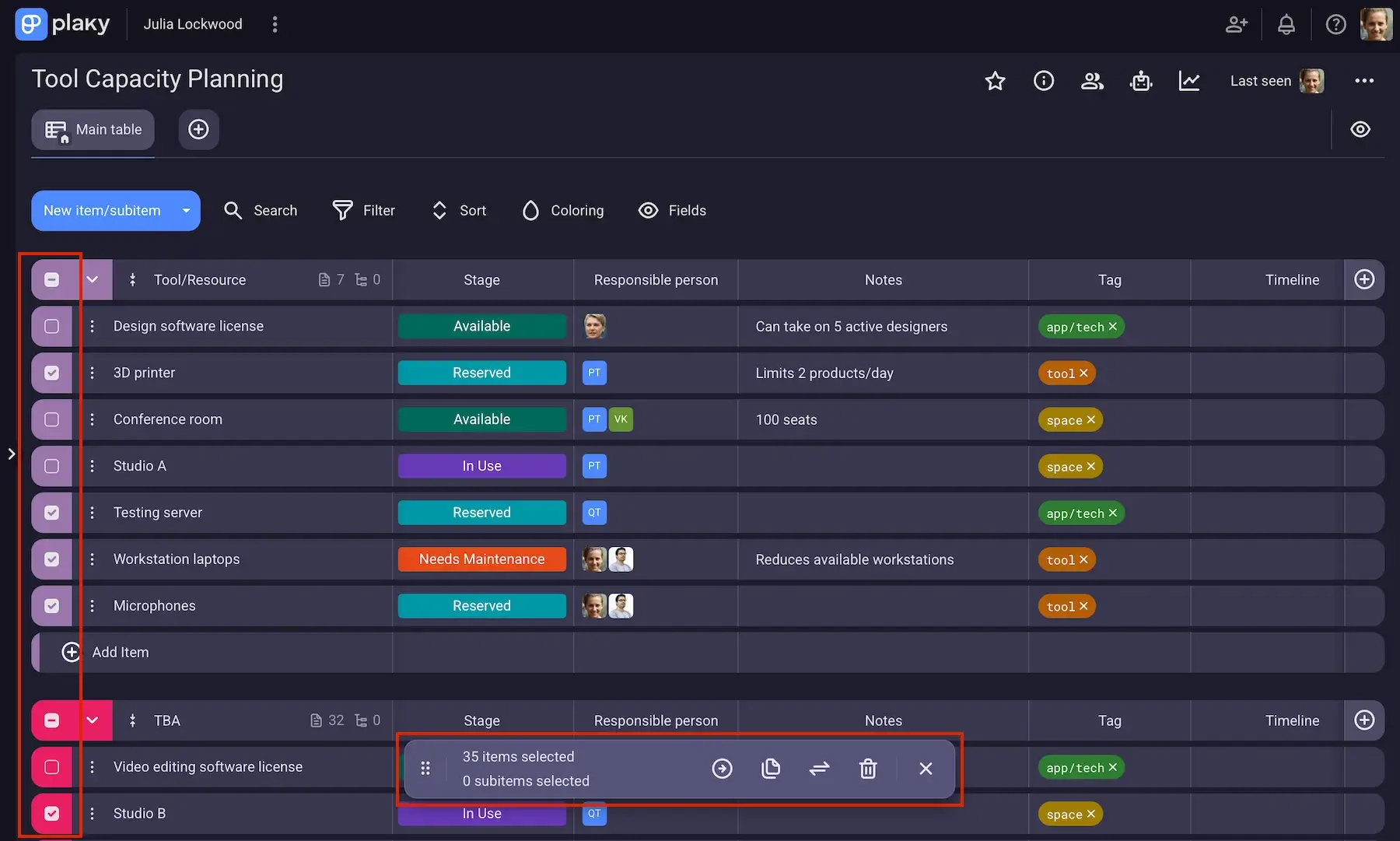
Important note: If you accidentally apply a bulk update, you can undo it within 30 seconds.
Finally, once you’re done with Bulk actions, just click the Exit bulk mode button in the floating bar.
#3 Sort and Filter
Plaky by CAKE.com has neat sort and filter options.
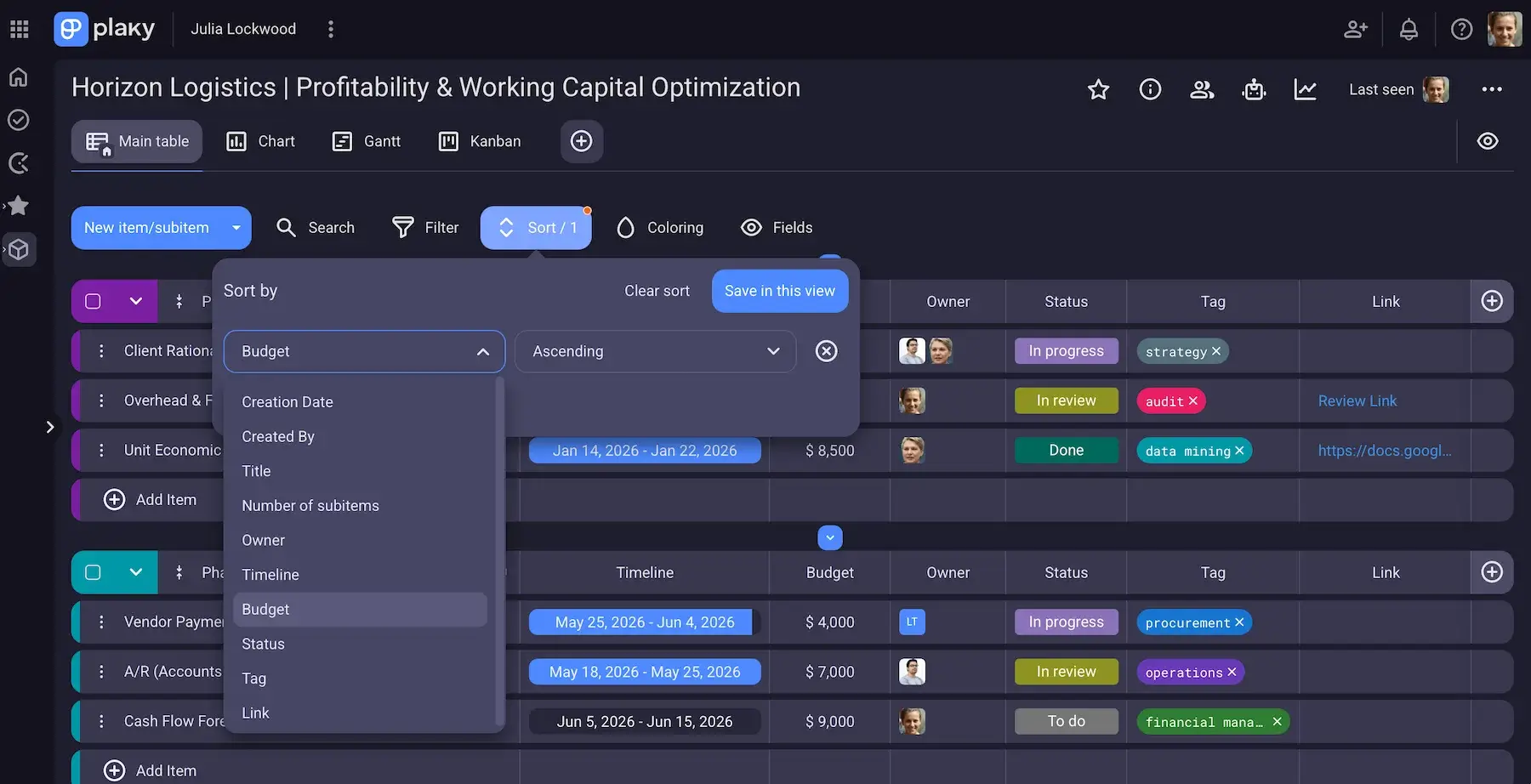
First, sorting helps you bring order to your tasks by arranging them logically. You can sort work by:
- Creation Date
- Created by
- Number of Subitems
- Title
- Specific Field
Our app can display data in ascending (A–Z, 1–10) or descending (Z–A, 10–1) order.
One disclaimer, though: Sorting by Status or Tag follows the order defined in the field settings. Whatever sequence you set (e.g., To do, In progress, Done) becomes the logical workflow order the system uses when sorting tasks.
Moreover, filtering helps you focus. Instead of seeing everything at once, you can narrow your view to only look at the tasks that matter in a specific moment — i.e., filter them by:
- Creation date
- Created by
- Item subscribers
- Item group
- Title
- Tag, Person, Status, Date, Link, and Numbers fields
For instance, you may want to see only what’s in progress, what’s overdue, what belongs to a particular project/Sprint, etc.
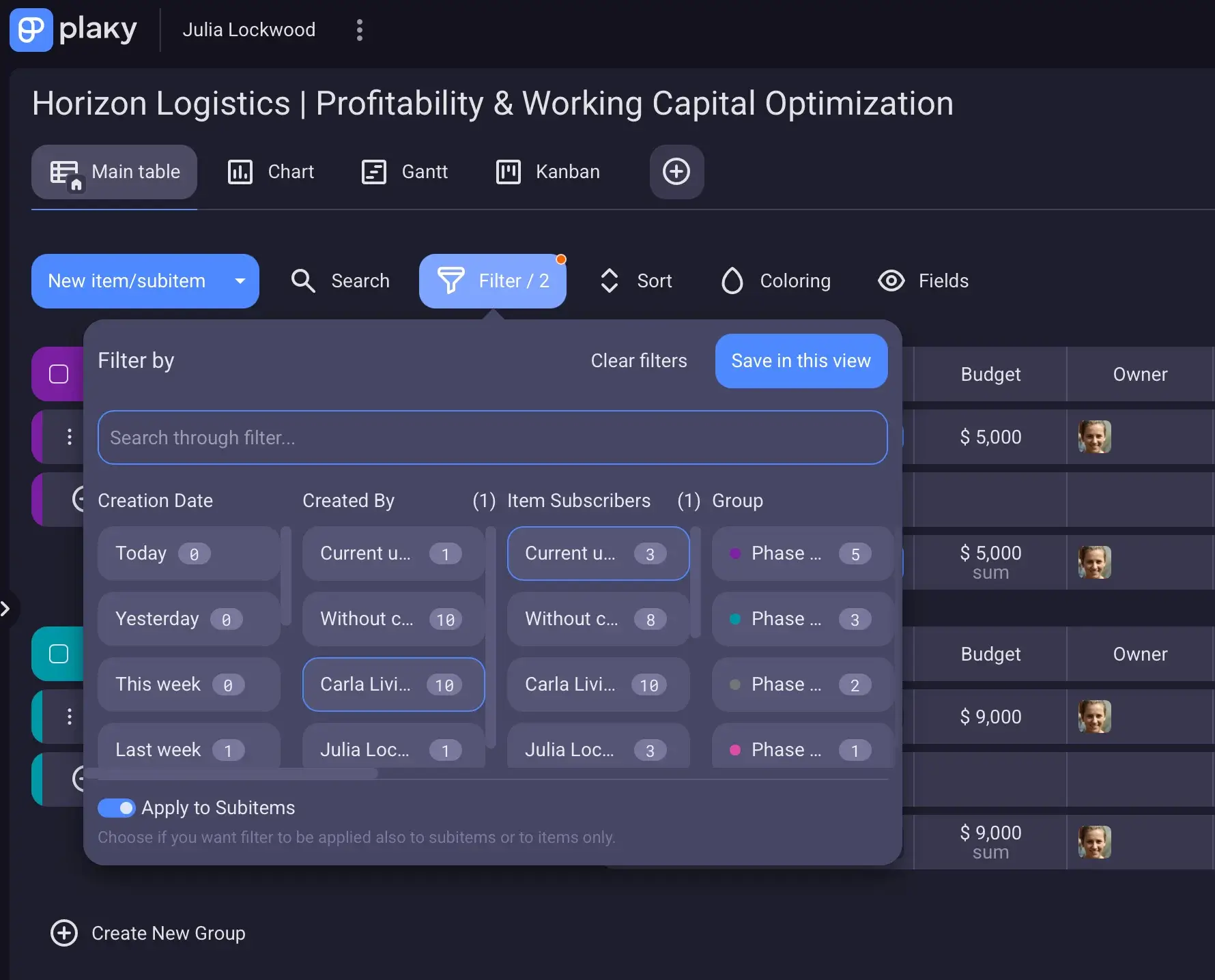
Used together, Sort and Filter in Plaky are a free way to control complexity — simply shift between high-level overviews and focused, actionable views, all without losing context.
#4 Dashboards
Plaky introduced Dashboards to help you get a clearer overview of project progress without switching between multiple boards.
The Dashboards feature allows you to bring data from multiple Boards into one place and visualize it with pie and bar charts. You can customize each widget by choosing its:
- Data sources — which Boards and Fields provide data
- Grouping — how data is categorized in the chart
- Sorting — the order in which groups or values appear
- Label colors — assigning colors to categories, making them easy to distinguish
- Filters — narrowing which data appears in the widget
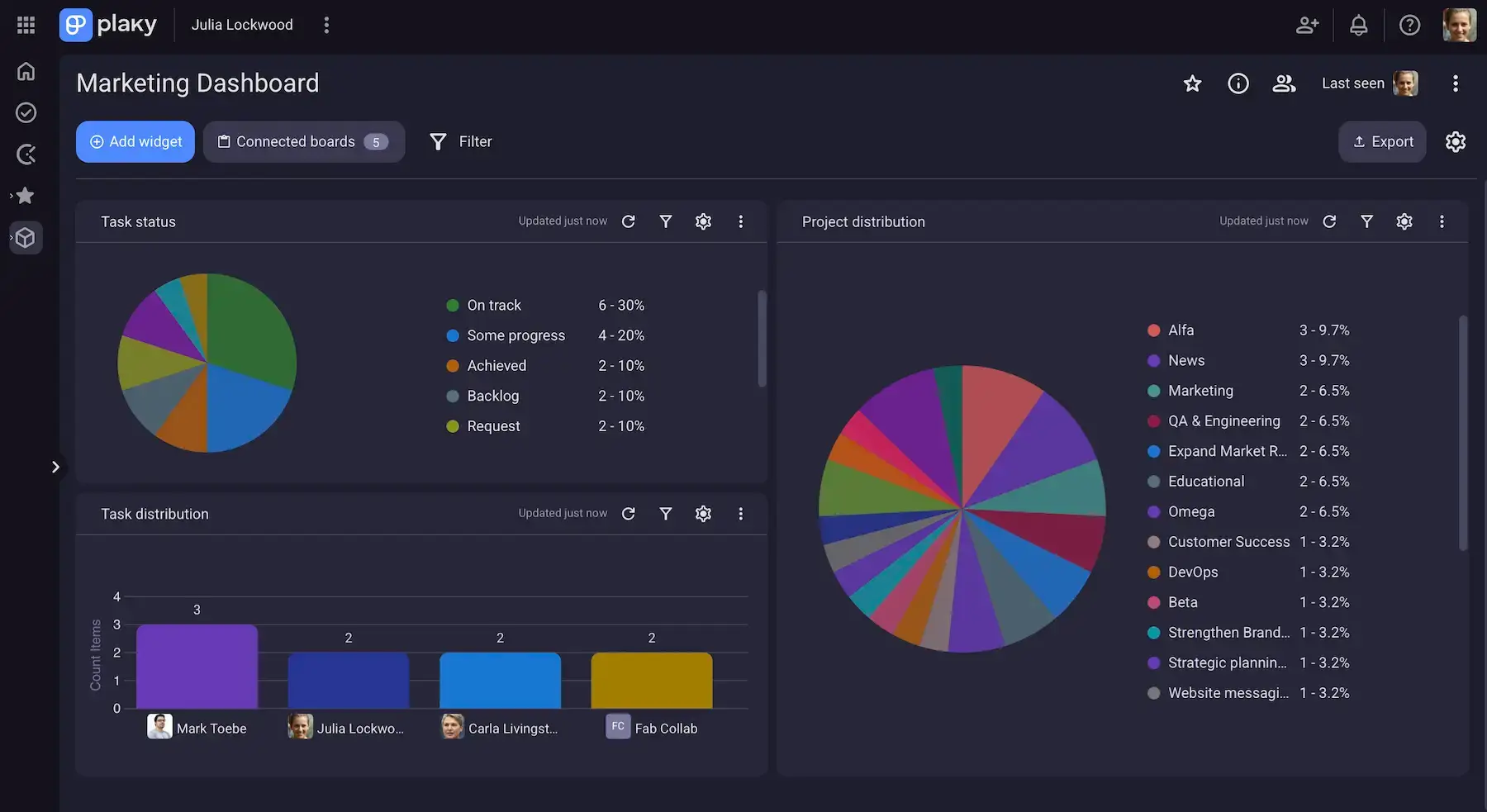
The extent of Dashboards depends on your Plaky plan:
- Free plan — 1 Board per Dashboard
- Pro plan — 15 Boards per Dashboard
- Enterprise plan — 30 Boards per Dashboard
Dashboards are particularly useful when you need to monitor overall project health, compare progress, or quickly spot areas that require attention.
Bonus: Dashboards can be exported to share project insights outside Plaky — for example, in a team meeting, progress report, or client presentation.
#5 Summary row
Plaky offers the Summary row because understanding the overall state of a project is just as important as tracking individual items.
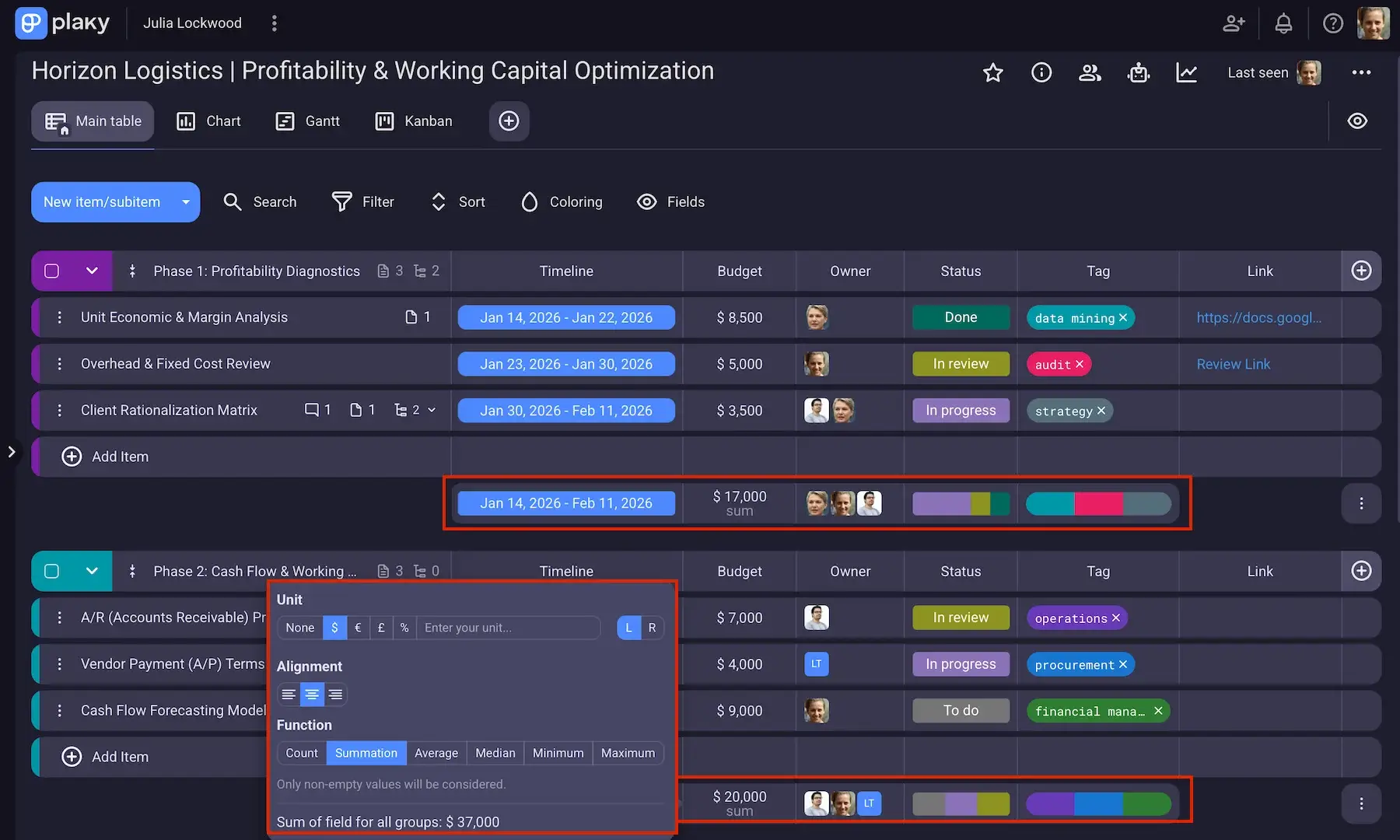
The Summary row is the most practical in Table view — located at the bottom of each item group, it can summarize data found in the following fields:
- Numbers — Count, Summation, Average, Median, Minimum, or Maximum
- Status and Tag — a progress bar with the statuses/tags expressed in percentages
- Date and Timeline — Earliest to latest, Earliest, or Latest
- Person — all users/teams present in the column
Summarized information makes it easy to get basic insights without manual calculation or exporting to a separate tool.
Another advantage is the ability to customize the Summary row itself. Plaky users can disable summaries entirely or hide them for specific columns to keep the focus on data that actually supports decision-making.
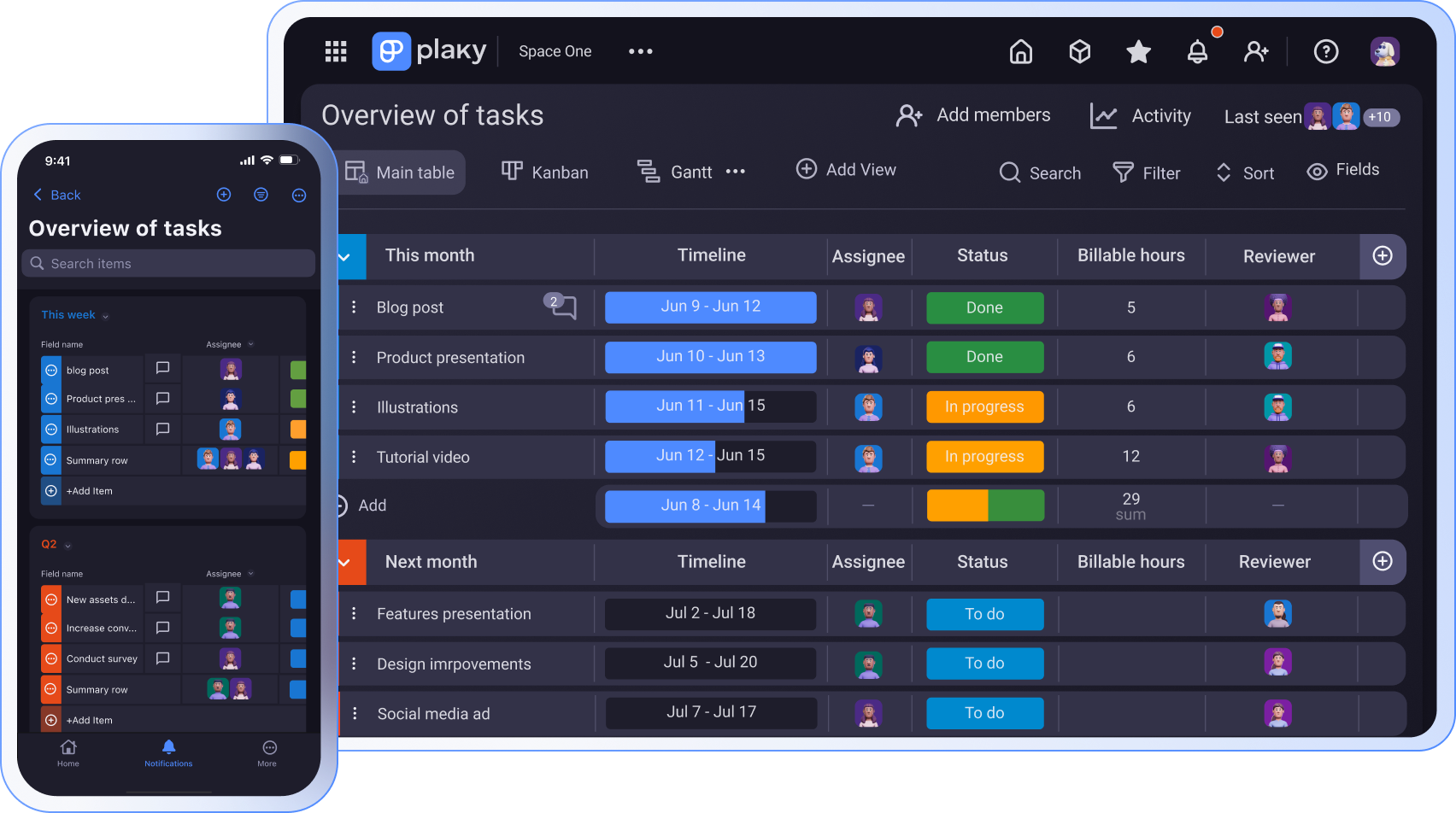
As for Kanban view, the Summary row pulls data from the Status field, again showing color-coded percentages.
In conclusion, turning raw data into summarized insights helps you monitor progress and spot trends without leaving the Plaky board.
#6 Copy (sub)item URL
The ability to copy (sub)item URLs in Plaky is more valuable than it might seem at first glance because project management doesn’t happen in isolation.
Although Plaky largely centralizes work, sometimes you might need to share tasks in emails or meetings. With a single click, you can generate a direct link to a specific Plaky (sub)task, and it’s ready to be pasted wherever you’d like.
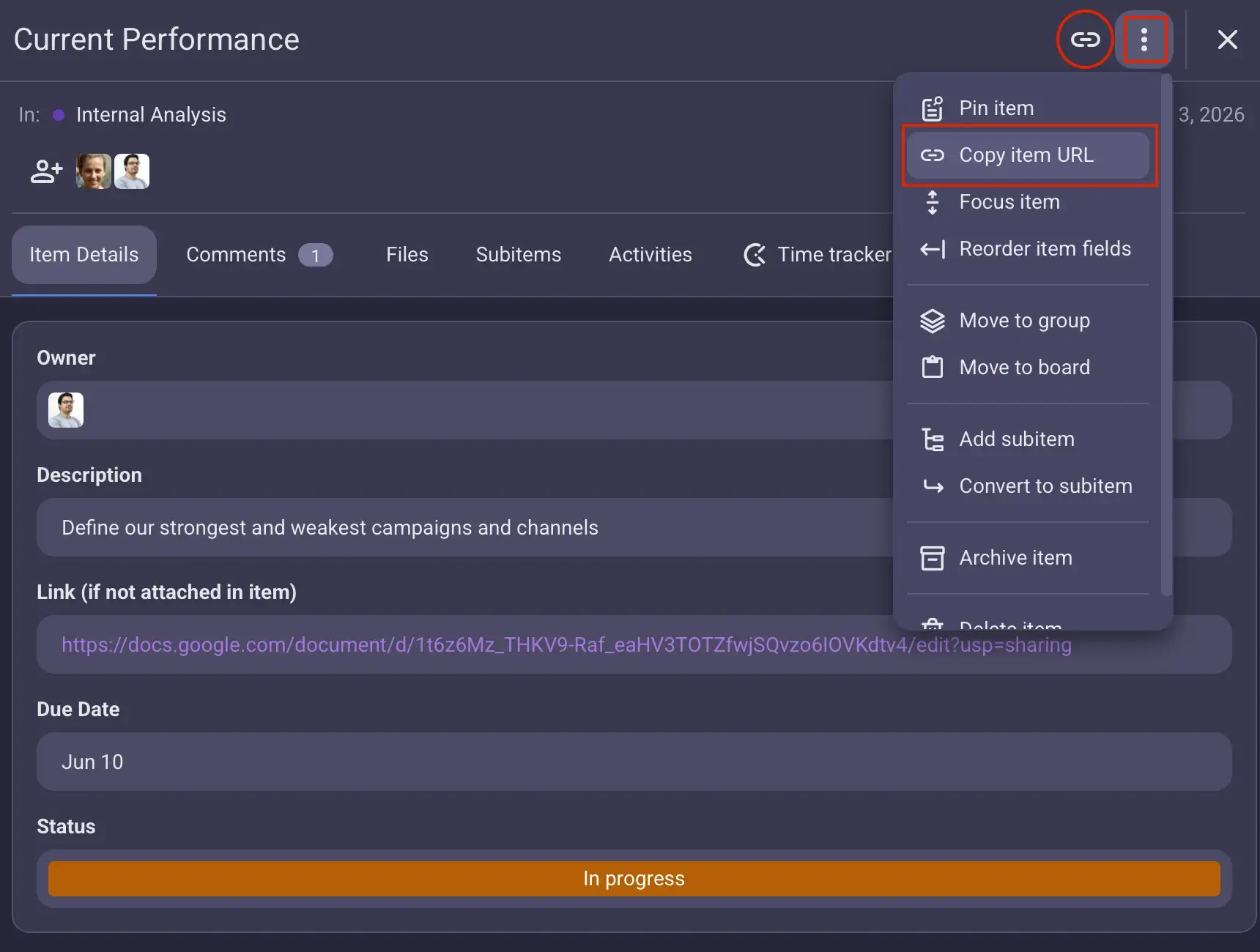
The option to copy the (sub)item link in Plaky has 2 main benefits:
- Eliminating confusion — direct links make sure everyone is discussing the same task (which is especially valuable in larger projects when multiple work units may have similar names).
- Faster collaboration across tools — whether you’re communicating through email, team chat, or project documentation, task URLs let you connect conversations with actionable work.
As a result, teams spend less time searching for information in Plaky and more time getting things done.
#7 Conditional coloring [Pro]
Spotting important information quickly can be challenging in large boards, so Plaky has Conditional coloring — a feature for automatically applying colors to items that meet specific criteria.
The process is easy:
- Pick the color you want to apply.
- Decide whether to highlight a specific cell or the entire row.
- Select the field you want to monitor.
- Define the condition that triggers the color.
- Specify the value that completes the condition.
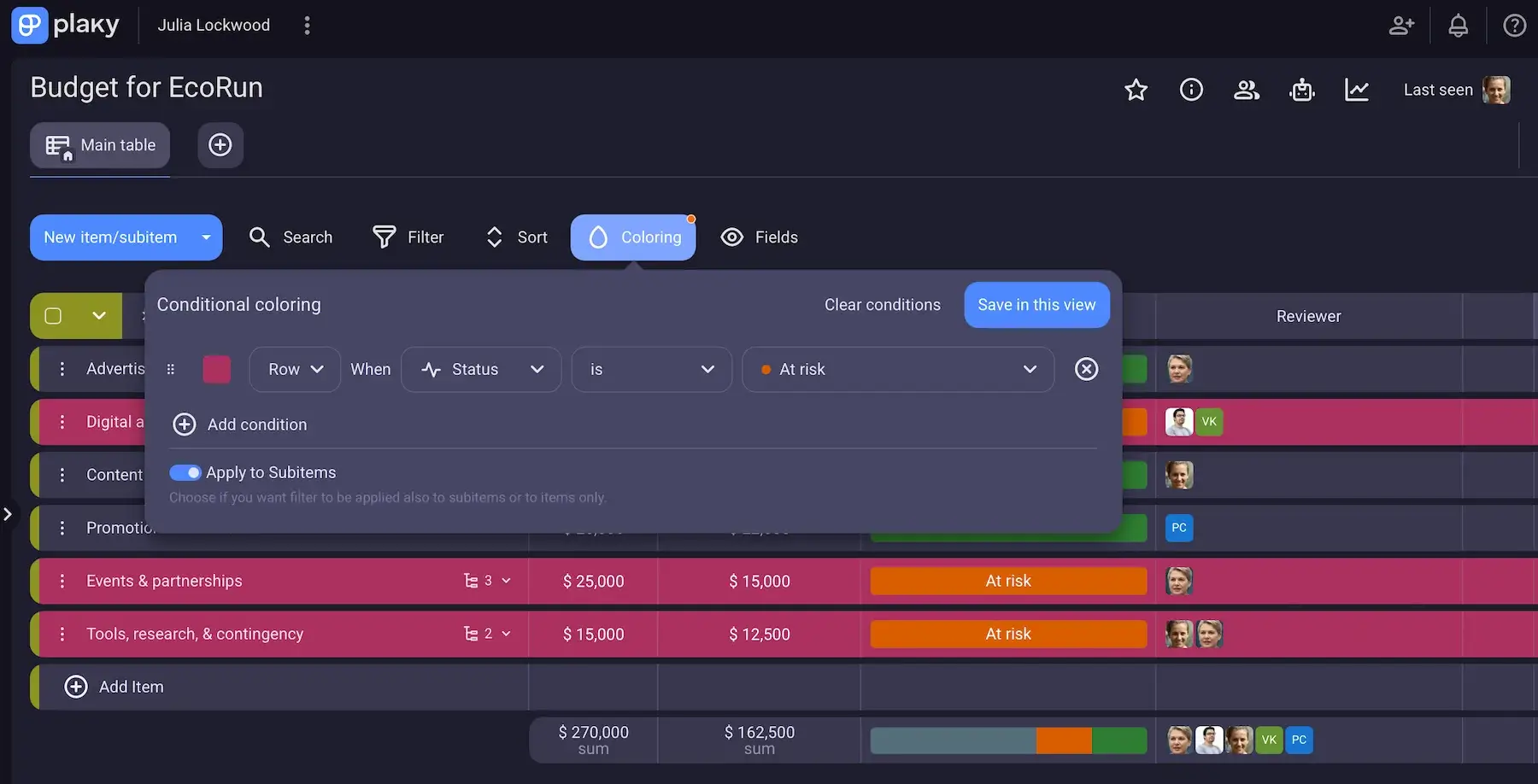
For instance, you can choose to highlight:
- Approaching deadlines
- Overdue tasks
- Cost overruns
- High-priority tasks
- Unassigned items
In cases when an item meets more than one coloring condition, they’re applied from bottom to top. If you want a different color to take priority, just reorder the conditions using drag and drop.
To sum up, by turning data into visual signals, Conditional coloring in Plaky improves visibility and helps teams work faster.
#8 Duplicate board [Pro]
Since many projects follow a similar structure, it’s convenient when you can recreate the same boards quickly — like with Plaky’s Duplicate board option.
There are 3 ways to reproduce a board in Plaky:
- Structure only — the bare bone structure
- Structure and Items — structure, Fields, and Items
- Structure, Items, and updates — structure, Fields, Items, Comments, Files, and any other update that’s been made
By specifying the extent of duplication, you avoid unnecessary clutter while still reusing the parts that are actually useful for your next project in Plaky.
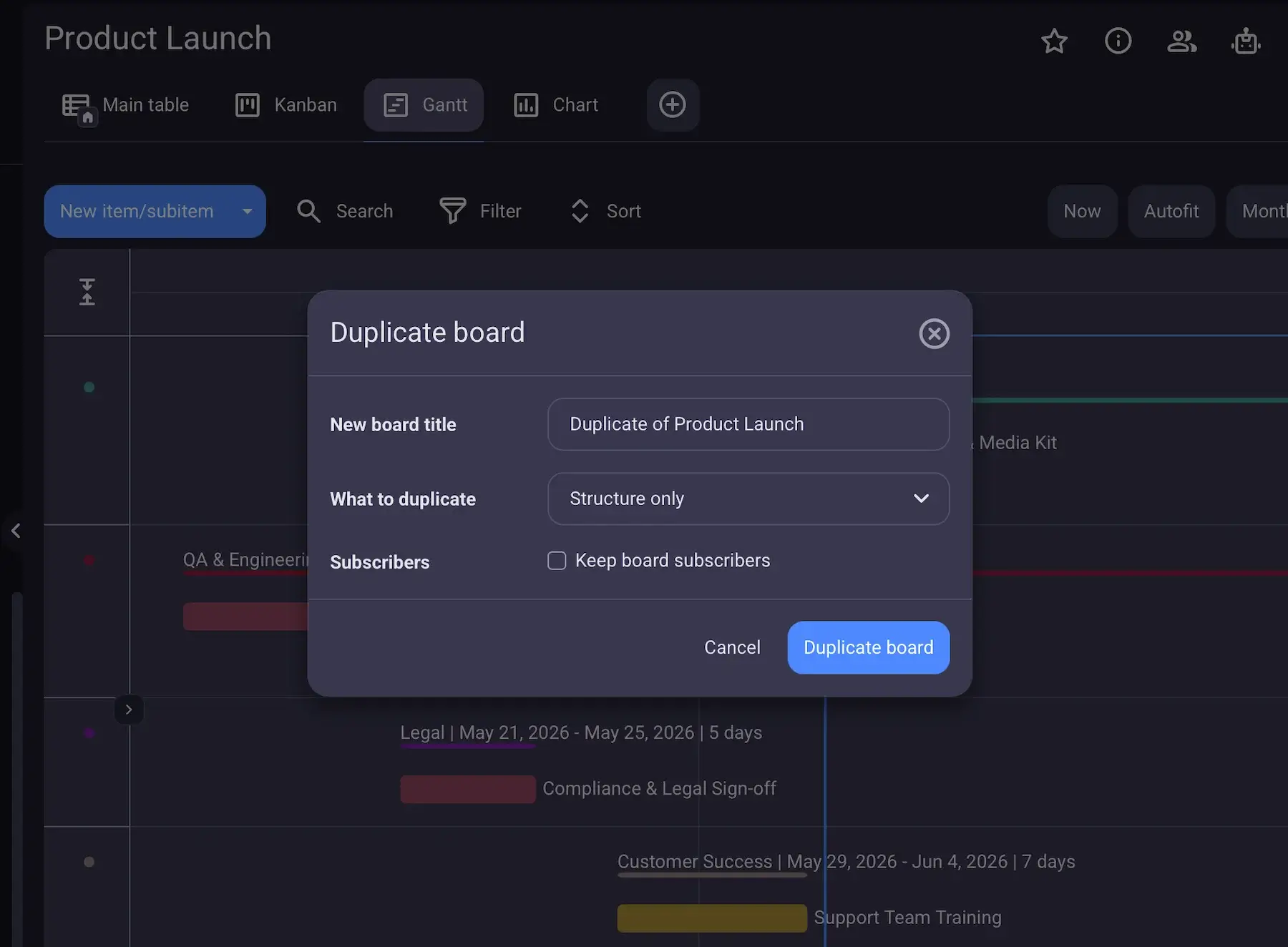
Here are some examples of when the ability to duplicate projects comes in handy:
- Recurring client work
- Employee onboarding
- Product launches
- Marketing campaigns
All in all, duplicating boards is a simple way to save time and promote consistency across projects. Otherwise, you risk skipping important steps when recreating the same project from scratch.
Templates are another way to standardize processes. Go for ready-made boards in Plaky’s Template center, or use the Mark as template option to reuse your proven boards.
#9 Change item terminology
PM apps often rely on terms like (sub)items because they’re the most neutral, but it can be nice to adapt those general terms to how your team works.
In Plaky, you can change item terminology on board level — just follow these simple steps:
- Click on the 3 dots in the top right corner.
- Hover over the Configure Item option.
- Choose Change item terminology from the dropdown.
- Type in the terms you’d like to use, and click Save.
And just like that, all the entries within the board will be renamed to whatever you entered.
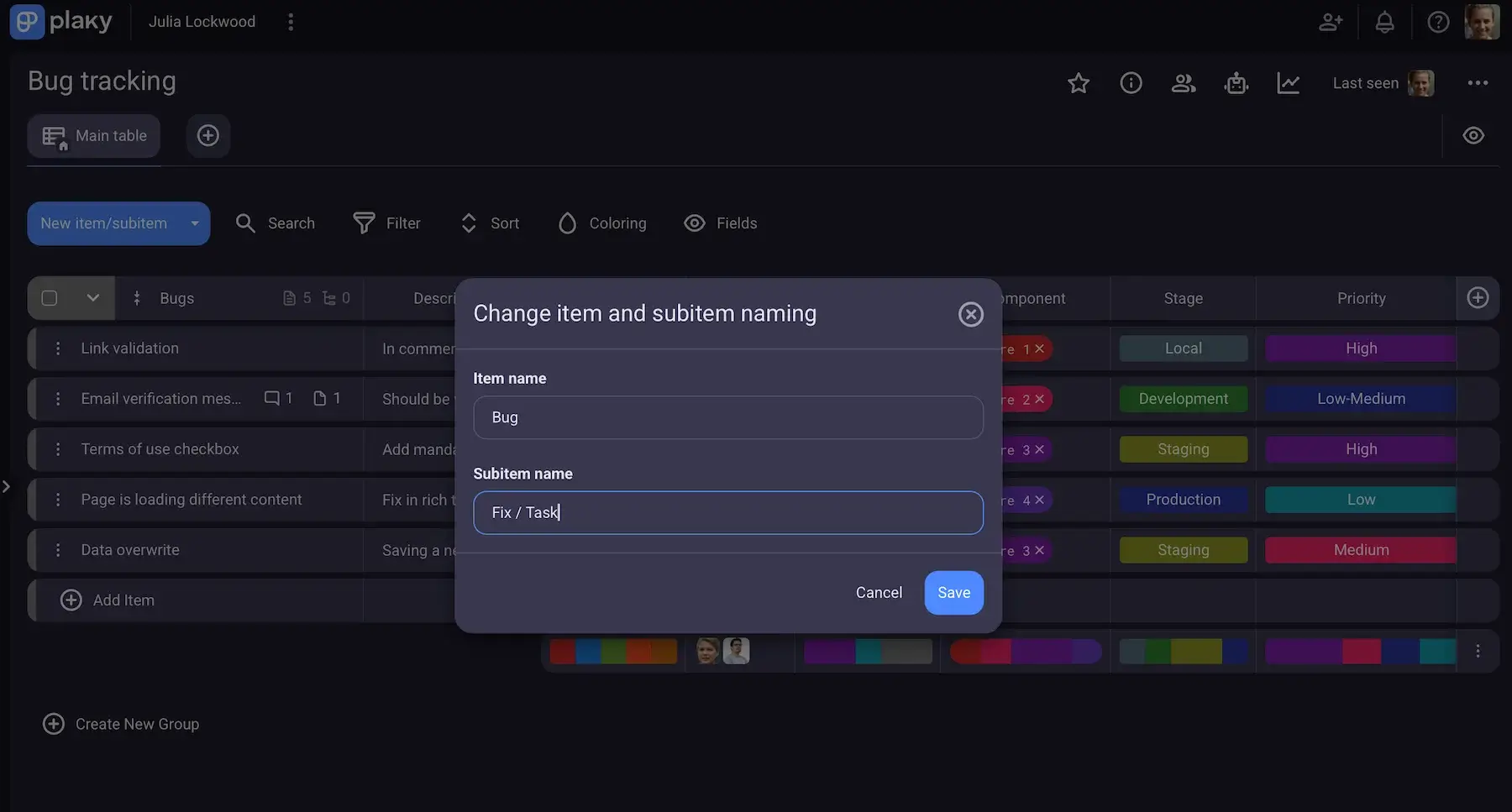
Here are some examples of what Items and Subitems could become based on your field of work:
- HR — Candidate and Interview stage
- Operation/PM — Project and Task
- Customer support — Ticket and Response
- Marketing — Campaign and Asset
- Education — Course and Exercise
Naturally, altering item terminology doesn’t change how Plaky works, but it can notably improve usability — keeping the platform aligned with internal documentation and team conversations.
#10 Custom color picker
Many PM tools have a predefined color scheme, but since color plays a big role in organizing data, Plaky has introduced a custom color picker.
You can apply a wide range of colors to status labels, tags, item groups, and conditional coloring rules in order to:
- Match your preferred visual system.
- Achieve visual harmony across your projects.
- Create a system that feels intuitive to your team.
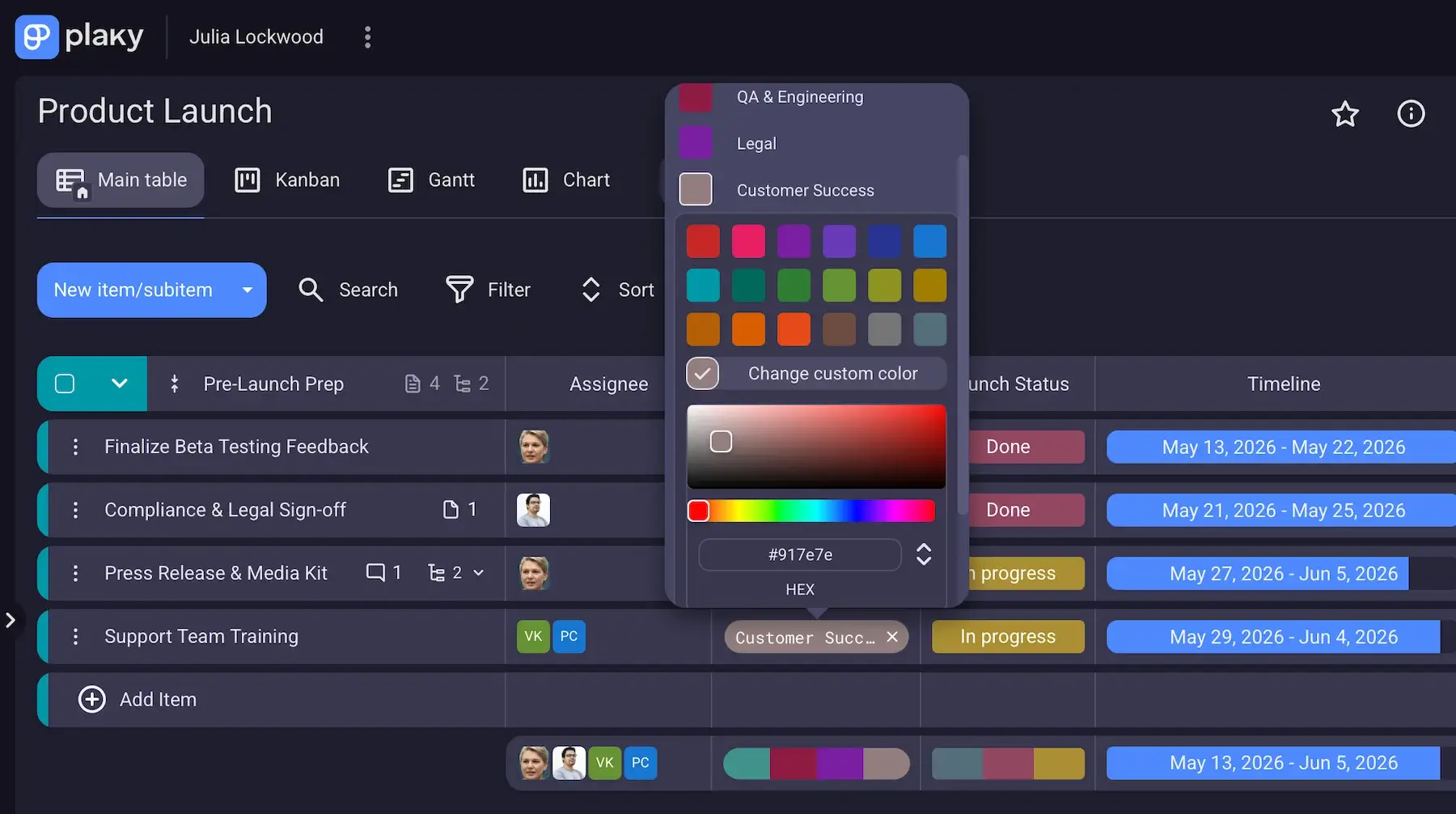
Plaky enables you to choose from a suggested color palette or fine-tune exact shades using the hex color picker.
For example, some users like highly distinct colors for maximum contrast between different categories. Others prefer a uniform look, e.g., different shades of the same color, making the board more visually consistent.
There’s no single correct approach — just go with how your team likes to process information.
Unlock the full potential of Plaky by CAKE.com
Individually, Plaky’s underrated features may seem minor, but combined with other functionalities, the benefits are clear:
- Reducing clicks
- Surfacing information faster
- Helping teams work more efficiently
If you use Plaky but haven’t explored it in more detail yet — give the smaller features a try, and get even more value from our platform.
A big perk: Even if you’re moving from another PM tool, getting started in Plaky doesn’t have to mean rebuilding everything from scratch. Check out the video below to learn how you can import your existing data into Plaky.
Don’t let valuable features go unnoticed — start exploring Plaky by CAKE.com today!
How we reviewed this post: Our writers & editors monitor the posts and update them when new information becomes available, to keep them fresh and relevant.