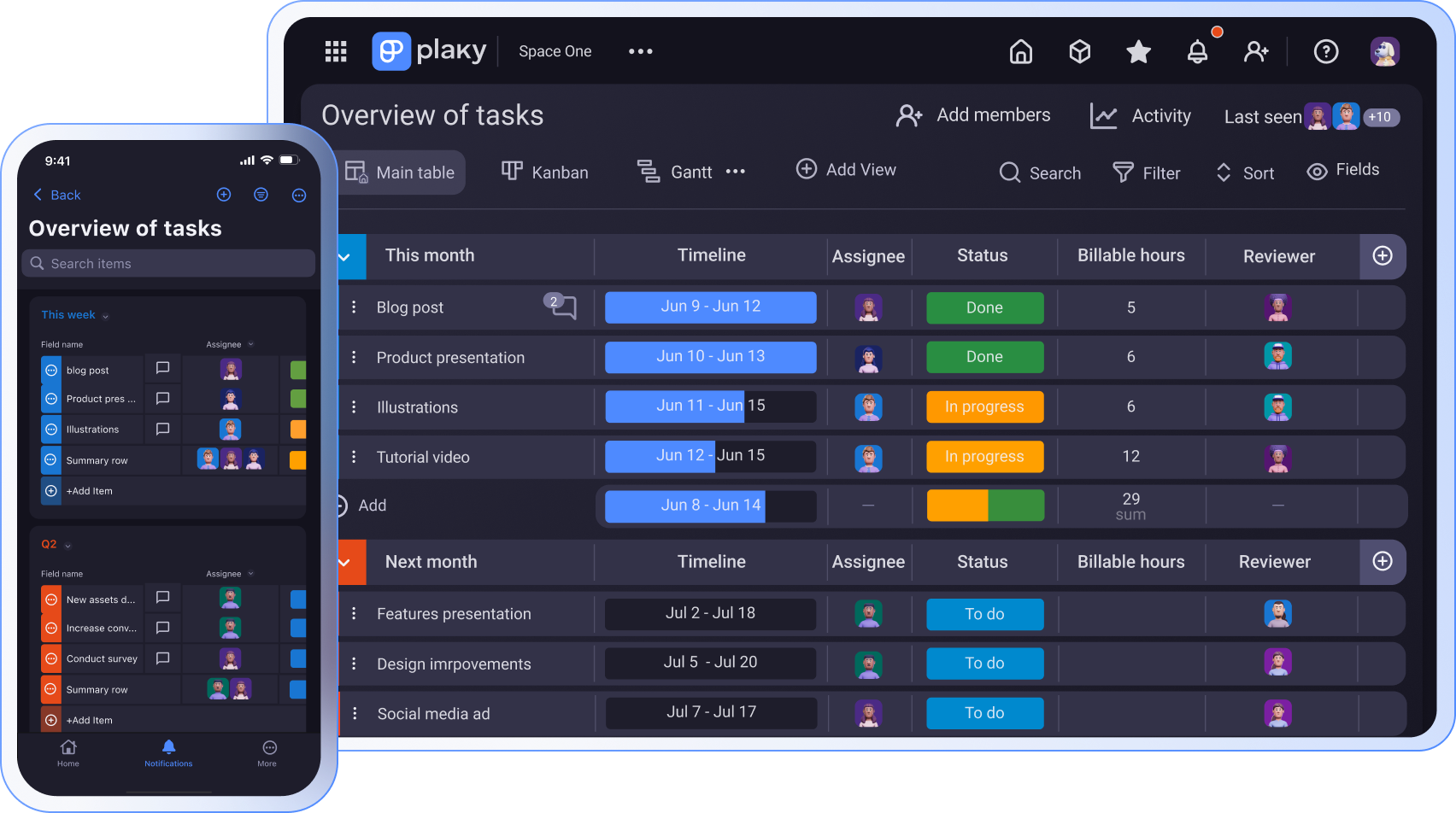
Are you in charge of a team whose productivity is plummeting?
Or, do you have trouble organizing your team and reaching the goals you set?
No need to panic — the solution is simple. Introduce Plaky by CAKE.com to your business, and watch it transform your everyday work.
Read on to discover the many ways Plaky can serve you and your team.
- Thanks to Plaky’s clear hierarchy and organization you can manage all your relevant work on just one platform.
- Plaky’s templates enable you to create boards in a matter of minutes, so you can focus on actual work as soon as possible.
- With Plaky, you can collaborate seamlessly with your team with the help of comments and shared files in task cards.
- You can choose how to view your tasks — in the form of a Table, Gantt, Kanban, or Chart view.
- Plaky helps you keep an eye on your team’s progress without disturbing them with task assignees, task statuses, and notifications.
#1 Centralize all your team’s work and data in one tool
There’s nothing worse than having information scattered across a bunch of apps, emails, and spreadsheets.
With Plaky, you can peacefully turn off all other tools and let it serve as a single source of truth to your team. Its hierarchical organization helps you manage all tasks and company information, and its robust user role fields help you track personal data as well.
Clear hierarchy
Thanks to Plaky’s clear hierarchy and organization you can manage all your relevant work on just one platform.
Plaky is organized into:
- Spaces — This is the top level of the hierarchy. It’s intended for large portions of workflow such as company departments, large projects, or even an entire organization.
- Boards — Boards are created for individual project and task management. This is where the majority of your daily work occurs.
- Folders — Folders are used to group boards within a space to give you even more structure.
- Items — These can represent tasks, action items, or goals. They are the actual units of work that you can assign to your team members.
- Subitems — These are the smallest components in Plaky, designed to help you divide complex tasks into more manageable chunks.
Psst! You can create an unlimited number of all of these even on the Free plan, including an optional Plaky+Clockify integration that lets you track time directly on Plaky tasks.
This means you’ll be able to organize all your workload in Plaky without having to scramble for information across 6 unrelated apps.
For example, you can create a space for each of your large projects or long-term goals, and then create a board for each team involved with that project.
Alternatively, if your team works on several projects simultaneously, they can have their own space, and create boards for each project they run. It’s all up to you.
Explore Plaky’s features for free
User information
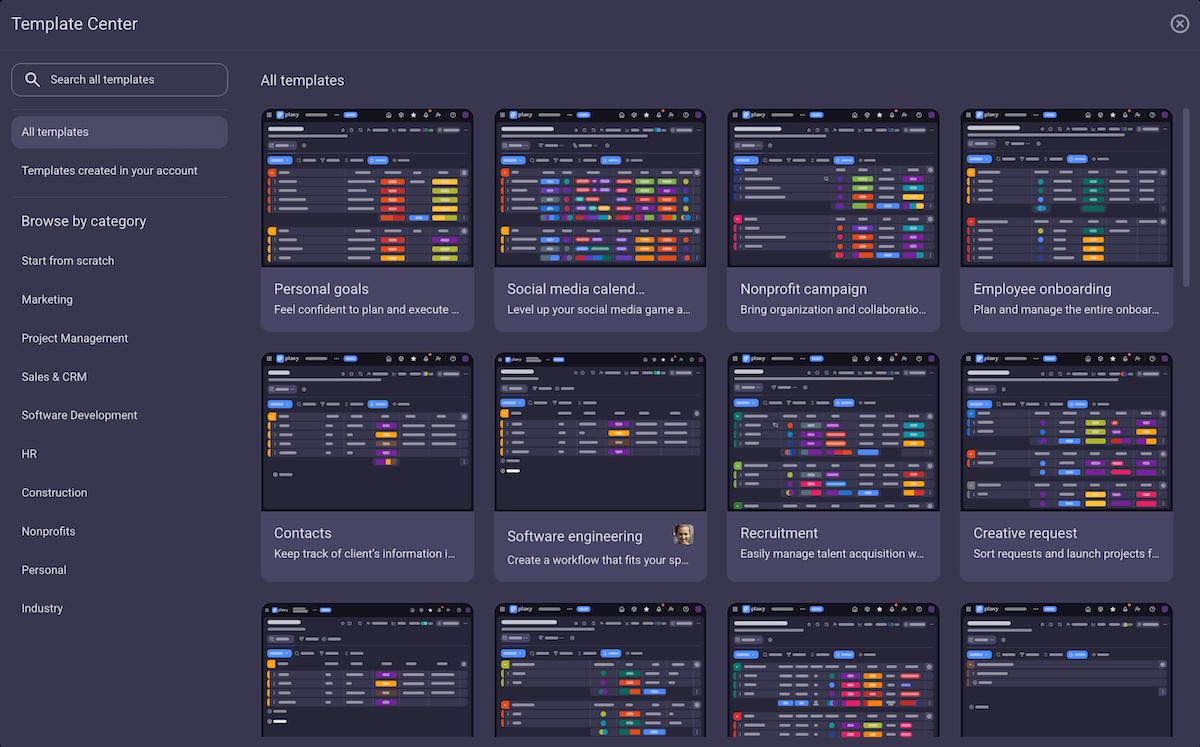
Besides projects and tasks, you can also store the most important information about your team members in Plaky, including:
- Contact information (phone, email),
- Job title,
- Teams they belong to,
- Relevant dates (birthday, work anniversaries), and
- Location.
But, these are just pre-defined fields, you can add any type of employee information you need (work from home vs. in-office, languages they speak, their expertise).
#2 Save valuable time with templates
Every minute of your workday is important. Plaky’s templates enable you to create boards in a matter of minutes, so you can focus on actual work as soon as possible.
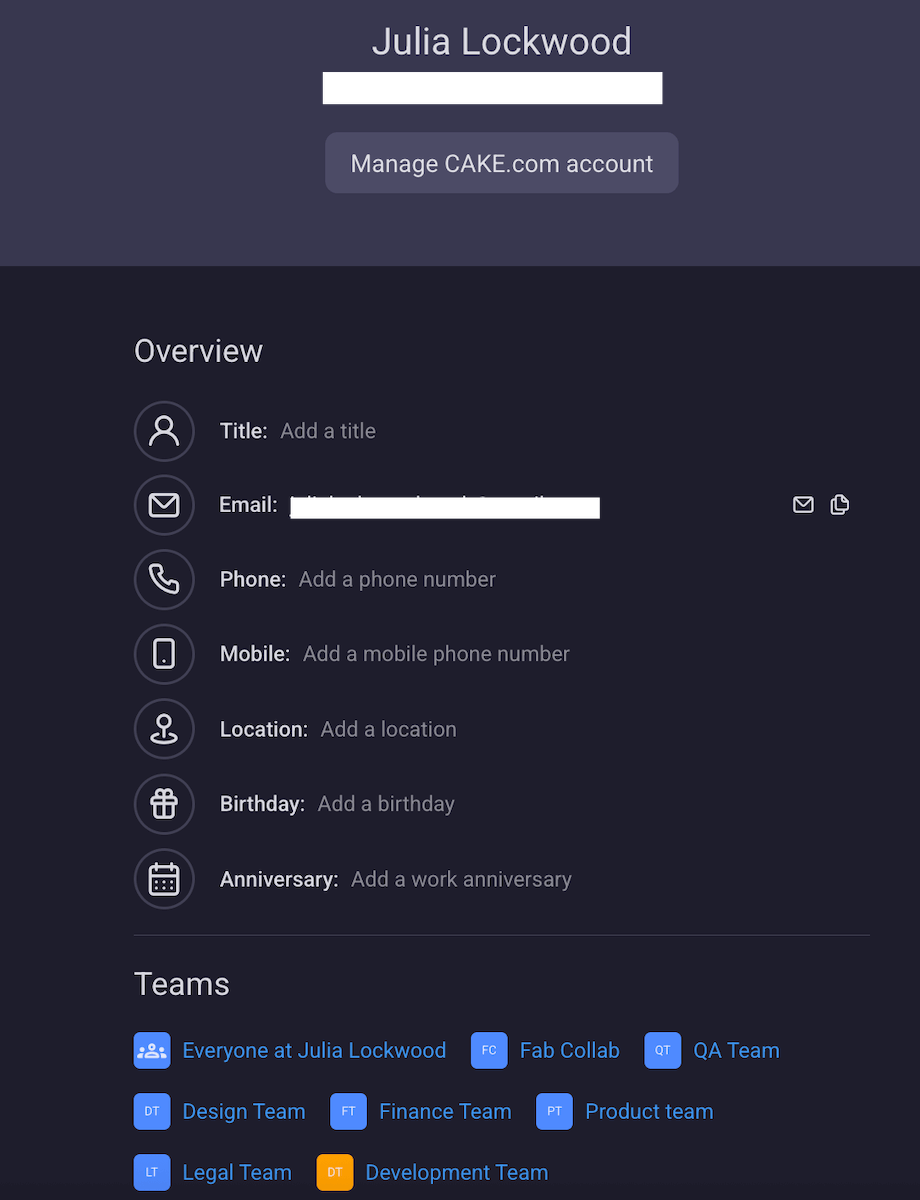
Pre-made templates
Plaky comes with an array of functional templates, which help you save time and make adapting to Plaky even easier. The templates are designed for various industries and project types so everyone can find what they need.
If you’re in marketing, for example, you can use templates to create content calendars, strategy plans, design requests, social media calendars, and event plans. Each of these templates is created with marketing teams in mind, so you don’t have to waste time adapting them.
One of our customers, a digital marketing company, VM digital, recognized this and utilized the power of templates. They discovered that Plaky’s social media calendar template fits their workflow perfectly — they simply enter data they need and that’s it. As their founder explains:

“Those templates are quite a revelation for us. They helped us because they sped things up and made everything easier for us.”
Create boards from Plaky’s templates
Templates from existing boards
Although Plaky offers a rich template library, you don’t have to limit yourself to that. You can save any board you have as a template for future use. So, if your team has similar or recurring projects, you just click on the template instead of adding information bit by bit.
#3 Collaborate effectively with your team
Plaky understands that good collaboration is the foundation for any successful business. After all, according to the 2025 Workplace Communication Statistics, 86% of employees and executives claim that the lack of effective collaboration and communication is the main cause of workplace failures.
With Plaky, you can collaborate seamlessly with your team across different continents and time zones with the help of comments and shared files in task cards.
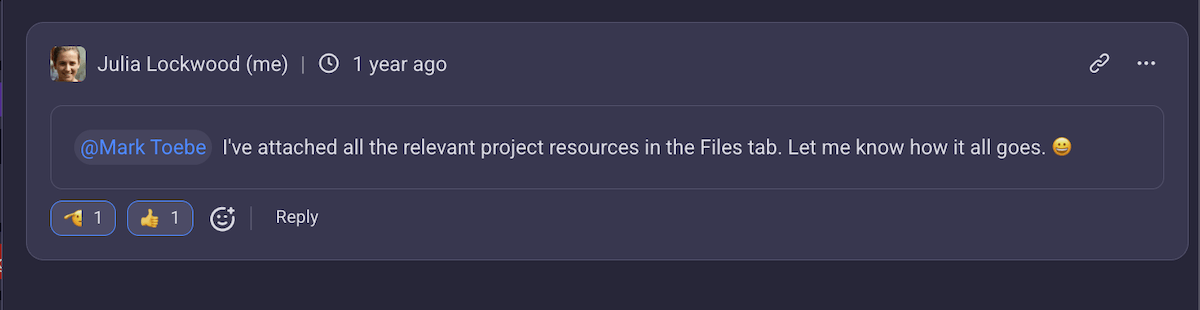
Comments
Every task has a comment section to help you keep your communication in context.
So, if you want to discuss something with your team, you can do it directly in the task card. This way, when you need to backtrack to find a piece of information, you won’t have to scroll through who knows how many DMs — the conversation is in the task itself, waiting for you.
Plaky’s comment cards are well designed and robust, offering:
- Replies in threads so you can have multiple conversations simultaneously,
- Reactions (emojis) for quick responses, and
- Search option to help you find relevant information quickly.
File sharing
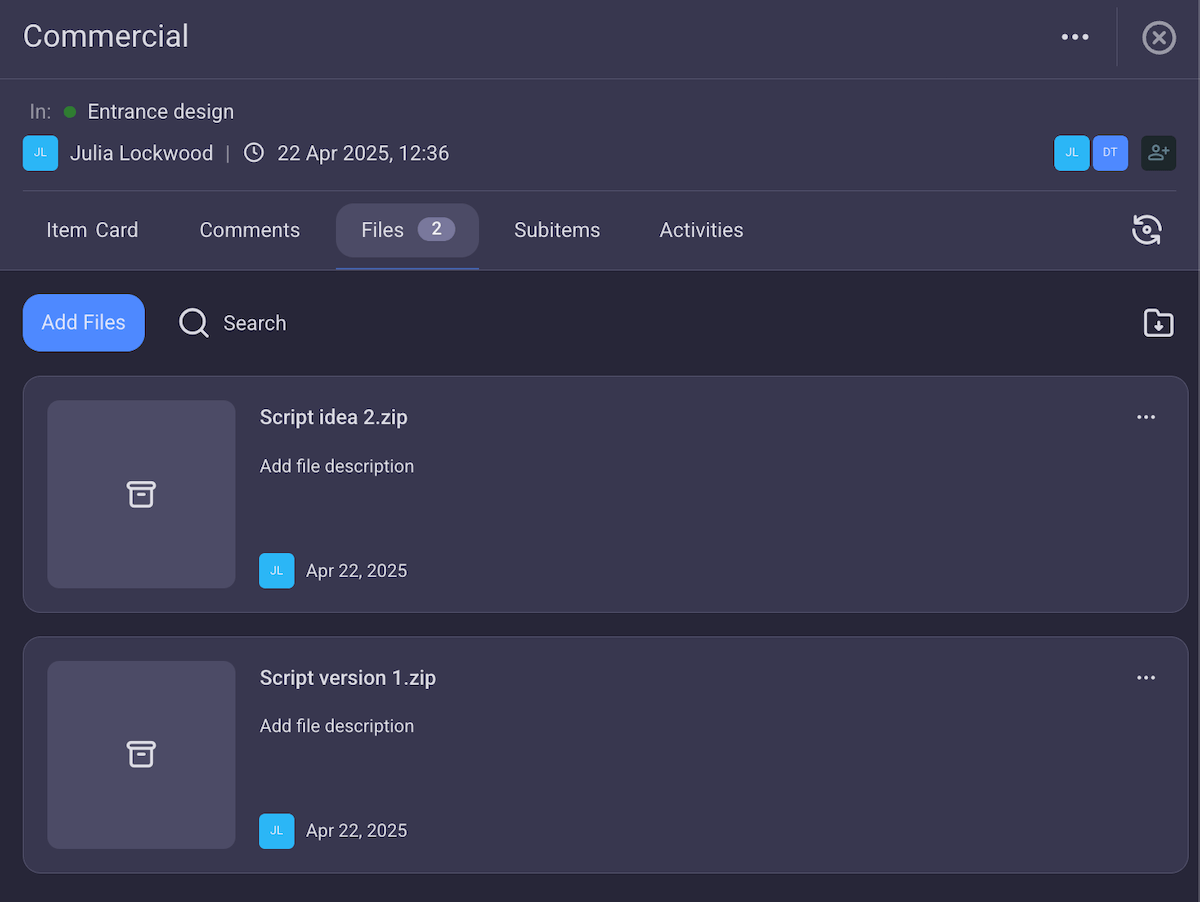
Sharing files directly in tasks significantly quickens the review process. No need for managers to check whether something is finished or not, or for team members to message them to let them know a piece of work is ready for review — it’s all handled through Plaky.
Once a task is finished, simply drag and drop the document or image in the Files section, and put the task on review. The manager can then access those files, review them, and add additional files if necessary.
There’s no need for emails, DMs, or any back-and-forth — it’s all clear and simple.
There’s also a search option, so even if you add 100 files, everyone can still find what they need in seconds.
#4 Share information with the right people
In large teams it’s not always easy to keep track of the information flow and understand who needs to know what.
But, the general rule is that each person should have access only to the information they need to do their job, in accordance with the Principle of Least Privilege (PoLP) guidelines.
Plaky helps you manage the flow of information with different levels of access and user types.
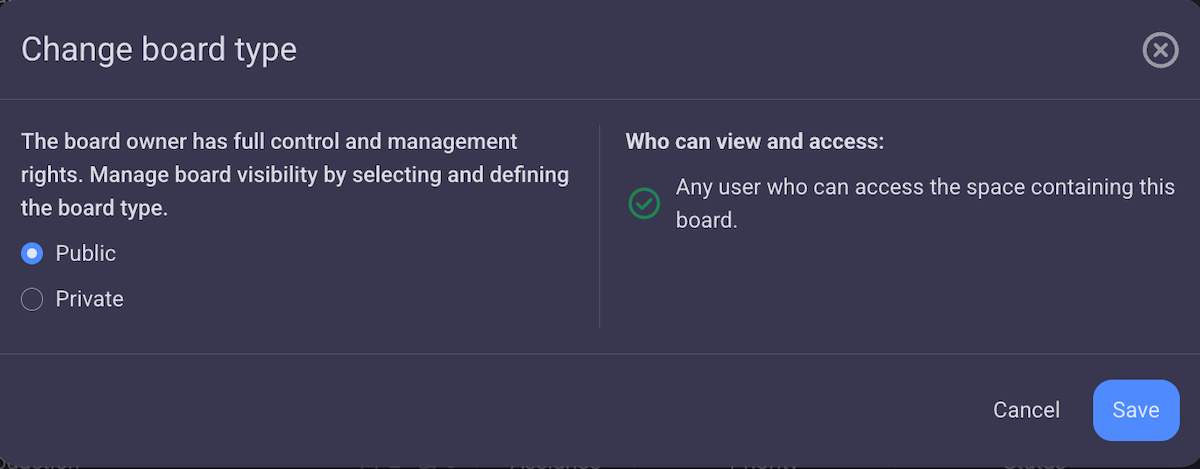
Public and private boards
In Plaky, you can set your boards on:
- Public (any user can view and access it), and
- Private (only board members can view and access it).
This ensures data safety while, at the same time, allows for nonsensitive information to be shared with everyone in the company.
Say you work in an IT company. Part of your job is developing programs and that is, naturally, highly confidential. You don’t want your source codes and plans for new features to be common knowledge. So, you create private boards for each confidential project.
But, there are also other (less secretive) aspects of work: marketing, advertising, etc., with information that might actually be useful for the entire company. These can be on public boards, so if by any chance, someone working in PR needs to share their work with the sales team, they can simply access their board and collaborate.
Viewer role
The viewer role is excellent for sharing information with people outside your company, such as clients or contractors.
When you invite someone to join your board as a viewer, they can see the content of that board, but can’t make any changes. They also don’t have access to any other part of your workspace.
And, what’s more, you don’t have to pay for viewers — up to 5 viewers per 1 paid seat are free in Plaky!
The viewer role is especially useful for teams working in creative agencies. You can easily give access to your clients so they can see how you’re progressing. Creative work and ideas can be rather subjective, so it’s important to get feedback from clients throughout the project and make timely adjustments if necessary.
Find out more details about Plaky’s roles, private/public boards, and other permissions in our video:
#5 Fine-tune the platform to suit your team’s needs specifically
Plaky lets you customize your workspace so it works for you instead of forcing you to work around it. With 9 custom fields, 4 different board views, and sort/filter options, you can create a perfect workflow for your team.
Board views
You can choose how to view your tasks — in the form of a Table, Gantt, Kanban, or Chart view.
Depending on the type of data you need to track, or really, your personal preferences, you can pick the appropriate view:
- Table — for clear overview of all task information,
- Kanban — for tracking tasks through status changes,
- Gantt — for viewing tasks on a timeline, and
- Chart — for visualizing specific task data.
For example, for a team working in sales, a chart view would be great for viewing sales performance. On the other hand, they might prefer Kanban for tracking the progress of their sales pitches, and Gantt charts for organizing their sales plans.
The best part? You don’t have to choose! There’s an unlimited number of board views you can create — so you can have as many views of your data as you want.
Custom Fields
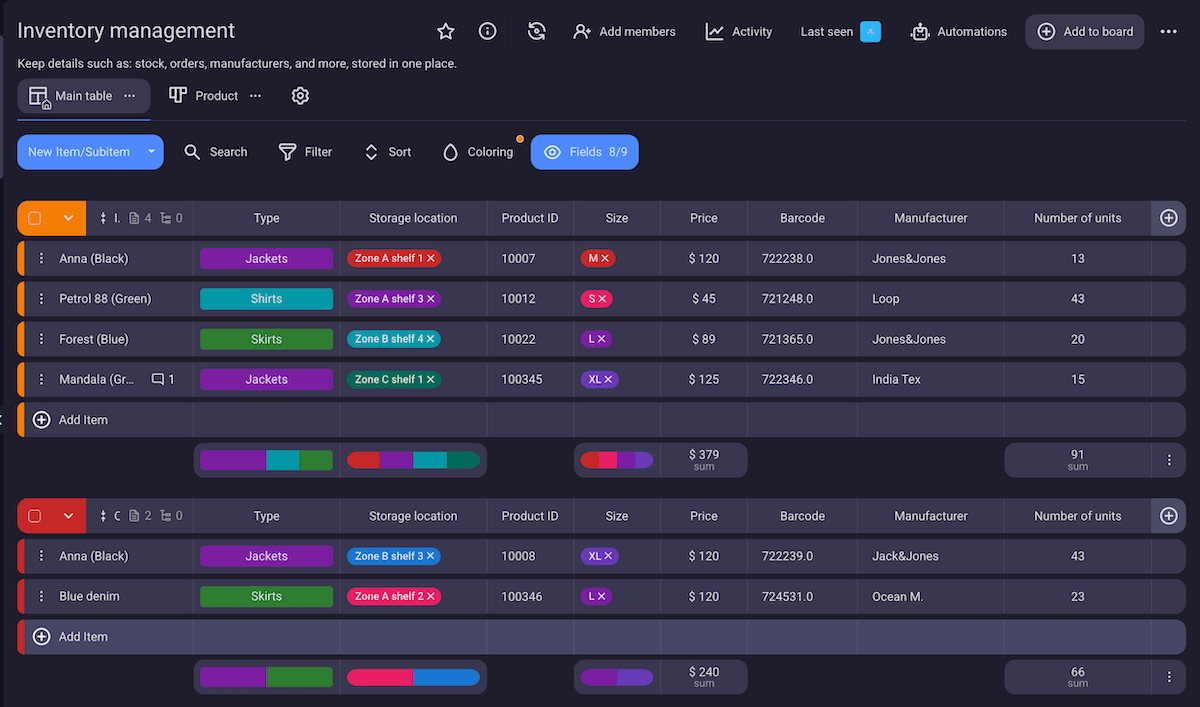
Plaky offers 9 types of custom Fields you can use to include more information about a task. This versatility allows you to add any type of data you need.
Here are some examples of what you can use each field for:
| Field | Usage examples |
|---|---|
| Person | Assignee, Supervisor, Reviewer |
| Text | Task description, instructions |
| Rich text | Bullet lists, checklists |
| Numbers | Budget, number of units in stock |
| Date | Start and due dates |
| Status | To do, In progress, Blocked, Done, etc. |
| Link | Client websites, shared documents and media, etc. |
| Tag | Relevant keywords |
| Timeline | Time periods |
You can also change the name for each field, and have more than one of each — for example, you can have several person fields: one for assignee, one for reviewer, and one for project manager.
Sort and filter options
If you have a large team, the number of tasks on a board can build up over time. Luckily, Plaky offers Sort and Filter options to help you sieve through them.
You can sort and filter your tasks according to:
- Title,
- Person who created them,
- Date they were created, and
- Any field you’ve added.
Of course, these options can be combined to let you arrange your board however you like. And, with an unlimited number of board views, you can simultaneously focus on different things on the same board (e.g. one view with only tasks created by you and marked “In progress”, another for all “High priority” tasks sorted by due date, etc.)
💡 Plaky Pro Tip
Discover newest additions to Plaky’s feature list, as well as what’s in store in the future:
#6 Automate your workspace
There’s nothing worse than having to do boring, menial tasks again and again when you’re busy and your expertise is needed elsewhere. Luckily, you can eliminate them with Plaky’s automations.
Board automations
With Board automations, you can eliminate mechanic tasks that take up your time and pull you away from actual productive work.
Once you’ve optimized your workflow with automations, you don’t have to worry about things such as moving your tasks across the board or adding members to a task — Plaky can do it for you.
For example, you can set up an automation that whenever a task is marked as ”High priority”, you, as manager, are subscribed to it, or when a task is set as “Done” it’s automatically moved to the “Finished tasks” column.
Recurring tasks
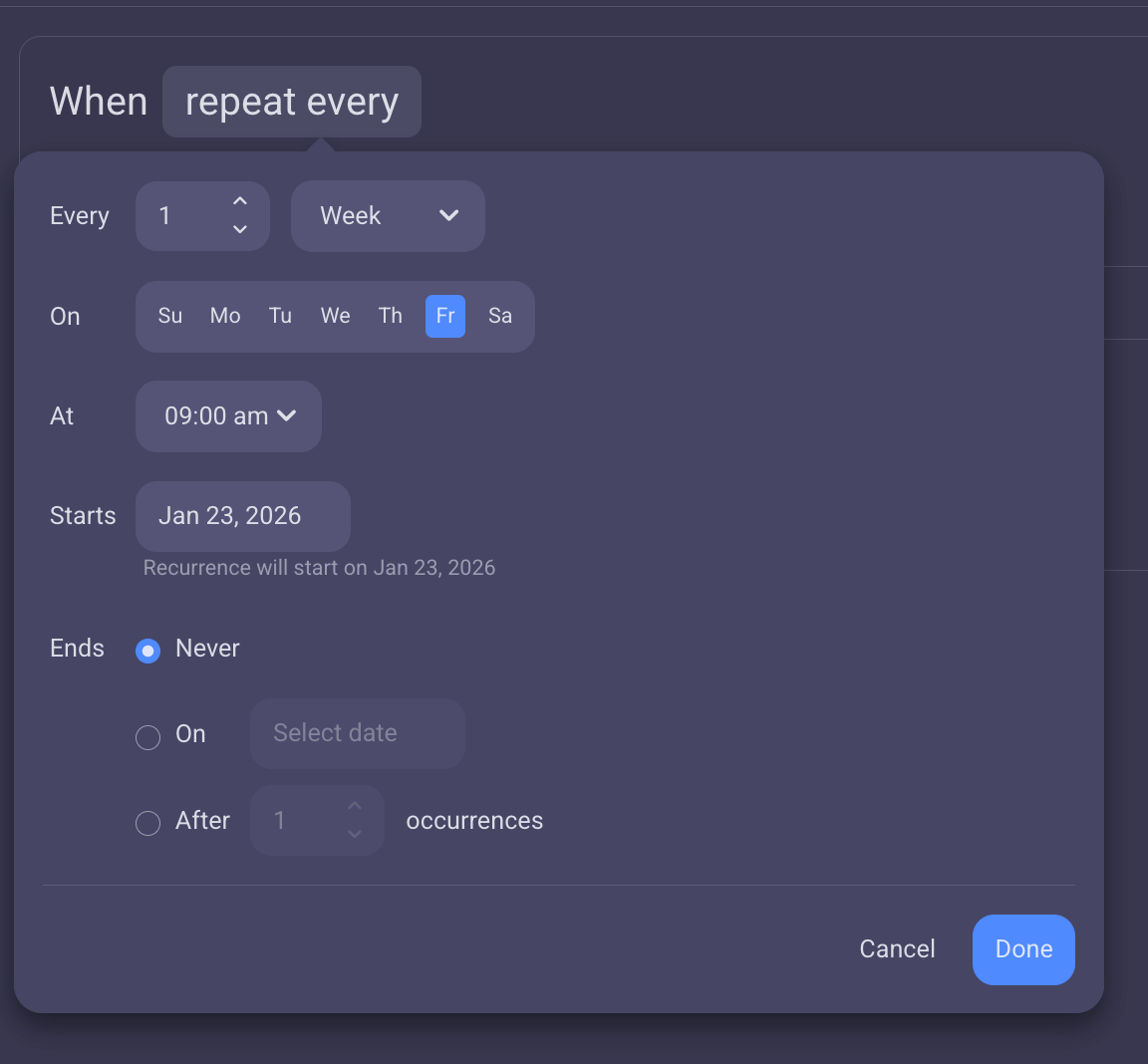
You can set up recurring tasks (daily/weekly/monthly) to create a uniform and dependable system. As most things in Plaky, they are customizable — you can pick custom start times and conditions for ending (on March 1, after 4 repetitions, etc.).
If, for example, every Friday, you need to write a report of your weekly progress, you can set up Plaky so that every Friday morning at 9 a.m., ‘Write weekly report’ task shows up on your board, already assigned to you with the needed fields (deadline, status, priority, etc.)
Conditional coloring
If you want to emphasize pieces of information (for example, tasks due this day, or those with the status “Stuck”), you can use conditional coloring.
You can choose to highlight a field or an entire row. True to Plaky’s love for customization, you can pick the colors you want. This means you can turn to the good old traffic light system — if something is super urgent, color it red, and if it’s important, but not as urgent, you can opt for yellow. Or, choose whatever system suits you.

#7 Support your team without micromanaging it
If you’re worried that your team will think that Plaky is just a tool you introduced to micromanage them, you can relax. Plaky is designed to help you keep an eye on your team’s progress without disturbing them and making them feel like you’re hovering.
Task Assignees
In Plaky, tasks can be assigned to one or more team members or even the entire team. This gives you a picture of who’s in charge of what, resulting in clear accountability.
Moreover, you don’t have to ask your team members what they’re working on, making them think you’re doubting them or checking if they have enough workload. You just look at the board, and all the information is there.
Bonus: Once you’ve assigned all tasks, you can track them in the My tasks page. Use it for a unified view of all your tasks or someone else’s.
Task statuses
Thanks to the color-coded status field, you always know how the tasks are progressing, without having to constantly ask your team and make them feel like you’re pressuring them.
Combined with the summary row, which, among other things, lets you see the aggregate of all task statuses, you can track how the entire project is progressing as well.
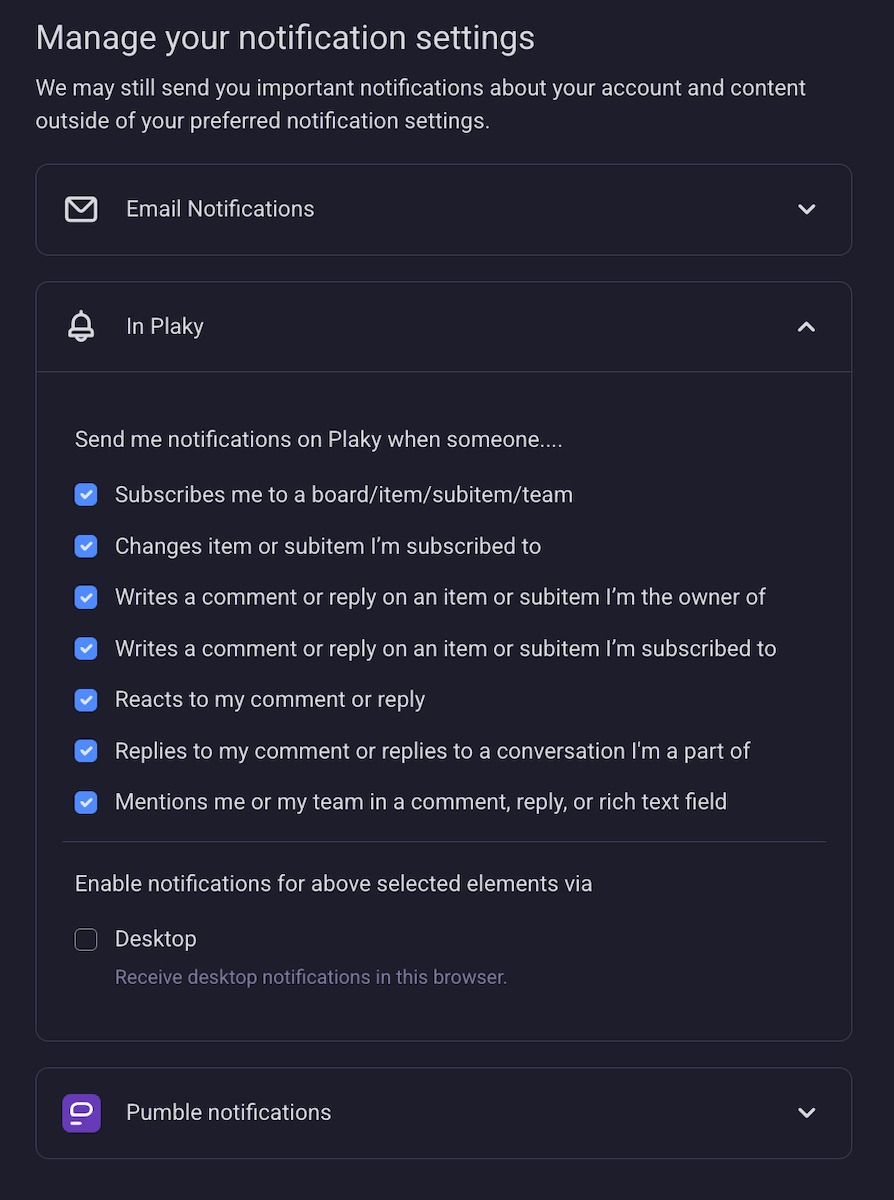
Notifications
Stay notified of all task and project changes in Plaky, no matter where you are.
No need to ask your team for updates — Plaky will notify you about everything you need to know: whether it’s a new comment, reply, status change, etc., you’ll receive a notification in the app and/or via email, depending on what you chose.
But, if constant notifications stress you out, you can always turn off some of them — simply toggle off notifications you don’t want to receive.
Bonus tip: If you like receiving notifications in your messaging app, check out Plaky’s integration with Pumble.
FAQ
Here are some of the most frequently asked questions about managing your team in Plaky.
What’s the best way to introduce Plaky? All at once, or one project at a time?
The best way to introduce Plaky to your business is to start with one project to see how it functions. Then, once you’re sure that it suits your workflow (and it will), you can transfer your entire business to Plaky.
💡 Plaky Pro Tip
If you’re not sure how to transfer your work to Plaky, check out the following articles:
What are the 3-5 key features we should focus on first, so we don’t get overwhelmed?
If you’re new to Plaky, you can start with the basics. Focus on:
- Creating a board in Table view,
- Adding appropriate custom Fields,
- Grouping tasks, and
- Assigning them to team members.
However, Plaky is so user-friendly that even if you dive in the deep end right away, you won’t be overwhelmed. So, don’t worry, and sign up for a free trial!
How much time does the onboarding take? We don’t have time for a 3-week training program.
Plaky is highly intuitive and easy to adopt — you can introduce it to your team with just a quick onboarding presentation. No need to waste weeks of your team’s time on exhausting training as is the case with many other tools.
How should I frame the ‘kick-off meeting’ to focus on the benefits for my team?
In the kick-off meeting, point out to your team that by adopting Plaky, they will see many benefits, including:
- Fewer meetings,
- Fewer check-ups by their superiors,
- Easy collaboration, and
- Clear work distribution.
Transform your team management with Plaky
As we thoroughly explained in the article, you can rely on Plaky to organize your team’s workflows. It offers a large number of team and project management features that help you manage your team’s as well as your own workload.
But, there’s more to this platform than just high-end features. Plaky’s all-rounded tool that offers:
- Enterprise-grade security — Your data is safe at all times thanks to end-to-end encryption, relevant security certifications, and bug-bounty programs.
- Human-based customer support — Customer support agents are available 24/7 for a call, chat, or email, and they have 95% satisfaction ratings.
- Great price/value relationship — Plaky has a fair pricing system that includes a strong free forever plan, Pro plan ($3.99/user/month), and Enterprise plan ($8.99) where you can get everything we mentioned above and more.

Eliminate noise from team collaboration, and improve productivity with Plaky!
How we reviewed this post: Our writers & editors monitor the posts and update them when new information becomes available, to keep them fresh and relevant.