Often ranked high in best PM tool lists, Wrike is verified as one of the dominant platforms in the project management world.
Still, Wrike can be too complex and too expensive for teams looking for basic project management.
That’s why I started searching for tools similar to Wrike and found 9 worthy alternatives. I tested each one and reviewed the essentials — pros, cons and prices.
Hopefully, my list will help you find the best Wrike alternative for managing your projects and teams.

WHY TRUST US?
The apps we talk about are selected, tested, and written about by human reviewers who follow strict review and editorial guidelines. We pick solutions that are practical, purposeful, and can offer real value for the specific use case or business context we’re covering — while also being justified in their pricing. Our methodology is transparent, clear, and available to everyone:
Do you need a Wrike alternative?
You should consider going for alternatives to Wrike if:
- Wrike has become too expensive for your small team since a couple of necessary features require upgrading to a higher plan.
- Your team is growing, and you’re forced to pay for enterprise-level features that you won’t even need, since Wrike limits the number of users on lower-paid tiers.
- Onboarding newbies or freelancers is time consuming and demanding due to Wrike’s steep learning curve.
- Wrike’s too complex, and your team has problems adopting it fully.
With all these in mind, I’ve looked for apps offering the same or similar features as Wrike, but with a cheaper lowest paid plan.Also, I’ve made sure to include apps that either have a free trial or a free plan so that you can try them on your own and see which one matches your preferences.
Top 9 Wrike alternatives — overview
Here’s an overview of the main characteristics of all the apps you’ll find on my list. Scroll down for more details!
| App | Best for | Free trial | Free plan | Lowest price |
|---|---|---|---|---|
| Plaky by CAKE.com | Enterprise teams | ✔️ | ✔️ | $3.99/seat/month* |
| Asana | In-app team communication | ✔️ | ✔️ | $10.99/user/month* |
| monday.com | Team collaboration | ✔️ | ✔️ | $9/seat/month* |
| ClickUp | Sprint management | ✔️ | ✔️ | $7/user/month* |
| Teamwork | Client work | ✔️ | ✔️ | $10.99/user/month* |
| Bonsai | Freelancers | ✔️ | ❌ | $9/user/month* |
| Jira | Agile project management | ✔️ | ✔️ | $7.91/user/month for teams of up to 300 members, billed monthly |
| Zoho projects | Software development | ✔️ | ✔️ | $4/user/month* |
| Productive | Resource management | ✔️ | ❌ | $9/user/month* |
* billed annually
#1 Plaky by CAKE.com — best for growing teams
Plaky is a cloud-based project management tool that can be used in many industries thanks to its highly customizable features, flexibility, and ease of use. With Plaky, teams of any size can simply organize their projects and tasks in one centralized space.
Why choose Plaky?
Plaky is a robust and reliable platform very similar to Wrike in terms of project and team management. It stands out for its ease of use, granular administrative system, and a generous free plan you can easily upgrade once your team starts to grow and needs premium features.
| Pros | Cons |
| – User-friendly interface – High customization abilities – User roles and permissions – Affordability | – Limited integrations |
My team and I use Plaky to organize our content projects, files, and deadlines, so I am quite at home with the tool. It is an intuitive and foolproof platform that grants fast onboarding to all users — no matter if they have previous experience in using a PM tool or not.
So, if you’re currently struggling to organize your growing team, you can rely on Plaky to help you plan your projects, centralize communication, and establish team hierarchy.
Whether you’re starting your projects from scratch or using one of Plaky’s pre-made templates, you can use different board views and custom fields to adjust your project board so that it suits your needs and preferences. For example, you can add due dates, assign team members, define timelines, and include status fields that help you track your projects’ progress.
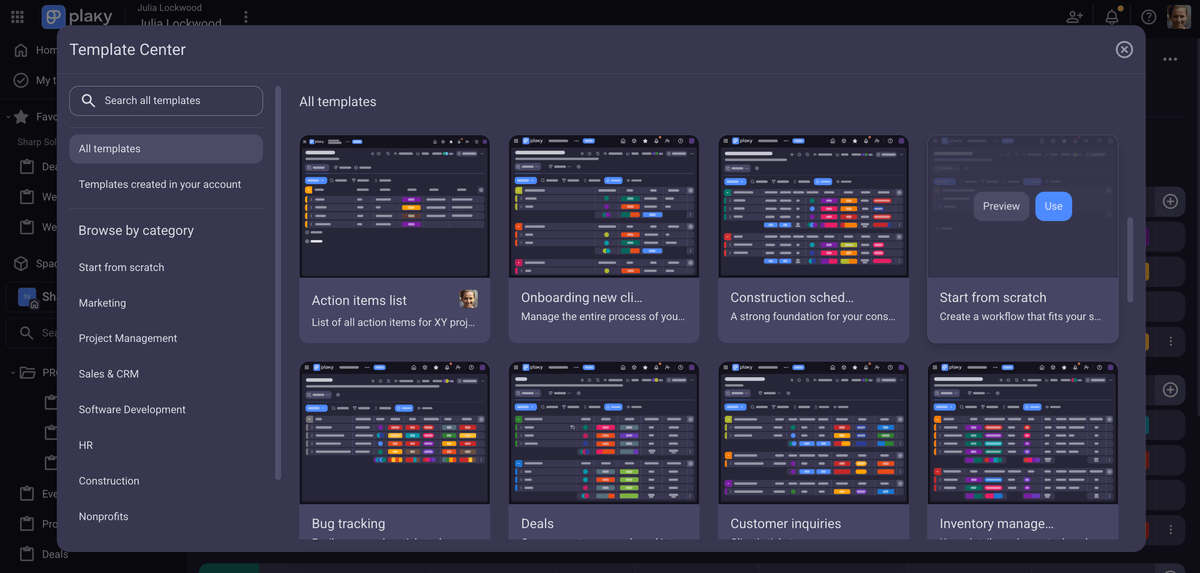
With Plaky, you don’t have to worry about losing sight of important details as, no matter how many people work on a project, everyone has access to the same updates and gets them in real-time. Plus, all task-related discussions and information are kept within a task, which reduces miscommunication and enables knowledge retention.
Another great thing about Plaky is its granular system of user roles and permissions. Namely, you can control who can see and edit information and also define access based on roles such as team manager, team member, product owner, etc.). This helps your growing team to maintain responsibility and accountability.
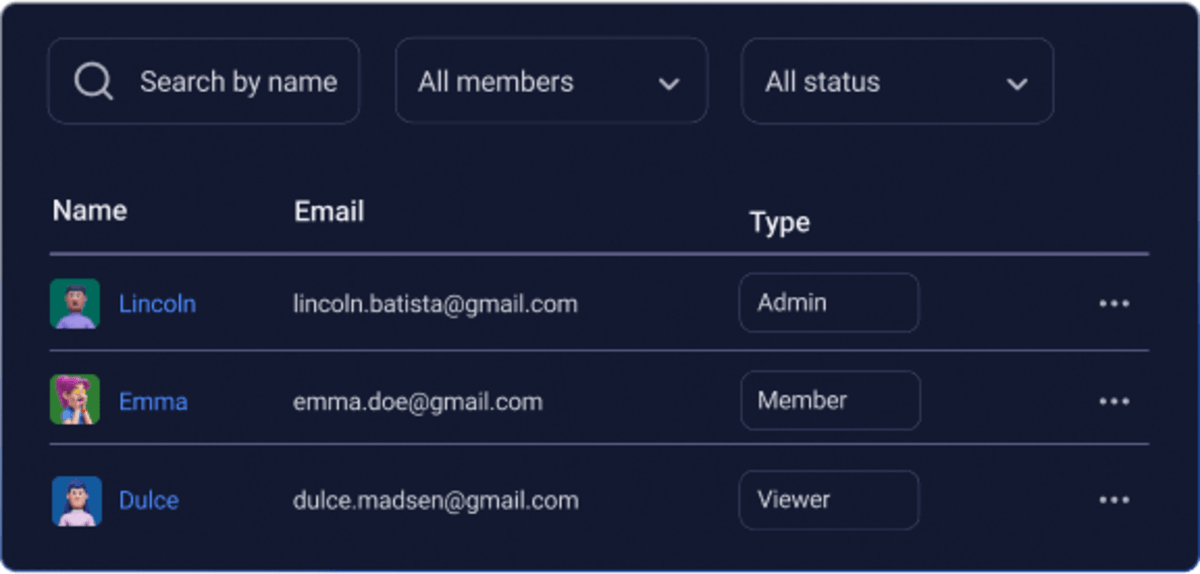
Now, if you’re currently running a small team, but there are chances it will grow, Plaky supports you as it offers unlimited users, projects, tasks, spaces, and boards on all its plans, even the free one. Unlike Plaky, Wrike allows unlimited users on its free plan, whereas its Team plan limits the number of users 2–15 and its Business plans allows 5–200 users.
Another place where Plaky outperforms Wrike is customer support. While all Plaky’s plans include 24/7 live human support, Wrike free tier users have to rely on Wrike’s help center and Community (which is great, btw). However, to get 24/5 phone support or 24/7 web form support, you’ll need to pay extra as that type of service is considered as premium.
The only downside is that Plaky has limited integrations. At the moment, Plaky integrates with the time-tracking app Clockify and team communication app Pumble.
💡 PLAKY PRO TIP
Interested to find out why growing teams love Plaky? Check out the article below:
What’s new in Plaky?
The most recent additions are easily found in Plaky’s changelog, and they include My tasks section, comment & reply reminder, and Plaky + Pumble integration.
Available for: web, MacOS, Windows, iOS, and Android
| Plan | Price |
|---|---|
| Free | $0 |
| Pro | $3.99/seat/month* |
| Enterprise | $8.99/seat/month* |
| CAKE.com Bundle | $12.99/seat/month* |
*billed annually

#2 Asana — best for in-app team communication
Asana is a feature-packed project management platform and one of Wrike’s major competitors. It provides features that support both small and enterprise teams and can help you organize a variety of workflows.
Why choose Asana?
Asana is a well-rounded tool like Wrike, but with various options to communicate within the app and a more user-friendly interface.
| Pros | Cons |
|---|---|
| – User-friendly – Private, team, and project messages – Goals and portfolios | – No multiple task owners – 10-user cap on the free plan |
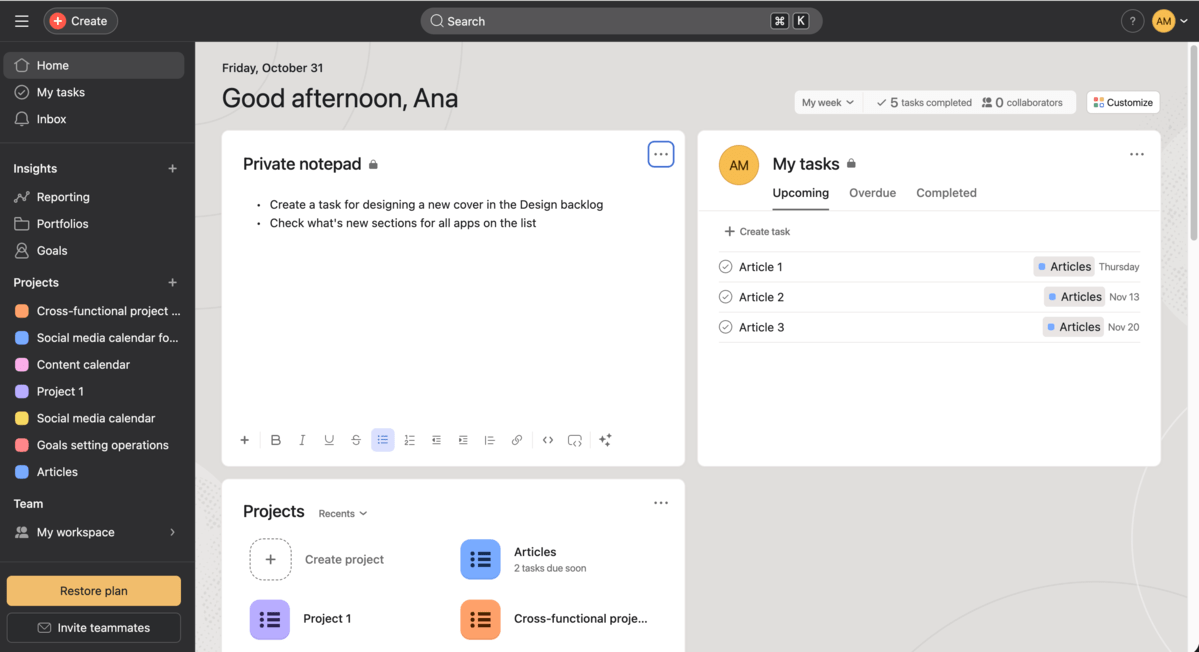
Although its design is visually similar to Wrike’s (black sidebar and white project boards by default), Asana manages to keep its interface clear and minimalistic. This is evident in its well-organized sidebar with dedicated sections for the user, teams, insights, and projects, which makes navigation straightforward.
Unlike Wrike, Asana offers a personal space (Home) in the form of a dashboard, where it greets you and shows you the latest info on your tasks, projects, status updates, etc. I especially liked that I was able to customize it, add widgets, and even include a notepad where I jotted down some new ideas for my articles.
While both Wrike and Asana offer in-task comments, inbox, and file sharing, Asana offers built-in messages that help you enhance team communication within the app. You can send and receive private, team, or project messages, which allows you to share updates, announcements, files, and so much more. So, with Asana, all project/team-related communication is kept in one place and not scattered all over different DMs.
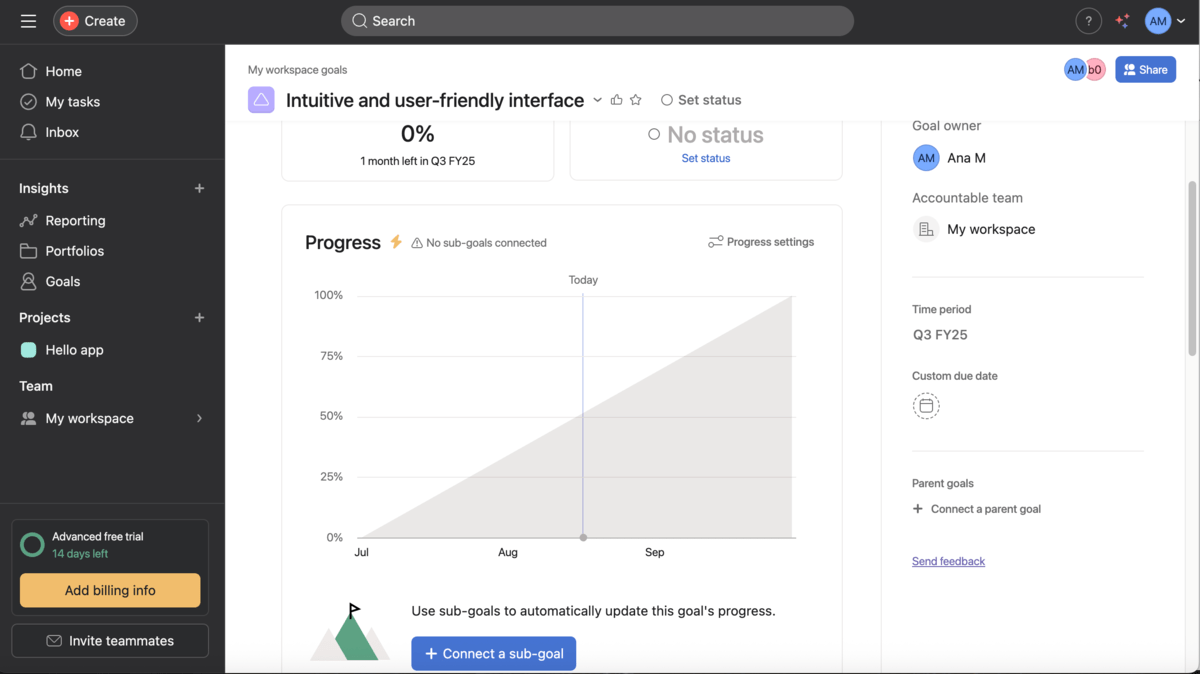
Starting from Advanced plan and up, Asana provides features like Goals and Portfolios, which are great for progress tracking. You can create Goals on a company, team, or individual level to get an insight into whether you’re on a good way. With Portfolios, you can gather all your projects in one place and compare their progress.
However, one of the things I disliked is that, unlike Wrike, Asana doesn’t allow you to assign more than one person to a task. This can be confusing if several people work on the same task, which is often the case in larger projects and teams.
Still, the main drawback for Asana is its 10-user cap on the free plan. Although it includes unlimited tasks, several views, and unlimited storage, large teams are forced to sign up for a paid plan.
Unlimited users — a must in Plaky by CAKE.com
What’s new in Asana?
Asana has recently introduced several updates, including new password requirements (min. 8 characters) and the option to transfer ownership of rules to another coworker. Also, Asana has changed time entry editing permissions so that you can no longer edit other user’s time entries.
Available for: web, MacOS, Windows, iOS, and Android
| Plan | Price |
|---|---|
| Personal | $0 |
| Starter | $10.99/user/month* |
| Advanced | $24.99/user/month* |
| Enterprise | POA |
| Enterprise + | POA |
*billed annually
💡 PLAKY PRO TIP
Asana is an established player in the project management world. Check out how we compared it with other similar tools:
#3 Monday.com — best for team collaboration
Monday.com is a highly customizable platform that offers a great collection of integrations, automations, and templates to its users.
Why choose monday.com?
Monday.com is particularly useful for teams that work closely together on a daily basis and need different options to solve issues, make suggestions, provide feedback, and share files.
| Pros | Cons |
|---|---|
| – Board and task discussions – Updates feed – Monday workdocs | – Odd pricing structure – Chatbot available for paid plans only |
When I opened my account, monday.com asked questions on the number of people in my team and company, and allowed me to choose my use case, views, columns, and widgets. So, I managed to create my first project board in the wink of an eye. Pop-ups really helped me navigate the app and understand how things work.
With its vivid color scheme, this app keeps your attention, even if you aren’t a fan of spreadsheet-like designs. In monday.com, you can easily drag and drop tasks and columns around the board, which makes board (re)organization seem like a game.
When it comes to team collaboration, monday.com keeps things effective and simple with board and task discussions. Board discussions are useful as you can include all board members and allow them to give feedback, post updates and announcements, and share files. Task discussions are more focused on specific task issues, which helps relevant team members to stay on the same page.
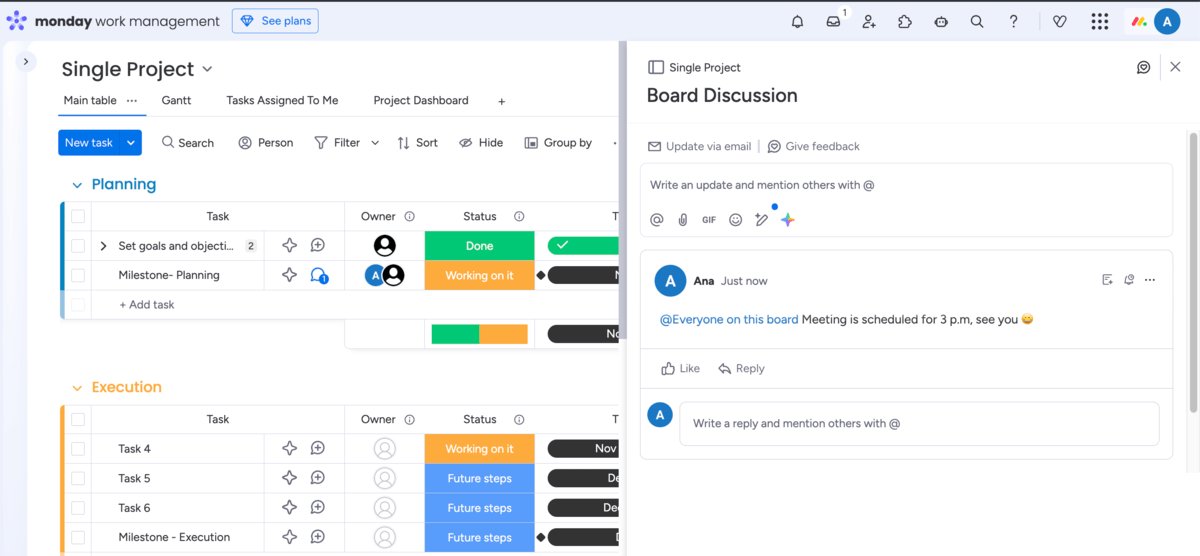
And, to keep you informed, Wrike offers an Inbox section that stores all relevant updates, while monday.com has an Update feed where you can see all updates from boards and tasks you’re a member of. You can bookmark important updates (archive in Wrike) in both apps, but monday.com gives you an additional and really practical option — to schedule updates for later i.e. when it suits you and your team members.
Another interesting feature you get in all monday.com’s plans is monday workdocs — a powerful workspace where you can:
- Connect your team,
- Collaborate on the same project/task,
- Allow multiple editors to co-edit in real-time,
- Tag team members,
- Receive live updates, and
- Embed widgets, tables, images, and more.
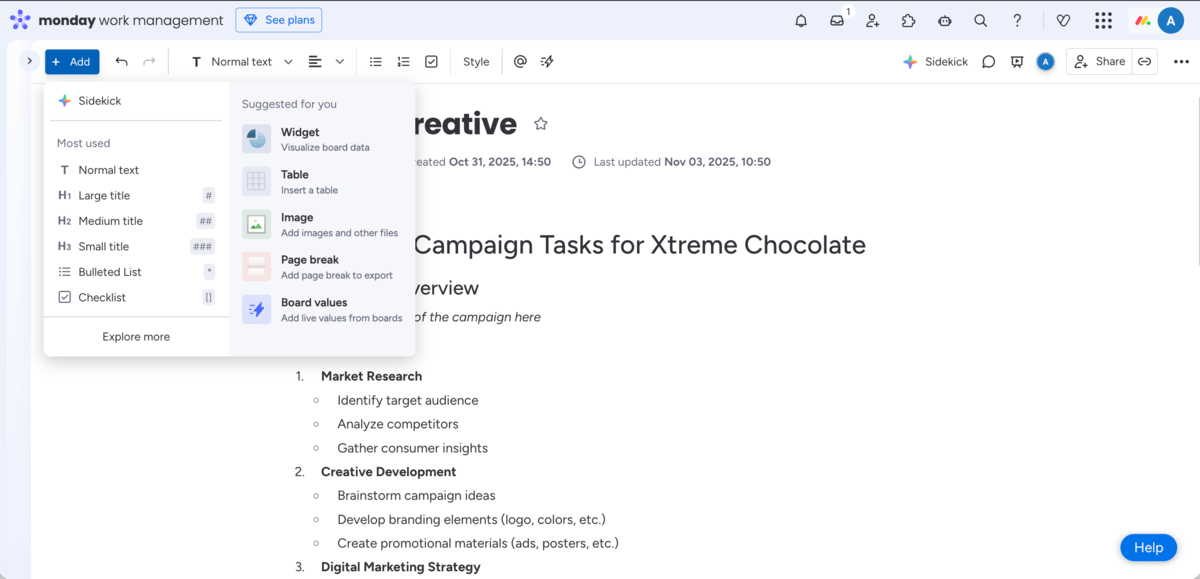
As for the downsides in monday.com, this app offers AI chatbot on its paid plans only whereas Wrike enables this feature starting from its free plan.
Yet, the main deal breaker for potential users will probably be monday.com’s pricing structure. This app charges per group seats making you pay in fixed increments (e.g. 3, 5, 10, 15, etc.). So, if your team has, let’s say, 12 users, you have to pay for 15. This means that monday.com is constantly charging you for the seats you don’t even need.
What’s new in monday.com?
The latest monday.com’s release is monday magic — a feature you can use to describe your workflow in a prompt and let the AI help you create the work solution that matches your needs.
Available for: web, MacOS, Windows, iOS, Android
| Plan | Price |
|---|---|
| Free (max. 2 users) | $0 |
| Basic (min. 3 users) | $9/seat/month* |
| Standard (min. 3 users) | $12/seat/month* |
| Pro (min. 3 users) | $19/seat/month* |
| Enterprise (min. 3 users) | POA |
*billed annually
💡 PLAKY PRO TIP
Monday.com has many features to be proud of, but check out the articles below to see how it compares to other tools:
#4 ClickUp — best for sprint management
ClickUp is a feature-packed platform that advertises itself as “the everything app for work”. It can support a variety of teams — from development to sales to education.
Why choose ClickUp?
ClickUp is a highly customizable tool offering a range of features to support teams who prefer working in sprints but want to simplify their project workflows.
| Pros | Cons |
|---|---|
| – Sprint management on the Free plan – Sprint points – Backlog automation – Real-time dashboards | – Steep learning curve – Sprint reporting only on Business and Enterprise plans |
The moment you open an account in ClickUp, you’ll find yourself in a candy store. Vibrant colors, 15+ views, interactive dashboards, and tons of options are all packed within the app. Still, the tool can be complicated for first-time users of PM tools — so you might want to start with a simpler, yet robust ClickUp alternative first.
ClickUp allows you to manage your sprints from start to finish on all its plans, which is a real advantage in my eyes.
To plan my first sprint, I had to activate the Sprints ClickApp option from the App Centre (ClickApps help you customize your workspace). I set my default sprint settings and also noticed one feature that I didn’t find in Wrike — sprint points. By defining sprint points, you can estimate the amount of effort needed to finish tasks within a sprint, which is handy for future estimations.
As for sprint management in Wrike, you’ll mostly rely on templates including Agile teamwork, Sprint retrospective, and Sprint planning template.
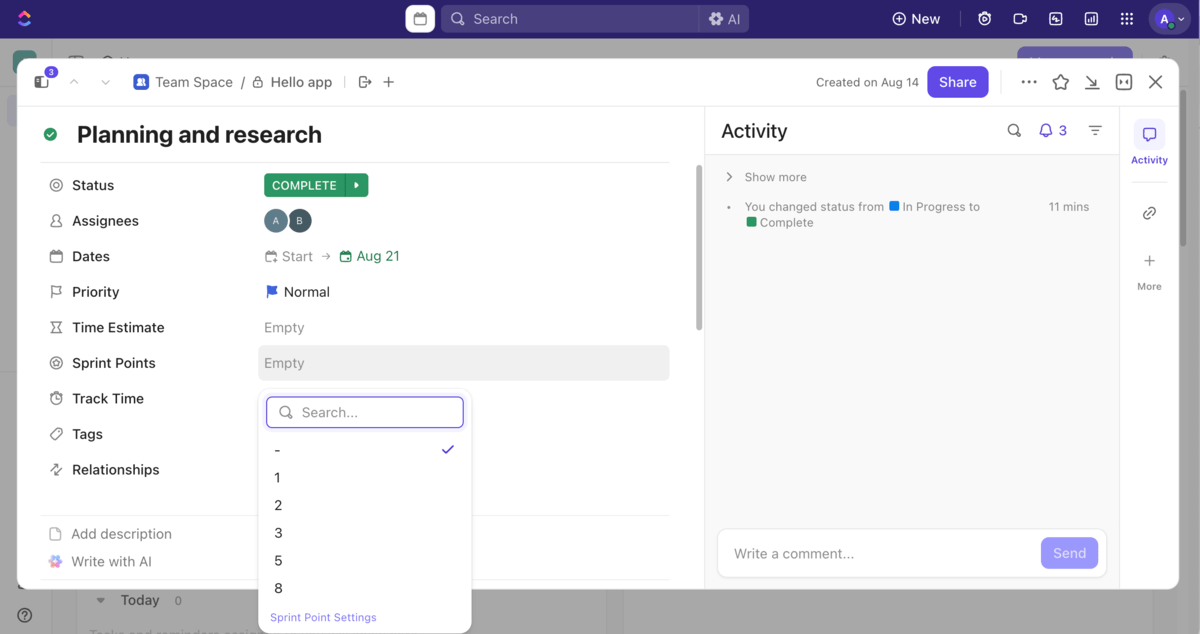
As sprints and backlogs go hand in hand, ClickUp allows you to apply automation to your backlog to assign tickets, update sprints, manage handoffs, and more. This will save you time you would otherwise spend on moving items manually and reorganizing the backlog day by day.
Like Wrike, ClickUp has real-time dashboards that are useful to track progress, monitor releases, bugs, velocity, and more.
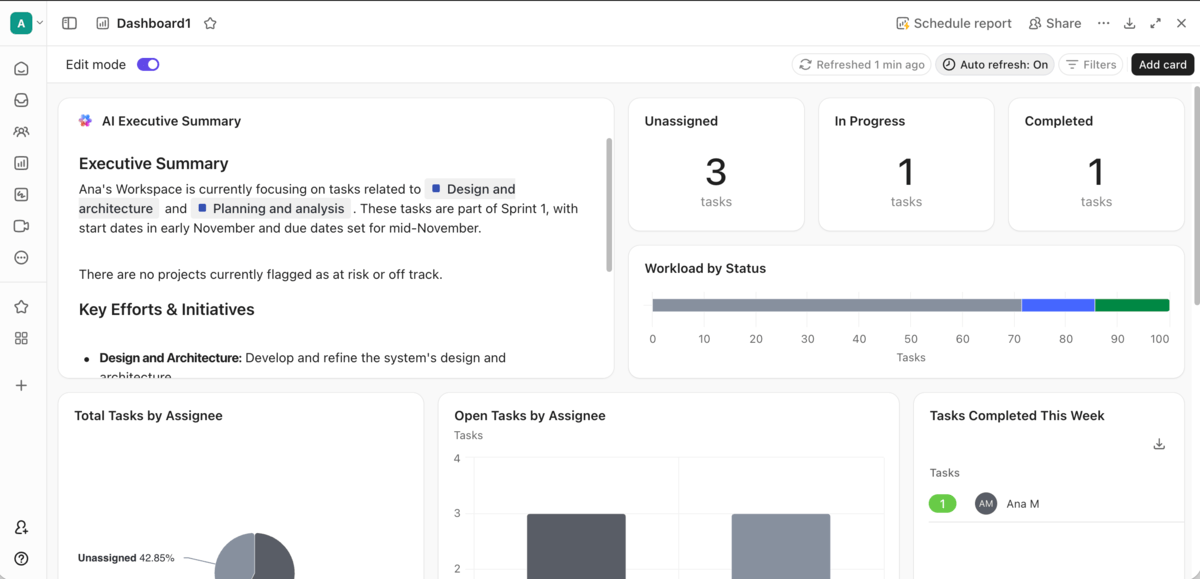
Taken together, all these features make an attractive package for sprint management. However, if you want to have Sprint reporting or time tracking features, you’ll need to go for ClickUp’s Business or Enterprise plan.
What’s new in ClickUp?
ClickUp has introduced several updates and upgrades such as a new automation trigger for task name updates and AI notetaker that you can send to meetings to capture notes and recordings for you. Also, now you can use AI to create subtasks from actionable task comments.
Available for: web, MacOS, Windows, Linux, iOS, and Android
| Plan | Price |
|---|---|
| Free | $0 |
| Unlimited | $7/user/month* |
| Business | $12/user/month* |
| Enterprise | POA |
*billed annually
#5 Teamwork — best for client work
Teamwork is a project and resource management tool specialized for client-company collaboration, capacity planning, and project profitability tracking.
Why choose Teamwork?
Teamwork is a flexible tool mostly used by service providers to help them improve client collaboration, schedule resources, and plan work efficiently.
| Pros | Cons |
|---|---|
| – Automations on the free plan – Native time-tracking – Clients view – Proofs and forms | – 5-user cap on the Free plan – Poor customer support |
Teamwork gives a 30-day free trial, so I had plenty of time to test the app. I had to provide my phone number, but, to my surprise, they didn’t call — which I honestly appreciate.
The app is really intuitive and easy to navigate, so you won’t need to consult help pages for basic project organization.
With Teamwork, you’ll be able to automate processes and free up your busy schedule whatever plan you opt for. There are automation templates available, and you can create event-based or time-based triggers to streamline your work. Just to remind you, Wrike doesn’t offer automations on its Free plan.
Also, unlike Wrike, Teamwork includes time-tracking in all its plans. I could log my time manually or start a timer for each of my tasks.
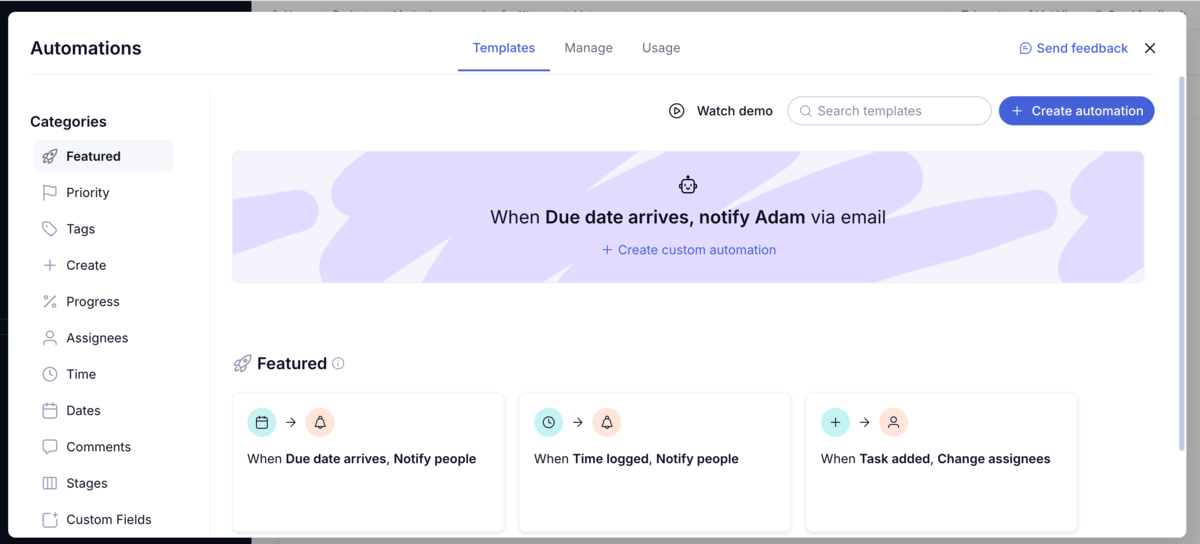
The area where Teamwork truly stands out is client work. All plans include features such as:
- Timesheets,
- Billable time-tracking,
- Clients view,
- Proofs, and
- Invoices.
What I found quite handy is Clients view, which gives you a complete overview of all your clients and projects you collaborate on. And, on paid plans you can add client users, which is helpful when you need their approval or feedback.
Speaking of feedback, proofs and forms are great features that ease collaboration in Teamwork. With proofs, you can streamline the client feedback process and manage reviews and approval processes. And, to get feedback or send a request to a client or your team, you can publish forms. The answers you get will automatically be turned into tasks.
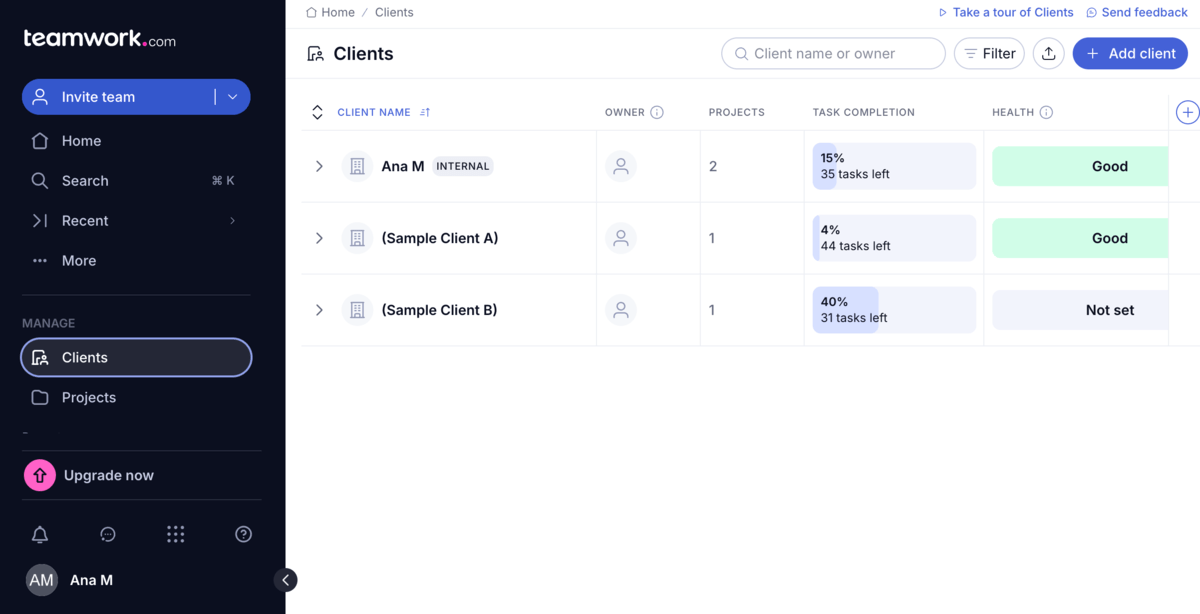
For the record, if you have up to 5 users in your team and manage no more than 5 projects, you’ll be able to use Teamwork for free. Once your team starts to grow, you must opt for one of the paid plans.
Still, even though I consider Teamwork to be a great app, I think they should improve their customer service. Premium support and a dedicated customer success manager are available for Enterprise plan users only. Users on lower-tier plans are left to rely on a support team available for only 5 hours a day, from Monday to Friday. Or, they can submit a ticket via the web page and wait.
What’s new in Teamwork?
In September, Teamwork added several UX enhancements to its views, but the most notable update for the platform is an AI profitability forecaster that uses your project data to predict revenue, costs, and profit.
Available for: web, MacOS, Windows, Linux, iOS, and Android
| Plan | Price |
|---|---|
| Free (up to 5 users) | $0 |
| Deliver (min. 3 users) | $10.99/user/month* |
| Grow (min. 5 users) | $19.99/user/month* |
| Scale | POA |
| Enterprise | POA |
*billed annually

#6 Bonsai — best for freelancers
Bonsai is an all-in-1 platform that rounds up client management, project management, and time management. It is a great choice for service-based industries like creative, consulting, and accounting.
Why choose Bonsai?
Bonsai is an all-around tool that allows you to manage projects and tasks along with proposals and contracts — and all that while keeping track of time, payments, and deals pipeline. Freelancers and small teams can basically complete the entire process — from setting proposals to invoicing their work — within one tool.
| Pros | Cons |
|---|---|
| – Integrated time-tracking – Unlimited client users – Client portal – CRM | – No free plan – Intrusive questions when opening an account |
To tell you the truth, I was close to removing this app from my app list for 2 reasons. Firstly, I needed to disclose my company’s yearly income when signing up, and I don’t see why the app would need this information. Secondly, when signing up for a 7-day free trial, I was asked to leave my credit card details. I chose maybe later option and was immediately prompted to a limited access plan.
Still, I was able to try out how the app works in general. As with any other tool on this list, you get standard project management features like different views, status, assignees, due dates, and similar. I noticed you can also add estimates, billing, type of service, and time for every task.
The app is full of different functions and, honestly, I don’t think a 7-day period is long enough to understand and try out all of them.
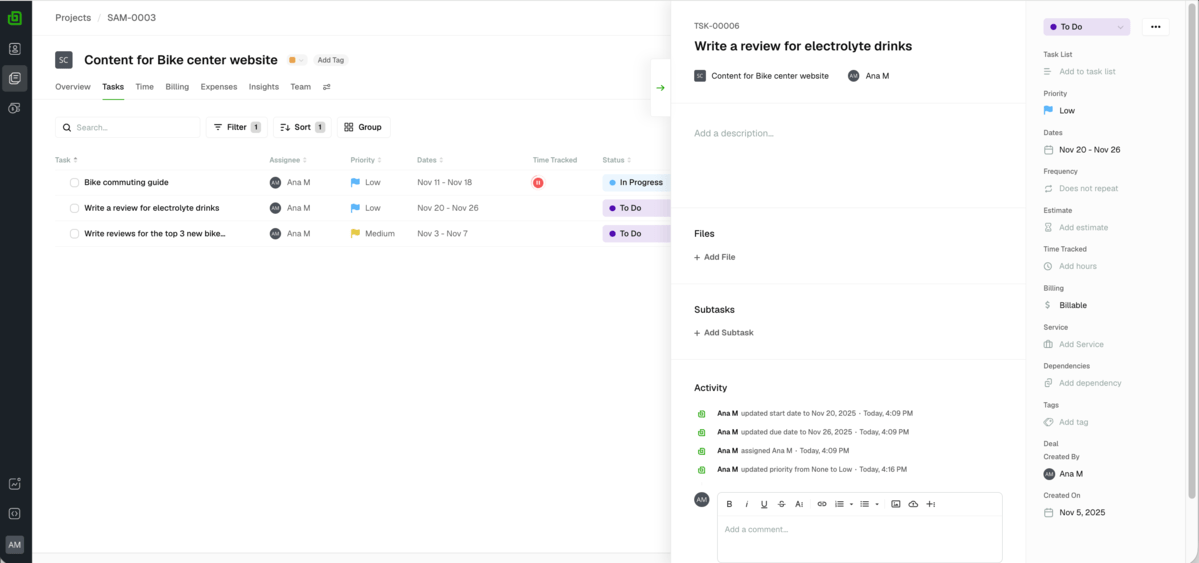
When it comes to time tracking, there’s a timer in the heading that you can easily set off. You can also start tracking time for each task from the dedicated task card. If you’re a freelancer that’s paid per hour, the time tracker will secure you have accurate timesheets. Wrike, on the other hand, enables you to track time using a live timer or by adding time to the time log on your own. However, you can only do it when you opt for Wrike’s Business or other higher plans.
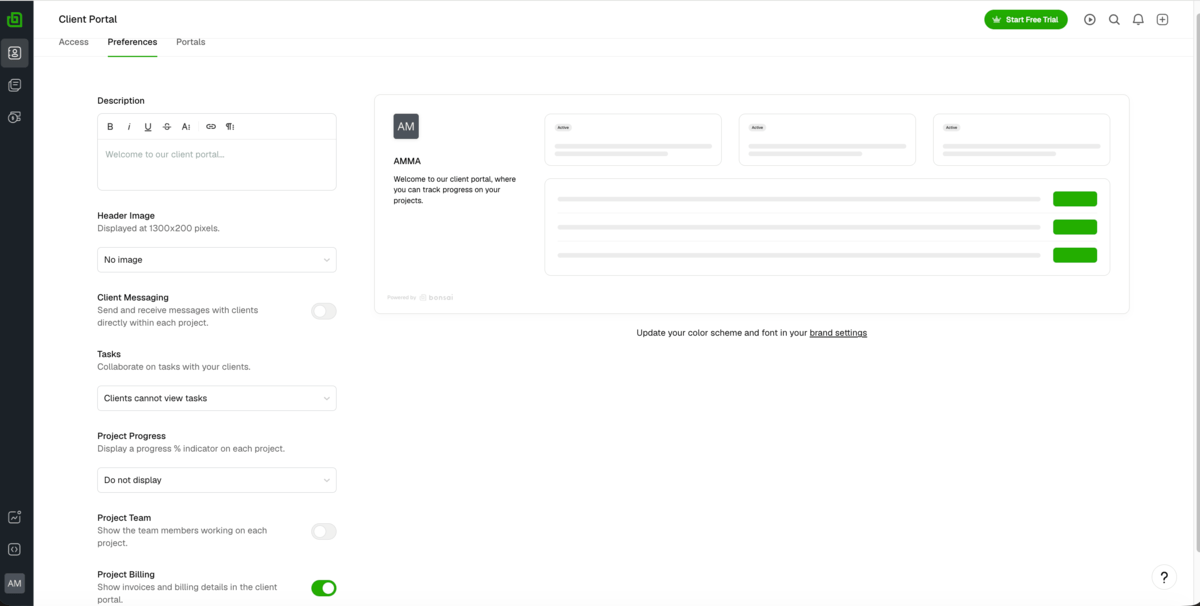
In Bonsai, you can have as many client users as you want and interact with them through the client portal. It serves as a central hub for collaboration and, from here, your clients can access projects, documents, files, and invoices. There’s also a built-in messaging feature for seamless communication.
Client portal is one of the features that belongs to the inbuilt Bonsai CRM functionality. While Wrike relies on integrations to provide CRM solutions, Bonsai helps you manage clients, sales pipeline, and documentation from start to finish. CRM is available in all plans, however, you can’t have features like proposals, contracts, and deals pipeline on the lowest-paid plan.
As for some disadvantages, Bonsai lacks a free plan, which I think would attract more users to explore its great features before they decide to commit to paid plans.
Try Plaky by CAKE.com for free
What’s new in Bonsai?
The latest addition to Bonsai’s platform is the comment section in the project board. From here you can make comments related to your project and use @mention to tag relevant people.
Available for: web, MacOS, iOS, and Android
| Plan | Price |
|---|---|
| Basic | $9/user/month* |
| Essentials | $19/user/month* |
| Premium | $29/user/month* |
| Elite (min. 3 users) | $49/user/month* |
*billed annually
#7 Jira — best for Agile project management
Jira is a comprehensive platform that supports Agile frameworks and is specialized for software development, backlog management, and issue tracking.
Why choose Jira?
Jira is loaded with features that help Agile teams manage their workflows such as backlog and timeline view, reports and insights, pre-made templates, and more.
| Pros | Cons |
|---|---|
| – Reports and insights on the free plan – Dependency management – Over 3,000 integrations – The Agile Coach and Agile for leaders resources | – Steep learning curve – 24/7 support available only on Premium plan and Enterprise plans |
I can honestly say that I don’t think Jira is a user-friendly tool. I didn’t find it as intuitive as some other tools on the list, and I had to consult help pages to find how to customize my board without making a mess somewhere else in the app.
Now, in terms of agile project management, Jira offers reports and insights features starting from its Free plan. Mind you, Wrike offers real-time reports only on its Business and higher paid plans.
I found insights within the backlog and board views quite handy. This feature pulls out data from your board to show you the current project status and help you with decision making.
To get reports, you need to add this tab to your project board’s top bar, and you’ll find several reporting options such as velocity chart, cumulative flow diagram, burnup report, etc. These reports are extremely valuable as they enable you to:
- Visualize the completed work,
- Track the remaining time, and
- Predict the amount of work your team can commit to.
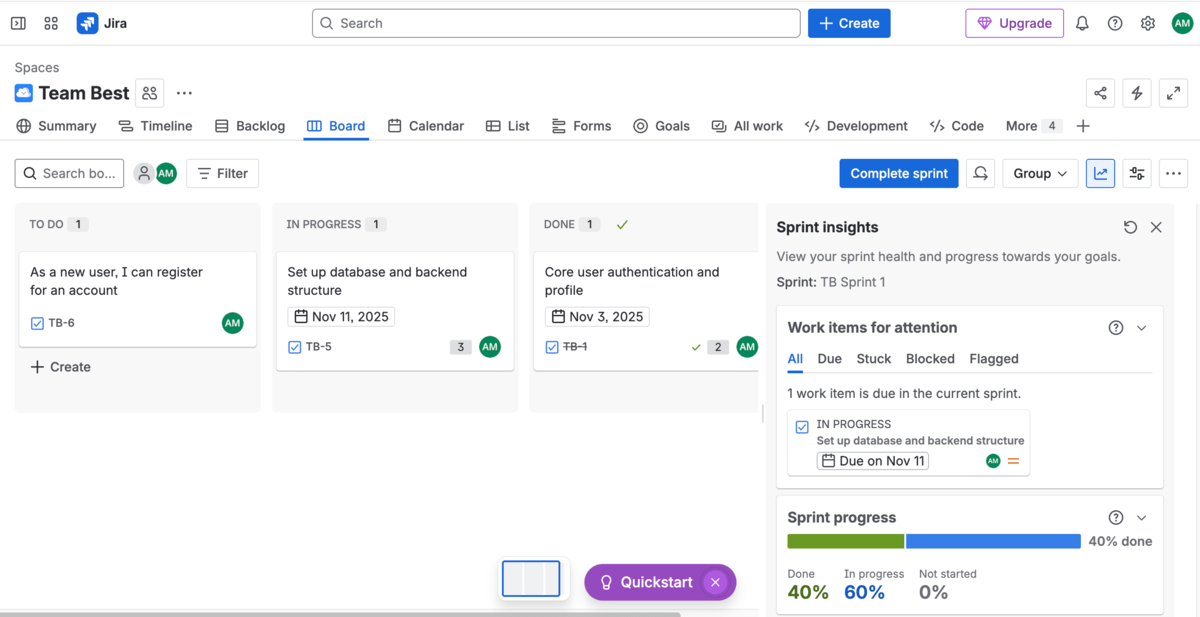
You can manage project dependencies right from your timeline view in Jira. This helps you spot blockers and contingencies and adapt project plans to keep them on track. I must highlight that Jira’s Free and Standard plans allow you to control dependencies on single projects only, while on higher paid plans you can do that on multiple projects.
Another point where Jira excels is the number of integrations. You can choose from over 3,000 apps and integrate the tool with famous names like Slack, Figma, GitHub, and so much more.
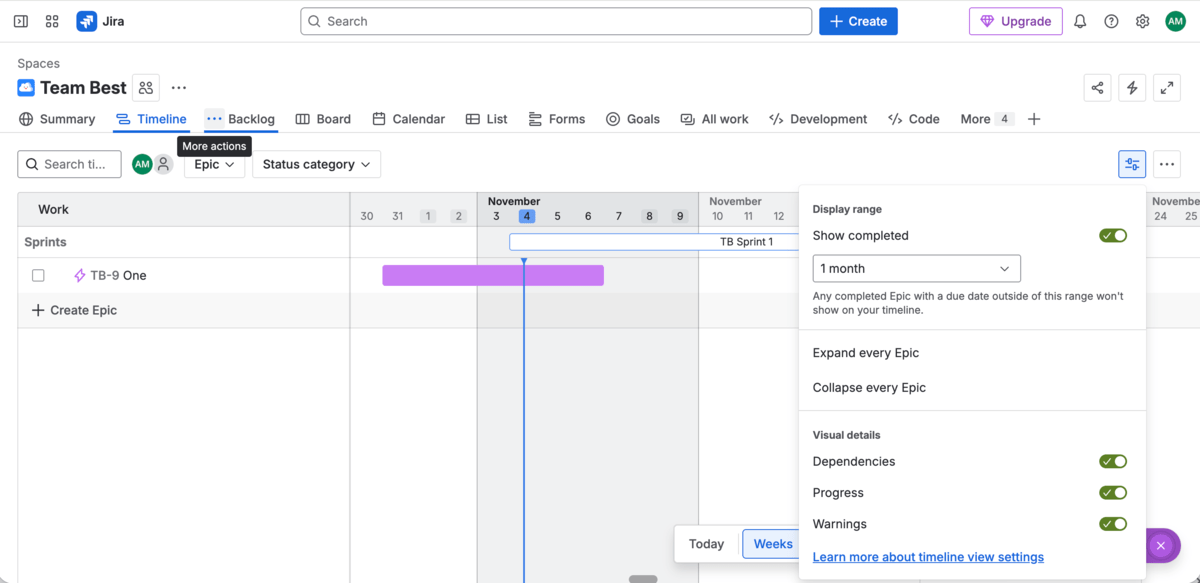
Jira is so dedicated to Agile that it offers resources like the Agile coach and Agile for leaders. Here you can find a bunch of articles, tutorials, and Agile practices to elevate your Agile project management.
Still, if you’re of 2 minds between Jira and Wrike, I advise you to check out the pricing and the features included in each plan first. For instance, Jira limits its free plan to 10 users who can create an unlimited amount of tasks, while Wrike’s free plan offers unlimited users, but sets a 200 active task limit — so it turns out that none of the 2 tools can cater large teams on their free plans.
Also, Jira’s paid plans allow unlimited users (well, up to 100,000 users), while Wrike limits the number of users on its paid Team (2–15) and Business plans (5–200). Make sure you do the calculations to see which app offers best value for money.
Unlimited users and tasks with Plaky
And, since it’s so complex, I expected Jira to offer proper support for all its users. I was disappointed to see that 24/7 support is reserved for Premium and Enterprise users only.
What’s new in Jira?
Some of the most recent updates in Jira include Rest API for bulk operations, which enables users to automate multiple issue transitions in a single request. Also, Jira offers new platform apps — Goals (the platform app that you can use to create and manage your goals and see goals within your organization) and Teams (the directory from which you can reach your teams and coworkers across all Atlassian apps).
Available for: web, MacOS, iOS, and Android
| Plan | Price |
|---|---|
| Free (for up to 10 users) | $0 |
| Standard | $7.91/user/month* |
| Premium | $14.54/user/month* |
| Enterprise | POA |
*billed monthly, for 300 users
Note: In Jira, monthly subscriptions are based on the exact number of users whereas annual subscriptions depend on the user tier. The higher the number of users, the lower the price. Please refer to the price calculator on Jira’s website to check the price based on the number of users you have in your team.
#8 Zoho Projects — best for software development
Zoho Projects is a project management app that belongs to the well-known Zoho ecosystem. The app is focused on progress tracking and offers a balanced feature set for project management.
Why choose Zoho Projects?
Zoho Projects enables a separate ticketing section for issue reporting allowing software developers and testers to collaborate on identifying and resolving software issues.
| Pros | Cons |
|---|---|
| – Issues/Ticketing – In-house integrations – Integrated stopwatch – Integrated chat | – Limited board views – Only for business users |
When I opened my account on Zoho Projects, I realized you need to leave a company email and a phone number of your registered business. So, freelancers and individuals stand no chance of using the app.
Zoho Projects’ boards are well organized and offer a fair number of options to help you manage your project. For example, the app automatically adds 10 columns to your board including a stopwatch, task owner, start and due dates, and priority.
The good news is that you can easily rearrange or hide columns and adapt the board to your needs and preferences. If you wish, you can even add more columns like completion date, associated team, and work hours.
The first sign that Zoho Projects is best used for software development is its Home section where you can see a dashboard with widgets like My phases, My issues, Closed phases, etc.
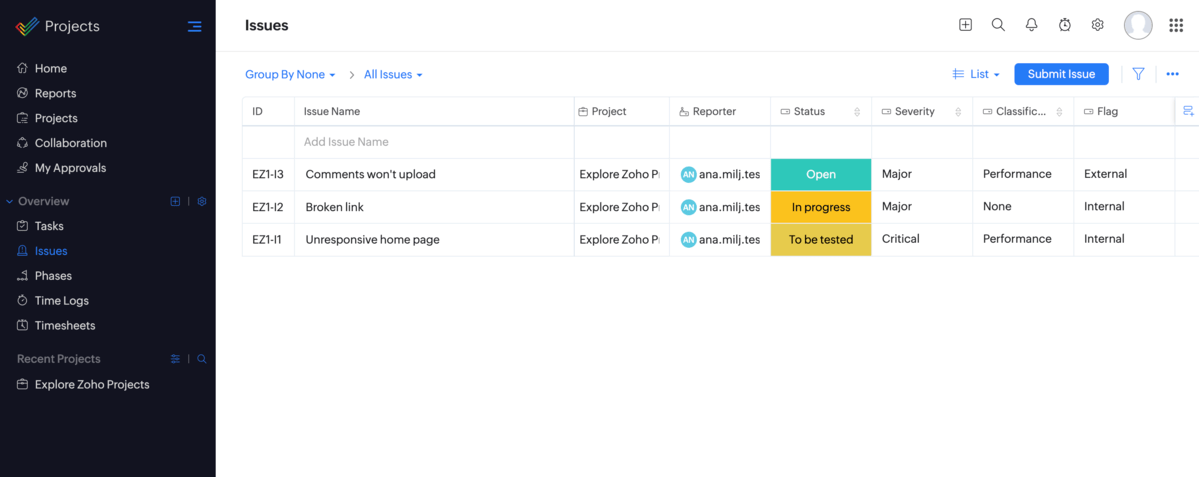
However, the chief reason is its Issue section with the To be tested status option. After all, this is something that mostly software creators and testers would use.
Within the Issue section, you can add internal or external issues and include relevant details so everyone can get the hang of the problem. In Wrike, you’d have to create a separate project board to track issues since this type of section isn’t available.
Although Wrike offers Open RESTful API for integrations and several options for in-house add-ons (that you need to pay extra for), as a Zoho Projects user you can take advantage of Zoho’s in-house apps such as Zoho Sprints, Zoho CRM, and Zoho Meeting.
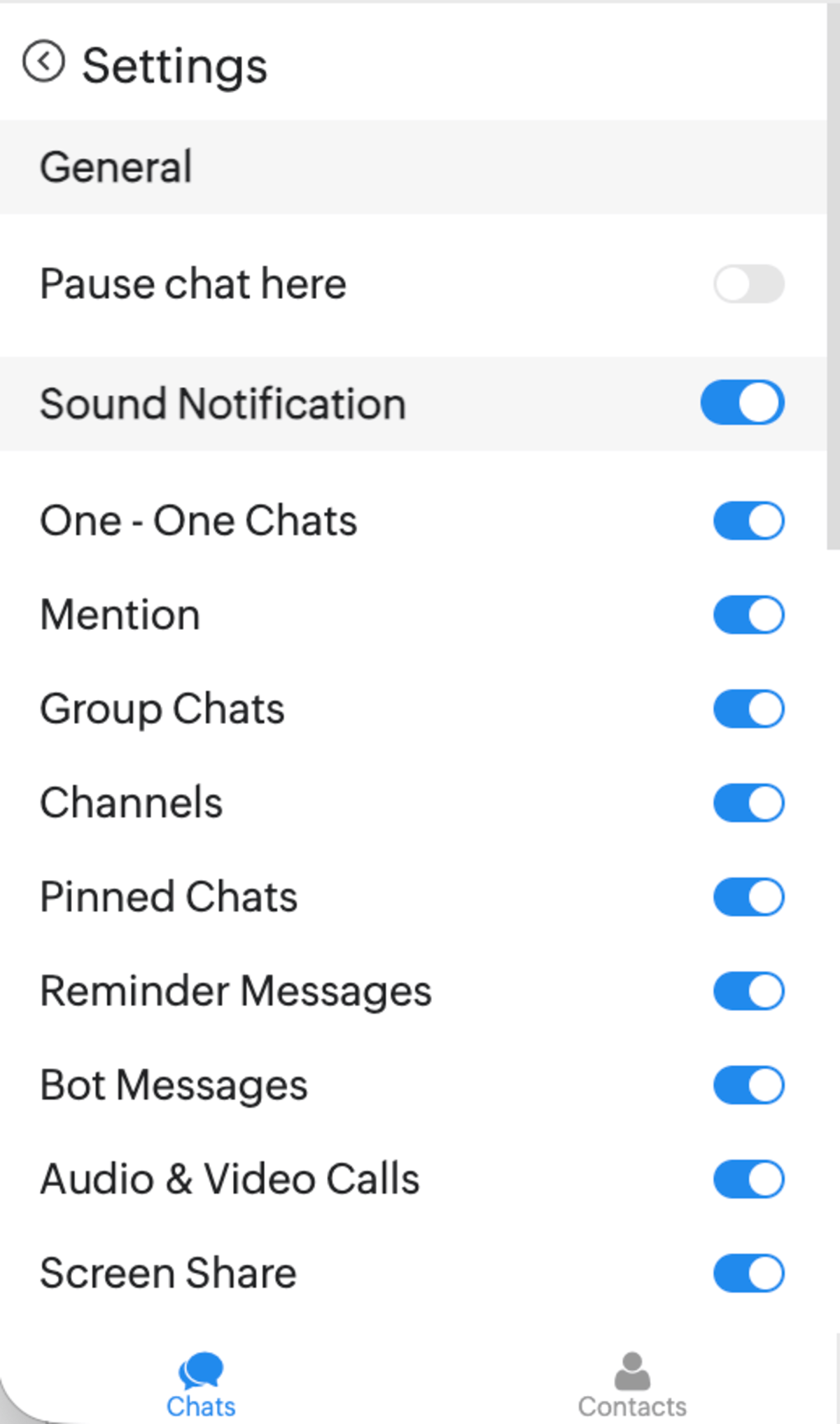
Another notable feature in Zoho Projects, that doesn’t exist in Wrike, is the integrated chat. While both apps support task comments, in Zoho Projects, you can communicate with individuals and teams within the app by clicking on the (admittedly quite tiny) Chat and Contacts icons.
On the other hand, Zoho Projects has a poor selection of board views. On its Enterprise plan, I could use only the List, Board, and Gantt chart views. Wrike, however, offers numerous other views like Calendar, Chart, and Timeline, allowing you to see your projects from different angles.
What’s new in Zoho Projects?
Zoho Projects has just enabled access control for time logs meaning that Portal owners can allow certain user profiles to view, add, edit, or delete time logs. Also, you can group reports into folders, which enhances work organization.
Available for: web, MacOS, Windows, iOS, and Android
| Plan | Price |
|---|---|
| Free (up to 5 users) | $0 |
| Premium | $4/user/month* |
| Enterprise | $9/user/month* |
| Project Plus | POA |
*billed annually
#9 Productive — best for resource management
Productive is a platform built with professional service businesses in mind to help them manage projects, clients, teams, and finances within 1 app.
Why choose Productive?
Productive is great for resource management as it offers a simple and elegant resource planner where you get a detailed overview of the current and future workload and capacity.
| Pros | Cons |
|---|---|
| – Comprehensive onboarding – Resource planning – Time off scheduling – Integrated time-tracking on all plans | – No free plan |
Productive is only available to business users since it asks for your business email and company phone number to set up your account. However, you can choose whether you want to have a call with their sales team or not, which is quite considerate.
For testing purposes, I chose to try out Productive’s highest paid plan. The app greeted me with a detailed onboarding roadmap made up of 5 sections. The time needed for each section is clearly stated, so I grabbed my snacks and let the app guide me through its 44 minutes long survival kit with videos and brief instructions.
The interface is straightforward and there’s no sidebar. The app is based on the dropdown system, but you can easily navigate through it as there are no excessive buttons to confuse you.
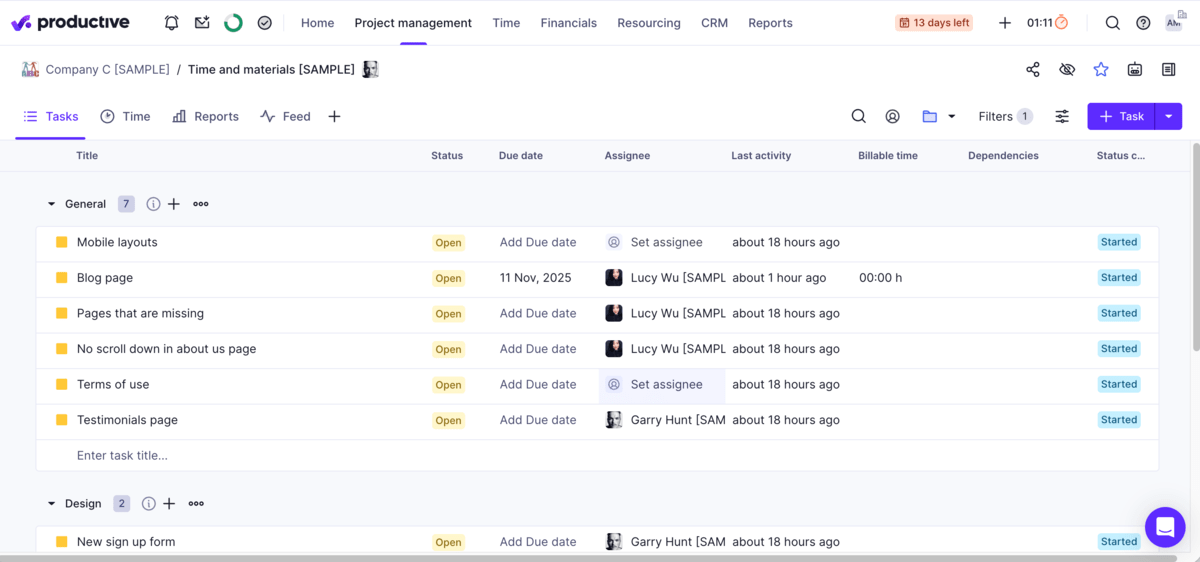
Both Wrike and Productive offer time tracking, but, with Productive, this feature is available on all plans. Also, both apps allowed me to log time manually or use a task timer to keep track of time for me. In Productive, however, I needed to select the service (the type of job tied to a project/task) to ensure accurate tracking and link time to a specific task.
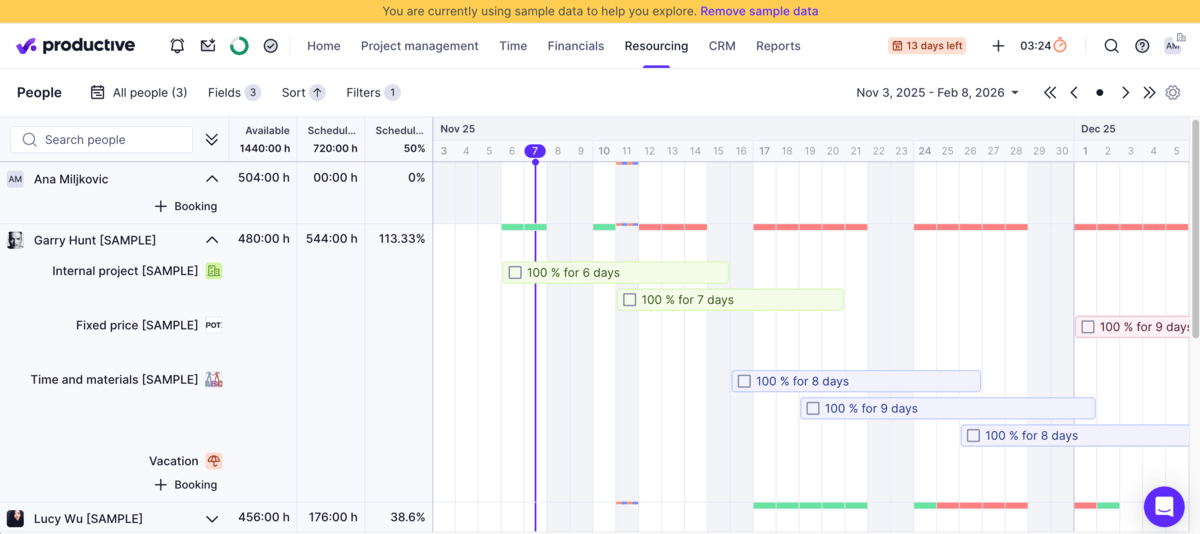
One of the noteworthy features in Productive is its resource planner, which lets you monitor capacity and book people for services that you charge clients for. The planner also allows you to:
- See who’s assigned for a service,
- Avoid under- or overbooking people,
- Organize budgets and deals,
- Schedule time-off, vacations, sick leave, and more.
You can also plan ahead in Productive thanks to placeholders that are used to book time until you assign the right person for the job.
Wrike offers outstanding resource management features as well, but from the Business plan and up.
My main complaint about Productive is that it doesn’t offer a free plan. Although it’s slightly cheaper than Wrike, it requires a minimum of 3 users on its least expensive plan whereas Wrike offers unlimited users on its free plan.
Get all PM essentials for free
What’s new in Productive?
The latest release includes automation improvements for invoicing and task management, addition of the Service tab in Budget and Deal views, as well as private folders visible to teams and contractors only.
Available for: web, MacOS, Windows, iOS, and Android
| Plan | Price |
|---|---|
| Essential (min. 3 users) | $9/user/month* |
| Professional (min. 3 users) | $24/user/month* |
| Ultimate (min. 3 users) | $32/user/month* |
*billed annually
Manage projects in a simple way with Plaky
Choosing the best Wrike alternative is as complex as this app itself. This tool offers more than you can imagine, but also more than you might really need.
So, if you want to have a reliable, yet simple tool to manage your projects and tasks, you can’t go wrong with Plaky.
Plaky is a fully customizable and flexible tool that guarantees:
- User-friendly UI,
- Smooth project and task management,
- Seamless communication and collaboration for teams,
- Top-notch security,
- Affordable pricing, and
- 24/7 human customer support on all plans.
If you start off humbly with a small team, Plaky can offer you all the basic project management features on its free plan and allow your team to scale up free of charge. And, once you feel ready for more advanced features, you can opt for one of Plaky’s paid plans.
But, that’s not all when it comes to Plaky!
This tool can become even more powerful when used along with Clockify (a time tracking tool) and Pumble (a team communication tool). Best of all, you can get all 3 apps for just $12.99 with the CAKE.com Bundle.
Once you sign up for the Bundle, you get enterprise subscriptions for each app so that you can easily:
- Manage projects and tasks in Plaky,
- Track time and manage time off in Clockify, and
- Communicate with your team in Pumble.
Here’s a quick demo to help you get to know Plaky better:
Enhance your project management, but keep processes simple. Try Plaky today!