Published: January 30, 2026
Stop moving tasks around manually and wasting time on constantly cleaning your virtual workspace — you’re a manager, not a janitor.
Reclaim your time to use on more important tasks in 3 simple steps by using board automations in Plaky by CAKE.com.
Here’s how.

#1 Set up your board and identify tasks suited for automation
Board automations are only useful if your board is set up in a way that reflects your workflow. Major changes will render some automations useless, so make sure everything is ready before you start automating.
Now, when choosing tasks to automate, the general rule of thumb is: if you’ve done it the exact same way more than 3 times in the past week and it doesn’t require decision making or empathy, a machine can do it.
Think of which tiny routine tasks disrupt your workflow and keep you busy, but at the same time make you feel like you “didn’t get anything done today”. Here are some examples:
- Shuffling and reshuffling tasks,
- Managing task handoff,
- Assigning reviewers to completed tasks,
- Updating managers about important milestones or status changes,
- Adding or changing assignees when tasks change status or location, etc.
Once you have your tasks nailed down, it’s time to get started.
#2 Create board automations
To automate a task in Plaky, head on over to the Automation center in the top right corner of your board (the little robot head icon) and click New automation.
Automations in Plaky are formatted like simple sentences and follow the formula:
When X happens then do Y.
All you need to do is fill in the blanks with your desired actions and click Create automation.
Voilà! All done.
Here’s an example of what that would look like in action:
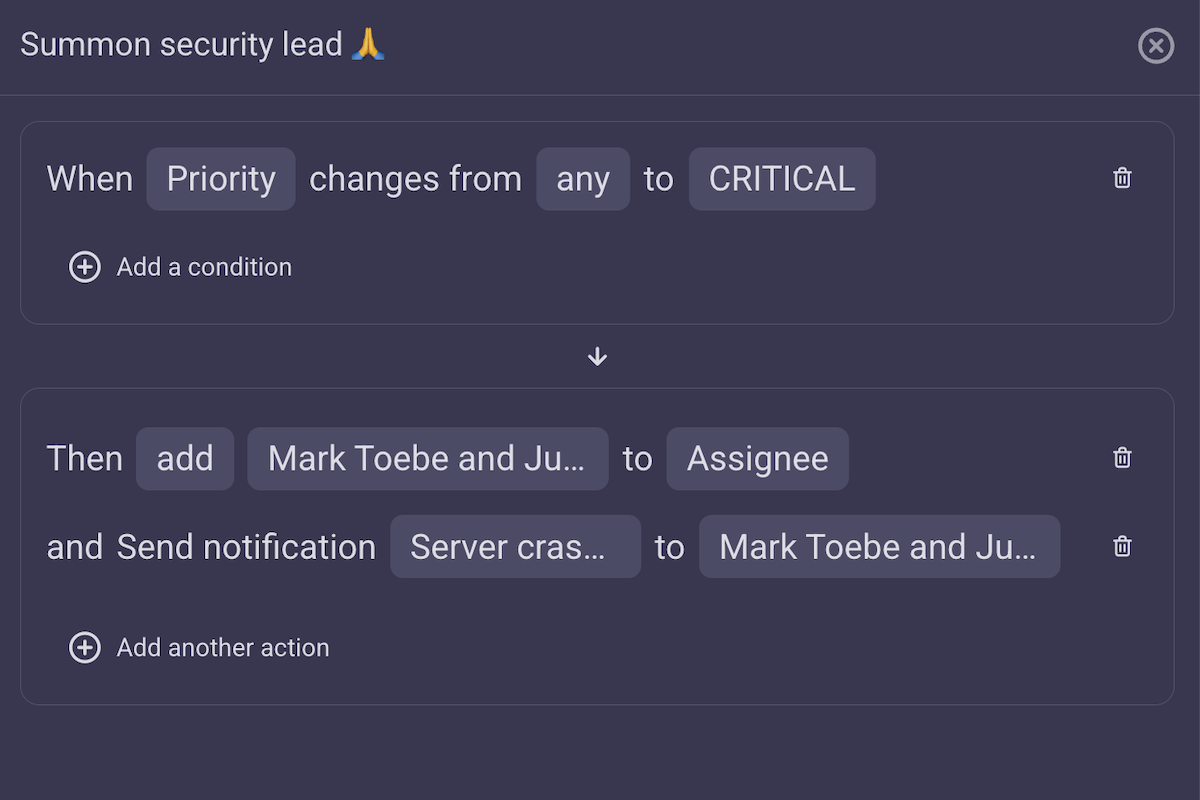
Say you’re an engineering manager and your team is swamped when one of your medium-priority tasks escalates to critical status. With Plaky automations, you can have your on-call or security lead be notified and assigned to the task immediately — no disruptions, no widespread panic, no need for mediation. Seamless and efficient.
💡 PLAKY PRO TIP
Ensure your critical notifications don’t get buried in a pile of emails. Take advantage of Plaky’s integration with Pumble and receive notifications directly in your team chat app!
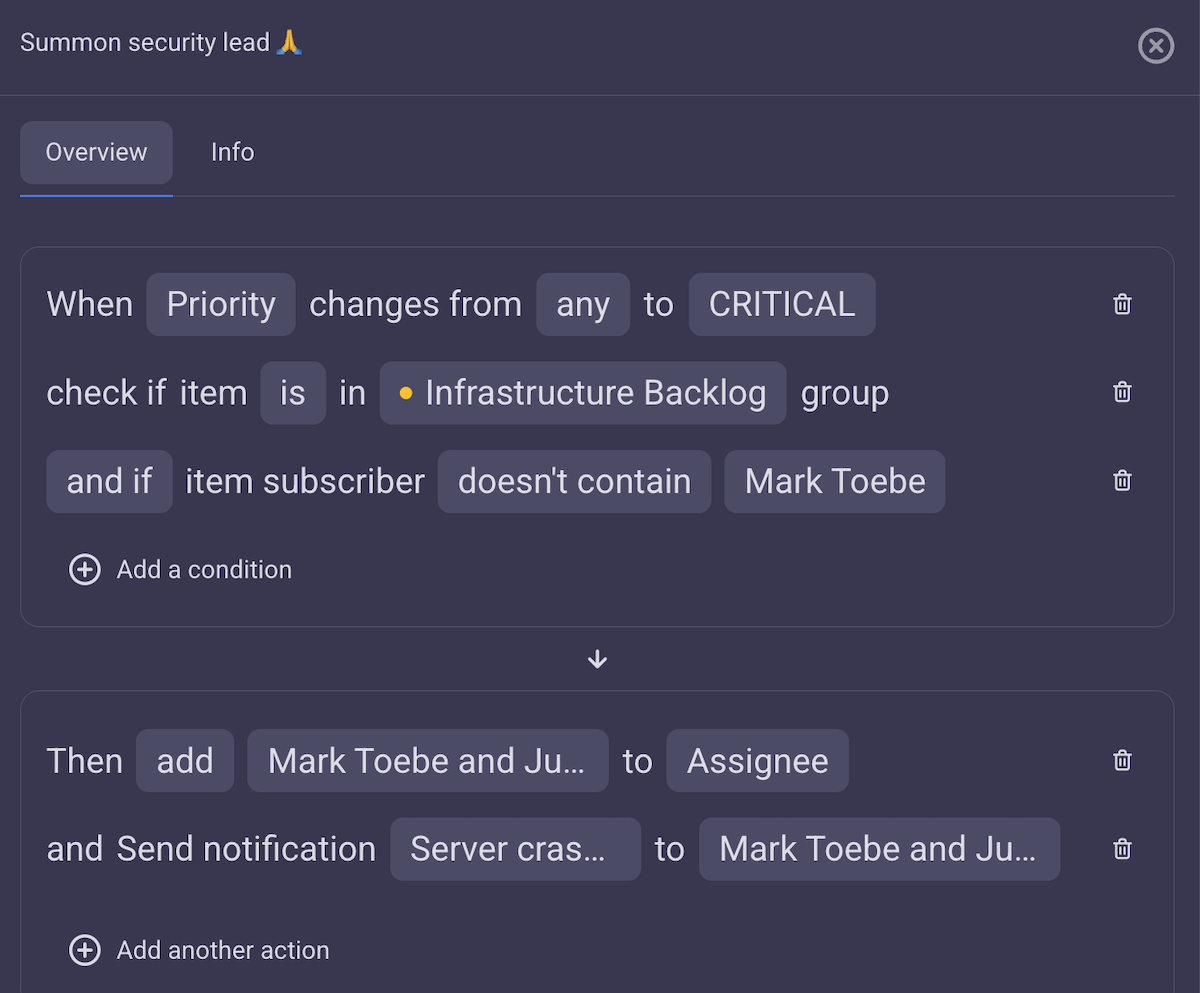
If you need to create more precise automations, Plaky also lets you add conditions to your trigger. So if you were to add a condition to the example above, that would look something like this:
When priority changes to CRITICAL,
Check if the task is in the Infrastructure backlog group,
And if the security lead is not already subscribed to it.
If all this is true,
Then add the security lead and on-call lead to the task,
And send them a custom notification.
Now all that’s left is to test if everything works correctly, and you’re all set!
If you ever decide you don’t need an automation anymore, you can always delete it or just pause it and restart when it’s convenient.
Book a demo for a personalized walkthrough
How to set up an automation for a recurring task
To set up an automation for a recurring task in Plaky, go to the Automation center in the top right corner of your board and click New automation.
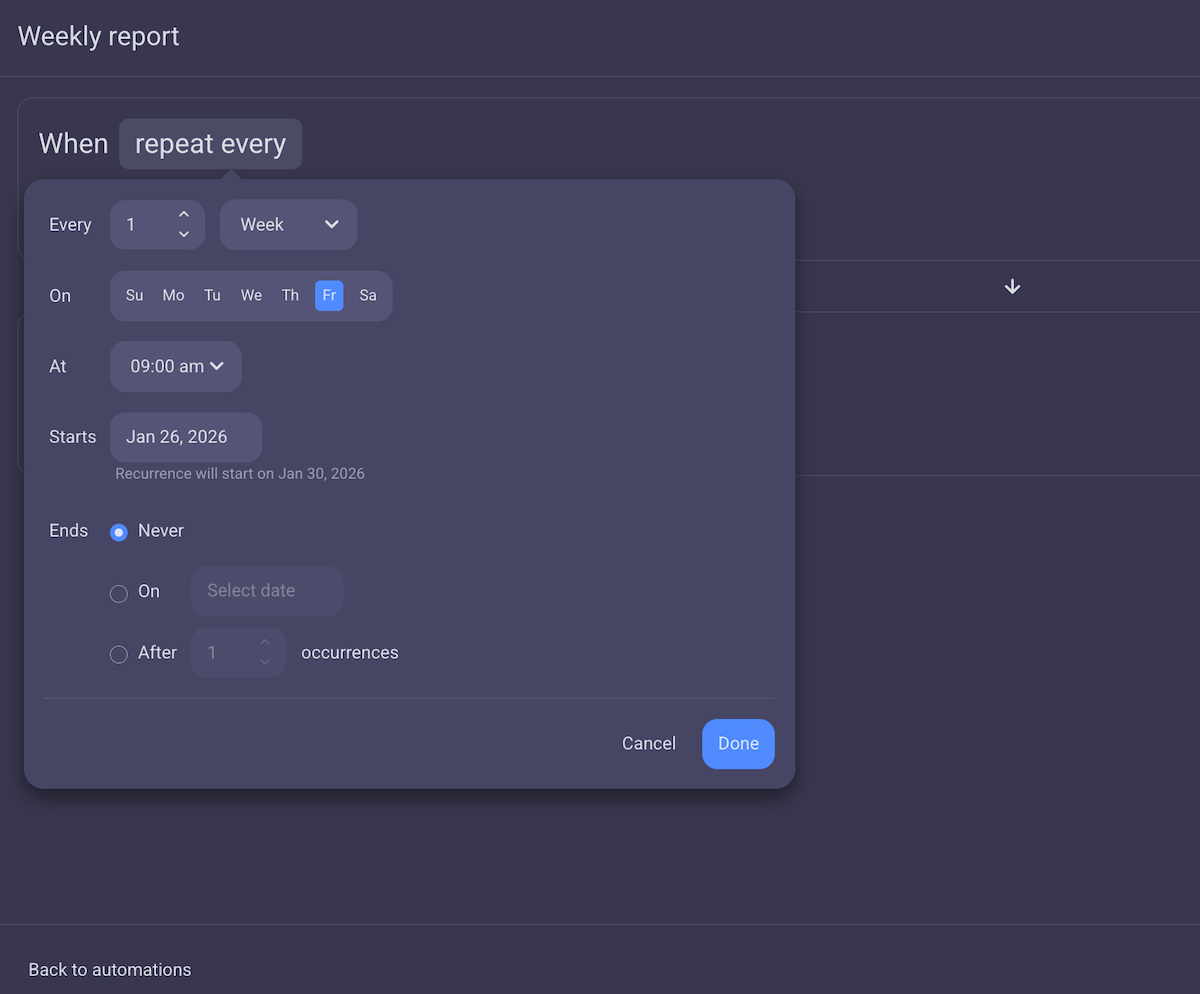
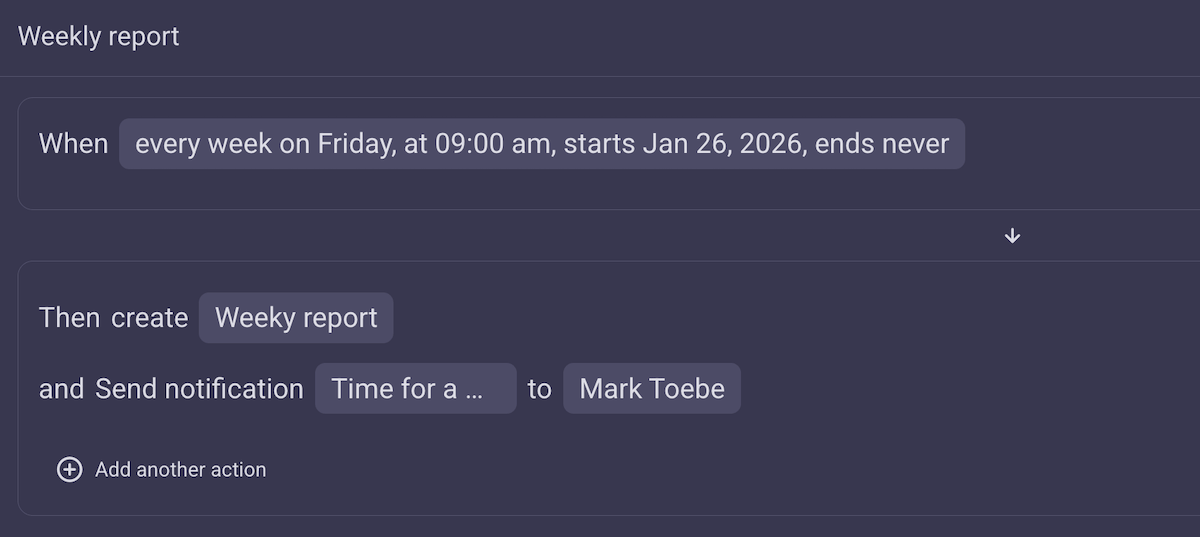
If you wanted to set up a weekly report for example, the automation would look something like this:
When: Every week on Friday, at 09:00am, starting today,
Then: Create a new Item card.
Note: In the case of recurring tasks, the When part of the automation formula refers to the time and frequency with which you want the task to repeat, unlike with normal automations where when defines the trigger for the automation.
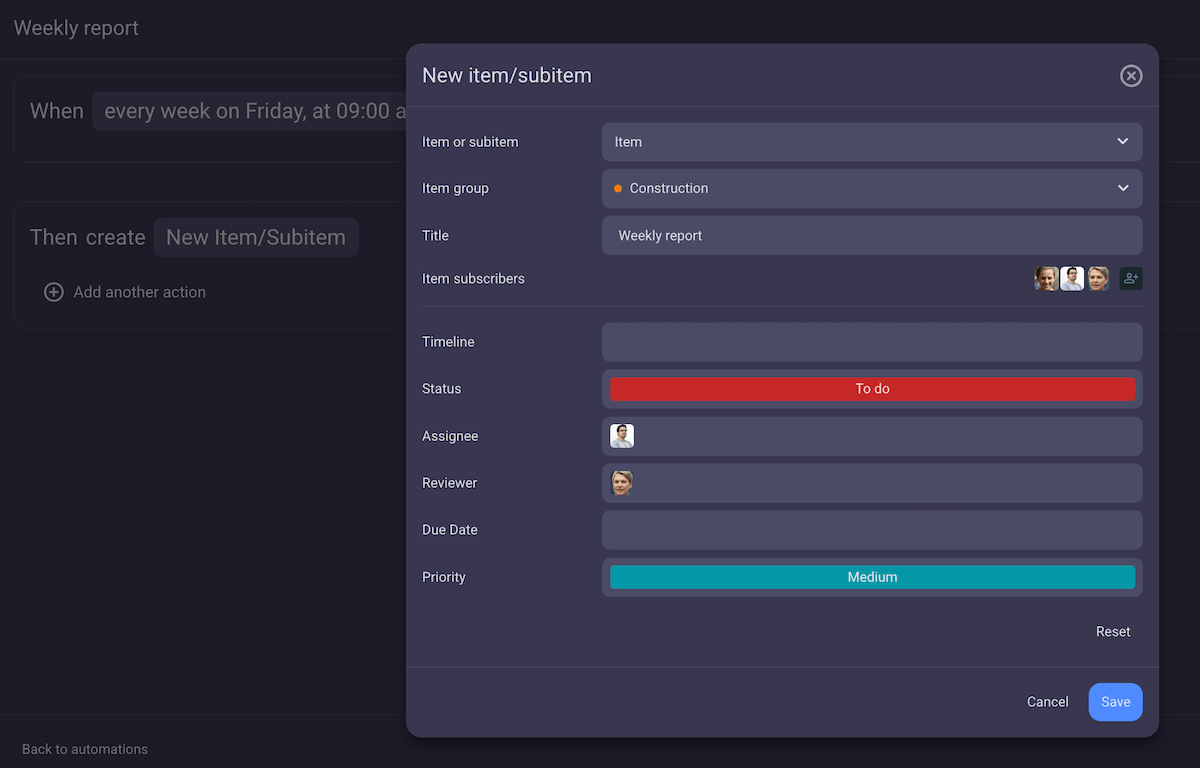
You can edit the name, contents, placement, subscribers, etc. of the Item card just like you would when creating a new Item manually.
How to set up a multi-step approval workflow in Plaky
To create a multi-step approval workflow using Plaky, you’ll have to create an automation stack.
Say you want to set up an employee reimbursement process that would notify the manager whenever a new amount is added for reimbursement and ask them to approve. Once the status is changed to “Approved” the task is forwarded to accounting. To save time, you could even set up the flow that bypasses the manager completely if the expense is under, e.g., $20.
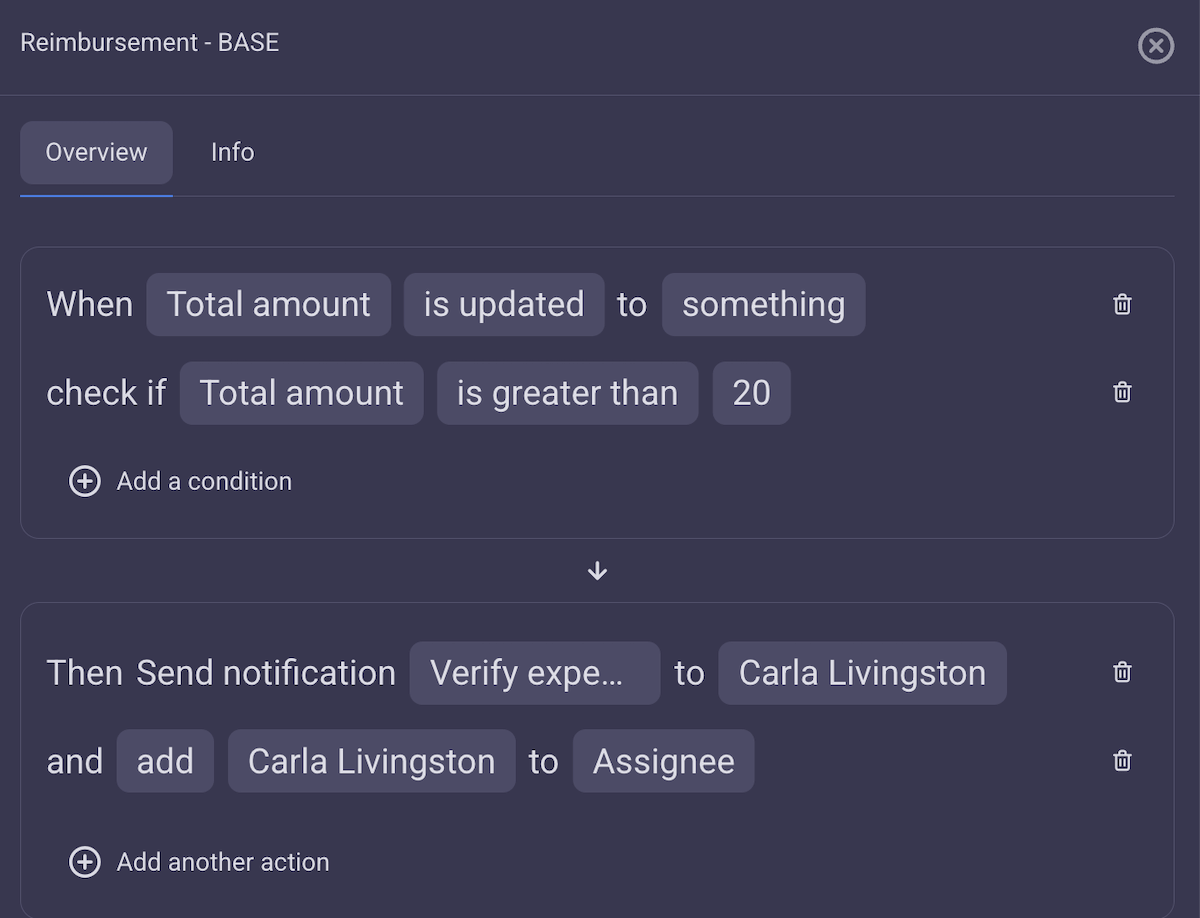
To do this, you’d first have to set up your base automation that would look something like this:
- When an employee enters the amount from the receipt into the relevant field in the PM tool (e.g., the “Total amount” field)
- Check if the “Total amount” is greater than 20. If true,
- Then notify the manager and ask to verify/approve the expense.
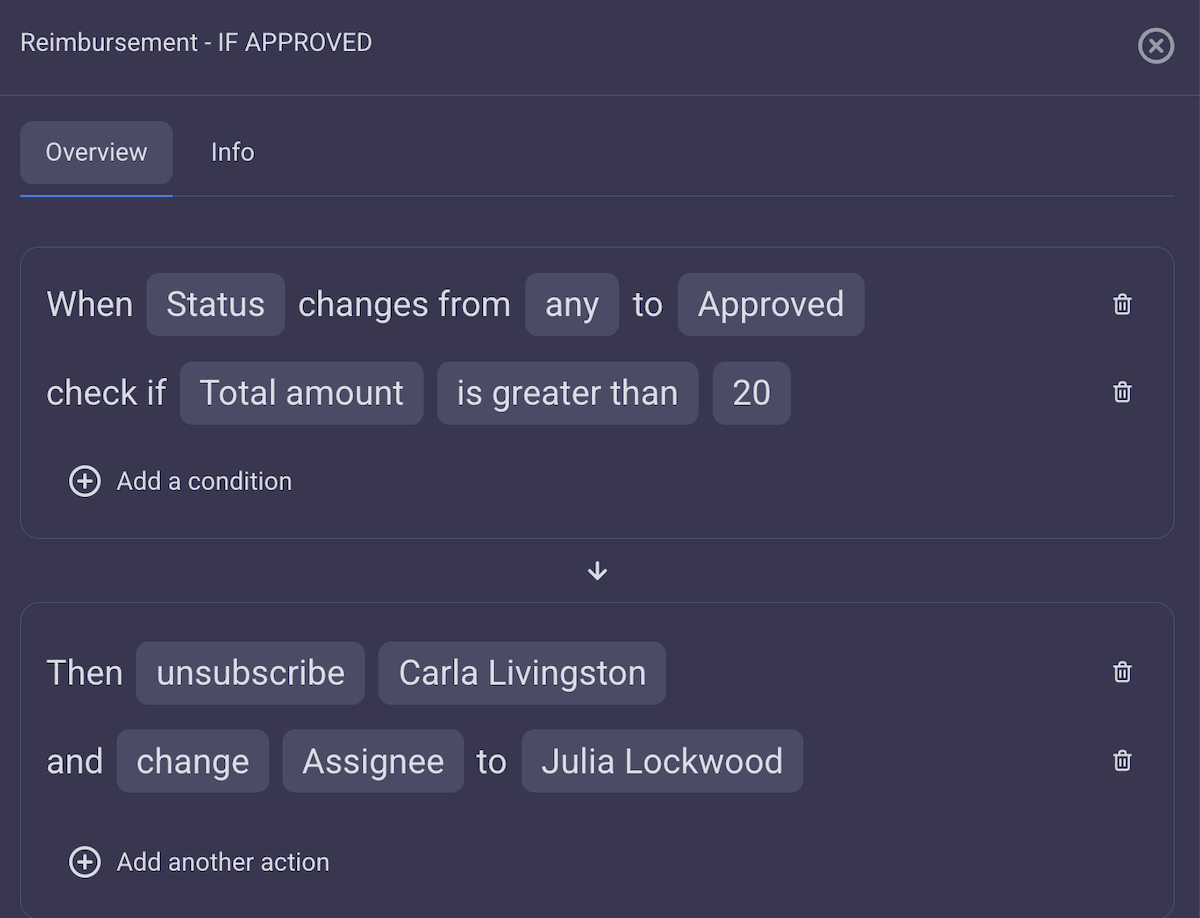
The next step is to tell Plaky what to do when this condition is met. In other words, go ahead and create a new automation that says:
- When the manager changes status to “Approved”,
- Then unassign and unsubscribe the manager and pass the baton to accounting.
But:
- When the “Total amount” is updated and the amount is under $21,
- Then assign the task directly to accounting.
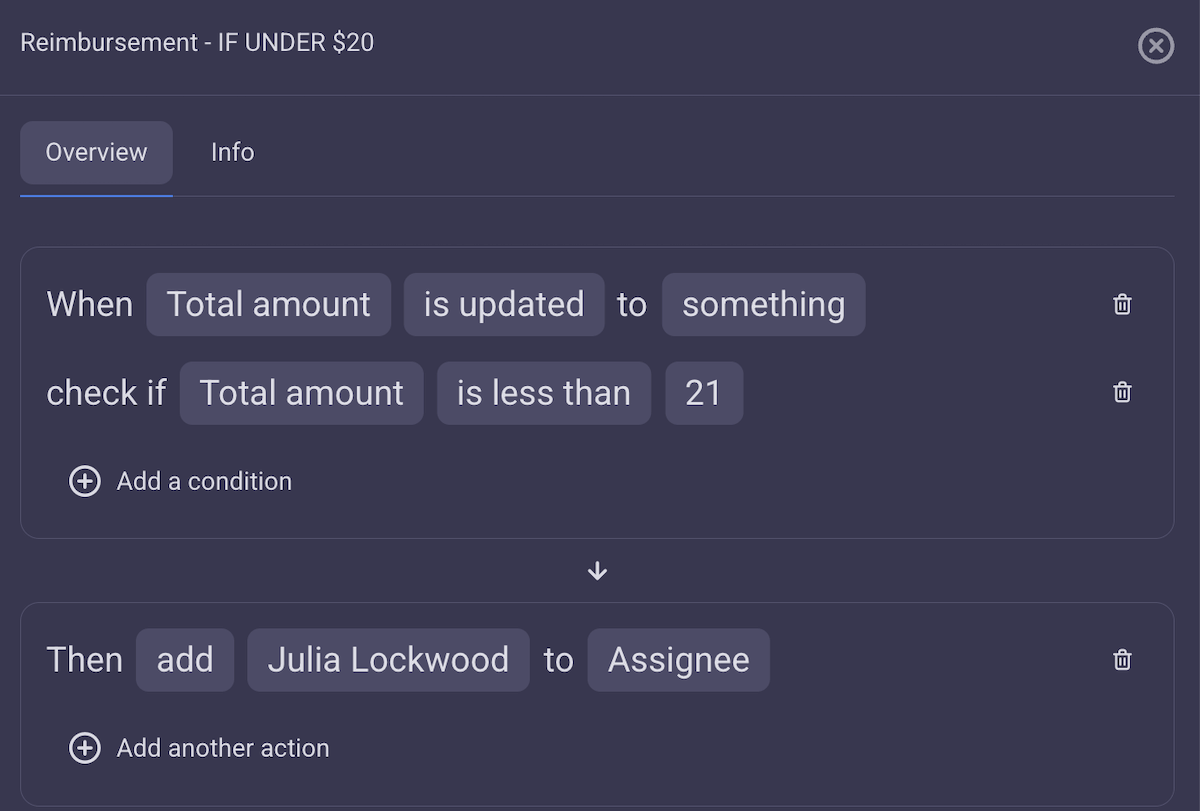
Plaky doesn’t currently support if/else conditions, so the only way to create complex, multi-step automations like these is to build them up one by one.
Stay tuned for improvements and updates by keeping an eye on Plaky’s Roadmap and the Plaky Changelog.
#3 Monitor automation performance
Automations are often marketed as a “set-it-and-forget-it” feature, but they actually require regular check-ups.
Changes in your processes or team composition can sometimes make automations redundant or cause them to malfunction. So make sure you get ahead of issues by updating your automations every time you make changes in your workflow.
Another reason to monitor your automations is if you’re using Plaky’s Pro plan. Plaky Pro offers 1,000 automation triggers per month, which is more than enough for small teams but larger businesses might need to be careful about exceeding the limit.
If you notice you keep cutting it close, consider switching to Plaky’s Enterprise plan for unlimited automations.
💡 PLAKY PRO TIP
Check out Plaky pricing plans to make an informed decision before committing or contact us for more information, questions, or suggestions.
The best automations for your team you can set up right now
Here are some examples of useful automations you can set up in minutes to save hours, divided by industry.
Construction project management
You can’t build a roof if you don’t have walls — in construction project management, this is quite literal. A delay on the critical path requires a project manager’s immediate attention. As a construction project manager, here’s what you can do:
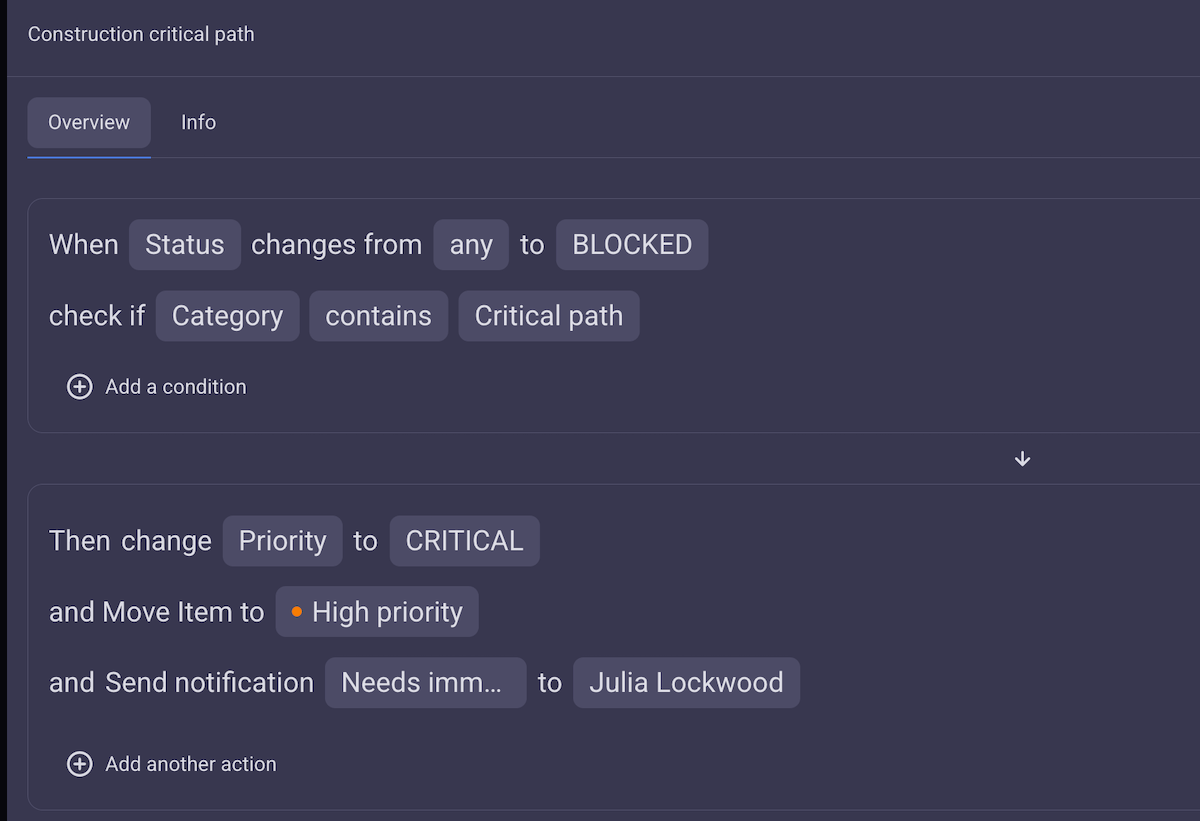
- When a task tagged as “Critical path” is set to “BLOCKED”,
- Then mark the task as “CRITICAL”, move it to the “High priority” group at the top of the board, and immediately notify the project manager (and/or other relevant parties).
Finance project management
If you’re a finance lead, here’s a smart way to streamline monthly payroll kickoff and tax filing processes:
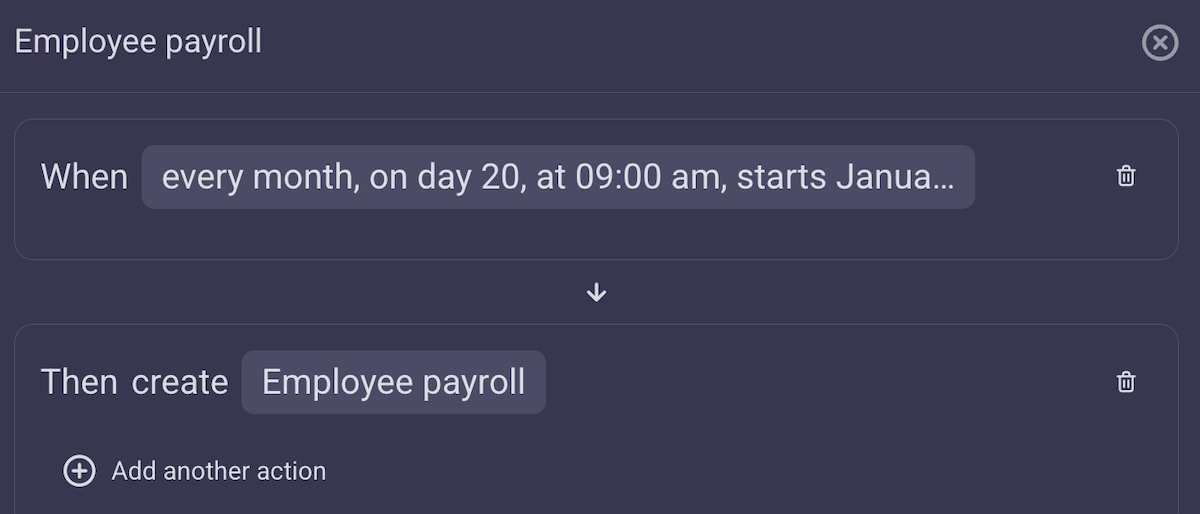
- When: every 20th of the month, at 09:00 am,
- Then create a new item in the “Payroll” group called “Employee payroll”.
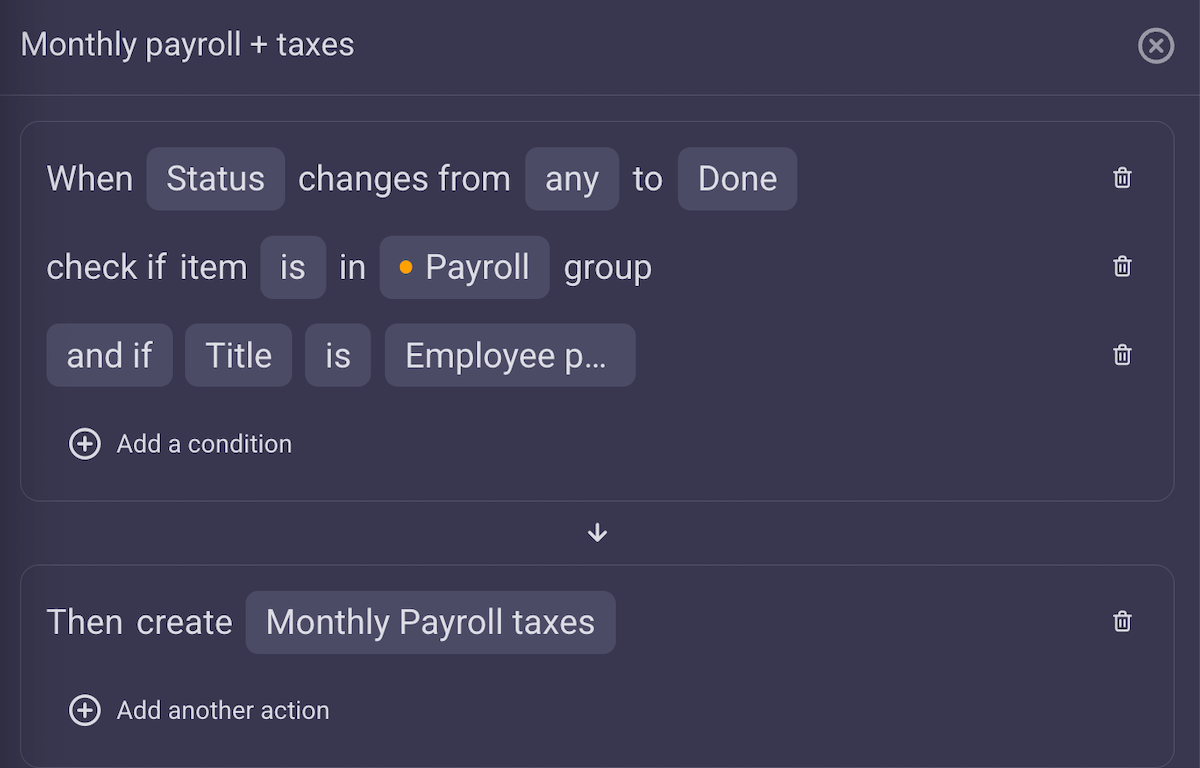
You can even stack automations and supplement the payroll with a tax reminder:
- When the task called “Employee payroll” in the group “Payroll” is set to “Done”,
- Then create a new task called “Monthly payroll taxes” with all the right people already assigned.
Sales project management
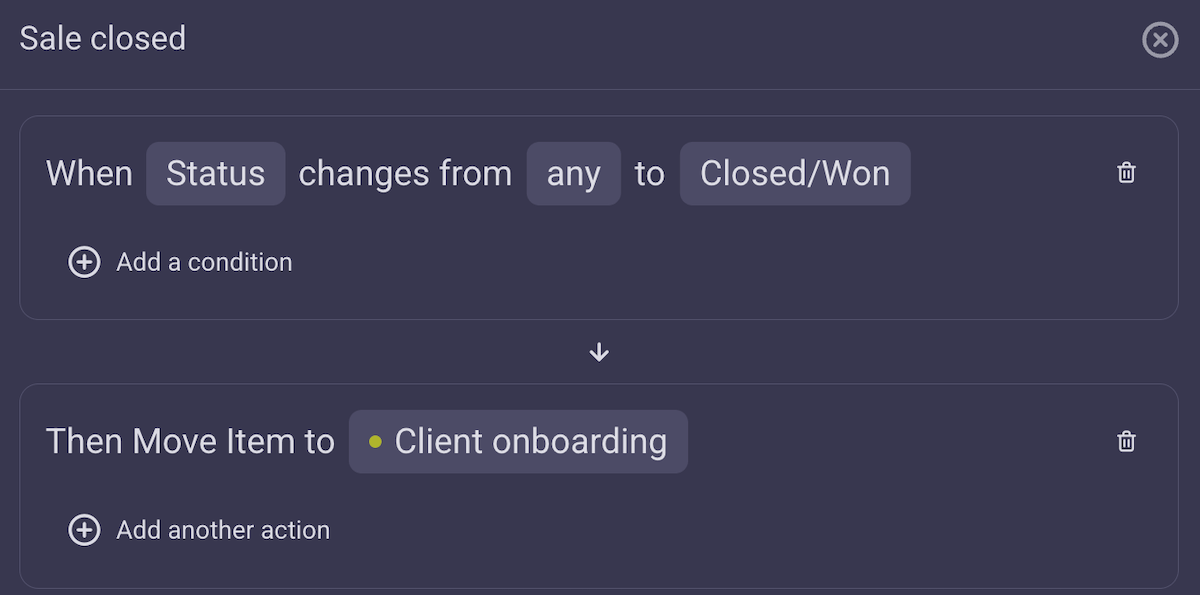
As a sales project manager, celebration over a hard-won deal is short-lived when you need to deal with the handoff, so let Plaky automations do it for you:
- When lead status changes to “Closed/Won”,
- Then assign the account management lead to the task and move the task to the “Client onboarding” group.
HR project management
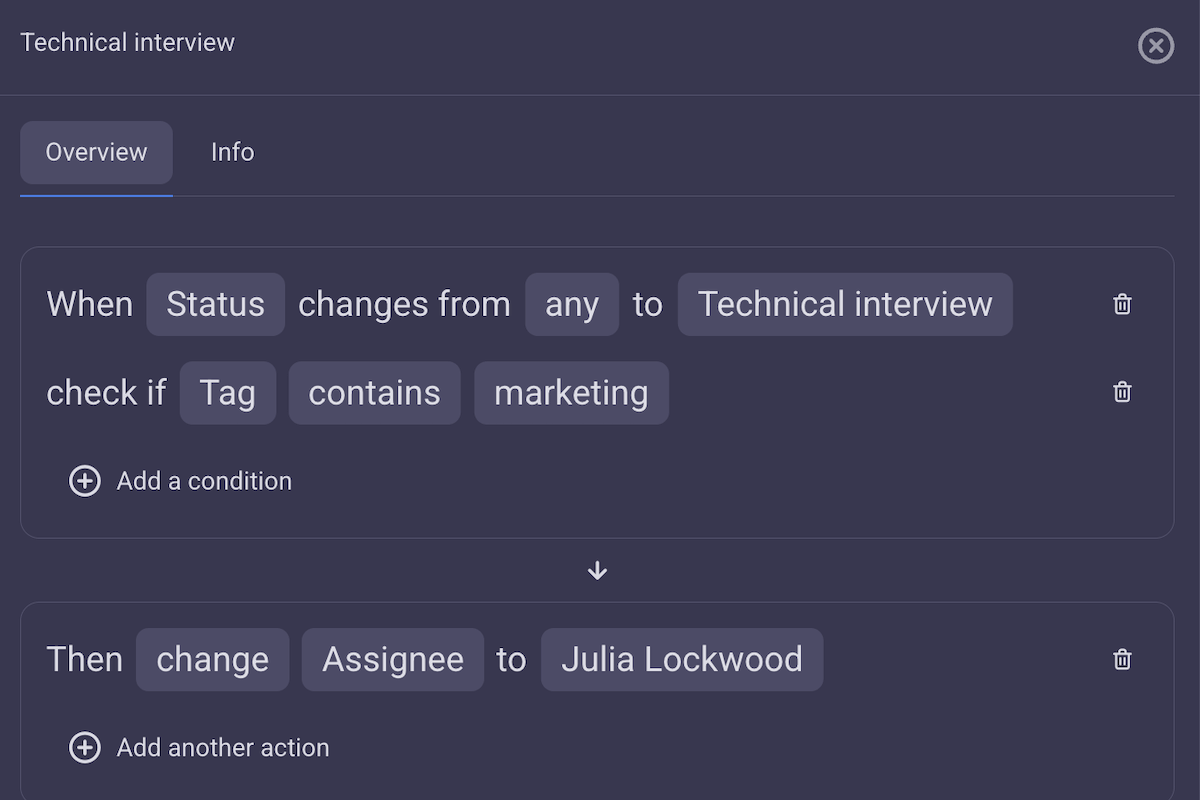
If you’re an HR manager, here’s how you could assign the right people to an employee onboarding process at the right time, and reduce repetitive manual labor in the process:
- When a task status changes to “Technical interview” and its tags include “Marketing”,
- Then assign a marketing manager to the task and notify them about the upcoming employee interview.
The new task will be immediately visible in the marketing manager’s My tasks section for easy access.
Marketing project management
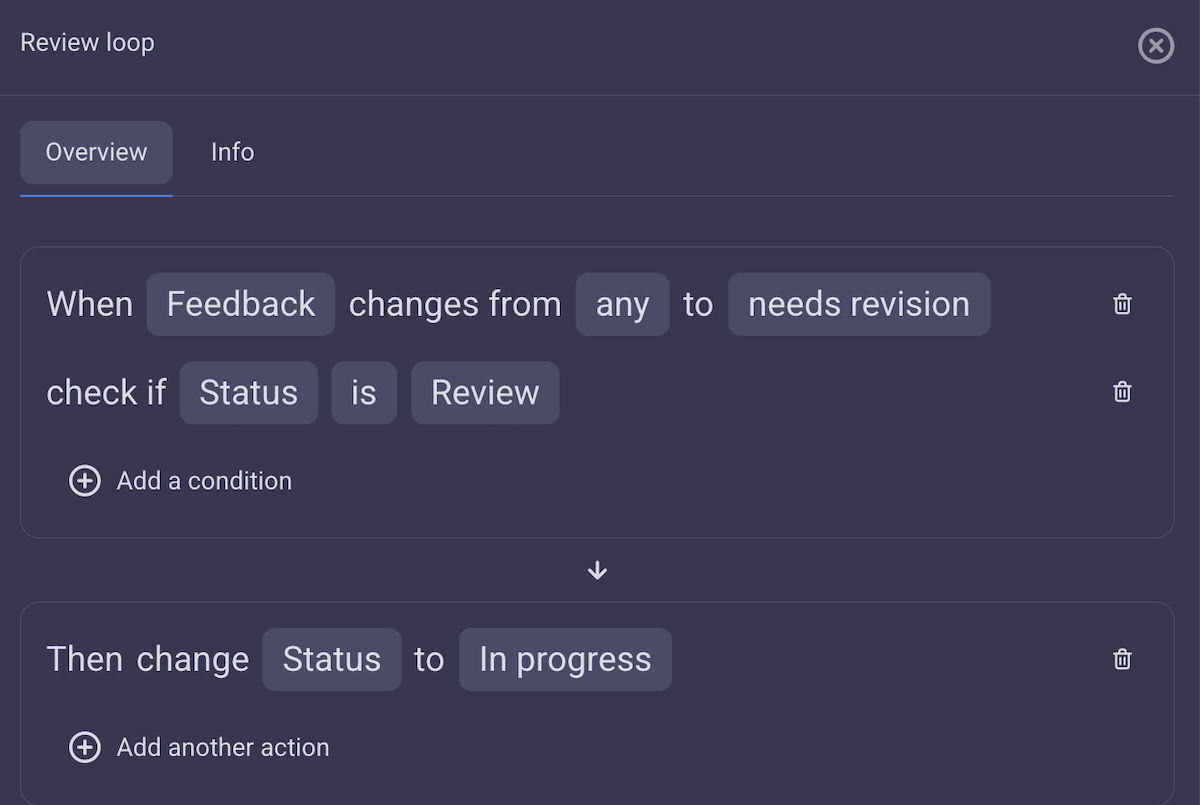
If you’re a marketing manager, here’s how Plaky can help you keep the tasks moving without requiring your constant presence:
- When the ad copy status is set to review and the feedback field changes to “Needs revision”,
- Then move the task back to the “In progress” group and notify the copywriter.
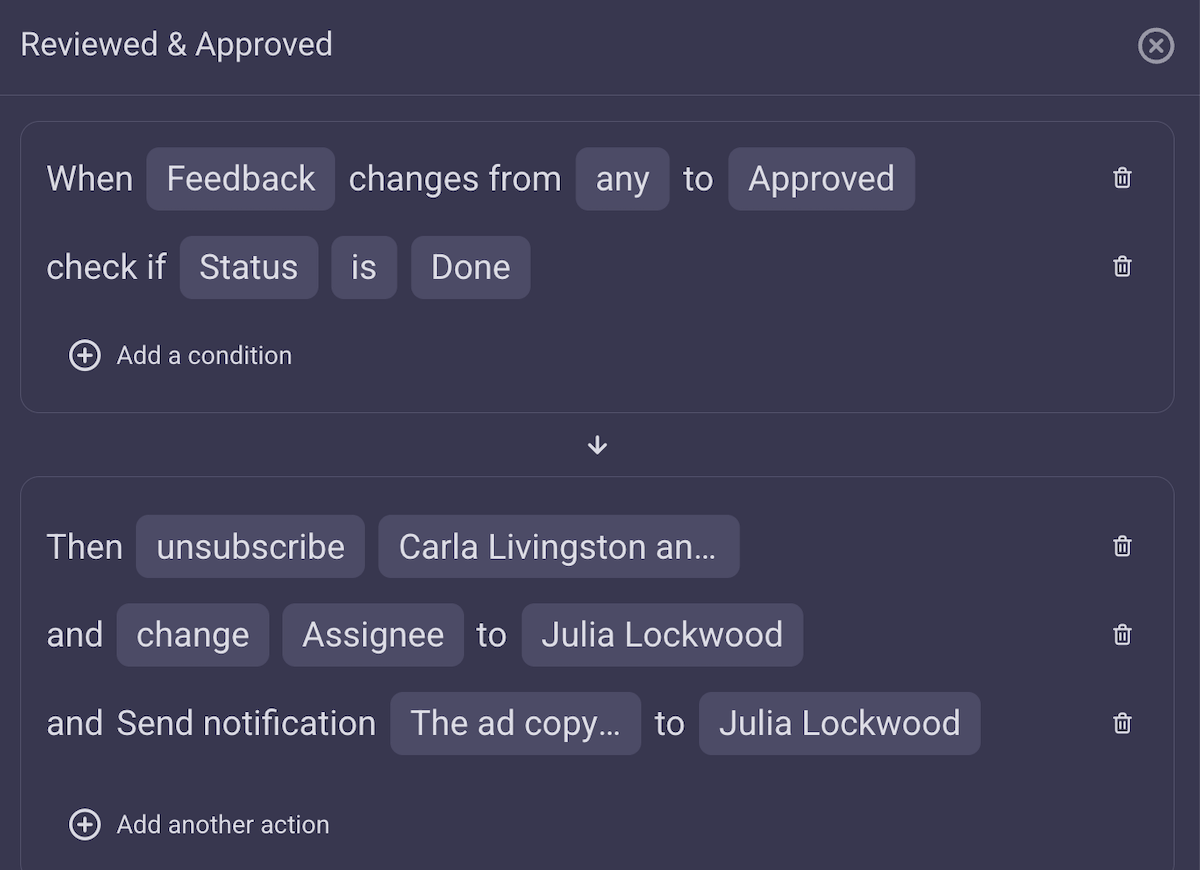
You can take this even further and let Plaky automatically handle a design handoff:
- When the ad copy task status is “Done” and the feedback field changes to “Approved”,
- Then unassign the copywriter and editor and assign the design team lead.
Just be careful about stacking too many automations — it gets confusing eventually.
FAQ about task automation in Plaky
If all this got you curious about Plaky’s board automations, you most likely have a few questions that require a straightforward answer. So, here are some of the most common ones explained in simple terms.
How long will automations take to set up?
Setting up automations in Plaky is quick and simple, with most automations taking no more than a minute to set up. How long it takes you will depend on the number of automations you wish to create.
But, for the automations to work properly, you will have to have your boards set up in a way that reflects your workflow. This might take a while depending on the complexity of your work.
To speed up the process, visit Plaky’s template center, and get started using one of many editable board templates so you don’t have to waste time creating your boards from scratch.
Can an automation assign a task to a specific person when the status changes?
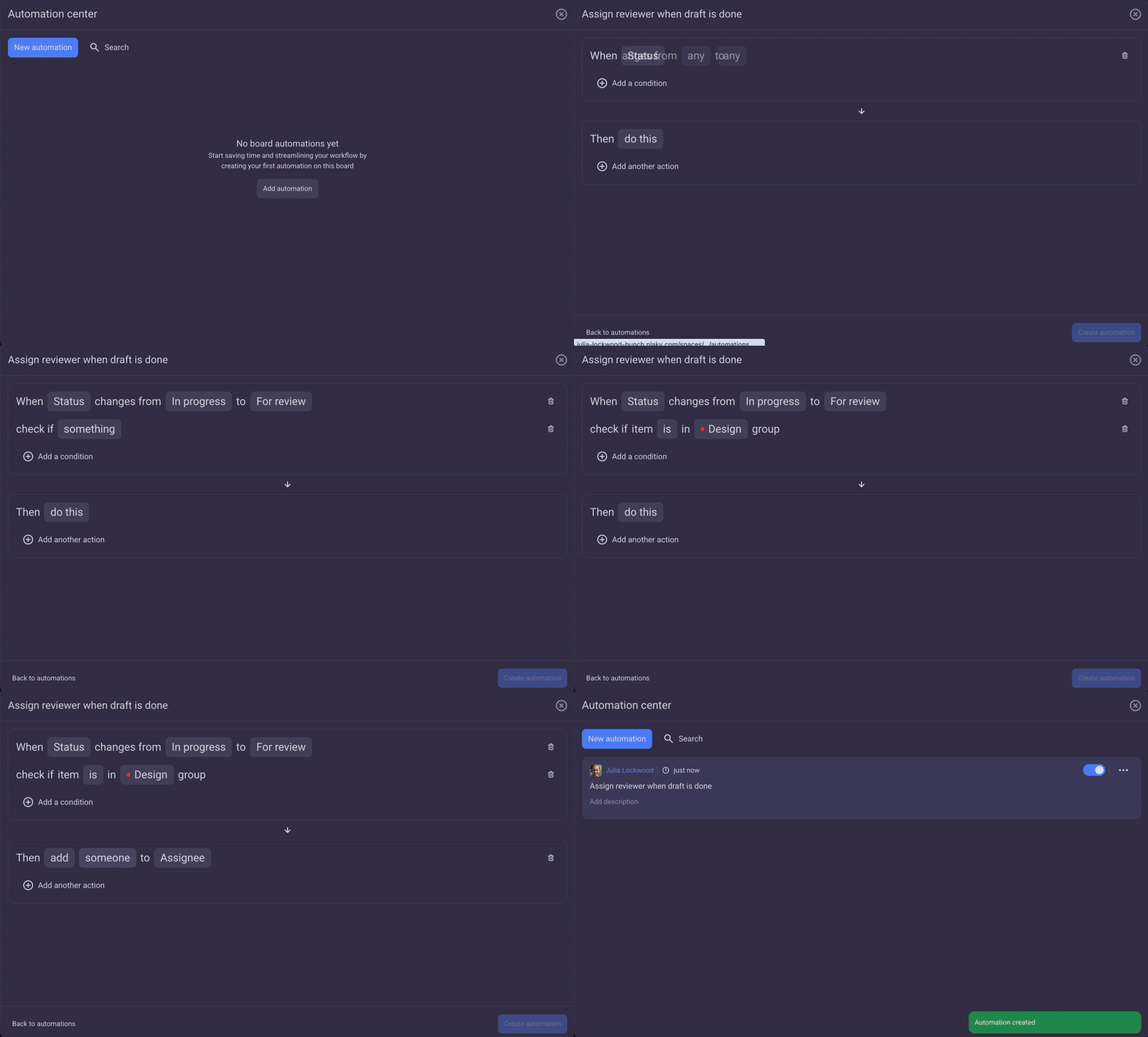
Yes, you can easily set up the automation so it adds a specific person to a task when the task status changes. Here’s how you can do it in Plaky in under 25 seconds:
What are the limitations of Plaky’s automations on the free vs paid plans?
Automations are not available on Plaky’s Free plan. Plaky’s Pro plan offers 1,000 triggered automations per month (every time an automation is activated and an action happens, that counts as 1 trigger), while users on the Enterprise plan can enjoy unlimited automations for $8.99 user/month.
To see Plaky’s board automatons in action for free, sign up for Plaky’s free trial, and test out unlimited premium features for 7 days.
Work smarter NOT harder — eliminate grunt work with Plaky
Repetitive tasks are killing your productivity. As a manager, automating them is the best thing you can do for your team and your sanity. So take advantage of the project management tool created to make your work easier.
Not only is Plaky intuitive and easy to use, but it also offers enterprise-grade security and 24-hour human customer support via call, chat, or email, for all users.
You can use it simply to consolidate your scattered tasks and get an overview of what your teams are working on without feeling like you’re breathing down their necks. Or you can use Gantt charts, Chart views, Automations, Time tracking, and more to completely transform and streamline your workflow before it gets out of hand.
Grow and scale your small business with the confidence that Plaky’s always got your back — Try Plaky by CAKE.com for free.