What’s the first thing that pops into your head when you think about remote work?
- Chaos caused by a gazillion inefficient tools you’re forced to use?
- Isolation and disconnection, as you’re stuck at home?
- Flexibility, because you’ve chosen your WFH tools wisely?
If your answer is either 1 or 2, don’t worry — this article will help solve your problems by offering tried-and-tested tools perfect for your needs.
If your answer is 3, congratulations! Still, take a look at my blog post — maybe there’s an ideal tool for you that you didn’t even know existed!

WHY TRUST US?
The apps we talk about are selected, tested, and written about by human reviewers who follow strict review and editorial guidelines. We pick solutions that are practical, purposeful, and can offer real value for the specific use case or business context we’re covering — while also being justified in their pricing. Our methodology is transparent, clear, and available to everyone:
How I chose and tested remote work apps
As a long-time remote worker myself, I’m familiar with all the pain points an off-site employee might have. That has helped me find my way more easily in a vast sea of apps.
One of the main factors I relied on when choosing tools for working remotely was that the app is either free or has a free trial — so that I could test it without reaching for my card, and so that you could do the same.
Also, I made sure to cover all the main factors/features a remote worker may look into for boosting productivity and chose the best app in each of them:
- Work and task management,
- File sharing,
- Communication,
- Virtual office,
- Time tracking,
- Brainstorming,
- Design,
- Scheduling meetings,
- Recording tutorials or other types of video messages,
- Signing documents, and
- Employee recognition.
P.S. Skip to read about my #1 choice now!
Top 11 apps for remote workers
Here’s an overview of all the apps I’ll be covering in this blog post. Scroll down to read my detailed reviews!
| App | Best for | Free plan | Free trial | Pricing (starting at) |
|---|---|---|---|---|
| Plaky by CAKE.com | Remote work management | ✔ | ✔ | $3.99/ user/month |
| Google Drive | File sharing | ✔ | n/a | $0 |
| Pumble by CAKE.com | Remote communication | ✔ | ✔ | $2.49/user/month |
| Gather | Office enthusiasts | ✔ | ✔ | $5.95/user/month |
| Clockify by CAKE.com | Time tracking | ✔ | ✔ | $3.99/user/month |
| Miro | Brainstorming | ✔ | ✔ | $8/user/month |
| Figma | Collaborative design | ✔ | ❌ | $3/user/month |
| Calendly | Scheduling meetings | ✔ | ✔ | $10/user/month |
| Loom | Tutorials | ✔ | ✔ | $15/user/month |
| SignNow | Signing documents | ❌ | ✔ | $8/user/month |
| Kudoboard | Employee recognition | ❌ | ✔ | $25/month |
#1 Plaky by CAKE.com — best for remote work and task management
Plaky is user-friendly, cloud-based remote work software by CAKE.com, perfect for managing work for teams of all sizes.
Why choose Plaky?
Plaky is ideal for remote teams thanks to its strong collaboration features and robust security measures.
| Pros | Cons |
|---|---|
| – Intuitive UI – Highly customizable – Advanced task management features – Time-tracking & team chat integrations | – Limited integrations |
I have been using Plaky for a while now, but I do distinctly remember my first time using it. I can recall thinking how intuitive it was — I didn’t have to consult tutorials or help pages at all. In other words, even if you’re a technophobe, you’ll get it up and running in 15 minutes.
Hint: Plaky’s templates might help with that. Of course, they’re customizable, so you can adjust them to fit your needs, e.g., add any custom field that’ll help your unique workflow.
Work from anywhere with Plaky by CAKE.com
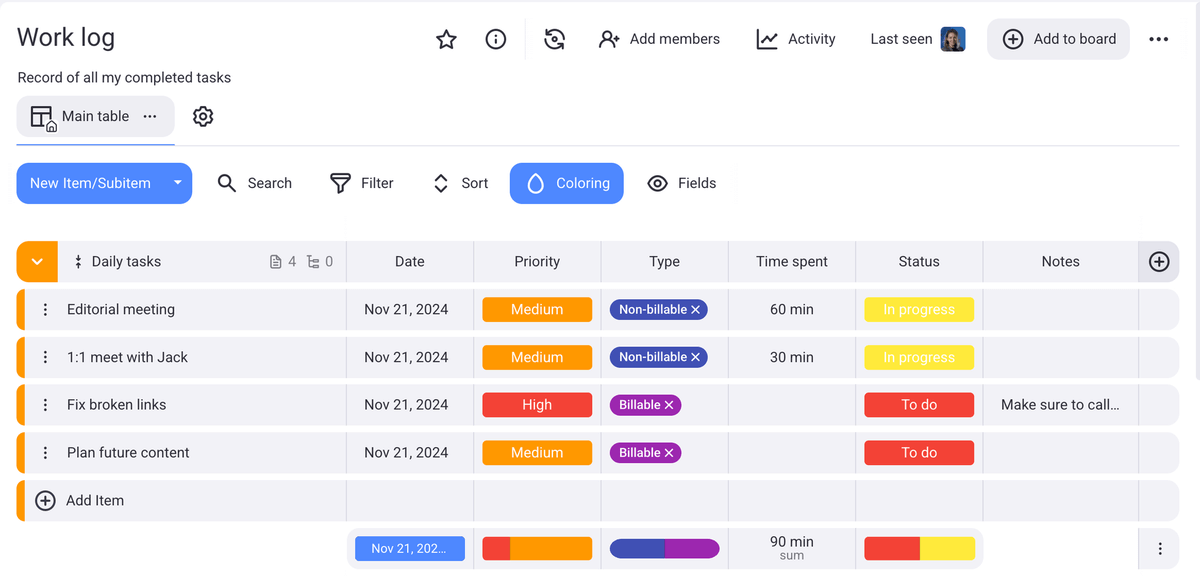
When it comes to optimizing your remote workflow, these are the Plaky features I rely on daily:
- Comments — the backbone of my communication and collaboration with my teammates. Comments help me keep all my task-related discussions in one place and never wonder about the context. The icing on the cake is that I can leave cute little reactions to the comments so that my colleagues know I’ve read their comment (it never hurts to send someone a cherry blossom instead of a plain thumbs-up, right?).
- Table view — an easy way to keep up with all that’s on my plate. But if the Table view is not your cup of tea, don’t worry, as Plaky has 3 other views in store — Kanban, Gantt, and Chart. So, find your favorite one and track away.
- Time tracking integration with Clockify — helps me keep track of the time spent on each task. It also comes in handy when you’re creating invoices for your clients.
- Files tab — You won’t have to waste another minute on searching for those docs from legal ever again. Every single file is neatly stored where it’s supposed to be — in the specific task it’s related to. No fuss!
You practically have all the essentials in one platform — no need to pay for overlapping features.
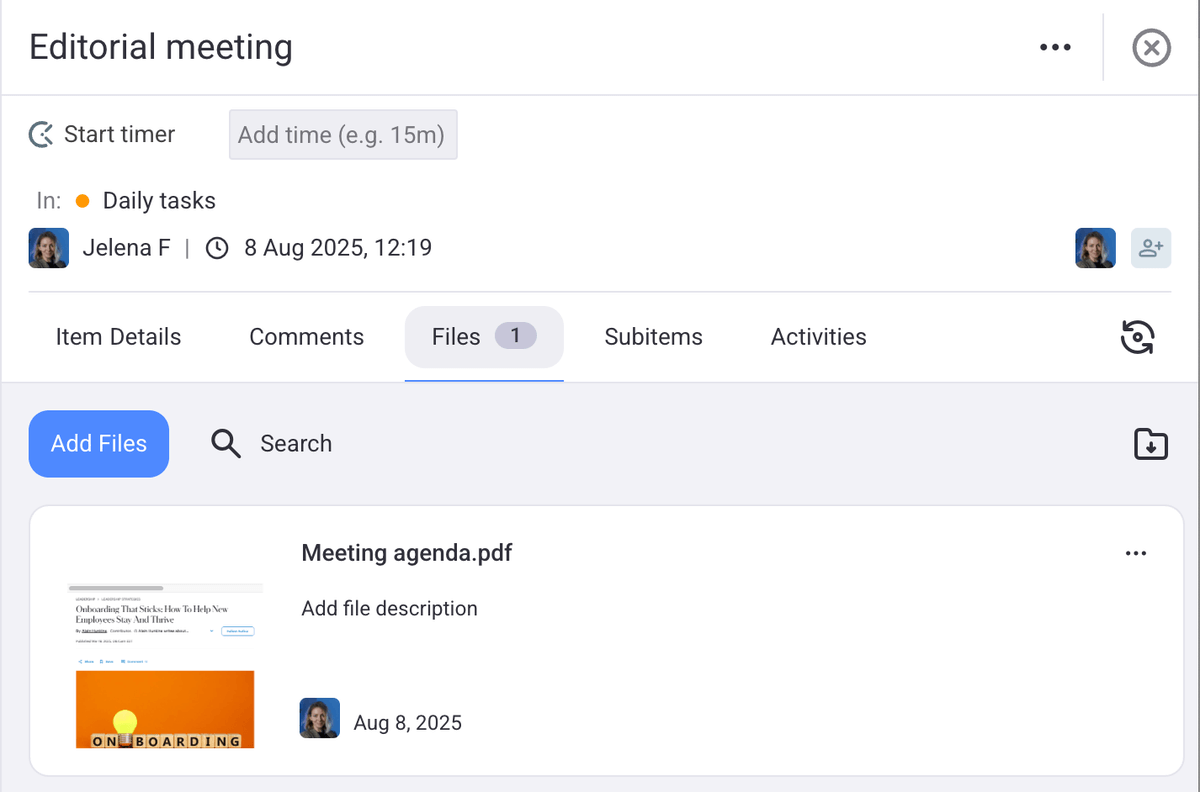
As for the drawbacks, the only thing I found Plaky lacking are integrations with other popular apps. At the moment, integrations are limited to Clockify and Pumble (you can find the reviews of these 2 apps a bit later in the article).
💡Plaky Pro Tip
There are 2 ways to track time in Plaky. Check out the following article, and choose the one that suits your needs the best:
What’s new in Plaky?
Aside from board automations, which can help you deal with repetitive tasks, Plaky recently introduced 2 important updates: the Chart view and its integration with Pumble. Get more details in Plaky’s changelog.
Available for: web, iOS, Android
💡 Read our detailed breakdown of Plaky’s pricing plans and how they compare to other options on the market.
| Plan | Price |
|---|---|
| Free | $0 |
| Pro | $3.99/seat/month* |
| Enterprise | $8.99/seat/month* |
| CAKE.com Bundle | $12.99/seat/month* |
*billed annually

#2 Google Drive — best for file sharing
Google Drive is a cloud-based platform for sharing and storing files. As a part of the Google Workspace ecosystem, it integrates well with other Google tools — Docs, Sheets, Slides, etc.
Why choose Google Drive?
If you’re already using Gmail (and other tools from the Google Workspace arsenal), Google Drive offers a convenient remote work solution for you to store your documents, files, PDFs, and even videos.
| Pros | Cons |
|---|---|
| – User-friendly – Integrations with other Google Workspace apps – Supports up to 30 types of files – Killer search feature | – Slow synchronization across devices – Minor UX issues |
Google Drive is simple and user-friendly — you can easily upload any of the 30 types of files supported by it. Luckily, even in the free plan, its storage space is generous, as you have 15 GB at your disposal.
Because it’s cloud-based, Google Drive is accessible from any device. This has been a game-changer for me, as I like to check for updates on my docs while I’m on my phone — no need to reach for my laptop.
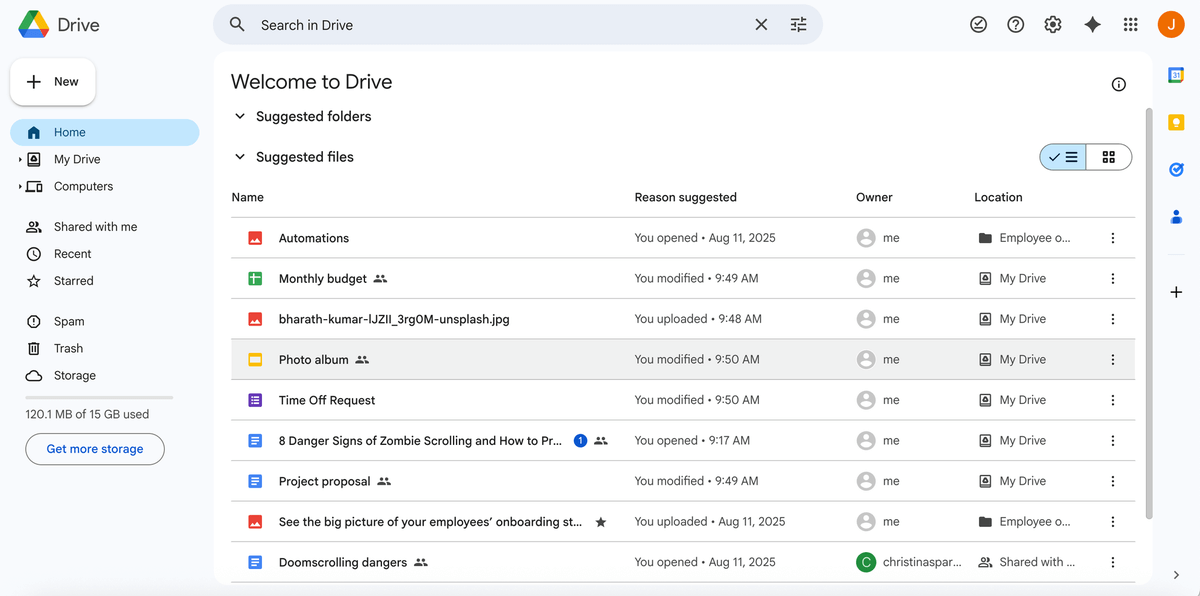
As I already mentioned, a great plus is that it integrates with all the other Google Workspace apps, making remote collaboration a total breeze. Everything is in one place, so all team members have access to the same information. I use Google Docs on a daily basis and find it super useful that all my files are stored in one space. This also means I can easily find anything I need in just a few clicks.
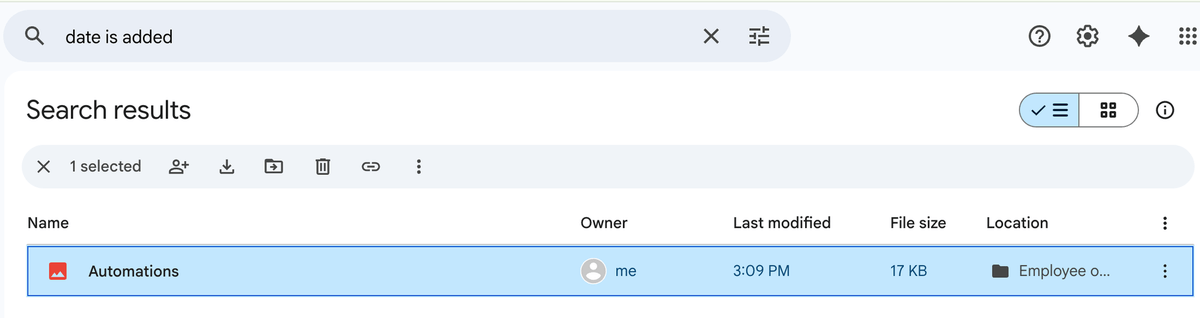
While we’re on that subject, kudos to the Google Drive search option. The best part? The search covers even the phrases found in screenshots, which is a great time-saver for me when I’m editing blog posts. I don’t have to open each screenshot individually to find the one I need.
As for the downsides, I’ve noticed that syncing Google Drive across devices can be a bit slow. For example, when I upload a large file to Google Drive via my laptop, I see it on my phone only when it’s completely uploaded, which can take some sweet time.
But that’s not the only gripe I had with Google Drive.
Namely, cloud-based apps have their own set of strengths and weaknesses. As such, this app enables editing in the offline mode, which is really handy when you don’t have an internet connection for a while. However, for the content to be updated, you’ll need to be online. So, if it happens that you’re off the network for a longer period, your files won’t be synced.
Also, not sure if this was a temporary glitch or a bug, but when I tested how quickly Google Drive shows updates during collaboration, I had to manually refresh the app to see whether there were any changes. Even then, the modifications I made didn’t show in my recent changes (although I’m sure there were some).
What’s new in Google Drive?
Aside from various bug fixes, Google Drive hasn’t released any major updates recently.
Available for: web, Mac, Windows, Android, and iOS
Google Drive is completely free for individual users. However, for business users, Google Workspace suite offers several paid plans.
| Plan | Price |
|---|---|
| Starter | $6.30/user/month* |
| Standard | $12.60/user/month* |
| Plus | $22/user/month* |
| Enterprise Plus | $35/user/month* |
*billed annually
#3 Pumble by CAKE.com — best for remote communication
Pumble is a remote team communication tool by CAKE.com that helps virtual teams stay connected without getting overwhelmed with a thousand emails.
Why choose Pumble?
Pumble is a perfect remote work solution for team coordination as it offers both video conferencing and messaging options for all your remote communication needs.
| Pros | Cons |
|---|---|
| – Intuitive – Video and audio messaging – Secure | – No read receipts |
My team and I have been using Pumble from its very beginning, so we have tested it in countless situations. We use it to:
- Exchange information, chat casually, and collaborate through public and private channels, as well as through direct messages,
- Meet up weekly, monthly, and whenever there’s a need for a quick (or not so quick) video call, and
- Share files in a matter of seconds and get immediate feedback on any issue in question.
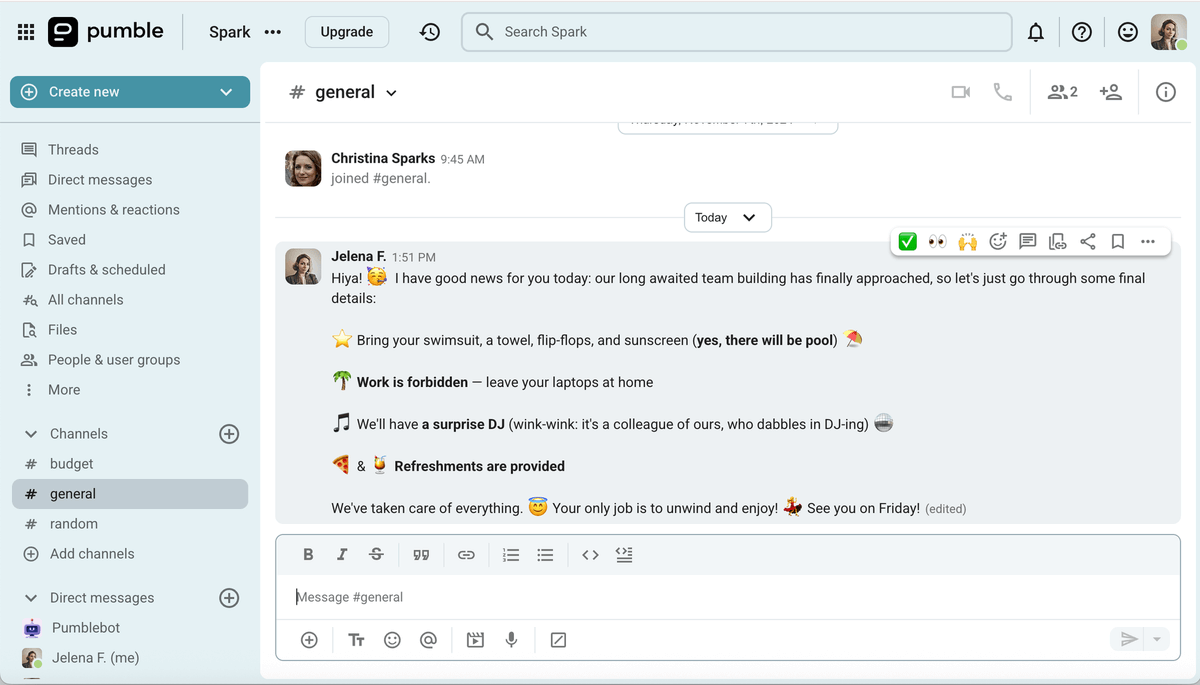
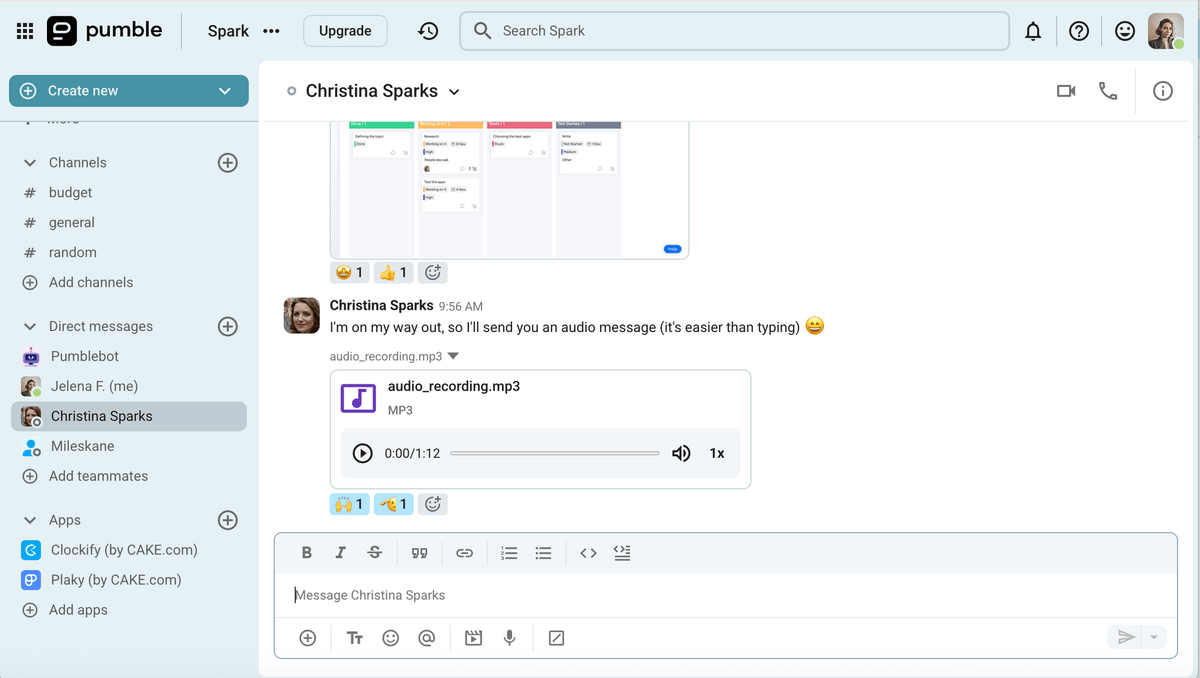
I especially like sending audio messages to my teammates whenever I’m in a hurry, as it’s easier for me to record a message than type it.
This feature is also useful for asynchronous communication, as the recipient can listen to the message at their own convenience. Keep in mind, though, that this type of communication is rather informal, so make sure your company doesn’t frown upon it.
Another thing worth mentioning is something all CAKE.com products rightfully boast — security measures, which are particularly important when working remotely (on various networks and devices).
For instance, Pumble is compliant with SOC2 and has ISO/IEC 27001:2013 security certificate. Also, it doesn’t have access to your location, search, and browsing history, so you can rest easy while chatting with your coworkers.
As far as integrations go, Pumble integrates seamlessly with a decent number of apps (Calendly, GitHub, Zapier, and Zoom, to name a few), the latest one of which is Plaky. Moreover, Pumble’s API allows you to create custom integrations, either for private or public use.
Build your own integrations with Pumble
My only complaint is that you can’t get read receipts on Pumble, so you never know whether the recipient has seen the message you sent (and simply ghosted you) or not.
What’s new in Pumble?
Pumble has recently introduced an integration with Plaky and Clockify. New features also include recurring messages and emoji reactions in meetings.
Available for: web, macOS, Windows, Linux, iOS, and Android
| Plan | Price |
|---|---|
| Free | $0 |
| Pro | $2.49/seat/month* |
| Business | $3.99/seat/month* |
| Enterprise | $6.99/seat/month* |
| CAKE.com Bundle | $12.99/seat/month* |
*billed annually

💡 PLAKY PRO TIP
Find out how you can use the CAKE.com Bundle (Clockify + Pumble + Plaky) to your advantage:
#4 Gather — best for office enthusiasts
Gather (also known as Gather.town) is a virtual office for remote workers, designed to help them stay connected no matter where they are.
Why choose Gather?
If you cherish your work-from-home flexibility but would still like to replicate the spontaneity of bumping into your colleagues in the office — this app might be just the right solution for you.
| Pros | Cons |
|---|---|
| – Easy to use – Fun and interactive – Integrates with Google Calendar for easier meeting scheduling | – Glitchy – Limited chat functionalities – Mobile app lacks popular features |
Gather is a fun way to simulate working from the office and fight the feeling of isolation. You start by making your avatar to navigate this virtual space so that you can spontaneously chat with colleagues near you, organize video conferences, or even casually hang out. All this helps build remote work culture, which is no easy feat.
Full disclosure: ever since I started working, I’ve been working remotely. When I decided to change my previous (and my first real) job, I was positive I’d be going to the office, if there were an option to do so.
Fast forward a few weeks (and months and years) later, I’m still working from home.
Old habits die hard, you may say. I guess I was more in love with the idea of working from office than in-office work itself. Maybe that’s why I really liked Gather — it’s the best of both worlds.
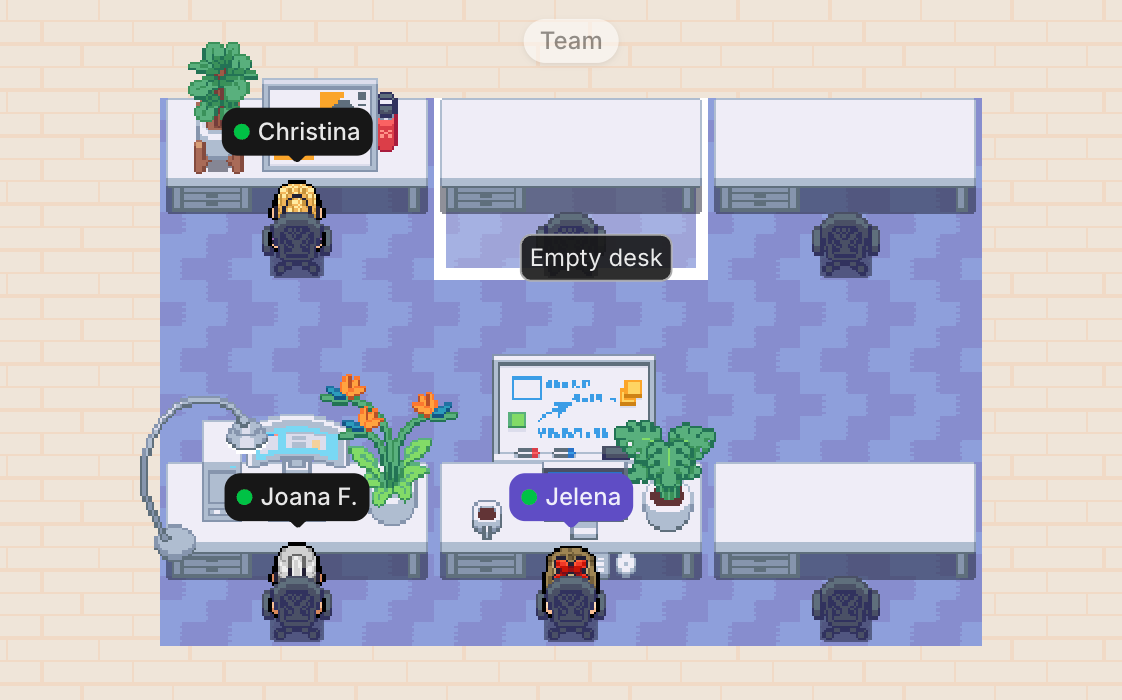
Gather allows you to customize your work environment by adding plants, whiteboards, coffee mugs, etc. This is really fun, especially if you like playing real-life simulation games like The Sims (although this would be an extremely simplified version of it).
I like it that this app enables you to interact with your team members more spontaneously, like you would in an actual office. It’s a great way to fight the feeling of isolation, which is so common among remote workers.
For example, in Gather, you can stop by someone’s desk and start a conversation — no need to schedule a meeting. Of course, this is a great option for some casual chitchat.
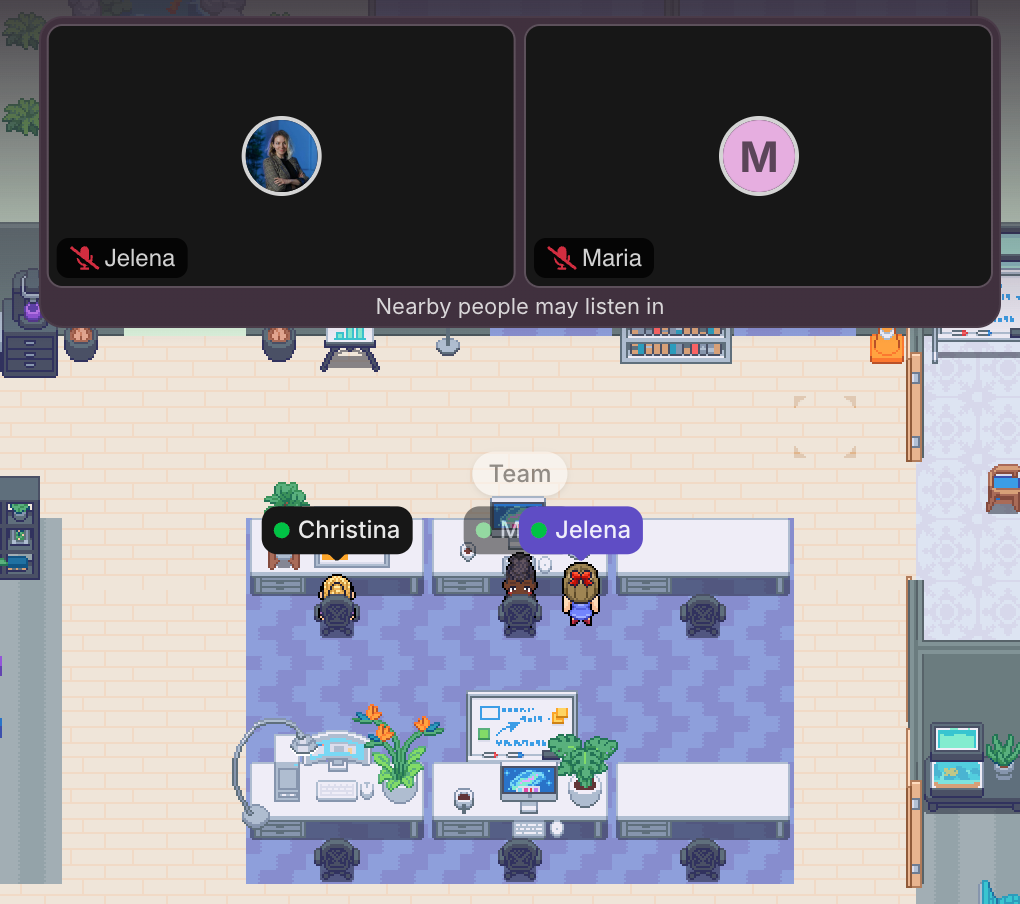
When you need a more structured gathering, though, you can easily schedule meetings in the app itself. All you have to do is connect your Google or Outlook Calendar to the app.
Aside from that, Gather boosts collaboration by allowing you to:
- Brainstorm in real time on a whiteboard,
- Share multiple screens simultaneously, and
- Embed links in various objects in your virtual office.
As for the drawbacks — know that the app is rather glitchy.
While trying to add a coworker to my test space in Gather, I noticed how slow the app was. To illustrate, I managed to listen to a whole Muse song while waiting (4:12). Later, I realized that it was the case only with the Safari browser — everything went smoothly on Google Chrome. After that, the same colleague that joined my virtual office couldn’t unmute herself.
Another downside: the chat option is rather basic. For instance, you can’t search conversations, which can seriously hinder your workflow. It basically forces you to waste your time either searching for the information manually or asking a colleague for help.
Last but not least, Gather’s mobile app enables you to just jump on calls and meetings, but you can’t walk around and strike up conversations. A real bummer, because that’s what makes you feel like you’re in an actual office, more than anything else.
What’s new in Gather?
Recently, Gather enabled its users to customize their notifications about nearby conversations, or to enable “auto listen” to immediately tune in. Also, they announced that they’ll introduce new pricing on September 15, 2025.
Available for: web, MacOS, Windows, iOS, and Android
| Plan | Price |
|---|---|
| Free | $0 |
| Premium | $5.95/user/month* |
*billed annually
#5 Clockify by CAKE.com — best for time tracking
Clockify is remote work and team tracking software by CAKE.com, ideal for keeping track of how much time you spend on your tasks while working remotely.
Why choose Clockify?
Clockify is an intuitive solution for teams looking to meet their time tracking needs without committing to lengthy onboarding.
| Pros | Cons |
|---|---|
| – Easy to use – Useful for creating invoices – Handy for keeping track of your clients | – More advanced features locked behind the paywall – 7-day free trial |
Like the other 2 CAKE.com products (Pumble and Plaky), I have been using Clockify for a while now, and I have yet to find a major fault with it.
Primarily a time tracker, Clockify allows you to:
- Track time spent on various tasks, either by starting and stopping the timer, or by entering the hours manually,
- Quickly log your weekly activities in timesheets,
- Use the Calendar to visualize your time and block out activities, and
- Clock in with your PIN code from a shared device with Kiosk.
I usually enter my work hours manually — it gives me a special feeling of accomplishment when I type what I’ve done and how long it took.
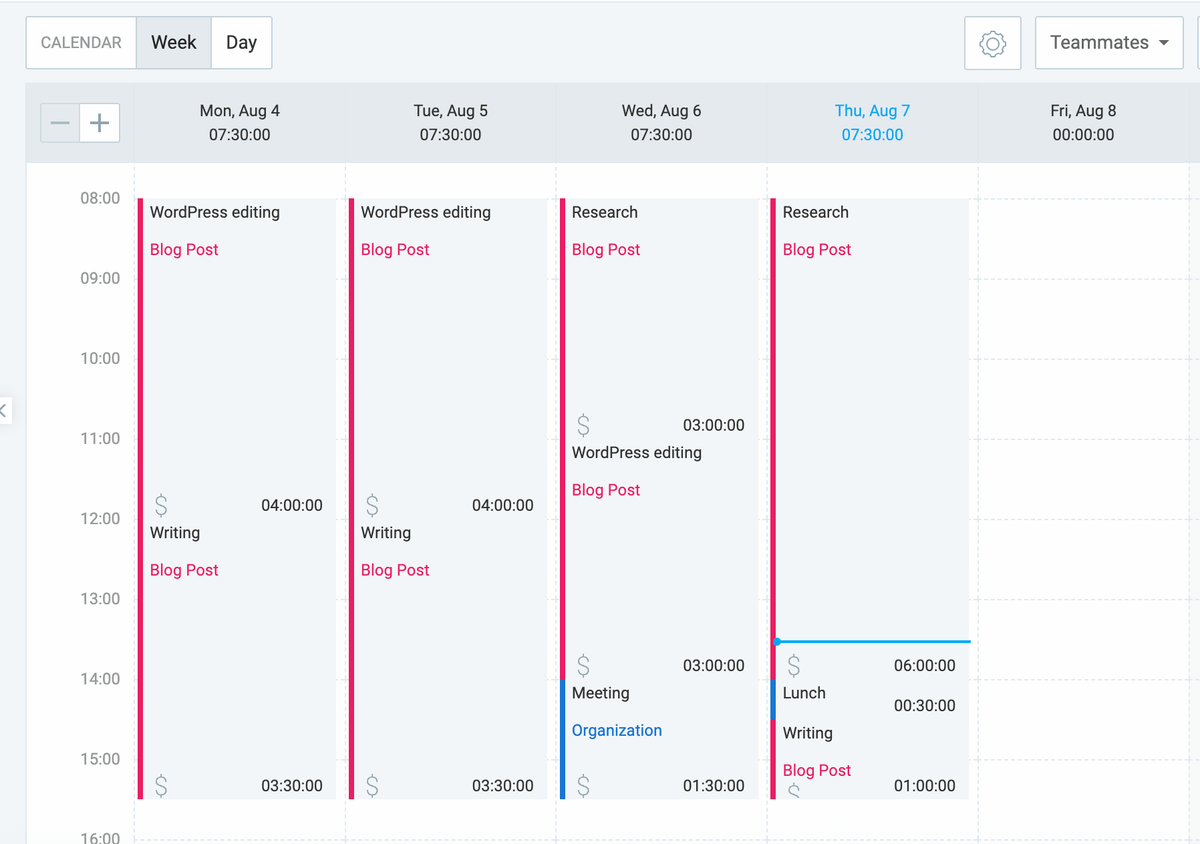
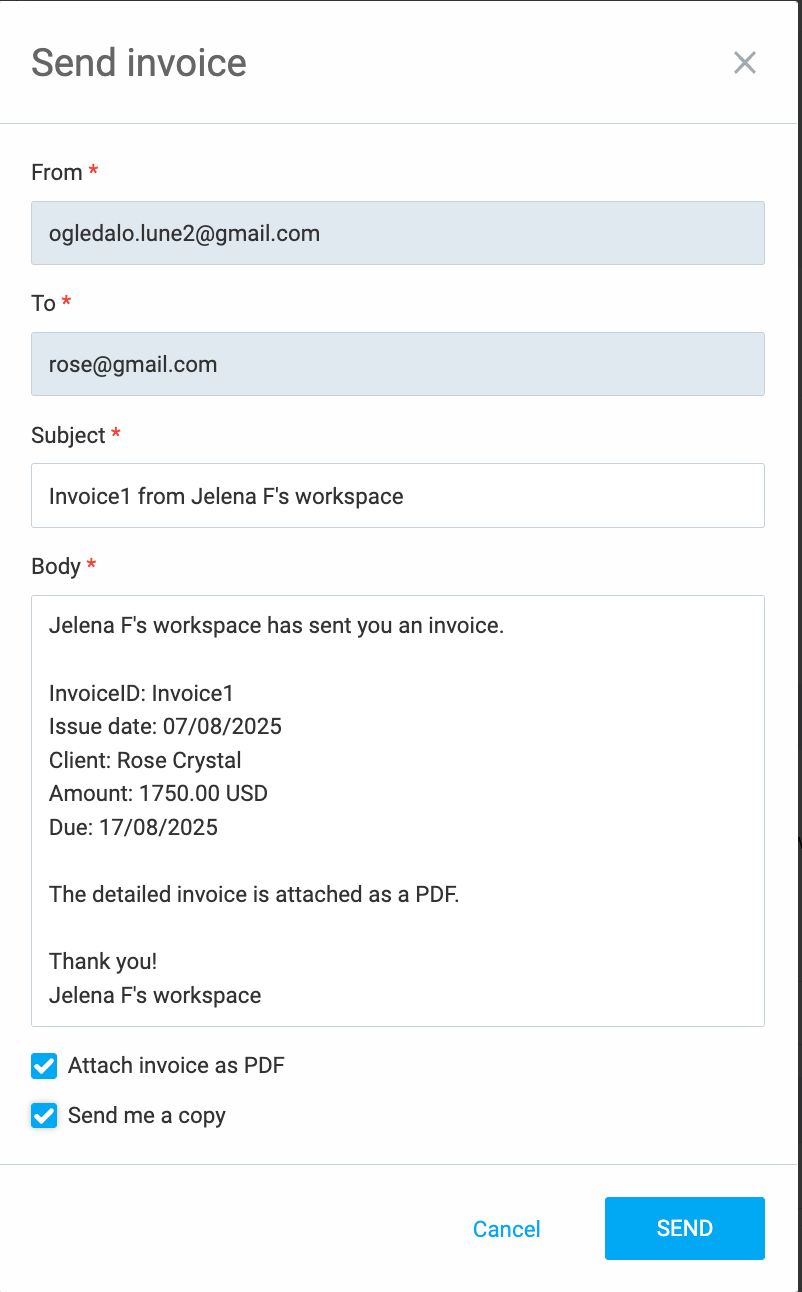
Aside from time tracking, Clockify also comes in handy when billing clients by enabling you to create invoices based on your tracked time. To save time, you can use some of the available templates and customize them the way you want. You just need to import your billable time for a client of your choice, add expenses for the project (if any), time period, and voilà! You’re all set.
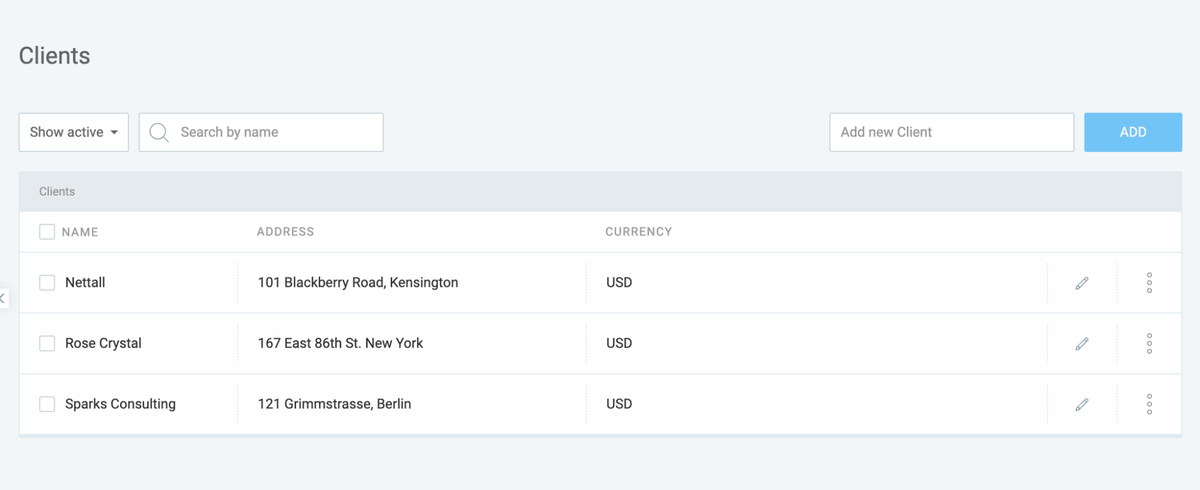
If you have recurring clients, you can even save their information and speed up the process the next time you need to bill them. Just use the option Create clients to save all the important information (e.g., client name, currency, issue and due date) and create your own client address book.
Best of all, Clockify makes it super-easy to manage your and your remote staff’s PTO. You can check your balance at any given moment and plan your vacations accordingly. Also, you can take a look at when your teammates are taking their PTO, which helps plan your workload with that in mind.
As for the drawbacks, some more advanced features (e.g., adding a logo to your invoices) are available in paid plans only. Clockify’s free trial lasts only 7 days too, which may not be enough to test all it has to offer. Still, it’s better than nothing!
💡Plaky Pro Tip
Thanks to Plaky + Clockify integration, you can organize your projects and track time in one software. Read more in our article:
What’s new in Clockify?
In August 2025, Clockify introduced reminders for submitting timesheets for approval. It also enabled approving and rejecting time off requests directly from Pumble.
Available for: web, macOS, Windows, Linux, iOS, and Android
| Plan | Price |
|---|---|
| Free | $0 |
| Basic | $3.99/seat/month* |
| Standard | $5.49/seat/month* |
| Pro | $7.99/seat/month* |
| Enterprise | $11.99/seat/month* |
| CAKE.com Bundle | $12.99/seat/month* |
*billed annually
#6 Miro — best for brainstorming
Miro is a virtual whiteboard platform, used both for asynchronous and real-time collaboration.
Why choose Miro?
If you miss brainstorming with your colleagues at the office, Miro’s extensive collaboration features are sure to come in handy.
| Pros | Cons |
|---|---|
| – Good collaboration features (presenting and sharing frames with your colleagues) – Fun to use – Great AI feature for making diagrams, flowcharts, and mind maps | – Limited free plan – More advanced features available only in paid plans – Too many elements can make whiteboards too chaotic to use |
Miro comes with some great advanced features for collaboration, including:
- Diagramming,
- Brainstorming,
- Mind mapping,
- Journey mapping, and
- Product planning.
All the work happens within a Miro whiteboard — a blank canvas that allows you to fill it up with your ideas and brainstorm them with your coworkers. I like the option of commenting directly on the whiteboard so that all stays in one place. When you mention your collaborators, they get notified, so you can rest assured that nothing gets missed. Also, both mentions and comments are color-coded — new ones are blue, read ones are white. This makes collaboration easier overall, as you can identify unread comments at a glance.
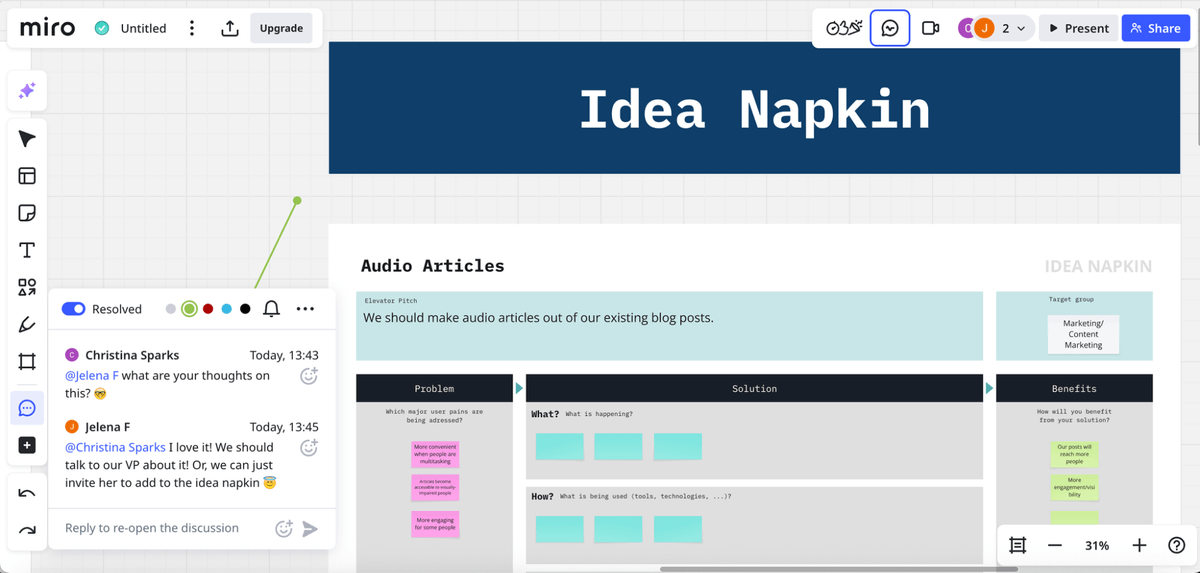
Another thing I like about Miro is that you can present and share frames with your colleagues. In other words, everything you work on can become a meaningful presentation full of bright ideas (with a little bit of tweaking, of course).
If you’re anything like me, you’ll find Miro really fun to use, as it offers various stickers, notes, emojis, and GIFs, with which you can jazz up your messages. A special treat for me, as an art lover, were stickers named Cubist feels with their Miroesque faces. Fun fact: the very name of the app was an homage to the Catalan artist Joan Miró.
I must commend Miro’s AI functionalities as well — you can use them to make diagrams, mind maps, flowcharts, and more, in case you’re not sure where to start.
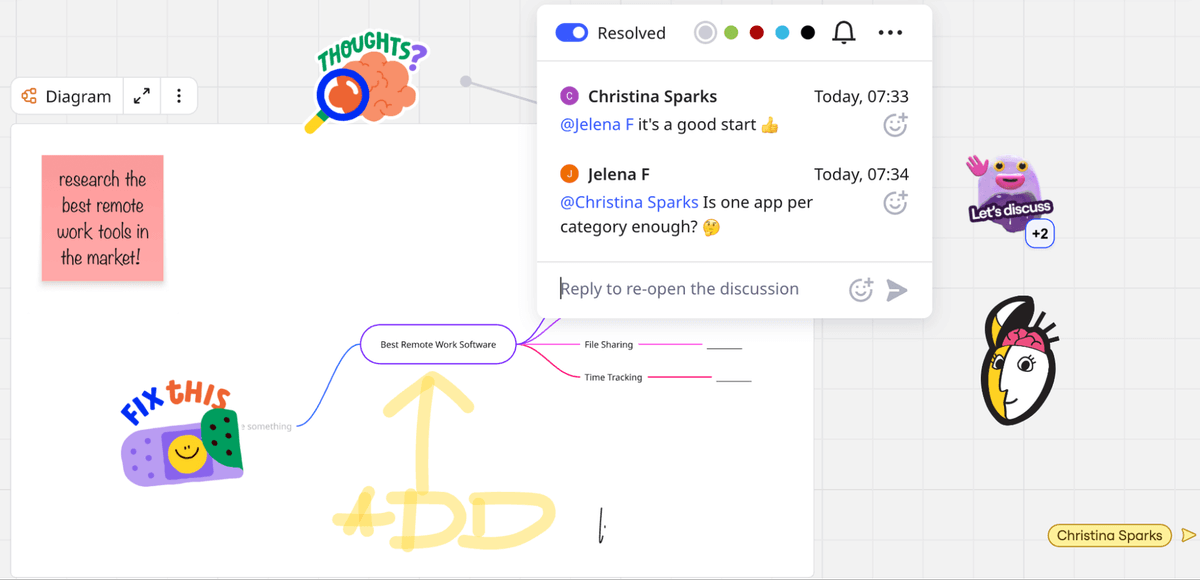
That said, what Miro excels in — making whiteboard brainstorming super-fun — is, in a way, its demise.
Namely, the whiteboard itself can quickly become chaotic when you introduce too many elements. I used Miro for a couple of days, and even in that short amount of time, it became pretty messy. You can delete anything you don’t need, though, but that would require constant cleanups, which can be a hassle.
However, what annoyed me the most is that Miro’s free plan is really limited. You get only 3 editable boards in the free plan and only 5 so-called Talktracks (a feature that enables you to record interactive videos and audio walkthroughs of your boards in Miro). Timer, voting, and private mode are all locked behind a paywall.
On top of that, Miro can be pretty glitchy, which I discovered by trying to do something very simple — send an invite link to a new team member. This was really frustrating, as I wasn’t able to do a simple task and had to waste time figuring out what to do. I had more luck on my second try.
What’s new in Miro?
Recently, Miro enabled its users to create directional dependencies (by using new Blocking and Blocked by fields in Tables). Additionally, Miro users can now start video calls directly from Focus Mode views (Docs, Diagrams, Timelines, and Slides).
Available for: web, macOS, Windows, iOS, and Android
| Plan | Price |
|---|---|
| Free | $0 |
| Starter | $8/member/month* |
| Business | $16/member/month* |
| Enterprise | POA |
*billed annually
#7 Figma — best for collaborative design
Figma is a design tool, primarily used for user interface and user experience design.
Why choose Figma?
Figma is an excellent choice for designers, product managers or content writers working remotely as it allows teams to collaborate in real time and create and test designs for various purposes — websites, mobile apps, blog posts, etc.
| Pros | Cons |
|---|---|
| – Real-time collaboration – Excellent tutorials & a course Figma design for beginners – Component libraries | – Steep learning curve – Limited free plan |
As a long-time Figma user, I’ve seen firsthand how it makes real-time collaboration easier — even when you’re working remotely.
Admittedly, for me, Figma was an acquired taste, as it took me a while to learn how to use it comfortably. But that’s the thing — you don’t have to struggle alone, as Figma lets you collaborate with others in real time!
There are a few different ways to communicate within the app itself (and prevent important information getting lost in threads or DMs in messaging apps):
- Comments — You can pin the comment box to the exact spot you’re referring to (a button, a line of text, or a full frame) to avoid any possible misunderstandings.
- Disappearing comments — By using /, you can chat with your collaborators in real time without worrying that your canvas will become cluttered since your comments disappear in a matter of seconds.
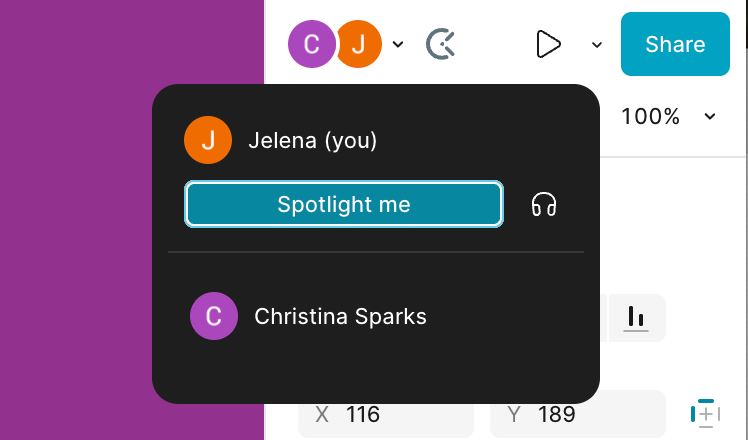
- Spotlight (audio calls with your collaborators) — These are great for live demonstrations or even troubleshooting, without the need to switch apps and waste your time.
Another thing that I found convenient is that you can create component sets in Figma and reuse them whenever necessary. This is especially useful because it enables you to be consistent with your design.
Moreover, where Figma fails you (in this case, by not being so intuitive, at least for me), it offers salvation in the form of excellent tutorials.

As for some other downsides, I must admit that Figma’s free plan is rather limited. You get just 3 files to try out (with 3 pages each). There is no limit on the number of editors on these files, but there is a condition: they have to be in the same Team (collaborative workspace) and Project (organizational folder within a team).
What’s new in Figma?
Figma recently enabled its users to hover over a shortened variable or style name to see their full names. The platform also added 10 new scatter brushes in Figma Draw.
Available for: web, Android, iOS, MacOS, Windows, and Linux
| Plan | Price |
|---|---|
| Free | $0 |
| Professional | $3/Collab seat/month* $12/Dev seat/month*$16/Full seat/month* |
| Organization | $5/Collab seat/month* $25/Dev seat/month*$55/Full seat/month* |
| Enterprise | $5/Collab seat/month* $35/Dev seat/month*$90/Full seat/month* |
*billed annually
#8 Calendly — best for scheduling meetings
Calendly is a scheduling platform that simplifies booking and coordinating meetings.
Why choose Calendly?
Calendly is great for organizing remote meetings because it syncs with your calendar, allowing anyone with your Calendly link to easily find the perfect time for an appointment — without exchanging countless emails with you.
| Pros | Cons |
|---|---|
| – Easy to use (including setup) – Time zone conversion – A decent number of integrations | – Limited free plan – Pretty pricey |
I have been using Calendly for a few years now, usually for scheduling meetings with contributors while I’m doing research for my articles. It really saves me time, as I don’t have to send emails back and forth trying to find a free time slot in their busy calendars. Calendly does that for me.
My impression is that this app is really easy to both use and set up. You just connect it to your calendar (Google, Outlook, or Exchange), and you can easily schedule, reschedule, or cancel meetings.
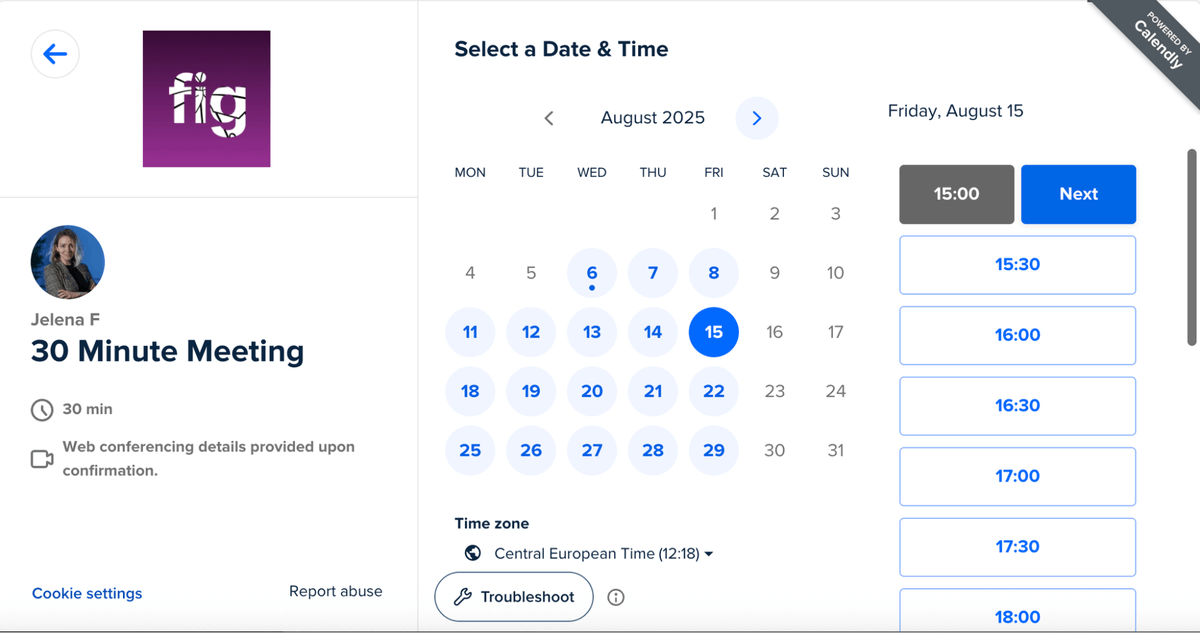
You can use Calendly either with your team or on your own and choose between various event types (like meeting templates), including:
- One-on-ones — between a Calendly host and an invitee,
- Group events — include a Calendly host and multiple invitees,
- Round robins — a 1-on-1 event cycled through your whole team (e.g., a sales call between a lead and any sales agent), and
- Collective events — with multiple Calendly hosts and one invitee (e.g., panel interviews).
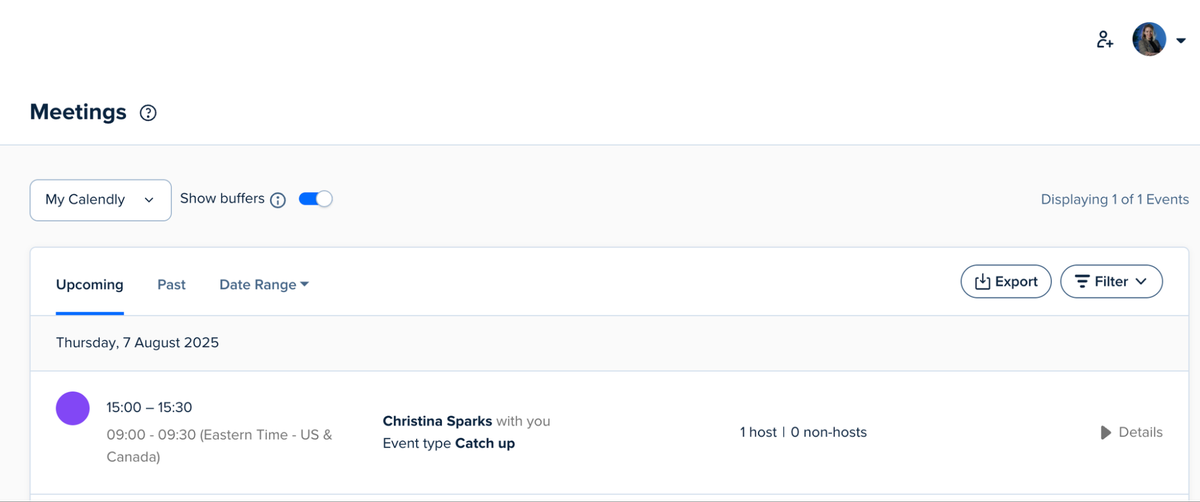
What I also really like about Calendly is that it automatically detects your invitee’s time zone and shows them when you’re available in their local time. I admit I quickly get lost when I try to convert time zones manually, so I find this feature super useful.
Another thing: Calendly integrates with a generous number of apps, including Google Calendar, HubSpot, and Loom, to name a few.
As for some drawbacks, I have to mention Calendly’s rather limited free plan, which limits you to only one event type.
Also, what particularly bothered me is that you don’t get email notifications about reminders and follow-ups. In other words, you have to stay vigilant and always check the app itself, which is pretty annoying (to say the least).
Worse, if you want to avoid these limitations, you’ll have another hurdle to overcome — Calendly’s steep prices.
What’s new in Calendly?
Recently, Calendly enabled its users to share their scheduling link in personalized emails and send reschedule requests directly from the app itself.
Available for: web, iOS, and Android
| Plan | Price |
|---|---|
| Free | $0 |
| Standard | $10/seat/month* |
| Teams | $16/seat/month* |
| Enterprise | Starts at $15k/50 seats/month* |
*billed annually
#9 Loom — best for creating tutorials
Loom is a tool for recording and sharing video messages (screen recordings with audio and video) and meetings.
Why choose Loom?
Loom is an excellent choice for remote workers who need to share tutorials and how-to guides. Also, it’s a great solution for asynchronous communication and collaboration, as teams can easily share information in a video form.
| Pros | Cons |
|---|---|
| – Intuitive interface – Advanced editing options – Video views and analytics | – Free plan lacks some popular functionalities – Glitchy – Extension limitations |
While testing Loom for this overview, I had no trouble learning the ropes. Actually, the only minor issue I had (I couldn’t figure out how to unmute my microphone) was quickly resolved thanks to the app’s excellent Help page.
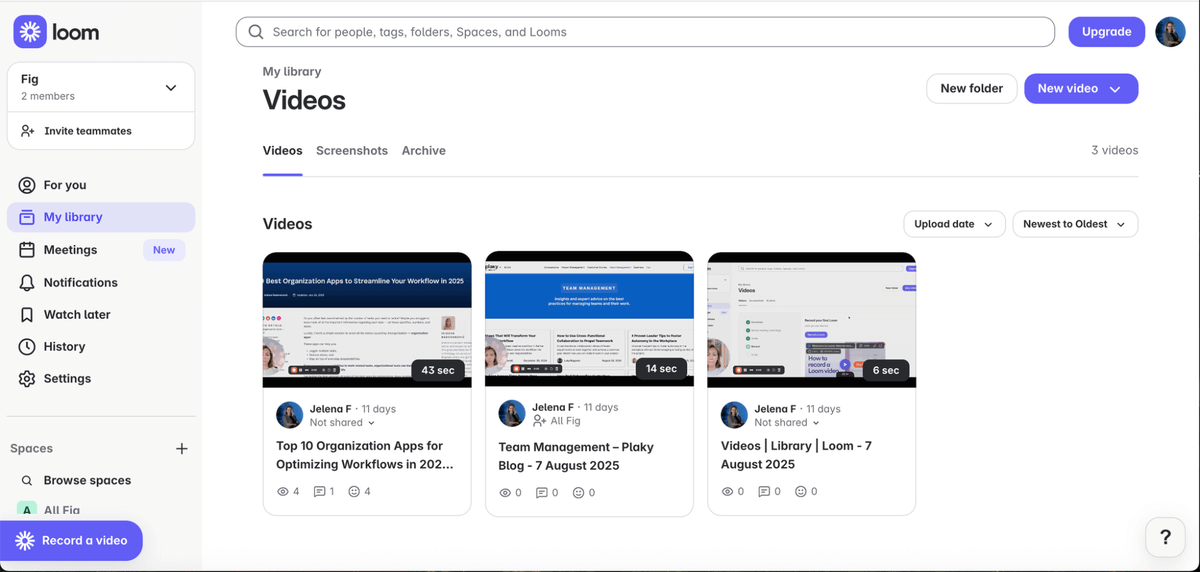
To use Loom, you can choose between an app and an extension. I chose the extension, as it was more convenient for me (it doesn’t take up storage, and I can easily remove it if I don’t like it). Little did I know at that moment that the extension would only allow me to record internal audio from 1 tab. This was a bit limiting, I must admit.
On the other hand, I did like the fact that Loom lets you disable AI functionalities (which are only available in the paid plans, by the way). This allowed me to comply with my company’s security precautions with ease.
However, that’s also when I encountered one of the glitches. Namely, I turned off AI on day 1 of testing, only to find out the next day that it’s enabled again. Luckily, my second try was more successful.
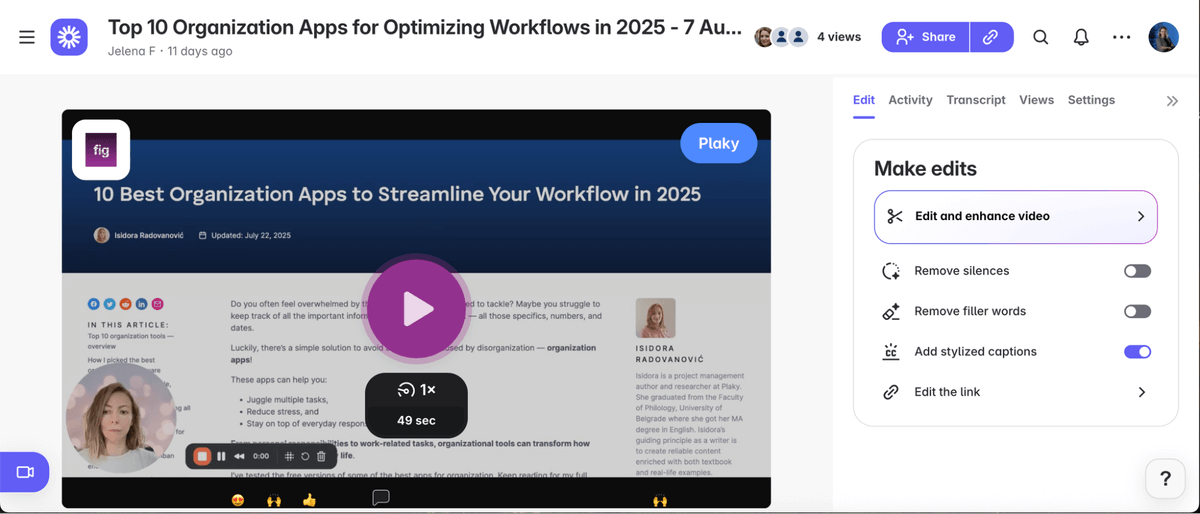
Moving on to Loom’s advantages, I must highlight its editing options. I particularly liked that you can edit your video directly from the transcript — you just need to delete the words or sentences you’d like to cut from the video from the text and that’s it! Even better, Loom enables you to remove silence and filler words by simply turning respective toggles on.
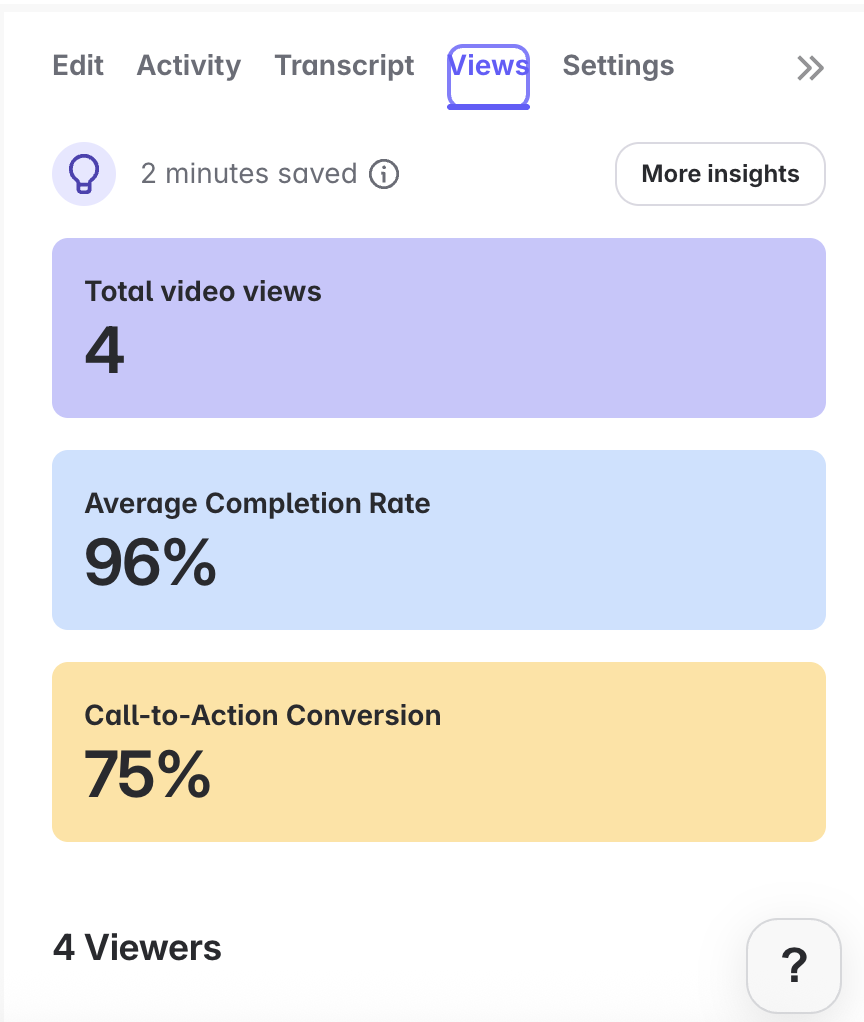
The fact you can get insights about the video you shared also appealed to me. In the Views menu, Loom allows you to see:
- Total video views,
- Average completion rate, and even
- CTA conversions.
This helps you not only see who watched the video, but also whether they completed it and clicked on your CTA (which shows the effectiveness of your videos). For example, if your video is 10 minutes long, and an average completion rate is 25%, it’s a clear sign you should make shorter, more engaging videos.
What’s new in Loom?
Loom has recently enabled its customers with paid Confluence and Loom Business + AI plans to use AI-powered meeting notes (including summary, invitees, action items, highlights, and a full transcript).
Available for: desktop app, Chrome extension, Android, and iOS
| Plan | Price |
|---|---|
| Starter | $0 |
| Business | $15/user/month* |
| Business + AI | $20/user/month* |
| Enterprise | POA |
*billed annually
#10 SignNow — best for signing documents
SignNow is a platform for signing, sending, and managing documents digitally, which streamlines the whole documentation workflow.
Why choose SignNow?
SignNow helps you sign your documents easily and quickly, without the need to print, sign, scan, and send your documents.
| Pros | Cons |
|---|---|
| – Easy to use – You can make templates out of your most used docs – Docs can even be notarized | – No free plan & short free trial – You can’t directly edit uploaded docs |
Need to sign a doc that proves you finished your online fire protection and prevention training? SignNow’s got your back!
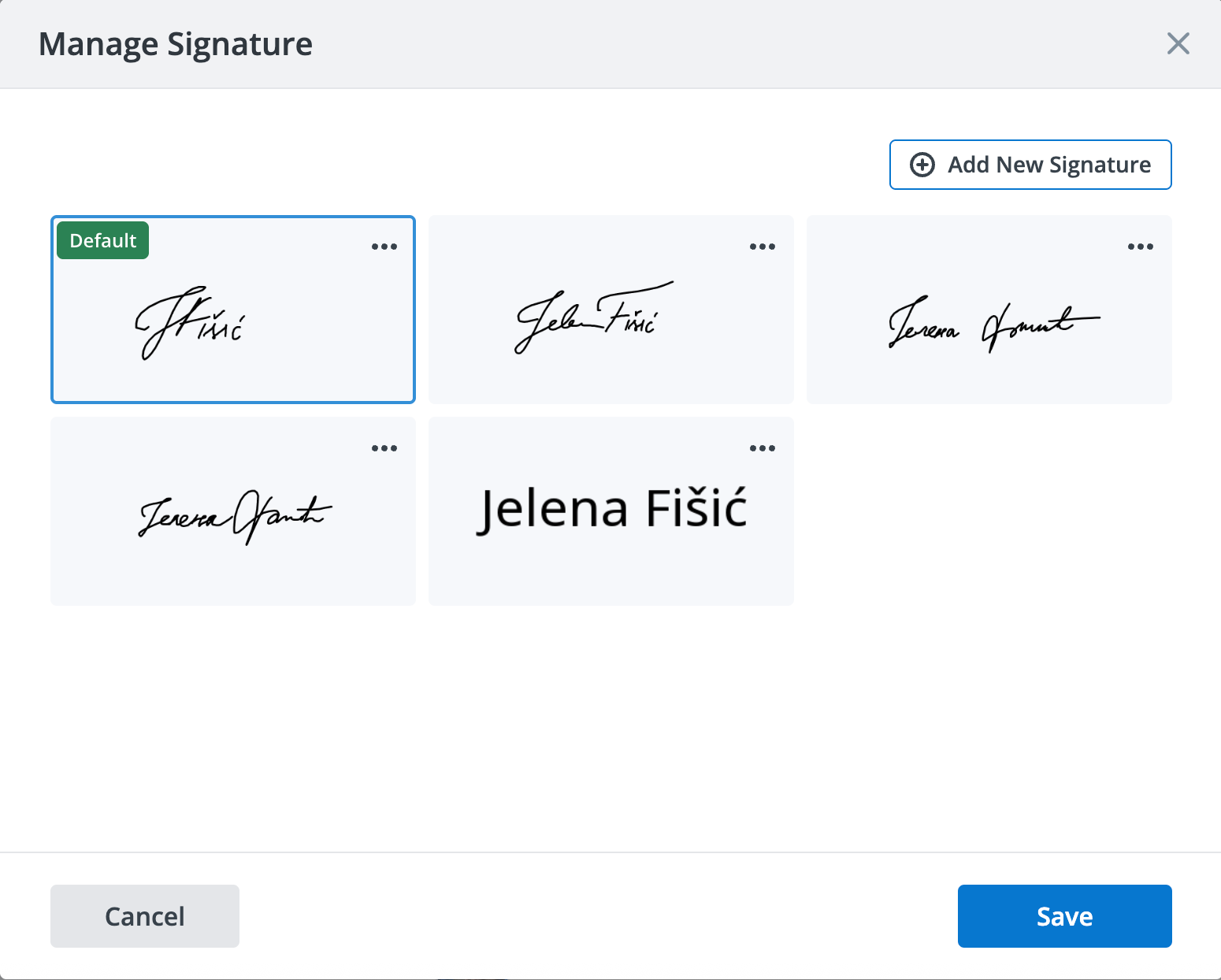
This app is easy to use, although, I must admit, it wasn’t easy tweaking my signature to my liking. I had to use my trackpad to create the signature and I really wasn’t that happy with the results. Finally, I lowered my standards and chose the least clunky version.
SignNow allows you to invite members and send them documents for signing. Once they sign the document, you get an email notification, and you can view the signed doc. Also, you can check the invite status at any time. No need to bore your invitees with emails or DMs!
Another great perk — although limited to the US — is that you can even notarize your signed documents. Again, a huge time-saver! You don’t have to spend hours going to the notary’s office and waiting. Also, this service is available 24/7, so it’s great for any urgent matters.
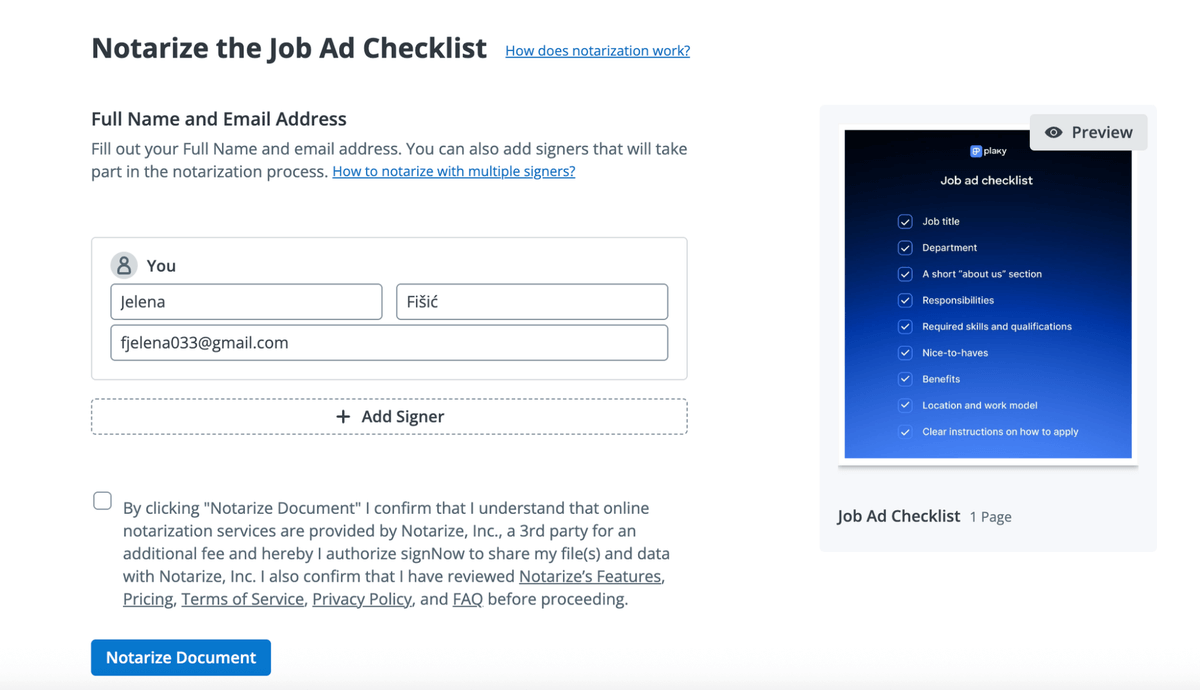
As for the downsides, the thing that bugged me the most was that the free trial is just 7 days. Moreover, there’s no free plan. If you need to send your signed documents once or twice a year, it doesn’t make any sense to invest in an app that serves that purpose.
Another thing that bothered me is that you can’t directly edit uploaded documents after you sign them, which is a bit of a hassle. Instead, you have to download your docs, edit them, and upload them again.
What’s new in SignNow?
SignNow recently introduced new reporting experience to help your document workflows:
- Reports section — for admins and users with reporting permissions,
- Workspace Analytics — for analyzing your overall activity,
- Leaderboard report — detailed user activity reports, and
- User Reports — detailed views of individual users’ document activity.
Available for: web, Windows, Linux, Android, and iOS
| Plan | Price |
|---|---|
| Business | $8/month* |
| Business Premium | $15/month* |
| Enterprise | $30/month* |
| Site License | $1.50/signature invite |
*billed annually
#11 Kudoboard — best for employee recognition
Kudoboard is an online tool for creating group greeting cards and sharing them with coworkers for special occasions (e.g., birthdays, work anniversaries, farewells) so as to improve employee recognition.
Why choose Kudoboard?
Kudoboard helps you make sure your remote employees don’t feel isolated and disconnected from their colleagues by letting you send them group e-cards for special occasions. Overall, this helps maintain a strong company culture as employees feel appreciated and thought of.
| Pros | Cons |
|---|---|
| – Fun to use – Good customization options – Scheduling feature | – No free plan – Pricey |
If you think that Kudoboard is just a glorified e-card platform and not worth investing in, let me reassure you. Working in distributed teams can really be isolating. It’s not easy to maintain a strong, cohesive team in these circumstances.
That’s why you need to show a consistent effort to contribute to the team or company culture. Kudoboard is designed to help you do just that — through a dynamic and collaborative board you can revisit any time.
My first impression of Kudoboard is that it’s so fun to use — you collaborate on the board with your colleagues and make a card for any special occasion. The board itself is highly customizable. You can add photos, videos, gift card attachments, custom backgrounds, and more.
However, this is only available in the paid plan. Although there’s no free plan, there are so-called demo boards, but they are rather limited.

To be honest, Kudoboard sounded a lot more fun until I realized a lot of other useful features are locked behind the paywall (e.g., custom branding, tagging, likes, and comments). There’s also an option for scheduling the delivery of your cards, which helps make sure you don’t forget any major milestones.
However, I did like that Kudoboard offers an amusing way to bond with your colleagues — for example, by creating fun boards where you can share your summer holiday highlights. The fact that your teammates and you live hundreds of miles apart shouldn’t stop you from getting to know one another. After all, you work better with people you’re friends with, and this can be hard to achieve when you work in distributed teams.

Let’s circle back to the last drawback — there’s no free tier, just limited demo versions. You have only 5 posts at your disposal. You can’t even send invites to your collaborators without upgrading.
Speaking of paid plans, they are expensive to begin with and scale quickly for more users. So, if your company is small and budget-conscious, this can be a problem.
What’s new in Kudoboard?
There is no information available online about any new updates in Kudoboard.
Available for: web, MacOS, iOS
| Plan | Price |
|---|---|
| Business Plan (1–50 employees) | $25/month* |
| Pro Plan (1–50 employees) | $38/month* |
| Enterprise Plan (501+ employees) | POA |
*billed annually
Organize your remote work with Plaky by CAKE.com
It’s easy to get lost in the sea of remote work software, and it’s up to you to see which one(s) of the apps we covered suits your specific line of business.
However, if you’re looking for a universal solution for most of your remote work needs, look no further than Plaky.
This remote work software hits the mark, as it’s:
- Equipped with remote work essentials— You can manage your tasks and projects, track time (thanks to its integration with Clockify), and communicate and collaborate with your teammates via comments and @mentions.
- Reasonably priced — Even its free plan is excellent (with unlimited users and boards, 10 MB storage per file, 7-day activity log, and much more). But, if you do need more premium features, Plaky’s paid plans are some of the most affordable on the market today.
- Secure — You’ll know your data is secure thanks to different user roles and permissions and Plaky’s compliance with international security standards (GDPR, SOC 2, ISO/IEC 27001:2022).
Tired of the chaos remote work brings? Sign up for Plaky right now!