Although a well-known tool in the project management world, Teamwork can be too complex and expensive for smaller teams. The free plan and the cheapest paid plan limit features — while more expensive tiers offer functionalities that small businesses simply don’t need.
Having to bargain myself with price vs quality vs features on plenty of occasions, I started searching for more affordable options and software similar to Teamwork and explored their advantages and disadvantages.
Hopefully, the list I’ve put together will be a good starting point for picking your new workspace!

WHY TRUST US?
The apps we talk about are selected, tested, and written about by human reviewers who follow strict review and editorial guidelines. We pick solutions that are practical, purposeful, and can offer real value for the specific use case or business context we’re covering — while also being justified in their pricing. Our methodology is transparent, clear, and available to everyone:
Top 6 Teamwork alternatives — overview
Ranked from the least to the most expensive, here is an overview of the main characteristics of the apps I tried out.
| App | Best for | Free trial | Free plan | Lowest price |
|---|---|---|---|---|
| Plaky by CAKE.com | Small teams | ✔︎ | ✔︎ | $3.99/seat/month |
| Zoho Projects | Software development | ✔︎ | ✔︎ | $4/user/month |
| Trello | Kanban project management | ✔︎ | ✔︎ | $5/user/month |
| Productive | Resource planning | ✔︎ | ❌ | $9/user/month |
| Bonsai | Freelancers | ✔︎ | ❌ | $9/user/month |
| SmartSheet | Sheet enthusiasts | ✔︎ | ❌ | $9/member/month |
Do you need a Teamwork alternative?
Whether you’ve been using Teamwork for years, only got started, or simply need a tool of its kind but heard negative feedback — there are other apps you can go for.
Teamwork can be too expensive for small businesses, especially if they are forced to upgrade to higher paid plans due to 1 or 2 features. The tool can also be too complex for those who need a simple business organization platform.
I’ve looked for apps that satisfy the same needs as Teamwork (project and team management), offer free trials, and are cheaper than Teamwork’s least expensive paid plan. When I tested the apps, I used sample projects and created tasks of my own, tracked time, and tried to implement the processes we follow in our team on a daily basis.
If you’re already a Teamwork user, I’ve also highlighted how you can import your data to make the transition easier.
Are there any free Teamwork alternatives?
Yes, there are free alternatives to Teamwork — specifically, all apps on my list offer free trials, and 3 even have free plans:
- Plaky,
- Zoho Projects, and
- Trello.
#1 Plaky by CAKE.com — best for small teams
Plaky is a project management tool that can be used in any industry thanks to its customizable features, like adaptable fields and different project views. It allows teams to coordinate and manage projects from start to finish in a single place.
Why choose Plaky?
Plaky is, by far, the most user-friendly and affordable option that still offers similar features to Teamwork for project management. Small teams can benefit from customizable functionalities and scale up as their team grows.
| Pros | Cons |
|---|---|
| – User-friendly interface – Affordable paid plans – Customizable fields – Dedicated section for assigned tasks | – Limited integrations |
My team uses Plaky every day, so I’m quite familiar with its functionalities and perks. The interface is foolproof, meaning that even those who have never used a PM tool before can set up their workspace in no time.
There’s also a variety of project templates that help you get started more quickly. But, whether you’re using a template or starting from scratch, you can always create custom fields and adapt the project board to your specific requirements.
For example, you can add due dates, assignees, and status fields, and then use those to check at a glance when a task is due and how it’s progressing.
Manage your team’s workload with Plaky
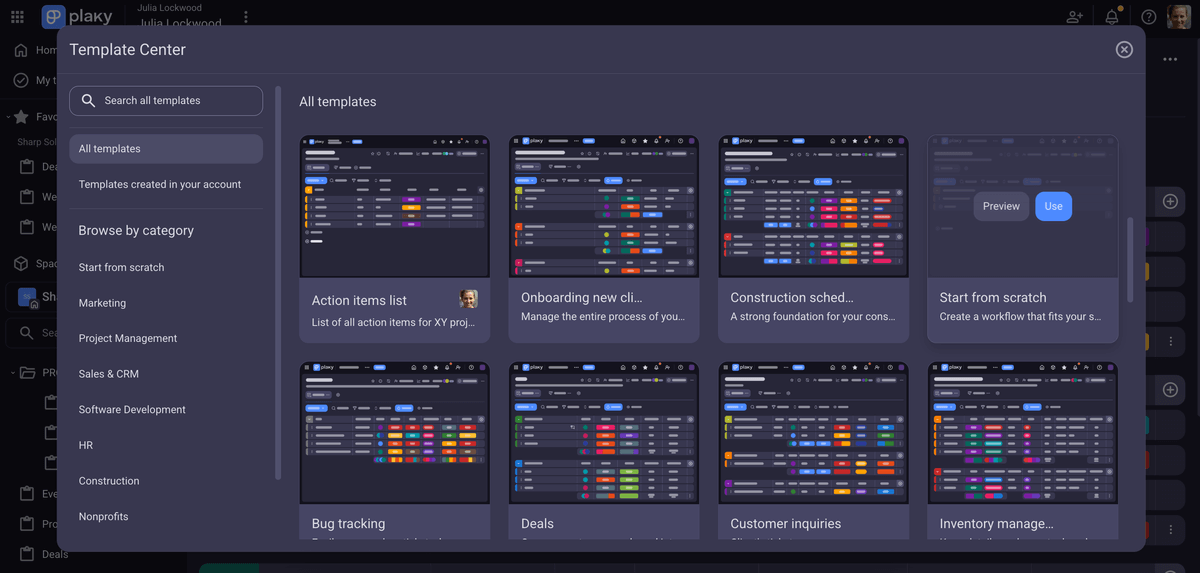
Just like in Teamwork, you can choose from 4 different board views:
When comparing the free plans of Teamwork and Plaky, the latter is a clear winner since it offers an unlimited number of projects you can create. Teamwork, on the other hand, sets the limit to 5 projects, forcing teams with growing needs to switch to a paid plan.
The same goes for custom fields — Plaky lets you create 6 of them while Teamwork includes only 2 on its free plan.
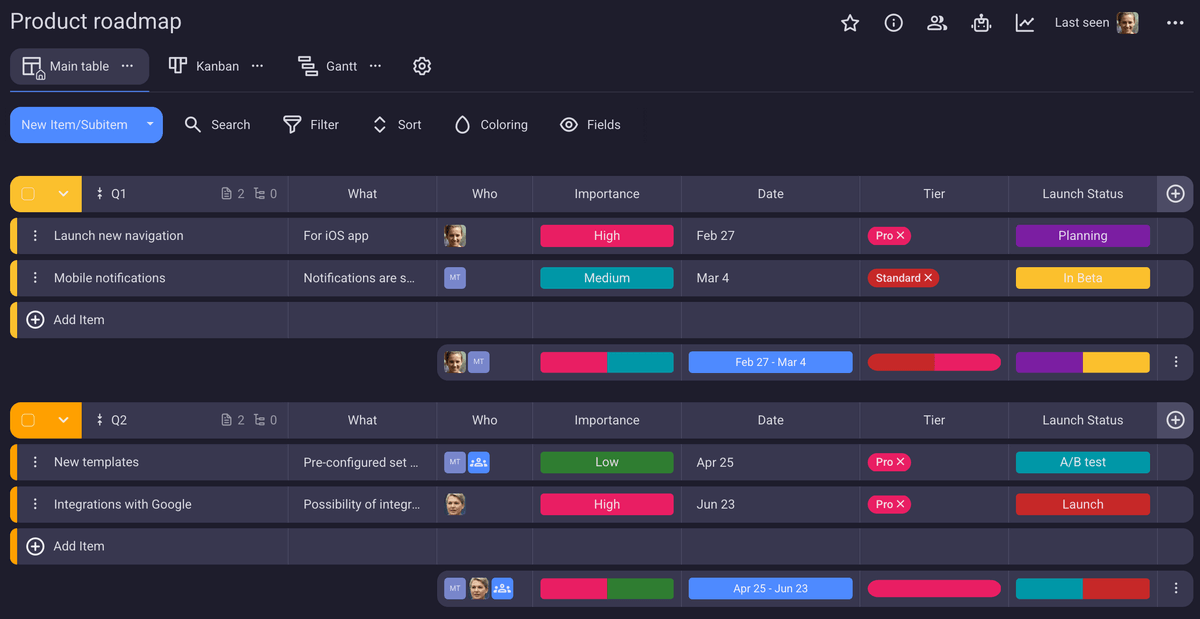
Teamwork’s My work section matches Plaky’s My tasks, where you can see all your tasks, categorized according to date, status, or project board.
All that said, I feel like Teamwork is a much more complex app, with features that go beyond project and team management. This isn’t a bad thing per se, but if you’re looking for something simpler and tailored to a smaller team, Plaky is perfect.
You can set up your workspace in Plaky within minutes, invite your entire team, and start collaborating right away. There’s no wasting time on learning how to use the app, as it’s so intuitive that all team members can jump in and organize their tasks at once.
Another great difference between these 2 apps is that Plaky offers 24/7 live support to all its users, no matter the plan they choose, while Teamwork offers it only on its paid plans. This, in itself, speaks volumes about Plaky’s care for its customers.
What’s new in Plaky?
The most recent additions to Plaky include the My tasks section, Chart view, and board automations. Plaky now also integrates with Pumble.
Available for: web, iOS, and Android
| Plan | Price |
|---|---|
| Free | $0 |
| Pro | $3.99/seat/month* |
| Enterprise | $8.99/seat/month* |
| CAKE.com Bundle | $12.99/seat/month* |
*billed annually

#2 Zoho Projects — best for software development
Zoho Projects is a project management app that focuses on tracking your project’s progress and the time you’ve spent working on it. The tool offers advanced features and a free plan, but it’s only available to business users — those with a company email of a registered business.
Why choose Zoho Projects?
Zoho Projects is a great choice for those who work in the software development industry because its structure supports a ticketing system with a separate section. This allows engineers and testers to collaborate on finding and resolving software issues, without having to create separate projects or tailor the app to fit their workflow.
| Pros | Cons |
|---|---|
| – Advanced project management – Integrated stopwatch – Integrated chat | – Only for business users – Complicated to use |
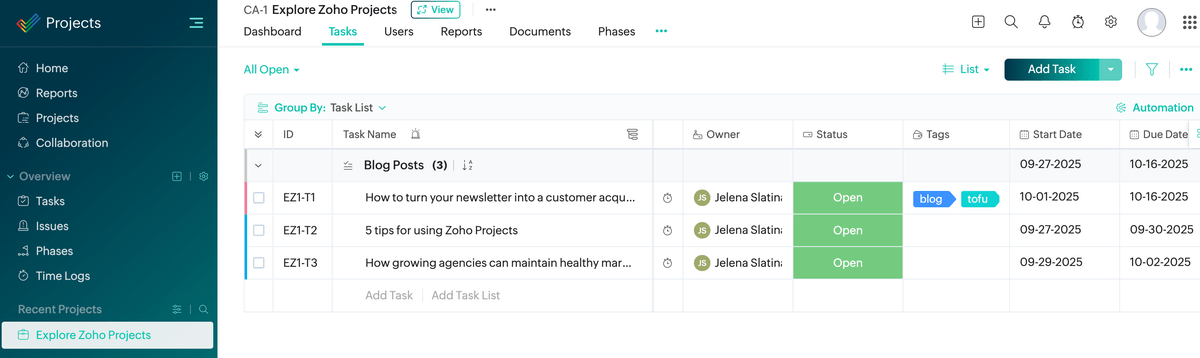
From the get-go, you’ll see that Zoho Projects offers many options for detailed project management. As soon as you create a project, 10 columns will be automatically included, but you can rearrange and hide them as you wish.
The default setting includes a stopwatch, task owner, start and due dates, status, and priority. These details display the most important information about a task that you usually need at a glance.
The interface is not as sleek as Teamwork’s, but with a little poking around, I was able to set up my project the way it suits me. However, when I tried to upload a CSV file of a project from a different tool, not all columns and information translated properly into Zoho Projects.
To be fair, though, Teamwork doesn’t offer the option to import your projects in the form of a CSV file at all.
Just like Teamwork, Zoho Projects is only available for business users, so if you’re an individual or freelancer, you won’t even be able to start a trial. Also, a phone number is required upon registration, and the sales team of both these apps will call you within a few days. Since I’m only testing these apps, I found these calls quite aggressive and intrusive.
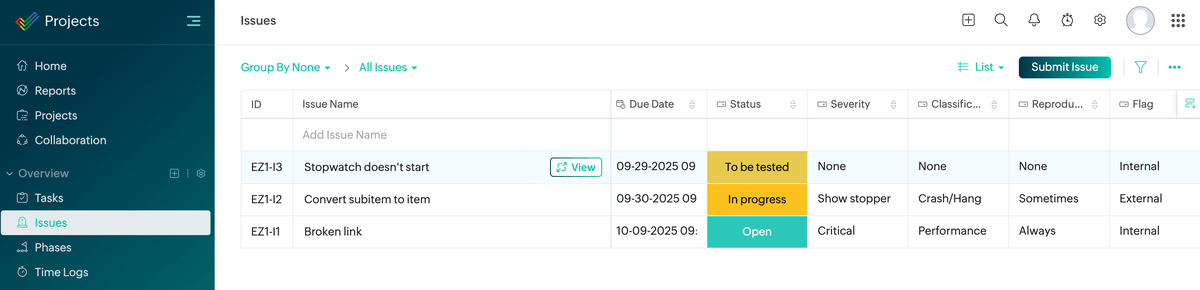
The main reason I classified Zoho Projects as the best option for software development teams is because of the separate section for issues. Naturally, this section can be useful to a number of industries, but the predefined “To be tested” status option tells me it’s most suited for creating and maintaining software.
You won’t find this type of section in Teamwork, so you’ll probably have to create a separate project with custom fields to make something similar if that’s what you need for your day-to-day tasks.
As for common project management features, both apps offer:
- Start and due dates,
- Assignees,
- Priority,
- Progress percentage,
- Reminders,
- Recurrence, and
- Tags.
Both apps also offer dependencies, but Zoho Projects even lets you define the specific type of dependencies, like finish-to-start or start-to-finish, for example.
Another interesting feature that Zoho Projects offers is the chat integration (even though its tiny icon can be overlooked). Teamwork also has the chat feature that you can use to message your teams, but it opens in a separate tab.
The only thing I found confusing about Zoho Projects is the checkbox at the head of every task. Instead of marking the task as complete, it only opens another set of options.
Honestly, the whole app seems a bit cluttered with options, which can be rather intimidating for beginners. But for those who run complex projects and know what they’re doing, Zoho Projects can be an excellent choice.
What’s new in Zoho Projects?
The latest additions to Zoho Projects include leaving reactions to comments and adapting the work hours to the user’s time zone.
Available for: web, iOS, Android, iPad, and Apple Vision
| Plan | Price |
|---|---|
| Free | $0 |
| Premium | $4/user/month* |
| Enterprise | $9/user/month* |
| Project Plus | POA |
*billed annually
#3 Trello — best for Kanban project management
Trello is a well-known tool used for managing projects and personal to-do lists. The app integrates with many other popular tools, which means you can create a personalized hub to organize your work tasks and personal plans.
Why choose Trello?
Trello is an excellent tool for those who want to track their progress through Kanban boards as it’s been perfecting this type of visualization for over 10 years. This is one of the pioneering apps in using the Kanban system and is often praised for its simplicity.
| Pros | Cons |
|---|---|
| – 6 project views – Advanced Kanban view – Power-Ups expand the feature list | – No native importing option |
Trello offers a 14-day free trial for their Premium plan, and you can sign up with your personal email. When you open the app for the first time, you’ll get a quick pop-up introduction that points out the basic functionalities.

Unlike Teamwork, the default board view in Trello is Kanban. You can also choose from 5 other views: Table, Calendar, Dashboard, Timeline, and Map.
Unfortunately, these options are only available in the Premium plan. But the Trello Premium plan is still slightly more affordable than Teamwork’s cheapest paid plan.
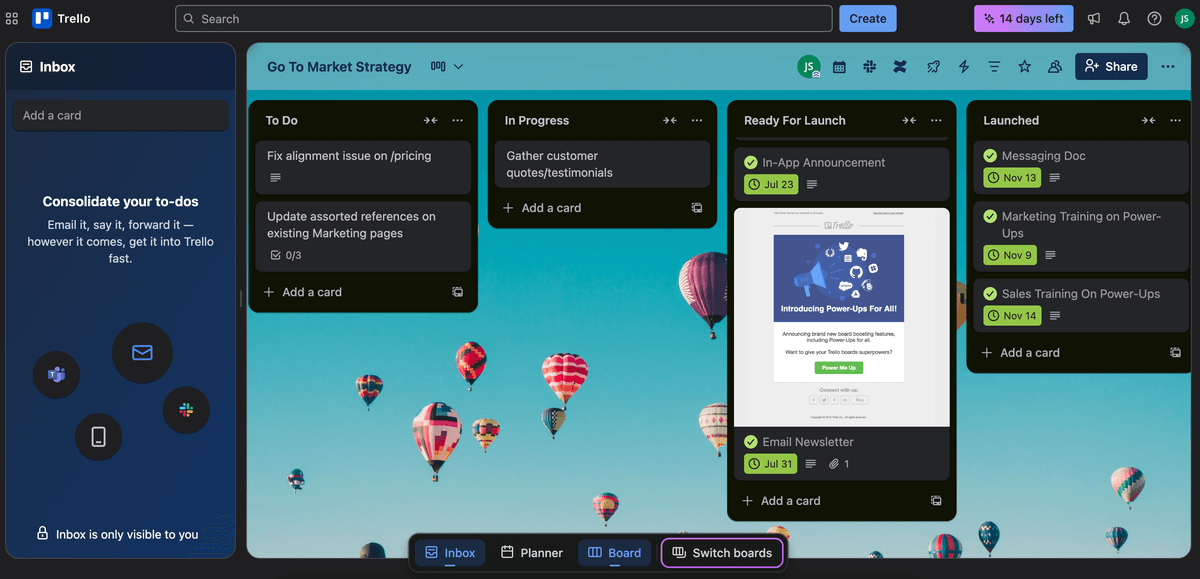
The interface is clean and user-friendly, so within a few hours, you should be able to set up your board as it suits you. When you open up a card, you’ll see that you can add fields and create custom fields. For example, I added a priority and a status field.
To make a fair comparison with Teamwork, I switched to the Table view so that I could see projects in both apps the same way. However, I was surprised to see that my added fields did not show up.
When I switched back to Kanban, they were visible. This tells me that Trello still hasn’t developed the other views enough to match the original Kanban view that Trello has always been known for.
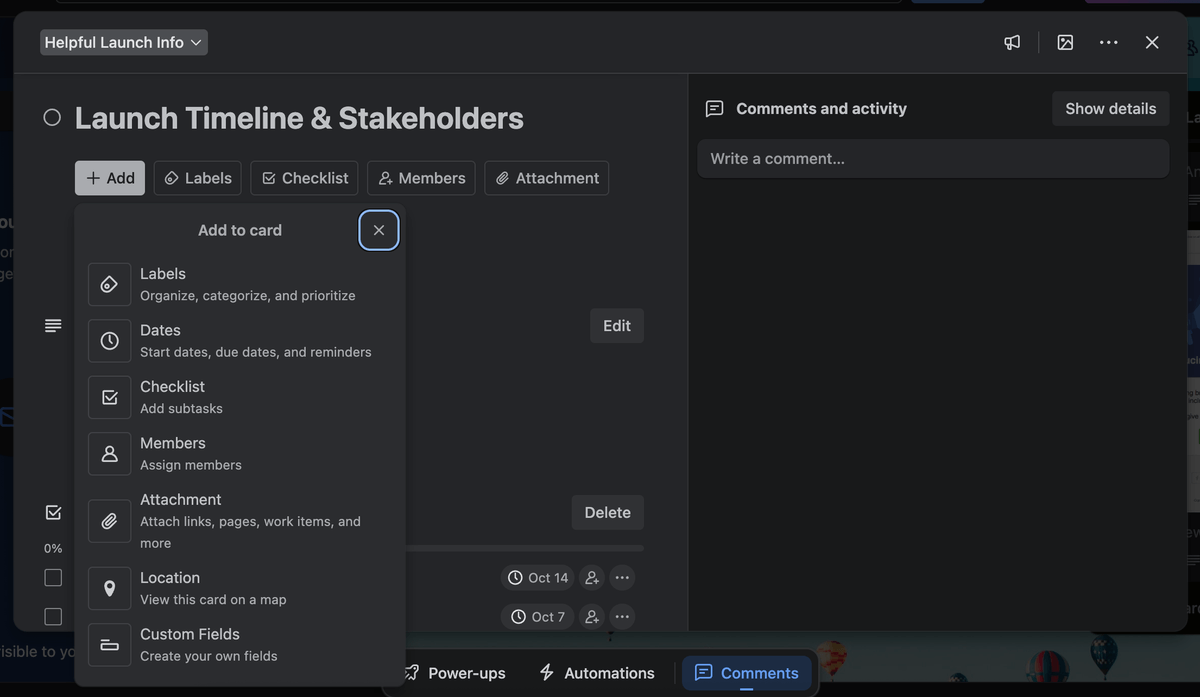
Both Teamwork and Trello let you collapse entire columns so that they’re not in the way, allowing you to focus on what’s important at that moment.
As for importing projects from other tools, Trello doesn’t offer a native solution, but rather relies on Power-Ups and copy-pasting. This is disappointing, as those who are looking to transfer their data from Teamwork or any other app surely won’t waste time on copying information.
Tracking time is not a native Trello feature either, but there are many Power-Ups to choose from, as well as integrations with time tracking tools.
What’s new in Trello?
In May 2025, Atlassian announced the release of the new Trello version, which includes AI features, the Inbox section, and the Trello Planner.
Available for: web, iOS, Android, MacOS, and Windows
| Plan | Price |
|---|---|
| Free | $0 |
| Standard | $5/user/month* |
| Premium | $10/user/month* |
| Enterprise | Starting at $17.50/user/month* |
*billed annually
#4 Productive — best for resource planning
Productive is an all-in-1 platform used by teams to track projects, time, budgets, and workload. The app is ideal for agencies and professional service providers looking to enhance productivity and profitability.
Why choose Productive?
Productive is great for resource planning thanks to its simple yet powerful overview of the upcoming workload and capacity for each day and for every team member. Checking and rearranging assignments to accommodate individual amounts of work is particularly well designed.
| Pros | Cons |
|---|---|
| – Resource management – Absence management – Thorough onboarding section | – No free plan |
Productive is another app that is only available to business users, so you won’t be able to create a trial with your personal email. But, it differs slightly from Teamwork and Zoho Projects because it leaves you the opportunity to choose whether you’d like a call from them. After having my phone attacked by several calls, this is a welcome improvement.
The app welcomed me with a detailed onboarding roadmap, complete with videos divided into sections. The duration of each section is highlighted, telling me it would take 33 minutes in total to go over all the material. The videos are extremely simplified and made for absolute beginners, so if you’re already familiar with how projects work, it takes even less time.
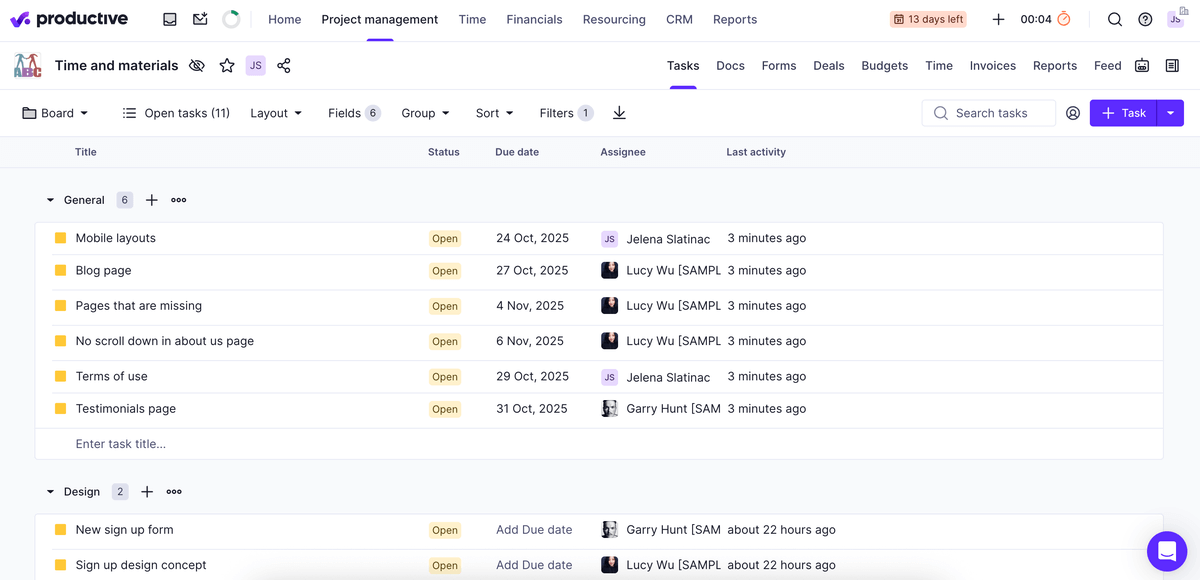
The interface is straightforward, and there are no excessive colors or buttons. However, that also means that you’ll need at least 2 clicks to do almost anything as the entire app is based on a dropdown system.

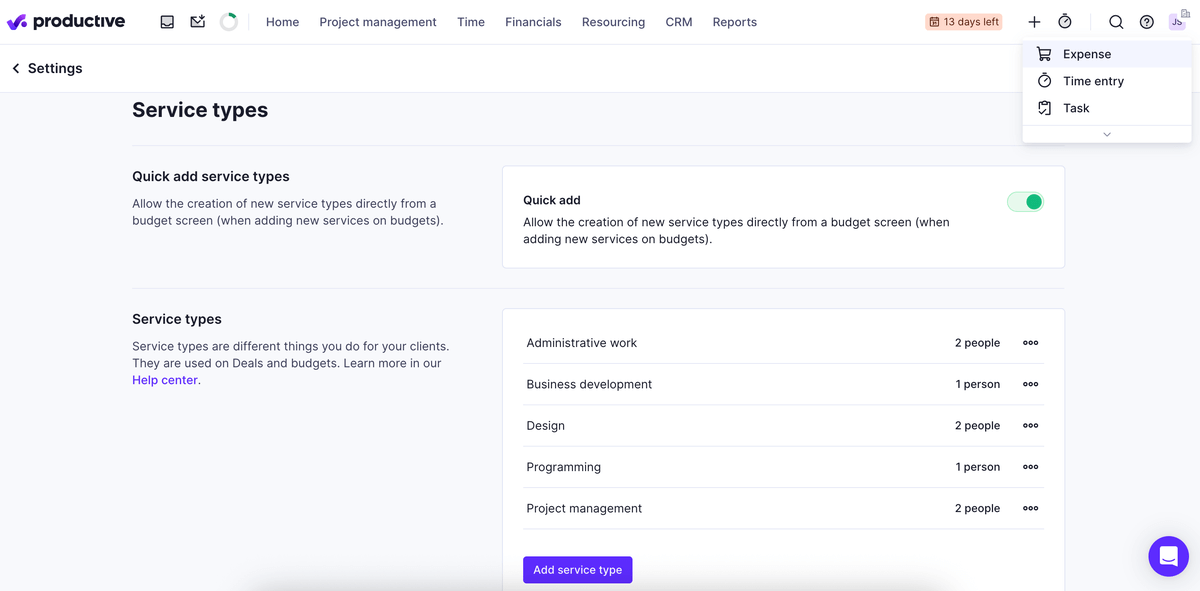
Both Teamwork and Productive have time tracking features, though there is a slight difference between them. In Teamwork’s Table view, there’s a button on each task for logging time and setting off a timer. In Productive, the stopwatch button is in the header, and you need a few clicks to select the service (the type of job) you’re tracking.
An outstanding feature you’ll find in both apps is the resourcing dashboard that lets you see how under- or overworked team members are. I’ve explored a bit and found that this extremely useful planning feature is only available in a limited version on Teamwork’s free and lowest paid plan. On the other hand, Productive offers it on all its plans.
Another great part of both Teamwork and Productive is the time management feature that lets you log your vacations and sick days. However, I’ve noticed the same pattern as with resourcing. Teamwork seems to have developed this feature recently and offers it only on the most expensive plans, whose price is available upon request. Productive, on the other hand, has had this feature for at least a year now, and it’s included in its lowest paid plan.
As for the cons — pricewise, Productive is slightly cheaper than Teamwork, but it doesn’t offer a free plan.
Importing data into Productive is also easy if you have Harvest, but rather tricky if you’ve been using any other tool. That’s because CSV files with project data are not compatible with Productive’s templates and are therefore useless.
There’s a page that explains in detail how to use their CSV templates, but filling out additional files isn’t something I find simple — and I can’t even imagine what it would look like to transfer multiple complex projects.
What’s new in Productive?
The latest Productive release includes a redesigned resource planner, improvements to invoices, and new automations.
Available for: web, iOS, Android, MacOS, and Windows
| Plan | Price |
|---|---|
| Essential | $9/user/month* |
| Professional | $24/user/month* |
| Ultimate | $32/user/month* |
*billed annually
#5 Bonsai — best for freelancers
Bonsai is another all-in-1 platform dedicated to freelancers as it offers all features necessary to complete the entire process of providing their services, from proposals to charging clients for their work.
Why choose Bonsai?
Bonsai is particularly useful to freelancers because it allows them to track every deal, expense, and billable hour, starting from proposals to invoicing their work. The all-in-1 platform rounds up nicely all the features a freelancer needs, so there’s no need to use (and waste money on) more than one tool.
| Pros | Cons |
|---|---|
| – All-in-1 app – Integrated time tracking – Time off management | – No chat feature |
Signing up for Bonsai requires providing more details about your company than I think is necessary. For instance, I don’t understand why an app would need to know the yearly revenue of its users. They, too, require your phone number and call the same day.

As soon as I opened the app, I was greeted with a 16-minute long tutorial video. It contains a lot of information as the app itself is packed with features. Unfortunately, I wasn’t able to find that video later again — it would have been helpful when I was exploring the app.
In any case, I started by creating a project and saw that Bonsai offers the standard options such as different views, assignees, status, and due dates. The app itself is full of options, and it was clear to me from the start that it would take a while to get to know it, so I was disappointed to find out that the trial lasts only 7 days.
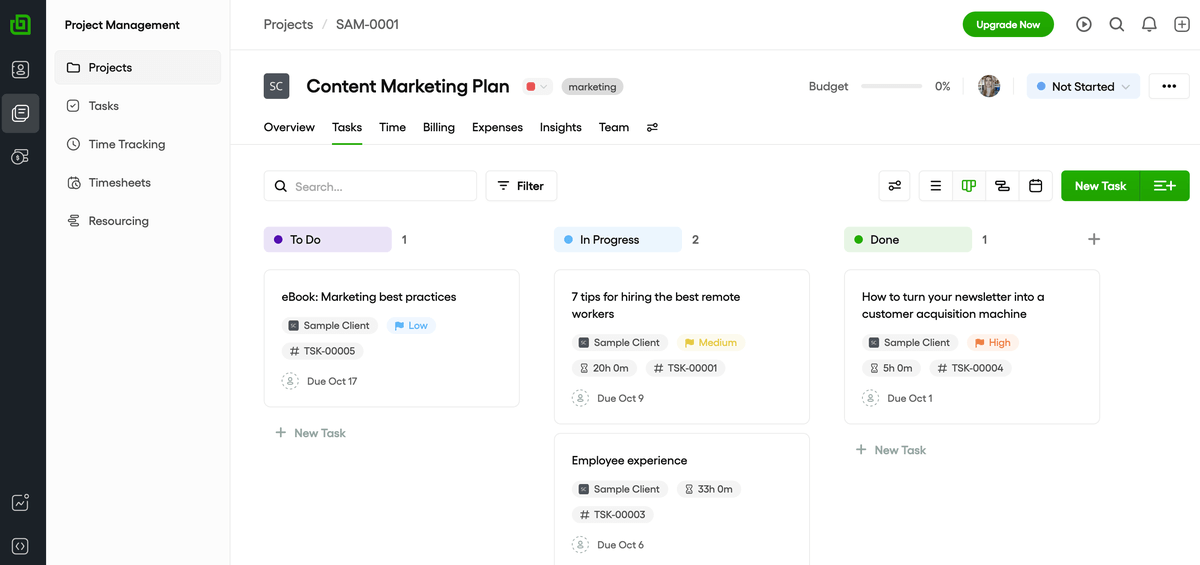
When it comes to importing data into Bonsai, the process is similar to the one described for Productive — you need to download their CSV form and then fill it with data so that you can import it back.
As for time tracking, there’s a timer in the heading that you can set off at any time and add details, such as the project and task you’re working on. Just like in Teamwork, you can start the timer on each task, and the time tracking data will be automatically collected in the timesheet.
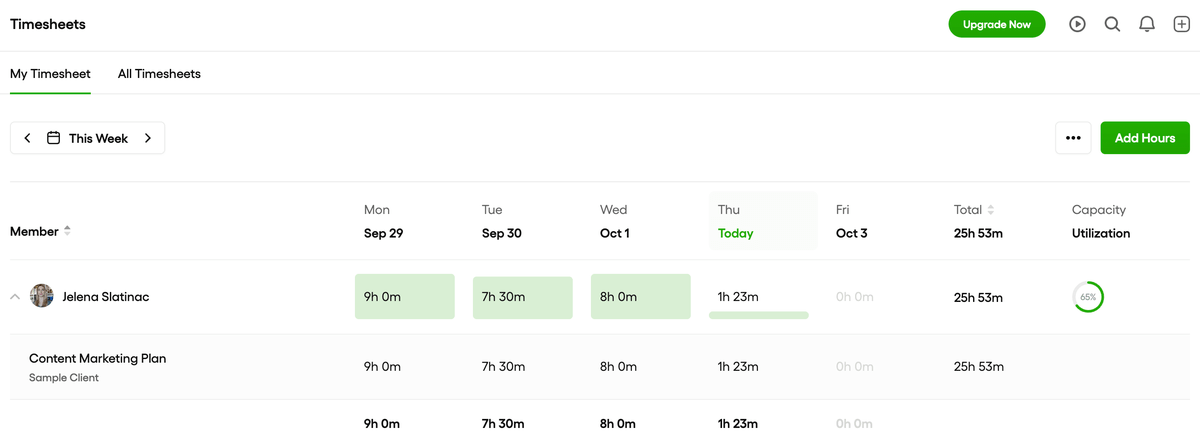
Another similarity with Teamwork are features like Timesheets and Resourcing, which make it easy to track both the availability and the capacity of team members. However, both apps restrict many features in their cheapest plans, including these.
All in all, Bonsai is an extremely complex and well-rounded tool that should be enough for freelancers and agencies to run all their operations in one tool. The only feature I can spot is missing when compared to Teamwork is the integrated chat, so you’ll have to use an external chat app for business communication.
What’s new in Bonsai?
The latest addition to Bonsai’s platform is the new client portal that gives a better overview of the project’s progress to clients.
Available for: web, iOS, Android, and MacOS
| Plan | Price |
|---|---|
| Basic | $9/user/month* |
| Essentials | $19/user/month* |
| Premium | $29/user/month* |
| Elite | $49/user/month* |
*billed annually
#6 Smartsheet — best for spreadsheet enthusiasts
Smartsheet is a work management platform that is based on spreadsheets, but adds more features for a comprehensive overview of multiple and complex projects.
Why choose SmartSheet?
If you’re a fan of spreadsheets, you’ll love Smartsheet. As the name suggests, Smartsheet looks and works more like Google Sheets or Excel, rather than a classic project management tool.
| Pros | Cons |
|---|---|
| – Spreadsheet-like interface – 7 project views – 4 ways to import data | – Outdated UX |
When I signed up for Smartsheet’s trial, I was immediately prompted to choose a plan and a payment method, which confused me since I knew there’s a free trial option. Then I realized I just needed to exit the payment window and proceed with my free trial. So this is just a heads-up — don’t fall for the tricks, because you can try out Smartsheet for free without entering your card details.
The good news is that they don’t ask for your phone number, but you can only create an account with your work email address.
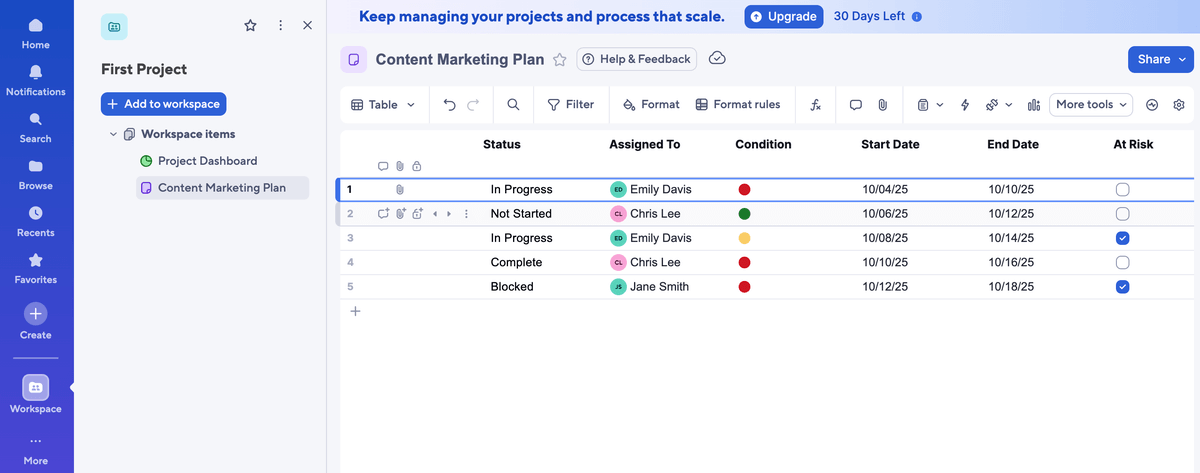
The interface differs from Teamwork in many ways. As already mentioned, Smartsheet’s UI resembles a spreadsheet, but it still offers some PM tool options. For example, you can open up a task and change its properties or edit the details directly in the sheet’s field. Admittedly, the UX is not as smooth as Teamwork’s, and it takes some getting used to.
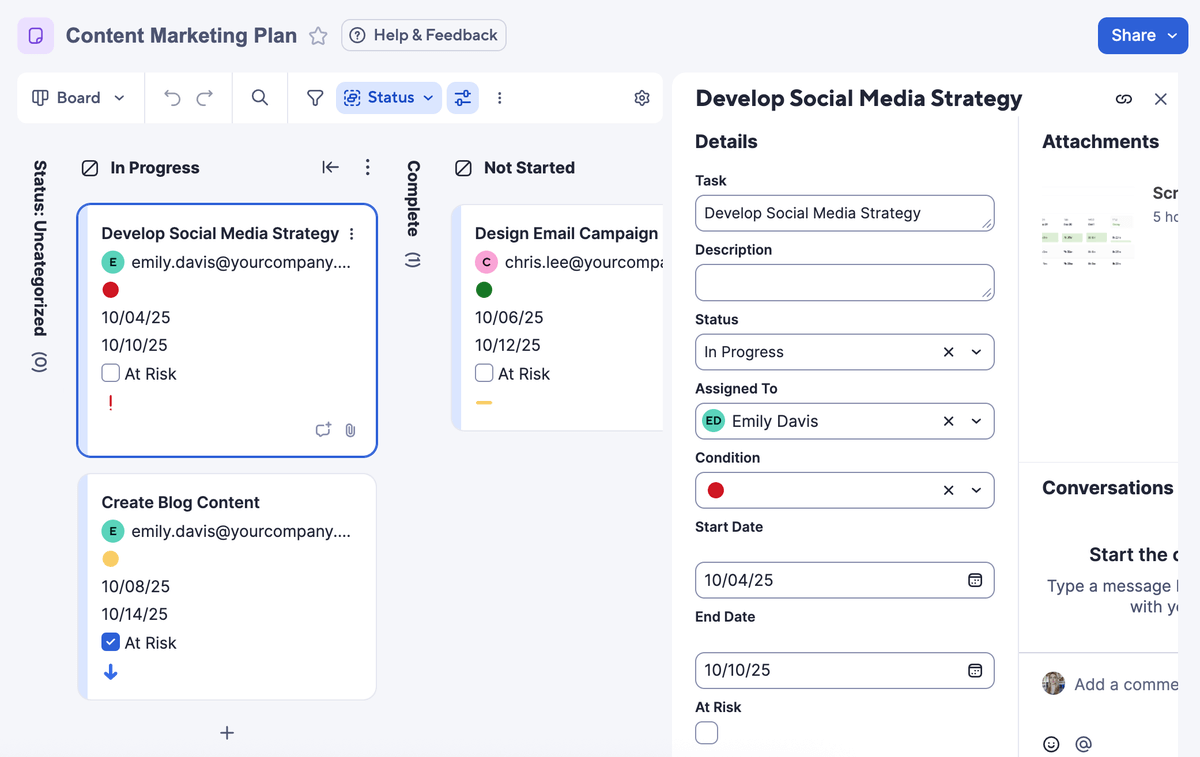
There are 7 different project views to choose from: Table, Board, Timeline, Grid, Gantt, Card, and Calendar. I have to note that the Board view in Smartsheet has the same option as Teamwork to collapse entire columns, which I love.
Also, one of the default task fields is the “At risk” checkbox. Teamwork doesn’t have this field by default, but you can create a custom field with a checkbox and name it as you wish.
Smartsheet also offers resource management that includes:
- Workload management,
- Tracking time and budget, and
- Absence management.
However, these features require a separate on-demand free trial, and they’re not available on the cheapest paid plan.
Finally, if you’d like to import data into Smartsheet, there are 4 options you can use: Excel, Microsoft Project, Google Sheets, and Trello. This is an advantage when we compare it to other apps that only offer 1 option or complicate the import with additional templates that you need to fill out.

What’s new in Smartsheet?
Smartsheet updates its page with new features and improvements regularly, several times a week. The most significant recent changes are enhanced dependency management, the Table view, and new item grouping criteria for the Timeline view.
Available for: web, iOS, Android, MacOS, and Windows
| Plan | Price |
|---|---|
| Pro | $9/member/month* |
| Business | $19/member/month* |
| Enterprise | POA |
| Advanced Work Management | POA |
*billed annually
Manage your teams with the best Teamwork alternative
Choosing one app to manage all your operations is a process that shouldn’t be taken lightly. If you invest time and money into a tool that doesn’t fit your organization, it’s even harder to switch to a different one later.
That’s why I recommend trying out Plaky and the CAKE.com Bundle.
If you have a small team, Plaky can support all its needs and still be a great fit in the future as you scale up. Making a good choice now means you won’t have to transfer data elsewhere down the road.
That said, with the CAKE.com Bundle, you’ll be able to:
- Manage your projects in Plaky,
- Track time and manage time off in Clockify, and
- Communicate with your team in Pumble.
For those small teams that are looking for a better and more affordable project management solution, Plaky might just do the trick. At a fraction of the price, you’ll get all the necessary tools you need to become more organized.
Here’s a quick demo of what Plaky can help you with: