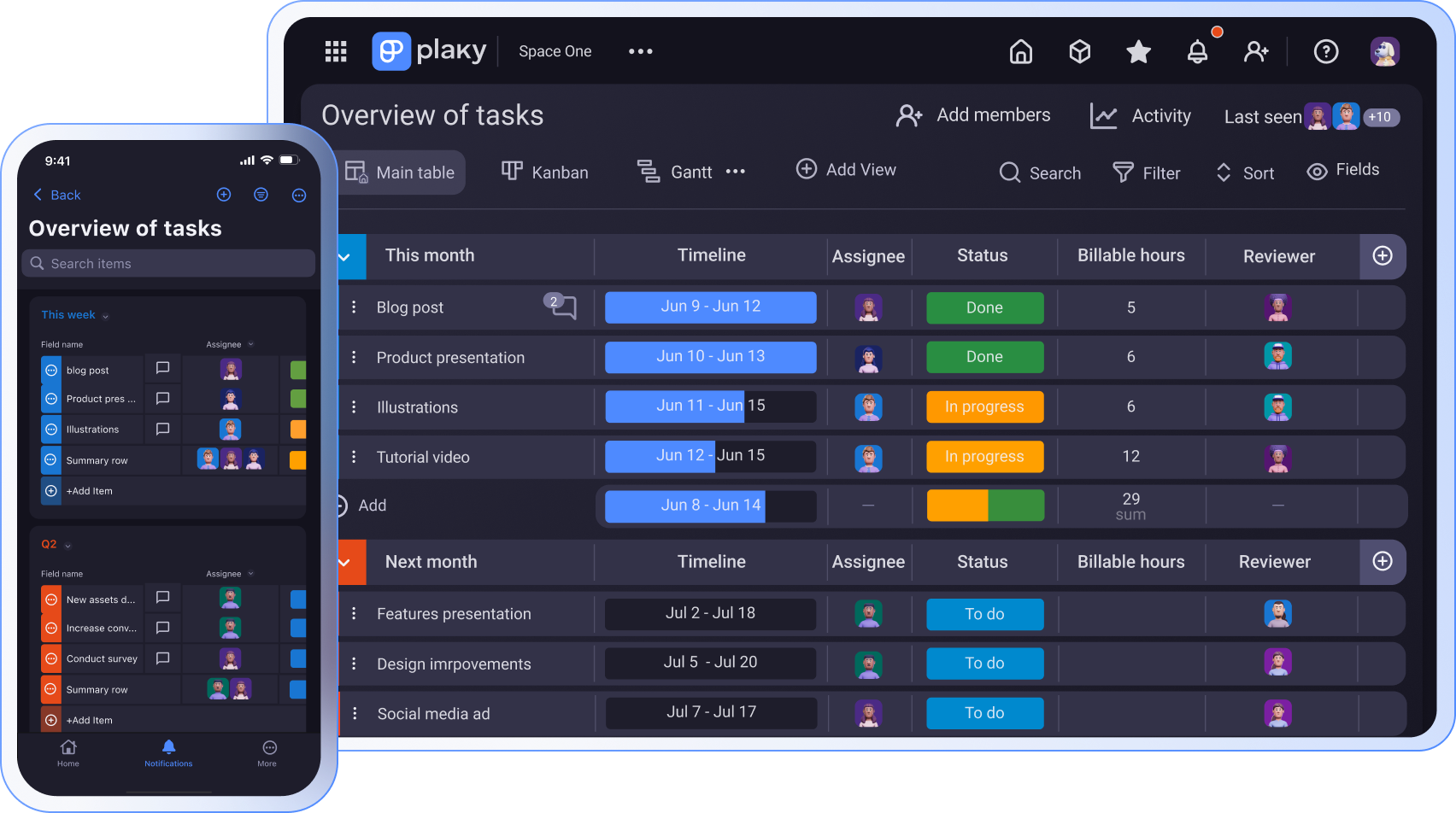
Being away from your desk doesn’t necessarily mean you can’t see task statuses, give feedback or simply approve work so that it can go to production.
With Plaky by CAKE.com project management mobile app you can have all you need for work at your fingertips.
Plaky is available for both Android and iOS mobile platforms allowing you to organize work while you’re on the go.
- Plaky by CAKE.com is a project management mobile app that lets you have all you need for work at your fingertips and manage projects and teams from anywhere.
- Plaky’s organizational hierarchy helps you set up your work neatly and logically.
- Plaky’s custom Fields allow you to create a unique workflow that suits your project needs.
- Plaky is a centralized space for everything task-related.
- Real-time notifications in Plaky are the major engine that helps you move work forward.
Ready, set, go
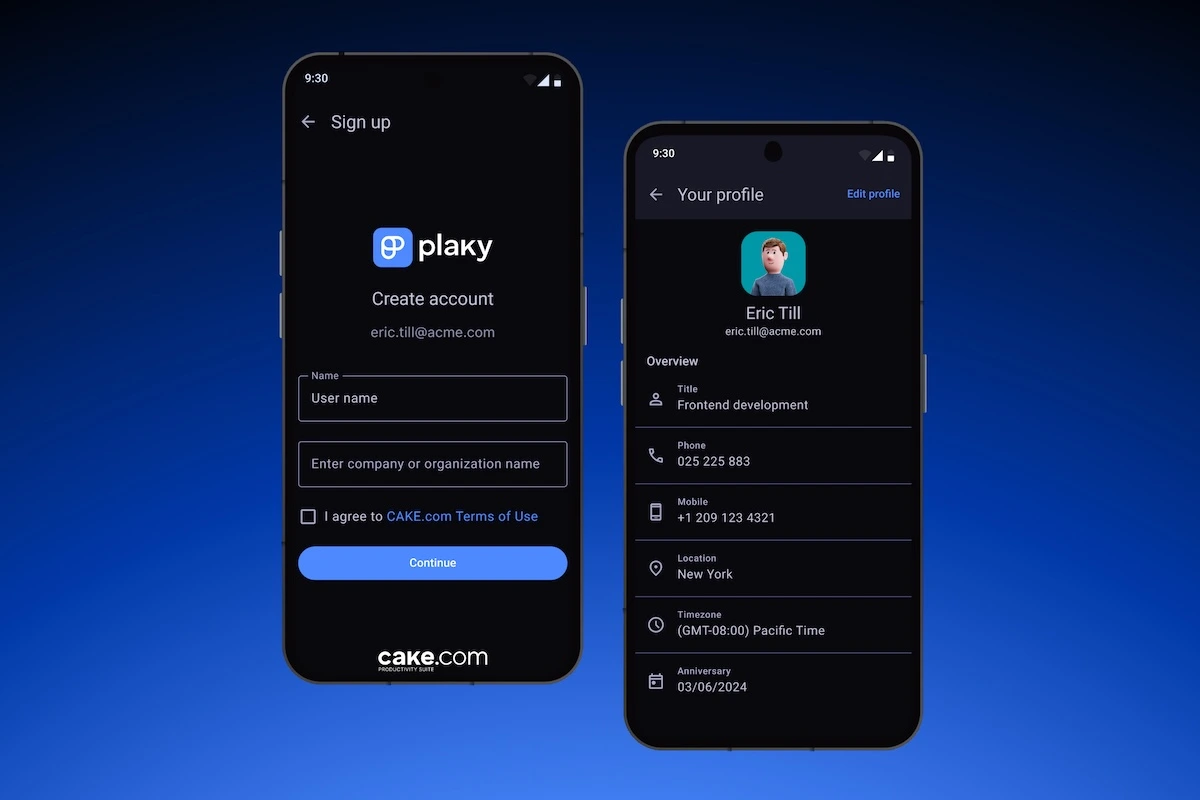
Once you download Plaky to your phone, it takes a few simple steps to set up your account and get started with the Plaky mobile app guide.
With Plaky’s app for mobile, you get a pocket-size office that lets you organize tasks, track projects, and collaborate with your team(s) — no matter where they are.
To get started, set your account by filling out your:
- Workspace name
- Name
- Email address
- Password
Make sure you invite team members to your workspace by tapping the Invite members tab. Enter their email addresses and choose the user type — Member or Viewer. Your invitees will get an email with a link they need to click on to join.
Navigate your Home page with ease
Your Home page gives you shortcuts for quick access to:
- Spaces
- Recent boards
- Favorites
- Archive/Trash
But, that’s not all!
From your Home page, you can also invite members/users and get directly to:
- My tasks
- What’s new page (iOS)
- Notificações
- Plaky’s Help centre
- Suporte
Moreover, by clicking on Settings (Android) and More (iOS) tabs, you can:
- Manage account
- Set up notifications
- Set up Plaky’s theme (Light/Dark)
Finally, you can see an overview of your user profile right from your Home page and edit your personal data such as title, phone number, location, etc.
Set solid workspace structure with Spaces and Boards
Spaces are a home base for your department, team, or project group. Each Space includes Boards that are related in some way. For example, you can have a content space that includes boards for copywriting, social media, and brand design.
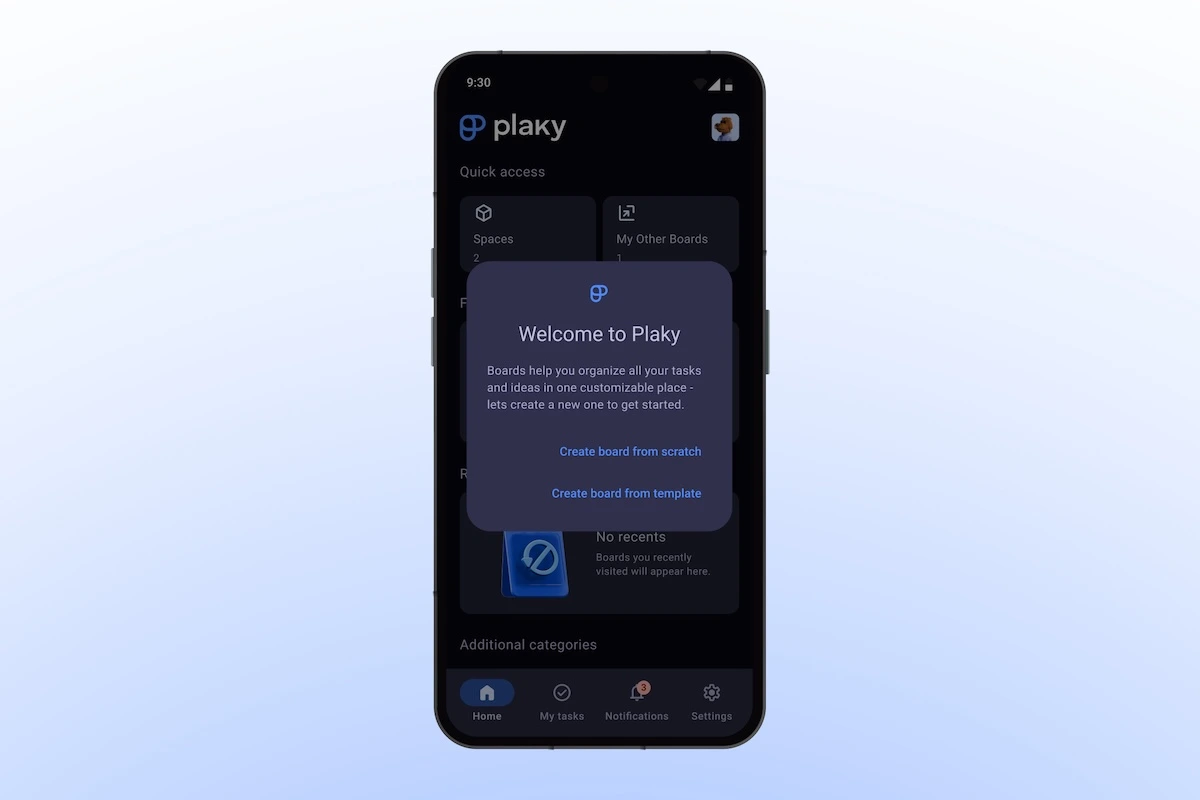
That said, Boards are where the real work is done. Plaky lets you create Boards from:
- Scratch — you get one default item within a default item group.
- Template — you choose a ready-made template from Plaky’s template center.
Plaky allows you to rename boards, archive and delete them, as well as change board type and permissions.
Note: Your Plaky mobile app allows you to add, edit, and modify Boards and Items. But, to add new Spaces, edit or modify them, you’ll need to use the Plaky web application.
Manage tasks on the go
With Plaky on your mobile, you have a complete overview of project boards and tasks at any moment.
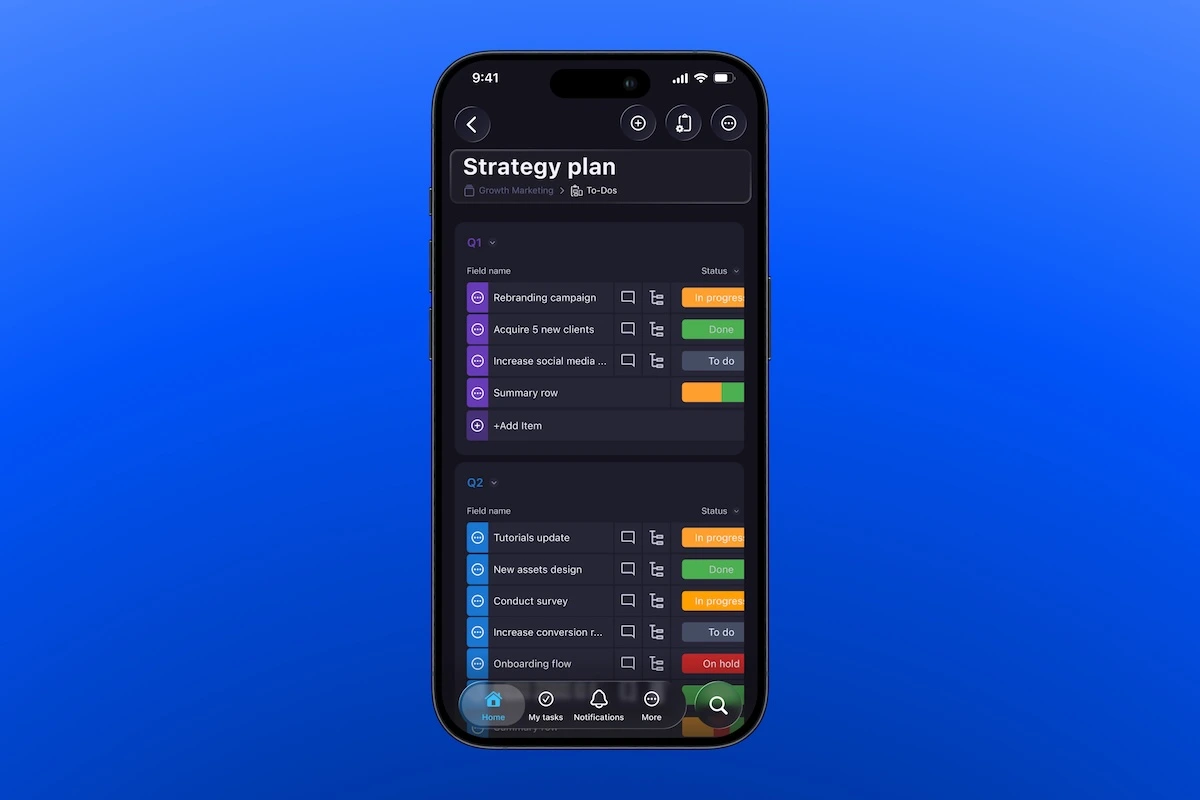
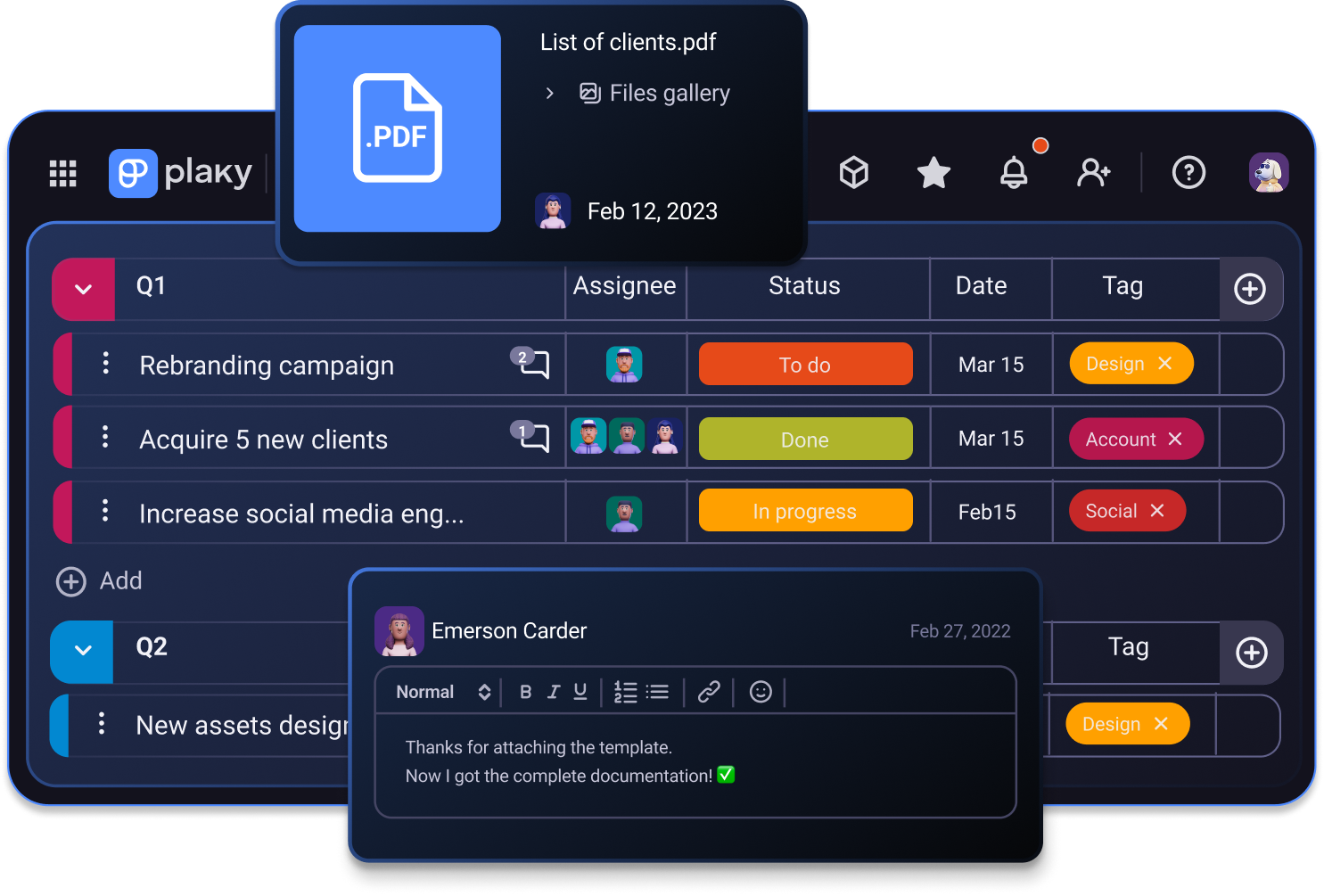
Your Boards house Items (tasks, to-dos, notions) and Subitems that are neatly organized within color-coded Item groups for better visual efficiency.
You can easily add new tasks by clicking on + and make changes on them just by clicking on any of the listed tasks. Plaky opens a task card with all task details that you can modify in no time.
Also, when the information on the board becomes overwhelming and you want to clear the clutter, you can sort and filter Items to keep things in order. Filters let you focus on specific data while sorting allows you to organize data in a way that seems most logical to you.
What’s more, Plaky lets you collapse or expand item groups to offer you a better overview of the board in question while you’re on your phone.
Manage data with custom Fields
Custom Fields are Plaky’s superpower that help you categorize project information in a structured way so as to get a unique workflow that suits your needs.
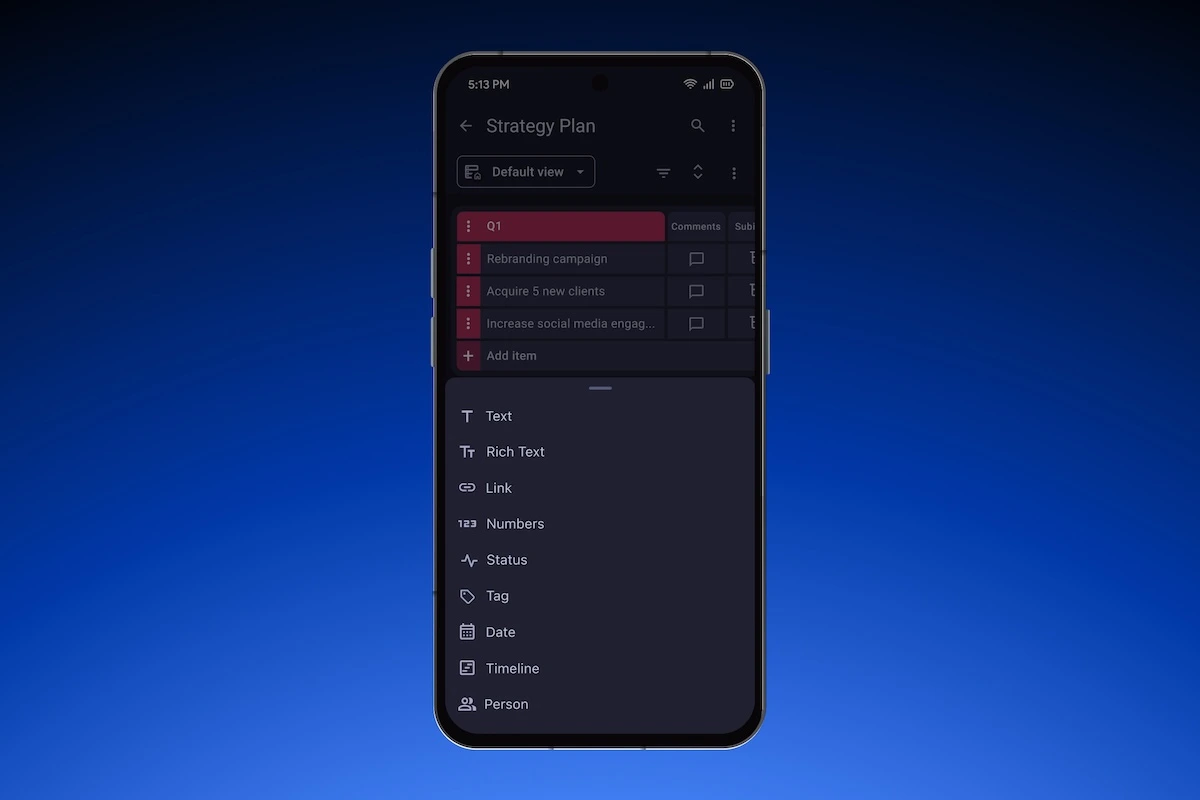
Plaky offers 9 different Fields you can use to add specific details to your tasks:
- Person — add assignees and reviewers to items to delegate responsibility.
- Status — add color-coded custom labels to indicate the stage of task or mark priority.
- Date — set important dates such as due date, start date, completion date, etc.
- Text — describe what needs to be done or add any other relevant information.
- Rich text — add more context to descriptions by adding links and checklists.
- Link — attach URLs directly to items to provide access to internal documents, social media posts, or client websites.
- Numbers — include any countable information relevant for your Item like budget costs, number of items in storage, working hours, etc.
- Tag — define keywords for each item to tag departments, teams, social platforms, content type, clients, etc.
- Timeline (available on paid plans) — track task duration by defining start and end dates for your tasks.
To add fields, click on the “+” button on the far right side of the row with an item group name, and select the field type from the dropdown menu.
In Plaky, you can add, delete, and modify Fields to quickly update tasks, change their status, or adjust timelines — no need to be tied to your desk.
For better visual experience on your smart phone, Plaky allows you to set up Field visibility. This way you can choose the fields you want to be displayed. So, if task status is the most important for you to track, mark only the status field.
💡 Status field is color-coded, meaning you can choose different colors for each status. This makes status tracking easier as you can immediately see the tasks that are In progress, Done, or Blocked.
Collaborate seamlessly with your team in one centralized space
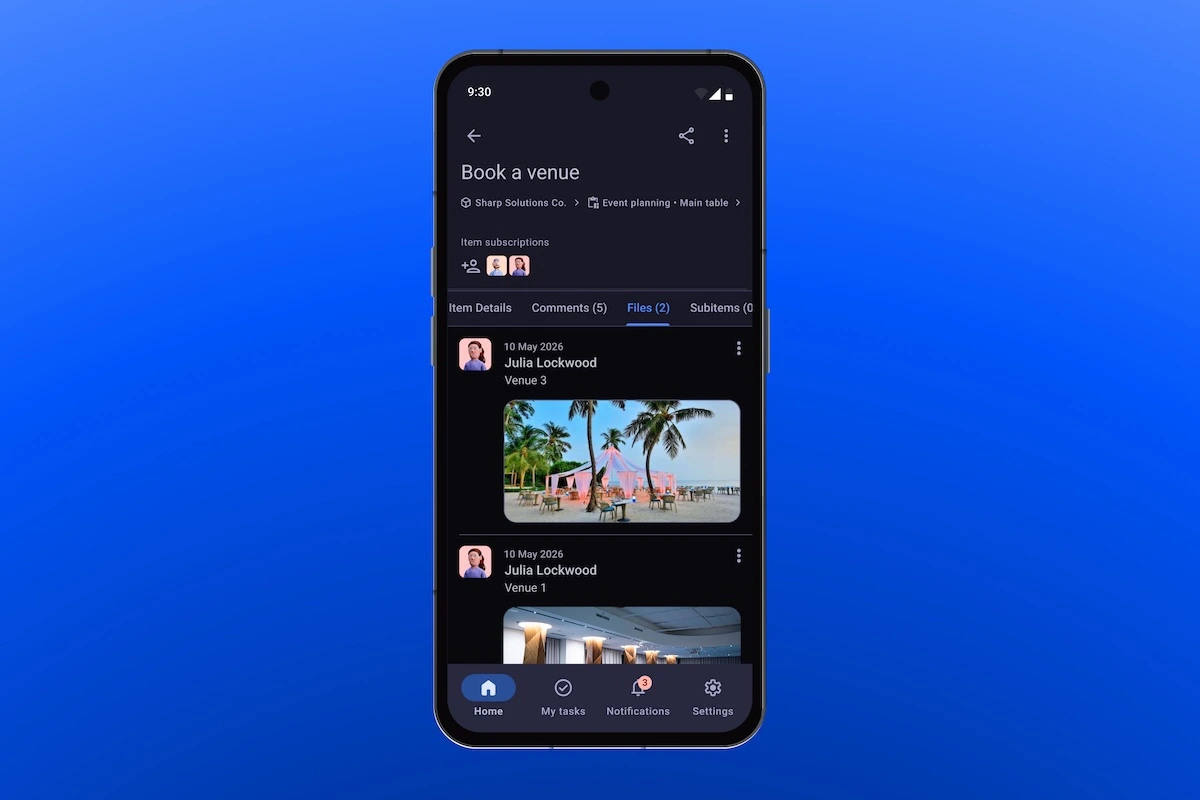
Plaky is the single source of truth for all your tasks, discussions, and files. Each task card includes:
- Item/task details — all task data from Fields like date, status, assignee, etc. are gathered and clearly organized in one place.
- Comments — everyone subscribed to the task can make comments, reply in threads, @mention coworkers, give feedback, leave updates, discuss issues, and react with emojis.
- Files — a place for all task-related documentation and files where everyone can easily access them when needed.
- Subitems — this section lets you keep an eye on all smaller chunks of the task you’re working on so that nothing falls through the cracks.
- Activities — a real-time record of all task-related activities that helps teams track progress and stay informed on who did what on a task and when.
Thanks to Plaky’s smooth organization, you can work on the move and check tasks, priorities, and deadlines directly on your phone.
As a centralized hub, Plaky provides access to important information at any moment. You can communicate with your team round the clock and stay informed about any updates in real time.
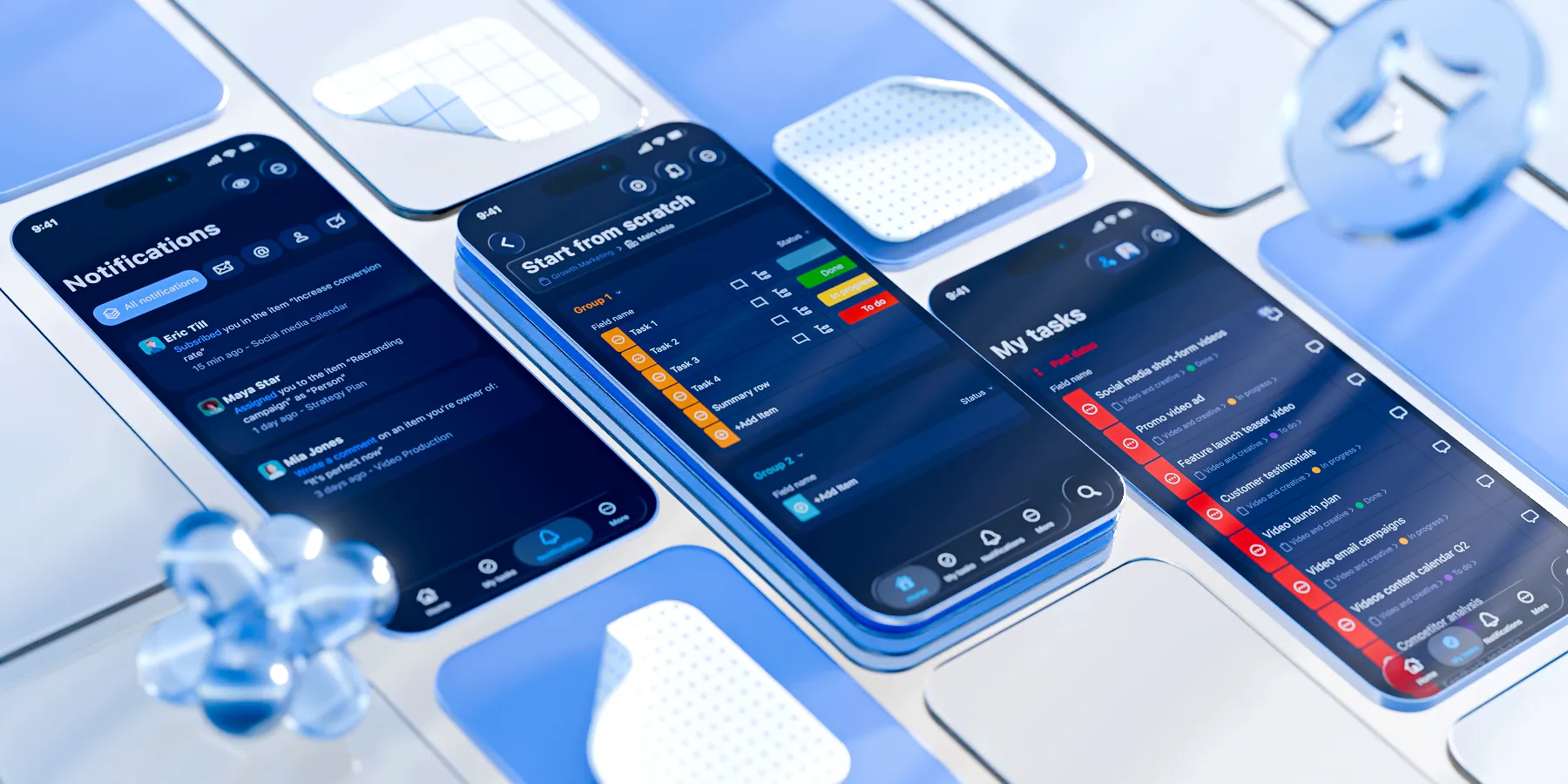
Keep teams aligned with notifications
Plaky for mobile is ideal for remote teams and those with hybrid work arrangement, as it helps team members stay in sync at all times thanks to real-time notifications.
Both Android and iOS users get fast access to notifications from the Bell tab on the Navigation bar.
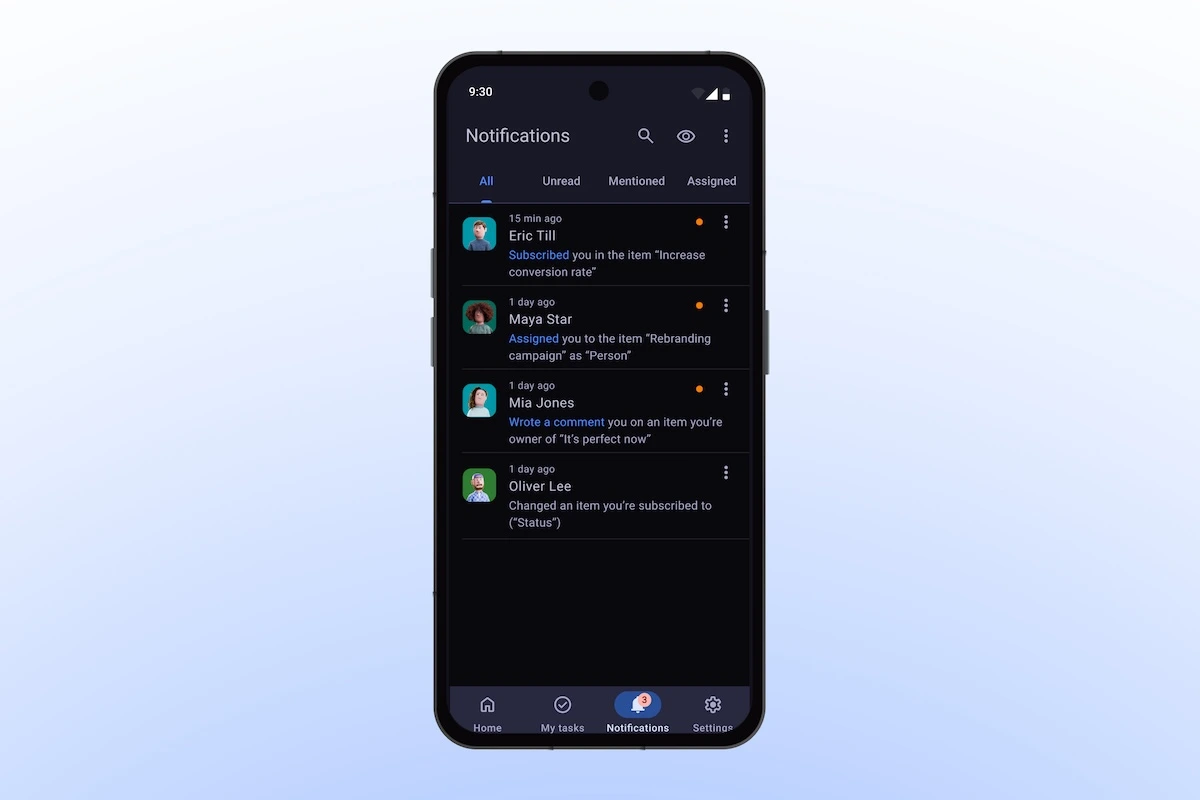
Once you open the notification screen, you’ll get an overview of all activities that affect you. They are grouped in 4 different tabs:
- All — a list of all notifications
- Unread — notifications you haven’t read
- Mentioned — notifications you were mentioned in
- Assigned — notifications that inform you you’ve been assigned to an Item, Board or Space
To see the details of any notification, just tap any Notification tile, and it will take you to the relevant Item card section.
When using Plaky on mobile, you can:
- Manage notification tab visibility (choose the tabs you want to display in the notification panel).
- Set up where you want to receive notifications — email, in-app, Pumble (Plaky’s native integration), and what you want to be notified about.
- Enable and customize push (mobile) notifications.
💡 PLAKY PRO TIP
Check out Plaky’s help page to find more details on how to manage notifications on your iOS and Android devices.
Stay informed about progress at all times
Plaky for mobile offers a few ways to see how your project moves, even when you’re not at your office desk.
Views
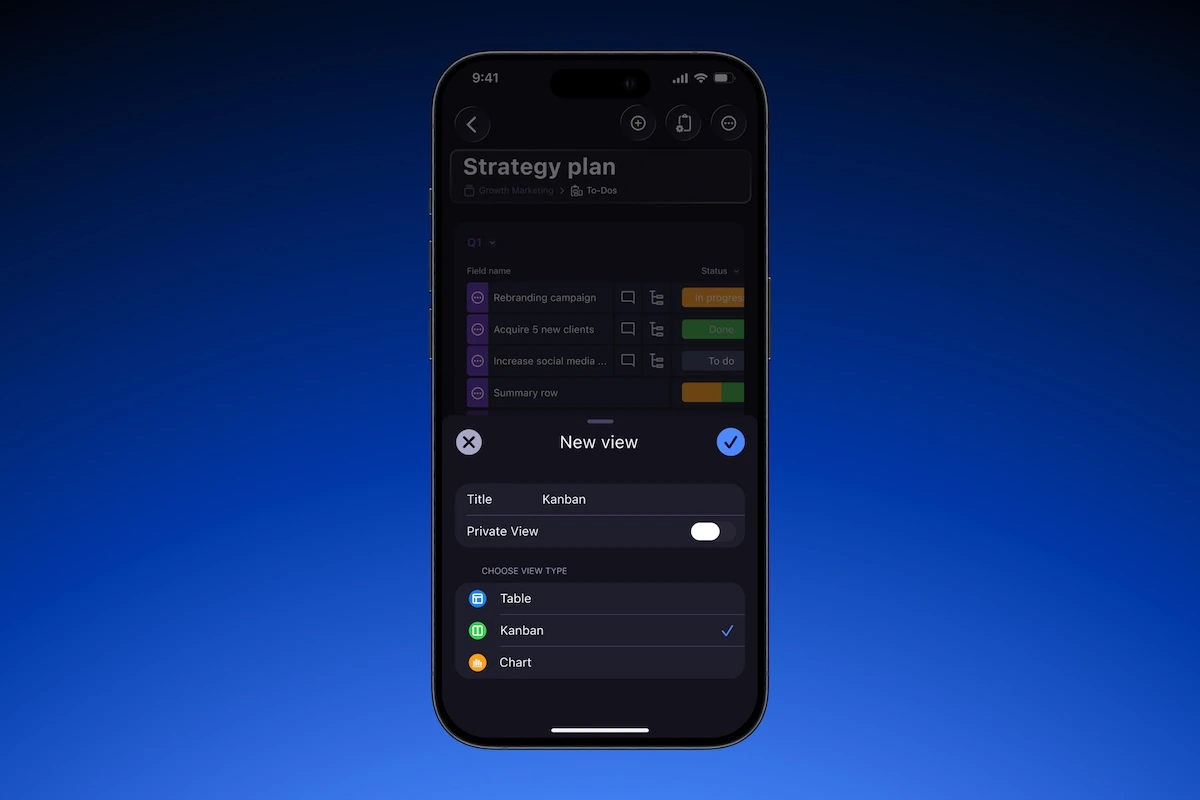
Your Plaky mobile app currently offers 3 different board views allowing you to get an insight into progress from different angles:
- Table — This is the default view that shows your tasks in the form of a list. By swiping left, you can see and manage all the Fields you’ve added to a board including due dates and status.
- Kanban — This view groups your tasks into cards by status fields allowing easy progress tracking. You can set this view as default and/or add it to favorites. Also, the view configuration option lets you select the fields you want to see in the cards.
- Chart — The Chart view is ideal for simple data analysis. Thanks to customizable widgets in the form of a pie or bar chart, you can get visual representations of different task and project figures.
Each board lets you add more views to it as well as rename, duplicate, and delete a view. Plus, you can add any of the views to Favorites.
Kanban board and Chart view come with some great configuration options such as choosing the fields you want to see and editing label colors for chart widgets.
My tasks
My tasks feature helps you cut through the noise and provides a place where you can see what’s relevant to you, by:
- Giving you a clear overview of your entire workload
- Helping you stay on track with your tasks’ progress
- Allowing you to manage priorities
You can access My tasks from the Tick tab on the Navigation bar located at the bottom of your screen.
My tasks page lets you group tasks by date, status, or board. By grouping assignments by date, you’ll know which tasks are urgent, whereas grouping by status shows your tasks organized by progress stage.
Summary row
Plaky’s Summary row lets you see summarized data from specific Fields in the Table and Kanban view right on your phone, allowing progress tracking on the fly.
In Table view, the Summary row is valid for Numbers, Status, Person, and Date Fields, and it appears as the last row under each item group in the Table view.
As for the Kanban view, the Summary row is valid for Status Field, and it is automatically switched on.
The Summary row is customizable, and you can adapt it to your preferences. It is a practical way to get a brief glance of the project’s progress status when you need to make a decision or reschedule assignments.
Note: This feature is currently available for iOS users only, but it is coming soon for Android users.
Control the level of board access
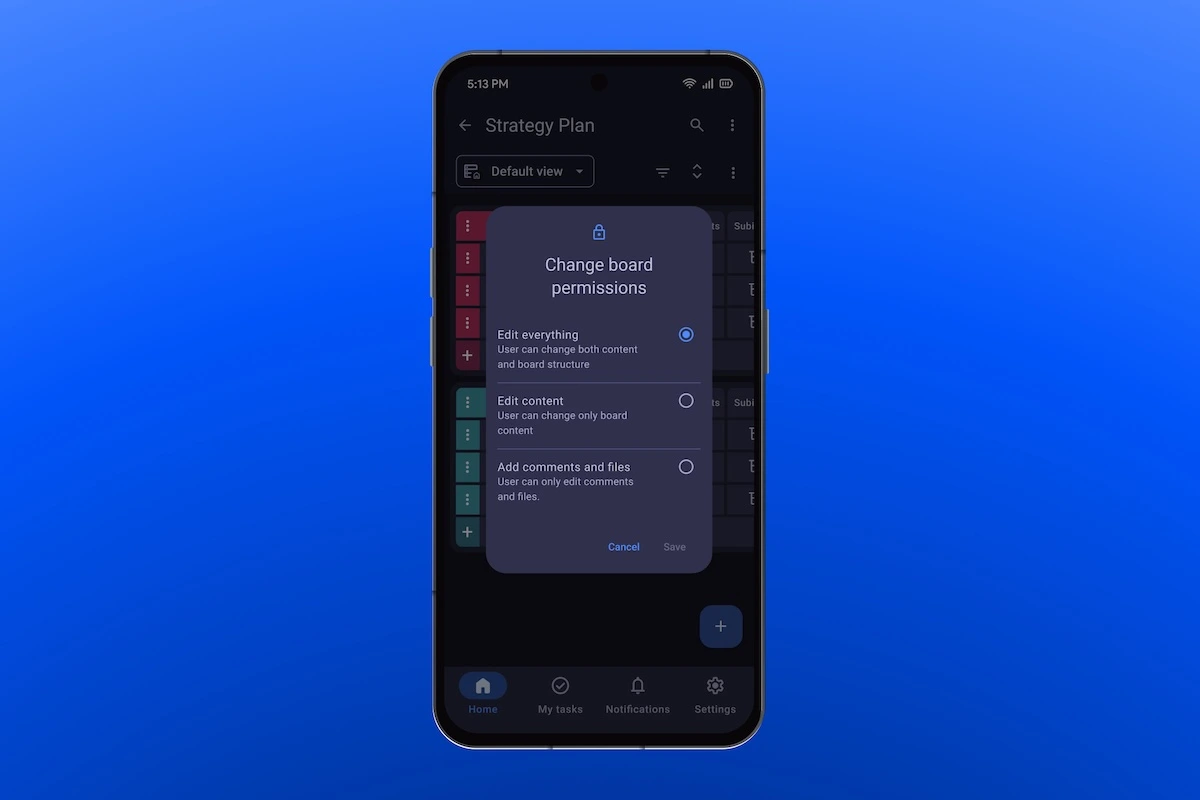
In Plaky, there are some great options to regulate board access level. By clicking on the 3 dots at the top right corner of your board, you get options to:
- Manage board members — add or remove team members or entire teams.
- Change board permissions — allow board members to edit both content and structure, change only board content, or only add comments and files.
- Set board type — change board type to private so that it is visible to selected team members or leave it public i.e. visible to the entire team.
Note: You can find way more options for managing spaces and boards, as well as user roles and permissions on Plaky’s web app.
Get work done on Plaky for Android
Boost productivity with Plaky’s integrations
Plaky currently integrates with other CAKE.com products — Pumble (a business communication app) and Clockify (time tracking app). Just like they work seamlessly together on the web, they can do so on your mobile phone.
With Plaky + Pumble free integration, you get notifications about any Plaky task updates directly in your Pumble space. This way, you keep team collaboration smooth and efficient, and also get another space for business communication where you can make phone and video calls.
Also, you can use Plaky + Clockify integration to track time within Plaky and then use the insights for invoicing in Clockify.
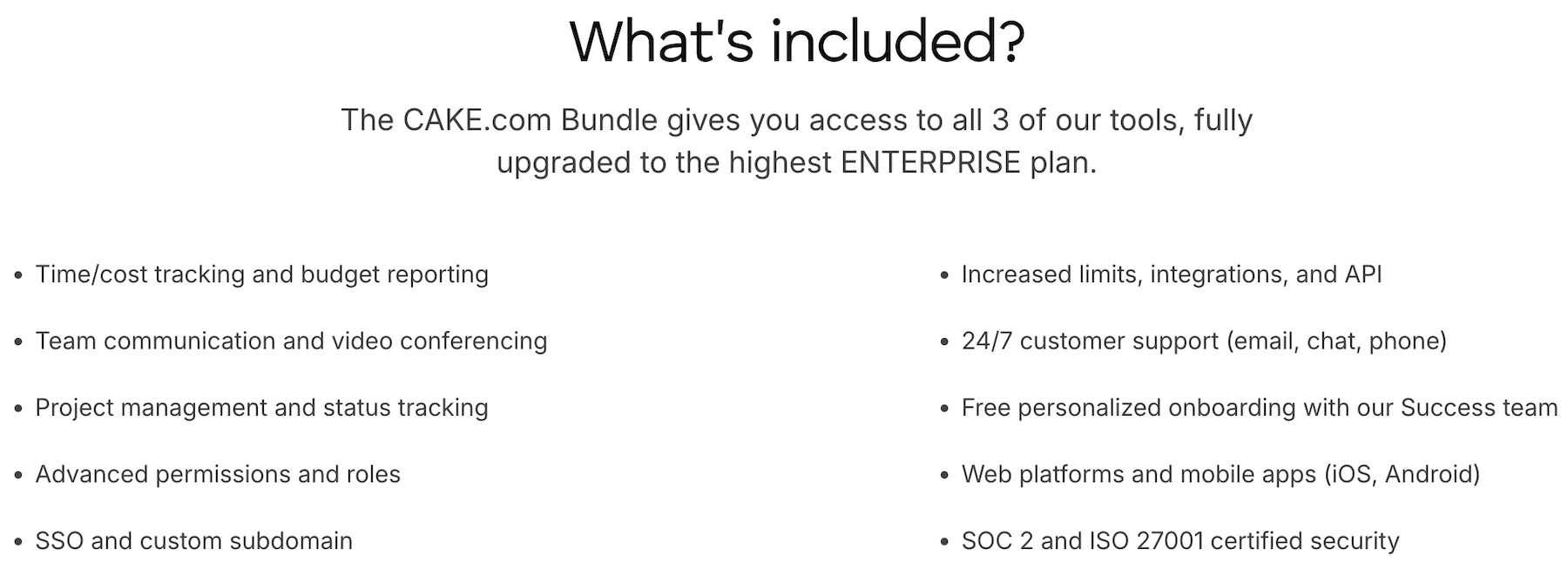
Still, it’s best to opt for CAKE.com’s Bundle, as it gives you all 3 tools at the enterprise level with 1 CAKE.com Account. This way you can seamlessly:
- Organize work across all departments.
- Plan resources.
- Connect with team members.
- Monitor task progress.
- Analyze productivity.
Having all 3 productivity tools on your mobile device makes your out of office work much smoother. You get a single solution that:
- Saves your money — you save 53% with the Suite compared to paying for each product separately.
- Improves productivity — you get an effective system of business tools that function best when they are together, keeping everything in context and eliminating friction.
- Simplifies administration — you get one invoice for the Suite, which makes budgeting predictable.

Set up Plaky for mobile and get work done anywhere you go
With Plaky, you can keep your teams connected, and projects on track regardless of location. It is ideal for quick updates, instant notifications, or approvals.
Also, Plaky is a tool that lets you manage work, keep an eye on progress, stay informed, and collaborate with your team in a simple and practical way.
Whether you’re working on-site and need to document progress or just want to leave feedback between meetings, Plaky ensures work continuity and excellent mobile experience.
So, what are you waiting for? Download Plaky from App store or Play store, and manage work from anywhere!
Como revisamos esta publicação: Nossos redatores e editores monitoram as publicações e as atualizam quando novas informações são disponibilizadas, para mantê-las atualizadas e relevantes.