
Manage Board
Once you’ve created a Board, you can edit and customize it to your exact specifications, allowing you to adjust parameters and settings to align the Board perfectly with your specific needs.
This article will help you to effectively modify, organize, and optimize your Board.
Manage Team Members #
With Plaky, you can manage your Team Members within your Board. Invite any Team Member, or the entire Team, to the Board, or share the Board with them.
Board Member = Board Subscriber
To add Board Members:
- Click on the Board members icon
- Type the user’s name
- Select the user from the dropdown

To add Board Members:
- Tap on three dots in the top right corner to access Board menu
- Select Board info
- Tap on Members
- Tap on user name(s) from the list or find them using search and tap on their name(s) to subscribe/unsubscribe them
- Tap Save to complete the action
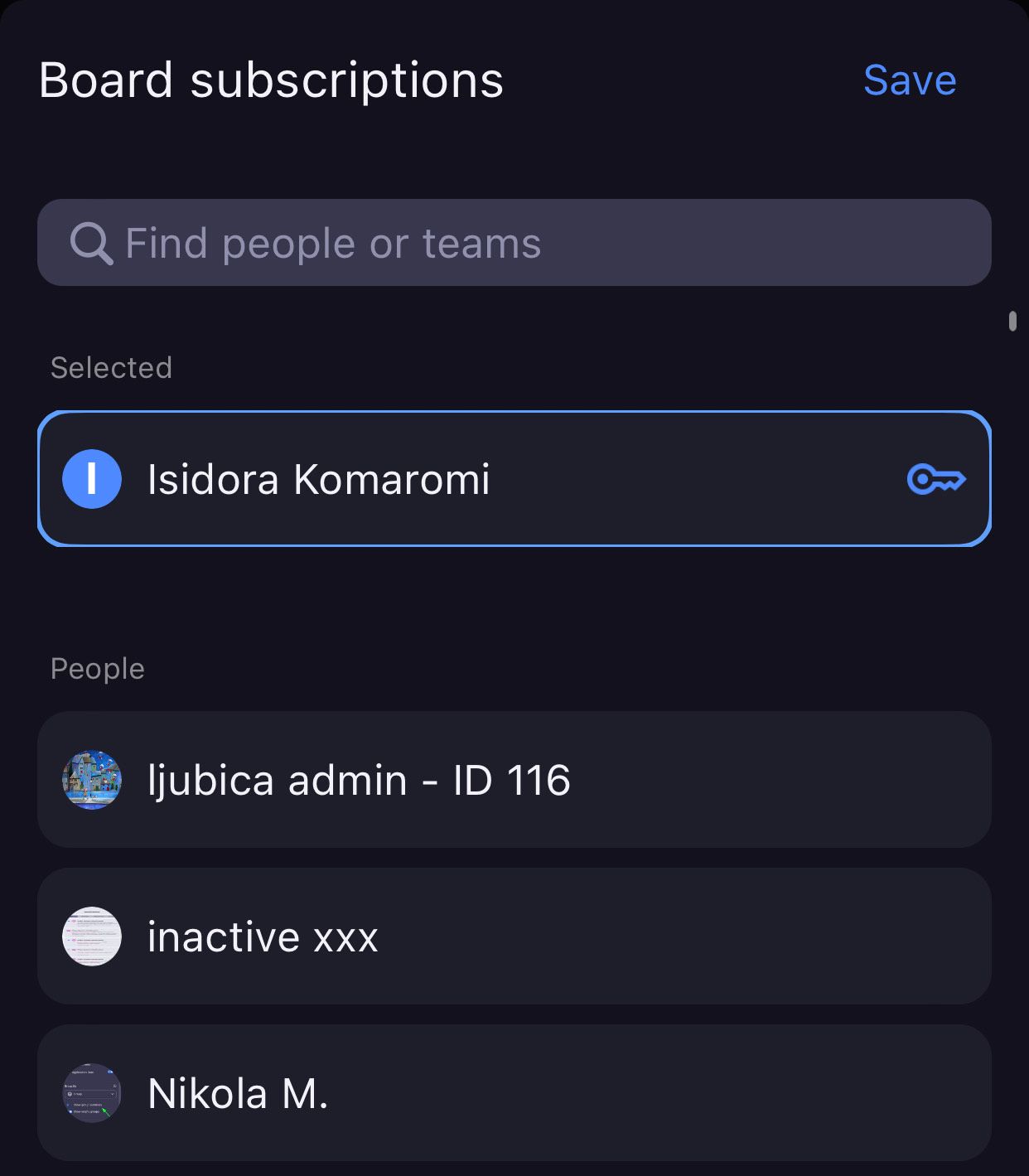
To remove Board Members:
- Tap on three dots at the top right corner to open the Board Menu
- Select Manage board members
- Untick the checkbox next to the user’s name to remove them from the Board
- Tap Save to complete the action
To remove yourself from a Board:
- Tap on three dots at the top right corner to open the Board Menu
- Select Manage board members
- Untick the checkbox next your name to remove yourself from the Board
- Tap Save to complete the action
To remove yourself as an Owner of the Board:
- Tap on three dots at the top right corner to open the Board Menu
- Select Manage board members
- Tap on the key icon next your name to remove yourself as the Board Owner
- Tap Save to complete the action
Before removing yourself as an owner, you have to make another user the Board owner.
Duplicate Board #
Members can duplicate an already existing Board in the Space.
This feature is currently available only in the Web app.
There are three ways in which the Board can be duplicated:
- Structure only (bare bone structure of the Board)
- Structure and Items (structure, Fields, and Items)
- Structure, Items, and updates (structure, Fields, Items, added comments, files, and any other updates that have been made)
Rename Board #
If you need to refine your Board’s identity or adapt to evolving project needs, you can rename your Board following these steps:
- Click on the Board name
- Delete it and enter a new Board name
- Click outside of the designated area to save the changes
Or
- Click on the three dots next to the Board
- Click on Rename Board
- Enter new Board name
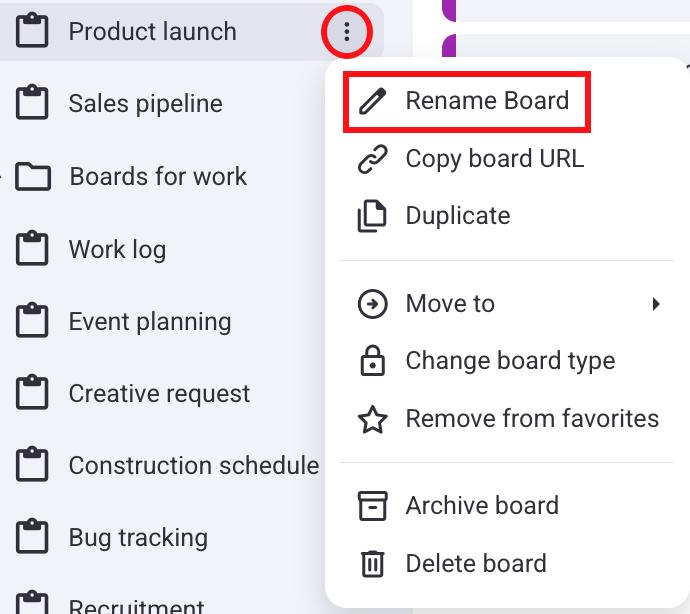
- Tap on three dots in the top right corner
- Select Board Info
- Tap on the Board name
- Delete it and enter a new Board name
- Tap Done to complete the action
Move Board #
Board can be moved to:
- Folder
- Space
This action can only be performed by Board Owners and is currently available only in the Web app.
A Board can only be moved to a Folder if it is in the same Space.
Sort the Board #
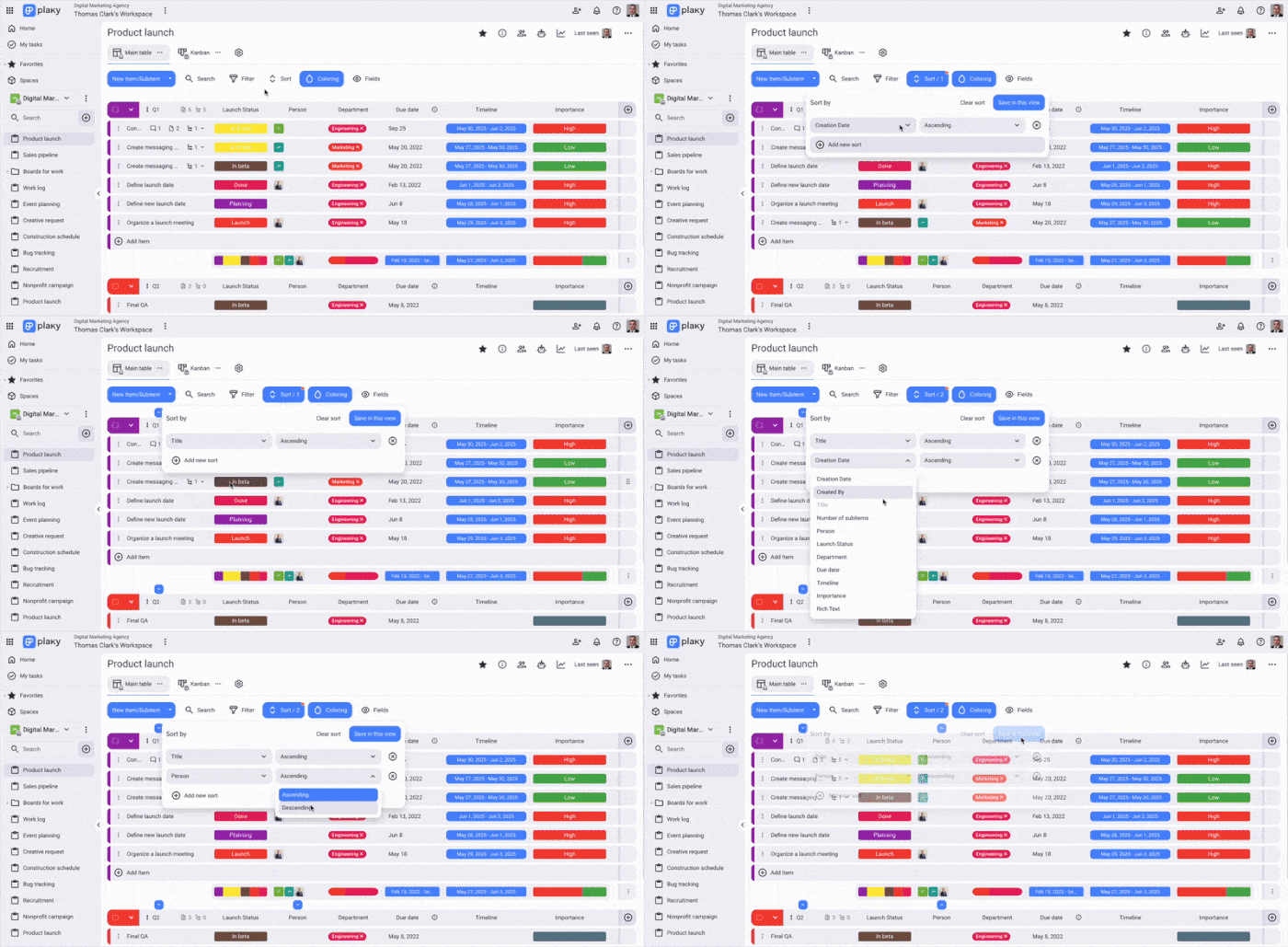
You can sort each Field according to some criteria. This can help you better organize your Board and provide a clearer overview of all the Items on it.
To configure Board sorting:
- Click the Sort button at the top of the Board
- With + Add new sort add the criteria by which you’d like to sort
- Pick the criteria from the dropdown you get when you click on the criteria label
- Choose Ascending/Descending order
- Toggle the switch if you want to apply sort on the Subitem level too (optional)
- Click Save in this view to complete the process
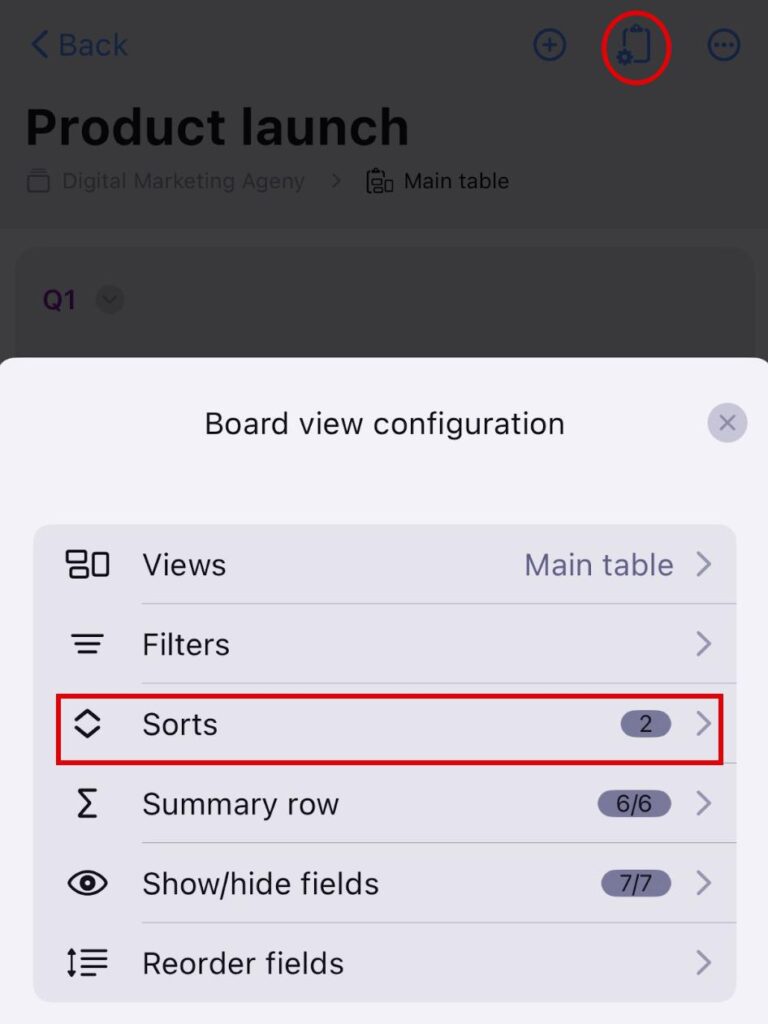
To add a new sort:
- Tap on Board view configuration in the top right corner
- Select Sorts
- Tap on + New sort
- Tap on Sort by to select the field by which you want to sort
- Choose Ascending/Descending
- Tap Save to complete the action
Sort is only available with the Table Board View.
To add new Sort:
- Tap on Sort icon on the Board
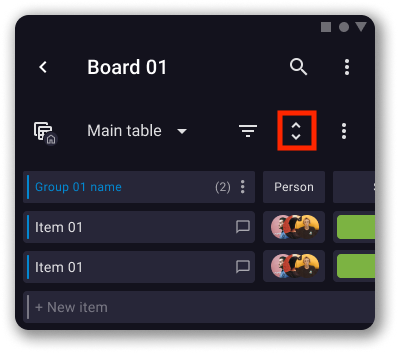
- Tap on New sort+
- Select the Field you want to sort the Board by from the dropdown
- Choose Ascending/Descending order from the dropdown
- Tap Add new sort
- Tap Save to complete the action
Sort is only available with a Table Board View.
Add/Change Board View #
The way your data is displayed on the Board can help you gain a better overview of the information available. Check out this article to learn how to add a Board View.
To change Board View, just click on one of the available Views at the top of your Board.
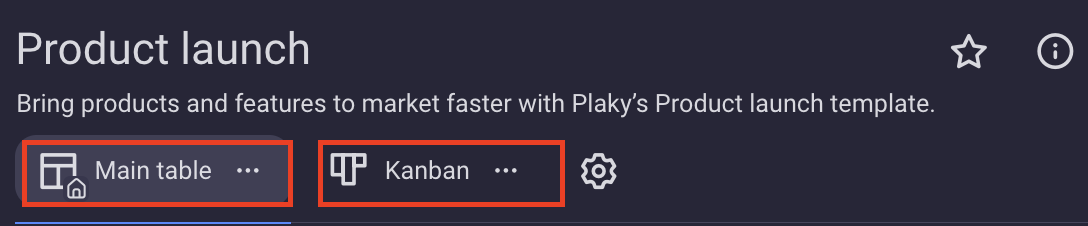
To change View:
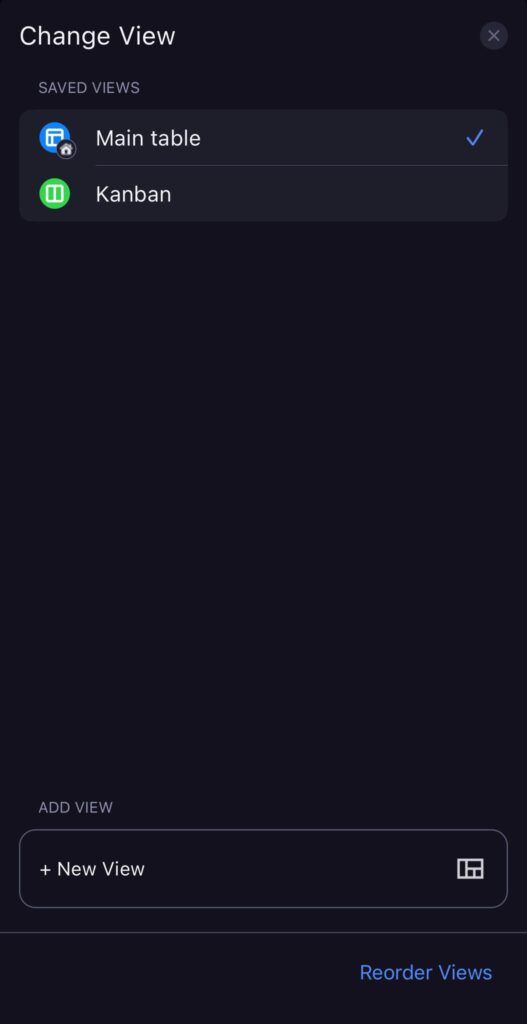
- Tap on Board View configuration in the top right corner
- Select View
- Tap on the View you want to apply to the Board to complete the action
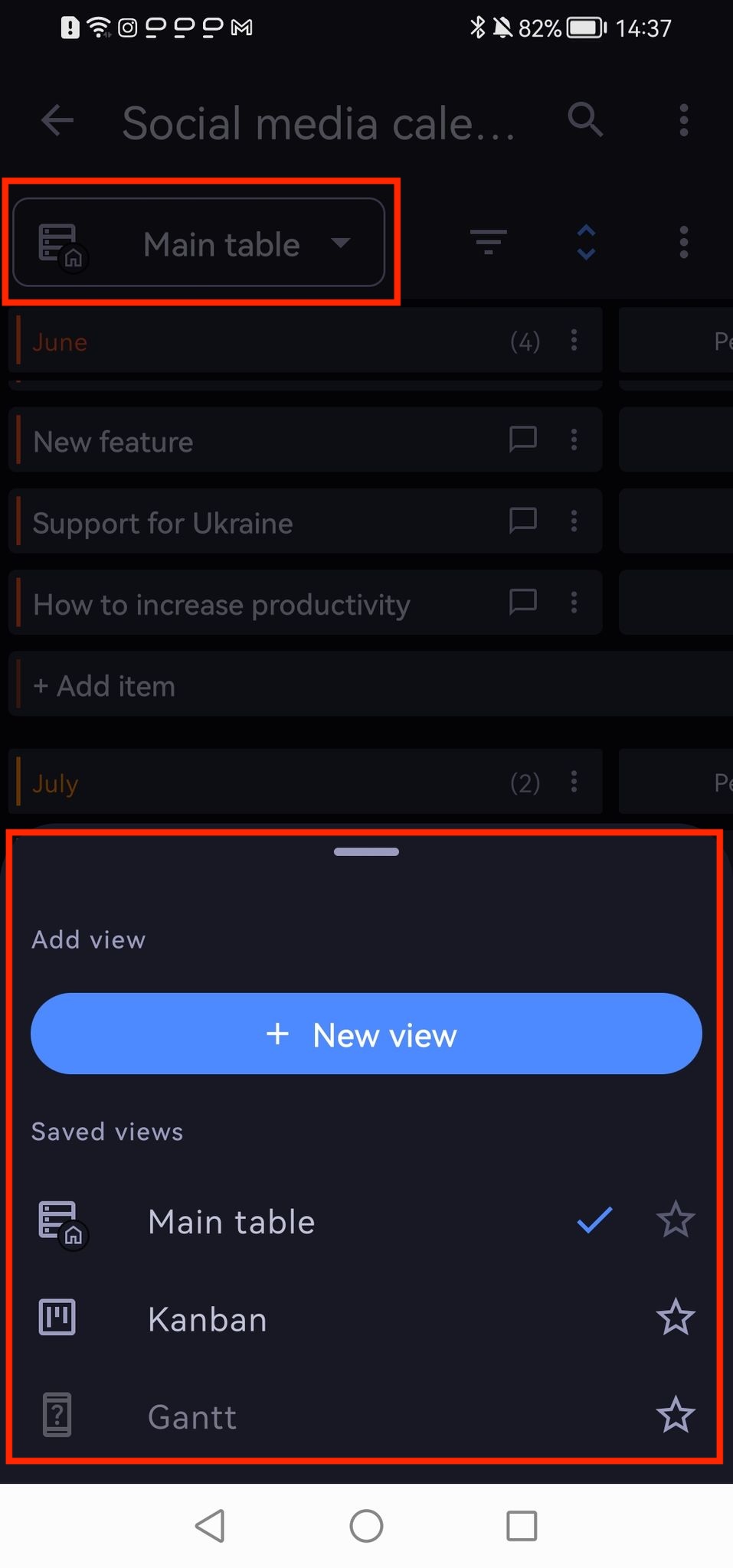
To change View:
- Tap on current Board view on the top left
- Tap on the View you’d like to apply on your Board to complete the action
Set as Board default view #
If you find any of the Board Views preferable, you can set it as a Default Board View, so that it’s the first one displayed when you visit the Board.
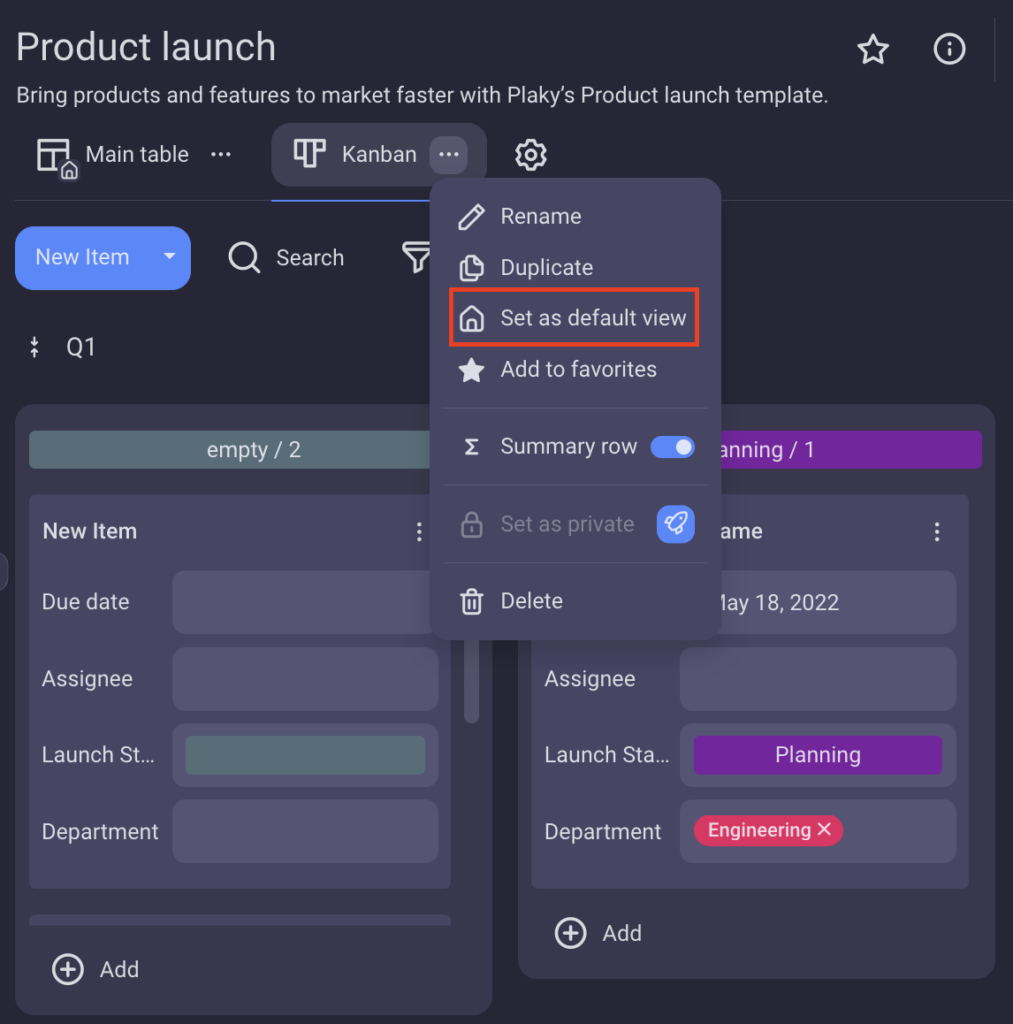
To set Board View as default:
- Navigate to the Board View at the top of the Board
- Click the three dots to open the menu
- Choose Set as default view
The View that you chose will be the first one displayed and marked appropriately when you visit the Board.
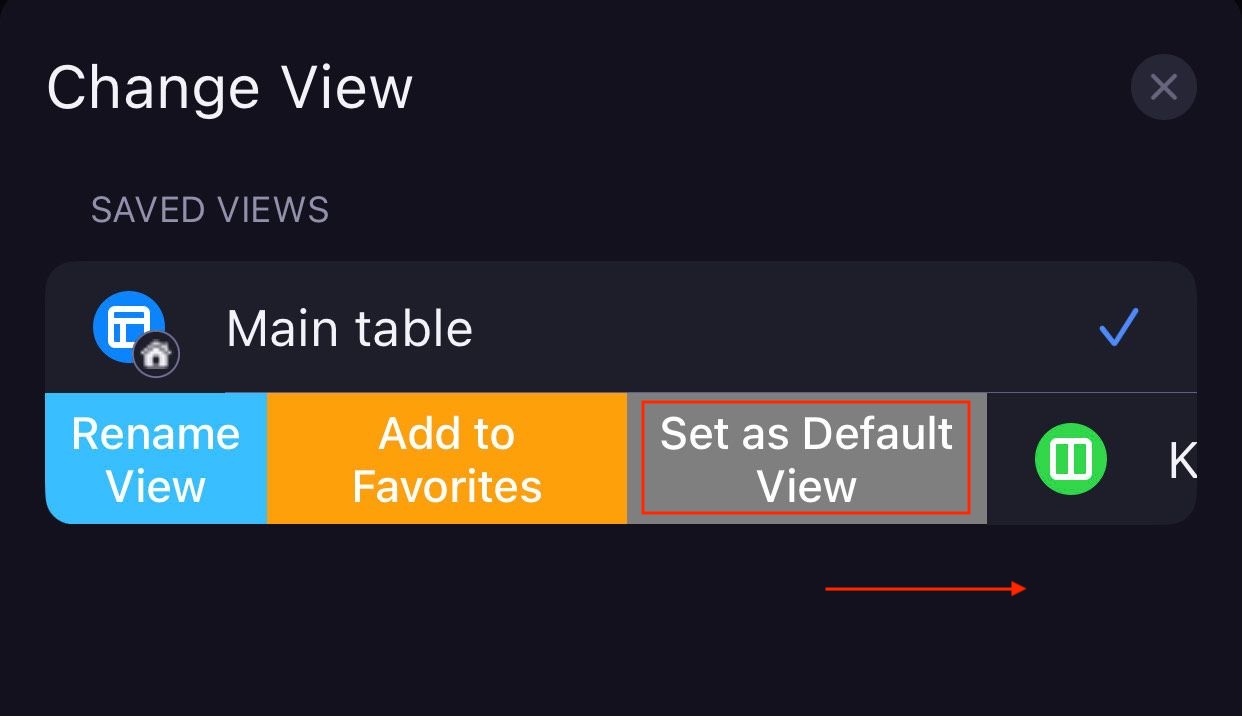
To set a View as default:
- Tap on the Board View configuration icon in the top right corner
- Select Views
- Swipe that specific View to the right
- Tap on Set as Default View to complete the action
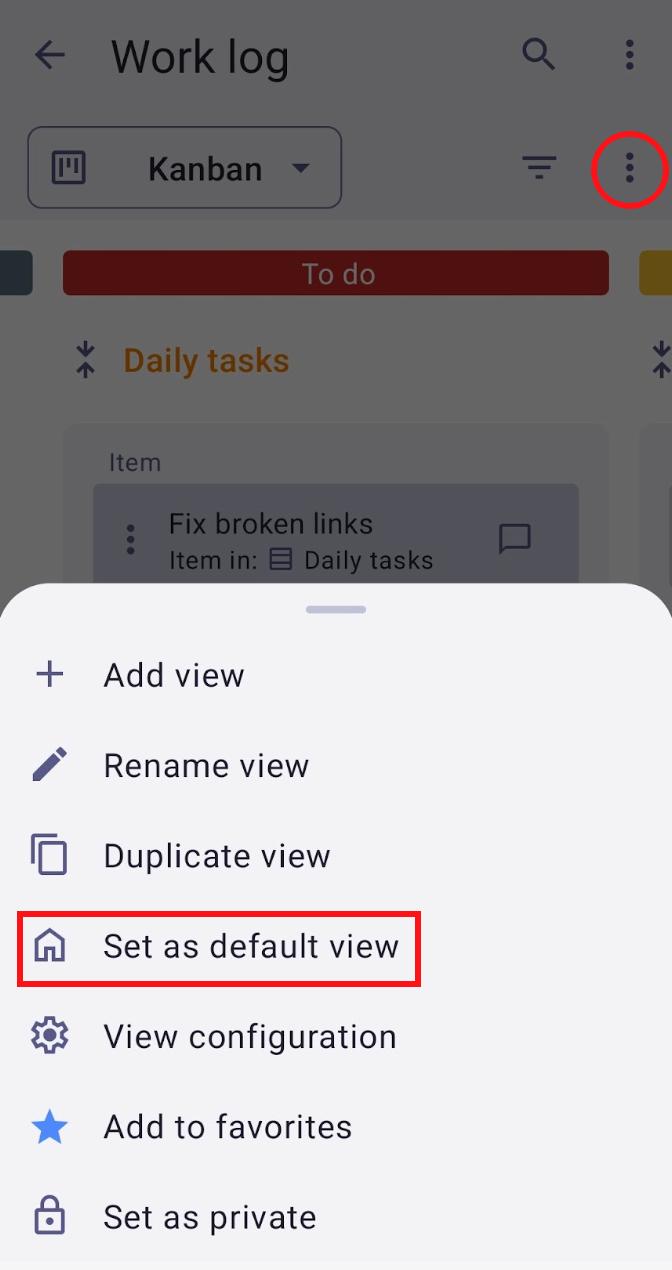
To set View as a default:
- Tap on the three dots next to that specific View
- Select Set as default View to complete the action
Gantt and Chart View can’t be set as the default view.
Apply Filter #
Depending on the project, Boards in Plaky can sometimes seem overwhelming. To keep things in order, you can Filter them out according to your needs and preferences.
Manage Field visibility #
This feature allows you to effortlessly control the visibility of Fields on your board, tailoring your Board to focus on the most relevant information.
To manage Fields visibility:
- Click on the Fields visibility icon
- Select the Fields to display
- Click on pin/unpin icon to pin/unpin them
- Drag and drop the Fields to reorder them
- Click outside the designated area to complete the action
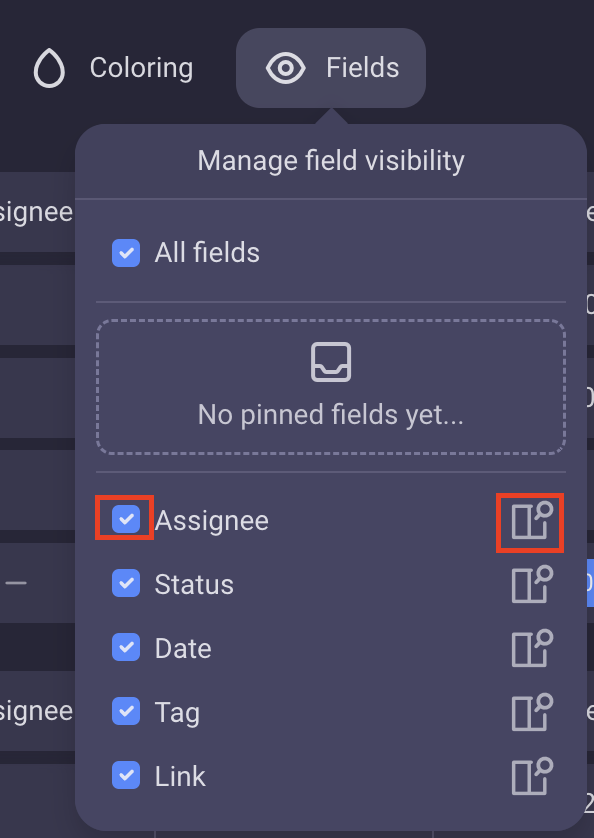
You can also click on the pin/unpin icon on Fields to pin/unpin them.
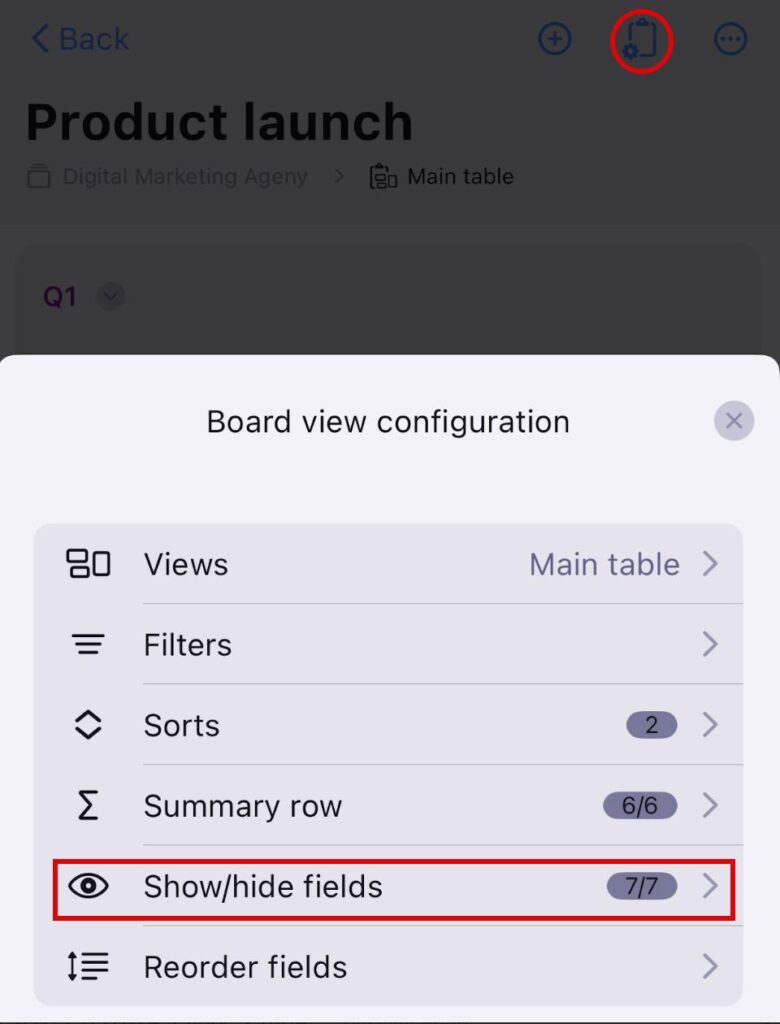
To configure Field visibility:
- Tap on Board view configuration in the top right corner
- Select Show/Hide Fields
- Select the Fields you want to show
- Tap Save to complete the action
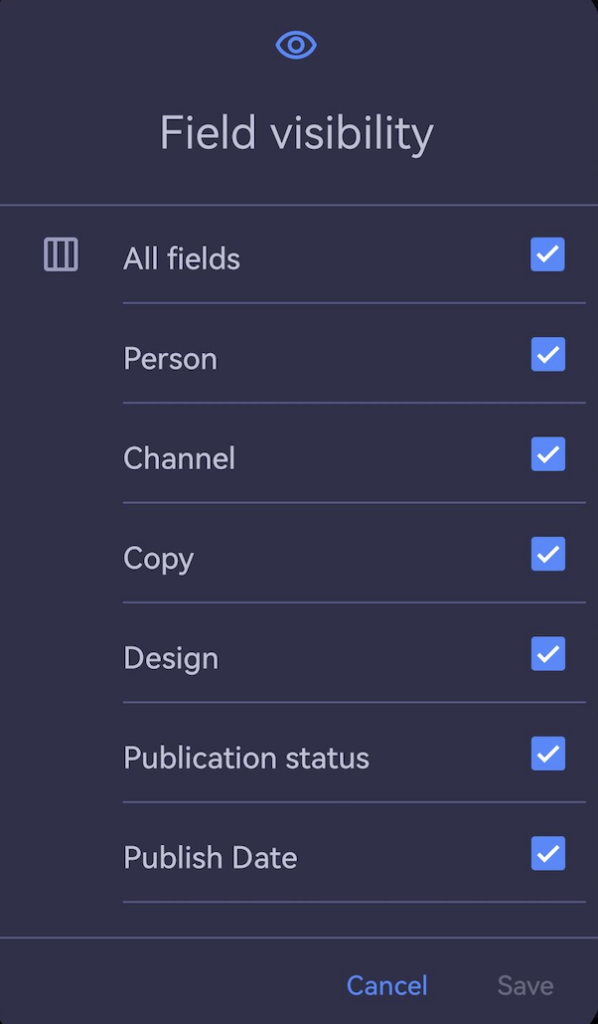
To configure Field visibility:
- Tap on the three dots in the top right corner to open the Board menu
- Select Field visibility
- Choose Fields to display
- Save changes to complete the action
Expand or collapse Item groups #
Streamline task management by expanding or collapsing groups on the board in Plaky.
To expand/collapse one Item group:
- Click on the downward arrow next to the Item group name
- Select Expand/collapse this group to complete the action
To expand/collapse all groups:
- Click on the downward arrow next to any Item group name
- Select Expand all groups/Collapse all groups to complete the action
To expand/collapse one Item group:
- Click on the downward arrow next to the Item group name
- Select Expand/collapse this group to complete the action
To expand/collapse all groups:
- Click on the downward arrow next to any Item group name
- Select Expand all groups/Collapse all groups to complete the action
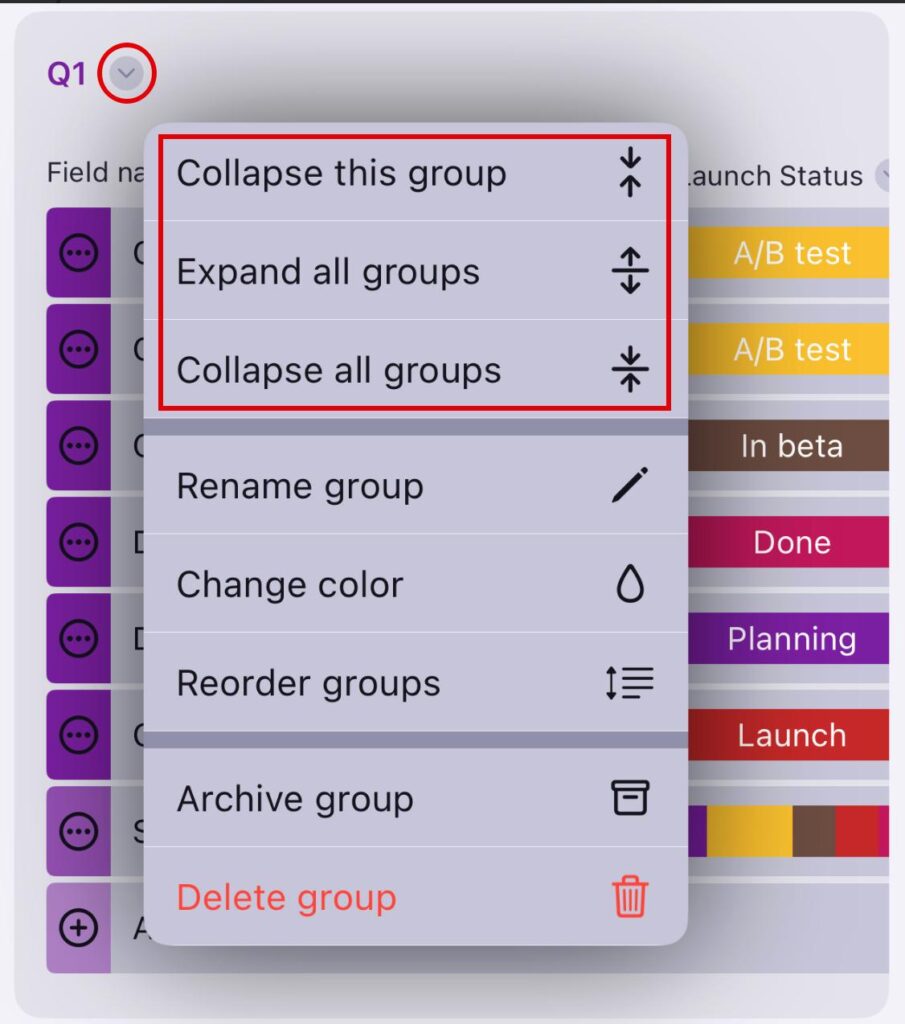
To expand/collapse a group:
- Tap on the three dots next to the group name
- Select collapse/expand to complete the action
To expand/collapse all groups:
- Select the View from the dropdown menu in the top left corner
- Click on three dots in the top right corner
- Select Collapse all groups / Expand all groups to complete the action
Copy Board URL #
If you need to share your Board’s URL with your teammates, you can copy the link to your Board from the Browser.
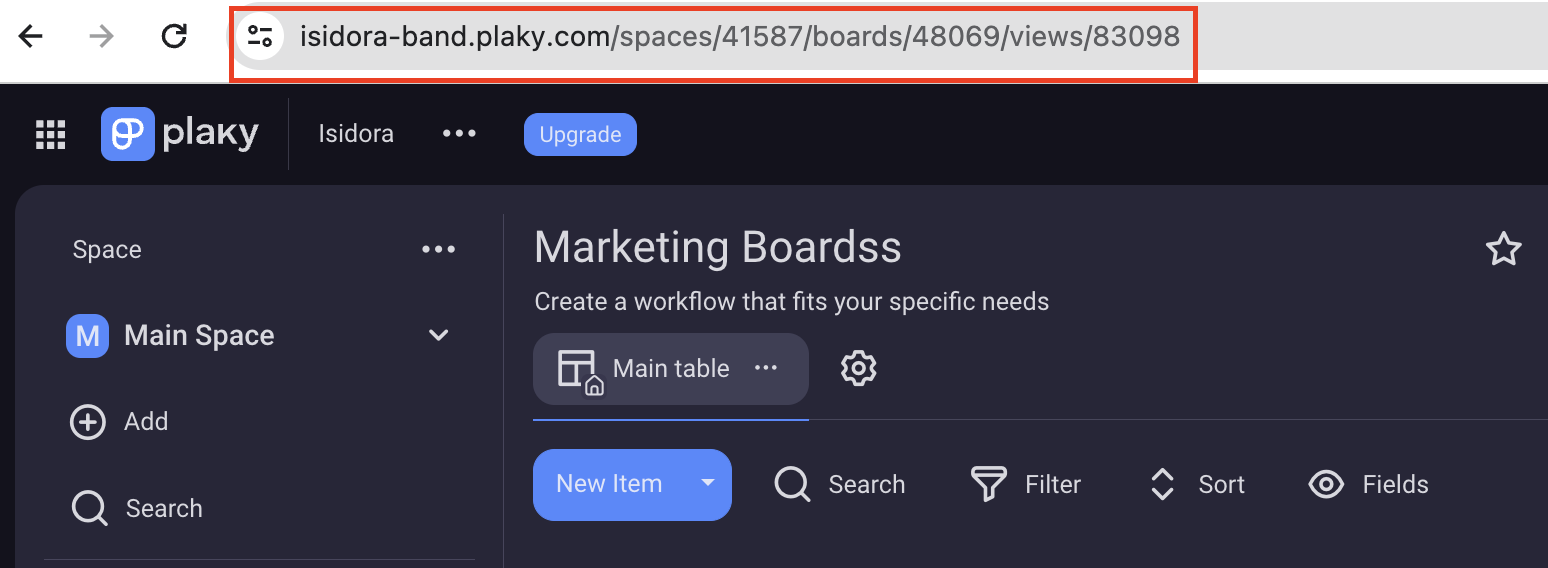
To copy Board URL follow these steps:
- Tap on the three dots in the top right corner to open the Board menu
- Tap Share and select the option to copy or send the URL
To copy Board URL follow these steps:
- Tap on three dots in the top right corner to open the Board menu
- Tap on Copy board URL to complete the action