Published: December 29, 2025
Most workdays don’t immediately start with actual work. They start with opening projects or checking to-do lists, and by the time you figure out what to address first, you may have already spent more energy than you wanted to.
Plaky by CAKE.com has found a way to simplify that moment — a clear place to see what’s on your schedule thanks to the My taskspage.
Keep reading to learn how this functionality can help you move through your day with more focus and less friction!
What is My tasks in Plaky by CAKE.com?
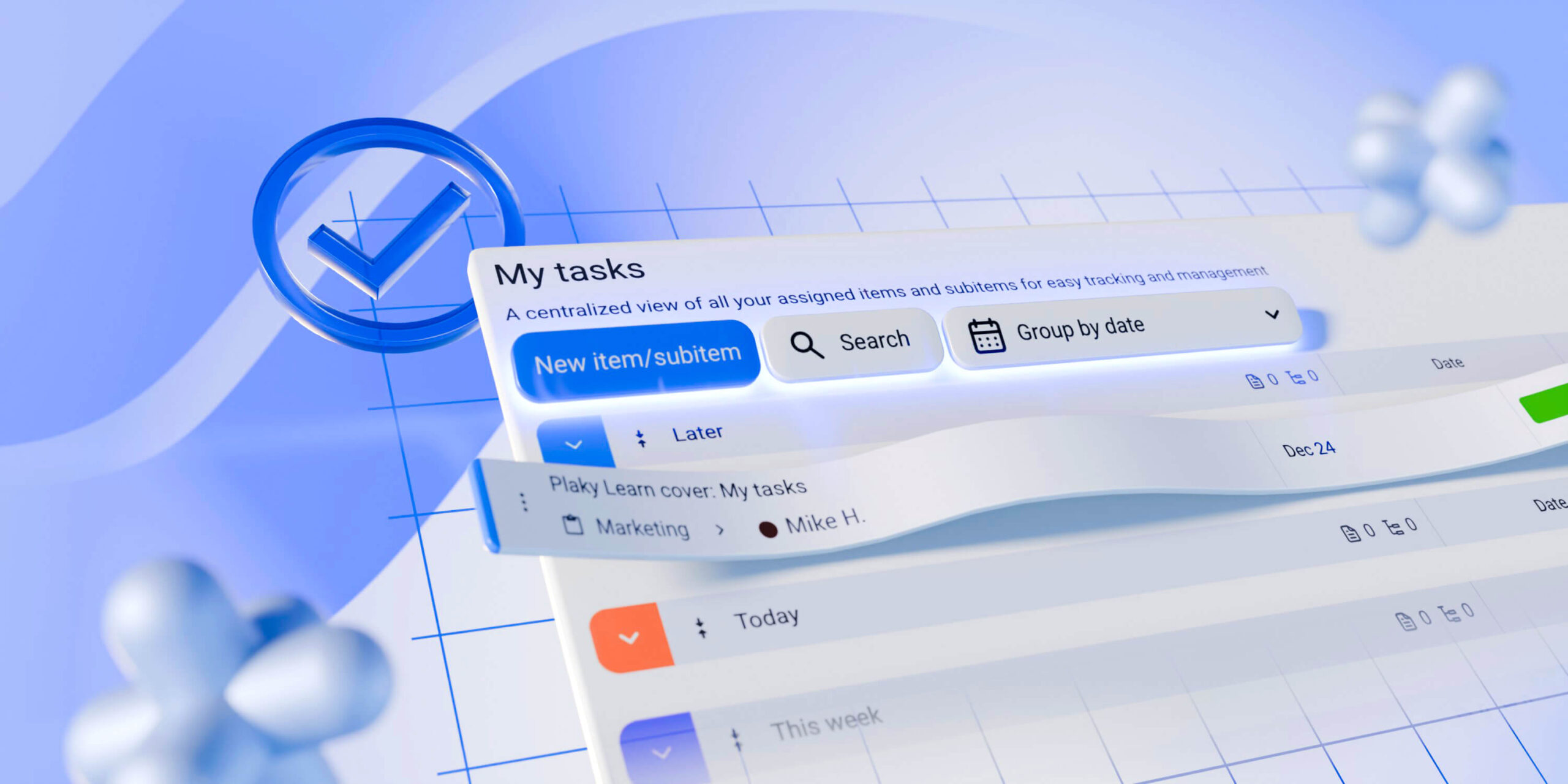
The My tasks page is a specialized view that brings together every task assigned to you, no matter which project (Plaky board) it lives on. So, instead of checking multiple projects, you get a single, centralized list of your work.
What’s more, with Plaky’s Pro and Enterprise plans, you can also use My tasks to get a centralized view of items assigned to a certain team member, in addition to your own.
Pulling assignments from across the platform, this page updates in real time as work changes — e.g., new tasks appear as soon as they’re assigned elsewhere to you/selected user, and any changes (like status or deadline updates) show up immediately.
In short, visit My tasks to see your own work when you need a narrower focus and your team’s tasks when you need oversight.
How to use My tasks in Plaky by CAKE.com
Here’s how to make use of My tasks to stay on top of your work.
#1 Find My tasks
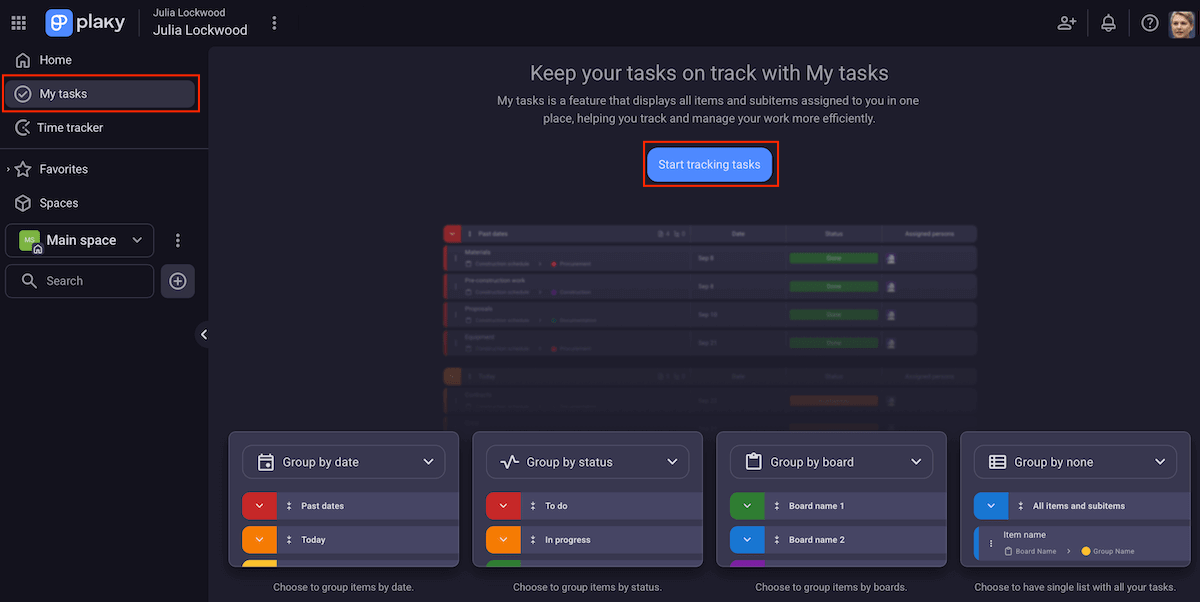
The My tasks section is in the left sidebar, right under the Home button.
When you click on it for the first time, Plaky will prompt you to “Start tracking tasks” (the blue button in the middle of the screen). Any other time after that, your tasks will simply appear on this page without any initiating action.
#2 Group tasks based on different criteria
Since every task in Plaky is described through custom fields like text, status, date, person, etc., some of those attributes can help you group (sub)items in My tasks.
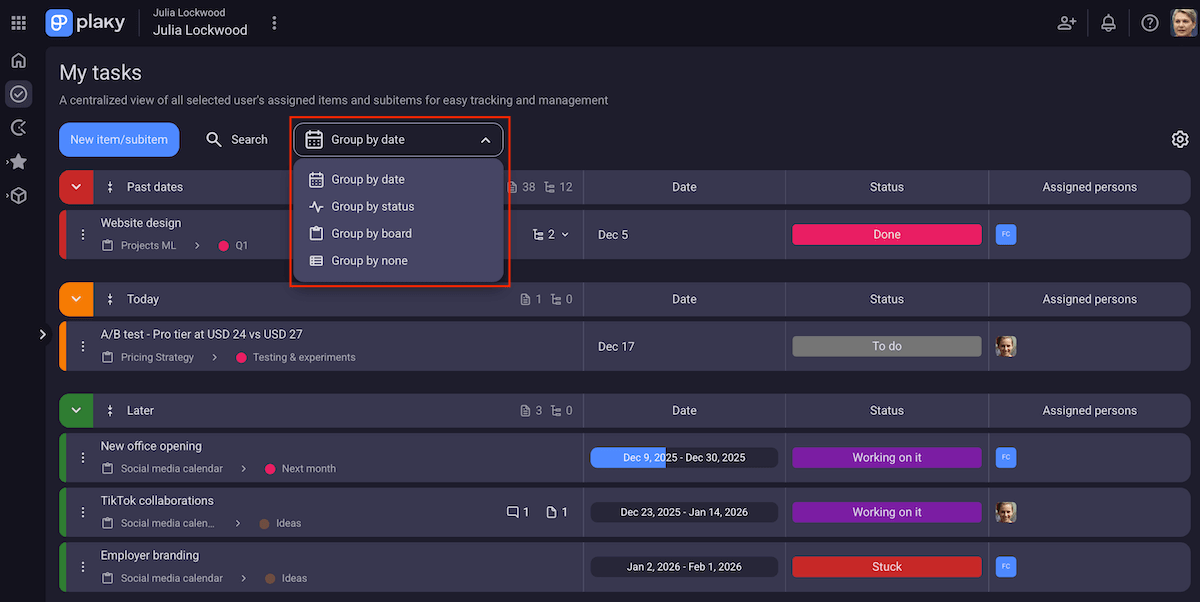
Here are your options:
- Group by date — You can immediately tell what’s overdue, what needs attention today, and what’s coming up next. Tasks are grouped into clear time-based sections while also keeping those without defined dates visible instead of letting them disappear.
- Group by status — If your tasks have a status field, you can also group them based on where they are in the workflow (e.g., Backlog, In progress, Done). This makes it easy to view progress at a glance without opening each task individually. And, if an item has no such field, it’ll be in the Without status field group.
- Group by board — Since Plaky users are very likely to be members of multiple projects, boards can also serve as the grouping criterion. This means clear project context, so you don’t lose time figuring out where the work lives or switching between boards to get oriented.
- Group by none — No task grouping is a possibility too. You can simply have a layout showing all your (sub)tasks in one continuous list when you don’t want to jump between groups.
#3 Set up additional preferences
By clicking on the gear icon in the top right corner of the My tasks page, you get to access additional settings.
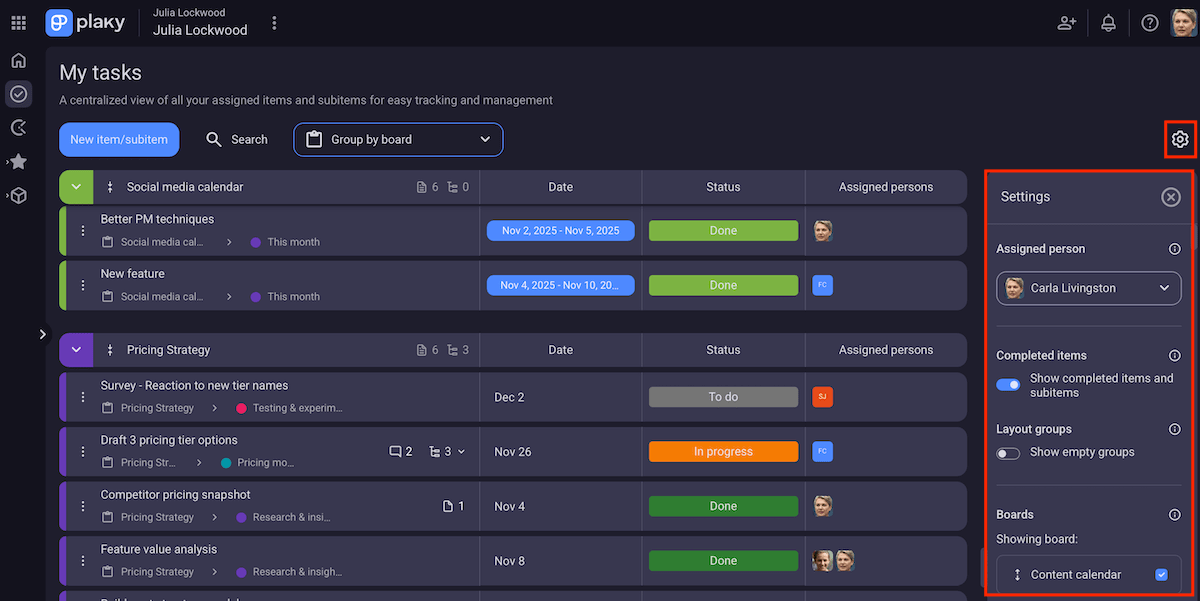
Plaky adjusts to your needs and preferences by allowing you to:
- Show/hide completed tasks — You can control whether completed items appear in this view by toggling the designated button in Settings. Just make sure your board defines what “completed” means (open item status options in your board(s), and choose which color indicates finished tasks).
- Show/hide empty groups — My tasks can display all possible groups in your view or hide empty ones to simplify it. For example, if there are no tasks due on the current day, the Today section won’t appear at all when you hide empty groups.
- Show/hide certain boards — Plaky lets you pick which boards appear in My tasks by ticking the boxes next to the ones you want to include. This means sharp focus on the projects that matter most at the moment.
- See your own or another member’s tasks — By upgrading from Plaky’s free plan, you get a dropdown menu under Assigned person to decide whether you want to review/organize your tasks or those assigned to other members.
💡Plaky Pro Tip
My tasks is one of Plaky’s more recent features. To find out what else has been introduced and what’s coming soon, check out these pages:
What you can achieve with My tasks
Although My tasks is a fairly simple segment, it offers so many benefits.
When used for your own tasks, this view ensures:
- Smooth flow — Reduce context switching that comes with checking multiple boards, and work without distractions.
- Prioritization — Sort your tasks by due date, status, or importance to plan your day effectively.
- Reliability — Be sure that nothing, even low-priority work, is forgotten or overlooked.
Moreover, when used for tasks assigned to a certain team member, this page improves:
- Workload awareness — Monitor individual team members’ activities without micromanaging.
- Bottleneck detection — Spot tasks that are stuck before they slow projects down.
- Timeline planning — Understand who’s responsible for what to plan realistically.
I like to open My tasks as part of my morning routine. Instead of jumping between projects to check what’s waiting for me, all my work is already there. No searching, no mental warm-up, just a clear plan for the day ahead!
As the day goes on, I revisit My tasks to see if I need to readjust, especially when I receive notifications in Plaky about changes to my assignments.
And, if you’re a manager, looking at team members’ tasks can be part of your regular planning or check-in rhythm. Instead of guessing or interrupting the team, base your decisions on what’s actually on everyone’s plates.
Over time, My tasks becomes less of a feature you “use” and more of a habit — a simple, always-up-to-date place to start work and make informed choices.
💡Plaky Pro Tip
Want to learn more about effective task management? Check out this handy guide:
FAQ
Still have some questions about My tasks? Let’s make everything crystal clear!
If I complete a task in My tasks, does it automatically update on the main project board?
Yes! My tasks is fully synced with the rest of Plaky, so any change you make in this view (completing, editing, or creating a task) appears instantly on the related board.
The same applies in reverse — updates made on relevant boards are immediately reflected on My tasks.
Does the My tasks view show me subitems or only main items?
My tasks includes both main Plaky items and subitems, as long as they’re assigned to you or the person whose tasks you choose to see.
The goal is to allow you to work at the right level of detail and manage smaller tasks without losing visibility of the bigger picture.
Can I add a private task that isn’t on any public board to My tasks?
If you want to manage personal or private work, you need Plaky’s Pro or Enterprise plan to create a private board and add tasks there. Those items will appear in My tasks, just like your assignments from public boards, but they’ll only be visible to you and people you invite.
Stay on top of every task — with Plaky by CAKE.com
According to some project management statistics, 59% of project managers simultaneously handle 2–5 projects. In addition, 15% of project managers work on more than 10 projects at the same time.
In such conditions, it’s easy to lose track of priorities, deadlines, and who’s responsible for what — but not with Plaky!
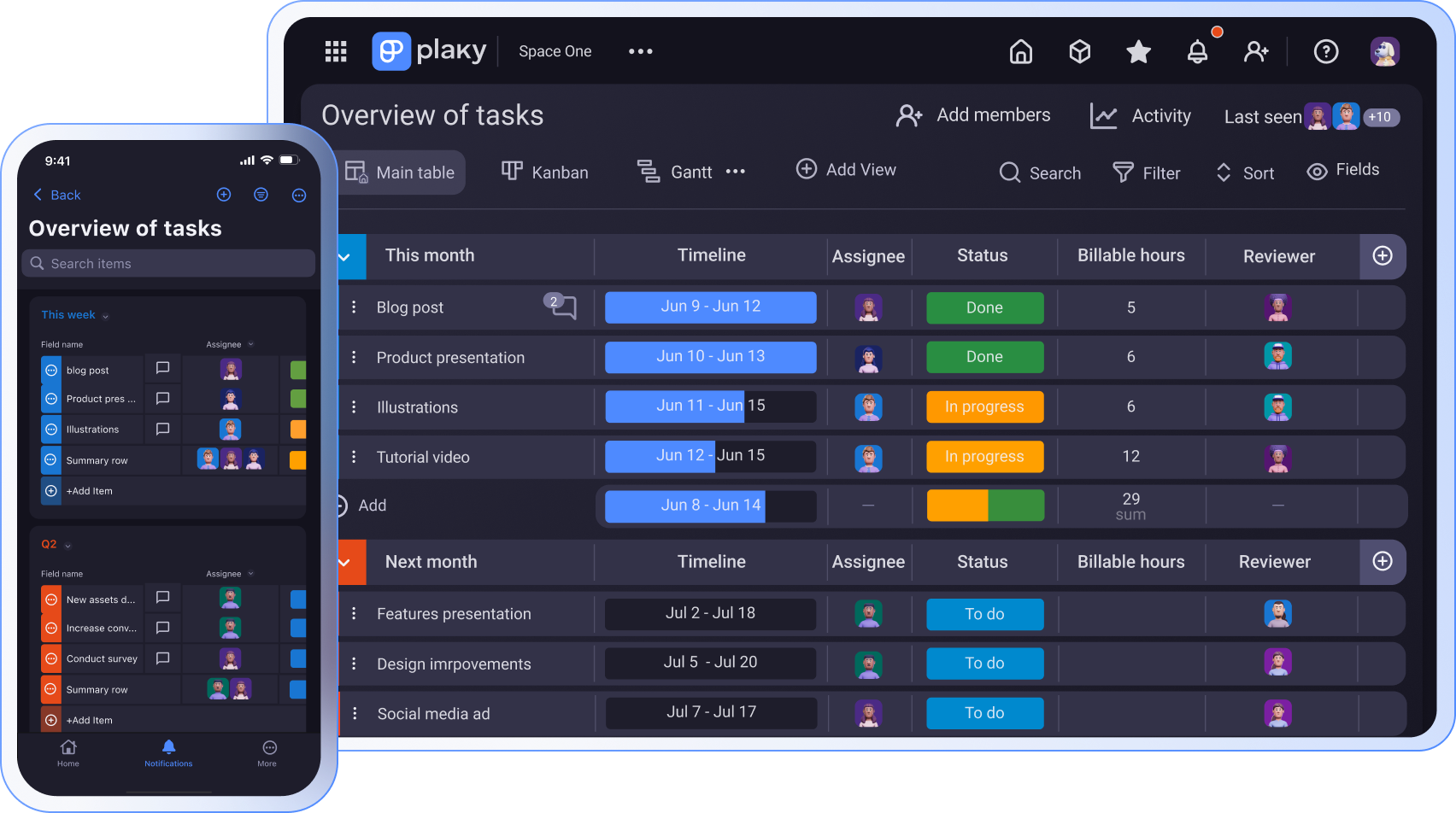
The My tasks view — available both in Plaky’s web version and mobile apps — offers a clear, user-based overview of assignments, ensuring nothing falls through the cracks.
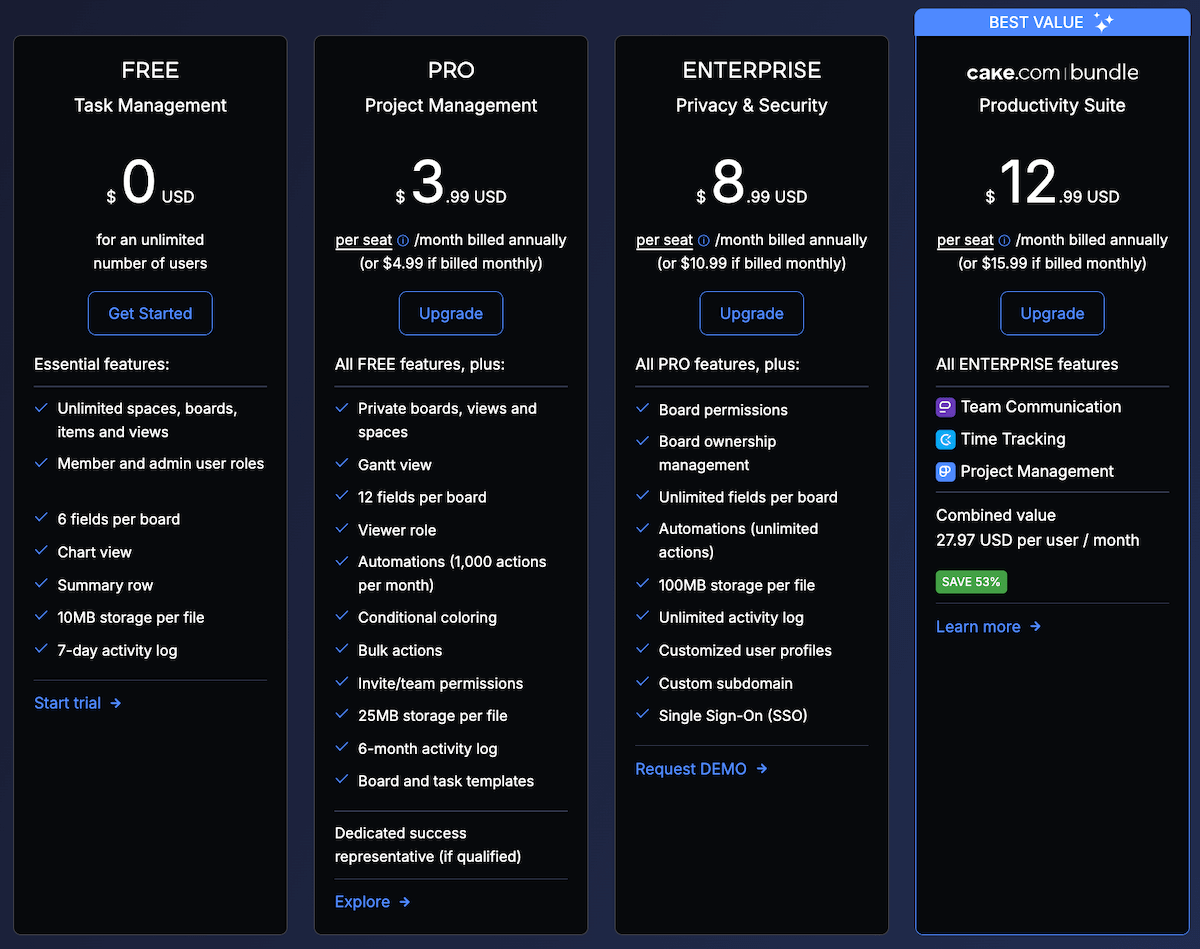
This and many other Plaky features make work across industries smoother with 3 generous tiers:
- Free plan — basic features with unlimited projects, tasks, and users at $0,
- Pro plan — all Free plan features, plus private boards, bulk actions, board automations, etc. at just $3.99/user/month, and
- Enterprise plan — all Pro plan features, plus SSO, custom subdomain, unlimited fields per board, and much more at an incredible $8.99/user/month.