 Published: July 29, 2025
Ever feel like organizing your project management board is a whole to-do list on its own? You move tasks manually, assign people, send updates, etc. and then wonder where the day went.
That’s where board automations come in, helping you reduce manual work and mistakes without constant oversight.
Let’s see how you can use this feature in Plaky to make your workflow essentially run itself.

Key terms behind automations
Understanding some key notions behind automations will make it easier for you to set them up properly in Plaky.
Here are the most important terms:
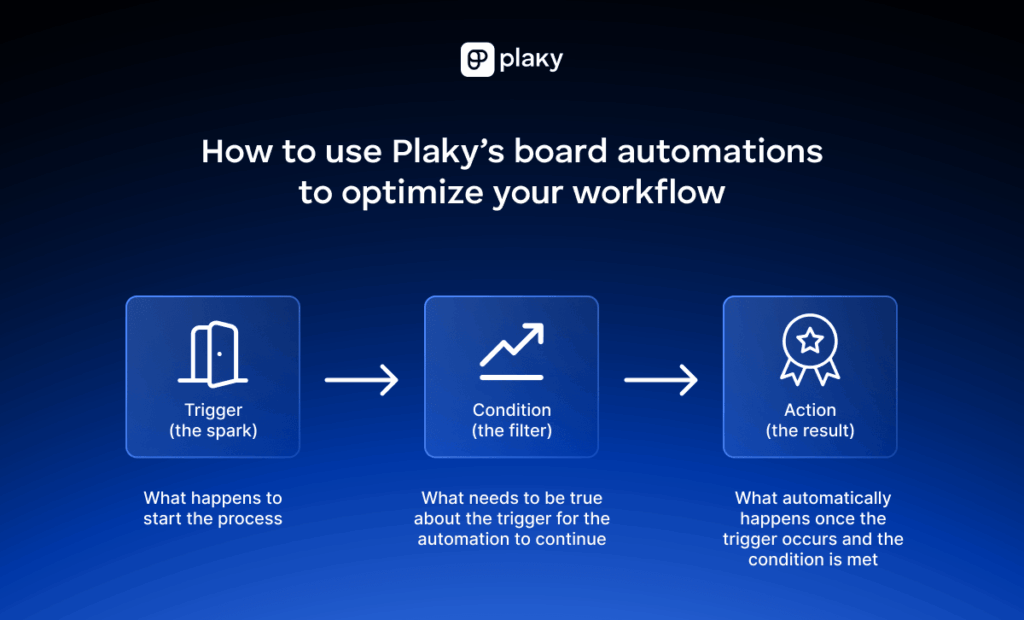
- Trigger — a specific requirement that sets everything in motion (“When this happens…”),
- Condition — an optional requirement that must be met before the automation runs, specifying if the action should proceed,
- Action — what the automation actually does once triggered (“Then do this…”),
- Automation name — a customizable title you can add to summarize what the automation does, and
- Workspace automation actions usage — a section in Plaky where you can see how many actions your team has used and is allowed to use based on your plan.
Why you should use automations for workflow optimization
You should rely on automations if you’re looking for a simple way to accelerate workflows and focus on using more brainpower instead of wasting time on busywork.
The main benefits of using board automations include:
- Less manual work — It gets tiresome to manually perform actions like updating task statuses or priorities. With automations, you spend less time clicking away and can dedicate yourself to something more substantial.
- Fewer human errors — While humans simply make mistakes sometimes, automations don’t (if set correctly). Fewer errors mean better accuracy and team reliability.
- Consistency — Automations support your team’s processes without relying on memory or micromanagement. Tasks follow the same flow every time, leading to smoother collaboration.
- Streamlined communication — Every time an automation works, updates and notifications will go to the subscribed users. This means there’s no need to chase anyone down or send endless emails — everyone stays in sync automatically.
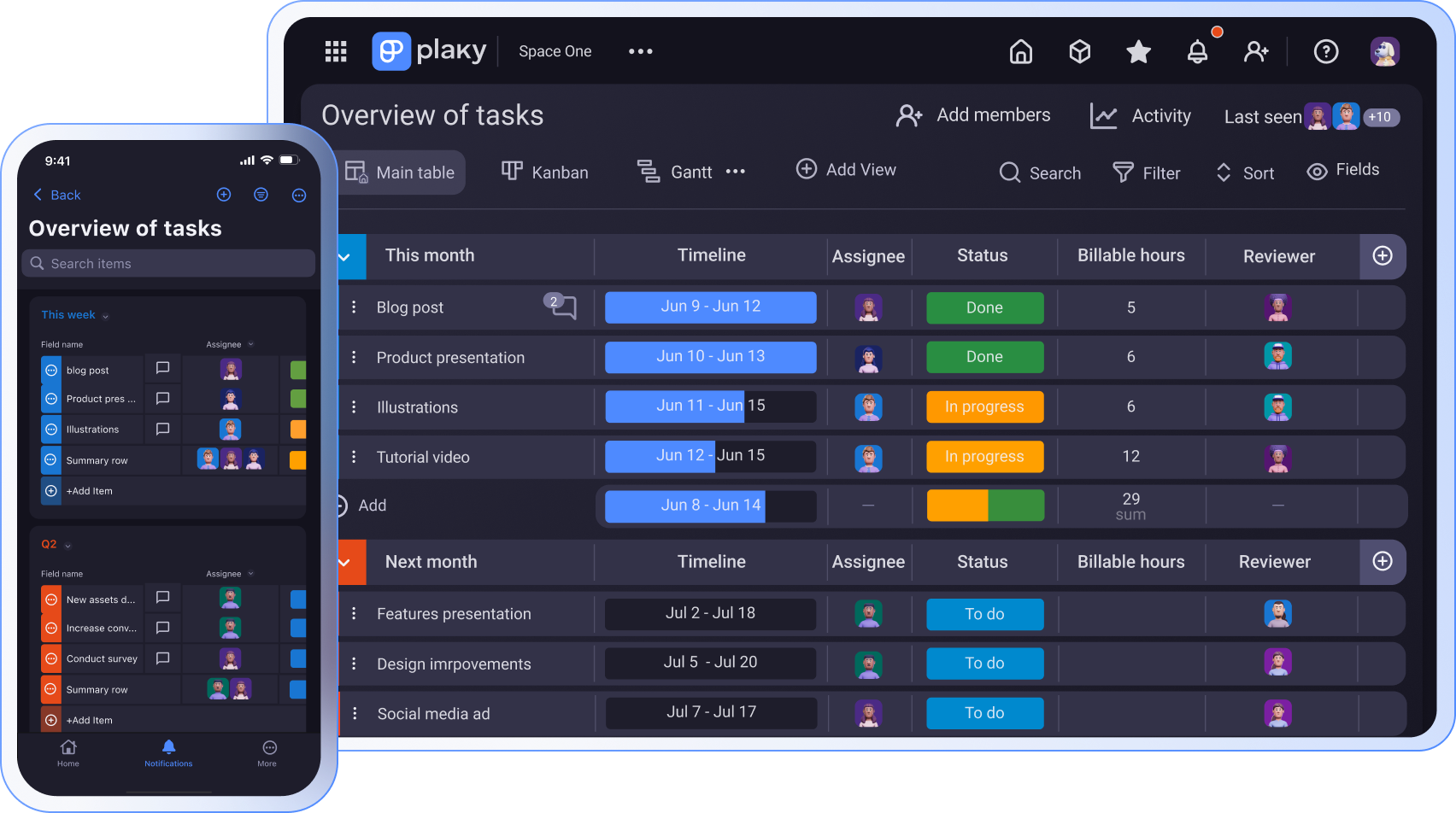
How to use board automations in Plaky
Here are the key steps to setting up automations effectively and keeping your projects on track with Plaky.
#1 Choose or create the board you want to automate
Start by selecting an existing board that’s part of your regular workflow, or create a new one if you’re starting the process from scratch.
Automations only apply to individual boards, so first make sure the board structure reflects your workflow stages. That’s where Plaky’s custom fields come in, letting you specify project/task details in the form of:
- Text (e.g., client names, feature descriptions, campaign slogans),
- Number (e.g., budget, estimated hours, version number),
- Person (e.g., task owner, reviewer, designer),
- Date (e.g., due date, launch date, follow-up deadline),
- Status (e.g., task status, lead stage, feature phase),
- Tag (e.g., priority level, department, feature type), and more.
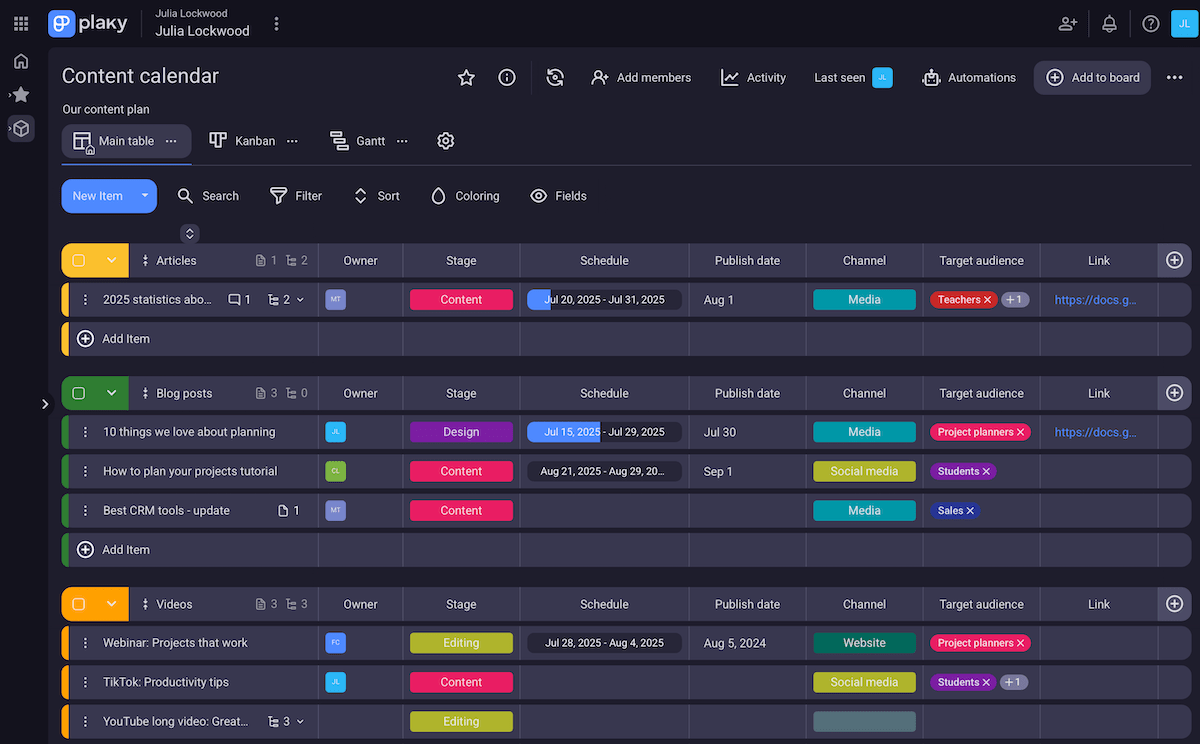
Our platform lets you arrange custom fields in whatever order you like, as well as group items, make subitems, choose label colors, and more. This level of flexibility means Plaky adapts to your workflow instead of making you work around the tool.
#2 Identify repetitive tasks
Closely inspect your current workflow to spot the actions that happen again and again, mainly the ones that don’t require decision-making. Those are perfect candidates for automation.
You might find these questions useful:
- What steps do we repeat in every Sprint or project?
- Where do handoffs break down or stall?
- What updates are often forgotten?
Also, look for manual tasks that slow your team down or get missed — even small steps can add up across multiple projects, so automating them can eliminate delays.
#3 Create automations
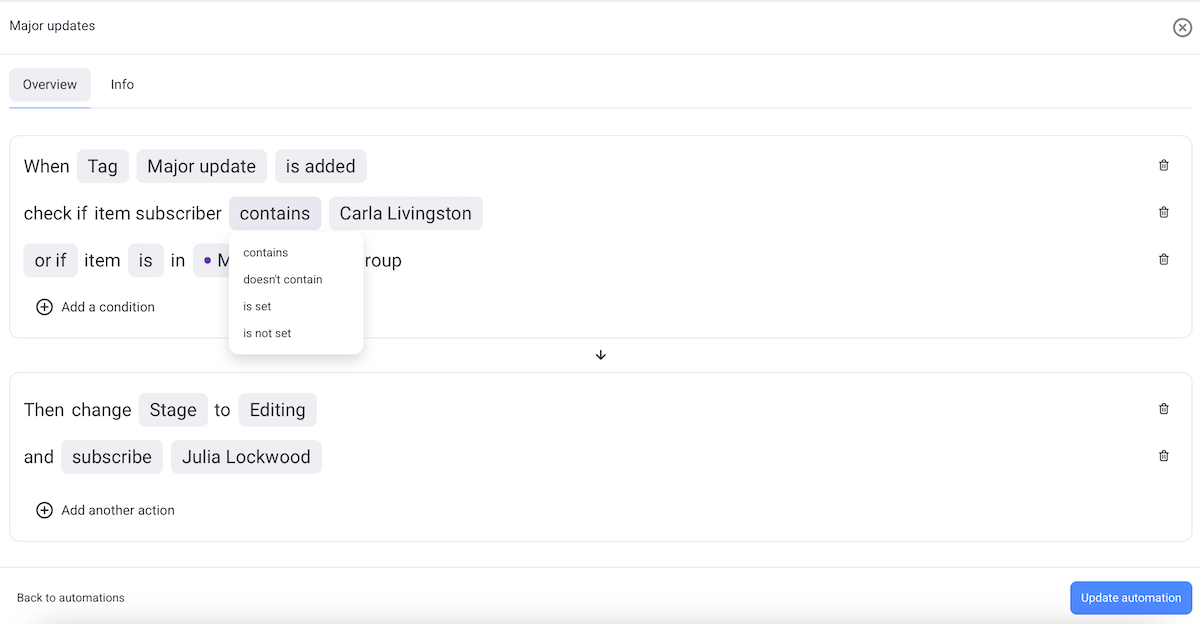
When it’s time to actually build your rules, clarity and precision are essential. Although Plaky makes it easy to set up automations, it’s your choices that directly shape how your workflow runs.
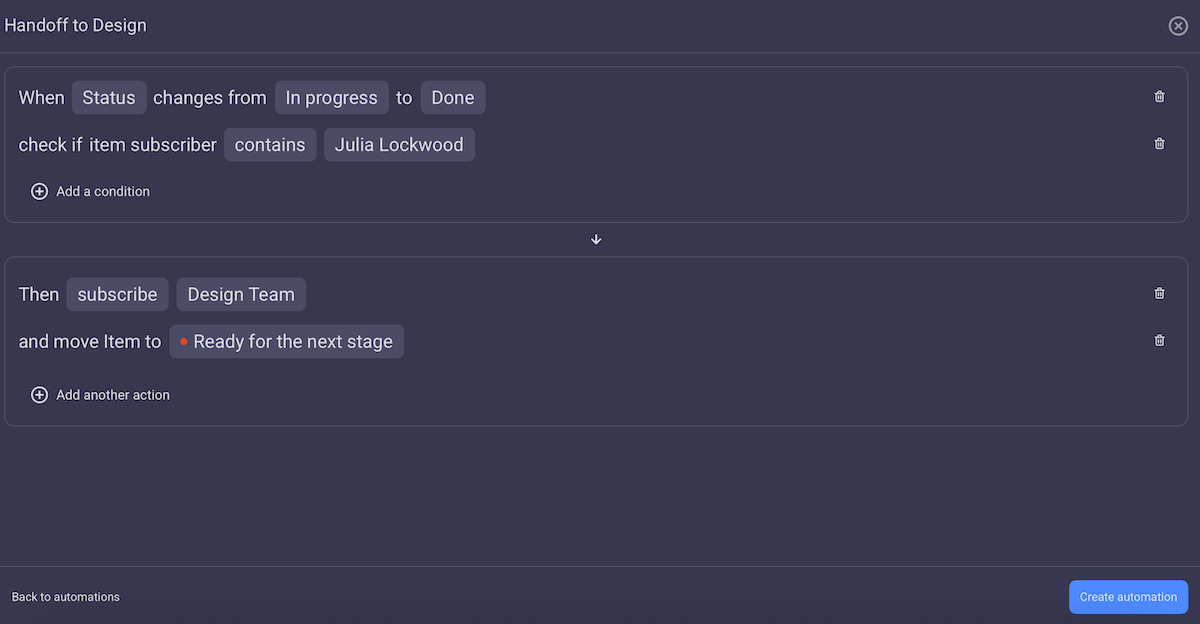
Start with the trigger, thinking about the specific event that should kick the rule into motion. It could be as simple as a task moving from one item group to another.
Then move on to conditions to fine-tune your rule and avoid false positives. For instance, if your trigger is “task is moved to QA”, you might only want the rule to run if the task type is Feature, not for every task in the group.
Finally, define the action(s) and be intentional. You can stack multiple actions under a single rule; just make sure they all serve a purpose and don’t conflict with other rules.
#4 Test your automations
If you’re unsure how a rule will behave, test it on a dummy task first. Try updating a field or marking a task as complete — whatever you set up as the trigger. Then, watch to see if the automation runs correctly.
Pay attention to the following:
- Did the trigger activate at the right time?
- Were the conditions properly evaluated?
- Did all intended actions happen?
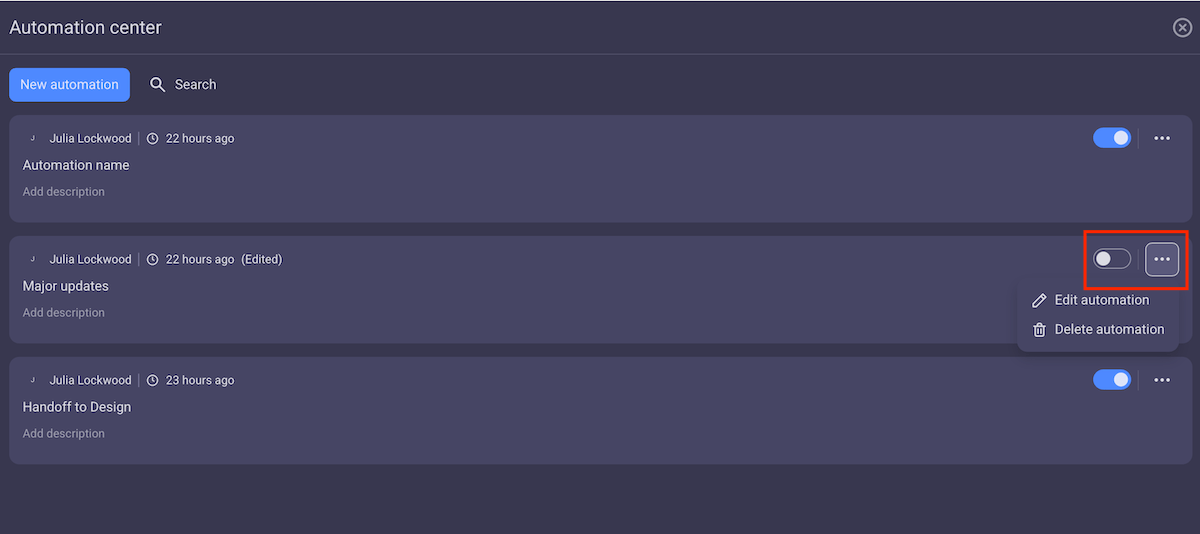
Sometimes, when the automation doesn’t work quite as you expected, there’s no need to change the entire rule, just tweak some details.
#5 Monitor usage and refine as needed
Once your automations are live, the work doesn’t stop there. You must regularly check how your rules are performing, especially if you work in a shared workspace or use a plan with action limits.
It’s normal for your workflows to change, and your automations should keep up. So, from time to time, you must consider questions such as:
- Is this rule still relevant?
- Could it be simplified?
- Have we added new fields that this rule should account for?
Tracking this also helps you avoid hitting your monthly cap unexpectedly. Plaky’s Pro plan allows 1,000 actions per month, which is quite doable for small to mid-sized teams.
But, if you’d rather never have to worry about the maximum limit, consider opting for the Enterprise plan, available at only $8.99/seat per month.
💡 Plaky Pro Tip
Plaky is dedicated to constantly improving user experience. If you want the full picture of recent new features and what’s coming soon, check out our release log and roadmap:
Effective automation templates
If you’re looking for inspiration, here are some practical trigger-condition-action combinations. They are categorized by industry, but feel free to replicate and adapt them to other fields in case they seem useful.
| Marketing | |||
|---|---|---|---|
| Automation | Trigger | Condition | Action |
| Content approval workflow | Link is added or updated | Status is Pending Review | Add Marketing Manager A to task owner and change status to In Review |
| Social media post reminder | Due date is added | Item is in the Social Media Calendar group | Add Ready to Post to tag and assign Social Media Manager A |
| Design handoff | Item is moved from Reviewed to Needs Design | Design Required field is Yes | Subscribe Designer A and change importance to Medium |
| Sales | |||
|---|---|---|---|
| Automation | Trigger | Condition | Action |
| New lead assignment | Item is moved from Backlog to Incoming Leads group | Tag contains New Inquiry | Add Sales Rep A to task owner and change priority to High |
| Deal closed update | Status changes to Done | Deal stage is Won | Move item to Closed Deals and add Success to tag |
| Contract review request | Item is moved from Proposal Sent to Legal Review group | Title contains Contract | Subscribe Legal Team and change status to Ready for Legal Review |
| Software development | |||
|---|---|---|---|
| Automation | Trigger | Condition | Action |
| Bug triage alert | Item is moved from Backlog to In Progress group | Tag contains Bug | Add QA Lead A to task owner and move item to Bug Triage group |
| Blocked issue escalation | Status changes from any to Blocked | Priority is High | Subscribe Engineering Manager A |
| QA testing handoff | Item is moved from Ready to Review to Ready for QA group | Status is Code Merged | Add QA Tester A to QA owner field |
| Project management | |||
|---|---|---|---|
| Automation | Trigger | Condition | Action |
| Budget overrun alert | Budget is increased | Project stage is Active | Subscribe Project Manager A and add Budget Review to tag |
| Risk flag response | Risk level changes from any to High | Tag contains Planning | Add Critical to tag and move item to Urgent risk mitigation group |
| Stakeholder review kickoff | Item moves from QA to Stakeholder Review group | Status is Ready to Review | Subscribe Stakeholder A and set due date to MM/DD/YYYY |

Common automation pitfalls and how to avoid them
While automations can do wonders for your workflow optimization, they can also cause confusion if not used wisely.
Here are 5 common automation pitfalls and how to steer clear of them.
#1 Over-automating everything
- The pitfall: Setting up automations for every single action can quickly turn your board into a huge mess that’s difficult to manage.
- How to avoid it: Only automate the tasks that are truly repetitive or time-consuming. Ask yourself: Does this save time or does it just add noise?
#2 Automating a flawed system
- The pitfall: Automations don’t fix a broken system, so if your workflow has unclear roles or unnecessary steps, automating it will only emphasize its inefficiency.
- How to avoid it: Before automating anything, analyze whether the process makes sense. Map it out, clean up the system first, and then automate what actually works.
#3 Not testing before launching automations
- The pitfall: Although the premise of automation is rather simple, correct configuration is sometimes a matter of trial and error. So, letting rules go live without testing can lead to wrong assignments and broken processes.
- How to avoid it: Test each automation with a dummy task or private board. Check if the right actions happen and if anything’s missing.
#4 Not monitoring and updating automations
- The pitfall: With time, your team is likely to change the workflow — so if automations stay the same, they risk becoming outdated or breaking said workflow.
- How to avoid it: Review your automations regularly, especially after a process change. What used to be helpful might be redundant now.
#5 Overcomplicating the rules
- The pitfall: Creating overly long chains of rules, conditions, and triggers is a headache in the making. Remember, overcomplicated automations are hard to troubleshoot and update.
- How to avoid it: Make your automations transparent and easy to follow. In case you do need something more complex, document it clearly or consolidate multiple small automations into one if it makes them simpler (fewer rules = less clutter).
Optimize your workflow with Plaky
Board automations don’t just save time — they also help you build smarter workflows. By automating routine work, you unlock a new level of momentum in your projects.
And that’s just one example of what a good project management tool can do. From centralizing communication to managing resources and tracking progress, a platform like Plaky can quickly push your team to new levels of productivity.
Use our tool to manage and automate tasks and you’ll notice top-notch results — fewer overdue items, reduced chats and emails, and better completion time.
Move faster with fewer mistakes — get Plaky now and enjoy a smoother automated workflow.
