Kanban View
The Kanban is a project management technique that helps you prioritize tasks based on their available capacity.
In this guide, we will explore how to use Plaky’s Kanban view to organize tasks and track projects more efficiently.
Create a new Kanban view #
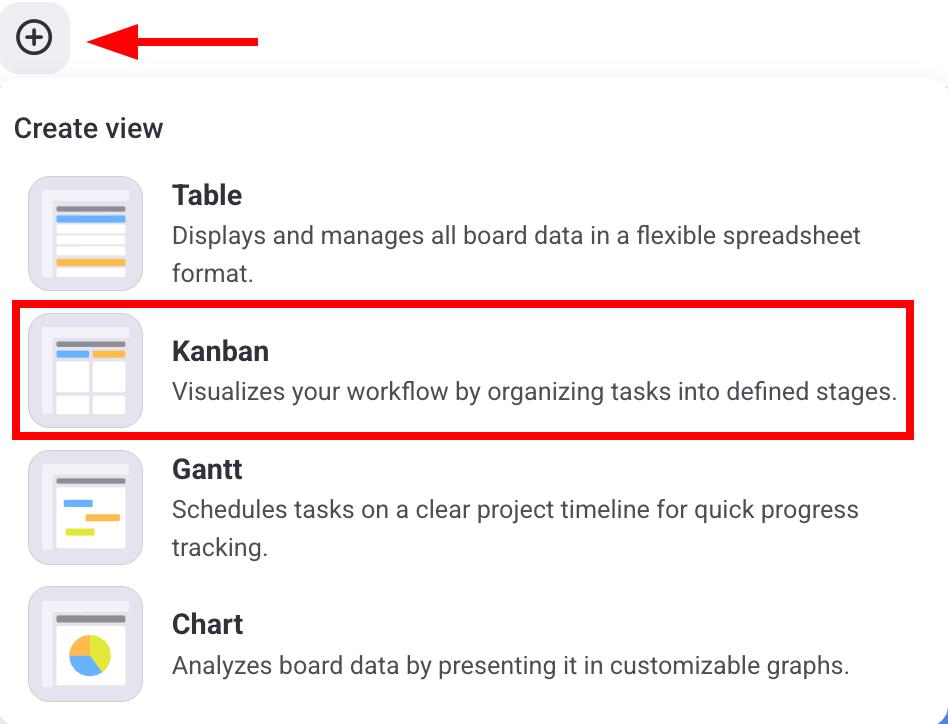
To start, you need to create a new Kanban view from your Board. Here’s how you can do it:
- Click on the + button
- Select Kanban
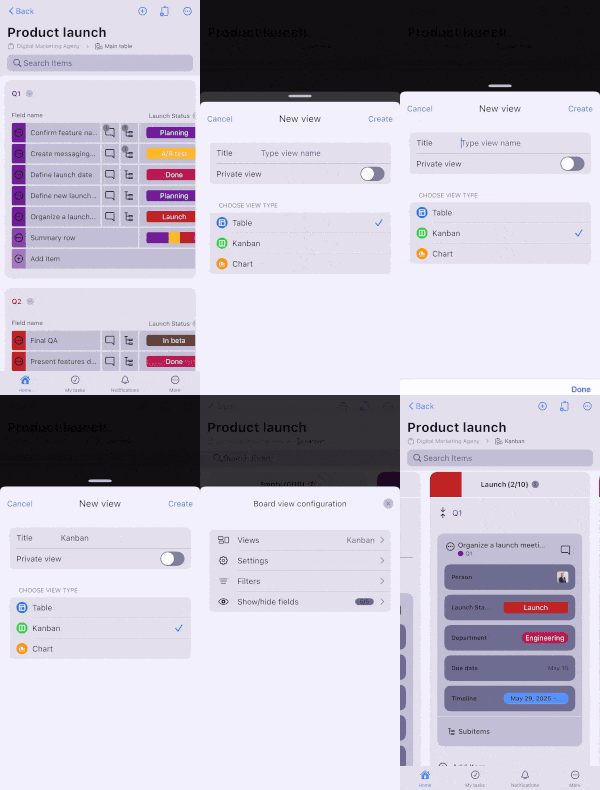
- Tap on Board settings in the top right corner
- Tap on Views
- Tap on + New view
- Select Kanban under Choose view type
- Enter the view name
- Tap on Create
- Tap on the three dots in the right corner
- Tap on Add view
- Choose Kanban in the View type section
- Enter the view name
- Click Create to complete the action
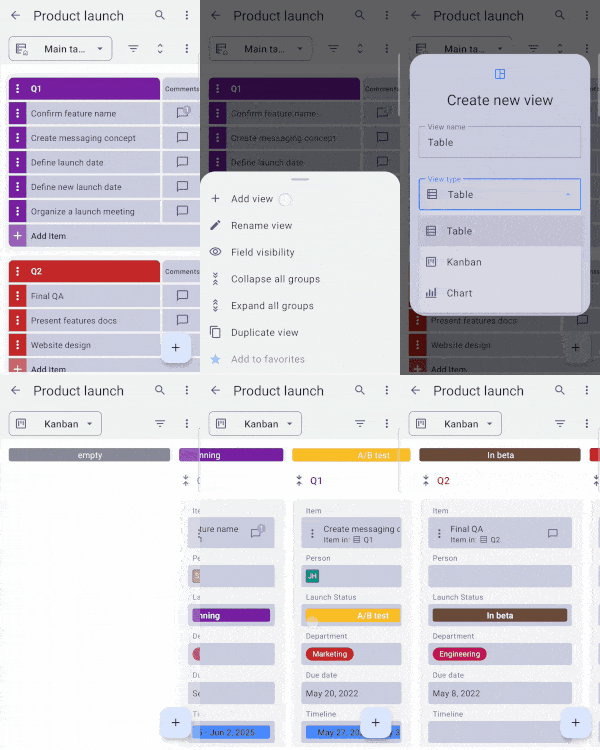
New Kanban Views are grouped by the Board’s Status Field by default. To group them by a Dropdown Field instead, change the Kanban Field.
Customize Kanban view #
Once you have created the Kanban view, you can customize its settings according to your preferences. Let’s look at the settings you can change and how to do it.
Select Kanban field #
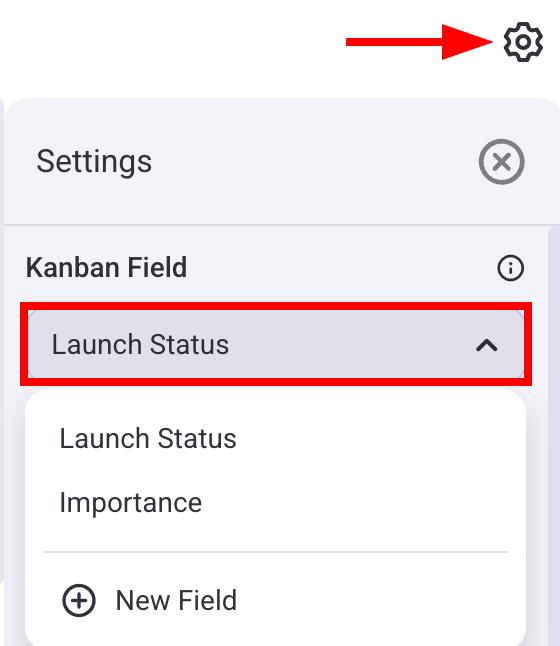
The Kanban field is used to organize columns in your Kanban view. Every column represents a particular stage in the workflow (e.g., To do, In progress, Done). When you select a Kanban field, the columns will display Items organized by labels from that Kanban field.
The Kanban View generates columns from the Board’s Status Field or from any Dropdown Field. Each column represents one status or option.
If the Board doesn’t have a Status or Dropdown Field, the Kanban View will be empty. To add one, use the New Field option described below.
Here’s how you can select a Kanban field:
- Click on the gear icon
- Click on the Kanban field
- Select the Kanban field
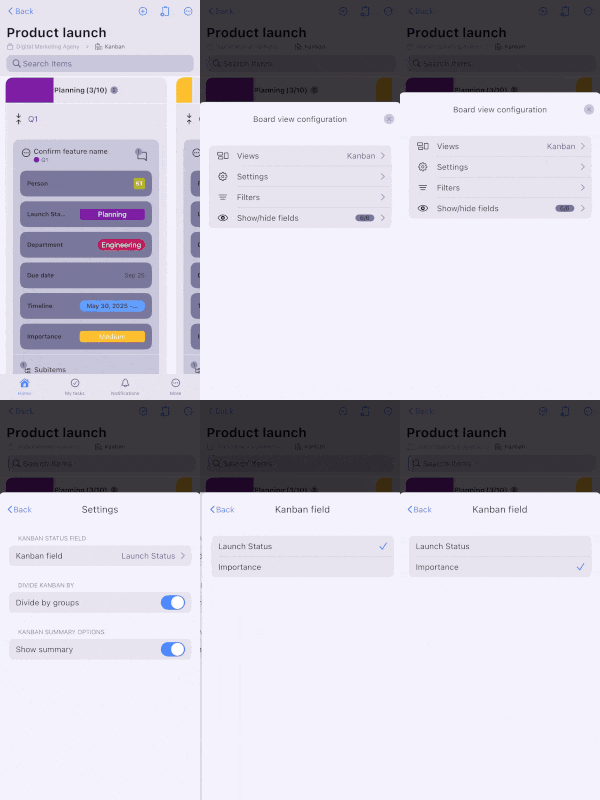
- Tap on Board view configuration
- Tap on Settings
- Tap on Kanban field
- Select the Kanban field
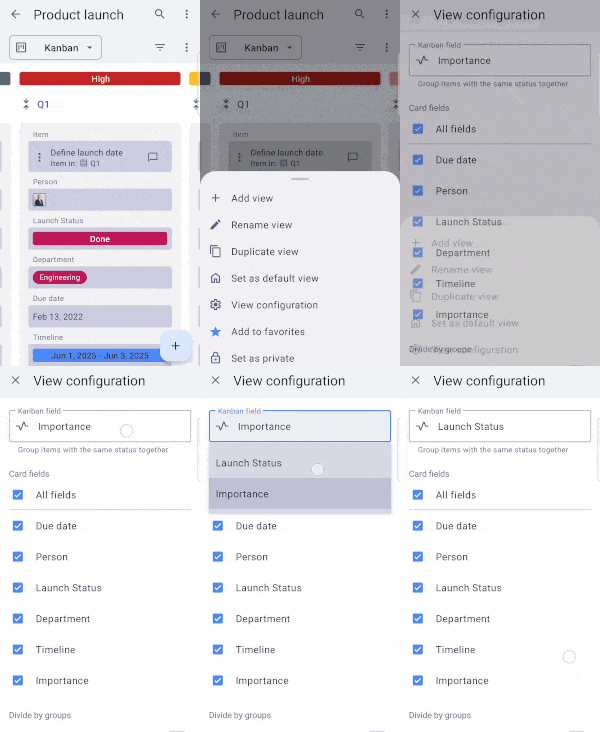
- Tap on three dots
- Tap on View configuration
- Tap on Kanban field
- Select the Kanban field
Choose fields to display #
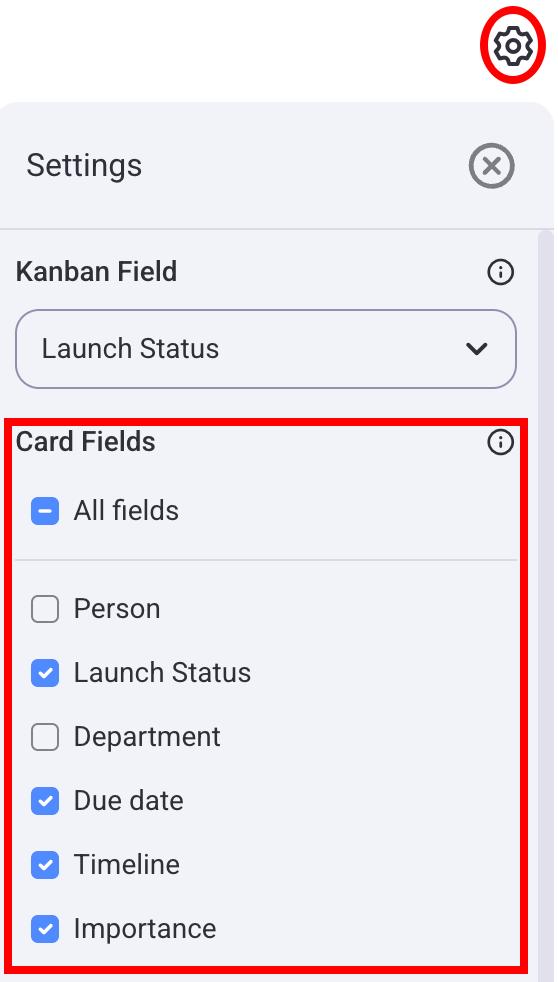
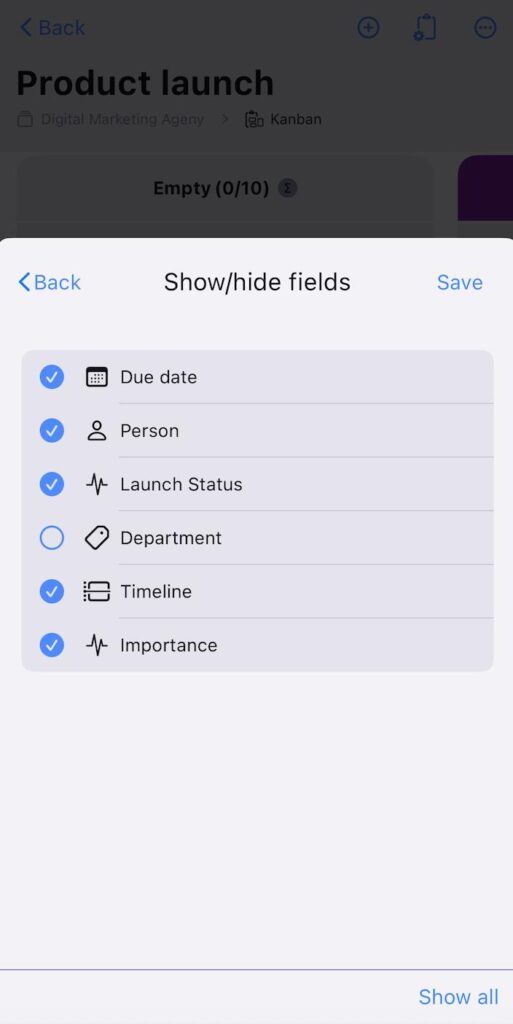
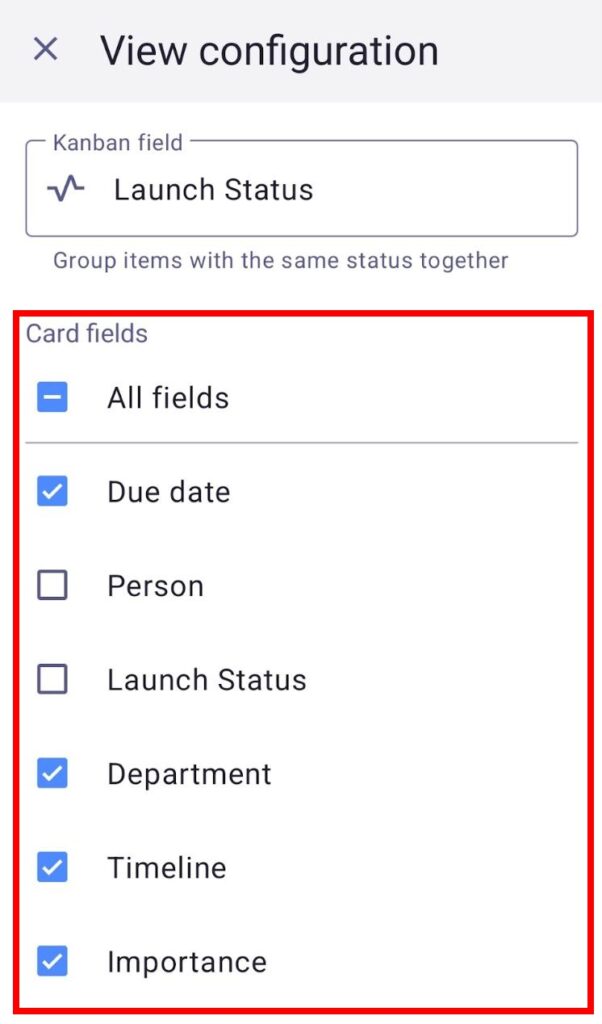
You can select which Item fields will be displayed in the Kanban columns. This lets you organize columns according to your needs and preferences. Here’s how you can do this:
- Click on the gear icon
- Scroll to the Card fields section
- Check the fields you want to display
- Tap on Board view configuration
- Tap on Show/hide fields
- Check the fields you want to display
- Tap Save to finish the action
- Tap on three dots
- Tap on View configuration
- Scroll to the Card fields section
- Check the fields you want to display
Divide by groups #
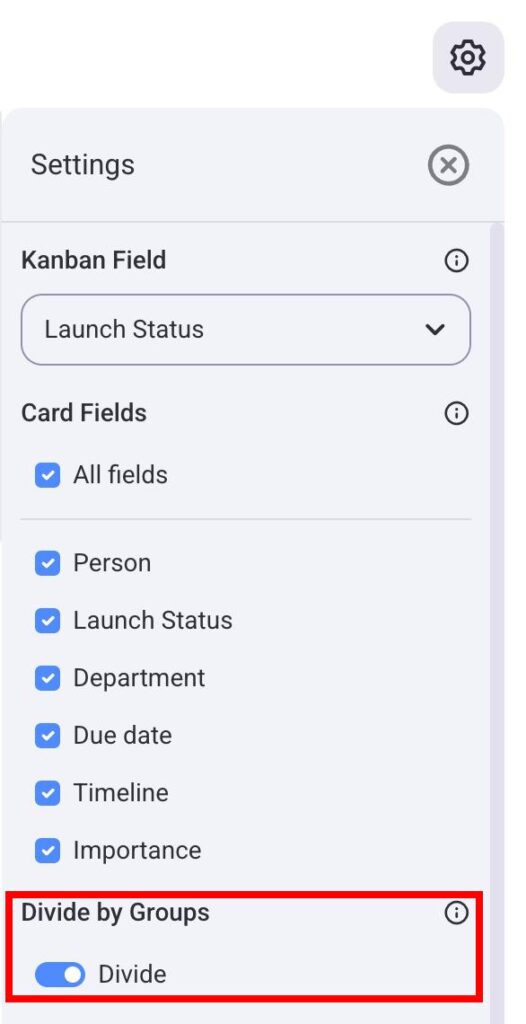
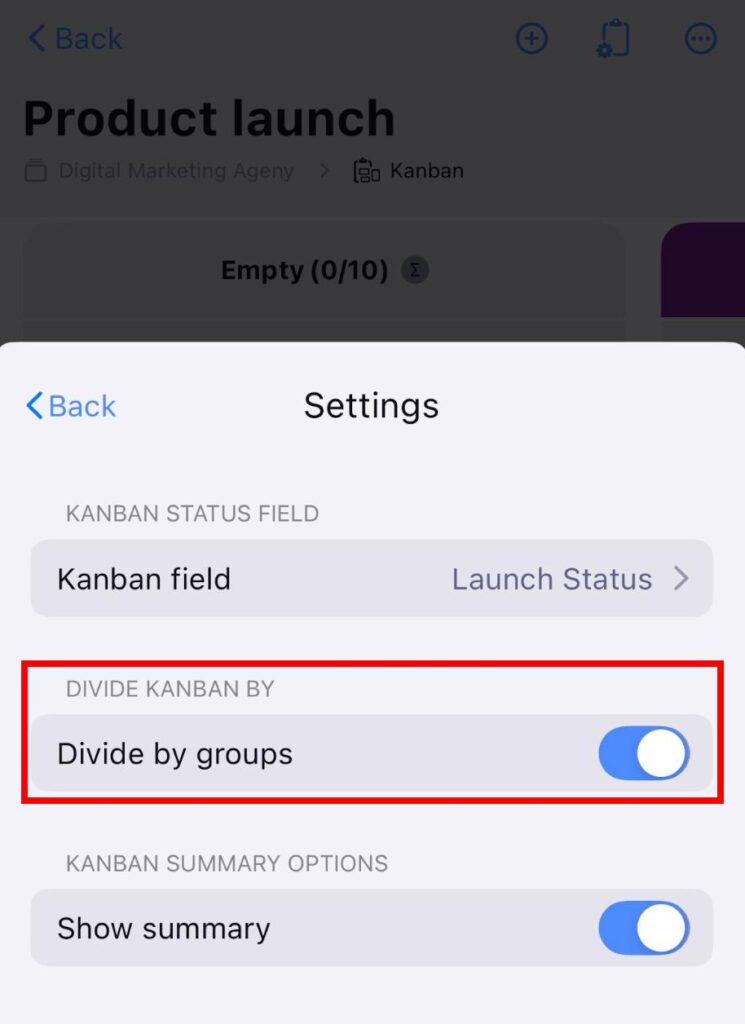
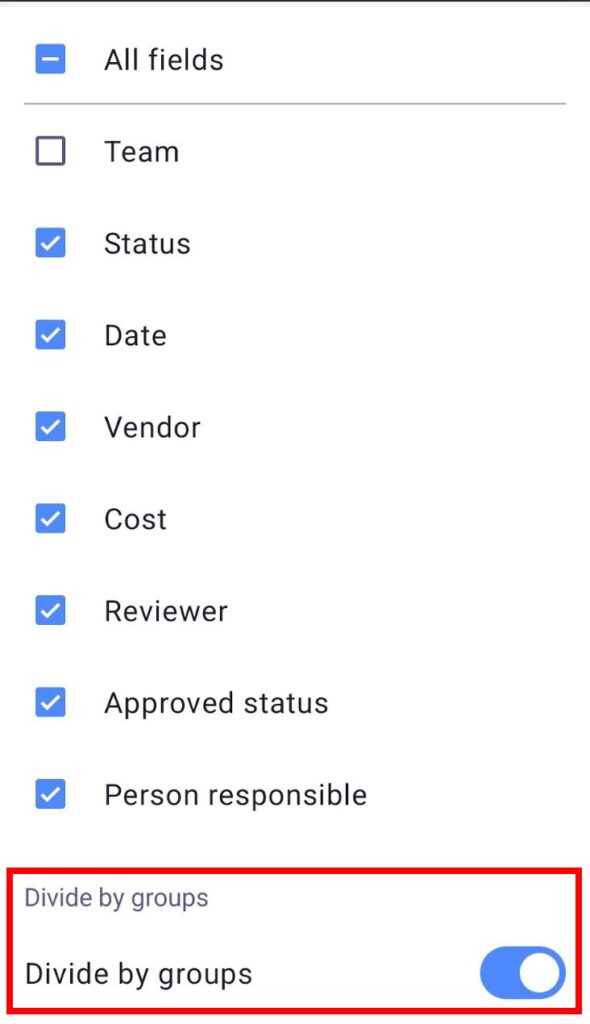
You can divide your Kanban view by Item groups on your board. This lets you see in what Item groups particular Items belong. If this option is turned off, all Items will be displayed together.
Here’s how you can turn this option on/off:
- Click on the gear icon
- Scroll to the Divide by groups section
- Toggle the Divide button on/off
- Tap on Board view configuration
- Tap on Settings
- Toggle the Divide by groups button on/off
- Tap on three dots
- Tap on View configuration
- Scroll to the Divide by groups section
- Toggle the Divide by groups button on/off
Show summary #
The Kanban summary displays the number of items in each column and the percentage of all items it represents. Moreover, clicking on a column in the summary will automatically redirect you to it.
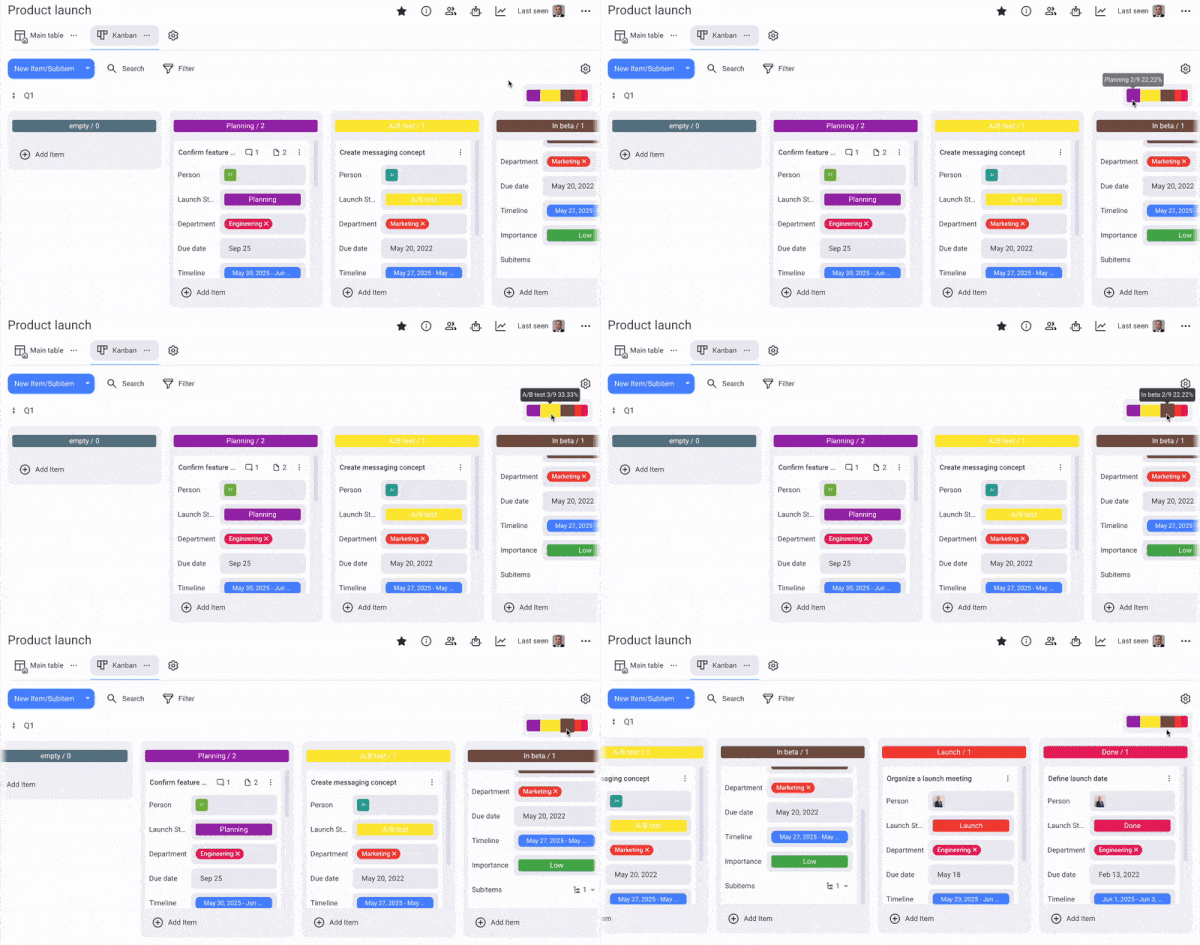
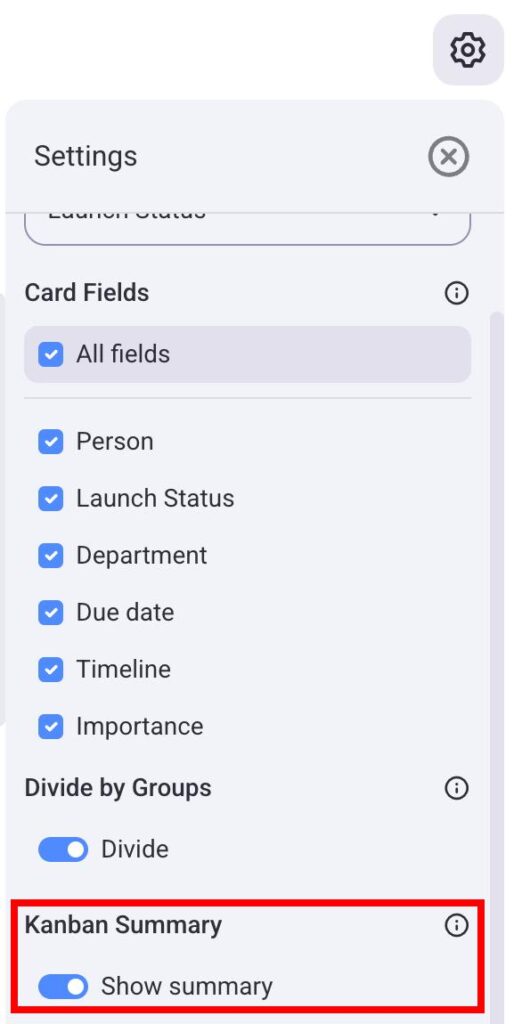
Here’s how you can turn the Kanban summary on/off:
- Click on the gear icon
- Scroll to the Kanban summary section
- Toggle the Show summary button on/off
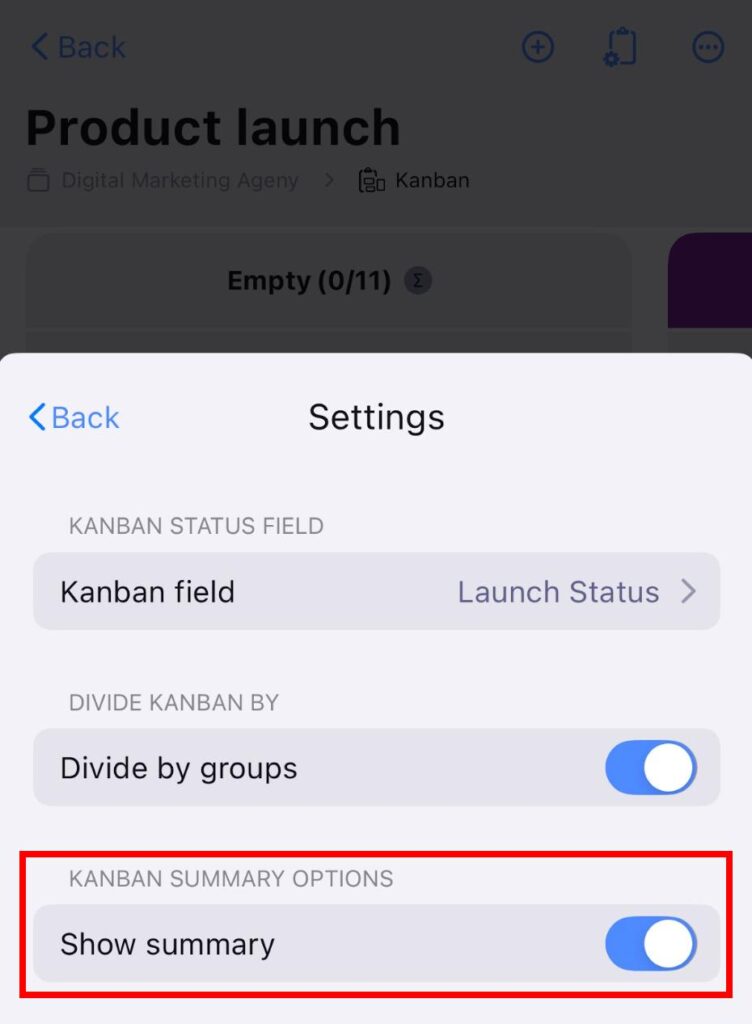
- Tap on Board view configuration
- Tap on Settings
- Toggle Show summary button on/off
COMING SOON
Include subitems #
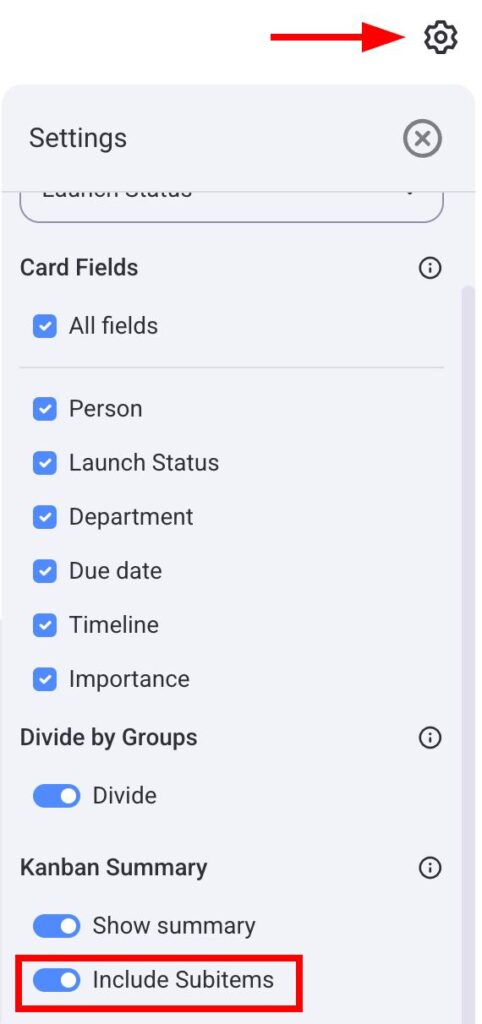
Your Kanban view can also show subitems. If subitems are included, the Kanban summary will display the total number of subitems together with the items. Here’s how you can turn on Subitems:
- Click on the gear icon
- Scroll to the Kanban summary section
- Toggle the Include subitems button on/off
COMING SOON
COMING SOON
Overview of Kanban features #
The Kanban view in Plaky offers several features to help optimize workflow and manage projects and tasks.
Column-based workflow #
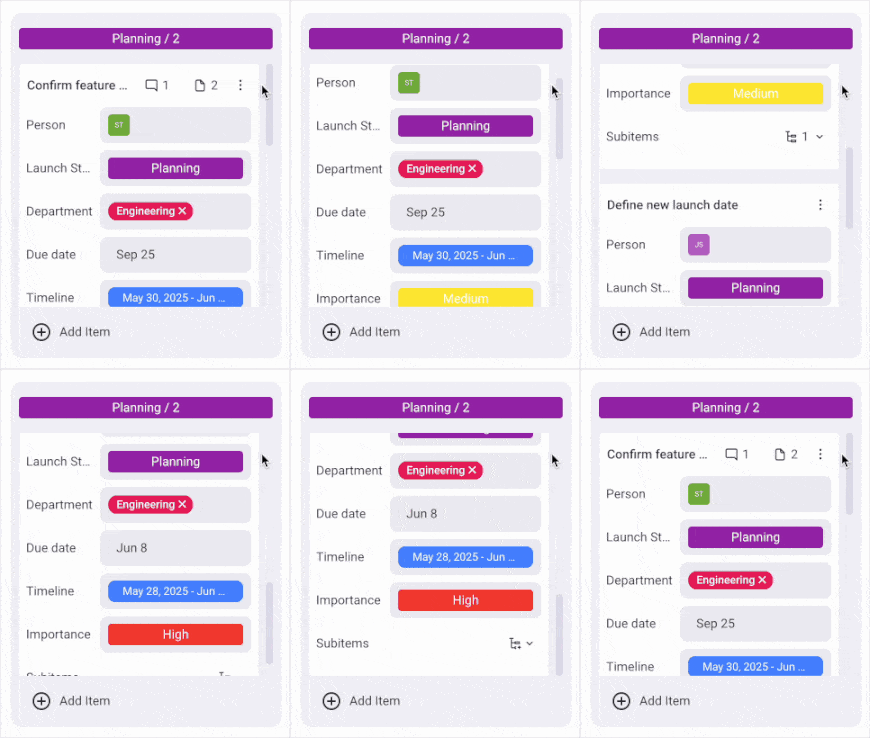
Your workflow in the Kanban view is presented in columns. Each column displays Items and Subitems grouped by the statuses or options of the selected Kanban Field.
Drag-and-drop items #
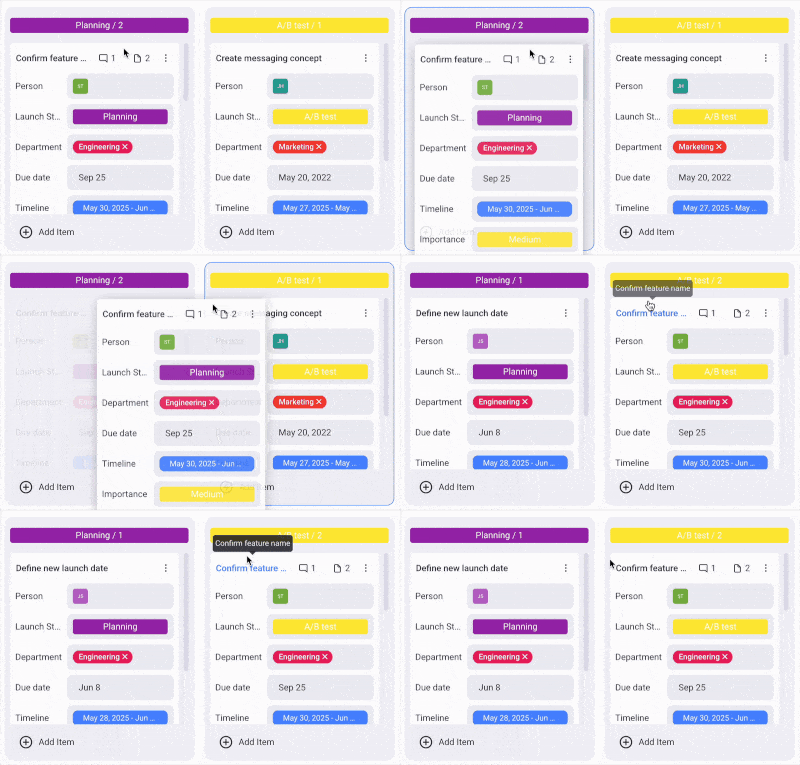
The Kanban view lets you drag and drop Items from one column to another. When you do this, the Item’s value in the Kanban Field (its status or Dropdown option) is updated automatically.
Edit Items and Subitems #
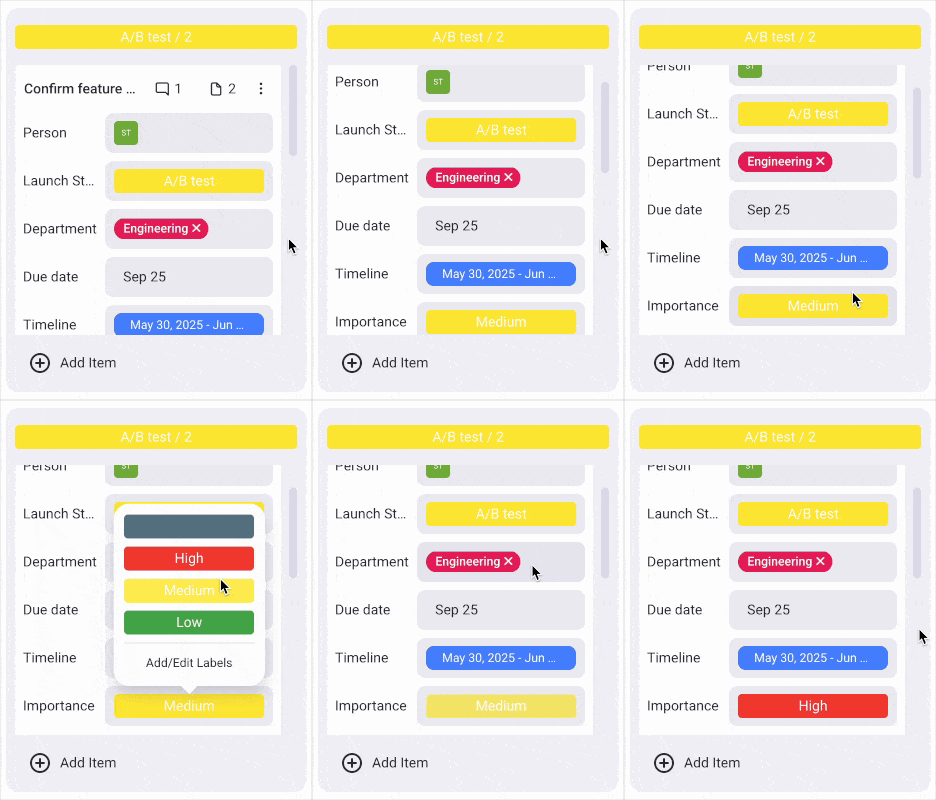
You can edit Items and Subitems directly from your Kanban view. With this, you can modify task descriptions, assignees, due dates, and more. To edit an Item or Subitem, simply click on its name, and it will open the Item card where you can change information.
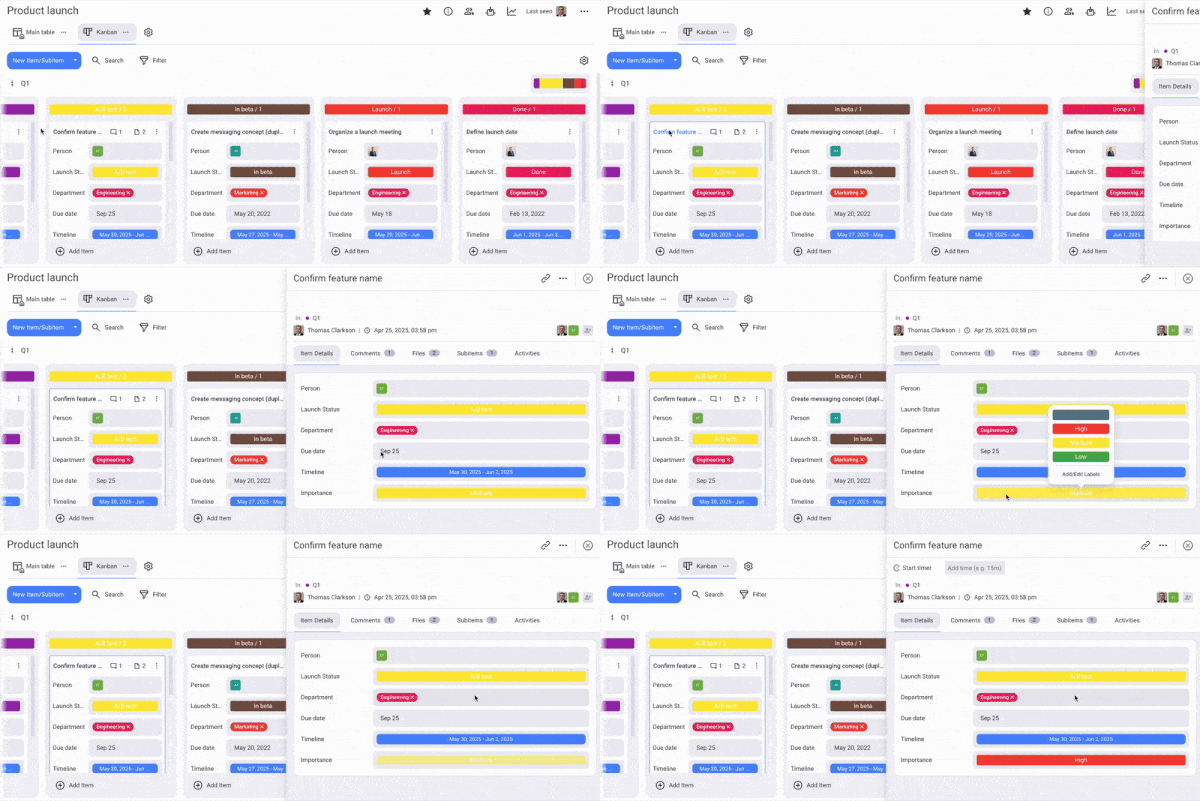
Additionally, you can edit Items directly from columns. You can do this by clicking on Item fields inside the column and changing information.
Filter Items #
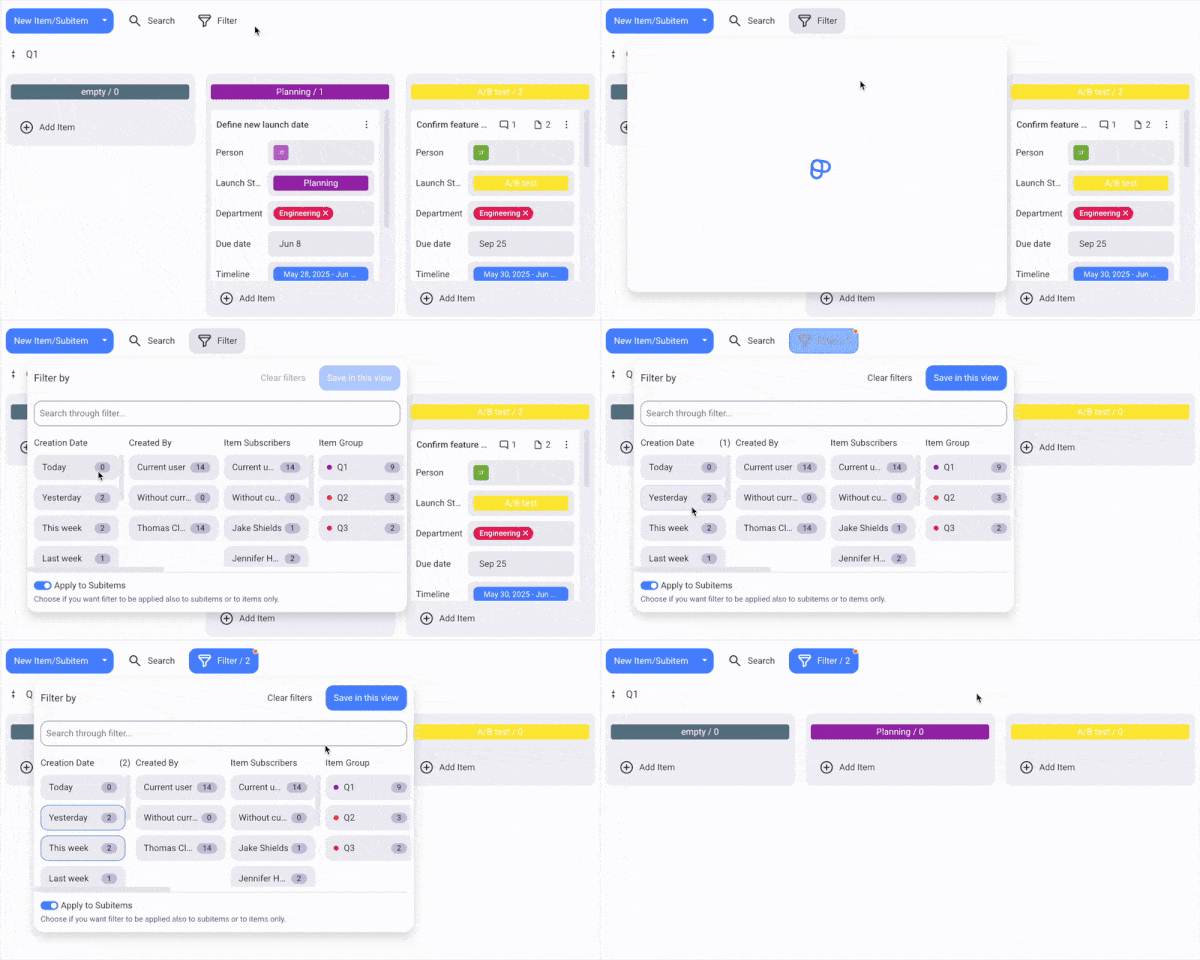
For a clearer view of your Kanban board, you can use filters. With this, you can choose to display only Items with specific attributes. For example, you can filter Items by due date, timeline, and more.
Here’s how you can use filters:
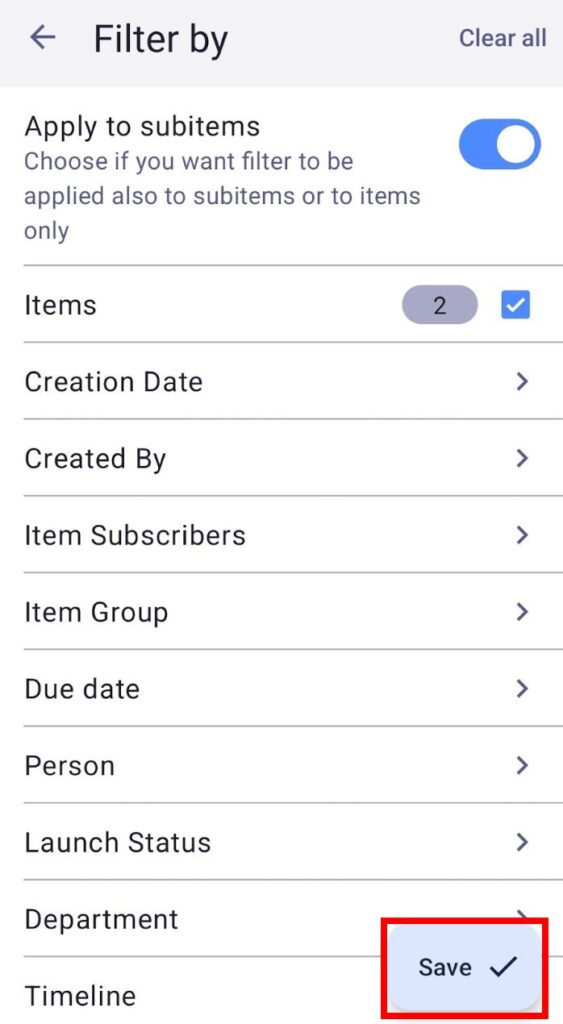
- Click on the Filter button
- Choose filters
- Click Save in this view
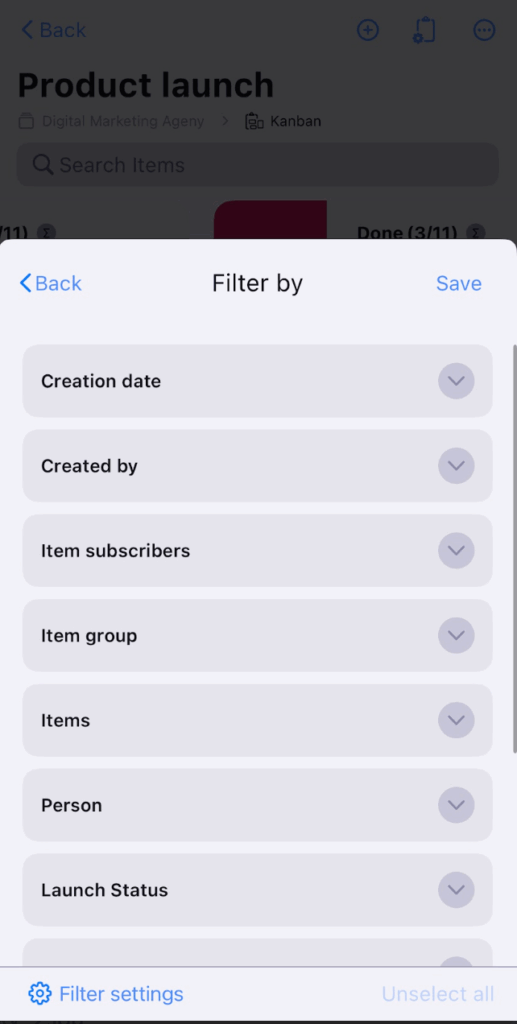
- Tap on Board view configuration
- Tap on Filters
- Select filters
- Tap Save
- Tap on the filter icon next to the three dots
- Select filters
- Tap Save