Configure Status Field
Status Field helps you and your Team Members to visually present the status of your tasks. This way, you can easily differentiate between them and have clear insight into progress of your Team’s tasks.
Status is a predefined Field, so a Board can have only one Status Field. To label Items by priority, type, or category, use the Dropdown Field instead. Dropdown Fields work like the Status Field, but they don’t have a completed status.
Plaky offers 3 default status stages. These are:
- To do
- In progress
- Done
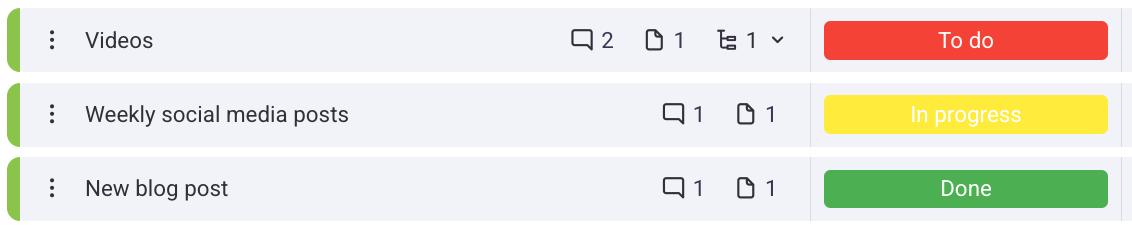
Status labels can be customized, and you can also add new ones, if you need.
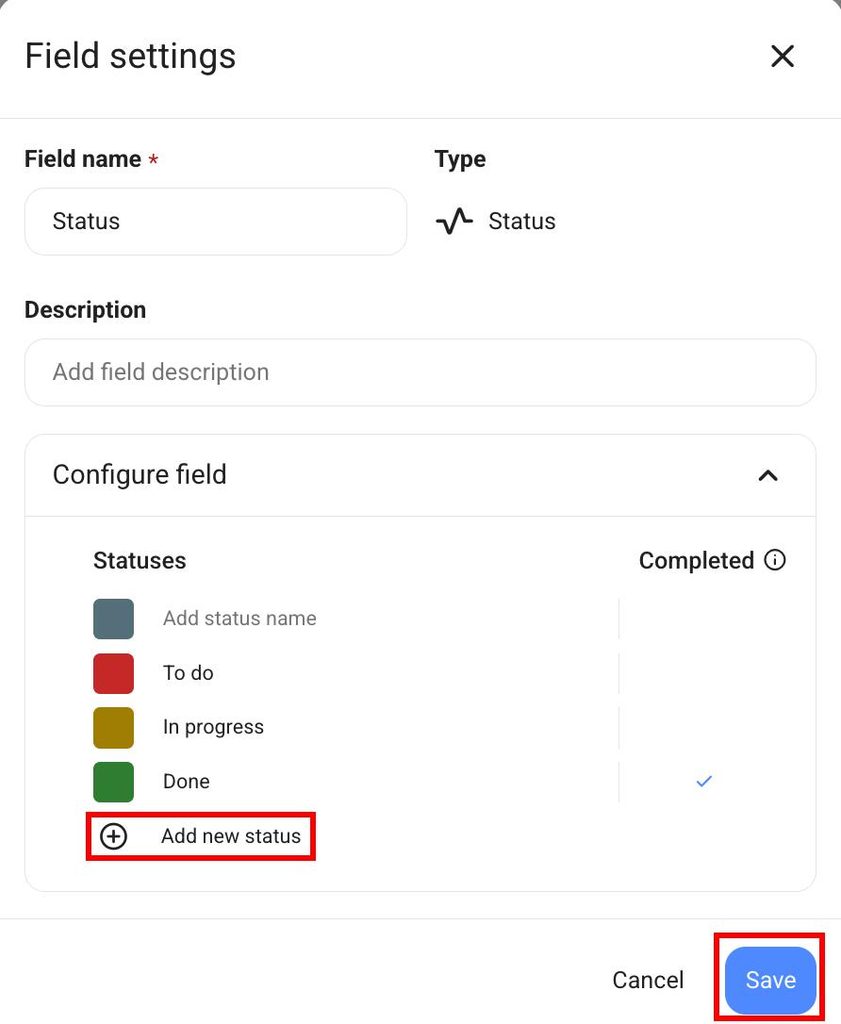
To add/edit statuses:
- Click on the status you have created
- Click Edit options
- Click on a status to edit it
- Click on + Add new status to add a new status
- Click Save to complete the action
- Tap on the Status Field
- Tap on Edit in the bottom right corner
- Tap on any label to rename it or change color
- Save changes
- Tap on +New Label to add new label
- Name the label, choose color and tap Save
- Tap Done to complete the action
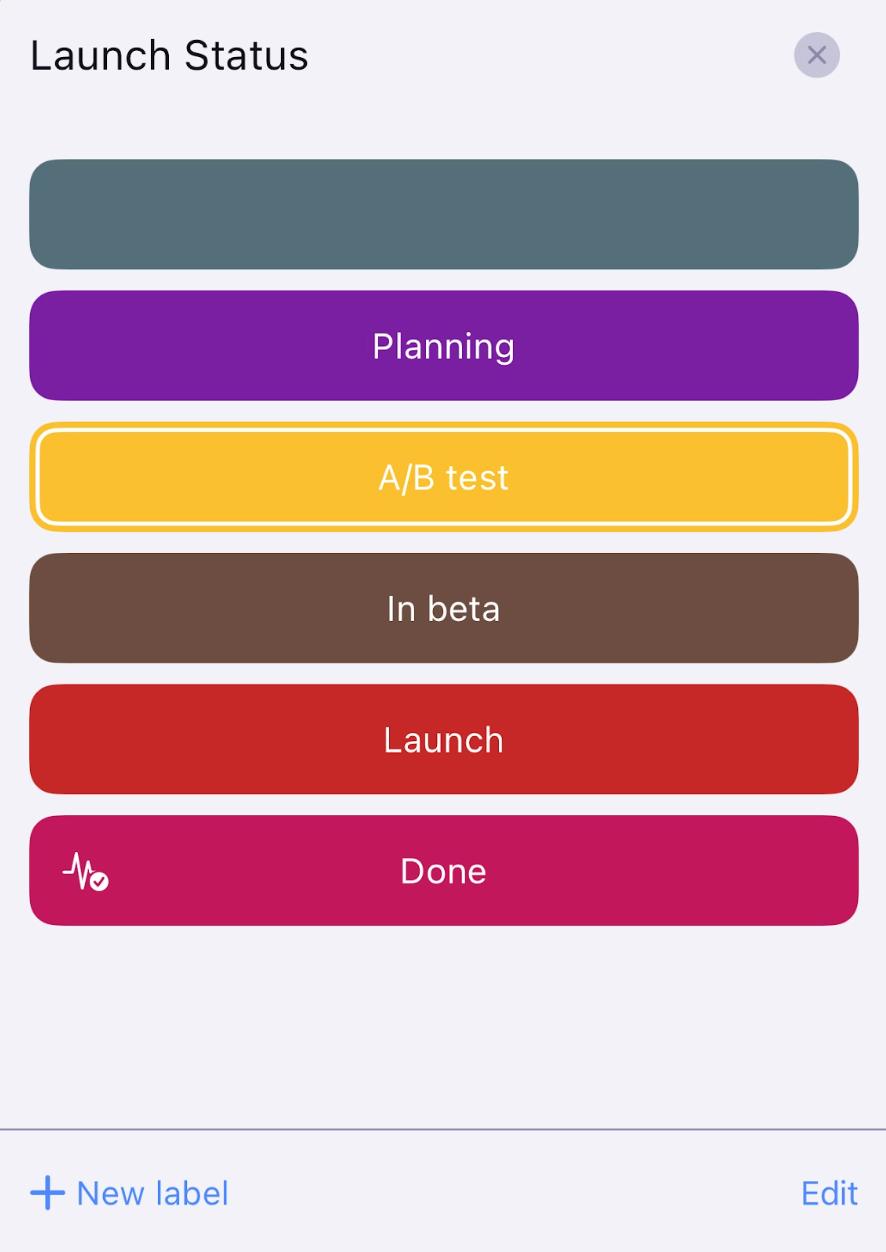
- Tap on the Status Field
- Tap on Edit
- Tap on any label to rename it or change color
- Tap on +New Label to add new label
- Save changes
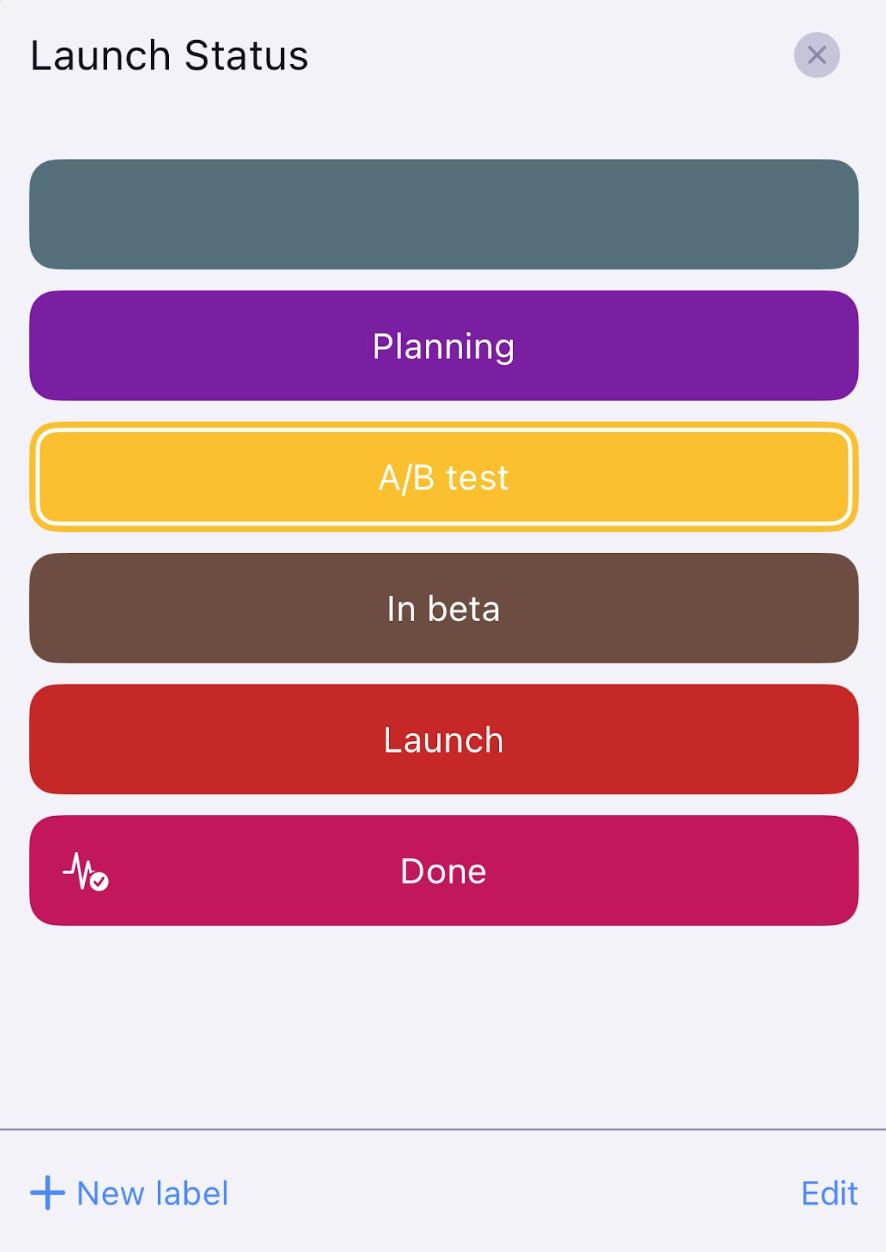
You’ve successfully customized the statuses in the Board. The first status displayed in the list of statuses is the default one that appears when you add the Status Field.
Only Team Members with whom the Board is shared can perform this action.
Mark completed statuses #
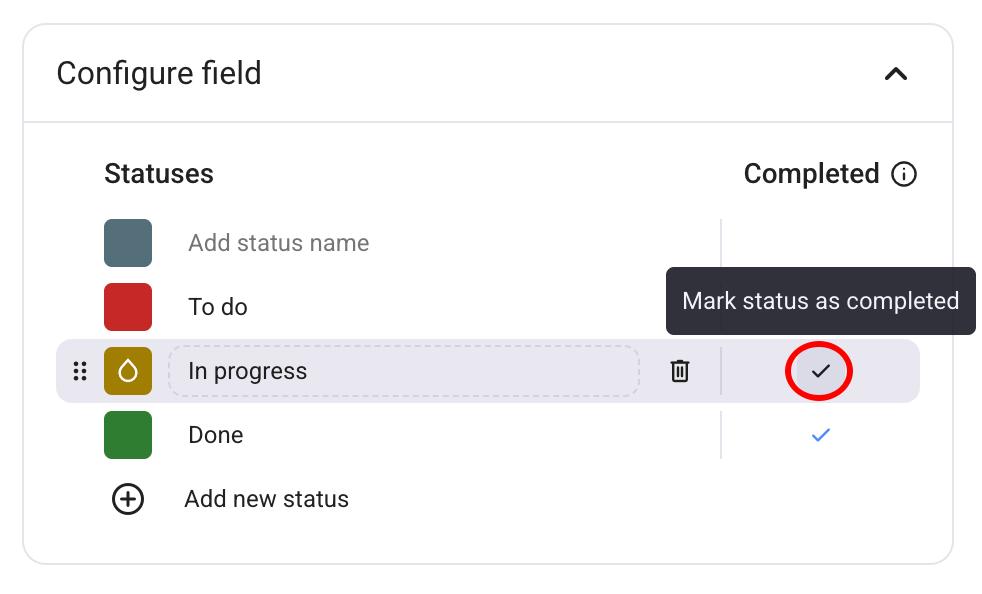
You can mark which status will be selected as completed on your board. Here’s how to do it:
- Click on the dropdown next to the status field
- Select Field settings
- Click on Configure field
- Click ✔️ next to the status you want to set as completed
- Tap on the status field
- Tap Edit in the bottom right corner
- Select a status field
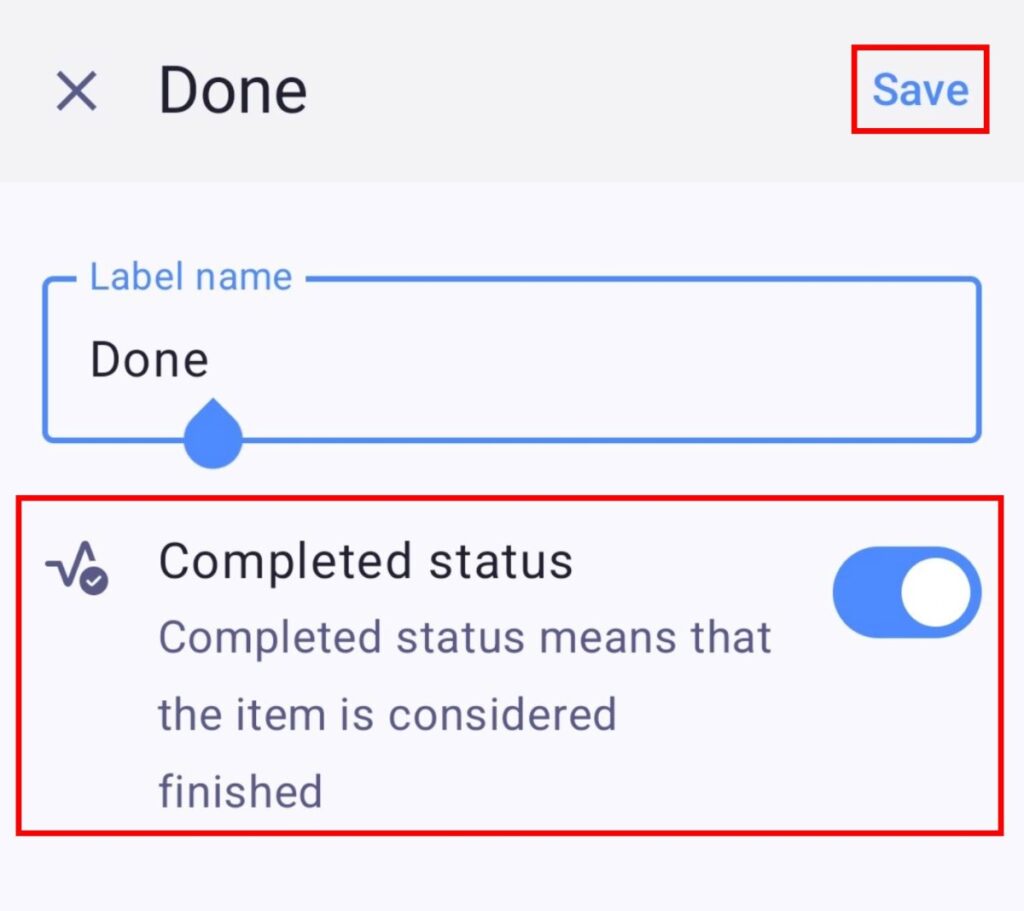
- Toggle the Completed status button
- Tap Save to complete the action
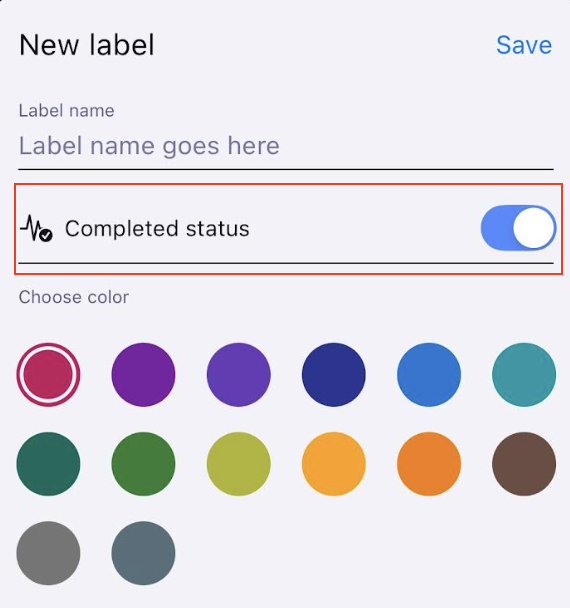
- Tap on the status field
- Tap on Edit in the top right corner
- Select a status field
- Toggle the Completed status button
- Tap Save to complete the action