Published: December 31, 2025
Wasting time by trying to track time is a common issue if you’re relying on timesheets or third-party programs that aren’t communicating with your task management software — you might as well be using a regular stopwatch.
Plaky by CAKE.com seamlessly combines project management and time tracking, allowing you to track time directly inside Plaky tasks. You can then use this data in Clockify to create reports, invoices, identify budget-eaters, see time and budget estimates, and more.
You can track time in Plaky in 2 ways:
- Using Plaky’s built-in integration with Clockify, or
- Using the Clockify browser extension for Chrome or Firefox.
All you need is a free Clockify account.
Read on to learn how to set it up!

#1 Track time in Plaky by CAKE.com via Clockify integration
For Plaky’s integration with Clockify to work, you need to be logged in to the same account in both Plaky and Clockify. The apps will recognize that you’re logged in on the same account and automatically establish communication.
Next, a board owner needs to connect their boards with Projects in Clockify that they wish to track time for, by following these steps:
- Go to the board Menu (three dots in the top right corner of the board).
- Select Time tracker in the dropdown.
- Choose a Clockify Workspace to connect the board to.
- Choose a Clockify Project to connect the board to or Create a new Project.
- Choose whether users can Edit the Project field or not.
- Click Save.
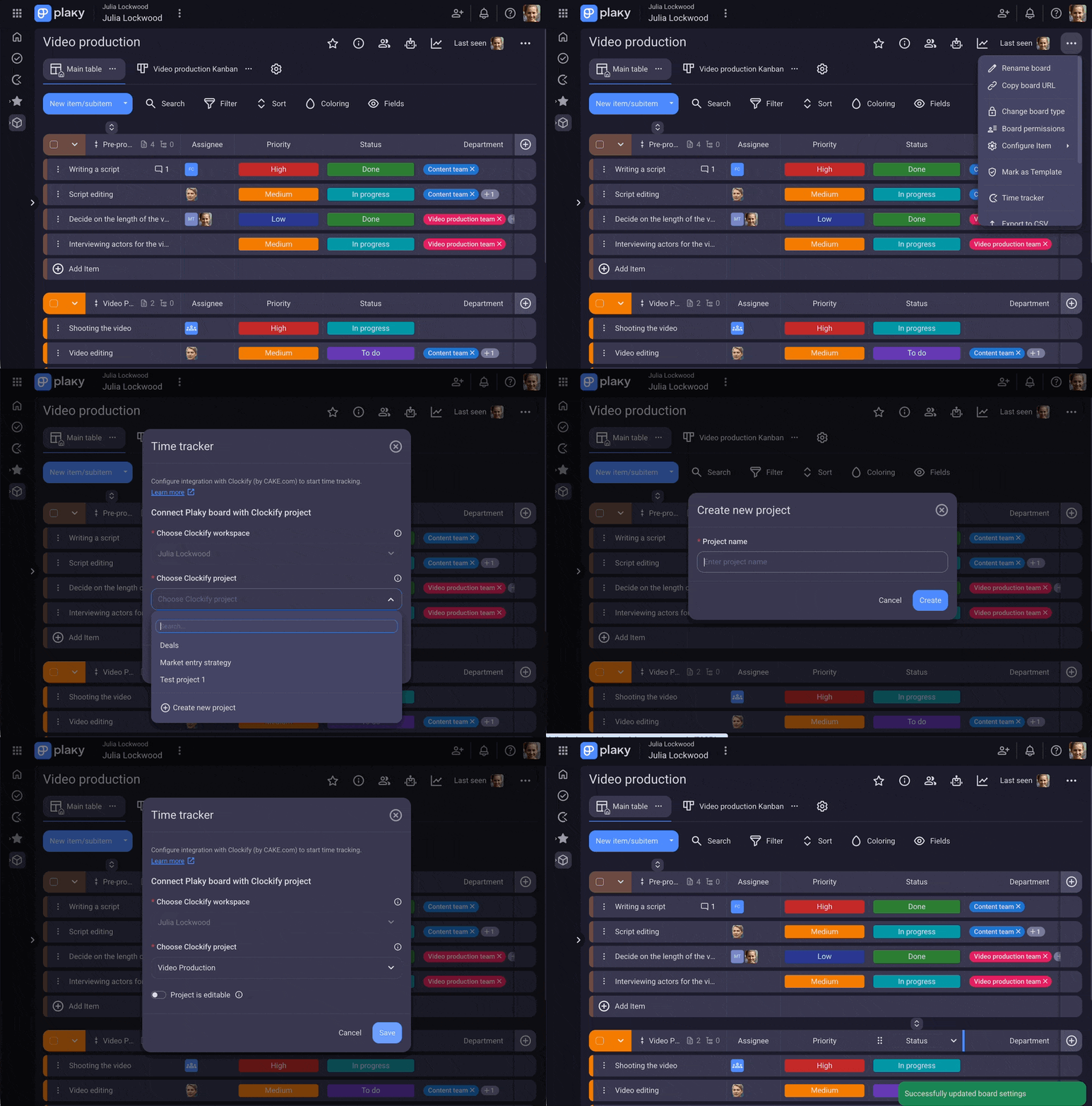
All changes made in Plaky will appear in Clockify and vice versa.
💡 Time tracking is available on all Plaky plans, including the Free plan. For more information, check out Plaky plans and pricing.
With time tracking on a board enabled, your team can now eliminate context switching and track time directly from Plaky Items or Subitems.
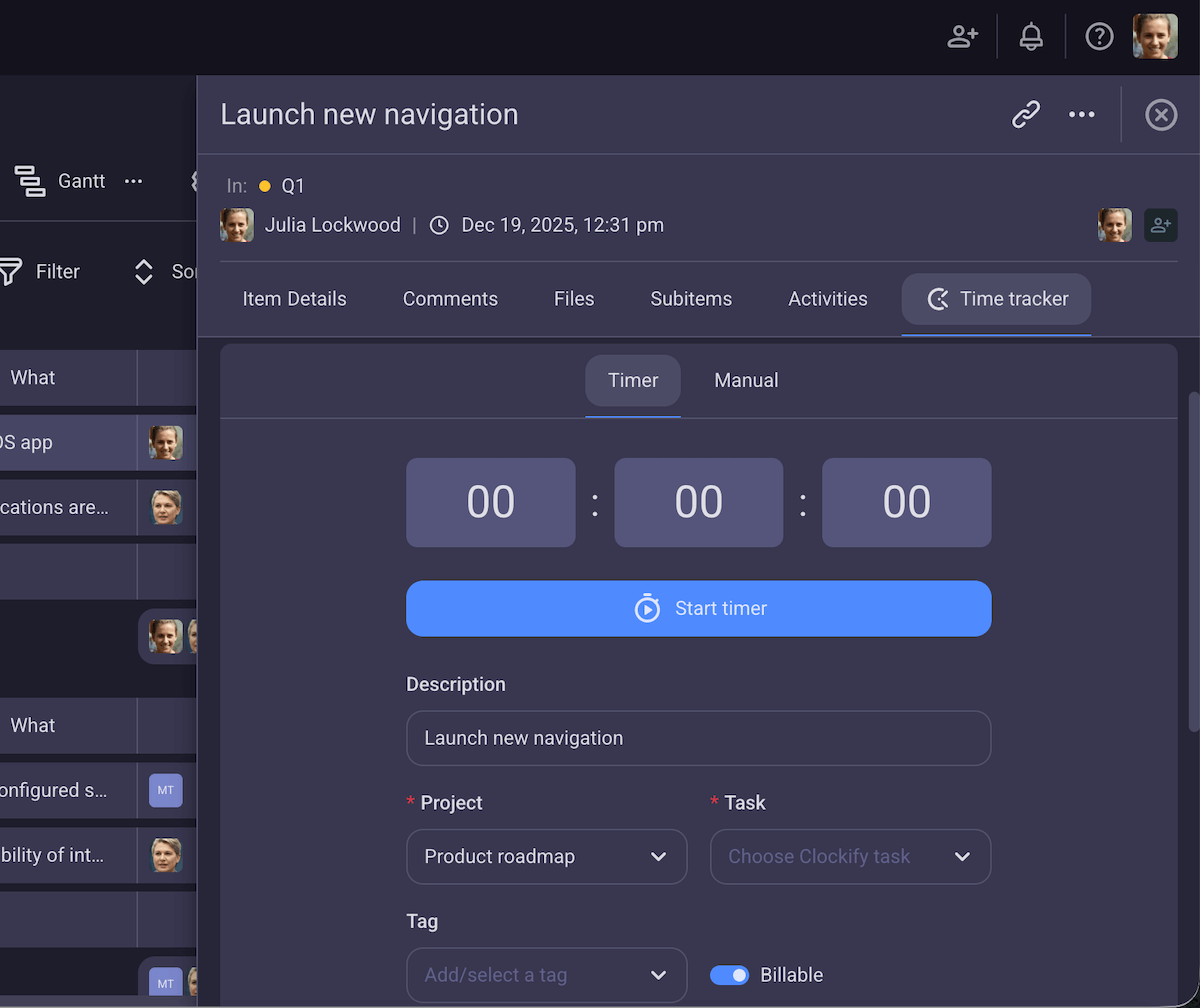
Users can track time via the timer or manually. Each time entry can later be edited or removed.
By setting up time tracking on a board level, you’ve minimized the chance of logging time under the wrong Project and creating inconsistencies in reports — or worse, losing revenue because of incorrectly logged billable hours.
Create reports and invoices based on time tracking data
Time tracking isn’t just about better organization and saving time.
With reliable data about where you’re spending your time and why, you get clear insight into your project progress.
Did you spend over half of your budget but you’re only 30% into the project? You’ll be able to see this as it’s happening and course-correct in time to prevent project failure.
Likewise, your status reports will contain irrefutable data, showing your clients and stakeholders exactly when and why things started to slide off track.
By tracking time in Plaky using the Clockify integration, you can take advantage of Clockify’s reporting features to do just this.
Creating reports in Clockify can be done in only a few clicks. You can choose between time, team, and expense reports, customize them to make them as detailed as you want and export them as CSV, Excel, or PDF.
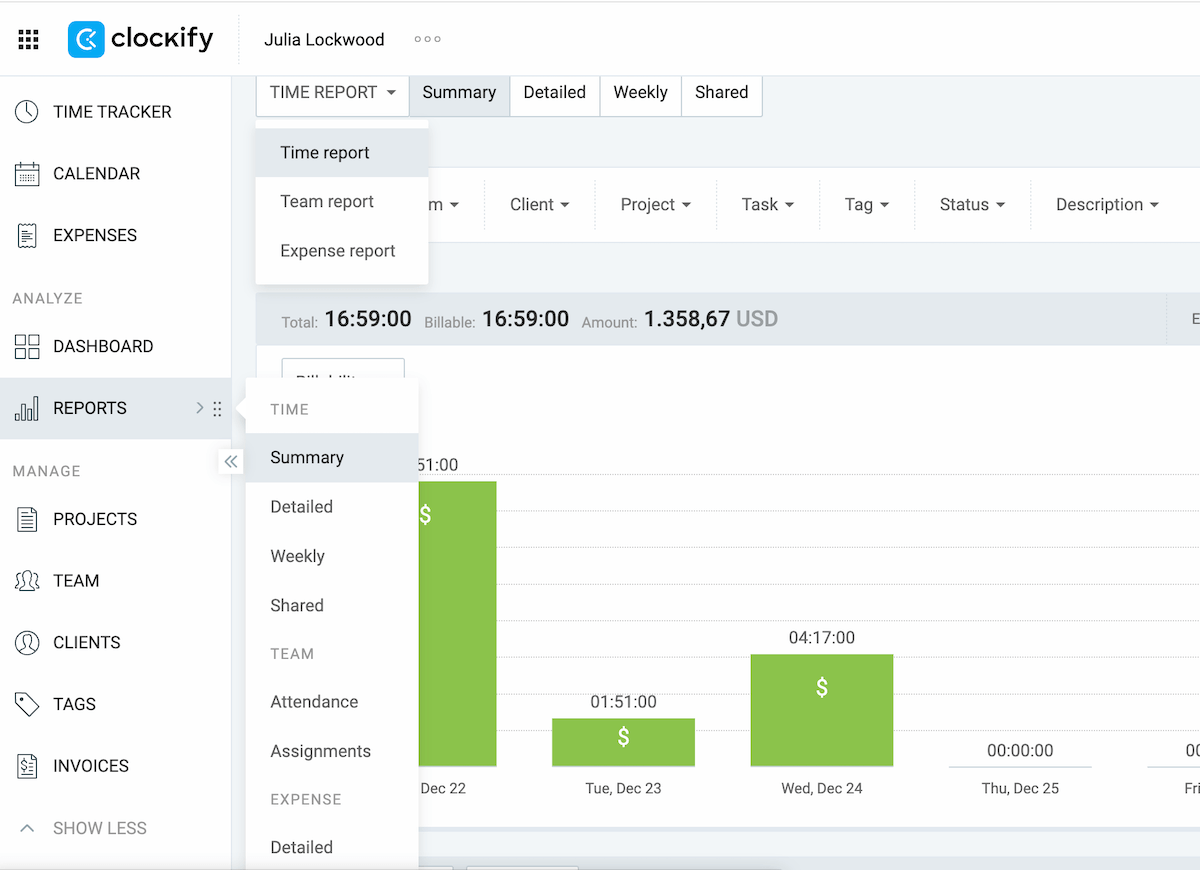
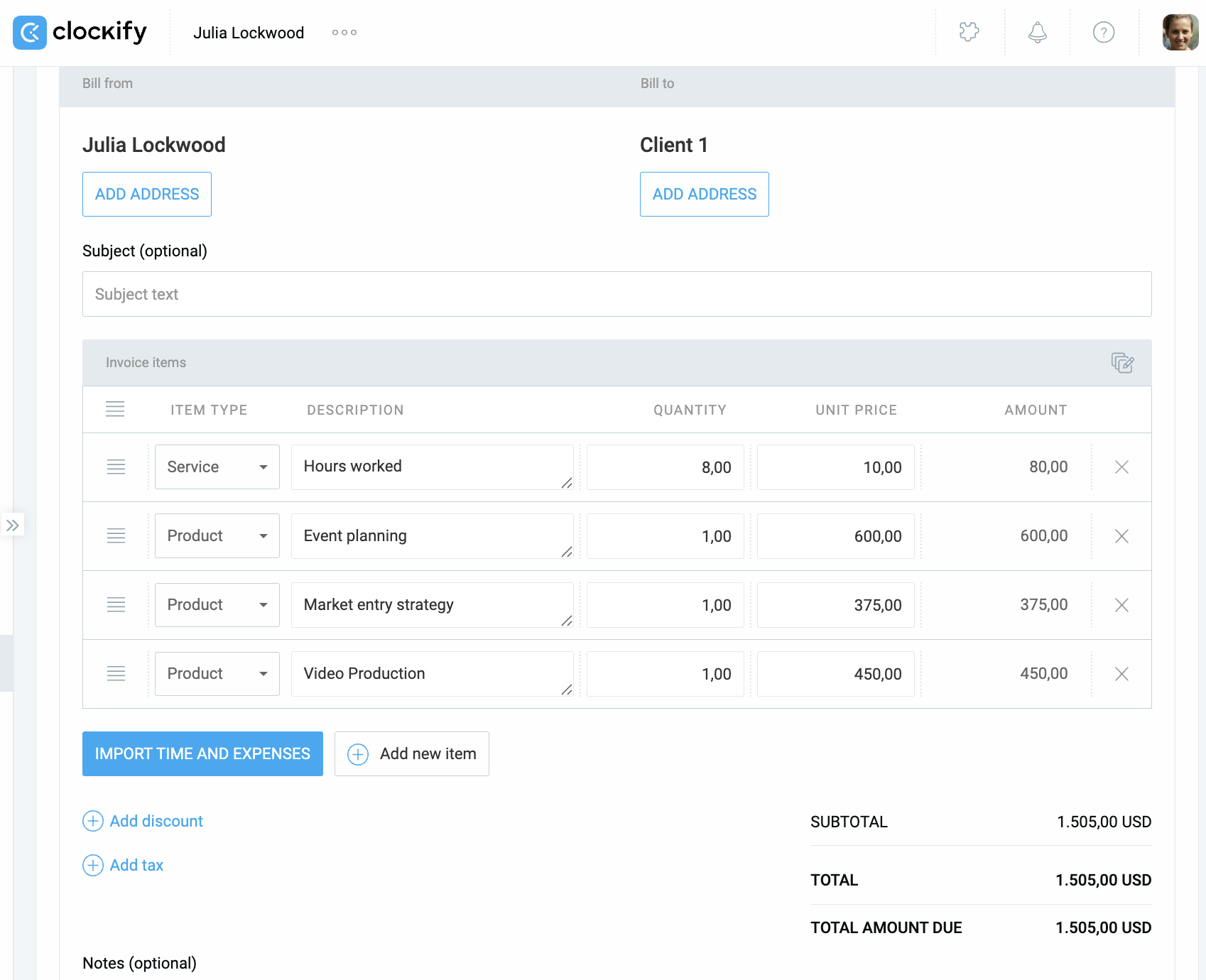
Billing clients is equally easy. Simply click on the Invoices tab in the left sidebar and click Create invoice. You will get a prompt to choose the client, currency, date, due date, and custom invoice name.
After you’ve created the invoice, you’ll be able to Import time and expenses based on tasks you’ve tracked in Plaky and customize how to present your data, add discounts, tax, etc. When you’re satisfied with the result, click Send invoice.
💡 PLAKY PRO TIP
Reach out to our sales team, and book a personalized demo to see this powerful combo in action.
#2 Track time in Plaky by CAKE.com via the Clockify extension
Another way to track time in Plaky is to install the Clockify extension for your browser. You just follow these steps:
- Go to the browser Menu (three dots in the top right corner of the browser).
- Select Extensions > Visit Chrome Web Store (Chrome) or Add-ons and Themes (Firefox).
- Find the Clockify Time Tracker extension.
- Click Add to Chrome or Add to Firefox.

To use the Clockify Time Tracker extension in conjunction with Plaky you need a free Clockify account connected to the same email as your Plaky account.
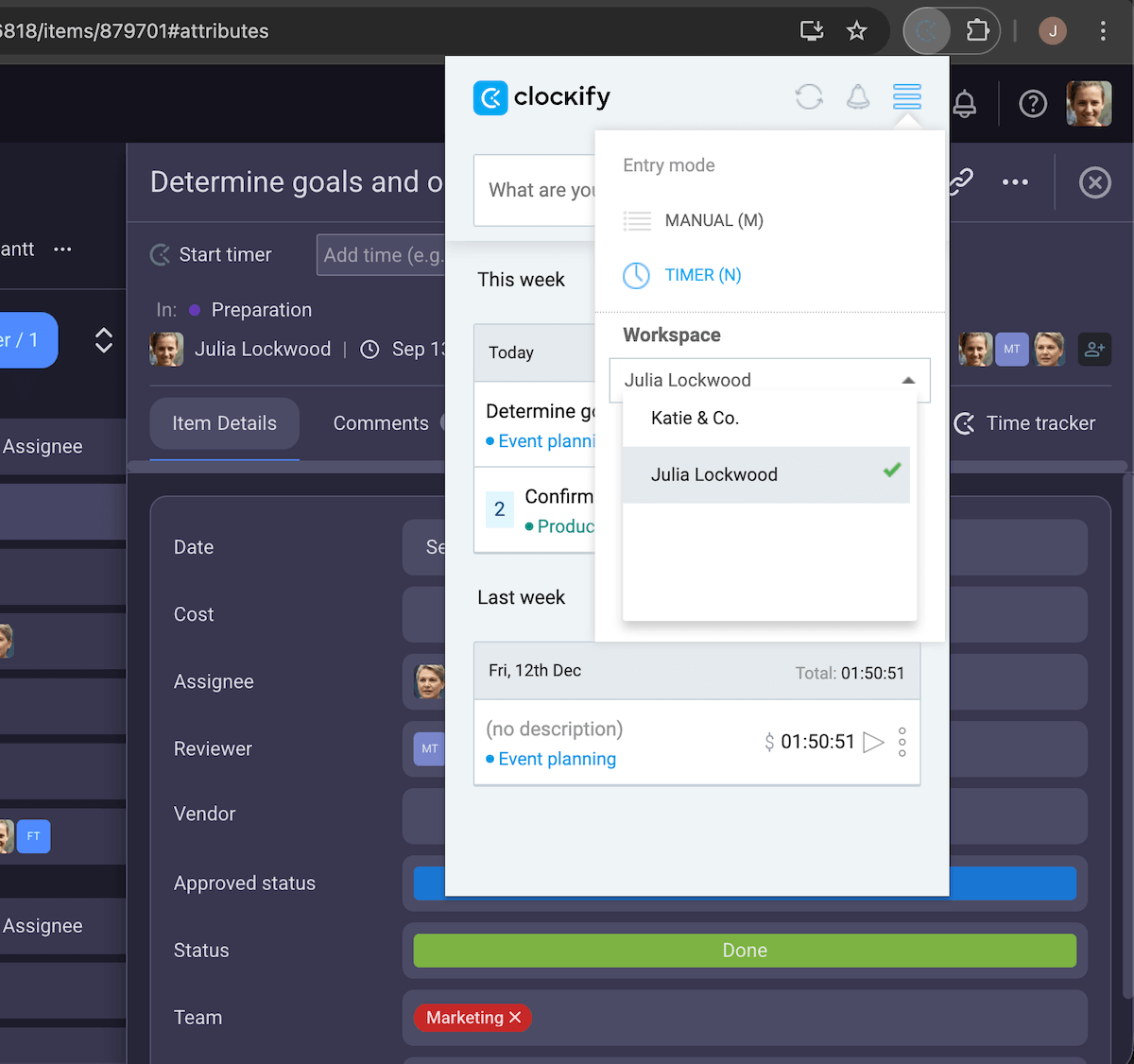
Once you’ve installed the extension, make sure you are logged in and that you are in the correct workspace before you start tracking time.
Track time from your Project Items/Subitems in Plaky by CAKE.com
Once you’ve set up the Clockify extension, the Start timer button will appear in the top left corner of your Item/Subitem card.
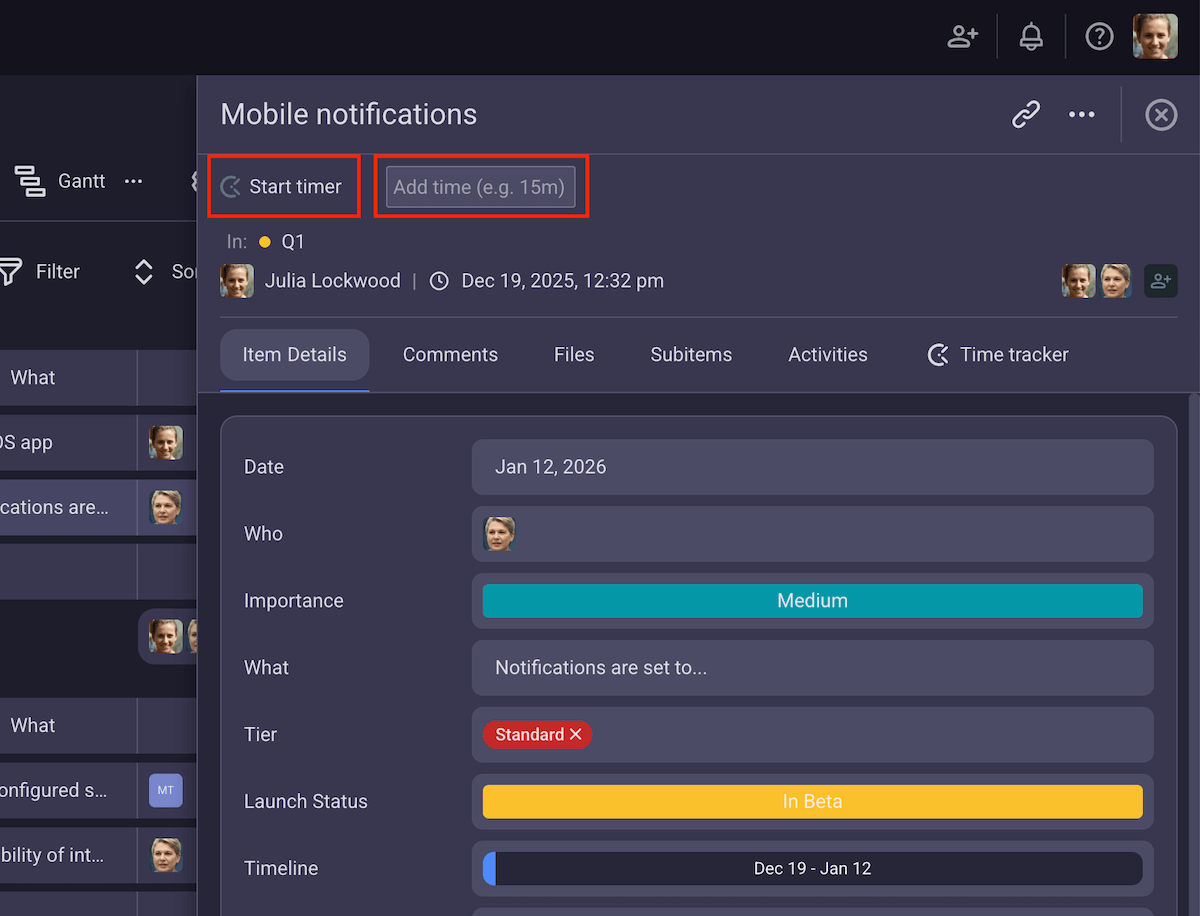
Clicking the button will start the timer and prompt you to fill out the details for the time tracked:
- Description,
- Project,
- Tags, and
- Billable/non-billable hours.
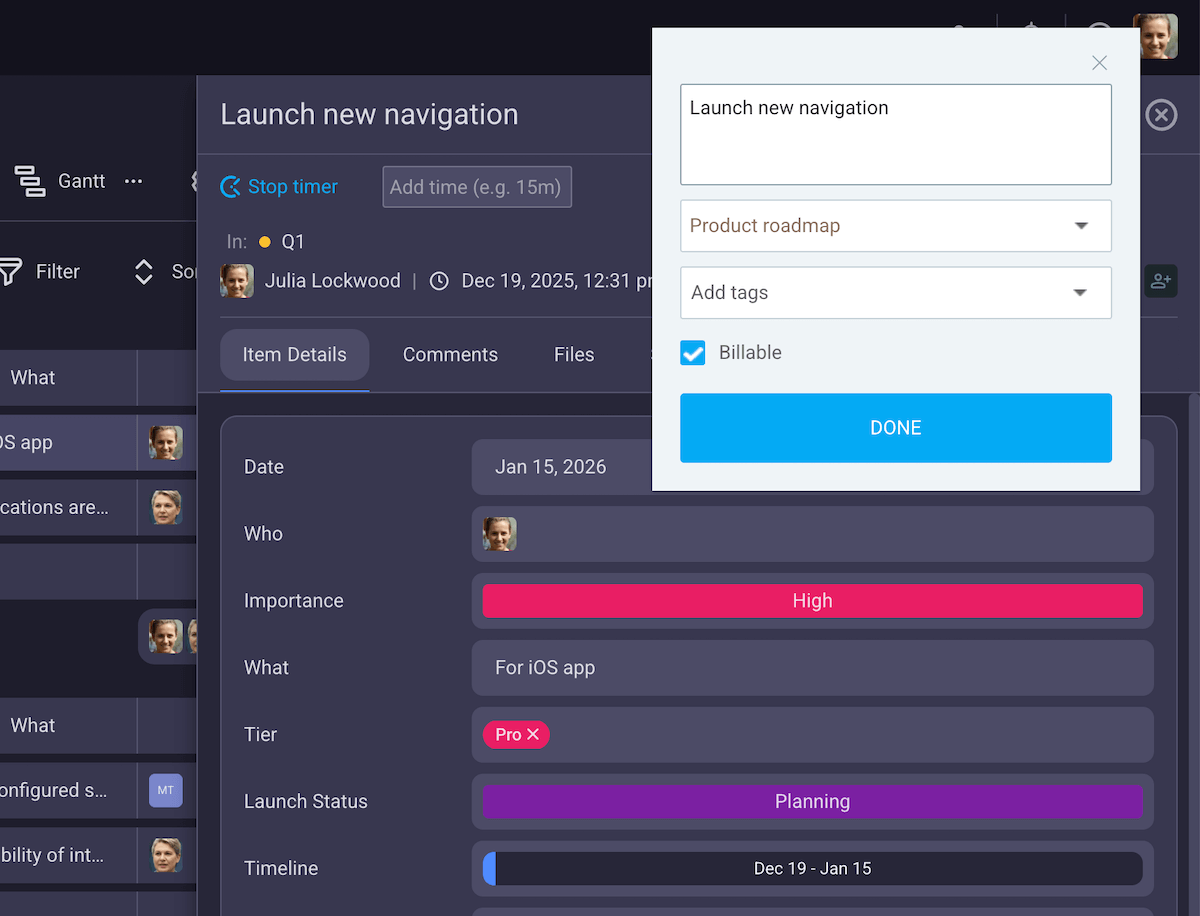
To make sure that Clockify automatically pulls all your task data from the Plaky Item card, you need to:
- Open Clockify extension,
- Click the Menu (three lines in the top right corner),
- Select Settings, and
- Check Integrations can create projects/tasks/tags from the list.
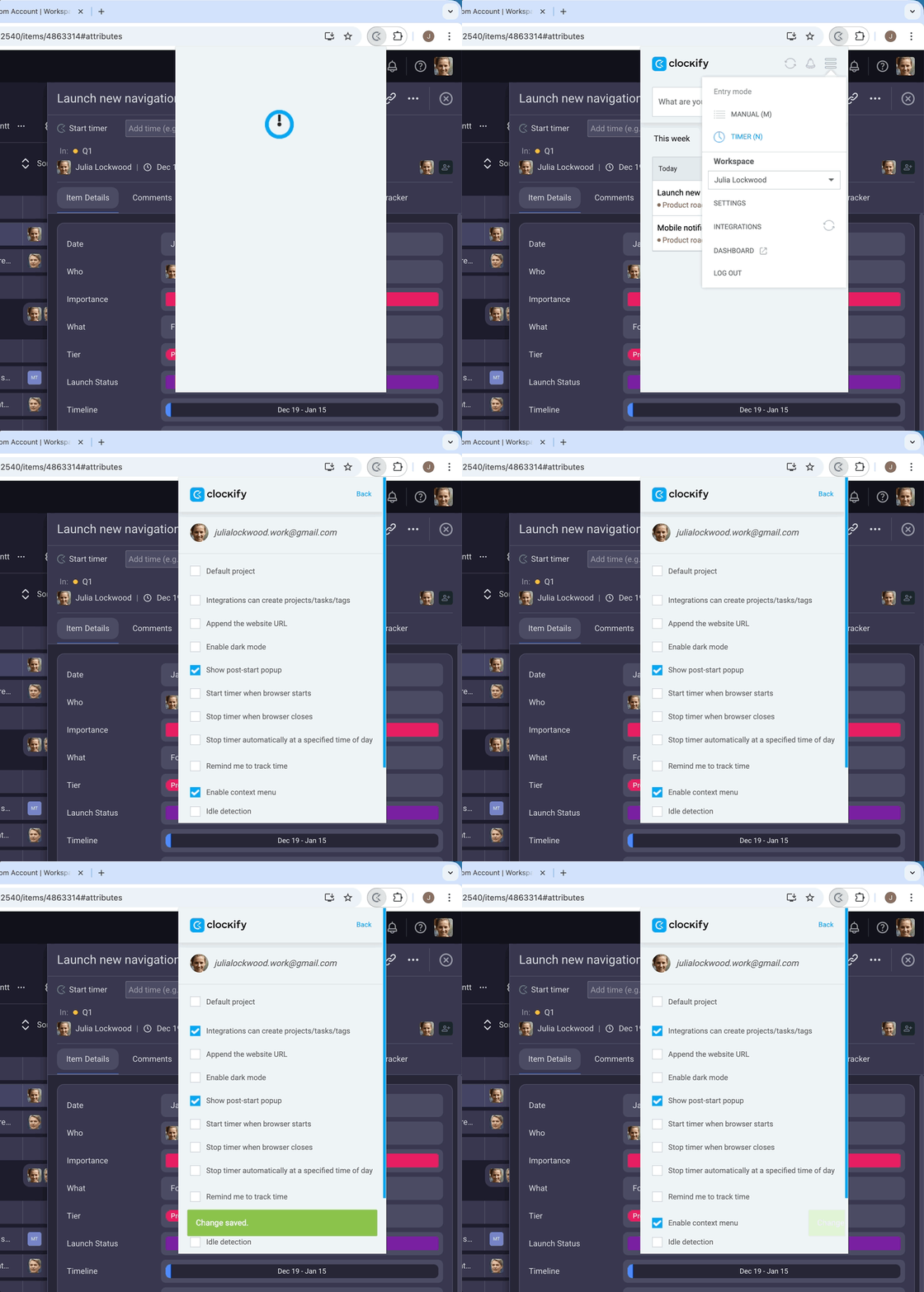
Alternatively, you can log time manually using the Add time box (e.g., 2h 45m). All your time entries will be saved in Clockify.
Just like with the Clockify integration, you’ll be able to sort the time tracking data by tags, tasks, projects, team members, billability, etc., create invoices and resources, see time and budget estimates, and much more.

FAQ about tracking time in Plaky by CAKE.com
Hopefully, you now have a clear picture of what the Plaky/Clockify combo can do for your business. But if you still have questions, here are the answers to some common inquiries regarding time tracking in Plaky by CAKE.com.
Do my team members need to install a browser extension for this to work?
No, you don’t need to install a browser extension to track time in Plaky. Time tracking in Plaky works via a built-in integration with Clockify, so the only thing you need is a free Clockify account on the same email as Plaky.
Can I filter reports in Clockify by Plaky board or specific task tags?
Yes, you can filter reports in Clockify by Tags or Plaky board (called Project in Clockify), as well as:
- Category,
- Client,
- Description,
- Note,
- Status,
- Task, or
- Team.
What happens if a user adds time in Clockify but forgets to link it to a Plaky task?
If a user adds time in Clockify without specifying a Plaky Task, the time entry will only be visible in Clockify, but not in Plaky. For that time entry to be visible in the Plaky worklog, the user will have to go back and specify a Task.
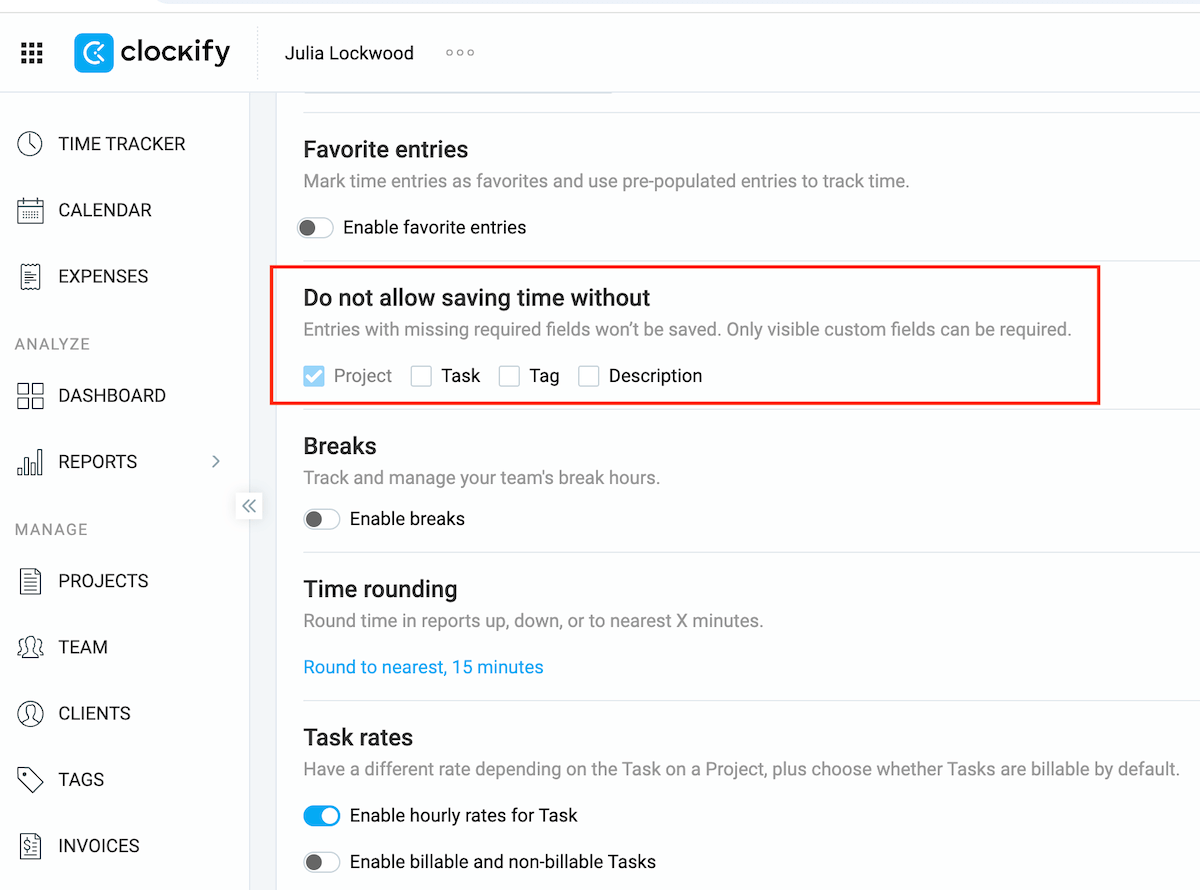
To avoid having to do this, go to Workplace settings in Clockify, scroll down to Do not allow saving time without and check Task. This way, you won’t be able to add a time entry without connecting it to a Task first, thus eliminating the issue in the first place.
💡 PLAKY PRO TIP
To learn more about what’s new in Plaky by CAKE.com and keep an eye on upcoming features, check out Plaky’s Roadmap and Changelog.
How do I see which tasks are consuming the most budget?
To see which tasks are consuming the most of your budget, you first need to assign budgets to all Clockify Projects you’ve connected to Plaky. You can then see your full project status in Clockify, including:
- Budget,
- Actual cost,
- Remaining budget,
- Profit,
- Billable and non-billable time,
- Billable expenses, and
- Forecasts.
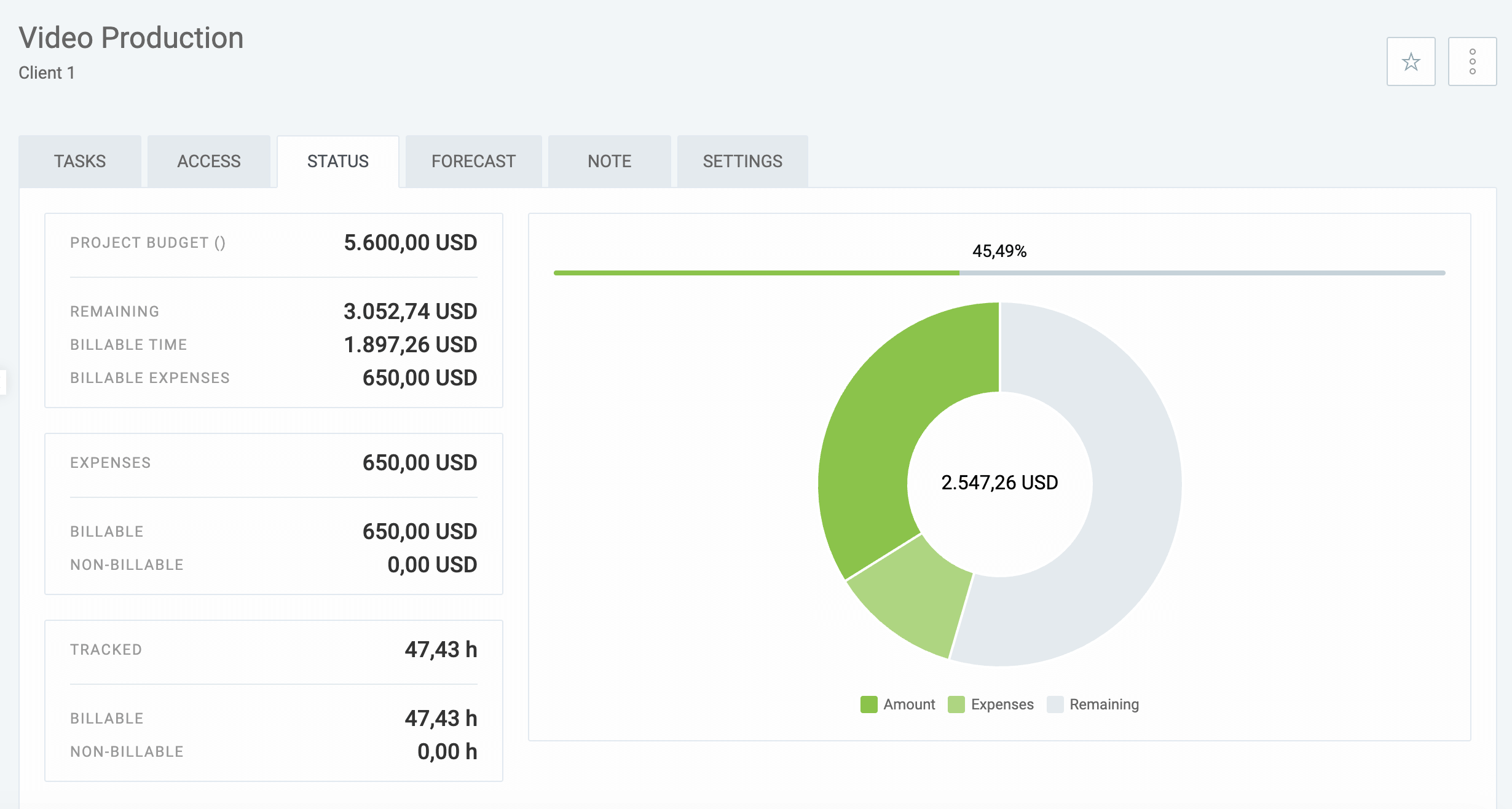
This information allows you to see which tasks are consuming the most of your budget and act accordingly.
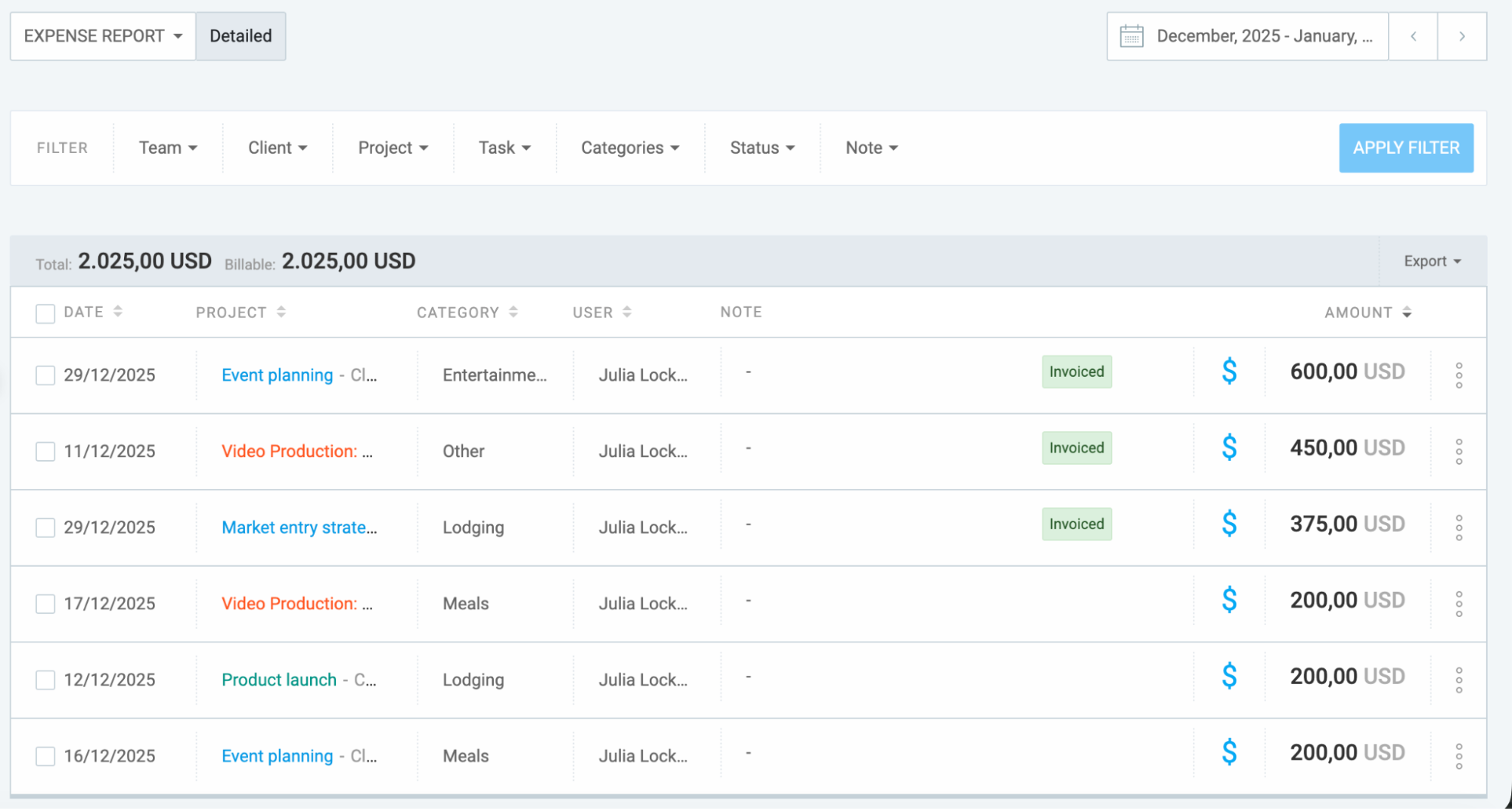
Alternatively, you can click on the Expenses tab in the left sidebar, add expenses for each task, and then see a detailed breakdown of expenses by task, project, person, team, etc. in the Detailed Expense Report section.
Take control of your projects with Plaky by CAKE.com
Time tracking tends to be treated as a bandage to fix disorganization and get teams back on track after they’ve already run off said track.
But why wait?
Plaky and Clockify are both free tools you can start using right now to identify time and money wasters before they snowball — and this is just the tip of the iceberg.
Consistent time tracking with Plaky will eventually help you:
- Make better time estimates,
- Improve resource allocation,
- Increase revenue, and
- Foster accountability, transparency, and trust, both within the organization and with clients and stakeholders.
If this sounds intriguing, you’ll be glad to hear that you can further improve your workflow with Pumble — a free team communication app.
As part of the same app ecosystem, Plaky, Clockify, and Pumble work seamlessly together to help you streamline workflows and save money every step of the way.
Stop wasting time — track it in Plaky by CAKE.com. Sign up now!
Get started with Plaky by CAKE.com
How we reviewed this post: Our writers & editors monitor the posts and update them when new information becomes available, to keep them fresh and relevant.