 Published: September 10, 2025
Switching from Notion and afraid your project data will be lost? Don’t worry — you can import your data into Plaky in no time at all!
We’ve compiled a step-by-step guide to exporting your data from Notion and setting up your new workspace in Plaky with screenshots and straightforward instructions. So, keep reading!

#1 Export your Notion board
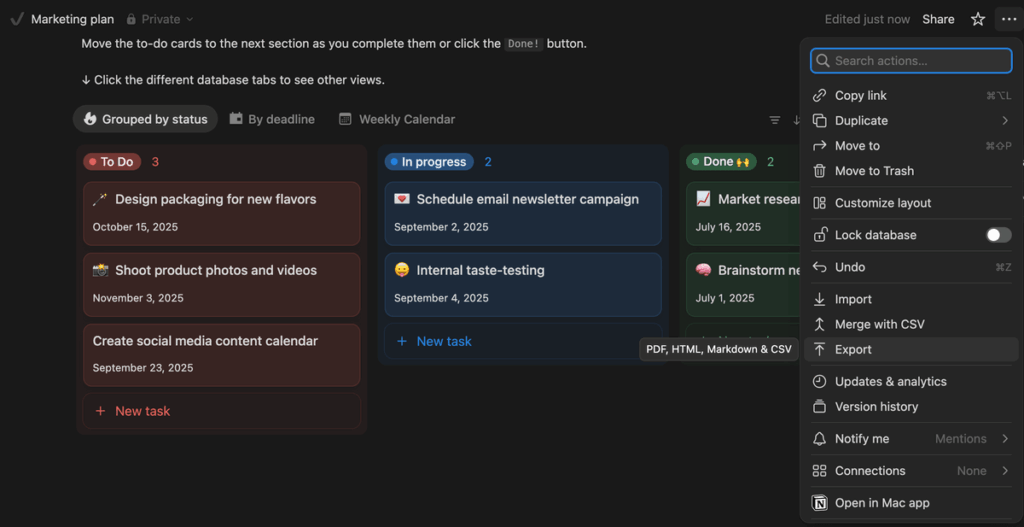
Exporting your data from Notion is simple enough; you just need to find the 3-dot menu in the upper right corner of your project and click the Export button.
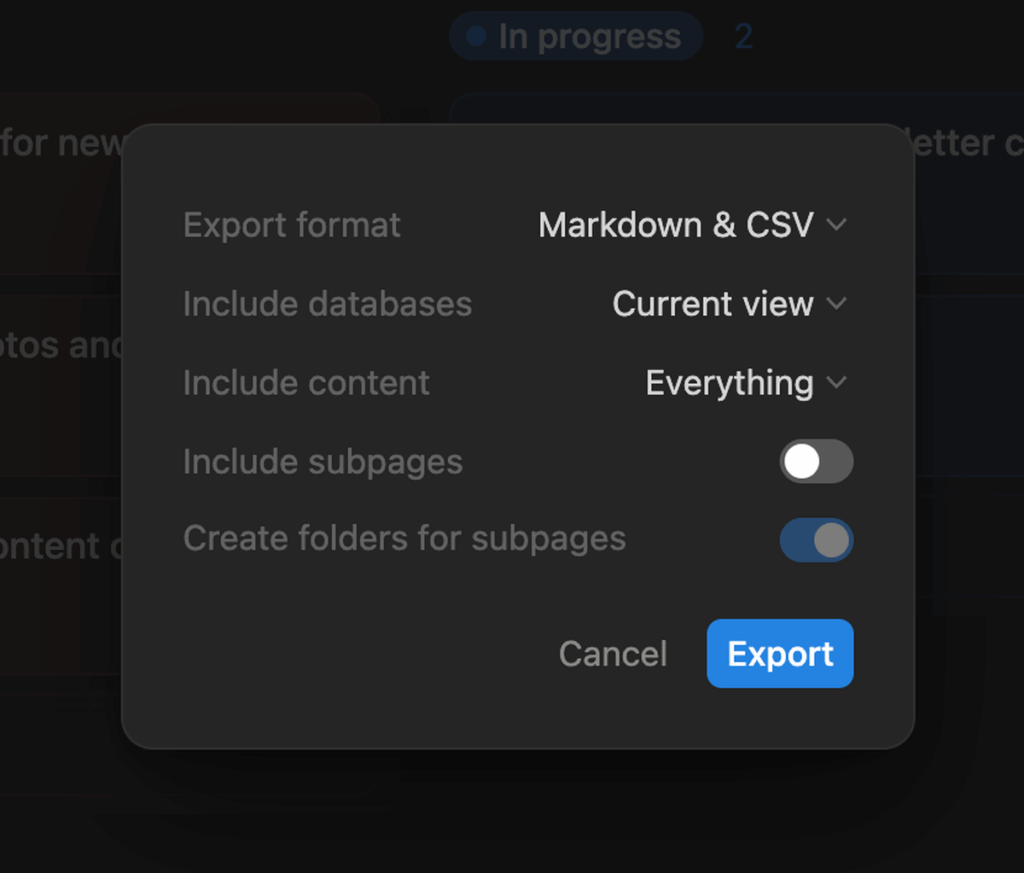
You’ll be given the option to choose which data to export and in which format. Since you want to import data into Plaky, go for the CSV format.
💡 Plaky Pro Tip
Need to refresh your memory about Notion’s pricing? You can find all the details in the article below:
#2 Import the CSV file into Plaky
There are 2 ways to import your data into Plaky:
- Create a new board, and
- Add to an existing board.
Import into a new board
Here’s how you can import your data into a new Plaky board:
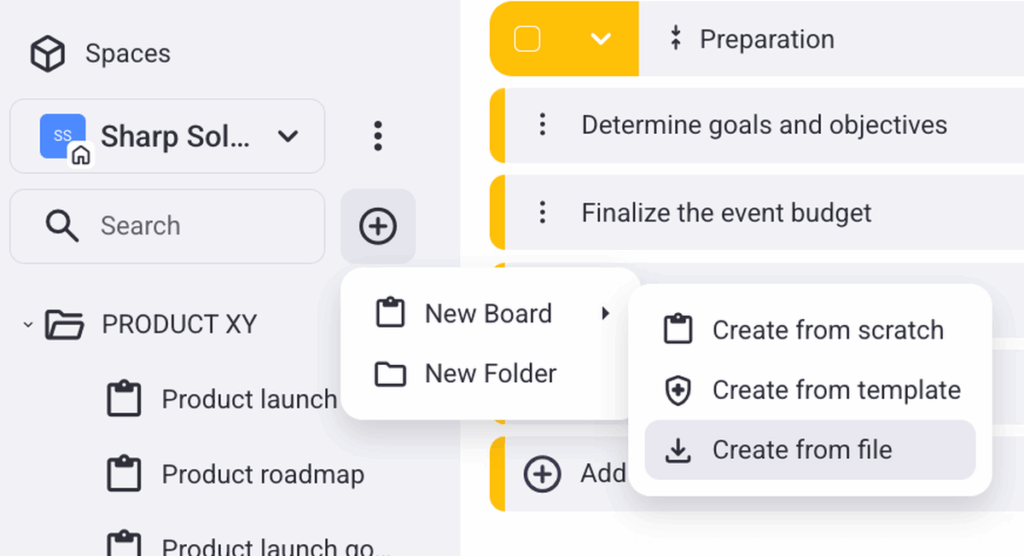
- Click the + button in the menu on the left.
- Choose New board.
- Select Create from file.
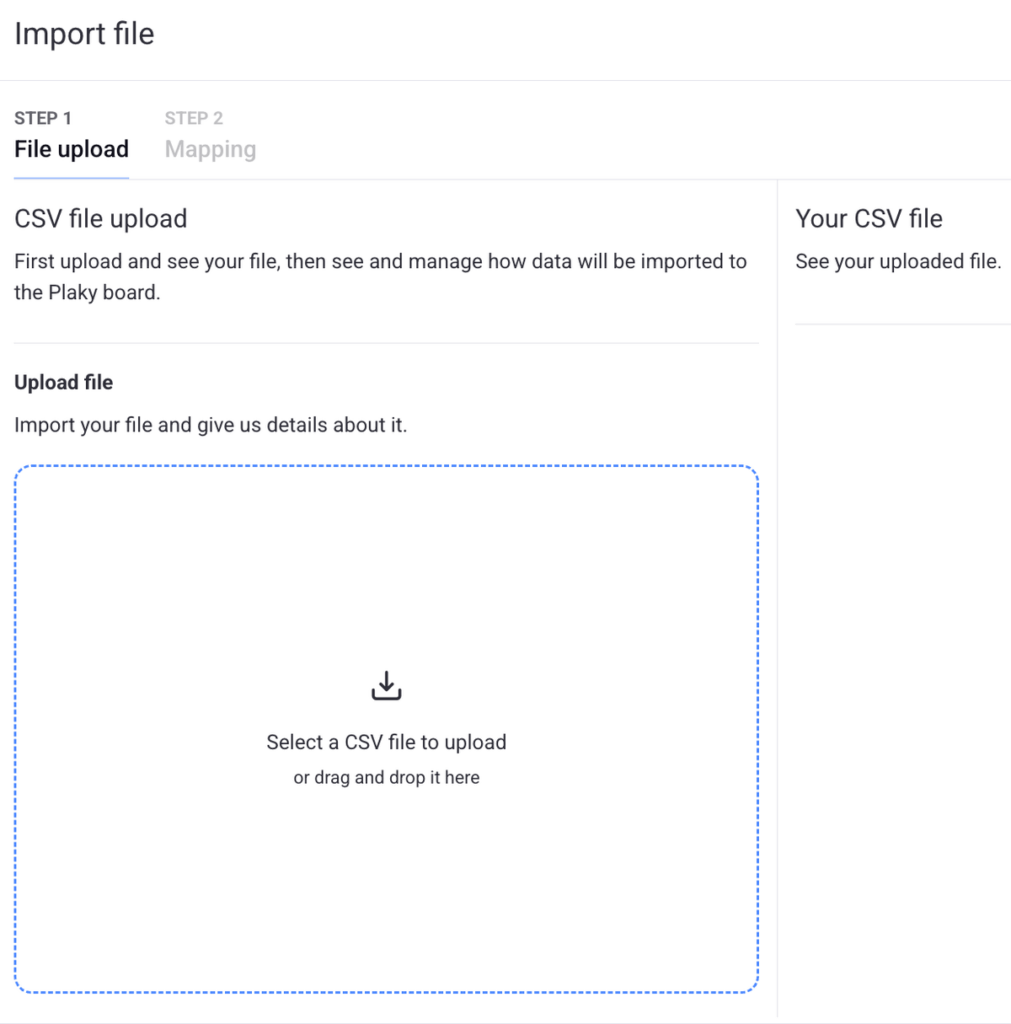
Then, you’ll see a window like this where you’ll be able to upload your CSV file:
Import into an existing board
If you already have a project board in Plaky, you can easily add more data to it from a CSV file. Here are the steps:
- Click on the 3-dot menu in the upper right corner.
- Choose Import from CSV.
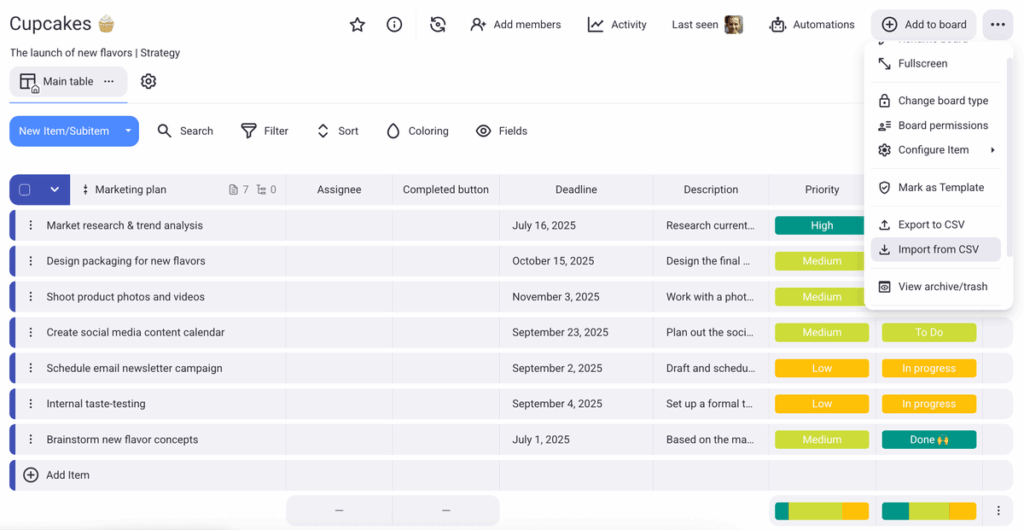
After that, you’ll see the same window we showed earlier where you can upload your file.

Note: There are some limitations when it comes to importing data into Plaky:
- The maximum number of columns in the CSV file is 70.
- The maximum number of rows in the CSV file is 1,001.
- The maximum number of Item groups is 20 (any groups after that will be merged with the last group).
- The maximum number of Status field values in the CSV file is 18 (any additional values will be skipped).
- There’s an import size limit of 10 MB.
#3 Generate the Plaky board
Once the file is imported, you’ll see your board’s preview, where you’ll be able to select which column from the CSV file defines the item name.
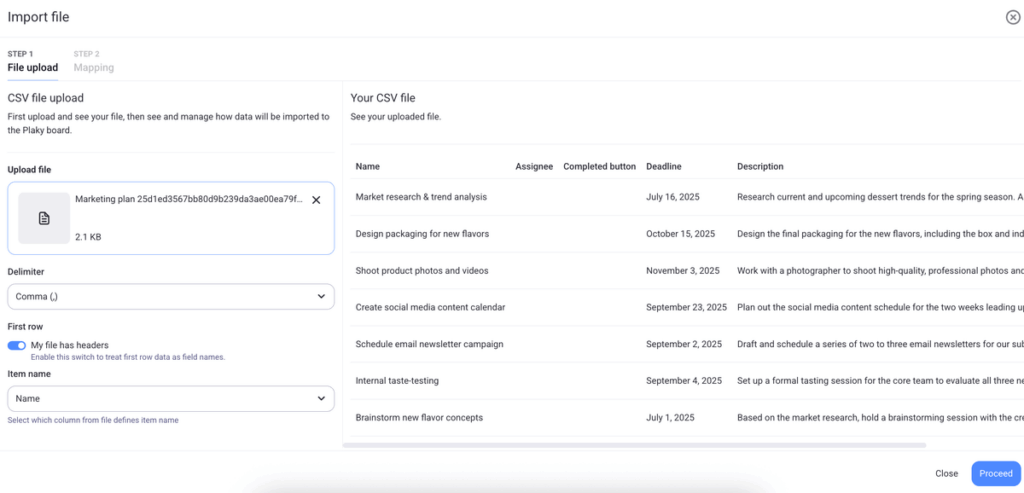
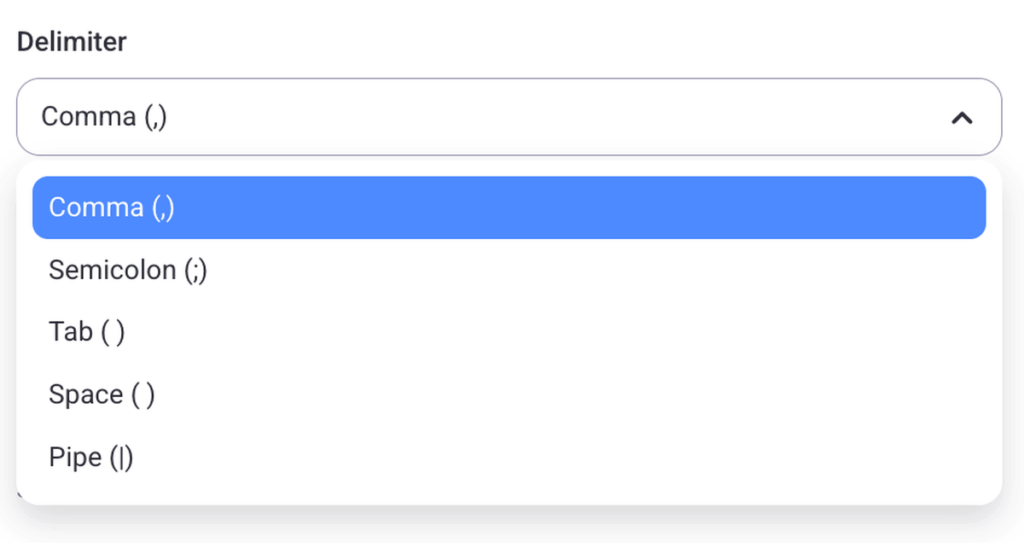
The delimiter is set as default to a comma, which should do the trick when importing data from Notion. You can also pick a semicolon, space, pipe, or tab as a delimiter if that suits you better.
#4 Set up your Plaky board
Next up is mapping your Plaky board. You’ll get a preview of your project board on the right, so you’ll be able to set up the fields appropriately.
At first, all the fields will be set by default as text, and the board will look like this:
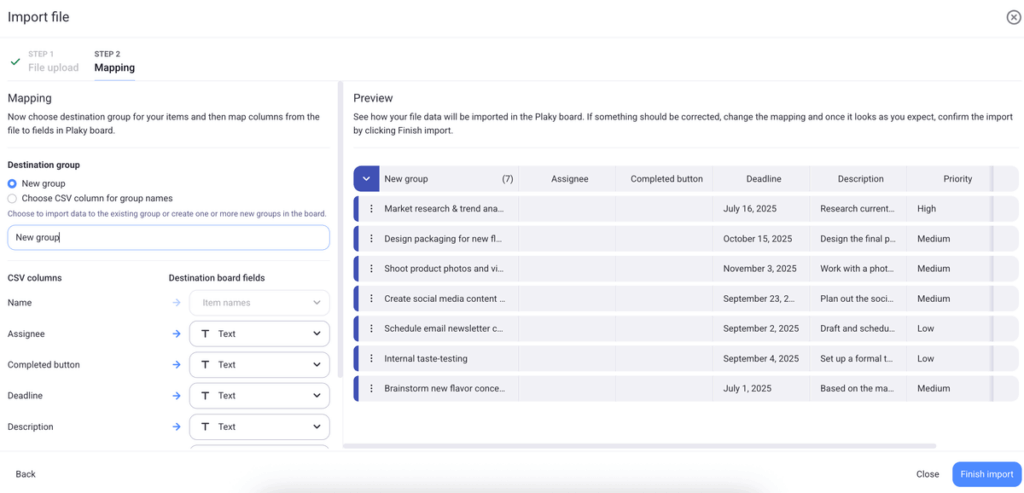
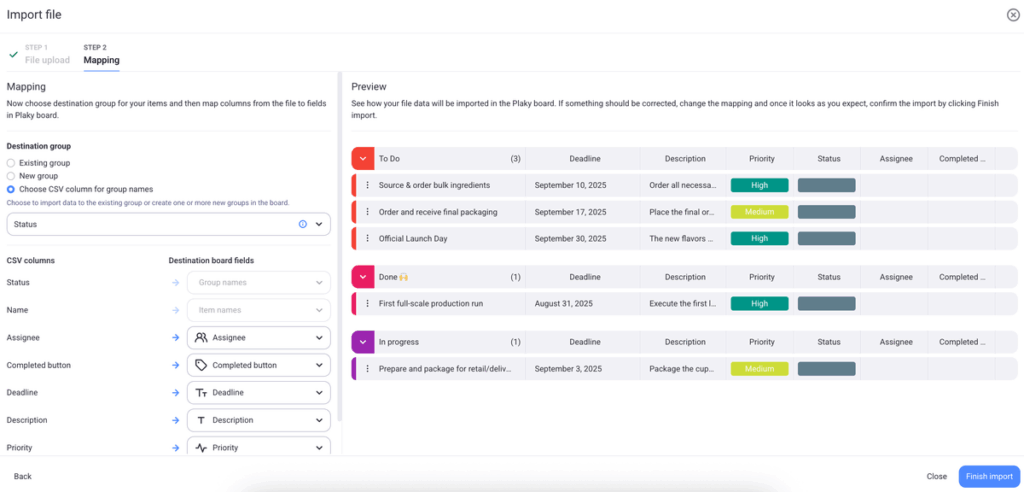
You can create:
- A new item group as a destination and put all your tasks in it or
- Multiple groups based on a column that you just imported.
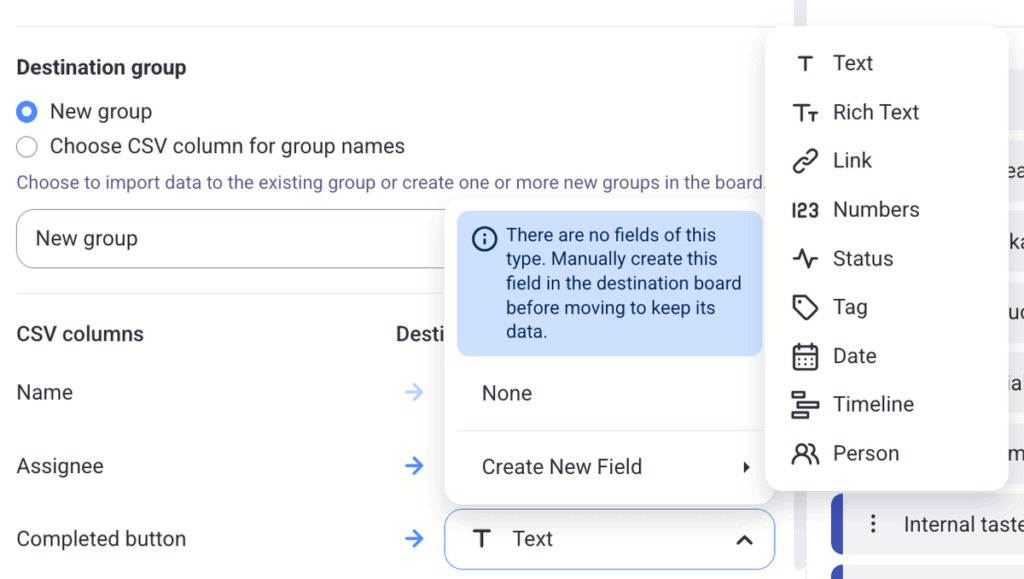
When importing data into an existing Plaky board, Plaky will automatically map column names to the existing fields. If some don’t fit those fields, you can always choose the right type from the dropdown menu.
#5 Finish the import
Click Finish import to finalize the process, and you’ll see your data in your new workspace in Plaky.
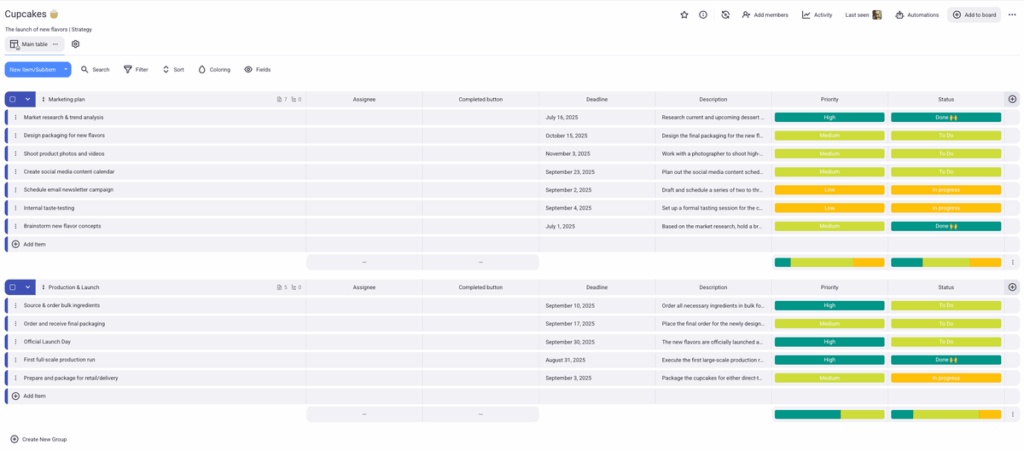
#6 Fine-tune your new Plaky board
Now that you’ve imported all your data, you can refine your Plaky board.
For example, you can move columns around, change the field types, or add new fields.
Depending on the plan you’re on, you can also:
- Set up board automations to automate repetitive tasks.
- Get valuable data insights and boost project clarity with conditional coloring.
- Create colorful charts and analyze project data with ease, and so much more!
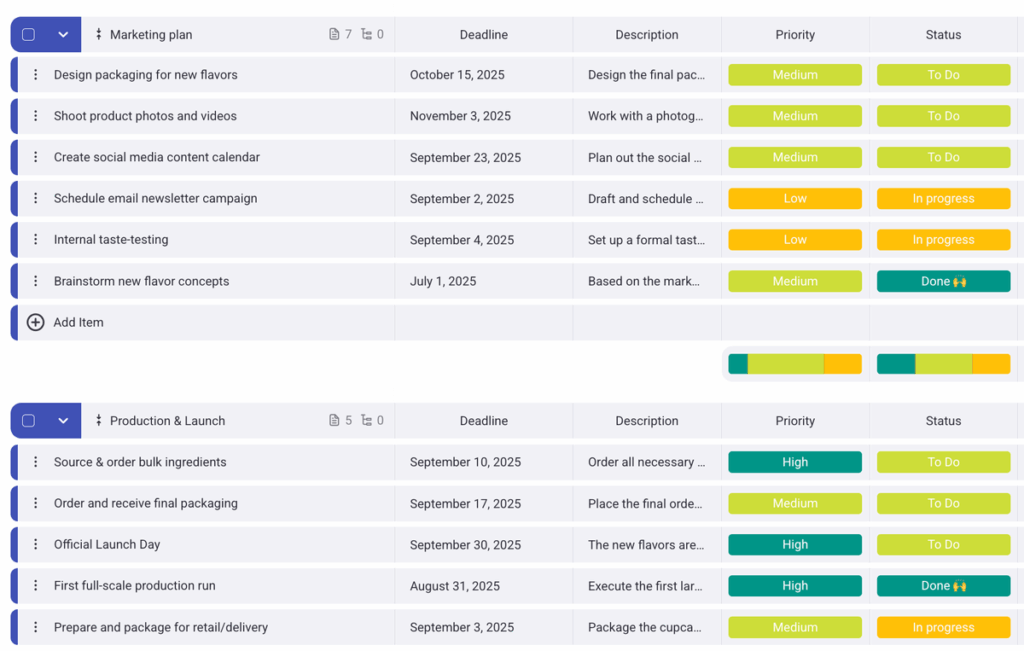
And that’s it — your Notion project data is now available in Plaky!
Good to know before you begin
Before getting started with data transfer from Notion, we’d like to point out that you can import:
- Only CSV files into Plaky,
- One board at a time, and
- All kinds of data, no matter the language.
The export and import process can last anywhere from seconds to minutes, depending on the volume of your projects.
If you encounter any issues, delays, or bugs, feel free to contact Plaky’s support team! Live customer support is available 24/7, regardless of the plan you’re on.
Transfer your files from Notion into a practical and efficient workspace. Try Plaky today for free!
How we reviewed this post: Our writers & editors monitor the posts and update them when new information becomes available, to keep them fresh and relevant.