
Conditional Coloring
Conditional coloring is a powerful Plaky feature that enhances your data visualizations, providing valuable insights and clarity. With this feature, you can establish an unlimited number of conditions in each table Board view.
Conditions can be applied to the following:
- Each Field type
- Any Item group
- Any Item
Setting the condition #
To set the condition for conditional coloring, follow these steps:
- Click on the Coloring icon on the Board
- Click on +Add condition
- Choose the color
- Choose between coloring the entire Item (Row) or a specific section (Cell).
- Select a Field from the list
- Select the Condition for the given Field
- Click on Value to fulfill the condition for the selected Field
- Click Save in this view to complete the action
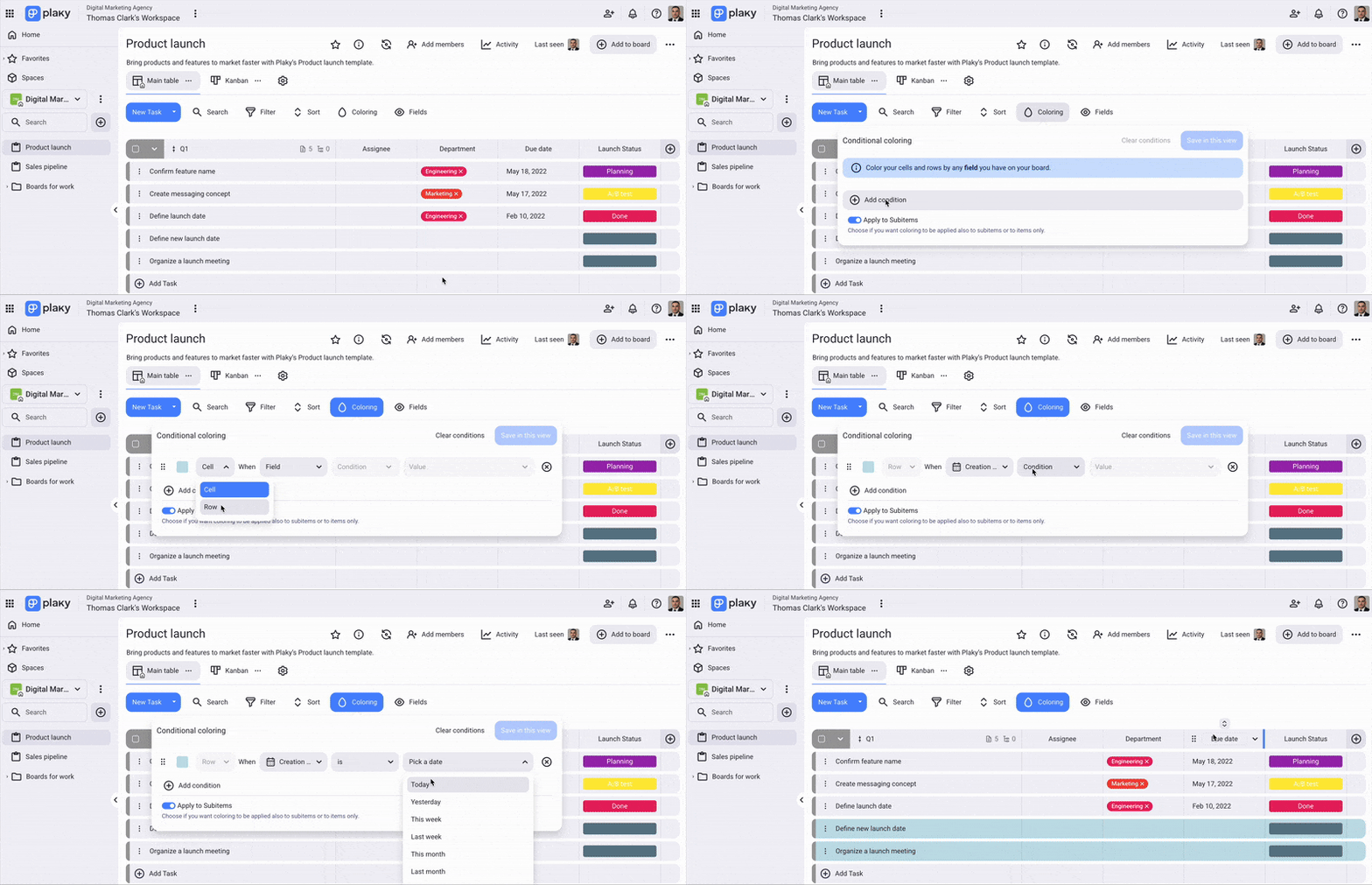
Once saved, the selected cell or Item will be automatically colored based on the defined conditions, providing a visually intuitive representation of your data.
The available options for setting conditions may vary depending on the selected Field type.
If an Item/Field/Item Group fulfills more than one of the set conditions, they are applied from bottom to top. Drag and drop the conditions to reorder them.
For Item Group, Creation date, and Created by, it is possible to have only the whole Item colored, not a particular cell.