Getting around in Plaky
In this article
Learn how to navigate the Plaky interface across both web and mobile apps. We will go over the sidebar, home page, notifications, and other important elements in Plaky.
The Home page #
The Home page appears when you log in to Plaky. You can access it at any time by clicking the Home icon on your screen.
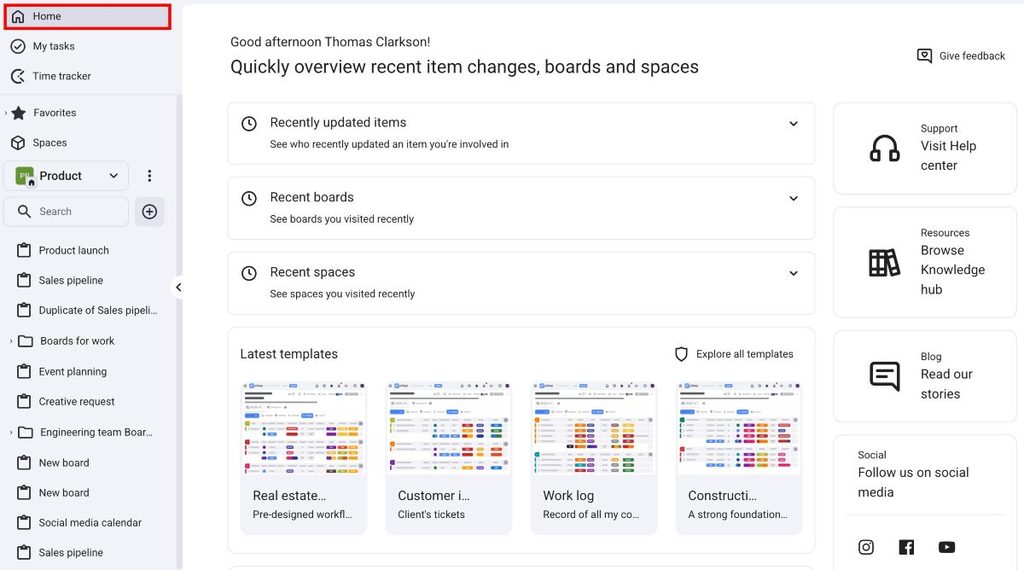
In the central part of the Home screen, you can view the following:
- Recently updated Items
- Recent Boards you viewed
- Recent Spaces you viewed
- Latest templates you used
The right part of the Home page lets you access information regarding Plaky, and you can go directly to:
- Help Center
- Knowledge hub
- Blog
- Social media profiles
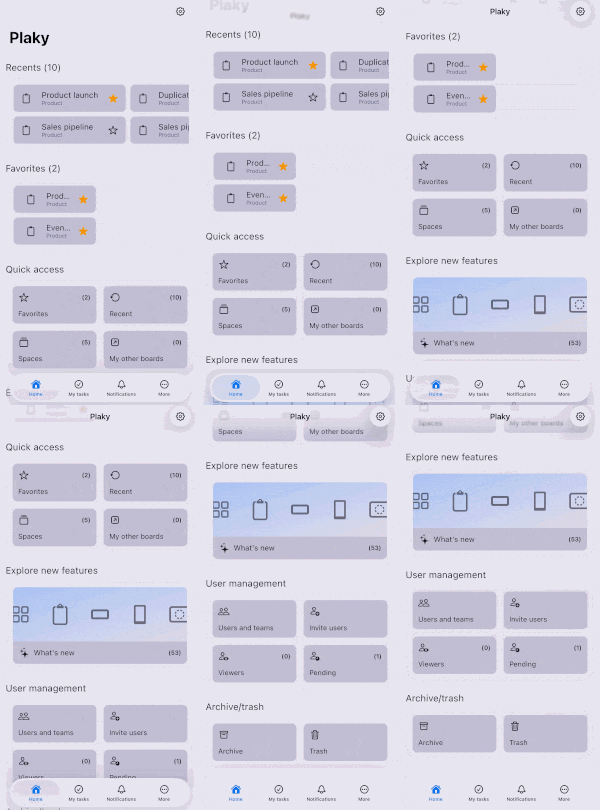
On the iOS Home screen, you can view the following:
- Recent Boards
- Favorite Boards
- Quick access
- New features
- User management
- Archive/Trash section
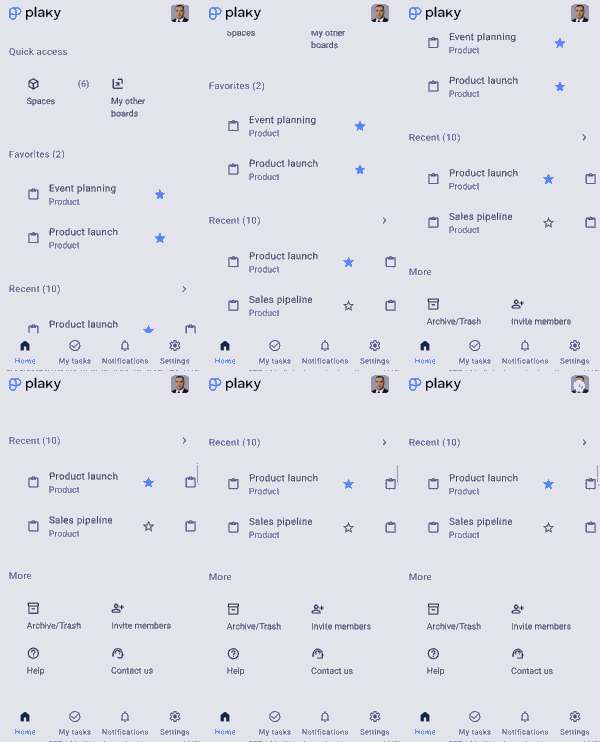
On the Android Home screen, you can view the following:
- Spaces
- Favorite Boards
- Recent Boards
- More (Archive/Trash, Invite members, Help, Support)
The sidebar #
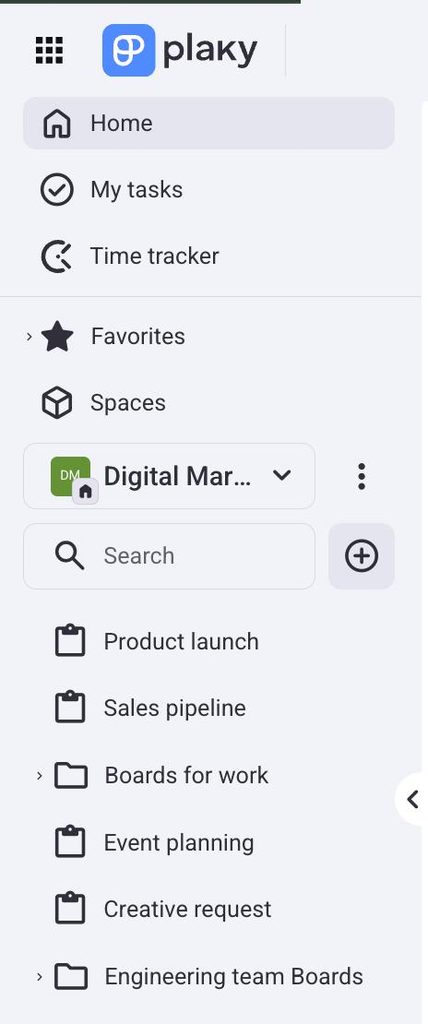
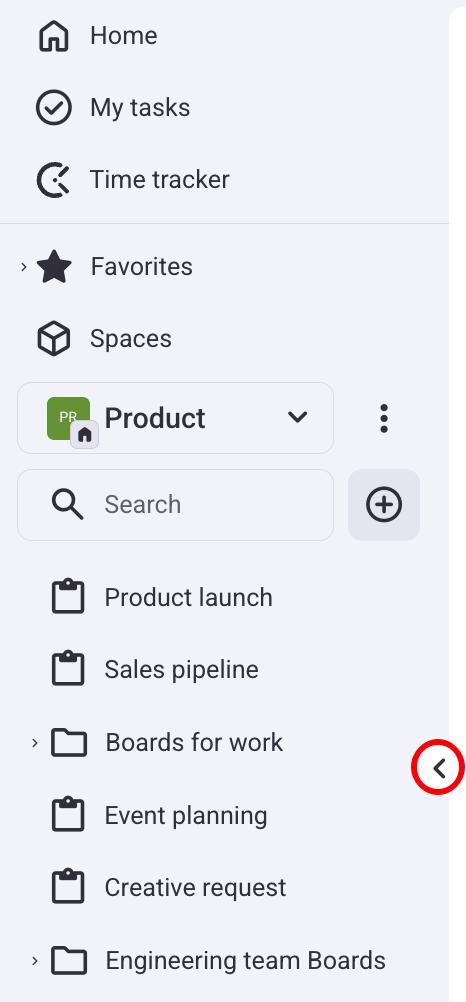
From the sidebar, you can access all important content in your Workspace. The sidebar is located on the left side of your screen, and you can access:
- Spaces
- Folders
- Boards
- My Tasks
- Clockify time tracker
Navigating between Spaces #
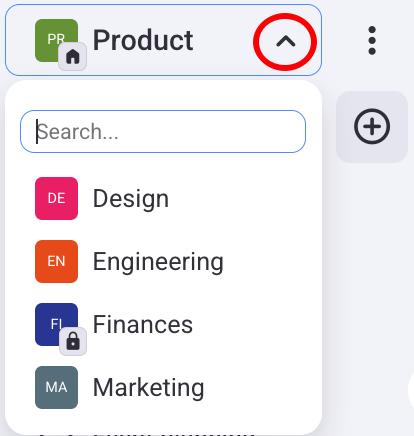
You can switch between Spaces and navigate your Workspace more easily. To switch between Spaces:
- Click on the dropdown arrow next to the selected Space
- Select a Space from the list
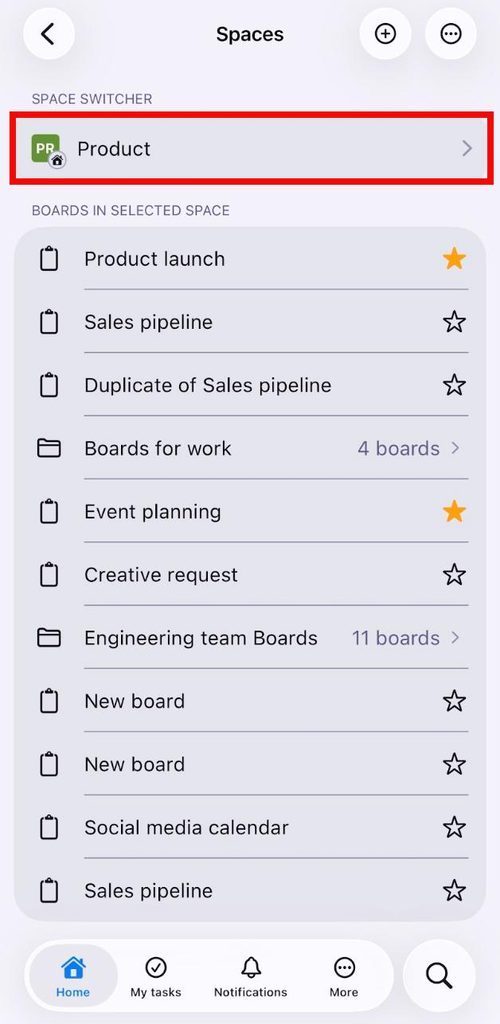
- Tap on Spaces on the Home screen
- Tap on a Space under the Space switcher
- Select a Space
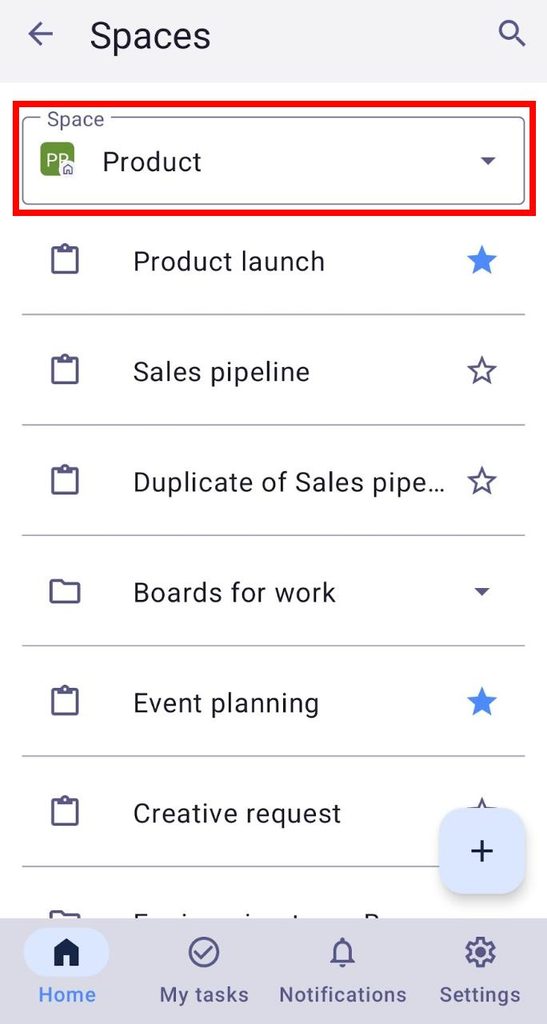
- Tap on Spaces on the Home screen
- Tap on the Space picker at the top
- Select a Space
Collapse or expand the sidebar #
The sidebar doesn’t have to be displayed at all times; you can collapse or expand it as you prefer. To expand/collapse the sidebar, click on the arrow button.
Notifications #
Notifications let you receive alerts whenever changes occur to Items, Subitems, Boards, or Teams you are interested in.
You can access notifications by clicking on the bell icon in the top right corner.
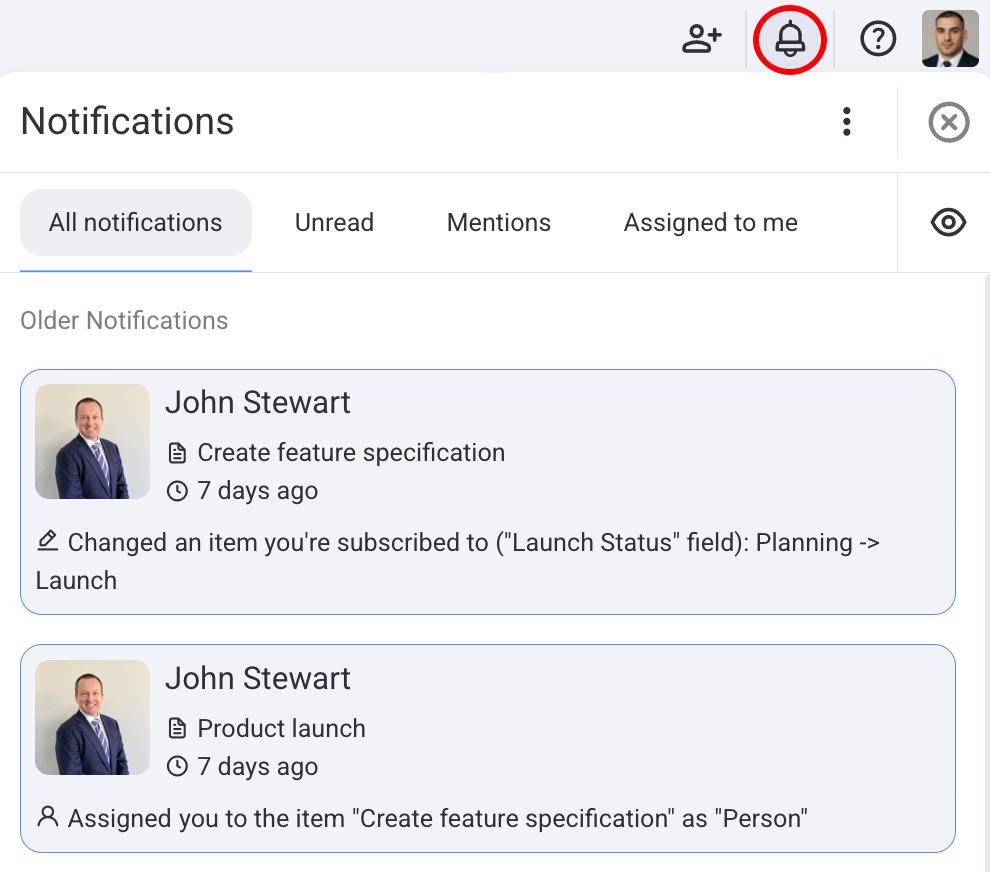
Here you can see:
- All notifications
- Unread notifications
- Mentions
- Assignments
- Item updates
- Comments and reactions
- Automation notifications
- Other
You can access notifications by clicking on Notifications in the bottom sidebar.
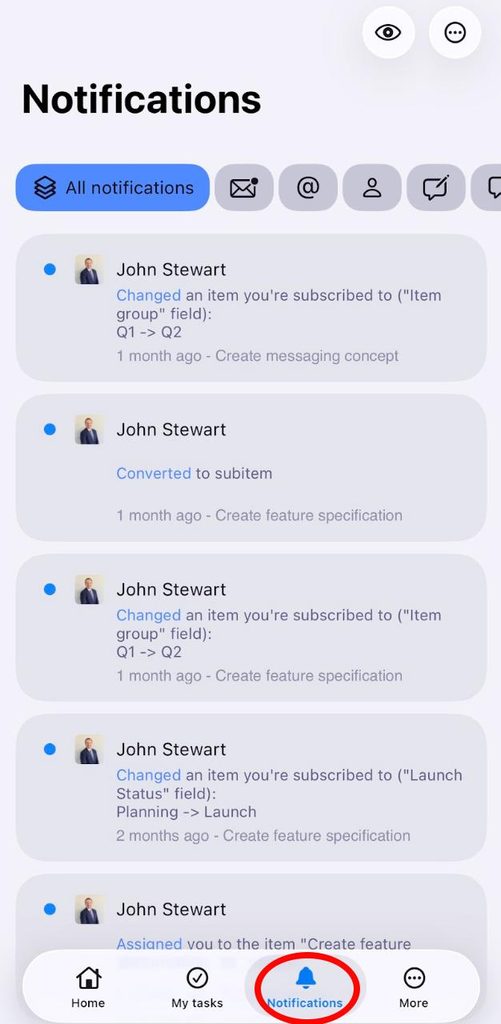
Here you can switch between:
- All notifications
- Unread notifications
- Mentions
- Assignments
- Item updates
- Comments and reactions
- Automation notifications
You can access notifications by clicking on Notifications in the bottom sidebar.
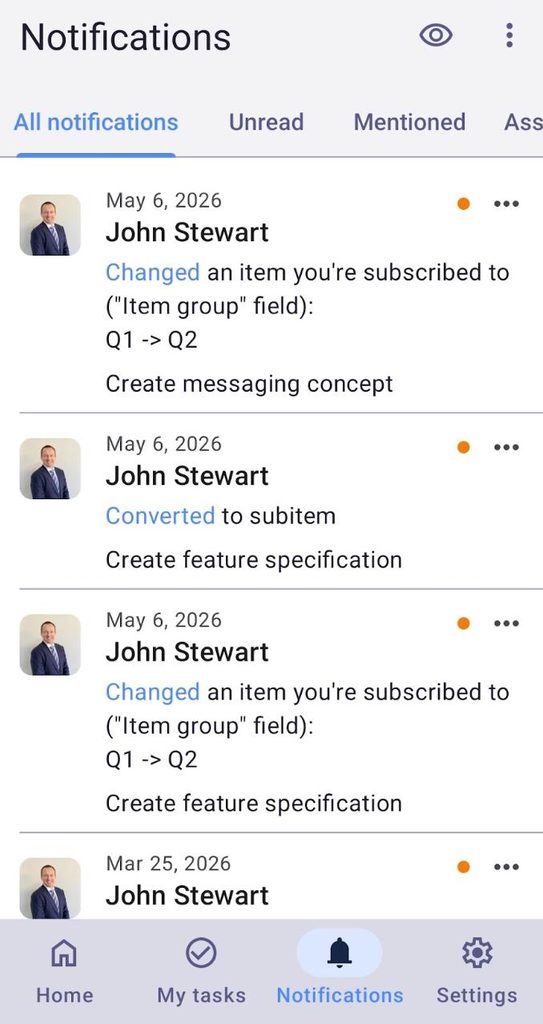
Here you can switch between:
- All notifications
- Unread notifications
- Mentions
- Assignments
My Profile and Preferences #
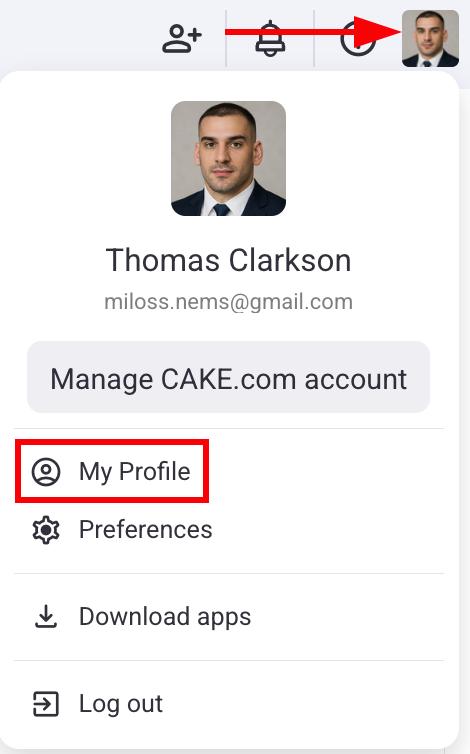
You can access and modify your profile settings by following these steps.
- Click on the profile picture in the top right corner
- Click on My Profile
Here you can edit your profile details, such as title, email, phone number, work anniversary, and more.
- Tap on More in the bottom navbar
- Tap on your name
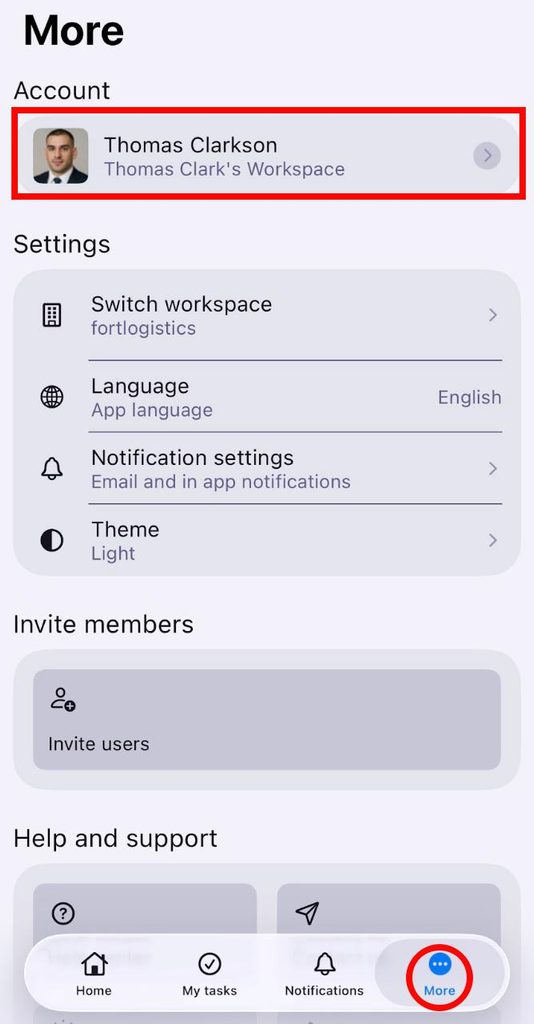
Here you can edit your profile details, such as title, location, phone number, work anniversary, birthday, and more.
- Tap on your profile picture in the top right corner
- Select See profile
- Tap on Edit profile in the top right corner
- Edit information
- Tap Save to complete the action
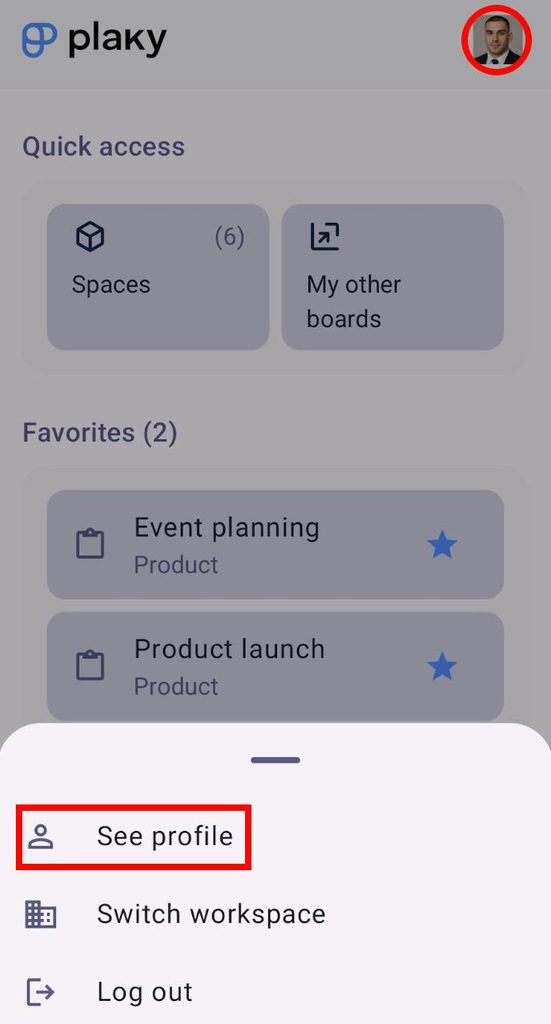
Here you can edit your profile details, such as title, location, phone number, work anniversary, birthday, and more.
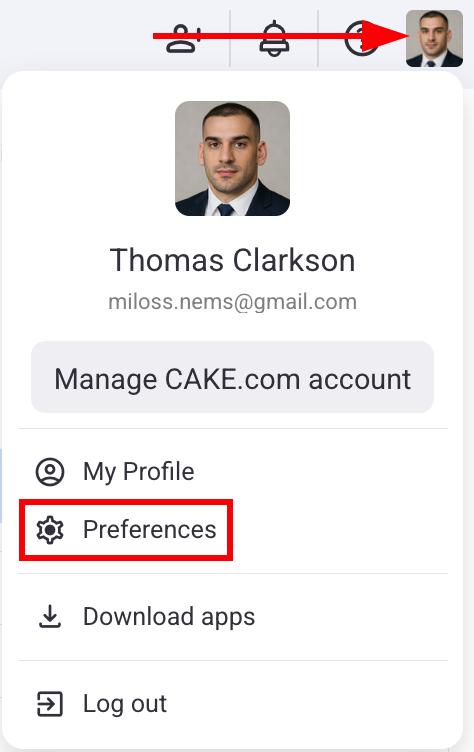
In the Preferences section, you can modify your theme, notification settings, and configure API keys. Here’s how you can access Preferences.
- Click on the profile picture in the top right corner
- Click on Preferences
Switching between Workspaces #
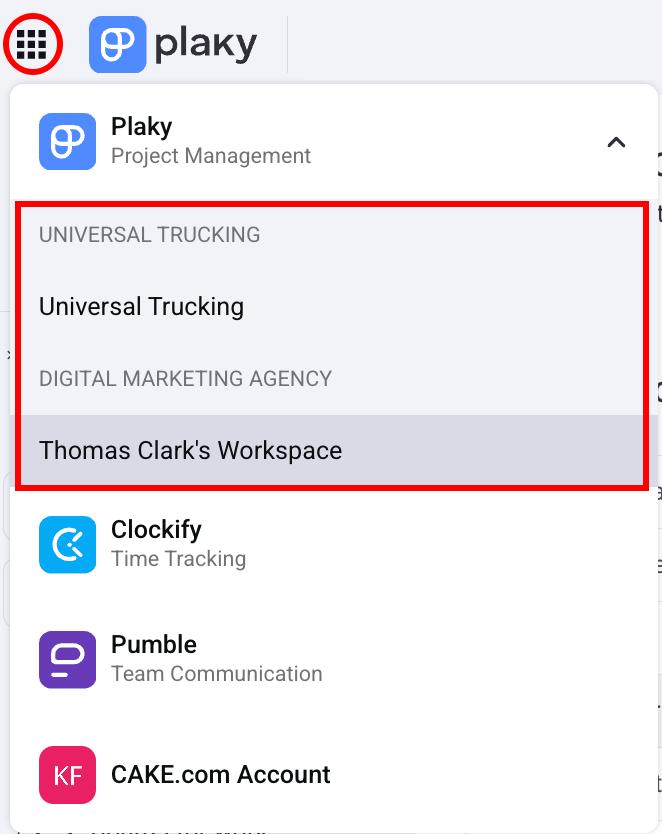
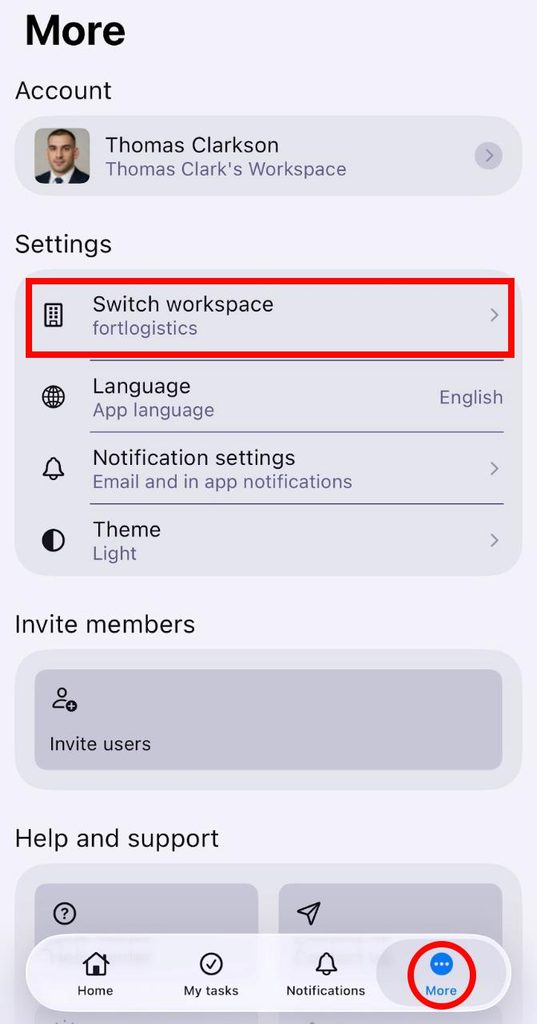
If you are a member of multiple Workspaces, you can quickly switch between them. Here’s how to do this:
- Click on the Workspace switcher in the top left corner
- Select the Workspace from the list
- Tap on More in the bottom navbar
- Tap on Switch workspace
- Select the Workspace from the list
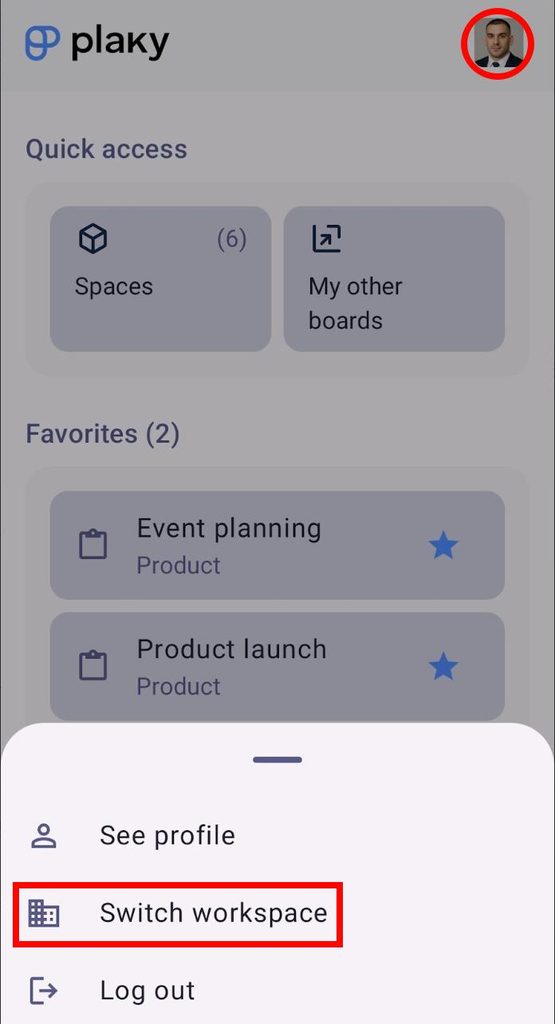
- Tap on your profile picture in the top right corner
- Select Switch workspace
- Select the Workspace