Upgrade, downgrade, or cancel your subscription
In this article
This article covers how to change or cancel your Plaky subscription. Moreover, it covers what happens to your Workspace content and data in each scenario.
Upgrade to a paid plan #
If you like using Plaky, you can upgrade to a paid subscription plan and enjoy more advanced features.
Here’s how you can upgrade to a paid plan:
- Click on Upgrade in the top bar
- Select a monthly or annual payment schedule
- Click Upgrade on a selected plan
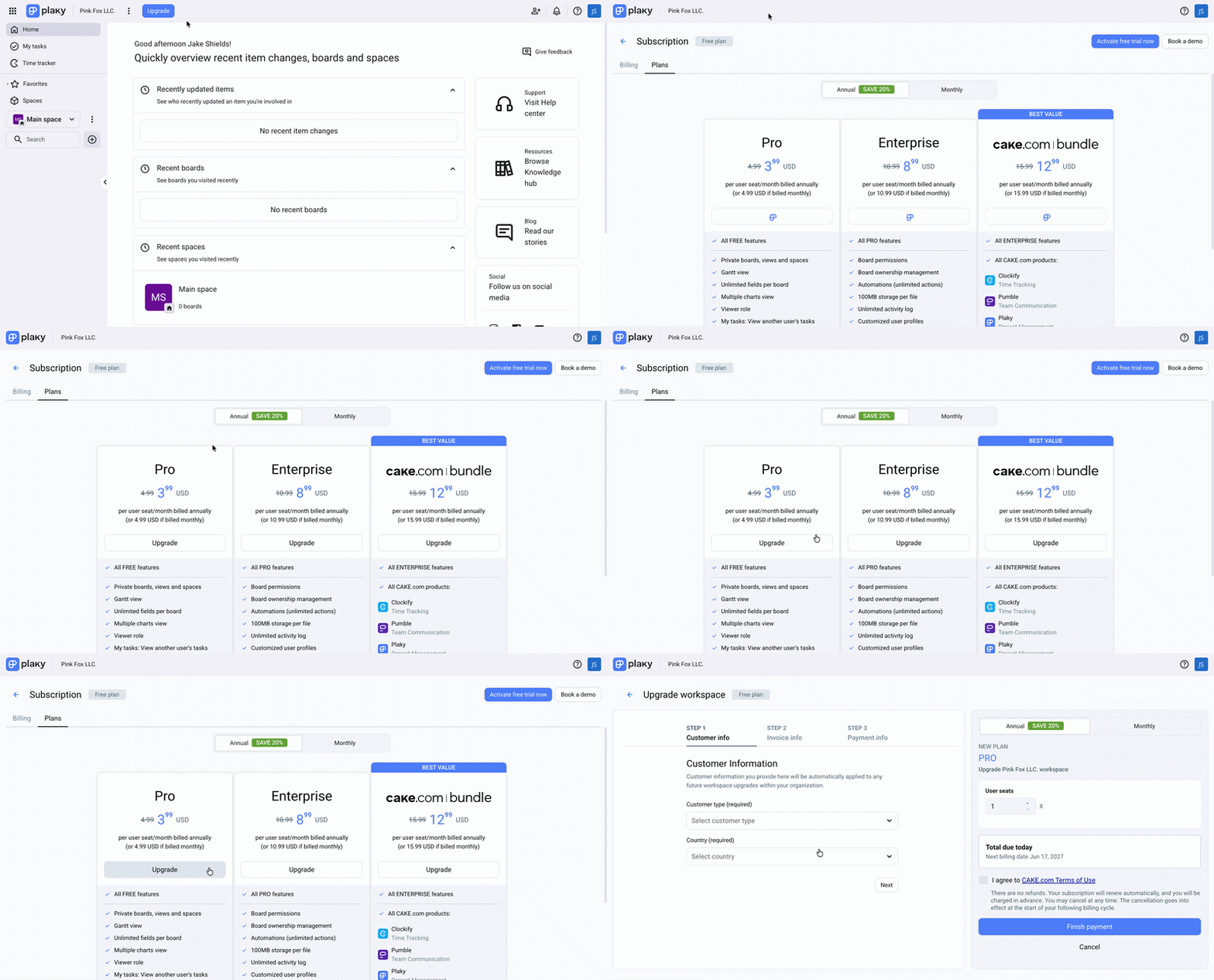
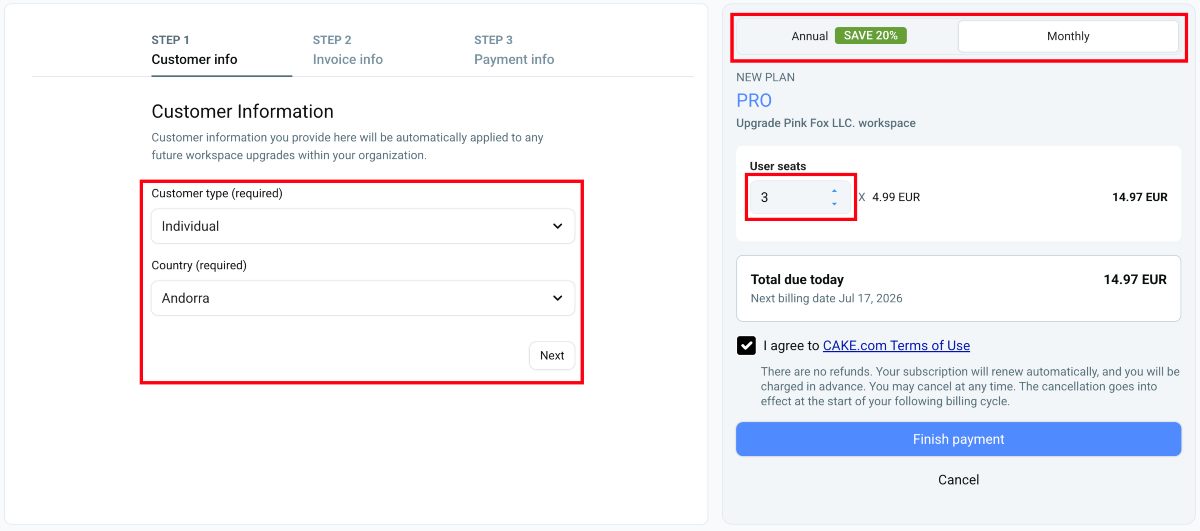
- Select the number of seats
- Select your customer type and country
- Click Next to continue
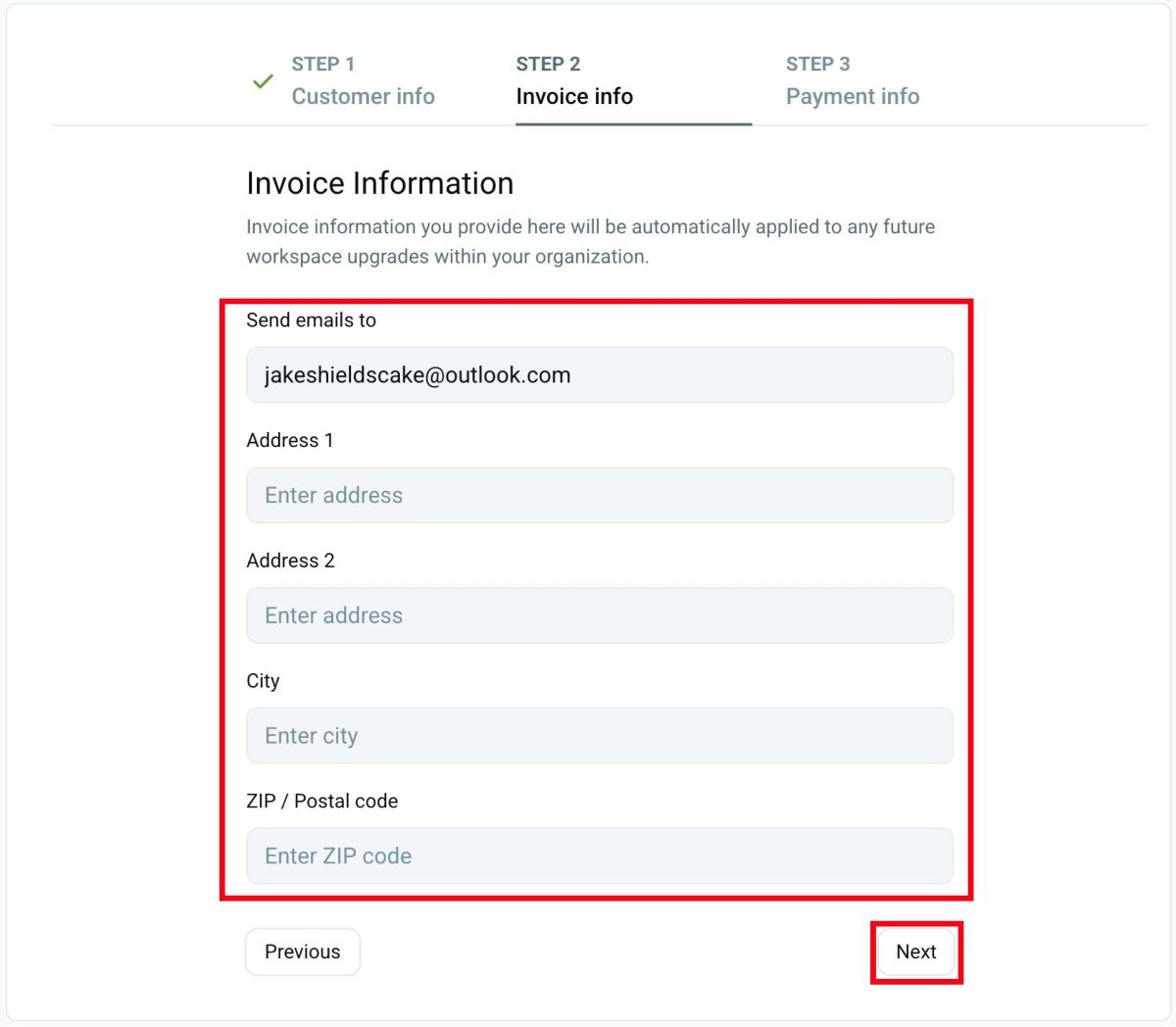
- Add invoice information
- Click Next to continue
- Add payment information
- Click Finish payment to complete the process
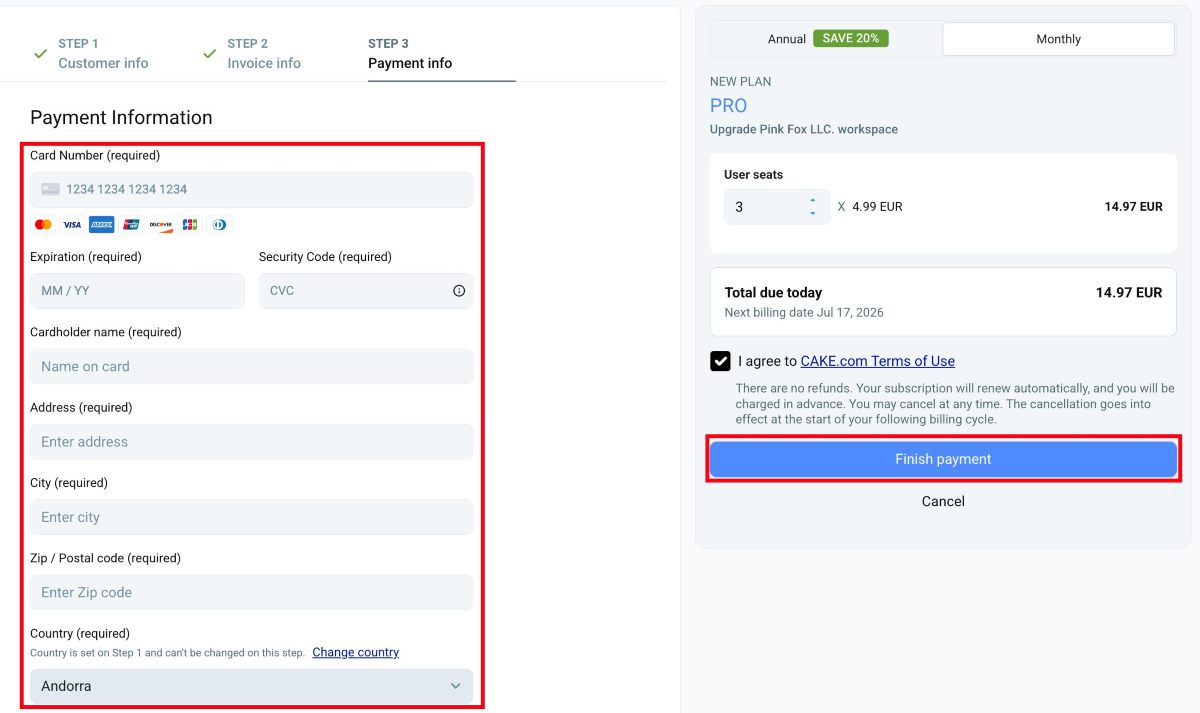
It is important for users to ensure that the country associated with the card matches the country in the address field. If this is not the case, immediately return to the first step and the Invoice information tab, and change the country to match the credit card.
You cannot buy fewer seats than there are active and pending users (Members or Admins).
You can upgrade your monthly plan to an annual plan at any point. When upgrading, we will calculate the prorated price and charge accordingly.
Tax exemption cases #
Some businesses in the USA are eligible for tax exemption, meaning they do not need to pay sales tax on their subscriptions. To validate your tax-exempt status, please email us at billing@mail.cake.com with the following information:
- Tax Exemption Certificate addressed to CAKE Inc., 2100 Geng Rd STE 210, Palo Alto, CA 94303, USA
- Email address associated with your subscription or the email address of the account owner
We’ll review your submission and apply the tax exemption accordingly.
Upgrade to a higher plan #
If you are using one type of subscription, you can always upgrade to a higher plan. Here’s how:
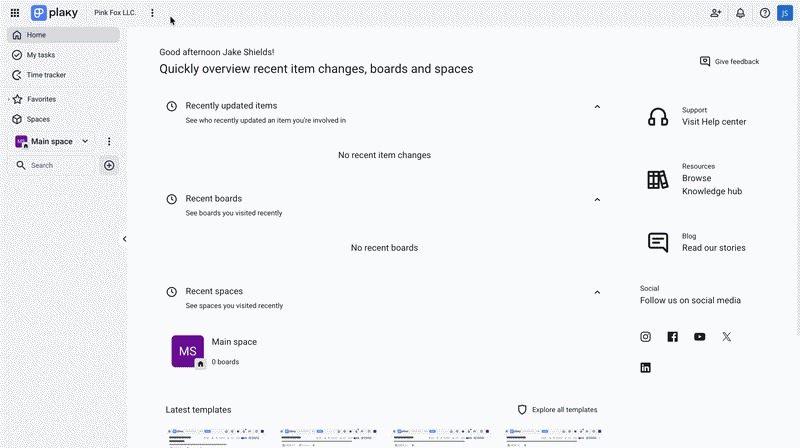
- Click on the three dots next to your Workspace name
- Select Subscription
- Click on the Plans tab
- Click Upgrade next to the plan you want
- Agree to terms
- Click Finish payment to complete the process
Billing for members of the Workspace #
When you subscribe to a paid plan, you’re billed for every active and pending Member and Admin in the Workspace at the moment (Viewers are not counted). The upgrade applies to the entire Workspace, and all Members gain access to paid features.
If all user seats are removed, you’re still billed for a minimum of one seat. To stop all charges, cancel the subscription or downgrade to the Free plan.
Adding new seats during your billing period #
If you are on a paid plan and add new seats during the billing cycle, we will charge you only for the duration they are utilized. We will handle the tracking for you and ensure that you are billed accordingly.
Downgrade your plan #
You can downgrade to a lower paid plan or back to Free at any time from your Subscription page. The downgrade takes effect at the end of your billing cycle, and you will keep paid features until then.
To downgrade your plan, follow these steps:
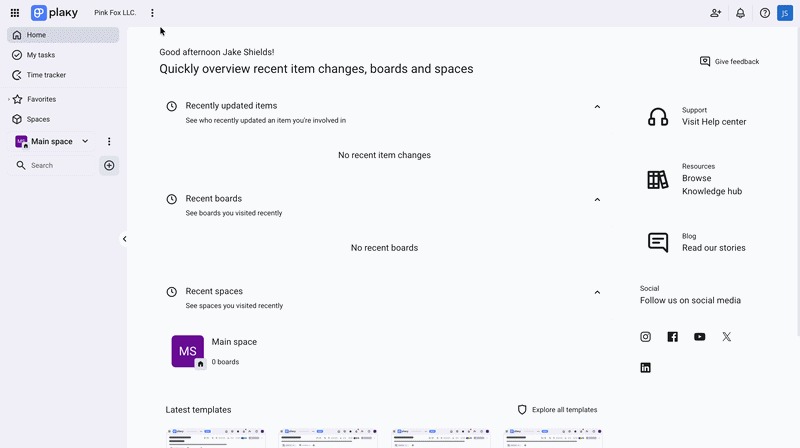
- Click on the three dots next to your Workspace name
- Select Subscription
- Click on the Plans tab
- Click Downgrade next to the plan you want
- Agree to terms
- Click Finish payment to complete the process
Changes that happen after downgrading #
| What’s affected? | What Plaky does automatically? | Actions you may need to do |
|---|---|---|
| Closed Spaces | Converted to Open Spaces | No action required |
| Private Boards | Converted to Public Boards | No action required |
| Board Permissions (Edit content/Add comments and files) | Reset to Edit everything Permission | No action required |
| Gantt View | Becomes locked | Delete the View or upgrade your plan |
| Board Fields (over 6) | Existing Fields remain visible | You cannot add new Fields until you upgrade |
| Unsupported Field types (e.g., Timeline on the Free plan) | Field remains visible but becomes read-only | Remove the Field or upgrade the plan to use it again |
| Viewer users | Viewers are logged out immediately | Change their user type or deactivate them |
If you upgrade back to a paid plan after downgrading, your Spaces and Boards are restored to their state before the downgrade.
Cancel your subscription #
Although we’re sorry you’re leaving Plaky, you’ll always have complete control over your subscription. If you think cancelling is the right choice, follow the process below for a quick, easy cancellation.
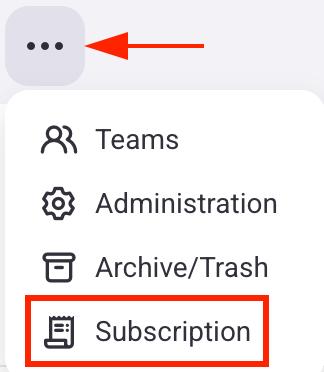
- Click on the three dots icon next to your workspace name
- Select Subscription from the dropdown menu
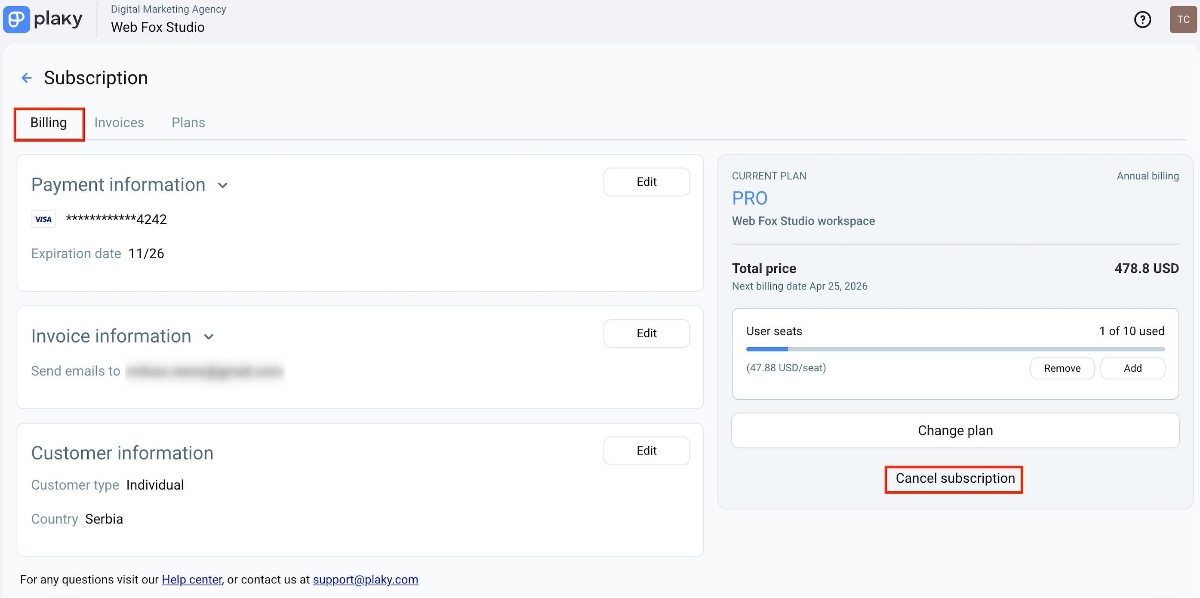
- Open the Billing tab
- Click on Cancel subscription
- Click Cancel subscription again to complete the action
Before cancelling, consider whether a lower plan might meet your needs. Downgrading to Pro is often a better fit than cancelling entirely.
What happens after cancellation? #
Cancelling a subscription does not delete your workspace or data. Here are the changes that happen:
- No more charges will be applied after your current billing period
- You can keep using paid features until the end of your current billing cycle
- You’ll be automatically switched to the Free plan after the paid period ends
- All your previous invoices are still available for download
- All your data stays safe — Plaky doesn’t delete anything unless you choose to remove your workspace or CAKE.com account
- You can add additional seats and pay for them separately
Subscription changes don’t affect your content or data. However, after cancellation, changes to the Customer info tab will no longer be possible.
Everything above applies if you cancel your Bundle subscription as well. To learn more about the Bundle subscription plan and how it works, check out this article.
If you have any difficulties with cancellation, please reach out to our support team or leave feedback in our Help Center.