
Plaky API overview
2 min read
Who can use this feature?
Owners, Admins, Members
Available on all plans
By using Plaky’s API documentation, you can integrate Plaky with other apps. In this article, we will show you how to generate a unique key and show you what you can do with it.
What can you do with a Plaky API? #
With Plaky’s API, you can do the following things:
Item comments:
- Update Item comments
- Delete Item comments
- Get Item comments
- Create Item comments
- Update Item comment reactions
Items/Subitems:
- Create Item
- Change Item attribute values
- Get Item ID
- Delete Item
Generate API key #
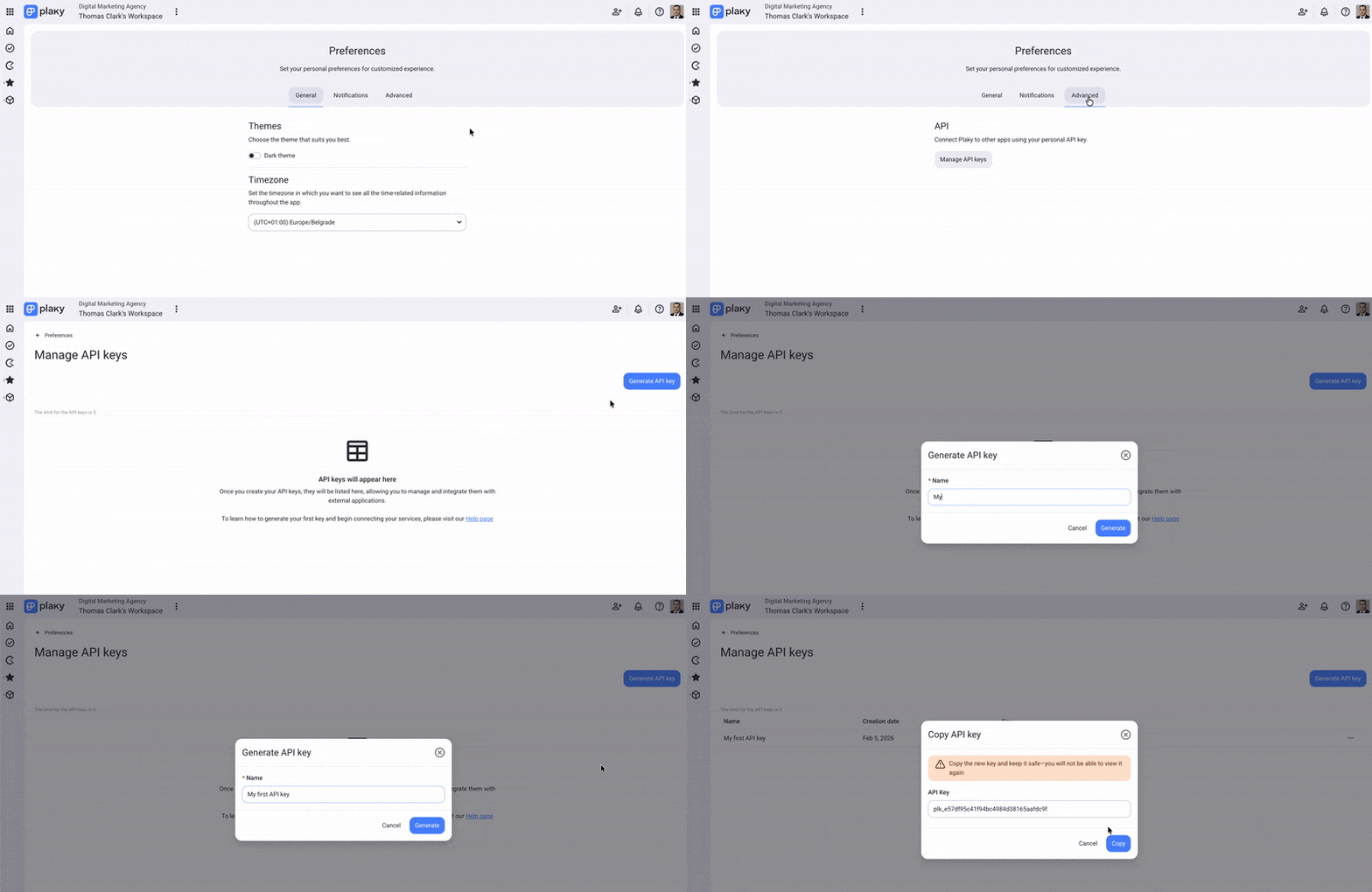
Here’s how you can generate an API key:
- Click on your profile picture in the top right corner
- Select Preferences
- Select the Advanced tab
- Click on Manage API keys
- Click on Generate API key
- Enter the key name
- Click Generate
Rename API key #
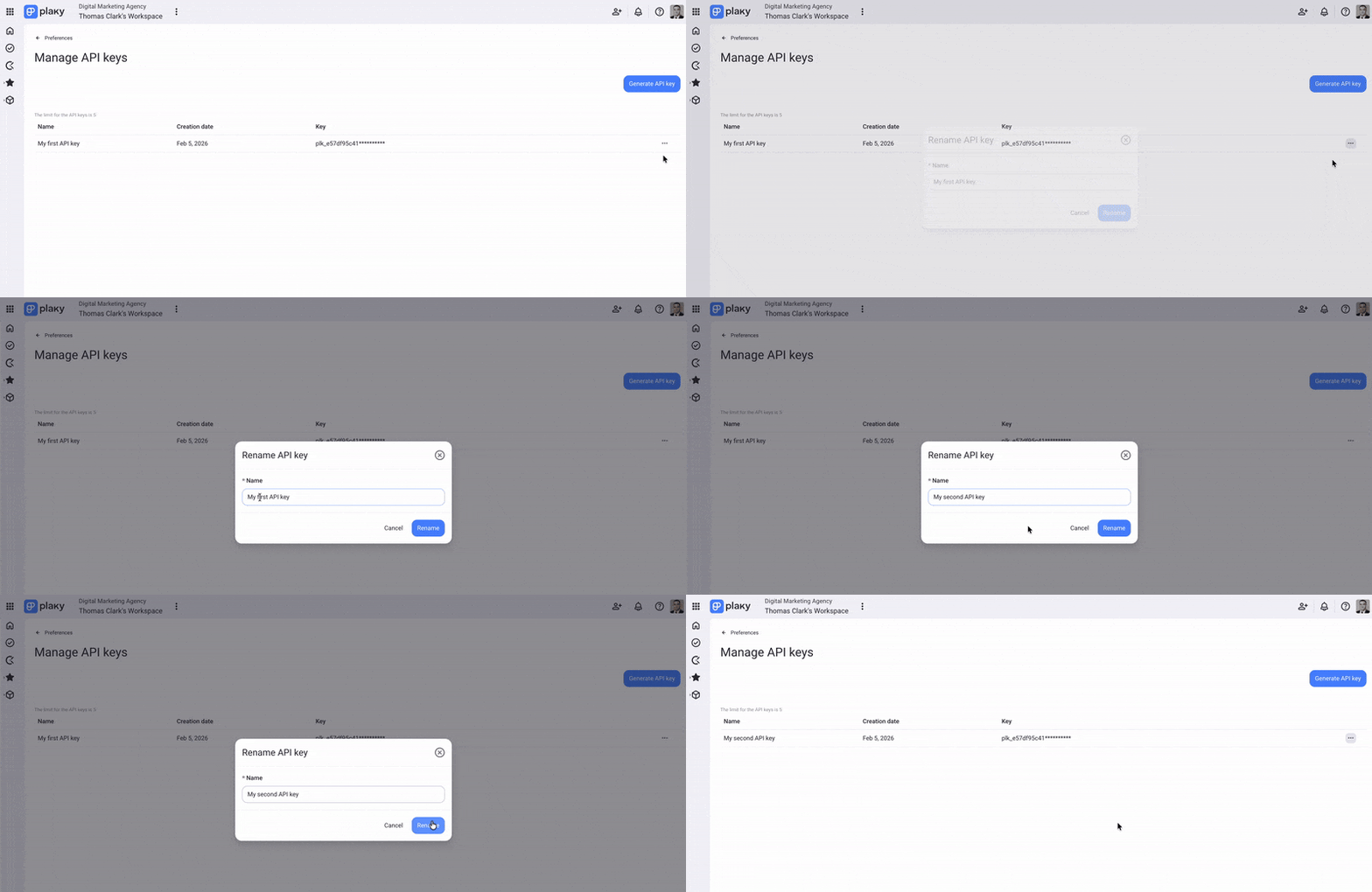
You can change the name of your API key without changing the key value.
Here’s how to do it:
- Click on the three dots on the right side of your key
- Select Rename and insert the new name
- Click on Rename to confirm the action
Delete API key #
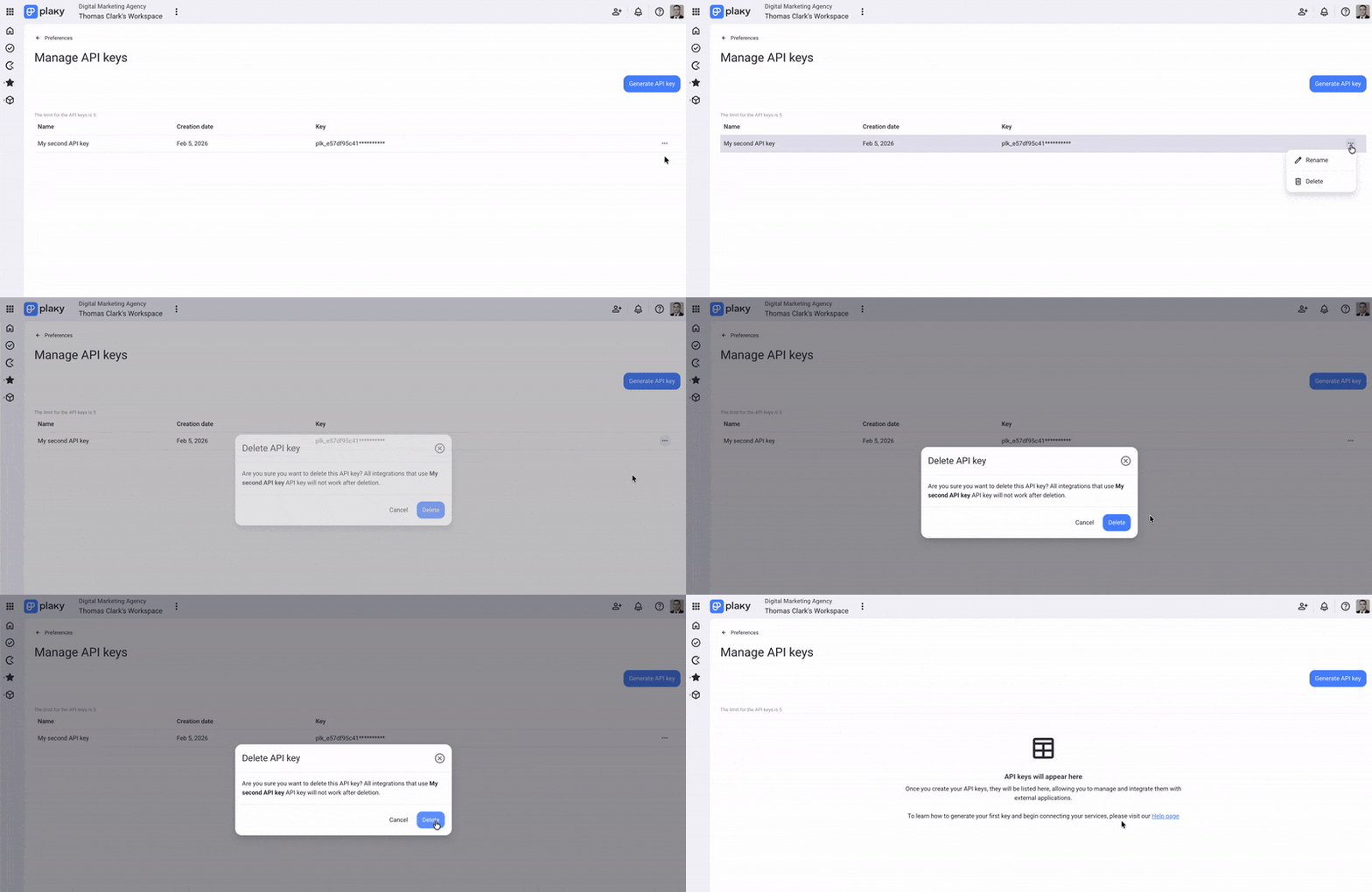
Deleting an API key removes it from your workspace.
Here’s how to do it:
- Click on the three dots on the right side of your key
- Select Delete
- Click on Delete to confirm the action
Was this article helpful?
Thank you! If you’d like a member of our support team to respond to you, please drop us a note at support@plaky.com