Ready to migrate from monday.com to Plaky by CAKE.com? The whole process won’t take longer than one morning.
This guide covers the full monday.com data migration:
- Exporting a monday.com board to Excel
- Cleaning the file
- Finishing the monday.com import into Plaky
You’ll also see what transfers, what doesn’t, and how to handle subitems.
Let’s get into it.
- To export a monday.com board to Excel, click the 3-dot menu, then More actions, and choose Export board to Excel. One export covers up to 10,000 items.
- Plaky imports CSV files, so clean the Excel file, and save it as CSV file first.
- Plaky limits each CSV import to 1,001 rows, 10 MB, 18 status values, and 20 groups.
- Subitems, dashboards, automations, and non-table views don’t transfer.
- Plaky takes one CSV file per board at a time. Use a full account export for several boards.
Before you start: What moves to Plaky
When you migrate from monday.com, your items and column values move. The workspace around them doesn’t.
Check Plaky’s limits first, because they decide whether your board needs splitting.
| Plaky CSV import limit | Value |
|---|---|
| Rows per CSV file | 1,001 |
| File size | 10 MB |
| Status values | 18 (extra values are skipped) |
| Item groups | 20 (extra groups land in the last group) |
| CSV uploads per board | 1 at a time |
| Subitems | Not imported |
Plaky’s Free plan also allows 6 fields per board, while Pro, Business, and Enterprise are unlimited. CSV columns beyond your plan’s field limit are disabled during mapping.
What transfers:
- Items, as rows
- Group names, through a CSV column
- Status, People, Date, Timeline, Text, and Numbers column values
What doesn’t transfer:
- Subitems
- Board views such as Kanban, Timeline, Calendar, and Chart
- Dashboards
- Automations
- Sorting, grouping, and conditional coloring
- Files and comments
💡 PLAKY PRO TIP
To understand how different Plaky plans work and how much they cost, check out this article:
How to export data from monday.com
To migrate from monday.com and import data into Plaky, follow the next 6 steps.
#1: How to export a monday.com board to Excel
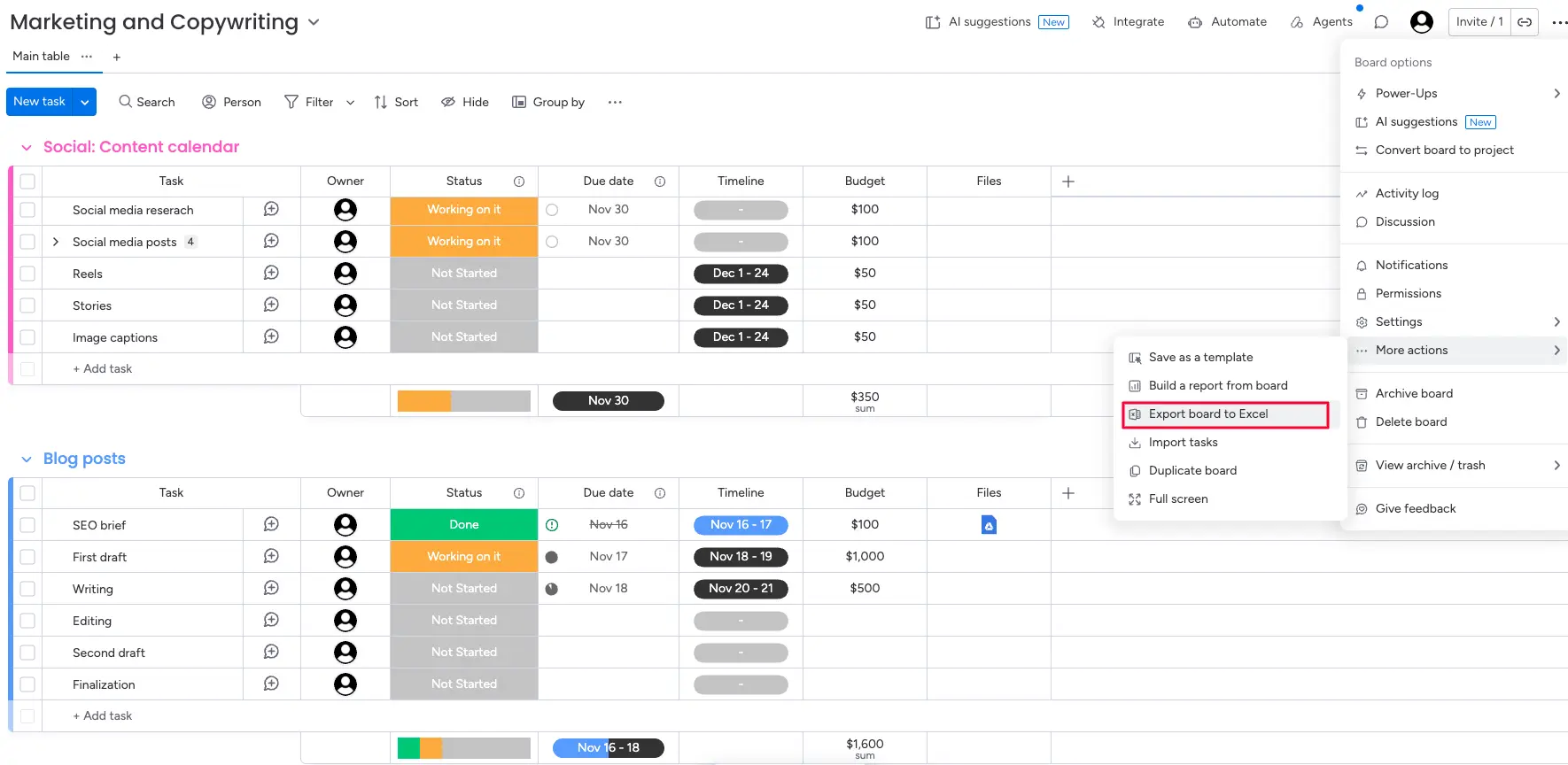
To export a monday.com board to Excel, open the board, and click the 3-dot menu in the top-right corner.
Choose More actions, and from there, Export board to Excel. Then click Export in the window that appears.
In that window, you can include Subitems and Item updates. Include Subitems if you plan to use the workaround mentioned above.
Keep these rules in mind:
- You can only export Table views. Kanban, Timeline, Calendar, and Chart views can’t be exported.
- Active filters limit the export. Clear them first to export every item.
- One export covers up to 10,000 items. For larger boards, filter and export in batches.
#2: Clean up the Excel file and save it as CSV
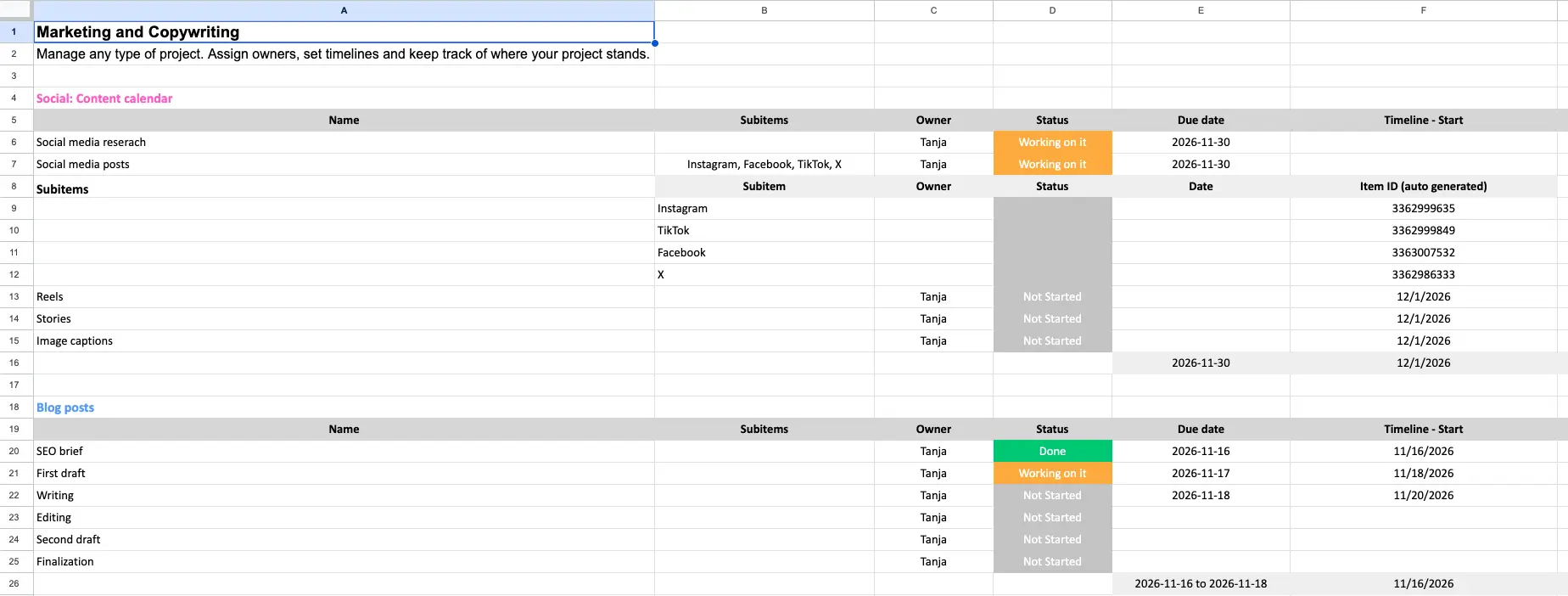
monday.com’s Excel file includes extra rows that break the import process to Plaky. Remove them before converting:
- Remove the header block.
- Delete the Board title row as well as all empty rows. They sit between the board description and the first group, and between groups.
- Delete the summary rows that monday.com adds to each group.
- Save the Excel file as CSV: go to File, Save As, and pick CSV.
Tip: monday.com offers Excel export only, there’s no CSV option. Since Plaky imports CSV files only, you need to save the cleaned file as CSV, whatever format you started with.
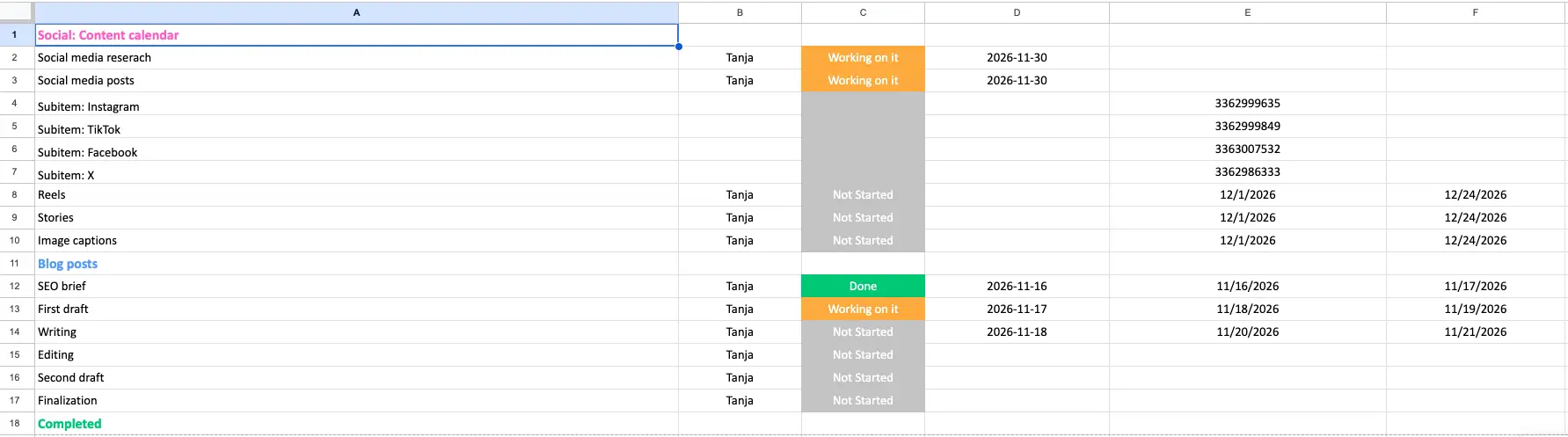
This is how a cleaned up sheet looks like.
#3: Upload your CSV (monday.com import into Plaky)
First, choose a destination: a new board or an existing one.
For a new board:
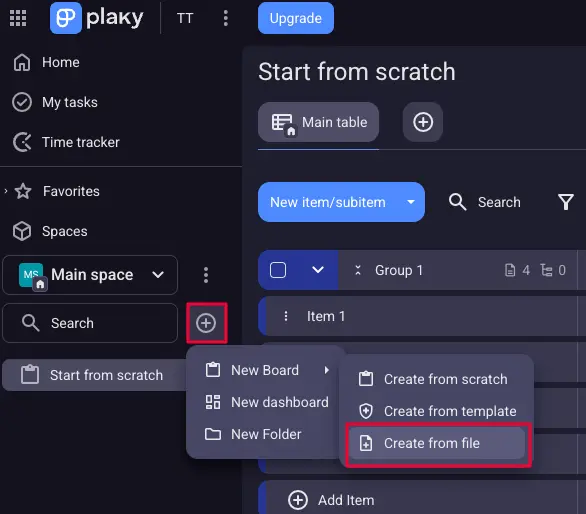
- Click + next to Search, under the Main space.
- Select New Board.
- Click Create from file.
- Select your CSV file and click Open.
For an existing board:
- Click the 3 dots in the top-right corner to open the Board menu.
- Select Import from CSV.
- Select your CSV and click Open.
Plaky takes one CSV upload per board at a time. Start the next import only after the first finishes.
If your file passes 1,001 rows or 10 MB, split it into several CSV files, and import them one by one. For the full reference, see Plaky’s help article on how to Import CSV data to a Board.
Create boards in Plaky for free
#4: Preview the table and set the delimiter
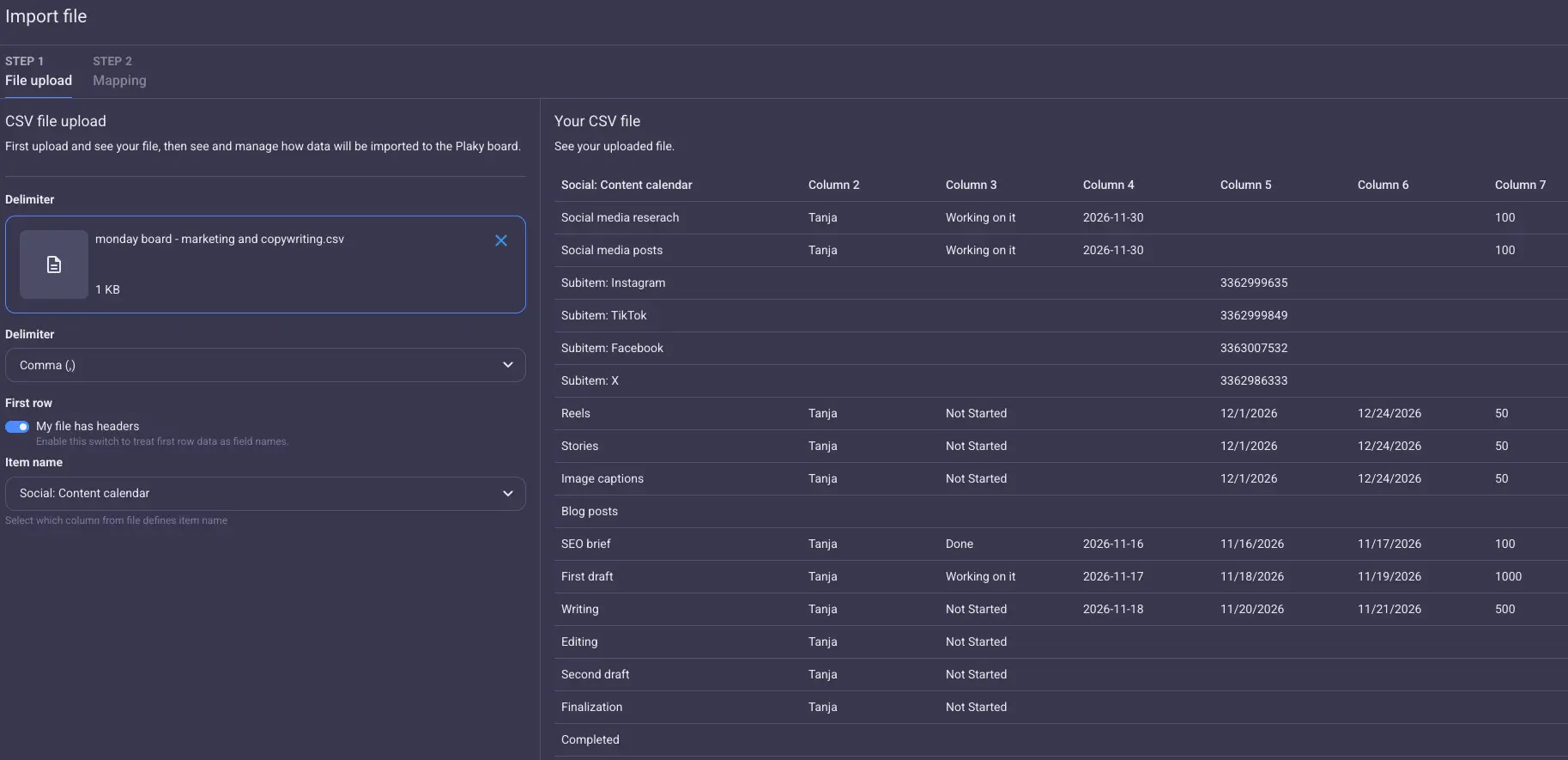
After the upload, Plaky shows a preview table on the right. Check that it’s the right file.
Then set 3 options:
- Delimiter — Plaky uses a comma by default. Switch to tab, pipe, space, or semicolon if your file uses one.
- Headers — Tell Plaky whether the first row holds headers.
- Item name — Select the column that defines item names. If you don’t, Plaky will use the first column.
#5: Map monday.com columns to Plaky fields
In a monday.com CSV import, you match each CSV column to a Plaky field. Use this table as your guide.
| monday.com column | Plaky field | What to know |
|---|---|---|
| Status | Status | Up to 18 values. Extras are skipped. |
| People | Assignee | Needs users in Plaky to assign them. |
| Date | Due date or Date | Needs valid dates. Text mapped to date field is skipped. |
| Timeline | Timeline | Paid plans only. Text mapped to a timeline field is skipped. |
| Text | Text | Letters and numbers both work. |
| Numbers | Number | Text mapped to a number field is skipped. |
It’s time to define the Item names. To do that, you have to specify the field from the CSV file that defines them.
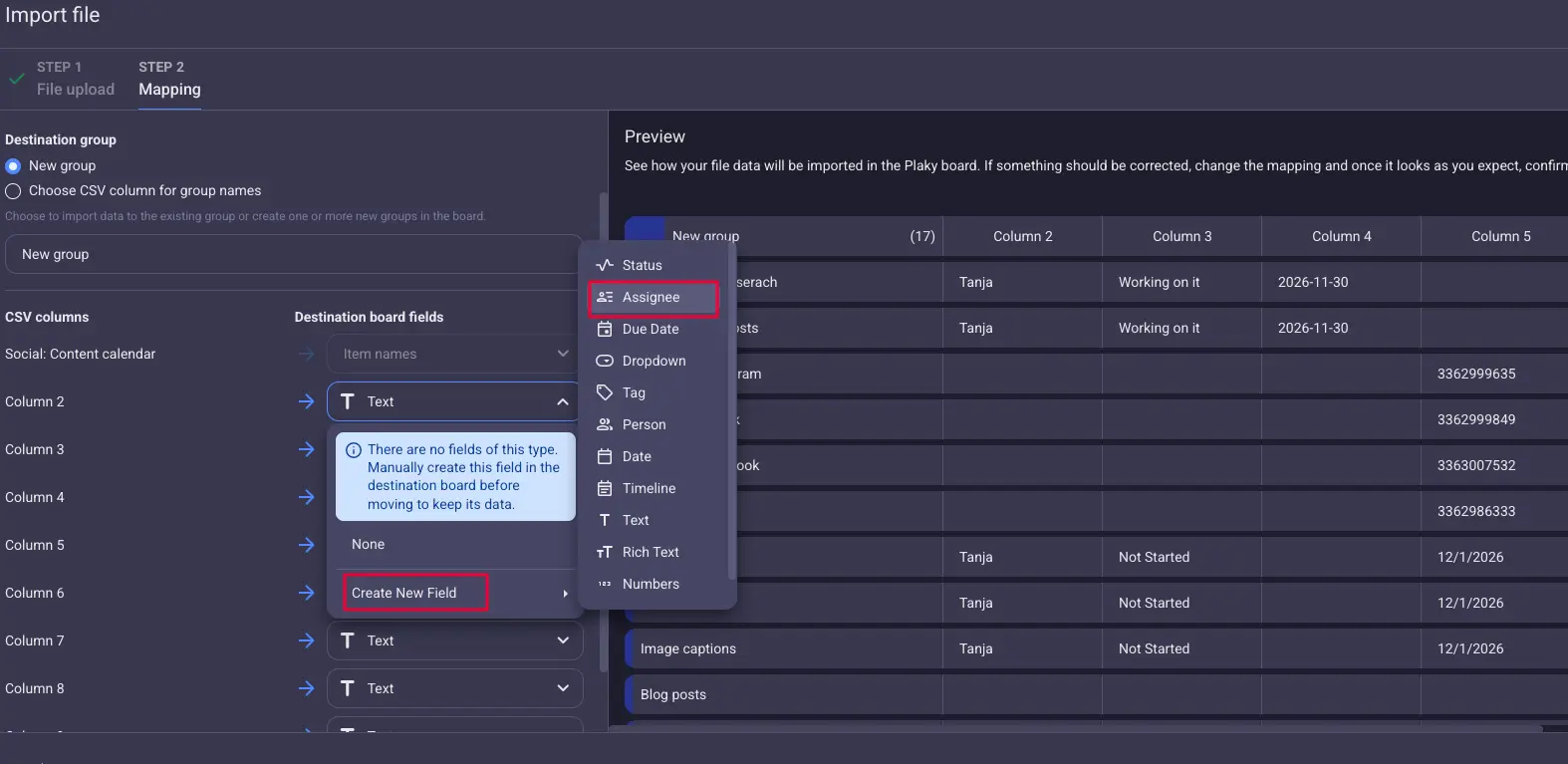
First, pick the destination group: a new group (type a name) or a CSV column for group names. Plaky creates up to 20 groups.
Then, for each CSV column, pick an existing field, create a new one, or choose None.
Mapping rules:
- Each field maps to one CSV column.
- A board has one Status, one Assignee, and one Due Date field.
- Unmapped columns are lost.
- Item name and group name mappings can’t be changed.
Once you are sure you’ve defined the basic info about your CSV file, you can move to the next step, which is to finish the import.
#6: Finish the import and verify
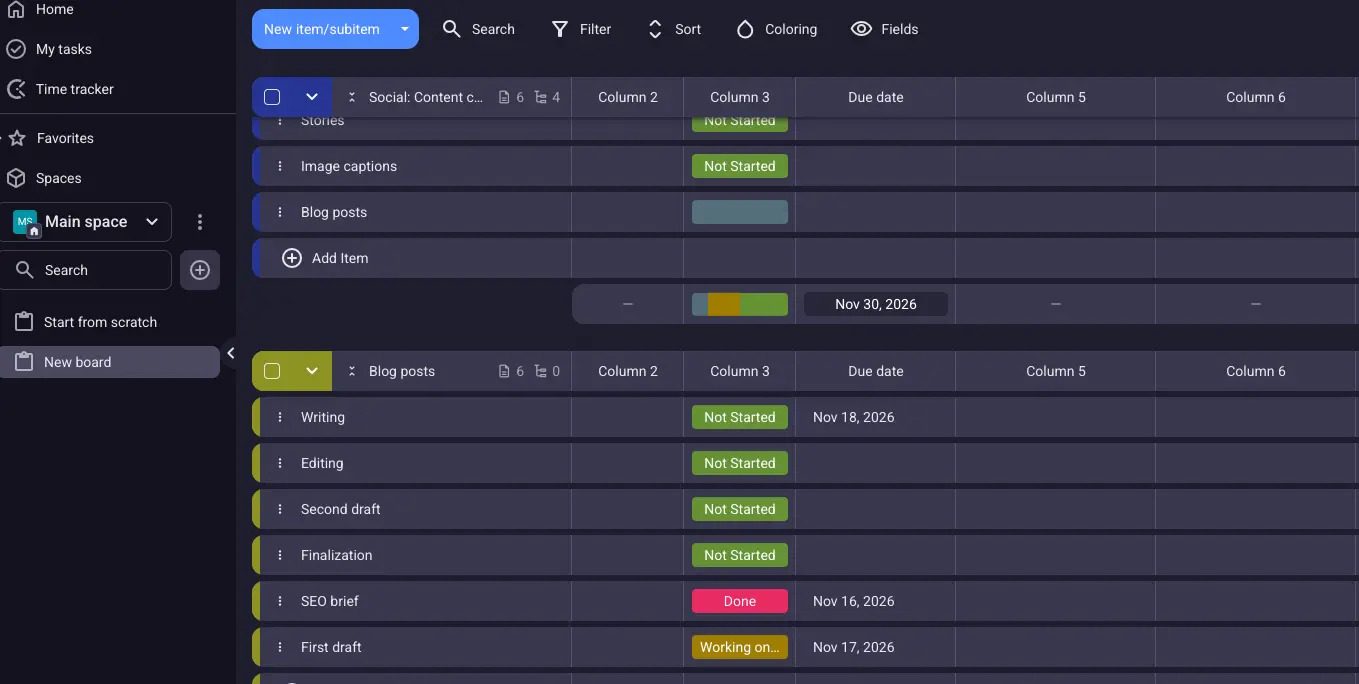
Review the mapped columns, then click Finish import. Depending on data volume, the import takes from 1 minute to an hour or more.
Then verify:
- The item count matches the source board.
- All groups exist.
- Status values, dates, and assignees landed in the right fields.
Tip: To rearrange Items afterward, use bulk actions, available on Pro, Business, and Enterprise. To adjust columns, customize your fields. If some groups get lost, you can easily create them and bulk move the imported items to them.
Customize fields to fit your needs
How to handle Subitems
Plaky can’t import Subitems from CSV. However, that doesn’t mean you can’t move your monday.com board Subitems to Plaky. Here’s what you should do:
- Include Subitems when you export your monday.com board.
- Clean up the Excel file by stating the Subitem right below the parent Item to make things easier for you later on.
- Import those rows as regular items into Plaky, and quickly bulk convert them into Subitems of the parent Item.
Here’s how your Subitems should look in your Excel sheet.
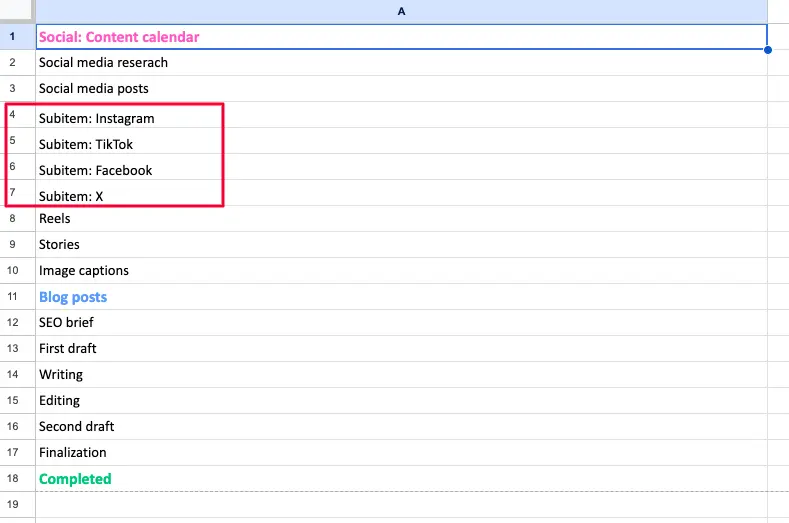
And here’s how to use the bulk edit option to convert them into Subitems in Plaky.

Moving several boards or a whole account
To export data from monday.com for many boards at once, use a full account export. Only account admins can run it.
The result is a zip with all boards and files, including private and shareable boards. According to monday.com’s documentation, it excludes archived boards and workdocs.
Then work board by board: open each file, clean it as in Step 2, save it as CSV, and import it. Plaky takes one CSV upload per board at a time.
Why teams are moving off monday.com
Cost and complexity are the usual triggers for users leaving monday.com. Here are the facts on how much monday.com costs:
- Plans start at 3 seats and then rise in multiples of 5, so, for example, a team of 6 pays for 10 seats.
- Extra AI credits cost $10 per 1,000. This credit model applies to accounts that joined on or after May 6, 2026.
- The Standard plan includes 250 automation actions a month, without the option to buy more.
On the other hand, Plaky’s Free plan has unlimited users and boards. Pro plan costs $3.99 per seat per month, billed annually, and includes 1,000 automation actions a month. We covered the Plaky vs. monday.com comparison in detail for further reading.
💡 PLAKY PRO TIP
Still comparing? Read the following articles to get a better understanding of different apps and their prices:
If anything goes sideways, Plaky’s support team is available 24/7 on all plans.
Ready to switch? Sign up for Plaky and import your first board today. It’s a free monday.com alternative with unlimited users and boards.

FAQs about importing Excel files
Here are some of the frequently asked questions in regard to importing data from one app to another in Excel and CSV formats.
Is an Excel file XLS or XLSX?
Excel files use either extension — so both XLS and XLSX. XLS is the older binary format from Excel 97–2003. XLSX is the newer XML-based format, the default since Excel 2007. For instance, monday.com uses XLSX for their board export.
Are XLSX and XLS the same?
No, XLSX and XLS aren’t completely the same. They hold similar data but use different file structures. XLSX is XML-based and supports up to 1,048,576 rows per sheet. XLS supports up to 65,536.
Is XLSX better than CSV?
For editing, yes, XLSX is better than CSV. XLSX keeps formatting, formulas, and multiple sheets. For importing into Plaky, however, no, XLSX isn’t better than CSV. Plaky imports CSV, so save as CSV regardless.
Comece a usar o Plaky da CAKE.com
Como revisamos esta publicação: Nossos redatores e editores monitoram as publicações e as atualizam quando novas informações são disponibilizadas, para mantê-las atualizadas e relevantes.