Cuando la comunicación no es clara, los proyectos pueden fracasar. Una actualización rápida se pierde, el feedback llega tarde y se termina trabajando con información incompleta.
Plaky by CAKE.com resuelve el problema de la comunicación con funciones integradas que permiten una colaboración rápida y eficiente, sin necesidad de cambiar de aplicación.
Sigue leyendo para descubrir más sobre la comunicación en Plaky y cómo sacar el máximo de sus funciones.
Por qué es importante la comunicación en la gestión de proyectos
El problema de la mayoría de los equipos no es la escasez de comunicación, sino que esta se encuentra desvinculada del trabajo que se realiza.
Cuando las conversaciones se producen fuera de la herramienta de colaboración principal, el equipo pierde el contexto, repite las mismas preguntas y dedica tiempo a buscar información en lugar de trabajar.
Mantener la comunicación dentro de Plaky soluciona este problema al vincular cada mensaje a una tarea específica.
Con Plaky, la comunicación se vuelve:
- Basada en tareas: cada conversación está vinculada a una parte específica del trabajo.
- Transparente: las actualizaciones y decisiones son visibles para todo el equipo.
- Buscable: ya no es necesario buscar entre los mensajes para encontrar detalles clave.
- Documentada: las conversaciones pasan a formar parte del historial del proyecto.
- Asíncrona: los equipos pueden colaborar sin necesidad de estar online al mismo tiempo.
Esta estructura ayuda a los equipos a evitar malentendidos y mantiene a todos alineados, incluso en proyectos más complejos.
Funciones de Plaky que permiten una comunicación eficaz
En lugar de depender de herramientas externas, Plaky te permite gestionar todo, desde preguntas rápidas hasta ciclos de feedback detallados, directamente en tu espacio de trabajo.
Estas son las funciones clave de Plaky que transforman las actualizaciones en una comunicación estructurada y significativa.
Comentarios en las tareas para mantener cada conversación en contexto
Los comentarios en las tareas son el punto de partida de la discusión en Plaky. Permiten que tu equipo se comunique directamente dentro de la tarea, lo que mantiene cada mensaje vinculado al trabajo en cuestión.
Con los comentarios de Plaky, puedes:
- Hacer preguntas para aclarar dudas sin iniciar una conversación separada,
- Compartir actualizaciones a medida que avanza el trabajo,
- Proporcionar feedback visible para todos los involucrados, y
- Resolver problemas sin perder el rastro de las decisiones.
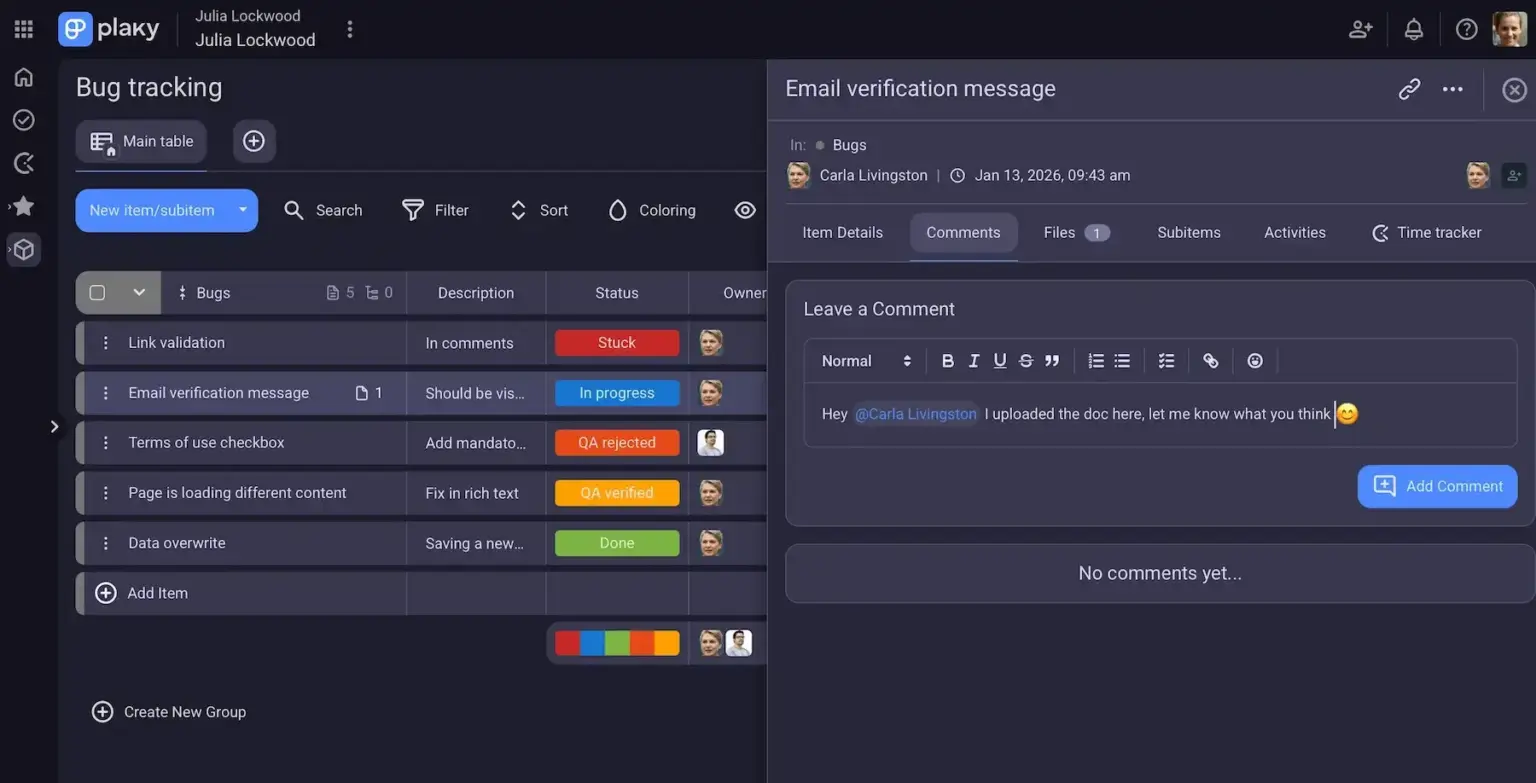
Por ejemplo, imagina que un miembro del equipo olvidó adjuntar los archivos de diseño a una tarea. Una forma de solicitarlos sería enviar un mensaje o correo electrónico indicando a qué tarea te refieres. Una mejor opción es comentar directamente en esa tarea en Plaky y solicitar los archivos. De esta manera, mantienes la solicitud, la respuesta y toda la información relacionada con la tarea en un solo lugar. Esto mejora la colaboración y crea un registro de la evolución de la tarea.
Agiliza la colaboración con Plaky
Menciones y etiquetas a compañeros para comunicarse directamente
A veces, necesitas involucrar a personas específicas sin notificar a todo el equipo. Para eso sirven las menciones de Plaky.
Al etiquetar a tus compañeros en los comentarios, creas una línea de comunicación eficaz y específica.
Las menciones te ayudan a:
- Incorporar a las personas adecuadas a la conversación al instante,
- Asegurarte de que las actualizaciones importantes no pasen desapercibidas, y
- Evitar distracciones innecesarias para el resto del equipo.
Por ejemplo, si un diseñador necesita la opinión de un gerente de producto, simplemente puede mencionarlo en la tarea. El gerente de producto recibe una notificación y puede responder directamente en el mismo contexto.
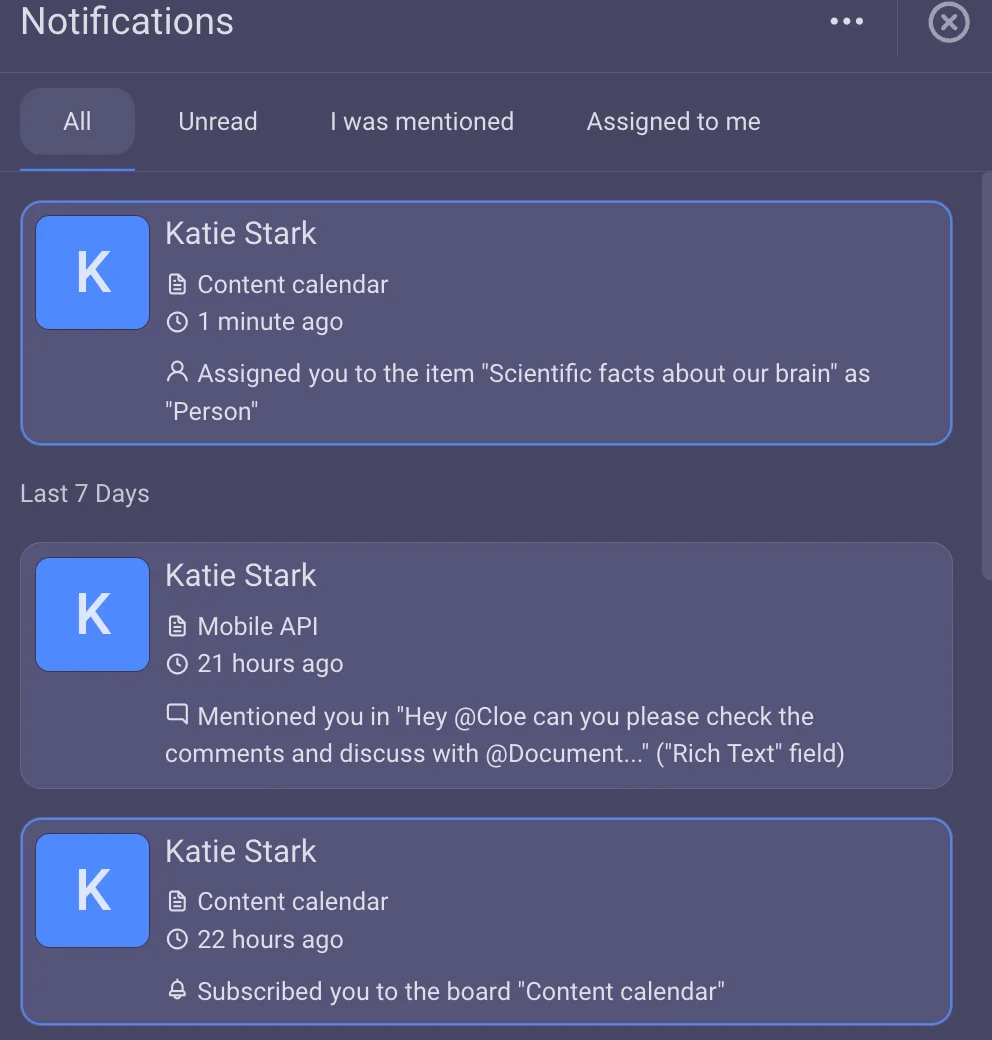
Esto mantiene la comunicación enfocada y evita que las personas relevantes pasen por alto detalles importantes.
Compartición de archivos para tener todo en un solo lugar
Compartir archivos es fundamental para la colaboración, y Plaky facilita adjuntar cualquier archivo que necesites directamente a una tarea.
En lugar de enviar archivos por correo electrónico o chat, puedes subirlos donde corresponda. Esto incluye:
- Documentos e informes
- Recursos visuales como imágenes o diseños
- Informes u hojas de cálculo
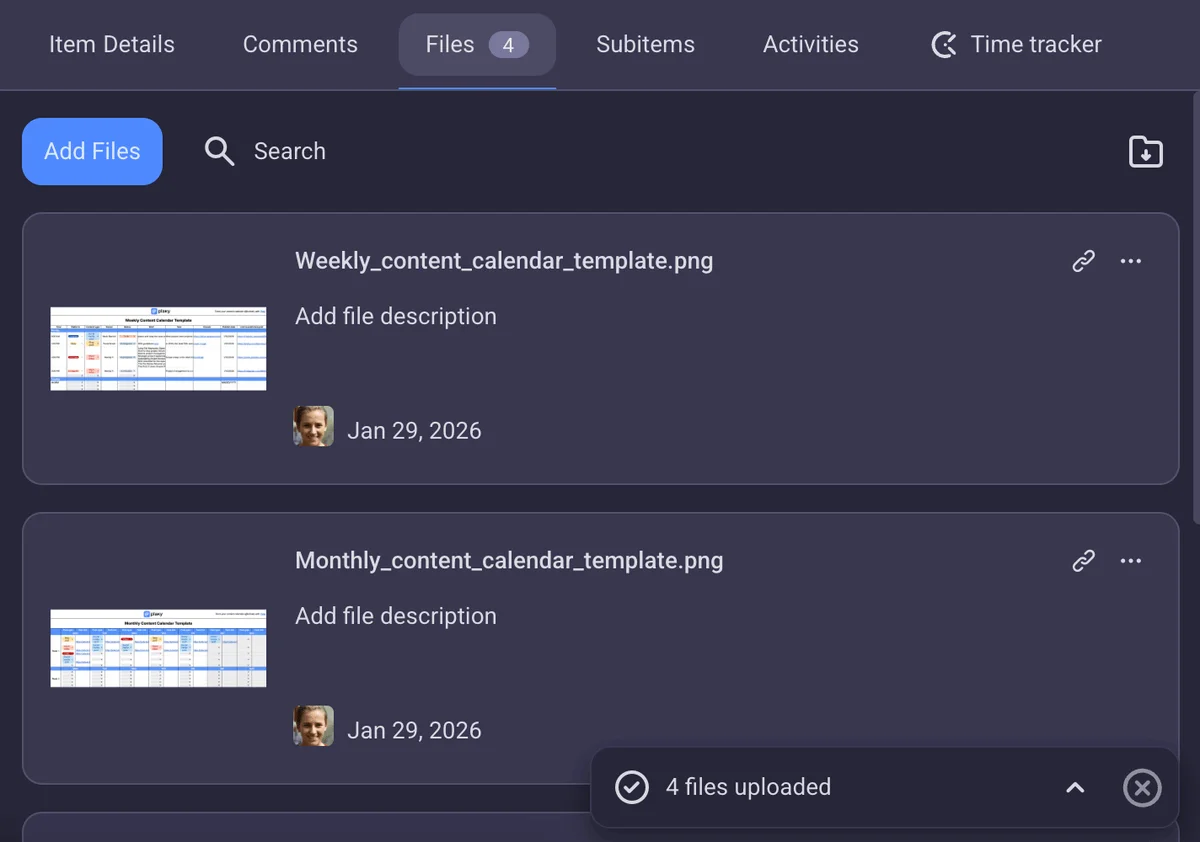
Por ejemplo, un equipo de marketing que trabaja en una campaña puede adjuntar todos los recursos a una sola tarea. Textos, imágenes, diseño e informes se almacenan juntos, lo que facilita y organiza la colaboración.
Cuando los archivos se adjuntan a las tareas correspondientes, tu equipo siempre sabe dónde encontrarlos.
Descripciones de tareas como documentación de responsabilidades
Las descripciones de tareas son la mejor fuente de información para cada tarea. Puedes usarlas para definir:
- Requisitos de la tarea,
- Alcance y expectativas,
- Instrucciones, y
- Entregables clave.
Una descripción clara reduce la necesidad de explicaciones repetidas y ayuda a que todos comiencen con la misma comprensión.
Por ejemplo, en lugar de explicar la tarea varias veces en mensajes, un líder de equipo puede escribir un resumen detallado en la descripción de la tarea. Cualquier persona asignada a la tarea puede consultarlo en cualquier momento.
Este enfoque mejora la coherencia, agiliza el flujo de trabajo y garantiza que no se pase por alto nada importante.
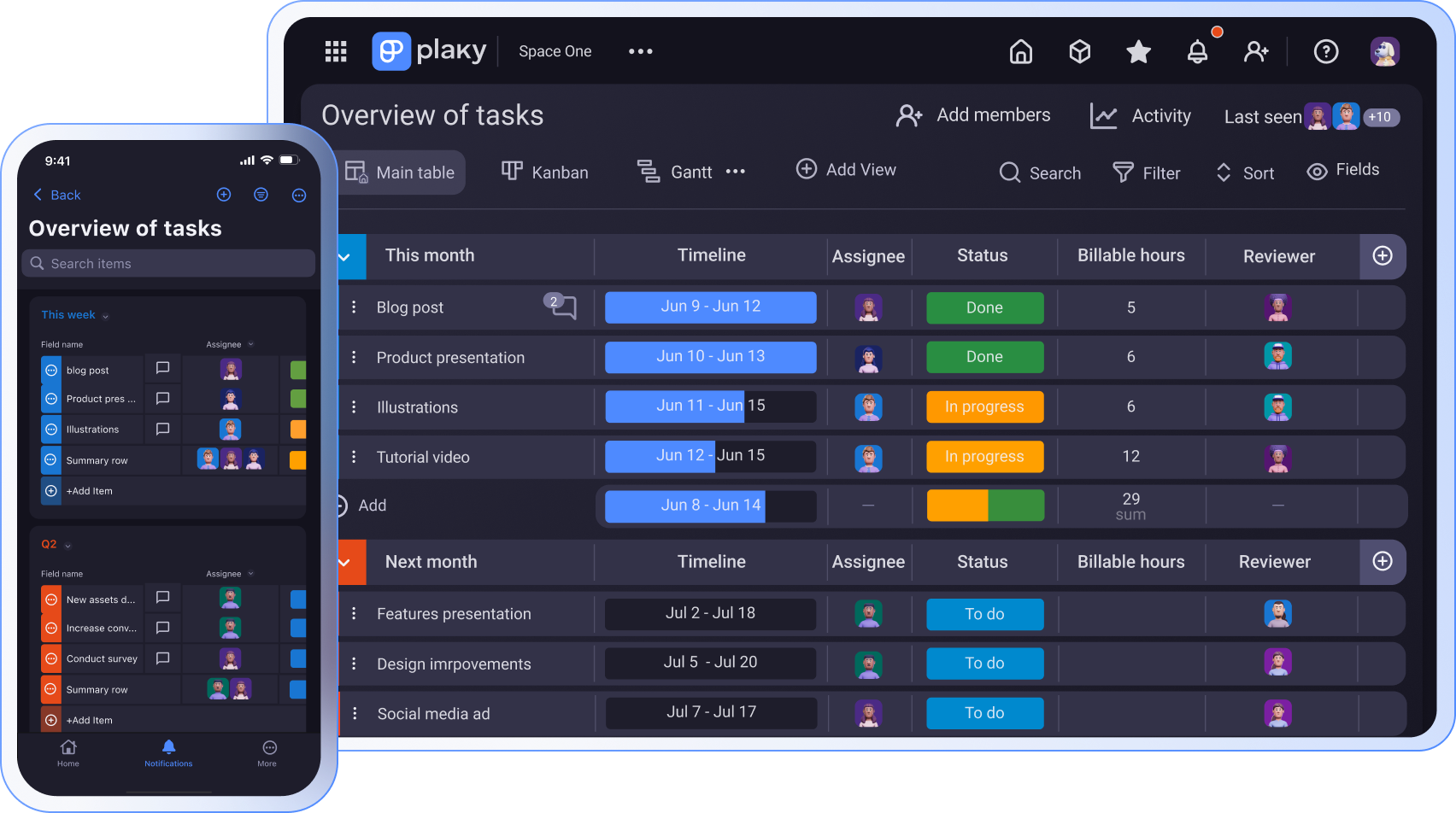
Actualizaciones de estado y seguimiento de actividad para una recopilación de información rápida
Una comunicación eficaz a veces implica saber qué está sucediendo sin necesidad de preguntar.
Plaky ofrece actualizaciones de estado y seguimiento de actividad integrados, brindándote visibilidad completa del progreso de las tareas.
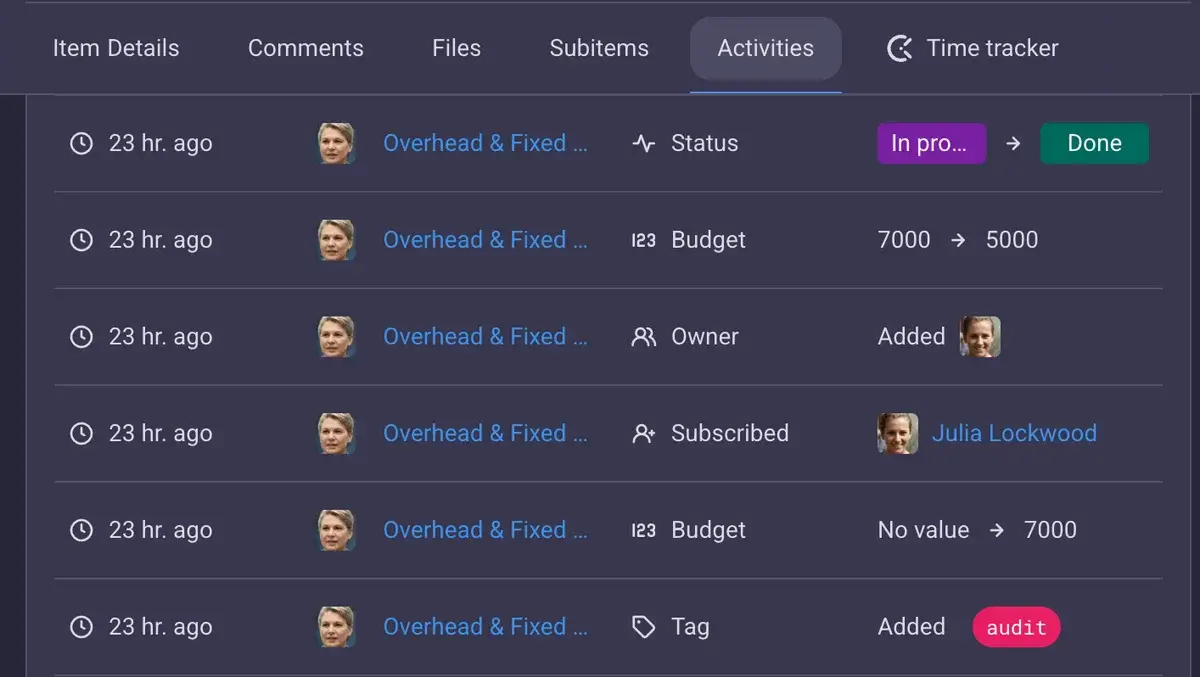
Con funciones como:
- Cambios de estado de las tareas,
- Registros de auditoría detallados,
- Diferentes vistas del tablero, y
- Fila de resumen,
puedes hacer un seguimiento de:
- Quién realizó los cambios,
- Qué se actualizó exactamente, y
- Cuándo se realizaron las actualizaciones.
Esto es especialmente útil para equipos grandes o proyectos complejos con varios colaboradores.
En lugar de tener que solicitar actualizaciones, los miembros del equipo pueden consultar el registro de actividad en Plaky y obtener una visión general clara de lo que se ha hecho.
Controla el progreso del proyecto con Plaky
Campos personalizados para una comunicación estructurada
No toda la comunicación tiene que hacerse mediante comentarios. Alguna información se presenta mejor de forma estructurada con los campos personalizados de Plaky.
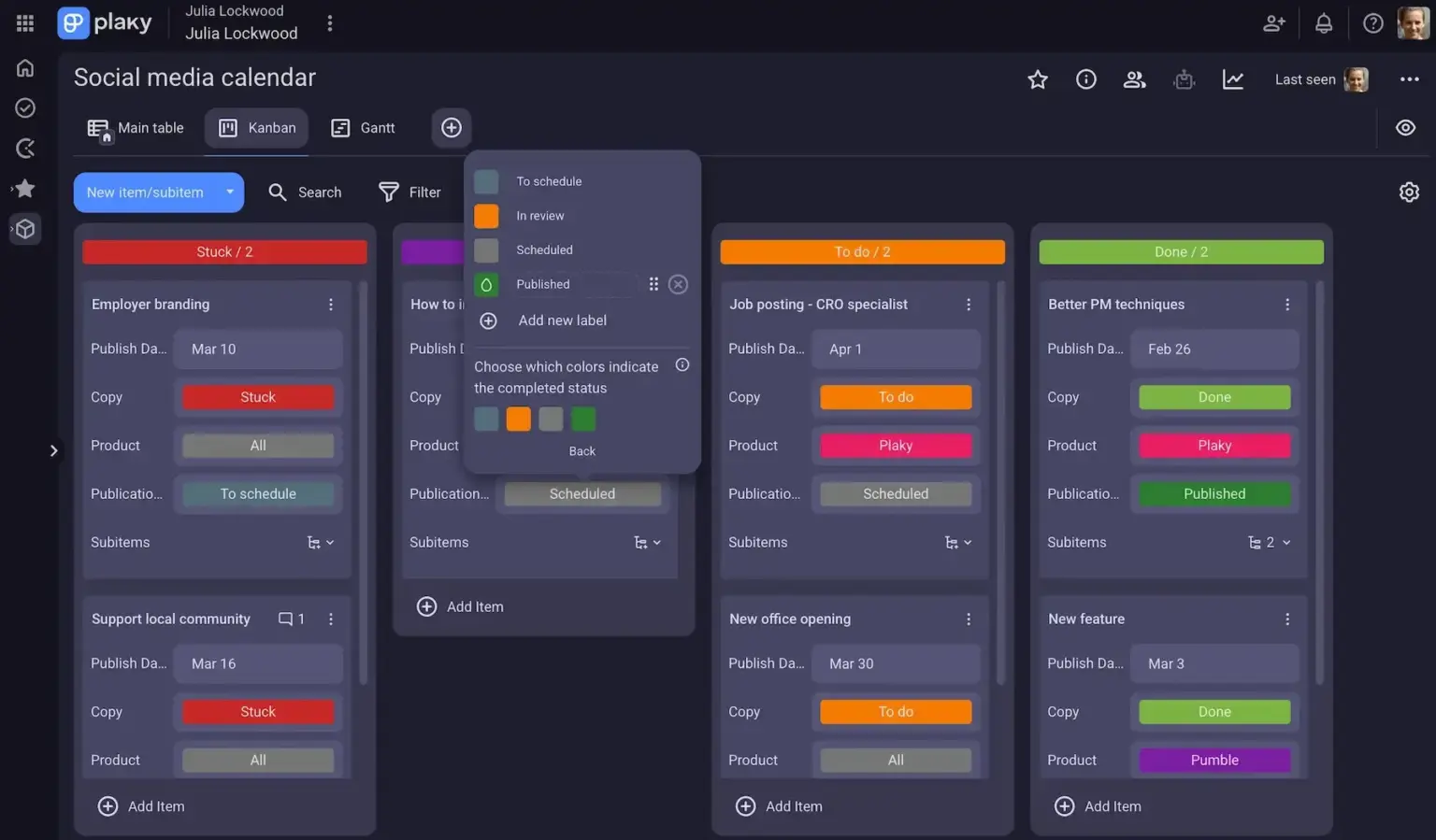
Los campos personalizados de Plaky te permiten estandarizar detalles importantes como:
- Niveles de prioridad
- Tipo de tarea
- Fechas límite
- Responsabilidad
Por ejemplo, en lugar de preguntar “¿Es urgente?" o “¿Quién es el responsable?”, esa información ya está visible en la tarea.
Esto reduce la comunicación innecesaria y facilita la comprensión de la visión general del proyecto de un vistazo.
Cuándo Plaky by CAKE.com es eficaz para la comunicación (y cuándo no es)
Plaky cubre la mayoría de las necesidades de comunicación diarias, especialmente en lo que respecta al trabajo estructurado y relacionado con tareas.
Las funciones de comunicación de Plaky son ideales para:
- Comunicación asíncrona,
- Discusiones sobre tareas y ciclos de feedback,
- Documentación de decisiones y actualizaciones, y
- Visión general del proyecto clara y organizada.
Esto lo hace ideal para equipos que quieren mantenerse concentrados y evitar interrupciones constantes. Además, funciona mejor para equipos y proyectos altamente independientes donde los miembros del equipo pueden concentrarse en sus propias tareas.
Sin embargo, existen situaciones en las que la comunicación en tiempo real es más eficaz, como por ejemplo:
- Sesiones de lluvia de ideas
- Aclaraciones urgentes
- Discusiones dinámicas que requieren participación inmediata
En estos casos, usar una herramienta de chat puede ahorrar tiempo y facilitar el flujo de ideas.
Integración de Plaky con Pumble para una solución completa de comunicación y colaboración
Para facilitar tanto la comunicación estructurada como la comunicación en tiempo real, Plaky se integra con Pumble by CAKE.com, una herramienta de chat para equipos diseñada para una comunicación sencilla.
Como herramienta de comunicación integral, Pumble ofrece funciones asíncronas y síncronas, como:
- Canales e hilos
- Mensajes directos
- Videoconferencias
- Llamadas de voz
- Mensajes de voz y vídeo
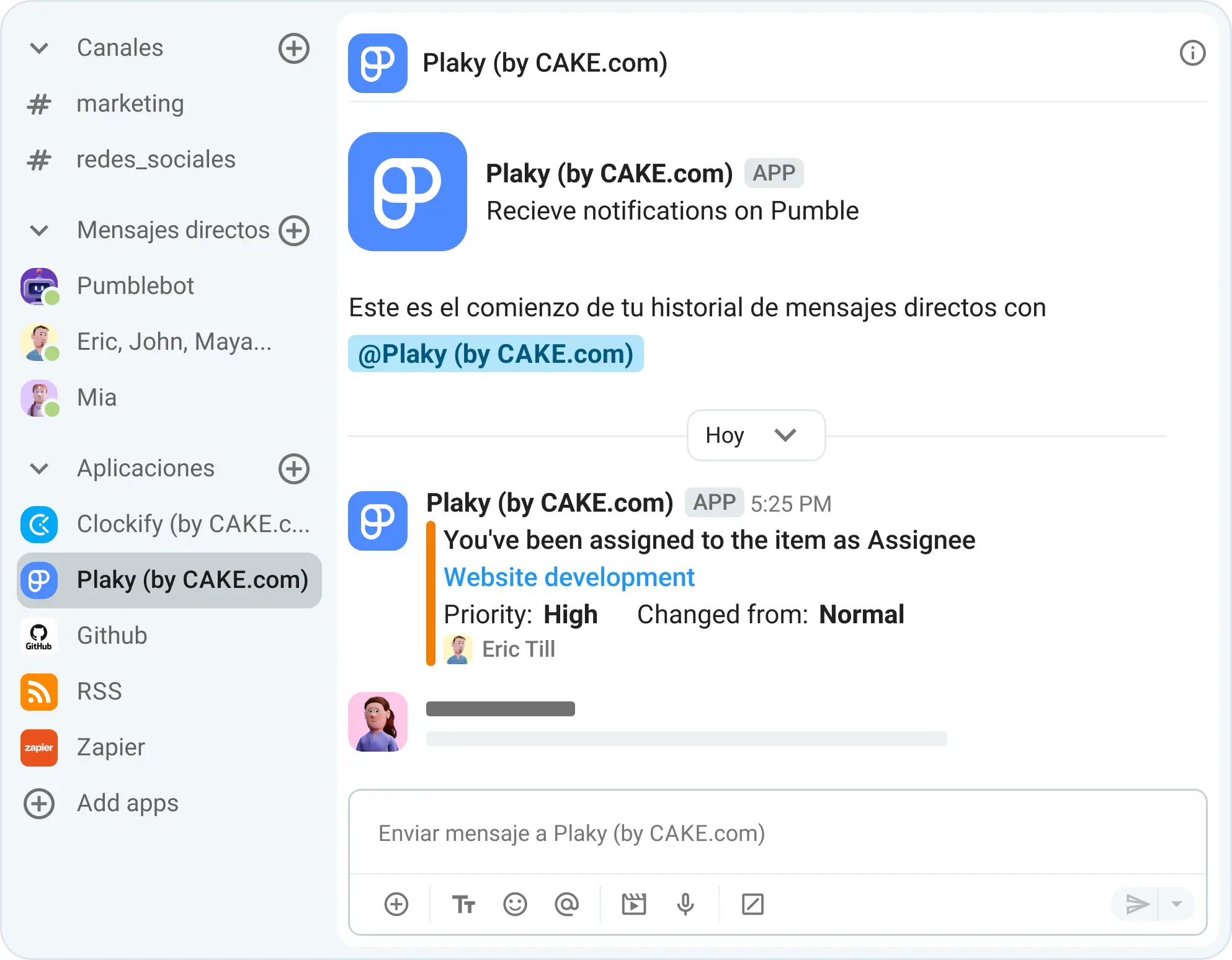
Esta integración de Plaky y Pumble permite a los equipos aprovechar al máximo cada herramienta.
Un flujo de trabajo típico para un equipo que utiliza Pumble y Plaky podría ser el siguiente:
- Usar Pumble para generar ideas mediante videollamadas,
- Responder preguntas y tomar decisiones en los canales e hilos de Pumble,
- Trasladar las decisiones finalizadas a tareas en Plaky,
- Continuar las discusiones relacionadas con las tareas mediante comentarios,
- Mantener toda la documentación y las actualizaciones en un solo lugar, dentro de la tarea.
Por ejemplo, un equipo podría generar ideas para una campaña en el chat, acordar una dirección y luego crear tareas en Plaky con descripciones claras y responsabilidades asignadas.
De esta manera, la comunicación es rápida cuando se necesita, pero también organizada y rastreable cuando es importante.
Comunícate eficazmente con Plaky by CAKE.com
La comunicación eficaz no se trata de usar más herramientas, sino de usar las adecuadas de la manera correcta.
Gracias a las potentes funciones de comunicación de Plaky, tu equipo:
- Mantiene las conversaciones vinculadas a las tareas,
- Crea mejores ciclos de feedback, y
- Se mantiene alineado sin complicaciones innecesarias.
Además, al combinarlo con la comunicación en tiempo real de Pumble, obtienes un sistema equilibrado que fomenta la colaboración efectiva y la comunicación eficaz.