Manage Space access and permissions
In this article
This article covers who can access a Space and what they can do inside it. From inviting and removing users to understanding permission levels.
Access and permissions overview #
There is an important distinction between being a member of a Workspace and a Space. Users can have access to a Workspace without access to a Space within it.
Space access is managed by the Space owner, who is the person who created the Space or someone who was granted ownership.
All Workspace members are automatically subscribed to the Main Space and cannot be removed from it. The steps in this article apply to all other Spaces.
Add or remove Space subscribers #
Before adding Space subscribers, you must first add users to your Workspace. Here’s how you can invite a user to a Workspace.
- Click on the Invite Members button in the top right corner
- Enter the member’s email address
- Select the role (Member or Viewer)
- Click Invite to send an invitation
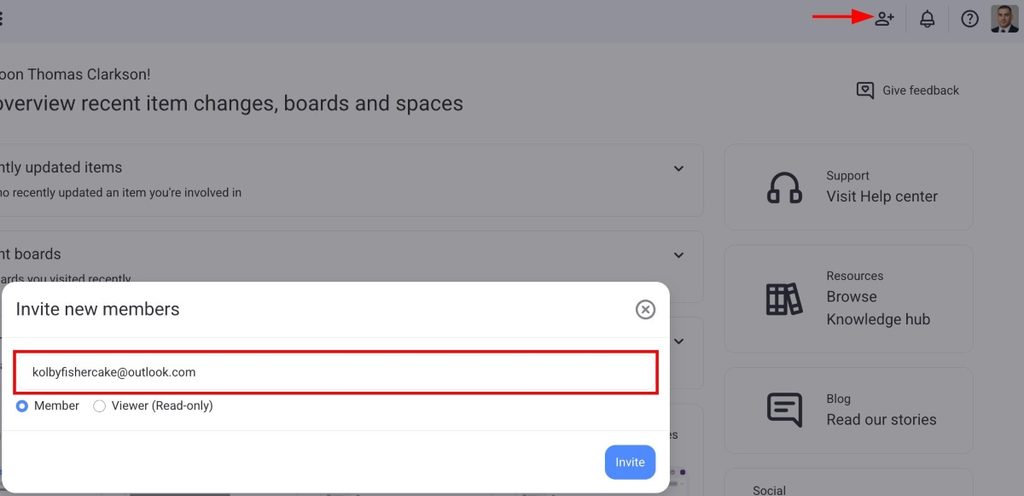
The invited member will receive an email with instructions for joining your Workspace.
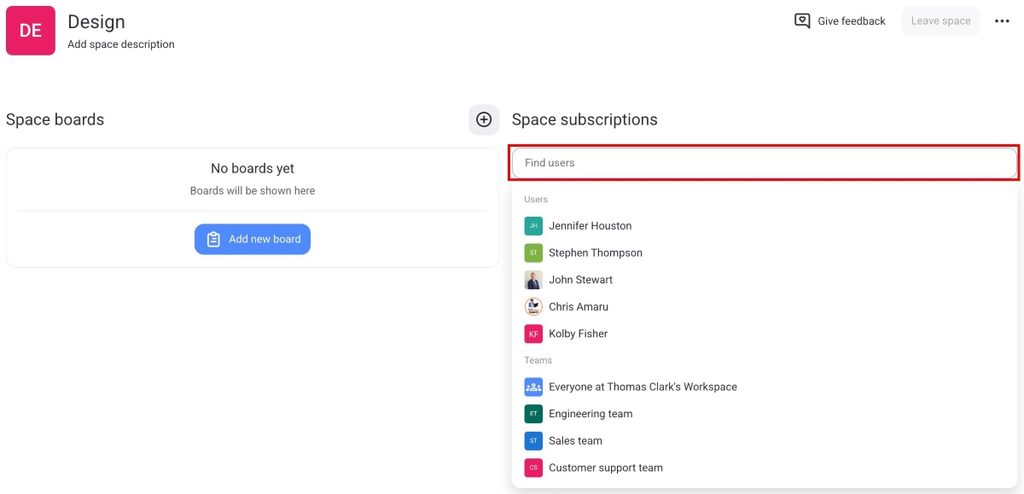
Once users have joined the Workspace, here’s how to add them as Space subscribers.
- Open a Space
- Type the user’s name under Space subscriptions
- Select the user from the list
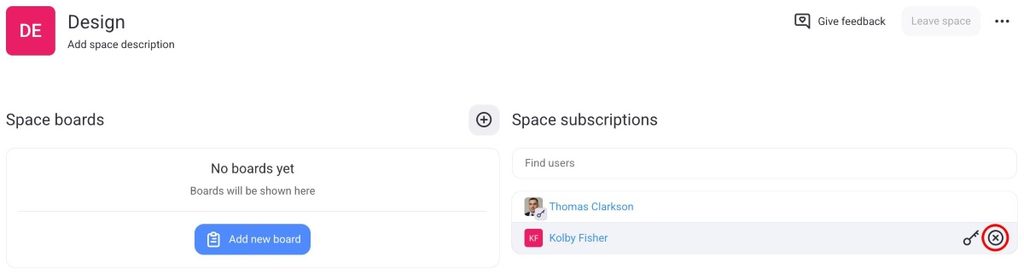
If you want to unsubscribe a user from a Space, hover over them in the Space subscriptions list and click on X on the right side.
- Open a Space
- Toca los tres puntos en la esquina superior derecha
- Select Space members
- Tap on the member you want to add to Space
- Tap on ✔️ to complete the action
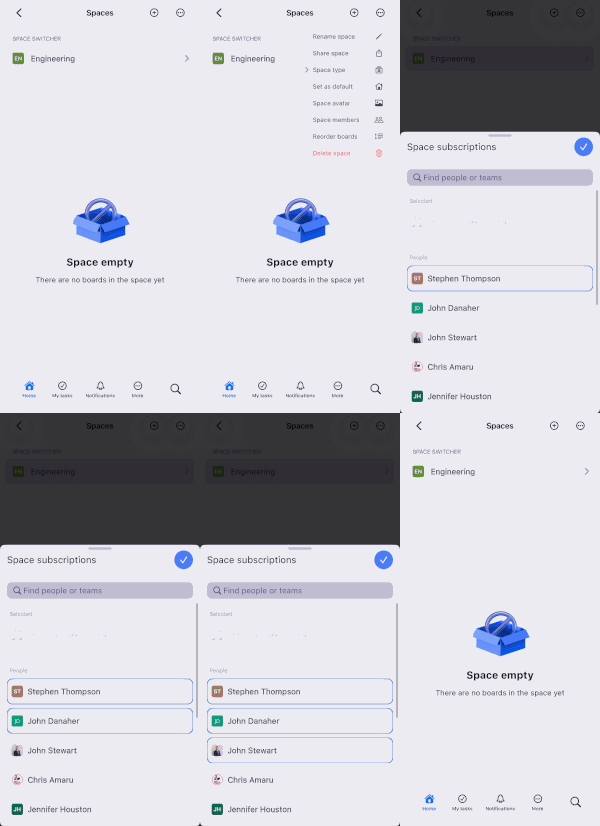
If you want to unsubscribe a user from a Space, tap on them again.
Space permissions #
Users can have different Space permissions depending on their role. There are two roles users can have in a Space:
- Space Owner — a user who created the Space, or was granted ownership by the Space Owner.
- Space Member — a Member or Viewer subscribed to a Space.
Please keep in mind that CAKE.com permissions also apply, as CAKE.com functions as the parent organization. For more information on CAKE.com permissions and their influence on individual products, refer to this article.
| Manage Space | Administrador | Miembro | Lector |
|---|---|---|---|
| Join open Space | ✔️ | ✔️ | ✔️ |
| Set open Space as the default | ✔️ | X | X |
| Subscribe/unsubscribe user/team to Space | ✔️ *if Space Owner | ✔️ *if Space Owner | X |
| Promote user to Space Owner | ✔️ *if Space Owner | ✔️ *if Space Owner | X |
| View/open any public/private Board if subscribed | ✔️ | ✔️ | ✔️ |
| Rename Space/Change Space type | ✔️ *if Space Owner | ✔️ *if Space Owner | X |
| Add Space description/image | ✔️ *if Space Owner | ✔️ *if Space Owner | X |
| Eliminar espacio | ✔️ *if Space Owner | ✔️ *if Space Owner | X |
Check out this article to learn more about user Roles and Ownership.
Grant Space ownership to the user #
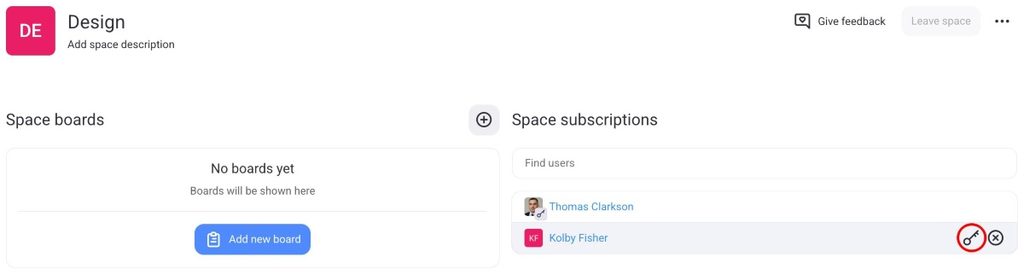
If you want to grant a user Space Ownership, they must first be a subscriber to the Space. To grant Space ownership, simply click on the key icon next to the user in the Space subscriptions list.
Open vs. closed Spaces #
Closed Spaces are available only on Pro and Enterprise plans.
Whether a Space is open or closed directly affects how users join it and what happens when they’re removed. Let’s summarize the differences between open and closed Spaces.
| Open Space | Espacio cerrado |
|---|---|
| Members can join independently | Members can join only with an invitation |
| Viewers can join and leave freely | Viewers must be invited by the Space owner |
| Removed users can rejoin on their own | Removed users cannot rejoin; they must be re-invited |