Delete a Space
1 min de lectura
In this article
¿Quién puede utilizar esta función?
Propietario del espacio
Disponible en todos los planes
Deleting a Space removes it from the Workspace along with everything inside it.
Advertencia
Deleting a Space moves all of its Boards, Folders, and Items to the Trash section. Content in Trash can be restored during the retention period, but the Space itself can’t be returned.
What gets deleted? #
When a Space is deleted, the following are all deleted as well:
- Tableros
- Folders
- Items and Subitems
- Files and attachments
- Space subscriptions
Checklist before deletion #
Before you delete a Space, consider going over this checklist to avoid potential inconveniences.
- Export any data you need to keep
- Notify the Space members
- Check for active automations
- Check for active integrations
- Consider archiving Space content
How to delete a Space #
Here’s how you can remove a Space:
Web
iOS
Android
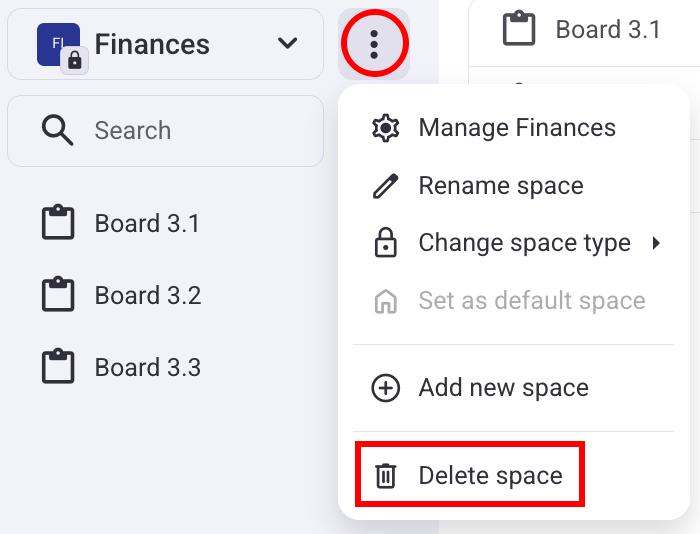
- Select the Space from the left sidebar
- Click on the three dots next to a Space
- Select Delete space
- Confirma la acción
- Open a Space
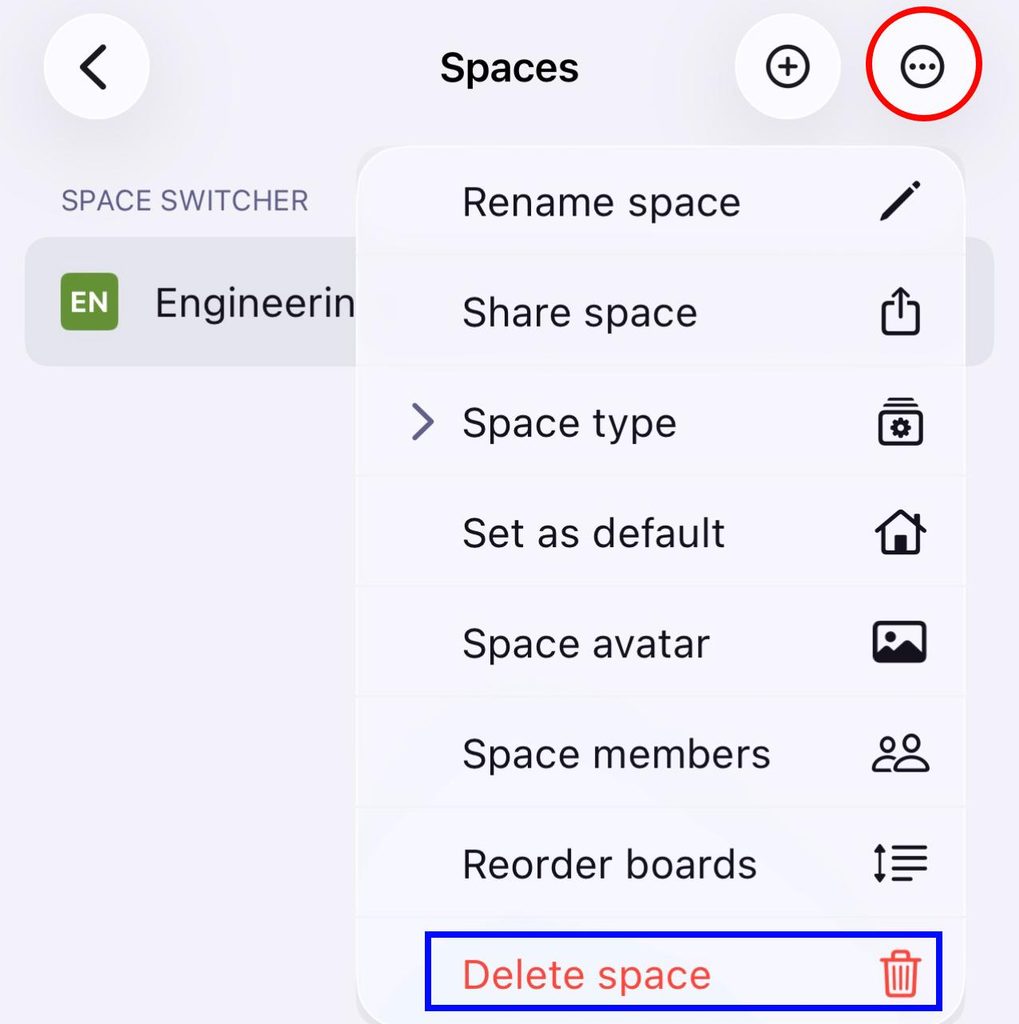
- Toca los tres puntos en la esquina superior derecha
- Select Delete space
- Confirma la acción
PRÓXIMAMENTE
Información
El espacio principal (el que se crea automáticamente al registrarse por primera vez) no se puede eliminar.
¿Te resultó útil este artículo?
Thank you! If you’d like a member of our support team to respond to you, please drop us a note at support@plaky.com