Task dependencies
In diesem Artikel
Task dependencies let you define relationships between Items and Subitems, so you can control the order of work and keep your schedule consistent. When a date changes on one task, Plaky can automatically adjust connected tasks, depending on the dependency mode set on your Board.
Every dependency connects two tasks:
- Predecessor — the task that must happen first
- Successor — the task that depends on the predecessor
Dependency types #
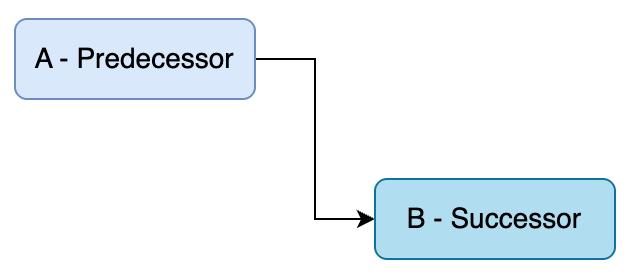
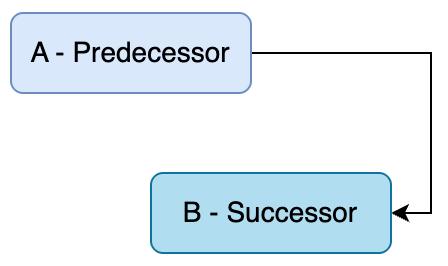
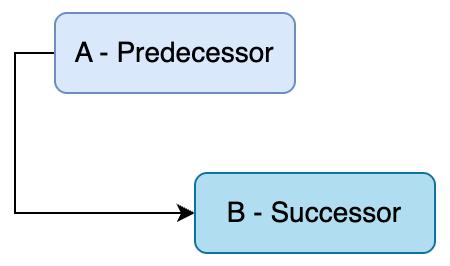
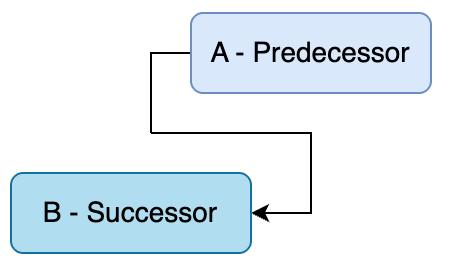
There are 4 types of relationships you can set between two tasks. The line always starts on the predecessor (A) and ends on the successor (B), at the edges the type refers to.
- Finish to start (FS) — B can’t start until A finishes. This is the default type.
- Finish to finish (FF) — B can’t finish until A finishes.
- Start to start (SS) — B can’t start until A starts.
- Start to finish (SF) — B can’t finish until A starts.
Dependency modes #
The dependency mode decides how strictly Plaky enforces dependency rules when dates change. The mode is set on the Board level and applies to all dependencies on the Board.
There are three types of dependency modes:
- Keine
- Flexible
- Strict
None #
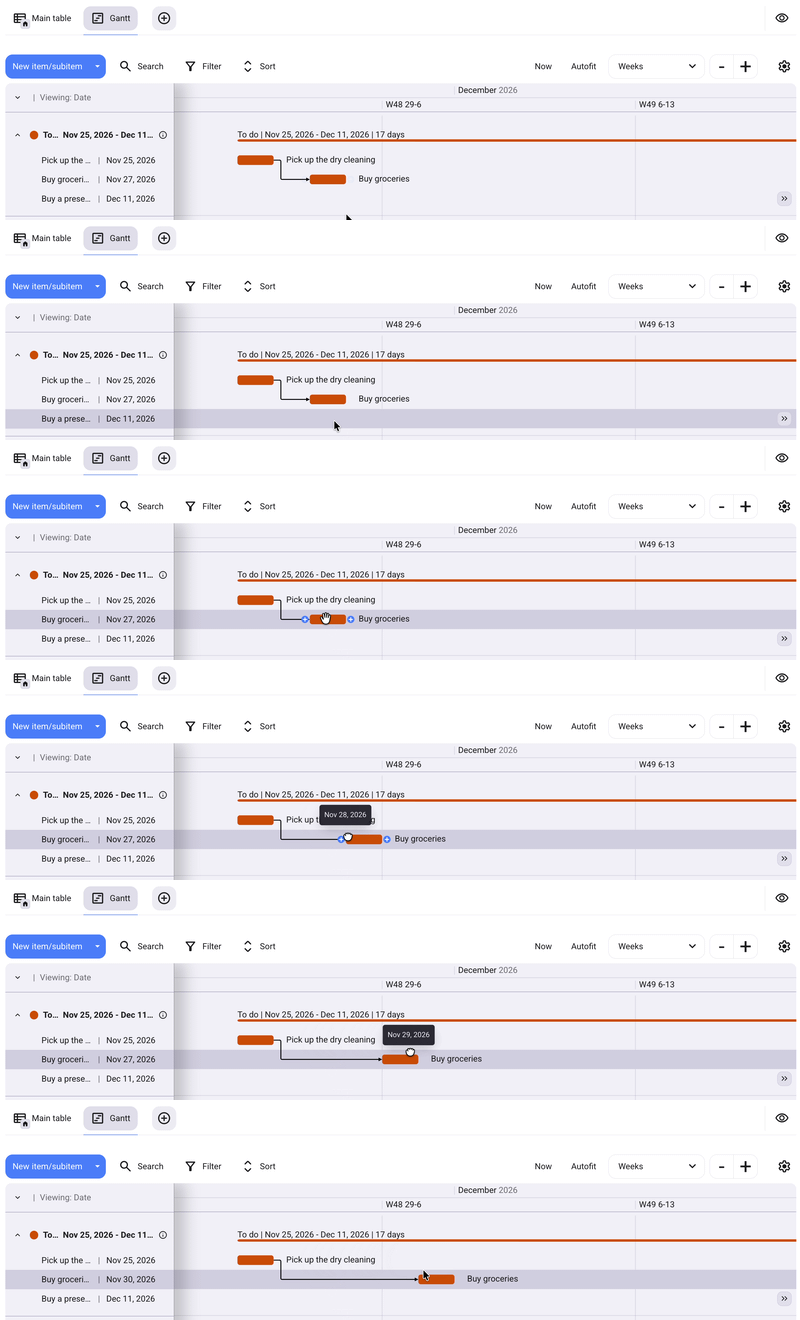
Dependencies serve as visual guides only. You can move tasks freely, and Plaky never changes any dates automatically. If a task is scheduled in a way that breaks a dependency rule, the dependency line in Gantt View turns red, but no dates are changed.
Task A ends August 1, Task B runs August 10-15, and Task C runs August 20-25.
- If you move Task A to August 12, Task B and Task C stay on their dates. The line between Task A and Task B turns red to show the conflict.
Flexible #
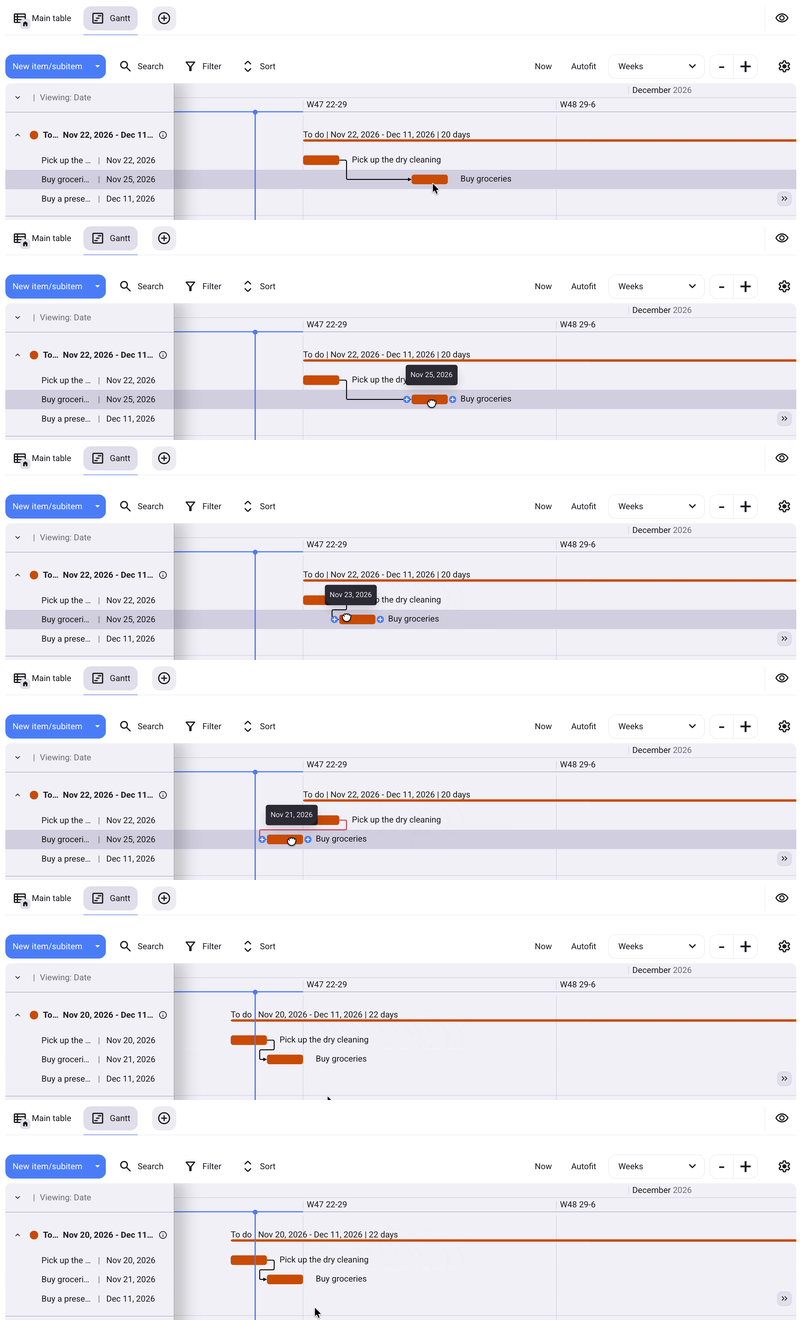
Dependencies act as soft rules. You can move tasks freely, and the space between them can shrink. Plaky adjusts connected tasks only when a dependency rule is broken, and only by the smallest shift needed to fix it.
- Moving a predecessor later can push the successor later
- Moving a successor earlier can pull the predecessor earlier
Flexible mode doesn’t keep the original gap between tasks. It only makes sure the dependency rule is respected.
Task A ends August 1, Task B runs August 10-15, and Task C runs August 20-25.
- If you move Task A to August 4, nothing changes, because Task A still finishes before Task B starts. This change does not affect Task C.
- If you move Task A to August 6, Task B will run from August 7 to 12. Task C is not affected by this change.
Strict #
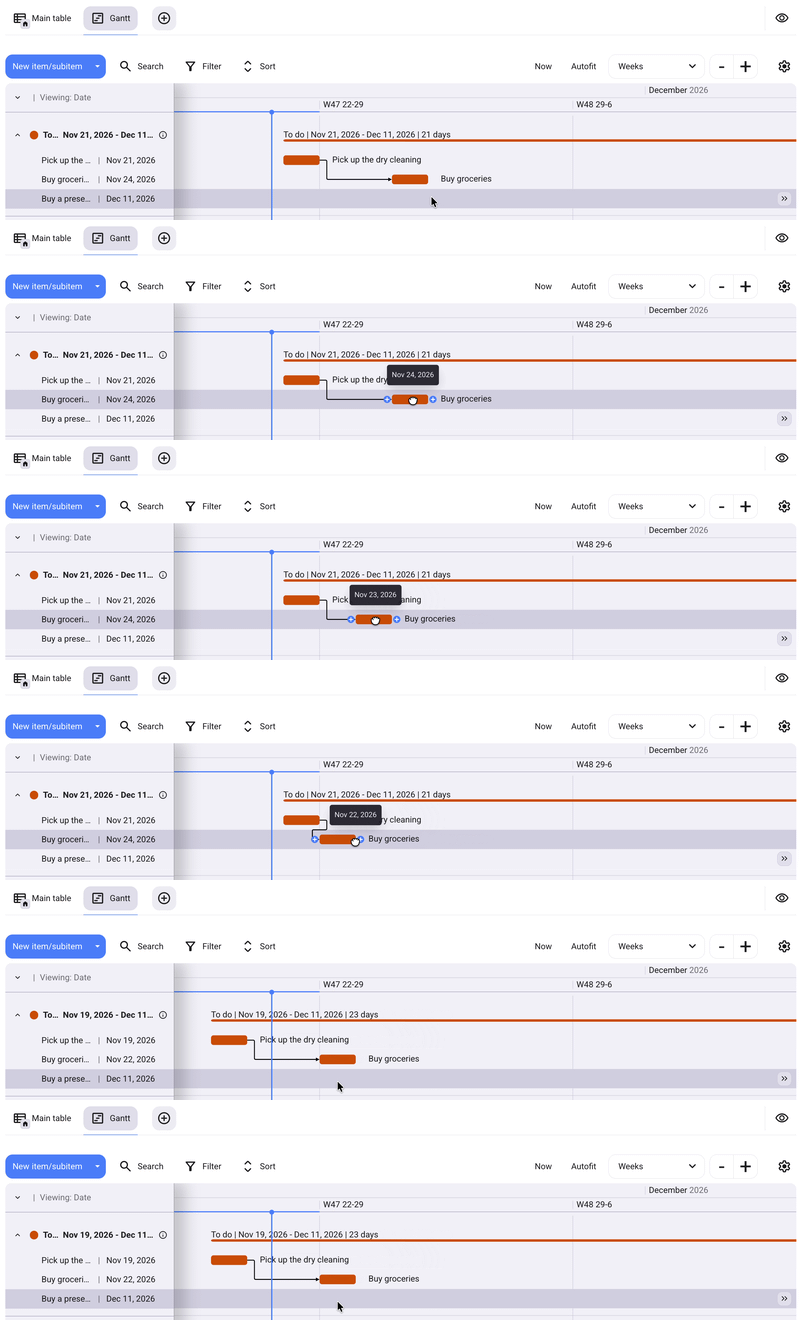
The buffer between dependent tasks is always kept. When you move a task, all connected tasks shift by the same number of days so the spacing between them stays exactly the same. This applies both when you move a predecessor and when you move a successor.
If a task has multiple dependencies, Plaky considers all of them together and places the task on a date that satisfies every rule.
Task A ends August 1, Task B runs August 10-15, and Task C runs August 20-25.
- If you move Task A to August 6 (5 days later): Task B moves to August 15-20, and Task C moves to August 25-30.
- If you move Task A to July 27 (5 days earlier): Task B moves to August 5-10, and Task C moves to August 15-20.
Who can manage dependencies #
What you can do with dependencies depends on the Board permissions:
| Board permission | Set up field and mode | Create and edit dependencies | View dependencies |
|---|---|---|---|
| Board Owner / Edit everything | ✔️ | ✔️ | ✔️ |
| Edit content | – | ✔️ | ✔️ |
| Add comments & files / Viewers | – | – | ✔️ |
Set up the Dependency field #
To use dependencies, you need to add a Dependency field to your Board and link it to one Date or Timeline field. Dependency rules then apply to the dates in that field.
A Board can have only one Dependency field.
Once the fields are linked, their descriptions update automatically:
- Dependency field: Linked with [Date/Timeline field name]
- Linked Date/Timeline field: Currently linked to the [Dependency field name]
Set up from Table View #
- Click on the + icon at the end of the Field row
- Select Dependency
- Under Choose dependency field select a Date/Timeline field
- Under Choose dependency mode select a mode (None, Flexible, Strict)
- Klicke auf Speichern
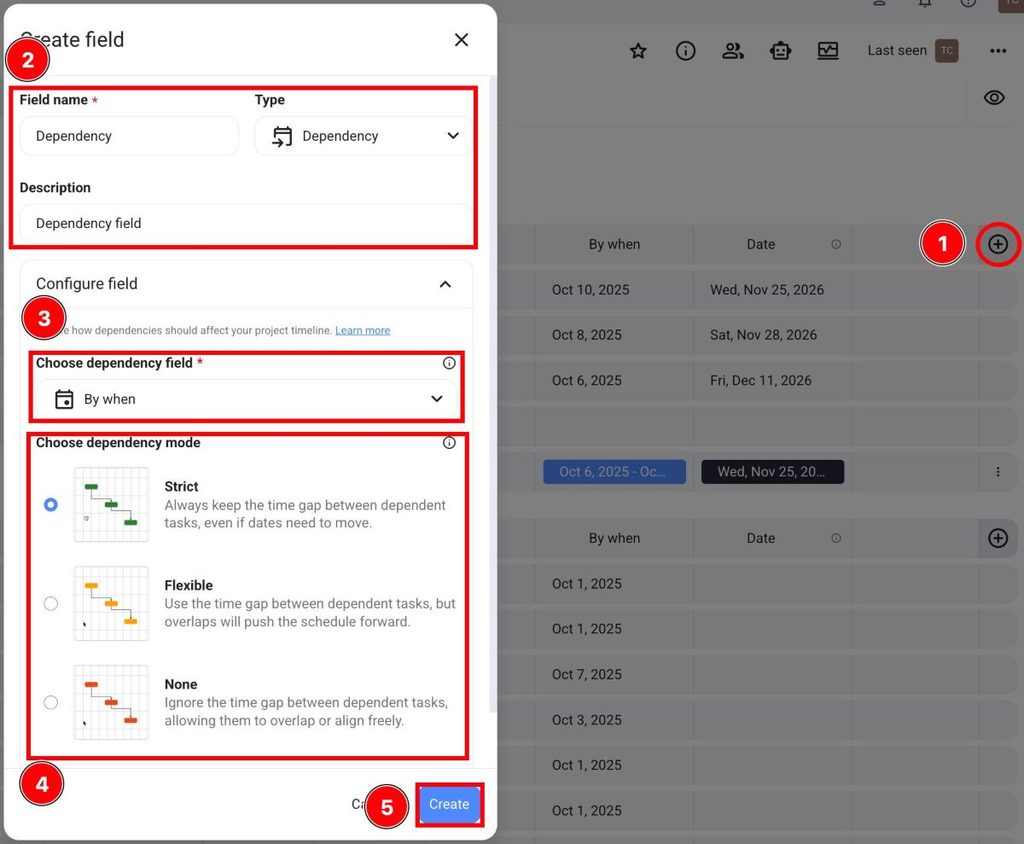
If the Board doesn’t have a Date or Timeline Field yet, select Create new field in the dropdown, then choose Date or Timeline.
If you create a Gantt view later, the Date or Timeline field linked to the Dependency Field is automatically added to it.
Set up from Gantt View #
- Open the Gantt View
- Click on the gear icon on the right
- Select Manage dependencies under Dependency settings
- Under Choose dependency field select a Date/Timeline field
- Under Choose dependency mode select a mode (None, Flexible, Strict)
- Klicke auf Speichern
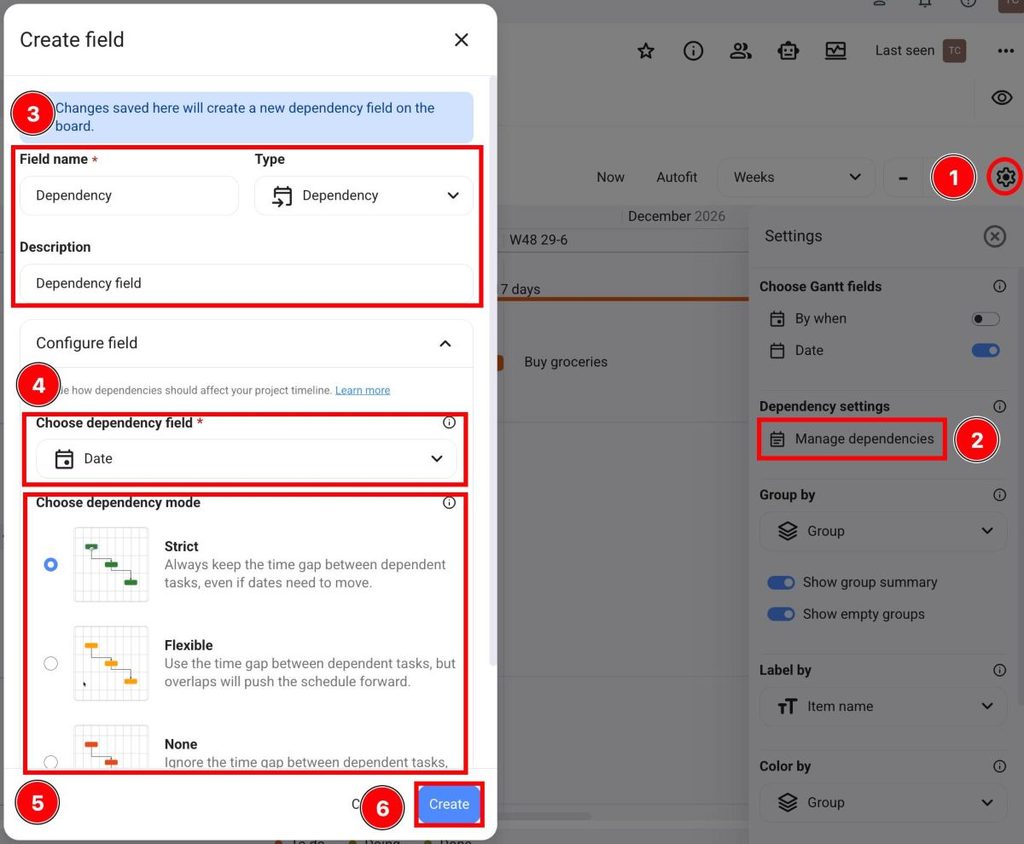
Plaky preselects the Field based on your Gantt View:
- If one Date or Timeline Field is added to the View, that Field is selected.
- If multiple Fields are added to the View, the oldest Timeline Field is selected. If there are no Timeline Fields, the oldest Date Field is selected.
- If no Fields are added to the View, you need to select one manually.
Saving these settings creates a new Dependency Field on the Board.
Change the dependency mode or linked field #
- Click on the dropdown arrow next to the Dependency field name
- Wähle Feld konfigurieren
- Open the Configure field tab
- Change the dependency mode or linked field
- Klicke auf Speichern
If you link a Date or Timeline field that isn’t added to your Gantt View, dependency lines won’t be shown in that View, and you won’t be able to create dependencies there.
Create dependencies #
In Gantt View #
Gantt View is the only place where you can draw dependencies directly between tasks.
- Hover over a timeline bar or date indicator to show the blue + points on its edges
- Click on the + point on the left or right edge
- Drag the line to the edge of another bar
- Release to create the dependency
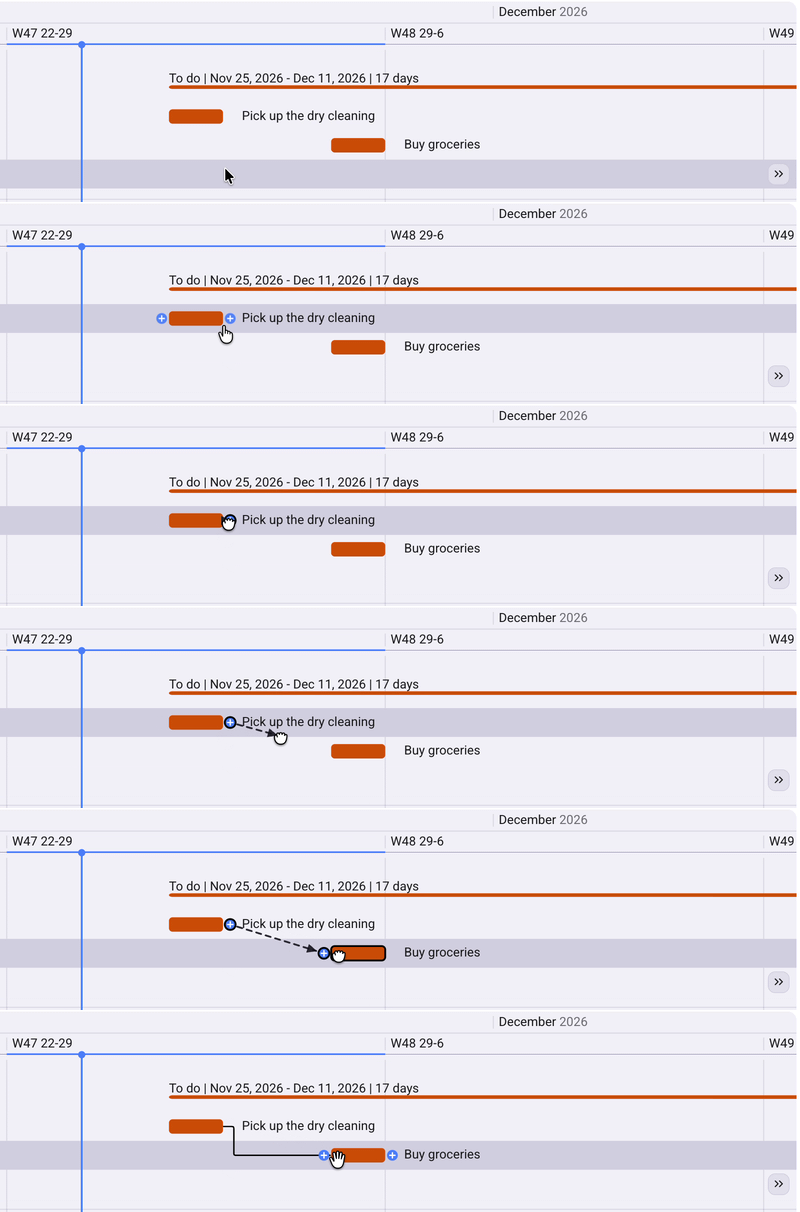
Once created, the dependency is shown as an arrow connecting the two bars.
The dependency type is set based on the edges you connect:
| From predecessor edge | To successor edge | Type |
|---|---|---|
| Right (finish) | Left (start) | Finish to start (FS) |
| Left (start) | Left (start) | Start to start (SS) |
| Right (finish) | Right (finish) | Finish to finish (FF) |
| Left (start) | Right (finish) | Start to finish (SF) |
If your Gantt View shows multiple Date or Timeline fields, you can only connect bars from the field linked to the Dependency field.
In Table View #
- Click on the Dependency field cell of an Item or Subitem
- In the Dependencies popover, click on Choose item or subitem, then search for or select the task from the list
- Select the dependency type (Finish to start is selected by default)
- To add more dependencies, click + Add new dependency and repeat the steps
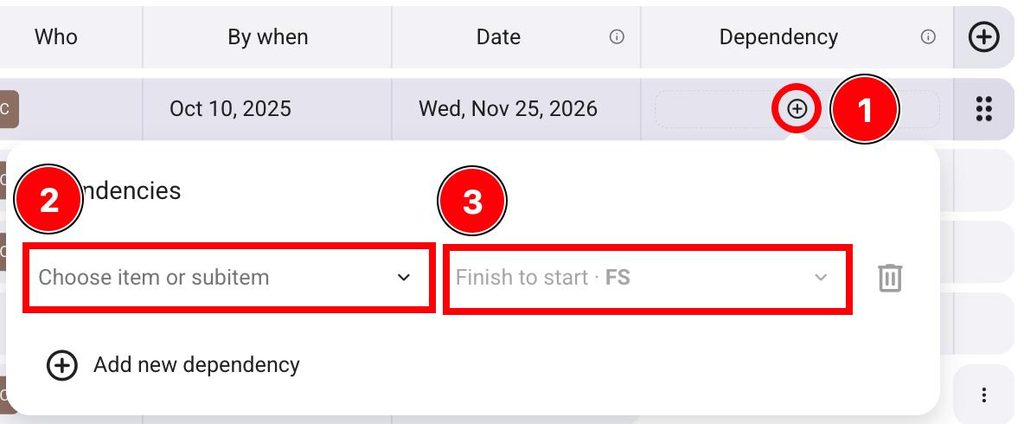
Hover over the type badge (for example, FS) in the cell to see a short explanation of the rule, such as Task A must finish before Task B can start.
If a task has 3 or more dependencies, the cell shows the first one and a counter (for example, + 2). Hover over the counter to see the rest.
Manage dependencies in Gantt View #
Hover over a dependency line to see the View dependency info tooltip, then click on the line to open the dependency details. The predecessor is shown at the top and the successor at the bottom.
Change the dependency type #
- Click on the dependency line
- Click on the dropdown between the two tasks
- Select a new type
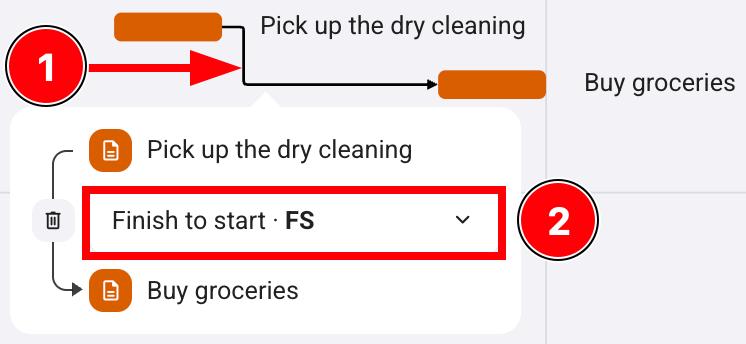
The change is applied right away, and dates are recalculated based on the Board’s dependency mode.
Delete a dependency #
- Click on the dependency line
- Click on the Trash icon
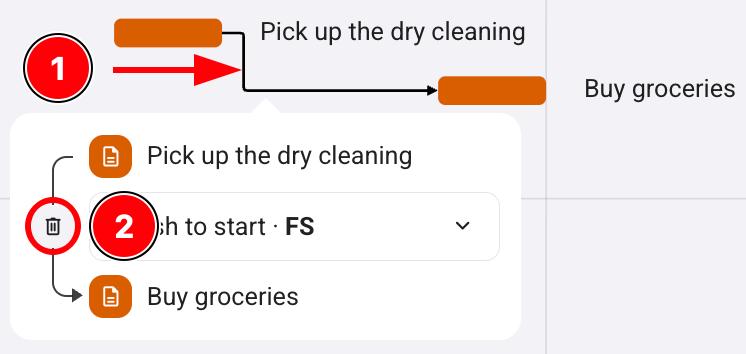
The dependency line is removed, and the tasks are no longer connected. You can also delete a dependency in Table View by clicking the trash icon next to it in the Dependency Field popover.
Dependency conflicts #
A dependency line turns red when tasks are scheduled in a way that breaks the dependency rule, for example, when a successor starts before its predecessor ends. When you open a conflicted dependency, you’ll see the message: Check the dates or relation. The line goes back to its default color once you move the tasks so they follow the rule.
Moving tasks in Gantt View #
When you drag bars in Gantt View, connected tasks don’t move while you’re dragging. Adjustments are applied after you drop the bar:
- None — nothing else moves. Broken dependencies are shown in red.
- Flexible — connected tasks move only if needed to fix a conflict.
- Strict — connected tasks move to keep the original buffers.
Confirm date changes #
When you change a date that causes dependent tasks to move, Plaky shows the Confirm date changes confirmation box. It lists the task you changed, all affected tasks, their old and new dates, and the number of days they’re moving.
- Click Save to apply all changes
- Click Cancel to undo your change
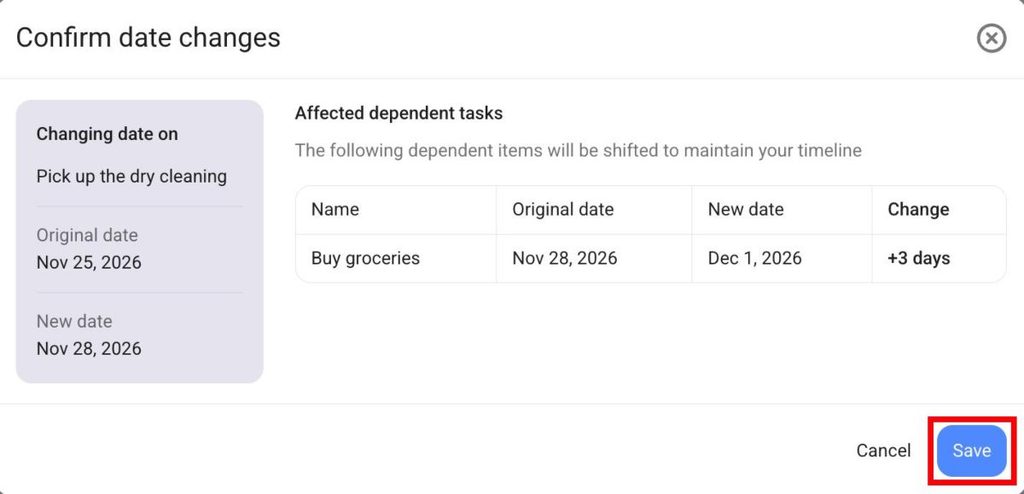
The confirmation box isn’t shown in Gantt View, whether you drag bars, edit dates in the left sidebar, or change dates in Item details opened from Gantt View.
Dependencies and Subitems #
You can connect any two tasks on the Board:
- An Item to another Item
- An Item to a Subitem
- A Subitem to a Subitem under a different Item
Items and Subitems don’t change each other’s dates on their own. A Subitem can be scheduled outside its parent Item’s dates, and changing a Subitem’s dates doesn’t change the parent’s dates. However, if an Item and a Subitem are connected with a dependency, their dates can change based on the dependency mode.
When you drag a parent Item in Gantt View, all of its Subitems move by the same number of days. Then dependency rules apply based on the Board’s mode.
Creating a dependency or changing its type doesn’t move any tasks. Dates change only when you edit a date after the dependency is set.
Rules and limitations #
- You can have only one dependency between the same two tasks.
- A task can be both a successor and a predecessor, which lets you create chains (Task A > Task B > Task C).
- A task can’t depend on itself.
- You can’t create circular dependencies. For example, if Task A > Task B > Task C, you can’t connect Task C back to Task A.
What happens to dependencies when #
| Action | Result |
|---|---|
| You delete an Item or Subitem | All of its dependencies are removed. You’ll see a warning before deleting. The connected tasks keep their dates but are no longer linked. |
| You archive an Item or Subitem | All of its dependencies are removed. If you restore it later, its dependencies won’t be restored. |
| You clear a date | Plaky asks you to confirm before removing the date, since this affects all of the task’s dependencies. |
| You move an Item to another Item Group | Dependencies stay the same. |
| You move an Item to another Board | All of its dependencies are removed once the move is completed. |
| You convert an Item to a Subitem (or the other way around) | Dependencies and dates stay the same. |
| You change dates of multiple tasks at once | Tasks with dependencies are skipped, and the new date applies only to tasks without dependencies. |
| You change the Dependency Field type | The Dependency Field can only be converted to a Text or Rich Text Field. |
| You delete the Dependency Field | All dependencies on the Board are removed. |
| Your Workspace is downgraded to the Free plan | Dependencies become read-only. |
Häufig gestellte Fragen #
Why is my dependency line red? #
A red line means the tasks are scheduled in a way that breaks the dependency rule, for example, a successor starts before its predecessor finishes. This usually happens on Boards set to None mode, where Plaky doesn’t move dates automatically. Move one of the tasks so the rule is respected, and the line goes back to its normal color.
Why can’t I draw dependencies in Gantt View? #
You can only draw dependencies between bars from the Date or Timeline Field linked to the Dependency Field. If that Field isn’t added to your Gantt View, the + points won’t appear. Add the linked Field to the View, or change the linked Field in Manage dependencies. You also need at least Edit content permission on the Board, and your Workspace needs to be on the Pro or Enterprise plan.
Why didn’t the Confirm date changes confirmation box appear? #
The confirmation box doesn’t appear in Gantt View, since you can see tasks move on the chart. Outside Gantt View, it also doesn’t appear in None mode or in Flexible mode when your change doesn’t make any other task move.
Can I have more than one Dependency Field on a Board? #
No. Each Board can have one Dependency Field, linked to one Date or Timeline Field. To use a different Field, change it in Manage dependencies.
Can I connect Subitems from different Items? #
Yes.You can connect any two tasks on the same Board, including a Subitem to a Subitem under a different Item, or an Item to a Subitem. You can’t connect tasks from different Boards.
If I restore an archived Item, will its dependencies come back? #
No. Archiving an Item or Subitem removes all of its dependencies, and restoring it doesn’t bring them back. The task keeps its dates, and you can add new dependencies to it.
Why didn’t a bulk date change apply to some of my tasks? #
When you change dates for multiple tasks at once, tasks with dependencies are skipped to protect their schedule. Change their dates one by one instead.