Archive and Trash sections
In this article
Plaky gives you two ways to remove content from your active Workspace without permanently losing it. The Archive section lets you preserve content indefinitely, while the Trash section stores all deleted content for 30 days before removing it.
Archive vs. Trash — differences #
| Archive | Trash |
|---|---|
| Content is hidden from Boards but is still preserved with no expiration. | Content stays in Trash for 30 days, and is then permanently and irreversibly deleted. |
| Archived content is viewable and can be restored at any time. | Deleted content can be viewed and restored during the 30-day window. |
| Good for completed projects, or finished Items you may need to reference later. | Good for content you intend to remove but still need a safety net for. |
Archive section #
With the Archive feature, you can organize your Workspace methodically and preserve content you no longer need. You can archive:
- Boards
- Item groups
- Elemente
- Unterelemente
Let’s look at how you can archive these in more detail.
How to archive content #
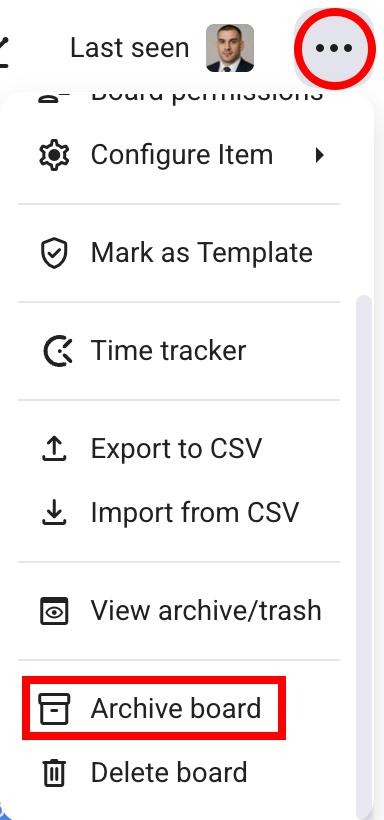
Archive Boards:
- Click on the three dots in the top right corner to open the board menu
- Select Archive board
- Bestätige die Aktion
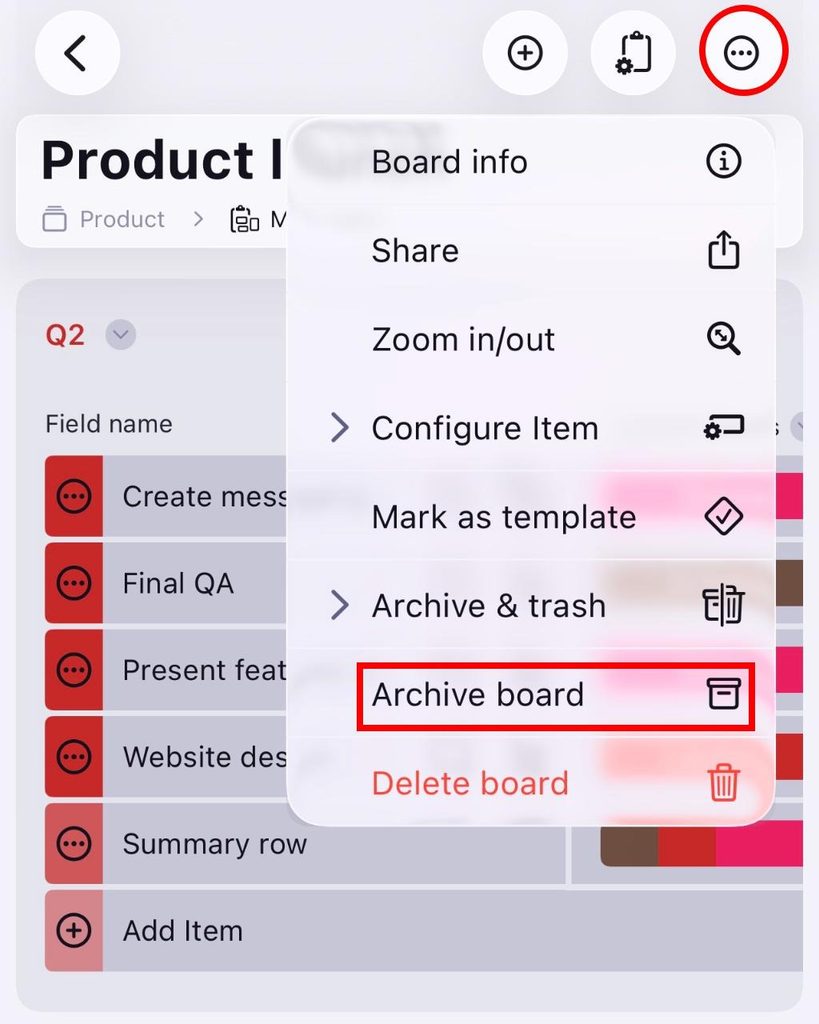
- Öffne ein Board
- Tippe auf die drei Punkte oben rechts
- Tap on Archive board
- Bestätige die Aktion
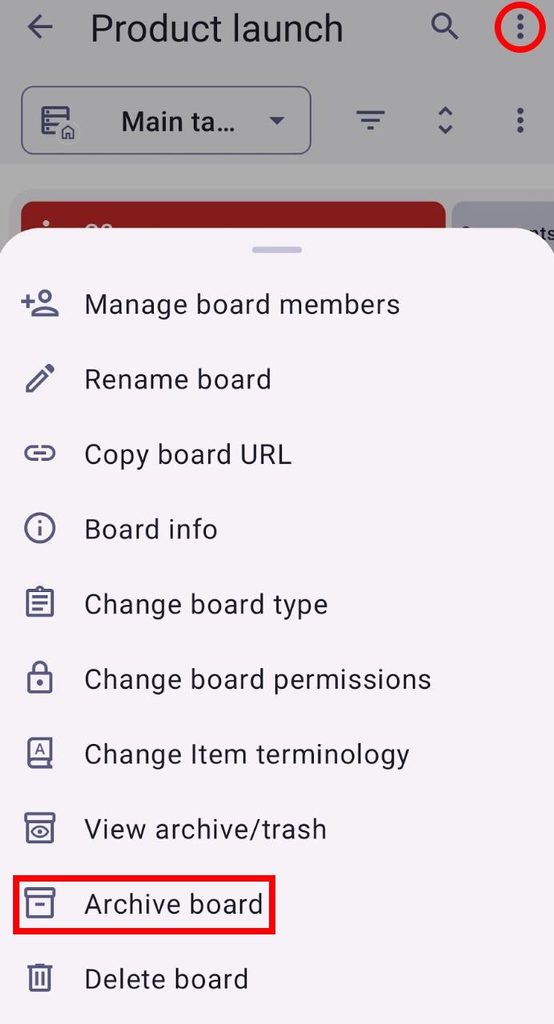
- Öffne ein Board
- Tippe auf die drei Punkte oben rechts
- Tap on Archive board
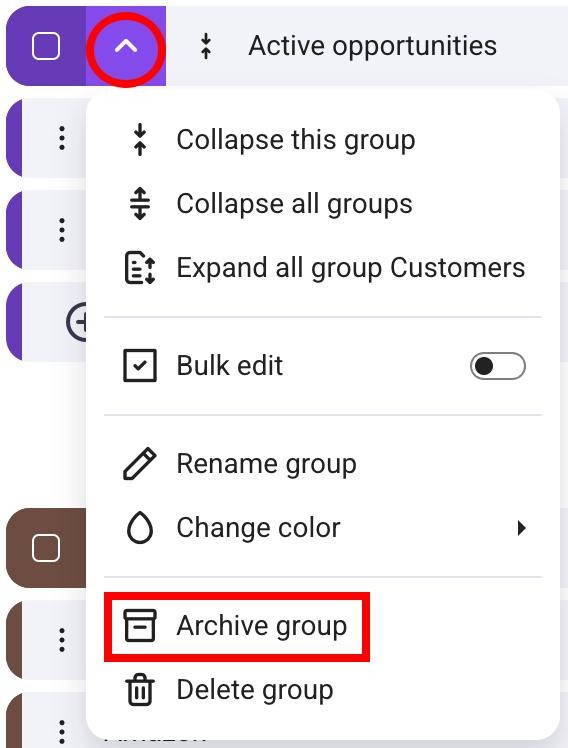
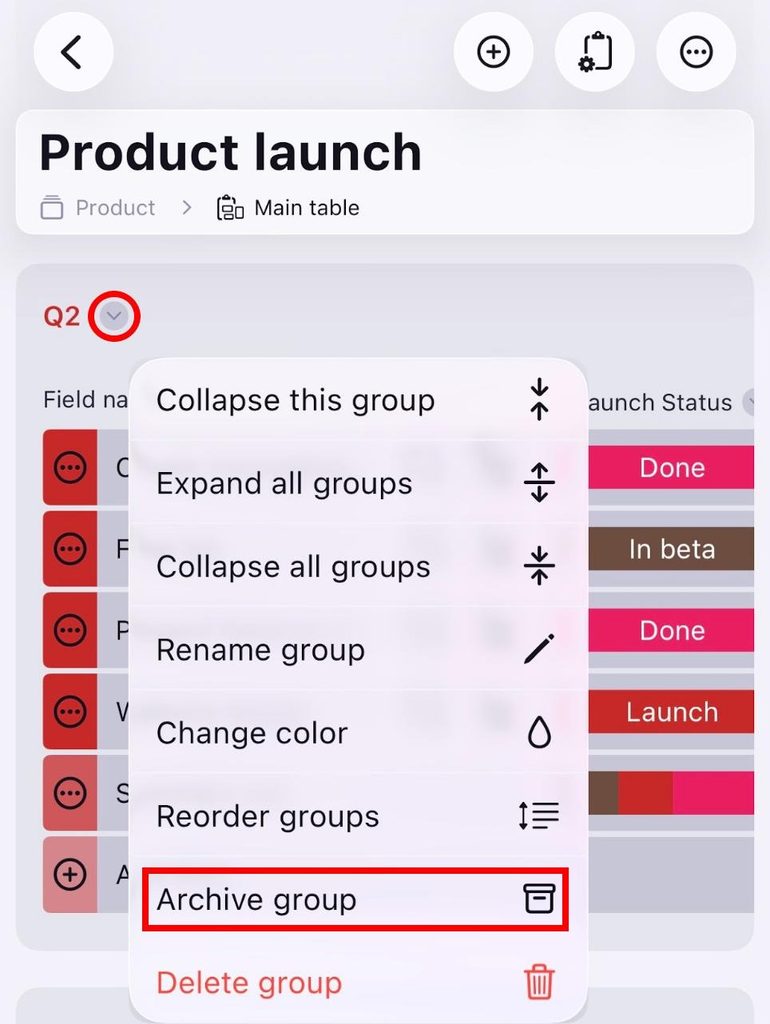
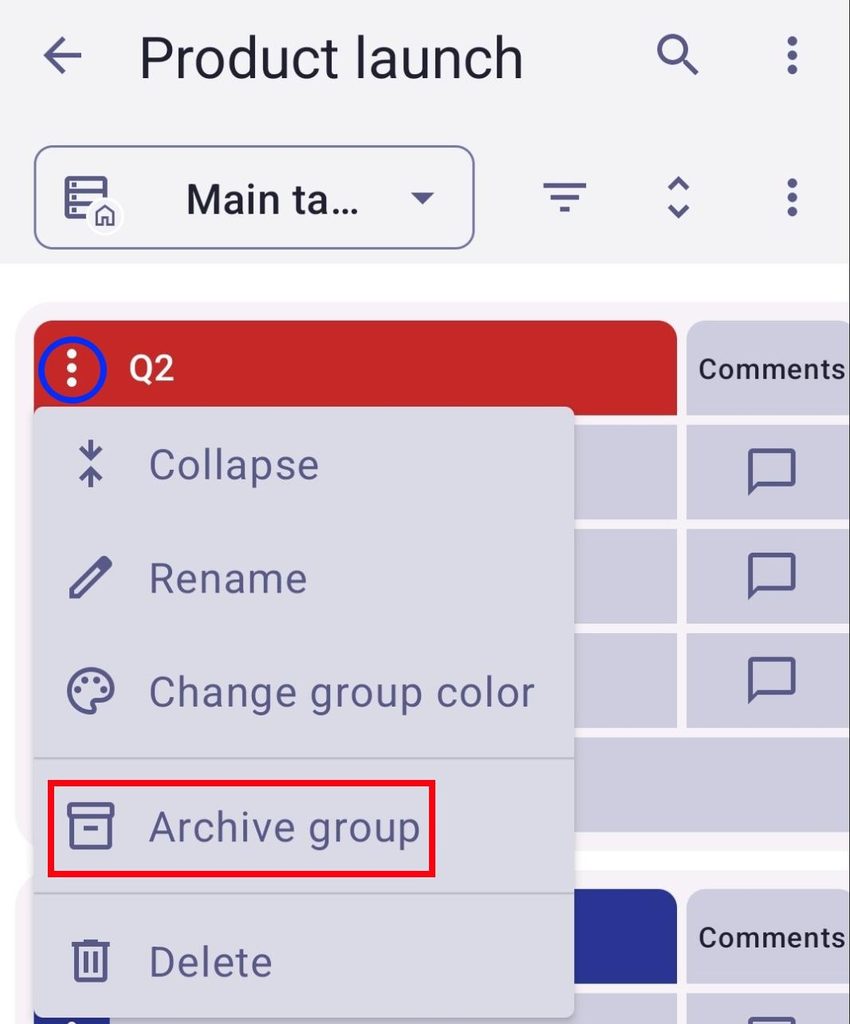
Archive Item groups:
- Klicke auf den Pfeil neben dem Elementgruppennamen, um das Elementgruppen-Menü zu öffnen
- Wähle Archivgruppe, um die Aktion abzuschließen
- Öffne ein Board
- Tap on the arrow next to the Item group name
- Tap on Archive group
- Bestätige die Aktion
- Öffne ein Board
- Tap on the three dots next to an Item group
- Tap on Archive group
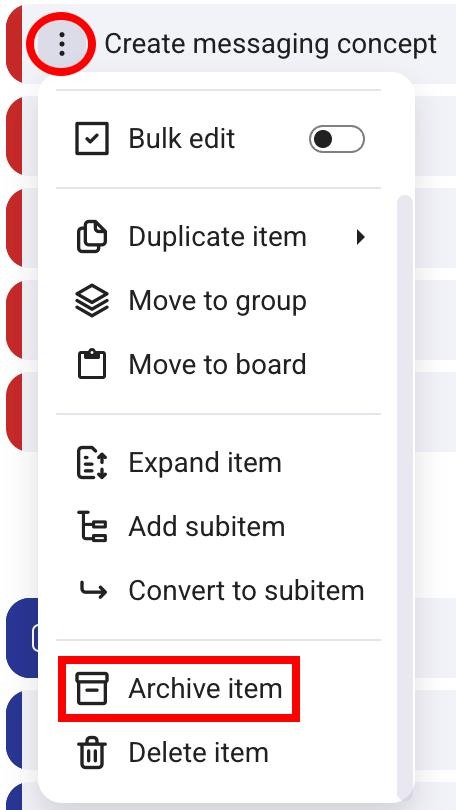
Archive Items:
- Click on the three dots next to the item name to open the item menu
- Wähle Element archivieren, um die Aktion abzuschließen
- Tippe auf die drei Punkte neben dem Element
- Select Archive
- Bestätige die Aktion
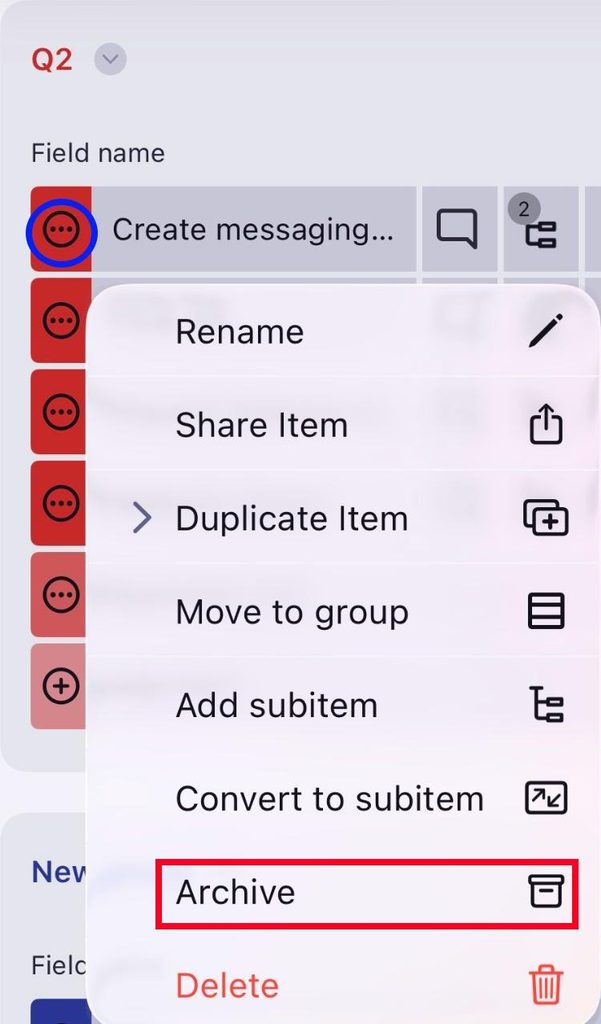
- ap on the three dots next to an Item
- Tap on Archive Item
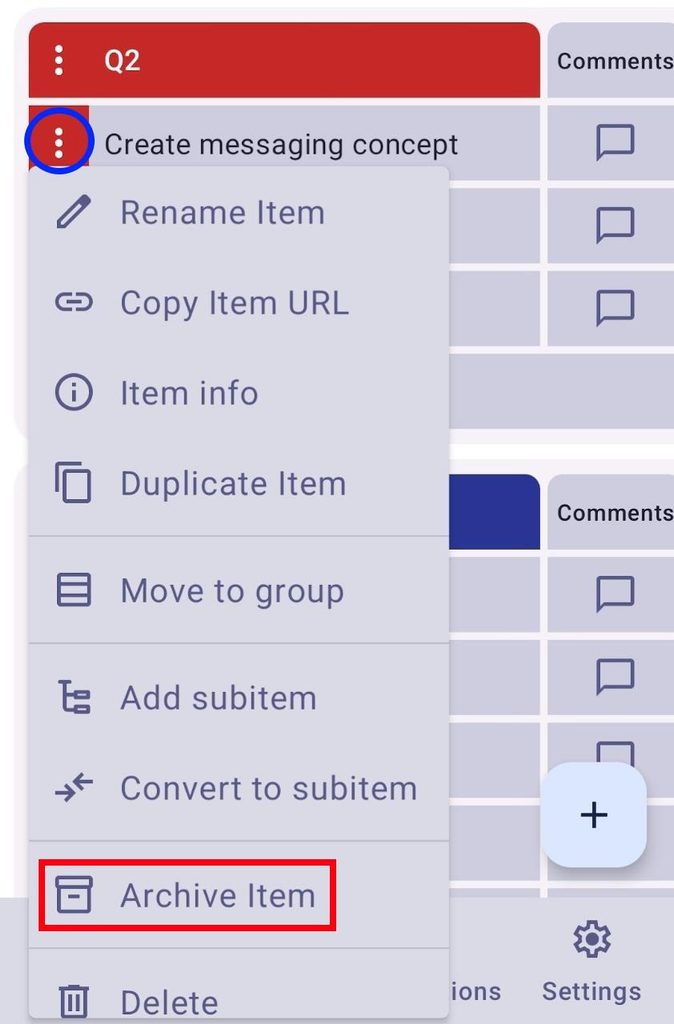
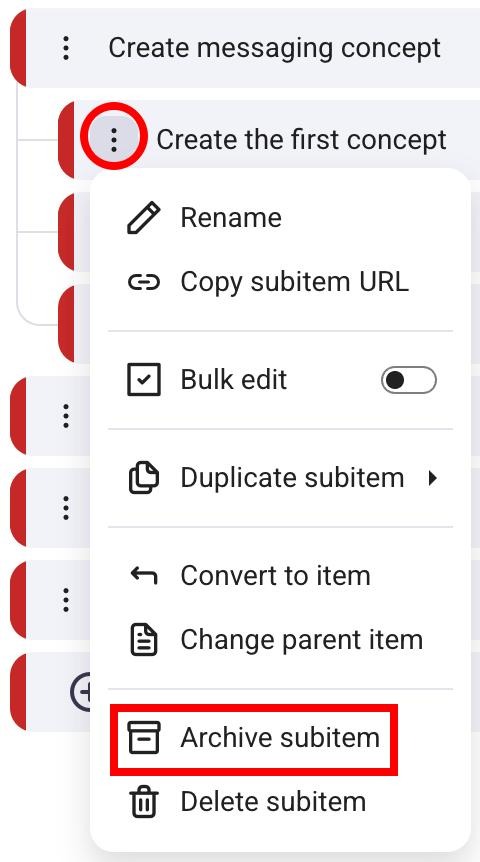
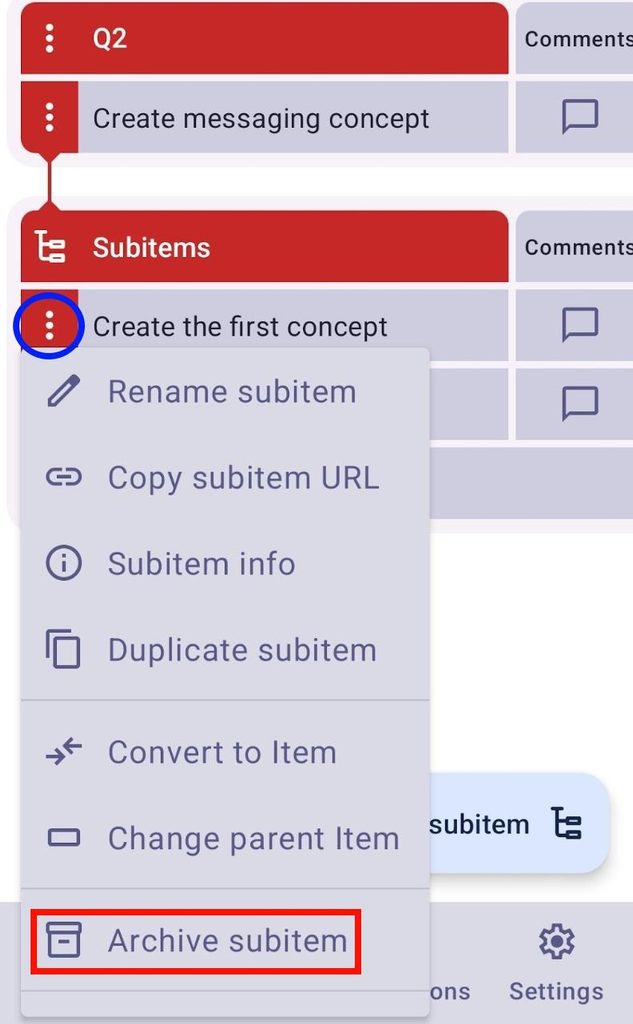
Archive Subitems:
- Klicke auf die drei Punkte neben dem Namen des Unterelementes, um das Unterelement-Menü zu öffnen
- Select Archive subitem to complete the action
- Tippe auf die drei Punkte neben dem Element
- Select Archive
- Bestätige die Aktion
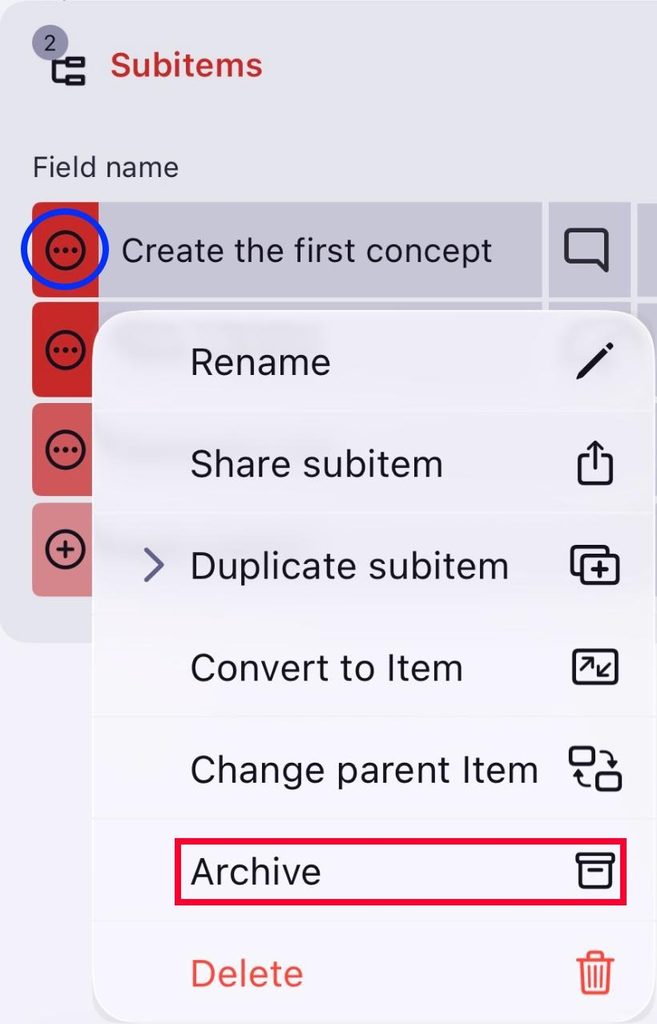
- Tippe auf die drei Punkte neben dem Unterelement
- Tap on Archive subitem
Access archived content #
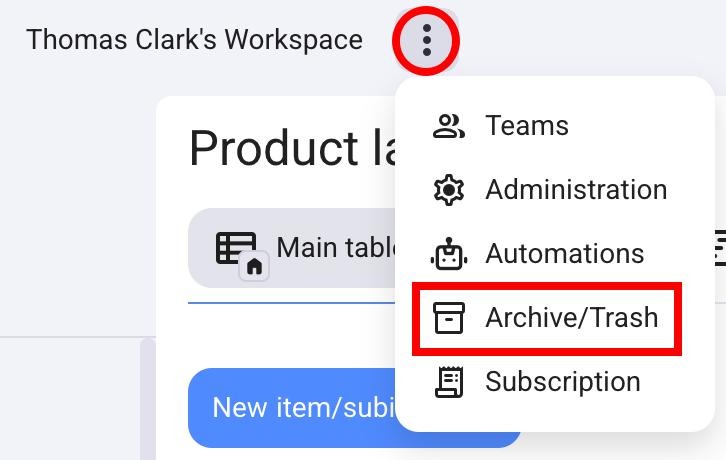
All archived content lives in the Archive/Trash panel. Here’s how you can access it:
- Klicke auf die drei Punkte neben dem Namen deines Arbeitsbereichs
- Click on Archive/Trash
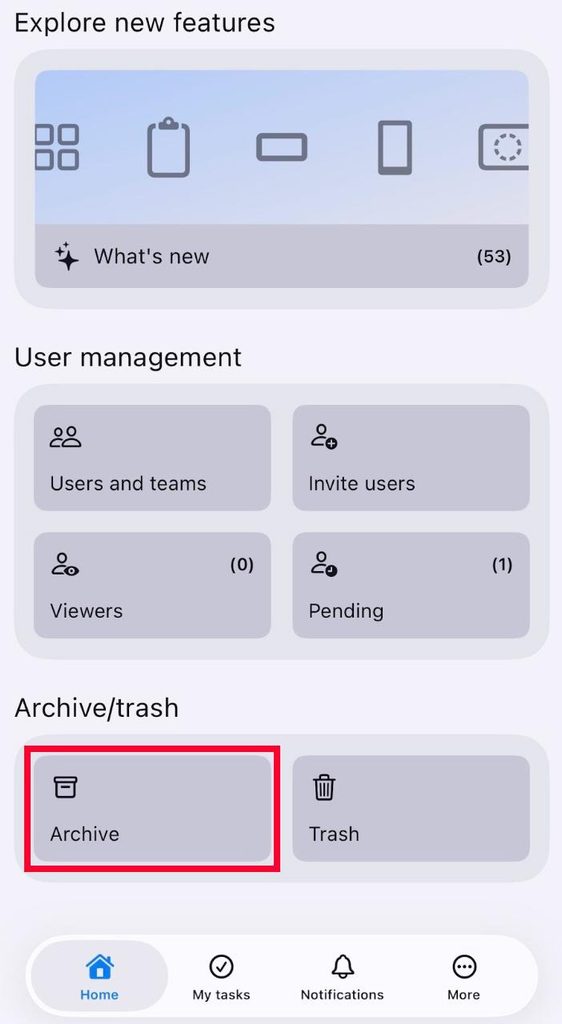
- Scroll down to the bottom of the Home screen
- Tap on Archive
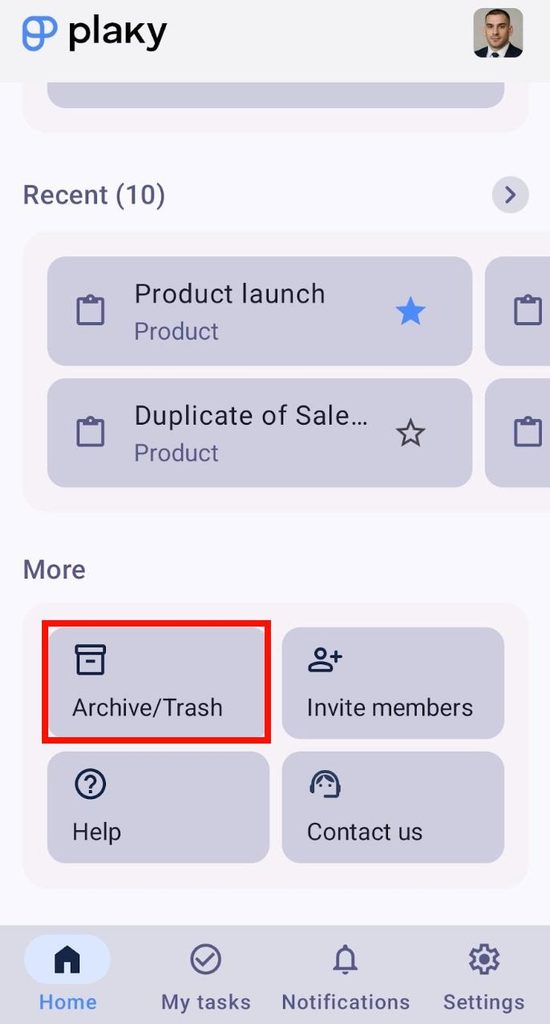
- Scroll down to the bottom of the Home screen
- Tap on Archive/Trash
From here, you can manage your archived content further.
Actions in Archive #
You can view, restore, or move content to Trash in the Archive section.
You can only view Items in the Archive.
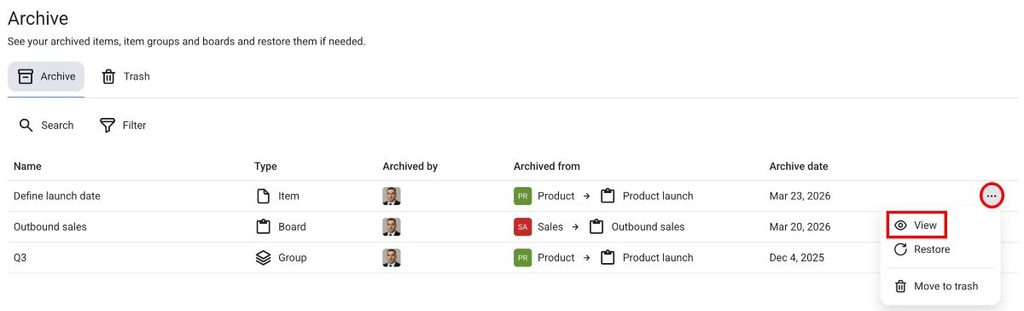
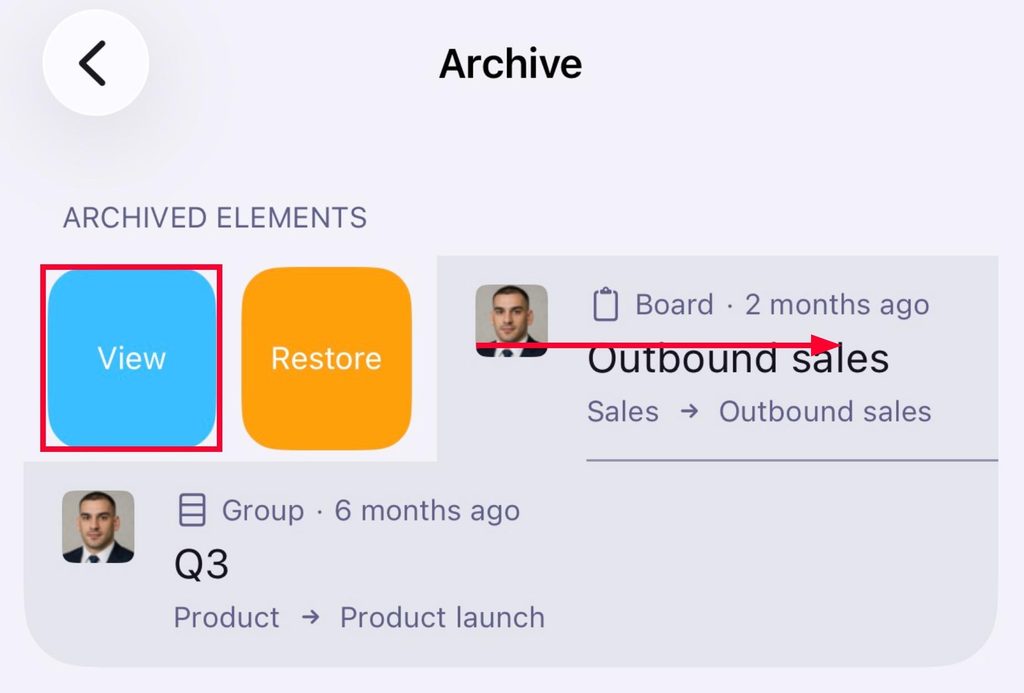
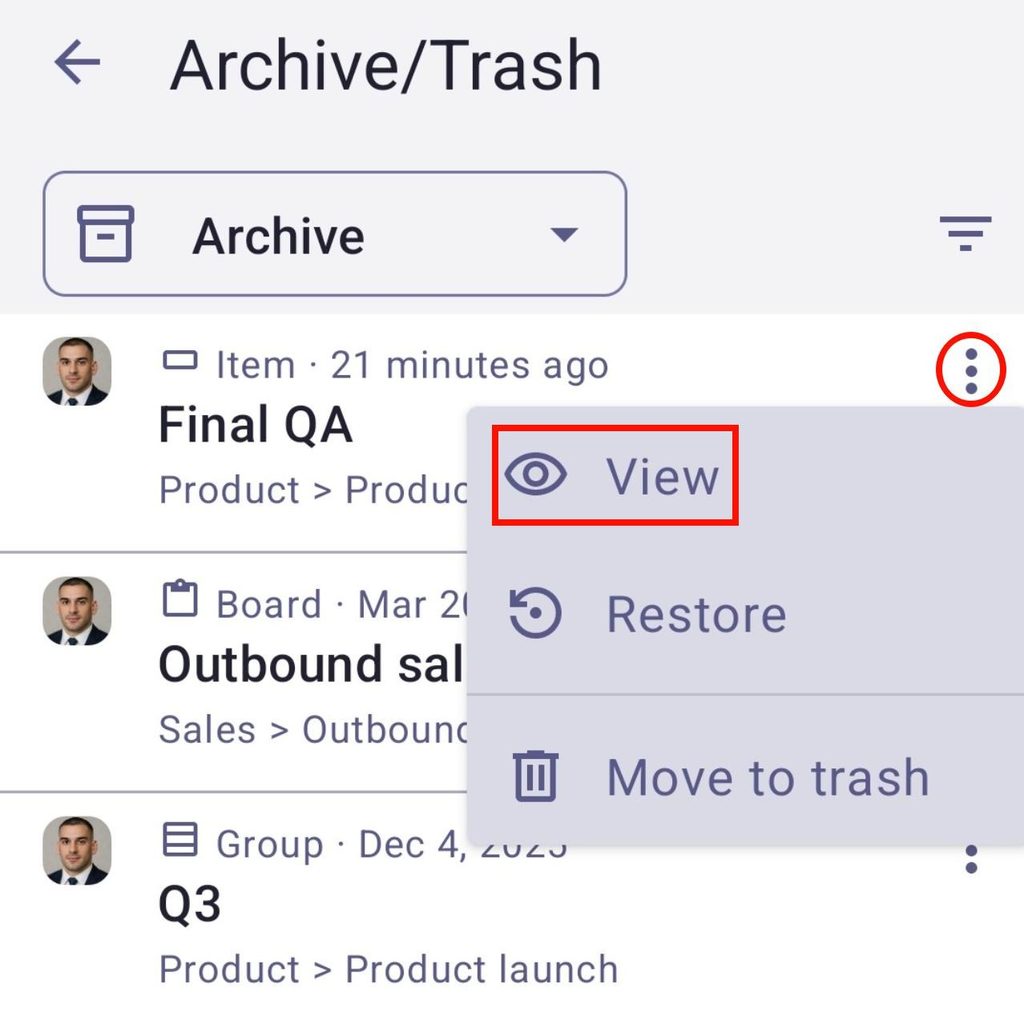
To view content in the Archive:
- Open the Archive panel
- Click on the three dots on the right side
- Click on View
- Open the Archive
- Swipe right on an Item
- Tap View
- Open Archive/Trash
- Tap on the three dots next to the archived content
- Tap View
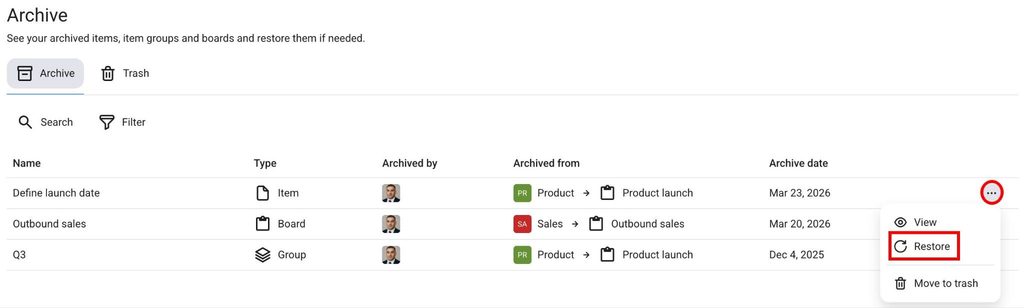
To restore content from the Archive:
- Open the Archive panel
- Click on the three dots on the right side
- Click on Restore
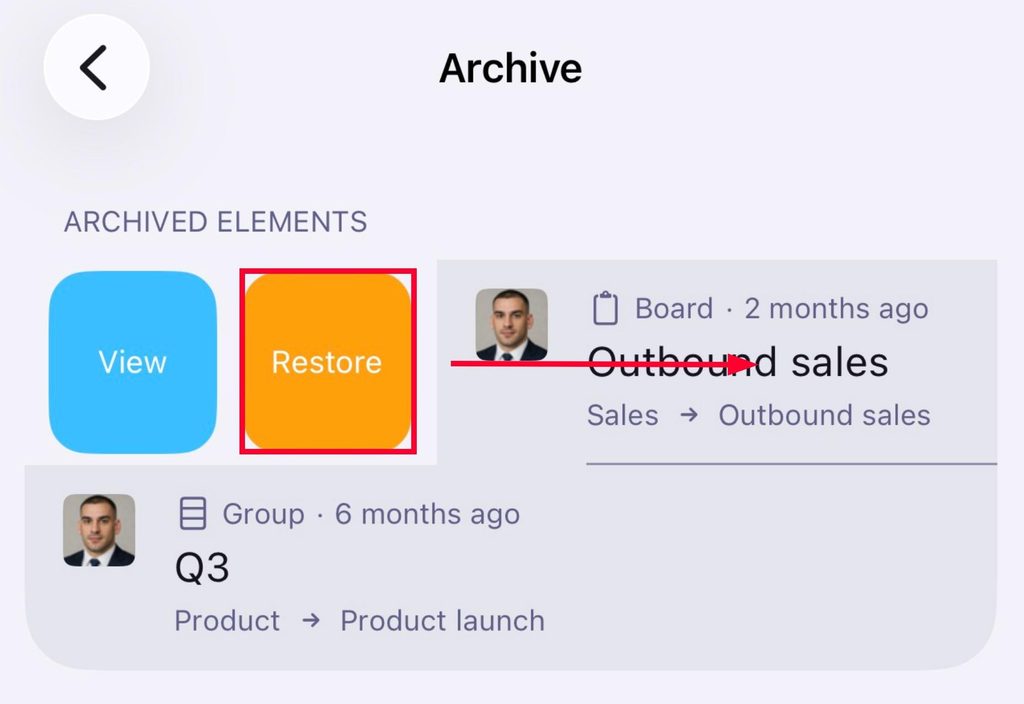
- Open the Archive
- Swipe right on content
- Tap on Restore
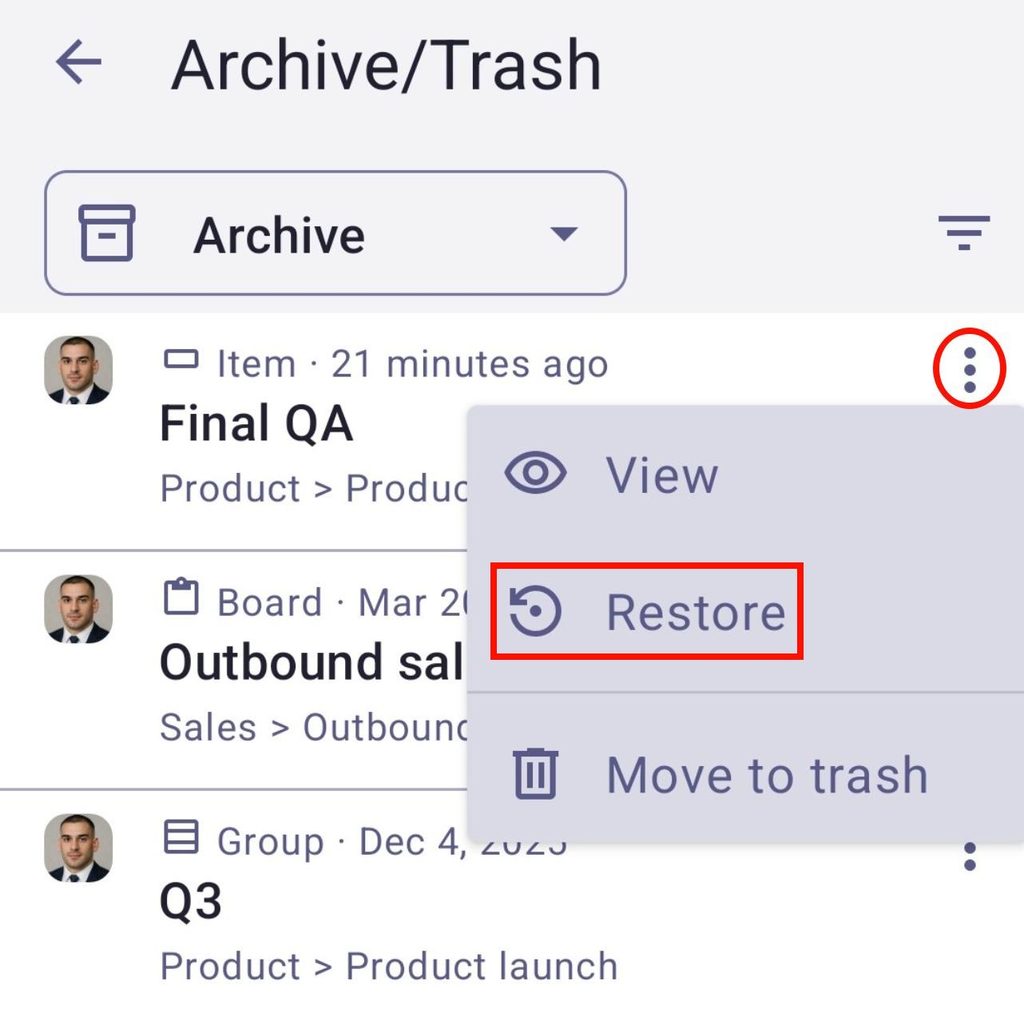
- Open Archive/Trash
- Tap on the three dots next to the archived content
- Tap Restore
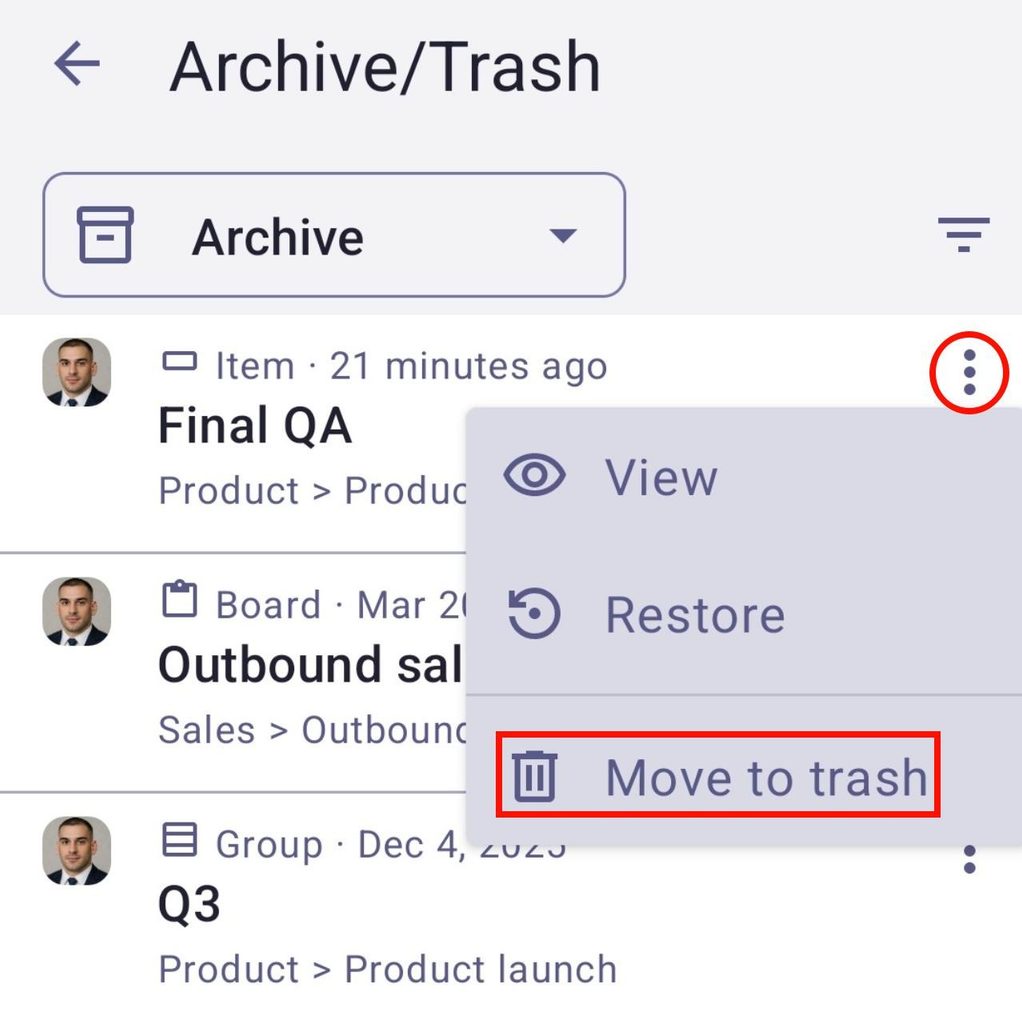
To move content to Trash from the Archive:
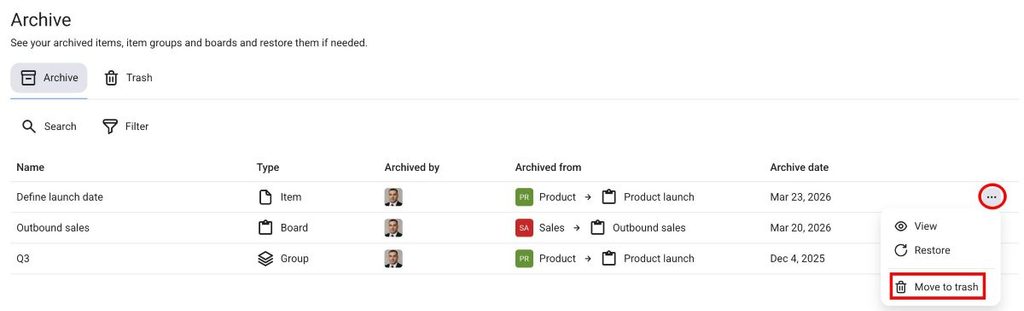
- Open the Archive panel
- Click on the three dots on the right side
- Click on Move to trash
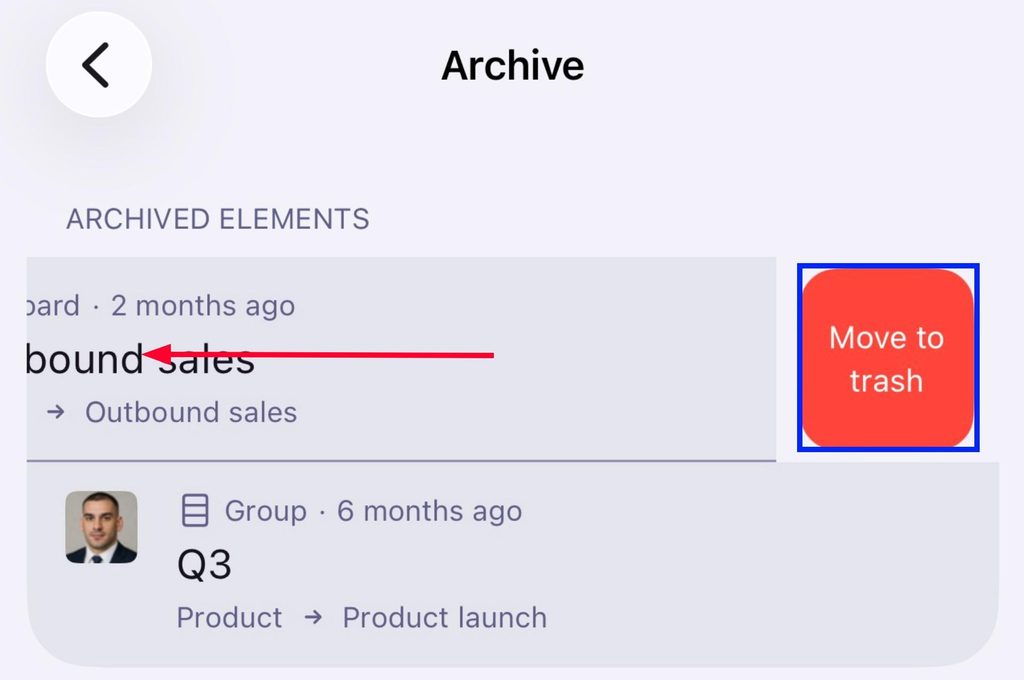
- Open the Archive
- Swipe left on content
- Tap on Move to trash
- Open Archive/Trash
- Tap on the three dots next to the archived content
- Tap Move to trash
Trash section #
The Trash section holds all deleted content in your Plaky Workspace for 30 days. The content ends up in Trash when you delete a Board, Item group, Item, or Subitem, or when you move archived content to Trash from the Archive panel.
After the 30-day period passes, the content in the Trash section will be permanently deleted.
Access the Trash section #
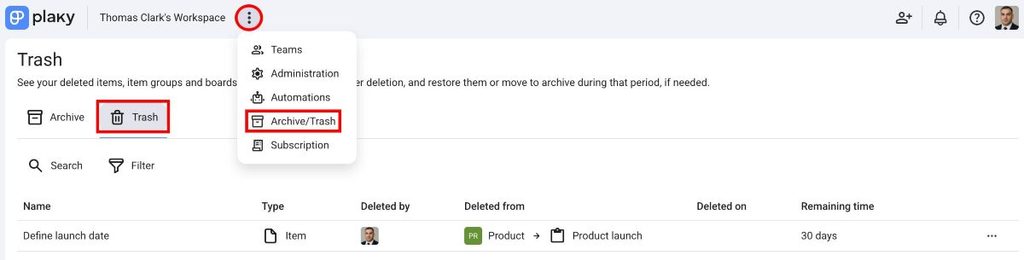
You can access the Trash section by following these steps:
- Klicke auf die drei Punkte neben dem Namen deines Arbeitsbereichs
- Click on Archive/Trash
- Select the Trash panel
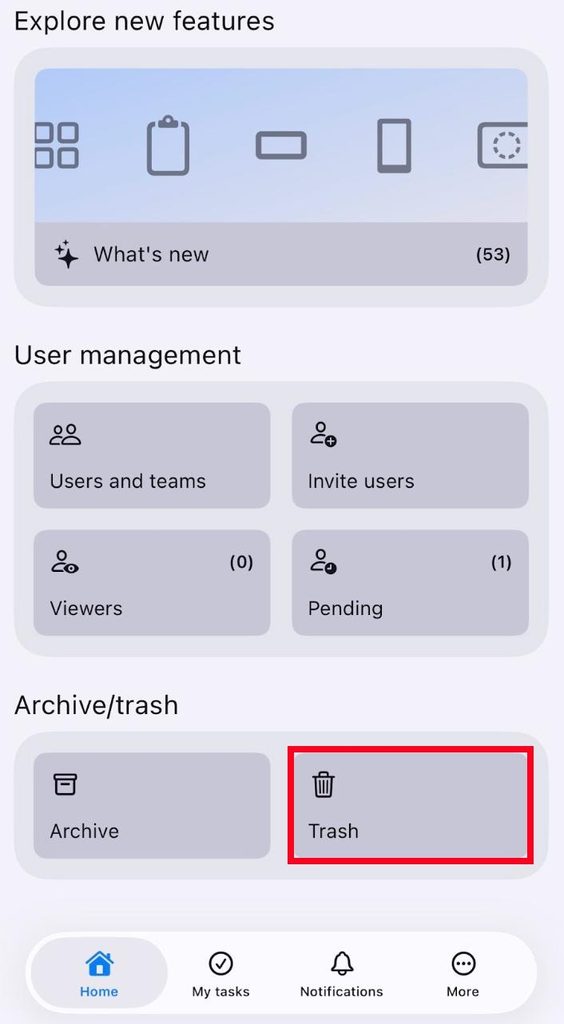
- Scroll down to the bottom of the Home screen
- Tap on Trash
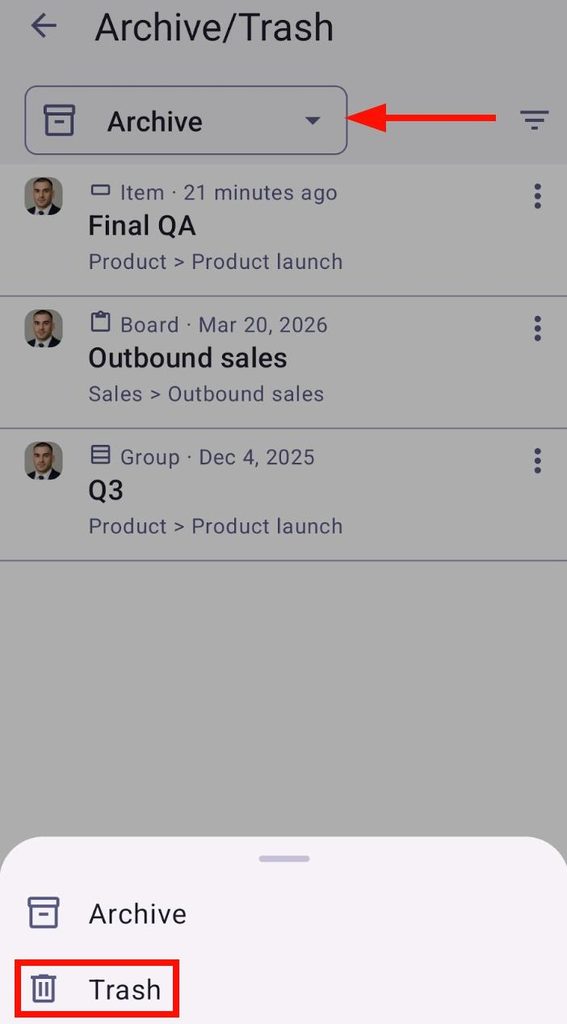
- Scroll down to the bottom of the Home screen
- Tap on Archive/Trash
- Wähle Papierkorb aus dem Dropdown-Menü
Actions in Trash #
You can perform the following actions from the Trash panel.
To view content from Trash:
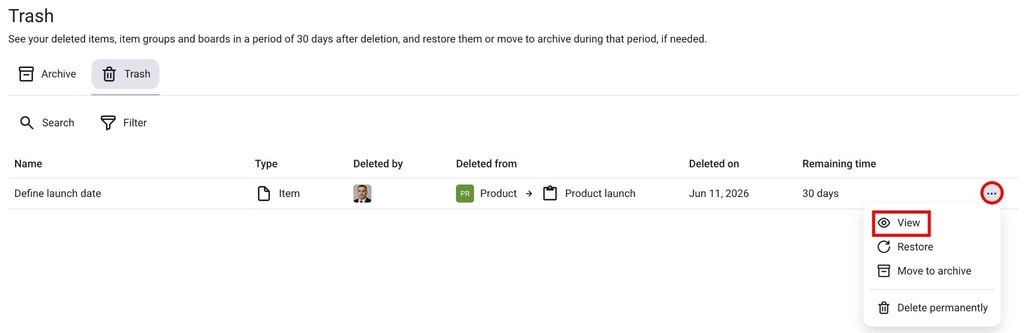
- Open the Trash panel
- Click on the three dots on the right side of the deleted entity
- Wähle Anzeigen
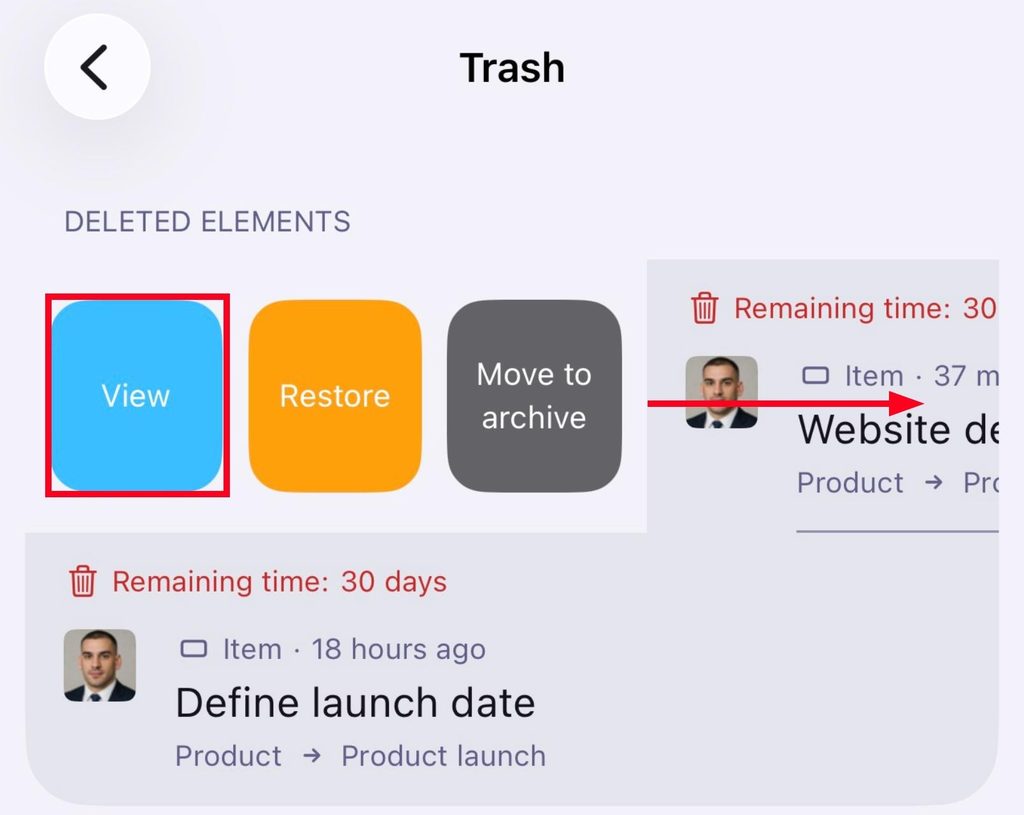
- Open Trash
- Swipe right on an Item
- Tap on View
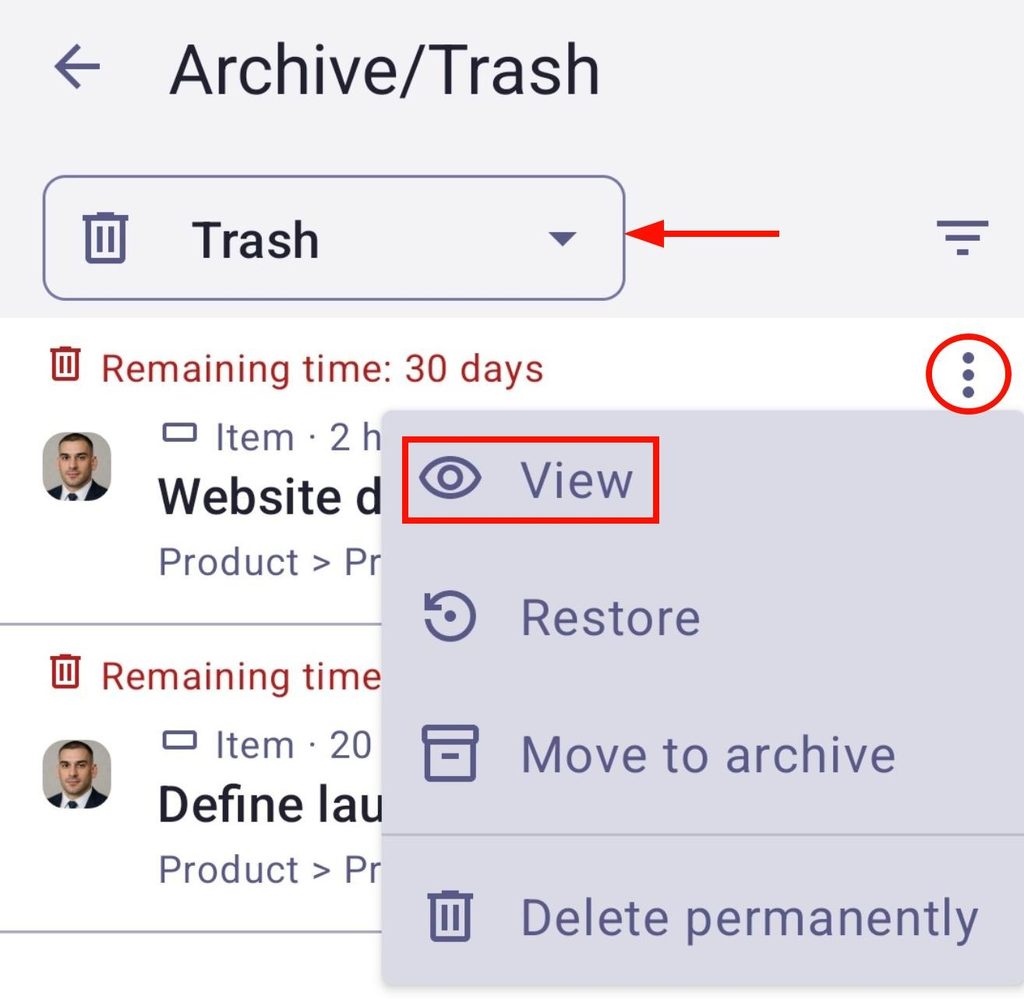
- Open Trash
- Tap on the three dots next to the content
- Tap on View
To restore content from Trash:
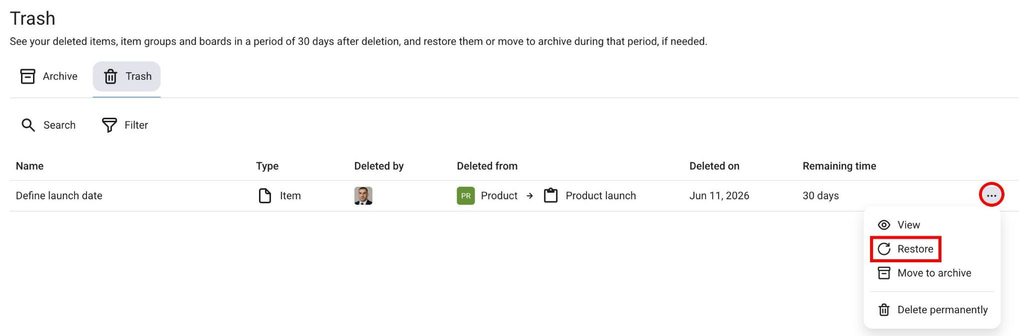
- Open the Trash panel
- Click on the three dots on the right side of the deleted entity
- Click on Restore
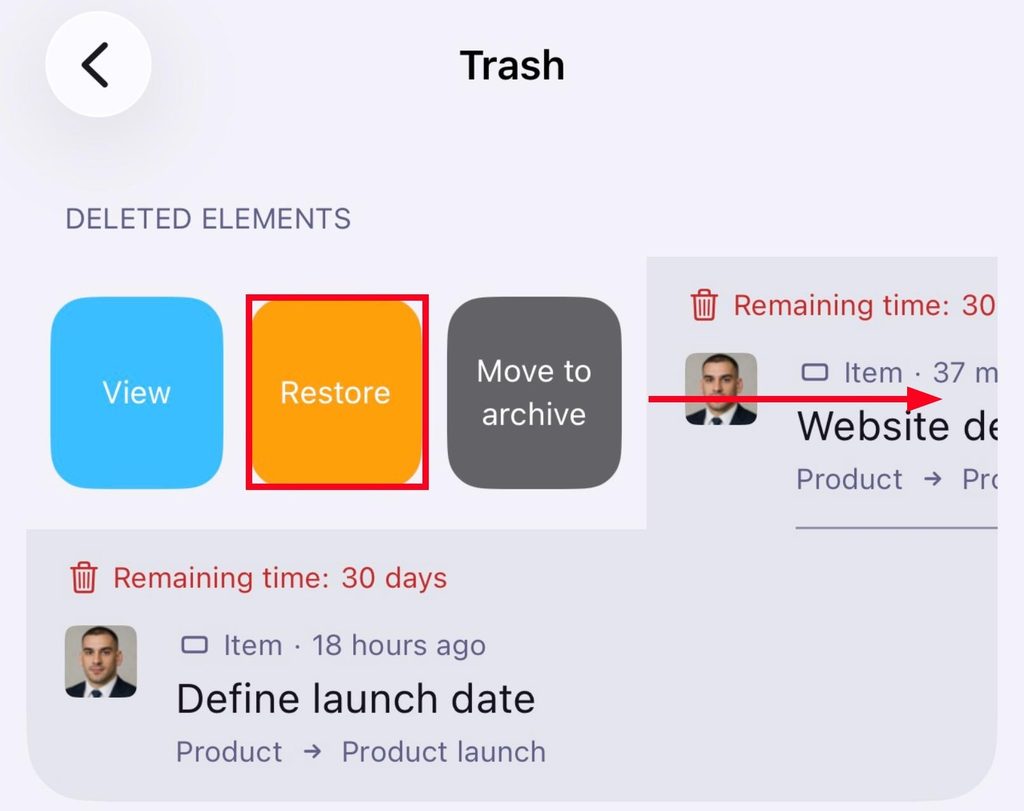
- Open the Trash
- Swipe right on an Item
- Tap on Restore
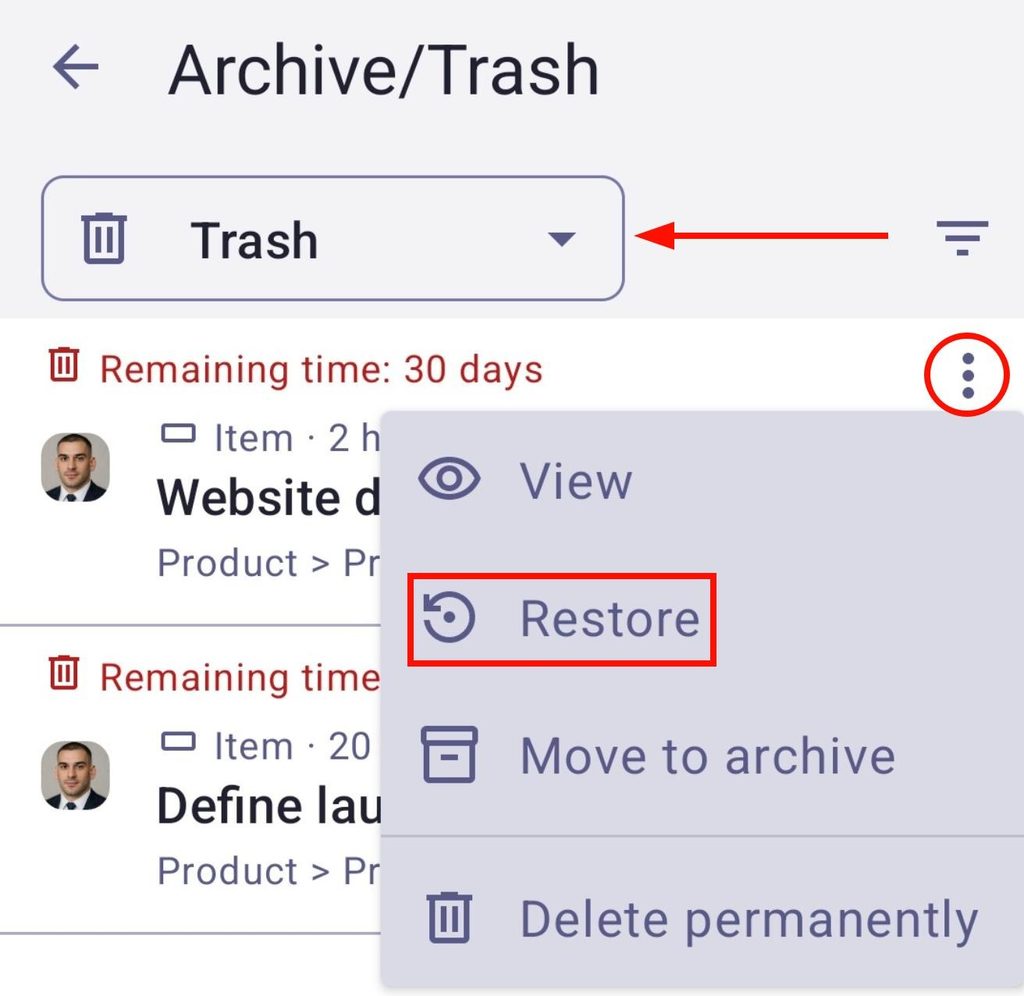
- Open Trash
- Tap on the three dots next to the content
- Tap on Restore
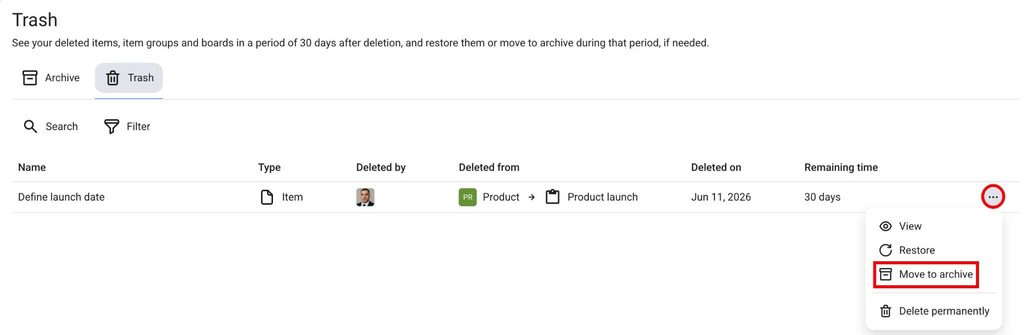
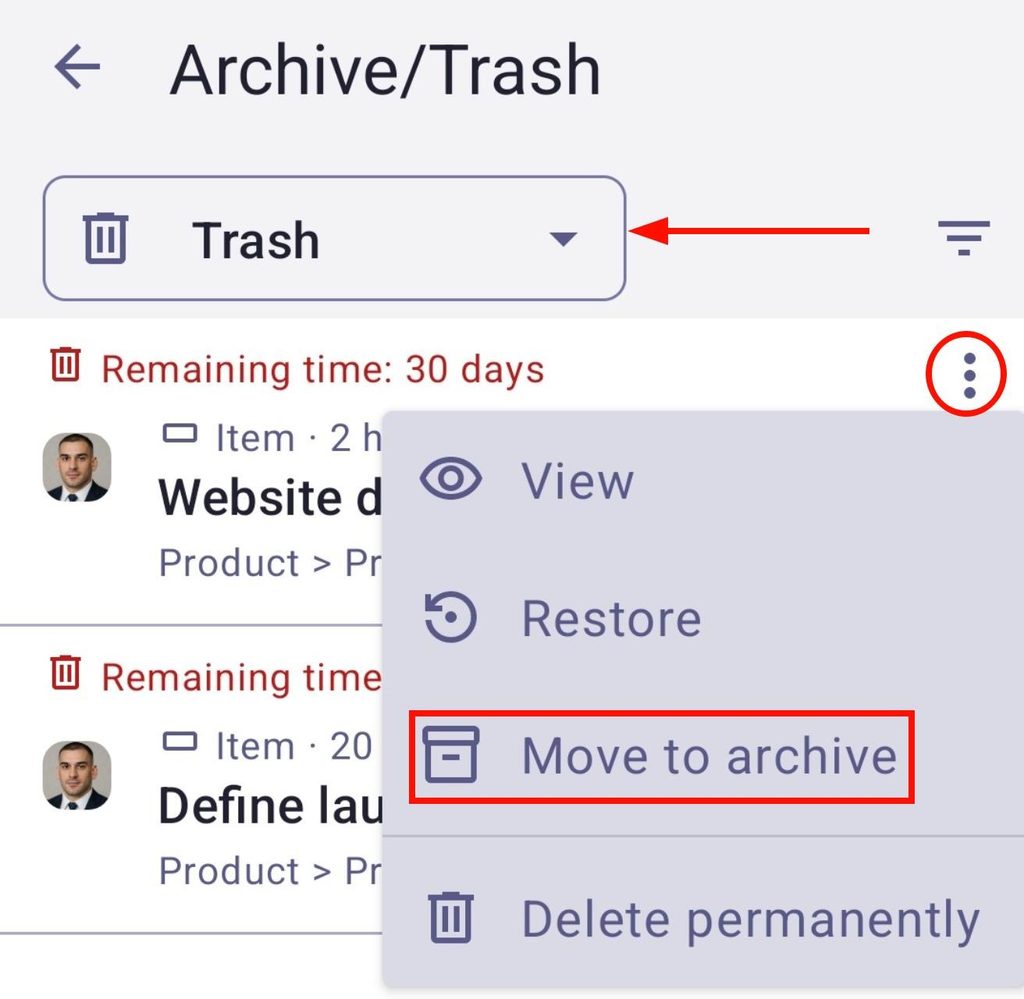
To move content to Archive from Trash:
- Open the Trash panel
- Click on the three dots on the right side of the deleted entity
- Click on Move to archive
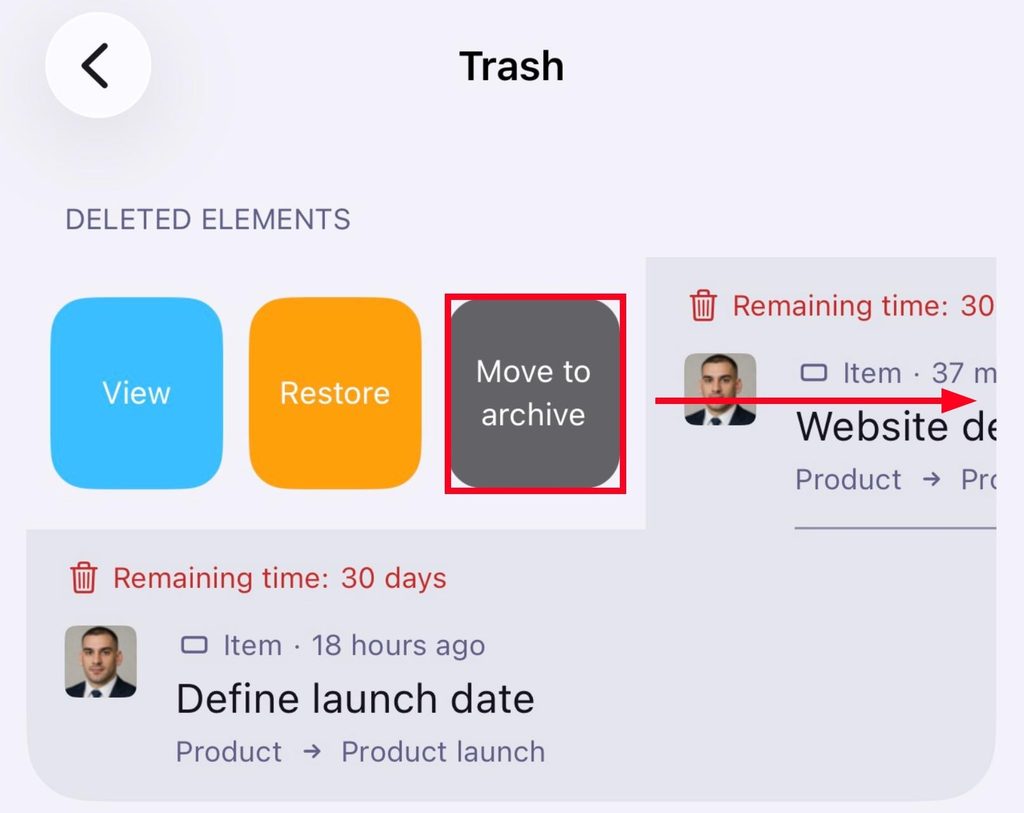
- Open the Trash
- Swipe right on an Item
- Tap on Move to archive
- Open Trash
- Tap on the three dots next to the content
- Tap on Move to archive
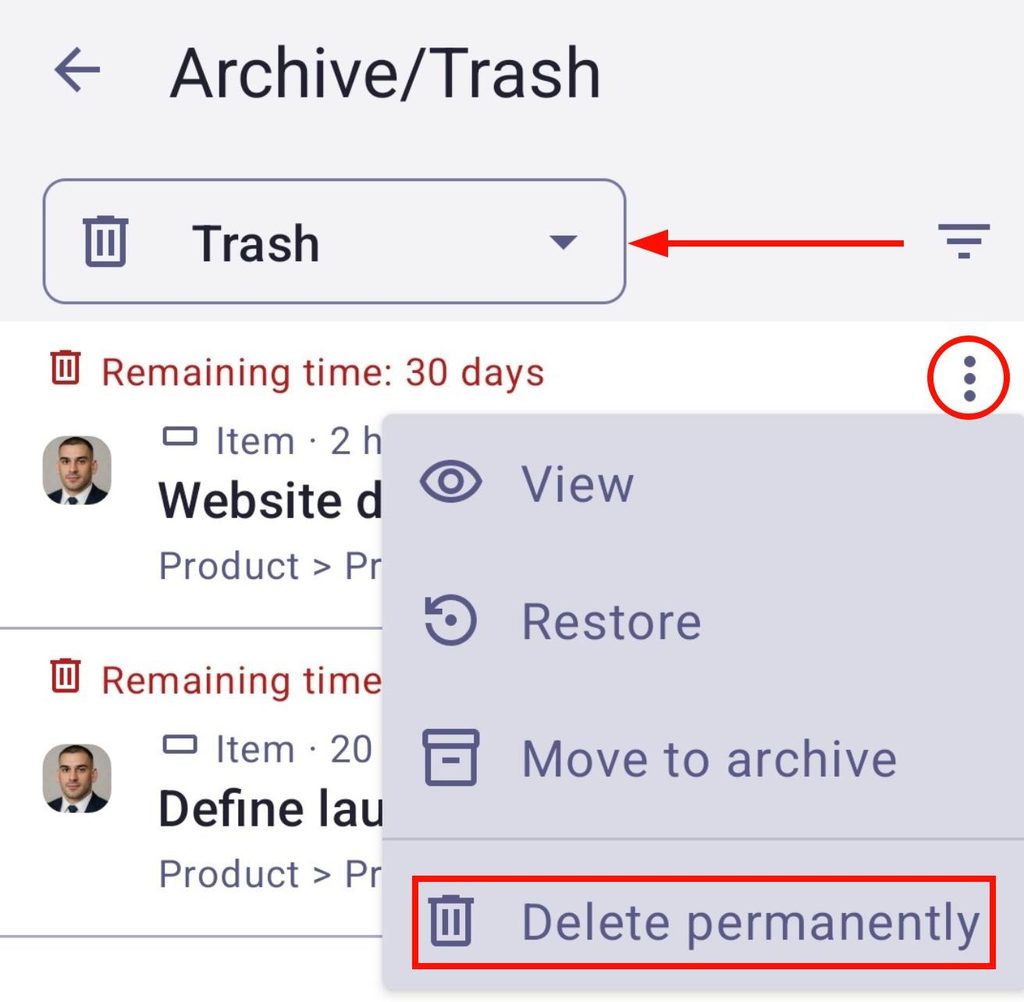
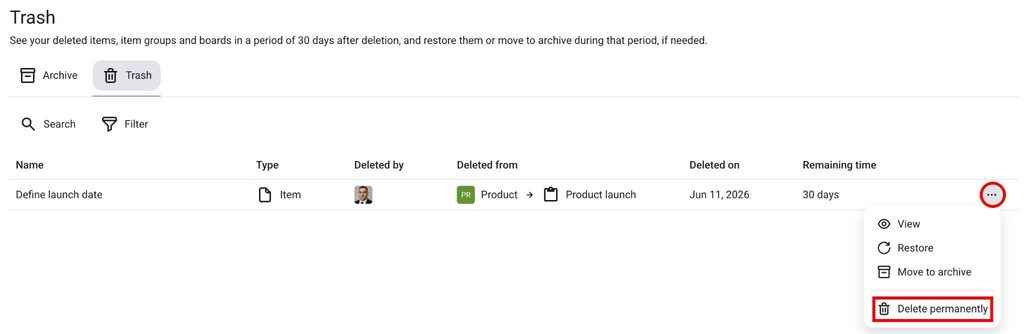
To delete content permanently from Trash:
- Open the Trash panel
- Click on the three dots on the right side of the deleted entity
- Click on Delete permanently
- Bestätige die Aktion
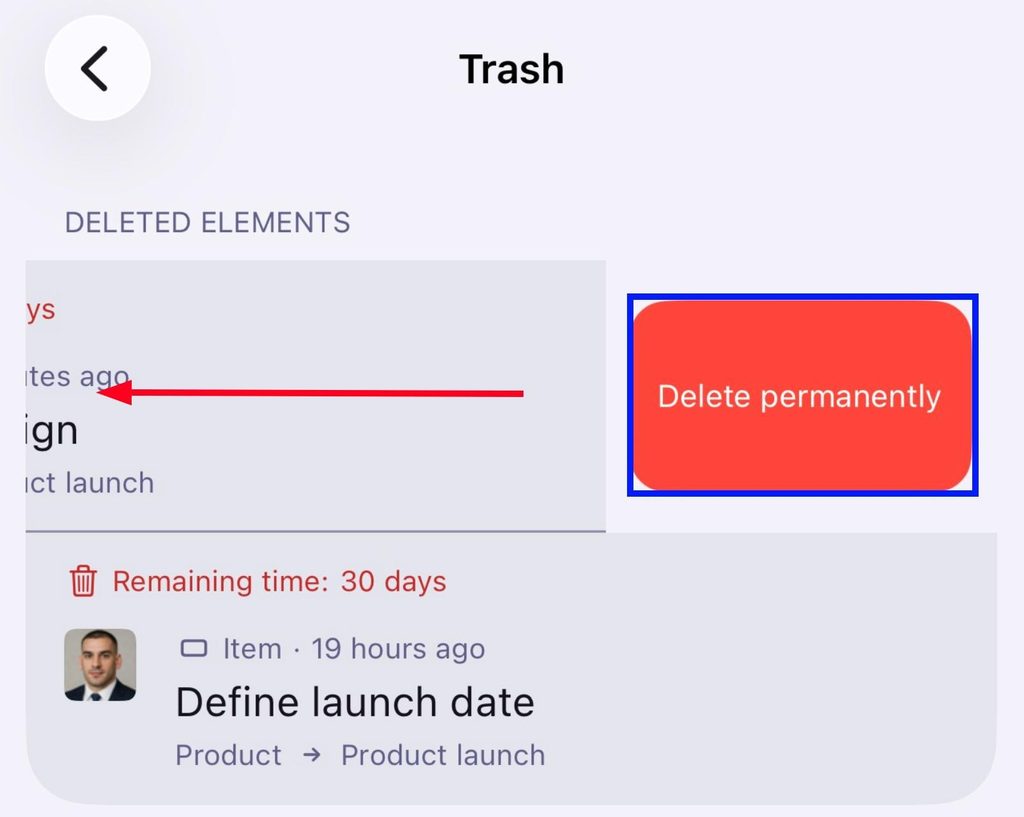
- Open the Trash
- Swipe left on the content
- Tap on Delete permanently
- Bestätige die Aktion
- Open Trash
- Tap on the three dots next to the content
- Tap on Move to archive
- Bestätige die Aktion